
People Soft Financials Basic Navigation Tina Fletcher Financial

People. Soft Financials Basic Navigation Tina Fletcher Financial Information Systems & Reporting Controller’s Division 1
Agenda • General Overview • Basic Navigation 2
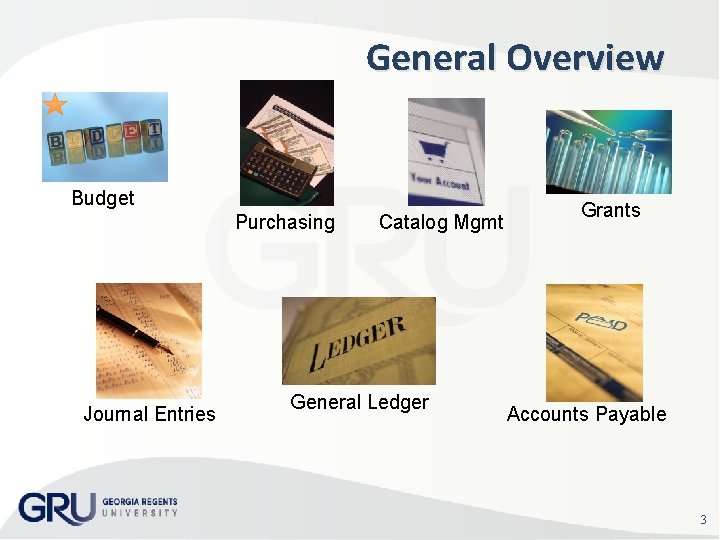
General Overview Budget Purchasing Journal Entries Catalog Mgmt General Ledger Grants Accounts Payable 3
Hands-on PS Financials Training Classes e. Procurement Requisitions & Health e. Shop – Learn how to enter e. Pro Requisitions into the system to purchase goods and services. PS Tools for Grants – Learn how to use the MCG Grant pages and reports to help you manage your Grant account. Delivered Reports and Inquiries – Learn how to run Budget reports and inquiries to help manage your budget. Basic Query Training – Learn how to run a Public query and modify a query to save as your private query. 4
People. Soft Financials Training Documents People. Soft Financials http: //www. gru. edu/finance/peoplesoft/index. php Financial Training Documents http: //www. gru. edu/finance/controller/training/index. php 5
Request for Login You will not be automatically setup in PS Financials because you have attended the Basic Navigation class Your department must submit a People. Soft Financials Security Access Request Form requesting your access The Security Form is available on the People. Soft website at: http: //www. gru. edu/finance/peoplesoft/documents/ peoplesoft_security_access. pdf 6
Request for Login – Cont’d How Do I Know What to Check on the Form? – We have created a document under the Security Information and Forms link on the People. Soft Website with a document called: • • What access is given when I check a box on the Security Form? The link to this document is below: http: //www. gru. edu/finance/peoplesoft/v 89_security_form_e nd_user_details. xls 7
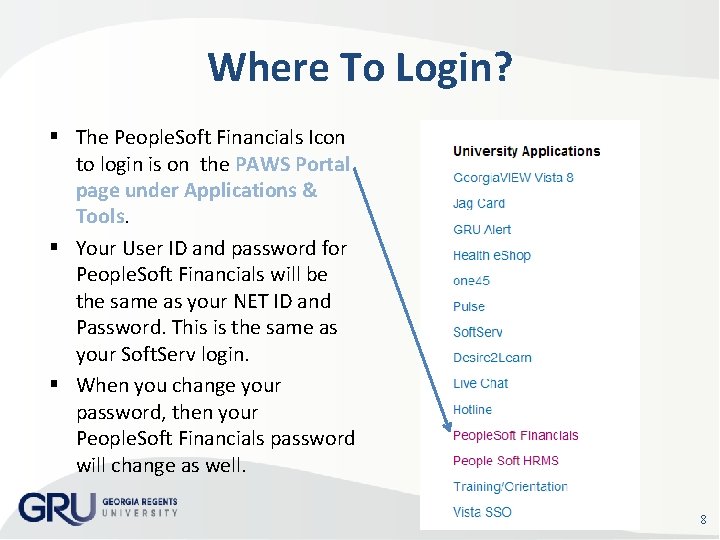
Where To Login? The People. Soft Financials Icon to login is on the PAWS Portal page under Applications & Tools. Your User ID and password for People. Soft Financials will be the same as your NET ID and Password. This is the same as your Soft. Serv login. When you change your password, then your People. Soft Financials password will change as well. 8
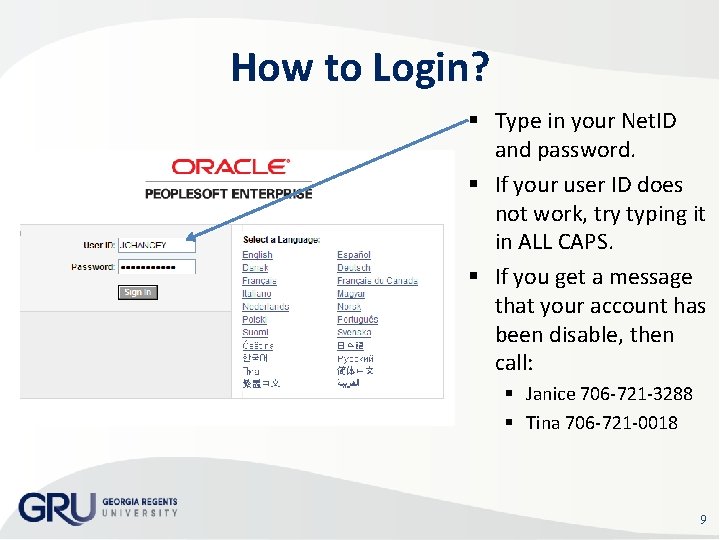
How to Login? Type in your Net. ID and password. If your user ID does not work, try typing it in ALL CAPS. If you get a message that your account has been disable, then call: Janice 706 -721 -3288 Tina 706 -721 -0018 9
PS Financials Security • Never leave your system unattended • Lock your desktop when you leave your desk – CTRL-ALT-DEL and click on Lock Workstation • Do not share your password • Do not let someone use your Net ID 10
People. Soft Financials Basic Navigation 11
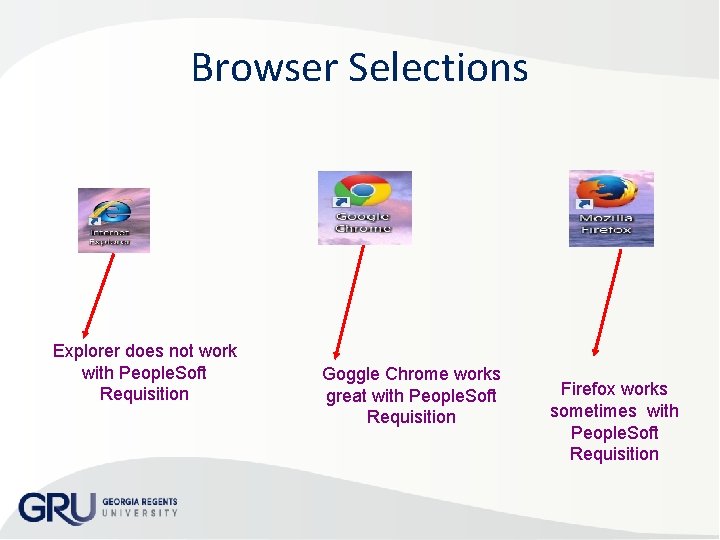
Browser Selections Explorer does not work with People. Soft Requisition Goggle Chrome works great with People. Soft Requisition Firefox works sometimes with People. Soft Requisition
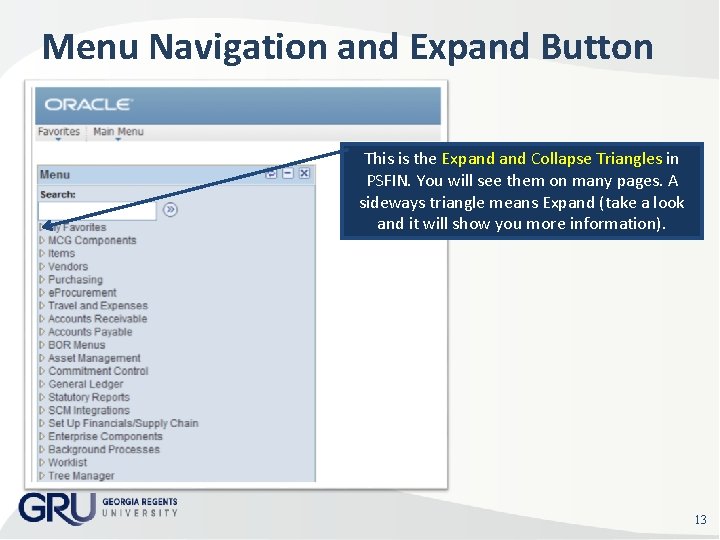
Menu Navigation and Expand Button This is the Expand Collapse Triangles in PSFIN. You will see them on many pages. A sideways triangle means Expand (take a look and it will show you more information). 13
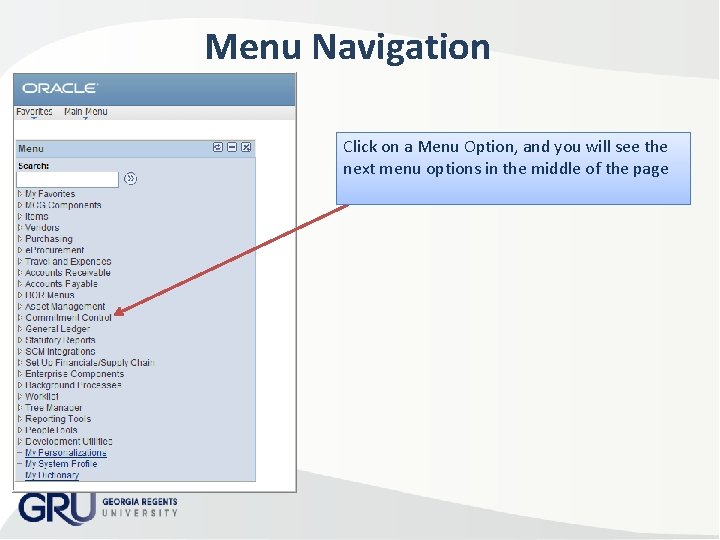
Menu Navigation Click on a Menu Option, and you will see the next menu options in the middle of the page
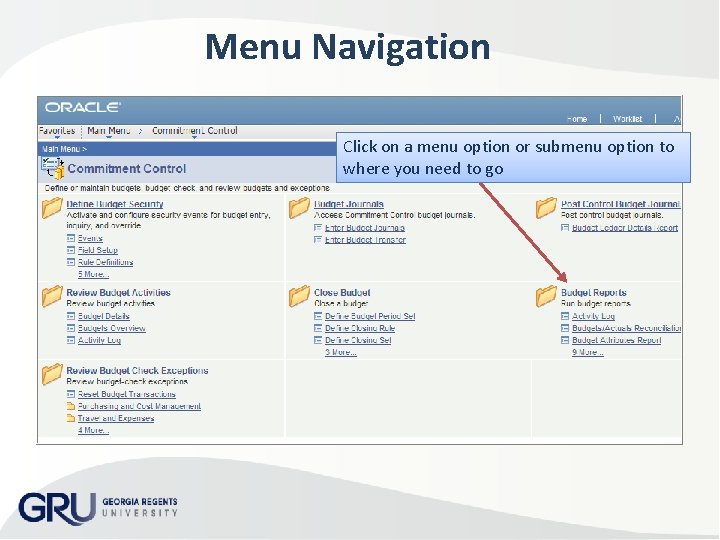
Menu Navigation Click on a menu option or submenu option to where you need to go
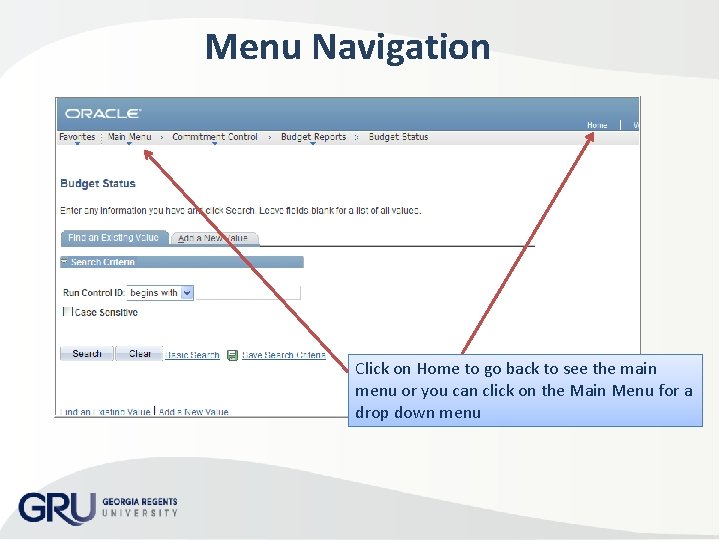
Menu Navigation Click on Home to go back to see the main menu or you can click on the Main Menu for a drop down menu
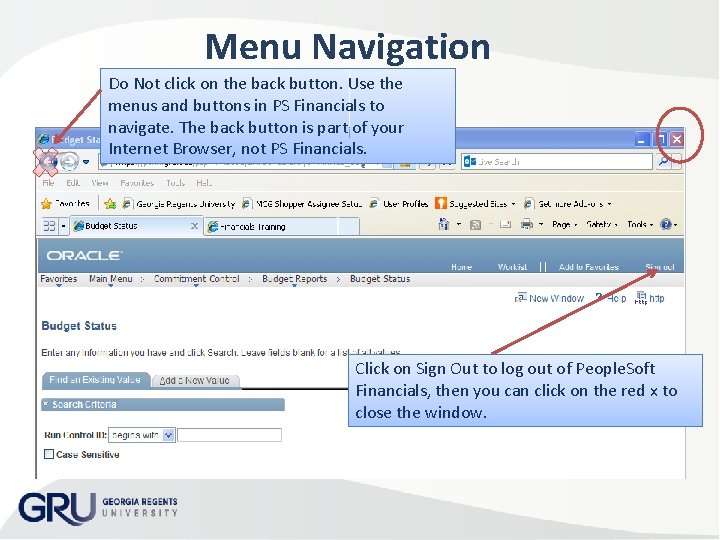
Menu Navigation Do Not click on the back button. Use the menus and buttons in PS Financials to navigate. The back button is part of your Internet Browser, not PS Financials. Click on Sign Out to log out of People. Soft Financials, then you can click on the red x to close the window.
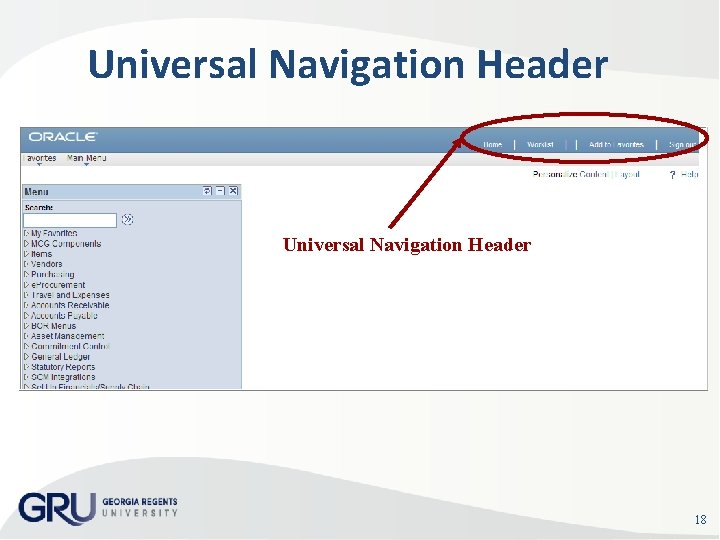
Universal Navigation Header 18
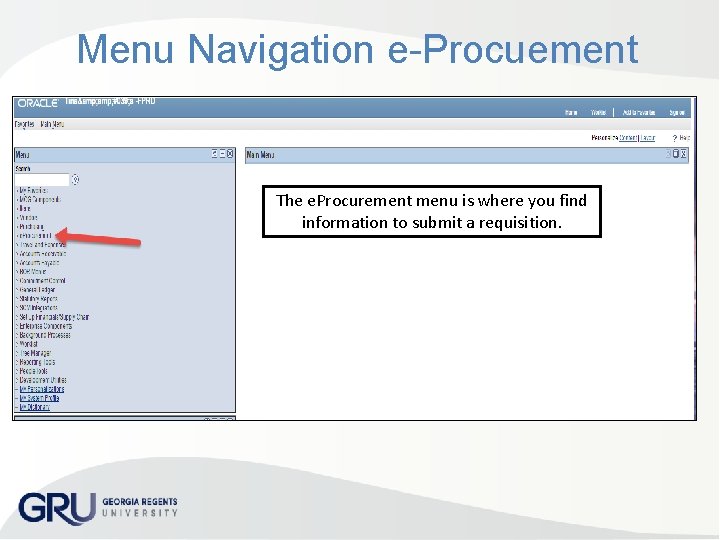
Menu Navigation e-Procuement The e. Procurement menu is where you find information to submit a requisition.
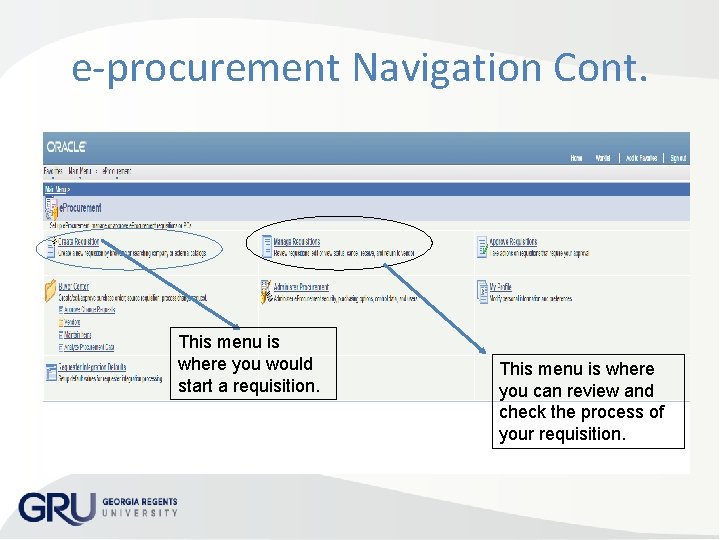
e-procurement Navigation Cont. This menu is where you would start a requisition. This menu is where you can review and check the process of your requisition.
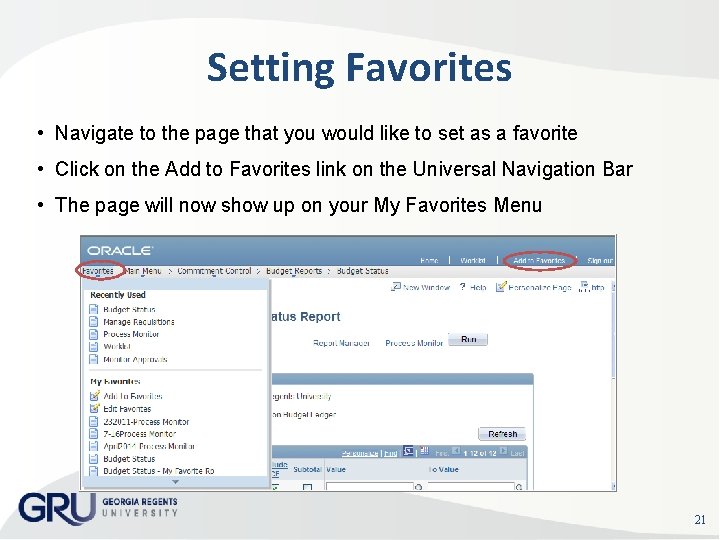
Setting Favorites • Navigate to the page that you would like to set as a favorite • Click on the Add to Favorites link on the Universal Navigation Bar • The page will now show up on your My Favorites Menu 21
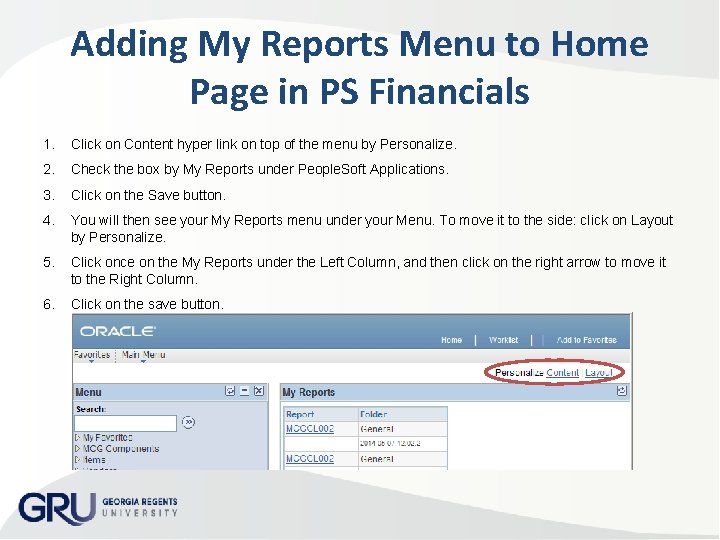
Adding My Reports Menu to Home Page in PS Financials 1. Click on Content hyper link on top of the menu by Personalize. 2. Check the box by My Reports under People. Soft Applications. 3. Click on the Save button. 4. You will then see your My Reports menu under your Menu. To move it to the side: click on Layout by Personalize. 5. Click once on the My Reports under the Left Column, and then click on the right arrow to move it to the Right Column. 6. Click on the save button.
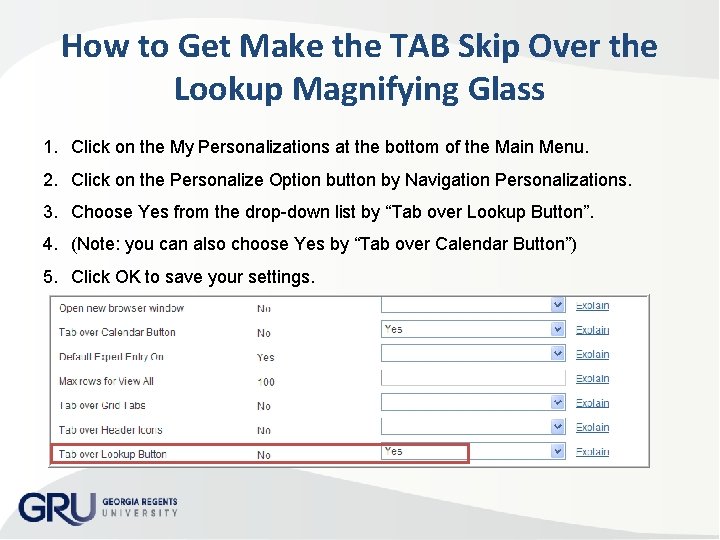
How to Get Make the TAB Skip Over the Lookup Magnifying Glass 1. Click on the My Personalizations at the bottom of the Main Menu. 2. Click on the Personalize Option button by Navigation Personalizations. 3. Choose Yes from the drop-down list by “Tab over Lookup Button”. 4. (Note: you can also choose Yes by “Tab over Calendar Button”) 5. Click OK to save your settings.
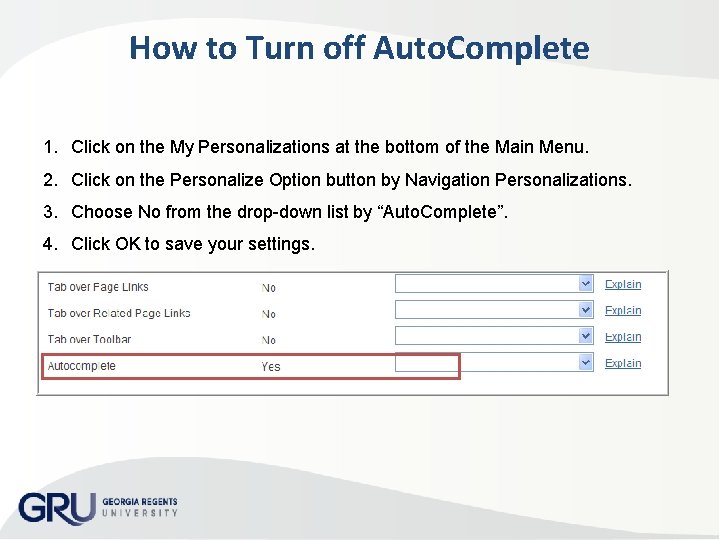
How to Turn off Auto. Complete 1. Click on the My Personalizations at the bottom of the Main Menu. 2. Click on the Personalize Option button by Navigation Personalizations. 3. Choose No from the drop-down list by “Auto. Complete”. 4. Click OK to save your settings.
If You Need Help • Financial Information Systems and Reporting – Problem resolution and general questions • Janice Chancey – 706 -721 -3288 – Requisition Workflow Approvals and Security forms • Tina Fletcher – 706 -721 -0018 – Department ID creation/editing & Authorized Signature forms • Gordon Prettelt – 706 -721 -2046 • PS_FINANCIALS@gru. edu -- email to our area • ITS Help Desk -- 721 -4000 25

Questions 26
- Slides: 26