
Pen tool Alt Can change Ctrl Ctrl Enter
- Slides: 5
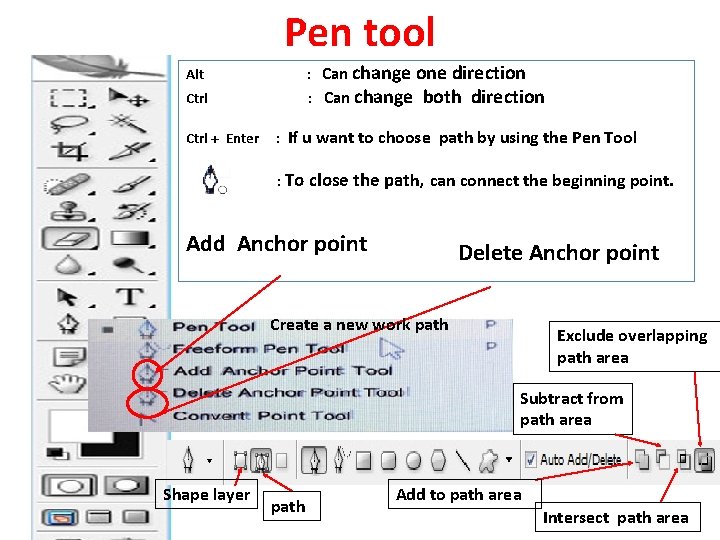
Pen tool Alt : Can change Ctrl : Ctrl + Enter : one direction Can change both direction If u want to choose path by using the Pen Tool : To close the path, can connect the beginning point. Add Anchor point Delete Anchor point Create a new work path Exclude overlapping path area Subtract from path area Shape layer path Add to path area Intersect path area
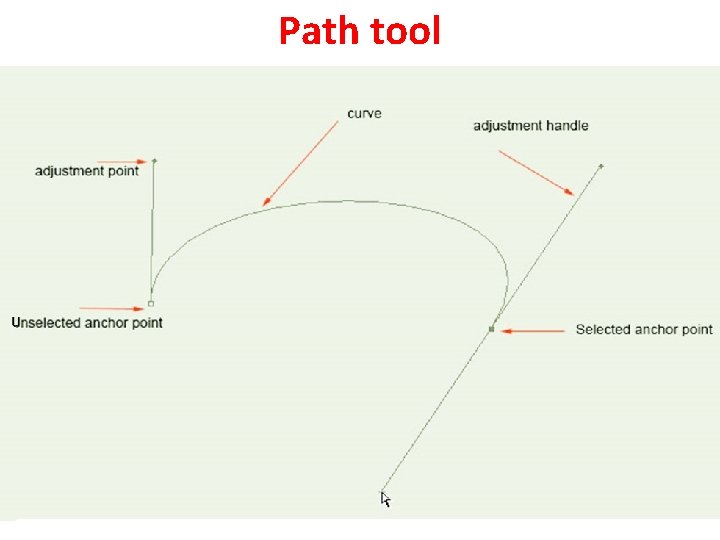
Path tool
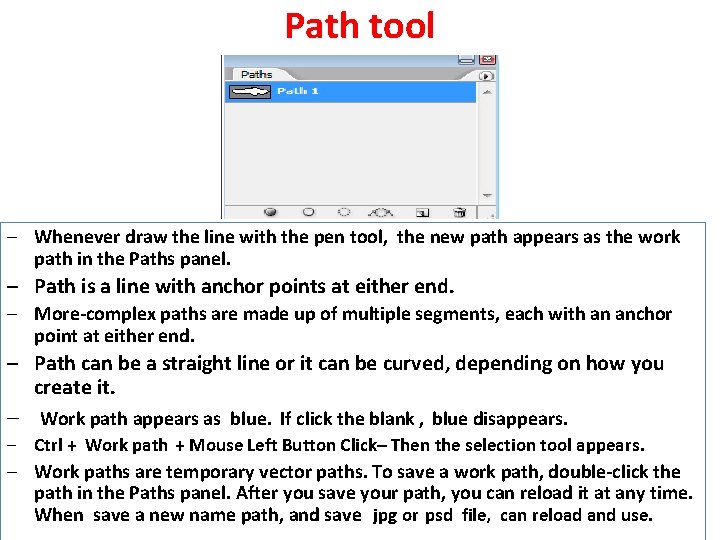
Path tool ‒ Whenever draw the line with the pen tool, the new path appears as the work path in the Paths panel. ‒ Path is a line with anchor points at either end. ‒ More-complex paths are made up of multiple segments, each with an anchor point at either end. ‒ Path can be a straight line or it can be curved, depending on how you create it. ‒ Work path appears as blue. If click the blank , blue disappears. ‒ Ctrl + Work path + Mouse Left Button Click– Then the selection tool appears. ‒ Work paths are temporary vector paths. To save a work path, double-click the path in the Paths panel. After you save your path, you can reload it at any time. When save a new name path, and save jpg or psd file, can reload and use.
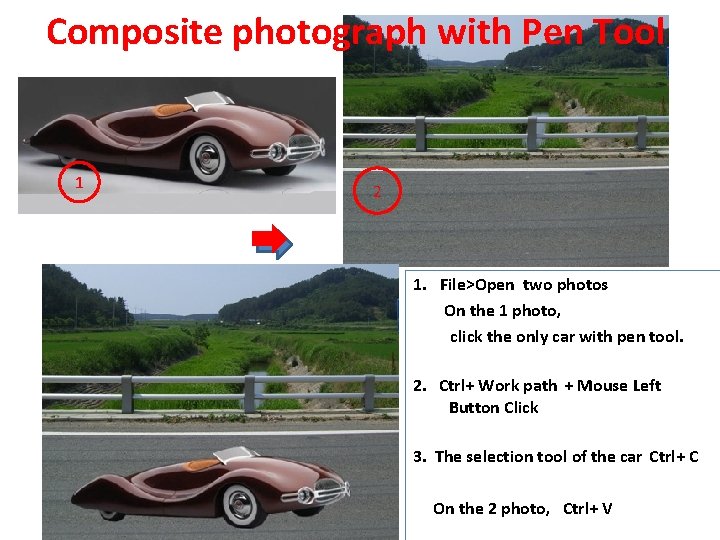
Composite photograph with Pen Tool 1 2 1. File>Open two photos On the 1 photo, click the only car with pen tool. 2. Ctrl+ Work path + Mouse Left Button Click 3. The selection tool of the car Ctrl+ C On the 2 photo, Ctrl+ V
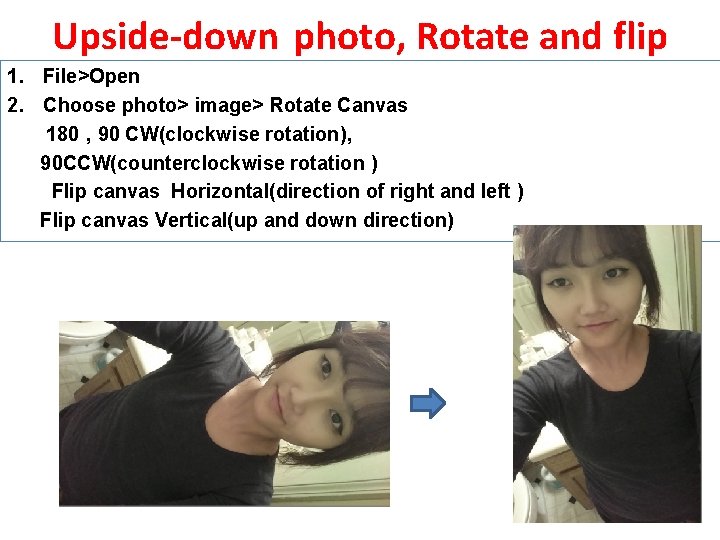
Upside-down photo, Rotate and flip 1. File>Open 2. Choose photo> image> Rotate Canvas 180 , 90 CW(clockwise rotation), 90 CCW(counterclockwise rotation ) Flip canvas Horizontal(direction of right and left ) Flip canvas Vertical(up and down direction)