
PDF Accessibility Principles Part I Crystal Monroy Project
PDF Accessibility Principles Part I Crystal Monroy, Project Analyst Kathryn Sharron, Program Manger Alen Davoudian, Senior Web Developer Universal Design Center
Training Objectives q Understand the benefits of a Portable Document Format (PDF) q Identify the accessibility tools available within Adobe Acrobat Professional q Explain key features of an accessible PDF q Evaluate converted PDF to identify inaccessible features
Today’s Topics • PDF Accessibility Principles Part I o Introduction to PDF Accessibility Tools o Creating Accessible PDF’s in Adobe Acrobat Professional o Hands-on Group Exercises
PDF Accessibility Principles Part I • Portable Document Format • PDF Accessibility Tools • Building Accessible PDF’s • Hands On Exercise
Portable Document Formats • What is a PDF? • What are the benefits of having a PDF?
Portable Document Formats üWhat is a PDF? • What are the benefits of having a PDF?
What is the best path to create an accessible PDF?
Adobe Acrobat Professional “Acrobat DC features a number of built -in accommodations for people with disabilities, as well as support for users of assistive technologies. In addition, Acrobat DC provides authors with a complete set of tools to create and optimize accessible PDF files from almost any source. ” -Adobe Accessibility
PDF Accessibility Principles Part I ü Portable Document Format • PDF Accessibility Tools • Building Accessible PDF’s • Hands On Exercise
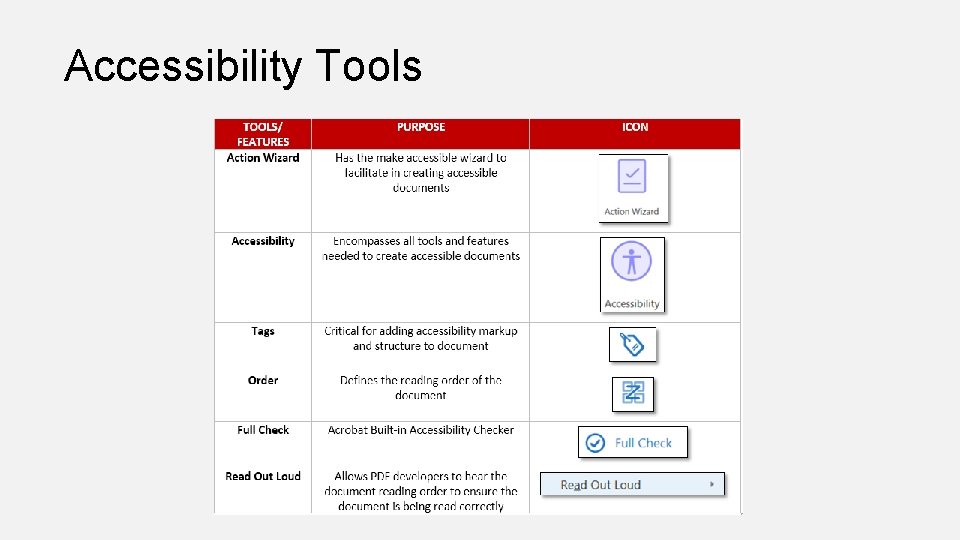
Accessibility Tools
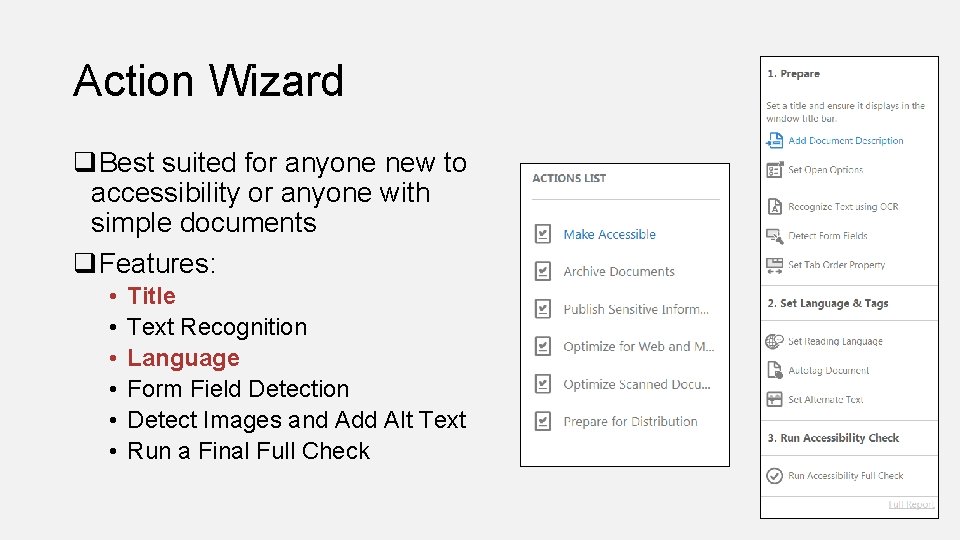
Action Wizard q. Best suited for anyone new to accessibility or anyone with simple documents q. Features: • • • Title Text Recognition Language Form Field Detection Detect Images and Add Alt Text Run a Final Full Check
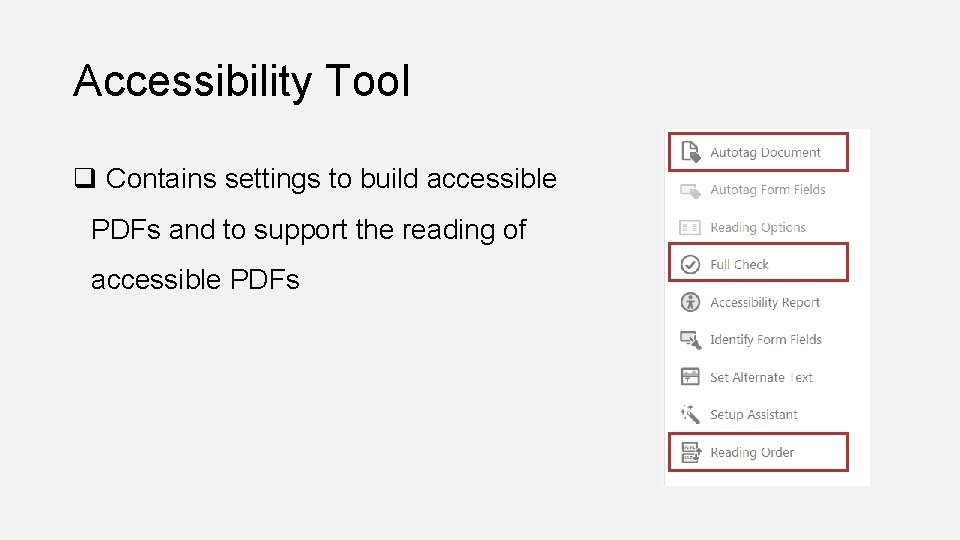
Accessibility Tool q Contains settings to build accessible PDFs and to support the reading of accessible PDFs

What are Tags?

Tags § Accessibility markup for your document
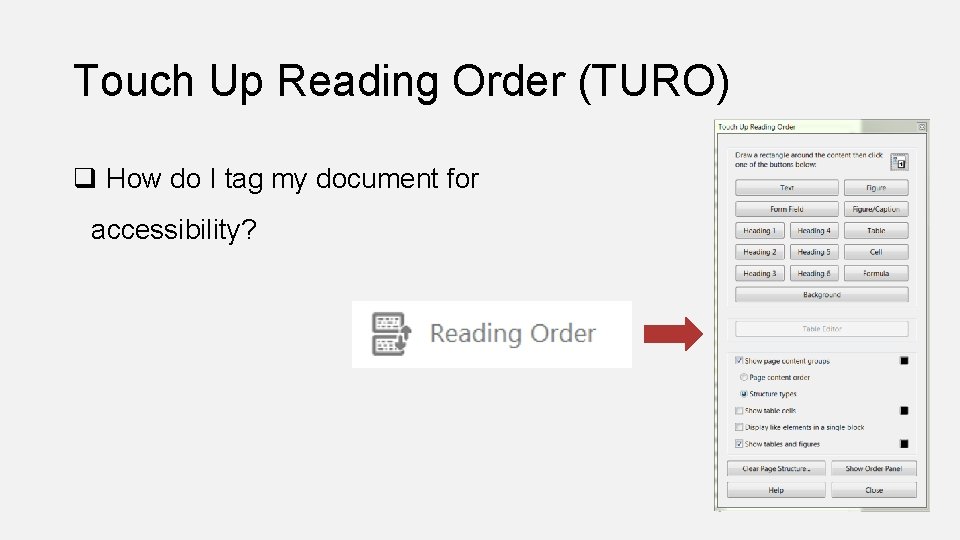
Touch Up Reading Order (TURO) q How do I tag my document for accessibility?
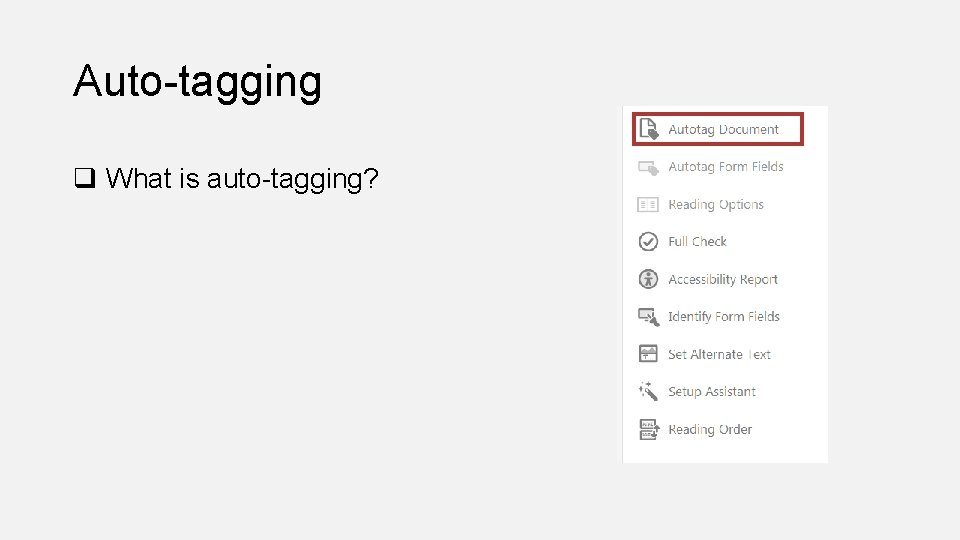
Auto-tagging q What is auto-tagging?
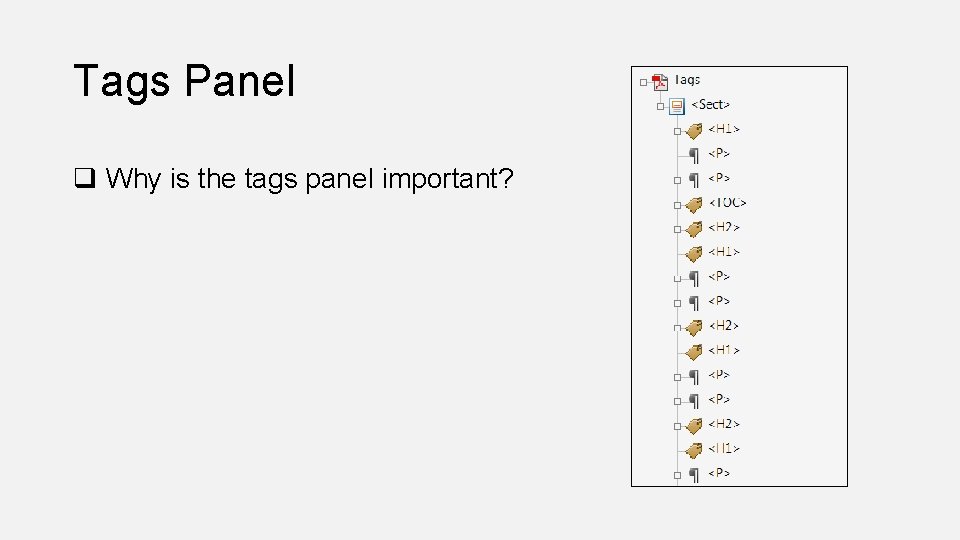
Tags Panel q Why is the tags panel important?
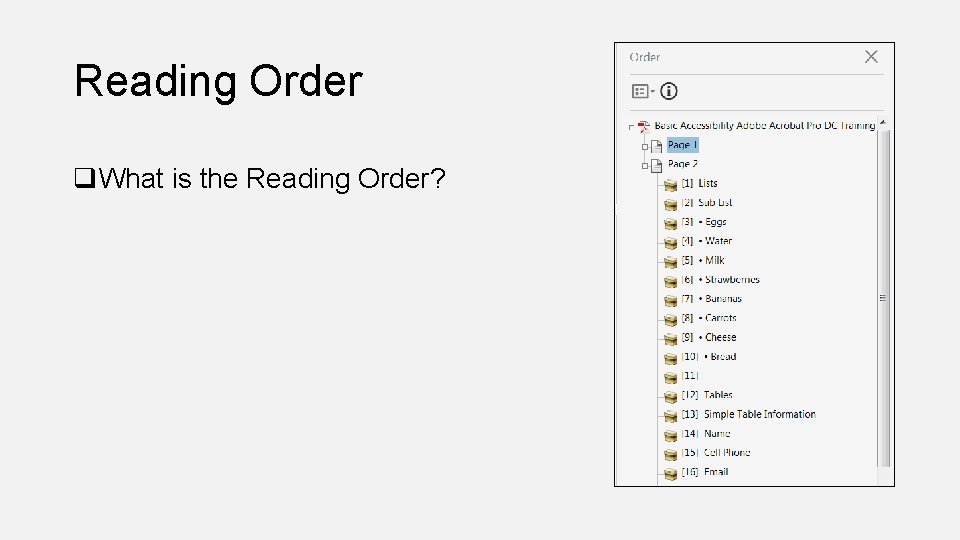
Reading Order q. What is the Reading Order?
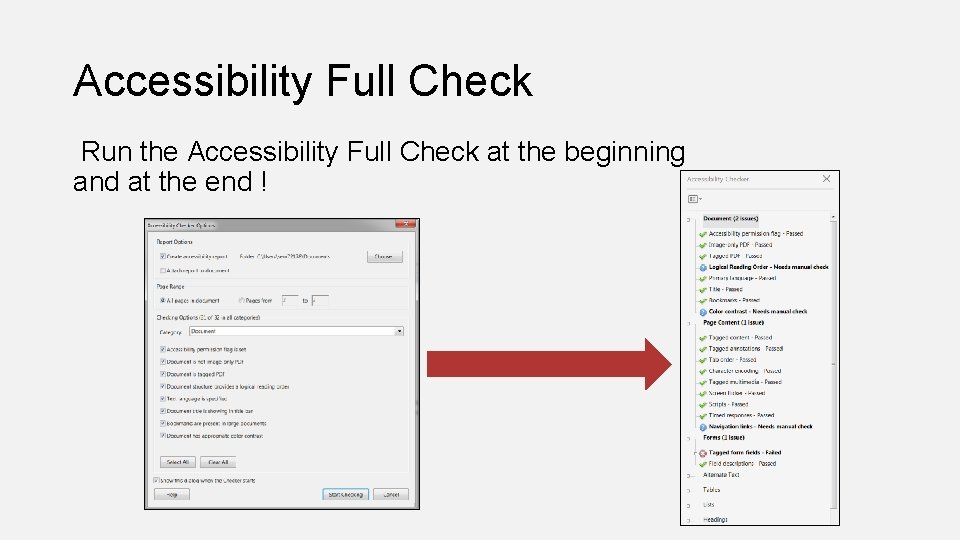
Accessibility Full Check Run the Accessibility Full Check at the beginning and at the end !
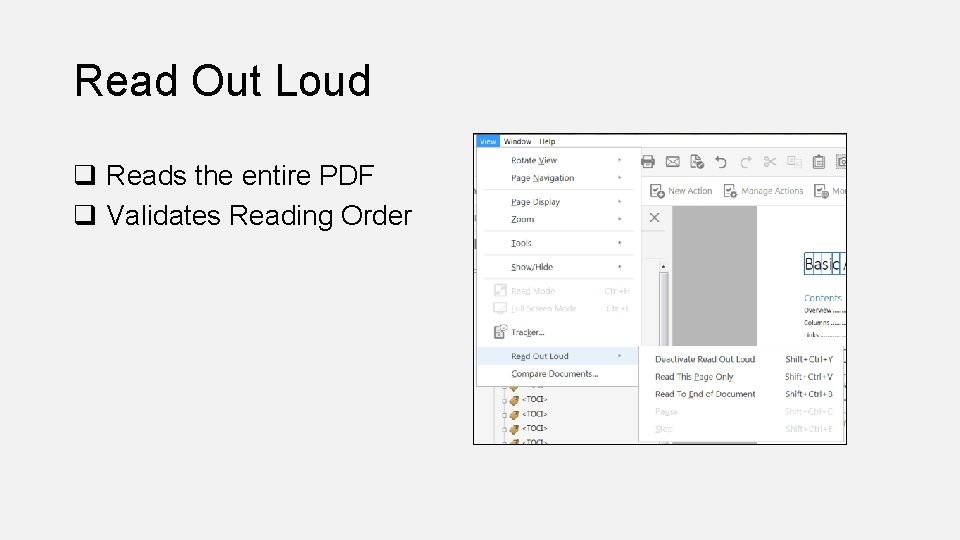
Read Out Loud q Reads the entire PDF q Validates Reading Order
PDF Accessibility Principles Part I ü Portable Document Format ü PDF Accessibility Tools • Building Accessible PDF’s • Hands On Exercise
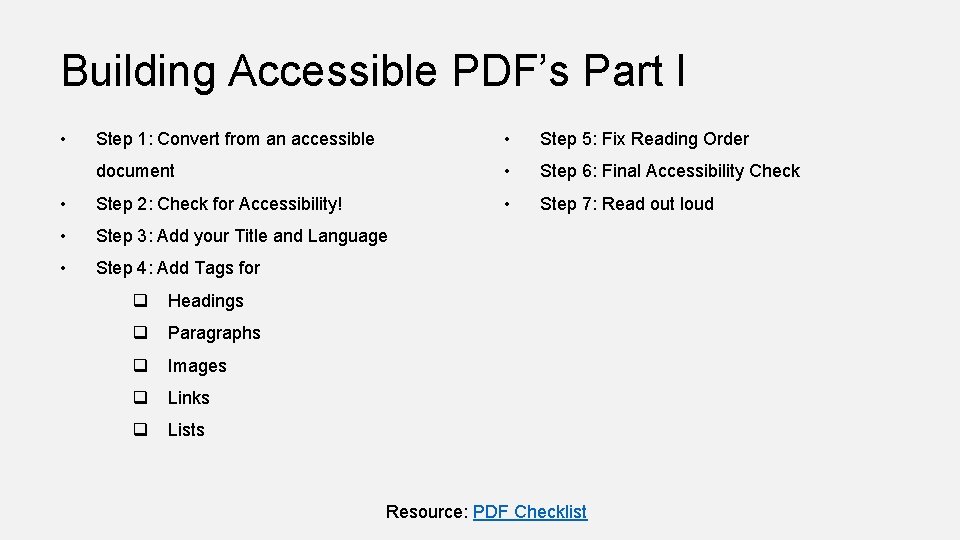
Building Accessible PDF’s Part I Step 1: Convert from an accessible • Step 5: Fix Reading Order document • Step 6: Final Accessibility Check • Step 2: Check for Accessibility! • Step 7: Read out loud • Step 3: Add your Title and Language • Step 4: Add Tags for • q Headings q Paragraphs q Images q Links q Lists Resource: PDF Checklist
Step 1: Document Conversion! q Always start with an accessible Document! § It’s always better starting with an accessible Word document § For graphic design, start off with an accessible Adobe In. Design file
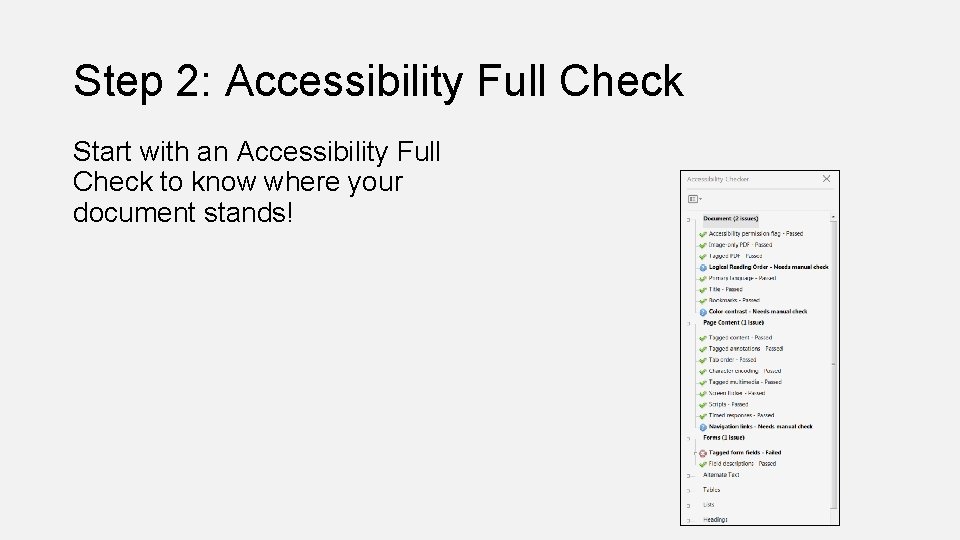
Step 2: Accessibility Full Check Start with an Accessibility Full Check to know where your document stands!
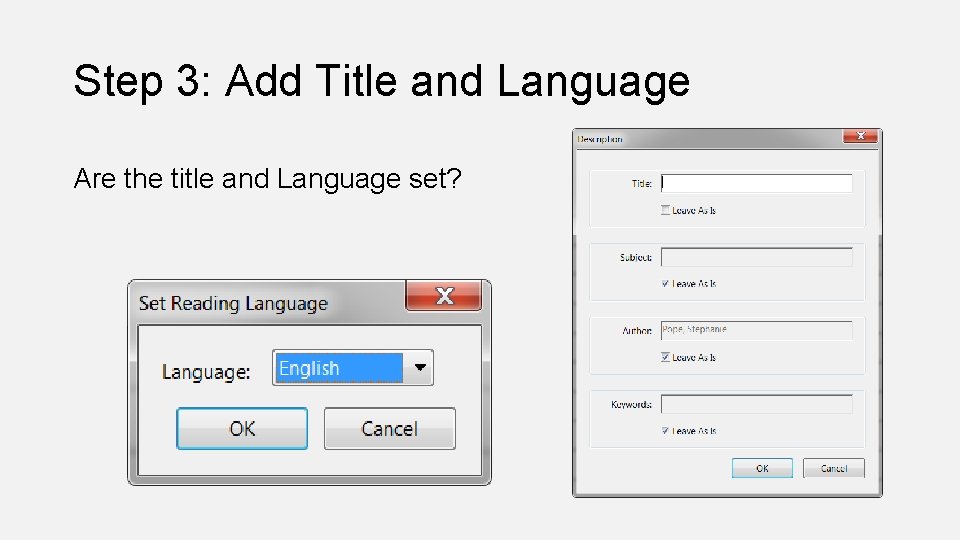
Step 3: Add Title and Language Are the title and Language set?
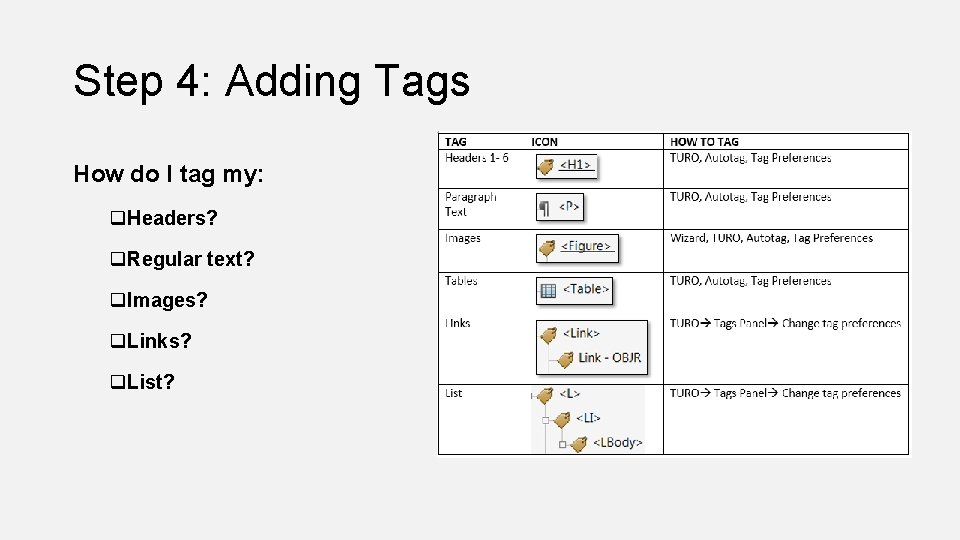
Step 4: Adding Tags How do I tag my: q. Headers? q. Regular text? q. Images? q. Links? q. List?
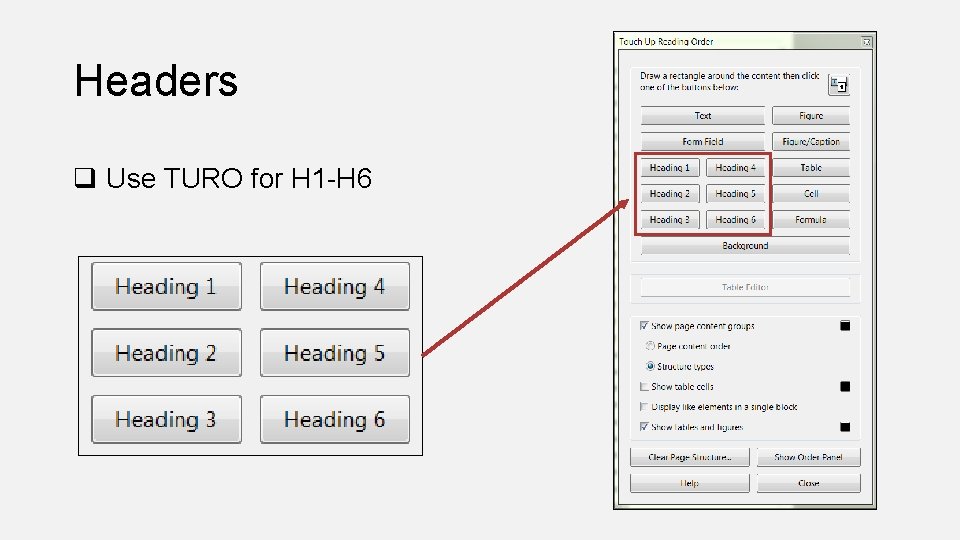
Headers q Use TURO for H 1 -H 6
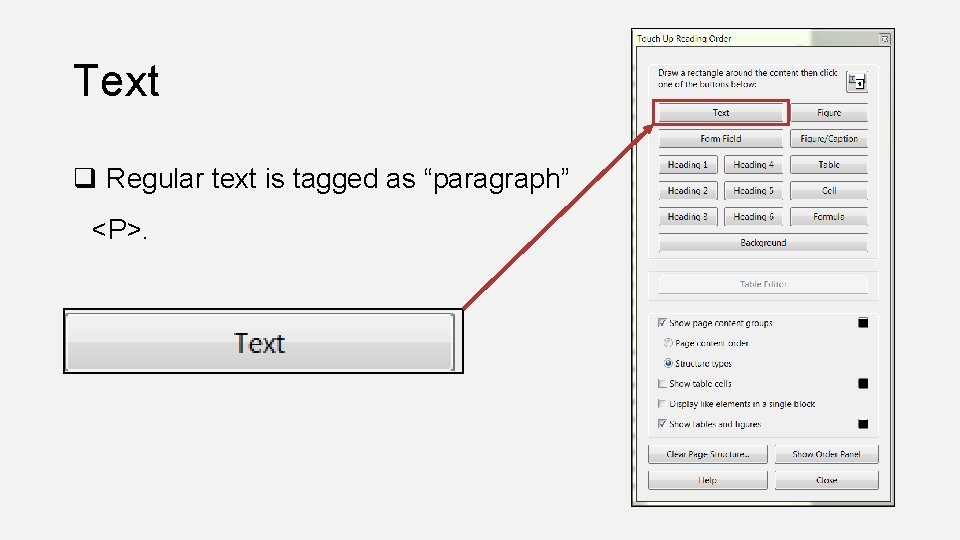
Text q Regular text is tagged as “paragraph” <P>.
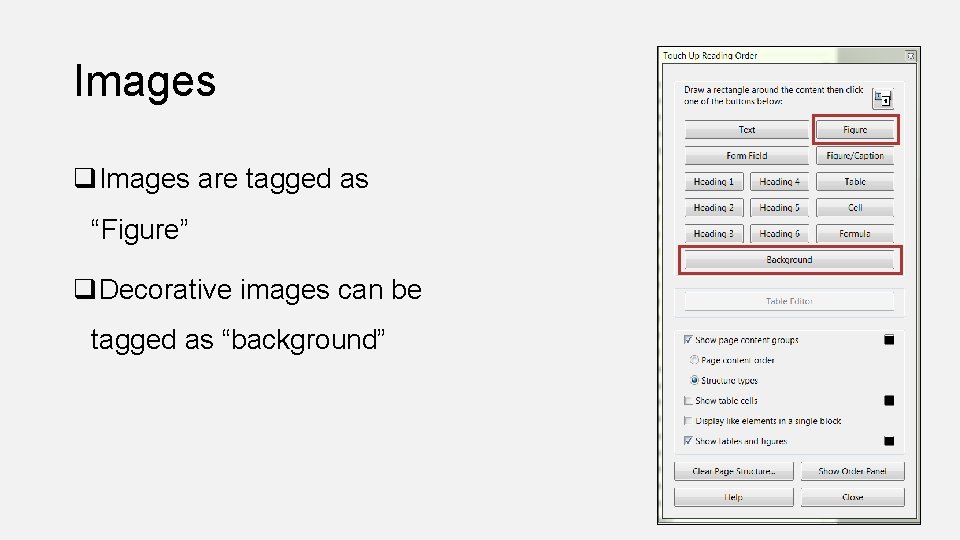
Images q. Images are tagged as “Figure” q. Decorative images can be tagged as “background”
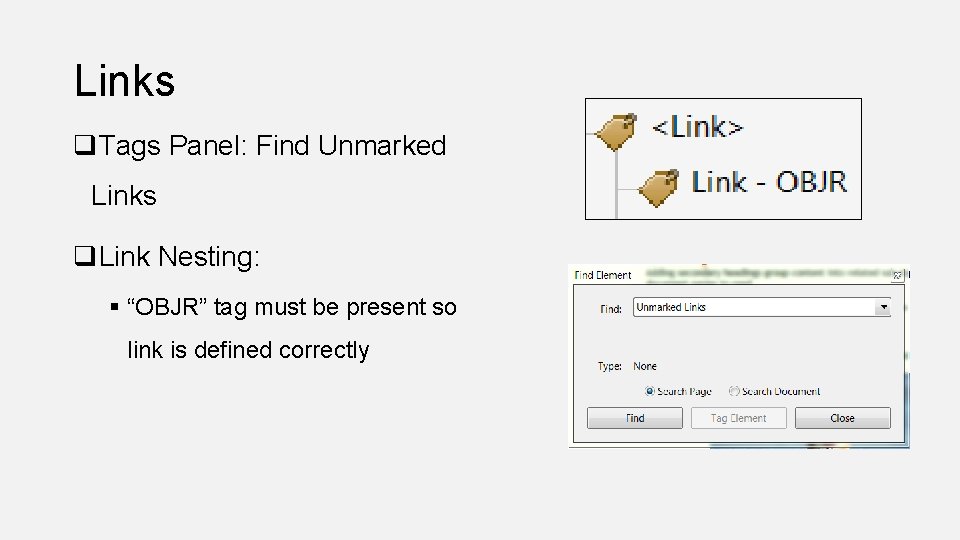
Links q. Tags Panel: Find Unmarked Links q. Link Nesting: § “OBJR” tag must be present so link is defined correctly
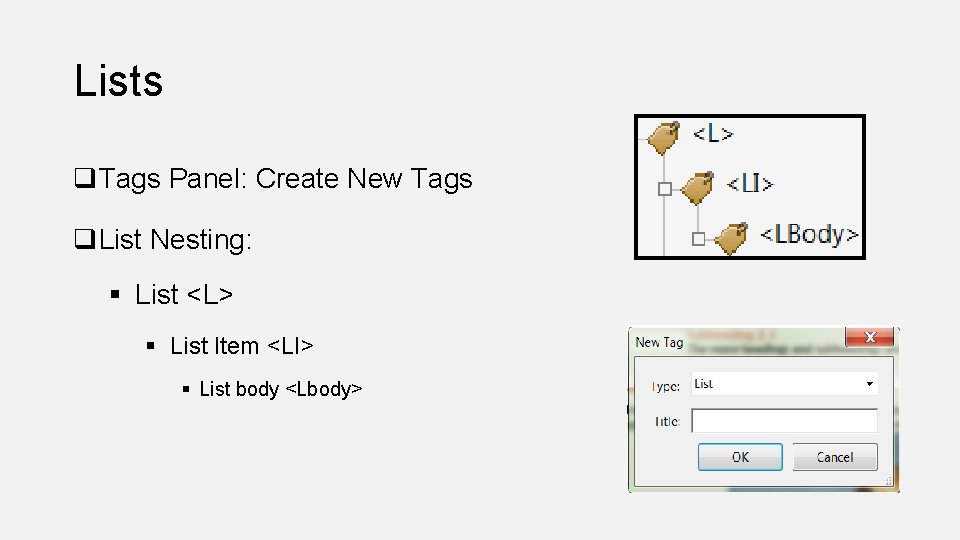
Lists q. Tags Panel: Create New Tags q. List Nesting: § List <L> § List Item <LI> § List body <Lbody>
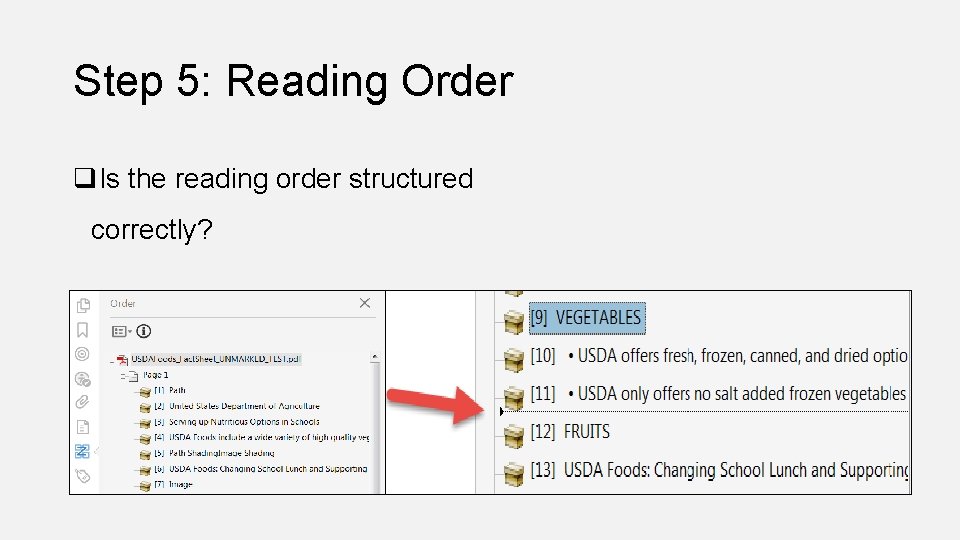
Step 5: Reading Order q. Is the reading order structured correctly?
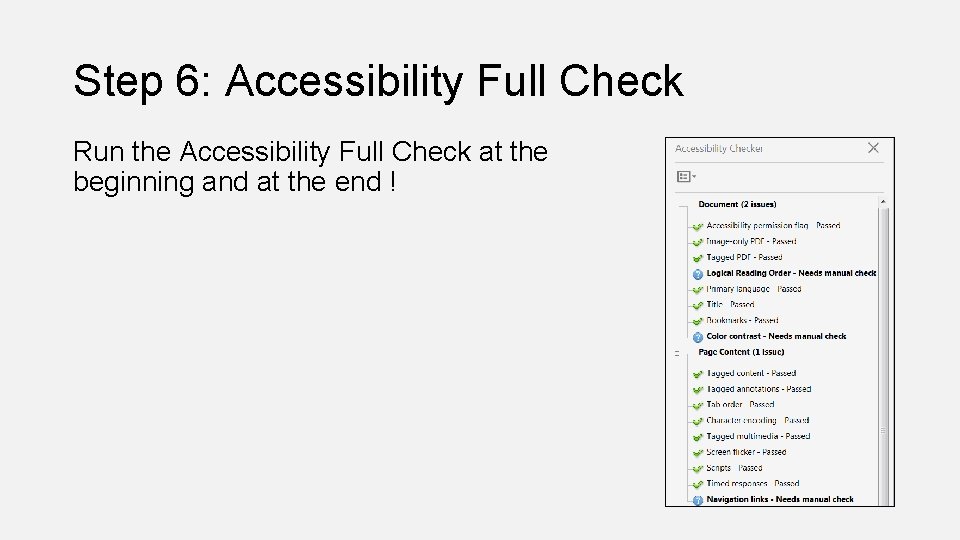
Step 6: Accessibility Full Check Run the Accessibility Full Check at the beginning and at the end !
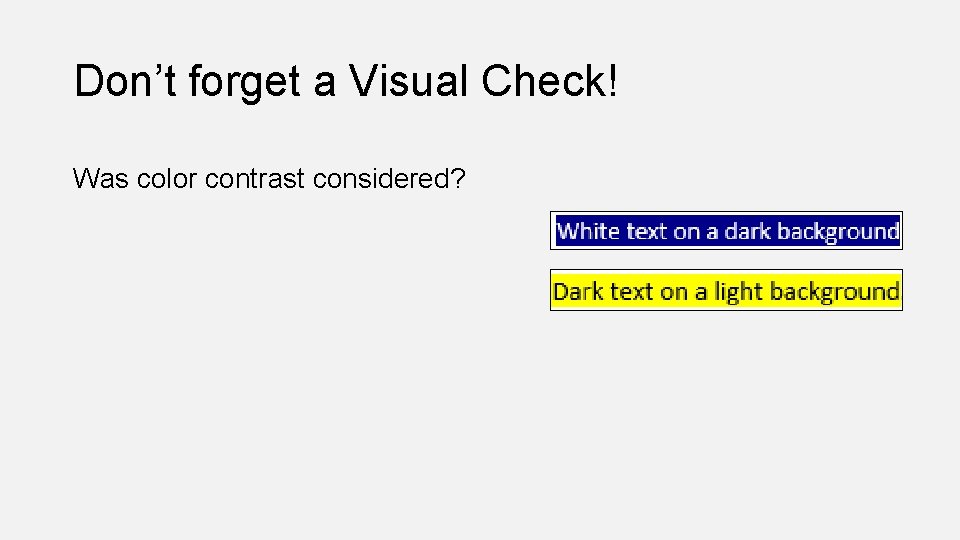
Don’t forget a Visual Check! Was color contrast considered?
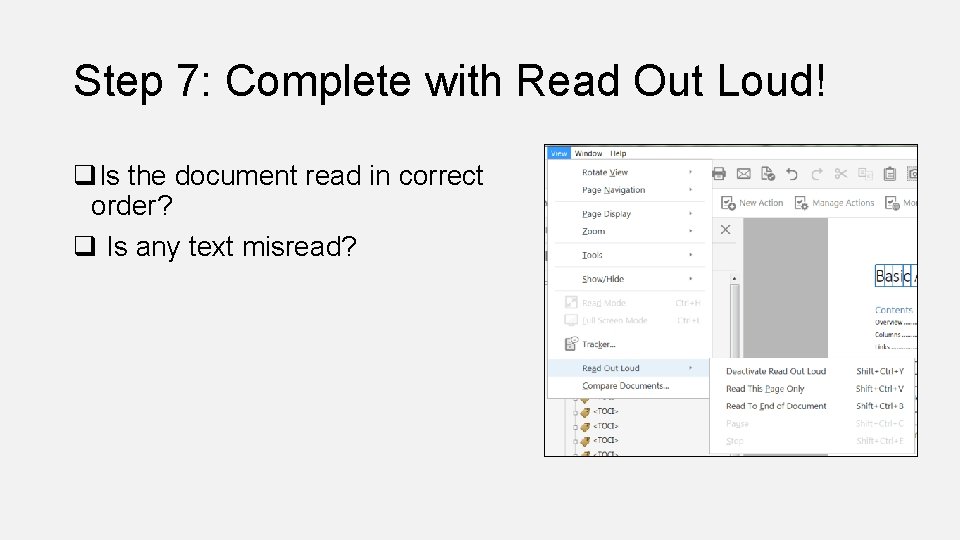
Step 7: Complete with Read Out Loud! q. Is the document read in correct order? q Is any text misread?
TIPS! q. Always save your PDF as you add accessibility markup! q. If content disappears from view, change the reading order q. When modifying extensive content in reading order, drag content down not up q. Remove empty tags
PDF Accessibility Principles Part I ü Universal Design (UD) Principles and Accessibility ü Adobe: Commitment to Accessibility ü Building Accessible PDF’s • Hands On Exercise
Evaluating Documents Material Needed • Printed Handout with Exercise Instructions • 2 Document on your Computer • Word Document • PDF Document Walk through of Exercise: 1. 2. 3. 4. 5. Evaluate the document on our computers Go through all the exercises as a group: Make edits to the document Check for Accessibility Share Out
PDF Accessibility Principles Part I ü Universal Design (UD) Principles and Accessibility ü Adobe: Commitment to Accessibility ü Building Accessible PDF’s ü Hands On Exercise
Resources • UDC Website • PDF Document Accessibility Tutorial • UDC PDF Checklist • Accessible In. Design PDF
- Slides: 40