
PCC Academic Advising Moodle Basics PCC Academic Advising
PCC Academic Advising Moodle Basics
PCC Academic Advising Center • Look under My Courses: – Scroll down to Resources and you’ll find it there. – This training will be located in the Advising Trainings module.
Before We Start • This training covers the basics of Moodle as I understand it. • I do not use all the many different functions of Moodle. – For questions about things I cannot help you with, contact Kathy Mayo, Distance Learning Coordinator.
Disclaimers • My courses look the way they do because I have had many years to build them to my specifications. • I suggest building all your courses with ADA in mind. – Currently only required for fully online courses. • Seated/Partial Internet courses only require a syllabus and set-up gradebook. – I would suggest having more in your course. Build and make it better over time.
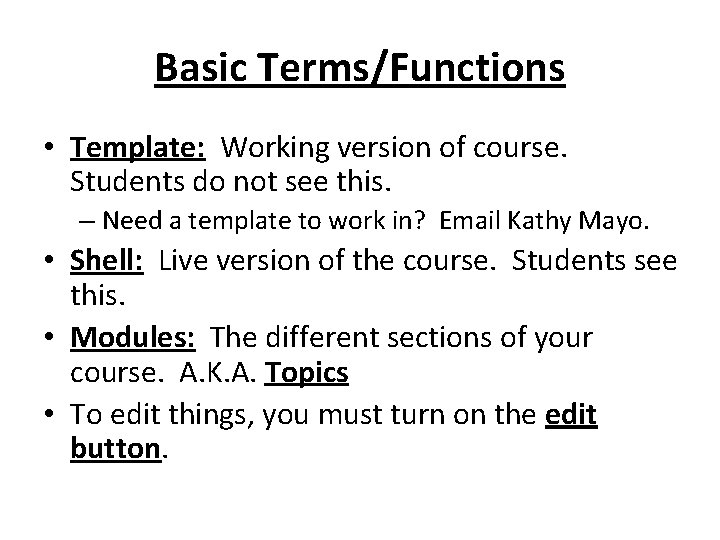
Basic Terms/Functions • Template: Working version of course. Students do not see this. – Need a template to work in? Email Kathy Mayo. • Shell: Live version of the course. Students see this. • Modules: The different sections of your course. A. K. A. Topics • To edit things, you must turn on the edit button.
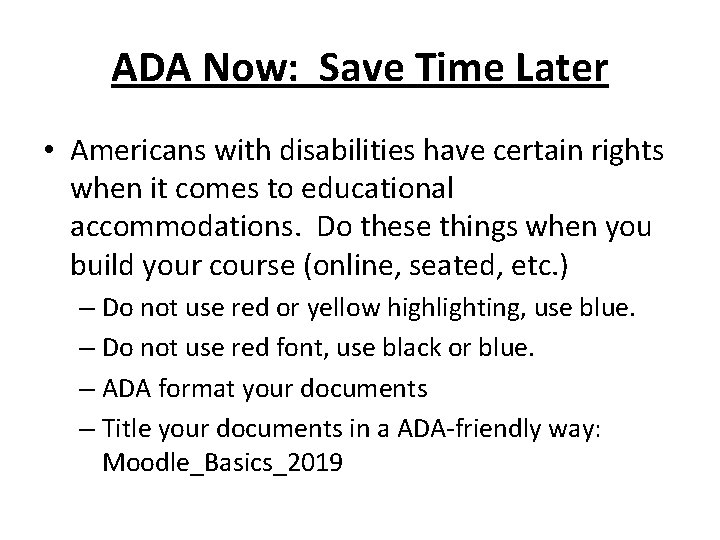
ADA Now: Save Time Later • Americans with disabilities have certain rights when it comes to educational accommodations. Do these things when you build your course (online, seated, etc. ) – Do not use red or yellow highlighting, use blue. – Do not use red font, use black or blue. – ADA format your documents – Title your documents in a ADA-friendly way: Moodle_Basics_2019
– Labels • I do these things in all my courses because it allows me to cut and paste from any of my courses without having to go back and bring it up to code, so to speak. • It allows me to convert a seated/partial internet template to an online template much faster.
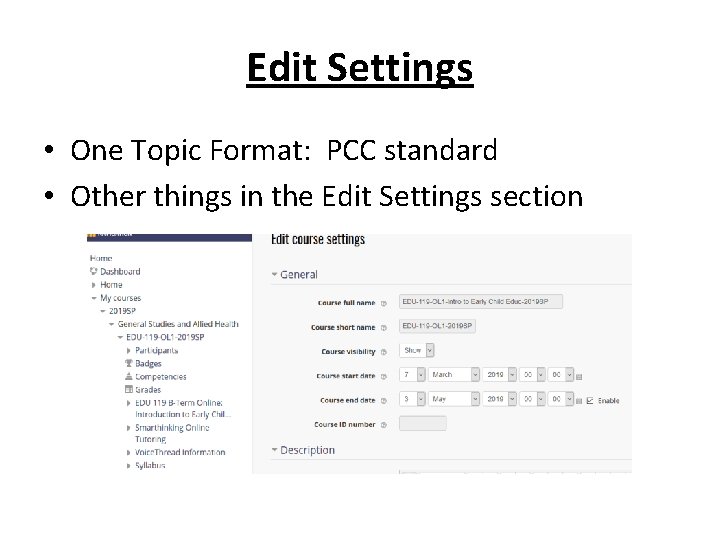
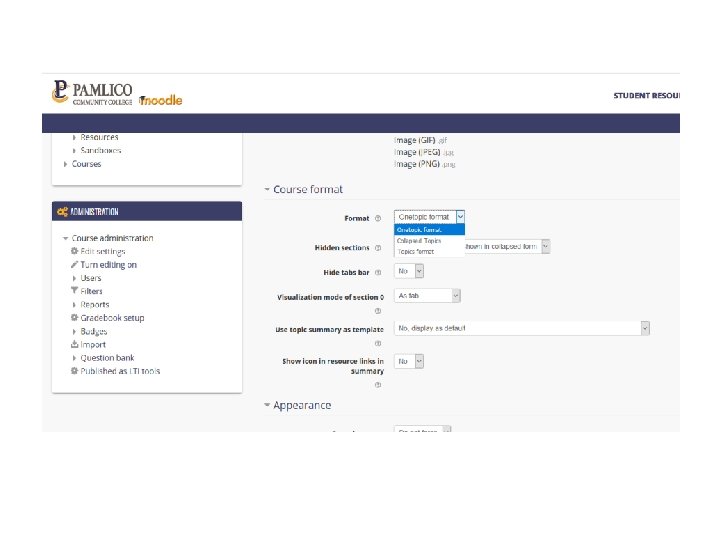
Edit Settings • One Topic Format: PCC standard • Other things in the Edit Settings section
Delayed Release vs. Binge Release How should I release my assignment modules? • Once a week (like old school TV shows)? • All at once (Binge/Netflix format)? It’s up to you: Your preference
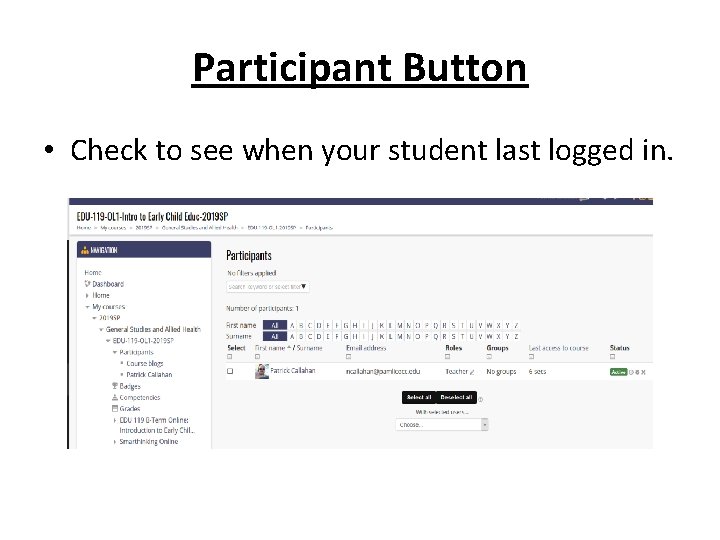
Participant Button • Check to see when your student last logged in.
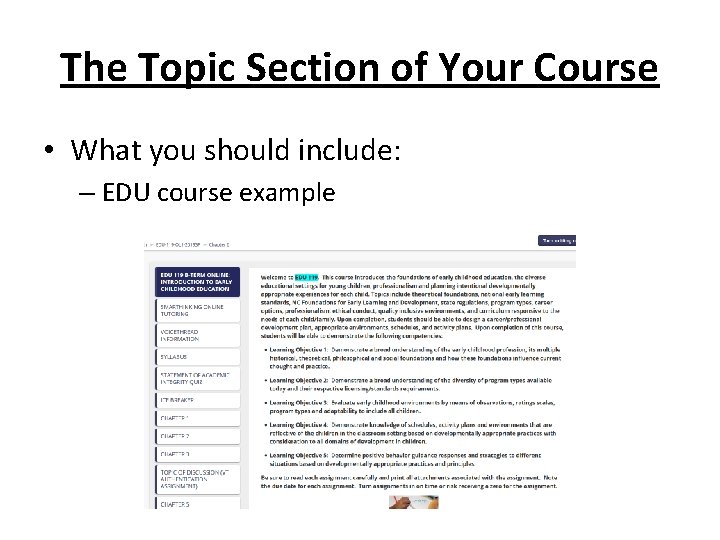
The Topic Section of Your Course • What you should include: – EDU course example
Smart. Thinking & Voice Thread Modules • Smart. Thinking: Tutoring services available 24/7 to PCC students. A standard module that comes preinstalled. • Voice Thread: One of many ways to verify student identity in fully online courses. A standard module that comes preinstalled. – Other methods of identity verification – Voice Thread Training: January 11 from 9 -11
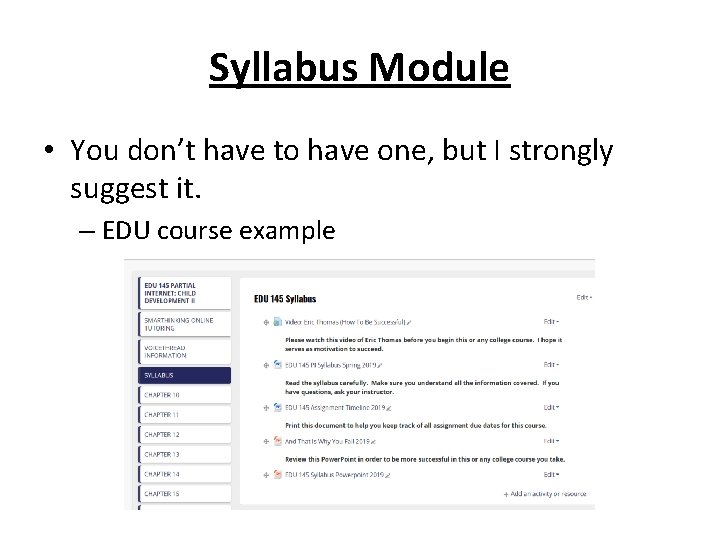
Syllabus Module • You don’t have to have one, but I strongly suggest it. – EDU course example
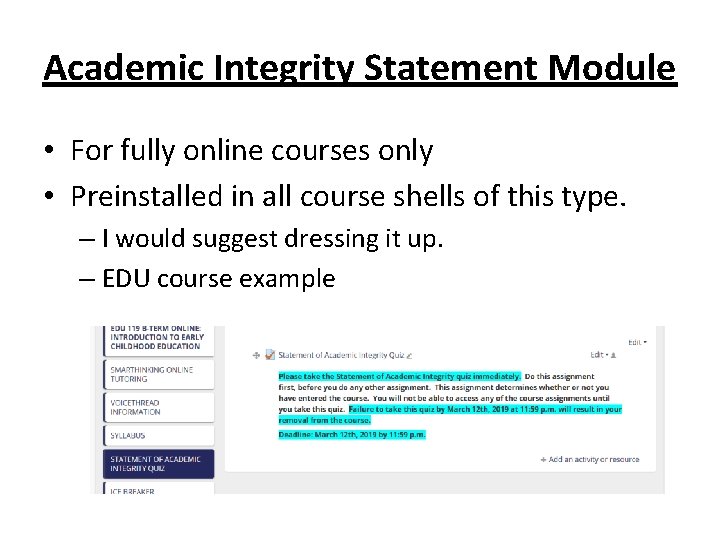
Academic Integrity Statement Module • For fully online courses only • Preinstalled in all course shells of this type. – I would suggest dressing it up. – EDU course example
Assignment Modules • Assignment types: Look to the bottom right hand corner. Click on “add an activity or resource. ” • There are many types of assignments you can design in Moodle. – Listed below are the ones I use and will talk about today. – All others, refer your questions to Kathy Mayo.
• Activities: EDU course examples – Assignment – Forum/Ice Breaker – Quiz – Voice. Thread (January 11 from 9 -11) • Resources: EDU course examples – Label – URL
• Using labels and how to build them – EDU course examples • How to move, hide, delete, and copy assignments and such within the module: – Hide, delete, and copy: straight forward – Several ways to move.
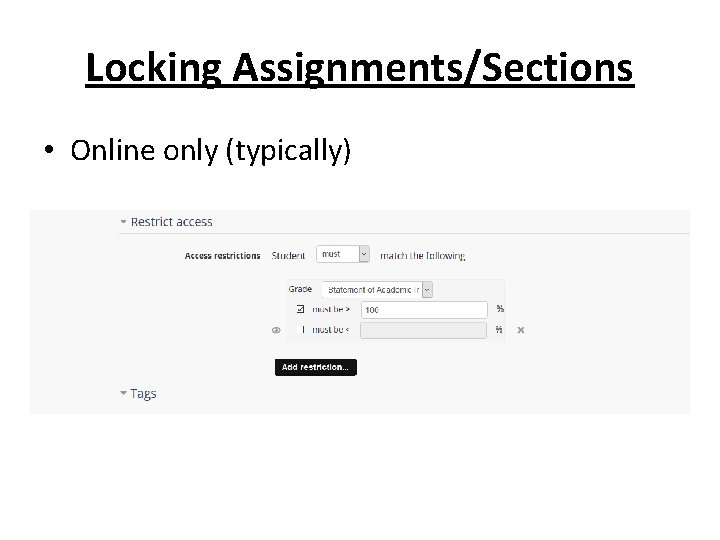
Locking Assignments/Sections • Online only (typically)
Editing Whole Modules • How to move, delete, hide, and copy a whole module. • Scroll to bottom of the module. Just below the module on the left hand side, click on “Tabs edition utilities. ” – Move a topic (module) – Asynchronous edit actions: change Disabled to Enabled to move things within the module or move it to a different module.
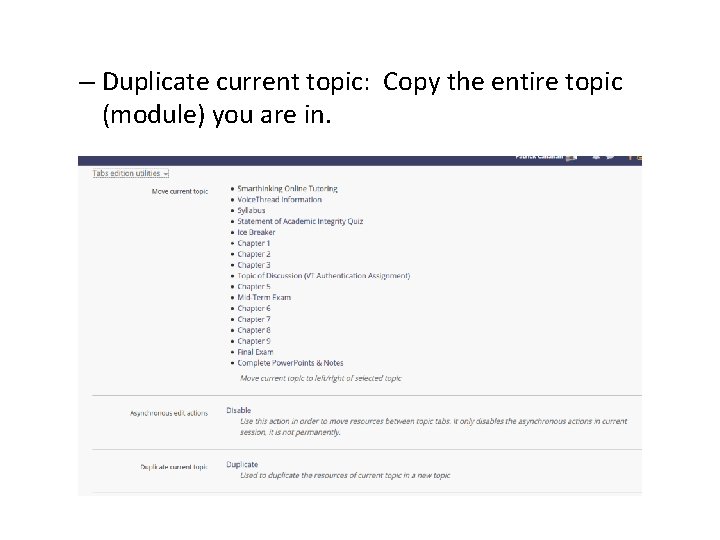
– Duplicate current topic: Copy the entire topic (module) you are in.
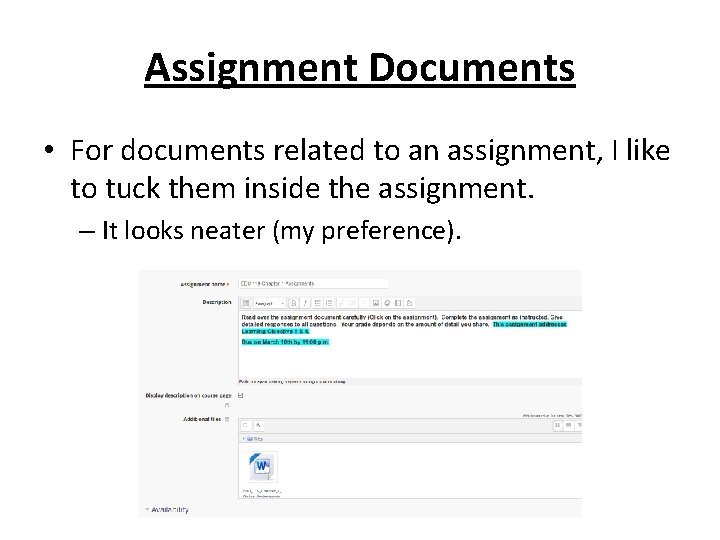
Assignment Documents • For documents related to an assignment, I like to tuck them inside the assignment. – It looks neater (my preference).
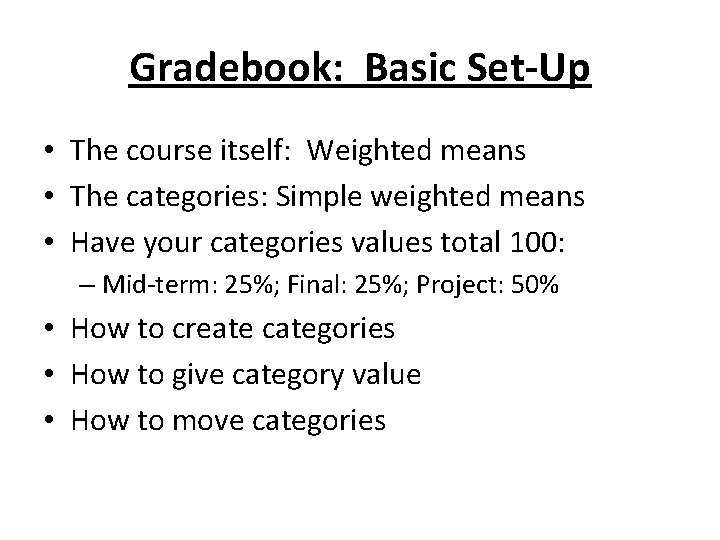
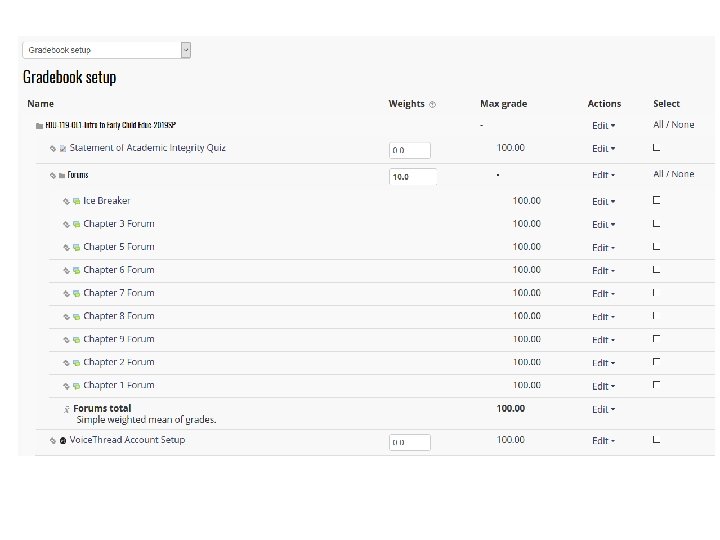
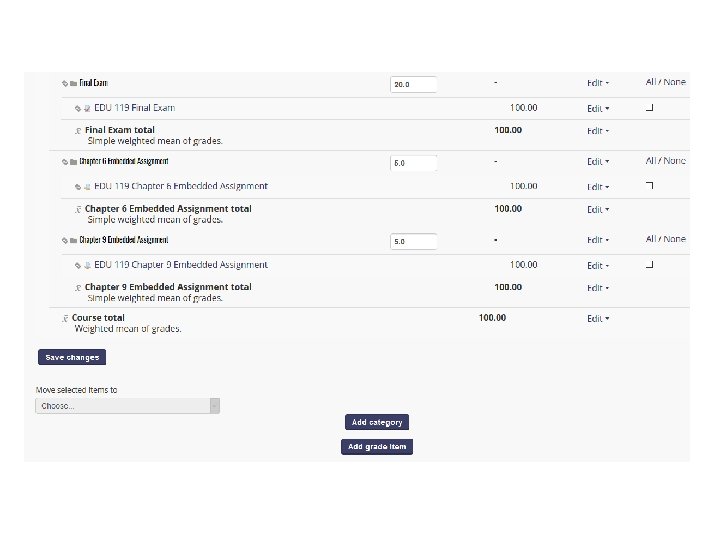
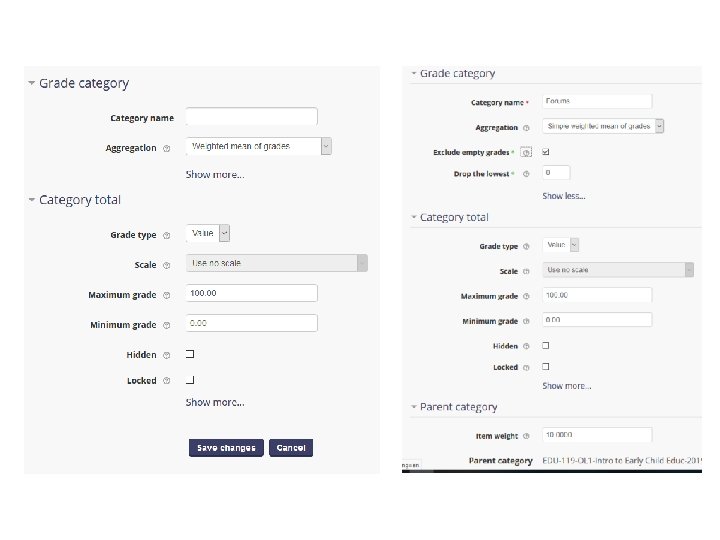
Gradebook: Basic Set-Up • The course itself: Weighted means • The categories: Simple weighted means • Have your categories values total 100: – Mid-term: 25%; Final: 25%; Project: 50% • How to create categories • How to give category value • How to move categories
Census Reports • Online courses only • Under Course Administration: – Click on Reports – Look for Census reports – Pick your date time frame – Click download pdf (I like to save them) – Print and give to the college registrar
Advanced Stuff: Proceed With Caution
Advanced Stuff • Talk to Kathy Mayo before attempting such things. It is probably best you do not do these things until you have a better understanding of Moodle. – Importing from one course to another: Brundlefly
– Gradebook Grade Modification – Exam. View Tests converted into Moodle: Set up a time with me to learn how to do this. – Taking out dropped or withdrawn students – Importing templates to shells: Templates with set categories and assignment dates (ask Kathy Mayo to do this for you).

Questions?
- Slides: 31