
PCard Holder Approver Training 1 Learning Objectives Be
PCard Holder & Approver Training 1
Learning Objectives Ø Be familiar with the Roles & Responsibilities of the UNT PCard Holder Ø Understand when to use Pcard vs creating a Requisition Ø Understand the Rules & Policies regarding the use of UNT Pcard Ø Know where to find additional Information and Resources 2
PCard Holders are part of the Purchasing Team! PCard Holders, by receiving a UNTS PCard, are accepting the terms and conditions that are required for its use. PCard Holders are a select group of individuals who exercise buying power on behalf of UNT for their Department. The PCard allows the Holder to make discretionary purchases as needed without prior approval which would be required when making purchases using the Requisition process. For this reason, PCard Holders must take their Purchasing responsibilities seriously and just like any member of the Purchasing Team, PCard users must be familiar with UNT’s Purchasing Policies and all State, System/Institutional, or Departmental Guidelines. 3
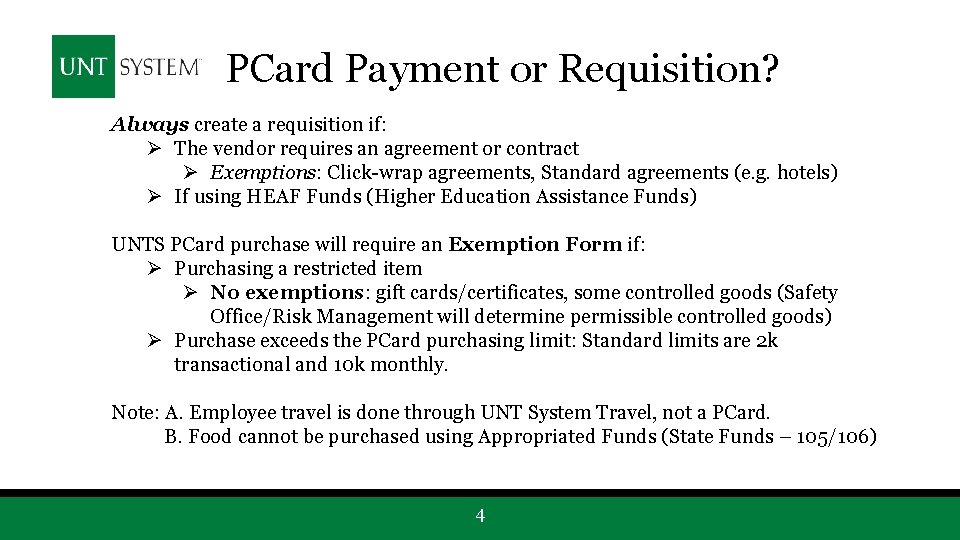
PCard Payment or Requisition? Always create a requisition if: Ø The vendor requires an agreement or contract Ø Exemptions: Click-wrap agreements, Standard agreements (e. g. hotels) Ø If using HEAF Funds (Higher Education Assistance Funds) UNTS PCard purchase will require an Exemption Form if: Ø Purchasing a restricted item Ø No exemptions: gift cards/certificates, some controlled goods (Safety Office/Risk Management will determine permissible controlled goods) Ø Purchase exceeds the PCard purchasing limit: Standard limits are 2 k transactional and 10 k monthly. Note: A. Employee travel is done through UNT System Travel, not a PCard. B. Food cannot be purchased using Appropriated Funds (State Funds – 105/106) 4

PCard Program Roles Cardholder – Responsible for making purchases following Purchasing Guidelines and ensuring timely monthly reconciliations of transactions in Concur Module. Approver – Responsible for reviewing allocations of purchases made by the Cardholder in Concur Pcard Module system to ensure transactions are coded properly and Dept ID/Proj ID information is correct. COA Approver – Responsible for authorizing the use of PCards in their department(s). Ensures all Purchasing guidelines are followed when using the Pcard. Ensures sufficient funds are available for all purchases. Approvers have budget authority on Dept Ids/Proj Ids for which approval is made. PCard Program Coordinator - Administers the PCard Program for all institutions within the UNT System. Conducts periodic reviews of Pcard transactions and maintains documentation for the PCard activities within the UNT System in Concur Module. 5
PCard Holder Responsibilities Ø Follow all Purchasing Guidelines, including Bid Requirements Ø Chart strings can be entered as soon the transaction posts Ø Assign the appropriate description of items in the Expenditure field. Ø Allocate expenditures to the appropriate chart string, watching for proper allocation of state and local funds. Ø PCard Holders must review their transactions to safeguard against fraud Ø PCard Holders must submit reconciled transactions including receipts for Approval not later than the 10 th of each month for timely statement approval Ø Standard PCard Holder Submission dates: the 6 th to the 10 th of each month Ø PCard statements should be completely approved by the 20 th of each month. PCard Holders should always compare pricing among several vendors, including HUB vendors to obtain the best value for their Department and the University. 6
PCard Approver Responsibilities Ø Participate in initial PCard training Ø Participate in PCard refresher training each year Ø Ensure all PCard transactions are allocated to the appropriate chart string by verifying Dept ID/Proj ID information Ø Ensure the appropriate description of items purchased have been assigned (no blanks or “unknown” descriptions) Ø Approve PCard Holder transactions in the Concur PCcard Module Ø Report any possible fraudulent activity to the Office of Internal Audit and the PCard Program Coordinator Ø Approve statements as soon as they are received to ensure final approval by the 20 th of each month Ø 1 st level approver: 10 -13/14 of each month Ø 2 nd level approver (Dept. ID Holder): 13/14 -16/17 of each month 7
Departmental Record Maintenance Responsibilities Ø Each department is responsible for maintaining records of PCard Purchases for the past five (5) fisical years plus the current. Ø PCard Administration, Records Retention, and Internal Audit consider Concur as the repository for purchasing records since the implementation of Concur in October 2018. Ø PCard Holders who used the Citibank General Card Management System (GCMS) for reconciling should have electronic or physical records kept from fiscal years before Fiscal Year 19 within the five year maintenance requirement. Ø New PCard Holders will use Concur as their records repository. Ø Note: Follow any specific departmental record maintenance as instructed. 7
PCard Limitations Beyond the convenience of using a PCard, PCard Holders should know that there are limitations and restrictions to using a PCard. The Purchasing Card Guide lists the limitations and restrictions in detail in appendices A, B & C. Important points to note: Ø All cards have a single transaction dollar limit. Ø Monthly transactional dollar limits also apply – know your PCard limits. Ø The PCard may be used in-store, via mail, via telephone, via fax or over the internet using secured sites. The PCard may never be used for personal purchases. In the event of an error, contact the PCard team immediately. Multiple errors could result in PCard sanctions and/or institutional/departmental disciplinary action. Ø Restrictions refer to prohibited purchases by either the State, System, or Institution. The transaction may not decline; however, that does not mean that the transaction is sanctioned. An exception form MUST be completed and approved before making any restricted purchase. 8
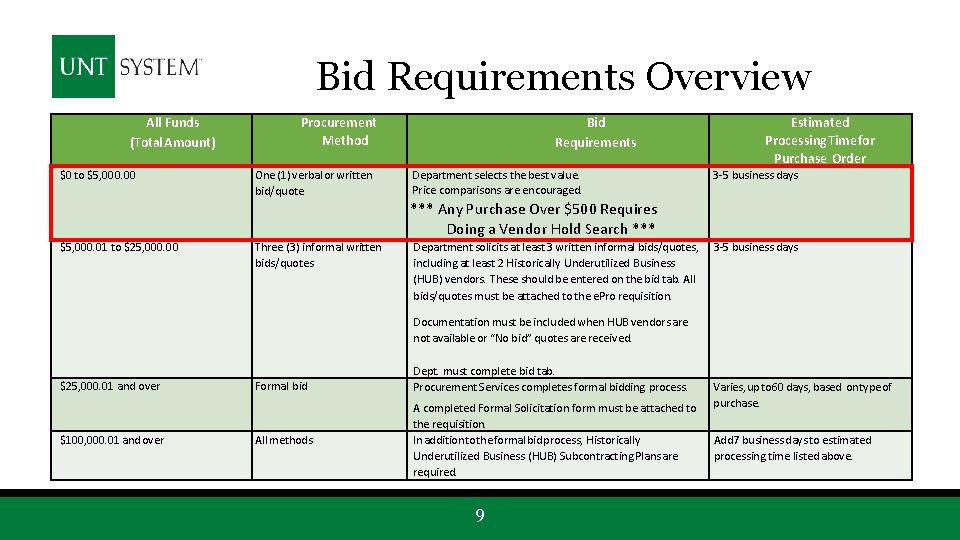
Bid Requirements Overview All Funds (Total Amount) $0 to $5, 000. 00 $5, 000. 01 to $25, 000. 00 Procurement Method One (1) verbal or written bid/quote Three (3) informal written bids/quotes Bid Requirements Department selects the best value. Price comparisons are encouraged. Estimated Processing Time for Purchase Order 3 -5 business days *** Any Purchase Over $500 Requires Doing a Vendor Hold Search *** Department solicits at least 3 written informal bids/quotes, including at least 2 Historically Underutilized Business (HUB) vendors. These should be entered on the bid tab. All bids/quotes must be attached to the e. Pro requisition. 3 -5 business days Documentation must be included when HUB vendors are not available or “No bid” quotes are received. $25, 000. 01 and over $100, 000. 01 and over Formal bid All methods Dept. must complete bid tab. Procurement Services completes formal bidding process. A completed Formal Solicitation form must be attached to the requisition. In addition to the formal bid process, Historically Underutilized Business (HUB) Subcontracting Plans are required. 9 Varies, up to 60 days, based on type of purchase. Add 7 business days to estimated processing time listed above.
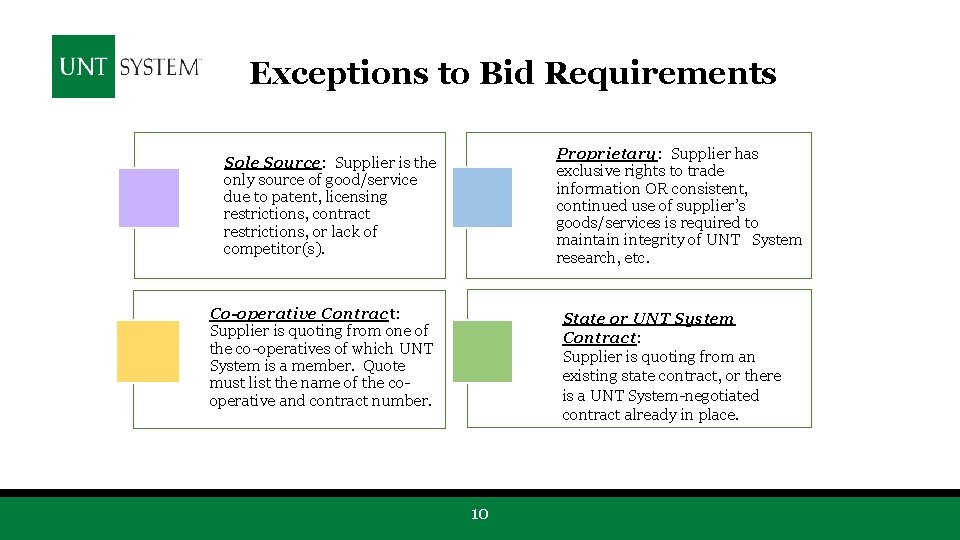
Exceptions to Bid Requirements Proprietary: Supplier has exclusive rights to trade information OR consistent, continued use of supplier’s goods/services is required to maintain integrity of UNT System research, etc. Sole Source: Supplier is the only source of good/service due to patent, licensing restrictions, contract restrictions, or lack of competitor(s). Co-operative Contract: Supplier is quoting from one of the co-operatives of which UNT System is a member. Quote must list the name of the cooperative and contract number. State or UNT System Contract: Supplier is quoting from an existing state contract, or there is a UNT System-negotiated contract already in place. 10
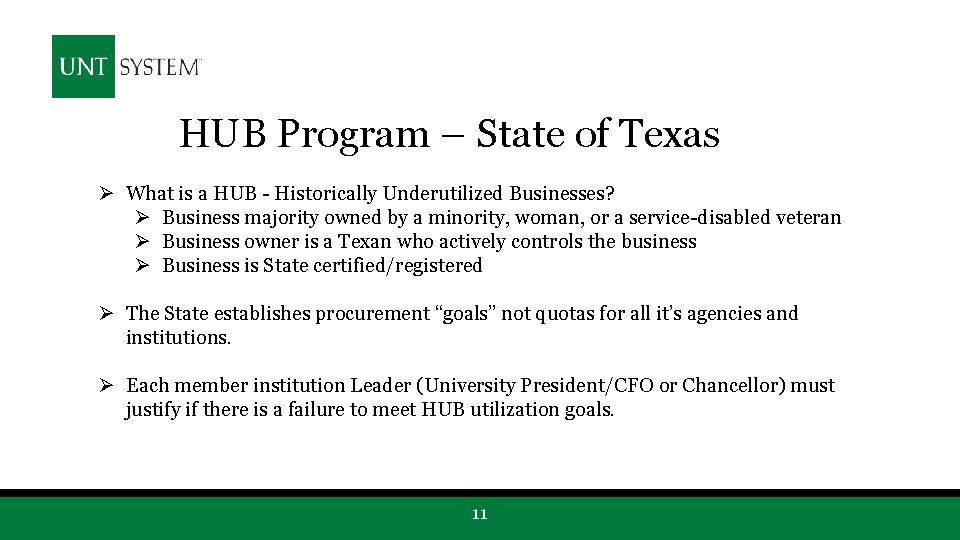
HUB Program – State of Texas Ø What is a HUB - Historically Underutilized Businesses? Ø Business majority owned by a minority, woman, or a service-disabled veteran Ø Business owner is a Texan who actively controls the business Ø Business is State certified/registered Ø The State establishes procurement “goals” not quotas for all it’s agencies and institutions. Ø Each member institution Leader (University President/CFO or Chancellor) must justify if there is a failure to meet HUB utilization goals. 11
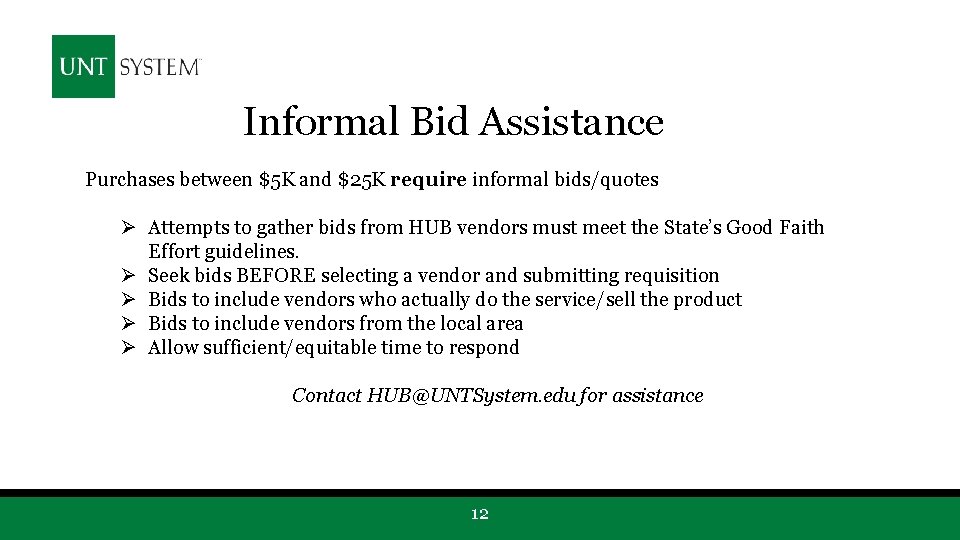
Informal Bid Assistance Purchases between $5 K and $25 K require informal bids/quotes Ø Attempts to gather bids from HUB vendors must meet the State’s Good Faith Effort guidelines. Ø Seek bids BEFORE selecting a vendor and submitting requisition Ø Bids to include vendors who actually do the service/sell the product Ø Bids to include vendors from the local area Ø Allow sufficient/equitable time to respond Contact HUB@UNTSystem. edu for assistance 12
Protect yourself and the Purchasing Card! Take care to protect against accidental use of the card. Helpful Hints: Ø Use the card sleeve provided Ø Place the card in your wallet or purse in a location different from any personal credit or debit cards. Ø Cards left at work should be in a secured place that only you can access. Ø Do not let coworkers use your card. Ø Create separate online accounts for the PCard use. Ø Ensure the Purchasing Card is used appropriately and with intent, each and every time. Accidental usage of the Purchasing Card for a personal purchase is a violation of the program guidelines and may result in permanent revocation. The PCard Administration Team should be notified as soon as a violation is realized, and restitution should be made immediately. 14
Declined Transaction(s) If a transaction declines, contact the PCard Team immediately and they will assist in resolving the purchase transaction. Typical reasons for a card to decline include: Ø not activating the card Ø exceeding the card transaction or monthly limit Ø not having an approved exemption Ø vendor has set up under a restricted vendor code Tip: hotels and restaurants are common places for declined transactions, even with an exemption. We recommend running a charge on the card before payment. If Citibank closes the users PCard account due to suspicious or unauthorized charges, and issues a new Purchasing card, the Cardholder should notify the PCard Team immediately to ensure appropriate user set up in Concur. 15
When the PCard Holder departs or transfers out of the Department First, stop using the card, reconcile all outstanding transactions, then contact the Pcard Administrator in order for the PCard Account to be closed immediately. Exit review to be conducted by the PCard Team for the last accounting period Ø If the PCard Holder has already exited, the department will be required to reconcile and submit outstanding PCard expenditures in Concur. Ø Complete a new PCard Assignment Form to replace any Approvers and email to pcard@untsystem. edu. Ensure all records in the Concur PCard Module have been updated. Ensure all records are retained electronically for the current fiscal year plus five additional years for auditing purposes. If your new department wants you to have a PCard, submit a new application. It is not necessary to re-attend training. 17
Purchasing Card Fraud is a deception deliberately practiced in order to secure unfair or unlawful personal gain. It is a premeditated, calculated act intended to defraud the institution. Fraud can occur from a moment of bad judgment. What does fraud look like? Ø Services are paid for, but not received by the University (usually two individuals are involved) Ø Personal purchases made and removed from the University and/or shipped to another location Tip: Advise approvers when you ship items to a different location (e. g. . off-site faculty/staff) Ø Personal purchases made in combination with authorized goods and services Approvers are the University’s first line of defense against Purchasing Card fraud. Cardholders are less likely to take the risk if they know transactions are carefully reviewed and approved in Concur by the Reconciler. 18
Purchasing Card Negligence occurs as a result of sloppy recordkeeping or inattention to detail. PCard users will be sanctioned whenever negligence occurs. Examples of Negligence: Ø Ø Ø Unsecured Purchasing Card Missing Receipts Lack of transaction documentation Blank or Unknown Expenditure Descriptions Approver neglecting to approve purchases in Concur Ø Expenditure reconciliation not completed in Concur by deadline Ø Inappropriate use of HEAF Funds Ø Use of the PCard for a personal purchases Ø Purchase of food using Appropriated Funds 19
Sanctions LEVEL ONE SANCTION — NOTIFICATION An email notification outlining infraction(s) will be sent to the Cardholder, Reconciler, Approver, and Internal Audit, as appropriate. The cardholder will be required to make any appropriate changes to become compliant and a follow-up review will be completed by the PCard Team within 90 days. Examples of a level one sanctions (first time occurrences) include, but are not limited to: Ø Purchase of logo/branding/spirit mark items Ø Telecommunication equipment Ø Missing receipts Ø Restaurant dine-in meals Ø Purchasing items with terms/conditions not Ø Advertisements/job postings pre-approved Ø Purchasing food on appropriated funds Ø ‘Splitting’ of purchases Ø Postage Stamps (exemption form needed) Ø Entertainment expenditures Ø Insurance purchases Ø Purchase of cylinder gases 20
Sanctions - continued LEVEL TWO SANCTION — SUSPENSION Cardholder privileges will be suspended for at least thirty (30) days from the date that the sanction was issued and additional PCard training must be completed successfully before suspension will be lifted. A follow-up review will be completed within 90 days. Future infractions of the same nature within a fiscal year or in consecutive reviews/audits will result in a higher level sanction being issued. Examples of a level two sanction (first time occurrences) include, but are not limited to: Ø Purchase of alcoholic beverages, ammunition, weapons, controlled substances/prescription drugs, gift cards, gift certificates, restricted chemicals, and radioactive materials Ø Purchasing items for personal use Ø Losing the Purchasing Card two times Ø Second occurrence of a level one sanction within a fiscal year or in consecutive reviews/audits 21
Sanctions - continued LEVEL THREE SANCTION — ACCOUNT CLOSURE Purchasing Card Accounts will be closed, which may include the Cardholder no longer being eligible to obtain a Purchasing Card through the University. Level three sanctions are typically a result of multiple instances of lower level sanctions found in consecutive reviews/audits or within the same fiscal year. Note: These are PCard use sanctions only. They do not represent the possibility of institutional or departmental disciplinary action. 22
Chart of Accounts (COA) Questions Budget Office Contact Phone Numbers UNT Dallas Contact: 972. 338. 1095 UNT Denton Contact: 940. 565. 3231 UNT Health Science Center Contact: 817. 735. 2630 UNT System Contact: 940. 369. 5559 Questions about the Chart of Accounts? Co. A@untsystem. edu 23
Concur Pcard Module Expenditure Reconciliation 24
Learning Objectives • • Sign into Concur Pcard Module Add a delegate to user profile Allocate and split transactions Itemize transactions Add attachment to transaction: receipts, vendor status report approved PCard exception form and other documents. Warnings Icons that stay with your transaction. Automated Approval Work Flow Contacts Pcard 25
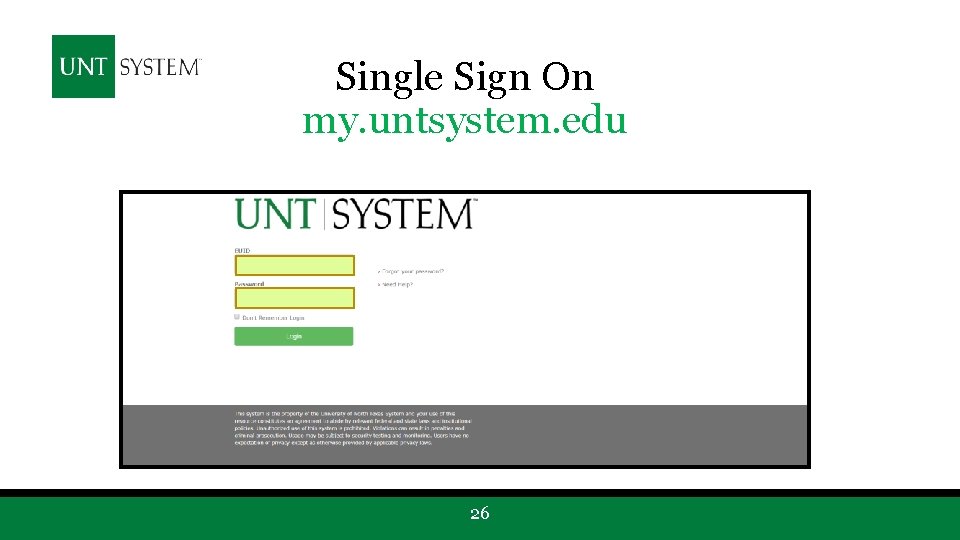
Single Sign On my. untsystem. edu 26
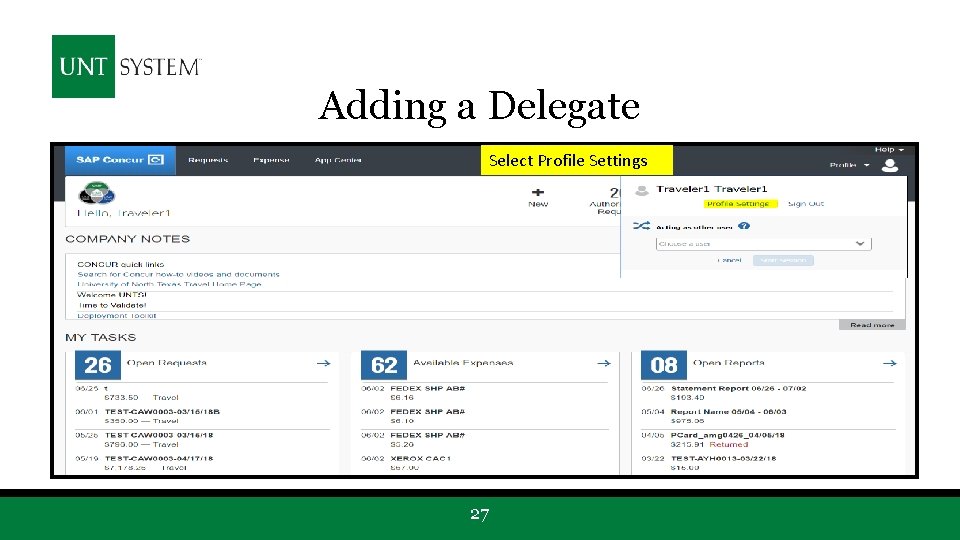
Adding a Delegate Select Profile Settings 27
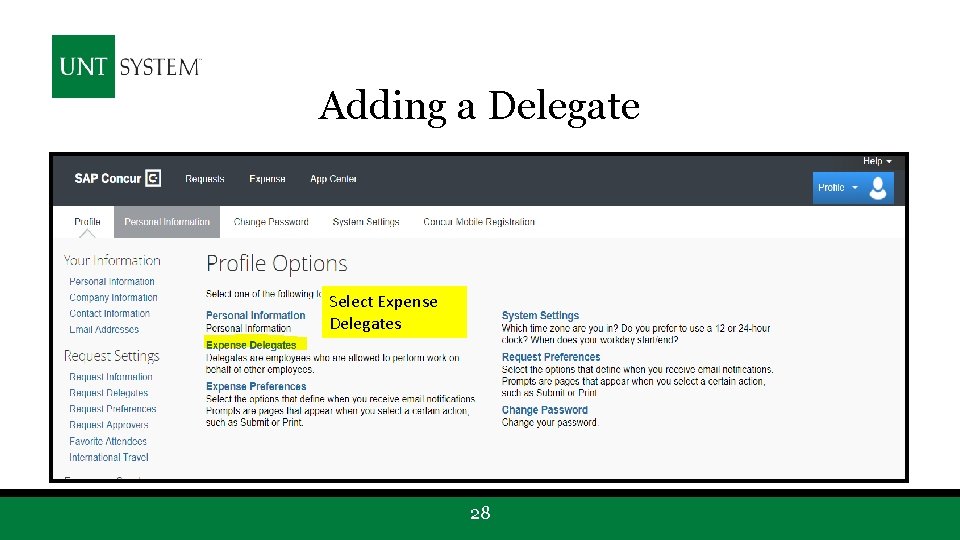
Adding a Delegate Select Expense Delegates 28
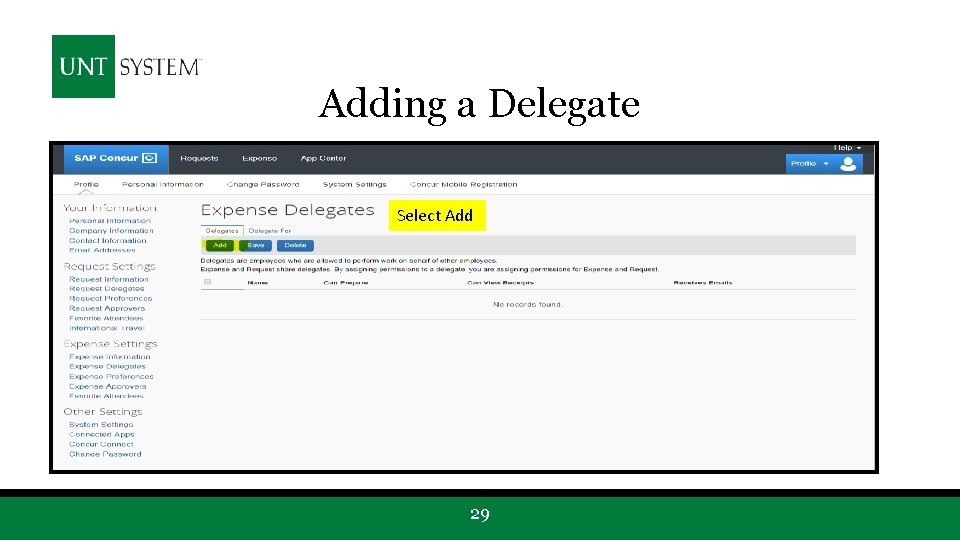
Adding a Delegate Select Add 29
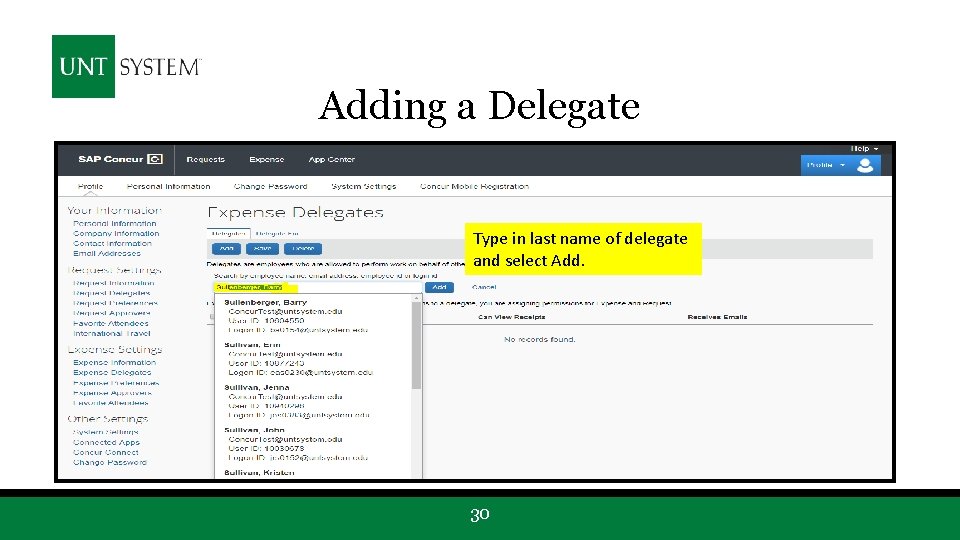
Adding a Delegate Type in last name of delegate and select Add. 30
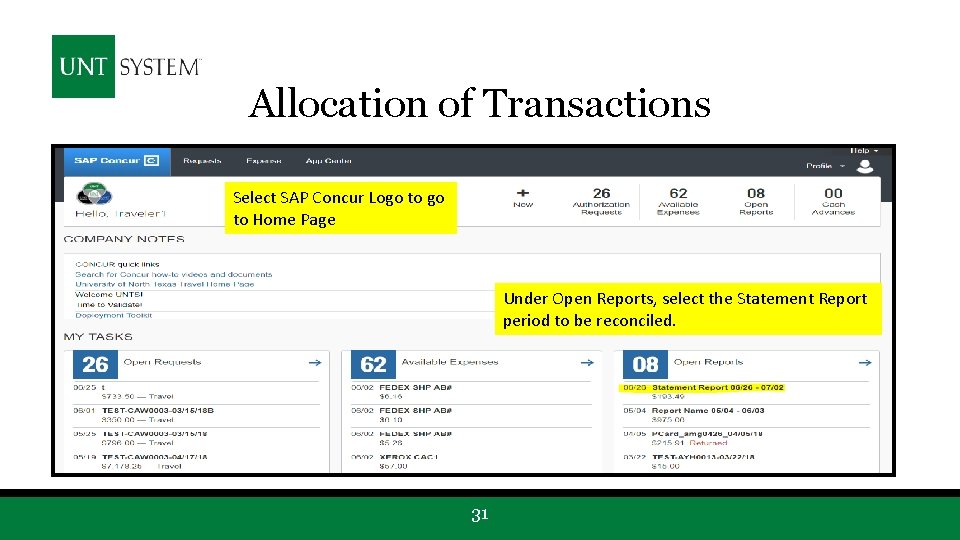
Allocation of Transactions Select SAP Concur Logo to Home Page Under Open Reports, select the Statement Report period to be reconciled. 31
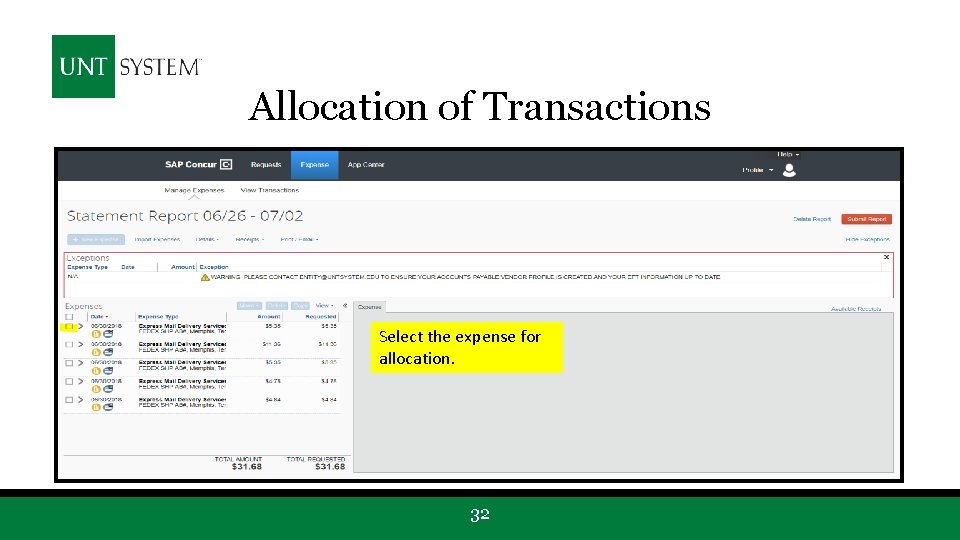
Allocation of Transactions Select the expense for allocation. 32
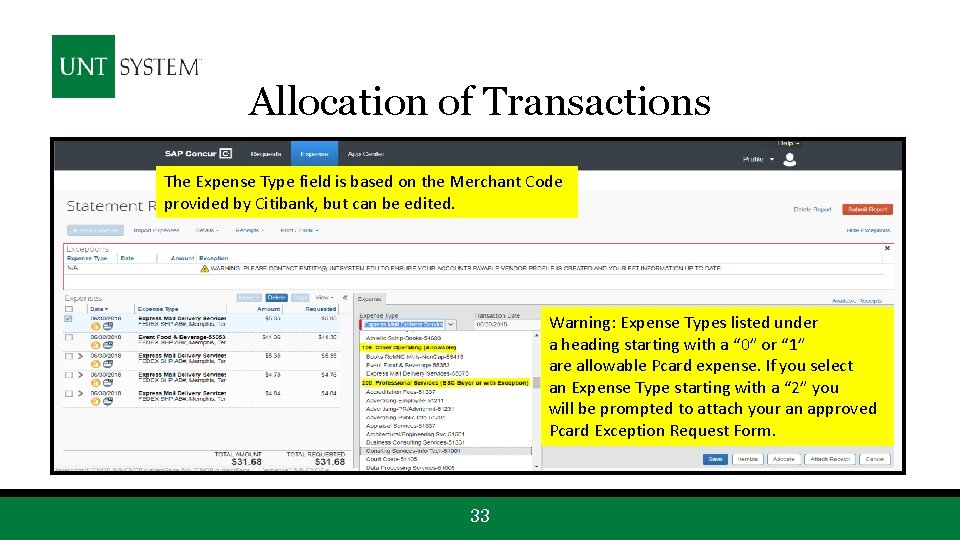
Allocation of Transactions The Expense Type field is based on the Merchant Code provided by Citibank, but can be edited. Warning: Expense Types listed under a heading starting with a “ 0” or “ 1” are allowable Pcard expense. If you select an Expense Type starting with a “ 2” you will be prompted to attach your an approved Pcard Exception Request Form. 33
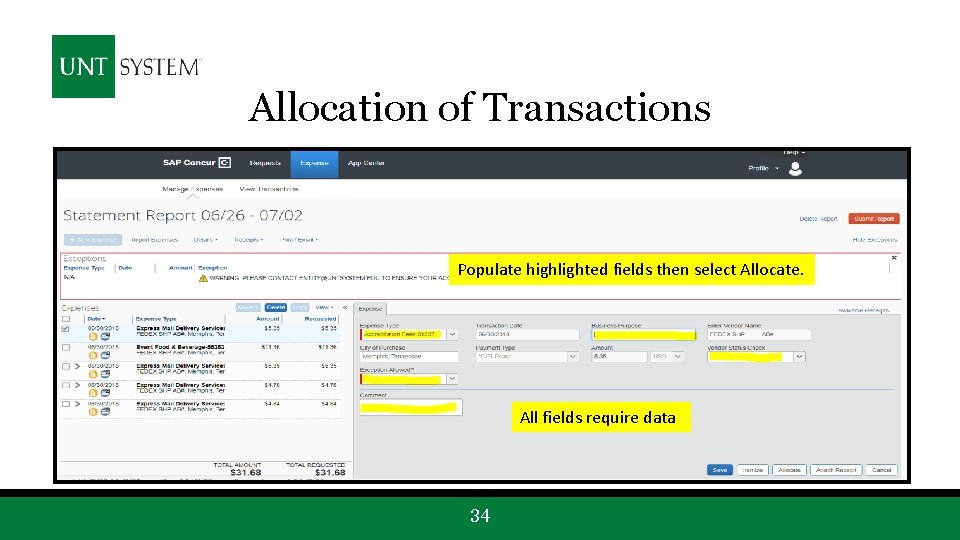
Allocation of Transactions Populate highlighted fields then select Allocate. All fields require data 34
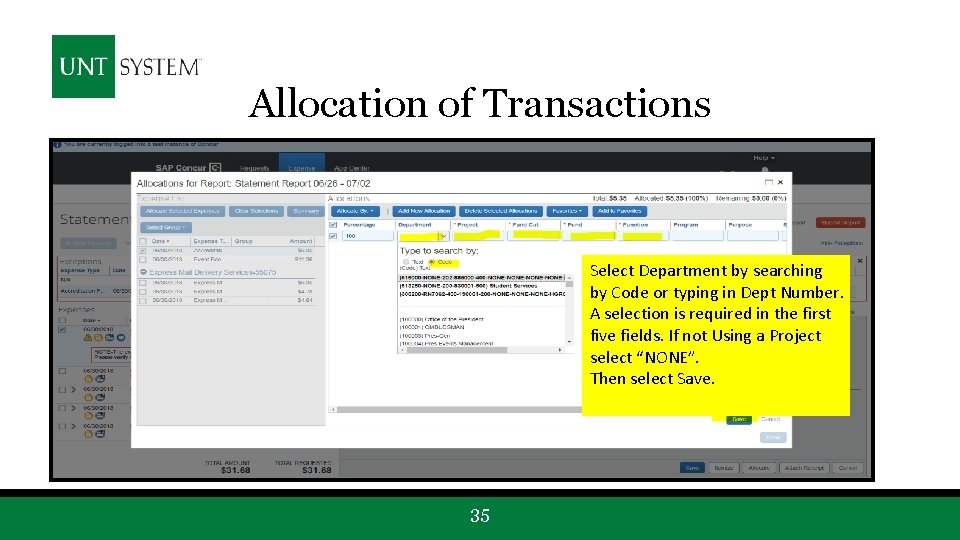
Allocation of Transactions Select Department by searching by Code or typing in Dept Number. A selection is required in the first five fields. If not Using a Project select “NONE”. Then select Save. 35
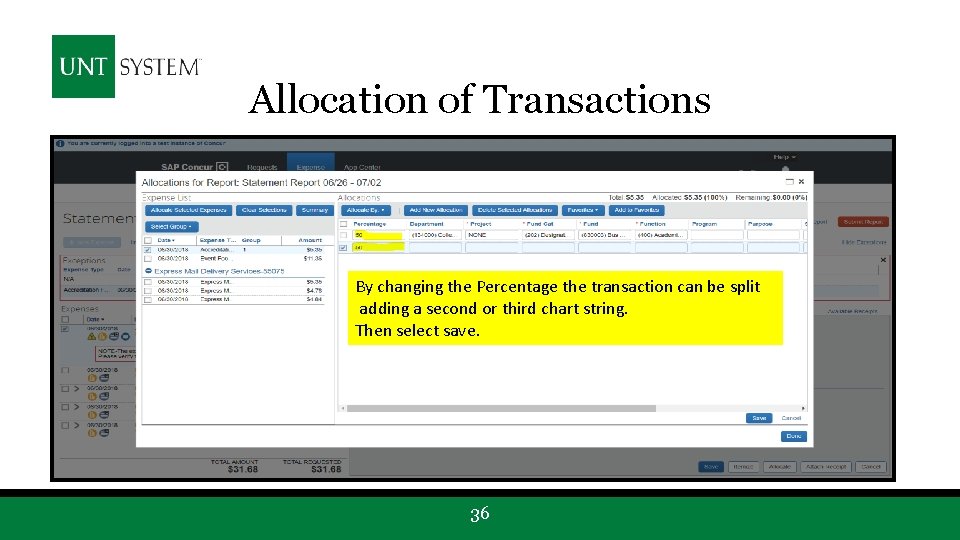
Allocation of Transactions By changing the Percentage the transaction can be split adding a second or third chart string. Then select save. 36
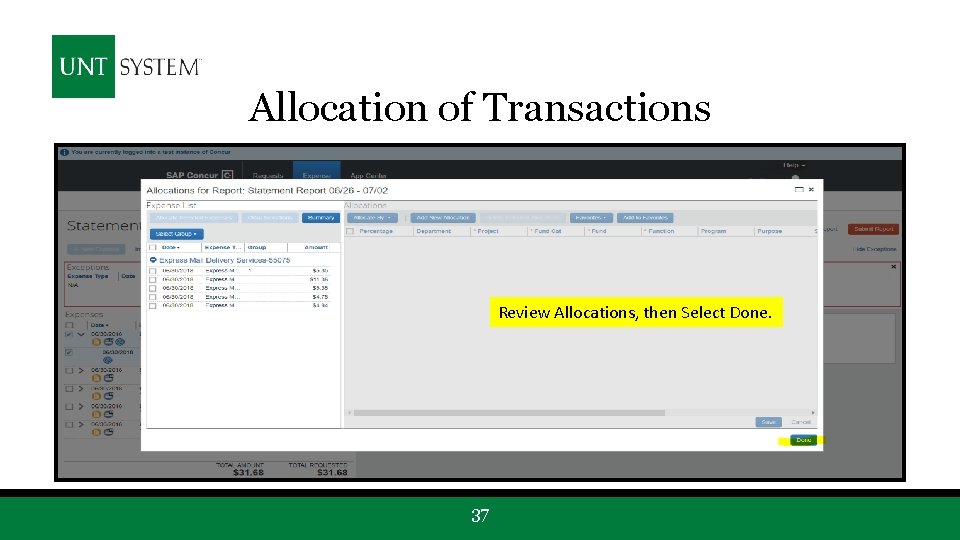
Allocation of Transactions Review Allocations, then Select Done. 37
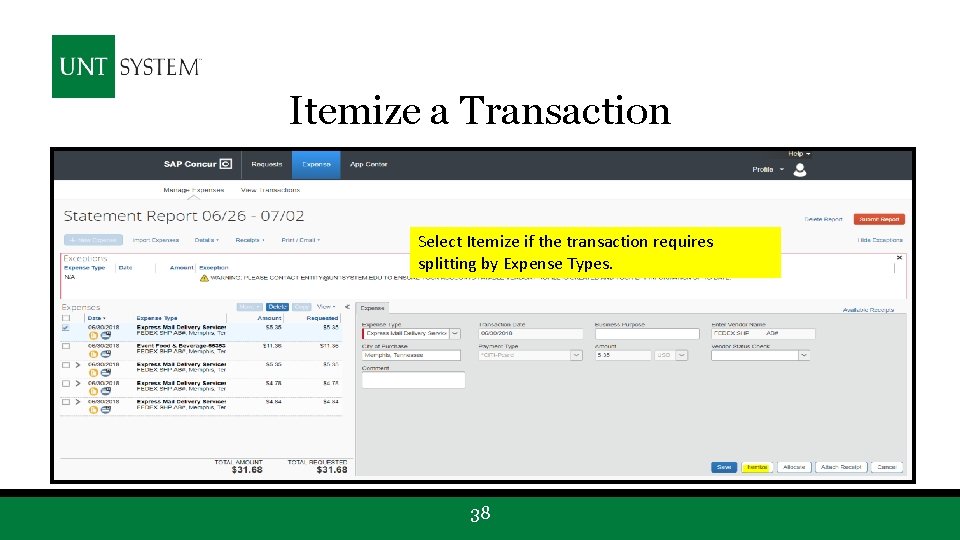
Itemize a Transaction Select Itemize if the transaction requires splitting by Expense Types. 38
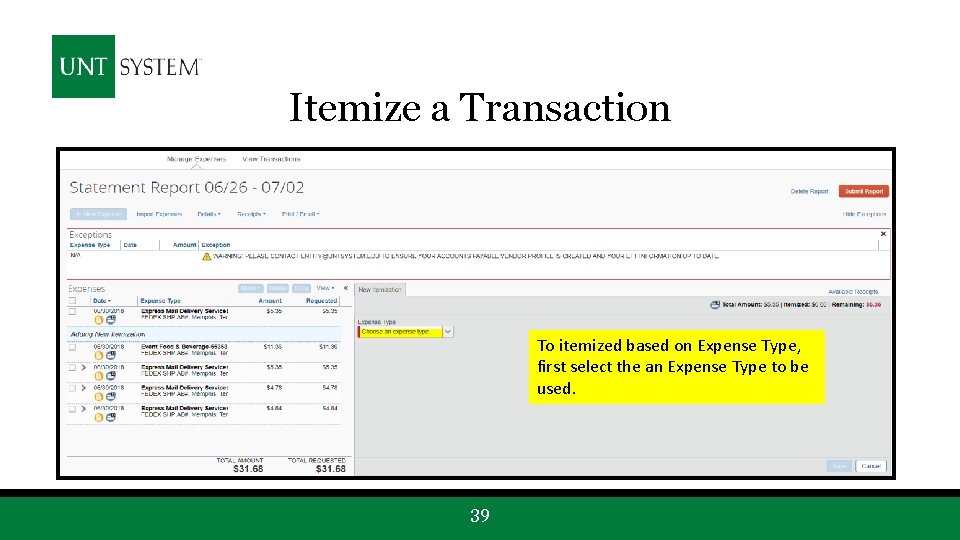
Itemize a Transaction To itemized based on Expense Type, first select the an Expense Type to be used. 39
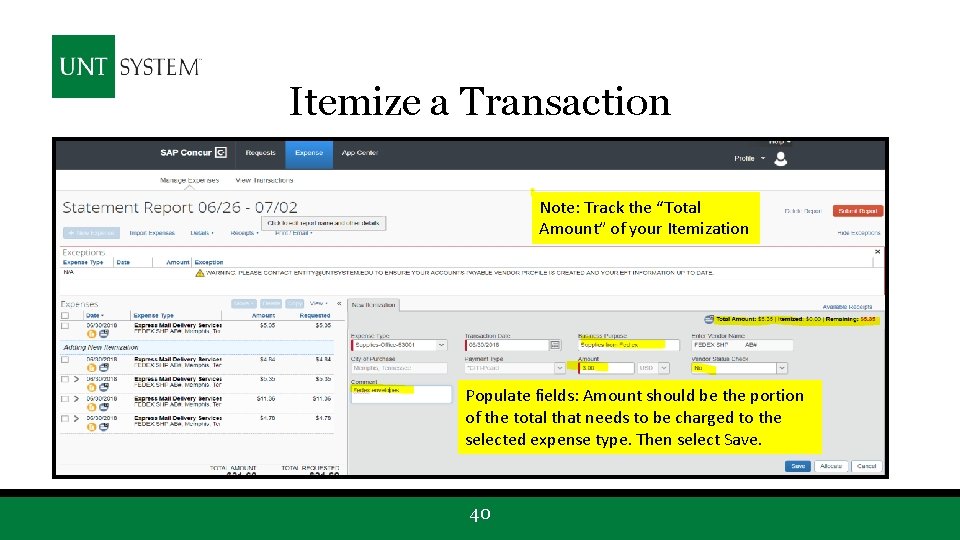
Itemize a Transaction Note: Track the “Total Amount” of your Itemization Populate fields: Amount should be the portion of the total that needs to be charged to the selected expense type. Then select Save. 40
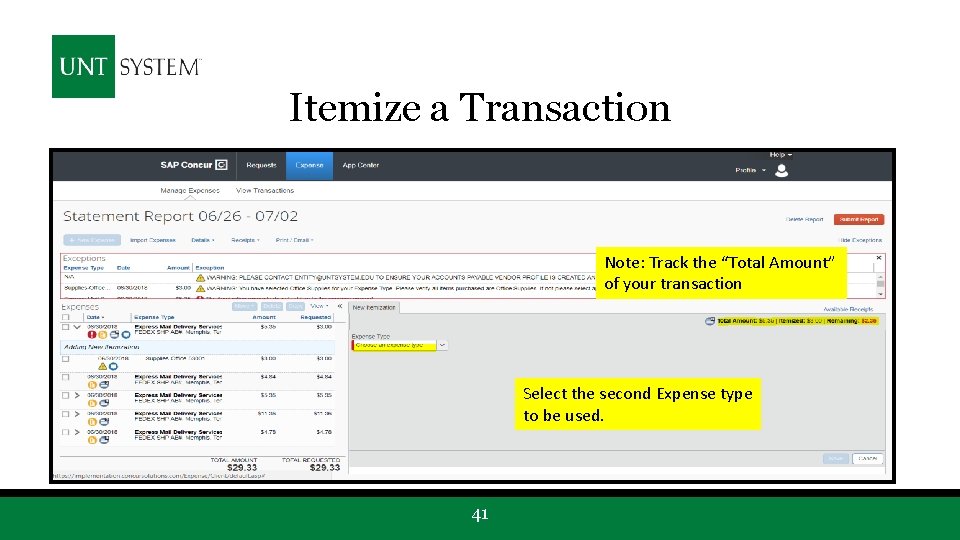
Itemize a Transaction Note: Track the “Total Amount” of your transaction Select the second Expense type to be used. 41
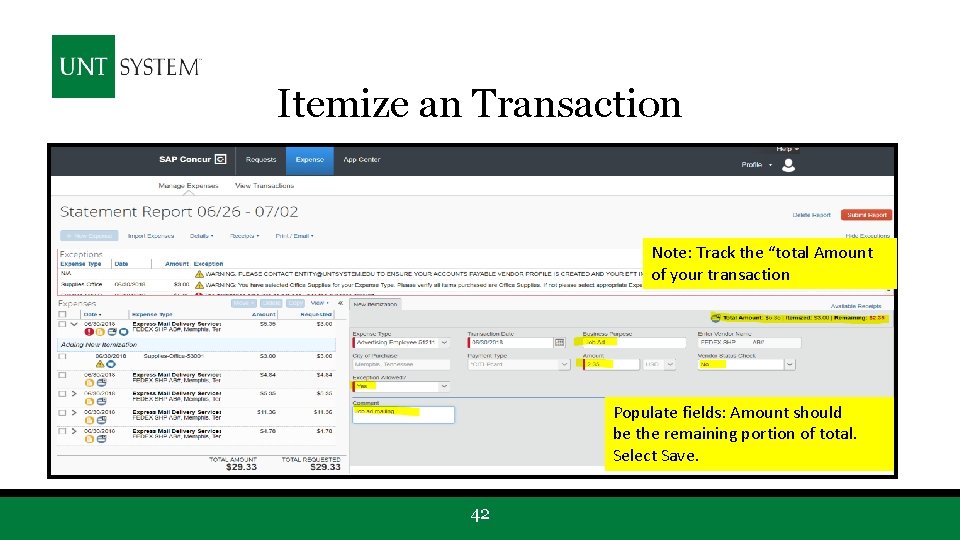
Itemize an Transaction Note: Track the “total Amount of your transaction Populate fields: Amount should be the remaining portion of total. Select Save. 42
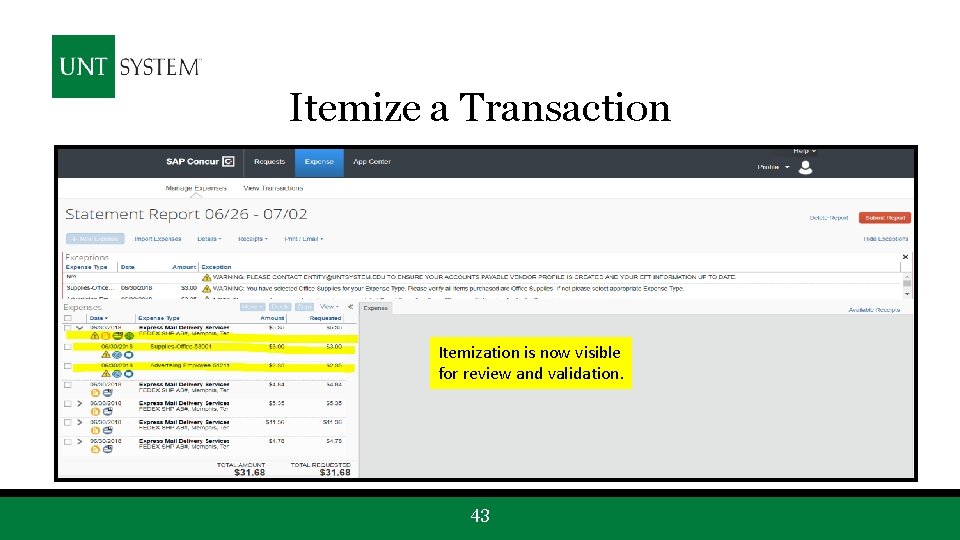
Itemize a Transaction Itemization is now visible for review and validation. 43
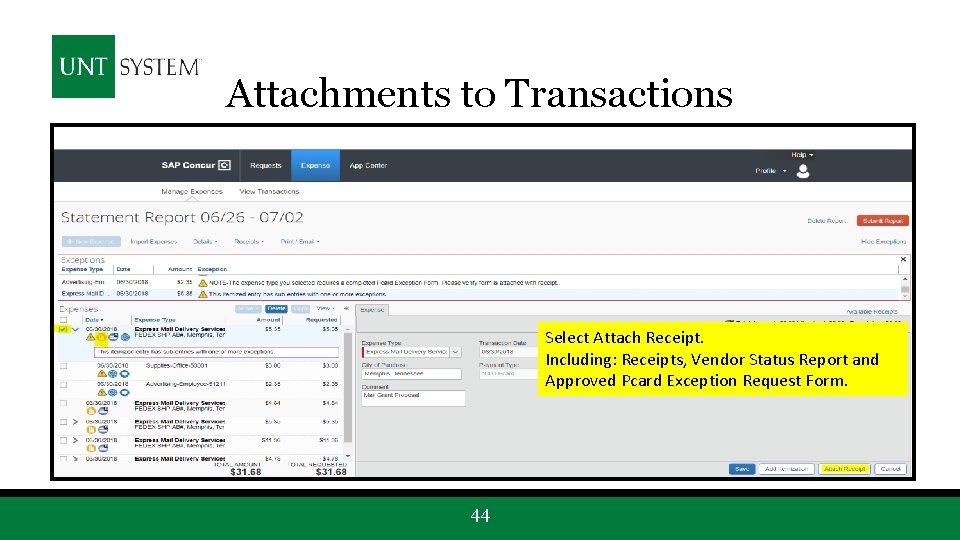
Attachments to Transactions Select Attach Receipt. Including: Receipts, Vendor Status Report and Approved Pcard Exception Request Form. 44
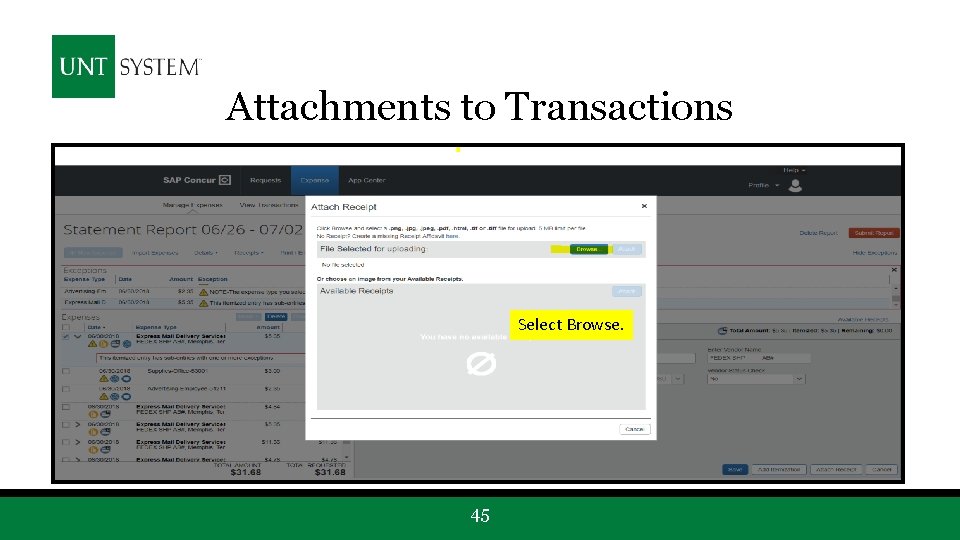
Attachments to Transactions Select Browse. 45
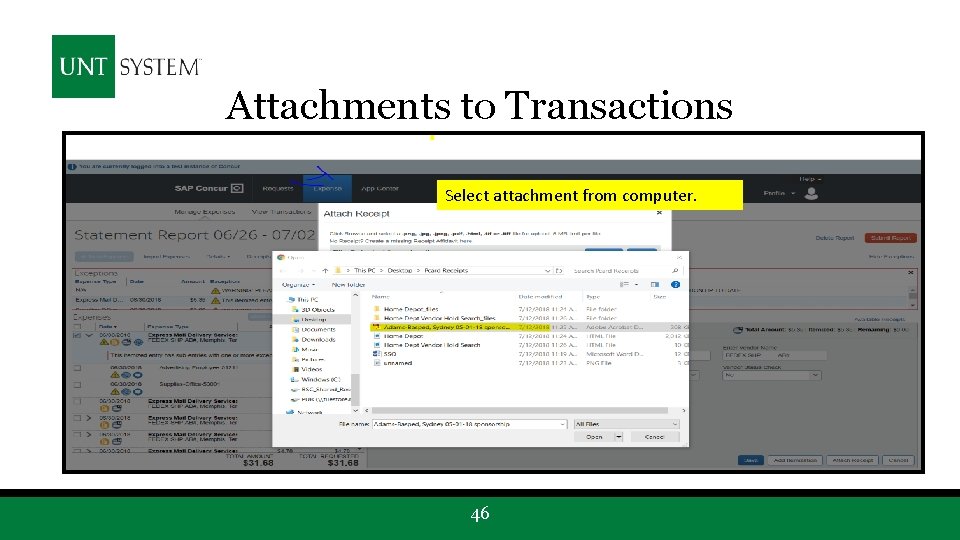
Attachments to Transactions Select attachment from computer. 46
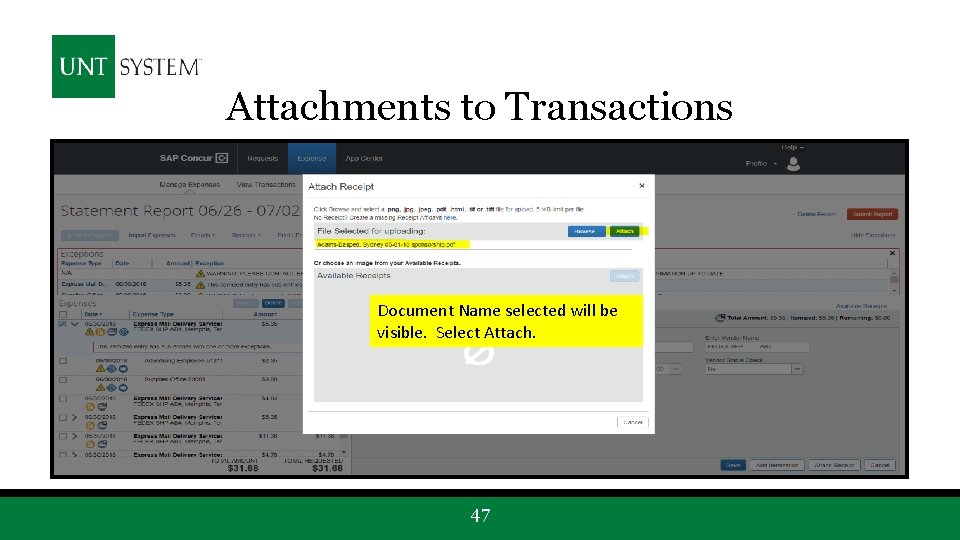
Attachments to Transactions Document Name selected will be visible. Select Attach. 47
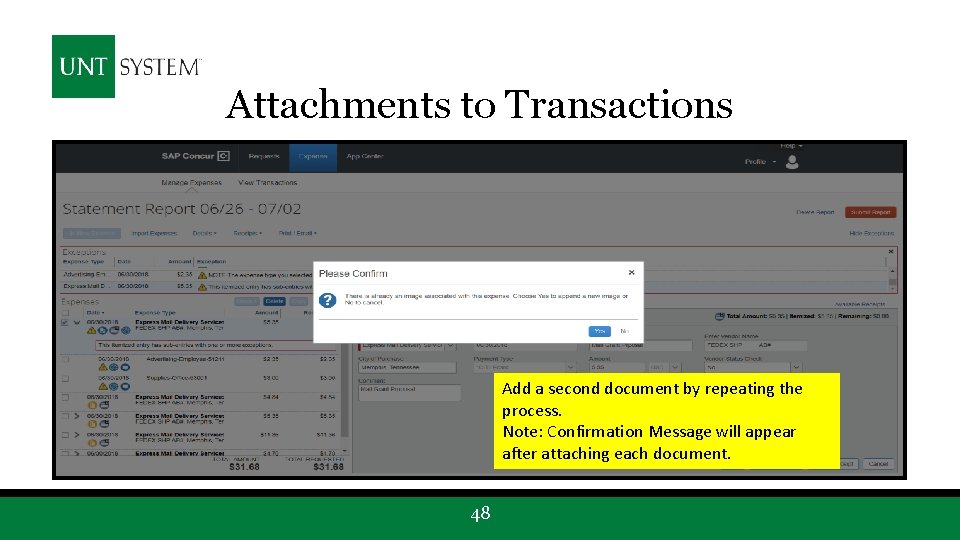
Attachments to Transactions Add a second document by repeating the process. Note: Confirmation Message will appear after attaching each document. 48
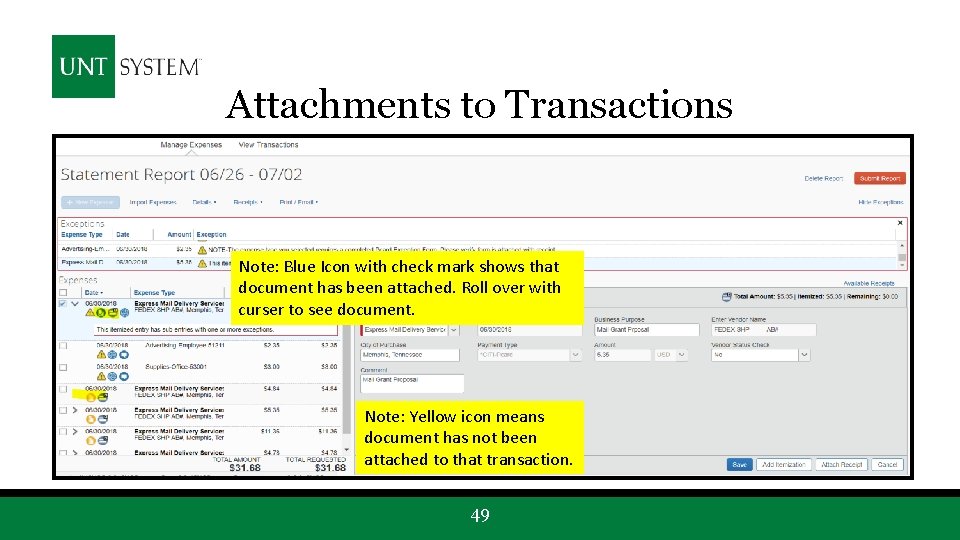
Attachments to Transactions Note: Blue Icon with check mark shows that document has been attached. Roll over with curser to see document. Note: Yellow icon means document has not been attached to that transaction. 49
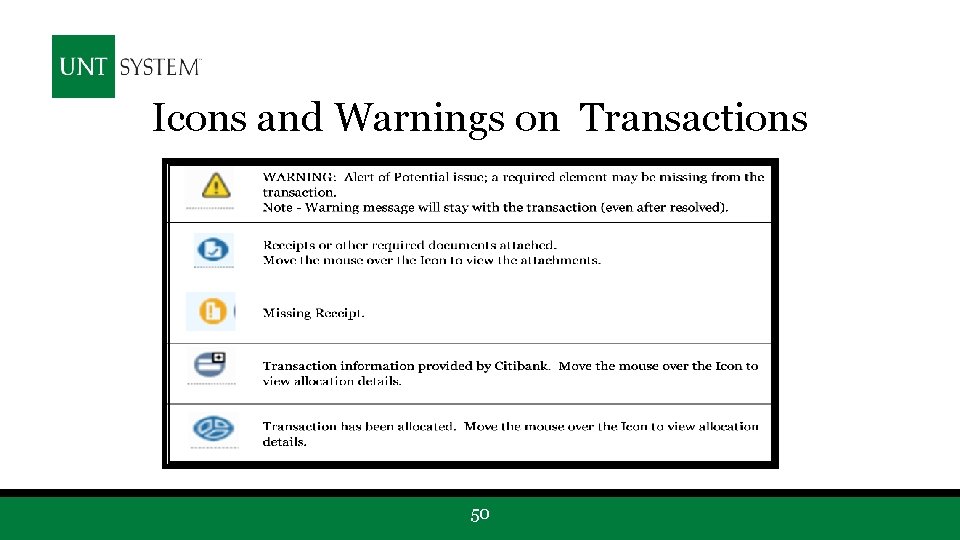
Icons and Warnings on Transactions 50
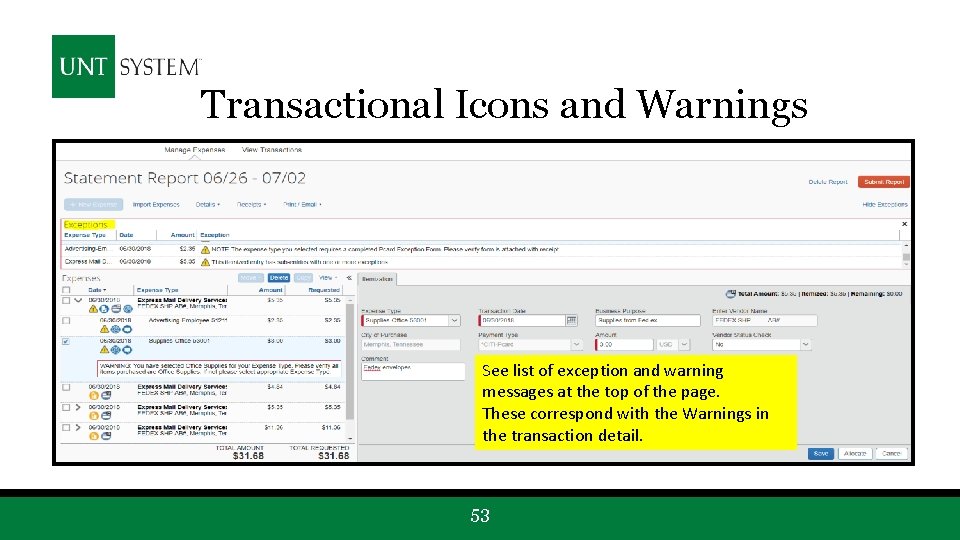
Transactional Icons and Warnings See list of exception and warning messages at the top of the page. These correspond with the Warnings in the transaction detail. 53
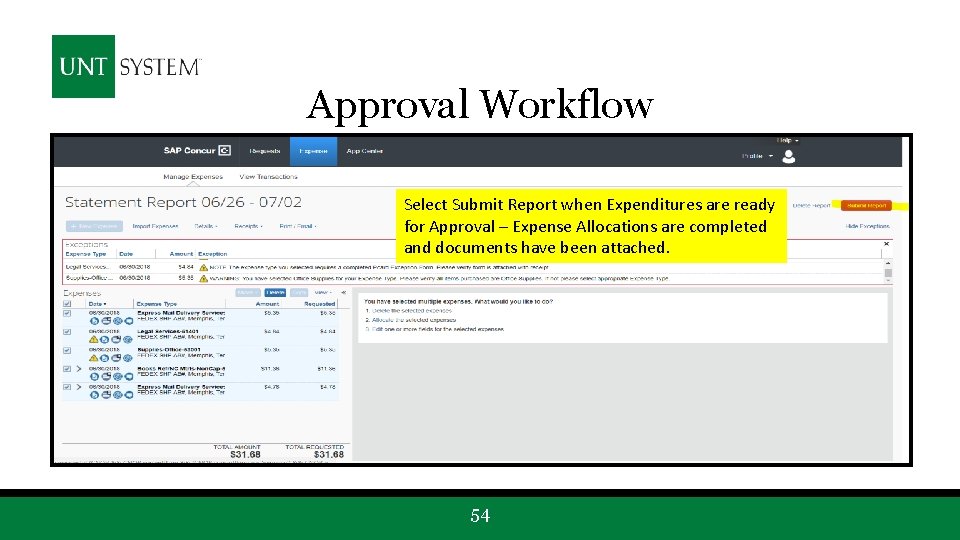
Approval Workflow Select Submit Report when Expenditures are ready for Approval – Expense Allocations are completed and documents have been attached. 54
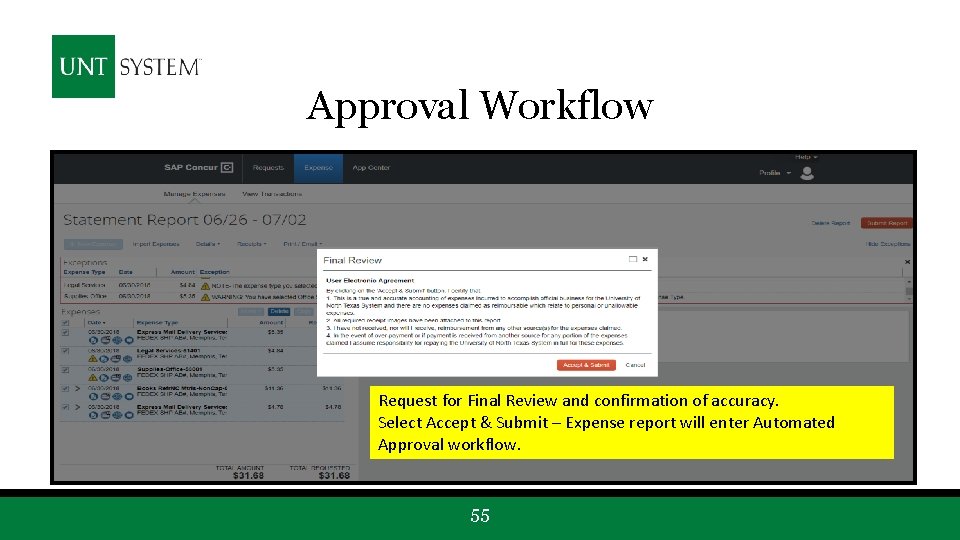
Approval Workflow Request for Final Review and confirmation of accuracy. Select Accept & Submit – Expense report will enter Automated Approval workflow. 55
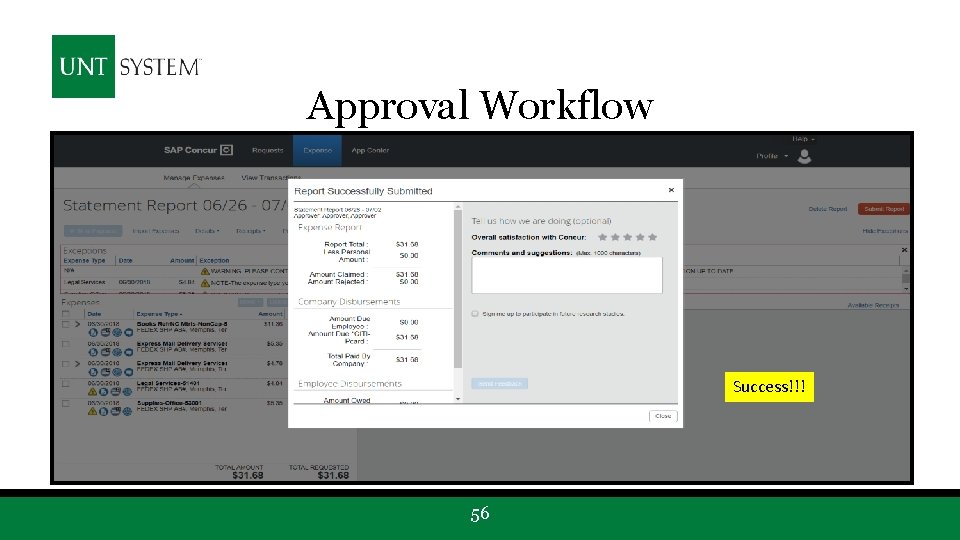
Approval Workflow Success!!! 56
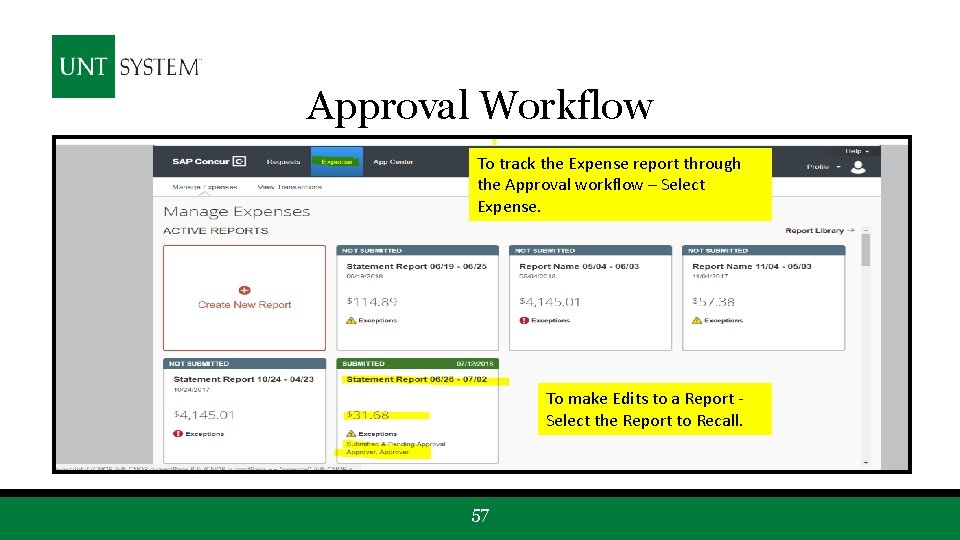
Approval Workflow To track the Expense report through the Approval workflow – Select Expense. To make Edits to a Report Select the Report to Recall. 57
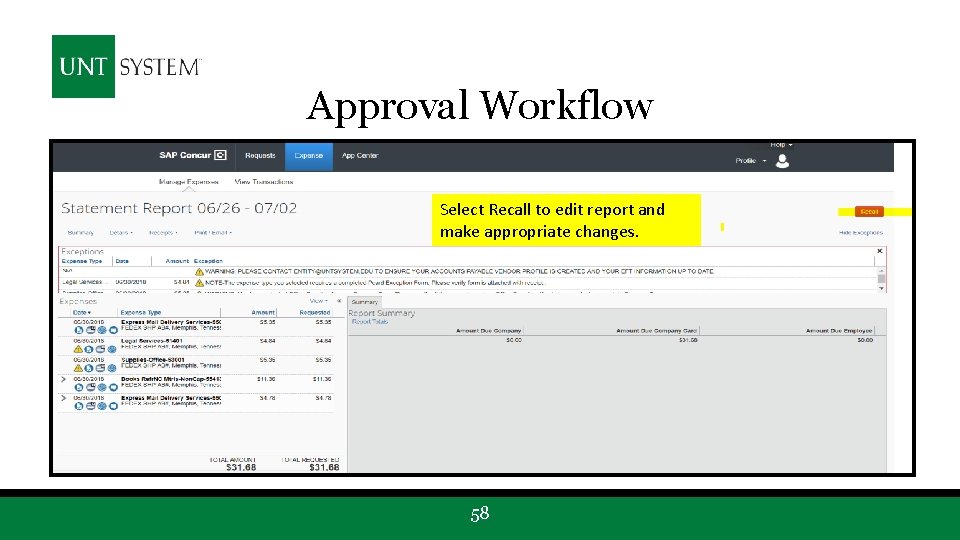
Approval Workflow Select Recall to edit report and make appropriate changes. 58
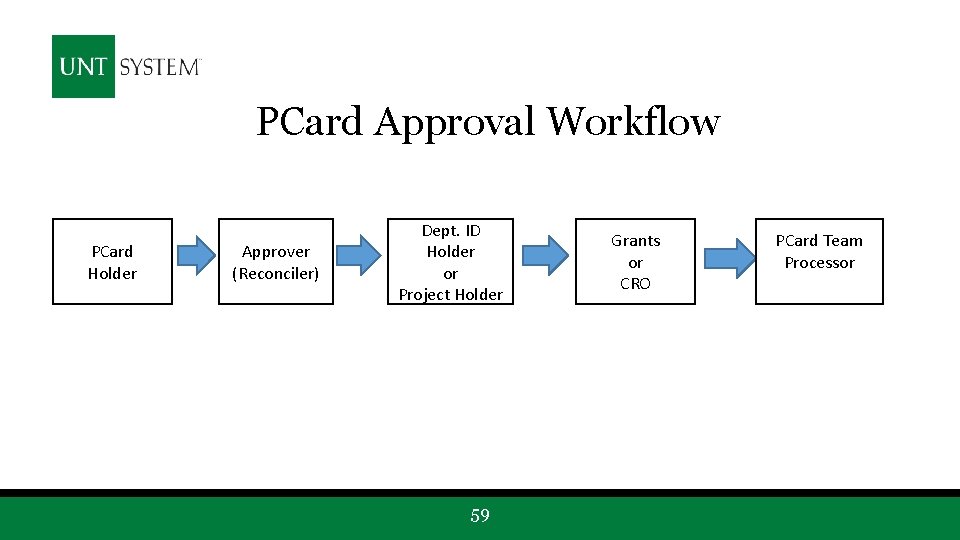
PCard Approval Workflow PCard Holder Approver (Reconciler) Dept. ID Holder or Project Holder 59 Grants or CRO PCard Team Processor
Concur - Important Dates Ø Cardholder Training – September 18 to October 4, 2018 Ø Concur go-live and available for Expenditure Reconciliation - October 4, 2018 Ø Complete Reconciling Transaction for October Statement by October 10, 2018 Transactional Dates: September 4 to October 3, 2018 Ø Citibank GCMS Access will be available until October 30, 2018 60
Concur PCard Contacts ²Concur User Support Desk (Questions regarding Concur System) ²Phone ²PCard Administrative Team ²Phone 940. 369. 5500 X 5 ²Email pcard@untsystem. edu 61
- Slides: 58