
Patient Instructions for Telehealth Sara Horst MD MPH
- Slides: 31
Patient Instructions for Telehealth Sara Horst MD MPH Kaustav P. Shah Austin J. Triana Roman E. Gusdorf
To dos (right now!) • Download My Health at Vanderbilt app and login – If you have ever been seen at Student Health or any Vanderbilt clinic, you should be eligible • Download Doximity App – Verify yourself as a medical student and submit your email – In ~2 days you should be able to make calls anonymously – Use the VUMC generic number 615 -343 -0473
Introduction: why we need you • VUMC is attempting to roll out Telehealth with unprecedented speed • We are learning it is difficult to communicate all the required steps to all patients on all their different Telehealth access platforms • This is where you can help immensely
Introduction: what is tele-health? • Tele-health refers to healthcare that is delivered through a distance using technology (e. g. , phones, videos etc) • The three main types of tele-health are: – Direct to patient (E. g. , live video with a patient) – Store and forward (E. g. , taking a picture of a skin rash and sending to a dermatologist who reads later) – Remote patient monitoring (e. g. , monitoring blood sugar through a smart glucometer)
Introduction: specific issues we have seen • Many patients have My Health At Vanderbilt but may be accessing it on a mobile web browser like Safari which does not work • Some patients will be new to My Health At Vanderbilt in general • Many patients have never used a teleconference platform (like Zoom) – Even those that have used it, may not understand how it is used in this setting
Introduction: your job • Your job is to make sure the patient has all the required access to make the visit successful • We know you all are experts in helping grandparents set up their technology • Also a short primer in teleconference etiquette will help!
Introduction: phone script • “Hello I am ____ at VUMC and am calling to help you get set up for your telehealth visit tomorrow. • If you would like to reschedule, that is great, just let me know and I will let the provider know. • If you are interested in continuing, we will run through what device you will use and make you have everything set up correctly for the visit. • I will also go through a few recommendations since this may be the first time you have done a teleconference type visit. ”
Introduction: script continued • “First, your provider will see you as this is a video and audio visit. • Please make sure you are at home and in a quiet room with all noises off (such as TV/games/computer) • If you have someone in the room with you, that is great, just let the provider know who is there. • Have your medications or even better, a list of your medications with you so your provider can go through these with you. ”
Introduction: script continued • Questions for Primary care visits: • “Do you have a scale? Consider weighing yourself before the visit in case your provider asks. • Do you have a thermometer? Consider getting your temperature just before the visit and tell your provider the results. • Do you have a blood pressure monitor? Consider checking your blood pressure just before the visit and tell your provider the results. ”
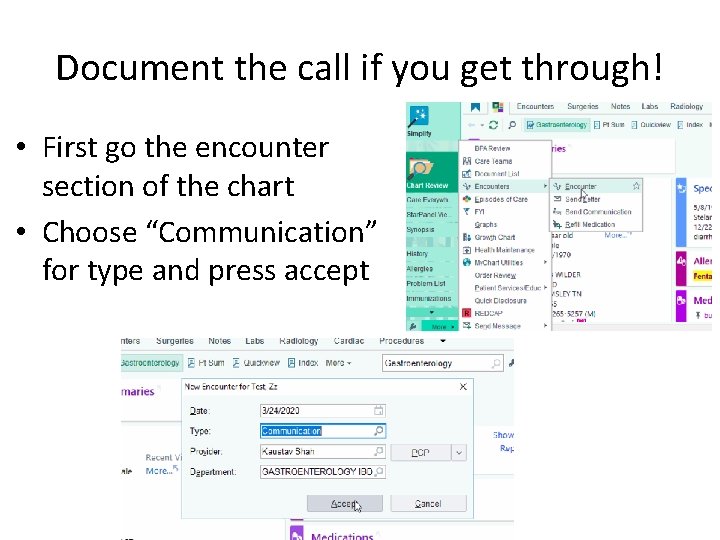
Document the call if you get through! • First go the encounter section of the chart • Choose “Communication” for type and press accept
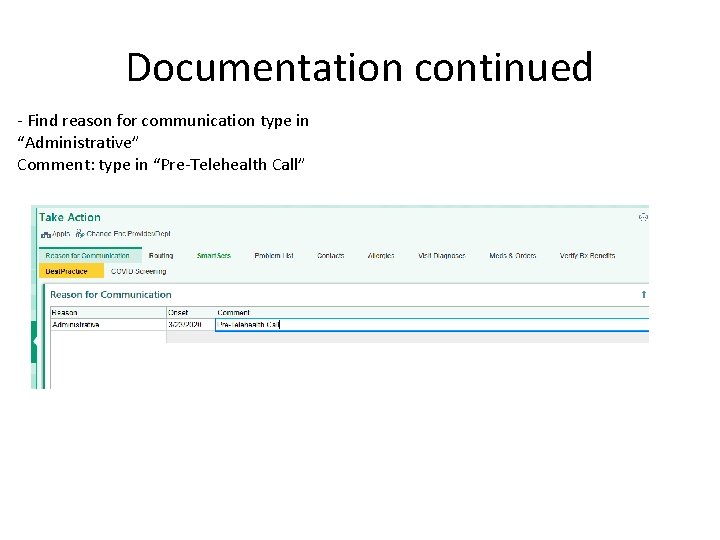
Documentation continued - Find reason for communication type in “Administrative” Comment: type in “Pre-Telehealth Call”
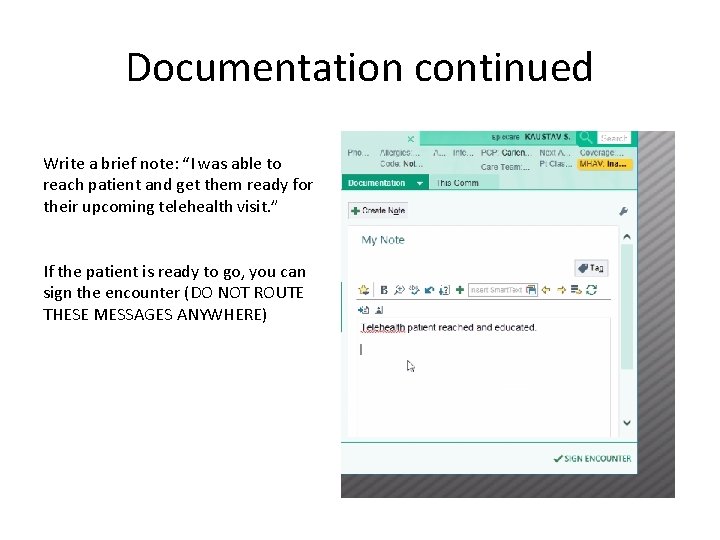
Documentation continued Write a brief note: “I was able to reach patient and get them ready for their upcoming telehealth visit. ” If the patient is ready to go, you can sign the encounter (DO NOT ROUTE THESE MESSAGES ANYWHERE)
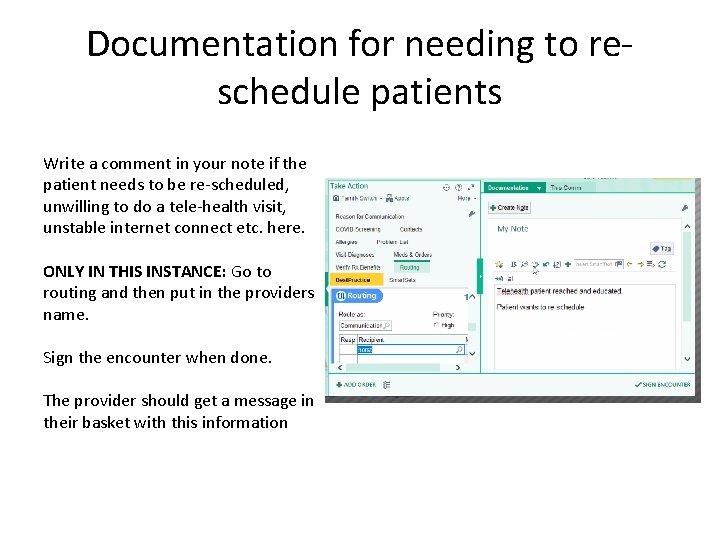
Documentation for needing to reschedule patients Write a comment in your note if the patient needs to be re-scheduled, unwilling to do a tele-health visit, unstable internet connect etc. here. ONLY IN THIS INSTANCE: Go to routing and then put in the providers name. Sign the encounter when done. The provider should get a message in their basket with this information
Start by asking the patient this: • ASK: What will you use for the visit? – Smartphone? – Tablet? – Computer? • Make sure you go through the “BEFORE THE VISIT” information • The “DAY OF VISIT” slides are there just for FYI and details in case you need to trouble shoot ever
GO THROUGH WITH PT: Smartphone/Tablet: BEFORE THE VISIT • Download MHAV App – Make sure they can log on and get into the app. • Biggest issue will be passwords – Make sure they know where to go to get to the visit: • APPOINTMENTS • Click on the visit: Click the “Camera” or “Start the visit” • Download Zoom App – Can go to the App store or if need help: • https: //zoom. us/download#client_4 meeting. – Make sure to give Zoom access to your camera and microphone. • ON the day of your visit: Go to MHAV App and start your visit there! – NOT Zoom App
GO THROUGH WITH PT: Computer: BEFORE THE VISIT • Download Zoom: https: //zoom. us/test – It will ask you to download and execute: Yes – If you computer asks you to save the program, save it where you can easily find it (for example, in “Downloads” folder or on your Desktop) • Make sure you can access My Health At Vanderbilt – Google Chrome? (I know they need this from a smartphone) – Make sure they can log in – Have them check for “Pop up blockers” and remind them this could happen.
Escalating IT Issues Contact the Help Desk on the patient’s behalf • Use a 3 -way call engage the Help Desk • 615 -343 -4357, Option 4 Direct them to the website: https: //vanderbilthealth. com/myhealth_help/54692 Still need help? • Despite your help and support from the Help Desk, some patients will not be comfortable with this technology • Let the patient know that someone from the clinic will be in touch to discuss alternatives such as a phone visit • Notify the clinic that they need to follow up with the patient.
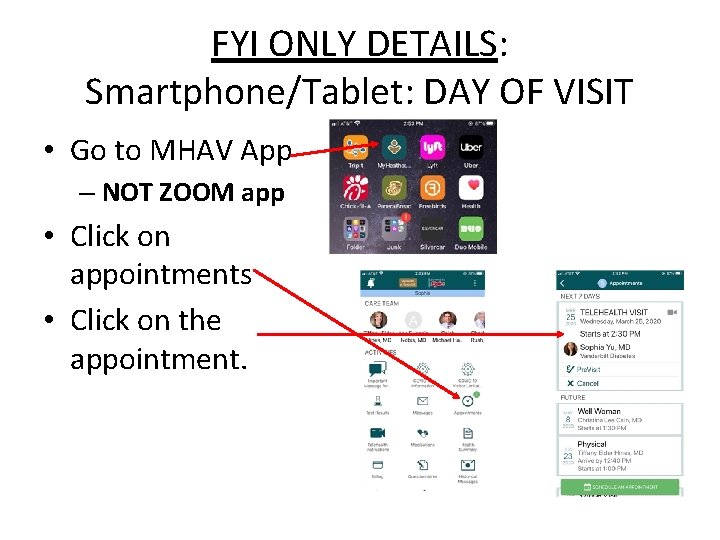
FYI ONLY DETAILS: Smartphone/Tablet: DAY OF VISIT • Go to MHAV App – NOT ZOOM app • Click on appointments • Click on the appointment.
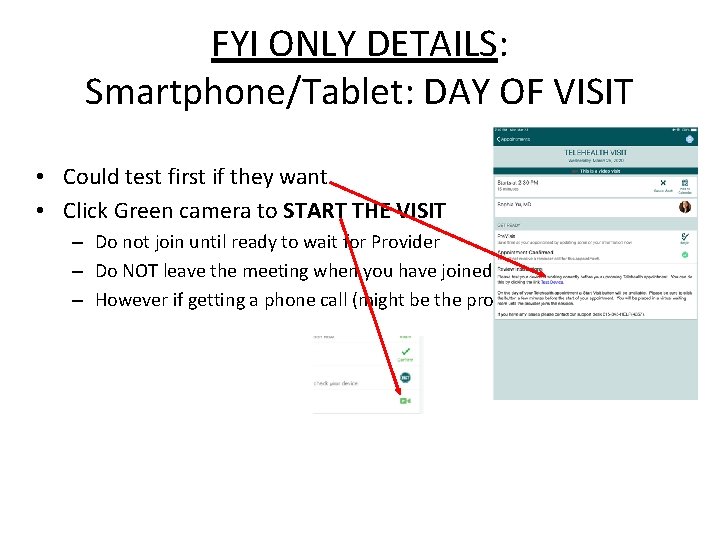
FYI ONLY DETAILS: Smartphone/Tablet: DAY OF VISIT • Could test first if they want • Click Green camera to START THE VISIT – Do not join until ready to wait for Provider – Do NOT leave the meeting when you have joined otherwise it may end – However if getting a phone call (might be the provider) so pick that up
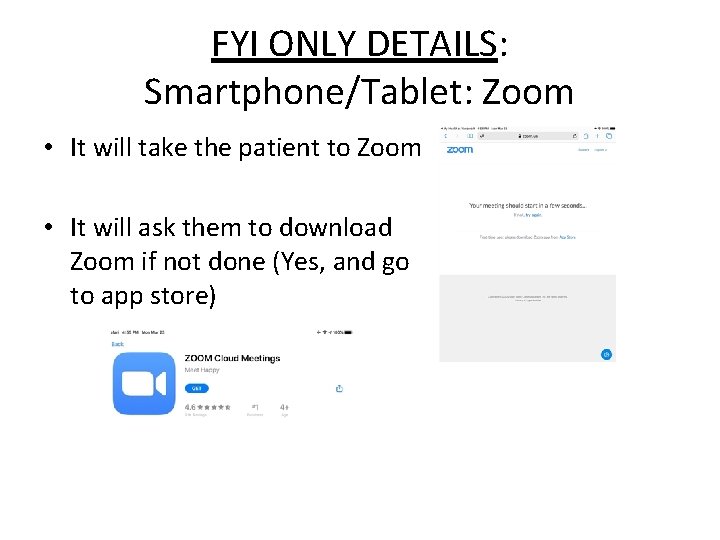
FYI ONLY DETAILS: Smartphone/Tablet: Zoom • It will take the patient to Zoom • It will ask them to download Zoom if not done (Yes, and go to app store)
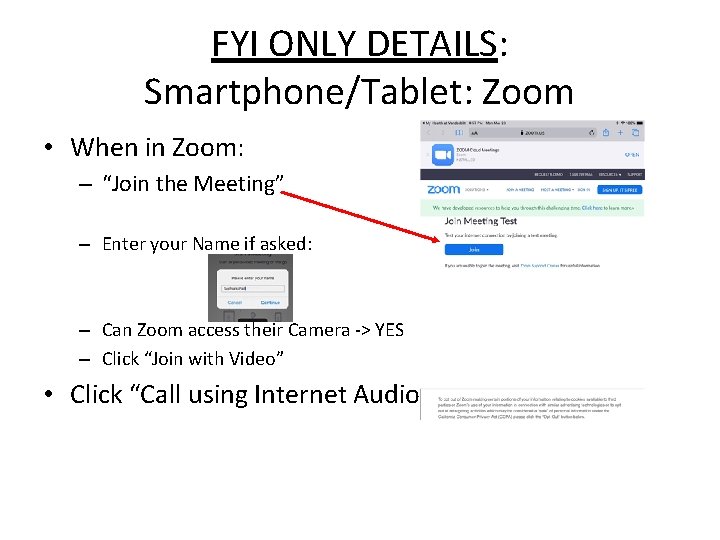
FYI ONLY DETAILS: Smartphone/Tablet: Zoom • When in Zoom: – “Join the Meeting” – Enter your Name if asked: – Can Zoom access their Camera -> YES – Click “Join with Video” • Click “Call using Internet Audio”
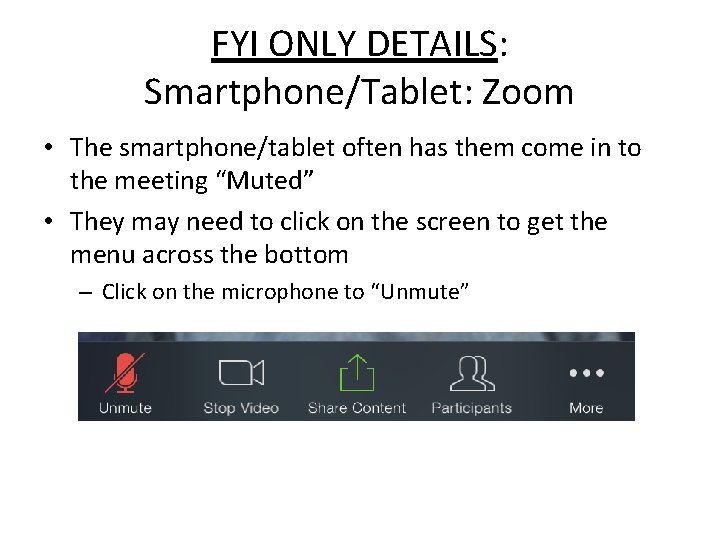
FYI ONLY DETAILS: Smartphone/Tablet: Zoom • The smartphone/tablet often has them come in to the meeting “Muted” • They may need to click on the screen to get the menu across the bottom – Click on the microphone to “Unmute”
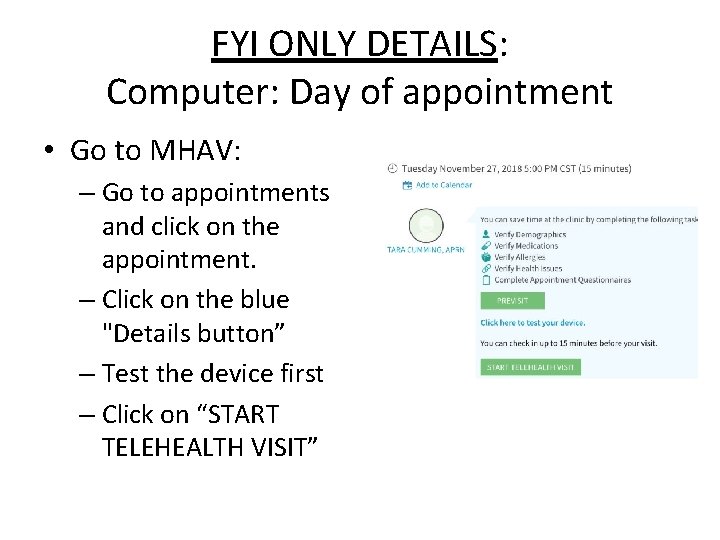
FYI ONLY DETAILS: Computer: Day of appointment • Go to MHAV: – Go to appointments and click on the appointment. – Click on the blue "Details button” – Test the device first – Click on “START TELEHEALTH VISIT”
FYI ONLY DETAILS: Computer: Zoom • It will take the patient to Zoom – It may ask if they want to open Zoom-> YES • “Join with Video” -> YES • Click “Call using Internet Audio” • They may have to Turn on their microphone and camera along the bottom of the Zoom Screen.
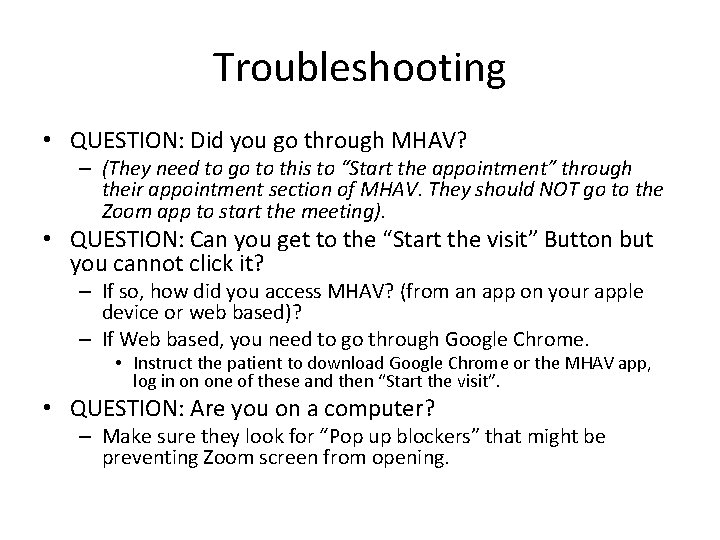
Troubleshooting • QUESTION: Did you go through MHAV? – (They need to go to this to “Start the appointment” through their appointment section of MHAV. They should NOT go to the Zoom app to start the meeting). • QUESTION: Can you get to the “Start the visit” Button but you cannot click it? – If so, how did you access MHAV? (from an app on your apple device or web based)? – If Web based, you need to go through Google Chrome. • Instruct the patient to download Google Chrome or the MHAV app, log in on one of these and then “Start the visit”. • QUESTION: Are you on a computer? – Make sure they look for “Pop up blockers” that might be preventing Zoom screen from opening.
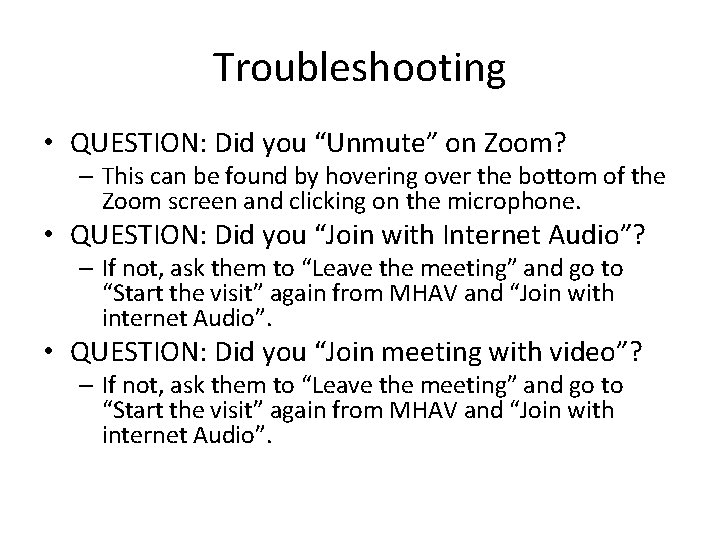
Troubleshooting • QUESTION: Did you “Unmute” on Zoom? – This can be found by hovering over the bottom of the Zoom screen and clicking on the microphone. • QUESTION: Did you “Join with Internet Audio”? – If not, ask them to “Leave the meeting” and go to “Start the visit” again from MHAV and “Join with internet Audio”. • QUESTION: Did you “Join meeting with video”? – If not, ask them to “Leave the meeting” and go to “Start the visit” again from MHAV and “Join with internet Audio”.
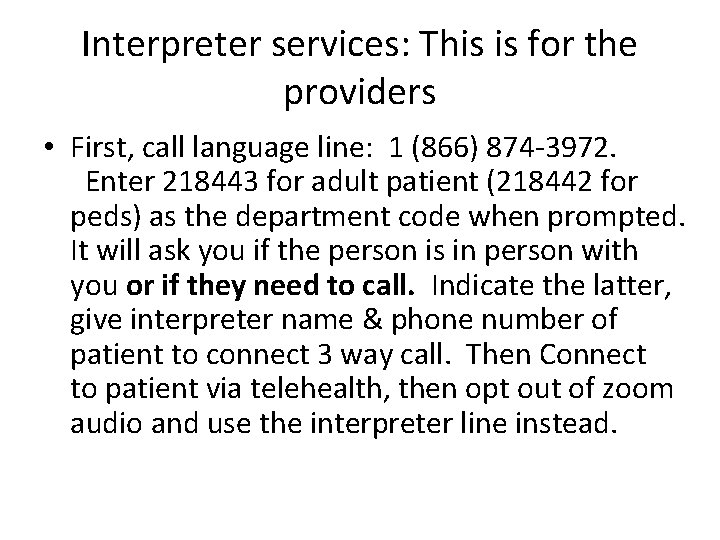
Interpreter services: This is for the providers • First, call language line: 1 (866) 874 -3972. Enter 218443 for adult patient (218442 for peds) as the department code when prompted. It will ask you if the person is in person with you or if they need to call. Indicate the latter, give interpreter name & phone number of patient to connect 3 way call. Then Connect to patient via telehealth, then opt out of zoom audio and use the interpreter line instead.
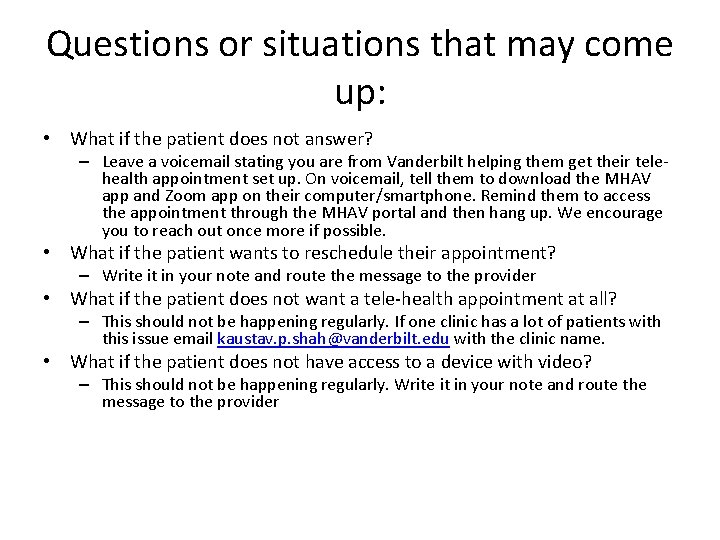
Questions or situations that may come up: • What if the patient does not answer? – Leave a voicemail stating you are from Vanderbilt helping them get their telehealth appointment set up. On voicemail, tell them to download the MHAV app and Zoom app on their computer/smartphone. Remind them to access the appointment through the MHAV portal and then hang up. We encourage you to reach out once more if possible. • What if the patient wants to reschedule their appointment? – Write it in your note and route the message to the provider • What if the patient does not want a tele-health appointment at all? – This should not be happening regularly. If one clinic has a lot of patients with this issue email kaustav. p. shah@vanderbilt. edu with the clinic name. • What if the patient does not have access to a device with video? – This should not be happening regularly. Write it in your note and route the message to the provider
Questions continued: • What is the patient does not have stable internet access? – This should not be happening regularly. Write it in your note and route the message to the provider • Please fill out this form: when you have other issues come up so we can address them rapidly: https: //docs. google. com/forms/d/e/1 FAIp. QLSd_u. Tja. Xxq 44 b 9 Tv. YJc-p. YMUe. HK 5 y 7 N 2 Hb. QUD 2 d 4 t. LGPc. Ru 2 A/viewform • Check the second sheet of the Google Form for common FAQs
Next steps • Download MHAV app • Download Doximity app • Sign up for clinics on Google Sheet – Honor system – Try and fill every spot collectively – Should only take 1 -5 minutes per patient – Log your hours on the sheet • Fill out Google Form with questions/concerns
Thank you all!!! • This is a work in progress • ANY patient you can reach is benefitting them and VUMC at large