
Pathfinder Office Software Project is the main way

- Slides: 39
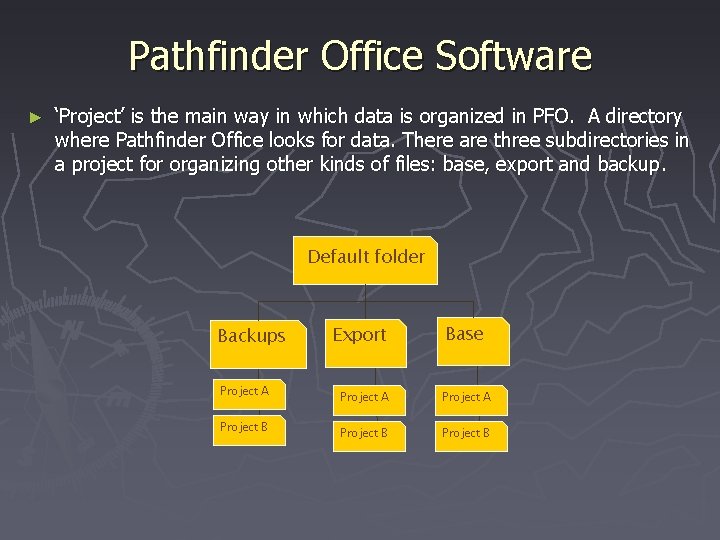
Pathfinder Office Software ► ‘Project’ is the main way in which data is organized in PFO. A directory where Pathfinder Office looks for data. There are three subdirectories in a project for organizing other kinds of files: base, export and backup. Default folder Backups Export Base Project A Project B
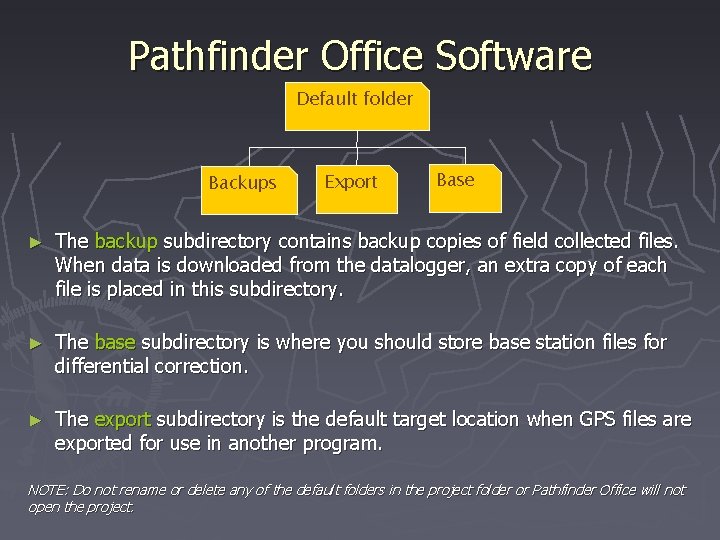
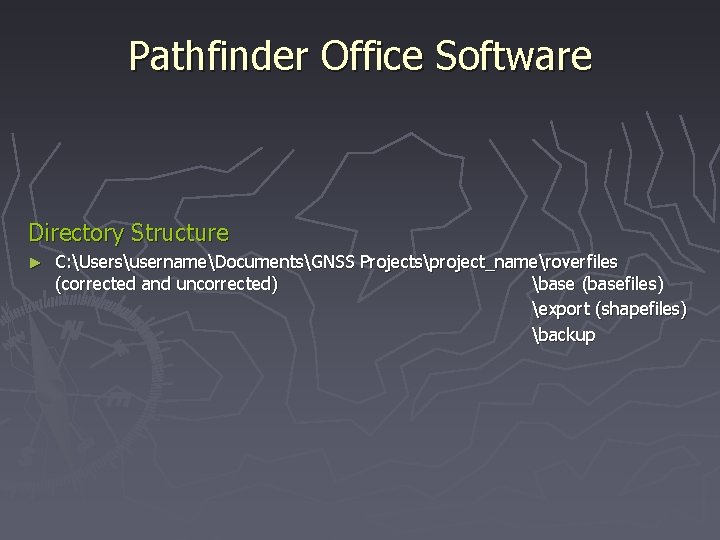
Pathfinder Office Software Default folder Backups Export Base ► The backup subdirectory contains backup copies of field collected files. When data is downloaded from the datalogger, an extra copy of each file is placed in this subdirectory. ► The base subdirectory is where you should store base station files for differential correction. ► The export subdirectory is the default target location when GPS files are exported for use in another program. NOTE: Do not rename or delete any of the default folders in the project folder or Pathfinder Office will not open the project.
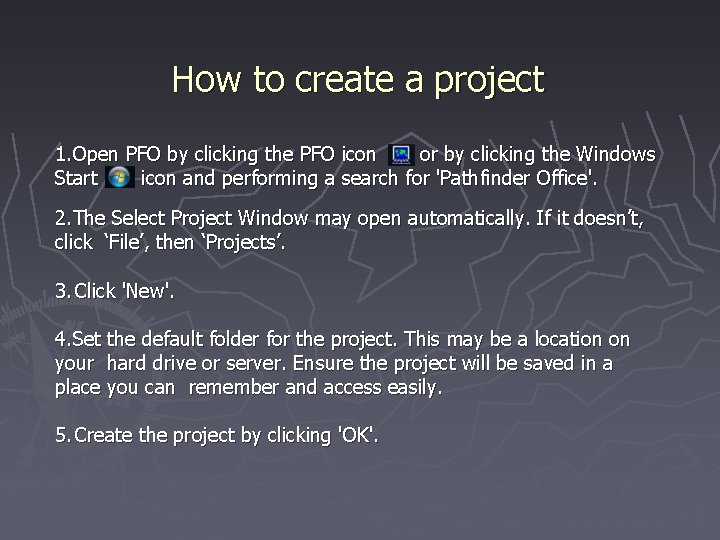
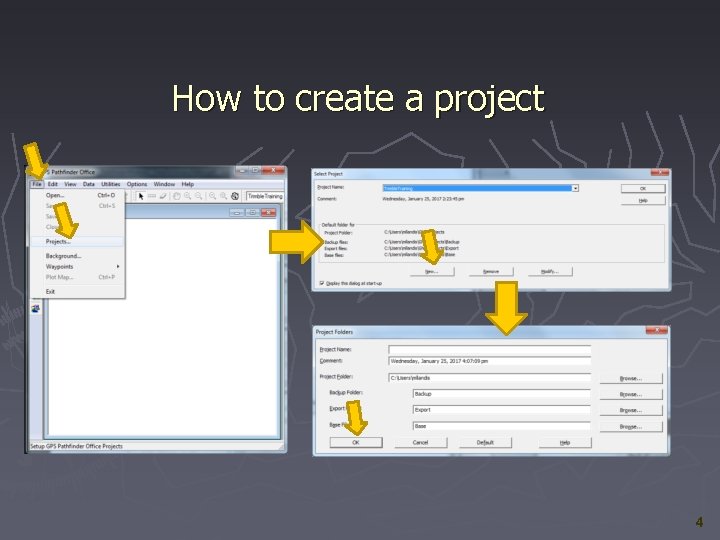
How to create a project 1. Open PFO by clicking the PFO icon or by clicking the Windows Start icon and performing a search for 'Pathfinder Office'. 2. The Select Project Window may open automatically. If it doesn’t, click ‘File’, then ‘Projects’. 3. Click 'New'. 4. Set the default folder for the project. This may be a location on your hard drive or server. Ensure the project will be saved in a place you can remember and access easily. 5. Create the project by clicking 'OK'.
How to create a project 4
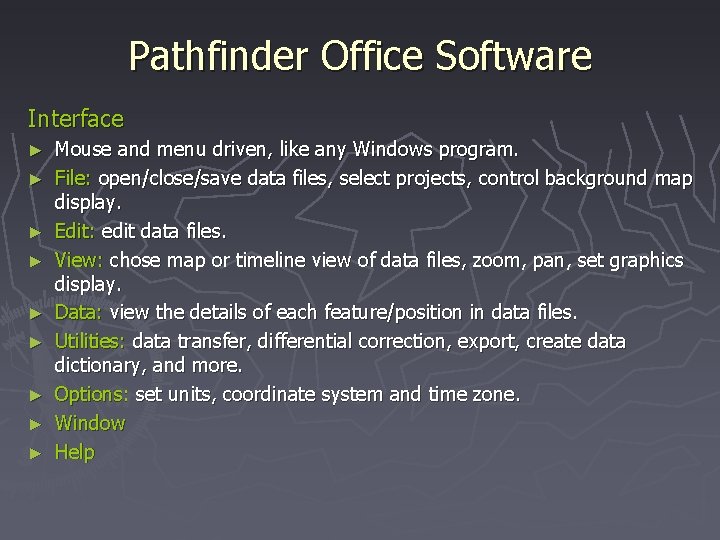
Pathfinder Office Software Interface ► ► ► ► ► Mouse and menu driven, like any Windows program. File: open/close/save data files, select projects, control background map display. Edit: edit data files. View: chose map or timeline view of data files, zoom, pan, set graphics display. Data: view the details of each feature/position in data files. Utilities: data transfer, differential correction, export, create data dictionary, and more. Options: set units, coordinate system and time zone. Window Help
Pathfinder Office Software Directory Structure ► C: UsersusernameDocumentsGNSS Projectsproject_nameroverfiles (corrected and uncorrected) base (basefiles) export (shapefiles) backup
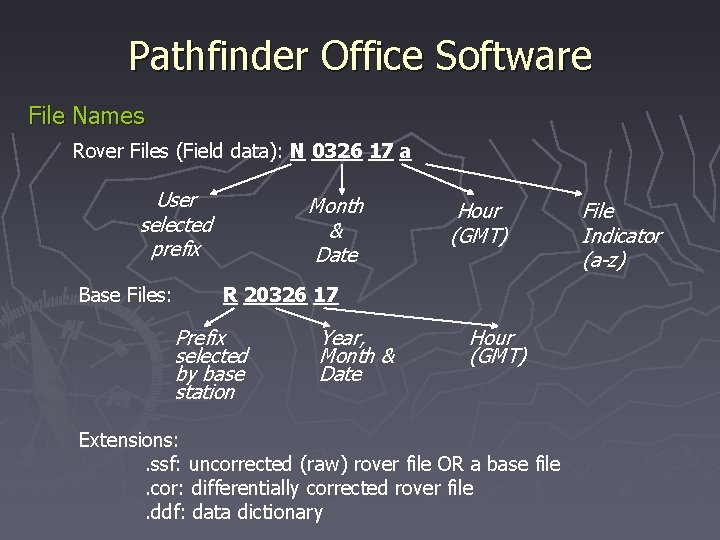
Pathfinder Office Software File Names Rover Files (Field data): N 0326 17 a User selected prefix Base Files: Month & Date Hour (GMT) R 20326 17 Prefix selected by base station Year, Month & Date Hour (GMT) Extensions: . ssf: uncorrected (raw) rover file OR a base file. cor: differentially corrected rover file. ddf: data dictionary File Indicator (a-z)
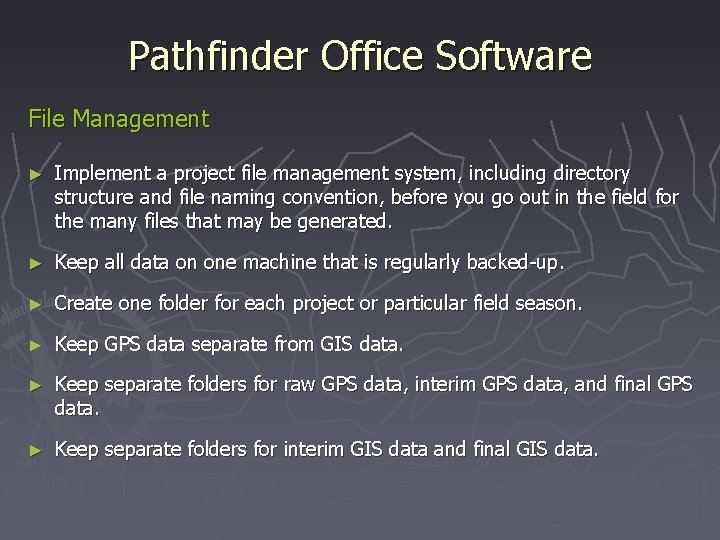
Pathfinder Office Software File Management ► Implement a project file management system, including directory structure and file naming convention, before you go out in the field for the many files that may be generated. ► Keep all data on one machine that is regularly backed-up. ► Create one folder for each project or particular field season. ► Keep GPS data separate from GIS data. ► Keep separate folders for raw GPS data, interim GPS data, and final GPS data. ► Keep separate folders for interim GIS data and final GIS data.
PFO Data Dictionary Editor Feature Name…. Bear Attribute Name…. Texture Attribute Value…. Soft
Data Dictionary - The power of a GIS Data Capture Tool ► Controls how location information is stored (e. g. , how many positions are averaged for a point, logging interval) ► Allows us to collect information efficiently (as opposed to writing in a notebook or using field-sheets) ► Organizes information for GIS / geodatabase (essentially pre-constructs your attribute table) ► Enforces consistency (e. g. , providing drop-down menus, radio buttons, etc. )
Data Dictionary - Design Considerations l Consider how to address the stated research questions l List the target features and determine whether to map them as points, lines or polygons. Consider providing the option of using point or polygon if you haven’t scouted the field site ahead of time. l List the attributes for each feature class and identify their type – menu (fewer errors, easily queried) – free text (flexible, handles the unexpected) – numeric (enumerated, range, derived) – automatic value (e. g. increment, date) l Link your data? Consider including common data fields, such as an ID number l You don’t know what’s out there! Design to accommodate the unexpected or uncertain l Big or complicated ddf are unfriendly to field crews! Use as few feature types & attributes as possible to collect the data you need.
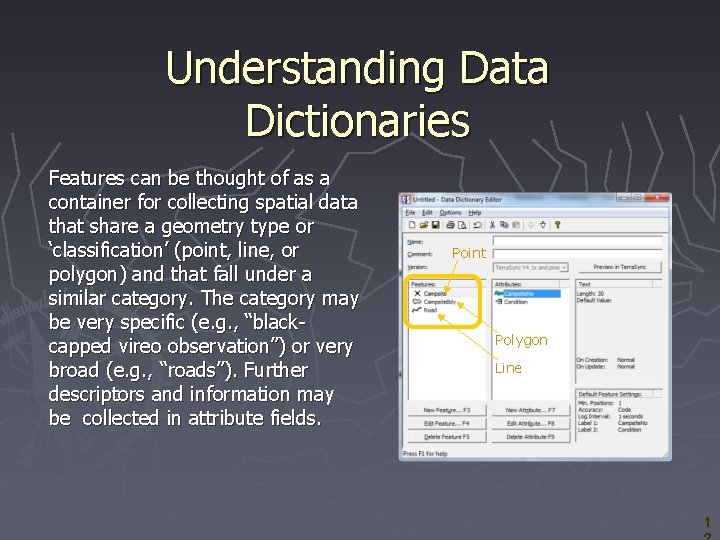
Understanding Data Dictionaries Features can be thought of as a container for collecting spatial data that share a geometry type or ‘classification’ (point, line, or polygon) and that fall under a similar category. The category may be very specific (e. g. , “blackcapped vireo observation”) or very broad (e. g. , “roads”). Further descriptors and information may be collected in attribute fields. Point Polygon Line 1
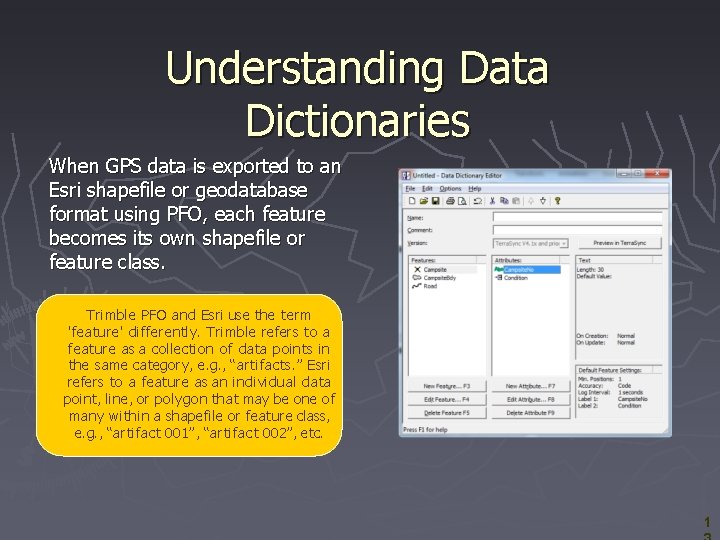
Understanding Data Dictionaries When GPS data is exported to an Esri shapefile or geodatabase format using PFO, each feature becomes its own shapefile or feature class. Trimble PFO and Esri use the term 'feature' differently. Trimble refers to a feature as a collection of data points in the same category, e. g. , “artifacts. ” Esri refers to a feature as an individual data point, line, or polygon that may be one of many within a shapefile or feature class, e. g. , “artifact 001”, “artifact 002”, etc. 1
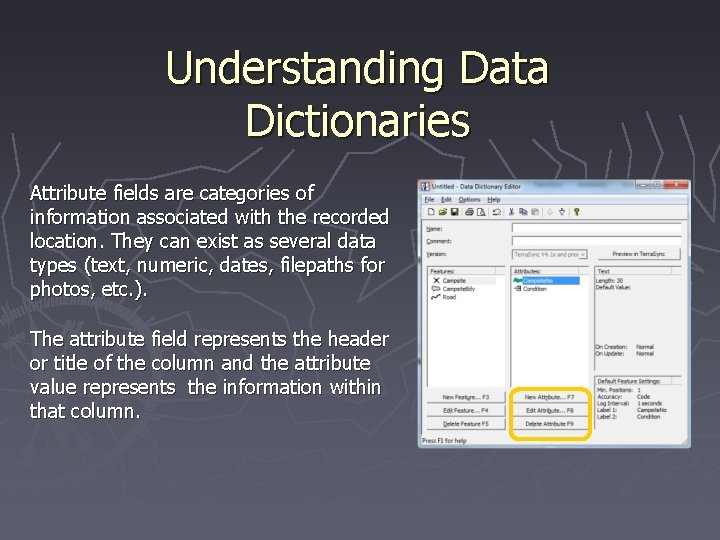
Understanding Data Dictionaries Attribute fields are categories of information associated with the recorded location. They can exist as several data types (text, numeric, dates, filepaths for photos, etc. ). The attribute field represents the header or title of the column and the attribute value represents the information within that column.
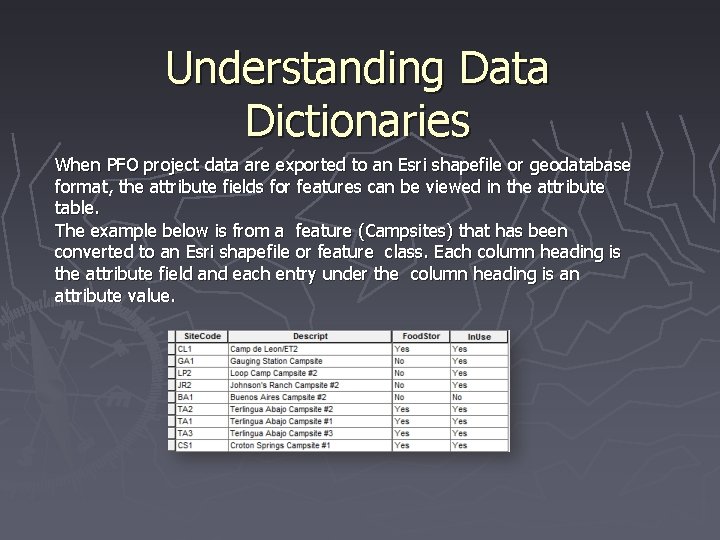
Understanding Data Dictionaries When PFO project data are exported to an Esri shapefile or geodatabase format, the attribute fields for features can be viewed in the attribute table. The example below is from a feature (Campsites) that has been converted to an Esri shapefile or feature class. Each column heading is the attribute field and each entry under the column heading is an attribute value.
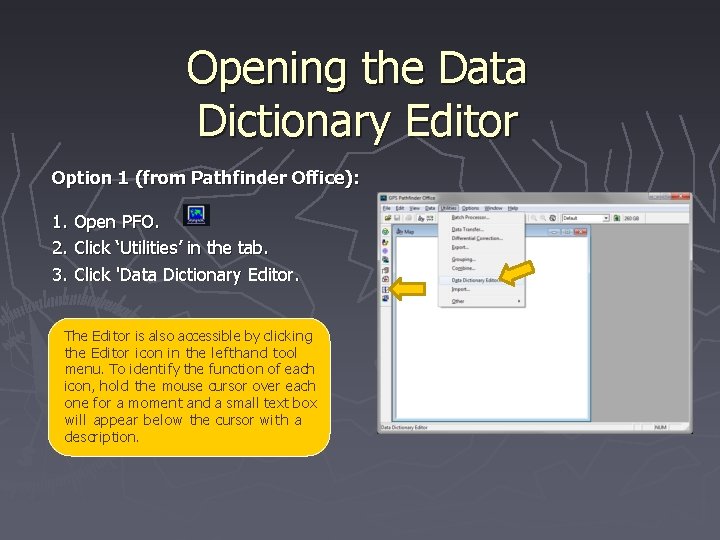
Opening the Data Dictionary Editor Option 1 (from Pathfinder Office): 1. 2. 3. Open PFO. Click ‘Utilities’ in the tab. Click 'Data Dictionary Editor. The Editor is also accessible by clicking the Editor icon in the lefthand tool menu. To identify the function of each icon, hold the mouse cursor over each one for a moment and a small text box will appear below the cursor with a description.
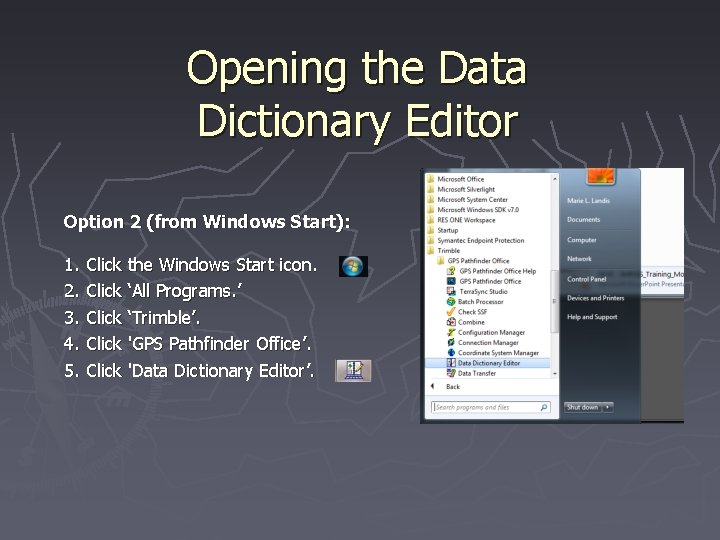
Opening the Data Dictionary Editor Option 2 (from Windows Start): 1. 2. 3. 4. 5. Click the Windows Start icon. Click ‘All Programs. ’ Click ‘Trimble’. Click 'GPS Pathfinder Office’. Click 'Data Dictionary Editor’.
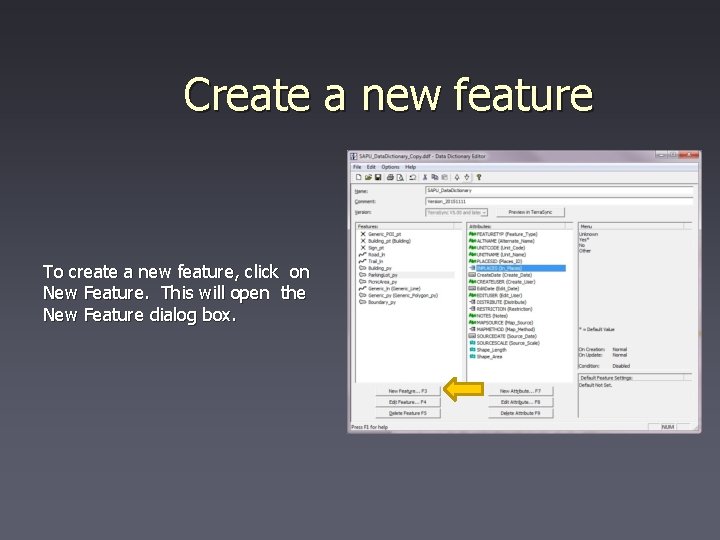
Create a new feature To create a new feature, click on New Feature. This will open the New Feature dialog box.
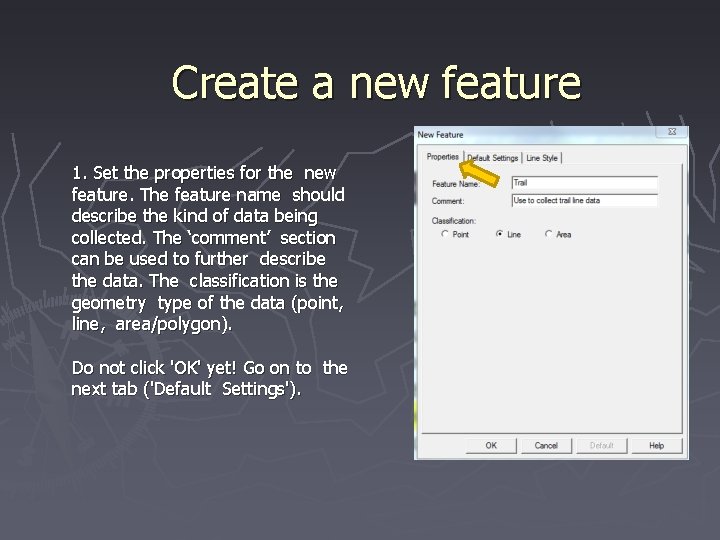
Create a new feature 1. Set the properties for the new feature. The feature name should describe the kind of data being collected. The ‘comment’ section can be used to further describe the data. The classification is the geometry type of the data (point, line, area/polygon). Do not click 'OK' yet! Go on to the next tab ('Default Settings').
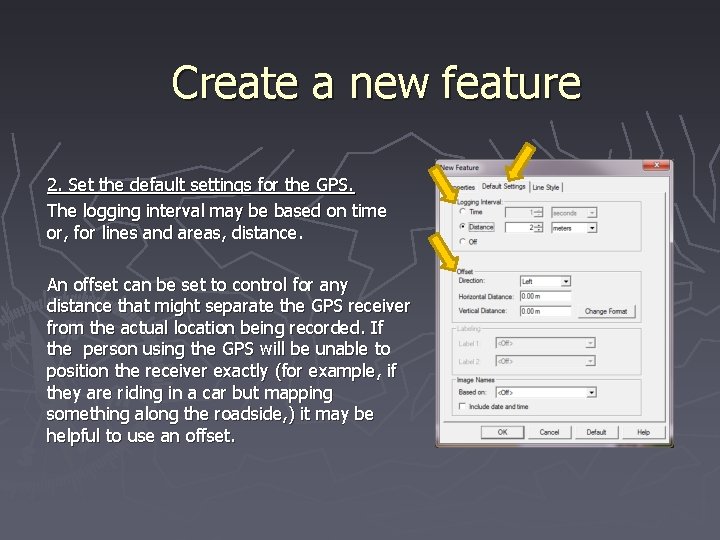
Create a new feature 2. Set the default settings for the GPS. The logging interval may be based on time or, for lines and areas, distance. An offset can be set to control for any distance that might separate the GPS receiver from the actual location being recorded. If the person using the GPS will be unable to position the receiver exactly (for example, if they are riding in a car but mapping something along the roadside, ) it may be helpful to use an offset.
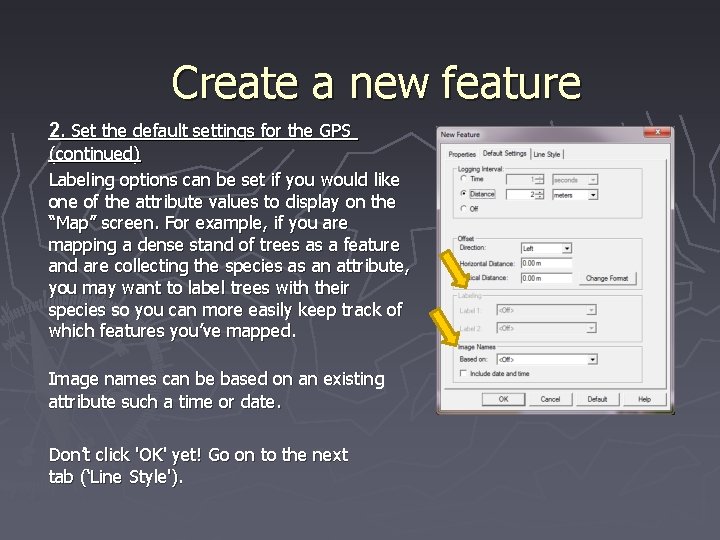
Create a new feature 2. Set the default settings for the GPS (continued) Labeling options can be set if you would like one of the attribute values to display on the “Map” screen. For example, if you are mapping a dense stand of trees as a feature and are collecting the species as an attribute, you may want to label trees with their species so you can more easily keep track of which features you’ve mapped. Image names can be based on an existing attribute such a time or date. Don’t click 'OK' yet! Go on to the next tab (‘Line Style').
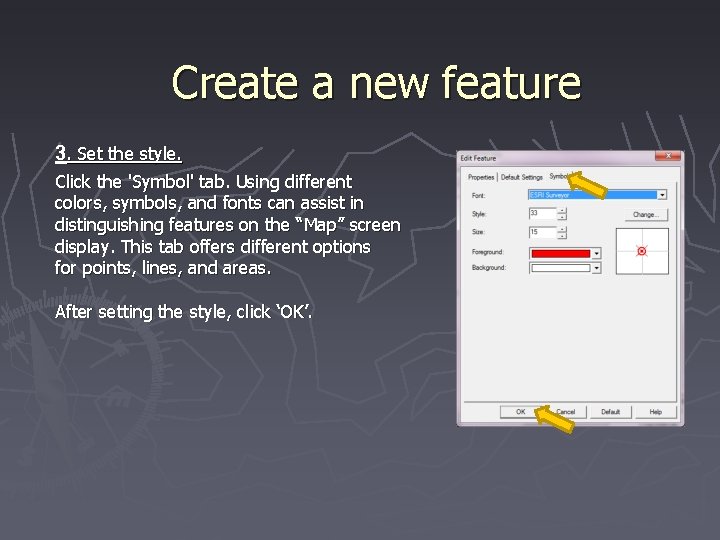
Create a new feature 3. Set the style. Click the 'Symbol' tab. Using different colors, symbols, and fonts can assist in distinguishing features on the “Map” screen display. This tab offers different options for points, lines, and areas. After setting the style, click ‘OK’.
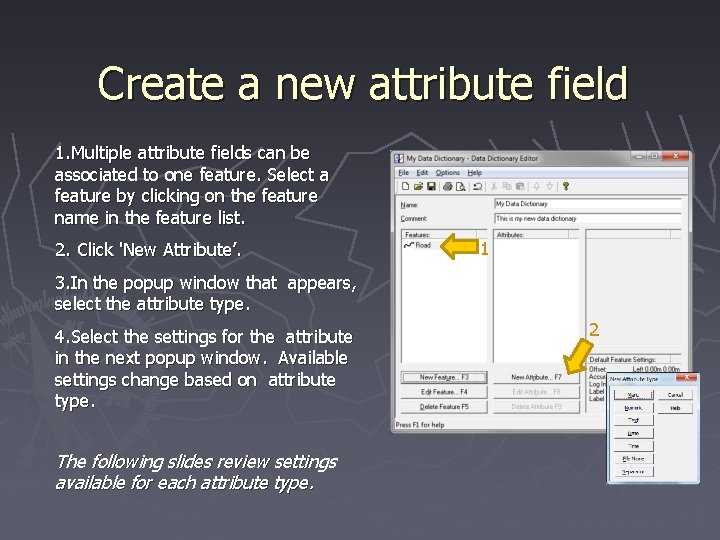
Create a new attribute field 1. Multiple attribute fields can be associated to one feature. Select a feature by clicking on the feature name in the feature list. 2. Click 'New Attribute’. 1 3. In the popup window that appears, select the attribute type. 4. Select the settings for the attribute in the next popup window. Available settings change based on attribute type. The following slides review settings available for each attribute type. 2
Menu Attribute Fields Menu attribute fields contain a list of predefined values. There is a limit to the dropdown menu on the GPS device, which means that if the attribute field contains more than thirty Menu Attribute Values, all the values will not be available on the GPS device in the field. In such a case, creating a Text Attribute Field for field GPS data collection is advised.
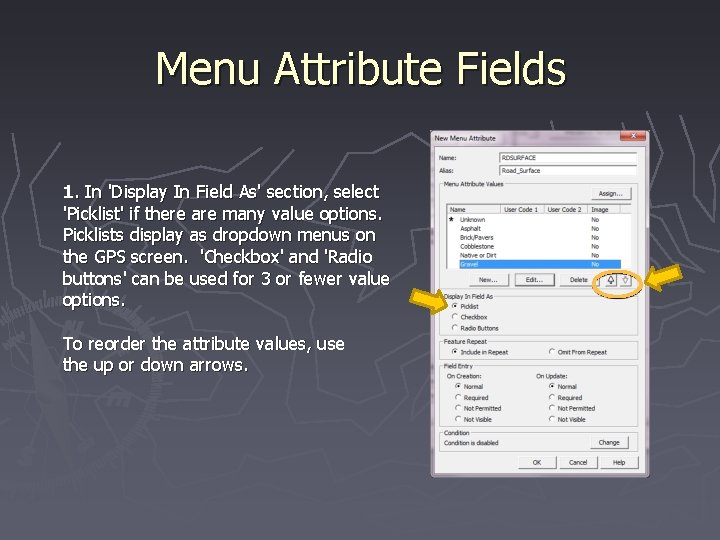
Menu Attribute Fields 1. In 'Display In Field As' section, select 'Picklist' if there are many value options. Picklists display as dropdown menus on the GPS screen. 'Checkbox' and 'Radio buttons' can be used for 3 or fewer value options. To reorder the attribute values, use the up or down arrows.
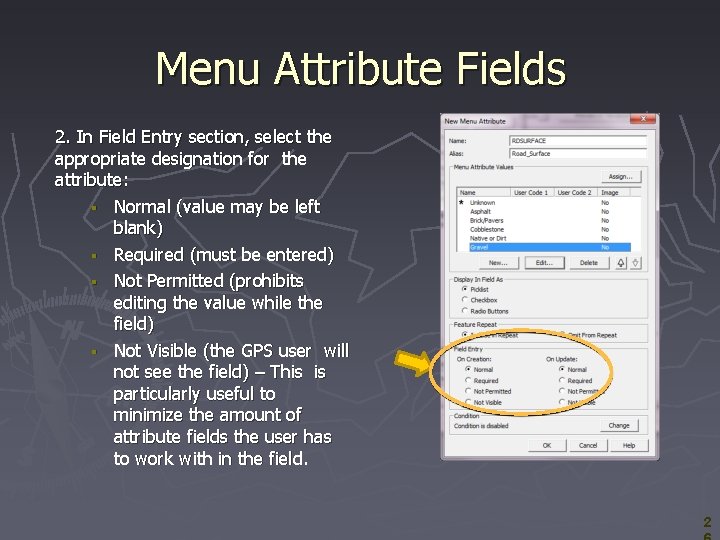
Menu Attribute Fields 2. In Field Entry section, select the appropriate designation for the attribute: Normal (value may be left blank) Required (must be entered) Not Permitted (prohibits editing the value while the field) Not Visible (the GPS user will not see the field) – This is particularly useful to minimize the amount of attribute fields the user has to work with in the field. 2
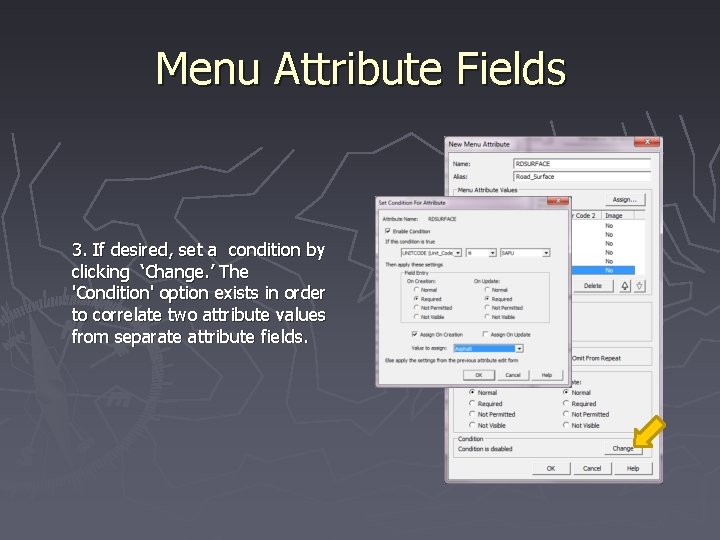
Menu Attribute Fields 3. If desired, set a condition by clicking ‘Change. ’ The 'Condition' option exists in order to correlate two attribute values from separate attribute fields.
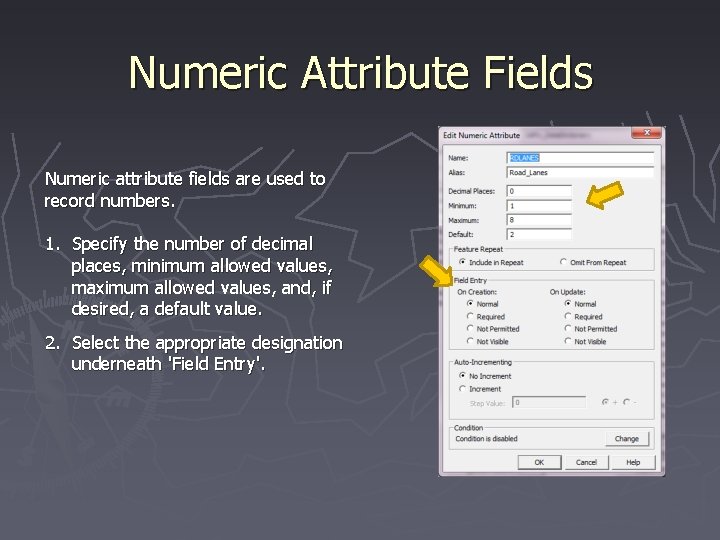
Numeric Attribute Fields Numeric attribute fields are used to record numbers. 1. Specify the number of decimal places, minimum allowed values, maximum allowed values, and, if desired, a default value. 2. Select the appropriate designation underneath 'Field Entry'.
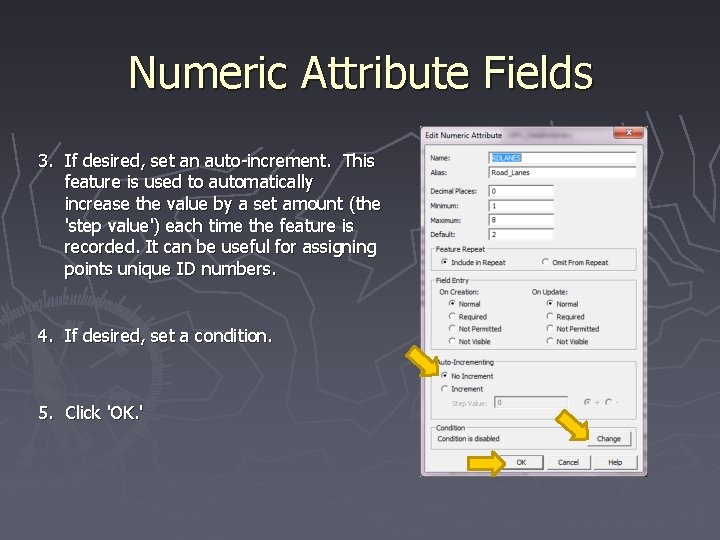
Numeric Attribute Fields 3. If desired, set an auto-increment. This feature is used to automatically increase the value by a set amount (the 'step value') each time the feature is recorded. It can be useful for assigning points unique ID numbers. 4. If desired, set a condition. 5. Click 'OK. '
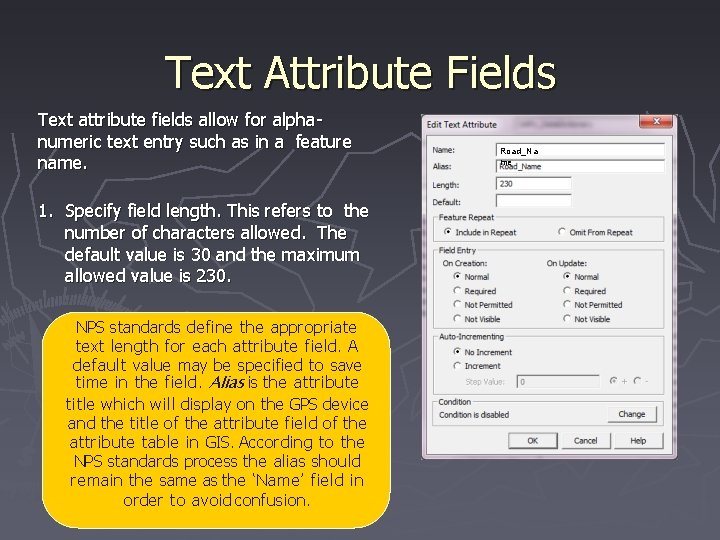
Text Attribute Fields Text attribute fields allow for alphanumeric text entry such as in a feature name. 1. Specify field length. This refers to the number of characters allowed. The default value is 30 and the maximum allowed value is 230. NPS standards define the appropriate text length for each attribute field. A default value may be specified to save time in the field. Alias is the attribute title which will display on the GPS device and the title of the attribute field of the attribute table in GIS. According to the NPS standards process the alias should remain the same as the ‘Name’ field in order to avoid confusion. Road_Na me
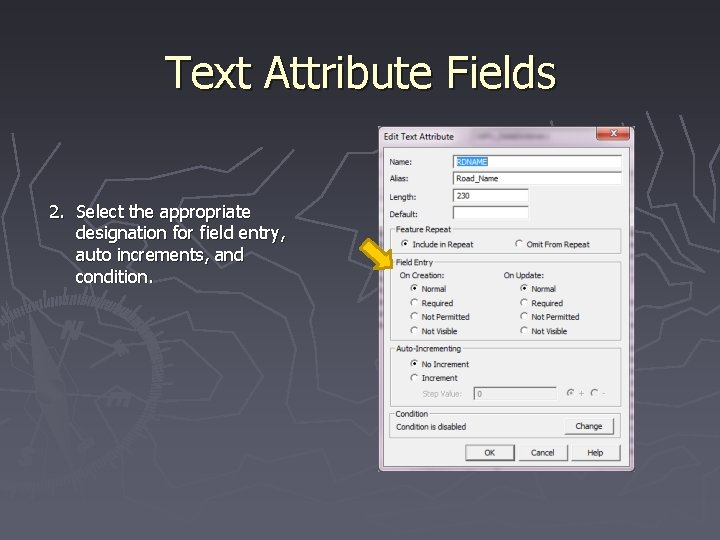
Text Attribute Fields 2. Select the appropriate designation for field entry, auto increments, and condition.
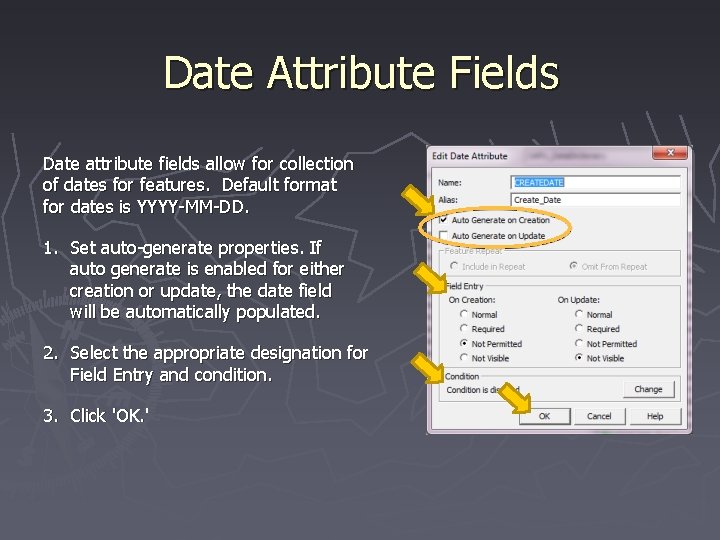
Date Attribute Fields Date attribute fields allow for collection of dates for features. Default format for dates is YYYY-MM-DD. 1. Set auto-generate properties. If auto generate is enabled for either creation or update, the date field will be automatically populated. 2. Select the appropriate designation for Field Entry and condition. 3. Click 'OK. '
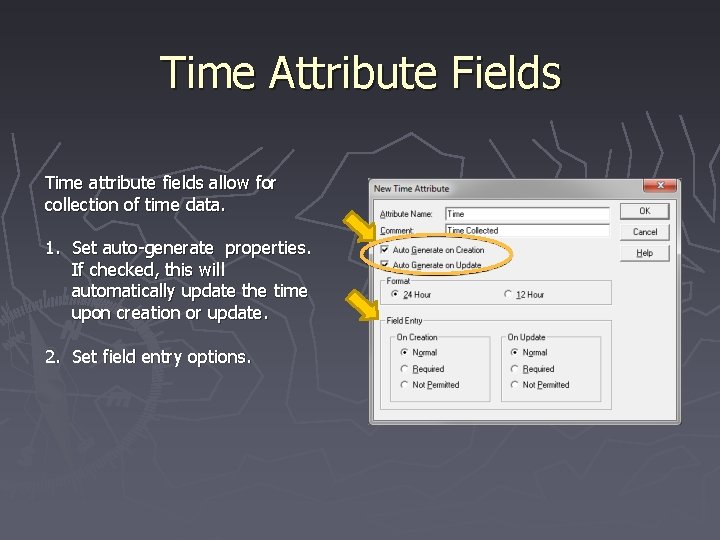
Time Attribute Fields Time attribute fields allow for collection of time data. 1. Set auto-generate properties. If checked, this will automatically update the time upon creation or update. 2. Set field entry options.
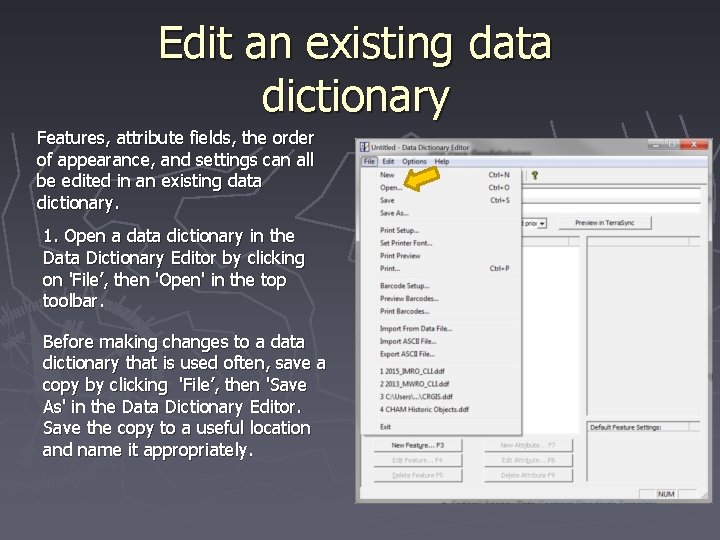
Edit an existing data dictionary Features, attribute fields, the order of appearance, and settings can all be edited in an existing data dictionary. 1. Open a data dictionary in the Data Dictionary Editor by clicking on 'File’, then 'Open' in the top toolbar. Before making changes to a data dictionary that is used often, save a copy by clicking 'File’, then 'Save As' in the Data Dictionary Editor. Save the copy to a useful location and name it appropriately.
Edit an existing data dictionary Features and attribute fields can be copied and pasted. Copying a feature will include its attribute fields, and copying attribute fields will include default GPS settings, styles, picklists, and other attribute controls. This is a great shortcut if you need multiple features with similar attribute fields. ► Right click the feature or attribute field you want to copy. 2. Click 'Copy' in the menu that appears. 3. Right click in the blank space on the list you just copied from. 4. Click ‘Paste’. Rename the copied item if necessary. 1.
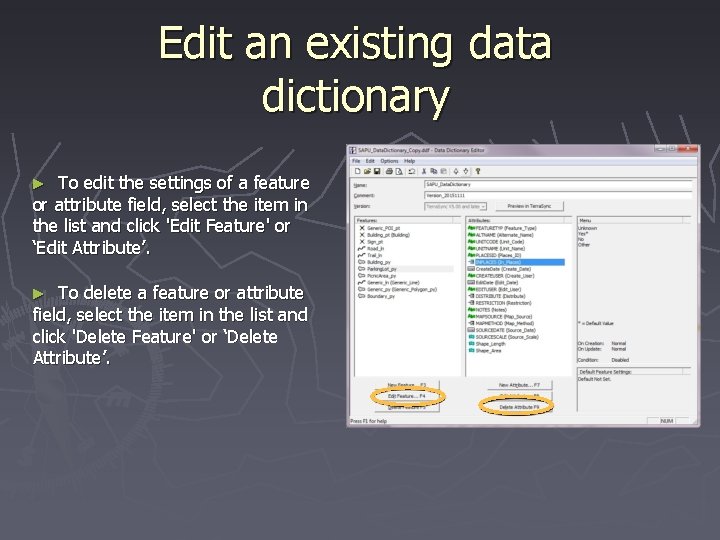
Edit an existing data dictionary To edit the settings of a feature or attribute field, select the item in the list and click 'Edit Feature' or ‘Edit Attribute’. ► To delete a feature or attribute field, select the item in the list and click 'Delete Feature' or ‘Delete Attribute’. ►
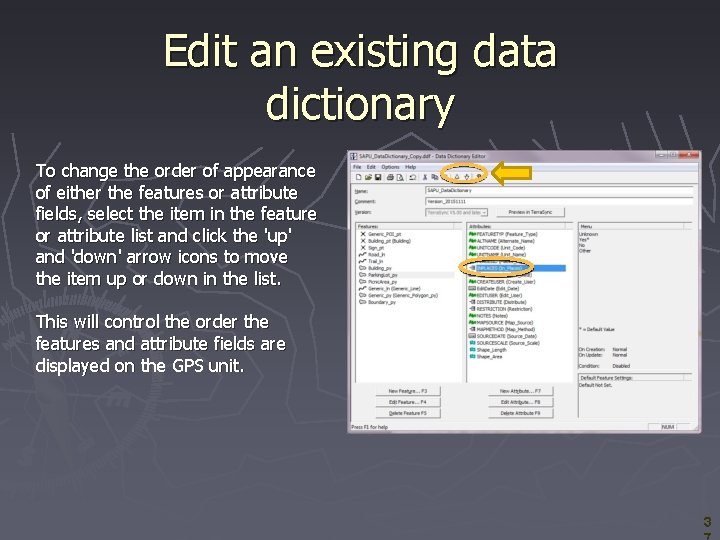
Edit an existing data dictionary To change the order of appearance of either the features or attribute fields, select the item in the feature or attribute list and click the 'up' and 'down' arrow icons to move the item up or down in the list. This will control the order the features and attribute fields are displayed on the GPS unit. 3
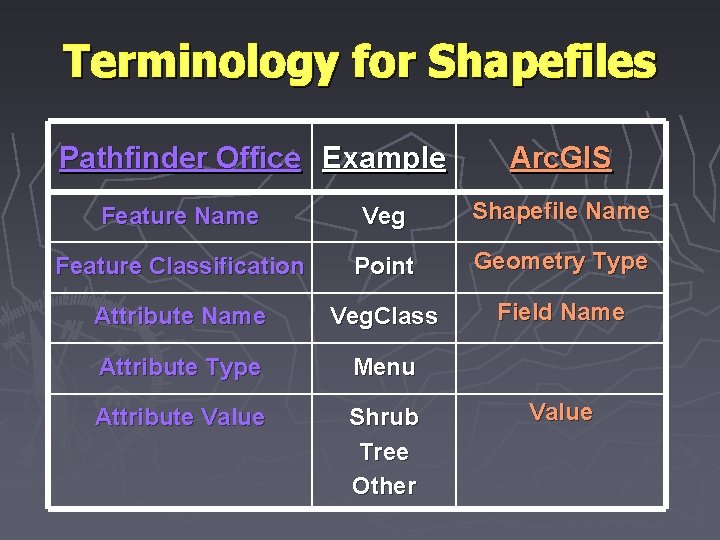
Terminology for Shapefiles Pathfinder Office Example Arc. GIS Feature Name Veg Shapefile Name Feature Classification Point Geometry Type Attribute Name Veg. Class Field Name Attribute Type Menu Attribute Value Shrub Tree Other Value
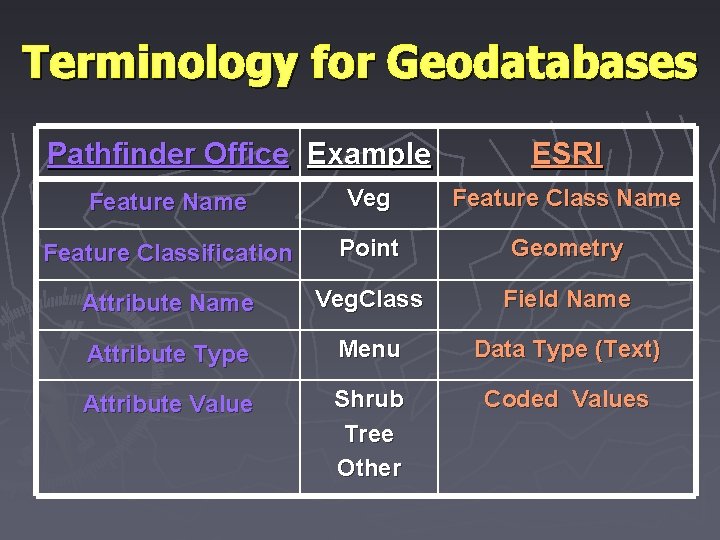
Terminology for Geodatabases Pathfinder Office Example ESRI Feature Name Veg Feature Class Name Feature Classification Point Geometry Attribute Name Veg. Class Field Name Attribute Type Menu Data Type (Text) Attribute Value Shrub Tree Other Coded Values