
PASSPort Overview and General Navigation for Vendors Enrollment
- Slides: 17
PASSPort Overview and General Navigation for Vendors Enrollment and Account Management
PASSPort OVERVIEW
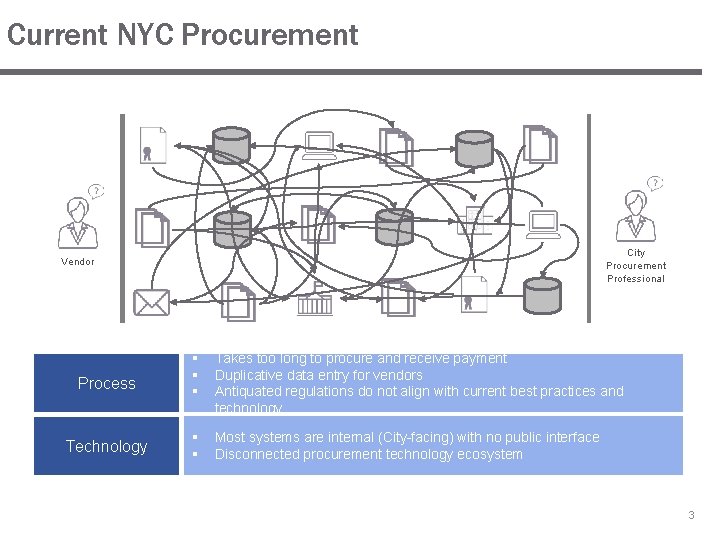
Current NYC Procurement City Procurement Professional Vendor Process § § § Takes too long to procure and receive payment Duplicative data entry for vendors Antiquated regulations do not align with current best practices and technology Technology § § Most systems are internal (City-facing) with no public interface Disconnected procurement technology ecosystem 3
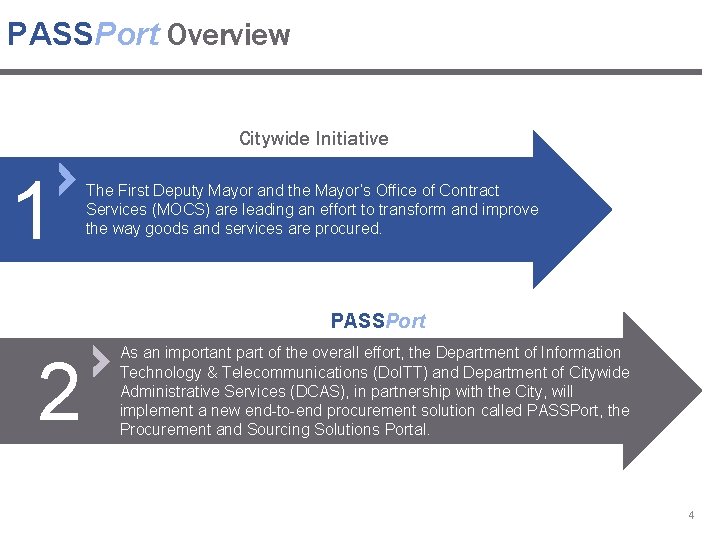
PASSPort Overview Citywide Initiative 1 The First Deputy Mayor and the Mayor’s Office of Contract Services (MOCS) are leading an effort to transform and improve the way goods and services are procured. PASSPort 2 As an important part of the overall effort, the Department of Information Technology & Telecommunications (Do. ITT) and Department of Citywide Administrative Services (DCAS), in partnership with the City, will implement a new end-to-end procurement solution called PASSPort, the Procurement and Sourcing Solutions Portal. 4
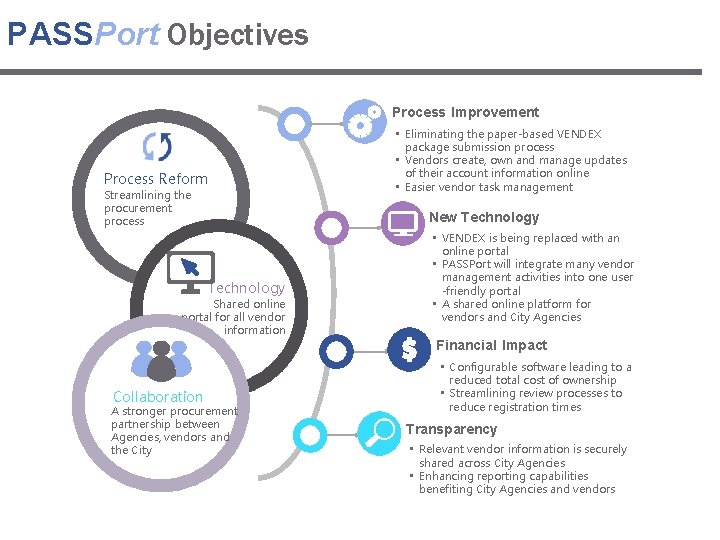
PASSPort Objectives Process Improvement Process Reform Streamlining the procurement process • Eliminating the paper-based VENDEX package submission process • Vendors create, own and manage updates of their account information online • Easier vendor task management New Technology Shared online portal for all vendor information • VENDEX is being replaced with an online portal • PASSPort will integrate many vendor management activities into one user -friendly portal • A shared online platform for vendors and City Agencies Financial Impact Collaboration A stronger procurement partnership between Agencies, vendors and the City • Configurable software leading to a reduced total cost of ownership • Streamlining review processes to reduce registration times Transparency • Relevant vendor information is securely shared across City Agencies • Enhancing reporting capabilities benefiting City Agencies and vendors
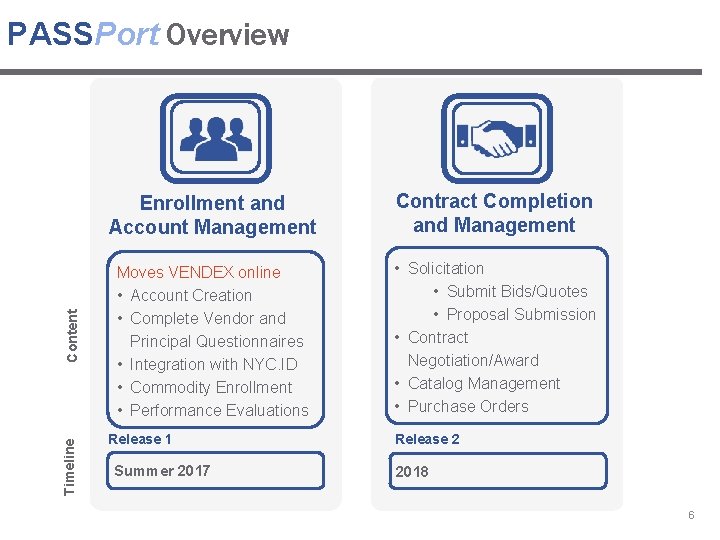
Timeline Content PASSPort Overview Enrollment and Account Management Contract Completion and Management Moves VENDEX online • Account Creation • Complete Vendor and Principal Questionnaires • Integration with NYC. ID • Commodity Enrollment • Performance Evaluations • Solicitation • Submit Bids/Quotes • Proposal Submission • Contract Negotiation/Award • Catalog Management • Purchase Orders Release 1 Summer 2017 Release 2 2018 6
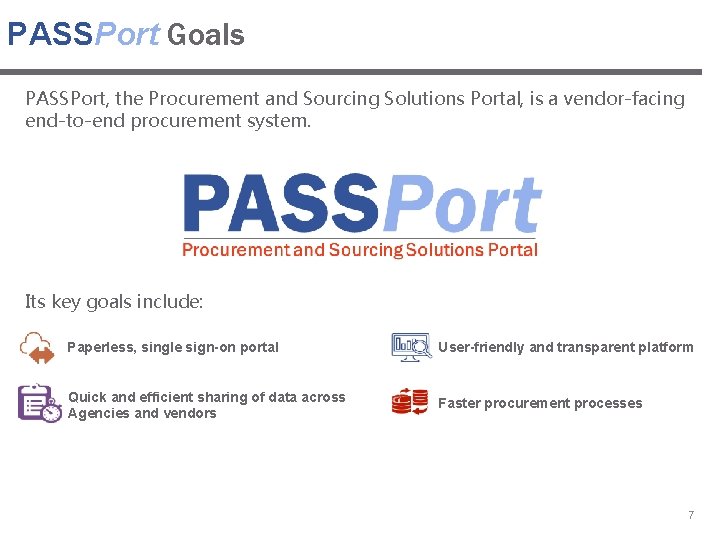
PASSPort Goals PASSPort, the Procurement and Sourcing Solutions Portal, is a vendor-facing end-to-end procurement system. Its key goals include: Paperless, single sign-on portal User-friendly and transparent platform Quick and efficient sharing of data across Agencies and vendors Faster procurement processes 7
GENERAL NAVIGATION IN PASSPort
General Navigation in PASSPort In this section, the following PASSPort navigation tools will be discussed: 1 Homepage Navigation 2 Drop-down Menus 3 Navigational Icons 4 Universal Search 5 Page Elements and Tool Tips 9
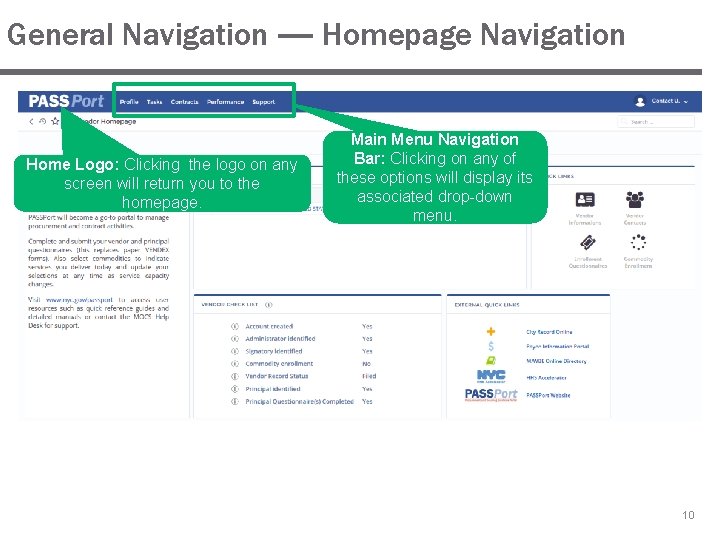
General Navigation — Homepage Navigation Home Logo: Clicking the logo on any screen will return you to the homepage. Main Menu Navigation Bar: Clicking on any of these options will display its associated drop-down menu. 10
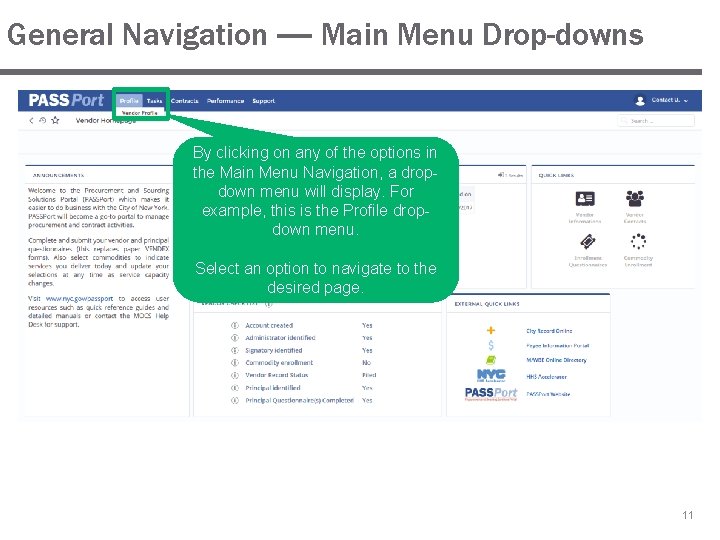
General Navigation — Main Menu Drop-downs By clicking on any of the options in the Main Menu Navigation, a dropdown menu will display. For example, this is the Profile dropdown menu. Select an option to navigate to the desired page. 11
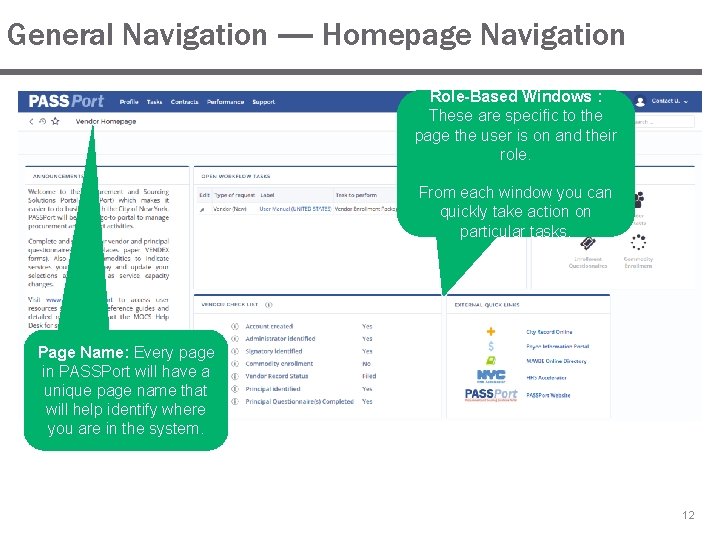
General Navigation — Homepage Navigation Role-Based Windows : These are specific to the page the user is on and their role. From each window you can quickly take action on particular tasks. Page Name: Every page in PASSPort will have a unique page name that will help identify where you are in the system. 12
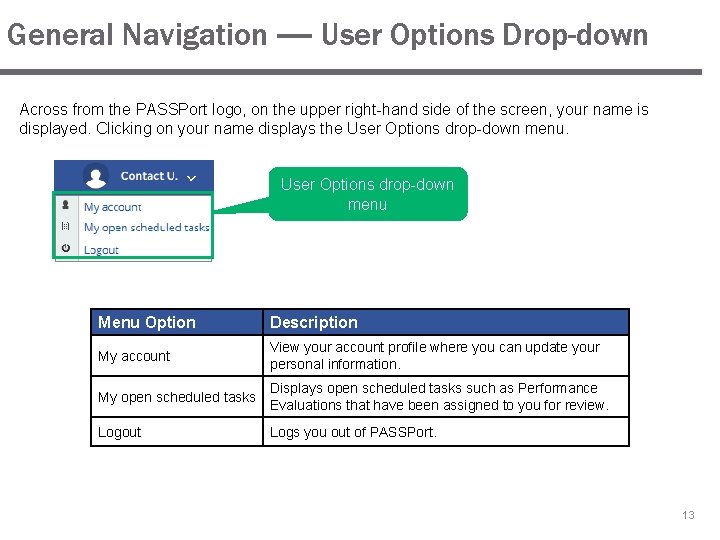
General Navigation — User Options Drop-down Across from the PASSPort logo, on the upper right-hand side of the screen, your name is displayed. Clicking on your name displays the User Options drop-down menu Menu Option Description My account View your account profile where you can update your personal information. My open scheduled tasks Displays open scheduled tasks such as Performance Evaluations that have been assigned to you for review. Logout Logs you out of PASSPort. 13
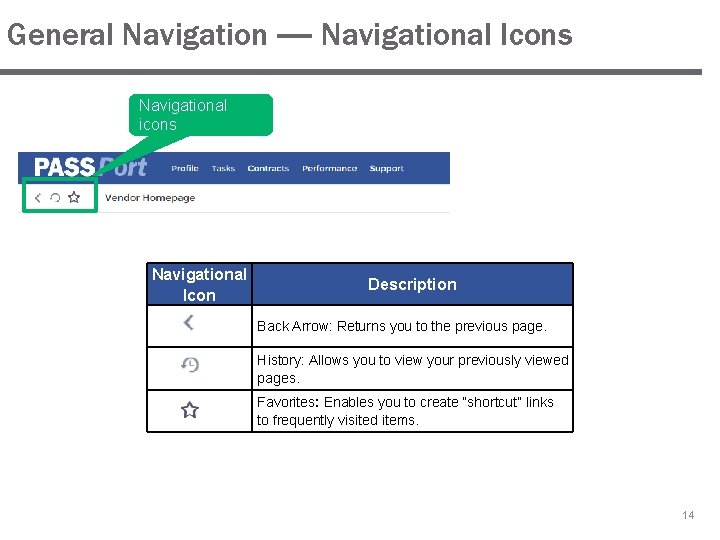
General Navigation — Navigational Icons Navigational icons Navigational Icon Description Back Arrow: Returns you to the previous page. History: Allows you to view your previously viewed pages. Favorites: Enables you to create “shortcut” links to frequently visited items. 14
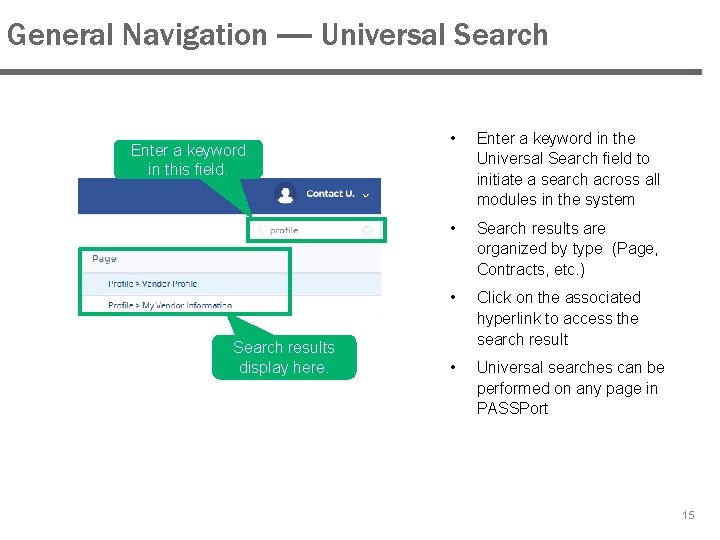
General Navigation — Universal Search Enter a keyword in this field. Search results display here. • Enter a keyword in the Universal Search field to initiate a search across all modules in the system • Search results are organized by type (Page, Contracts, etc. ) • Click on the associated hyperlink to access the search result • Universal searches can be performed on any page in PASSPort 15
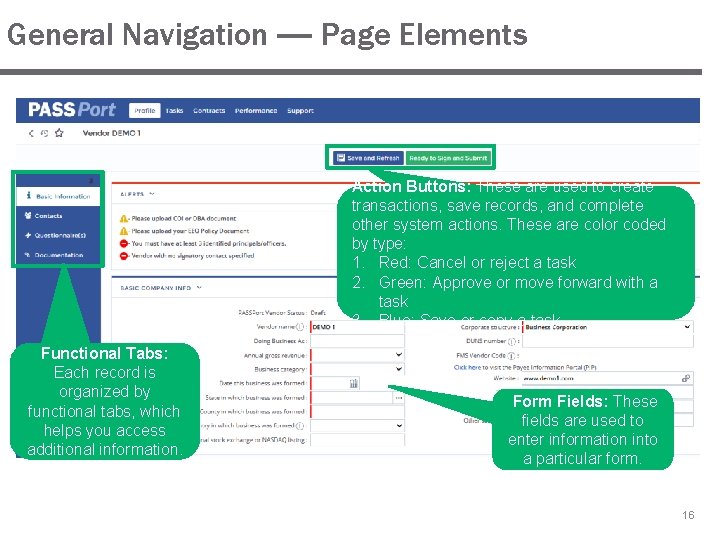
General Navigation — Page Elements Action Buttons: These are used to create transactions, save records, and complete other system actions. These are color coded by type: 1. Red: Cancel or reject a task 2. Green: Approve or move forward with a task 3. Blue: Save or copy a task Functional Tabs: Each record is organized by functional tabs, which helps you access additional information. Form Fields: These fields are used to enter information into a particular form. 16
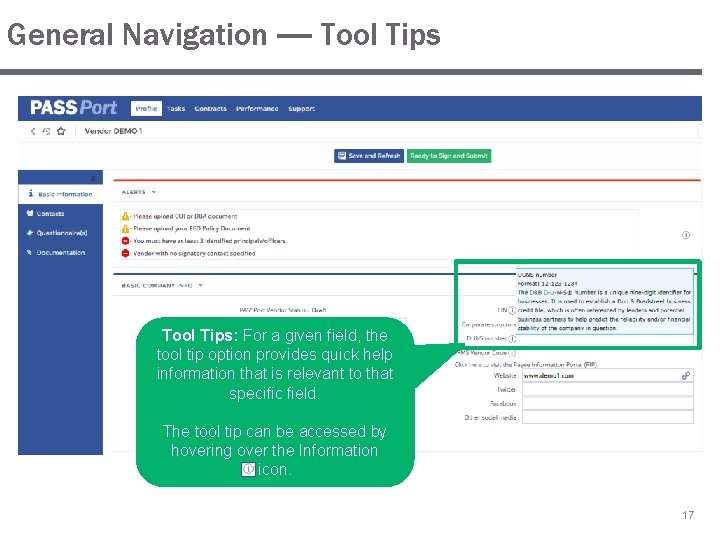
General Navigation — Tool Tips: For a given field, the tool tip option provides quick help information that is relevant to that specific field. The tool tip can be accessed by hovering over the Information icon. 17