
Parts of UNIX Dr Huma Javed The Shell
- Slides: 19
Parts of UNIX Dr. Huma Javed
The Shell Preliminaries • The shell or terminal is the primary user interface for interacting with the operating system through text input. Such as, the Windows command terminal as well as the Unix shell. • For example to compile C++ programs by typing a command, and then the shell tells the OS to execute those commands. • Shell is just another program running on the OS, like any other application. Most shells are the program, bash. • Shell is special because it is designed specifically to enable the user to launch other programs. • Shell is the primary user interface of the OS • Additionally, the shell and the OS on Unix provide a simple set of command line tools that enable you to navigate the file system, manipulate the file system by creating or deleting files/folders, read and parse files on the system, and monitor current running process and programs
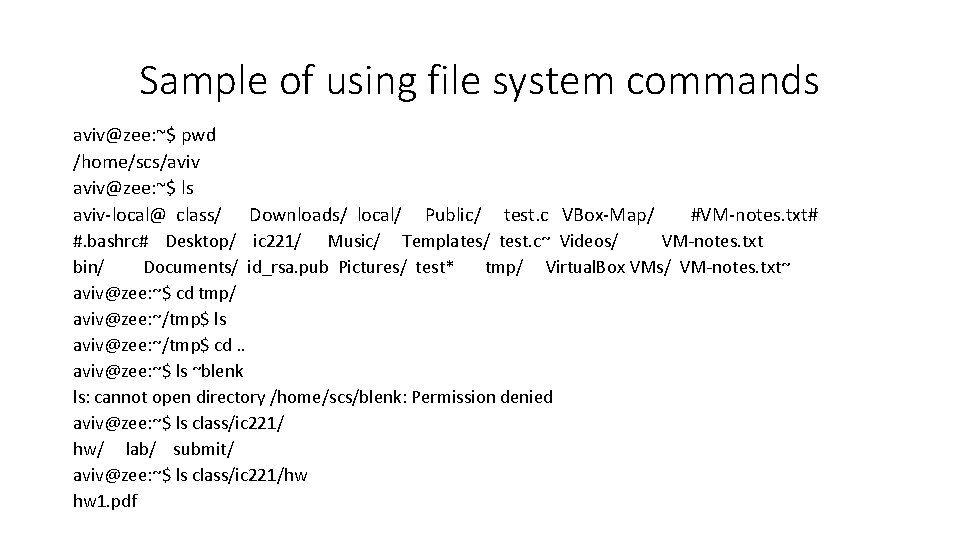
Current Working Directory • The shell has a notion of location, or current working directory that indicates where in the file system the shell is currently operating • When you first log into a computer, a shell is started to set your home directory as the current working directory. • Shell can also change the current working directory to view different parts of file system
Navigating the file system There are three important commands for navigating the file system via the shell are cd path Change the current directory to the one specified by path or go to your home directory if path is omitted ls path List the contents of the directory at that path or the current directory if path is omitted pwd Print to the screen your current working directory.
Sample of using file system commands aviv@zee: ~$ pwd /home/scs/aviv@zee: ~$ ls aviv-local@ class/ Downloads/ local/ Public/ test. c VBox-Map/ #VM-notes. txt# #. bashrc# Desktop/ ic 221/ Music/ Templates/ test. c~ Videos/ VM-notes. txt bin/ Documents/ id_rsa. pub Pictures/ test* tmp/ Virtual. Box VMs/ VM-notes. txt~ aviv@zee: ~$ cd tmp/ aviv@zee: ~/tmp$ ls aviv@zee: ~/tmp$ cd. . aviv@zee: ~$ ls ~blenk ls: cannot open directory /home/scs/blenk: Permission denied aviv@zee: ~$ ls class/ic 221/ hw/ lab/ submit/ aviv@zee: ~$ ls class/ic 221/hw hw 1. pdf
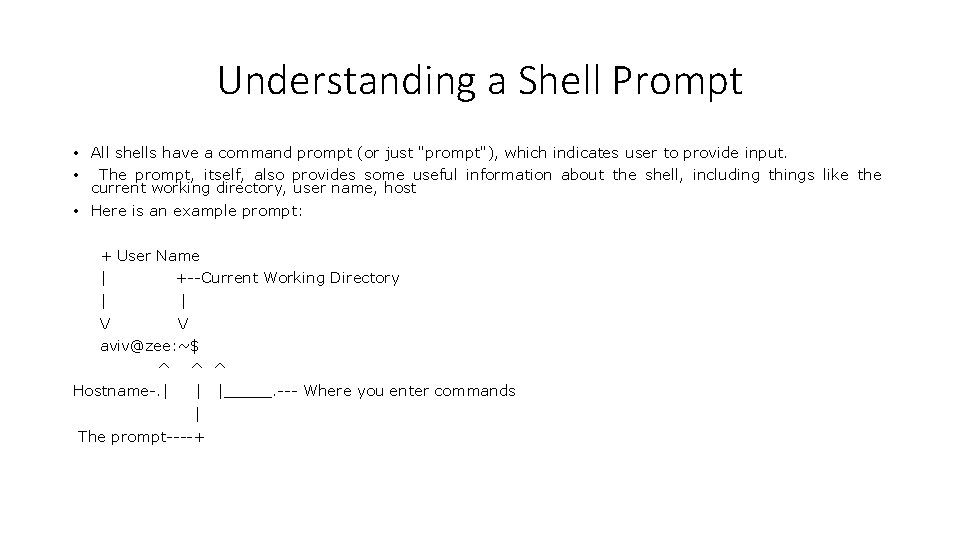
Understanding a Shell Prompt • All shells have a command prompt (or just "prompt"), which indicates user to provide input. • The prompt, itself, also provides some useful information about the shell, including things like the current working directory, user name, host • Here is an example prompt: + User Name | +--Current Working Directory | | V V aviv@zee: ~$ ^ Hostname-. | ^ ^ | | The prompt----+ |_____. --- Where you enter commands
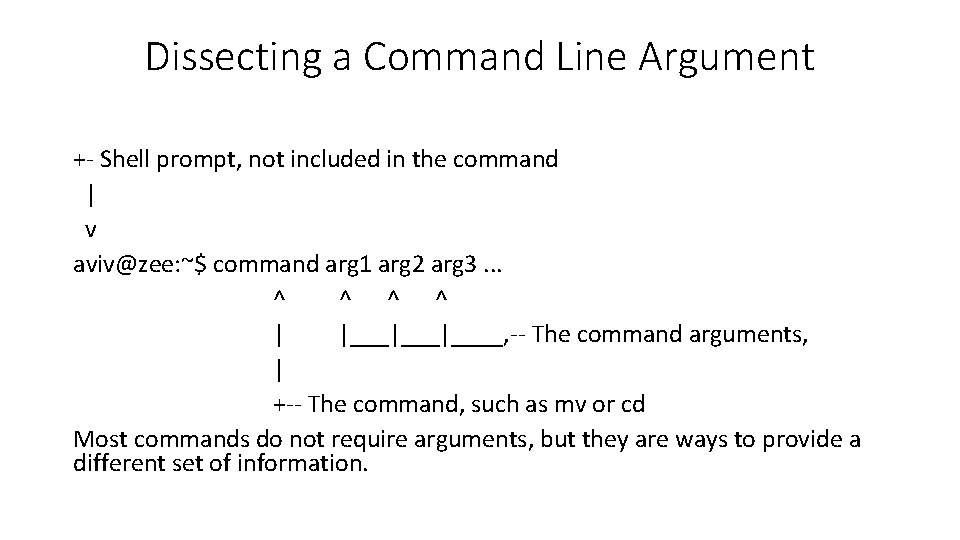
Dissecting a Command Line Argument +- Shell prompt, not included in the command | v aviv@zee: ~$ command arg 1 arg 2 arg 3. . . ^ ^ | |___|____, -- The command arguments, | +-- The command, such as mv or cd Most commands do not require arguments, but they are ways to provide a different set of information.
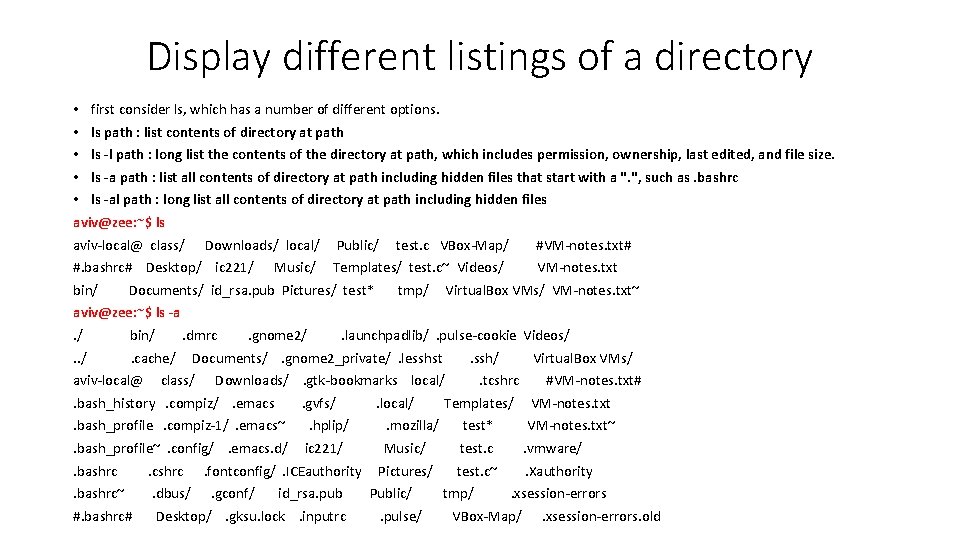
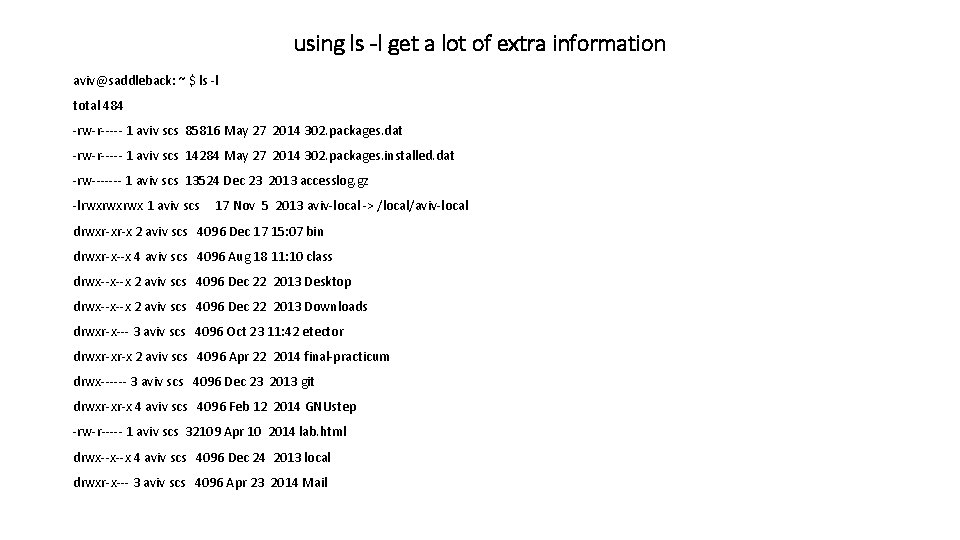
Display different listings of a directory • first consider ls, which has a number of different options. • ls path : list contents of directory at path • ls -l path : long list the contents of the directory at path, which includes permission, ownership, last edited, and file size. • ls -a path : list all contents of directory at path including hidden files that start with a ". ", such as. bashrc • ls -al path : long list all contents of directory at path including hidden files aviv@zee: ~$ ls aviv-local@ class/ Downloads/ local/ Public/ test. c VBox-Map/ #VM-notes. txt# #. bashrc# Desktop/ ic 221/ Music/ Templates/ test. c~ Videos/ VM-notes. txt bin/ Documents/ id_rsa. pub Pictures/ test* tmp/ Virtual. Box VMs/ VM-notes. txt~ aviv@zee: ~$ ls -a. / bin/. dmrc. gnome 2/. launchpadlib/. pulse-cookie Videos/. . /. cache/ Documents/. gnome 2_private/. lesshst. ssh/ Virtual. Box VMs/ aviv-local@ class/ Downloads/. gtk-bookmarks local/. tcshrc #VM-notes. txt#. bash_history. compiz/. emacs. gvfs/. local/ Templates/ VM-notes. txt. bash_profile. compiz-1/. emacs~. hplip/. mozilla/ test* VM-notes. txt~. bash_profile~. config/. emacs. d/ ic 221/ Music/ test. c. vmware/. bashrc. cshrc. fontconfig/. ICEauthority Pictures/ test. c~. Xauthority. bashrc~. dbus/. gconf/ id_rsa. pub Public/ tmp/. xsession-errors #. bashrc# Desktop/. gksu. lock. inputrc. pulse/ VBox-Map/. xsession-errors. old
using ls -l get a lot of extra information aviv@saddleback: ~ $ ls -l total 484 -rw-r----- 1 aviv scs 85816 May 27 2014 302. packages. dat -rw-r----- 1 aviv scs 14284 May 27 2014 302. packages. installed. dat -rw------- 1 aviv scs 13524 Dec 23 2013 accesslog. gz -lrwxrwxrwx 1 aviv scs 17 Nov 5 2013 aviv-local -> /local/aviv-local drwxr-xr-x 2 aviv scs 4096 Dec 17 15: 07 bin drwxr-x--x 4 aviv scs 4096 Aug 18 11: 10 class drwx--x--x 2 aviv scs 4096 Dec 22 2013 Desktop drwx--x--x 2 aviv scs 4096 Dec 22 2013 Downloads drwxr-x--- 3 aviv scs 4096 Oct 23 11: 42 etector drwxr-xr-x 2 aviv scs 4096 Apr 22 2014 final-practicum drwx------ 3 aviv scs 4096 Dec 23 2013 git drwxr-xr-x 4 aviv scs 4096 Feb 12 2014 GNUstep -rw-r----- 1 aviv scs 32109 Apr 10 2014 lab. html drwx--x--x 4 aviv scs 4096 Dec 24 2013 local drwxr-x--- 3 aviv scs 4096 Apr 23 2014 Mail
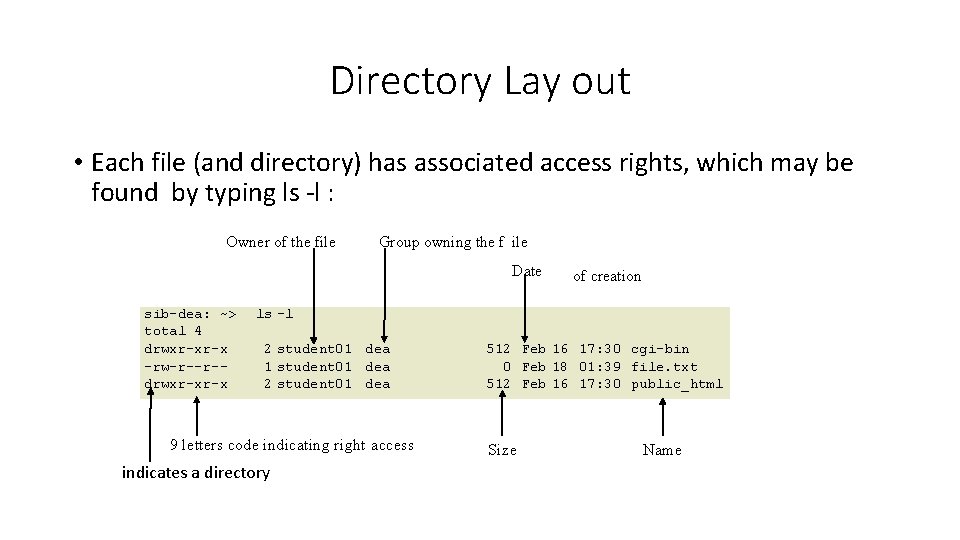
Directory Lay out • Each file (and directory) has associated access rights, which may be found by typing ls -l : Owner of the file Group owning the f ile Date sib-dea: ~> total 4 drwxr-xr-x -rw-r--r-drwxr-xr-x of creation ls -l 2 student 01 dea 1 student 01 dea 2 student 01 dea 9 letters code indicating right access indicates a directory 512 Feb 16 17: 30 cgi-bin 0 Feb 18 01: 39 file. txt 512 Feb 16 17: 30 public_html Size Name
More variants of ls command • On your own: Try using the following variants of the ls command: ls -h ls -k ls *
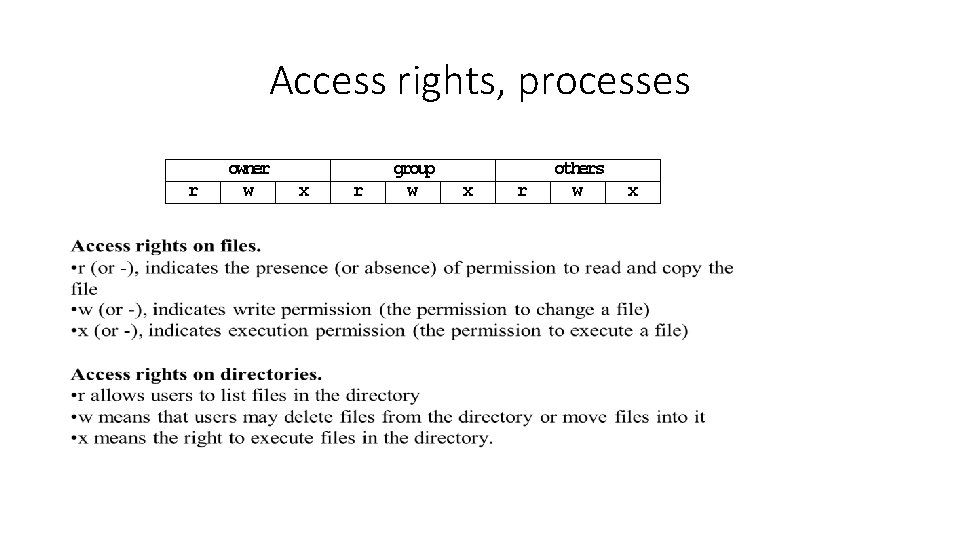
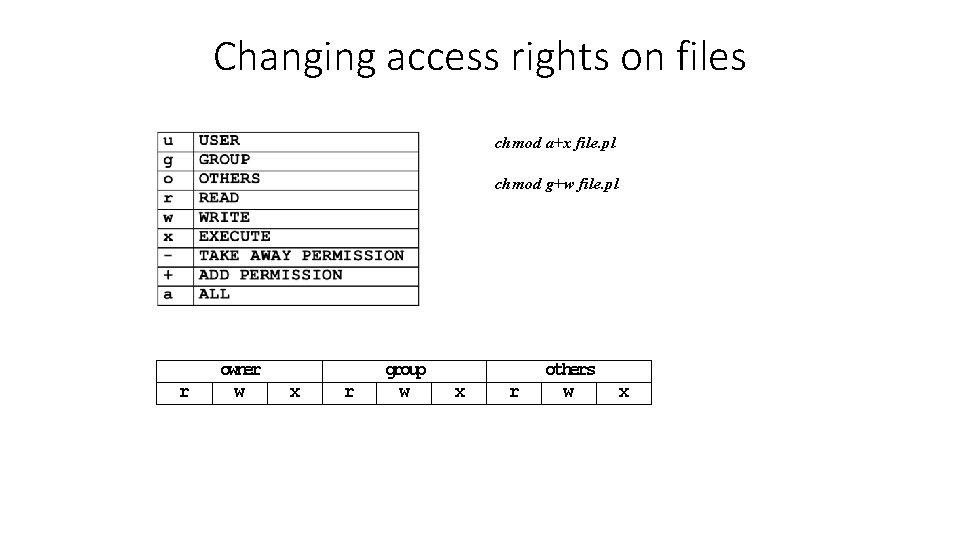
Access rights, processes r owner w x r group w x r others w x
Changing access rights on files chmod a+x file. pl chmod g+w file. pl r owner w x r group w x r others w x
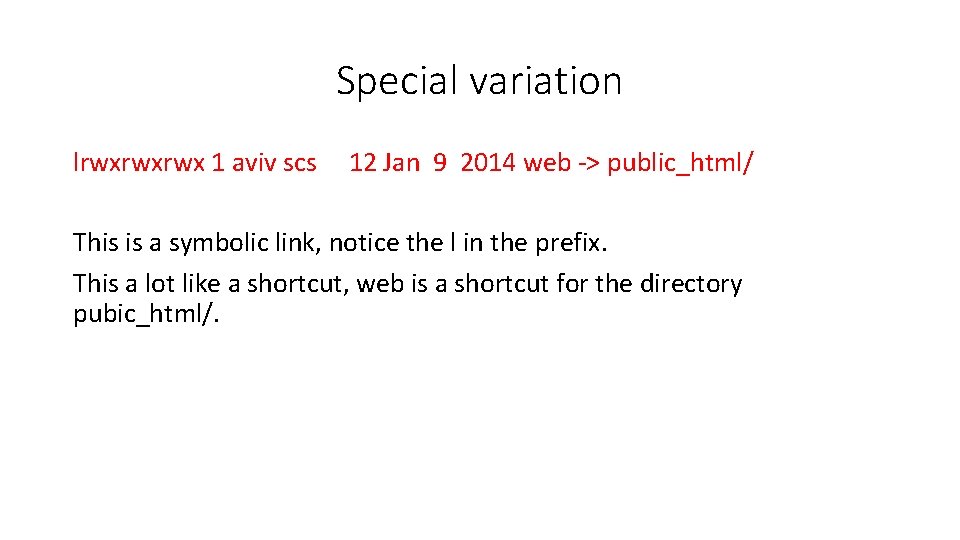
Special variation lrwxrwxrwx 1 aviv scs 12 Jan 9 2014 web -> public_html/ This is a symbolic link, notice the l in the prefix. This a lot like a shortcut, web is a shortcut for the directory pubic_html/.
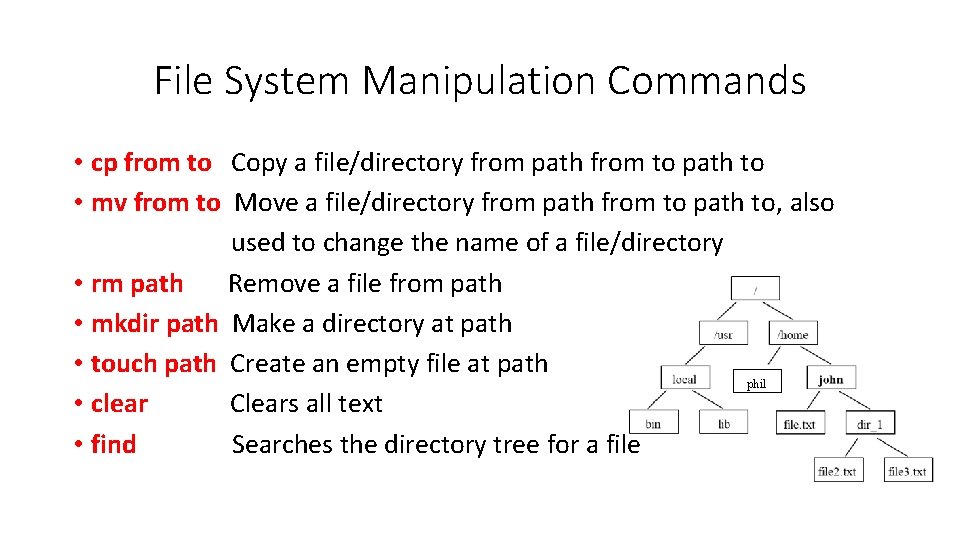
File System Manipulation Commands • cp from to Copy a file/directory from path from to path to • mv from to Move a file/directory from path from to path to, also used to change the name of a file/directory • rm path Remove a file from path • mkdir path Make a directory at path • touch path Create an empty file at path phil • clear Clears all text • find Searches the directory tree for a file
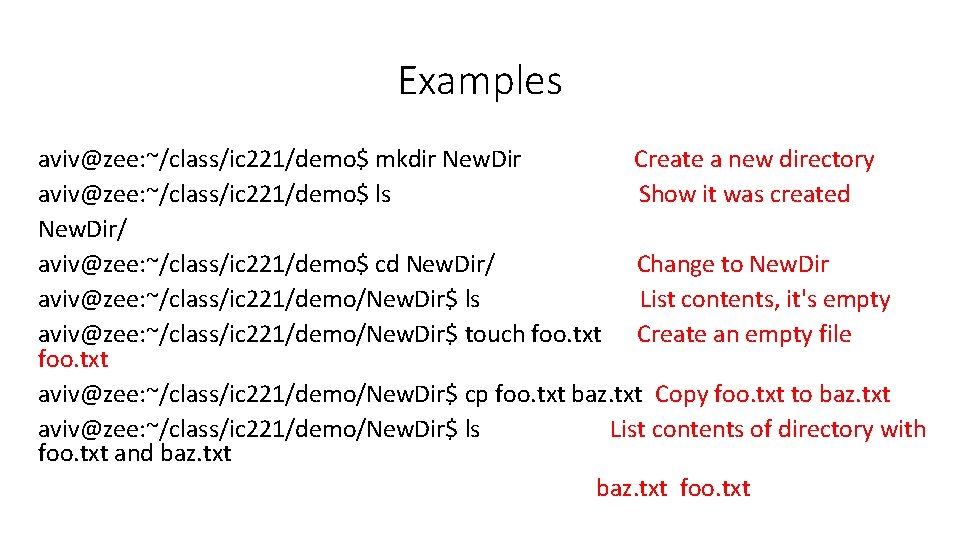
Examples aviv@zee: ~/class/ic 221/demo$ mkdir New. Dir Create a new directory aviv@zee: ~/class/ic 221/demo$ ls Show it was created New. Dir/ aviv@zee: ~/class/ic 221/demo$ cd New. Dir/ Change to New. Dir aviv@zee: ~/class/ic 221/demo/New. Dir$ ls List contents, it's empty aviv@zee: ~/class/ic 221/demo/New. Dir$ touch foo. txt Create an empty file foo. txt aviv@zee: ~/class/ic 221/demo/New. Dir$ cp foo. txt baz. txt Copy foo. txt to baz. txt aviv@zee: ~/class/ic 221/demo/New. Dir$ ls List contents of directory with foo. txt and baz. txt foo. txt
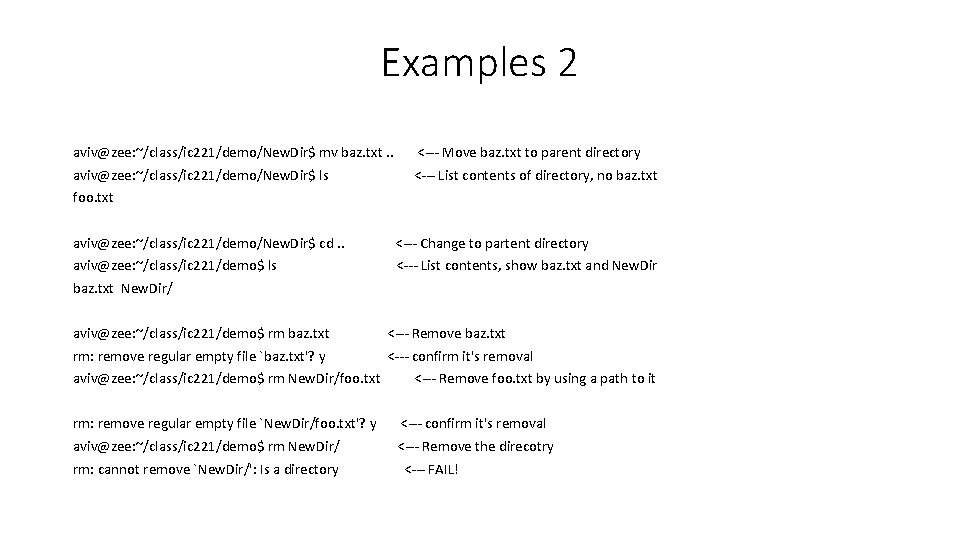
Examples 2 aviv@zee: ~/class/ic 221/demo/New. Dir$ mv baz. txt. . <--- Move baz. txt to parent directory aviv@zee: ~/class/ic 221/demo/New. Dir$ ls <--- List contents of directory, no baz. txt foo. txt aviv@zee: ~/class/ic 221/demo/New. Dir$ cd. . <--- Change to partent directory aviv@zee: ~/class/ic 221/demo$ ls <--- List contents, show baz. txt and New. Dir baz. txt New. Dir/ aviv@zee: ~/class/ic 221/demo$ rm baz. txt <--- Remove baz. txt rm: remove regular empty file `baz. txt'? y <--- confirm it's removal aviv@zee: ~/class/ic 221/demo$ rm New. Dir/foo. txt <--- Remove foo. txt by using a path to it rm: remove regular empty file `New. Dir/foo. txt'? y <--- confirm it's removal aviv@zee: ~/class/ic 221/demo$ rm New. Dir/ <--- Remove the direcotry rm: cannot remove `New. Dir/': Is a directory <--- FAIL!
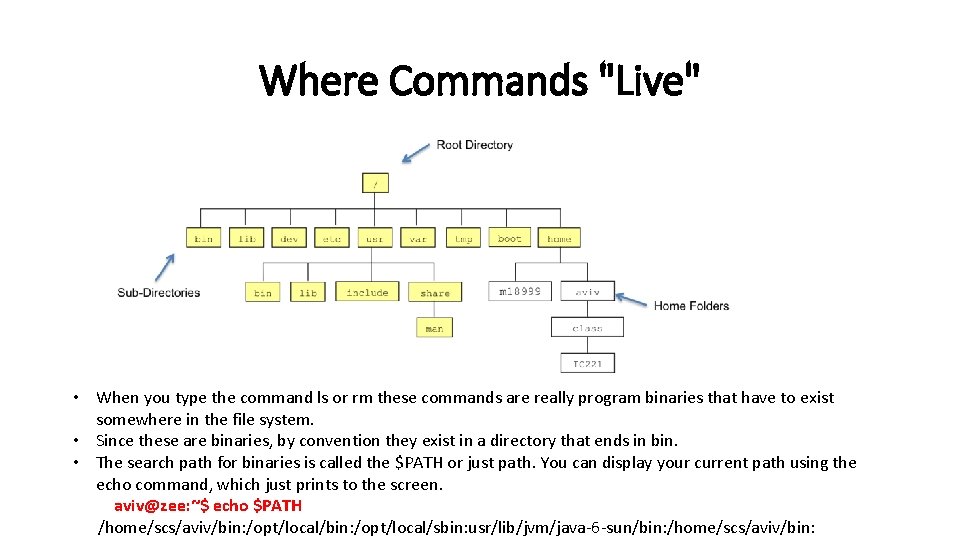
Where Commands "Live" • When you type the command ls or rm these commands are really program binaries that have to exist somewhere in the file system. • Since these are binaries, by convention they exist in a directory that ends in bin. • The search path for binaries is called the $PATH or just path. You can display your current path using the echo command, which just prints to the screen. aviv@zee: ~$ echo $PATH /home/scs/aviv/bin: /opt/local/sbin: usr/lib/jvm/java-6 -sun/bin: /home/scs/aviv/bin:
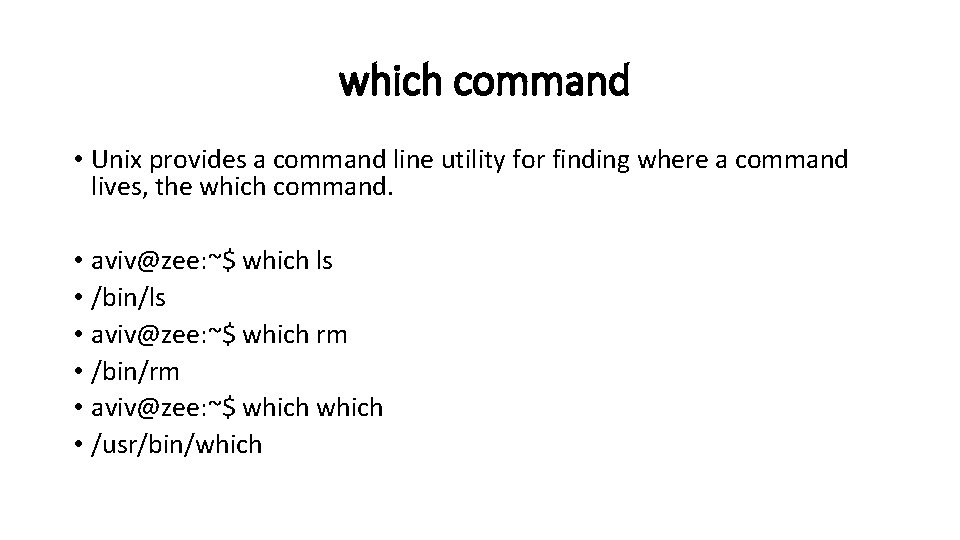
which command • Unix provides a command line utility for finding where a command lives, the which command. • aviv@zee: ~$ which ls • /bin/ls • aviv@zee: ~$ which rm • /bin/rm • aviv@zee: ~$ which • /usr/bin/which