
Partner Logo Zerotouch enrollment for Chrome OS devices
- Slides: 2
Partner Logo Zero-touch enrollment for Chrome OS devices With zero-touch enrollment, IT departments can drop ship Chrome OS devices that will automatically enroll into enterprise administration as soon as the end user connects to the internet. Really ready out of the box Eliminate time needed for manual configuration Built with security in mind Once an end user receives the device, all they need to do is connect to the internet, log in, and they’re ready to go. Zero-touch enrollment ensures that Chrome OS devices are registered to automatically enroll once in the hand of end users. This eliminates the need for manual device enrollment by IT departments or end users. Hardware-backed attestation secures the identity of the device to prevent spoofing attacks. © 2020 Google LLC. 1600 Amphitheatre Parkway, Mountain View, CA 94043.
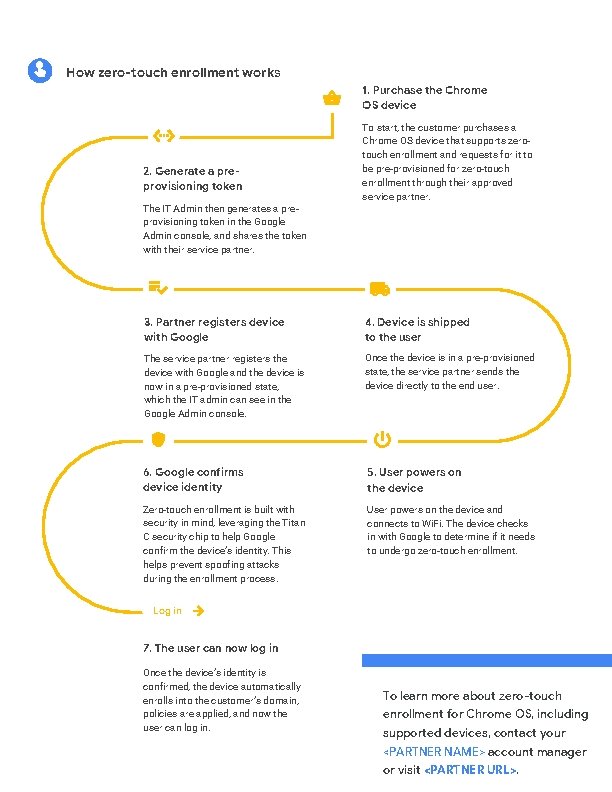
How zero-touch enrollment works 1. Purchase the Chrome OS device 2. Generate a preprovisioning token To start, the customer purchases a Chrome OS device that supports zerotouch enrollment and requests for it to be pre-provisioned for zero-touch enrollment through their approved service partner. The IT Admin then generates a preprovisioning token in the Google Admin console, and shares the token with their service partner. 3. Partner registers device with Google 4. Device is shipped to the user The service partner registers the device with Google and the device is now in a pre-provisioned state, which the IT admin can see in the Google Admin console. Once the device is in a pre-provisioned state, the service partner sends the device directly to the end user. 6. Google confirms device identity 5. User powers on the device Zero-touch enrollment is built with security in mind, leveraging the Titan C security chip to help Google confirm the device’s identity. This helps prevent spoofing attacks during the enrollment process. User powers on the device and connects to Wi. Fi. The device checks in with Google to determine if it needs to undergo zero-touch enrollment. Log in 7. The user can now log in Once the device’s identity is confirmed, the device automatically enrolls into the customer’s domain, policies are applied, and now the user can log in. To learn more about zero-touch enrollment for Chrome OS, including supported devices, contact your <PARTNER NAME> account manager or visit <PARTNER URL>.