
PART 1 Introduction to Tablet PC Going Mobile
PART 1: Introduction to Tablet PC Going Mobile August 18, 2008 1
Agenda • Welcome • Tablet PC Overview • Security • Overview of Disconnected Computing • FACTS to GO on Tablet • Questions August 18, 2008 2
Teleworking n Teleworking will be piloted in four districts, information will become available after the pilot project has ended. August 18, 2008 3
Tablet PC n n n DHHR has just issued you a new Tablet PC. Are you Excited to learn how it will make you more mobile and productive? Let’s begin to familiarize you with your Tablet PC so you can use it with ease. August 18, 2008 4
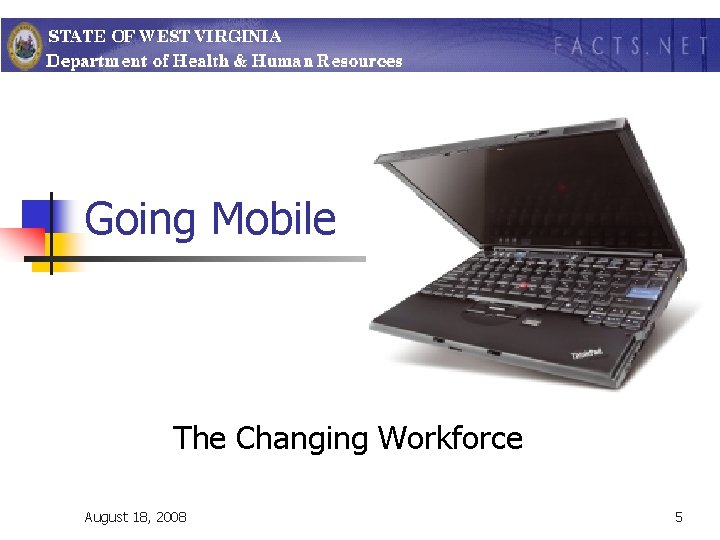
Going Mobile The Changing Workforce August 18, 2008 5
Going Mobile n n n Tablet PC fosters productivity whether you're at your desk or on the go. Tasks often take you away from your desk. You might need to go to meetings, to other work sites, or on trips out of town. To stay productive, you need both computing power and immediate access to key data everywhere you go, whether it is stored on your hard drive, your corporate network, or the Internet. Your Tablet PC is light enough to carry with you anywhere, and versatile enough to provide a comfortable mobile-computing experience, even at times when a keyboard is not practical or appropriate. With Tablet PC, you can harness the power of a fully functional computer while experiencing the unparalleled mobility you need to be productive in your work. You can take your tablet computer to meetings, take notes on it while you're talking on the phone, or take it home with you. August 18, 2008 6
Getting to Know Your Tablet What are all these buttons for? August 18, 2008 7
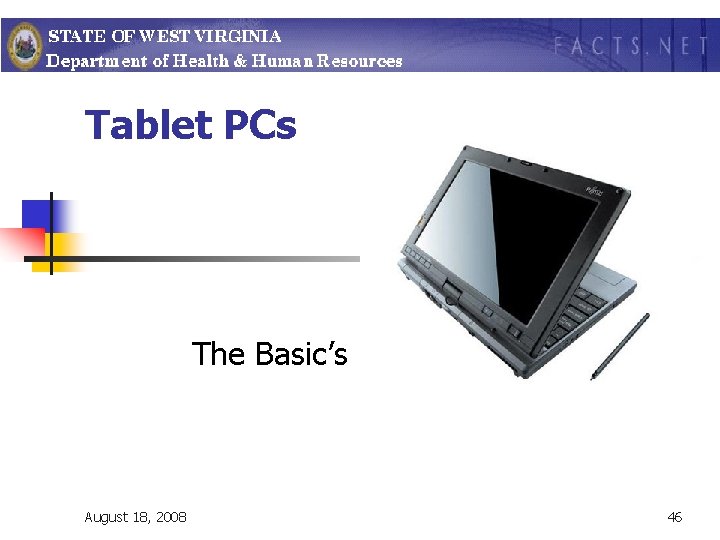
Tablet PC Overview n n n Works as a regular laptop computer Connects to a docking station for added bays Has Wireless built-in Has the ability to take handwritten notes or edit existing documents directly on your screen Weighs less than 4 ½ pounds August 18, 2008 8
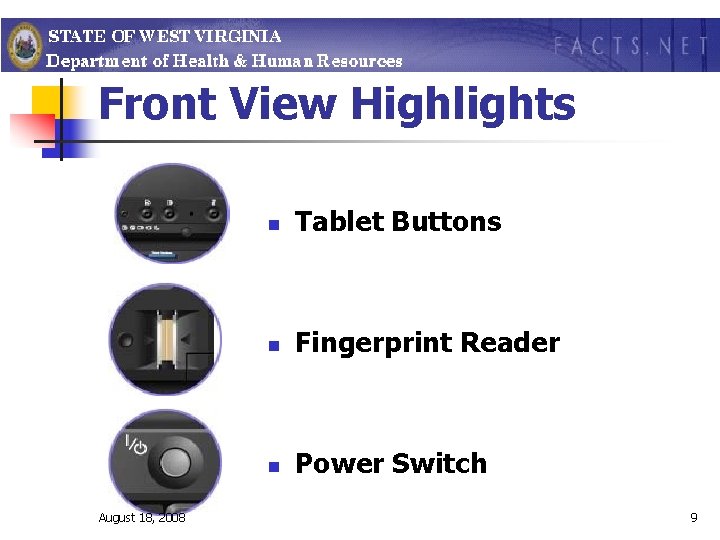
Front View Highlights August 18, 2008 n Tablet Buttons n Fingerprint Reader n Power Switch 9
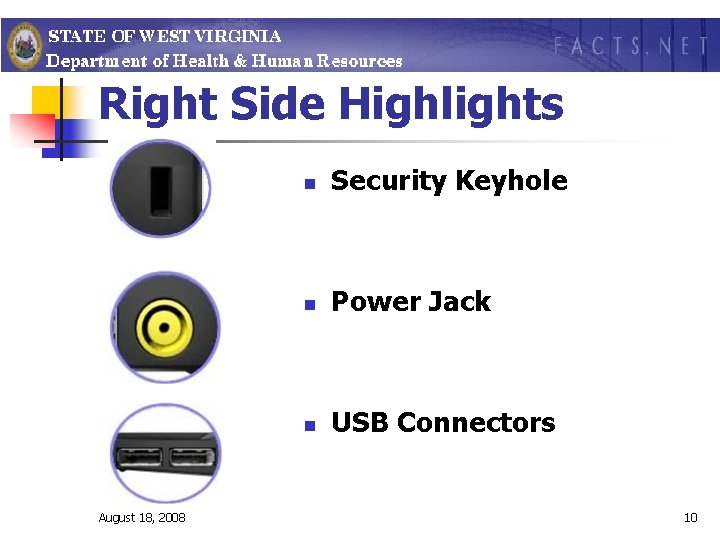
Right Side Highlights August 18, 2008 n Security Keyhole n Power Jack n USB Connectors 10
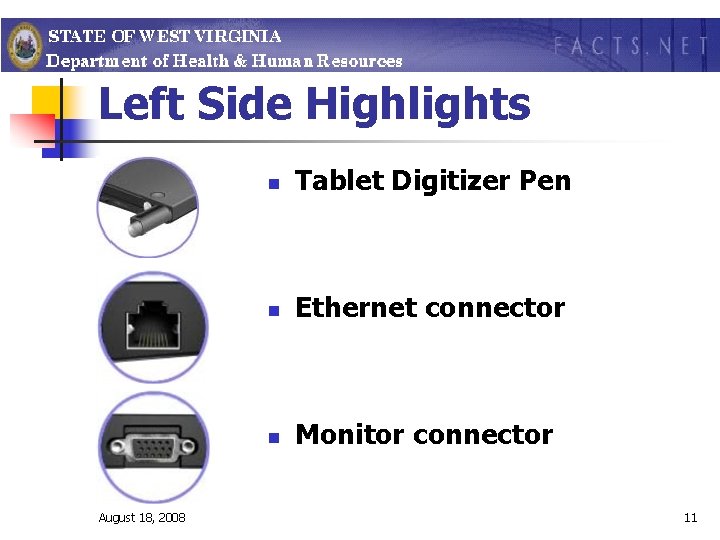
Left Side Highlights August 18, 2008 n Tablet Digitizer Pen n Ethernet connector n Monitor connector 11
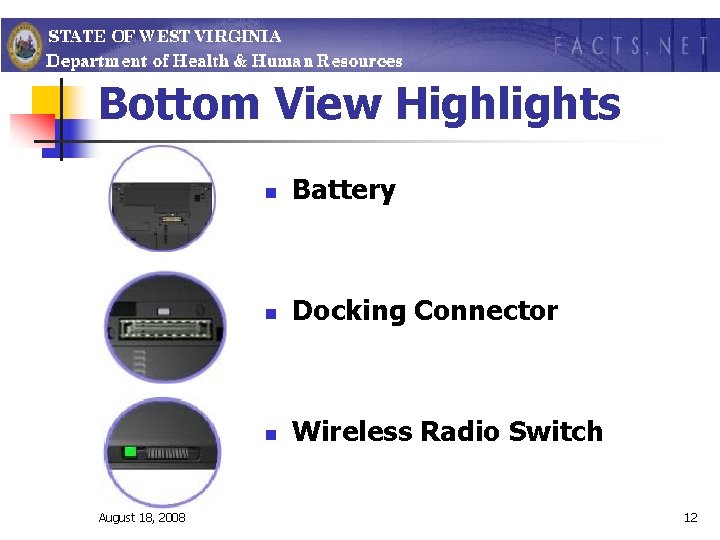
Bottom View Highlights August 18, 2008 n Battery n Docking Connector n Wireless Radio Switch 12
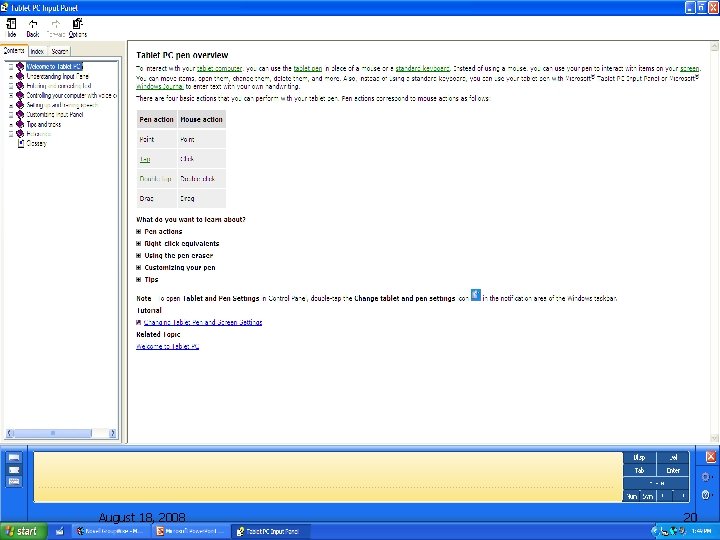
Tablet PC Overview n n n With a tablet computer, you can often use a tablet pen instead of a mouse. You can use your pen to open windows, to make selections, to drag items, and to do other things that you would normally do with your mouse. All the Windows-based software programs that you normally use will run on your tablet computer. Also, Tablet PC includes some other accessories that you can use with your pen to enter text and to take notes. August 18, 2008 13
Tablet PC Overview n n n Use Microsoft® Tablet PC Input Panel to enter text with your pen when a standard keyboard is unavailable. Use Microsoft® Windows Journal to take, organize, and mark up handwritten notes. Use Microsoft® Sticky Notes to retain information that you need to write quickly and keep easily available. August 18, 2008 14
Tablet Functions Learning the Ropes August 18, 2008 15
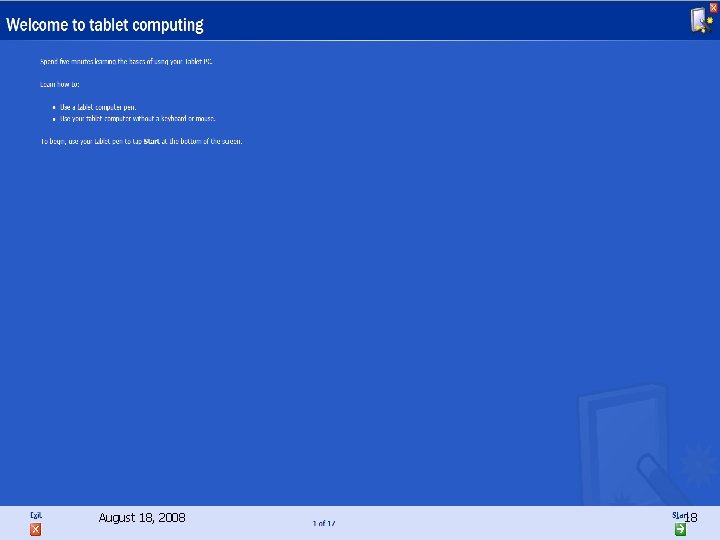
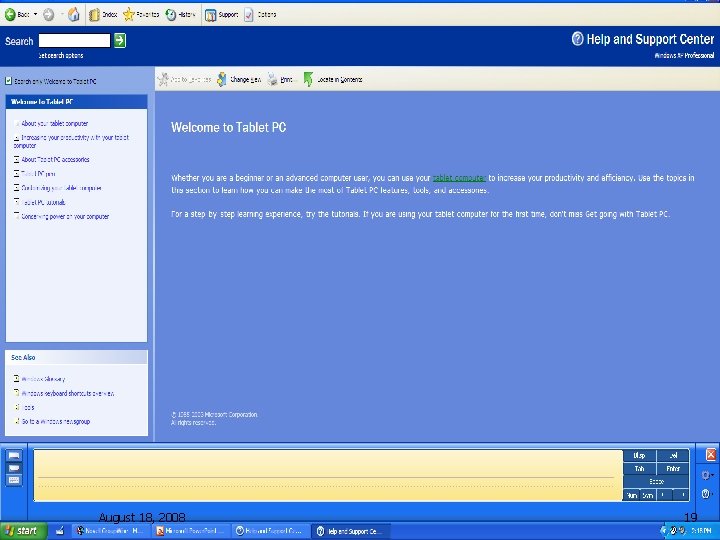
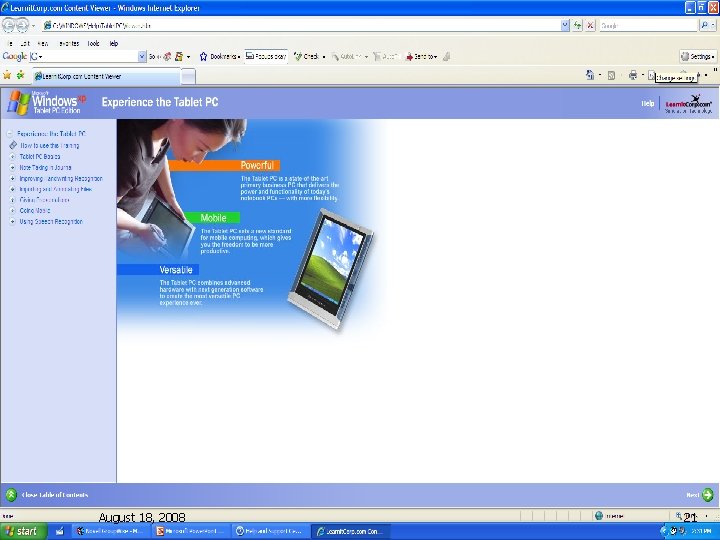
Tutorials Several tutorials and instructional guides are available on the tablet and via download by EC’s. n If you are just getting started with your tablet computer, be sure to see Get Going with Tablet PC. In this interactive training session, you can learn the basics of using your tablet. Get going with Tablet PC: Tap Start, point to All Programs, tap Get Going with Tablet PC. n August 18, 2008 16
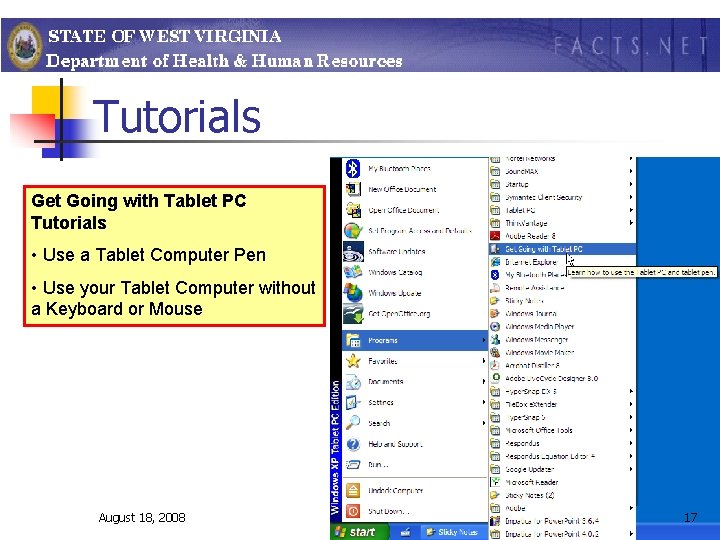
Tutorials Get Going with Tablet PC Tutorials • Use a Tablet Computer Pen • Use your Tablet Computer without a Keyboard or Mouse August 18, 2008 17
August 18, 2008 18
August 18, 2008 19
August 18, 2008 20
August 18, 2008 21
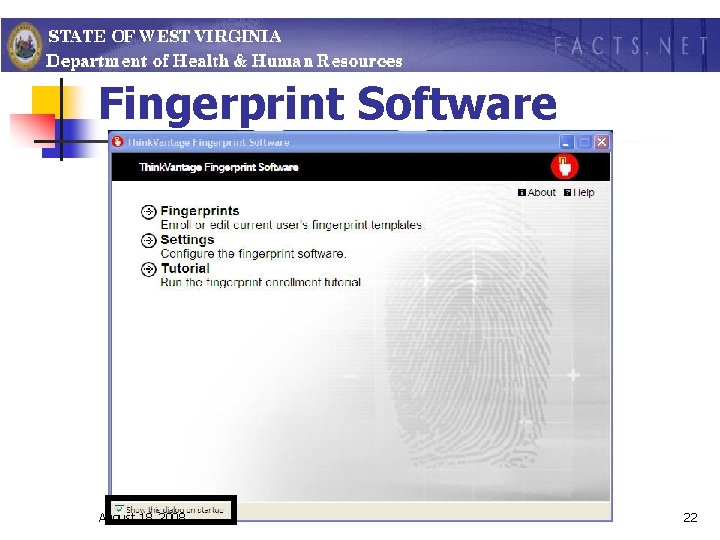
Fingerprint Software August 18, 2008 22
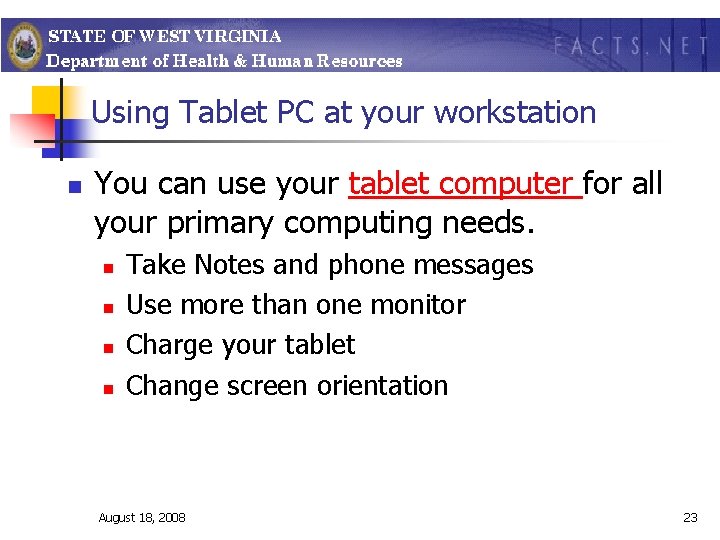
Using Tablet PC at your workstation n You can use your tablet computer for all your primary computing needs. n n Take Notes and phone messages Use more than one monitor Charge your tablet Change screen orientation August 18, 2008 23
Tablet PC Accessories n n n Tablet Pen Input Panel Speech Journal Sticky Notes August 18, 2008 24
Tablet Pen n When you're away from your desk and using a keyboard is not practical, you can use your Tablet PC with a tablet pen easily and efficiently. You can open, operate, and close programs all with just a tap of the pen. Whether you're in a meeting, in the hallway, or sitting on a couch, you can use Tablet PC Input Panel to convert your handwriting to text in nearly all Microsoft® Windows®based programs. August 18, 2008 25
Tablet Pen n You can adjust the following pen settings in Tablet and Pen Settings in Control Panel. n n n Customize pen actions such as point and double-tap. Customize your tablet computer to accommodate lefthanded use. Calibrate your screen to make the pointer appear closer to the tip of your pen. Turn on or off the pen button for right-click. Turn on or off press and hold for right-click August 18, 2008 26
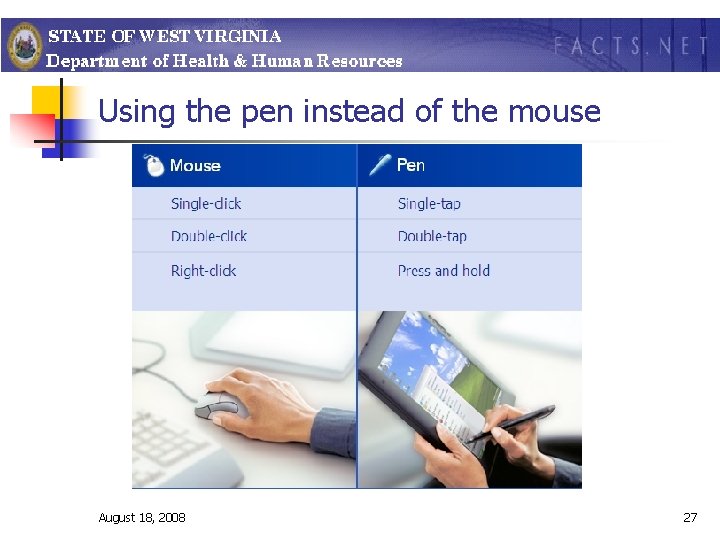
Using the pen instead of the mouse August 18, 2008 27
Tablet Pen n Calibrating the Tablet Pen When you use the tablet pen with the Tablet PC, it's important that you can accurately point at items on the screen. Calibrating your tablet pen will give you better results. August 18, 2008 28
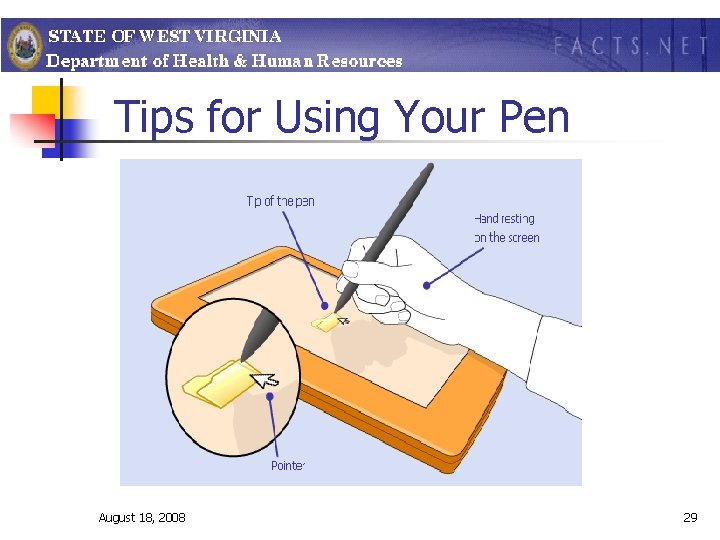
Tips for Using Your Pen August 18, 2008 29
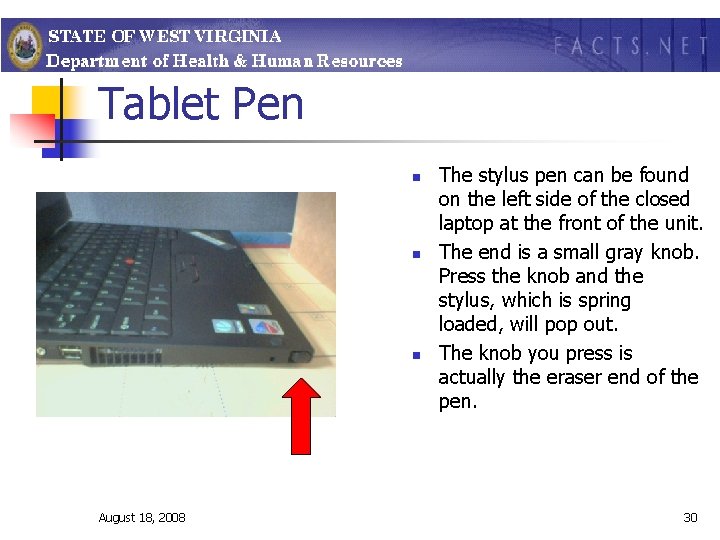
Tablet Pen n August 18, 2008 The stylus pen can be found on the left side of the closed laptop at the front of the unit. The end is a small gray knob. Press the knob and the stylus, which is spring loaded, will pop out. The knob you press is actually the eraser end of the pen. 30
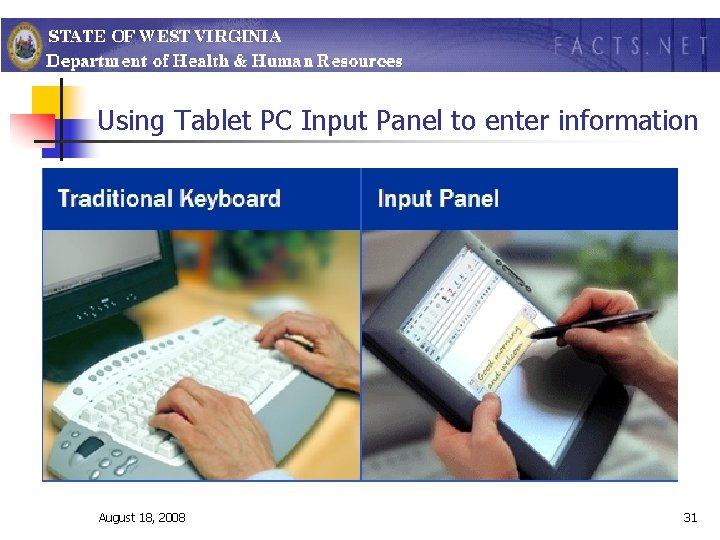
Using Tablet PC Input Panel to enter information August 18, 2008 31
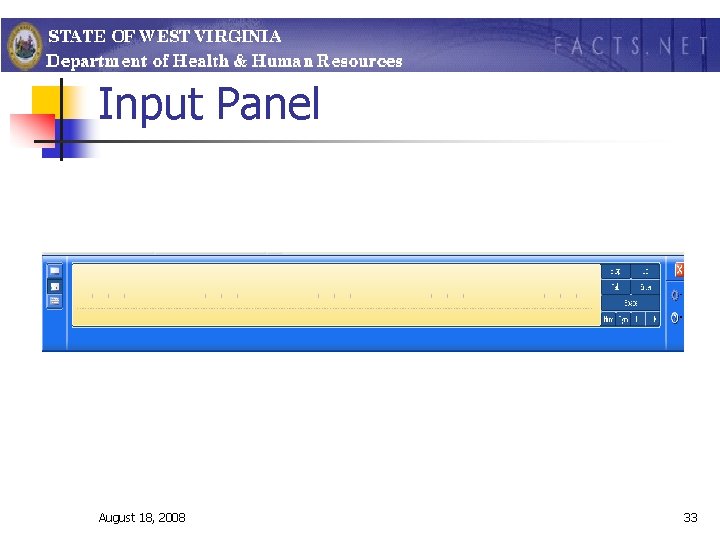
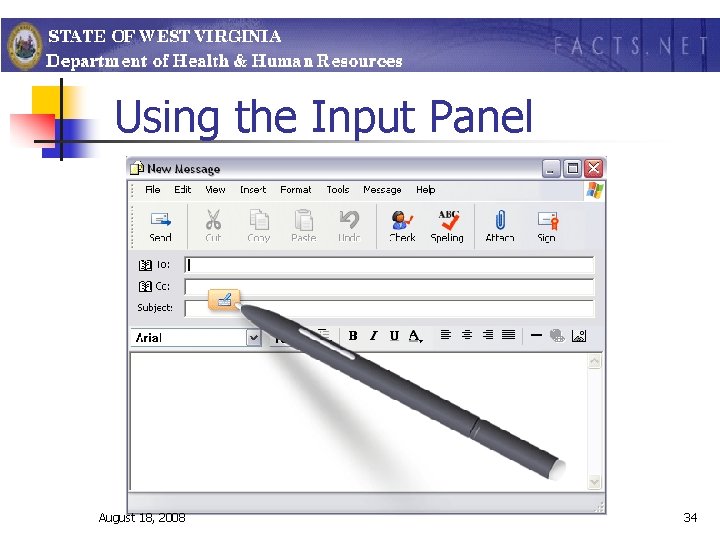
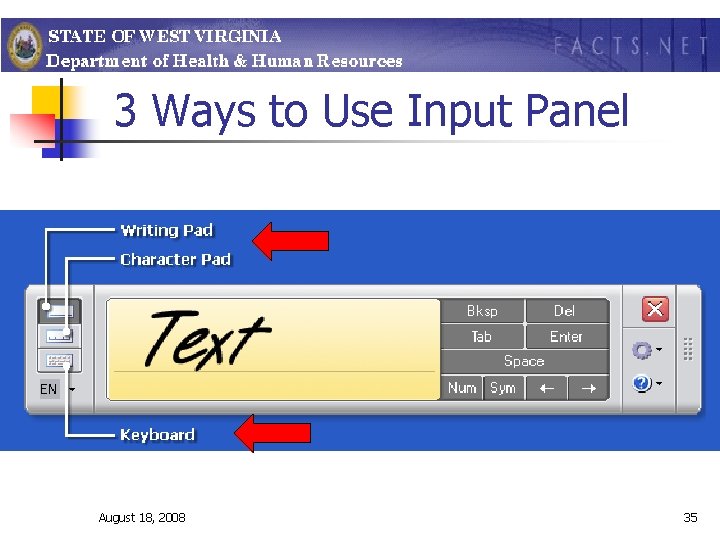
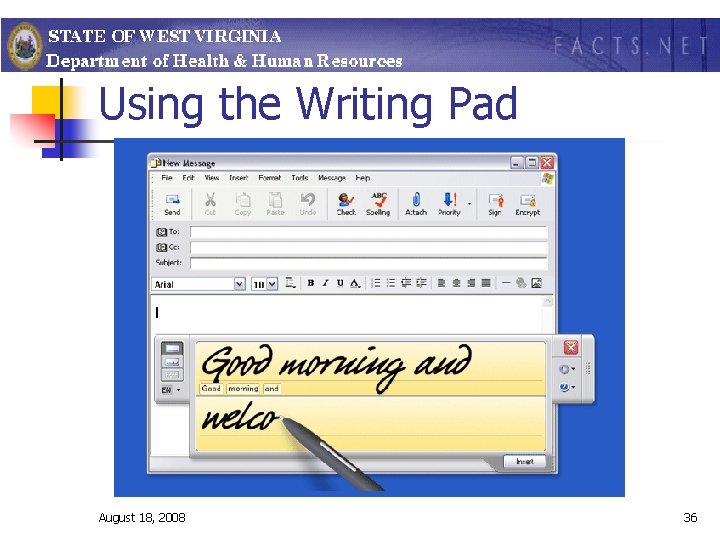
Input Panel n n n You can use Tablet PC Input Panel to enter text on your tablet computer when a standard keyboard and a mouse are unavailable. You can use your own handwriting to enter text with the writing pad or the character pad, or you can enter text with the on-screen keyboard. You can also use Input Panel to dictate text or use voice commands to manage your tablet computer. For more information about Input Panel, see Input Panel Help. August 18, 2008 32
Input Panel August 18, 2008 33
Using the Input Panel August 18, 2008 34
3 Ways to Use Input Panel August 18, 2008 35
Using the Writing Pad August 18, 2008 36
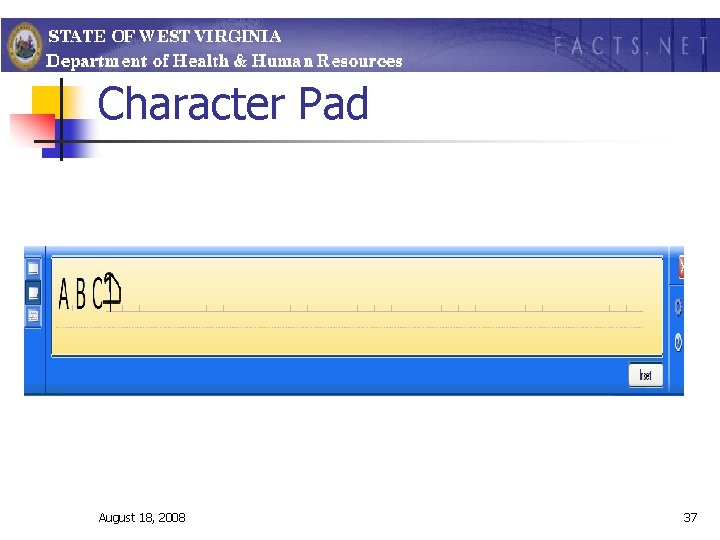
Character Pad August 18, 2008 37
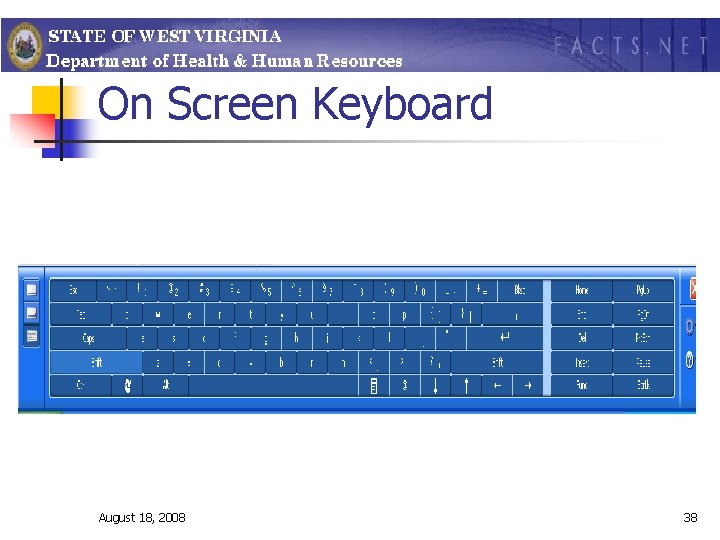
On Screen Keyboard August 18, 2008 38
Speech Recognition n n Speech recognition is the ability of the computer to convert spoken words into written text or commands that are used to run computer programs. Dictation mode enables you to use speech to work with text in most Windows XP-compatible programs, and voice commands enable you to use speech to do many things that you would normally do with a keyboard, mouse, or tablet pen. In order to optimize your speech recognition experience, it is recommended that you obtain a quality headset microphone with built-in noise filters, since the speech recognition rate is directly tied to the input quality. Also, it's important to train speech recognition for your individual speaking style. After you complete the speech training sessions, speech recognition adapts to how you speak, incorporating accents, pronunciations, and even idiomatic phrases. August 18, 2008 39

Using Speech Recognition n n You can use speech recognition to enter text or voice commands into most Microsoft® Windows® XP programs, such as Internet Explorer, Outlook Express, and any of the programs in the Microsoft Office Suite. In addition Group. Wise and FACTS. You can use speech training to personalize your speech recognition, increasing its accuracy. After you do so, friends and coworkers using speech recognition with your Tablet PC probably won't experience the same accuracy that you would, because a speech recognition profile will be personally tailored to the distinctive way you speak. If others want to try out this feature, be sure to set up their own profiles, so they can experience the power of Tablet PC speech recognition for themselves. August 18, 2008 40
Journal n n One of the most powerful new accessories for Tablet PC is Microsoft® Windows® Journal. Using Journal is as easy as writing on a pad of paper: just start writing! August 18, 2008 41
Journal n n You can use Microsoft® Windows® Journal to easily create and retrieve handwritten notes on your tablet computer. Notes in Journal have many advantages over traditional paper notes. With Journal notes, you can: n n n Manage and backup notes. Edit existing notes. Import and mark up other documents with digital ink, and share these documents with colleagues. Search for text in notes. Convert handwriting into typed text. For more information about Journal see Journal Help. August 18, 2008 42

August 18, 2008 43
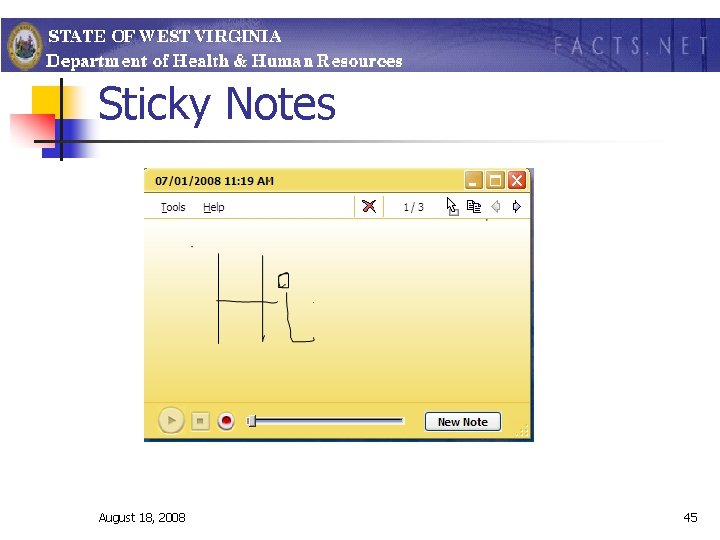
Sticky Notes n n You can use Microsoft® Sticky Notes the same way you use a paper sticky note to retain names, phone numbers, simple maps with directions, and other information that you need to write quickly and keep easily available. For convenience and quick access, notes are kept in a single stack that you can make "stick" to your desktop. Always on top, visible and available, you can easily browse through your sticky notes. In addition, you can copy and paste your sticky notes into other programs and import and export your stack of notes. For more information about Sticky Notes, see Sticky Notes Help. August 18, 2008 44
Sticky Notes August 18, 2008 45
Tablet PCs The Basic’s August 18, 2008 46
Tablet Basics n n n Use the power button on the front of the docking station to turn tablet on. When using the tablet as your desktop keep the tablet closed. Opening the tablet will distort the imagine on your monitor. August 18, 2008 47
Docking and Undocking n n n This function is similar to that of the PDA. Laptop can not be undocked while turned on. You can use the Start-Undock computer Option or On the left side of the unit there is a green light and a slim silver-colored button. Beside this is a red light (a red circle with a slash through it). When docked, the red light is on to tell you cannot undock it. If you wish to undock while the unit is on, press the slim silver button. There is an arrow below the red light that will come on. This arrow points to a small lever you must use to undock. Also, there is a message on the screen that you have undocked. August 18, 2008 48
Docking and Undocking n n n Unlock the unit. This requires a key that comes with the docking station. Pulling the lever with one hand, grip the back of the laptop in the center and pull it toward you. It must come off the base from the rear forward. To place the laptop back on the base, place the front of the laptop down onto the front of the base and lower the back down. n n It will snap in place. Docking is exactly the opposite action of undocking. If the unit is on when you dock it, it will go into sleep mode. Press the front power button. You will then have to enter your ID and password. August 18, 2008 49
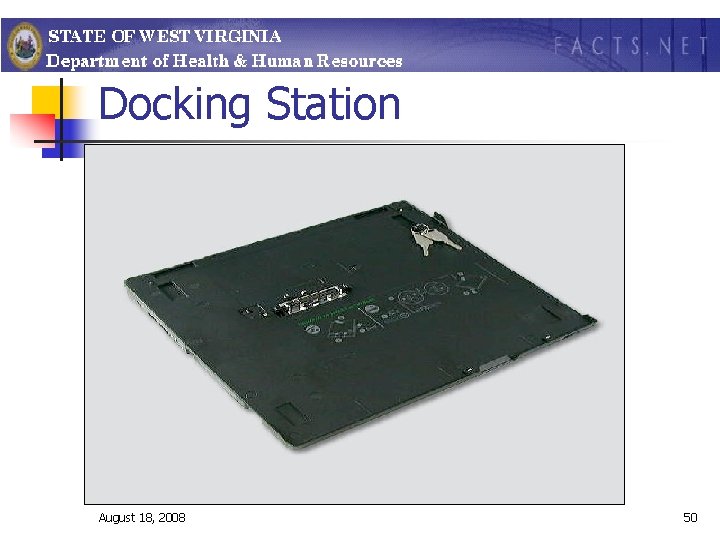
Docking Station August 18, 2008 50
Tablet Keyboard n n Using the tablet is no different than any other laptop as far as the keyboard. The red button in the middle (belly button) is your mouse and the buttons at the bottom under the spacebar are your mouse keys. August 18, 2008 51
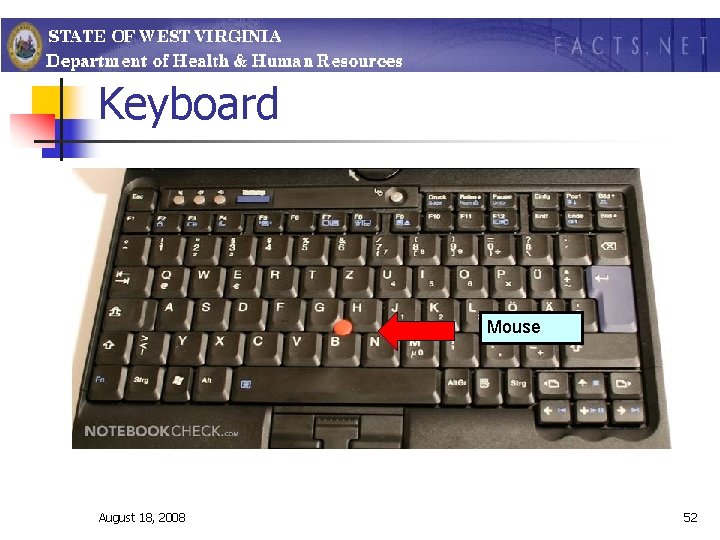
Keyboard Mouse August 18, 2008 52
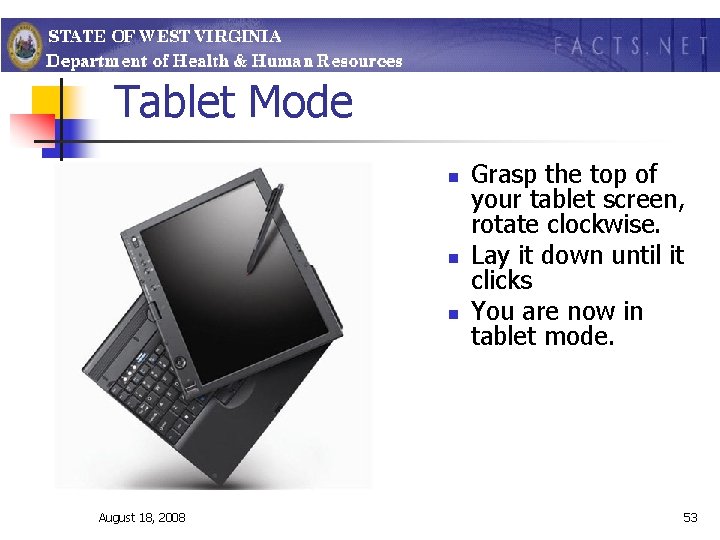
Tablet Mode n n n August 18, 2008 Grasp the top of your tablet screen, rotate clockwise. Lay it down until it clicks You are now in tablet mode. 53
Tablet Mode n n n Once you have the screen on top, there are buttons along the side that control features. One is a flip button that allows you to flip the screen image from horizontal to vertical. At the top of the buttons is a large round button with arrows along the outside. These are directional arrows and pressing them moves the cursor. In the middle is a small button that acts as an enter button when pressed. Along the side of the screen are an escape button, a toolbox button (shows tablet settings), a small round button with no name (that will lock the computer), and a power button. August 18, 2008 54
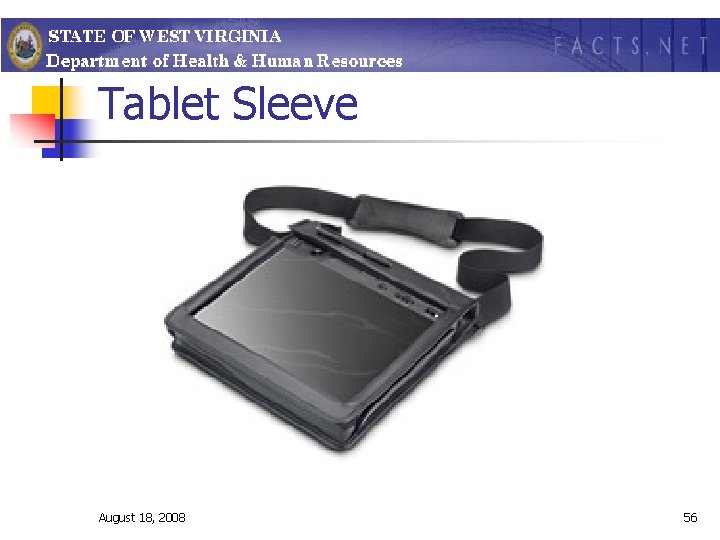
Tablet Sleeve n n The tablet comes with a sleeve case to be used when using the tablet function. Open the tablet and turn the screen, lock it down and remove the stylus. Then insert it in the sleeve screen side up, where the screen can be seen through the clear side of the sleeve. You can write on the clear surface and the buttons along the side show up through the sleeve’s cutouts. August 18, 2008 55
Tablet Sleeve August 18, 2008 56
. Tablet n n The tablet itself does not have a DVD or CD drive, but the dock does. The Drive is a CDRW- drive n This means you can burn CD’s August 18, 2008 57
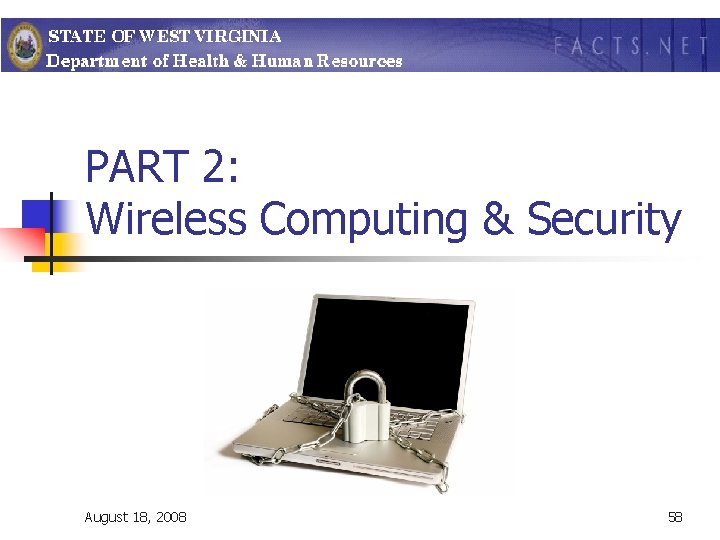
PART 2: Wireless Computing & Security August 18, 2008 58
How do wireless networks work? n n Uses radio waves, much like cell phone, radios, or televisions A computer's wireless adapter translates data into a radio signal and transmits it using an antenna. A wireless router receives the signal and decodes it. It sends the information to the Internet using a physical, wired Ethernet connection. The process also works in reverse, with the router receiving information from the Internet, translating it into a radio signal and sending it to the computer's wireless adapter. August 18, 2008 59
Wireless Computing n n As long as they all have wireless adapters, several devices can use one router to connect to the Internet. This connection is convenient and virtually invisible, and it's fairly reliable. If the router fails or if too many people try to use high-bandwidth applications at the same time, however, users can experience interference or lose their connections. http: //computer. howstuffworks. com/wirelessnetwork 1. htm August 18, 2008 60
How do I connect to a wireless network? n n If your wireless is turned on, and you are within range of a wireless network, you will receive a message to connect. If you have connected to the wireless connection before, you may automatically connect again. August 18, 2008 61
Is there any reason I shouldn’t connect to a wireless network? n n n Home wireless networks are relatively inexpensive and easy to set up May or may not have any security configured Connecting to someone’s unsecured network makes you a prime candidate for hacking, even from casual hackers. August 18, 2008 62
Home Wireless Network- Security n n n Change the System ID Disable Identifier Broadcasting Enable Encryption Restrict Unnecessary Traffic Change Default Administrator Password Anti Virus Software August 18, 2008 63
How can I work securely from a location other than the office? n Virtual Private Network or VPN Or n Disconnected Computing – Mobile FACTS August 18, 2008 64
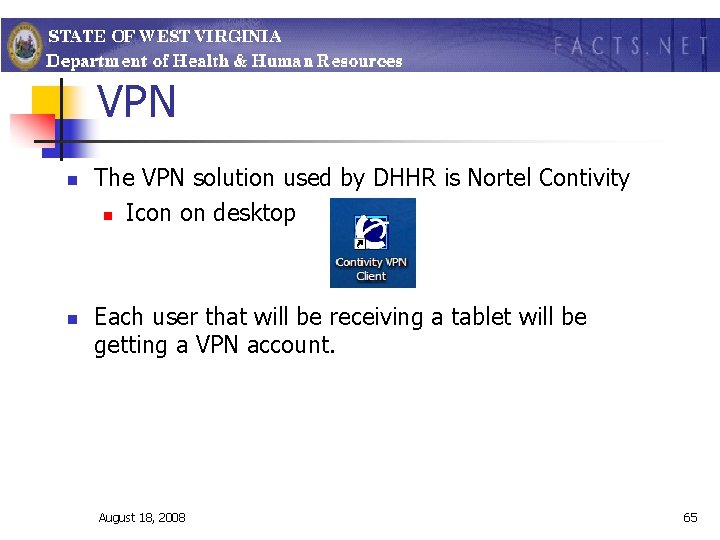
VPN n n The VPN solution used by DHHR is Nortel Contivity n Icon on desktop Each user that will be receiving a tablet will be getting a VPN account. August 18, 2008 65
VPN n n n In order to access the DHHR network, the user must first have an internet connection, then must open and log in to the VPN account. Once the VPN is connected, full access to DHHR Network- just like working from your desk. Data is encrypted via the VPN Firewalled safe connection Full access to FACTS, Group. Wise and shared folders. August 18, 2008 66
Tips to Keep Your Tablet Safe: Security Do’s and Don’ts August 18, 2008 67
Tablet PC The three most important points: 1. Security! 2. Security! 3. Security! August 18, 2008 68
Tablet PC Security! Security Issues: Preventing Theft of Tablet Preventing Theft of confidential client data Avoid winding up in the News August 18, 2008 69
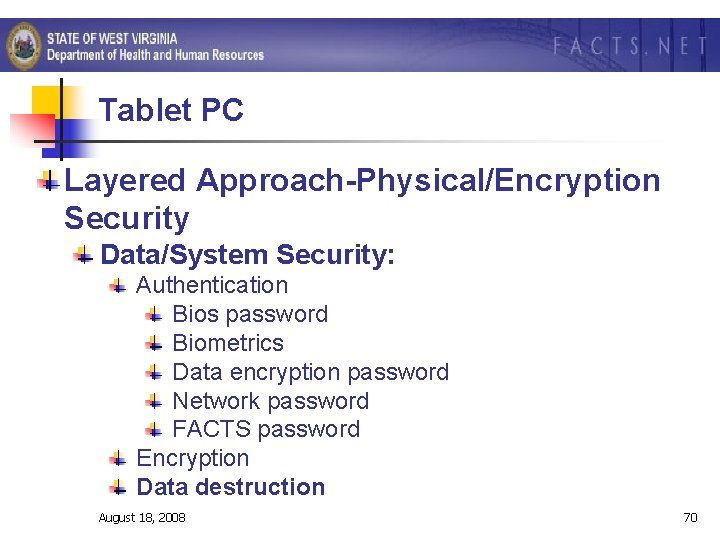
Tablet PC Layered Approach-Physical/Encryption Security Data/System Security: Authentication Bios password Biometrics Data encryption password Network password FACTS password Encryption Data destruction August 18, 2008 70
Tablet Security Layered Approach-Physical/Encryption Security (cont. ) Physical Security: Theft Prevention: Educating workers against potential theft and consequences of losing confidential client information – not to mention their hard work August 18, 2008 71
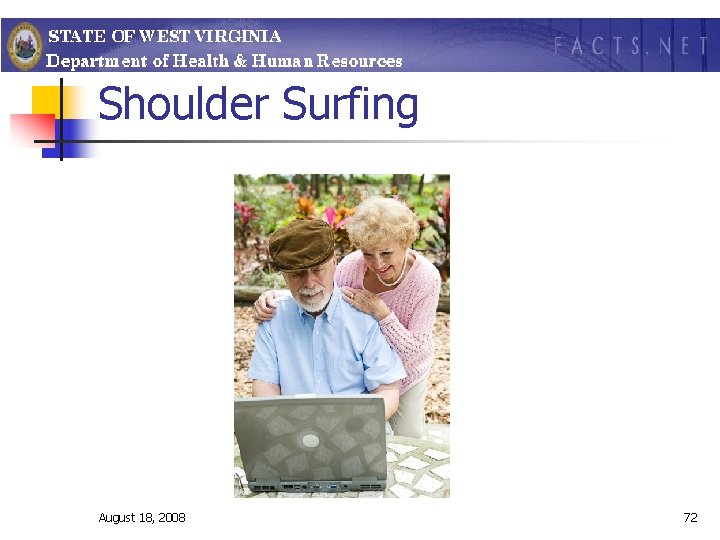
Shoulder Surfing August 18, 2008 72
Traveling with your Tablet n n n Use a non-descript carrying case When traveling by air… When traveling by car… While staying in a hotel…. Conferences… August 18, 2008 73
Tablet Care n n Treat your laptop as if it were cash. Don’t lay it down in plain sight and leave it. DO NOT leave the Mobile PC unsecured. For example, don’t leave it in the backseat of your car while you are gone to lunch, or shopping, or in your driveway at night. If your laptop if stolen, report it immediately August 18, 2008 74
Tablet Care n n Don’t lay anything on your tablet. The screen is fairly fragile and easily damaged with weight and scratching. Use a quality carrying case that provides adequate cushion and protection. Take care not to drop your Tablet or subject it to any strong impact. Do not subject your computer to extreme temperatures. August 18, 2008 75
Tablet Care n n n Keep your computer away from magnets, cell phones, electrical appliances, and speakers. Make sure your computer is in standby or turned off before moving it. Do not pick up or hold the computer by the display only August 18, 2008 76
Tablet Care n n Do not place any obstacle, such as thick carpet or soft cushions in front of the fan. Do not use any other pen with your tablet than the one that came with it. The tablet surface is easily scratched. August 18, 2008 77
Tablet Care n n n Don’t lock it in your car’s trunk for three hours while you attend a court hearing/conference unit meeting. The Extreme Heat/Cold temperatures can cause issues with your tablet. Let it get to room temperature before starting it up. Electronic equipment does not like moisture from condensation or that cup of hot coffee! Ideally, either take it with you or leave it at the office. Clean your tablet on a regular basis. Wipe down the screen with a computer-safe cloth and cleaning solution. Blow out the keyboard with canned air. Keeping dirt and other debris out of your computer will prevent some of the damage – sticking keys, a messed-up screen, etc. August 18, 2008 78
Security Tips: n n Never deviate from your agencies protocol in reference to Password security. Always be mindful of the Social Work Code of Ethics referencing confidentiality, when working outside the office setting. E. g. ‘Shoulder Surfing; Done when a person, or family member, looks over the PC users shoulder to view what is displayed on the screen. Be aware of the battery strength/charge. August 18, 2008 79
PART 3: FAMILIES AND CHILDREN TRACKING SYSTEM DISCONNECTED COMPUTING FACTS to Go Orientation Prepared by Traci Dean MIS/FACTS August 18, 2008 80
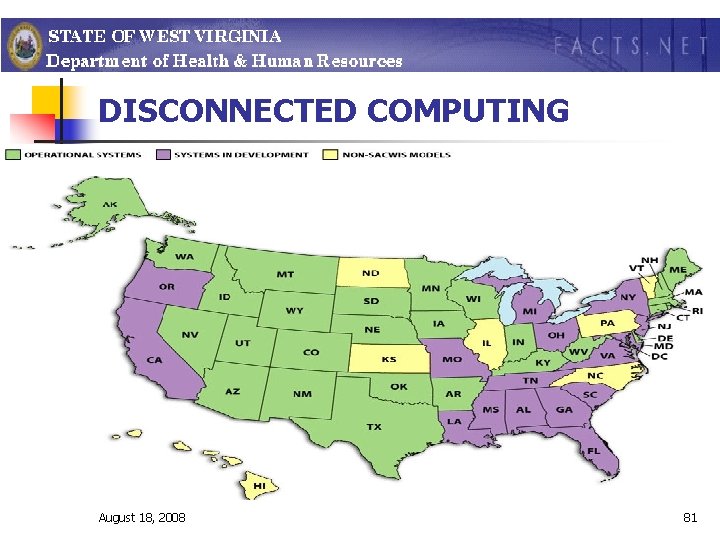
DISCONNECTED COMPUTING August 18, 2008 81

DISCONNECTED COMPUTING What is our Goal? The overall goal of FACTS is to create a system that supports social workers in the execution of their job while being able to satisfy the reporting needs of the federal, state, and Department administration August 18, 2008 82
DISCONNECTED COMPUTING Mobile Workforce Most of the essential functions in Social Work Practice are completed away from the social worker’s desk and their desktop computer August 18, 2008 83
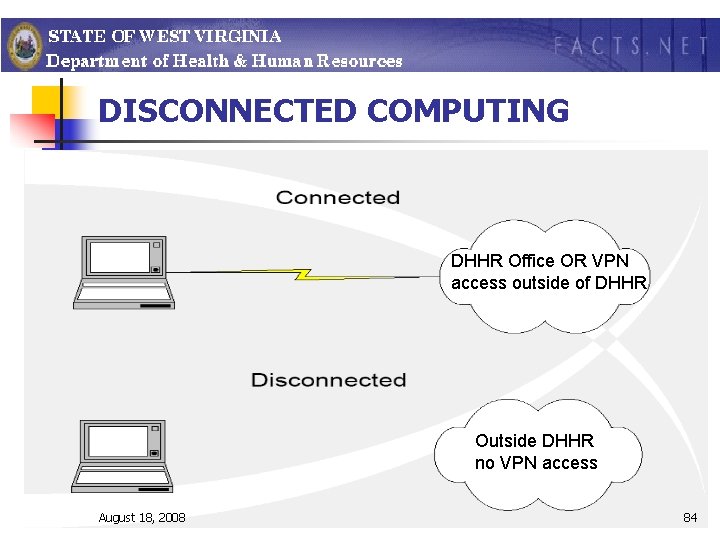
DISCONNECTED COMPUTING DHHR Office OR VPN access outside of DHHR Outside DHHR no VPN access August 18, 2008 84
Disconnected Computing August 18, 2008 85
DISCONNECTED COMPUTING Rationale Business need to provide off-line work capability Allow staff to capitalize on “wait time” Greater flexibility in work schedule Increased productivity Reduced staff stress August 18, 2008 86
DISCONNECTED COMPUTING Rationale Laptop/tablet PC best option after analysis of alternatives (details) Commercial systems limited and expensive DHHR has the skilled resources to accomplish the task August 18, 2008 87
DISCONNECTED COMPUTING Approach Two disconnected computing methods were adopted to meet this business need FACTS to Go Digital Pen –( still in pilot stage) August 18, 2008 88
DISCONNECTED COMPUTING FACTS to Go is designed to improve data quality and worker efficiency by reducing the amount of paperwork and the duplication of effort workers are currently experiencing August 18, 2008 89
DISCONNECTED COMPUTING System Assumptions Same application Mark the record as checked-out Limited number of records checked out Overwriting existing records on tablet August 18, 2008 90
DISCONNECTED COMPUTING System Assumptions (cont) Maintain a log of check-in and check-out Time limit on checked out records Updates must be handled by stored procedures There must be a connection screen August 18, 2008 91
DISCONNECTED COMPUTING Constraints We initially recognized that the tablet is an attractive target for theft but we have taken steps to mitigate these security problems We concluded that the risk of loss was not any greater than the loss of a paper record August 18, 2008 92
DISCONNECTED COMPUTING Business Rules The following functional screens can be ‘checked out’ to the tablet application. Contacts Specified Client Screens Most CPS Initial Assessment Screens – (Note: Investigation Extension, Supervisor Approval is not available on the tablet) The system will permit you to check out a Maximum of 22 records at one time. August 18, 2008 93
DISCONNECTED COMPUTING Business Rules (cont) When a record is ‘checked out’ to the tablet database, the record is also locked in the FACTS central database. Records checked out to the tablet must be ‘checked in’ (i. e. synchronized) with the FACTS database within 20 days. August 18, 2008 94
DISCONNECTED COMPUTING Business Rules (cont) The same FACTS Application resides on the tablet pc. Same Logon rules apply. (Note: FACTS password on the tablet will be the same FACTS password that was active at the time the data was checked out to the mobile). Application on the tablet uses the same field/screen/table rules/edit checks as the main FACTS application. August 18, 2008 95
DISCONNECTED COMPUTING Business Rules (cont) After completing updating the record on the tablet, this data must be ‘checked in’ to the FACTS central database. August 18, 2008 96
DISCONNECTED COMPUTING Business Rules (cont) When a record is checked out to the tablet, the record in the central database is locked and cannot be modified/updated by staff. The system will not permit any client ids in the checked out record to be merged in the FACTS central database until the record is checked in and the record is unlocked in the central database. August 18, 2008 97
DISCONNECTED COMPUTING Business Rules (cont) Records must be ‘checked in’ to the central database within 20 days. In order to protect client information, records that have not been synchronized with the central database will be destroyed at 00: 01 AM on the 21 st Day. Notifications will be sent as follows: Day 5 – Worker Day 10 – Worker Day 15 – Worker, Supervisor Day 17 – Worker, Supervisor, & *CSM Day 19– Worker, Supervisor, & *CSM Day 20 – Worker, Supervisor, & *CSM Day 21 – Worker, Supervisor, & *CSM *Note: If user is assigned to a regional unit, then the email notification shall be sent to 98 August 18, 2008 the Regional Program Manager.
DISCONNECTED COMPUTING Initial Findings Pros Eliminates duplication of effort and saved a considerable amount of time Estimate that using the tablet will saved 30 to 45 minutes per record Work is more efficient Tablet is portable Integrates into existing business operation August 18, 2008 99
DISCONNECTED COMPUTING Findings (cont) Pros Seamless field data workflow Requires minimal training Captures field data accurately resulting in: Improved data quality Improved data processing efficiency August 18, 2008 100
DISCONNECTED COMPUTING Training Issues Nominal, one time training is required No need to retrain the user on how to use the FACTS application August 18, 2008 101
Disconnected Vs. VPN n n n VPN provides access to entire DHHR Network. You can access all screens in FACTS Must have high speed internet for best results. August 18, 2008 n n n FACTS to Go provides limited access to certain screens. More mobile, can work from any location. No internet access needed. 102

FACTS To Go The How To’s. August 18, 2008 103
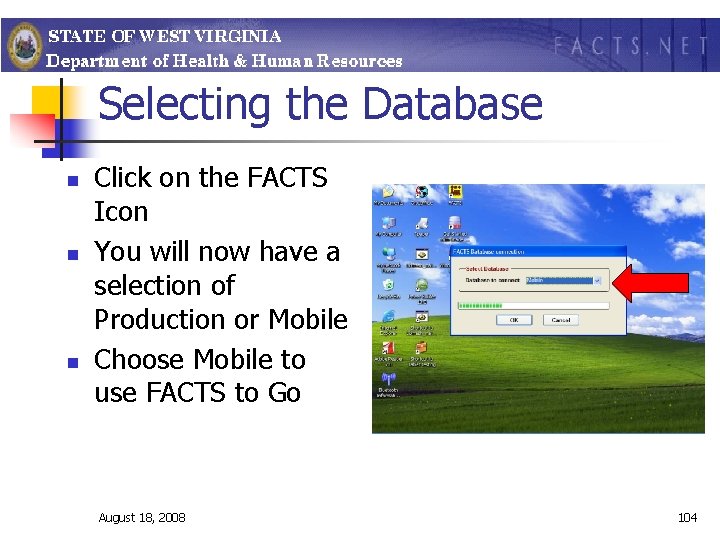
Selecting the Database n n n Click on the FACTS Icon You will now have a selection of Production or Mobile Choose Mobile to use FACTS to Go August 18, 2008 104
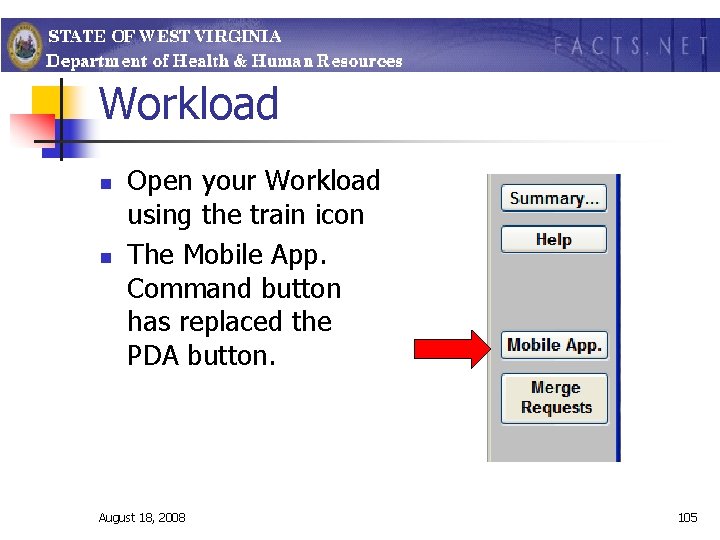
Workload n n Open your Workload using the train icon The Mobile App. Command button has replaced the PDA button. August 18, 2008 105
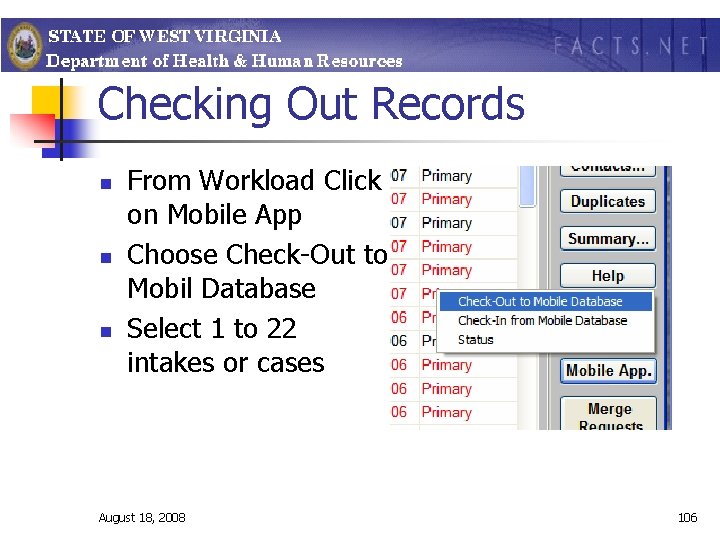
Checking Out Records n n n From Workload Click on Mobile App Choose Check-Out to Mobil Database Select 1 to 22 intakes or cases August 18, 2008 106
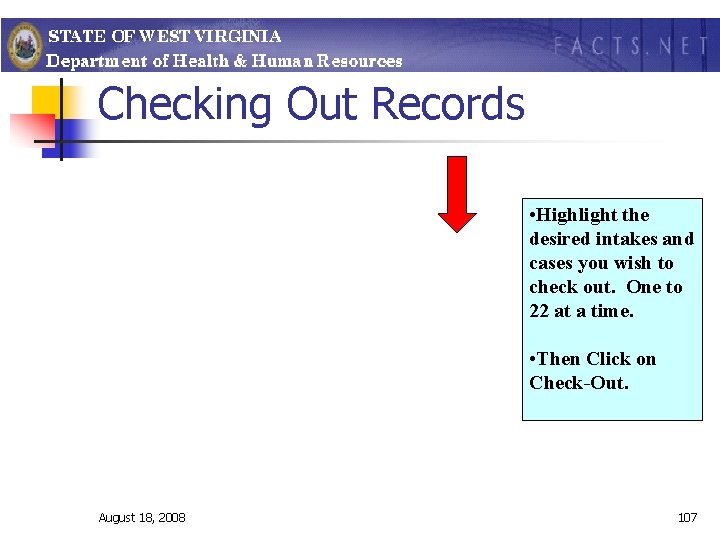
Checking Out Records • Highlight the desired intakes and cases you wish to check out. One to 22 at a time. • Then Click on Check-Out. August 18, 2008 107
Checking Out Records August 18, 2008 108
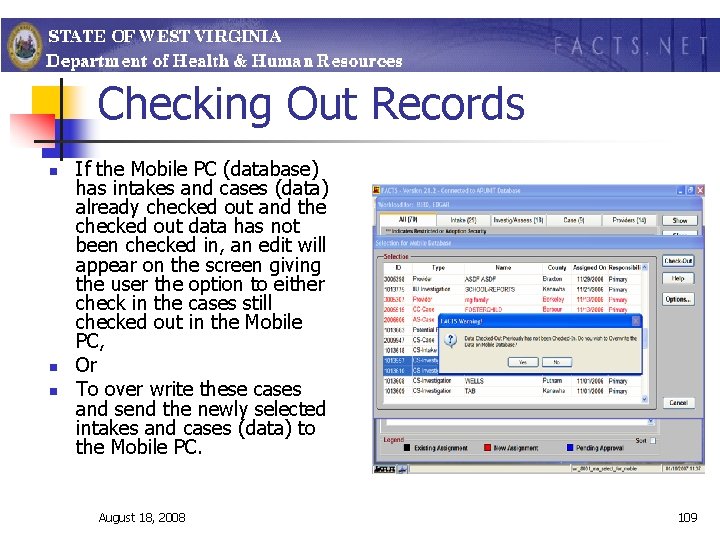
Checking Out Records n n n If the Mobile PC (database) has intakes and cases (data) already checked out and the checked out data has not been checked in, an edit will appear on the screen giving the user the option to either check in the cases still checked out in the Mobile PC, Or To over write these cases and send the newly selected intakes and cases (data) to the Mobile PC. August 18, 2008 109
Checking Out Records n n n Intakes and Cases that are checked out will be LOCKED. No one can access them to document any information. Not even the Help Desk. August 18, 2008 110
Time Frames n n n Once checked out: Worker has up to 20 days to enter limited data in the FACTS to Go application. Information must be checked back in or all will be lost. August 18, 2008 111
Notifications will be sent as follows: n Day 5 – Worker n Day 10 – Worker n Day 15 – Worker, Supervisor n Day 17 – Worker, Supervisor, & *CSM n Day 19– Worker, Supervisor, & *CSM n Day 20 – Worker, Supervisor, & *CSM n Day 21 – Worker, Supervisor, & *CSM n *Note: If user is assigned to a regional unit, then the email notification shall be sent to the Regional Program Manager. August 18, 2008 112
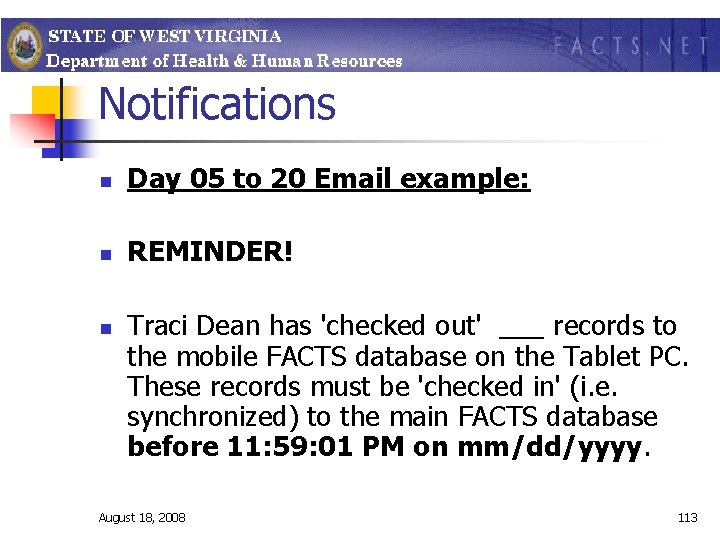
Notifications n Day 05 to 20 Email example: n REMINDER! n Traci Dean has 'checked out' ___ records to the mobile FACTS database on the Tablet PC. These records must be 'checked in' (i. e. synchronized) to the main FACTS database before 11: 59: 01 PM on mm/dd/yyyy. August 18, 2008 113
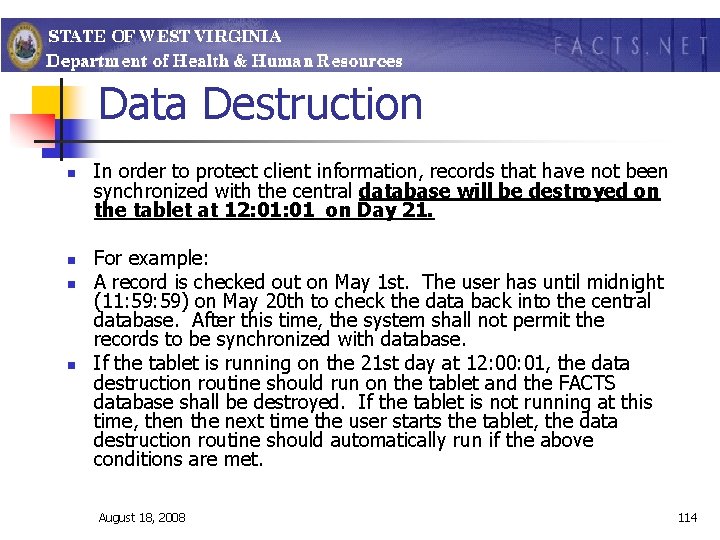
Data Destruction n n In order to protect client information, records that have not been synchronized with the central database will be destroyed on the tablet at 12: 01 on Day 21. For example: A record is checked out on May 1 st. The user has until midnight (11: 59) on May 20 th to check the data back into the central database. After this time, the system shall not permit the records to be synchronized with database. If the tablet is running on the 21 st day at 12: 00: 01, the data destruction routine should run on the tablet and the FACTS database shall be destroyed. If the tablet is not running at this time, then the next time the user starts the tablet, the data destruction routine should automatically run if the above conditions are met. August 18, 2008 114
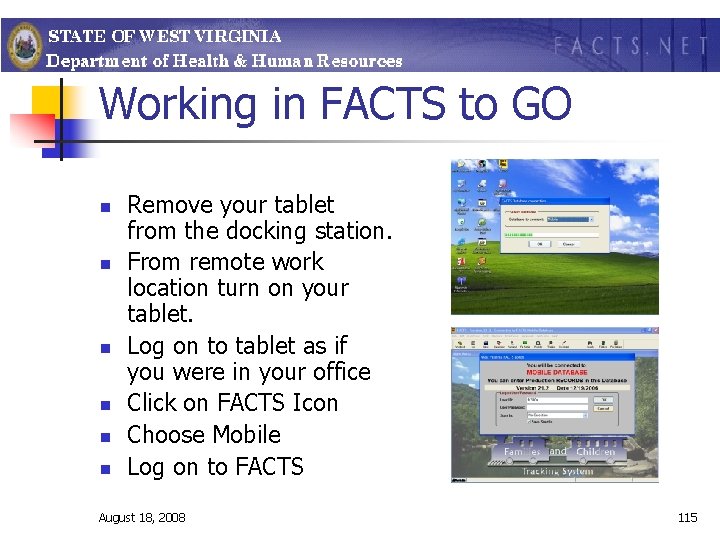
Working in FACTS to GO n n n Remove your tablet from the docking station. From remote work location turn on your tablet. Log on to tablet as if you were in your office Click on FACTS Icon Choose Mobile Log on to FACTS August 18, 2008 115
Working in FACTS to GO n From Workload Select Initial Assessment or Case to work on click SHOW August 18, 2008 116
Available Screens n n n n General Information screen Client address screen Telephone numbers screen AKA screen Characteristics screen Marital/Cohabitation Screen Client Relationships screen August 18, 2008 117
Available Screens n n Client Education/Employment Screens: Employment screen Education screen Military screen August 18, 2008 118
Available Screens n n Client Finances screens: Income Information Screen Assets Screen Client Debt Screen August 18, 2008 119
Available Screens n n n n Clients Medical screens: Medical Background screen Medical Appointment screen Psychological Evaluations screen Medications screen Immunization screen Client Disabilities screen August 18, 2008 120
Available Screens n n n n Initial Assessment, Access to all fields in the following tabs: Maltreatment Tab Child Force Tab Adult Functioning Tab Parent Force Tab Aggravated Circumstance Tab Family Force TAB August 18, 2008 121
Available Screens n n n Findings Screens: Maltreatment Tab Findings Tab August 18, 2008 122
Available Screens n n n Collateral Information screen and related TABS Assessment Notes screen Initial Assessment Conclusion screen and related TABS Incomplete Assessment Closure screen Contacts Screen Child Care Checklist August 18, 2008 123
Information n Approvals can not be requested or granted using FACTS to Go. August 18, 2008 124
Tips: n n n All screens will appear to be available, they ARE NOT, only the screens listed are available for data entry in FACTS to Go. Do not check out more cases than you need as they will be locked to EVERYONE. Pay attention to time frames or all data will be lost and can not be recovered. August 18, 2008 125
Checking In Records n n n n Return tablet to docking station. Log on to Network Click on FACTS Icon Choose Production Open Workload Click on Mobile App. Select Check In to Mobile Database August 18, 2008 126
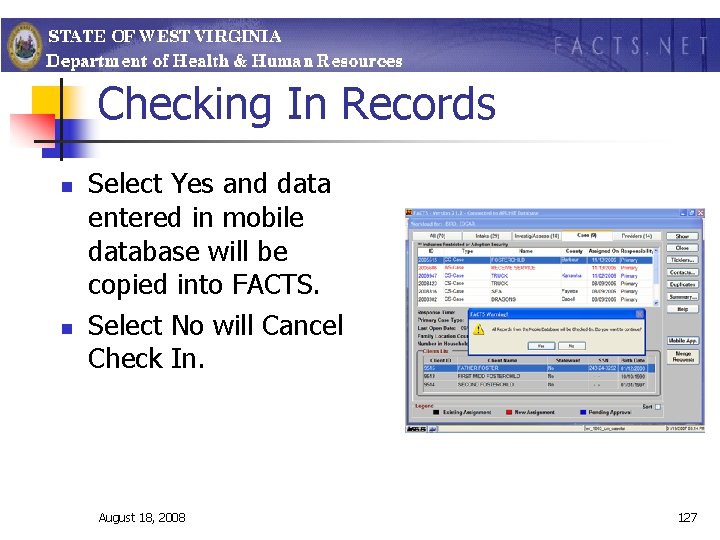
Checking In Records n n Select Yes and data entered in mobile database will be copied into FACTS. Select No will Cancel Check In. August 18, 2008 127
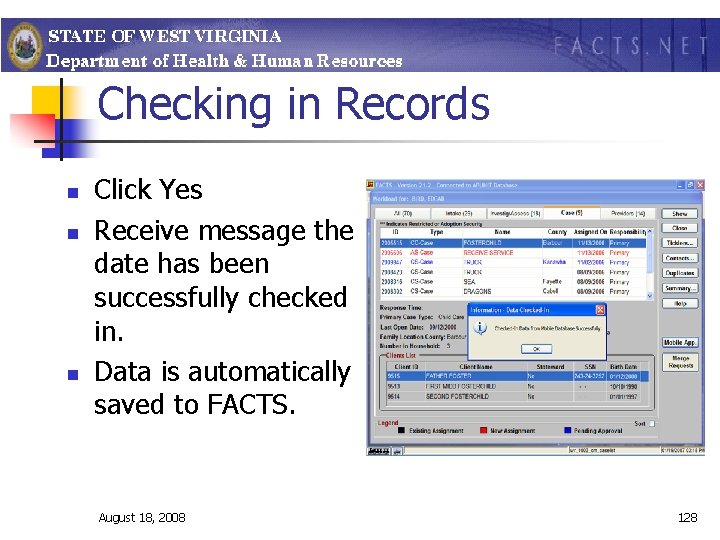
Checking in Records n n n Click Yes Receive message the date has been successfully checked in. Data is automatically saved to FACTS. August 18, 2008 128
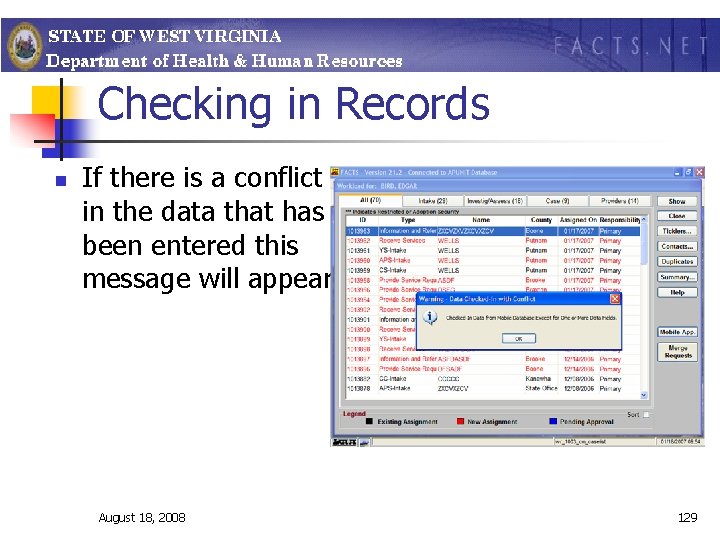
Checking in Records n If there is a conflict in the data that has been entered this message will appear. August 18, 2008 129
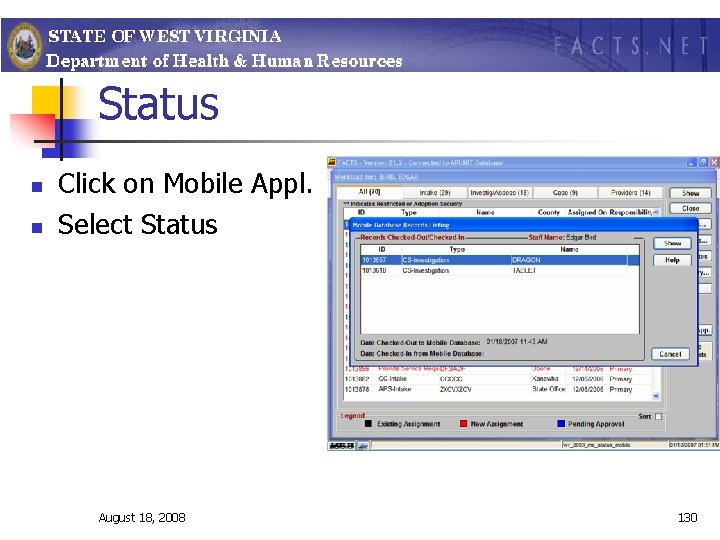
Status n n Click on Mobile Appl. Select Status August 18, 2008 130
FACTS Security n n Access to the Mobile FACTS application is limited to users with security level 39. Equipment Coordinators/MIS will notify FACTS when users have tablet installed. August 18, 2008 131
For Assistance n n n HELP Contact the FACTS Help Desk for issue related to Mobile FACTS Contact your Equipment Coordinator/MIS for equipment issues. August 18, 2008 132
DISCONNECTED COMPUTING Questions? August 18, 2008 133
- Slides: 133