
PARAMETRIC MODELING WITH SOLID WORKS Lesson 1 Introduction

- Slides: 23
PARAMETRIC MODELING WITH SOLID WORKS Lesson 1 Introduction
Introduction � � Workbook- Use it like one (You are not going to sell this book back) Use Questions and Exercises at end of each chapter to solidify your understanding Employers look at software capabilities highly Solid Works Certifications � Certified � Solid Works Associate (CSWA) http: //www. solidworks. com/sw/support/796_ENU_HTML. htm
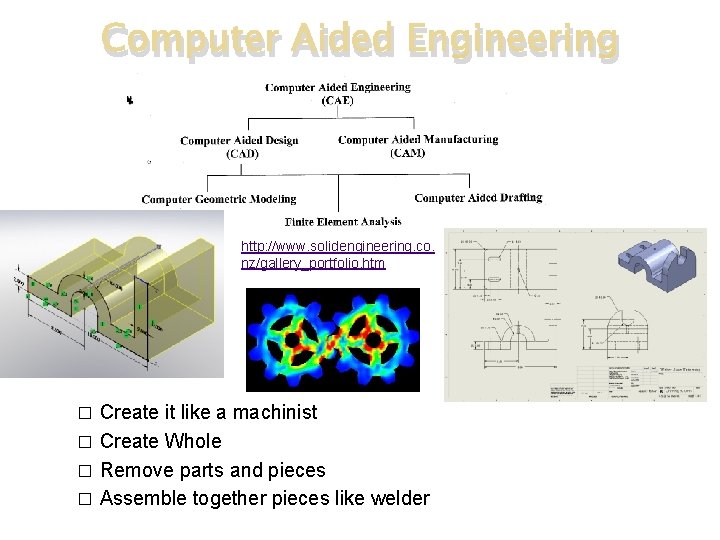
Computer Aided Engineering http: //www. solidengineering. co. nz/gallery_portfolio. htm Create it like a machinist � Create Whole � Remove parts and pieces � Assemble together pieces like welder �
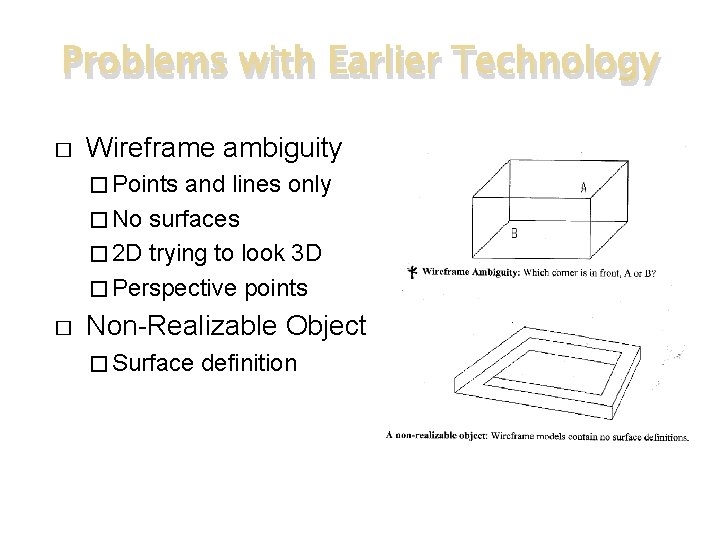
Problems with Earlier Technology � Wireframe ambiguity � Points and lines only � No surfaces � 2 D trying to look 3 D � Perspective points � Non-Realizable Object � Surface definition
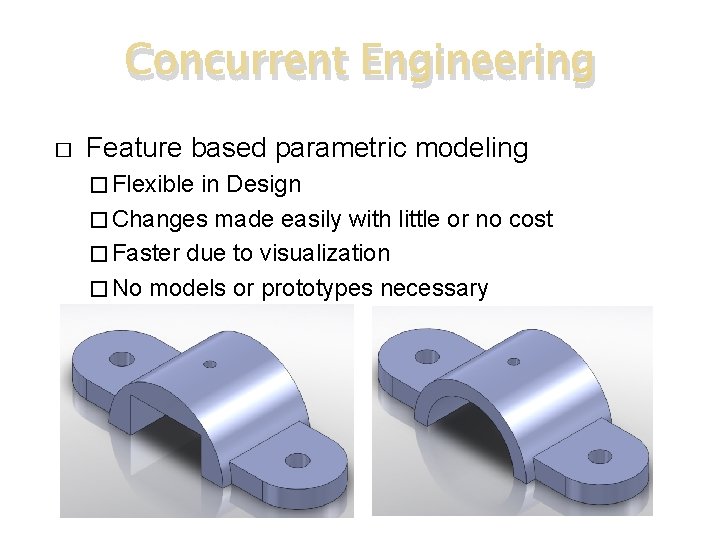
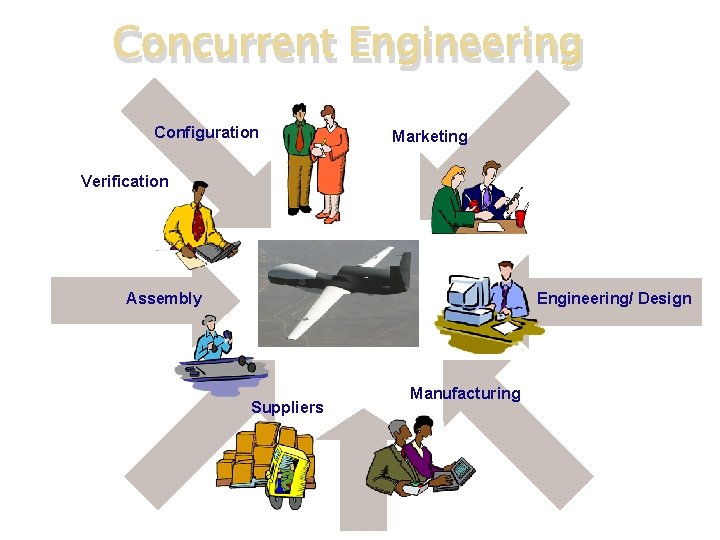
Concurrent Engineering � Feature based parametric modeling � Flexible in Design � Changes made easily with little or no cost � Faster due to visualization � No models or prototypes necessary
Concurrent Engineering Configuration Marketing Verification Assembly Engineering/ Design Suppliers Manufacturing
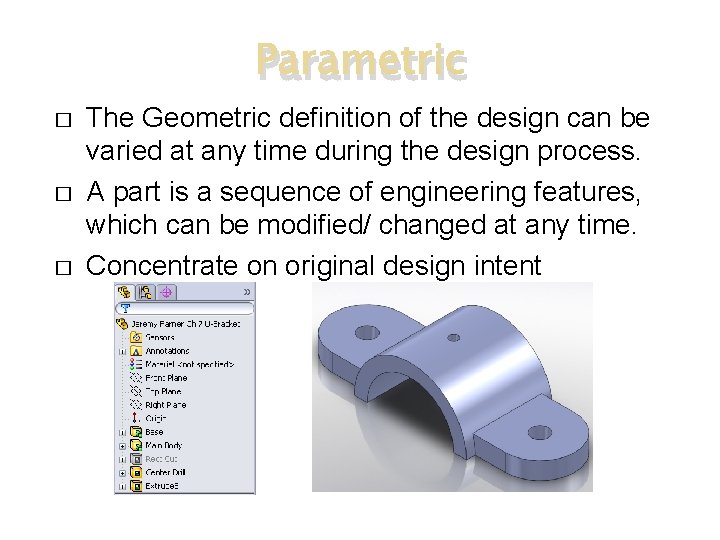
Parametric � � � The Geometric definition of the design can be varied at any time during the design process. A part is a sequence of engineering features, which can be modified/ changed at any time. Concentrate on original design intent
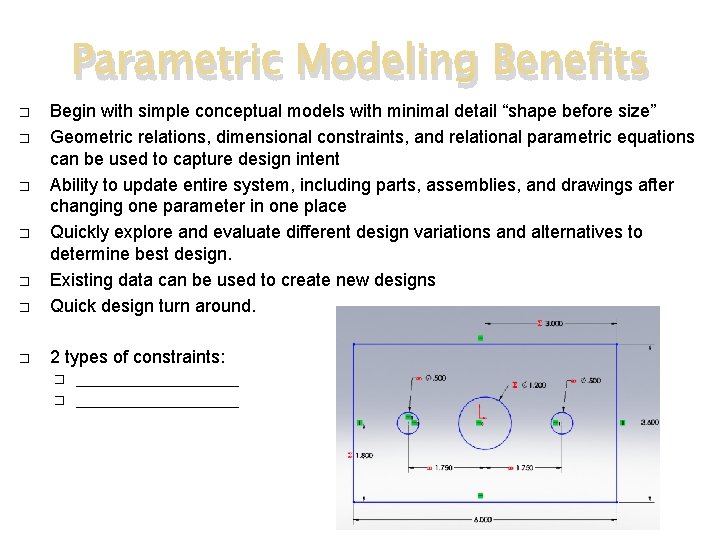
Parametric Modeling Benefits � Begin with simple conceptual models with minimal detail “shape before size” Geometric relations, dimensional constraints, and relational parametric equations can be used to capture design intent Ability to update entire system, including parts, assemblies, and drawings after changing one parameter in one place Quickly explore and evaluate different design variations and alternatives to determine best design. Existing data can be used to create new designs Quick design turn around. � 2 types of constraints: � � � ___________
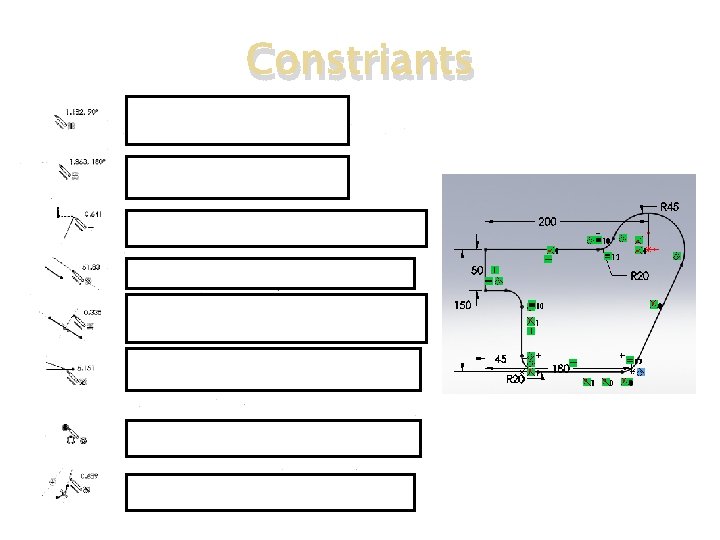
Constriants
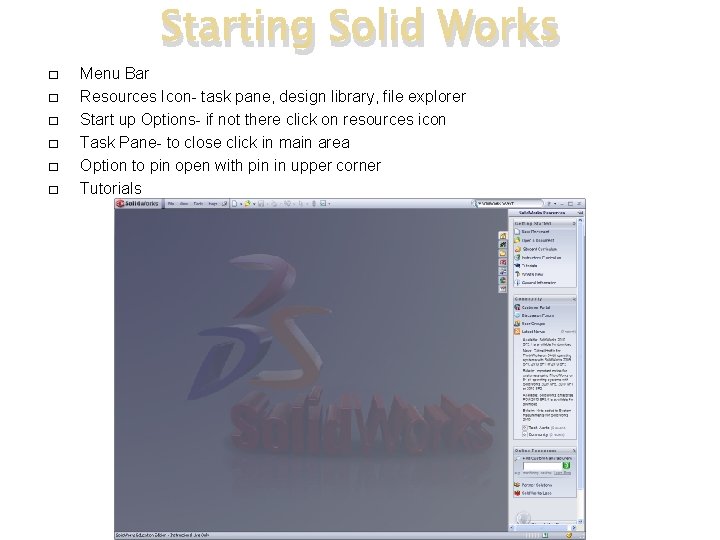
Starting Solid Works � � � Menu Bar Resources Icon- task pane, design library, file explorer Start up Options- if not there click on resources icon Task Pane- to close click in main area Option to pin open with pin in upper corner Tutorials
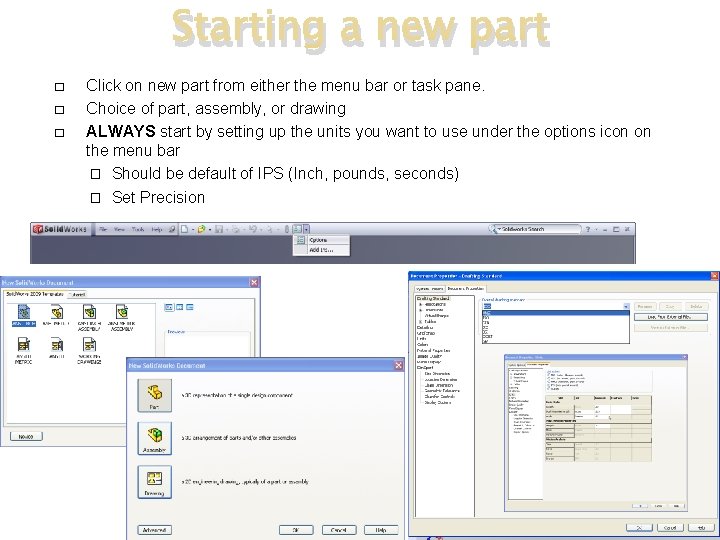
Starting a new part � � � Click on new part from either the menu bar or task pane. Choice of part, assembly, or drawing ALWAYS start by setting up the units you want to use under the options icon on the menu bar � Should be default of IPS (Inch, pounds, seconds) � Set Precision
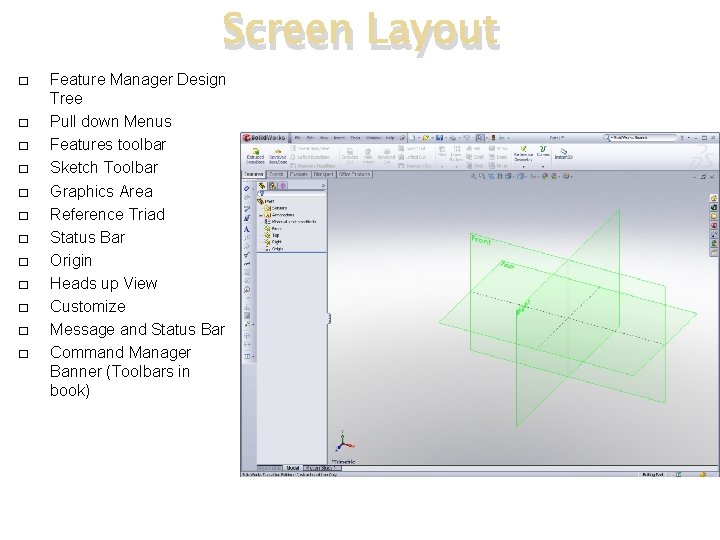
Screen Layout � � � Feature Manager Design Tree Pull down Menus Features toolbar Sketch Toolbar Graphics Area Reference Triad Status Bar Origin Heads up View Customize Message and Status Bar Command Manager Banner (Toolbars in book)
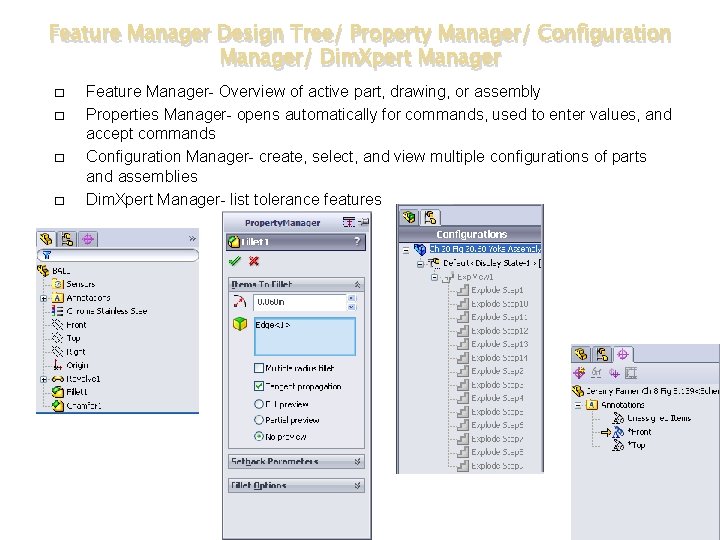
Feature Manager Design Tree/ Property Manager/ Configuration Manager/ Dim. Xpert Manager � � Feature Manager- Overview of active part, drawing, or assembly Properties Manager- opens automatically for commands, used to enter values, and accept commands Configuration Manager- create, select, and view multiple configurations of parts and assemblies Dim. Xpert Manager- list tolerance features
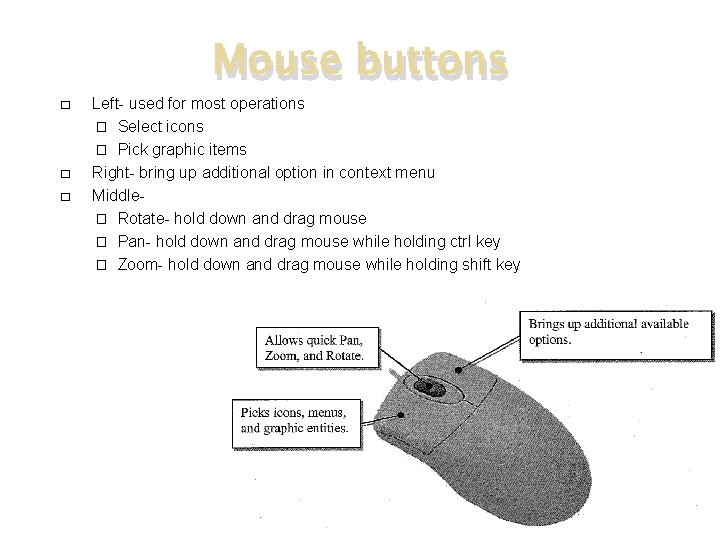
Mouse buttons � � � Left- used for most operations � Select icons � Pick graphic items Right- bring up additional option in context menu Middle� Rotate- hold down and drag mouse � Pan- hold down and drag mouse while holding ctrl key � Zoom- hold down and drag mouse while holding shift key
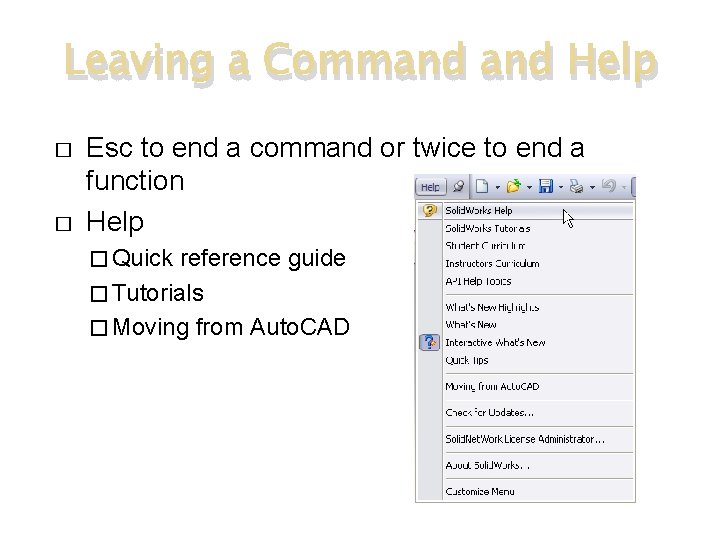
Leaving a Command Help � � Esc to end a command or twice to end a function Help � Quick reference guide � Tutorials � Moving from Auto. CAD
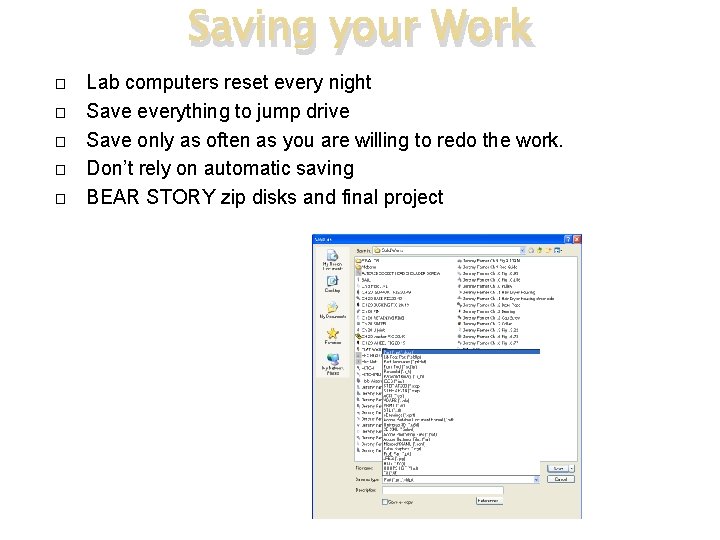
Saving your Work � � � Lab computers reset every night Save everything to jump drive Save only as often as you are willing to redo the work. Don’t rely on automatic saving BEAR STORY zip disks and final project
SOLID WORKS CHAPTER 2 Parametric Modeling Fundamentals
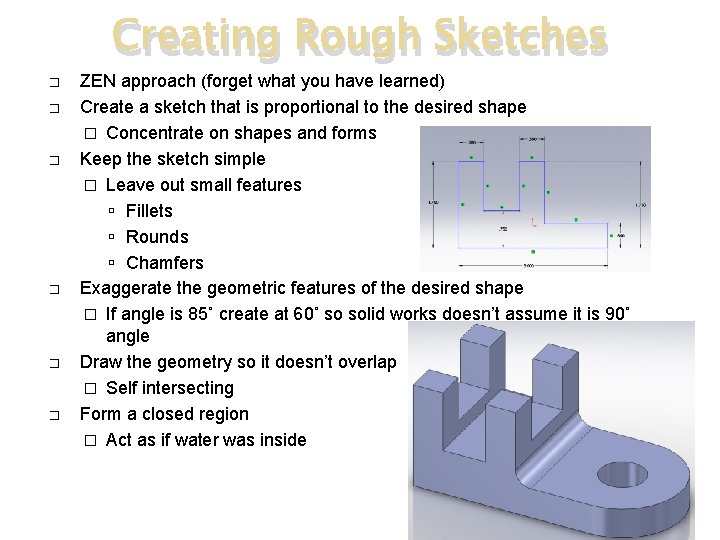
Creating Rough Sketches � � � ZEN approach (forget what you have learned) Create a sketch that is proportional to the desired shape � Concentrate on shapes and forms Keep the sketch simple � Leave out small features Fillets Rounds Chamfers Exaggerate the geometric features of the desired shape � If angle is 85˚ create at 60˚ so solid works doesn’t assume it is 90˚ angle Draw the geometry so it doesn’t overlap � Self intersecting Form a closed region � Act as if water was inside
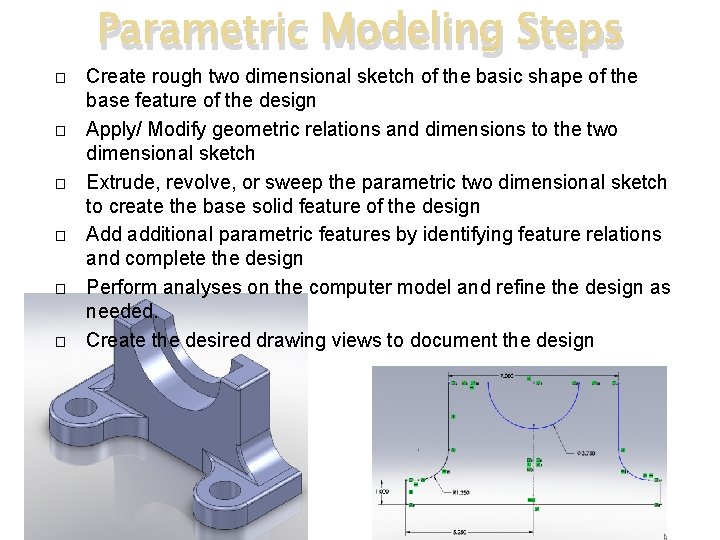
Parametric Modeling Steps � � � Create rough two dimensional sketch of the basic shape of the base feature of the design Apply/ Modify geometric relations and dimensions to the two dimensional sketch Extrude, revolve, or sweep the parametric two dimensional sketch to create the base solid feature of the design Add additional parametric features by identifying feature relations and complete the design Perform analyses on the computer model and refine the design as needed. Create the desired drawing views to document the design
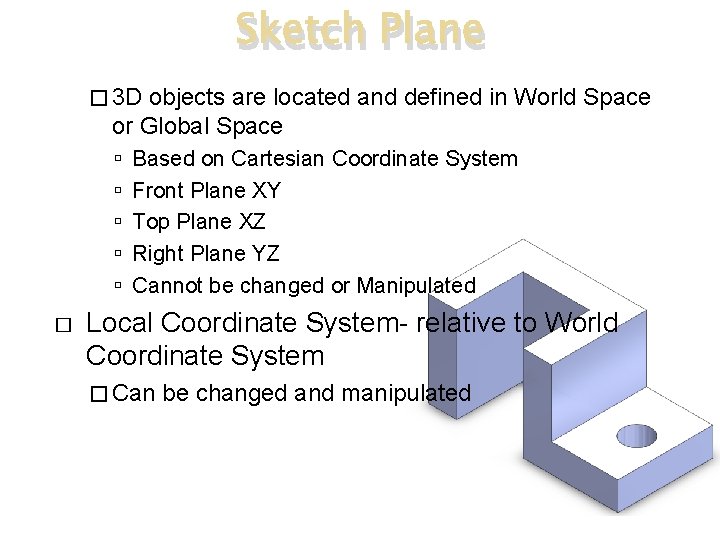
Sketch Plane � 3 D objects are located and defined in World Space or Global Space � Based on Cartesian Coordinate System Front Plane XY Top Plane XZ Right Plane YZ Cannot be changed or Manipulated Local Coordinate System- relative to World Coordinate System � Can be changed and manipulated
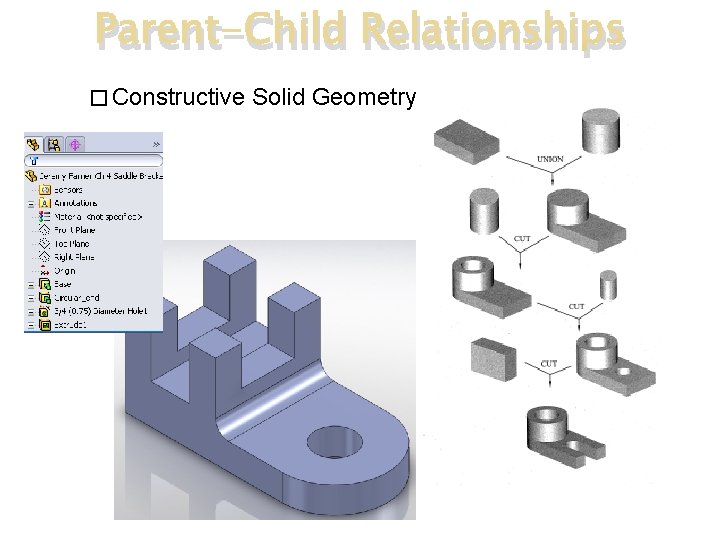
Parent-Child Relationships � Constructive Solid Geometry
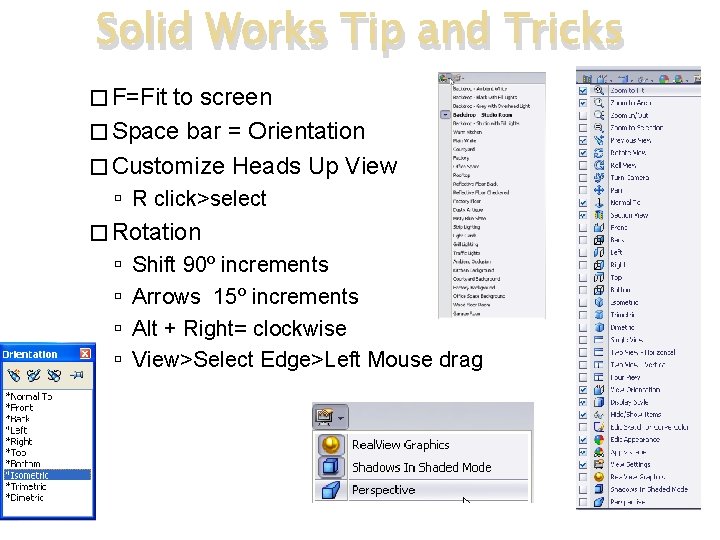
Solid Works Tip and Tricks � F=Fit to screen � Space bar = Orientation � Customize Heads Up View R click>select � Rotation Shift 90º increments Arrows 15º increments Alt + Right= clockwise View>Select Edge>Left Mouse drag
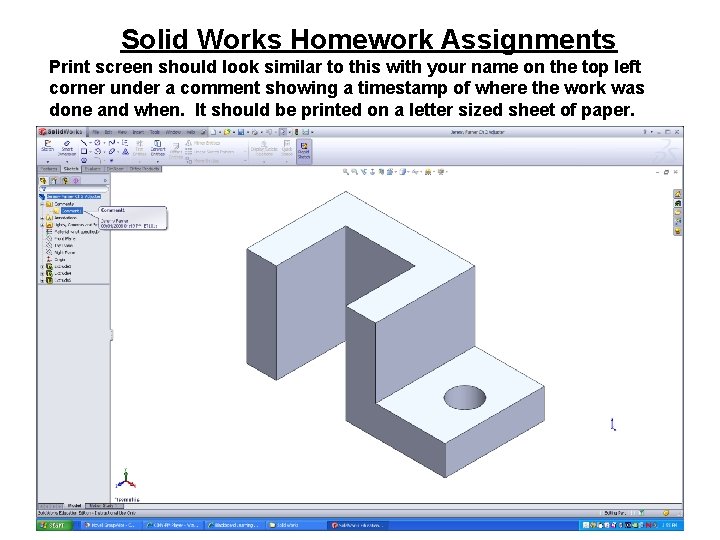
Solid Works Homework Assignments Print screen should look similar to this with your name on the top left corner under a comment showing a timestamp of where the work was done and when. It should be printed on a letter sized sheet of paper.