
Paradigm Publishing Inc 1 Objectives Chapter 3 Aligning

© Paradigm Publishing, Inc. 1 Objectives
Chapter 3: Aligning and Indenting Paragraphs Performance Objectives Ø Ø Ø Change Paragraph Alignment Indent Text in Paragraphs Space Before and After Paragraphs Repeat the Last Action CHECKPOINT 1 Format with Format Painter Change Line Spacing Apply Numbering and Bullets Reveal Formatting Compare Formatting CHECKPOINT 2 © Paradigm Publishing, Inc. 2 Objectives
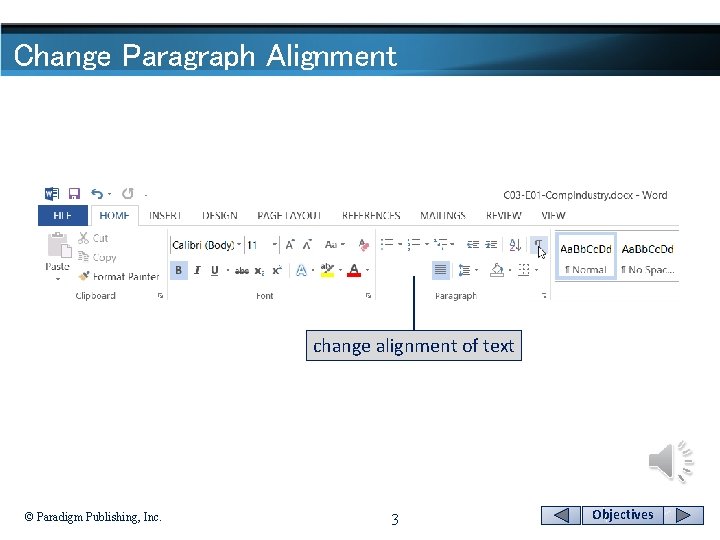
Change Paragraph Alignment change alignment of text © Paradigm Publishing, Inc. 3 Objectives
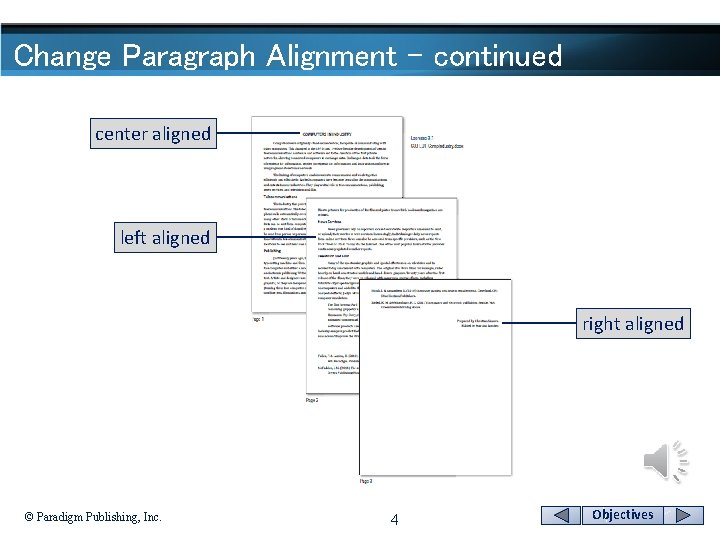
Change Paragraph Alignment - continued center aligned left aligned right aligned © Paradigm Publishing, Inc. 4 Objectives
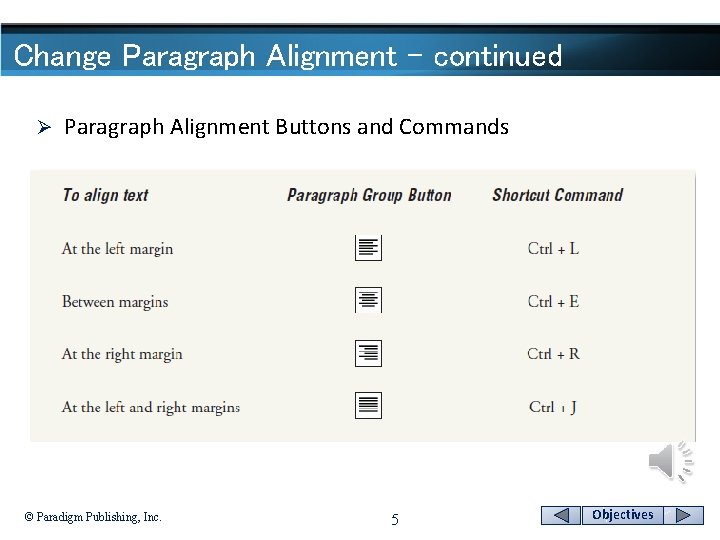
Change Paragraph Alignment - continued Ø Paragraph Alignment Buttons and Commands © Paradigm Publishing, Inc. 5 Objectives
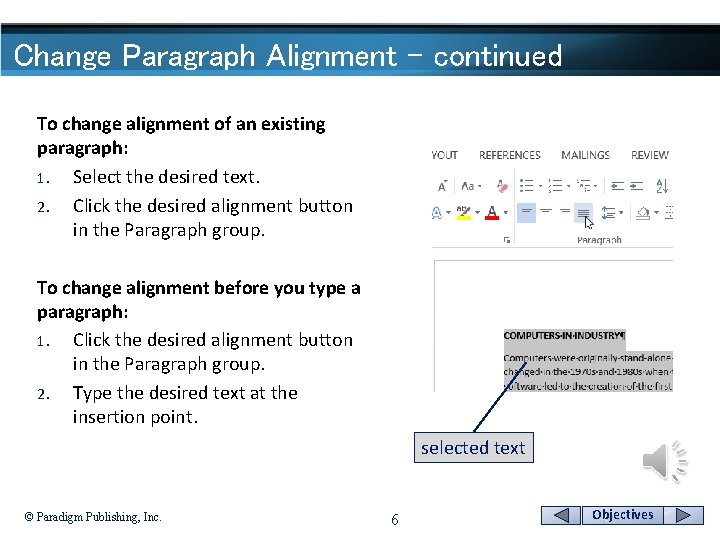
Change Paragraph Alignment - continued To change alignment of an existing paragraph: 1. Select the desired text. 2. Click the desired alignment button in the Paragraph group. To change alignment before you type a paragraph: 1. Click the desired alignment button in the Paragraph group. 2. Type the desired text at the insertion point. selected text © Paradigm Publishing, Inc. 6 Objectives
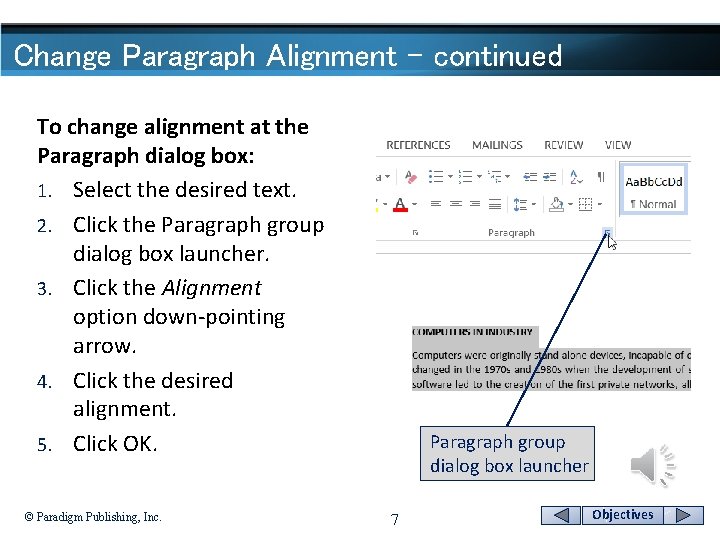
Change Paragraph Alignment - continued To change alignment at the Paragraph dialog box: 1. Select the desired text. 2. Click the Paragraph group dialog box launcher. 3. Click the Alignment option down-pointing arrow. 4. Click the desired alignment. 5. Click OK. © Paradigm Publishing, Inc. Paragraph group dialog box launcher 7 Objectives
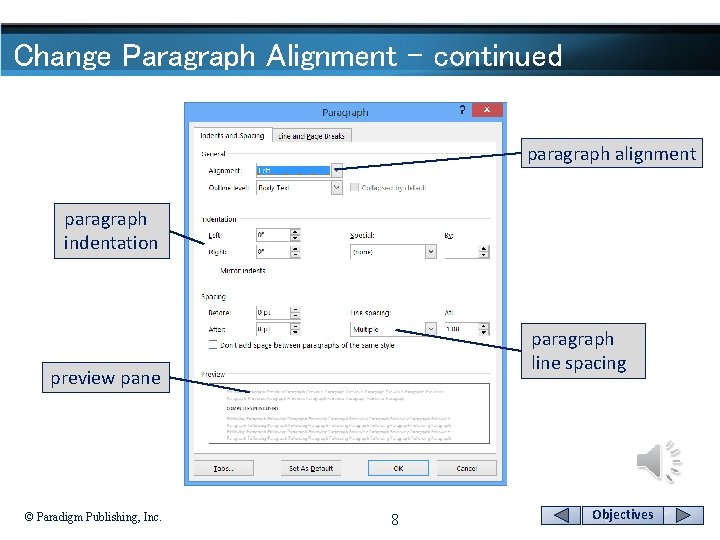
Change Paragraph Alignment - continued paragraph alignment paragraph indentation paragraph line spacing preview pane © Paradigm Publishing, Inc. 8 Objectives
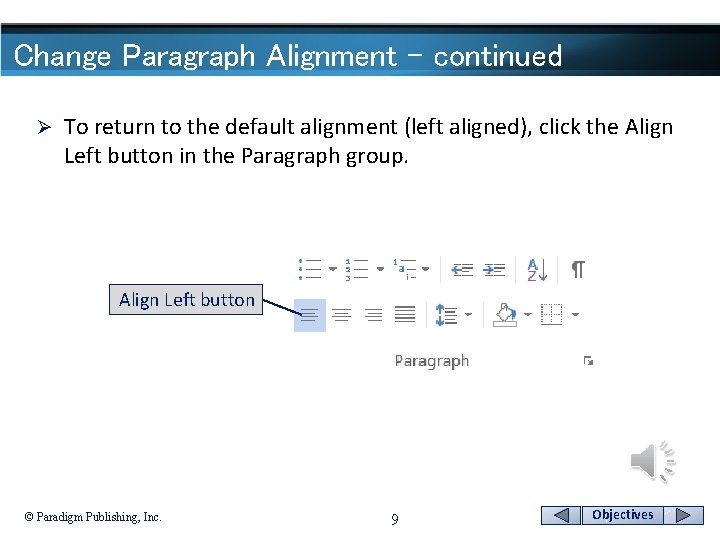
Change Paragraph Alignment - continued Ø To return to the default alignment (left aligned), click the Align Left button in the Paragraph group. Align Left button © Paradigm Publishing, Inc. 9 Objectives
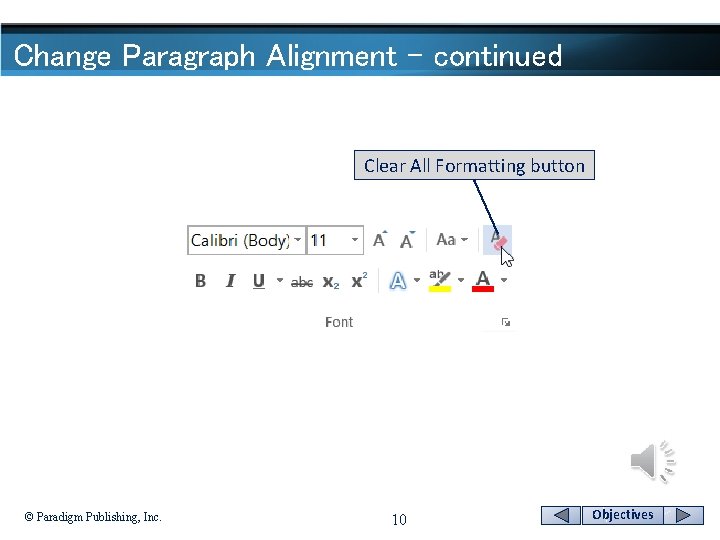
Change Paragraph Alignment - continued Clear All Formatting button © Paradigm Publishing, Inc. 10 Objectives
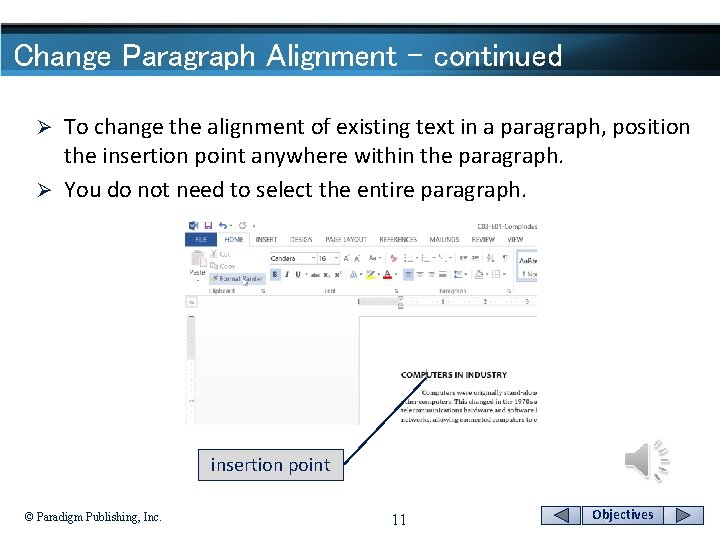
Change Paragraph Alignment - continued To change the alignment of existing text in a paragraph, position the insertion point anywhere within the paragraph. Ø You do not need to select the entire paragraph. Ø insertion point © Paradigm Publishing, Inc. 11 Objectives
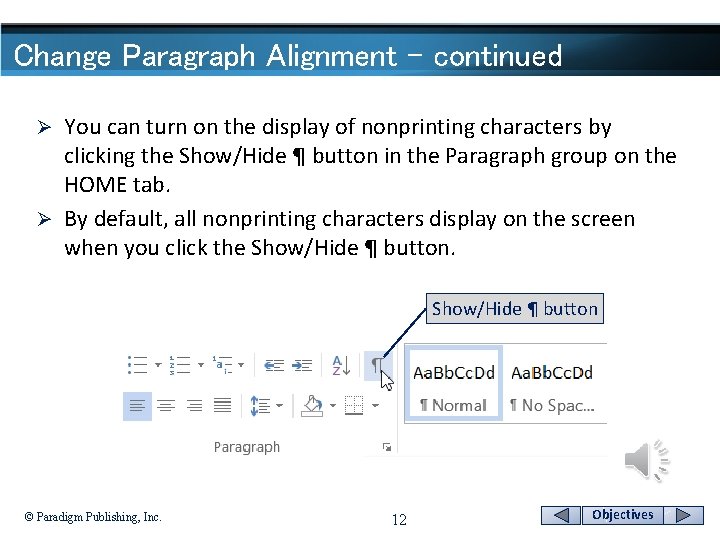
Change Paragraph Alignment - continued You can turn on the display of nonprinting characters by clicking the Show/Hide ¶ button in the Paragraph group on the HOME tab. Ø By default, all nonprinting characters display on the screen when you click the Show/Hide ¶ button. Ø Show/Hide ¶ button © Paradigm Publishing, Inc. 12 Objectives
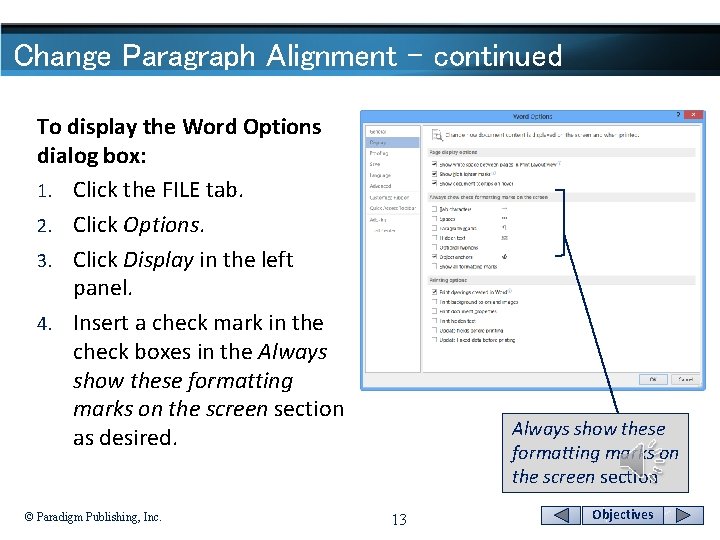
Change Paragraph Alignment - continued To display the Word Options dialog box: 1. Click the FILE tab. 2. Click Options. 3. Click Display in the left panel. 4. Insert a check mark in the check boxes in the Always show these formatting marks on the screen section as desired. © Paradigm Publishing, Inc. Always show these formatting marks on the screen section 13 Objectives
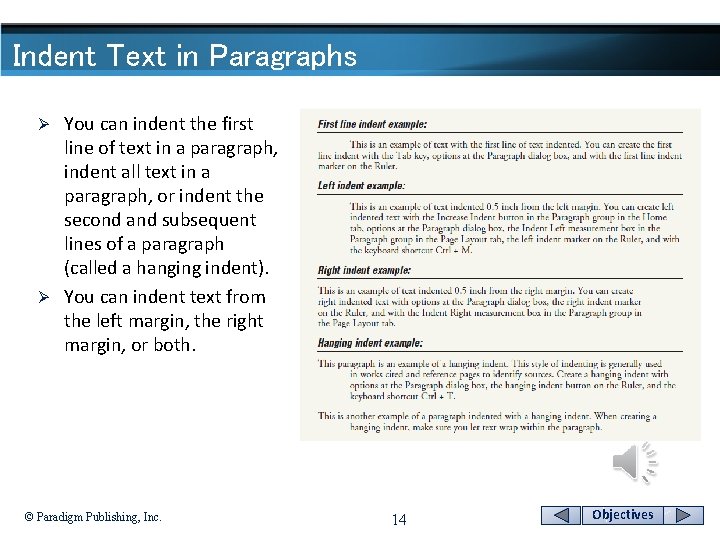
Indent Text in Paragraphs You can indent the first line of text in a paragraph, indent all text in a paragraph, or indent the second and subsequent lines of a paragraph (called a hanging indent). Ø You can indent text from the left margin, the right margin, or both. Ø © Paradigm Publishing, Inc. 14 Objectives
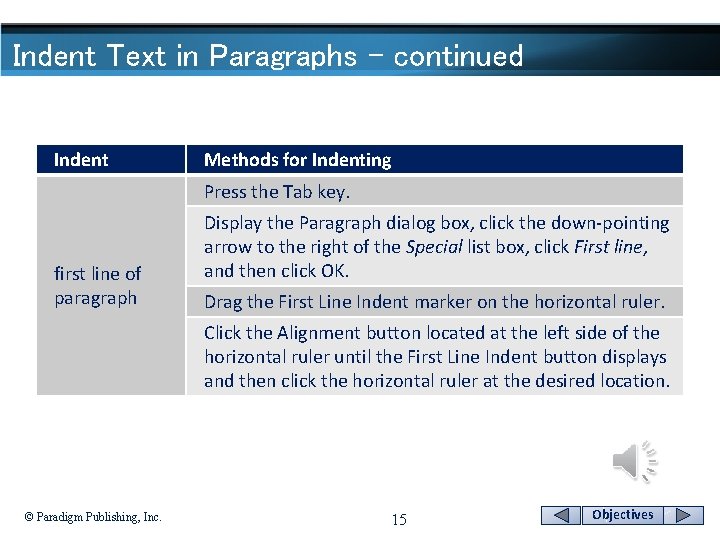
Indent Text in Paragraphs - continued Indent Methods for Indenting Press the Tab key. first line of paragraph Display the Paragraph dialog box, click the down-pointing arrow to the right of the Special list box, click First line, and then click OK. Drag the First Line Indent marker on the horizontal ruler. Click the Alignment button located at the left side of the horizontal ruler until the First Line Indent button displays and then click the horizontal ruler at the desired location. © Paradigm Publishing, Inc. 15 Objectives
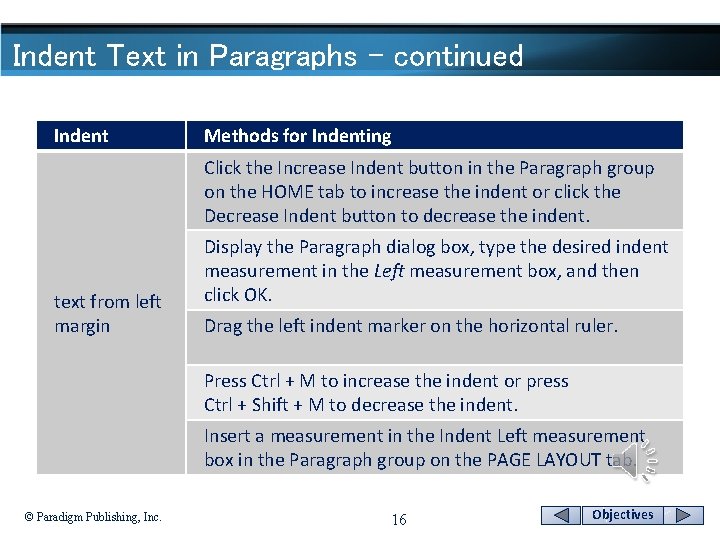
Indent Text in Paragraphs - continued Indent Methods for Indenting Click the Increase Indent button in the Paragraph group on the HOME tab to increase the indent or click the Decrease Indent button to decrease the indent. text from left margin Display the Paragraph dialog box, type the desired indent measurement in the Left measurement box, and then click OK. Drag the left indent marker on the horizontal ruler. Press Ctrl + M to increase the indent or press Ctrl + Shift + M to decrease the indent. Insert a measurement in the Indent Left measurement box in the Paragraph group on the PAGE LAYOUT tab. © Paradigm Publishing, Inc. 16 Objectives
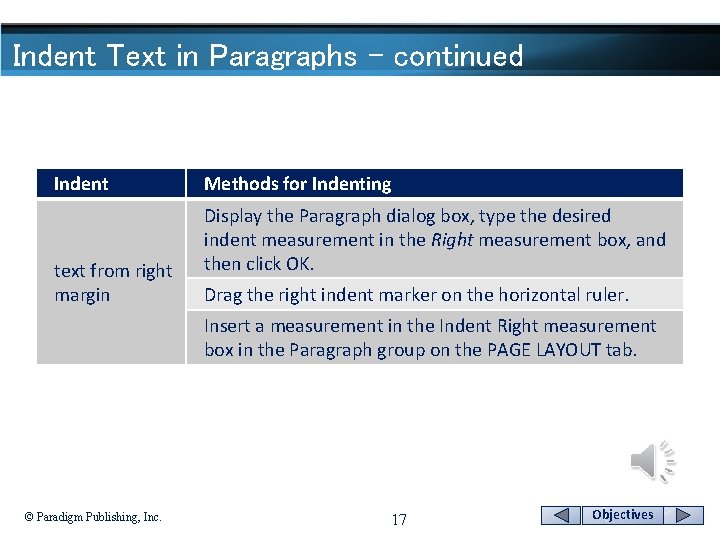
Indent Text in Paragraphs - continued Indent text from right margin Methods for Indenting Display the Paragraph dialog box, type the desired indent measurement in the Right measurement box, and then click OK. Drag the right indent marker on the horizontal ruler. Insert a measurement in the Indent Right measurement box in the Paragraph group on the PAGE LAYOUT tab. © Paradigm Publishing, Inc. 17 Objectives
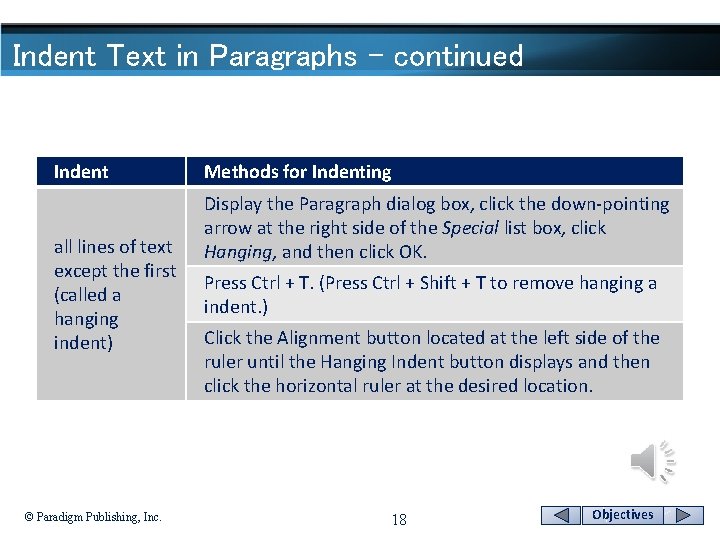
Indent Text in Paragraphs - continued Indent all lines of text except the first (called a hanging indent) © Paradigm Publishing, Inc. Methods for Indenting Display the Paragraph dialog box, click the down-pointing arrow at the right side of the Special list box, click Hanging, and then click OK. Press Ctrl + T. (Press Ctrl + Shift + T to remove hanging a indent. ) Click the Alignment button located at the left side of the ruler until the Hanging Indent button displays and then click the horizontal ruler at the desired location. 18 Objectives
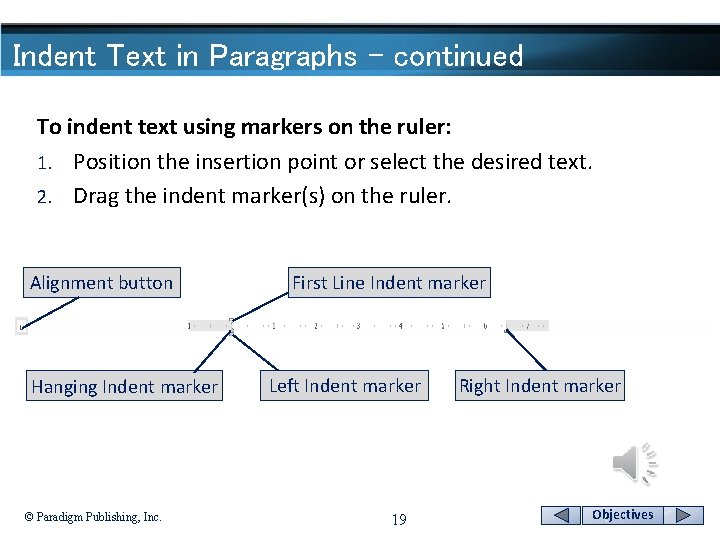
Indent Text in Paragraphs - continued To indent text using markers on the ruler: 1. Position the insertion point or select the desired text. 2. Drag the indent marker(s) on the ruler. Alignment button Hanging Indent marker © Paradigm Publishing, Inc. First Line Indent marker Left Indent marker 19 Right Indent marker Objectives
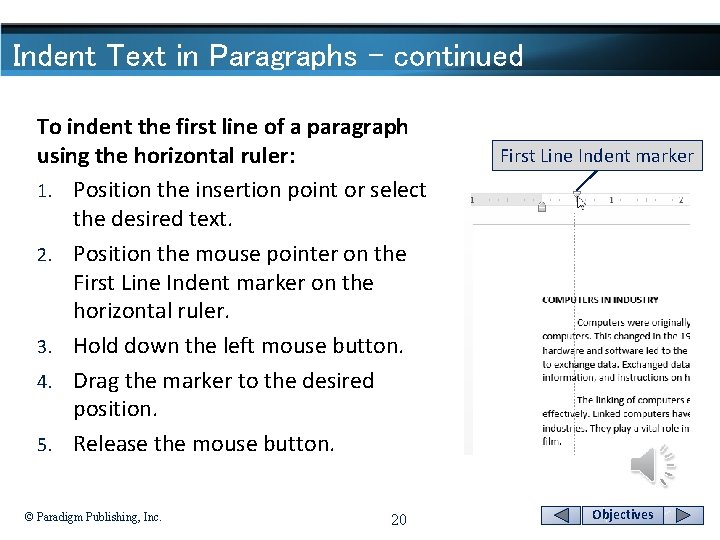
Indent Text in Paragraphs - continued To indent the first line of a paragraph using the horizontal ruler: 1. Position the insertion point or select the desired text. 2. Position the mouse pointer on the First Line Indent marker on the horizontal ruler. 3. Hold down the left mouse button. 4. Drag the marker to the desired position. 5. Release the mouse button. © Paradigm Publishing, Inc. 20 First Line Indent marker Objectives
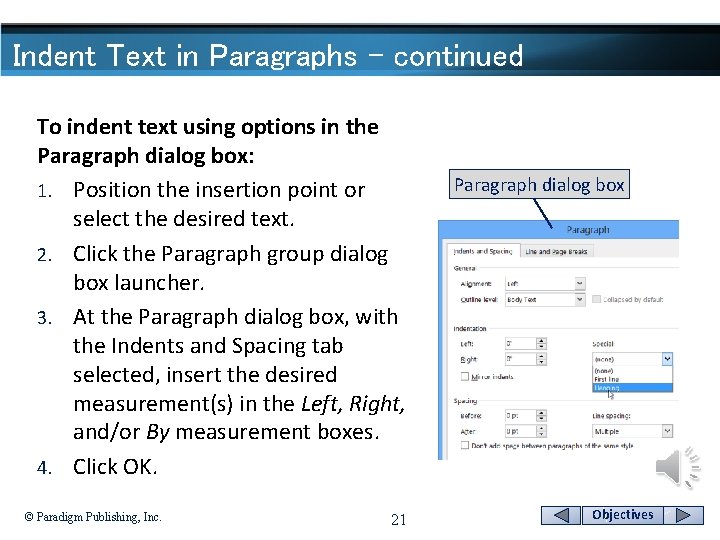
Indent Text in Paragraphs - continued To indent text using options in the Paragraph dialog box: 1. Position the insertion point or select the desired text. 2. Click the Paragraph group dialog box launcher. 3. At the Paragraph dialog box, with the Indents and Spacing tab selected, insert the desired measurement(s) in the Left, Right, and/or By measurement boxes. 4. Click OK. © Paradigm Publishing, Inc. 21 Paragraph dialog box Objectives
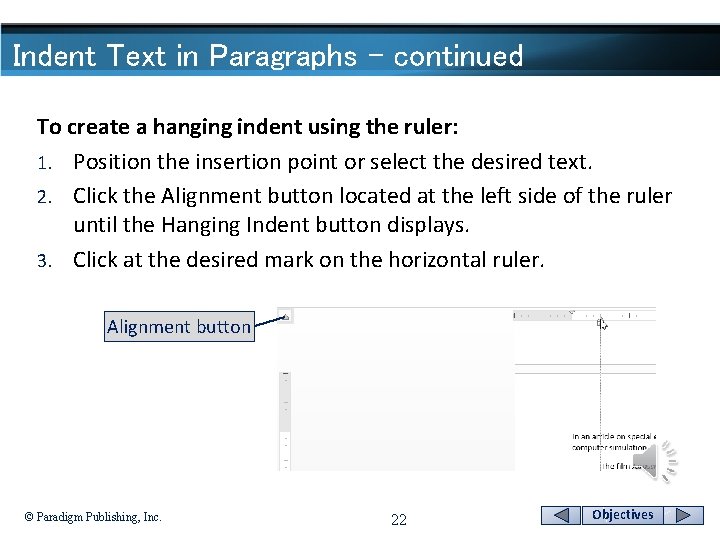
Indent Text in Paragraphs - continued To create a hanging indent using the ruler: 1. Position the insertion point or select the desired text. 2. Click the Alignment button located at the left side of the ruler until the Hanging Indent button displays. 3. Click at the desired mark on the horizontal ruler. Alignment button © Paradigm Publishing, Inc. 22 Objectives
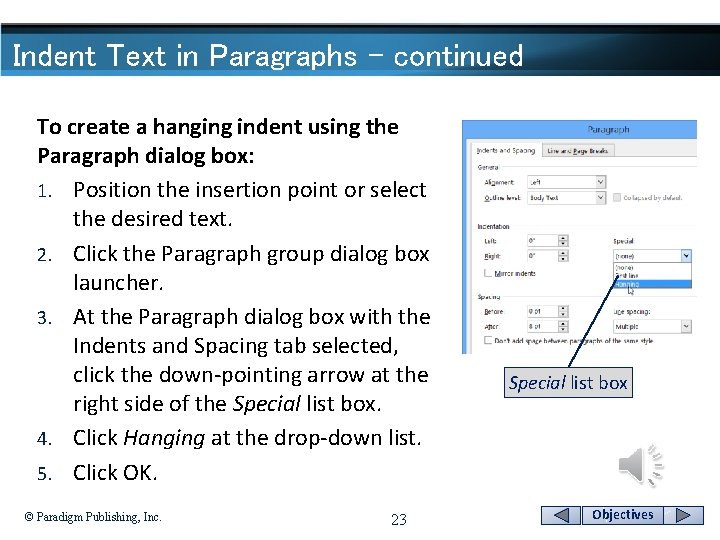
Indent Text in Paragraphs - continued To create a hanging indent using the Paragraph dialog box: 1. Position the insertion point or select the desired text. 2. Click the Paragraph group dialog box launcher. 3. At the Paragraph dialog box with the Indents and Spacing tab selected, click the down-pointing arrow at the right side of the Special list box. 4. Click Hanging at the drop-down list. 5. Click OK. © Paradigm Publishing, Inc. 23 Special list box Objectives
Space Before and After Paragraphs Ø Ø Ø The insertion of 8 points of spacing after a paragraph is one of Word’s default settings. You can remove this spacing, increase it, or decrease it. You can also insert spacing before a paragraph. Spacing before or after a paragraph is part of that paragraph, and it will be moved, copied, or deleted with the paragraph. If a paragraph, such as a heading, contains spacing before it and the paragraph falls at the top of a page, Word ignores the spacing. © Paradigm Publishing, Inc. 24 Objectives
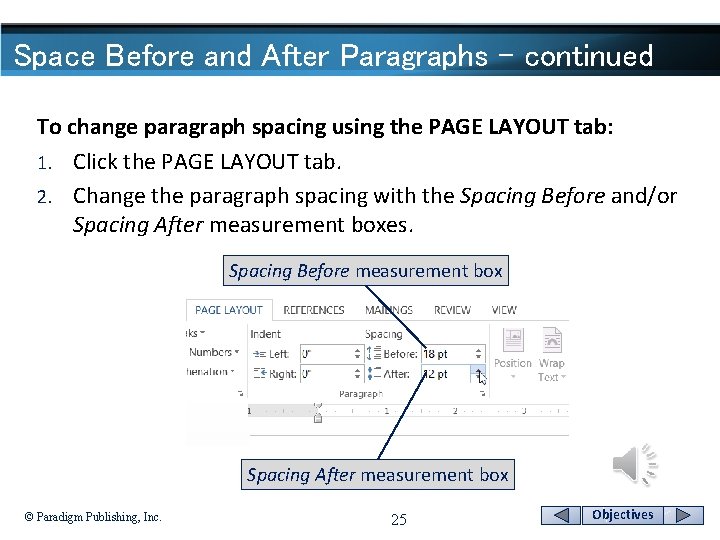
Space Before and After Paragraphs - continued To change paragraph spacing using the PAGE LAYOUT tab: 1. Click the PAGE LAYOUT tab. 2. Change the paragraph spacing with the Spacing Before and/or Spacing After measurement boxes. Spacing Before measurement box Spacing After measurement box © Paradigm Publishing, Inc. 25 Objectives
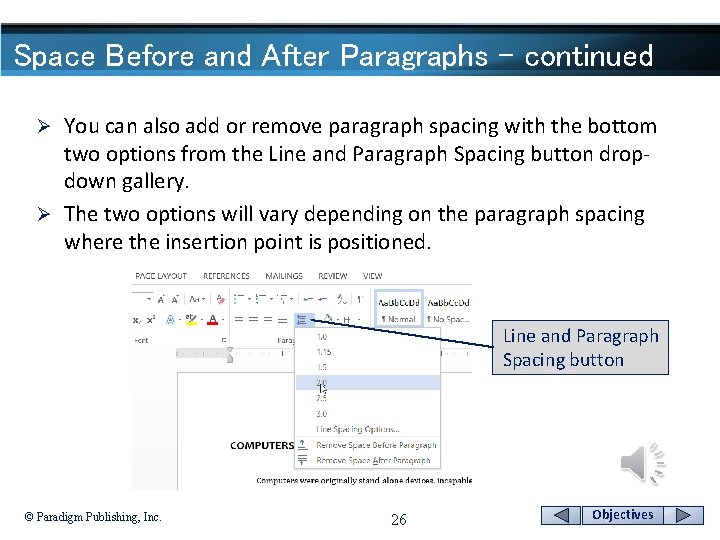
Space Before and After Paragraphs - continued You can also add or remove paragraph spacing with the bottom two options from the Line and Paragraph Spacing button dropdown gallery. Ø The two options will vary depending on the paragraph spacing where the insertion point is positioned. Ø Line and Paragraph Spacing button © Paradigm Publishing, Inc. 26 Objectives
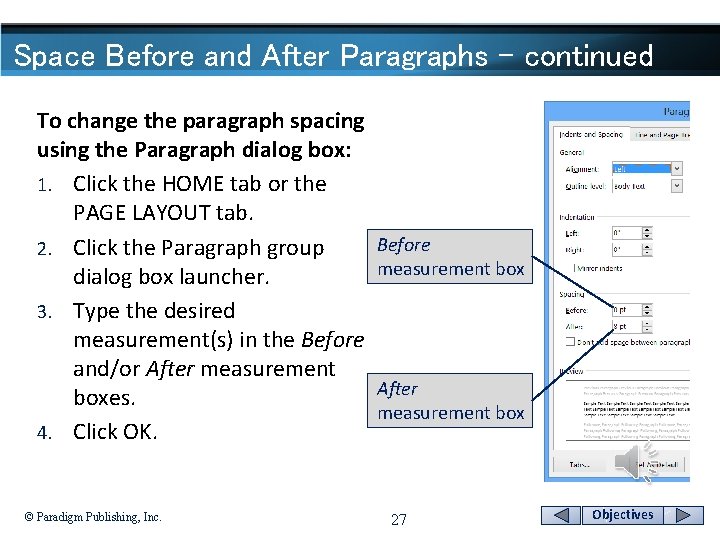
Space Before and After Paragraphs - continued To change the paragraph spacing using the Paragraph dialog box: 1. Click the HOME tab or the PAGE LAYOUT tab. 2. Click the Paragraph group dialog box launcher. 3. Type the desired measurement(s) in the Before and/or After measurement boxes. 4. Click OK. © Paradigm Publishing, Inc. Before measurement box After measurement box 27 Objectives
Repeat the Last Action If you apply formatting to a selection of text and then want to apply the same formatting to other text in the document, consider using the Repeat command. Ø To use this command, apply the desired formatting, move the insertion point to the next location where you want the formatting applied, and press the F 4 function key or press Ctrl + Y. Ø © Paradigm Publishing, Inc. 28 Objectives
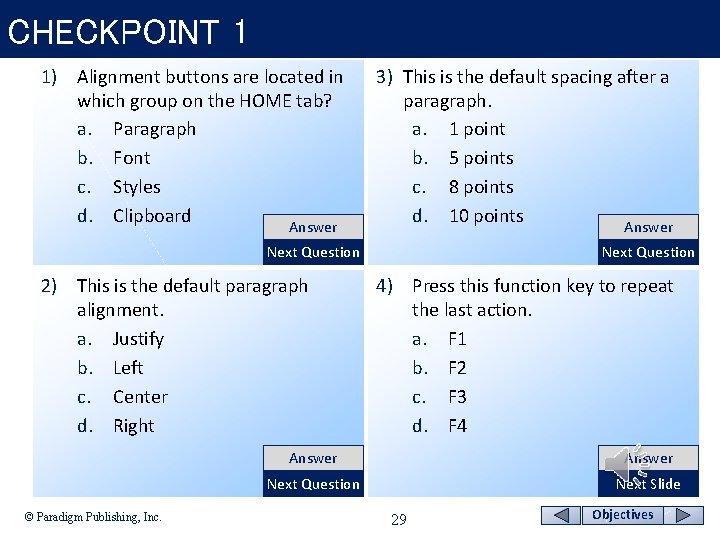
CHECKPOINT 1 1) Alignment buttons are located in which group on the HOME tab? a. Paragraph b. Font c. Styles d. Clipboard Answer 3) This is the default spacing after a paragraph. a. 1 point b. 5 points c. 8 points d. 10 points Answer Next Question 2) This is the default paragraph alignment. a. Justify b. Left c. Center d. Right © Paradigm Publishing, Inc. Next Question 4) Press this function key to repeat the last action. a. F 1 b. F 2 c. F 3 d. F 4 Answer Next Question Next Slide 29 Objectives
Format with Format Painter The Clipboard group on the HOME tab contains a button for copying character formatting to different locations in the document. Ø This button, labeled Format Painter, displays in the Clipboard group as a paintbrush. Ø When you click the Format Painter button, the mouse I-beam pointer displays with a paintbrush attached. Ø © Paradigm Publishing, Inc. 30 Objectives
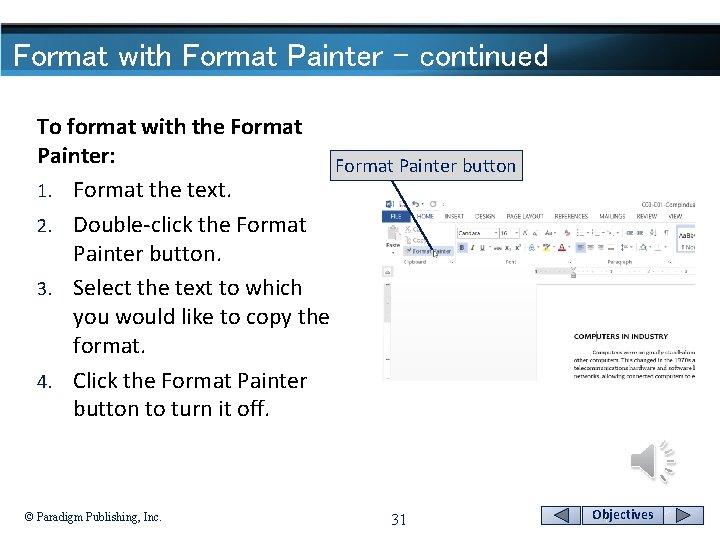
Format with Format Painter - continued To format with the Format Painter: Format Painter button 1. Format the text. 2. Double-click the Format Painter button. 3. Select the text to which you would like to copy the format. 4. Click the Format Painter button to turn it off. © Paradigm Publishing, Inc. 31 Objectives
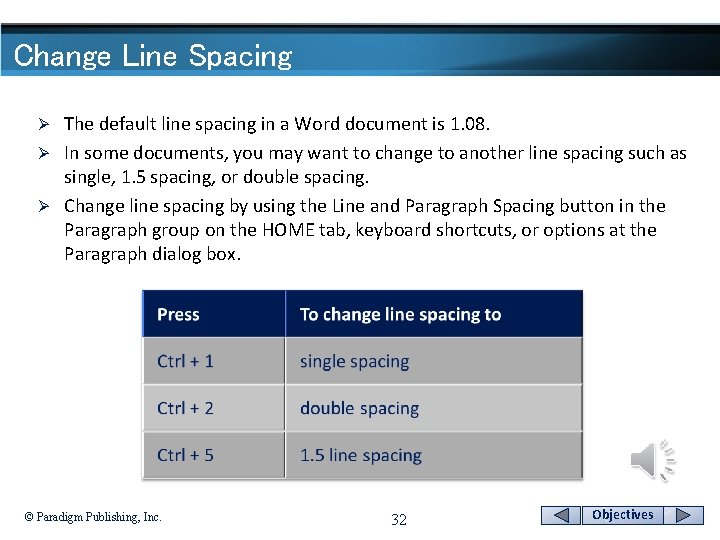
Change Line Spacing The default line spacing in a Word document is 1. 08. Ø In some documents, you may want to change to another line spacing such as single, 1. 5 spacing, or double spacing. Ø Change line spacing by using the Line and Paragraph Spacing button in the Paragraph group on the HOME tab, keyboard shortcuts, or options at the Paragraph dialog box. Ø © Paradigm Publishing, Inc. 32 Objectives
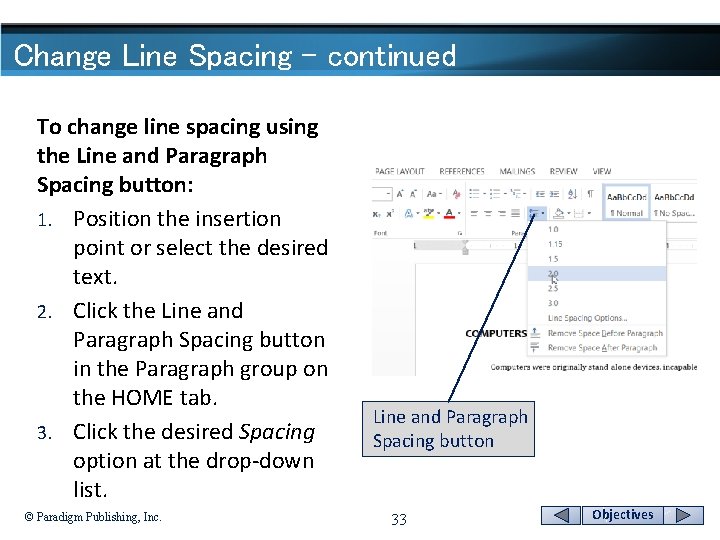
Change Line Spacing - continued To change line spacing using the Line and Paragraph Spacing button: 1. Position the insertion point or select the desired text. 2. Click the Line and Paragraph Spacing button in the Paragraph group on the HOME tab. 3. Click the desired Spacing option at the drop-down list. © Paradigm Publishing, Inc. Line and Paragraph Spacing button 33 Objectives
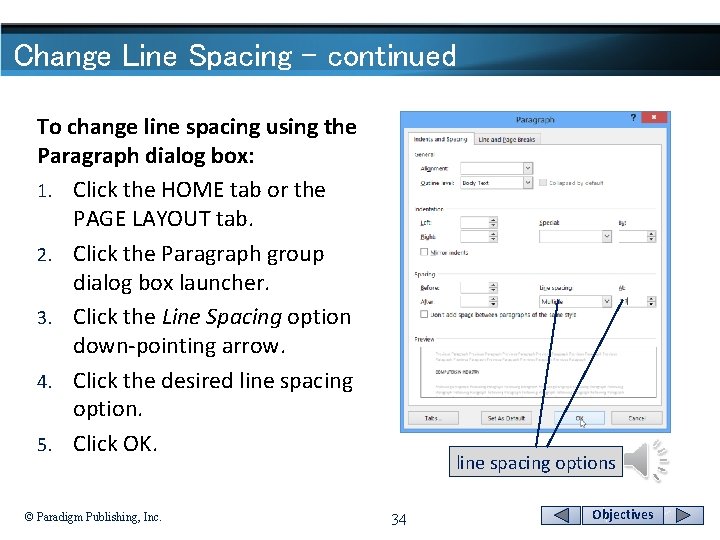
Change Line Spacing - continued To change line spacing using the Paragraph dialog box: 1. Click the HOME tab or the PAGE LAYOUT tab. 2. Click the Paragraph group dialog box launcher. 3. Click the Line Spacing option down-pointing arrow. 4. Click the desired line spacing option. 5. Click OK. © Paradigm Publishing, Inc. line spacing options 34 Objectives
Apply Numbering and Bullets If you type 1. and press the spacebar, Word indents the number approximately 0. 25 inch and then hang indents the text in the paragraph approximately 0. 5 inch from the left margin. Ø Additionally, when you press Enter to end the first item, 2. is inserted 0. 25 inch from the left margin at the beginning of the next paragraph. Ø Continue typing items and pressing Enter, and Word continues inserting the next number in the list. Ø © Paradigm Publishing, Inc. 35 Objectives
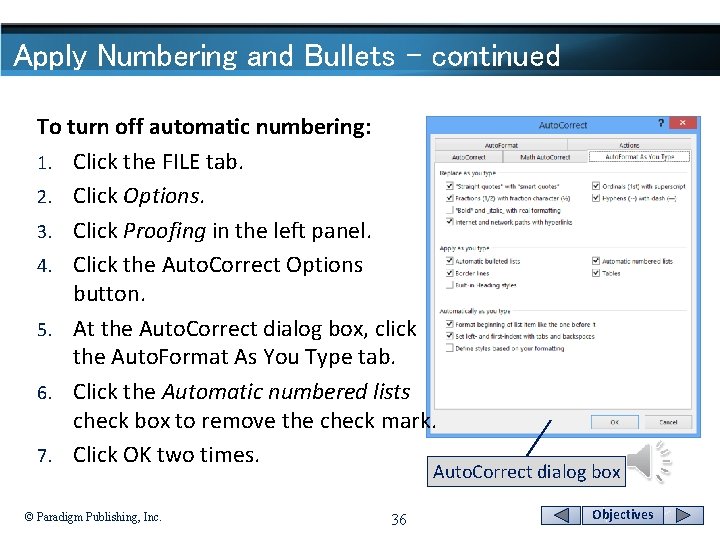
Apply Numbering and Bullets - continued To turn off automatic numbering: 1. Click the FILE tab. 2. Click Options. 3. Click Proofing in the left panel. 4. Click the Auto. Correct Options button. 5. At the Auto. Correct dialog box, click the Auto. Format As You Type tab. 6. Click the Automatic numbered lists check box to remove the check mark. 7. Click OK two times. Auto. Correct dialog box © Paradigm Publishing, Inc. 36 Objectives
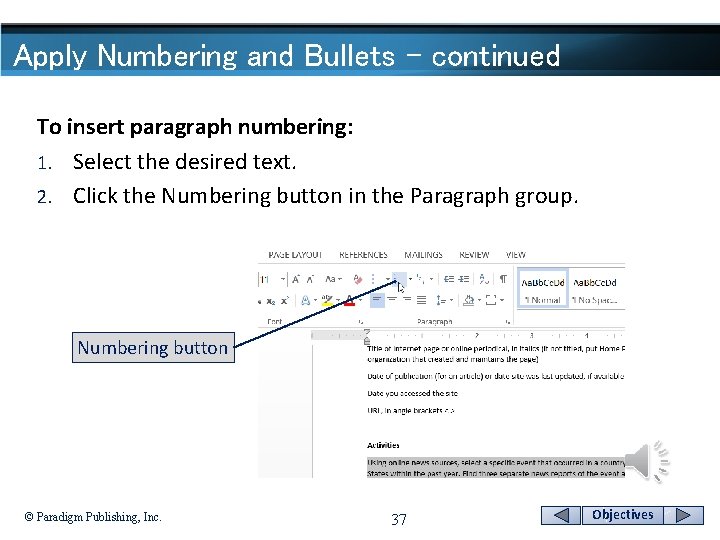
Apply Numbering and Bullets - continued To insert paragraph numbering: 1. Select the desired text. 2. Click the Numbering button in the Paragraph group. Numbering button © Paradigm Publishing, Inc. 37 Objectives
Apply Numbering and Bullets - continued In addition to automatically numbering paragraphs, the Auto. Format feature in Word creates bulleted paragraphs. Ø Word automatically creates bulleted lists with hanging indents when you begin a paragraph with one of the following symbols: *, >, or -. If you use the asterisk symbol (*), a round bullet is inserted, and an arrow bullet is inserted if you type the greater than symbol (>). Ø Type one of the symbols, press the spacebar, type text, and then press the Enter key. Ø © Paradigm Publishing, Inc. 38 Objectives
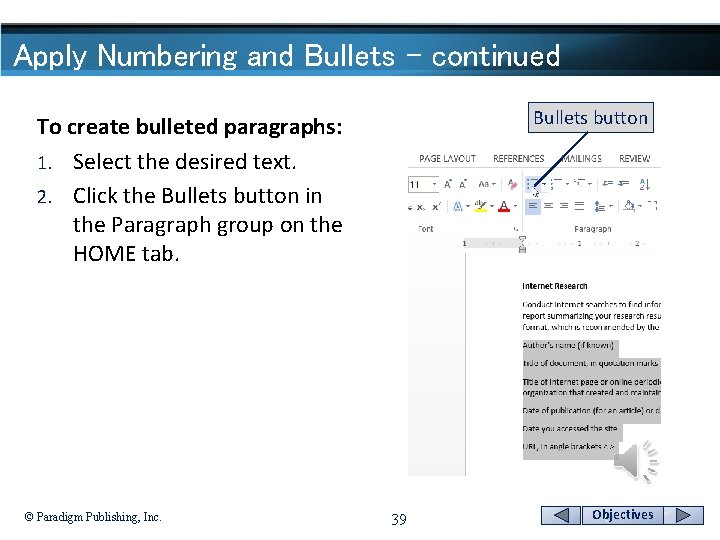
Apply Numbering and Bullets - continued Bullets button To create bulleted paragraphs: 1. Select the desired text. 2. Click the Bullets button in the Paragraph group on the HOME tab. © Paradigm Publishing, Inc. 39 Objectives
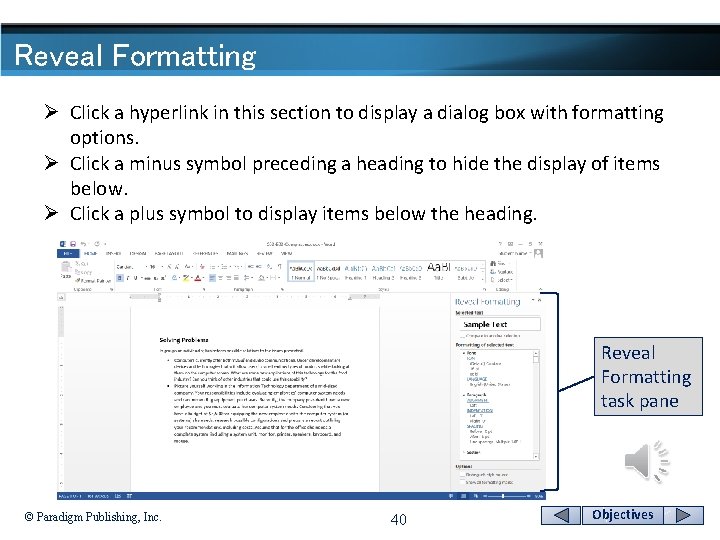
Reveal Formatting Ø Click a hyperlink in this section to display a dialog box with formatting options. Ø Click a minus symbol preceding a heading to hide the display of items below. Ø Click a plus symbol to display items below the heading. Reveal Formatting task pane © Paradigm Publishing, Inc. 40 Objectives
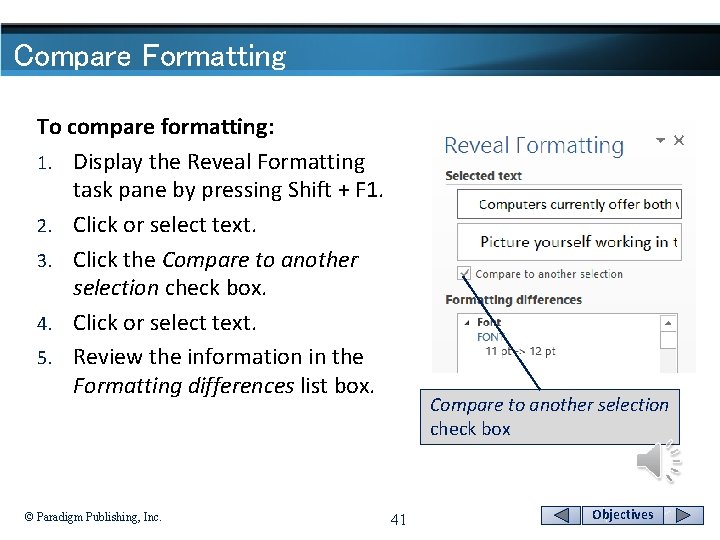
Compare Formatting To compare formatting: 1. Display the Reveal Formatting task pane by pressing Shift + F 1. 2. Click or select text. 3. Click the Compare to another selection check box. 4. Click or select text. 5. Review the information in the Formatting differences list box. © Paradigm Publishing, Inc. Compare to another selection check box 41 Objectives
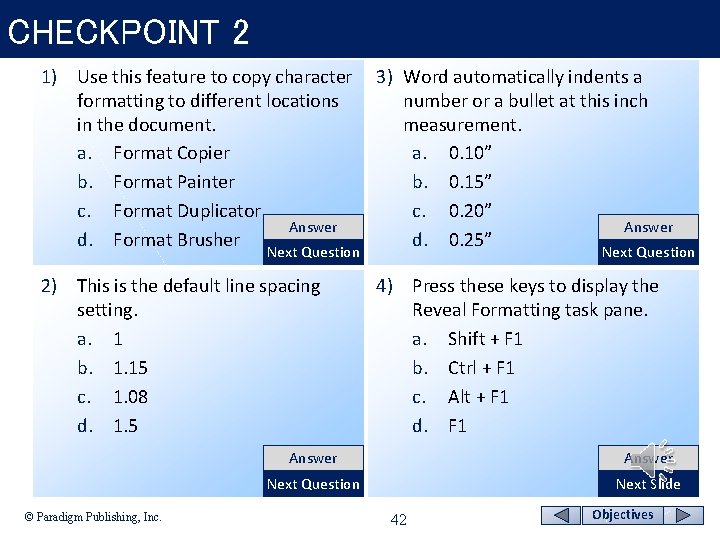
CHECKPOINT 2 1) Use this feature to copy character formatting to different locations in the document. a. Format Copier b. Format Painter c. Format Duplicator Answer d. Format Brusher 3) Word automatically indents a number or a bullet at this inch measurement. a. 0. 10” b. 0. 15” c. 0. 20” Answer d. 0. 25” 2) This is the default line spacing setting. a. 1 b. 1. 15 c. 1. 08 d. 1. 5 4) Press these keys to display the Reveal Formatting task pane. a. Shift + F 1 b. Ctrl + F 1 c. Alt + F 1 d. F 1 Next Question © Paradigm Publishing, Inc. Next Question Answer Next Question Next Slide 42 Objectives
- Slides: 42