
Paradigm Publishing Inc 1 Objectives Chapter 2 Formatting
© Paradigm Publishing, Inc. 1 Objectives
Chapter 2: Formatting Characters Performance Objectives Ø Ø Ø Change Fonts Choose a Font Effect Format with the Mini Toolbar Change Fonts at the Font Dialog Box CHECKPOINT 1 Display Nonprinting Characters Apply Styles from a Style Set Change the Style Set Apply a Theme Customize Themes CHECKPOINT 2 © Paradigm Publishing, Inc. 2 Objectives
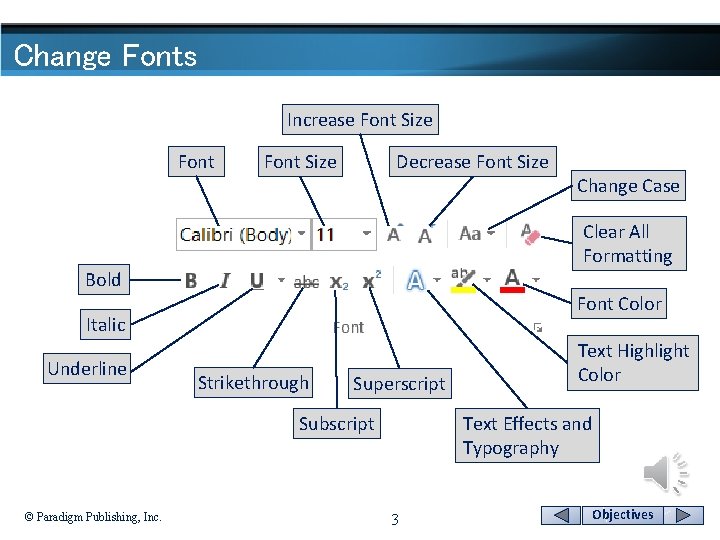
Change Fonts Increase Font Size Decrease Font Size Clear All Formatting Bold Font Color Italic Underline Strikethrough Superscript Subscript © Paradigm Publishing, Inc. Change Case Text Highlight Color Text Effects and Typography 3 Objectives
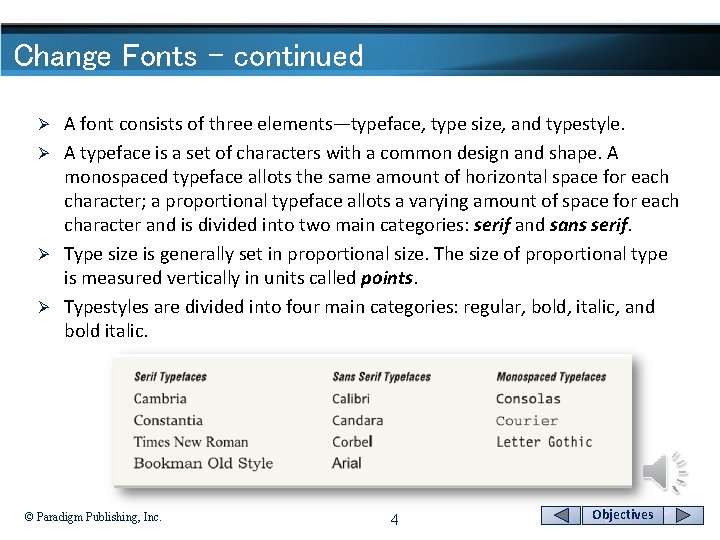
Change Fonts - continued A font consists of three elements—typeface, type size, and typestyle. Ø A typeface is a set of characters with a common design and shape. A monospaced typeface allots the same amount of horizontal space for each character; a proportional typeface allots a varying amount of space for each character and is divided into two main categories: serif and sans serif. Ø Type size is generally set in proportional size. The size of proportional type is measured vertically in units called points. Ø Typestyles are divided into four main categories: regular, bold, italic, and bold italic. Ø © Paradigm Publishing, Inc. 4 Objectives
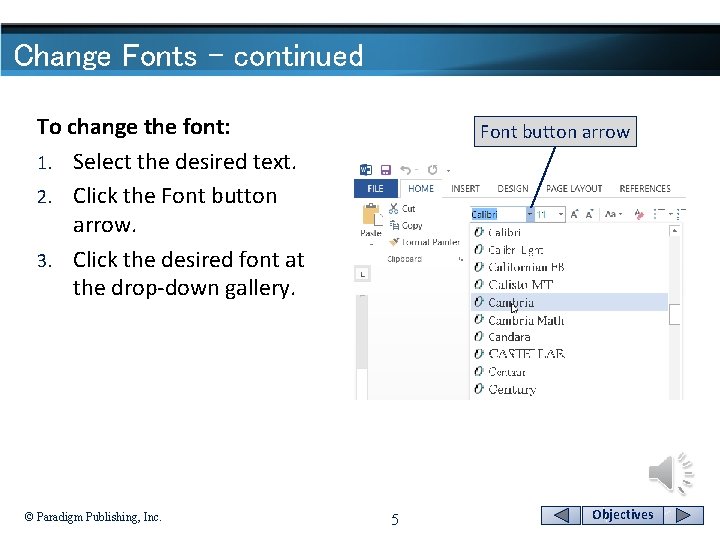
Change Fonts - continued To change the font: 1. Select the desired text. 2. Click the Font button arrow. 3. Click the desired font at the drop-down gallery. © Paradigm Publishing, Inc. Font button arrow 5 Objectives
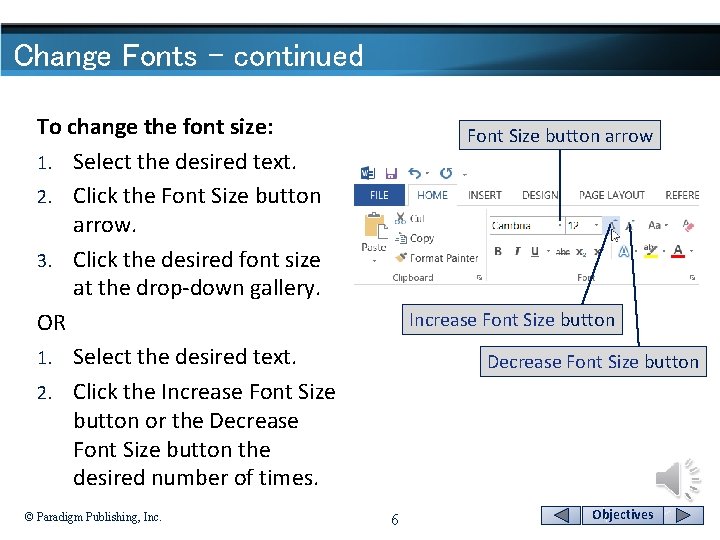
Change Fonts - continued To change the font size: 1. Select the desired text. 2. Click the Font Size button arrow. 3. Click the desired font size at the drop-down gallery. OR 1. Select the desired text. 2. Click the Increase Font Size button or the Decrease Font Size button the desired number of times. © Paradigm Publishing, Inc. Font Size button arrow Increase Font Size button Decrease Font Size button 6 Objectives
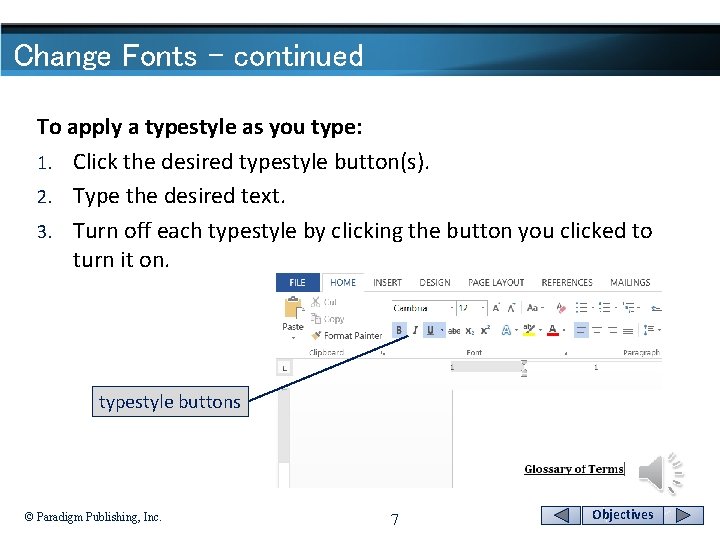
Change Fonts - continued To apply a typestyle as you type: 1. Click the desired typestyle button(s). 2. Type the desired text. 3. Turn off each typestyle by clicking the button you clicked to turn it on. typestyle buttons © Paradigm Publishing, Inc. 7 Objectives

Change Fonts - continued To change the underlining: 1. Select the desired text. 2. Click the Underline button arrow. 3. Click the desired underline option from the drop-down gallery. 4. Click the Underline button arrow. 5. Point to the Underline Color option. 6. Click the desired color. © Paradigm Publishing, Inc. 8 Underline button arrow Objectives
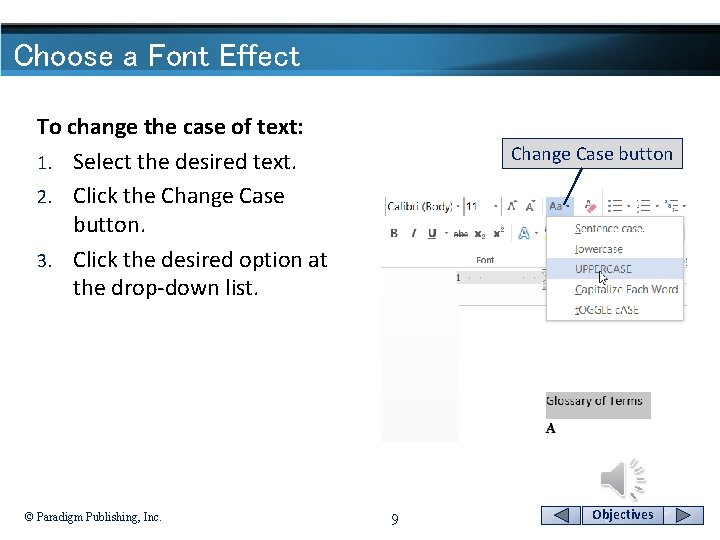
Choose a Font Effect To change the case of text: 1. Select the desired text. 2. Click the Change Case button. 3. Click the desired option at the drop-down list. © Paradigm Publishing, Inc. Change Case button 9 Objectives

Choose a Font Effect - continued To apply a text effect: 1. Select the desired text. 2. Click the Text Effects and Typography button. 3. Click the desired option at the drop-down gallery. © Paradigm Publishing, Inc. Text Effects and Typography button 10 Objectives
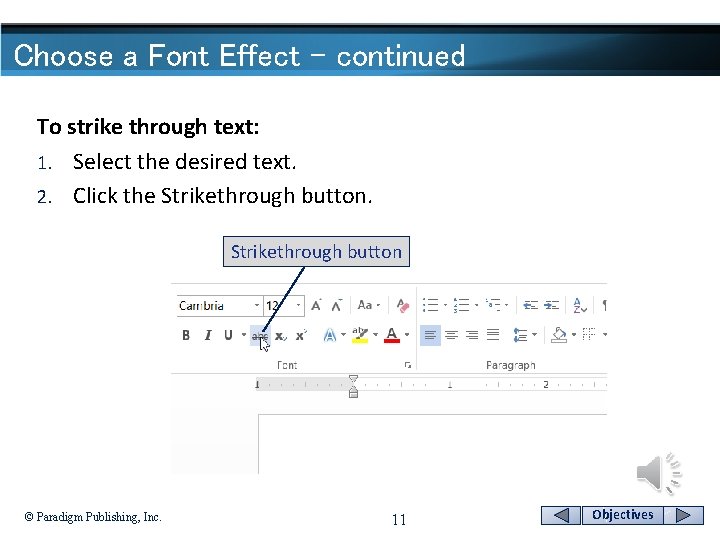
Choose a Font Effect - continued To strike through text: 1. Select the desired text. 2. Click the Strikethrough button © Paradigm Publishing, Inc. 11 Objectives
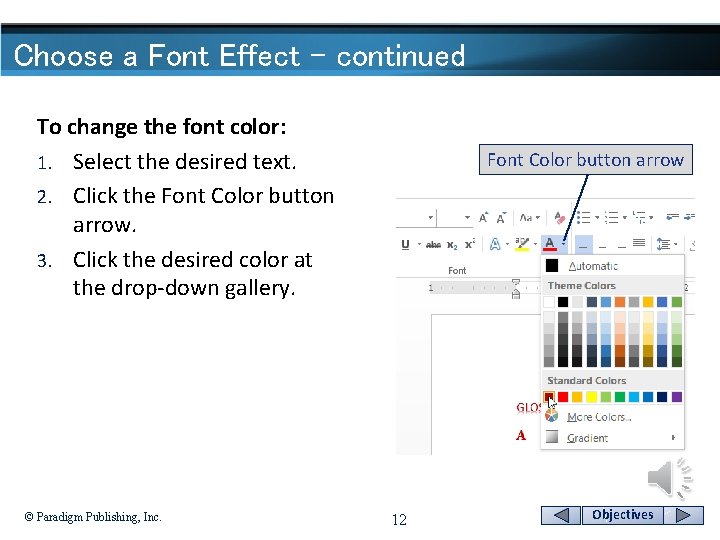
Choose a Font Effect - continued To change the font color: 1. Select the desired text. 2. Click the Font Color button arrow. 3. Click the desired color at the drop-down gallery. © Paradigm Publishing, Inc. Font Color button arrow 12 Objectives
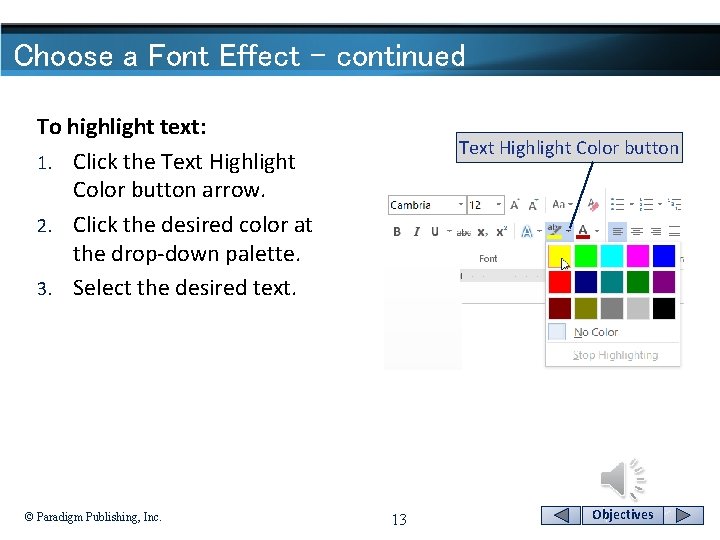
Choose a Font Effect - continued To highlight text: 1. Click the Text Highlight Color button arrow. 2. Click the desired color at the drop-down palette. 3. Select the desired text. © Paradigm Publishing, Inc. Text Highlight Color button 13 Objectives
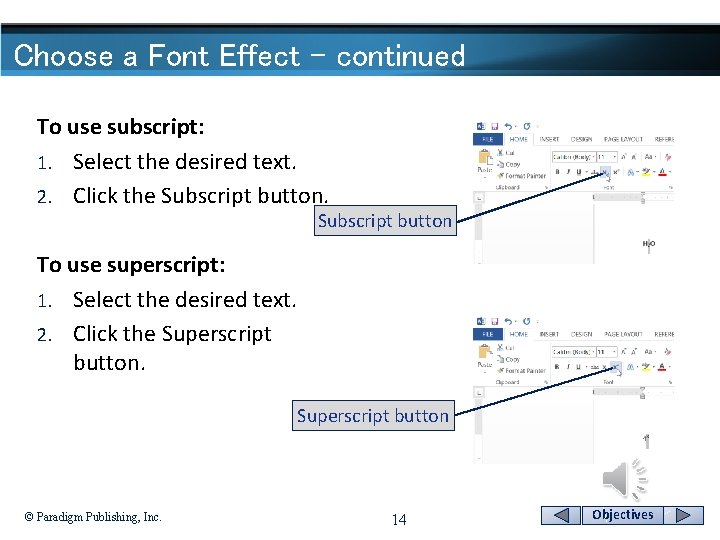
Choose a Font Effect - continued To use subscript: 1. Select the desired text. 2. Click the Subscript button To use superscript: 1. Select the desired text. 2. Click the Superscript button © Paradigm Publishing, Inc. 14 Objectives
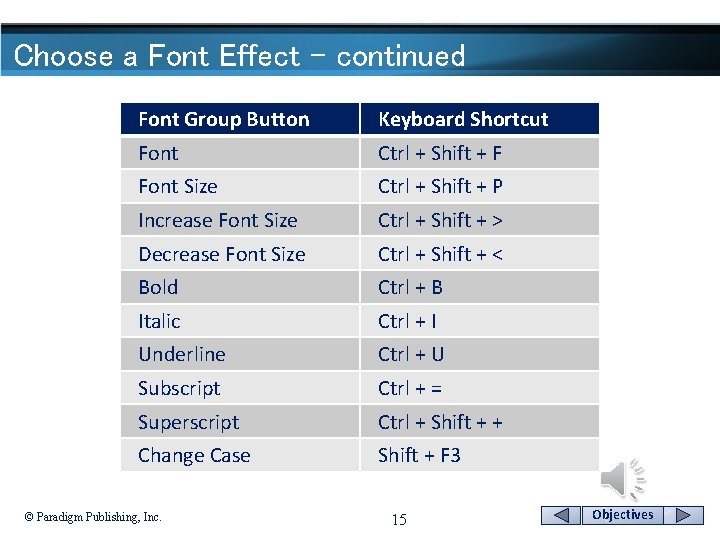
Choose a Font Effect - continued Font Group Button Keyboard Shortcut Font Ctrl + Shift + F Font Size Ctrl + Shift + P Increase Font Size Ctrl + Shift + > Decrease Font Size Ctrl + Shift + < Bold Ctrl + B Italic Ctrl + I Underline Ctrl + U Subscript Ctrl + = Superscript Ctrl + Shift + + Change Case Shift + F 3 © Paradigm Publishing, Inc. 15 Objectives
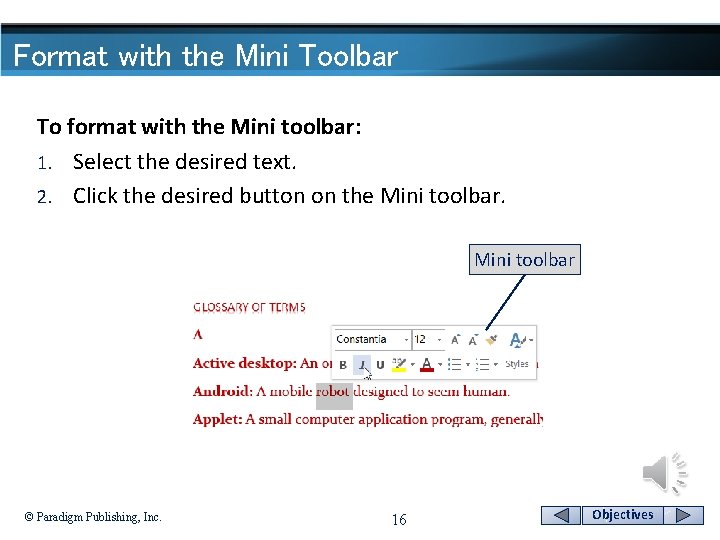
Format with the Mini Toolbar To format with the Mini toolbar: 1. Select the desired text. 2. Click the desired button on the Mini toolbar © Paradigm Publishing, Inc. 16 Objectives

Change Fonts at the Font Dialog Box To change fonts at the Font dialog box: 1. Select the desired text. 2. Click the Font group dialog box launcher. 3. Choose the desired options at the Font dialog box. 4. Click OK. Font group dialog box launcher © Paradigm Publishing, Inc. 17 Objectives

Change Fonts at the Font Dialog Box - continued Font style list box Font list box type size list box font color text effects change default © Paradigm Publishing, Inc. 18 Objectives
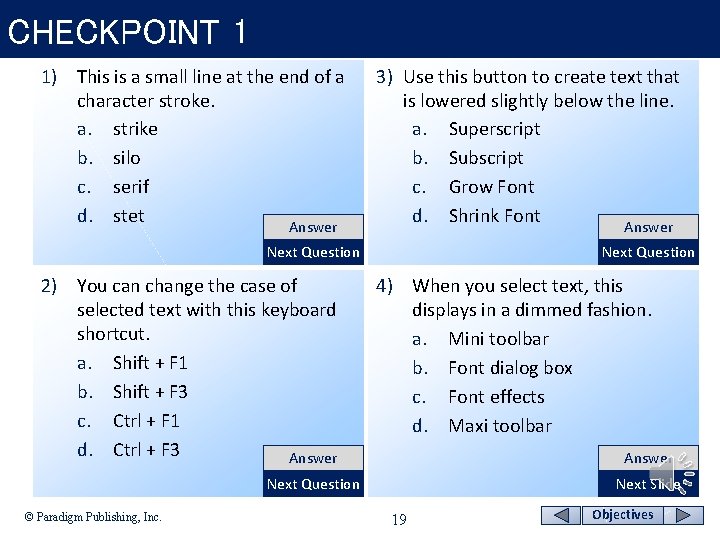
CHECKPOINT 1 1) This is a small line at the end of a character stroke. a. strike b. silo c. serif d. stet Answer 3) Use this button to create text that is lowered slightly below the line. a. Superscript b. Subscript c. Grow Font d. Shrink Font Answer Next Question 2) You can change the case of selected text with this keyboard shortcut. a. Shift + F 1 b. Shift + F 3 c. Ctrl + F 1 d. Ctrl + F 3 Answer Next Question 4) When you select text, this displays in a dimmed fashion. a. Mini toolbar b. Font dialog box c. Font effects d. Maxi toolbar Answer Next Question © Paradigm Publishing, Inc. Next Slide 19 Objectives
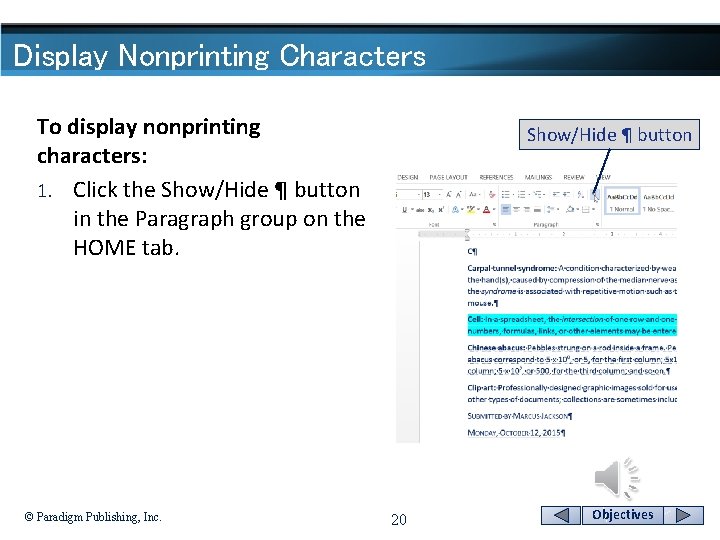
Display Nonprinting Characters To display nonprinting characters: 1. Click the Show/Hide ¶ button in the Paragraph group on the HOME tab. © Paradigm Publishing, Inc. Show/Hide ¶ button 20 Objectives
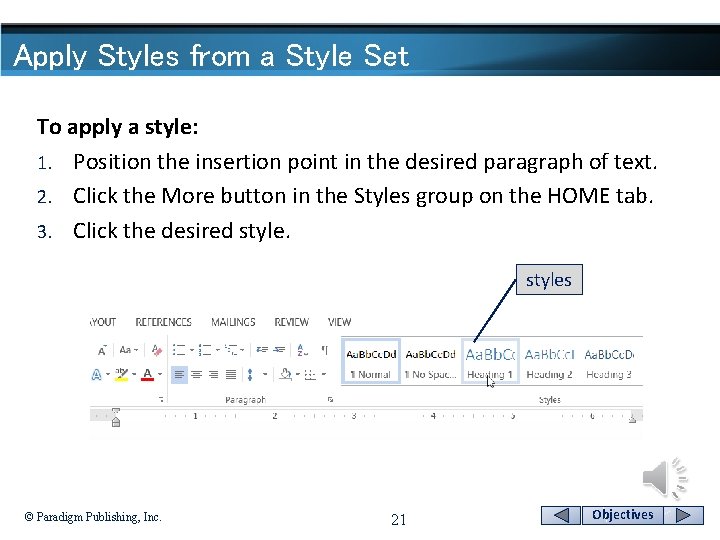
Apply Styles from a Style Set To apply a style: 1. Position the insertion point in the desired paragraph of text. 2. Click the More button in the Styles group on the HOME tab. 3. Click the desired styles © Paradigm Publishing, Inc. 21 Objectives
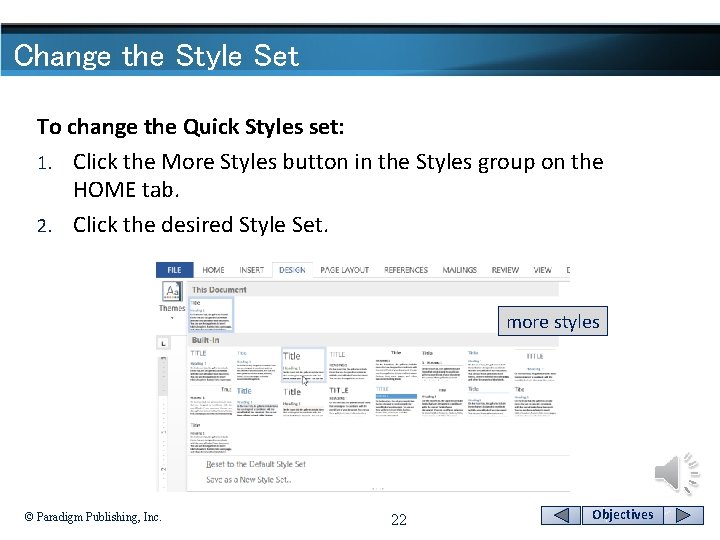
Change the Style Set To change the Quick Styles set: 1. Click the More Styles button in the Styles group on the HOME tab. 2. Click the desired Style Set. more styles © Paradigm Publishing, Inc. 22 Objectives
Apply a Theme Word provides a number of themes you can use to format text in your document. Ø A theme is a set of formatting choices that includes a color theme (a set of colors), a font theme (a set of heading and body text fonts), and an effects theme (a set of lines and fill effects). Ø Applying a theme can give your documents a professional look. Ø You can hover the mouse pointer over a theme and the live preview feature will display your document with theme formatting applied. Ø © Paradigm Publishing, Inc. 23 Objectives
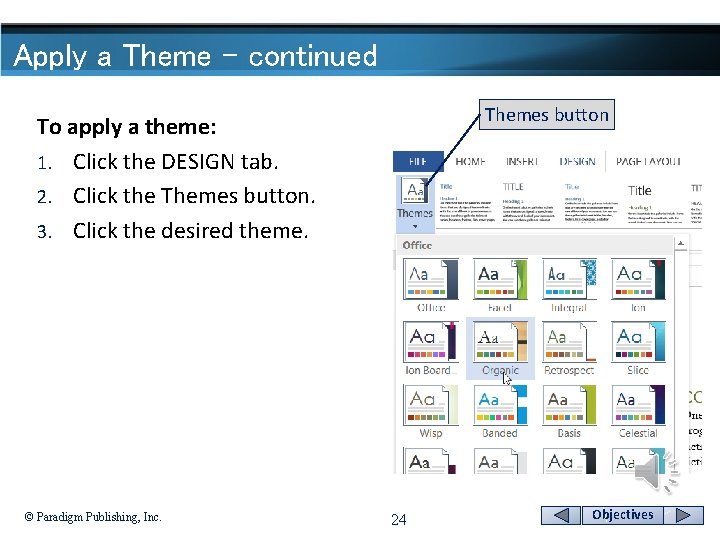
Apply a Theme - continued Themes button To apply a theme: 1. Click the DESIGN tab. 2. Click the Themes button. 3. Click the desired theme. © Paradigm Publishing, Inc. 24 Objectives
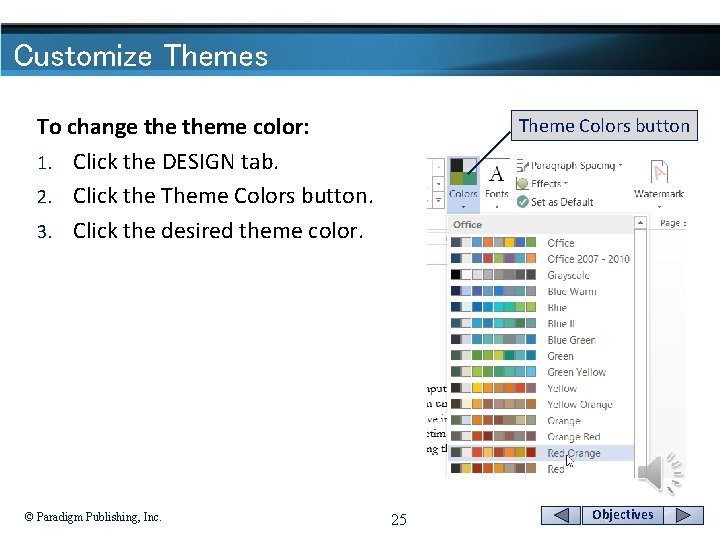
Customize Themes To change theme color: 1. Click the DESIGN tab. 2. Click the Theme Colors button. 3. Click the desired theme color. © Paradigm Publishing, Inc. Theme Colors button 25 Objectives
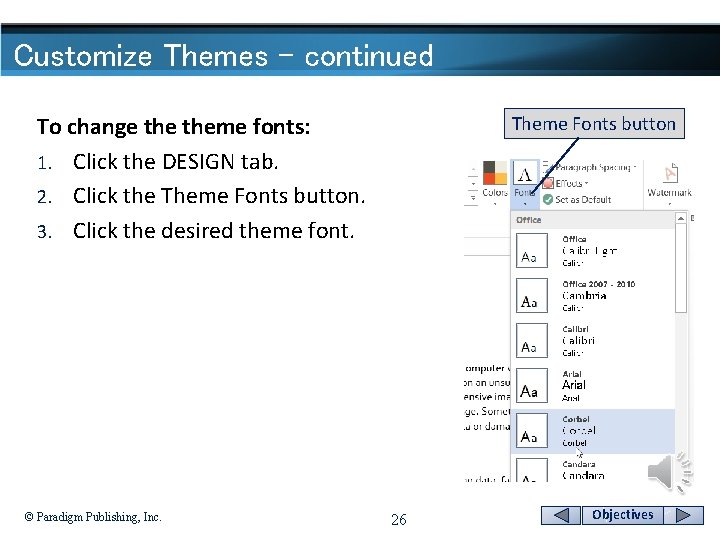
Customize Themes - continued Theme Fonts button To change theme fonts: 1. Click the DESIGN tab. 2. Click the Theme Fonts button. 3. Click the desired theme font. © Paradigm Publishing, Inc. 26 Objectives
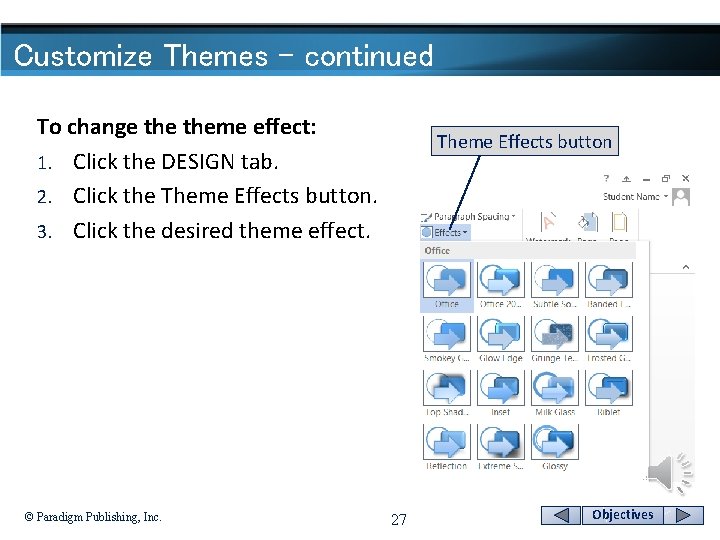
Customize Themes - continued To change theme effect: 1. Click the DESIGN tab. 2. Click the Theme Effects button. 3. Click the desired theme effect. © Paradigm Publishing, Inc. Theme Effects button 27 Objectives
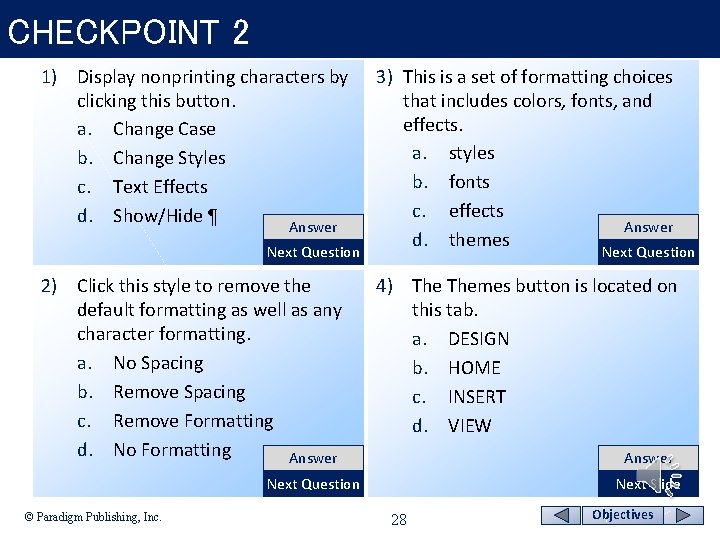
CHECKPOINT 2 1) Display nonprinting characters by clicking this button. a. Change Case b. Change Styles c. Text Effects d. Show/Hide ¶ Answer Next Question 2) Click this style to remove the default formatting as well as any character formatting. a. No Spacing b. Remove Spacing c. Remove Formatting d. No Formatting Answer 3) This is a set of formatting choices that includes colors, fonts, and effects. a. styles b. fonts c. effects Answer d. themes Next Question 4) Themes button is located on this tab. a. DESIGN b. HOME c. INSERT d. VIEW Answer Next Question © Paradigm Publishing, Inc. Next Slide 28 Objectives
- Slides: 28