
Panel View 300 Micro Micro Logix Lab 1
Panel. View™ 300 Micro & Micro. Logix™ Lab 1 1
Welcome to Panel. View™ 300 Micro training • Today you will receive training on the NEW Panel. View 300 Micro operator terminal and the NEW version of Panel. Builder 32™ software. The training will take you through all of the steps required to create, download and run a motor application on a Panel. View 300 Micro terminal. • As you will see, the Panel. View 300 Micro operator terminal and the Micro. Logix processor family work hand-in -hand to provide you with a view into control. 2
Overview of Training • During today’s training you will: – Create a Motor application screen – Validate and save the Panel. Builder application – Download the application to a Panel. View 300 Micro terminal via DF 1 using RSLinx – Run the application on the Panel. View 300 Micro terminal with the Micro. Logix Processor 3
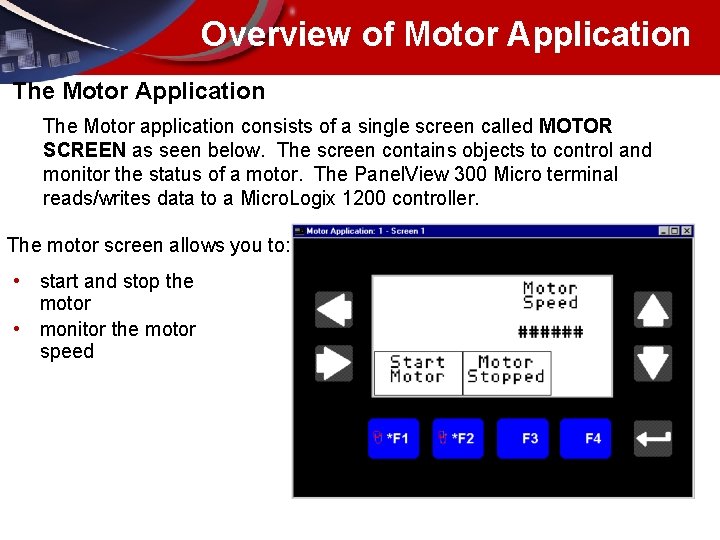
Overview of Motor Application The Motor application consists of a single screen called MOTOR SCREEN as seen below. The screen contains objects to control and monitor the status of a motor. The Panel. View 300 Micro terminal reads/writes data to a Micro. Logix 1200 controller. The motor screen allows you to: • start and stop the motor • monitor the motor speed
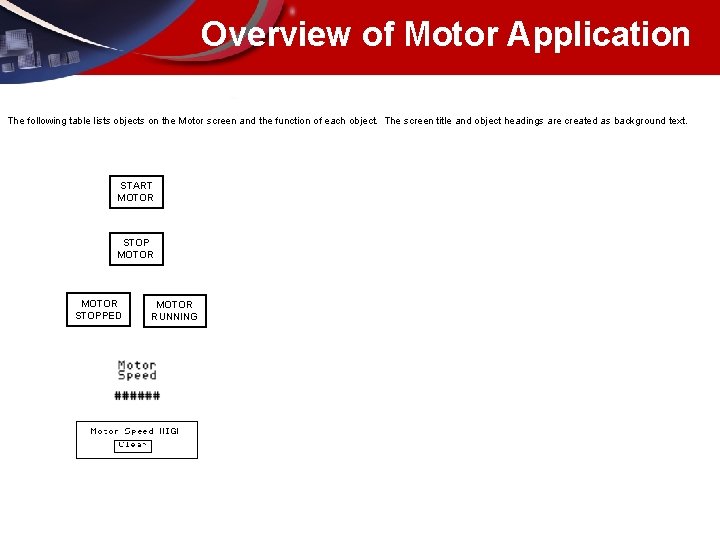
Overview of Motor Application The following table lists objects on the Motor screen and the function of each object. The screen title and object headings are created as background text. START MOTOR STOPPED MOTOR RUNNING

Creating the Motor Application 1. Start Panel. Builder Software Double-click the Panel. Builder 32 shortcut icon on the Desktop. OR From the Taskbar, select Select Programs, 32 Select Panel. Builder 32 and then Panel. Builder 32.
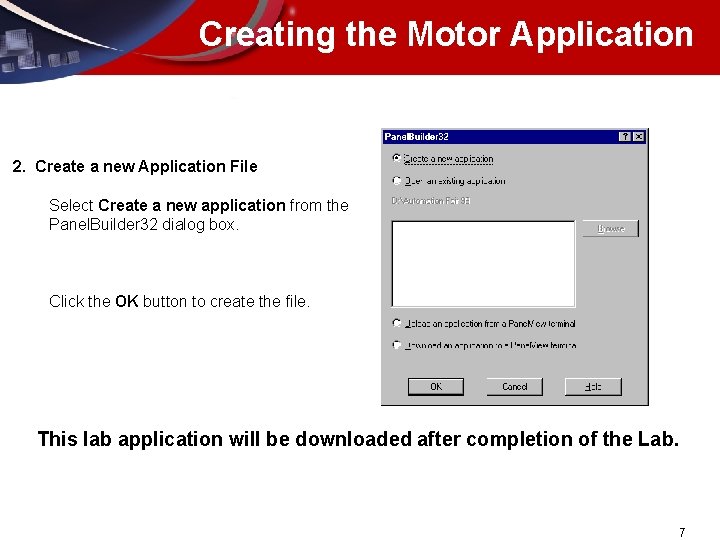
Creating the Motor Application 2. Create a new Application File Select Create a new application from the Panel. Builder 32 dialog box. Click the OK button to create the file. This lab application will be downloaded after completion of the Lab. 7
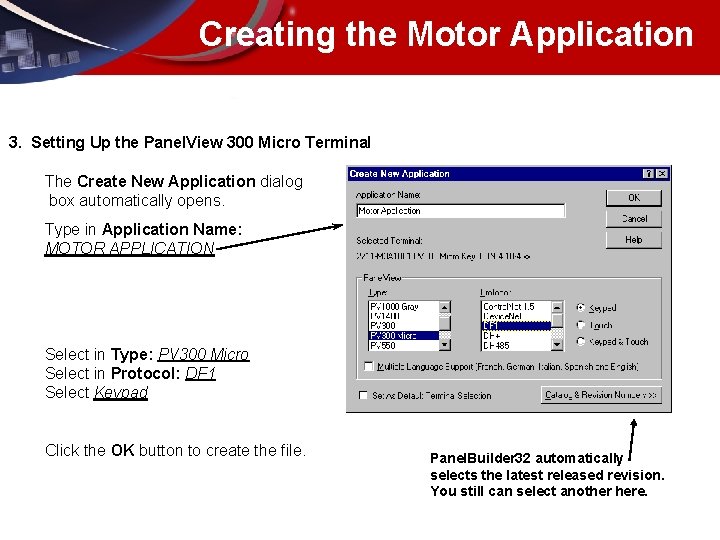
Creating the Motor Application 3. Setting Up the Panel. View 300 Micro Terminal The Create New Application dialog box automatically opens. Type in Application Name: MOTOR APPLICATION Select in Type: PV 300 Micro Select in Protocol: DF 1 Select Keypad Click the OK button to create the file. Panel. Builder 32 automatically selects the latest released revision. You still can select another here.
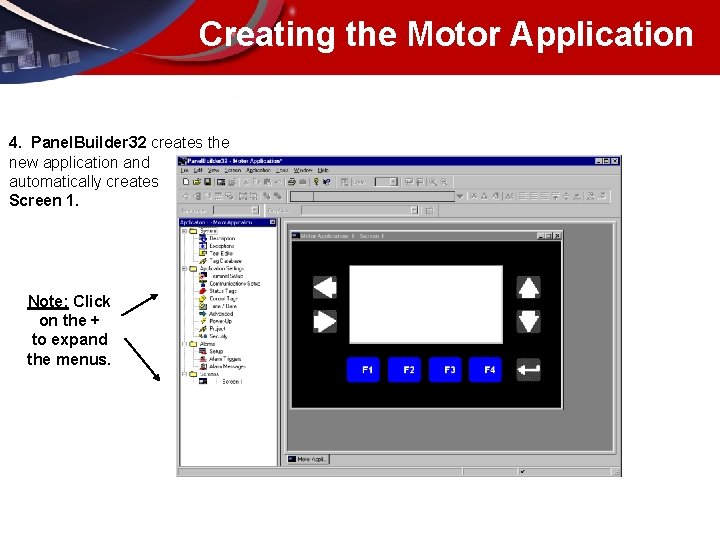
Creating the Motor Application 4. Panel. Builder 32 creates the new application and automatically creates Screen 1. Note: Click on the + to expand the menus.
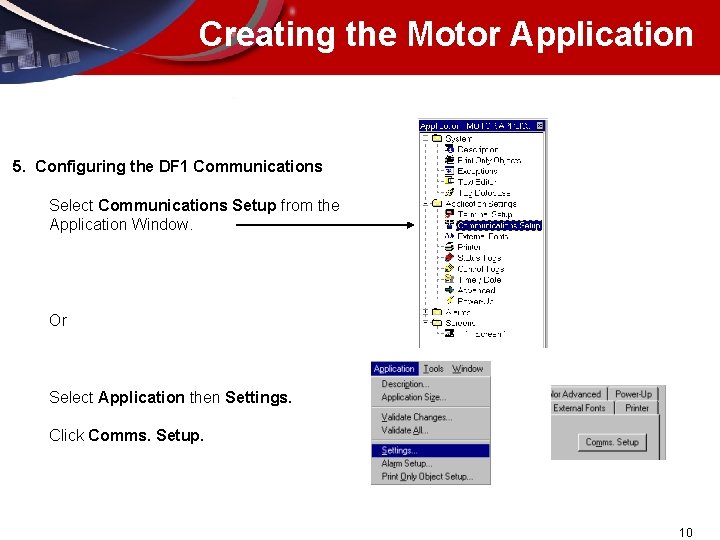
Creating the Motor Application 5. Configuring the DF 1 Communications Select Communications Setup from the Application Window. Or Select Application then Settings. Click Comms. Setup. 10
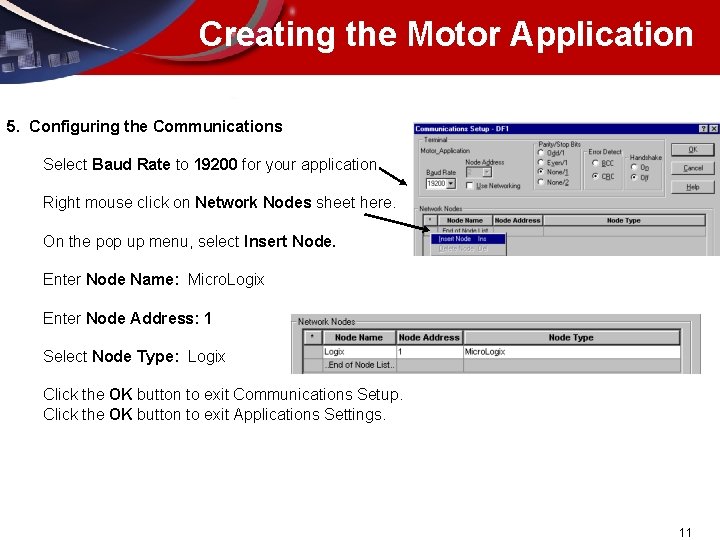
Creating the Motor Application 5. Configuring the Communications Select Baud Rate to 19200 for your application. Right mouse click on Network Nodes sheet here. On the pop up menu, select Insert Node. Enter Node Name: Micro. Logix Enter Node Address: 1 Select Node Type: Logix Click the OK button to exit Communications Setup. Click the OK button to exit Applications Settings. 11
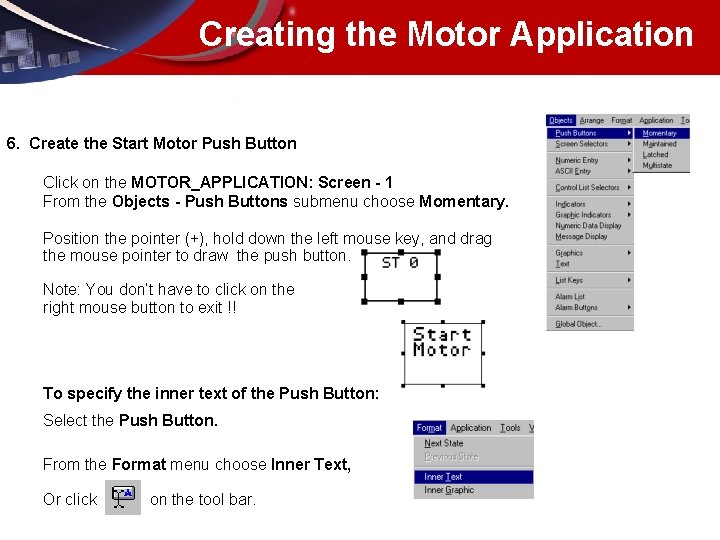
Creating the Motor Application 6. Create the Start Motor Push Button Click on the MOTOR_APPLICATION: Screen - 1 From the Objects - Push Buttons submenu choose Momentary. Position the pointer (+), hold down the left mouse key, and drag the mouse pointer to draw the push button. Note: You don’t have to click on the right mouse button to exit !! To specify the inner text of the Push Button: Select the Push Button. From the Format menu choose Inner Text, Or click on the tool bar.
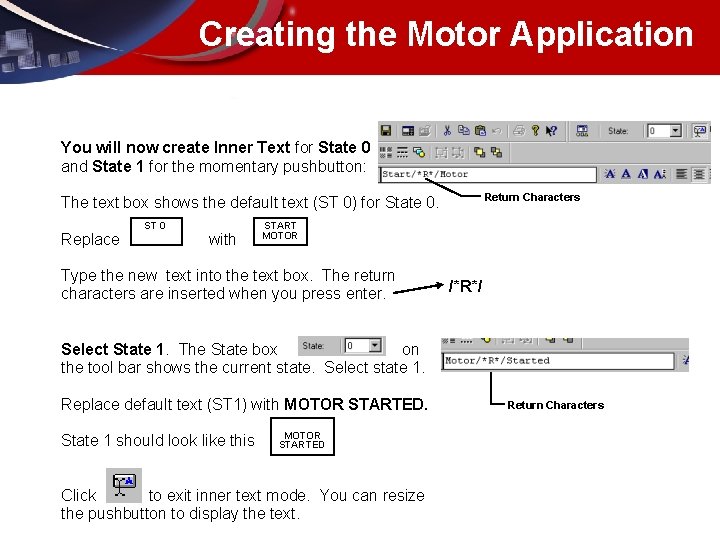
Creating the Motor Application You will now create Inner Text for State 0 and State 1 for the momentary pushbutton: Return Characters The text box shows the default text (ST 0) for State 0. Replace ST 0 with START MOTOR Type the new text into the text box. The return characters are inserted when you press enter. /*R*/ Select State 1. The State box on the tool bar shows the current state. Select state 1. Replace default text (ST 1) with MOTOR STARTED. State 1 should look like this MOTOR STARTED Click to exit inner text mode. You can resize the pushbutton to display the text. Return Characters
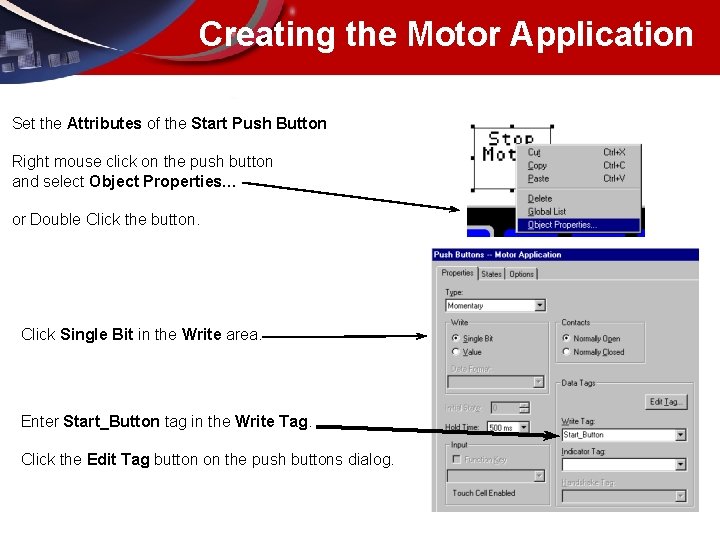
Creating the Motor Application Set the Attributes of the Start Push Button Right mouse click on the push button and select Object Properties… or Double Click the button. Click Single Bit in the Write area. Enter Start_Button tag in the Write Tag. Click the Edit Tag button on the push buttons dialog.
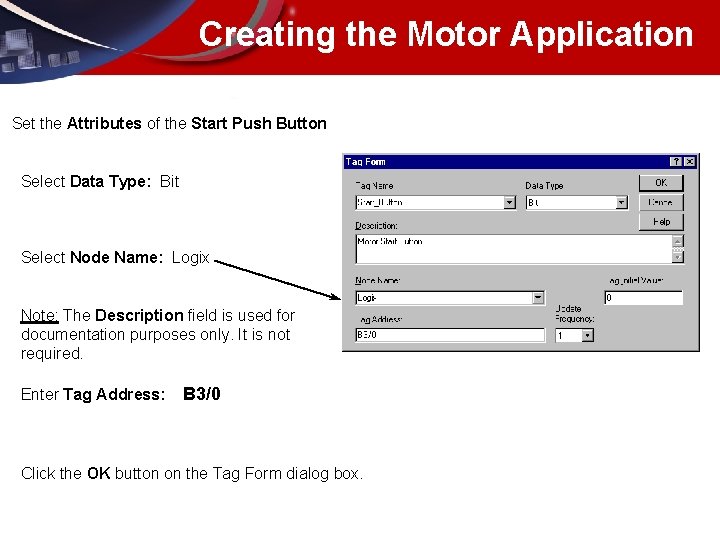
Creating the Motor Application Set the Attributes of the Start Push Button Select Data Type: Bit Select Node Name: Logix Note: The Description field is used for documentation purposes only. It is not required. Enter Tag Address: B 3/0 Click the OK button on the Tag Form dialog box.
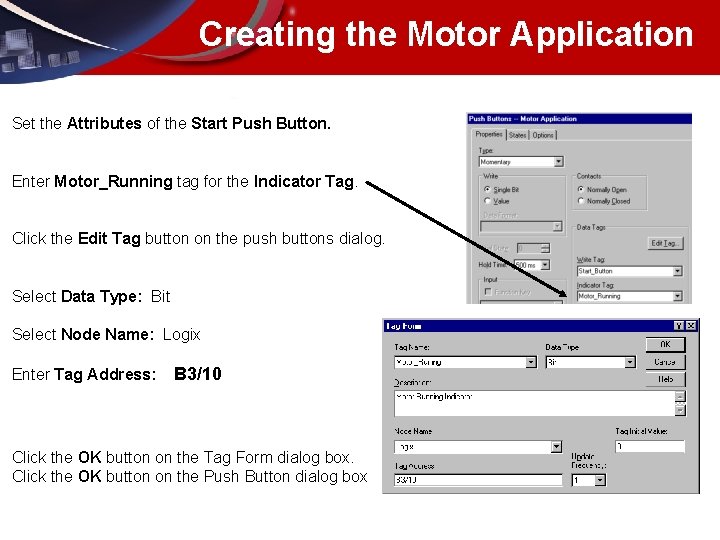
Creating the Motor Application Set the Attributes of the Start Push Button. Enter Motor_Running tag for the Indicator Tag. Click the Edit Tag button on the push buttons dialog. Select Data Type: Bit Select Node Name: Logix Enter Tag Address: B 3/10 Click the OK button on the Tag Form dialog box. Click the OK button on the Push Button dialog box
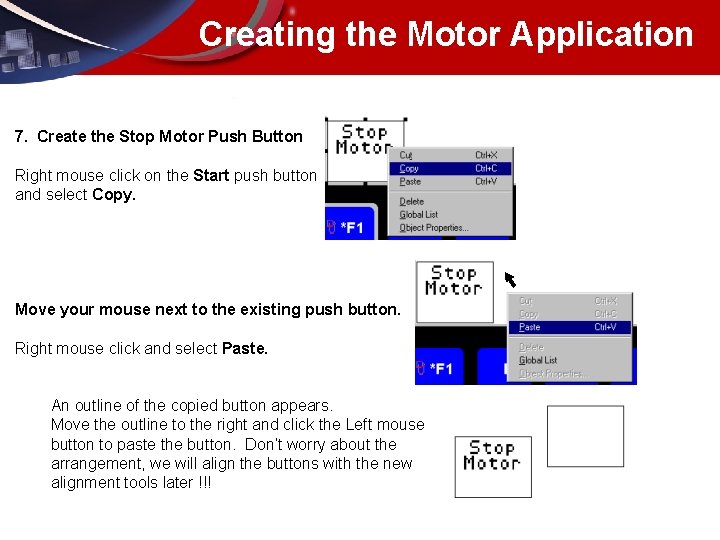
Creating the Motor Application 7. Create the Stop Motor Push Button Right mouse click on the Start push button and select Copy. Move your mouse next to the existing push button. Right mouse click and select Paste. An outline of the copied button appears. Move the outline to the right and click the Left mouse button to paste the button. Don’t worry about the arrangement, we will align the buttons with the new alignment tools later !!!
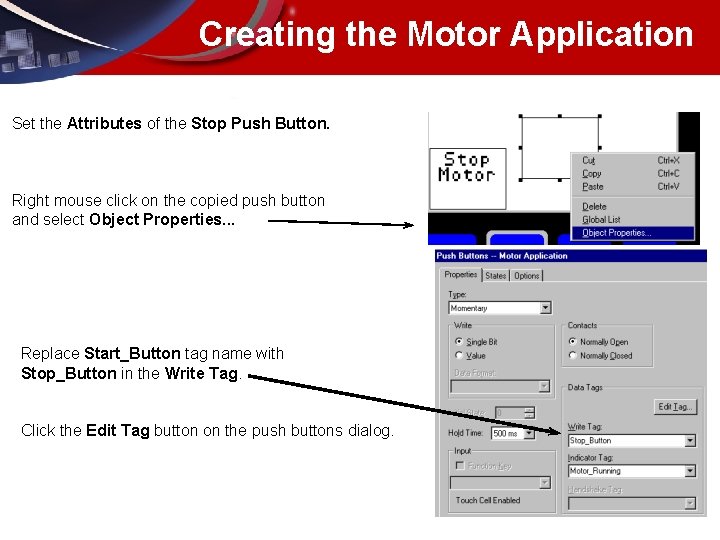
Creating the Motor Application Set the Attributes of the Stop Push Button. Right mouse click on the copied push button and select Object Properties. . . Replace Start_Button tag name with Stop_Button in the Write Tag. Click the Edit Tag button on the push buttons dialog.
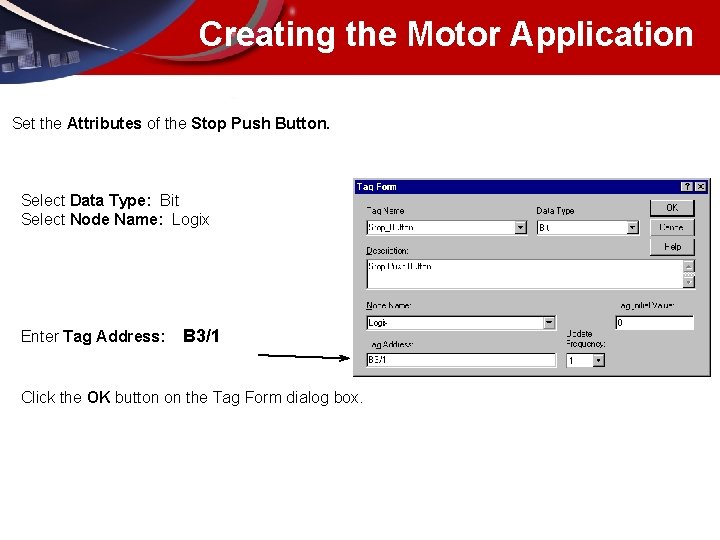
Creating the Motor Application Set the Attributes of the Stop Push Button. Select Data Type: Bit Select Node Name: Logix Enter Tag Address: B 3/1 Click the OK button on the Tag Form dialog box.
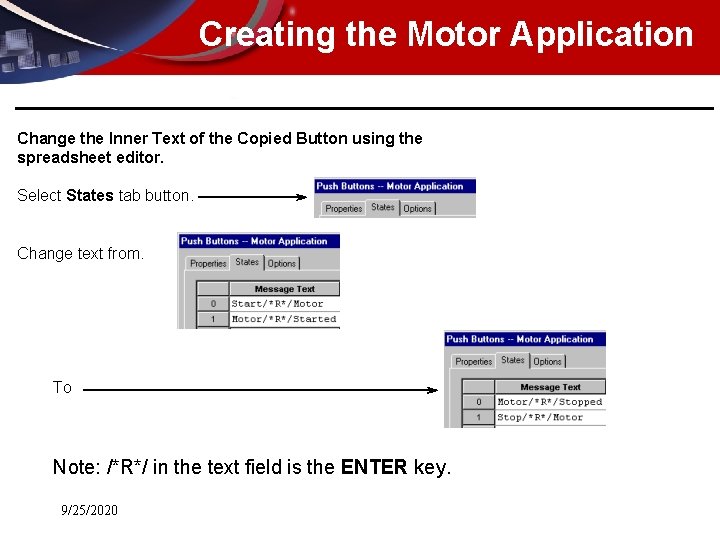
Creating the Motor Application Change the Inner Text of the Copied Button using the spreadsheet editor. Select States tab button. Change text from. To Note: /*R*/ in the text field is the ENTER key. 9/25/2020
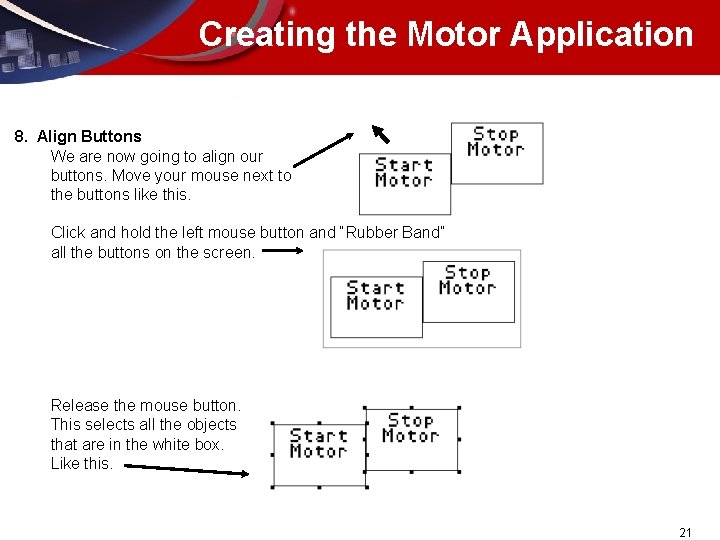
Creating the Motor Application 8. Align Buttons We are now going to align our buttons. Move your mouse next to the buttons like this. Click and hold the left mouse button and “Rubber Band” all the buttons on the screen. Release the mouse button. This selects all the objects that are in the white box. Like this. 21
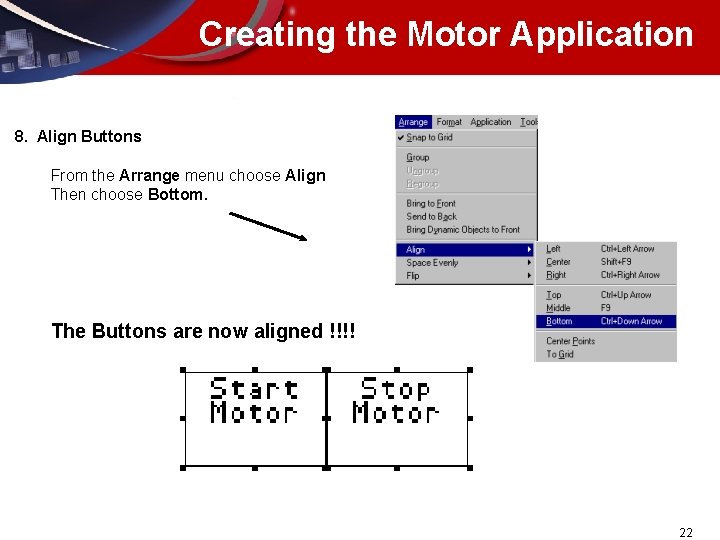
Creating the Motor Application 8. Align Buttons From the Arrange menu choose Align Then choose Bottom. The Buttons are now aligned !!!! 22
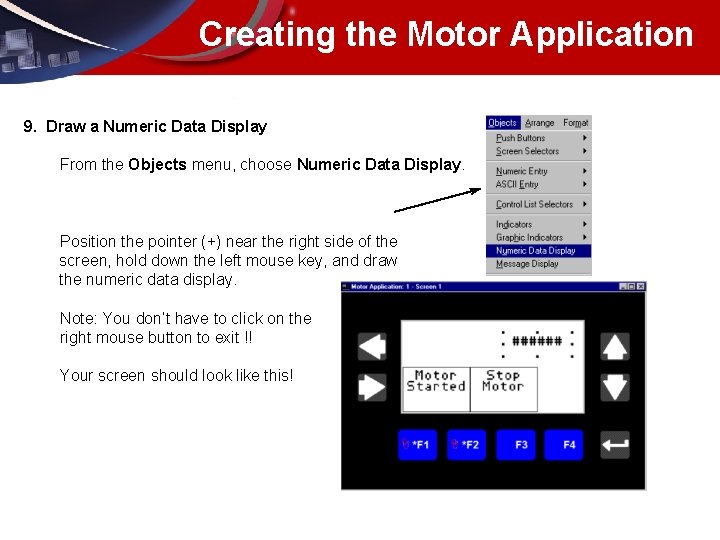
Creating the Motor Application 9. Draw a Numeric Data Display From the Objects menu, choose Numeric Data Display. Position the pointer (+) near the right side of the screen, hold down the left mouse key, and draw the numeric data display. Note: You don’t have to click on the right mouse button to exit !! Your screen should look like this!
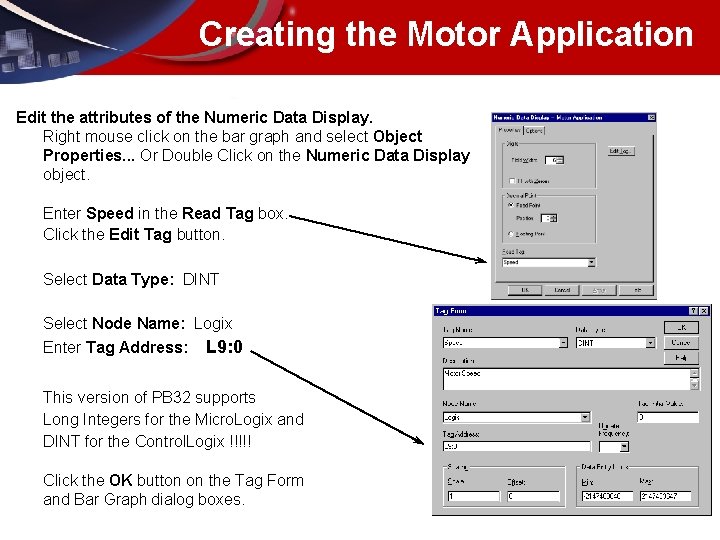
Creating the Motor Application Edit the attributes of the Numeric Data Display. Right mouse click on the bar graph and select Object Properties. . . Or Double Click on the Numeric Data Display object. Enter Speed in the Read Tag box. Click the Edit Tag button. Select Data Type: DINT Select Node Name: Logix Enter Tag Address: L 9: 0 This version of PB 32 supports Long Integers for the Micro. Logix and DINT for the Control. Logix !!!!! Click the OK button on the Tag Form and Bar Graph dialog boxes.
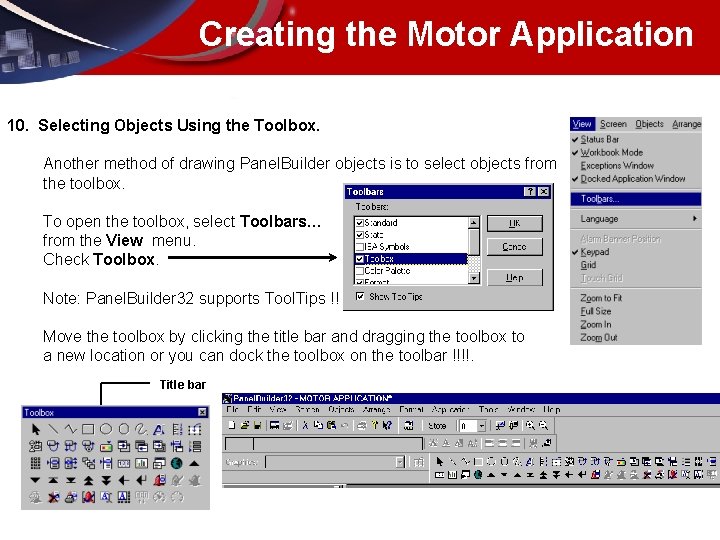
Creating the Motor Application 10. Selecting Objects Using the Toolbox. Another method of drawing Panel. Builder objects is to select objects from the toolbox. To open the toolbox, select Toolbars… from the View menu. Check Toolbox. Note: Panel. Builder 32 supports Tool. Tips !! Move the toolbox by clicking the title bar and dragging the toolbox to a new location or you can dock the toolbox on the toolbar !!!!. Title bar
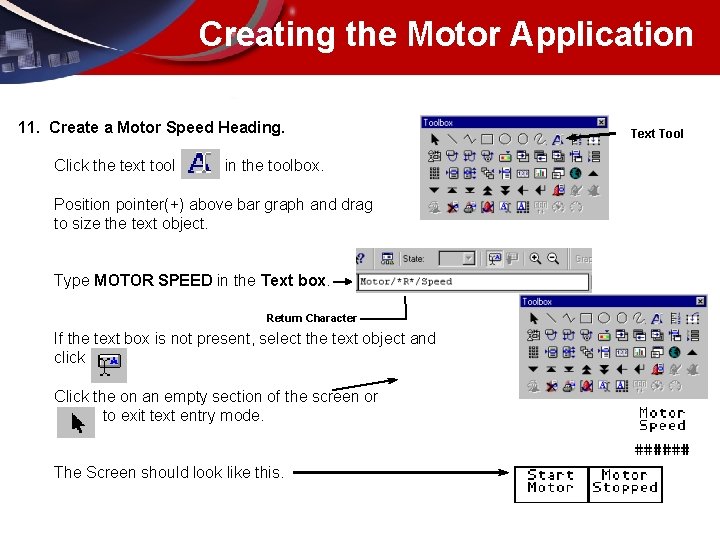
Creating the Motor Application 11. Create a Motor Speed Heading. Click the text tool in the toolbox. Position pointer(+) above bar graph and drag to size the text object. Type MOTOR SPEED in the Text box. Return Character If the text box is not present, select the text object and click Click the on an empty section of the screen or to exit text entry mode. The Screen should look like this. Text Tool
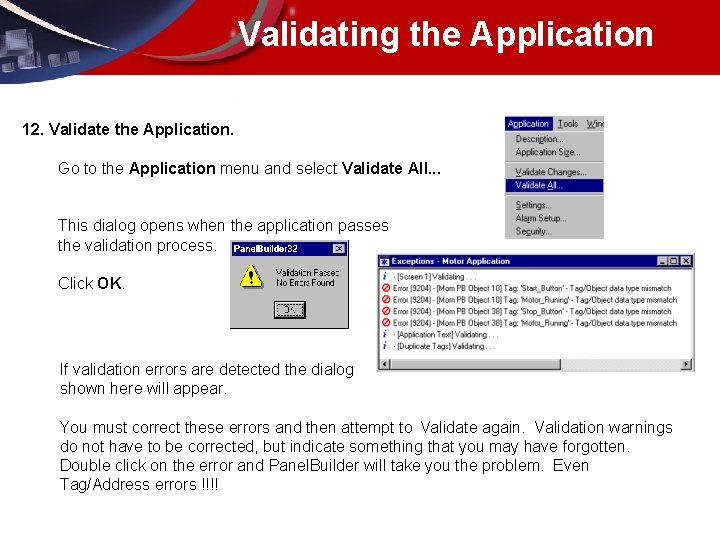
Validating the Application 12. Validate the Application. Go to the Application menu and select Validate All. . . This dialog opens when the application passes the validation process. Click OK. If validation errors are detected the dialog shown here will appear. You must correct these errors and then attempt to Validate again. Validation warnings do not have to be corrected, but indicate something that you may have forgotten. Double click on the error and Panel. Builder will take you the problem. Even Tag/Address errors !!!!
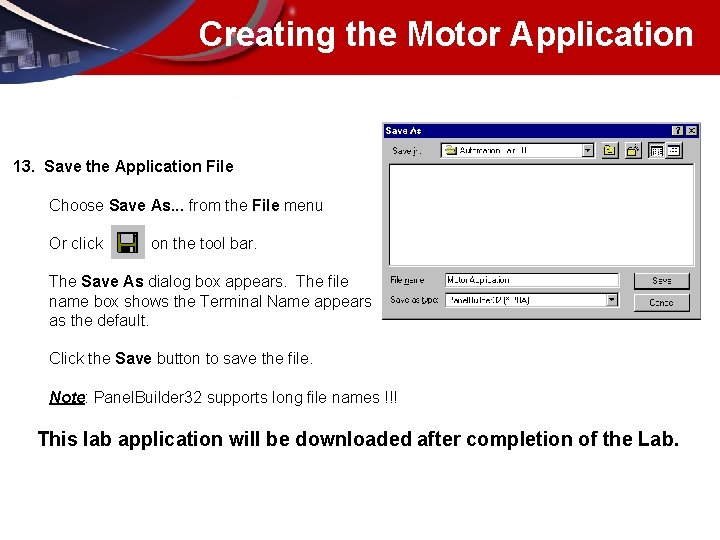
Creating the Motor Application 13. Save the Application File Choose Save As. . . from the File menu Or click on the tool bar. The Save As dialog box appears. The file name box shows the Terminal Name appears as the default. Click the Save button to save the file. Note: Panel. Builder 32 supports long file names !!! This lab application will be downloaded after completion of the Lab.
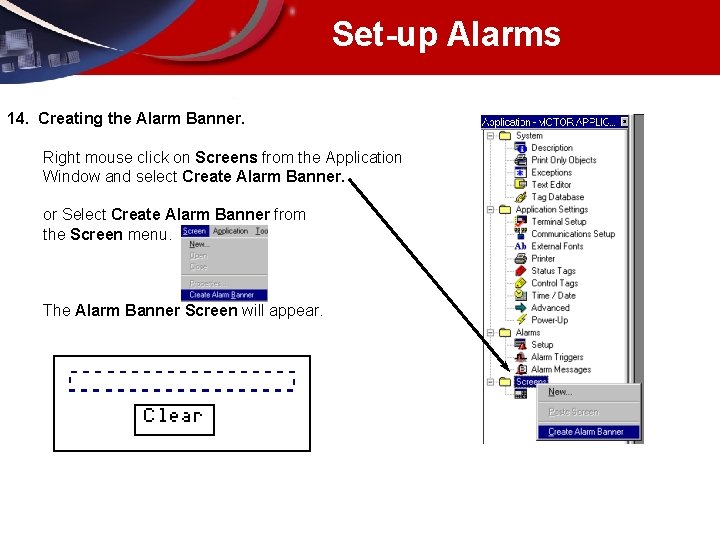
Set-up Alarms 14. Creating the Alarm Banner. Right mouse click on Screens from the Application Window and select Create Alarm Banner. or Select Create Alarm Banner from the Screen menu. The Alarm Banner Screen will appear.
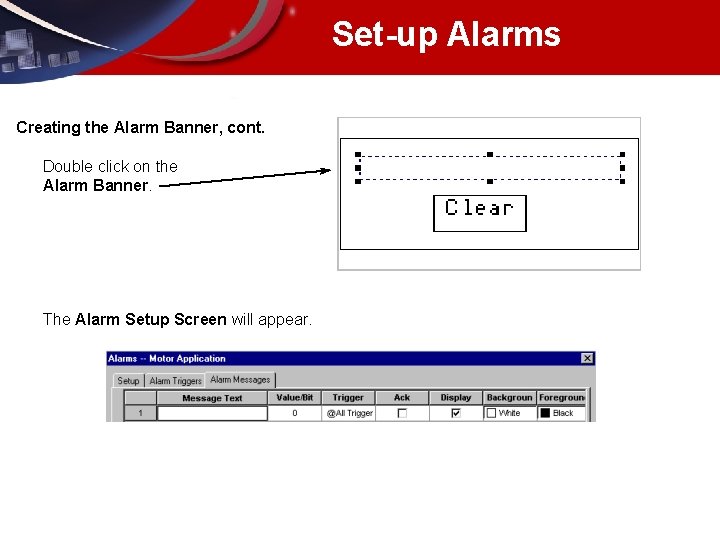
Set-up Alarms Creating the Alarm Banner, cont. Double click on the Alarm Banner. The Alarm Setup Screen will appear.
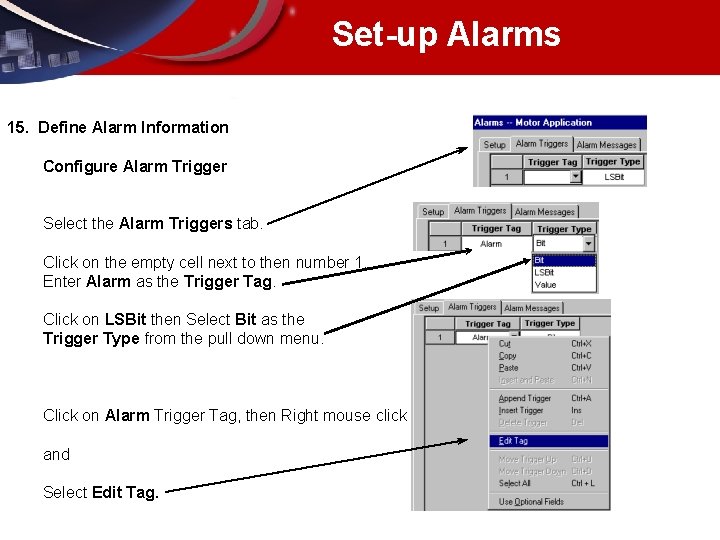
Set-up Alarms 15. Define Alarm Information Configure Alarm Trigger Select the Alarm Triggers tab. Click on the empty cell next to then number 1. Enter Alarm as the Trigger Tag. Click on LSBit then Select Bit as the Trigger Type from the pull down menu. Click on Alarm Trigger Tag, then Right mouse click and Select Edit Tag.
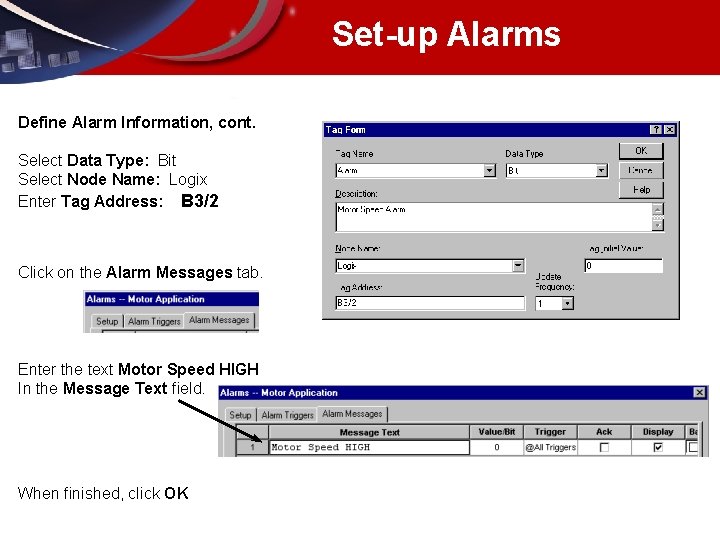
Set-up Alarms Define Alarm Information, cont. Select Data Type: Bit Select Node Name: Logix Enter Tag Address: B 3/2 Click on the Alarm Messages tab. Enter the text Motor Speed HIGH In the Message Text field. When finished, click OK
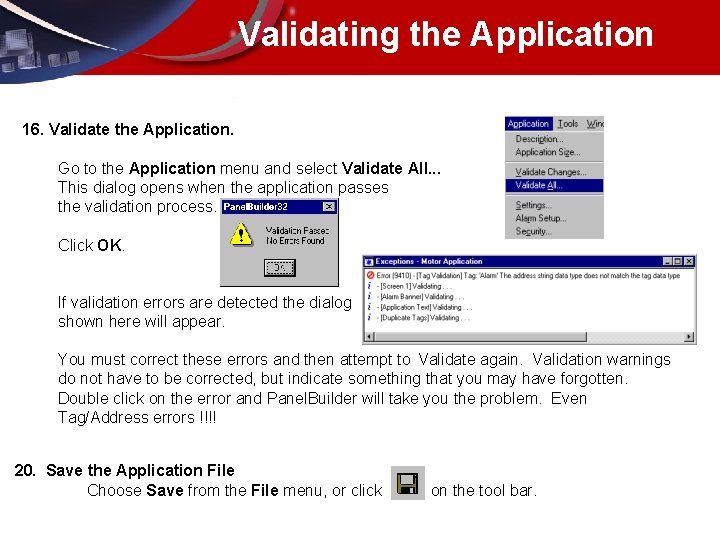
Validating the Application 16. Validate the Application. Go to the Application menu and select Validate All. . . This dialog opens when the application passes the validation process. Click OK. If validation errors are detected the dialog shown here will appear. You must correct these errors and then attempt to Validate again. Validation warnings do not have to be corrected, but indicate something that you may have forgotten. Double click on the error and Panel. Builder will take you the problem. Even Tag/Address errors !!!! 20. Save the Application File Choose Save from the File menu, or click on the tool bar.
Downloading with RSLinx Downloading Using RSLinx Panel. Builder 32 software includes RSLinx Lite, which provides RSLinx file transfer support. This gives basic up/download functionality to many Allen-Bradley and RSI products. RSLinx is a comprehensive factory communications solution for the Microsoft® Windows® 95 and NT operating system. Developed as a true 32 bit application, RSLinx takes full advantage of the multi-threading, multi-tasking, and multiprocessing capabilities of the Windows NT™ operating system. RSLinx can run simultaneously with a combination of applications. Best of all, it is easy to use-most users are up and running in five minutes! 2. 2
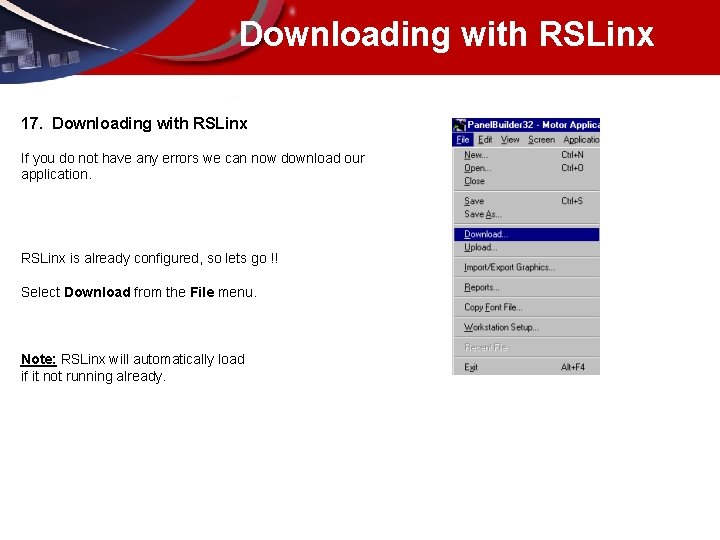
Downloading with RSLinx 17. Downloading with RSLinx If you do not have any errors we can now download our application. RSLinx is already configured, so lets go !! Select Download from the File menu. Note: RSLinx will automatically load if it not running already.
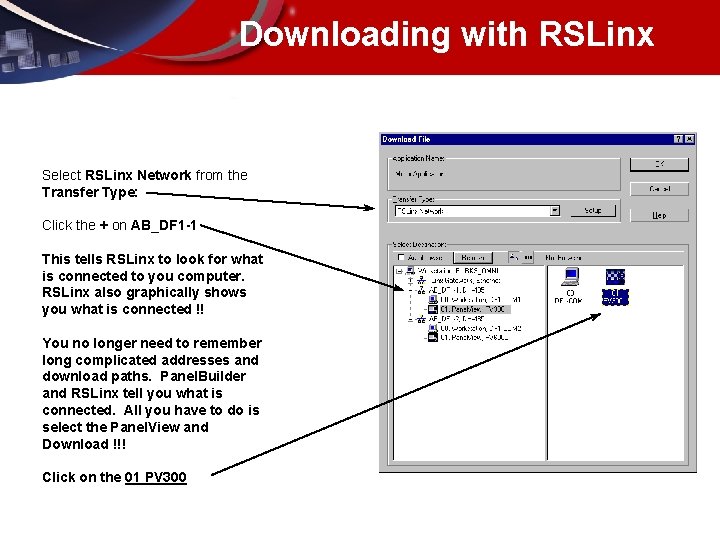
Downloading with RSLinx Select RSLinx Network from the Transfer Type: Click the + on AB_DF 1 -1 This tells RSLinx to look for what is connected to you computer. RSLinx also graphically shows you what is connected !! You no longer need to remember long complicated addresses and download paths. Panel. Builder and RSLinx tell you what is connected. All you have to do is select the Panel. View and Download !!! Click on the 01 PV 300
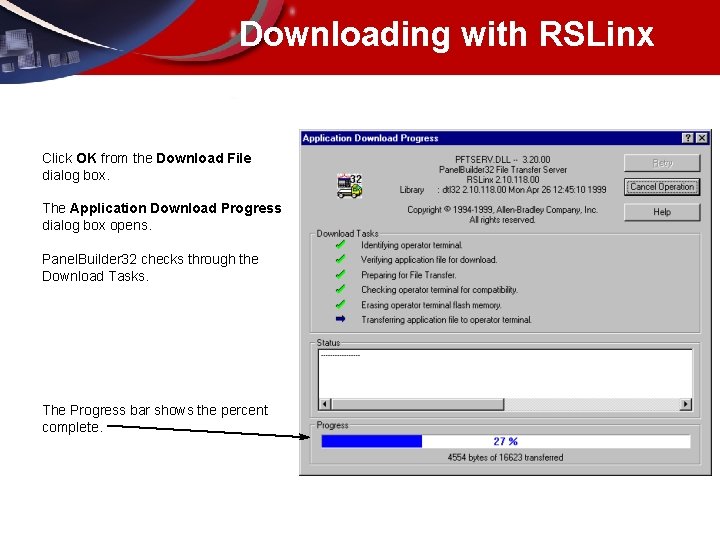
Downloading with RSLinx Click OK from the Download File dialog box. The Application Download Progress dialog box opens. Panel. Builder 32 checks through the Download Tasks. The Progress bar shows the percent complete.
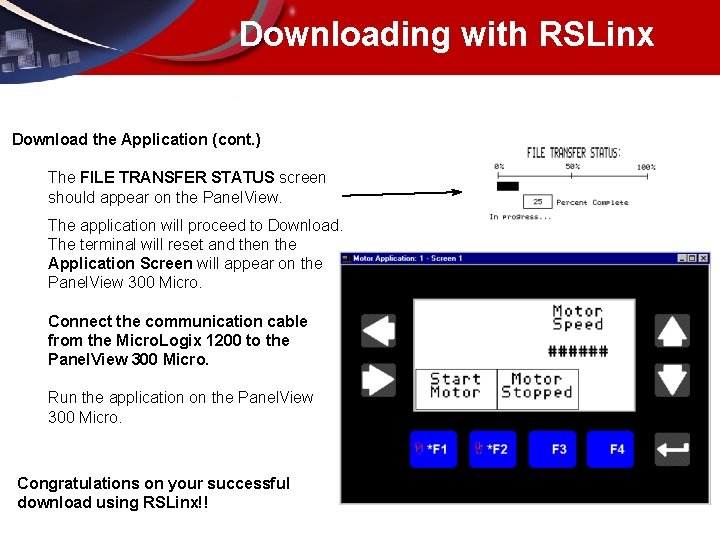
Downloading with RSLinx Download the Application (cont. ) The FILE TRANSFER STATUS screen should appear on the Panel. View. The application will proceed to Download. The terminal will reset and then the Application Screen will appear on the Panel. View 300 Micro. Connect the communication cable from the Micro. Logix 1200 to the Panel. View 300 Micro. Run the application on the Panel. View 300 Micro. Congratulations on your successful download using RSLinx!!
- Slides: 38