
Paint 3 D interface Open 3 D Paint
- Slides: 4
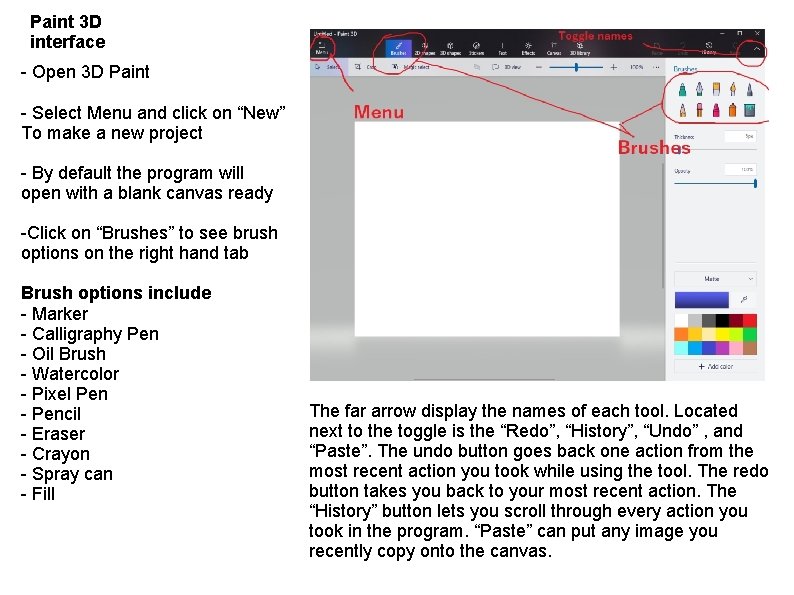
Paint 3 D interface - Open 3 D Paint - Select Menu and click on “New” To make a new project - By default the program will open with a blank canvas ready -Click on “Brushes” to see brush options on the right hand tab Brush options include - Marker - Calligraphy Pen - Oil Brush - Watercolor - Pixel Pen - Pencil - Eraser - Crayon - Spray can - Fill The far arrow display the names of each tool. Located next to the toggle is the “Redo”, “History”, “Undo” , and “Paste”. The undo button goes back one action from the most recent action you took while using the tool. The redo button takes you back to your most recent action. The “History” button lets you scroll through every action you took in the program. “Paste” can put any image you recently copy onto the canvas.
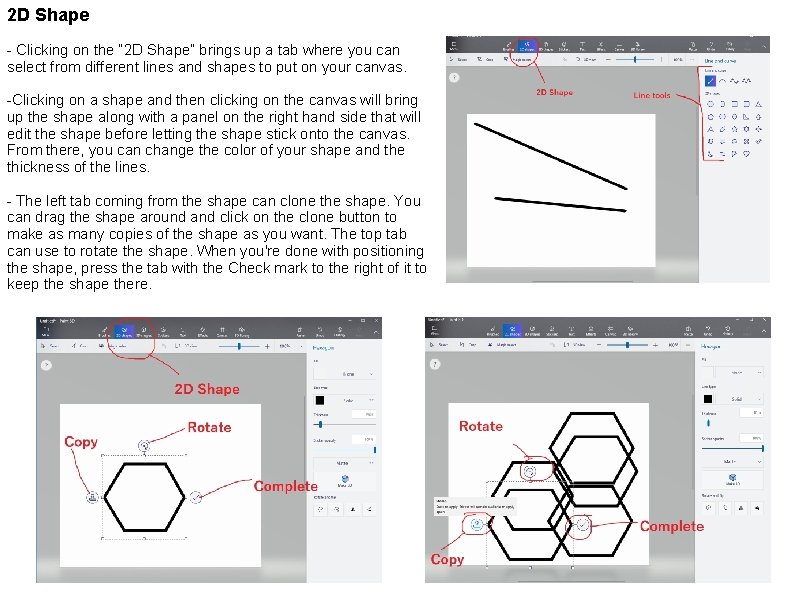
2 D Shape - Clicking on the “ 2 D Shape” brings up a tab where you can select from different lines and shapes to put on your canvas. -Clicking on a shape and then clicking on the canvas will bring up the shape along with a panel on the right hand side that will edit the shape before letting the shape stick onto the canvas. From there, you can change the color of your shape and the thickness of the lines. - The left tab coming from the shape can clone the shape. You can drag the shape around and click on the clone button to make as many copies of the shape as you want. The top tab can use to rotate the shape. When you're done with positioning the shape, press the tab with the Check mark to the right of it to keep the shape there.
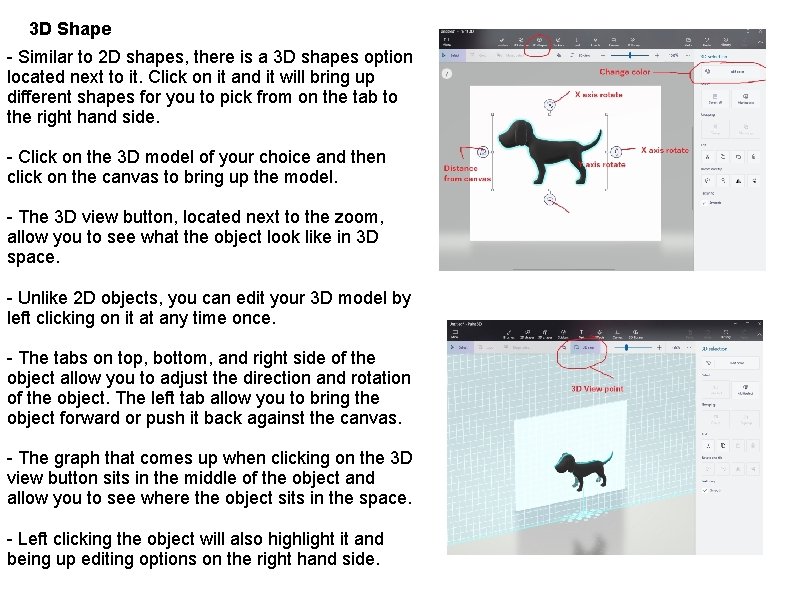
3 D Shape - Similar to 2 D shapes, there is a 3 D shapes option located next to it. Click on it and it will bring up different shapes for you to pick from on the tab to the right hand side. - Click on the 3 D model of your choice and then click on the canvas to bring up the model. - The 3 D view button, located next to the zoom, allow you to see what the object look like in 3 D space. - Unlike 2 D objects, you can edit your 3 D model by left clicking on it at any time once. - The tabs on top, bottom, and right side of the object allow you to adjust the direction and rotation of the object. The left tab allow you to bring the object forward or push it back against the canvas. - The graph that comes up when clicking on the 3 D view button sits in the middle of the object and allow you to see where the object sits in the space. - Left clicking the object will also highlight it and being up editing options on the right hand side.
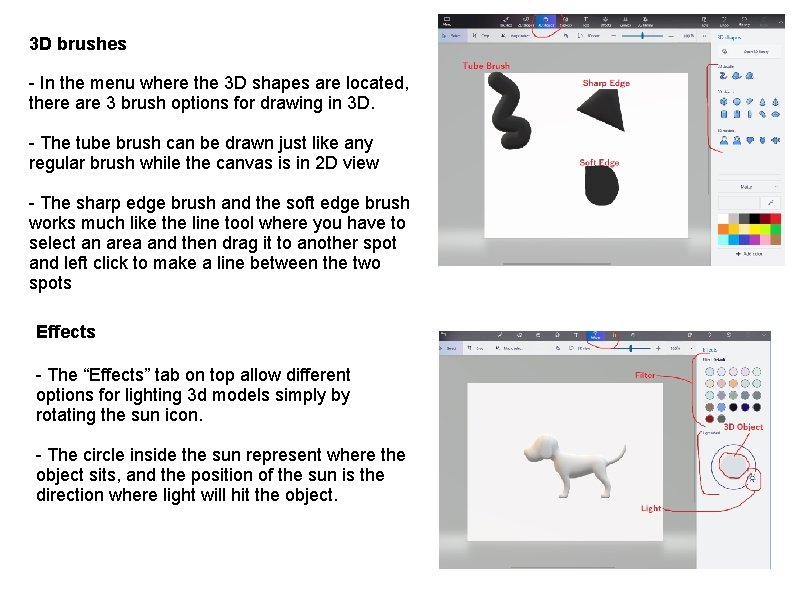
3 D brushes - In the menu where the 3 D shapes are located, there are 3 brush options for drawing in 3 D. - The tube brush can be drawn just like any regular brush while the canvas is in 2 D view - The sharp edge brush and the soft edge brush works much like the line tool where you have to select an area and then drag it to another spot and left click to make a line between the two spots Effects - The “Effects” tab on top allow different options for lighting 3 d models simply by rotating the sun icon. - The circle inside the sun represent where the object sits, and the position of the sun is the direction where light will hit the object.