
Painless Presentations Overcoming the pitfalls of public speaking
Painless Presentations: Overcoming the pitfalls of public speaking Using Visual Aids
Visual Aids The Eyes Have it
Visual Aids The Eyes Have it Visual aids get the eyes involved in the presentation • The enhance the experience for the audience • Improve interest, understanding, and memory • Contributes to speaker credibility
1 versus

Myth 1: Visual Aid = Power. Point or slide deck Slide decks are only one type of aid. You can consider: • • • A physical demonstration A sample to pass around Props Handouts Videos Any of these can help you tell your story visually
Myth 2: There is a “correct” number of slides • The correct number is what best supports your message • Some presentations only need one • Some use lots of images It’s more about what’s on the slides rather than how many
Myth 3: I need to read my slides to the audience Slides should support and emphasize your points, not act as the text of your speech. Only read to add emphasis not to help you remember If the audience CAN’T read them, you have a design problem
Myth 4: I need all of my data on my slides Data on slides should be used to help tell your story, not to prove you have data • Only add easily readable charts • Make the point clear If it’s not clear, leave it out.
2 Qualities
Aids should have: Simplicity – Audiences can’t process too much information Size – Everyone from front to back should see/read it Appeal – Consider content and appearance. Appropriateness – consider shock off limits in most scenarios
Aids should have: Reliability – if they don’t work, the don’t work. Integration – makes sure they fit into the flow of your speech Relevance – they should always add, and never distract Timeliness – use them at the right time in the presentation
3 Power. Point
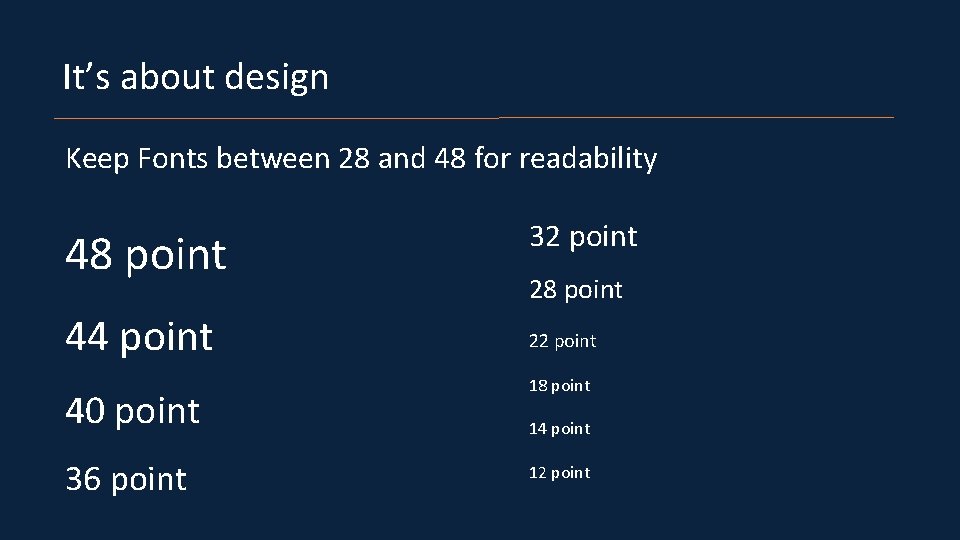
It’s about design Keep Fonts between 28 and 48 for readability 48 point 44 point 40 point 36 point 32 point 28 point 22 point 18 point 14 point 12 point
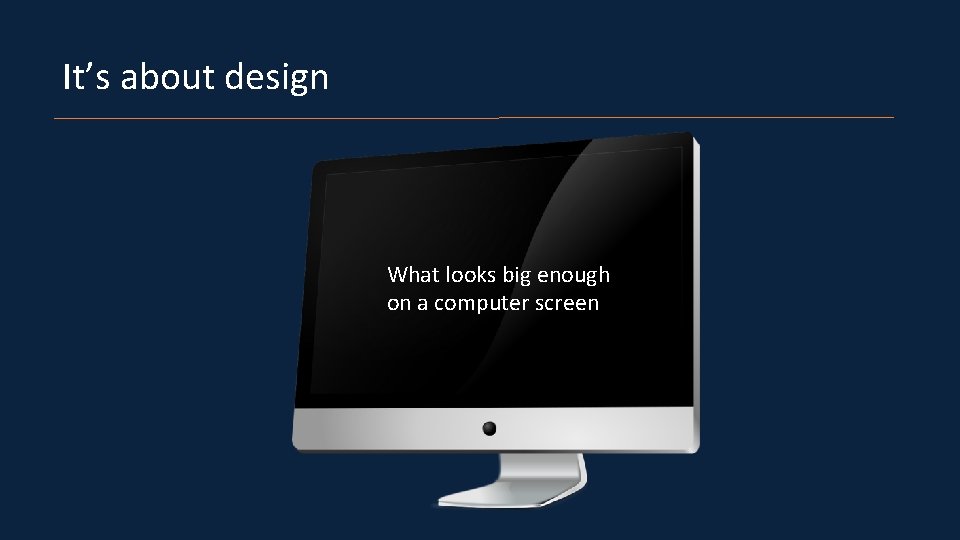
It’s about design What looks big enough on a computer screen
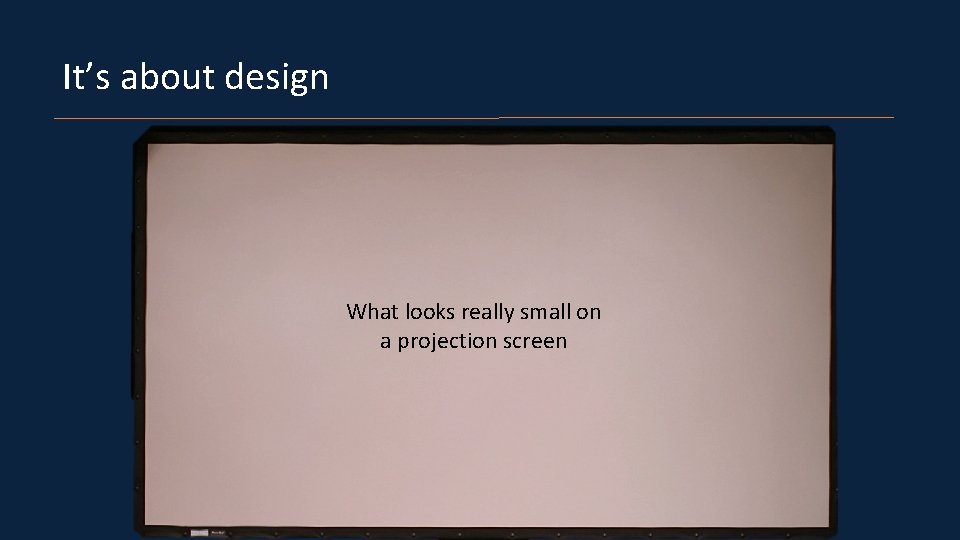
It’s about design What looks really small on a projection screen
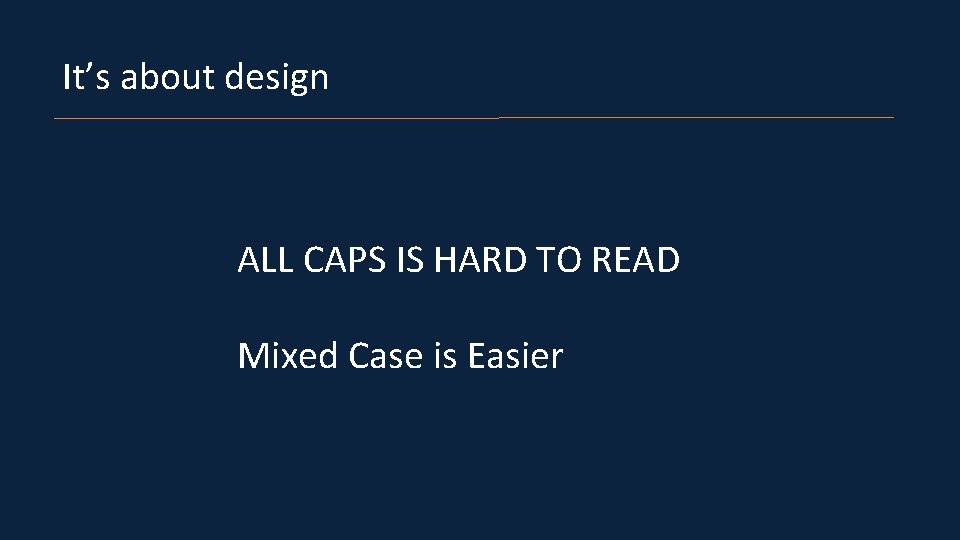
It’s about design ALL CAPS IS HARD TO READ Mixed Case is Easier
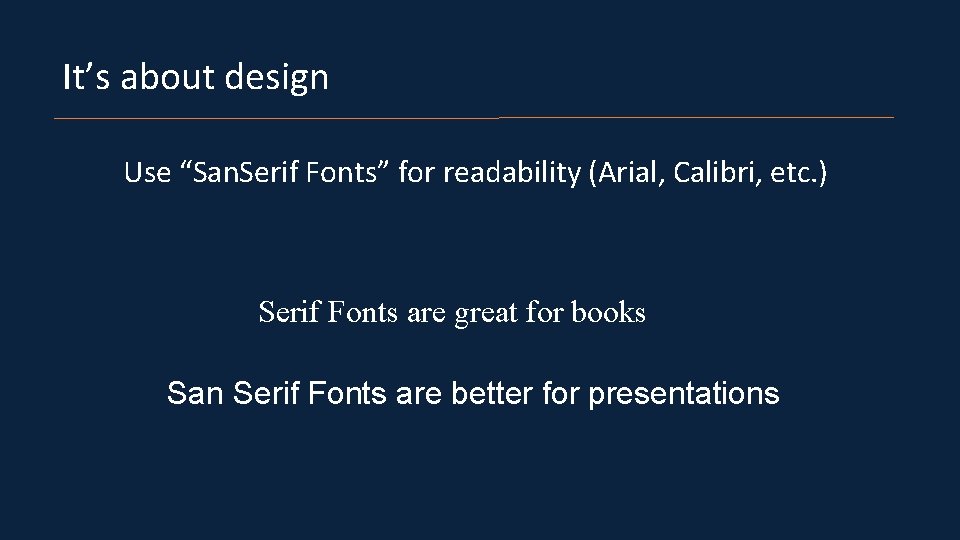
It’s about design Use “San. Serif Fonts” for readability (Arial, Calibri, etc. ) Serif Fonts are great for books San Serif Fonts are better for presentations
It’s about design Design should be clean Design should use balance Design should distribute text and photos evenly Design should use compatible color choices
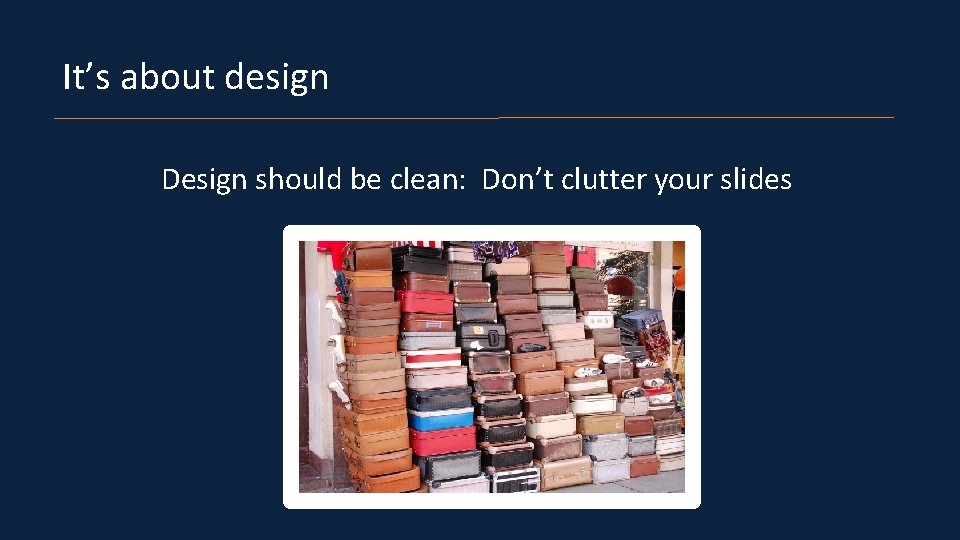
It’s about design Design should be clean: Don’t clutter your slides
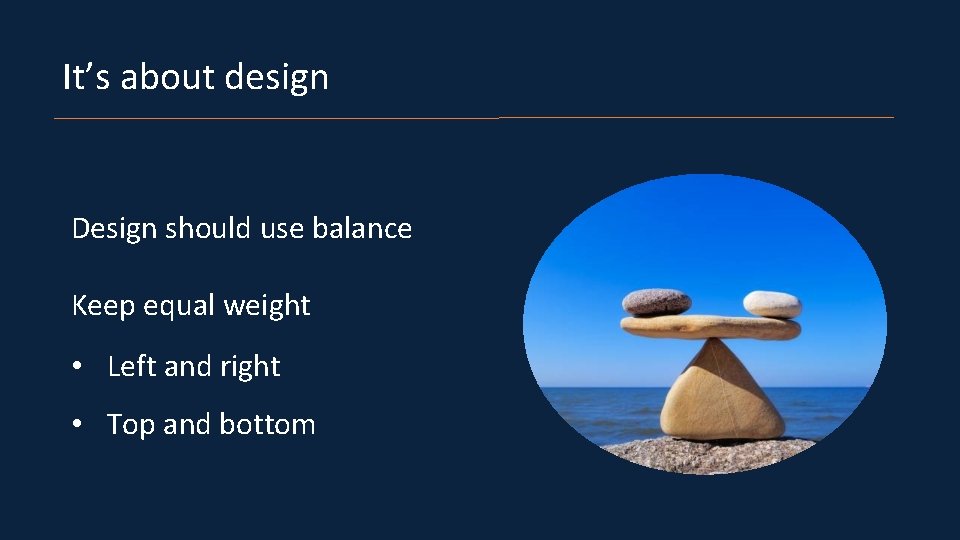
It’s about design Design should use balance Keep equal weight • Left and right • Top and bottom
Keep it simple No more than 3 -7 points at most on a slide (3 is best)
Be Mindful of Space • Make sure that you are distributing text • Don’t bunch it up at the top • You have a whole slide to use
Use Images (Properly) Choose high quality images Use Google “tools” for size & usage rights Stick to one per slide Keep it relevant
Stay Simple Animations can be distracting Audio and Video can be tricky Too much stuff confuses
3 Practice
Practice with your visual aid Know when to show your visual aid If it’s a demonstration, practice it over and over Say your speech out loud with the aids
Technical difficulties Technology may not transfer between mac, pc, or cloud Internet connections may not work well There may be no slide advancer, limiting your movement Be ready to give the speech without the visual aid
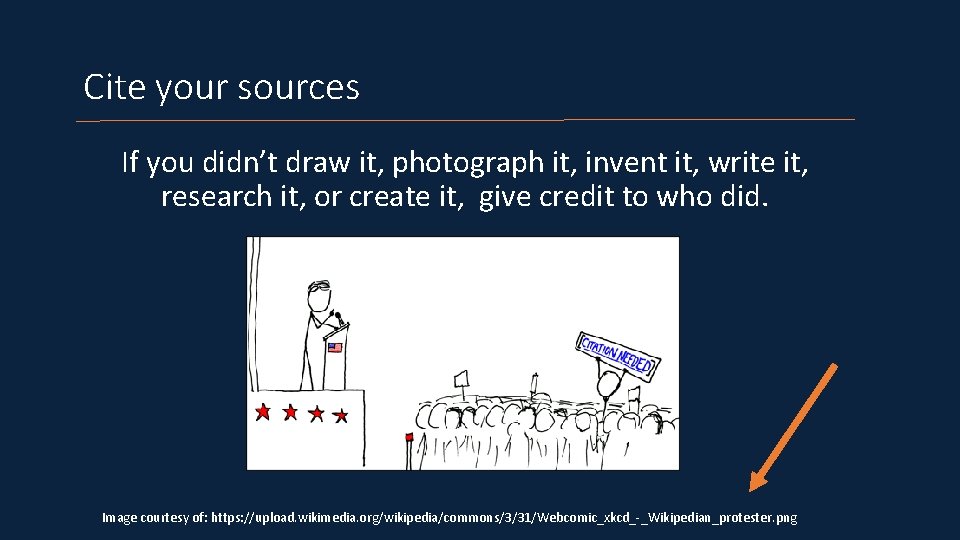
Cite your sources If you didn’t draw it, photograph it, invent it, write it, research it, or create it, give credit to who did. Image courtesy of: https: //upload. wikimedia. org/wikipedia/commons/3/31/Webcomic_xkcd_-_Wikipedian_protester. png
- Slides: 28