
PACS Picture Archive and Communication System All imaging
- Slides: 30
PACS Picture Archive and Communication System
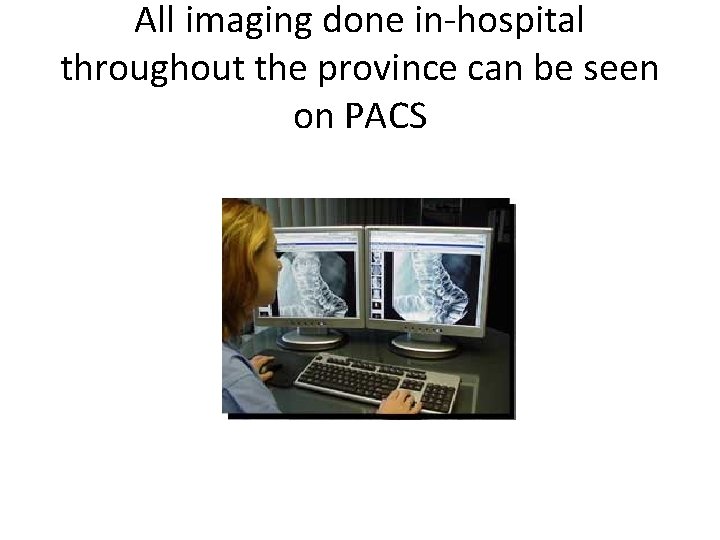
All imaging done in-hospital throughout the province can be seen on PACS
Privacy • Former Saskatoon Health Region is committed to respecting and ensuring privacy, security and confidentiality of personal health information, consistent with the Saskatchewan Health Authority Policies and Procedures and Legislative requirement (including the Health Information Protection Act (HIPA)
Audits • Images in PACS should only be viewed for the provision and support of healthcare services • Monthly audits occur and any questionable or suspicious access will be investigated • A privacy breech may be reported to the Information Privacy Commissioner(IPC)
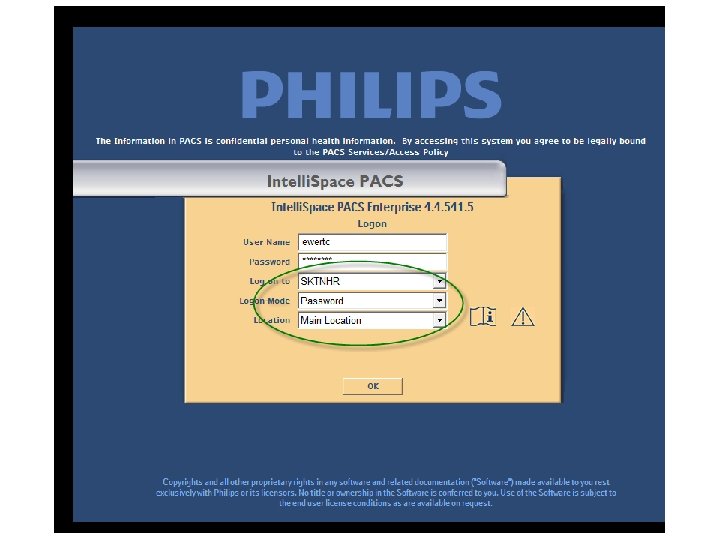
PACS icon and log-on Provincial PACS The PACS icon will look like this on any Hospital computer, if the icon is not available on the desktop you would type in http: //pacs. ehealthsask. ca/ or select PACS on the infonet under the Applications tab. Your username and password is the same as your network name and password, to reset your password call 8200 for I. T.
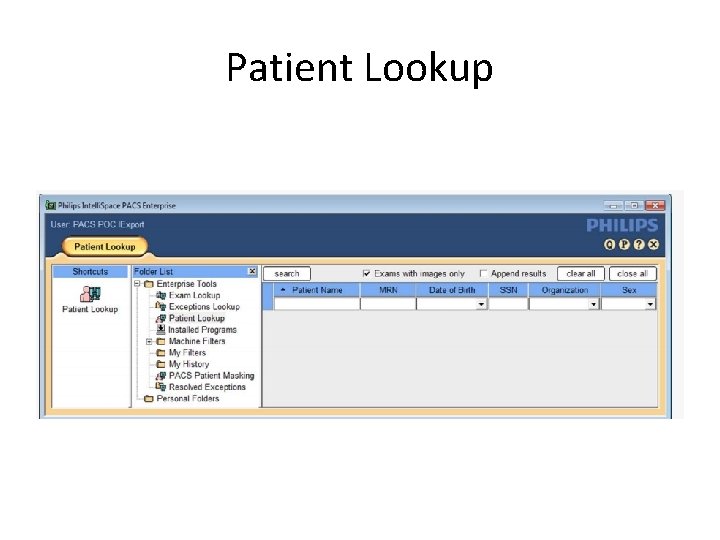
Patient Lookup
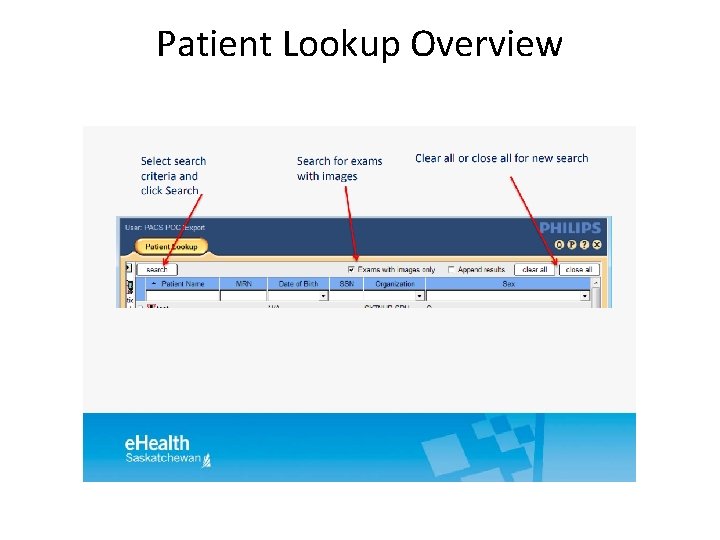
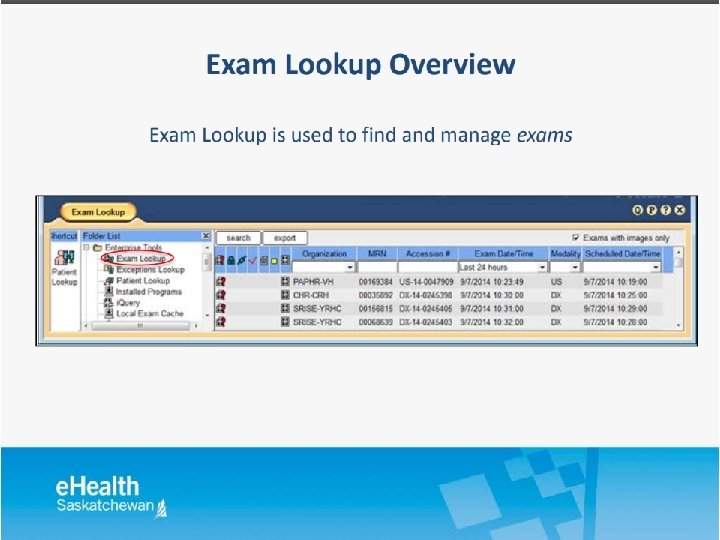
Finding your patient • Select Patient look up or Exam look up and enter one (or more) of the following patient identifiers: • Enter Last name, First name - correct spelling is necessary • MRN • HSN (SSN) • You can filter your organization to your facility
Patient Lookup Overview
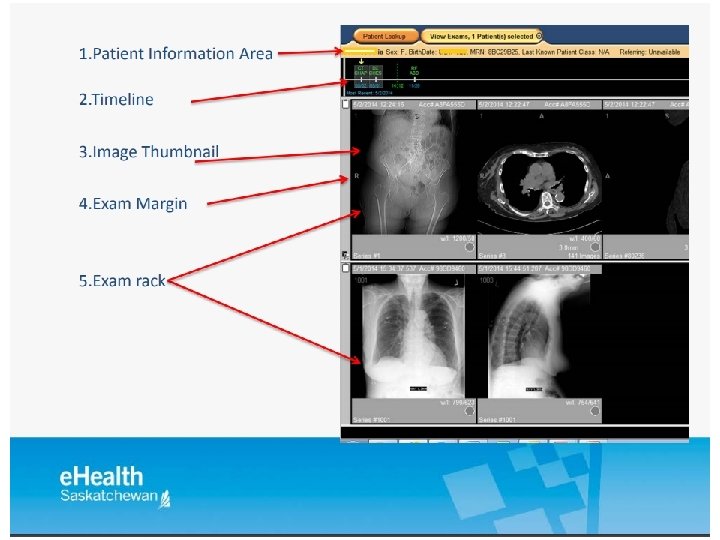
Patient Lookup • Selecting the + icon beside the patients name will show all of the in-hospital medical imaging exams the patient has had through out the province • Double click the exam to see the images • Double click the image to enlarge the image • Use the mouse wheel to scroll through images which are “stacked”- CT/MR/US • Left click and drag the mouse up/down and left/right to increase/decrease window width/level
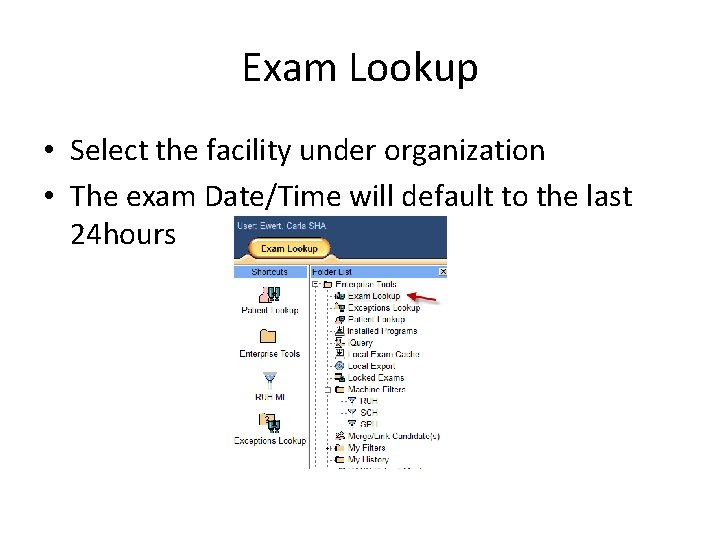
Exam Lookup • Select the facility under organization • The exam Date/Time will default to the last 24 hours
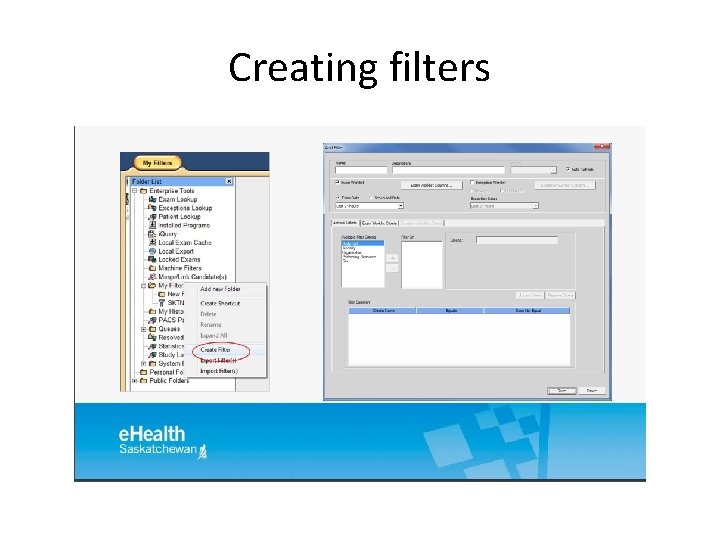
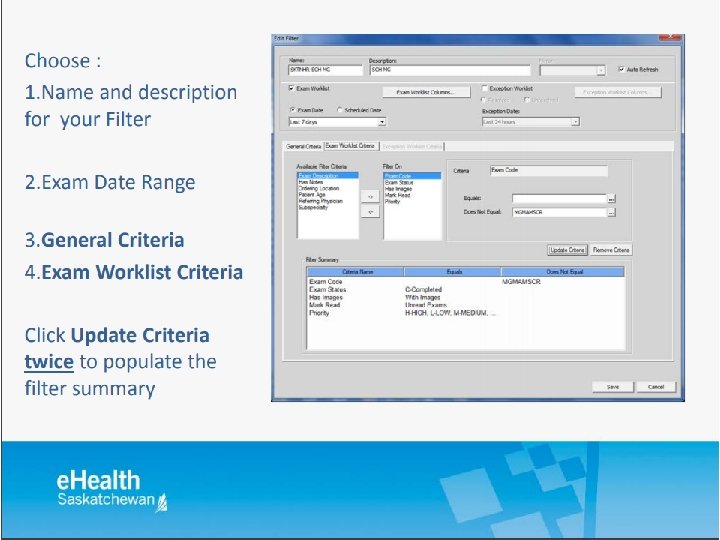
Creating filters
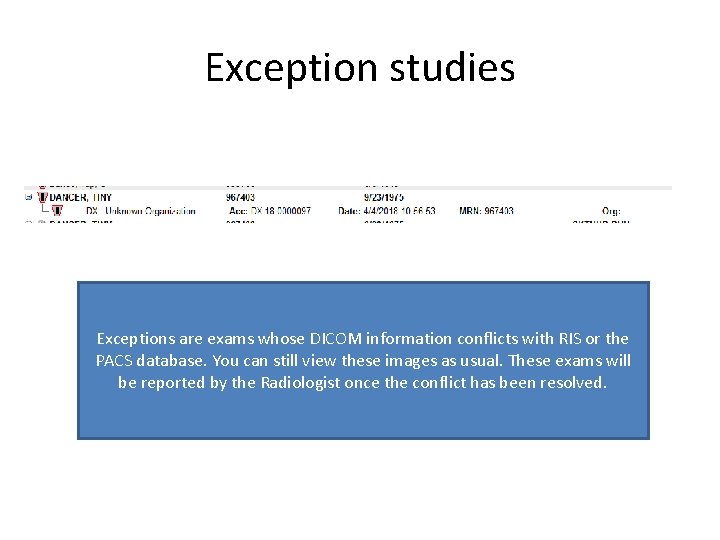
Exception studies Exceptions are exams whose DICOM information conflicts with RIS or the PACS database. You can still view these images as usual. These exams will be reported by the Radiologist once the conflict has been resolved.
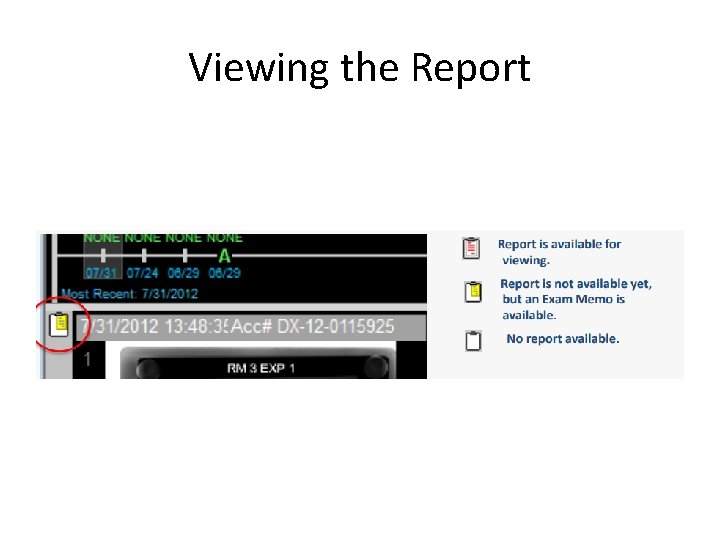
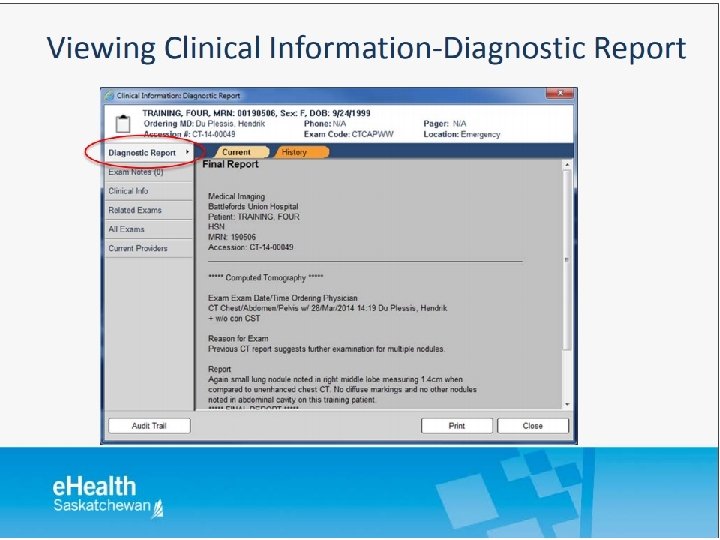
Viewing the Report
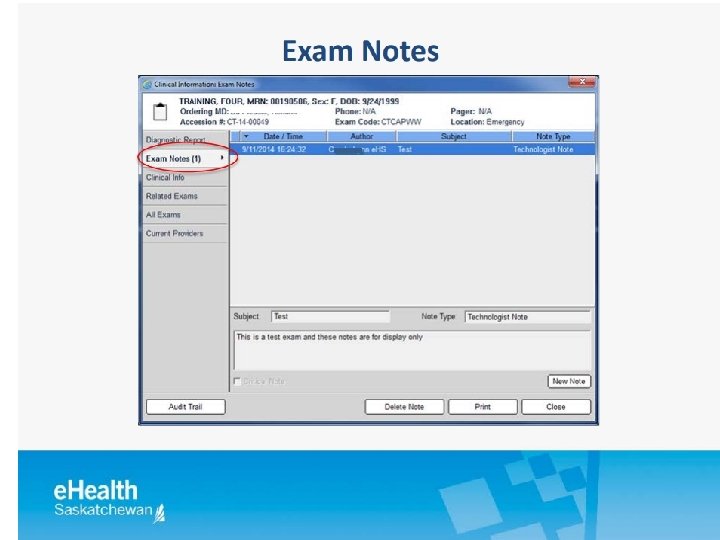
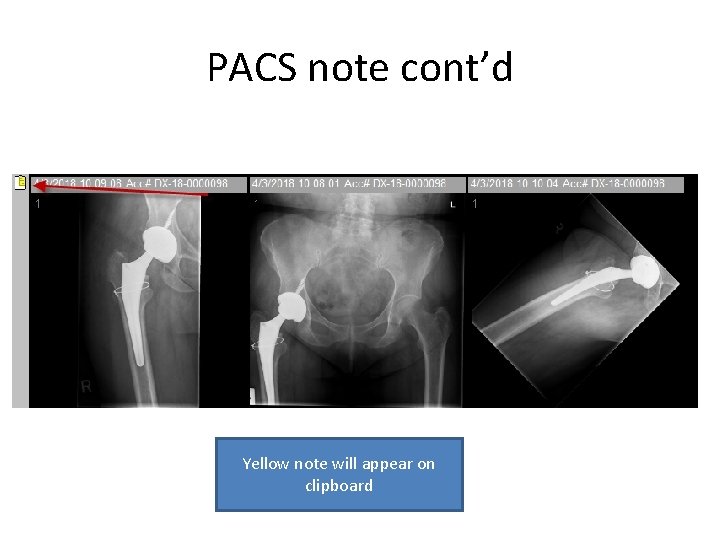
Adding exam notes • • • Select new note Enter a subject Select either 1 -ED Phys note or 5 - exam note Type in your note Save note
PACS note cont’d Yellow note will appear on clipboard
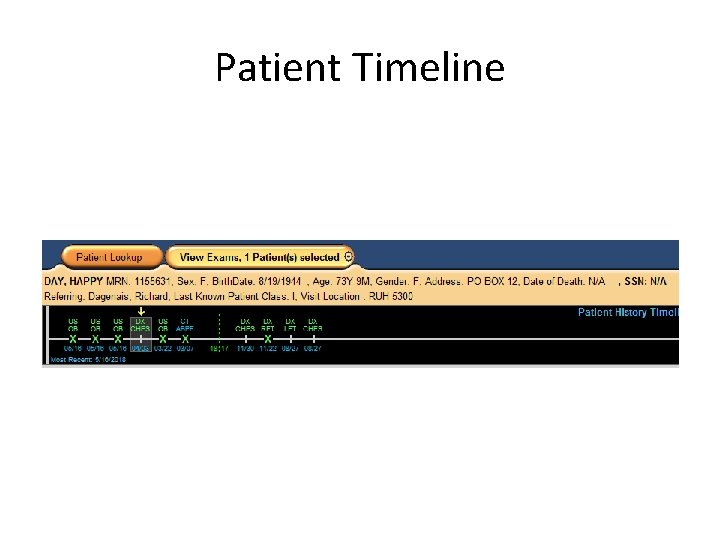
Patient Timeline
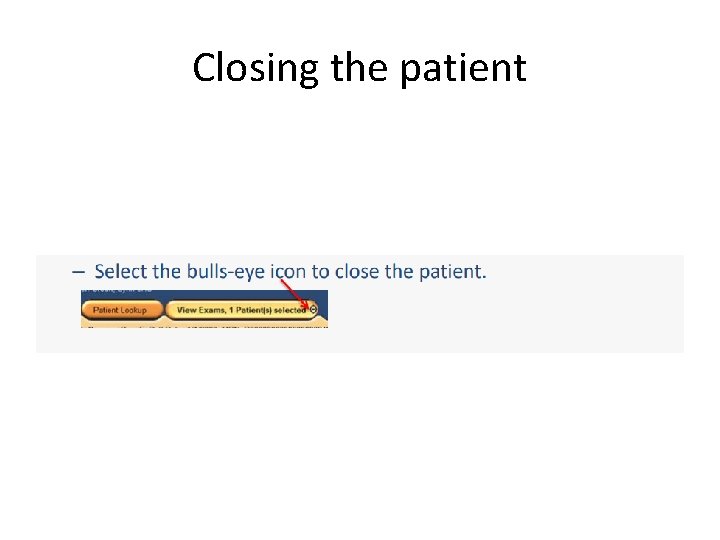
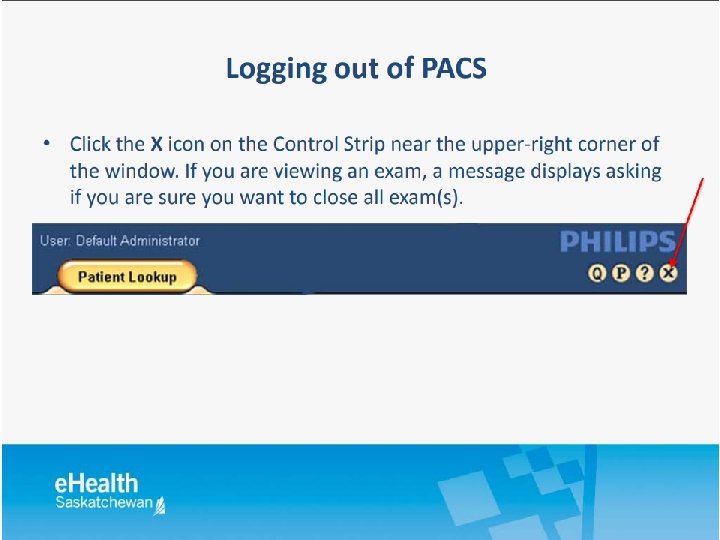
Closing the patient
Exams burnt to a disc • If you are doing a research study or project you can contact filing in Medical Imaging to have an exam burned to a disc. • There is a form to fill out and the document is scanned into the patient exam.
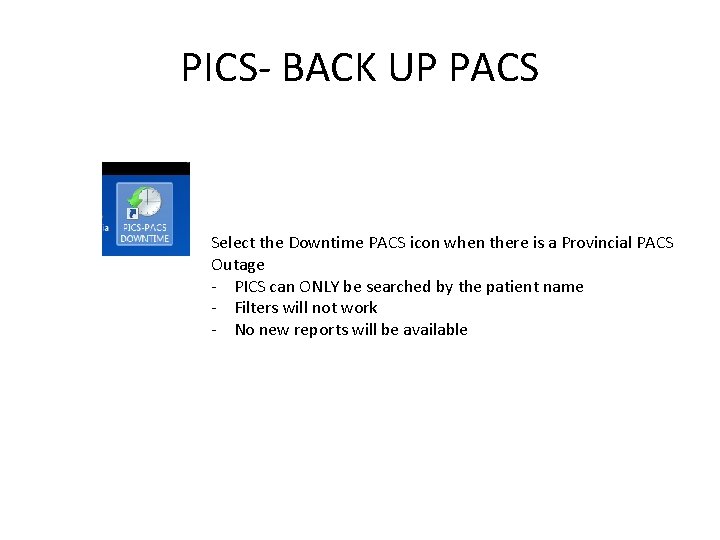
PICS- BACK UP PACS Select the Downtime PACS icon when there is a Provincial PACS Outage - PICS can ONLY be searched by the patient name - Filters will not work - No new reports will be available
Anywhere Viewer A non-diagnostic application to be used for review purposes only. Users can review patient and exam information, images and reports. Anywhere viewer can be used outside of the hospital and on any non-windows device. URL is https: //pacs-viewer. ehealthsask. ca Your PACs password cannot contain @#$%^& for Anywhere viewer to work
Questions? From Internet Explorer: Type https: //vpn. ehealthsask. ca/sktnhrpacs