
Overview to the CEDARS Data Warehouse CDW October
Overview to the CEDARS Data Warehouse (CDW) October 2020
Topics • What is the CDW? • Security Requirements • Registering for Access • Dashboard Demo • Resources 2
The CDW is: • Historical data for trending and analysis • Multiple NCDPI authoritative sources • Federal, state & local level reporting • Accessible to State, LEA & School level staff • Secure - authenticate using NCID 3
The CDW is Not: • Replacing any operational systems (Power. School, CECAS, Licensure) • Real time, transactional data • Open to the public 4

What Systems Feed the CDW? EDDIE • LEA and School Directory Power. School: • Homeless • Immigrant • LEP • Migrant ECATS (Exceptional Children) • Disability, LRE setting, exit reason Accountability • Assessments, EOG, and EOC UID Staff • Staff Demographics Licensure • Licensing and Certifications 5

What data is in the CDW? Examples include, but are not limited to the following: • LEA : Dropout Rate, Graduation Rate, General Ledger, Assessment participation (performance ‘met/not met’) • School: Demographics and characteristics (Charter / ALP / Magnet Status) • Student: Demographics, Enrollment, Attendance, Course and Grades, Assessments and Program Participation, Discipline Data • Staff: Demographics, Hire Date, National Board Certification, Highest Degree Earned 6
Student & Staff - Sensitive Data • Collected at the Detail level, meaning records specific to the individual student and staff member are collected • PII – ‘Personally Identifiable Information’ and must be protected • No detail level data is used for Federal Reporting • FERPA guidelines are enforced and dictate how any detail level data is to be used 7
Who Could Benefit From Having Access? • Administrators • Tech Directors • Data Analysts / Report Writers • Coordinators (all programs, including Power. School) • Data Managers • The list goes on and on… 8

What Type of Access Can I Request? • LEA Detail Answers “Super Powers” – complete visibility • LEA Users Detail “One Click” dashboard reports with drill down to sensitive data • Security Officer “Super Powers” to registration system only • School Users Detail “One Click” dashboard reports with drill down to sensitive data 9
Who Determines Who Has Access? • All LEAs/Charters must have a Security Officer to manage access to the CDW. • If no Security Officer is assigned, no registration requests will be granted. • LEAs and Charters should create a process for granting access to the CDW to ensure personnel have the appropriate visibility into the system. 10
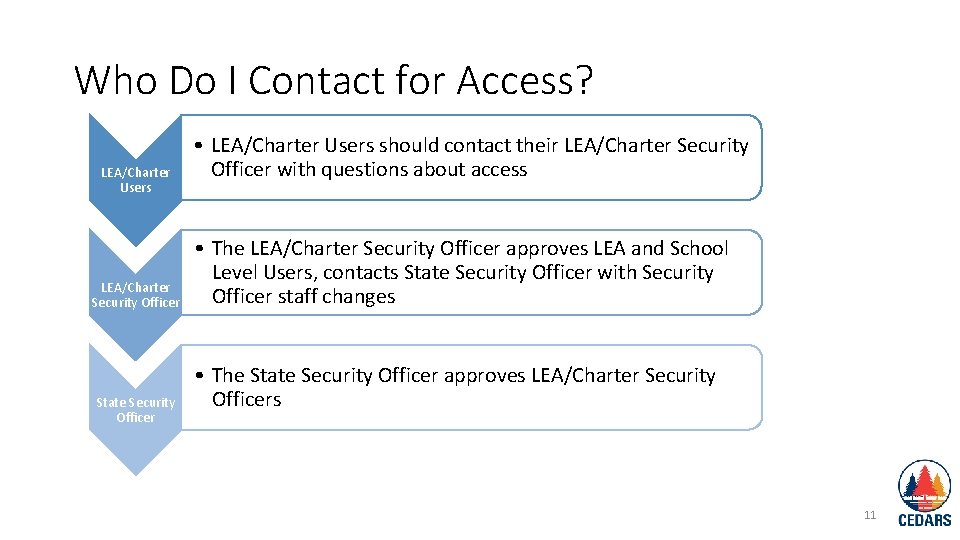
Who Do I Contact for Access? LEA/Charter Users LEA/Charter Security Officer State Security Officer • LEA/Charter Users should contact their LEA/Charter Security Officer with questions about access • The LEA/Charter Security Officer approves LEA and School Level Users, contacts State Security Officer with Security Officer staff changes • The State Security Officer approves LEA/Charter Security Officers 11
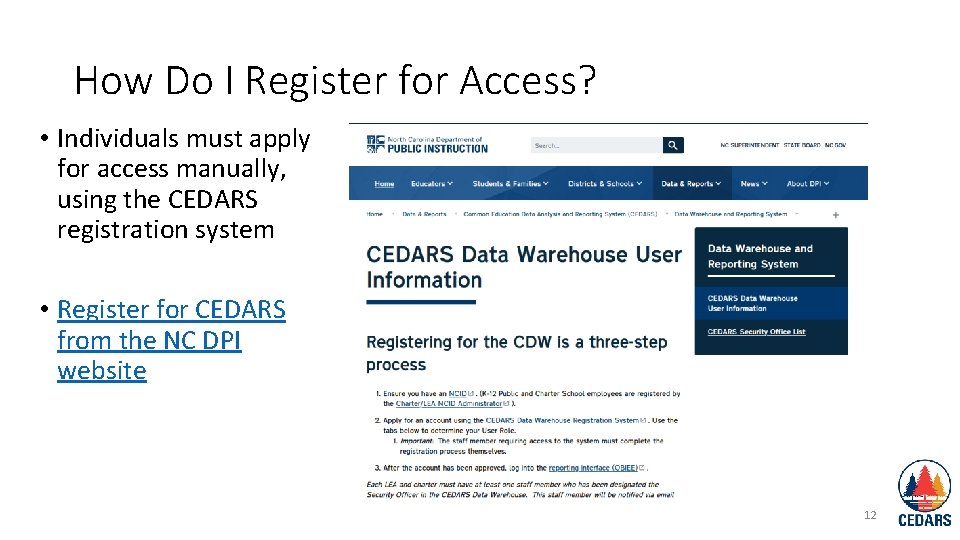
How Do I Register for Access? • Individuals must apply for access manually, using the CEDARS registration system • Register for CEDARS from the NC DPI website 12
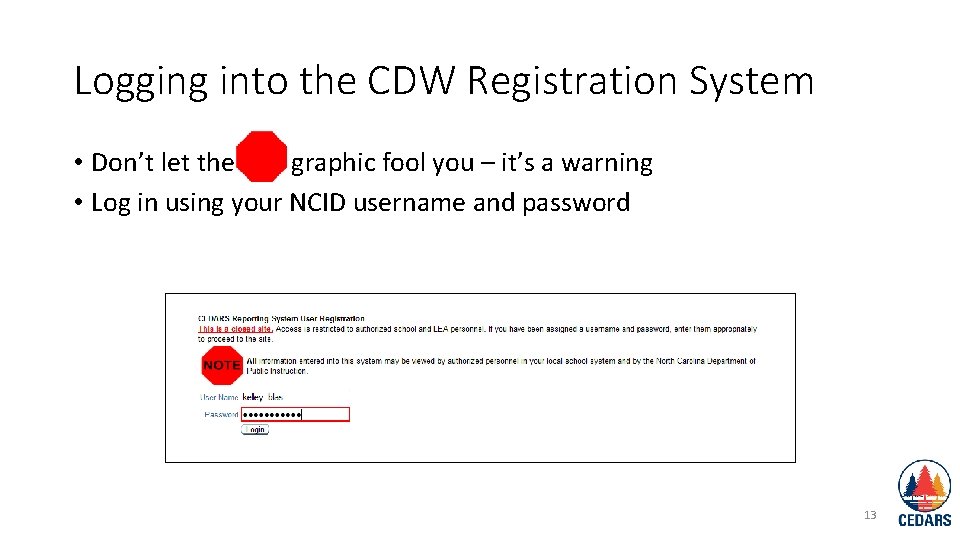
Logging into the CDW Registration System • Don’t let the graphic fool you – it’s a warning • Log in using your NCID username and password 13
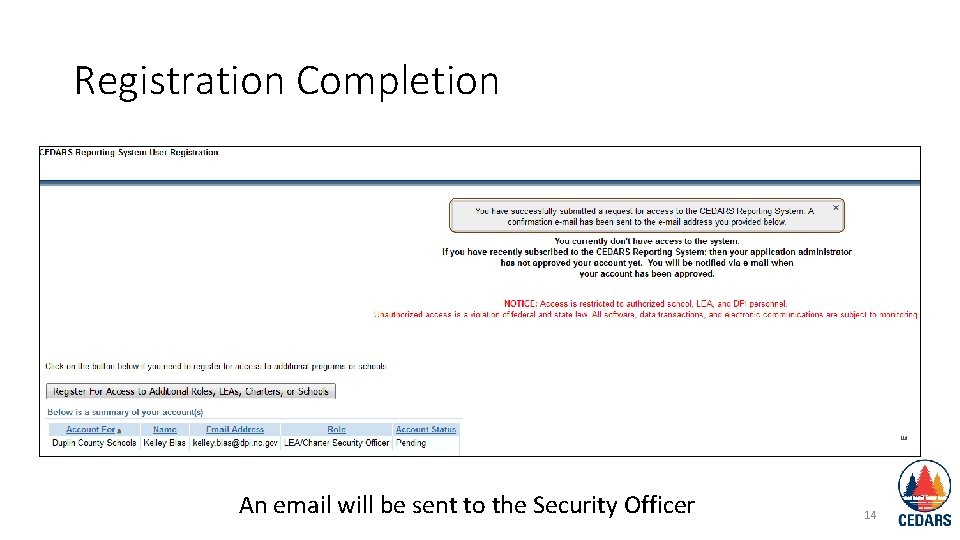
Registration Completion An email will be sent to the Security Officer 14

Tips for Registering for Access 1. Security Officers must apply for a second role in the registration system to access the CDW 2. CDW Users only need one role to access the system 3. The NC Public Schools website offers a contact list of the LEA’s Security Officers and is updated monthly 4. Authentication is based on NCID for any ‘CEDARS’ related application 15
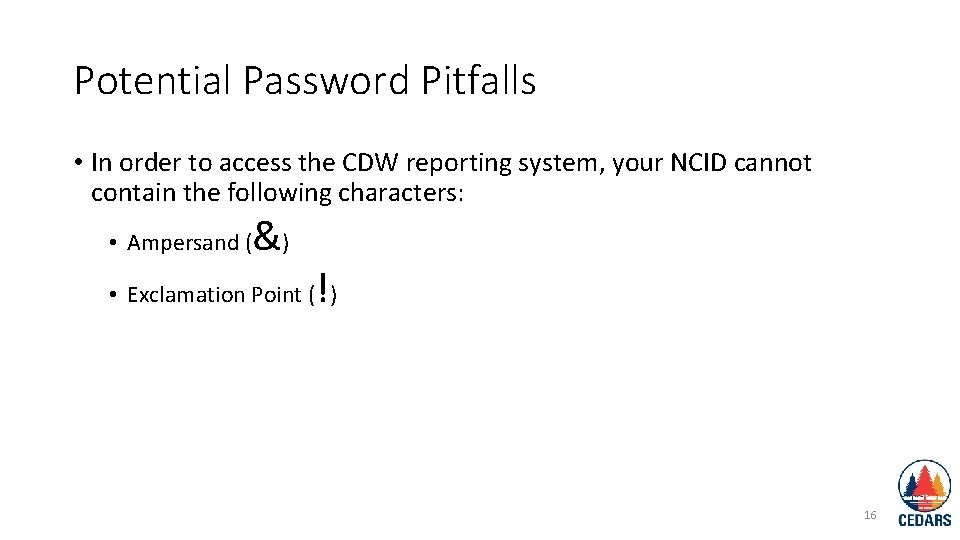
Potential Password Pitfalls • In order to access the CDW reporting system, your NCID cannot contain the following characters: • Ampersand ( &) ! • Exclamation Point ( ) 16
Do Browsers Make A Difference? • Yes, they do!! • Use Mozilla Firefox for the best results! 17

Logging into the CDW Log in using your NCID username and password 18
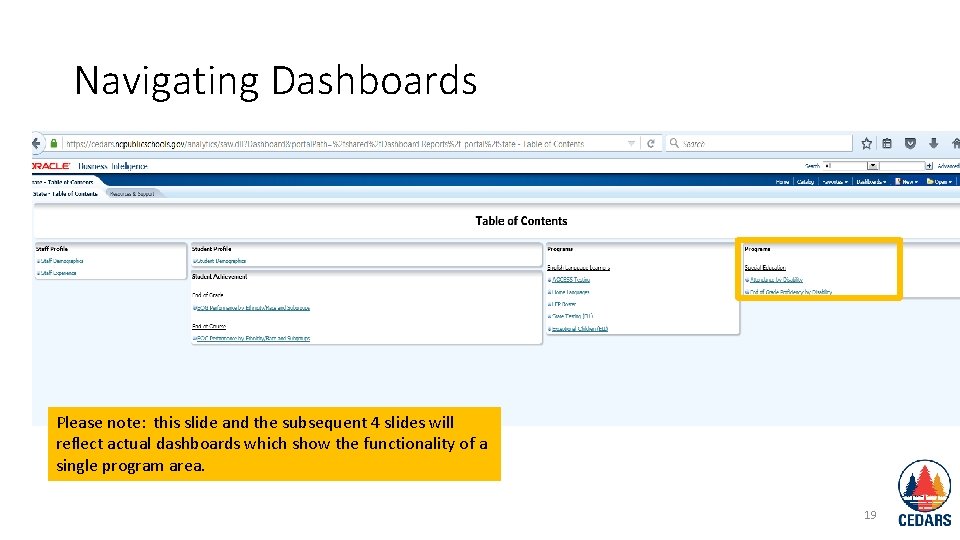
Navigating Dashboards Please note: this slide and the subsequent 4 slides will reflect actual dashboards which show the functionality of a single program area. 19
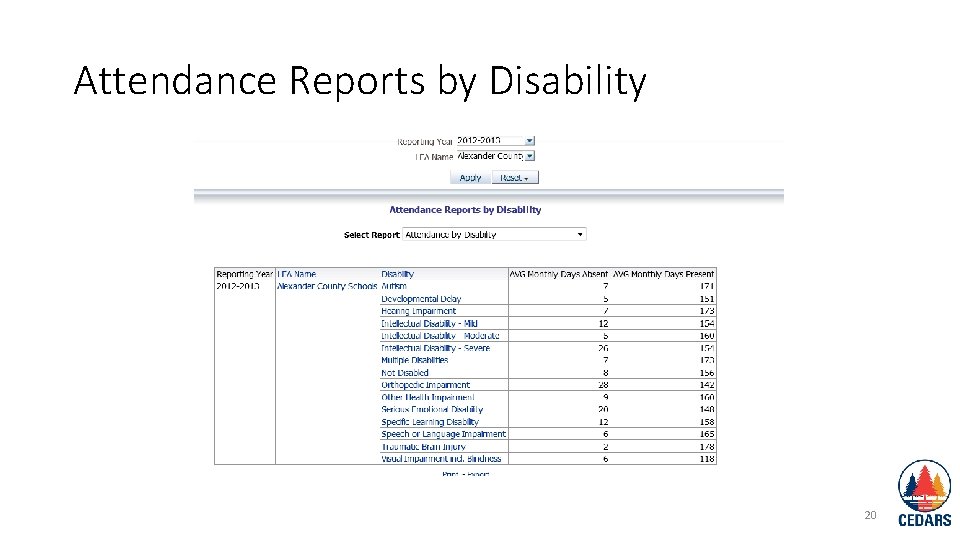
Attendance Reports by Disability 20
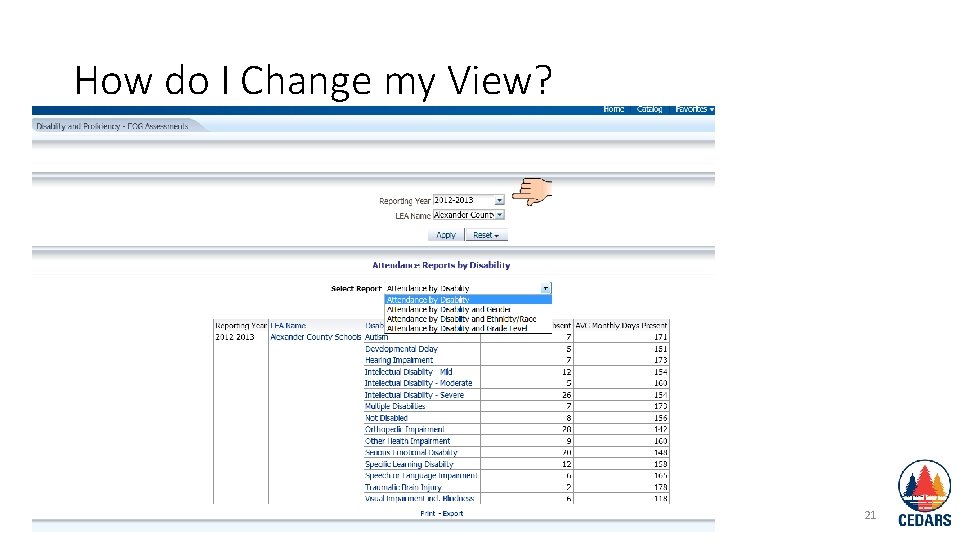
How do I Change my View? 21
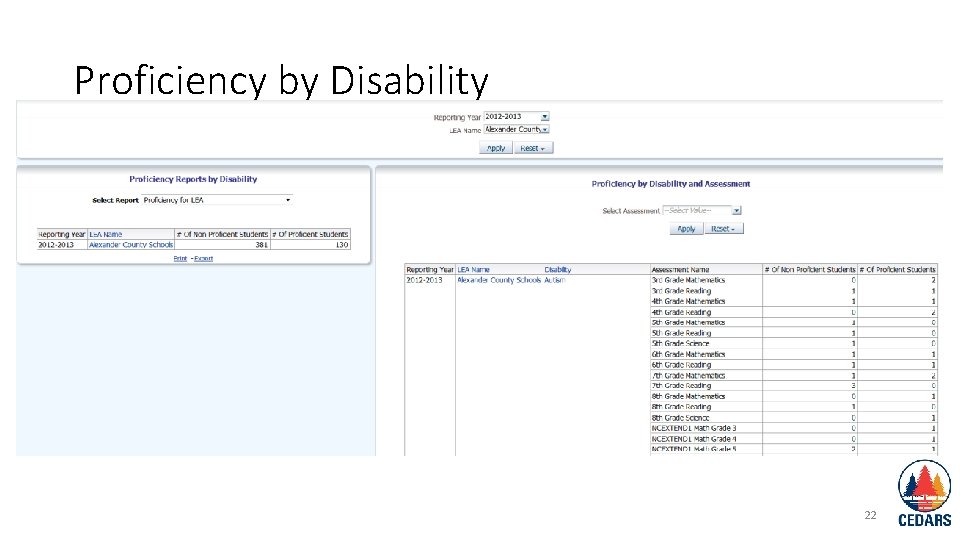
Proficiency by Disability 22
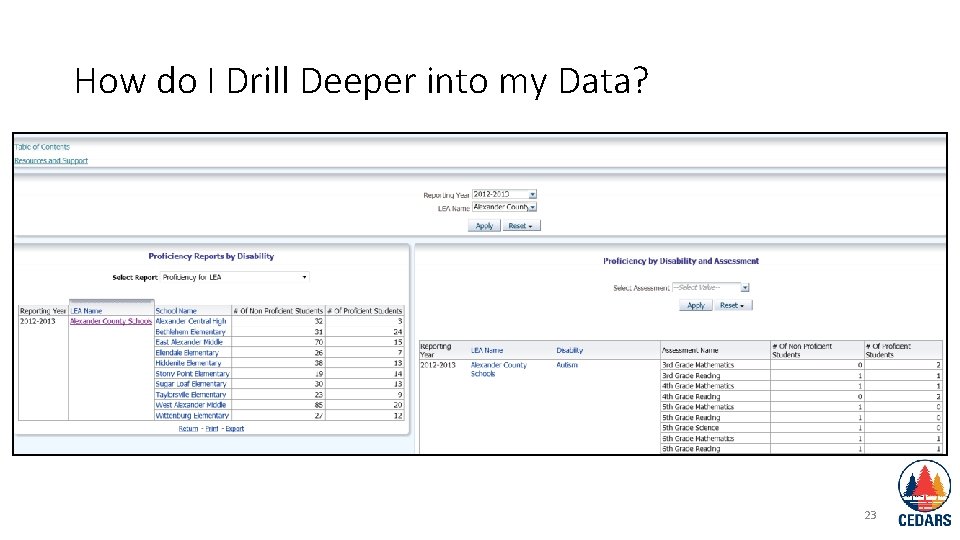
How do I Drill Deeper into my Data? 23
Resources • Registering for the CEDARS Data Warehouse • Security Officer Administration Guide • Viewing Pre-created Dashboards • Creating Reports • CEDARS Data Dictionary • Overview to the CEDARS Data Warehouse (ppt) • Understanding Subject Areas (ppt) CEDARS is located under “Data and Reports” on the NC DPI website 24
- Slides: 24