
Overview The shell is one of the main

![Shell variables p Define a variable or Assign a new value n variable_name=[value] p](https://slidetodoc.com/presentation_image_h2/de54fca8d975b200c76e5245214238c9/image-23.jpg "Shell variables p Define a variable or Assign a new value n variable_name=[value] p")
![Positional Parameters p Example: [ruihong@dafinn ~/cs 3451]$ more display_5 args echo you are running](https://slidetodoc.com/presentation_image_h2/de54fca8d975b200c76e5245214238c9/image-43.jpg "Positional Parameters p Example: [ruihong@dafinn ~/cs 3451]$ more display_5 args echo you are running")
![Positional Parameters p Example: [ruihong@dafinn ~/cs 3451]$ more. /demo_shift echo $1 $2 $3 shift](https://slidetodoc.com/presentation_image_h2/de54fca8d975b200c76e5245214238c9/image-45.jpg "Positional Parameters p Example: [ruihong@dafinn ~/cs 3451]$ more. /demo_shift echo $1 $2 $3 shift")

- Slides: 52
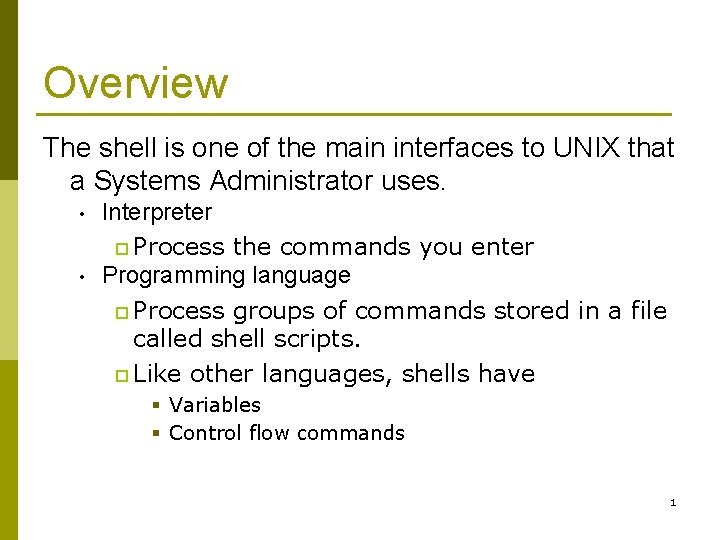
Overview The shell is one of the main interfaces to UNIX that a Systems Administrator uses. • • Interpreter p Process the commands you enter Programming language p Process groups of commands stored in a file called shell scripts. p Like other languages, shells have § Variables § Control flow commands 1
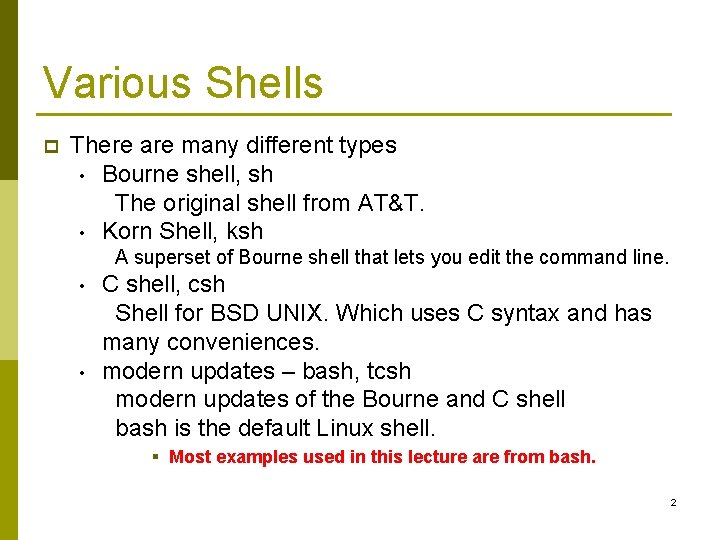
Various Shells p There are many different types • Bourne shell, sh The original shell from AT&T. • Korn Shell, ksh A superset of Bourne shell that lets you edit the command line. • • C shell, csh Shell for BSD UNIX. Which uses C syntax and has many conveniences. modern updates – bash, tcsh modern updates of the Bourne and C shell bash is the default Linux shell. § Most examples used in this lecture are from bash. 2
Shells are programs p Shells are just executable programs. n p Different shells use different syntax and provide different services. You can start any shell at anytime n Example: $sh $csh p You exit a shell with n p logout, exit or CTRL-D Each user has an entry in the /etc/passwd file which includes the name of the shell to execute. 3
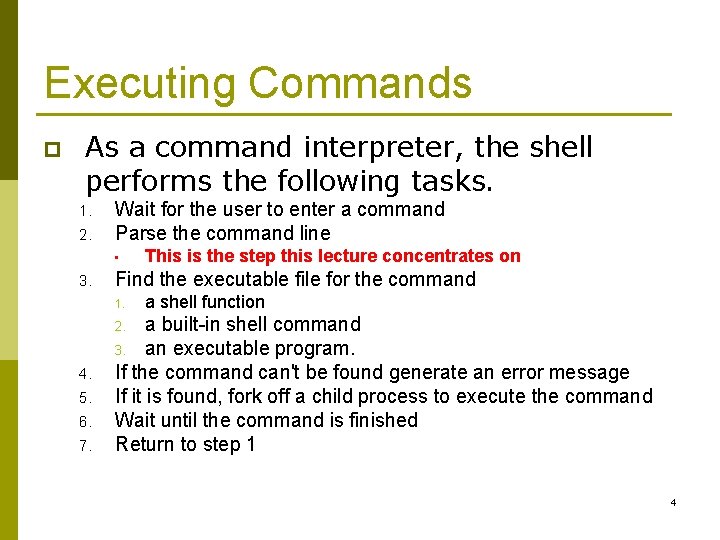
Executing Commands p As a command interpreter, the shell performs the following tasks. 1. 2. Wait for the user to enter a command Parse the command line • 3. This is the step this lecture concentrates on Find the executable file for the command 1. a shell function a built-in shell command 3. an executable program. If the command can't be found generate an error message If it is found, fork off a child process to execute the command Wait until the command is finished Return to step 1 2. 4. 5. 6. 7. 4
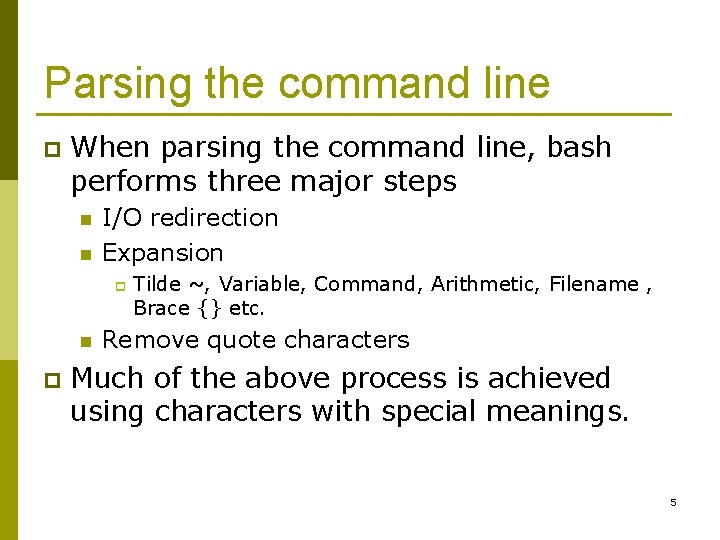
Parsing the command line p When parsing the command line, bash performs three major steps n n I/O redirection Expansion p Tilde ~, Variable, Command, Arithmetic, Filename , Brace {} etc. Remove quote characters Much of the above process is achieved using characters with special meanings. 5
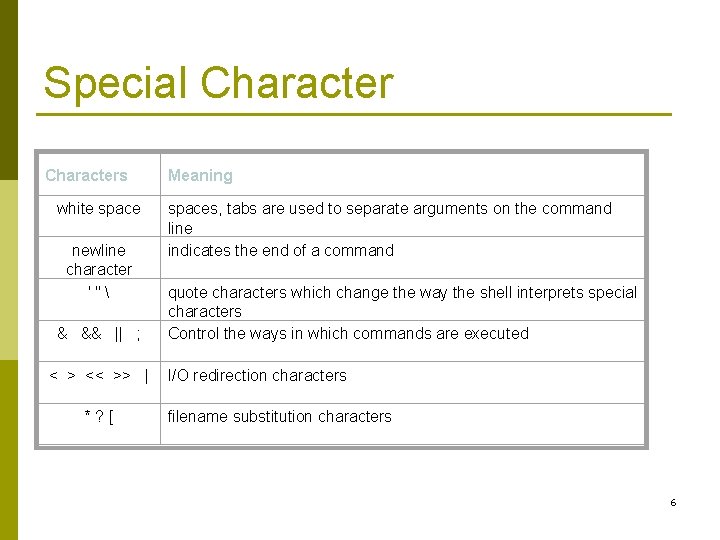
Special Characters white space newline character '" & && || ; < > << >> | *? [ Meaning spaces, tabs are used to separate arguments on the command line indicates the end of a command quote characters which change the way the shell interprets special characters Control the ways in which commands are executed I/O redirection characters filename substitution characters 6
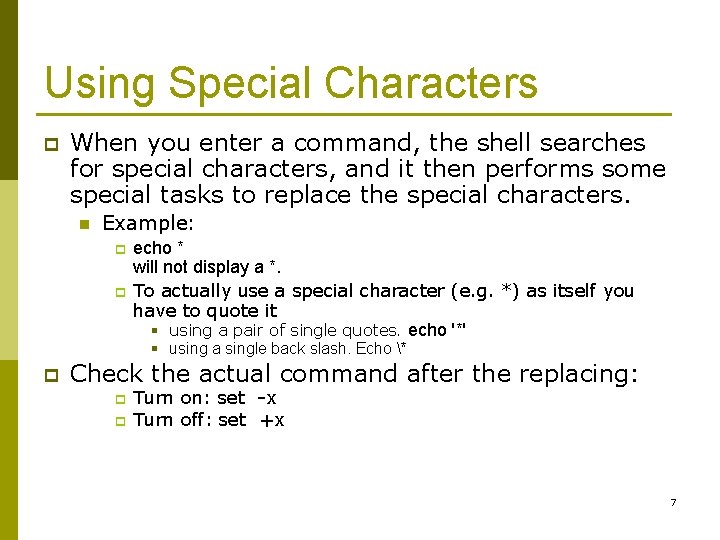
Using Special Characters p When you enter a command, the shell searches for special characters, and it then performs some special tasks to replace the special characters. n Example: p p echo * will not display a *. To actually use a special character (e. g. *) as itself you have to quote it § using a pair of single quotes. echo '*' § using a single back slash. Echo * p Check the actual command after the replacing: p p Turn on: set –x Turn off: set +x 7
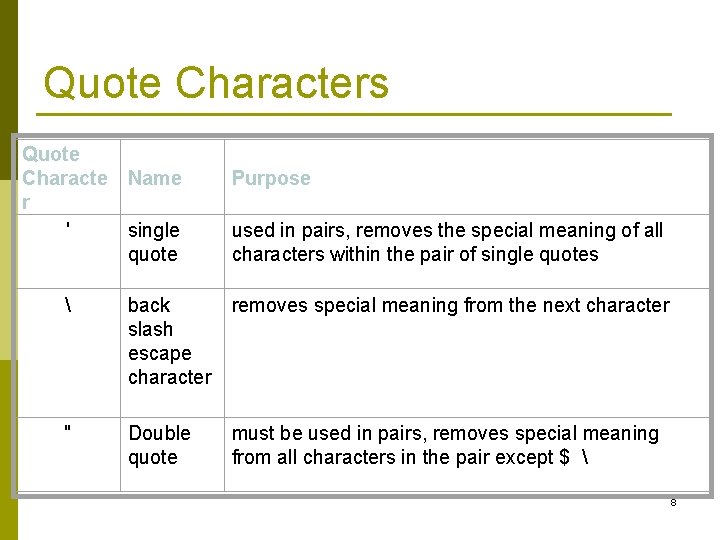
Quote Characters Quote Characte r ' Name Purpose single quote used in pairs, removes the special meaning of all characters within the pair of single quotes back slash escape character removes special meaning from the next character " Double quote must be used in pairs, removes special meaning from all characters in the pair except $ 8
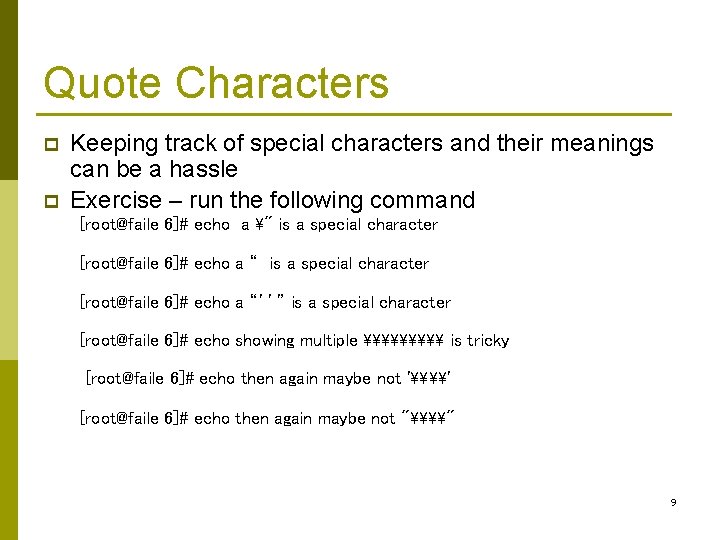
Quote Characters p p Keeping track of special characters and their meanings can be a hassle Exercise – run the following command [root@faile 6]# echo a " is a special character [root@faile 6]# echo a “’’” is a special character [root@faile 6]# echo showing multiple \\ is tricky [root@faile 6]# echo then again maybe not '\\' [root@faile 6]# echo then again maybe not "\\" 9
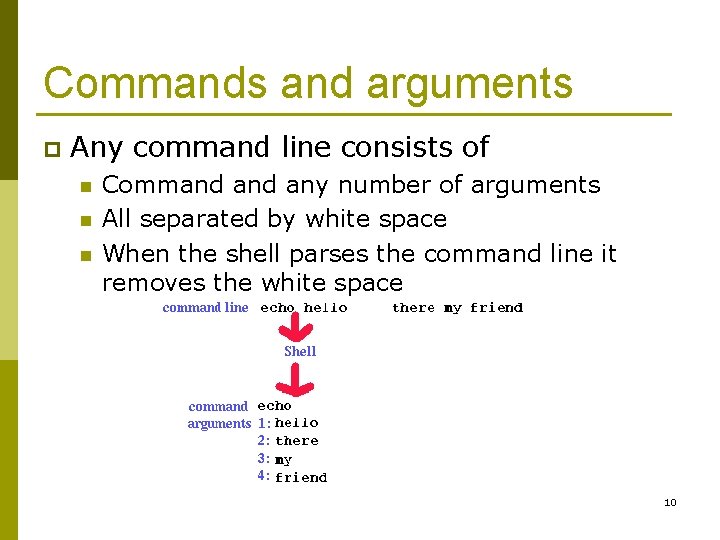
Commands and arguments p Any command line consists of n n n Command any number of arguments All separated by white space When the shell parses the command line it removes the white space 10
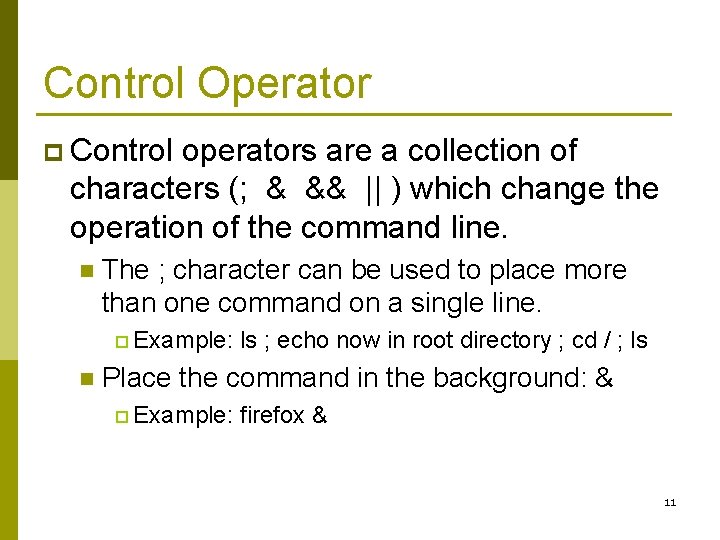
Control Operator p Control operators are a collection of characters (; & && || ) which change the operation of the command line. n The ; character can be used to place more than one command on a single line. p Example: n ls ; echo now in root directory ; cd / ; ls Place the command in the background: & p Example: firefox & 11
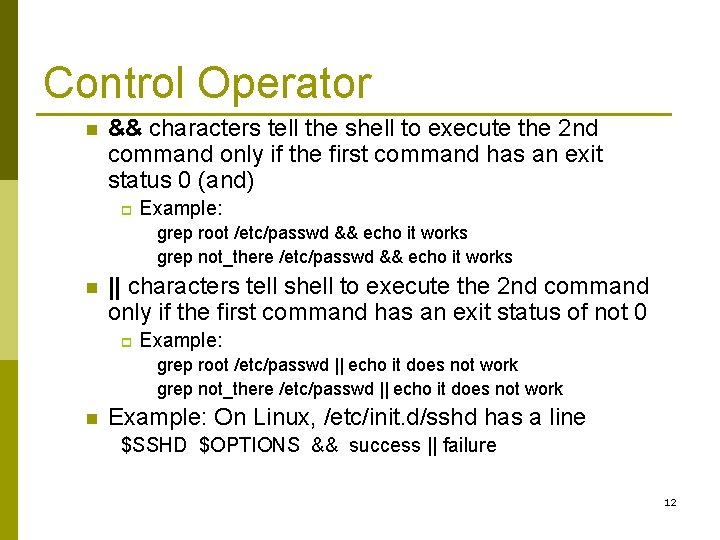
Control Operator n && characters tell the shell to execute the 2 nd command only if the first command has an exit status 0 (and) p Example: grep root /etc/passwd && echo it works grep not_there /etc/passwd && echo it works n || characters tell shell to execute the 2 nd command only if the first command has an exit status of not 0 p Example: grep root /etc/passwd || echo it does not work grep not_there /etc/passwd || echo it does not work n Example: On Linux, /etc/init. d/sshd has a line $SSHD $OPTIONS && success || failure 12
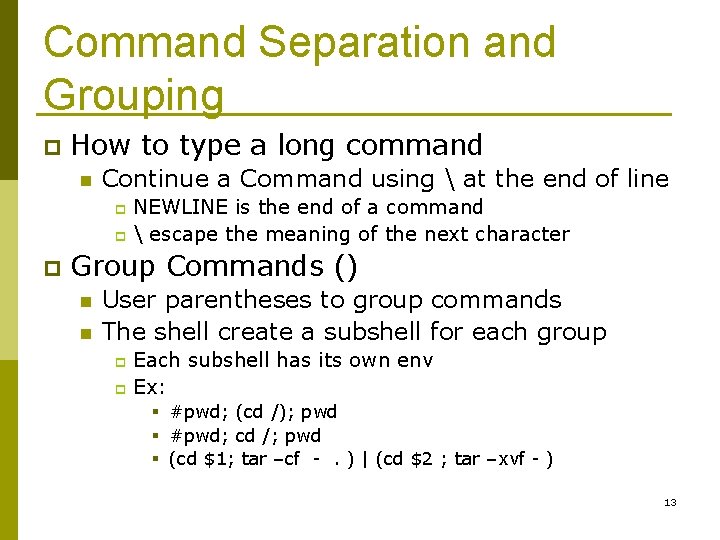
Command Separation and Grouping p How to type a long command n Continue a Command using at the end of line NEWLINE is the end of a command p escape the meaning of the next character p p Group Commands () n n User parentheses to group commands The shell create a subshell for each group Each subshell has its own env p Ex: p § #pwd; (cd /); pwd § #pwd; cd /; pwd § (cd $1; tar –cf -. ) | (cd $2 ; tar –xvf - ) 13
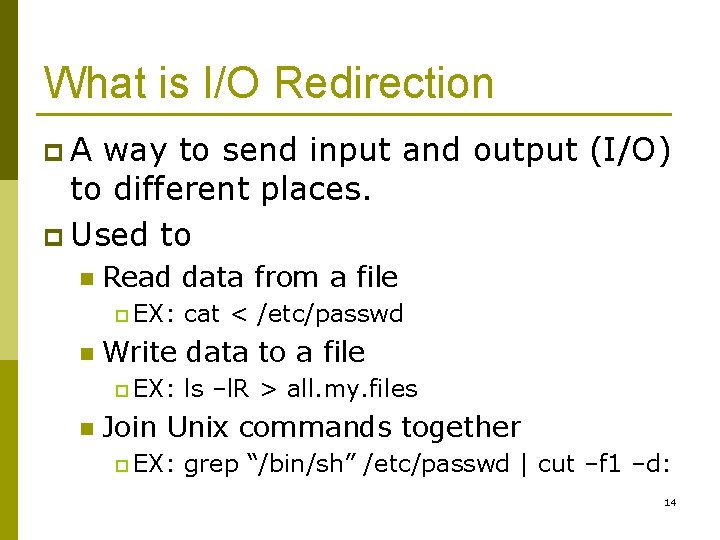
What is I/O Redirection p. A way to send input and output (I/O) to different places. p Used to n Read data from a file p EX: n Write data to a file p EX: n cat < /etc/passwd ls –l. R > all. my. files Join Unix commands together p EX: grep “/bin/sh” /etc/passwd | cut –f 1 –d: 14
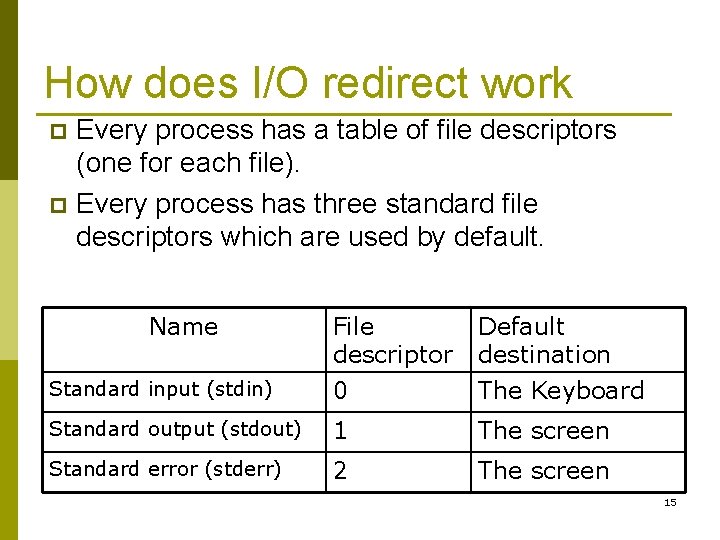
How does I/O redirect work Every process has a table of file descriptors (one for each file). p Every process has three standard file descriptors which are used by default. p Name File descriptor Default destination Standard input (stdin) 0 The Keyboard Standard output (stdout) 1 The screen Standard error (stderr) 2 The screen 15
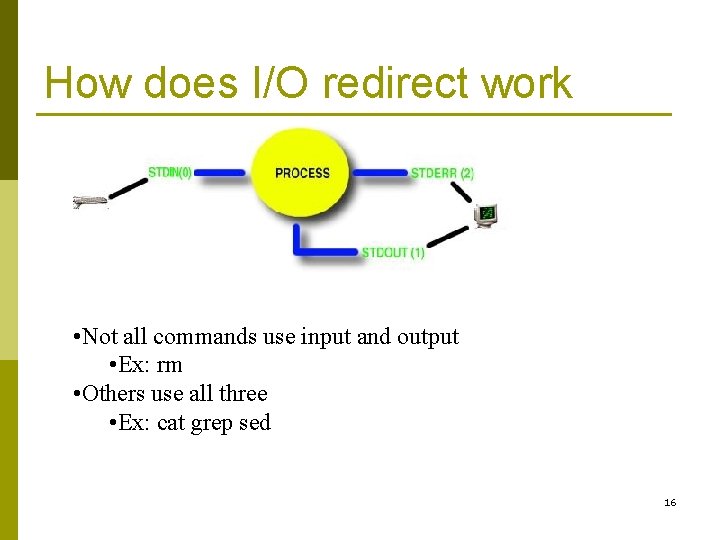
How does I/O redirect work • Not all commands use input and output • Ex: rm • Others use all three • Ex: cat grep sed 16
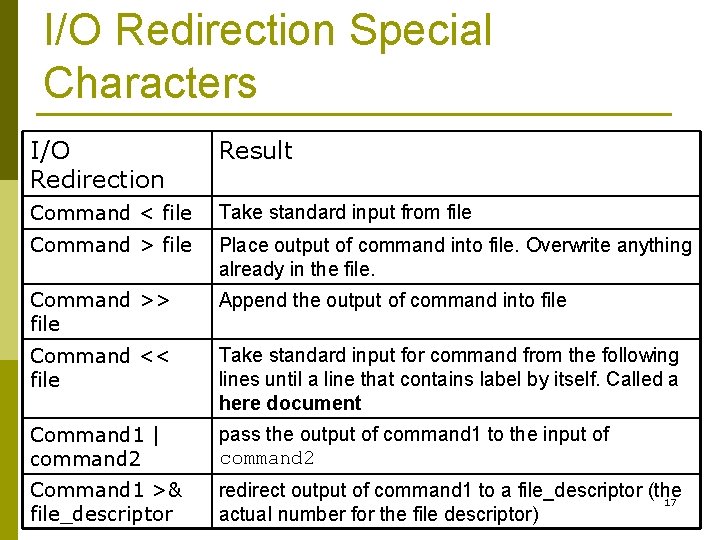
I/O Redirection Special Characters I/O Redirection Result Command < file Take standard input from file Command > file Place output of command into file. Overwrite anything already in the file. Command >> file Append the output of command into file Command << file Take standard input for command from the following lines until a line that contains label by itself. Called a here document Command 1 | command 2 pass the output of command 1 to the input of command 2 Command 1 >& file_descriptor redirect output of command 1 to a file_descriptor (the 17 actual number for the file descriptor)
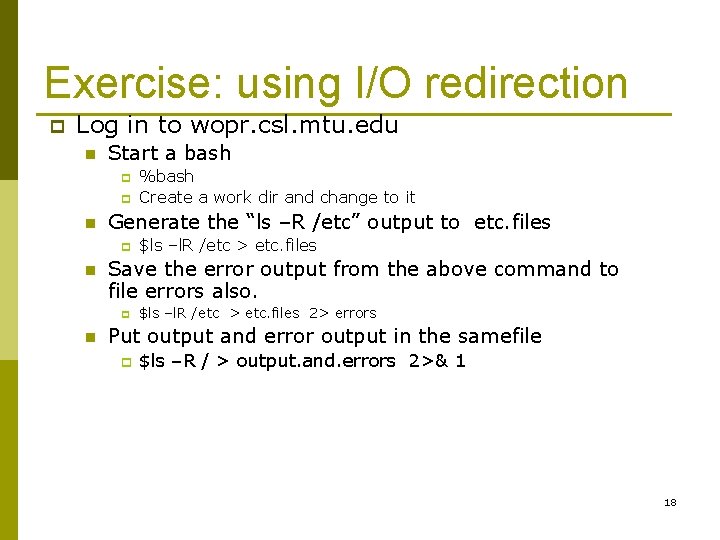
Exercise: using I/O redirection p Log in to wopr. csl. mtu. edu n Start a bash p p n Generate the “ls –R /etc” output to etc. files p n $ls –l. R /etc > etc. files Save the error output from the above command to file errors also. p n %bash Create a work dir and change to it $ls –l. R /etc > etc. files 2> errors Put output and error output in the samefile p $ls –R / > output. and. errors 2>& 1 18
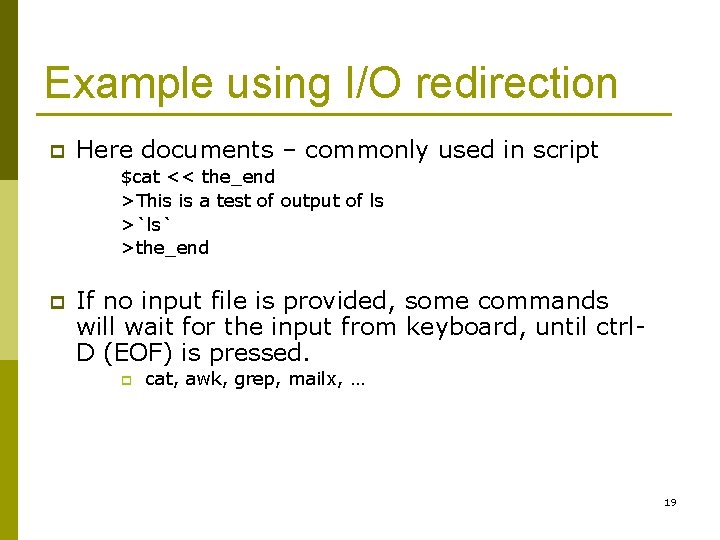
Example using I/O redirection p Here documents – commonly used in script $cat << the_end >This is a test of output of ls >`ls` >the_end p If no input file is provided, some commands will wait for the input from keyboard, until ctrl. D (EOF) is pressed. p cat, awk, grep, mailx, … 19
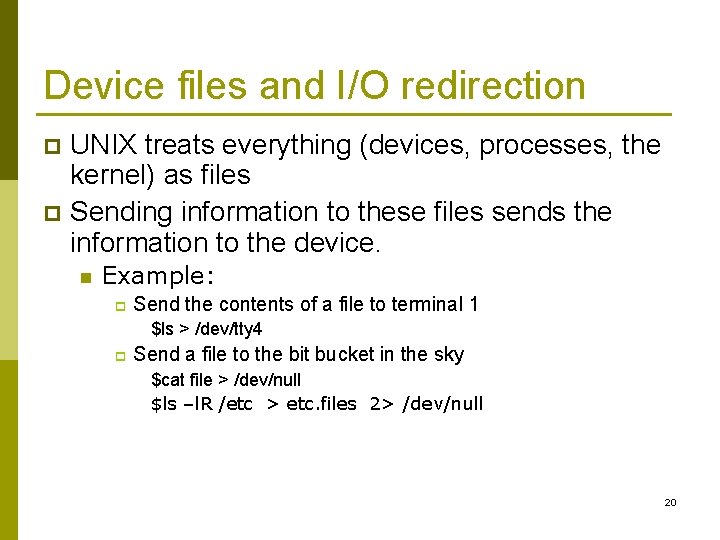
Device files and I/O redirection UNIX treats everything (devices, processes, the kernel) as files p Sending information to these files sends the information to the device. p n Example: p Send the contents of a file to terminal 1 $ls > /dev/tty 4 p Send a file to the bit bucket in the sky $cat file > /dev/null $ls –l. R /etc > etc. files 2> /dev/null 20
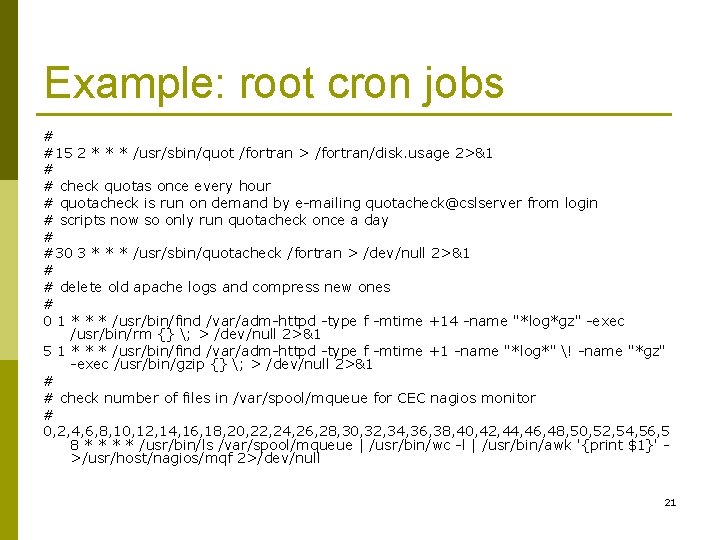
Example: root cron jobs # #15 2 * * * /usr/sbin/quot /fortran > /fortran/disk. usage 2>&1 # # check quotas once every hour # quotacheck is run on demand by e-mailing quotacheck@cslserver from login # scripts now so only run quotacheck once a day # #30 3 * * * /usr/sbin/quotacheck /fortran > /dev/null 2>&1 # # delete old apache logs and compress new ones # 0 1 * * * /usr/bin/find /var/adm-httpd -type f -mtime +14 -name "*log*gz" -exec /usr/bin/rm {} ; > /dev/null 2>&1 5 1 * * * /usr/bin/find /var/adm-httpd -type f -mtime +1 -name "*log*" ! -name "*gz" -exec /usr/bin/gzip {} ; > /dev/null 2>&1 # # check number of files in /var/spool/mqueue for CEC nagios monitor # 0, 2, 4, 6, 8, 10, 12, 14, 16, 18, 20, 22, 24, 26, 28, 30, 32, 34, 36, 38, 40, 42, 44, 46, 48, 50, 52, 54, 56, 5 8 * * /usr/bin/ls /var/spool/mqueue | /usr/bin/wc -l | /usr/bin/awk '{print $1}' >/usr/host/nagios/mqf 2>/dev/null 21
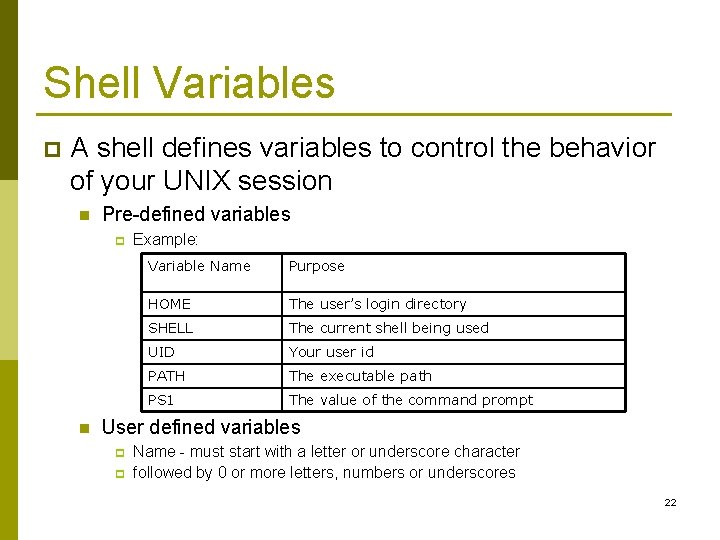
Shell Variables p A shell defines variables to control the behavior of your UNIX session n Pre-defined variables p n Example: Variable Name Purpose HOME The user’s login directory SHELL The current shell being used UID Your user id PATH The executable path PS 1 The value of the command prompt User defined variables p p Name - must start with a letter or underscore character followed by 0 or more letters, numbers or underscores 22
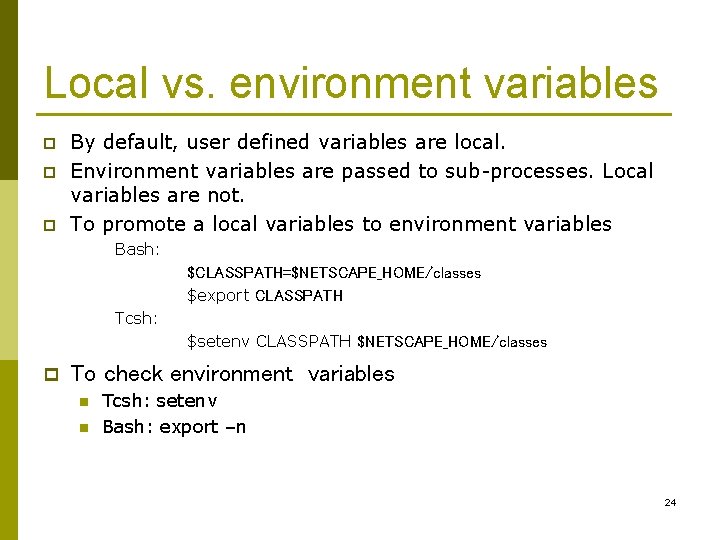
Shell variables p Define a variable or Assign a new value n variable_name=[value] p p p %echo ${name} %echo $name Check what variables are set n p Bash: % name=“david jones” Tcsh: % set name=“values” Using the value p p no space around = The set command (actually a built-in shell command) will show all the current shell variables and their values. To Unset a variable n %unset variablename 23
Local vs. environment variables p p p By default, user defined variables are local. Environment variables are passed to sub-processes. Local variables are not. To promote a local variables to environment variables Bash: $CLASSPATH=$NETSCAPE_HOME/classes $export CLASSPATH Tcsh: $setenv CLASSPATH $NETSCAPE_HOME/classes p To check environment variables n n Tcsh: setenv Bash: export –n 24
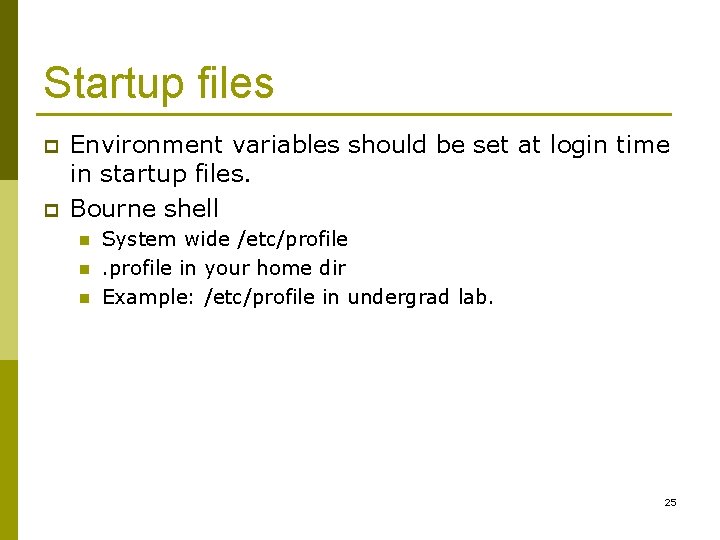
Startup files p p Environment variables should be set at login time in startup files. Bourne shell n n n System wide /etc/profile in your home dir Example: /etc/profile in undergrad lab. 25
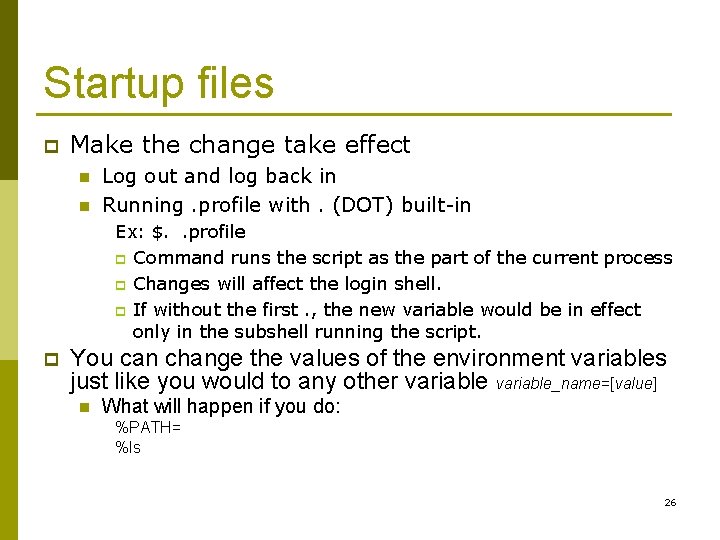
Startup files p Make the change take effect n n Log out and log back in Running. profile with. (DOT) built-in Ex: $. . profile p Command runs the script as the part of the current process p Changes will affect the login shell. p If without the first. , the new variable would be in effect only in the subshell running the script. p You can change the values of the environment variables just like you would to any other variable_name=[value] n What will happen if you do: %PATH= %ls 26
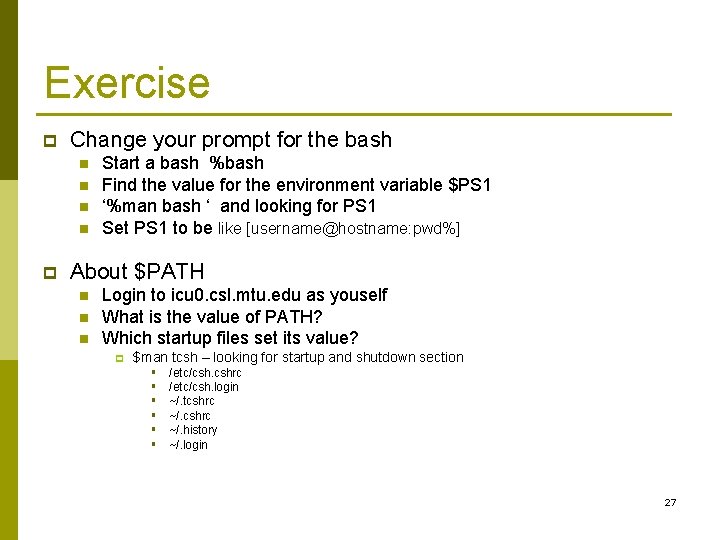
Exercise p Change your prompt for the bash n n p Start a bash %bash Find the value for the environment variable $PS 1 ‘%man bash ‘ and looking for PS 1 Set PS 1 to be like [username@hostname: pwd%] About $PATH n n n Login to icu 0. csl. mtu. edu as youself What is the value of PATH? Which startup files set its value? p $man tcsh – looking for startup and shutdown section § § § /etc/csh. cshrc /etc/csh. login ~/. tcshrc ~/. history ~/. login 27
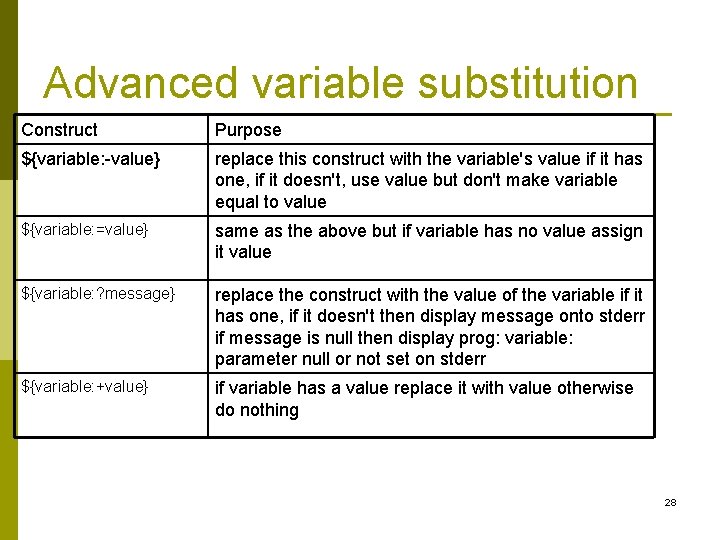
Advanced variable substitution Construct Purpose ${variable: -value} replace this construct with the variable's value if it has one, if it doesn't, use value but don't make variable equal to value ${variable: =value} same as the above but if variable has no value assign it value ${variable: ? message} replace the construct with the value of the variable if it has one, if it doesn't then display message onto stderr if message is null then display prog: variable: parameter null or not set on stderr ${variable: +value} if variable has a value replace it with value otherwise do nothing 28
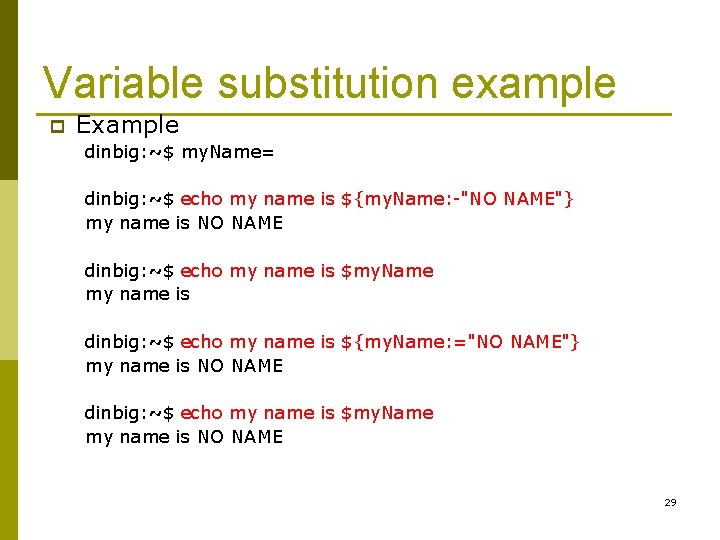
Variable substitution example p Example dinbig: ~$ my. Name= dinbig: ~$ echo my name is ${my. Name: -"NO NAME"} my name is NO NAME dinbig: ~$ echo my name is $my. Name my name is dinbig: ~$ echo my name is ${my. Name: ="NO NAME"} my name is NO NAME dinbig: ~$ echo my name is $my. Name my name is NO NAME 29
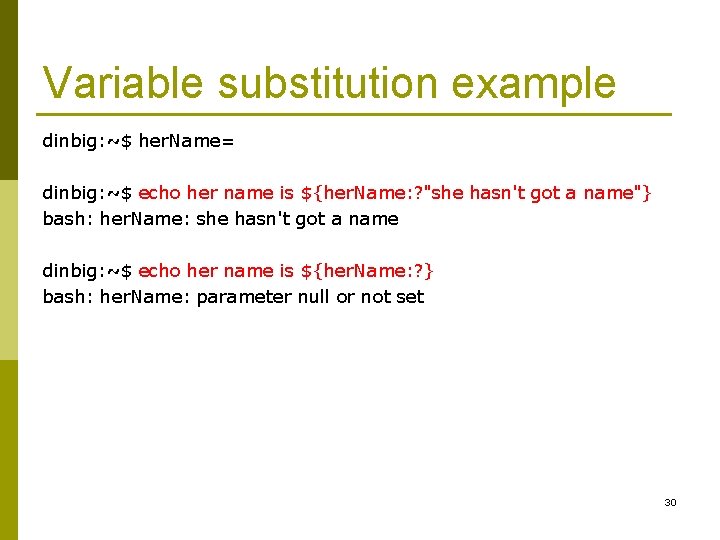
Variable substitution example dinbig: ~$ her. Name= dinbig: ~$ echo her name is ${her. Name: ? "she hasn't got a name"} bash: her. Name: she hasn't got a name dinbig: ~$ echo her name is ${her. Name: ? } bash: her. Name: parameter null or not set 30
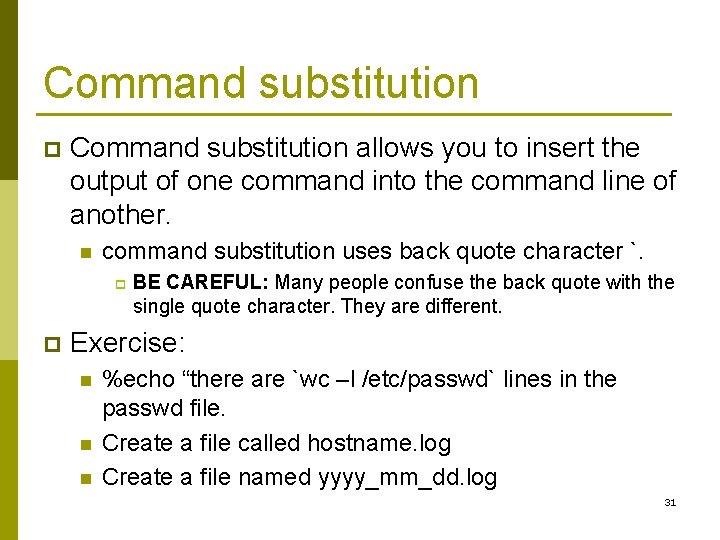
Command substitution p Command substitution allows you to insert the output of one command into the command line of another. n command substitution uses back quote character `. p p BE CAREFUL: Many people confuse the back quote with the single quote character. They are different. Exercise: n n n %echo “there are `wc –l /etc/passwd` lines in the passwd file. Create a file called hostname. log Create a file named yyyy_mm_dd. log 31
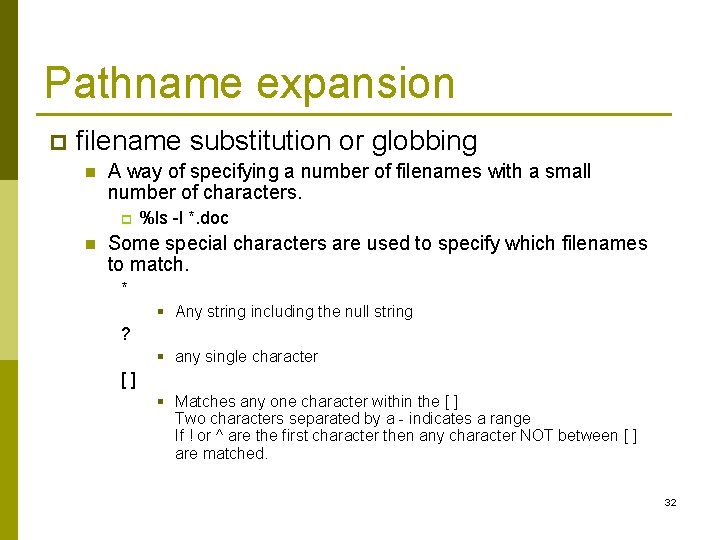
Pathname expansion p filename substitution or globbing n A way of specifying a number of filenames with a small number of characters. p n %ls -l *. doc Some special characters are used to specify which filenames to match. * § Any string including the null string ? § any single character [] § Matches any one character within the [ ] Two characters separated by a - indicates a range If ! or ^ are the first character then any character NOT between [ ] are matched. 32
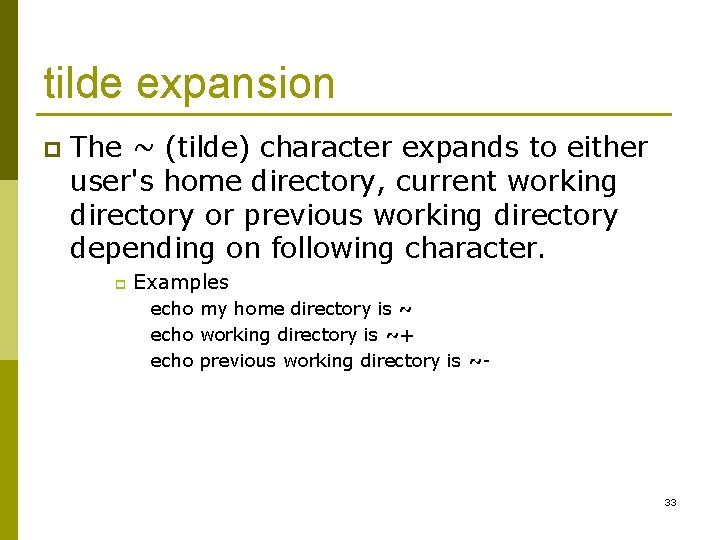
tilde expansion p The ~ (tilde) character expands to either user's home directory, current working directory or previous working directory depending on following character. p Examples echo my home directory is ~ echo working directory is ~+ echo previous working directory is ~- 33
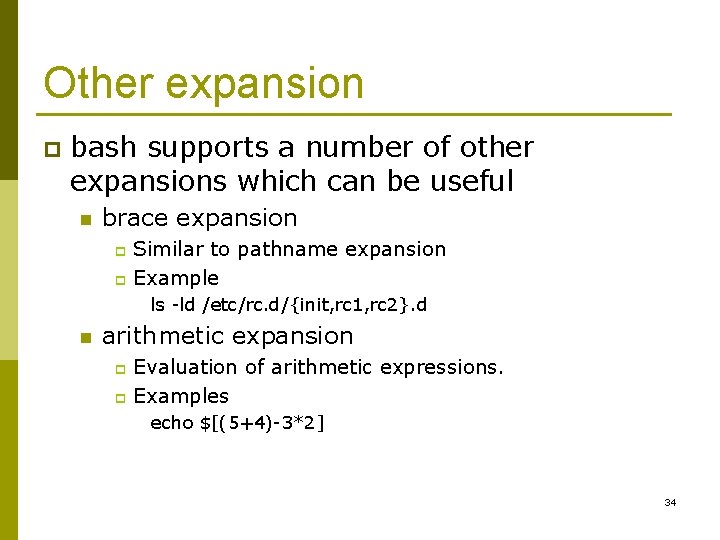
Other expansion p bash supports a number of other expansions which can be useful n brace expansion Similar to pathname expansion p Example p ls -ld /etc/rc. d/{init, rc 1, rc 2}. d n arithmetic expansion Evaluation of arithmetic expressions. p Examples p echo $[(5+4)-3*2] 34
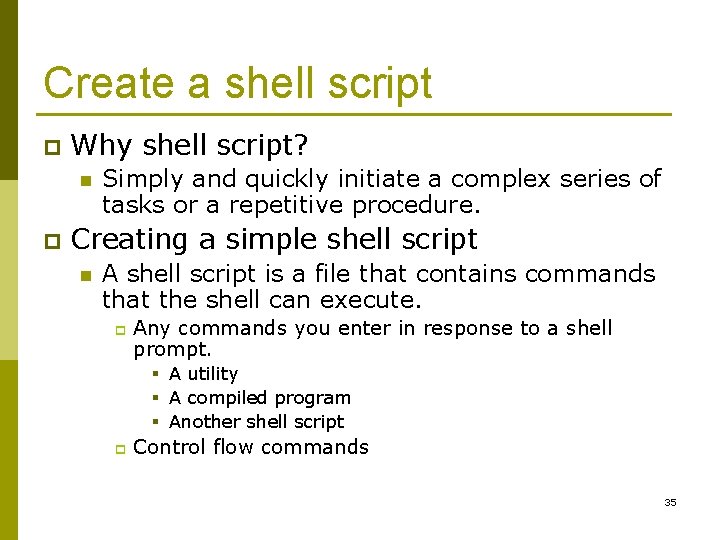
Create a shell script p Why shell script? n p Simply and quickly initiate a complex series of tasks or a repetitive procedure. Creating a simple shell script n A shell script is a file that contains commands that the shell can execute. p Any commands you enter in response to a shell prompt. § A utility § A compiled program § Another shell script p Control flow commands 35
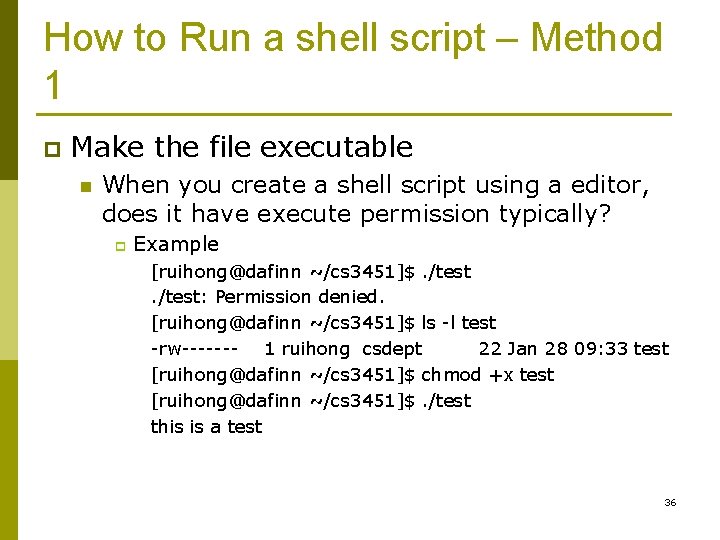
How to Run a shell script – Method 1 p Make the file executable n When you create a shell script using a editor, does it have execute permission typically? p Example [ruihong@dafinn ~/cs 3451]$. /test: Permission denied. [ruihong@dafinn ~/cs 3451]$ ls -l test -rw------- 1 ruihong csdept 22 Jan 28 09: 33 test [ruihong@dafinn ~/cs 3451]$ chmod +x test [ruihong@dafinn ~/cs 3451]$. /test this is a test 36
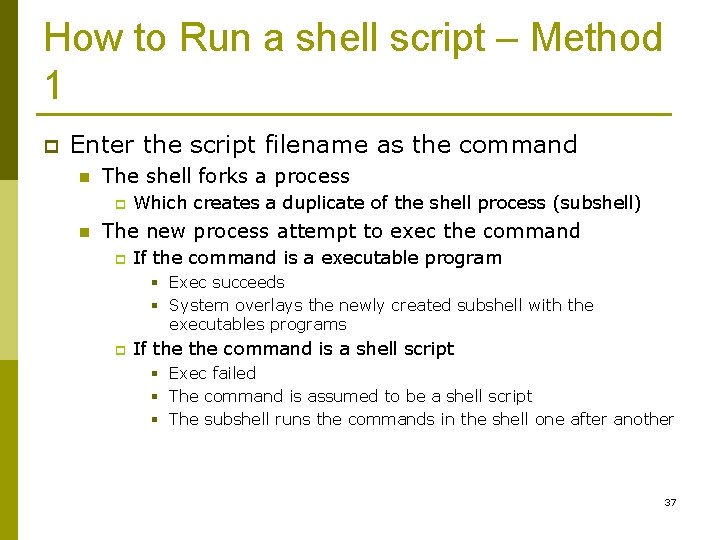
How to Run a shell script – Method 1 p Enter the script filename as the command n The shell forks a process p n Which creates a duplicate of the shell process (subshell) The new process attempt to exec the command p If the command is a executable program § Exec succeeds § System overlays the newly created subshell with the executables programs p If the command is a shell script § Exec failed § The command is assumed to be a shell script § The subshell runs the commands in the shell one after another 37
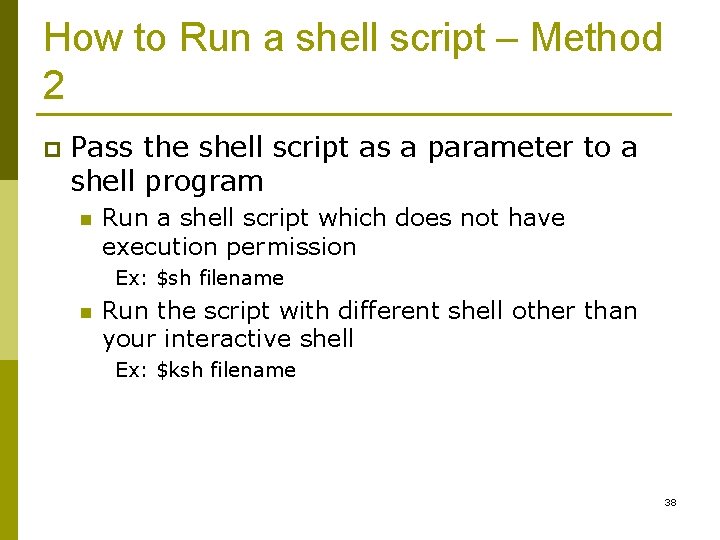
How to Run a shell script – Method 2 p Pass the shell script as a parameter to a shell program n Run a shell script which does not have execution permission Ex: $sh filename n Run the script with different shell other than your interactive shell Ex: $ksh filename 38
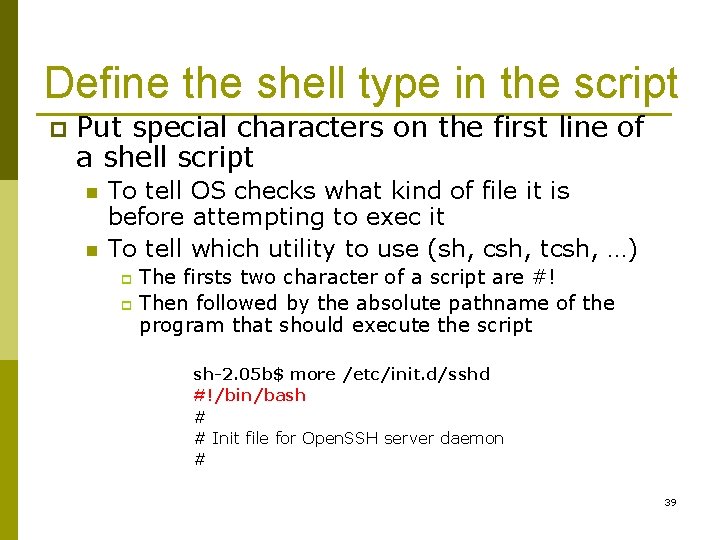
Define the shell type in the script p Put special characters on the first line of a shell script n n To tell OS checks what kind of file it is before attempting to exec it To tell which utility to use (sh, csh, tcsh, …) The firsts two character of a script are #! p Then followed by the absolute pathname of the program that should execute the script p sh-2. 05 b$ more /etc/init. d/sshd #!/bin/bash # # Init file for Open. SSH server daemon # 39
Make a comment # Comments make shell scripts easier to read and maintain p Pound sign (#) start a comment line until the end of that line, except p n n #! In the first line. Or inside quotes 40
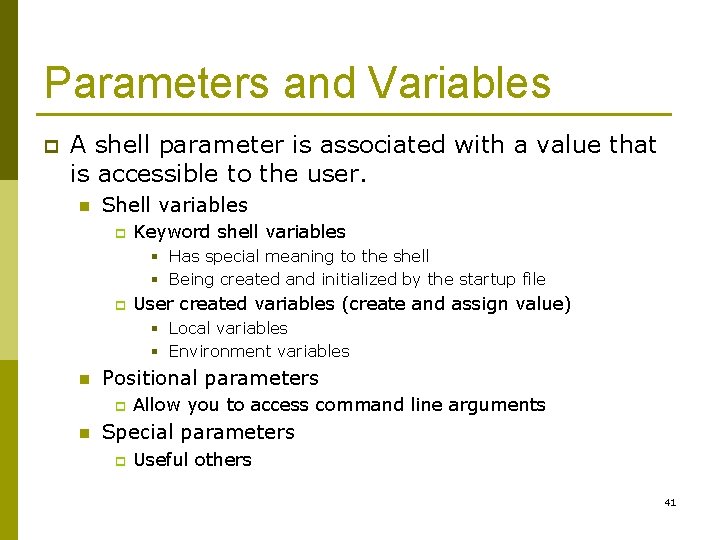
Parameters and Variables p A shell parameter is associated with a value that is accessible to the user. n Shell variables p Keyword shell variables § Has special meaning to the shell § Being created and initialized by the startup file p User created variables (create and assign value) § Local variables § Environment variables n Positional parameters p n Allow you to access command line arguments Special parameters p Useful others 41
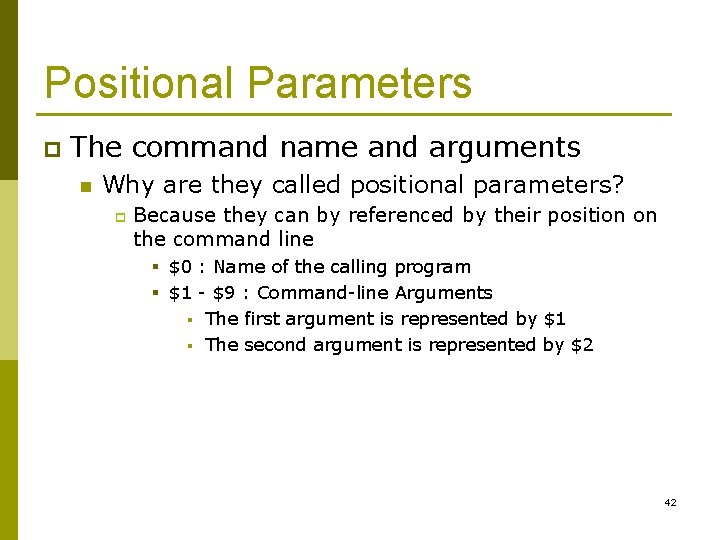
Positional Parameters p The command name and arguments n Why are they called positional parameters? p Because they can by referenced by their position on the command line § $0 : Name of the calling program § $1 - $9 : Command-line Arguments § The first argument is represented by $1 § The second argument is represented by $2 42
Positional Parameters p Example: [ruihong@dafinn ~/cs 3451]$ more display_5 args echo you are running script $0 with parameter $1 $2 $3 $4 $5 [ruihong@dafinn ~/cs 3451]$. /display_5 args 1 2 3 4 5 you are running script. /display_5 args with parameter 1 2 3 4 5 43
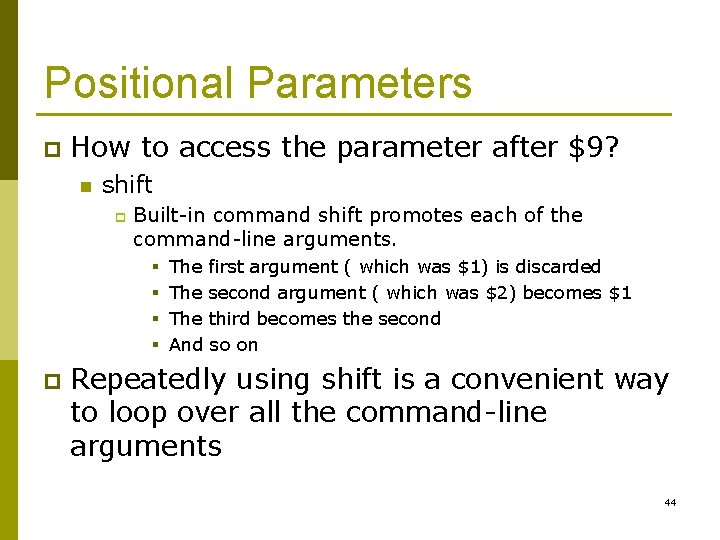
Positional Parameters p How to access the parameter after $9? n shift p Built-in command shift promotes each of the command-line arguments. § § p The first argument ( which was $1) is discarded The second argument ( which was $2) becomes $1 The third becomes the second And so on Repeatedly using shift is a convenient way to loop over all the command-line arguments 44
Positional Parameters p Example: [ruihong@dafinn ~/cs 3451]$ more. /demo_shift echo $1 $2 $3 shift echo $1 $2 shift echo $1 [ruihong@dafinn ~/cs 3451]$. /demo_shift 1 2 3 123 23 3 45
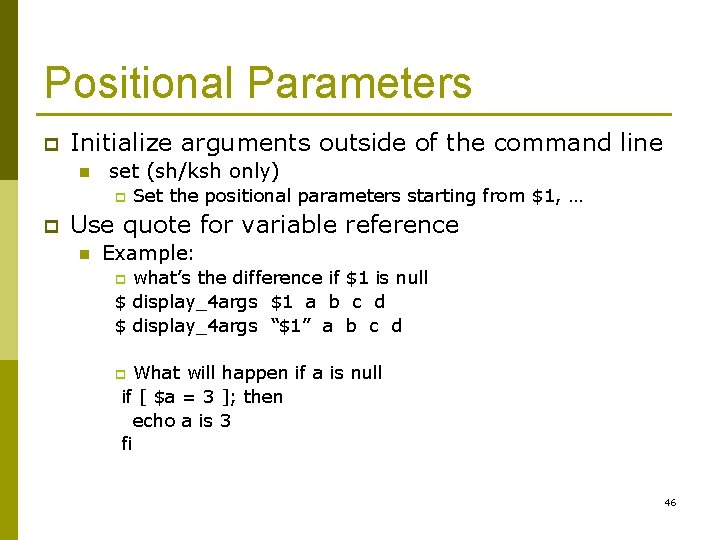
Positional Parameters p Initialize arguments outside of the command line n set (sh/ksh only) p p Set the positional parameters starting from $1, … Use quote for variable reference n Example: what’s the difference if $1 is null $ display_4 args $1 a b c d $ display_4 args “$1” a b c d p What will happen if a is null if [ $a = 3 ]; then echo a is 3 fi p 46
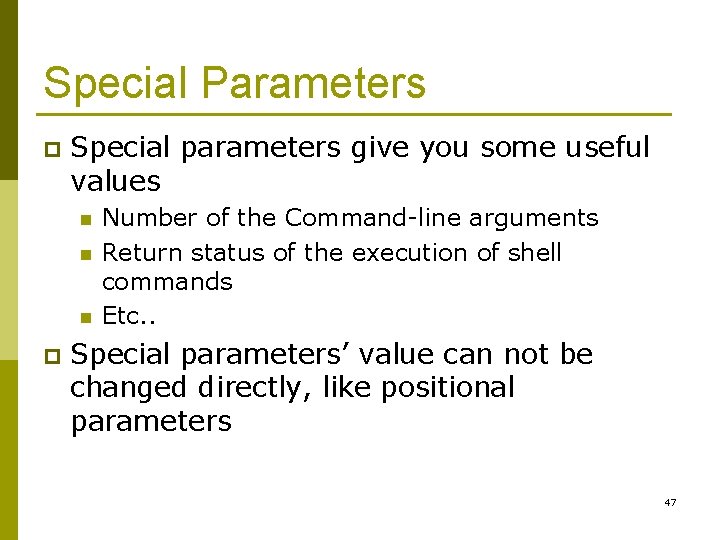
Special Parameters p Special parameters give you some useful values n n n p Number of the Command-line arguments Return status of the execution of shell commands Etc. . Special parameters’ value can not be changed directly, like positional parameters 47
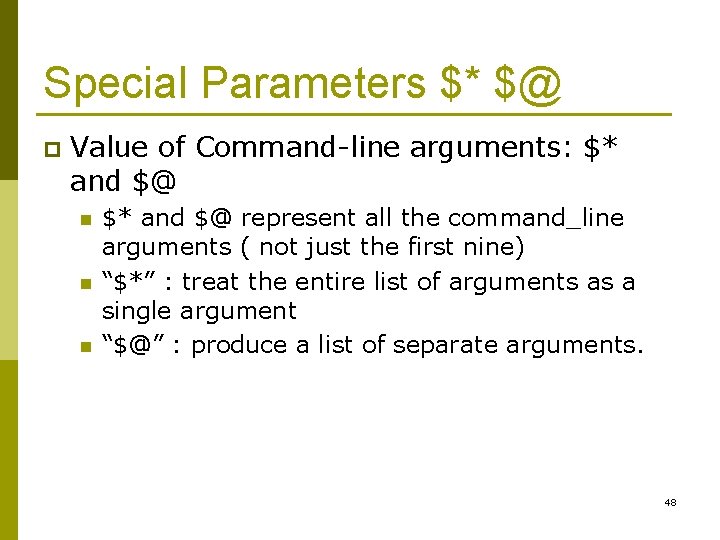
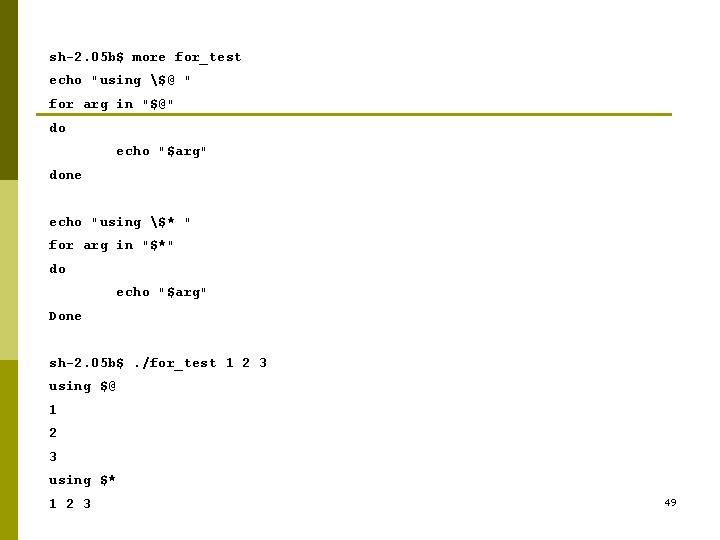
Special Parameters $* $@ p Value of Command-line arguments: $* and $@ n n n $* and $@ represent all the command_line arguments ( not just the first nine) “$*” : treat the entire list of arguments as a single argument “$@” : produce a list of separate arguments. 48
sh-2. 05 b$ more for_test echo "using $@ " for arg in "$@" do echo "$arg" done echo "using $* " for arg in "$*" do echo "$arg" Done sh-2. 05 b$. /for_test 1 2 3 using $@ 1 2 3 using $* 1 2 3 49
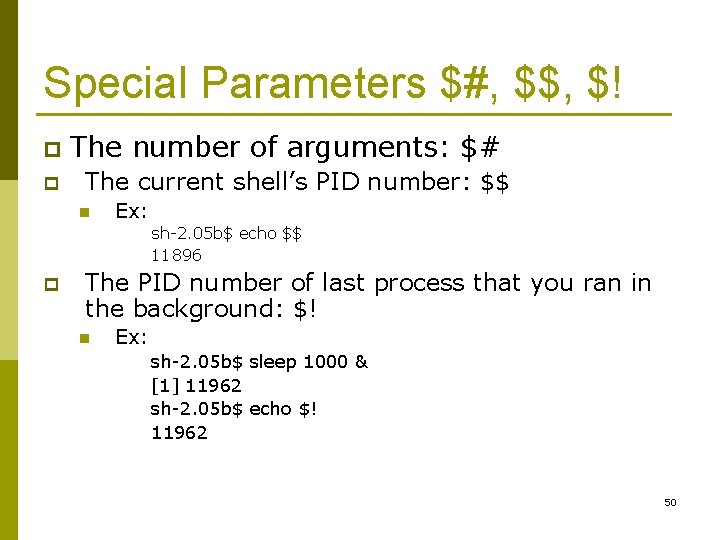
Special Parameters $#, $$, $! p p The number of arguments: $# The current shell’s PID number: $$ n Ex: sh-2. 05 b$ echo $$ 11896 p The PID number of last process that you ran in the background: $! n Ex: sh-2. 05 b$ sleep 1000 & [1] 11962 sh-2. 05 b$ echo $! 11962 50
Special Parameters $? p Exit status: $? n n When a process stops executing for any reason, it returns an exit status to its parent process. By convention, Nonzero represents a false value that the command failed. p A zero value is true and means that the command was successful p n You can specify the exit status that a shell script returns by using the exit built-in followed by a number p Otherwise, the exit status of the script is the exit status of the last command the script ran. 51
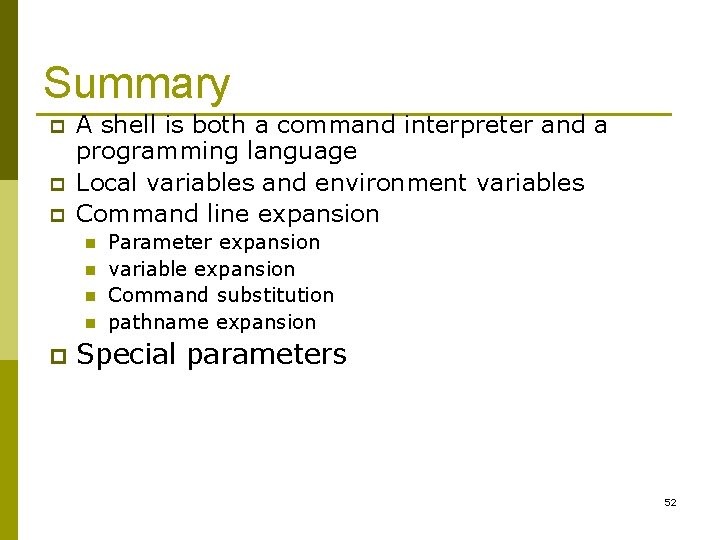
Summary p p p A shell is both a command interpreter and a programming language Local variables and environment variables Command line expansion n n p Parameter expansion variable expansion Command substitution pathname expansion Special parameters 52