
Overview of the Student Registration Personal Needs Profile

- Slides: 37
Overview of the Student Registration/ Personal Needs Profile (SR/PNP) Process The Office of Student Assessment Services September 24, 2018
Presenters • Scott Kelley, Data & Reporting Specialist • Robert Pelychaty, Accommodations Specialist • Jodie Zalk, Test Administration Coordinator • Liz Pennington, Pearson Project Manager Massachusetts Department of Elementary and Secondary Education 2
Logistics for This Session • Questions may be asked at any time using the Q & A feature on the Web. Ex screen. o Specific questions about a student or your district should instead be sent by email to mcas@doe. mass. edu. o We will attempt to answer all questions asked during the session; after the session, all questions will be answered and emailed out to participants. • This session is being recorded and will be available online in about one week at: o MCAS Resource Center -- mcas. pearsonsupport. com/training o In the section entitled “Training Sessions Previously Offered This School Year” Massachusetts Department of Elementary and Secondary Education 3
01 SR/PNP Overview CONTENTS Steps for Completing the Initial 02 Import 03 Steps after the Initial Import 04 Frequently Asked Questions 05 Resources and Support
01 SR/PNP Overview
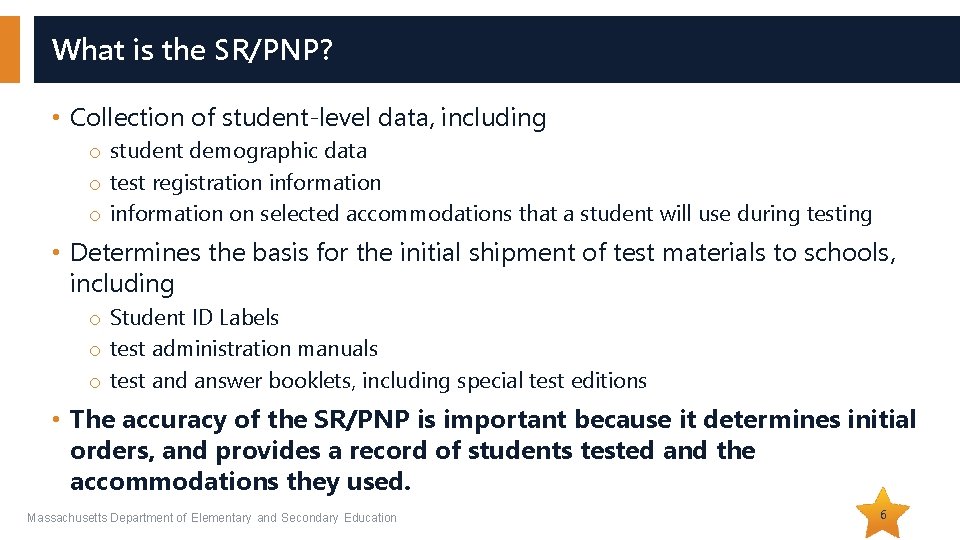
What is the SR/PNP? • Collection of student-level data, including o student demographic data o test registration information on selected accommodations that a student will use during testing • Determines the basis for the initial shipment of test materials to schools, including o Student ID Labels o test administration manuals o test and answer booklets, including special test editions • The accuracy of the SR/PNP is important because it determines initial orders, and provides a record of students tested and the accommodations they used. Massachusetts Department of Elementary and Secondary Education 6
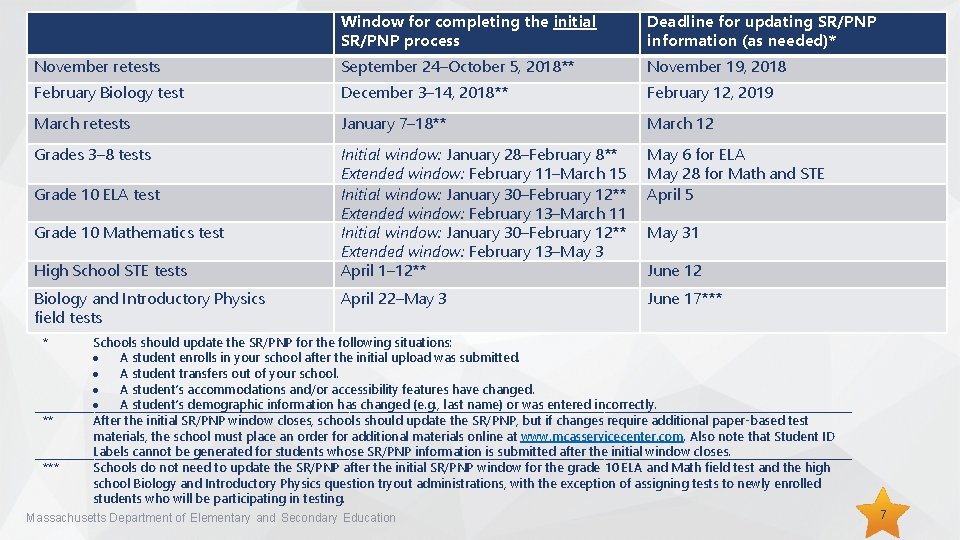
Window for completing the initial SR/PNP process Deadline for updating SR/PNP information (as needed)* November retests September 24–October 5, 2018** November 19, 2018 February Biology test December 3– 14, 2018** February 12, 2019 March retests January 7– 18** March 12 Grades 3– 8 tests Initial window: January 28–February 8** Extended window: February 11–March 15 Initial window: January 30–February 12** Extended window: February 13–March 11 Initial window: January 30–February 12** Extended window: February 13–May 3 April 1– 12** May 6 for ELA May 28 for Math and STE April 5 April 22–May 3 June 17*** Grade 10 ELA test Grade 10 Mathematics test High School STE tests Biology and Introductory Physics field tests * ** *** May 31 June 12 Schools should update the SR/PNP for the following situations: A student enrolls in your school after the initial upload was submitted. A student transfers out of your school. A student’s accommodations and/or accessibility features have changed. A student’s demographic information has changed (e. g. , last name) or was entered incorrectly. After the initial SR/PNP window closes, schools should update the SR/PNP, but if changes require additional paper-based test materials, the school must place an order for additional materials online at www. mcasservicecenter. com. Also note that Student ID Labels cannot be generated for students whose SR/PNP information is submitted after the initial window closes. Schools do not need to update the SR/PNP after the initial SR/PNP window for the grade 10 ELA and Math field test and the high school Biology and Introductory Physics question tryout administrations, with the exception of assigning tests to newly enrolled students who will be participating in testing. Massachusetts Department of Elementary and Secondary Education 7
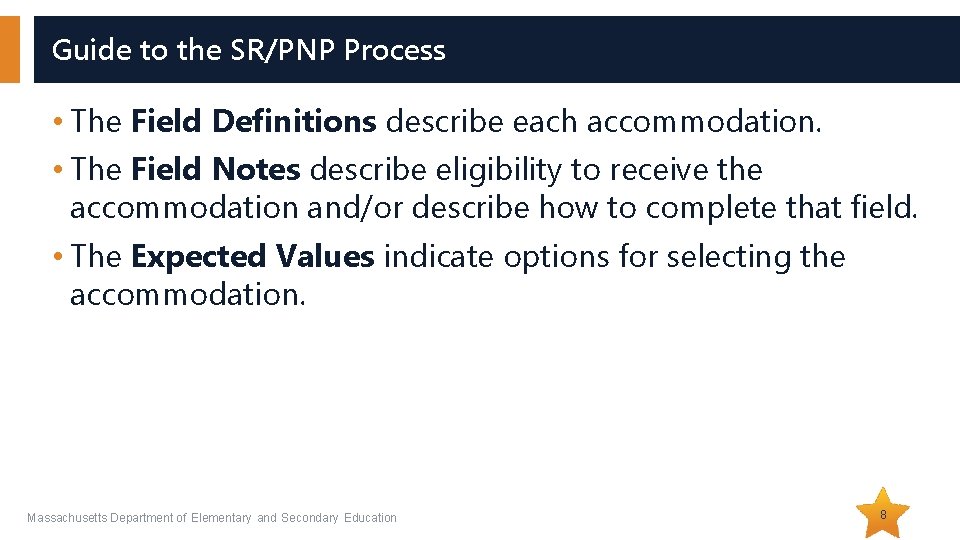
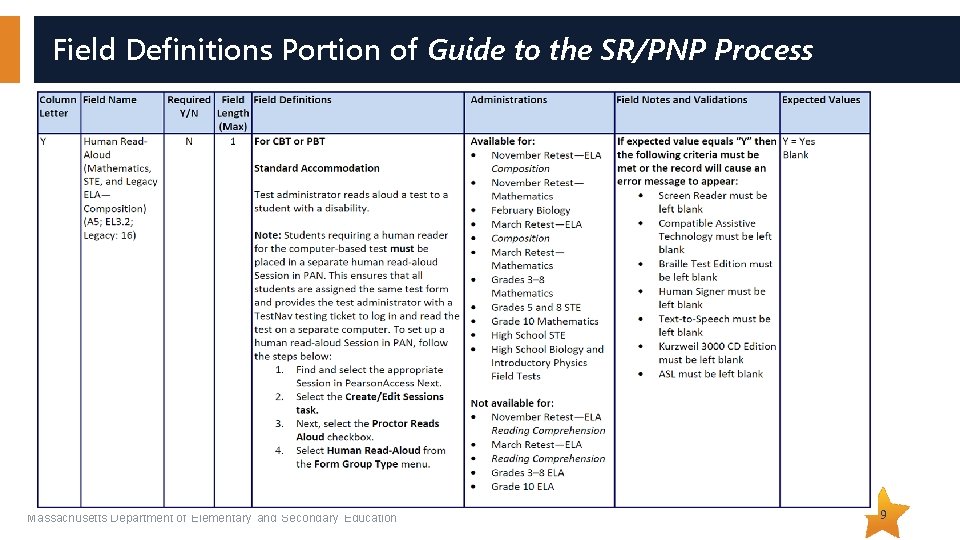
Guide to the SR/PNP Process • The Field Definitions describe each accommodation. • The Field Notes describe eligibility to receive the accommodation and/or describe how to complete that field. • The Expected Values indicate options for selecting the accommodation. Massachusetts Department of Elementary and Secondary Education 8
Field Definitions Portion of Guide to the SR/PNP Process Massachusetts Department of Elementary and Secondary Education 9
MCAS Accessibility and Accommodations • New: Same policy for all grades/tests o Review the Accessibility and Accommodations Manual (www. doe. mass. edu/mcas/accessibility/). o Register for accessibility/accommodations session on Sept. 28: www. doe. mass. edu/conference/? Conference. ID=9891 • Accessibility features available to all students o Universal Accessibility Features § available to all students, but may differ depending on CBT or PBT o Designated Accessibility Features § can be given to any student, at the discretion of the principal • Accommodations available only for students with disabilities and ELs o Standard and Special Access accommodations for students with disabilities o Accommodations available for ELs, with guidance based on English proficiency level • Enter the accommodations that are designated in the Accessibility and Accommodations Manual as “SR/PNP” Massachusetts Department of Elementary and Secondary Education 10
02 Steps for Completing the Initial Import
Secure Websites for this Process • DESE Security Portal: where to find the. CSV files that can be used as the basis for the SR/PNP o https: //gateway. edu. state. ma. us/ o If you cannot access the Security Portal, contact your Directory Administrator (www. doe. mass. edu/Info. Services/data/diradmin/list. aspx). • Pearson. Access Next (PAN): where to import the SR/PNP o http: //mcas. pearsonaccessnext. com § (also linked at http: //mcas. pearsonsupport. com/pearsonaccessnext/) o If you could access PAN before but no longer have access, try resetting your password in case the account expired. o Call MCAS Service Center (800 -737 -5103) if you cannot access your PAN account or for assistance with the SR/PNP import. Massachusetts Department of Elementary and Secondary Education 12
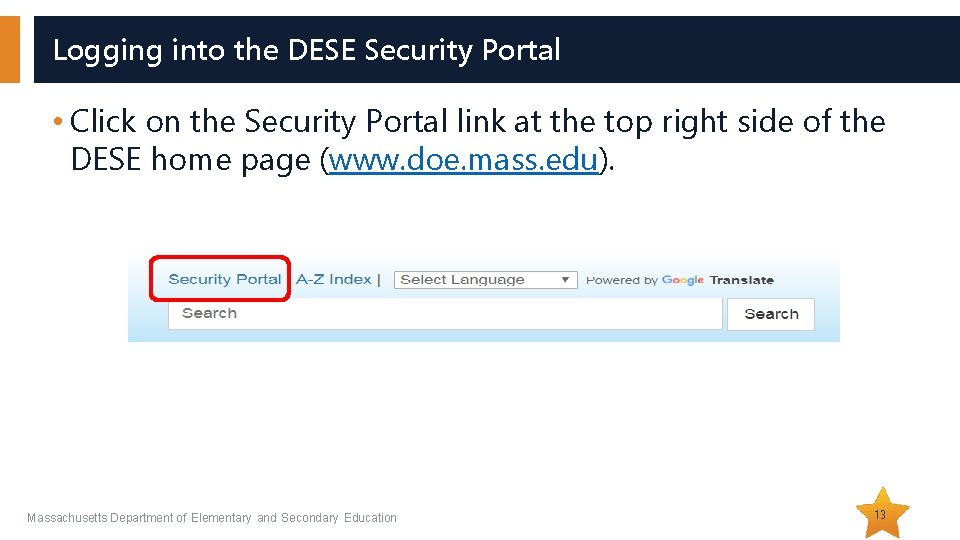
Logging into the DESE Security Portal • Click on the Security Portal link at the top right side of the DESE home page (www. doe. mass. edu). Massachusetts Department of Elementary and Secondary Education 13
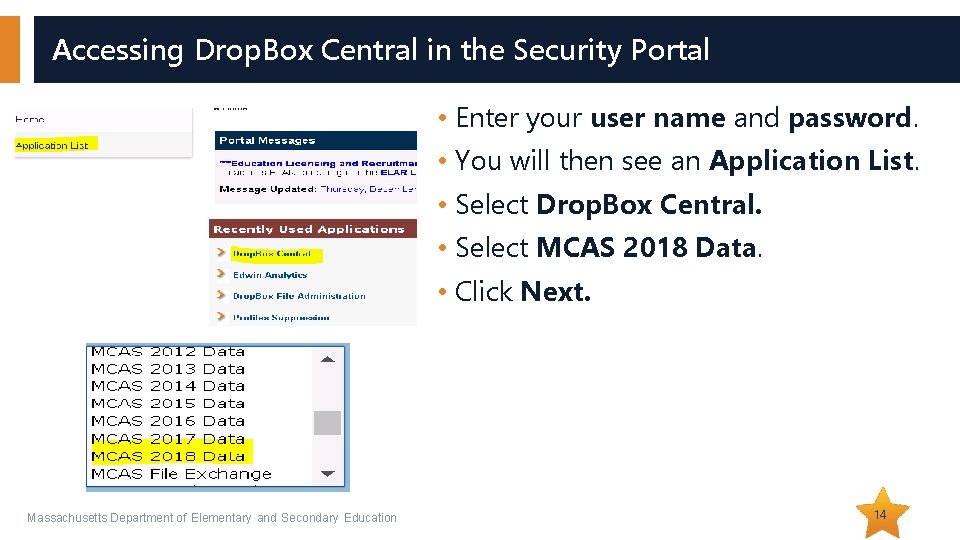
Accessing Drop. Box Central in the Security Portal • Enter your user name and password. • You will then see an Application List. • Select Drop. Box Central. • Select MCAS 2018 Data. • Click Next. Massachusetts Department of Elementary and Secondary Education 14
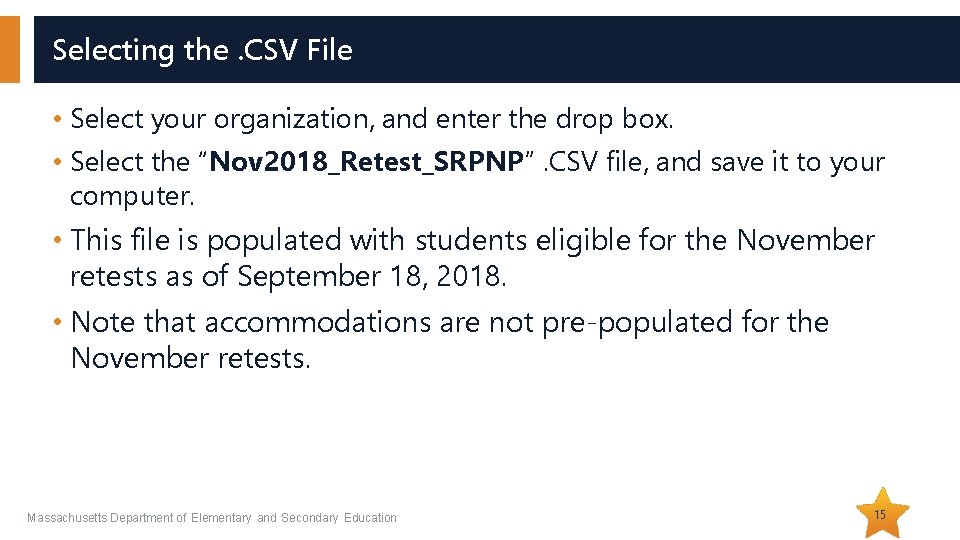
Selecting the. CSV File • Select your organization, and enter the drop box. • Select the “Nov 2018_Retest_SRPNP”. CSV file, and save it to your computer. • This file is populated with students eligible for the November retests as of September 18, 2018. • Note that accommodations are not pre-populated for the November retests. Massachusetts Department of Elementary and Secondary Education 15
Demonstrations • Locating the Guide to the SR/PNP Process • Removing a row for a student • Adding a row for a new student • Updating a student’s accommodations • Saving the. CSV file • Important reminders Massachusetts Department of Elementary and Secondary Education 16
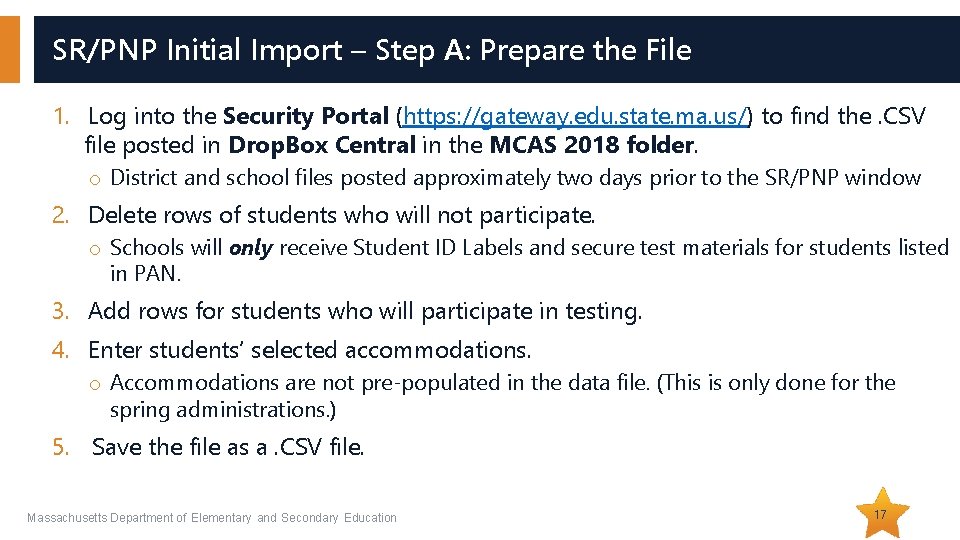
SR/PNP Initial Import – Step A: Prepare the File 1. Log into the Security Portal (https: //gateway. edu. state. ma. us/) to find the. CSV file posted in Drop. Box Central in the MCAS 2018 folder. o District and school files posted approximately two days prior to the SR/PNP window 2. Delete rows of students who will not participate. o Schools will only receive Student ID Labels and secure test materials for students listed in PAN. 3. Add rows for students who will participate in testing. 4. Enter students’ selected accommodations. o Accommodations are not pre-populated in the data file. (This is only done for the spring administrations. ) 5. Save the file as a. CSV file. Massachusetts Department of Elementary and Secondary Education 17
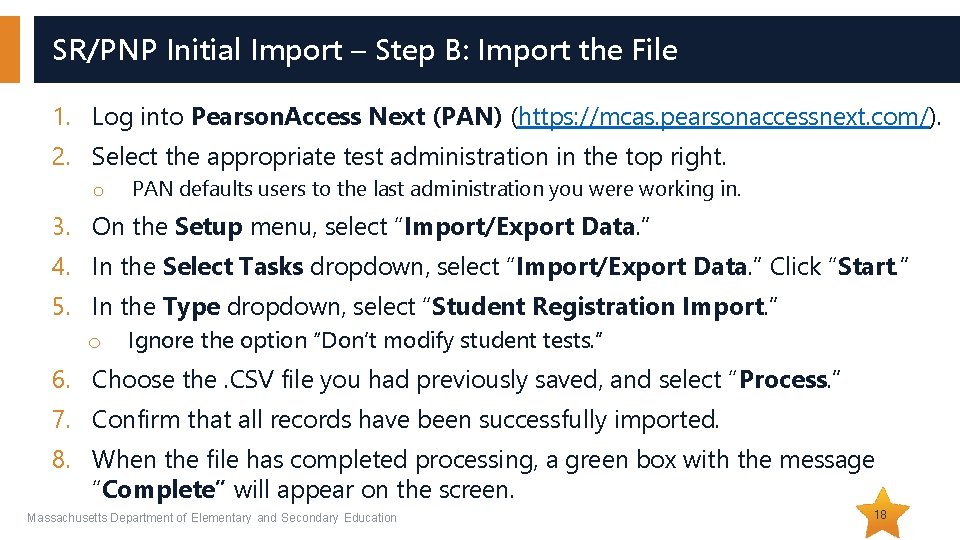
SR/PNP Initial Import – Step B: Import the File 1. Log into Pearson. Access Next (PAN) (https: //mcas. pearsonaccessnext. com/). 2. Select the appropriate test administration in the top right. o PAN defaults users to the last administration you were working in. 3. On the Setup menu, select “Import/Export Data. ” 4. In the Select Tasks dropdown, select “Import/Export Data. ” Click “Start. ” 5. In the Type dropdown, select “Student Registration Import. ” o Ignore the option “Don’t modify student tests. ” 6. Choose the. CSV file you had previously saved, and select “Process. ” 7. Confirm that all records have been successfully imported. 8. When the file has completed processing, a green box with the message “Complete” will appear on the screen. Massachusetts Department of Elementary and Secondary Education 18
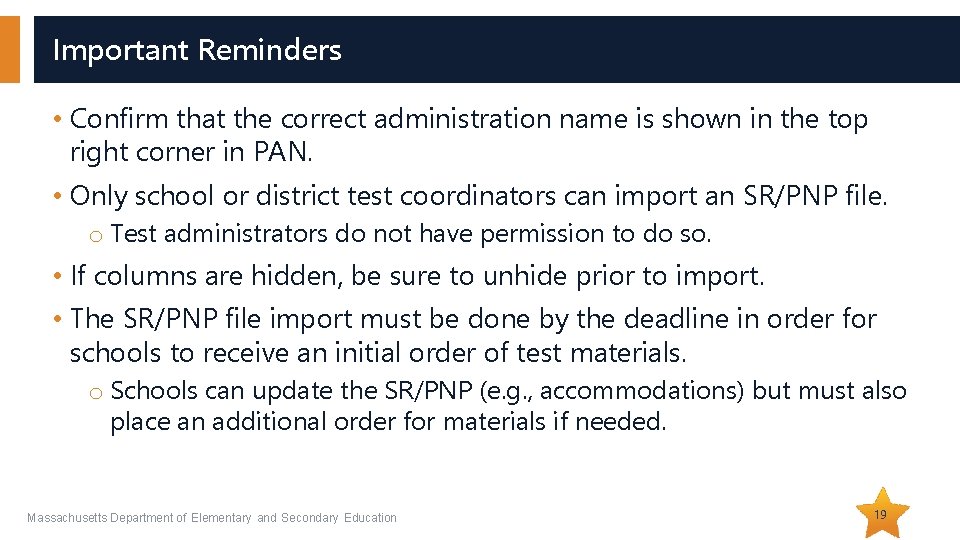
Important Reminders • Confirm that the correct administration name is shown in the top right corner in PAN. • Only school or district test coordinators can import an SR/PNP file. o Test administrators do not have permission to do so. • If columns are hidden, be sure to unhide prior to import. • The SR/PNP file import must be done by the deadline in order for schools to receive an initial order of test materials. o Schools can update the SR/PNP (e. g. , accommodations) but must also place an additional order for materials if needed. Massachusetts Department of Elementary and Secondary Education 19
Demonstrations • Accessing Pearson. Access Next • Importing the. CSV file • Important reminders Massachusetts Department of Elementary and Secondary Education 20
Questions & Answers Massachusetts Department of Elementary and Secondary Education 21
03 Steps after the Initial Import
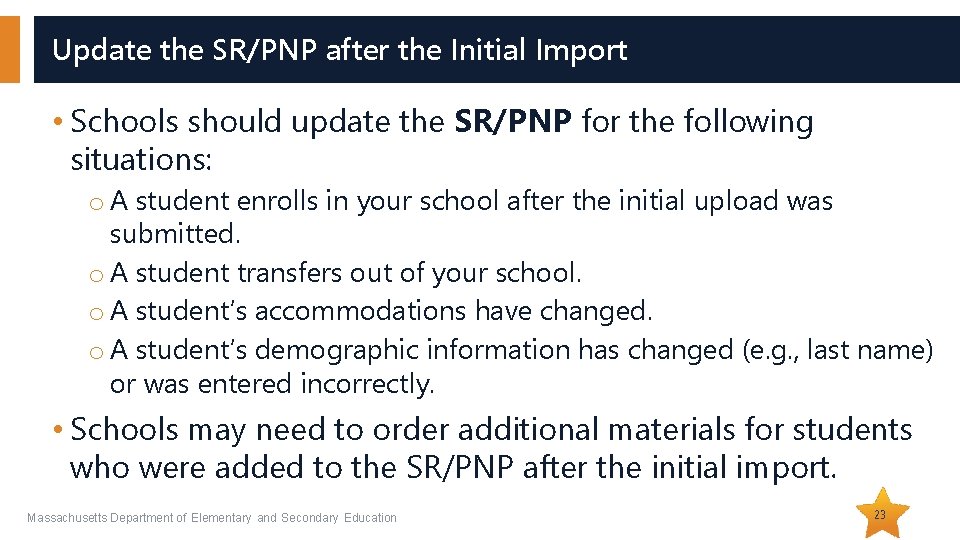
Update the SR/PNP after the Initial Import • Schools should update the SR/PNP for the following situations: o A student enrolls in your school after the initial upload was submitted. o A student transfers out of your school. o A student’s accommodations have changed. o A student’s demographic information has changed (e. g. , last name) or was entered incorrectly. • Schools may need to order additional materials for students who were added to the SR/PNP after the initial import. Massachusetts Department of Elementary and Secondary Education 23
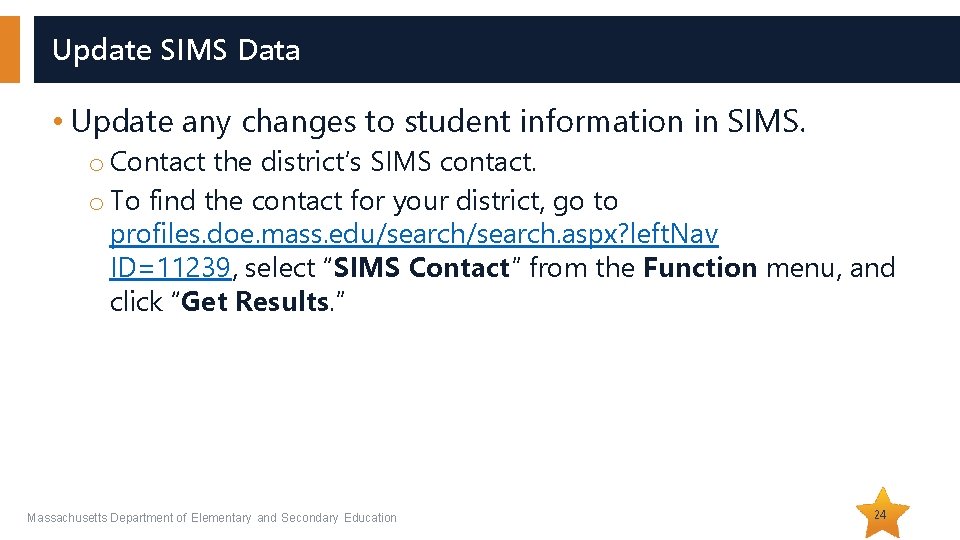
Update SIMS Data • Update any changes to student information in SIMS. o Contact the district’s SIMS contact. o To find the contact for your district, go to profiles. doe. mass. edu/search. aspx? left. Nav ID=11239, select “SIMS Contact” from the Function menu, and click “Get Results. ” Massachusetts Department of Elementary and Secondary Education 24
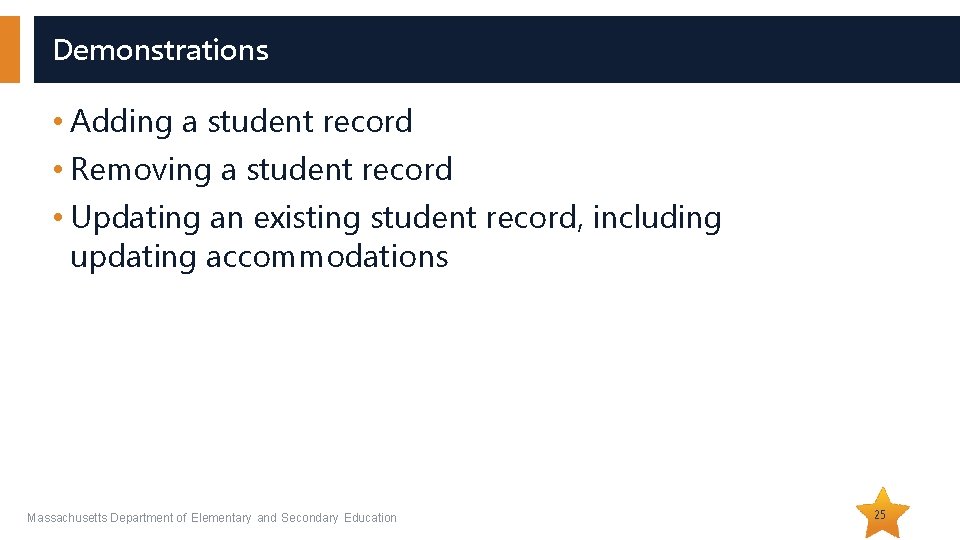
Demonstrations • Adding a student record • Removing a student record • Updating an existing student record, including updating accommodations Massachusetts Department of Elementary and Secondary Education 25
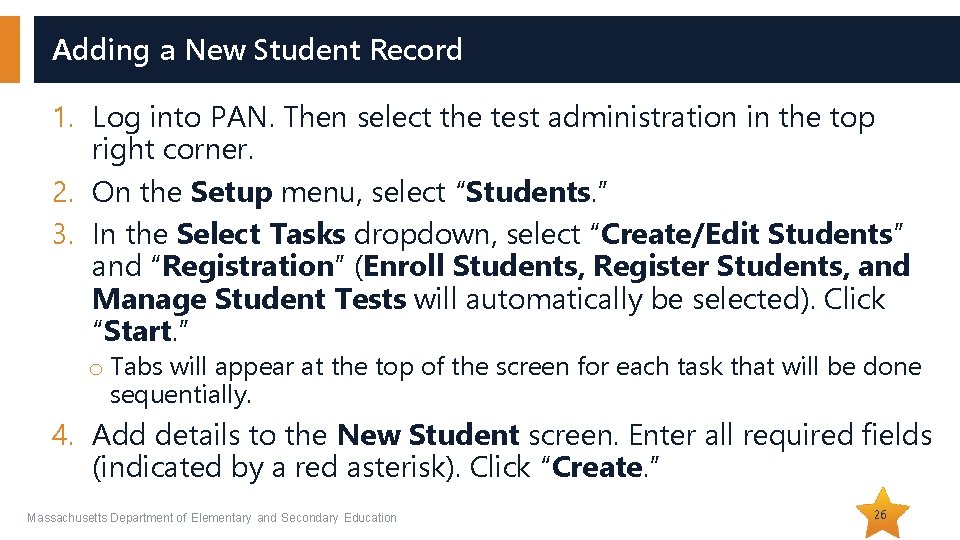
Adding a New Student Record 1. Log into PAN. Then select the test administration in the top right corner. 2. On the Setup menu, select “Students. ” 3. In the Select Tasks dropdown, select “Create/Edit Students” and “Registration” (Enroll Students, Register Students, and Manage Student Tests will automatically be selected). Click “Start. ” o Tabs will appear at the top of the screen for each task that will be done sequentially. 4. Add details to the New Student screen. Enter all required fields (indicated by a red asterisk). Click “Create. ” Massachusetts Department of Elementary and Secondary Education 26
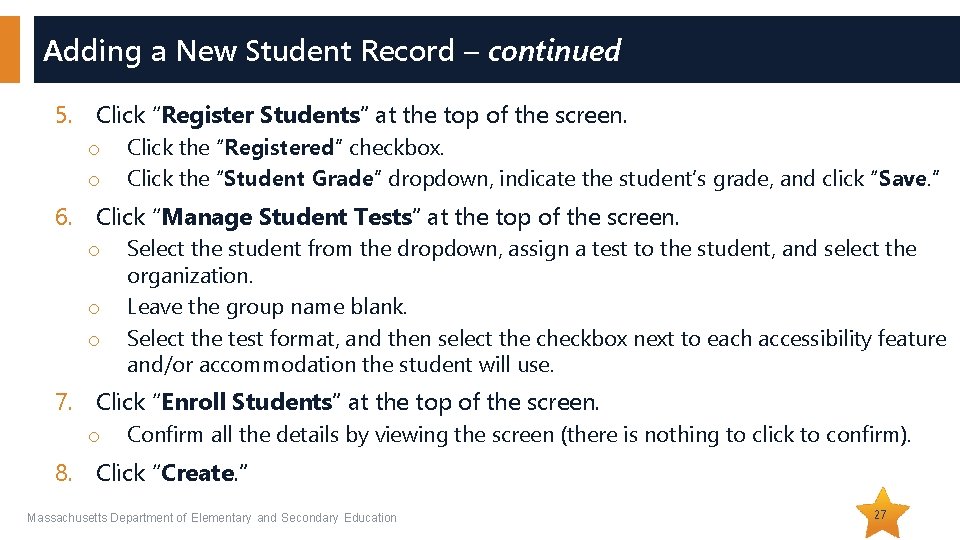
Adding a New Student Record – continued 5. Click “Register Students” at the top of the screen. o o Click the “Registered” checkbox. Click the “Student Grade” dropdown, indicate the student’s grade, and click “Save. ” 6. Click “Manage Student Tests” at the top of the screen. o o o Select the student from the dropdown, assign a test to the student, and select the organization. Leave the group name blank. Select the test format, and then select the checkbox next to each accessibility feature and/or accommodation the student will use. 7. Click “Enroll Students” at the top of the screen. o Confirm all the details by viewing the screen (there is nothing to click to confirm). 8. Click “Create. ” Massachusetts Department of Elementary and Secondary Education 27
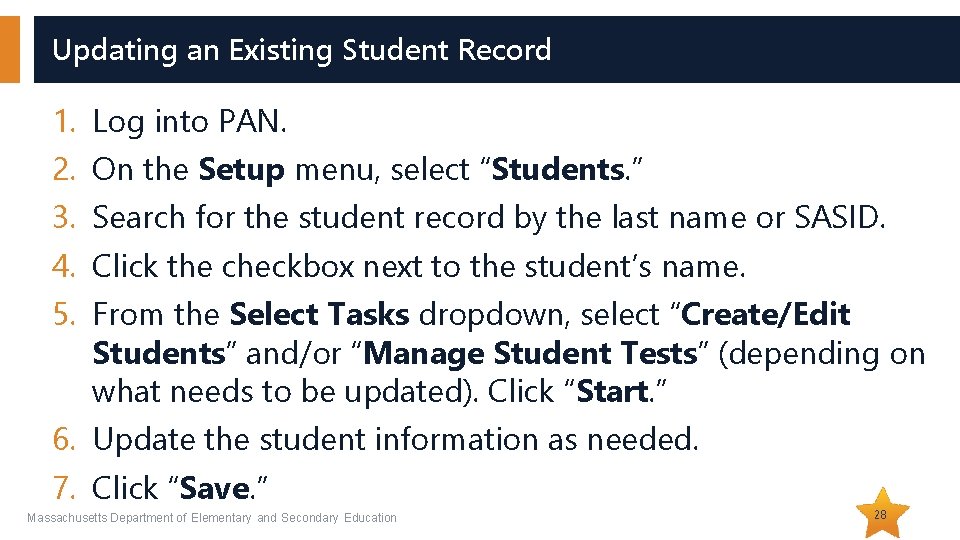
Updating an Existing Student Record 1. 2. 3. 4. 5. Log into PAN. On the Setup menu, select “Students. ” Search for the student record by the last name or SASID. Click the checkbox next to the student’s name. From the Select Tasks dropdown, select “Create/Edit Students” and/or “Manage Student Tests” (depending on what needs to be updated). Click “Start. ” 6. Update the student information as needed. 7. Click “Save. ” Massachusetts Department of Elementary and Secondary Education 28
04 Frequently Asked Questions
Frequently Asked Questions • What if a student doesn’t have a SASID? o Call your district SIMS contact to create a new SASID, or locate the student’s existing SASID from the prior school, if applicable. o If you do not have a student’s SASID by the file import deadline, create and assign a “fake” 10 -digit SASID starting with “ 88” (instead of “ 10”). Update the SASID in PAN as soon as you receive the actual SASID. o SASIDs cannot be newly assigned for students 22 years of age or older. • What if a student is listed in the. CSV file, but has already passed one of the tests? o Contact mcas@doe. mass. edu. Massachusetts Department of Elementary and Secondary Education 30
Frequently Asked Questions – cont’d • What if I lose my PAN password? o Click “Forgot Password” on the PAN login screen. • What if I need to create more users for PAN? o Refer to resources (mcas. pearsonsupport. com/pearsonaccessnext): § Guide to Importing Users into Pearson. Access Next § User Role Matrix for Pearson. Access Next • What if I don’t have access to the Security Portal to find the. CSV files? o Contact your Directory Administrator o www. doe. mass. edu/Info. Services/data/diradmin/list. aspx Massachusetts Department of Elementary and Secondary Education 31
Questions & Answers Massachusetts Department of Elementary and Secondary Education 32
05 Resources and Support
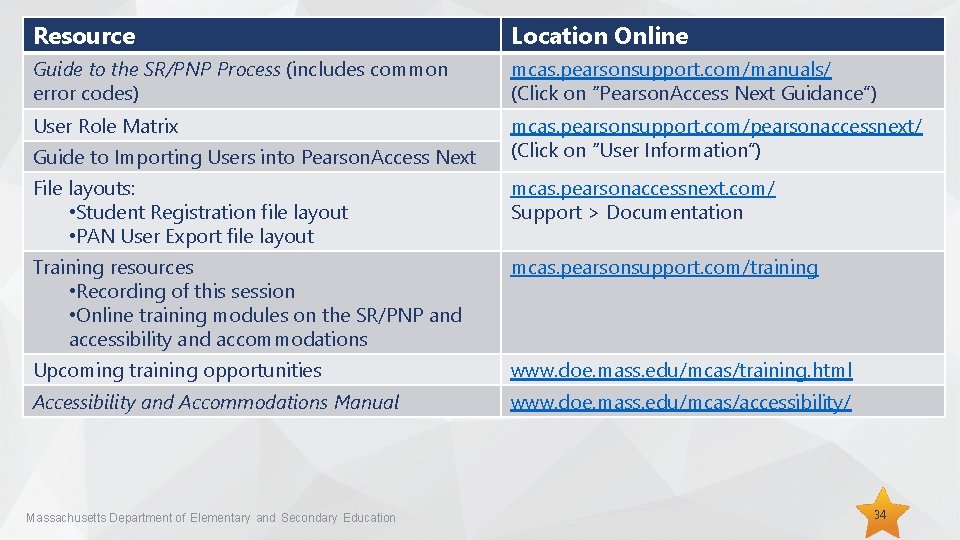
Resource Location Online Guide to the SR/PNP Process (includes common error codes) mcas. pearsonsupport. com/manuals/ (Click on “Pearson. Access Next Guidance”) User Role Matrix mcas. pearsonsupport. com/pearsonaccessnext/ (Click on “User Information”) Guide to Importing Users into Pearson. Access Next File layouts: • Student Registration file layout • PAN User Export file layout mcas. pearsonaccessnext. com/ Support > Documentation Training resources • Recording of this session • Online training modules on the SR/PNP and accessibility and accommodations mcas. pearsonsupport. com/training Upcoming training opportunities www. doe. mass. edu/mcas/training. html Accessibility and Accommodations Manual www. doe. mass. edu/mcas/accessibility/ Massachusetts Department of Elementary and Secondary Education 34
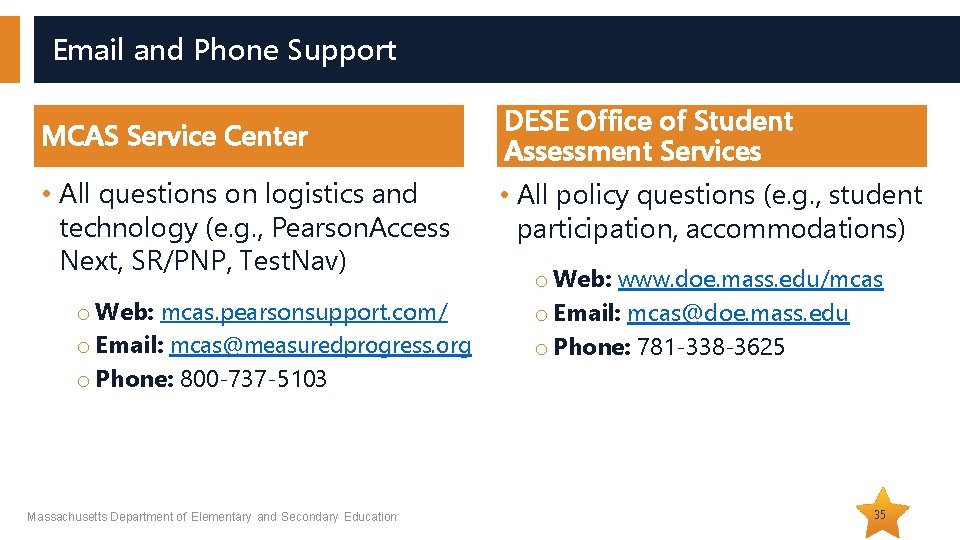
Email and Phone Support MCAS Service Center • All questions on logistics and technology (e. g. , Pearson. Access Next, SR/PNP, Test. Nav) o Web: mcas. pearsonsupport. com/ o Email: mcas@measuredprogress. org o Phone: 800 -737 -5103 Massachusetts Department of Elementary and Secondary Education DESE Office of Student Assessment Services • All policy questions (e. g. , student participation, accommodations) o Web: www. doe. mass. edu/mcas o Email: mcas@doe. mass. edu o Phone: 781 -338 -3625 35
Evaluation Form • The evaluation form will only be available when you close this Web. Ex session. • You will not be able to return to it later. • Note that responses will be associated with the name and email address used to log in. • Email your input to mcas@doe. mass. edu if you have problems accessing or completing the form. Massachusetts Department of Elementary and Secondary Education 36
THANK YOU The Office of Student Assessment Services 781 -338 -3625 www. doe. mass. edu/mcas@doe. mass. edu 75 Pleasant Street, Malden, MA 02148