
Overview of SAP ERP Training Steps Dr Alaa
- Slides: 30
Overview of SAP ERP- Training Steps Dr. Alaa El-Halees
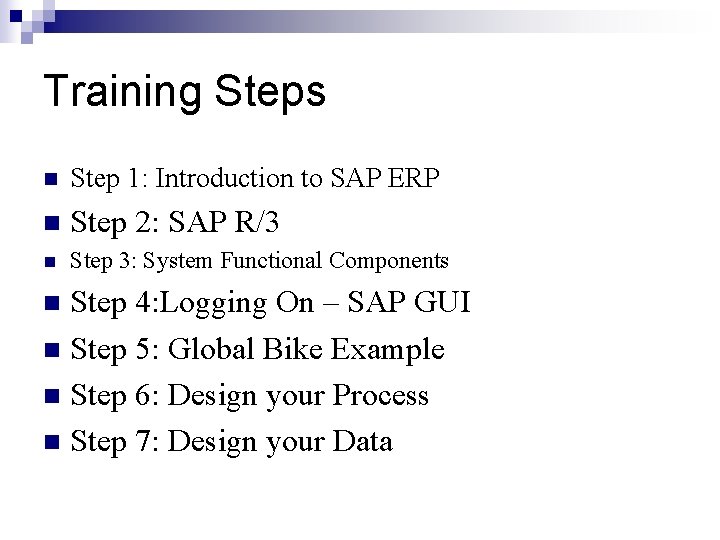
Training Steps n Step 1: Introduction to SAP ERP n Step 2: SAP R/3 n Step 3: System Functional Components Step 4: Logging On – SAP GUI n Step 5: Global Bike Example n Step 6: Design your Process n Step 7: Design your Data n
Step 1 : Introduction n n Enterprise Resource Planning Systems is a computer system that integrates application programs in accounting, sales, manufacturing, and other functions in the firm. This integration is accomplished through a database shared by all the application programs.
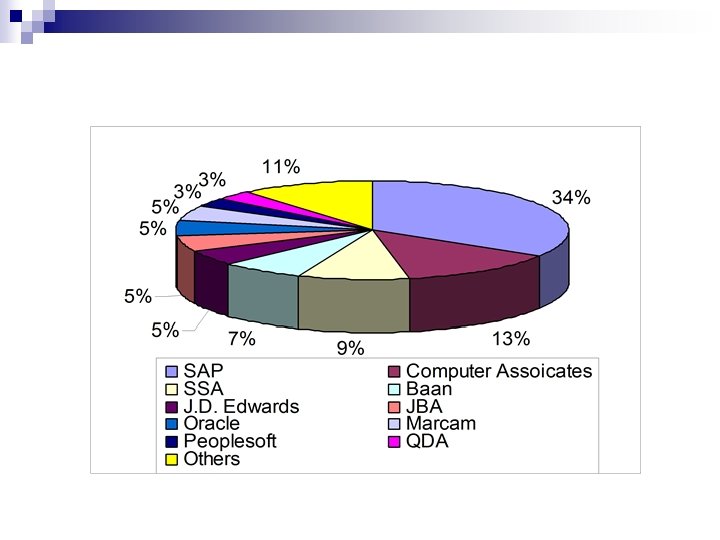
Step 1 : Introduction n n n SAP stands for Systems, Applications and Products SAP is the fourth largest software company in the world. Enterprise resource planning (ERP) 50, 000 customers, Built to support the world’s largest organizations as well as small and midsize companies in 25 different industries. Streamline processes across procurement, manufacturing, service, sales, finance, and HR.
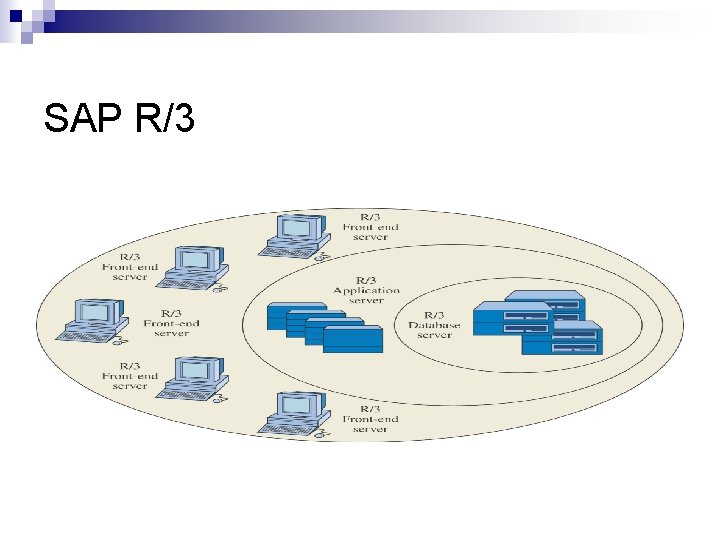
Step 2 : SAP R/3 - Designed to operate in a three-tier client/server configuration - Applications are fully integrated so that data are shared between all applications
SAP R/3
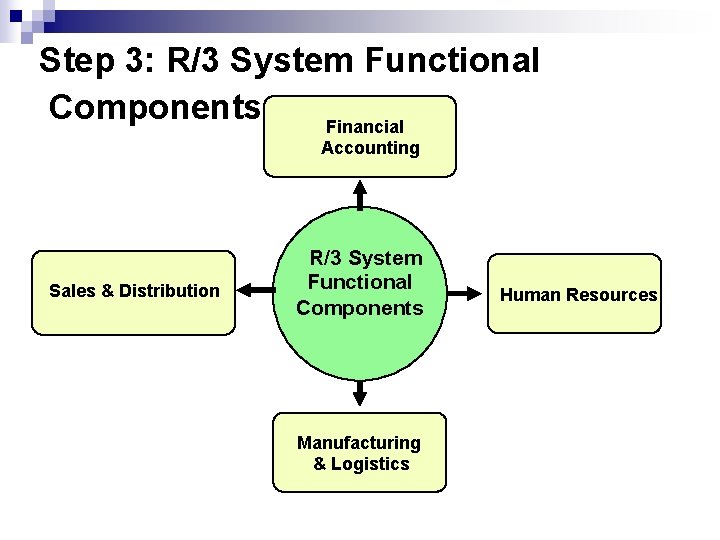
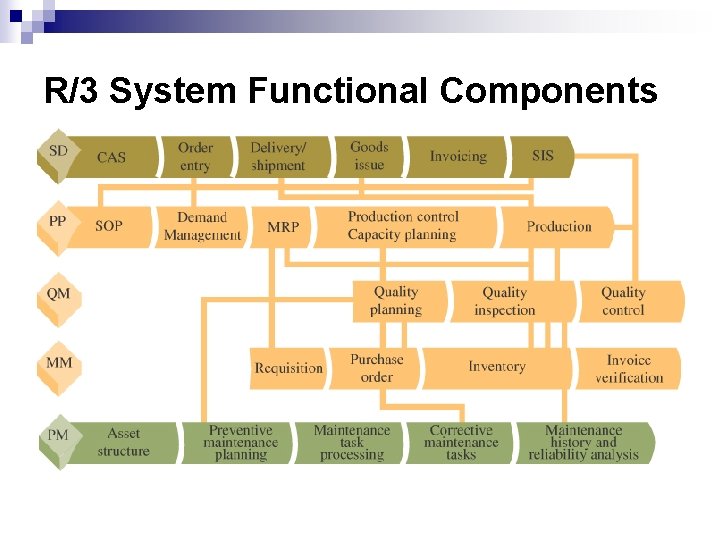
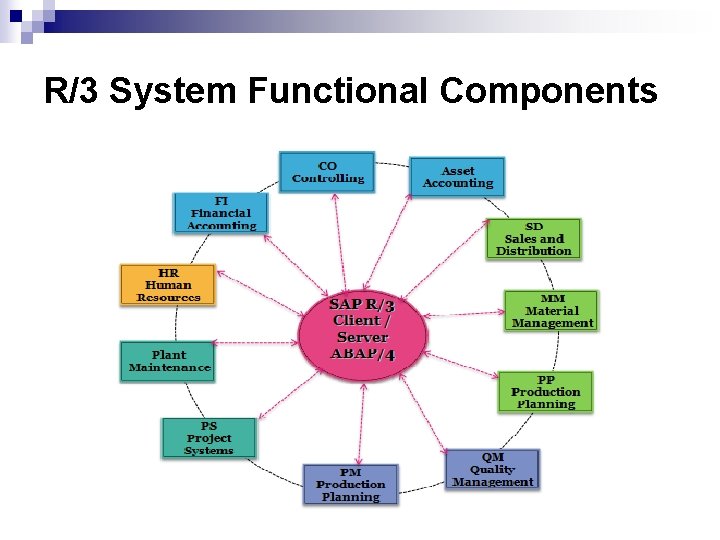
Step 3: R/3 System Functional Components Financial Accounting Sales & Distribution R/3 System Functional Components Manufacturing & Logistics Human Resources
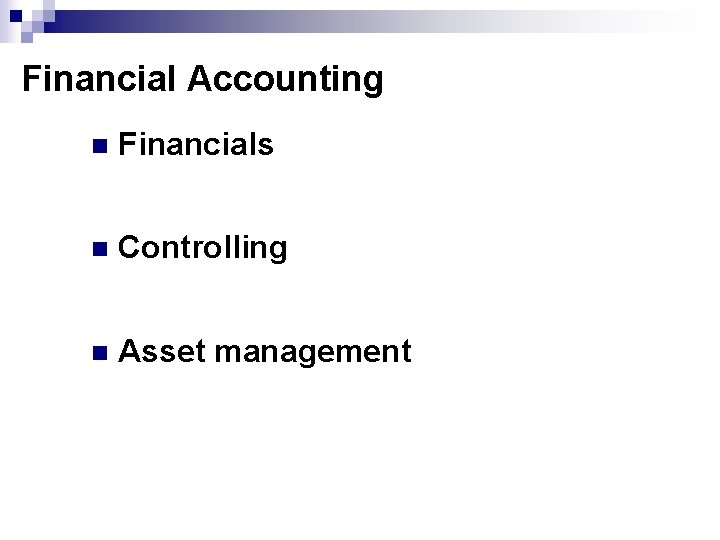
Financial Accounting n Financials n Controlling n Asset management
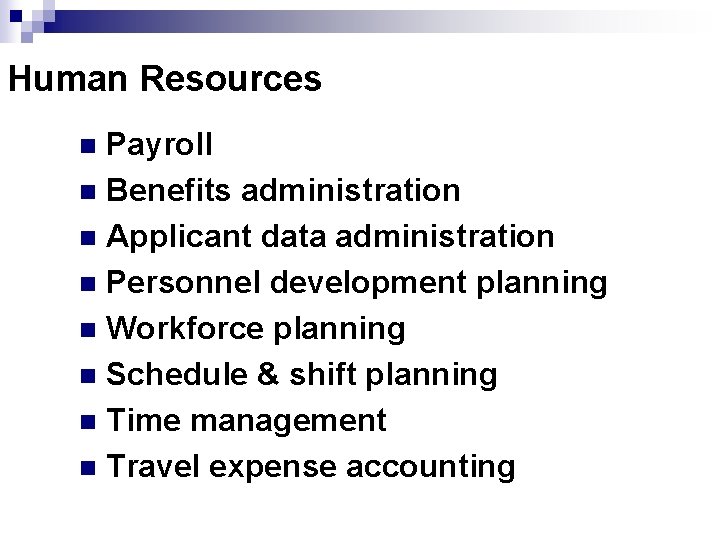
Human Resources Payroll n Benefits administration n Applicant data administration n Personnel development planning n Workforce planning n Schedule & shift planning n Time management n Travel expense accounting n
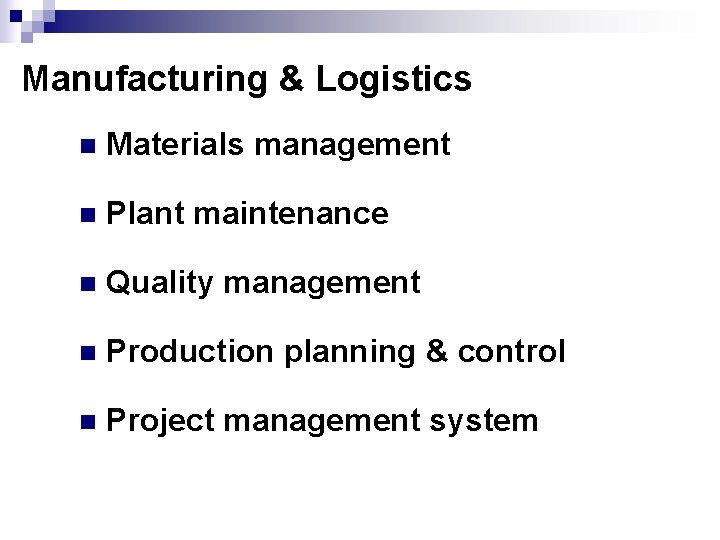
Manufacturing & Logistics n Materials management n Plant maintenance n Quality management n Production planning & control n Project management system
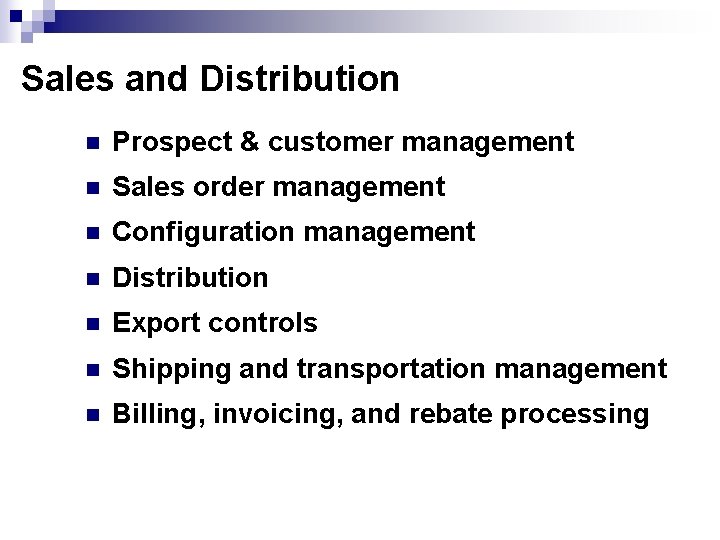
Sales and Distribution n Prospect & customer management n Sales order management n Configuration management n Distribution n Export controls n Shipping and transportation management n Billing, invoicing, and rebate processing
R/3 System Functional Components
R/3 System Functional Components
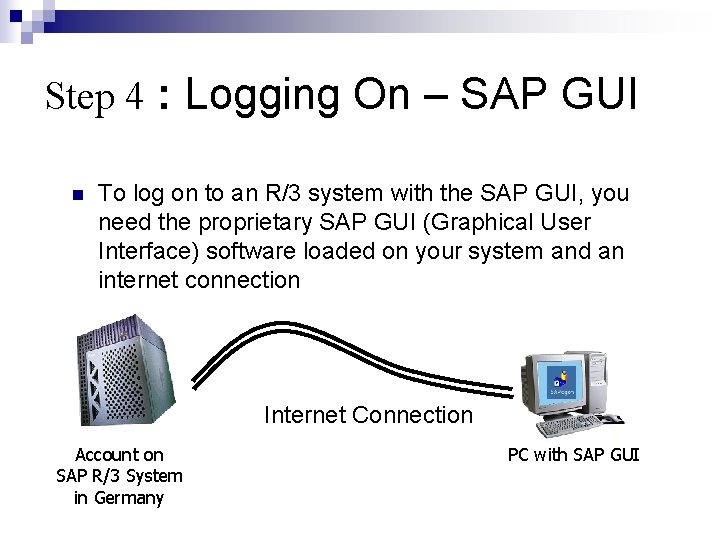
Step 4 : Logging On – SAP GUI n To log on to an R/3 system with the SAP GUI, you need the proprietary SAP GUI (Graphical User Interface) software loaded on your system and an internet connection Internet Connection Account on SAP R/3 System in Germany PC with SAP GUI
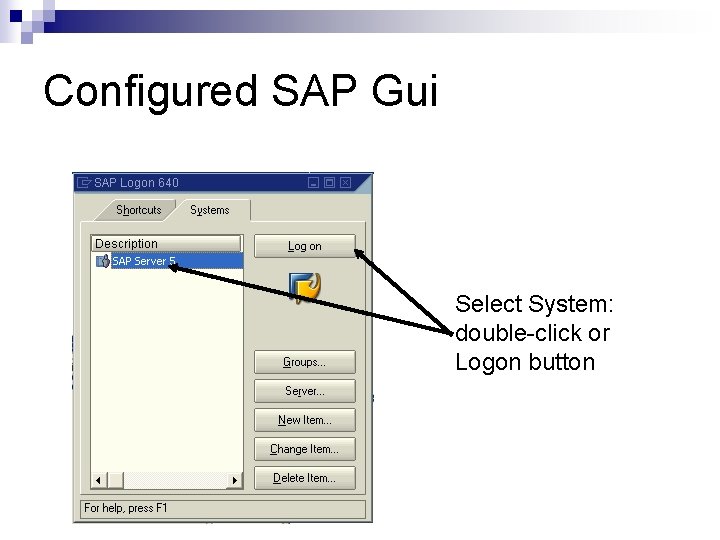
Configured SAP Gui Select System: double-click or Logon button
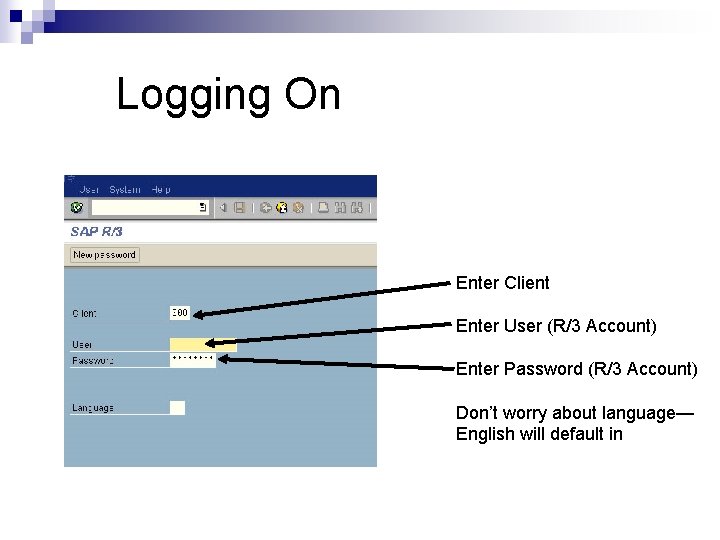
Logging On Enter Client Enter User (R/3 Account) Enter Password (R/3 Account) Don’t worry about language— English will default in
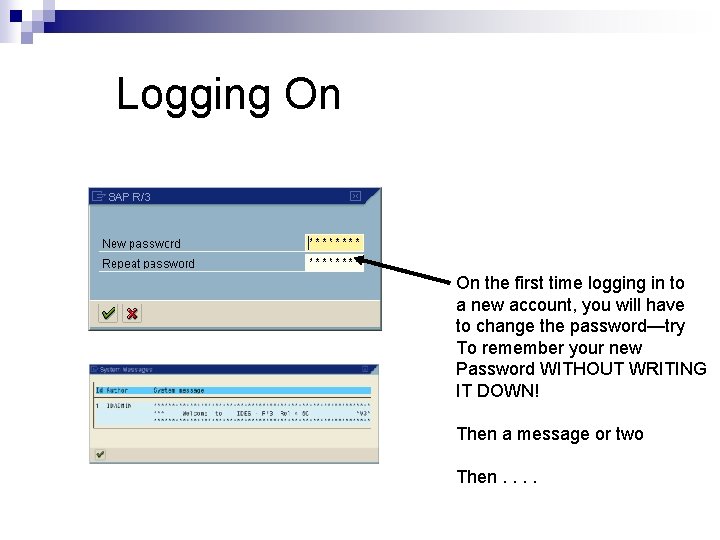
Logging On On the first time logging in to a new account, you will have to change the password—try To remember your new Password WITHOUT WRITING IT DOWN! Then a message or two Then. .
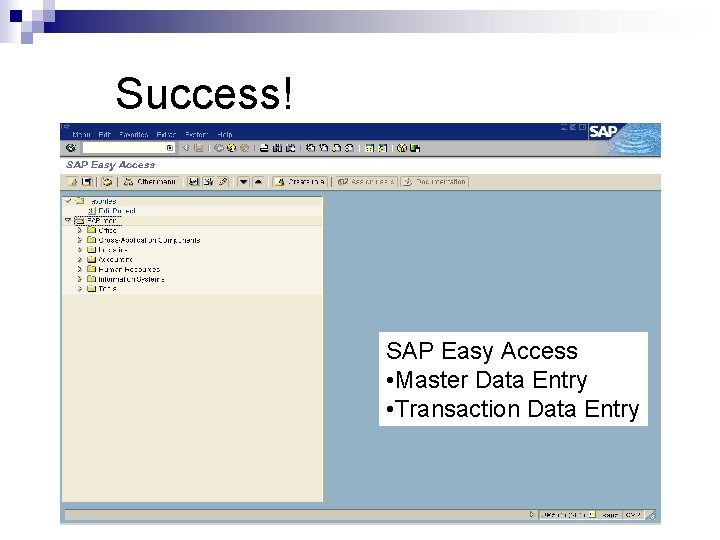
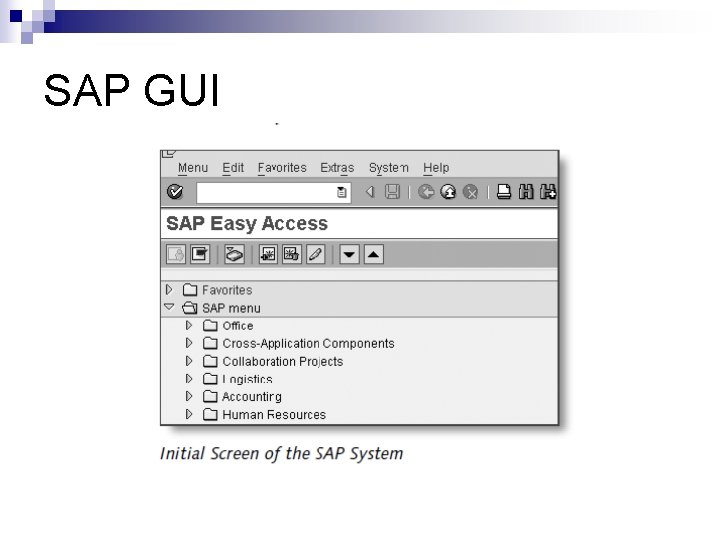
Success! SAP Easy Access • Master Data Entry • Transaction Data Entry
Data Types n Master Data ¨ Data that is relatively stable n Materials, Customers, Vendors n Transaction Data ¨ Data that is relatively temporary ¨ Stored at various stages of a business process n Customer orders, purchase orders, production orders, customer payments
SAP GUI
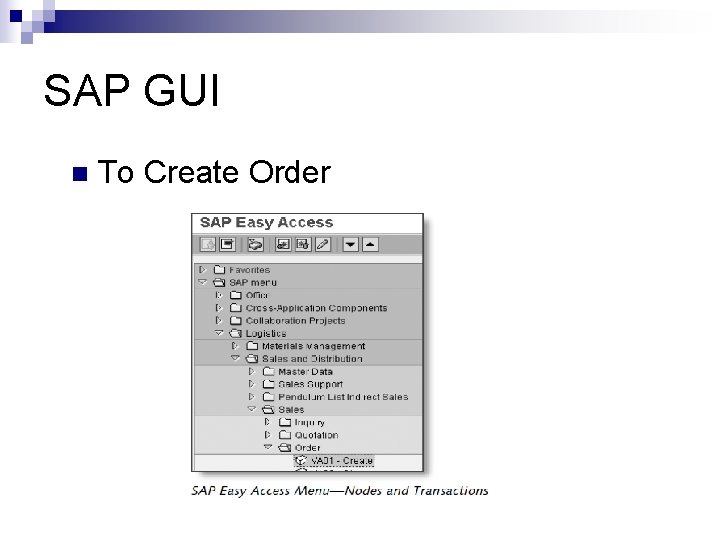
SAP GUI n To Create Order
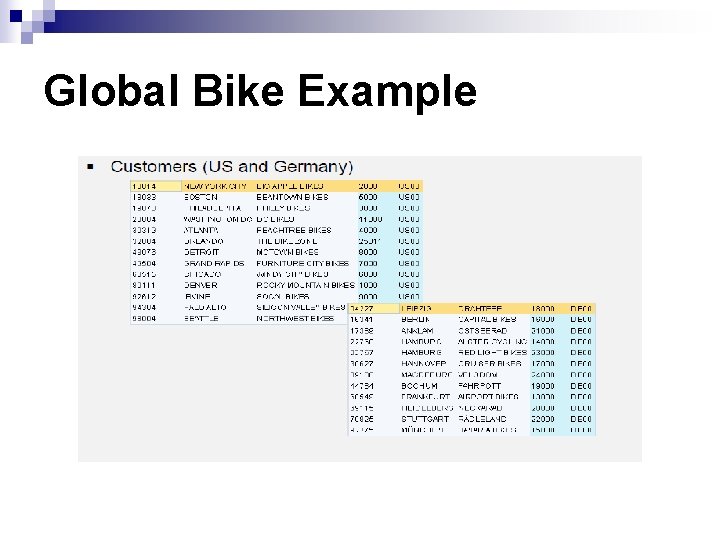
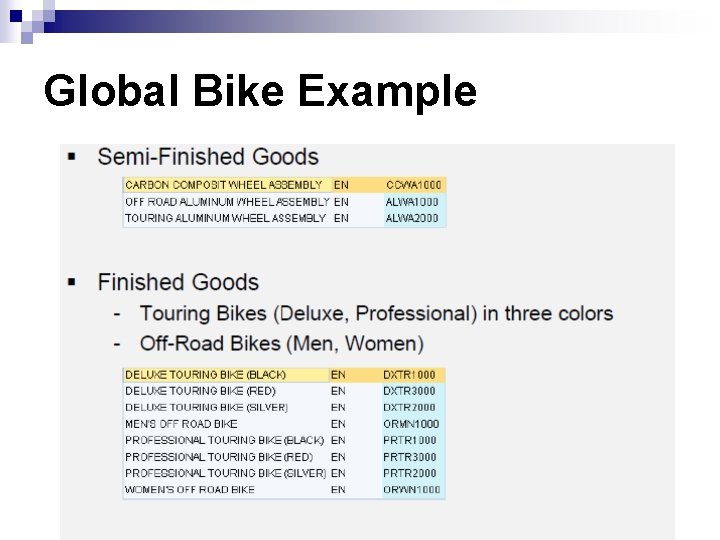
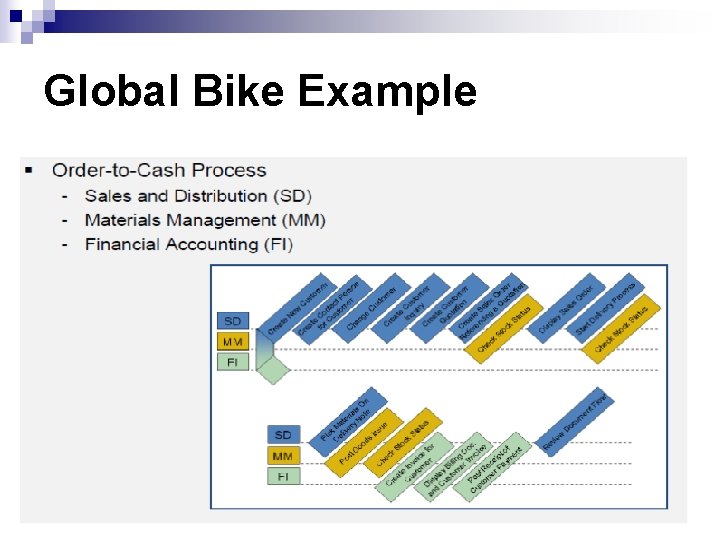
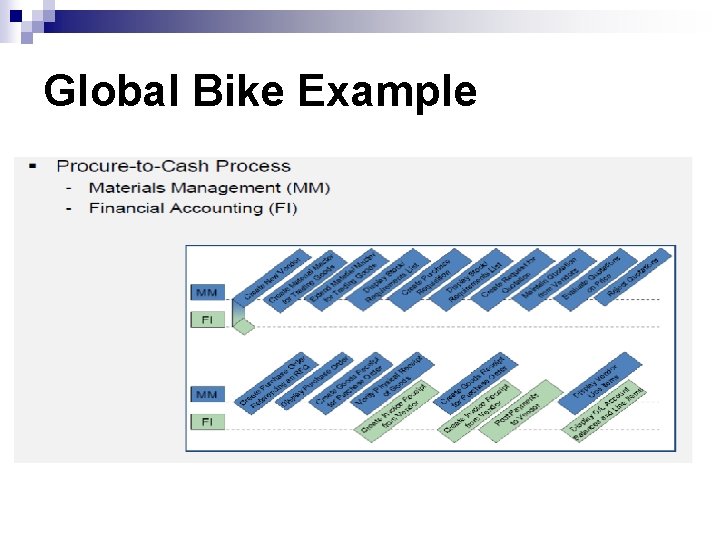
Step 5 : Global Bike Example For Training use: Global Bike Example Materials available at n http: //scn. sap. com/community/uac/bpmlibrary n You need to be member to get materials
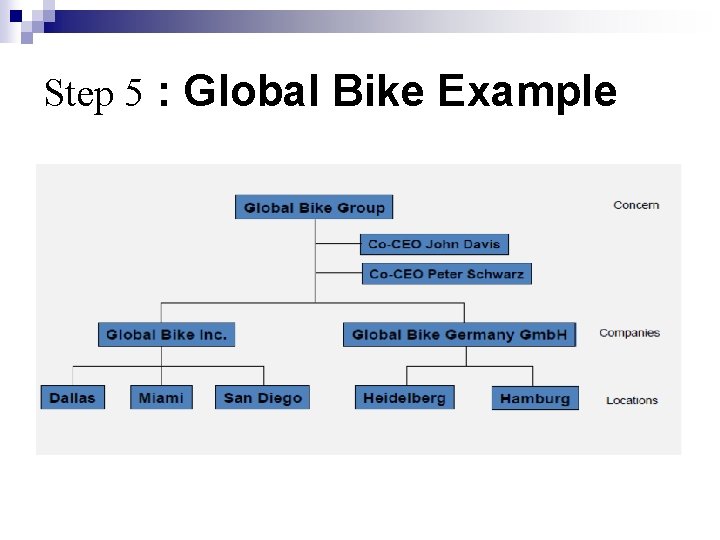
Step 5 : Global Bike Example
Global Bike Example
Global Bike Example
Global Bike Example
Global Bike Example
Step 6: Design your Scenario Using Global Bike Example , you can design your own Process. To know how to use any commend: n Help Menu or n http: //www. saponlinetutorials. com/
Step 7: Design your Data n After that you can design your data and Process