
Overview of my Evolv e MAR and Order
- Slides: 33
Overview of my. Evolv e. MAR and Order. Connect Use Priscilla Morales The House of the Good Shepherd Mike Conway Northern Rivers Family of Services
Overview • Order. Connect ▫ Order. Connect is a secure, Web-based and medication management system that integrates with your EHR solution to enhance patient safely and increase physician productivity. You can order new medications from the office or from a mobile device. The system also allows you to create lab and radiology orders and to receive results back electronically. • my. Evolv e. MAR ▫ e. MAR (Electronic Medication Administration Record) is a feature that allows agencies to administer and track remaining quantities of a child’s prescriptions on file. e. MAR is entered in its own module, but it will look for information entered in the health section in a child’s record. e. MAR is used for medication dispensing. my. Evolv Peer Training Summit 2
Order. Connect Overview
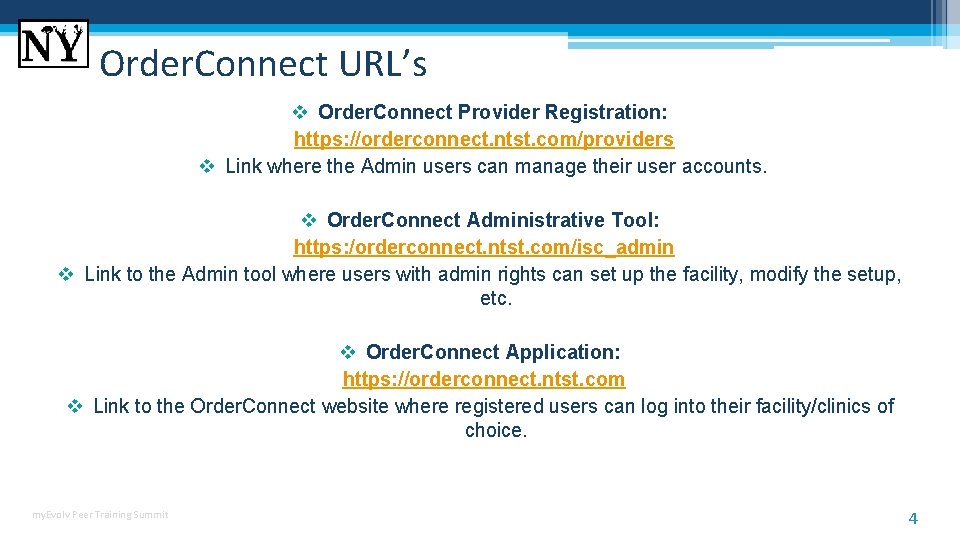
Order. Connect URL’s v Order. Connect Provider Registration: https: //orderconnect. ntst. com/providers v Link where the Admin users can manage their user accounts. v Order. Connect Administrative Tool: https: /orderconnect. ntst. com/isc_admin v Link to the Admin tool where users with admin rights can set up the facility, modify the setup, etc. v Order. Connect Application: https: //orderconnect. ntst. com v Link to the Order. Connect website where registered users can log into their facility/clinics of choice. my. Evolv Peer Training Summit 4
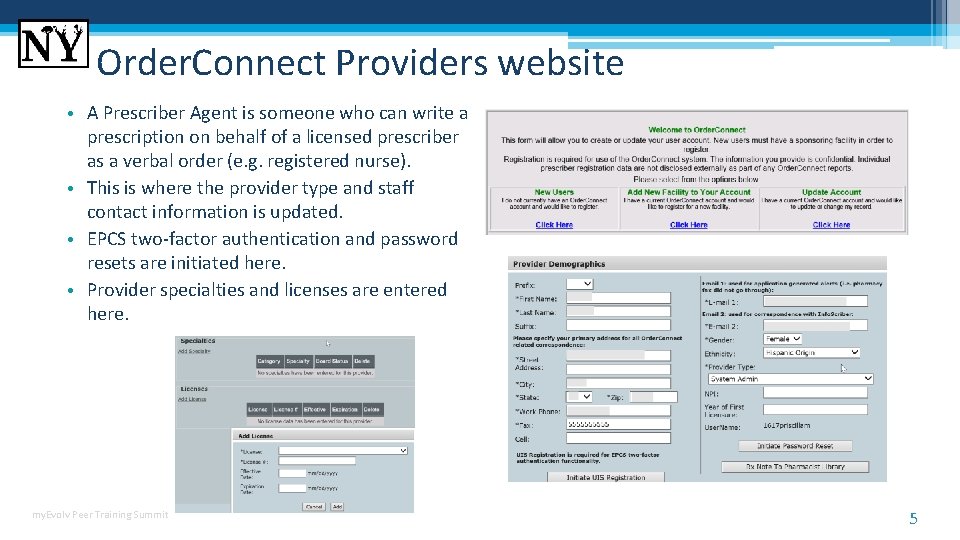
Order. Connect Providers website • A Prescriber Agent is someone who can write a prescription on behalf of a licensed prescriber as a verbal order (e. g. registered nurse). • This is where the provider type and staff contact information is updated. • EPCS two-factor authentication and password resets are initiated here. • Provider specialties and licenses are entered here. my. Evolv Peer Training Summit 5
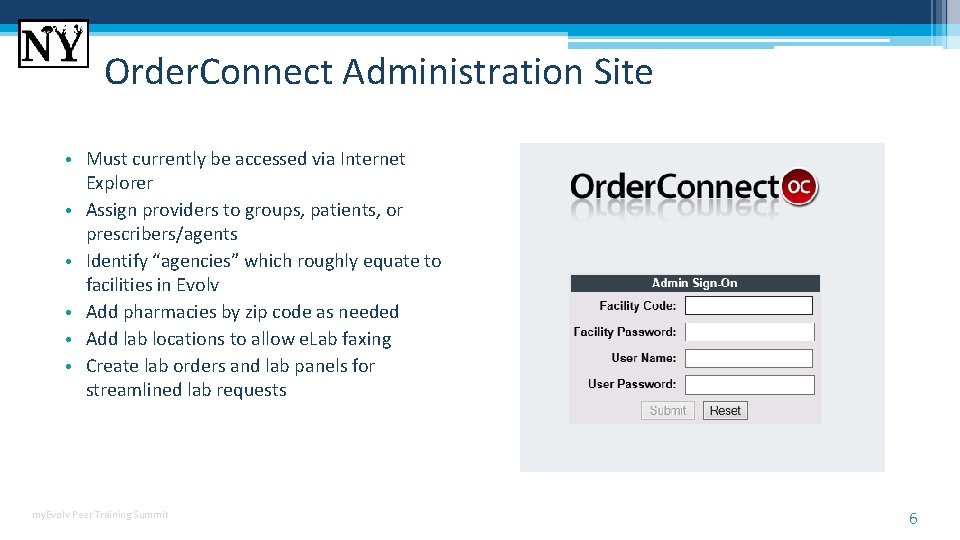
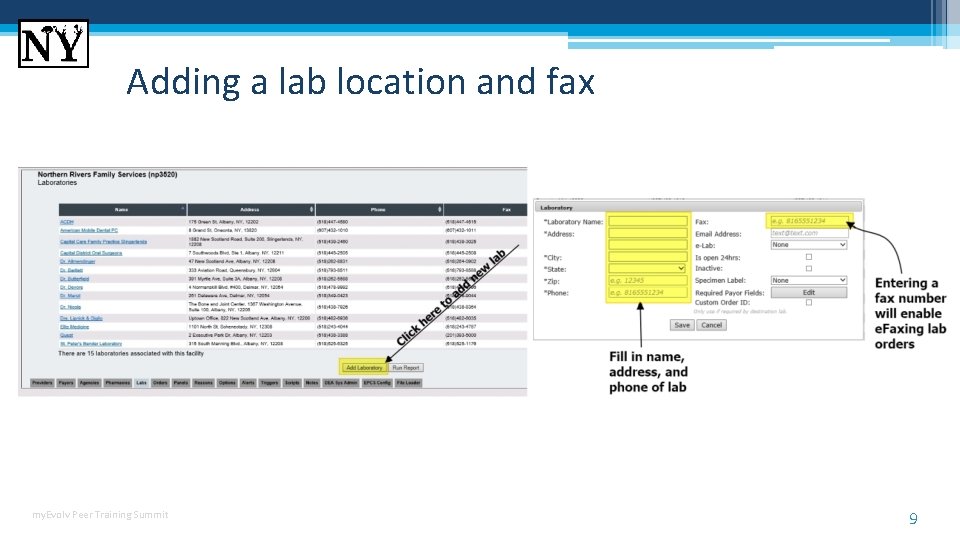
Order. Connect Administration Site • Must currently be accessed via Internet Explorer • Assign providers to groups, patients, or prescribers/agents • Identify “agencies” which roughly equate to facilities in Evolv • Add pharmacies by zip code as needed • Add lab locations to allow e. Lab faxing • Create lab orders and lab panels for streamlined lab requests my. Evolv Peer Training Summit 6
Order. Connect Admin Functions
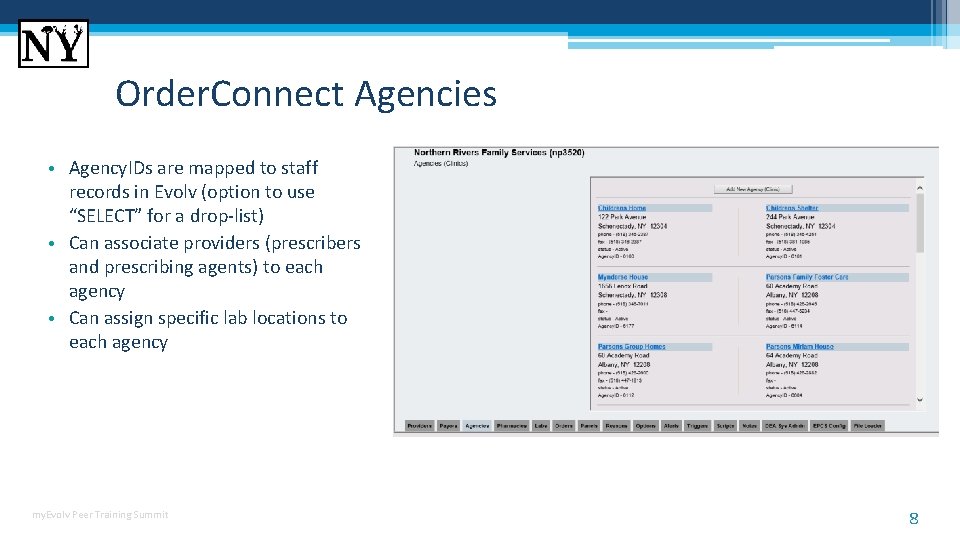
Order. Connect Agencies • Agency. IDs are mapped to staff records in Evolv (option to use “SELECT” for a drop-list) • Can associate providers (prescribers and prescribing agents) to each agency • Can assign specific lab locations to each agency my. Evolv Peer Training Summit 8
Adding a lab location and fax my. Evolv Peer Training Summit 9
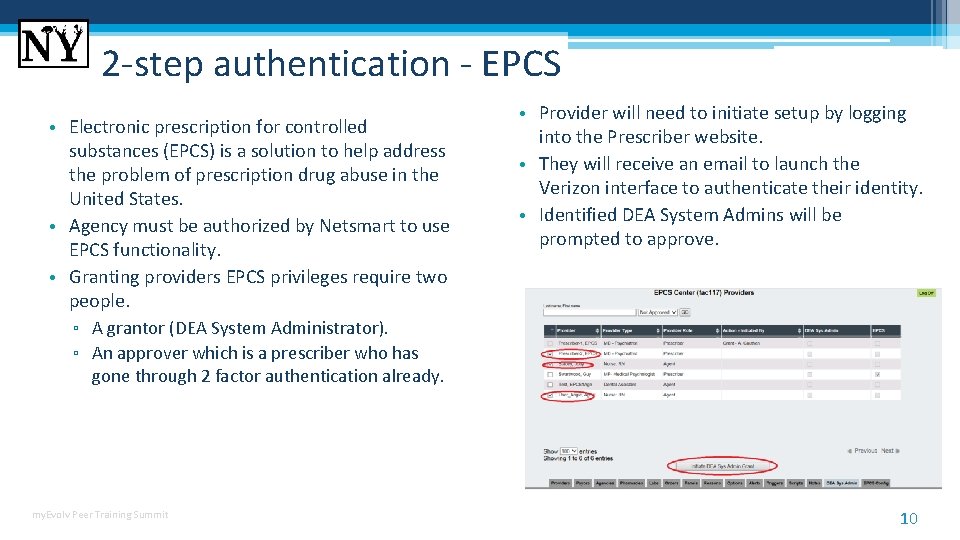
2 -step authentication - EPCS • Electronic prescription for controlled substances (EPCS) is a solution to help address the problem of prescription drug abuse in the United States. • Agency must be authorized by Netsmart to use EPCS functionality. • Granting providers EPCS privileges require two people. ▫ A grantor (DEA System Administrator). ▫ An approver which is a prescriber who has • Provider will need to initiate setup by logging into the Prescriber website. • They will receive an email to launch the Verizon interface to authenticate their identity. • Identified DEA System Admins will be prompted to approve. gone through 2 factor authentication already. my. Evolv Peer Training Summit 10
Order. Connect Application Functions
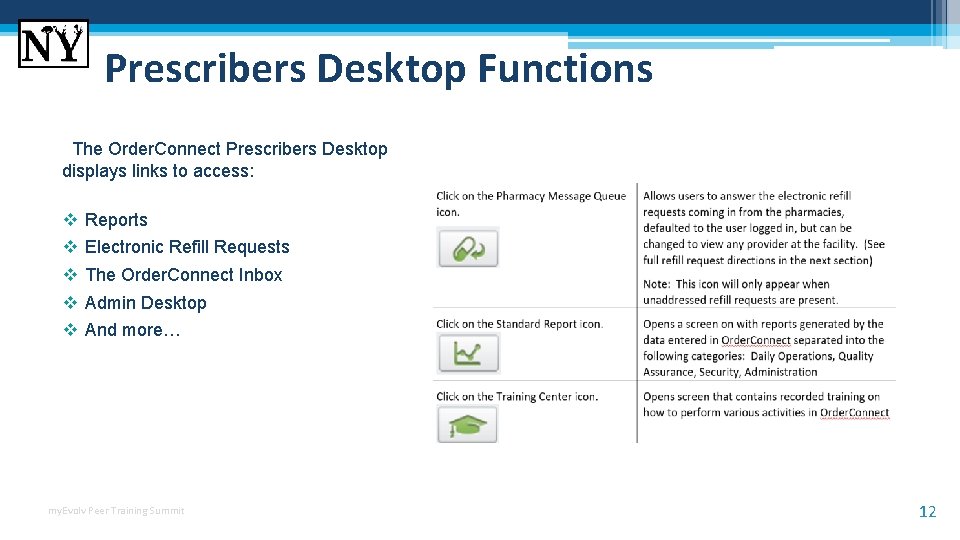
Prescribers Desktop Functions The Order. Connect Prescribers Desktop displays links to access: v v v Reports Electronic Refill Requests The Order. Connect Inbox Admin Desktop And more… my. Evolv Peer Training Summit 12
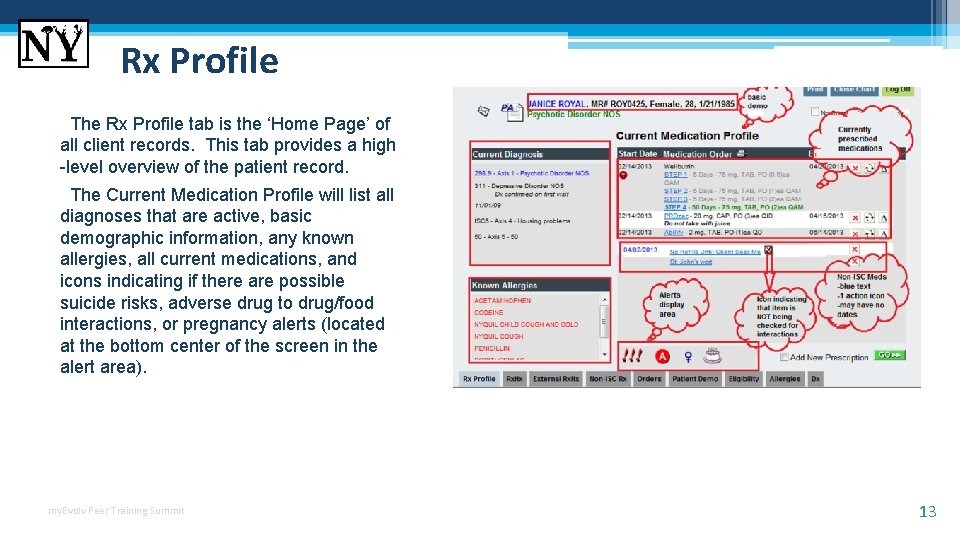
Rx Profile The Rx Profile tab is the ‘Home Page’ of all client records. This tab provides a high -level overview of the patient record. The Current Medication Profile will list all diagnoses that are active, basic demographic information, any known allergies, all current medications, and icons indicating if there are possible suicide risks, adverse drug to drug/food interactions, or pregnancy alerts (located at the bottom center of the screen in the alert area). my. Evolv Peer Training Summit 13
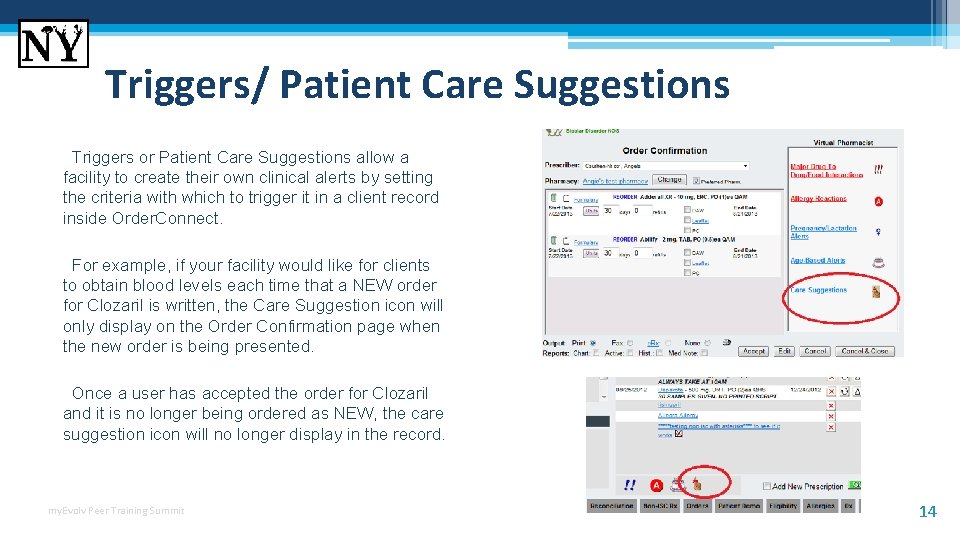
Triggers/ Patient Care Suggestions Triggers or Patient Care Suggestions allow a facility to create their own clinical alerts by setting the criteria with which to trigger it in a client record inside Order. Connect. For example, if your facility would like for clients to obtain blood levels each time that a NEW order for Clozaril is written, the Care Suggestion icon will only display on the Order Confirmation page when the new order is being presented. Once a user has accepted the order for Clozaril and it is no longer being ordered as NEW, the care suggestion icon will no longer display in the record. my. Evolv Peer Training Summit 14
Alerts Override Order. Connect provides the ability to display the following types of interactions and warnings within the client record. • Drug-Allergy interaction • Drug-Drug interaction • Drug-food interaction • Drug-ethanol interaction The administrator can determine which of these warnings will be presented to users during the prescribing events. • Drug-lab interaction A facility may elect to hide/suppress any of the available alerts. However, If a user would like to see any non-displayed alerts for a client record, the user can click on the ‘Bypass Filters- Show All Alerts’ option and view all alerts available. • Drug-pregnancy interaction Administrators may also require that users acknowledge having seen and/or provide prescriber reasoning for these alerts when the alerts are present in a record • Ingredient duplication interaction my. Evolv Peer Training Summit • Drug-tobacco interaction • Drug-disease (indication) interaction • Drug-lactation interaction • General precautions interaction • Therapeutic class duplication • Therapeutic class antagonism • Warning generated from Validate Profile • Age-based prescribing guidelines • Unknown severity alters 15
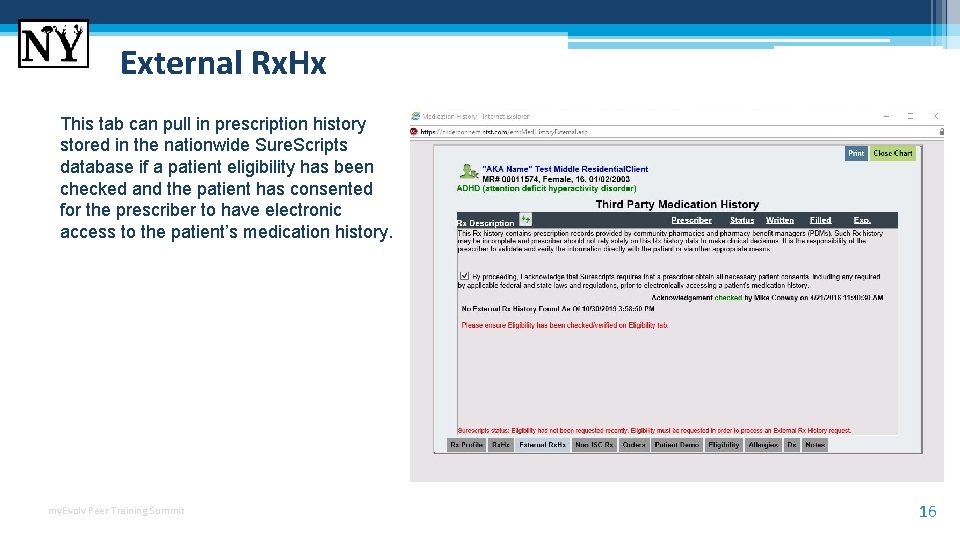
External Rx. Hx This tab can pull in prescription history stored in the nationwide Sure. Scripts database if a patient eligibility has been checked and the patient has consented for the prescriber to have electronic access to the patient’s medication history. my. Evolv Peer Training Summit 16
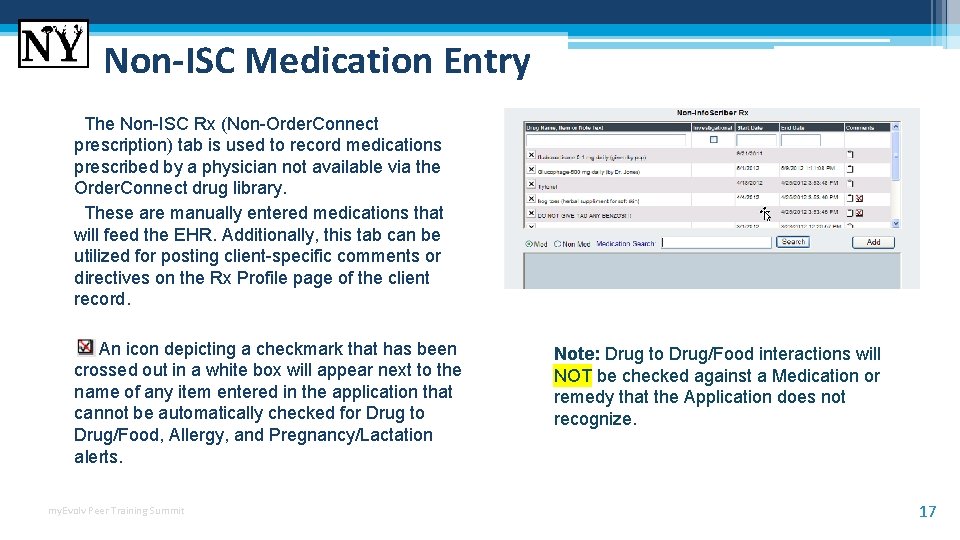
Non-ISC Medication Entry The Non-ISC Rx (Non-Order. Connect prescription) tab is used to record medications prescribed by a physician not available via the Order. Connect drug library. These are manually entered medications that will feed the EHR. Additionally, this tab can be utilized for posting client-specific comments or directives on the Rx Profile page of the client record. An icon depicting a checkmark that has been crossed out in a white box will appear next to the name of any item entered in the application that cannot be automatically checked for Drug to Drug/Food, Allergy, and Pregnancy/Lactation alerts. my. Evolv Peer Training Summit Note: Drug to Drug/Food interactions will NOT be checked against a Medication or remedy that the Application does not recognize. 17
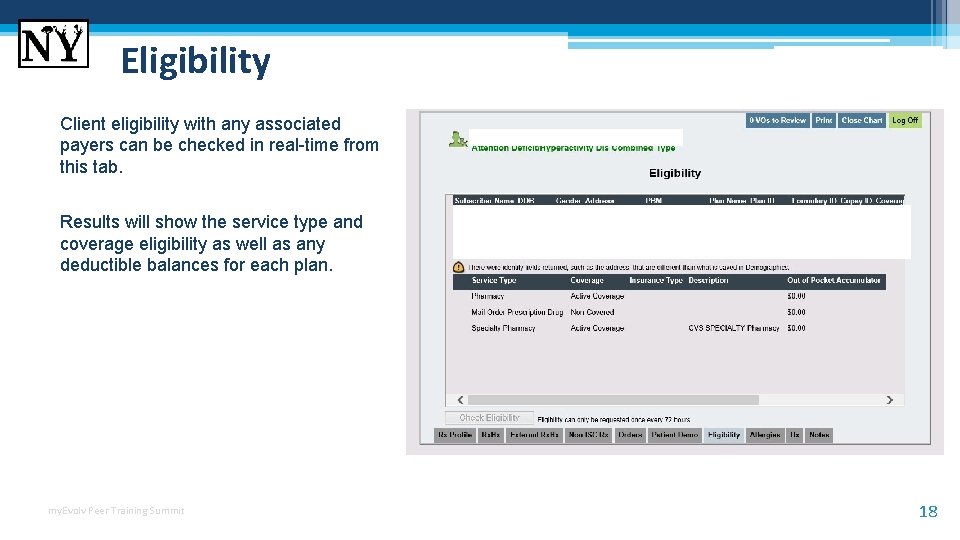
Eligibility Client eligibility with any associated payers can be checked in real-time from this tab. Results will show the service type and coverage eligibility as well as any deductible balances for each plan. my. Evolv Peer Training Summit 18
19 my. Evolv Peer Training Summit my. Evolv Agency Setup
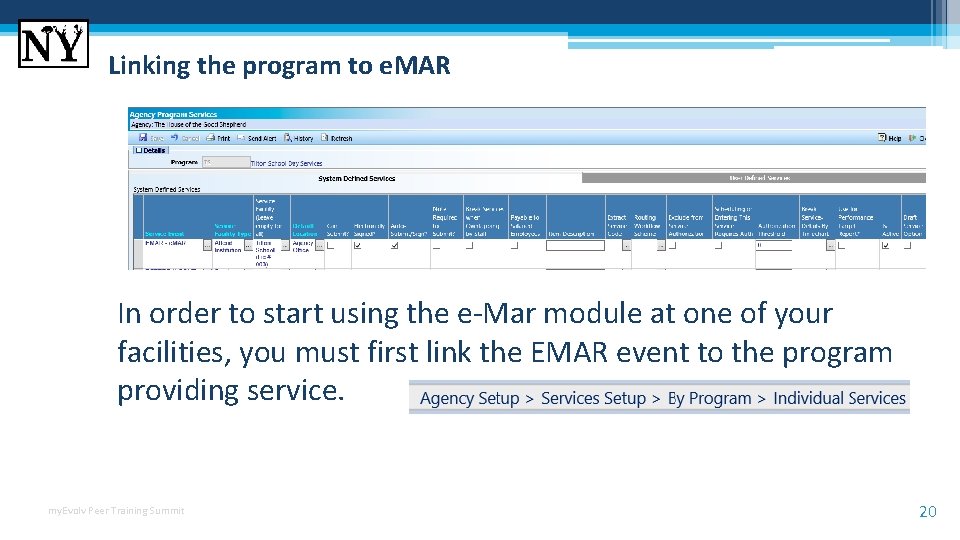
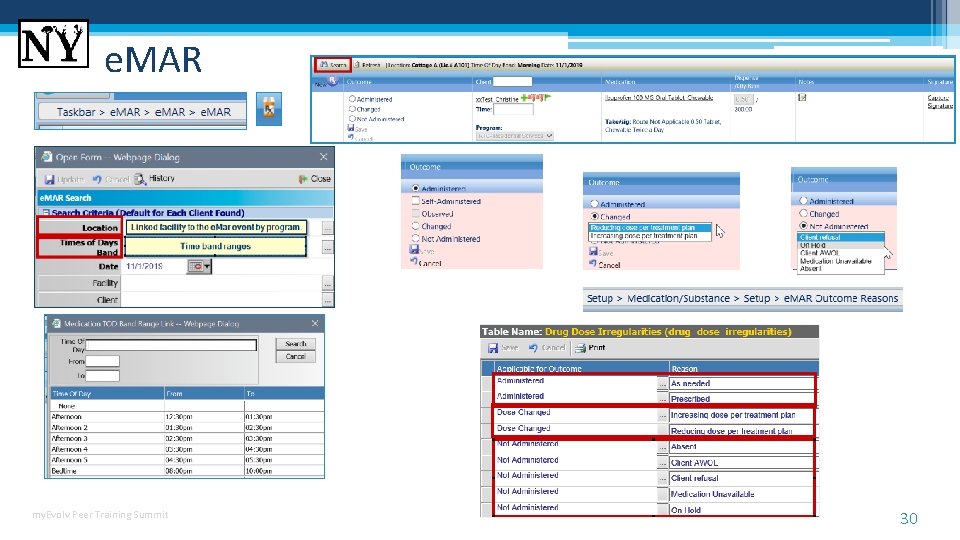
Linking the program to e. MAR In order to start using the e-Mar module at one of your facilities, you must first link the EMAR event to the program providing service. my. Evolv Peer Training Summit 20
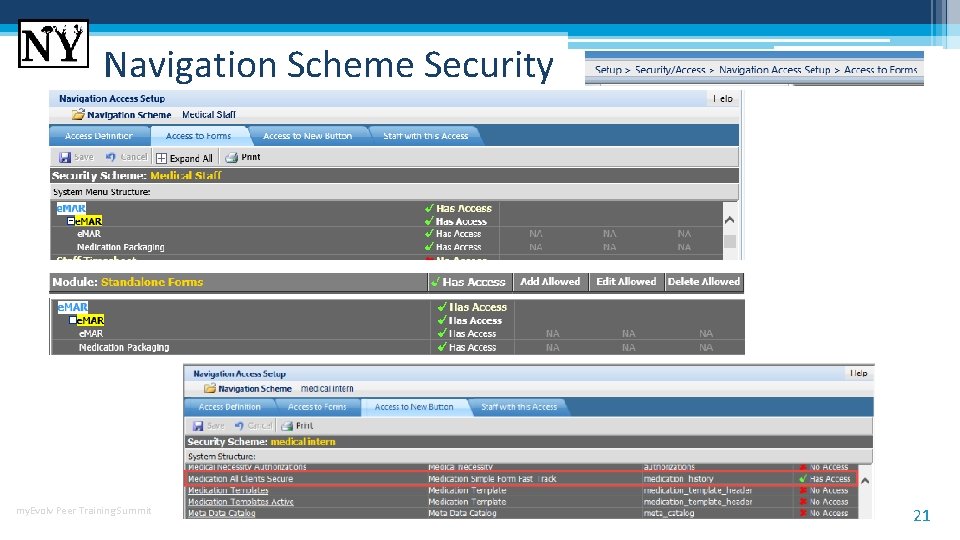
Navigation Scheme Security my. Evolv Peer Training Summit 21
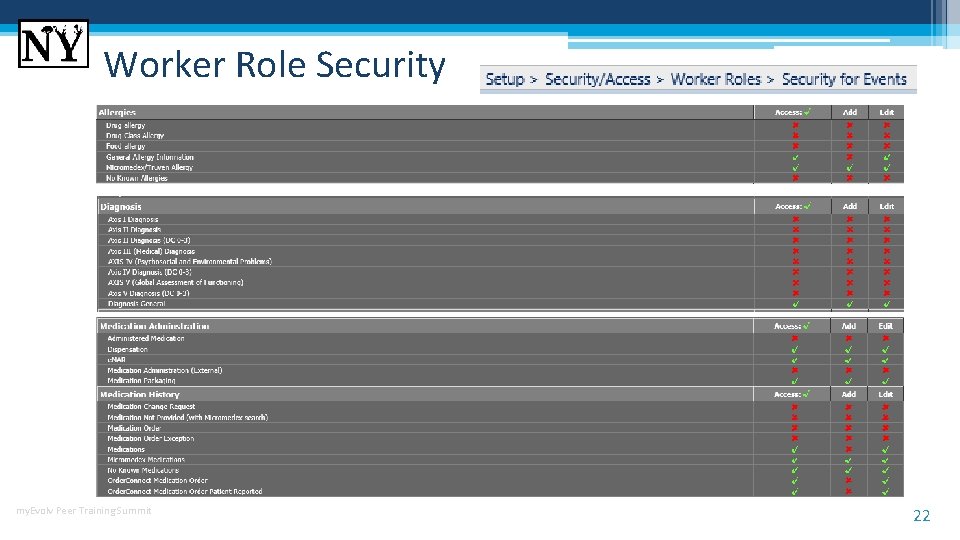
Worker Role Security my. Evolv Peer Training Summit 22
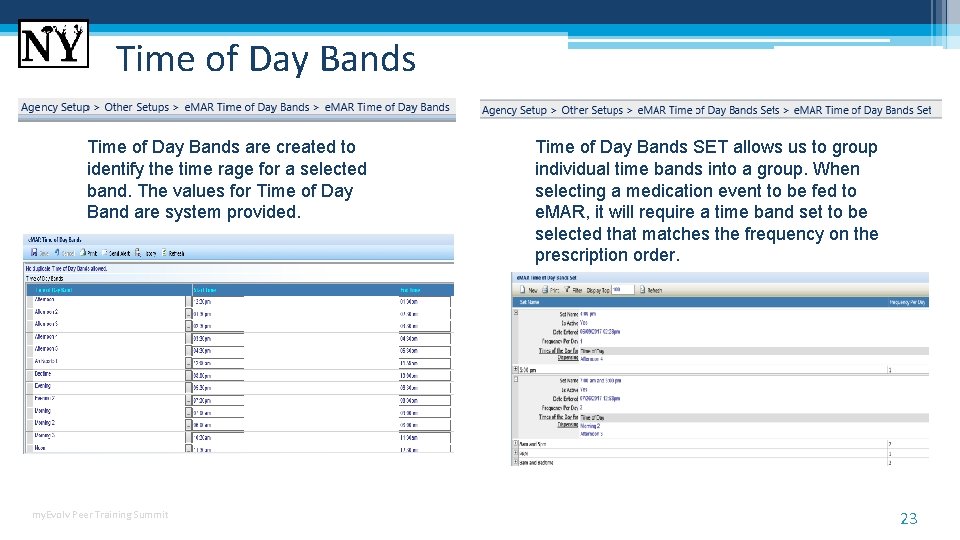
Time of Day Bands are created to identify the time rage for a selected band. The values for Time of Day Band are system provided. my. Evolv Peer Training Summit Time of Day Bands SET allows us to group individual time bands into a group. When selecting a medication event to be fed to e. MAR, it will require a time band set to be selected that matches the frequency on the prescription order. 23
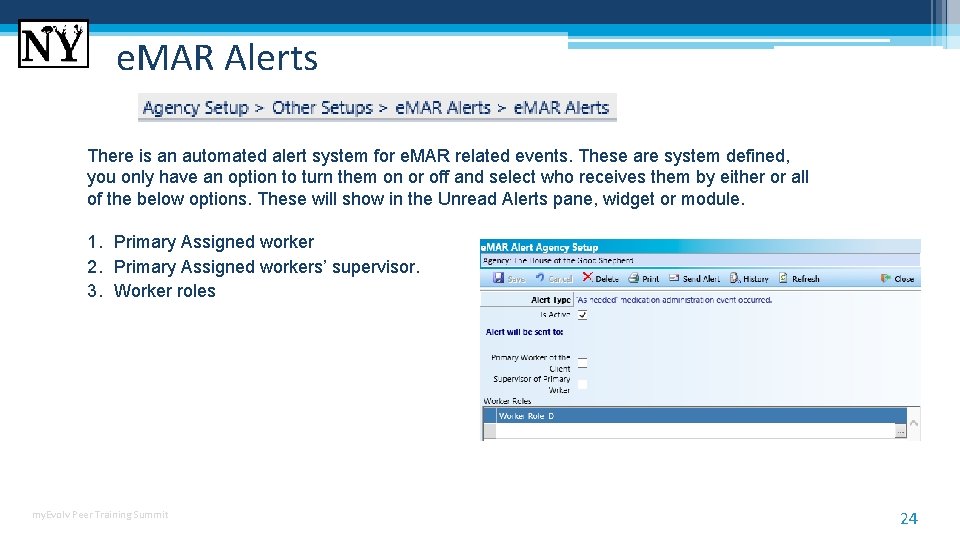
e. MAR Alerts There is an automated alert system for e. MAR related events. These are system defined, you only have an option to turn them on or off and select who receives them by either or all of the below options. These will show in the Unread Alerts pane, widget or module. 1. Primary Assigned worker 2. Primary Assigned workers’ supervisor. 3. Worker roles my. Evolv Peer Training Summit 24
25 my. Evolv Peer Training Summit Entering Medications in the my. Evolv Client Record (Non-OC Users)
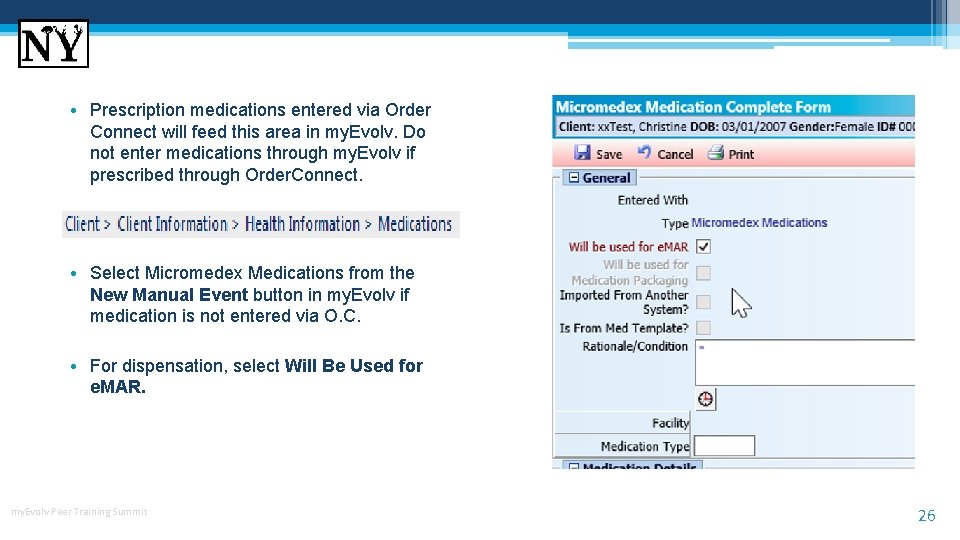
• Prescription medications entered via Order Connect will feed this area in my. Evolv. Do not enter medications through my. Evolv if prescribed through Order. Connect. • Select Micromedex Medications from the New Manual Event button in my. Evolv if medication is not entered via O. C. • For dispensation, select Will Be Used for e. MAR. my. Evolv Peer Training Summit 26
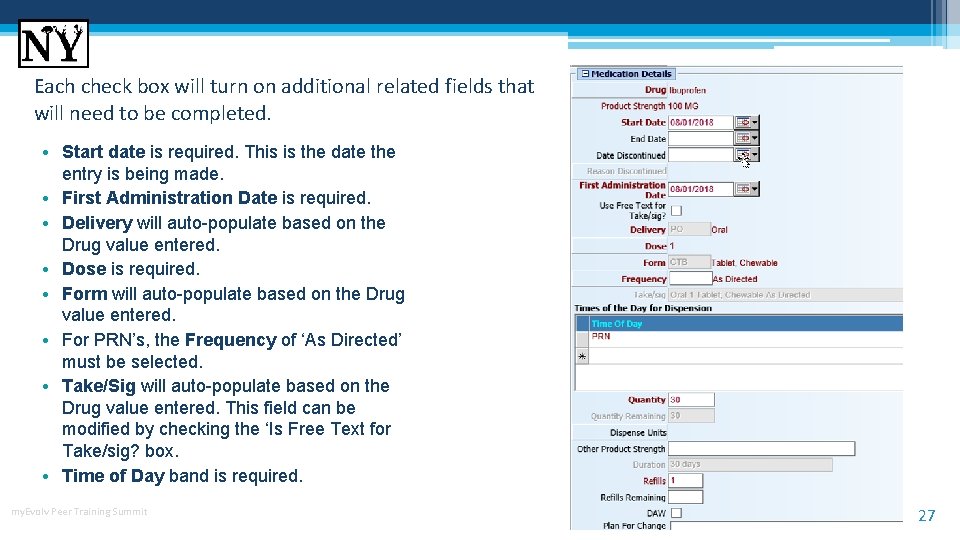
Each check box will turn on additional related fields that will need to be completed. • Start date is required. This is the date the entry is being made. • First Administration Date is required. • Delivery will auto-populate based on the Drug value entered. • Dose is required. • Form will auto-populate based on the Drug value entered. • For PRN’s, the Frequency of ‘As Directed’ must be selected. • Take/Sig will auto-populate based on the Drug value entered. This field can be modified by checking the ‘Is Free Text for Take/sig? box. • Time of Day band is required. my. Evolv Peer Training Summit 27
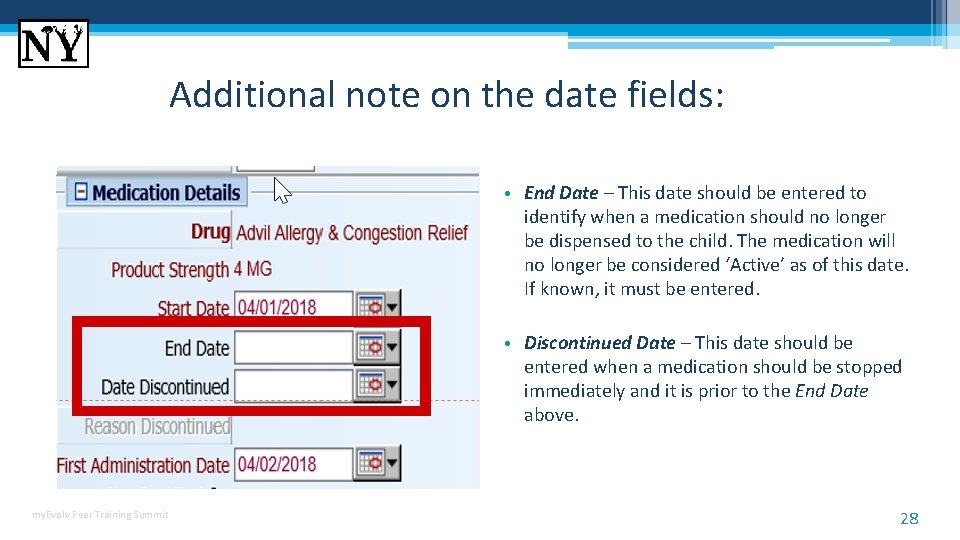
Additional note on the date fields: • End Date – This date should be entered to identify when a medication should no longer be dispensed to the child. The medication will no longer be considered ‘Active’ as of this date. If known, it must be entered. • Discontinued Date – This date should be entered when a medication should be stopped immediately and it is prior to the End Date above. my. Evolv Peer Training Summit 28
29 my. Evolv Peer Training Summit my. Evolv e. MAR
e. MAR my. Evolv Peer Training Summit 30
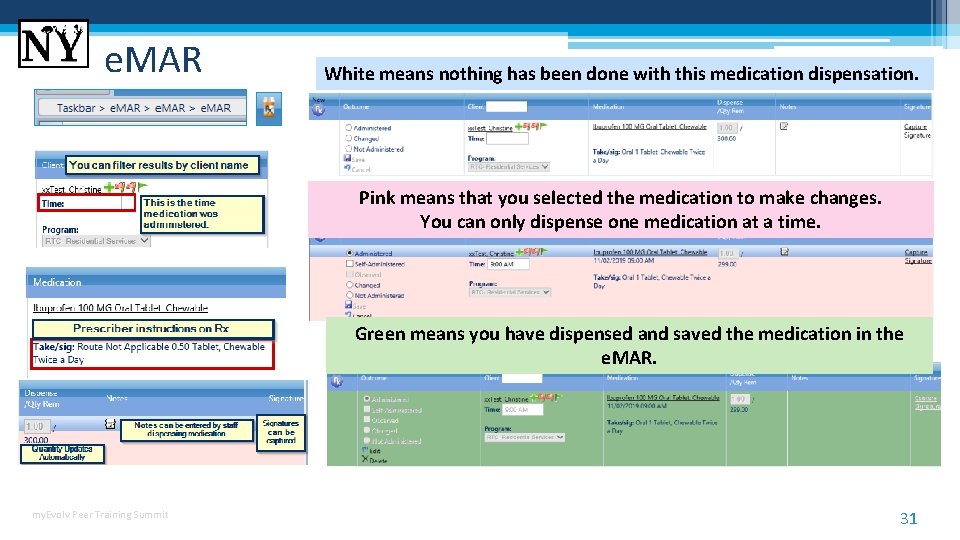
e. MAR White means nothing has been done with this medication dispensation. Pink means that you selected the medication to make changes. You can only dispense one medication at a time. Green means you have dispensed and saved the medication in the e. MAR. my. Evolv Peer Training Summit 31
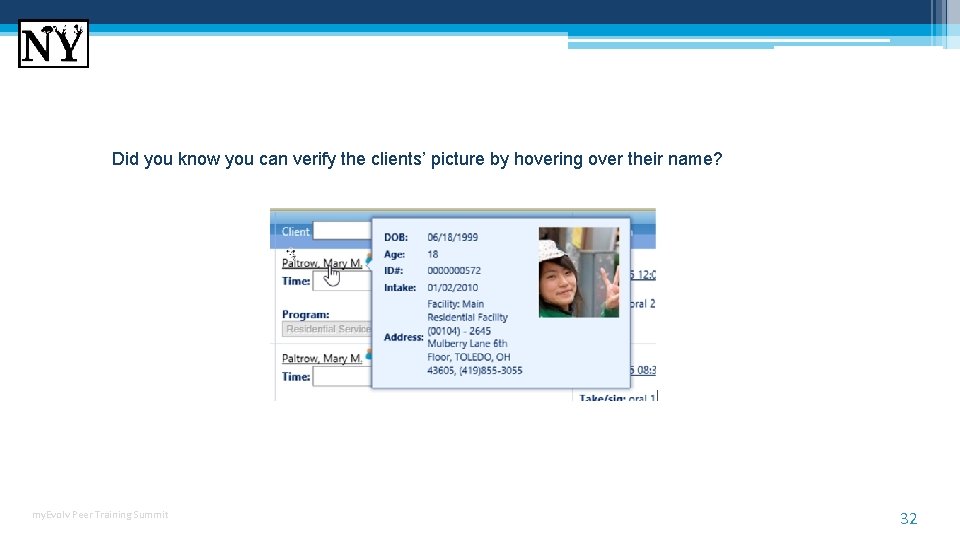
Did you know you can verify the clients’ picture by hovering over their name? my. Evolv Peer Training Summit 32
Resources • • OC Application User Guide- Section 1 (Train the Trainer Guide) OC Application User Guide- Section 2 (Tab Fonctionnalité) OC Application User Guide- Section 3 (Full Suite Functionality) Order. Connect Provider Registration: https: //orderconnect. ntst. com/providers ▫ Link where the Admin users can manage their users accounts. Order. Connect Administrative Tool: https: /orderconnect. ntst. com/isc_admin ▫ Link to the Admin tool where users with admin rights can modify the facility setup, etc. Order. Connect Application: https: //orderconnect. ntst. com ▫ Best practice is to have providers access O. C from within my. Evolv client record. This forces a refresh of the EMR. Order. Connect Support: netsmartsupport@ntst. com Order. Connect Resource Group on Netsmart. Cares Community Portal. (This is for all Netsmart care record solutions). my. Evolv Peer Training Summit 33