
Overview of Graphics S y s t e



- Slides: 150
Overview of Graphics S y s t e m s Hearn & Baker Chapter 2 Some slides are taken from Robert Thomsons notes.
OVERVIEW • • • Video Display Devices Raster Scan Systems Graphics Workstations and Viewing Systems Input Devices Hard-Copy Devices Graphics Networks Graphics on the Internet Graphics Software Introduction to Open. GL
VIDEO DISPLAY DEVICES • Primary output device in a graphics system • Cathode-Ray Tube (CRT) – Operation of most video monitors used to be based on CRTs • Other technologies now dominating – LCDs – Plasma-panel displays etc.
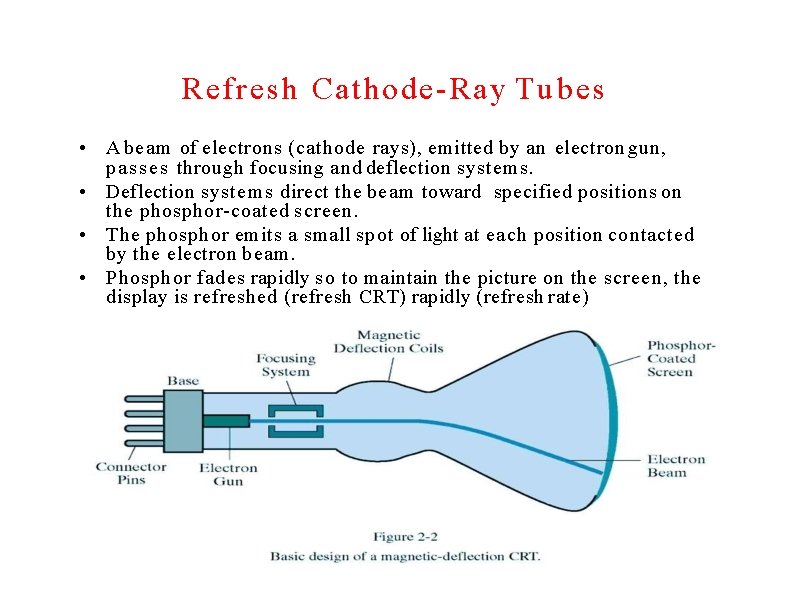
Refresh Cathode-Ray Tubes • A beam of electrons (cathode rays), emitted by an electron gun, p a s s e s through focusing and deflection systems. • Deflection systems direct the beam toward specified positions on the phosphor-coated screen. • The phosphor emits a small spot of light at each position contacted by the electron beam. • Phosphor fades rapidly so to maintain the picture on the screen, the display is refreshed (refresh CRT) rapidly (refresh rate)
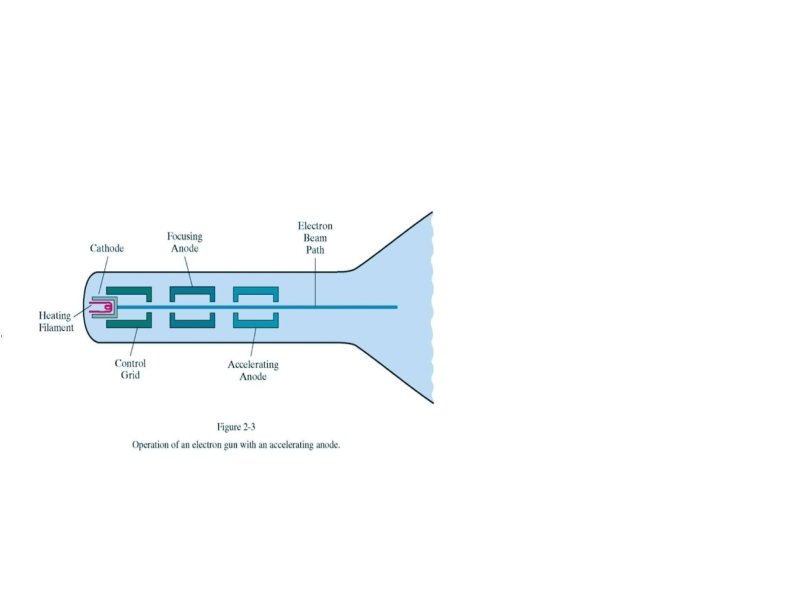
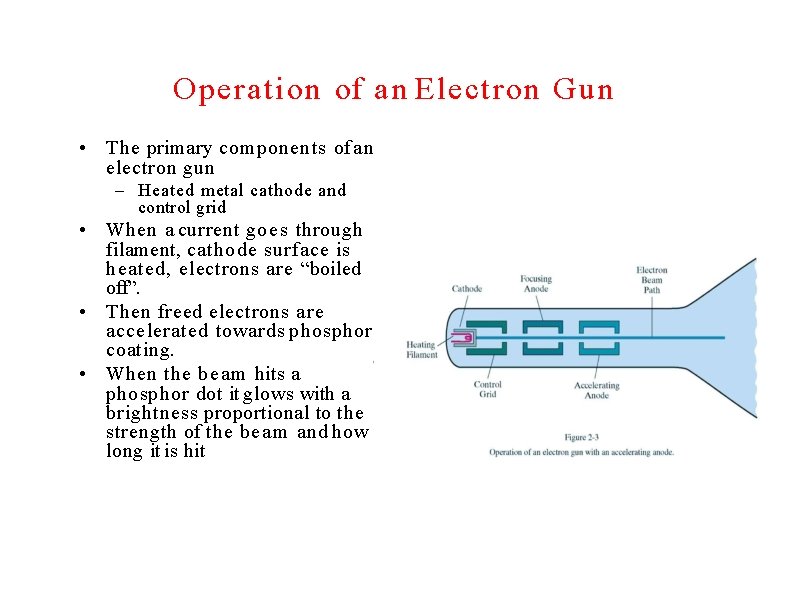
Operation of a n Electron Gun • The primary components of an electron gun – Heated metal cathode and control grid • When a current goes through filament, cathode surface is heated, electrons are “boiled off”. • Then freed electrons are accelerated towards phosphor coating. • When the beam hits a phosphor dot it glows with a brightness proportional to the strength of the beam and how long it is hit
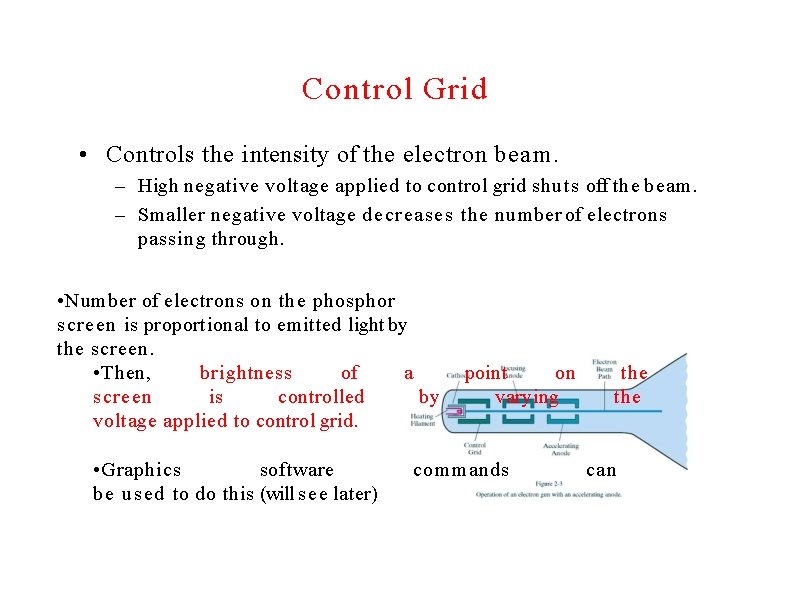
Control Grid • Controls the intensity of the electron beam. – High negative voltage applied to control grid shuts off the beam. – Smaller negative voltage decreases the number of electrons passing through. • Number of electrons on the phosphor screen is proportional to emitted light by the screen. • Then, brightness of a screen is controlled by voltage applied to control grid. • Graphics software be used to do this (will s e e later) point on varying commands the can
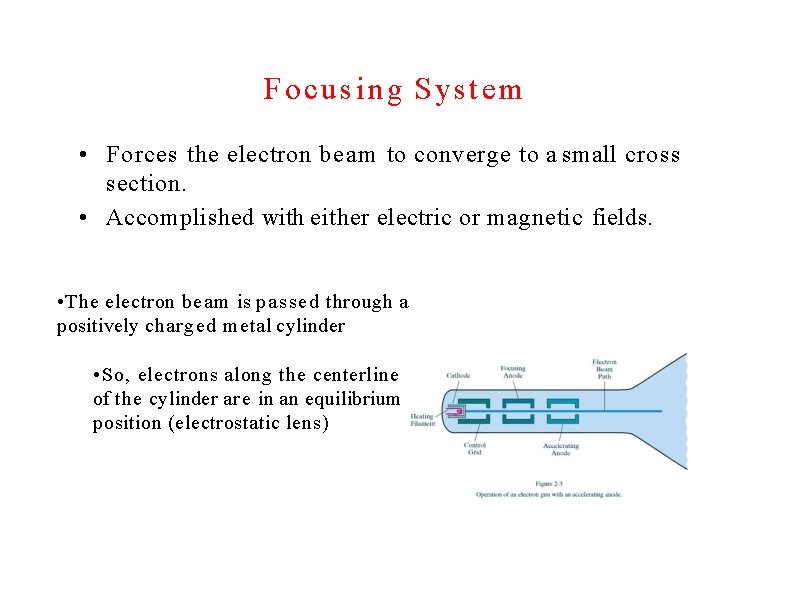
Focusing S y s t e m • Forces the electron beam to converge to a small cross section. • Accomplished with either electric or magnetic fields. • The electron beam is passed through a positively charged metal cylinder • So, electrons along the centerline of the cylinder are in an equilibrium position (electrostatic lens)
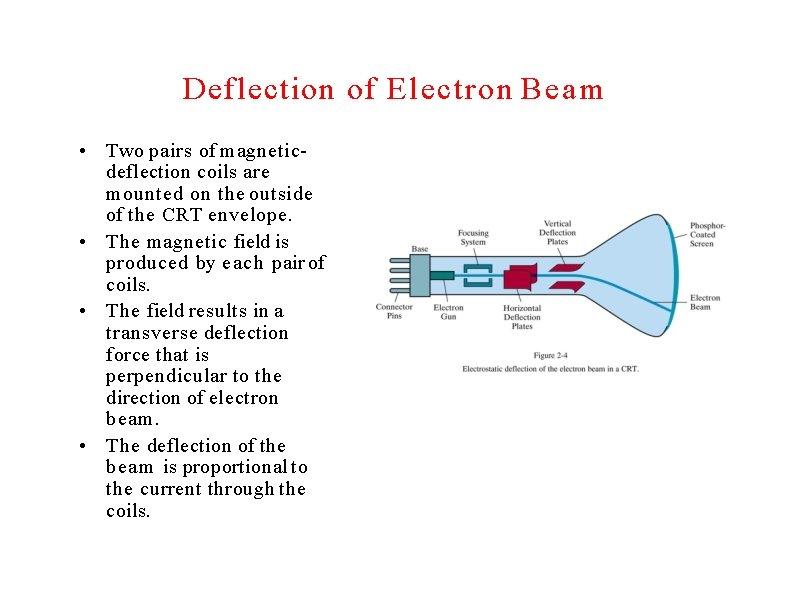
Deflection of Electron Beam • Two pairs of magneticdeflection coils are mounted on the outside of the CRT envelope. • The magnetic field is produced by each pair of coils. • The field results in a transverse deflection force that is perpendicular to the direction of electron beam. • The deflection of the beam is proportional to the current through the coils.
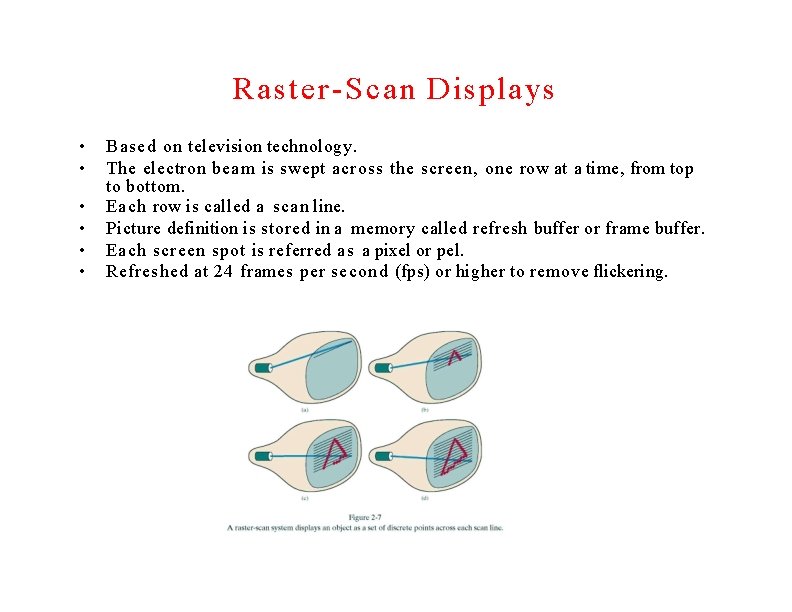
Raster-Scan Displays • • • Based on television technology. The electron beam is swept across the screen, one row at a time, from top to bottom. Each row is called a scan line. Picture definition is stored in a memory called refresh buffer or frame buffer. Each screen spot is referred a s a pixel or pel. Refreshed at 24 frames per second (fps) or higher to remove flickering.
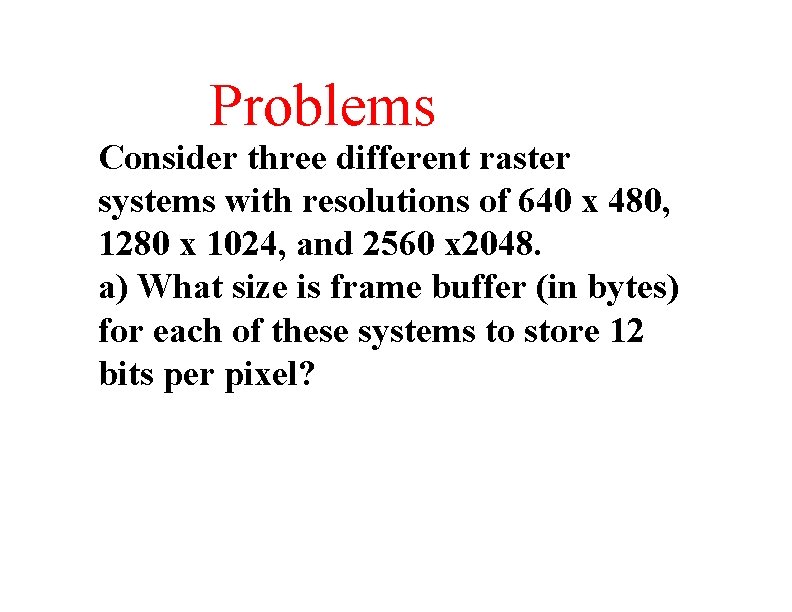
Problems Consider three different raster systems with resolutions of 640 x 480, 1280 x 1024, and 2560 x 2048. a) What size is frame buffer (in bytes) for each of these systems to store 12 bits per pixel?
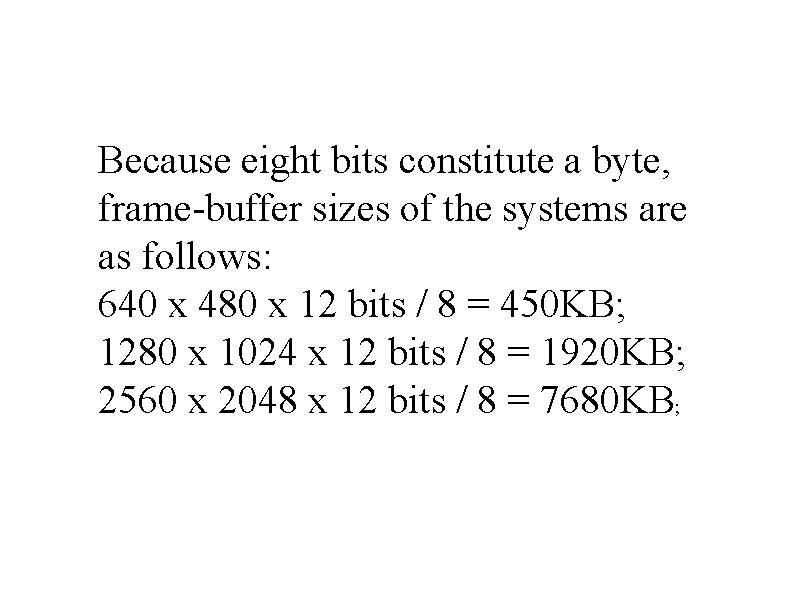
Because eight bits constitute a byte, frame-buffer sizes of the systems are as follows: 640 x 480 x 12 bits / 8 = 450 KB; 1280 x 1024 x 12 bits / 8 = 1920 KB; 2560 x 2048 x 12 bits / 8 = 7680 KB;
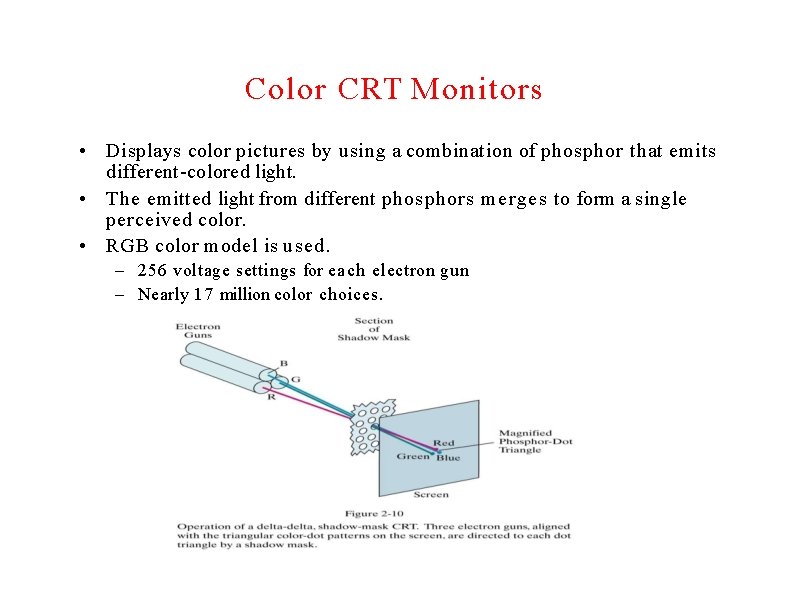
Color CRT Monitors • Displays color pictures by using a combination of phosphor that emits different-colored light. • The emitted light from different phosphors merges to form a single perceived color. • RGB color model is used. – 256 voltage settings for each electron gun – Nearly 17 million color choices.
Flat-Panel Displays • Emissive displays – Plasma panels • Nonemissive display – LCDs
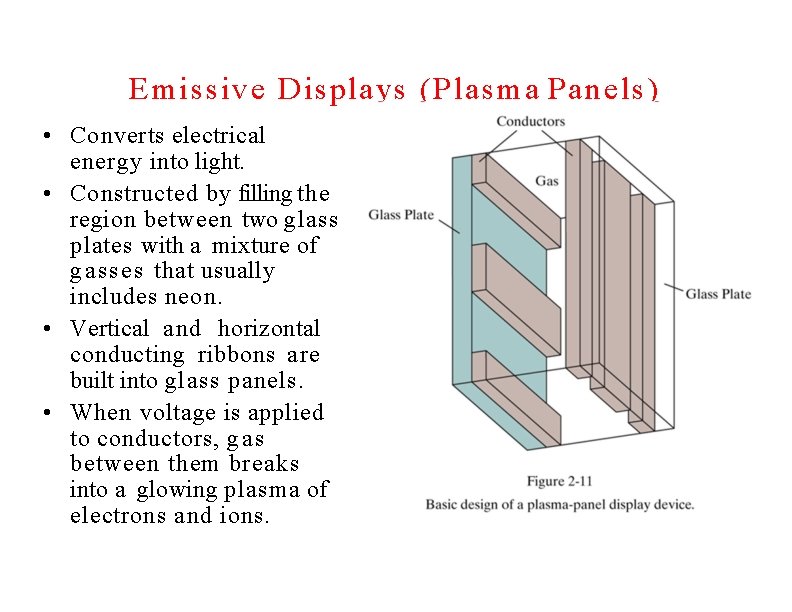
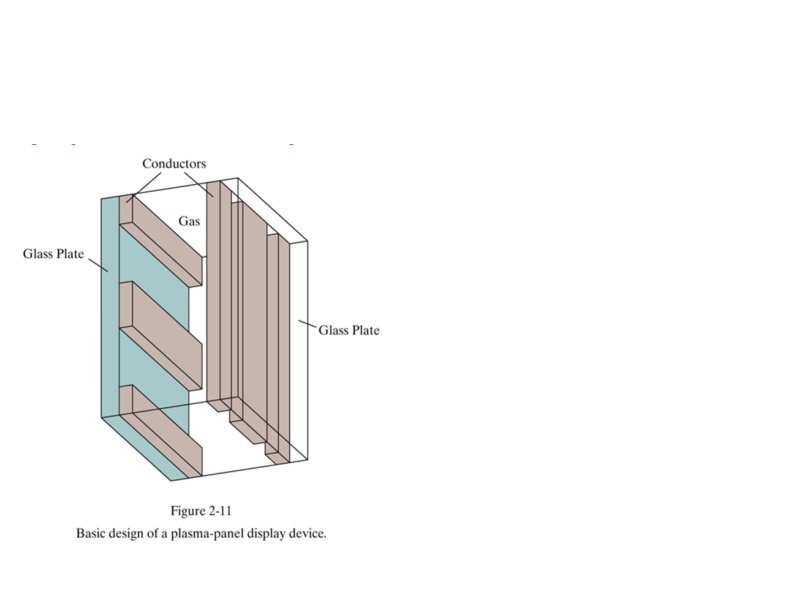
Emissive Displays (Plasma Panels) • Converts electrical energy into light. • Constructed by filling the region between two glass plates with a mixture of g a s s e s that usually includes neon. • Vertical and horizontal conducting ribbons are built into glass panels. • When voltage is applied to conductors, gas between them breaks into a glowing plasma of electrons and ions.
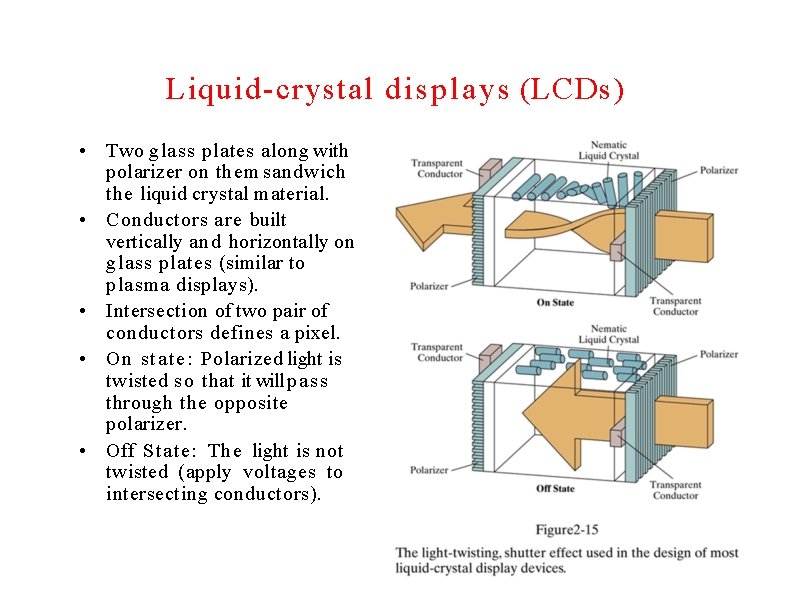
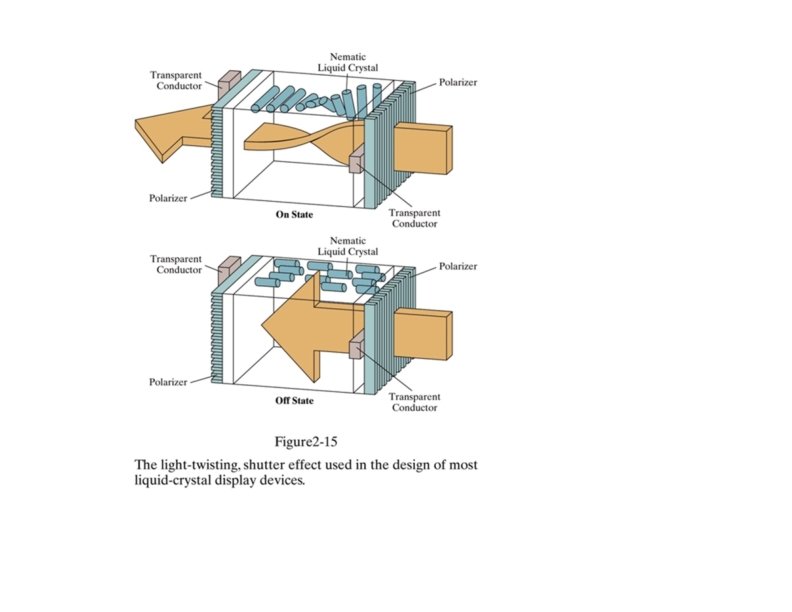
Liquid-crystal displays (LCDs) • Two glass plates along with polarizer on them sandwich the liquid crystal material. • Conductors are built vertically and horizontally on glass plates (similar to plasma displays). • Intersection of two pair of conductors defines a pixel. • On state: Polarized light is twisted so that it will pass through the opposite polarizer. • Off State: The light is not twisted (apply voltages to intersecting conductors).
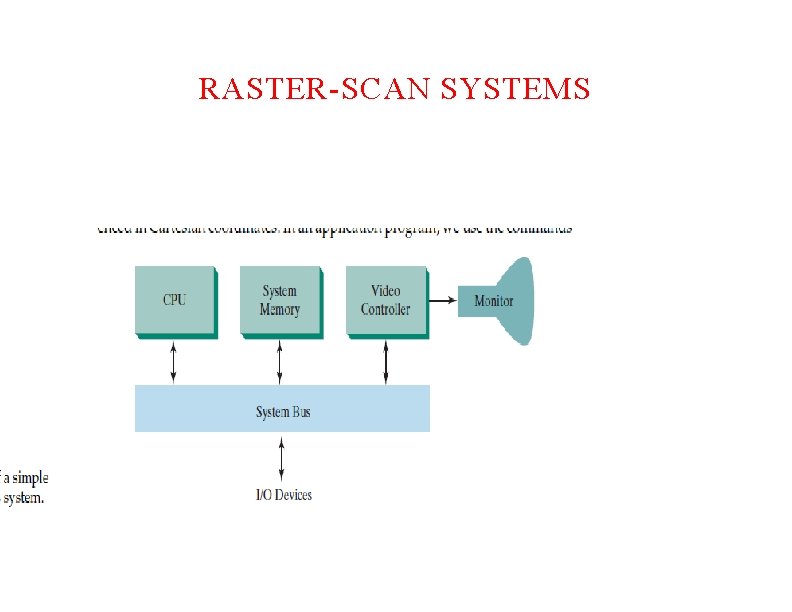
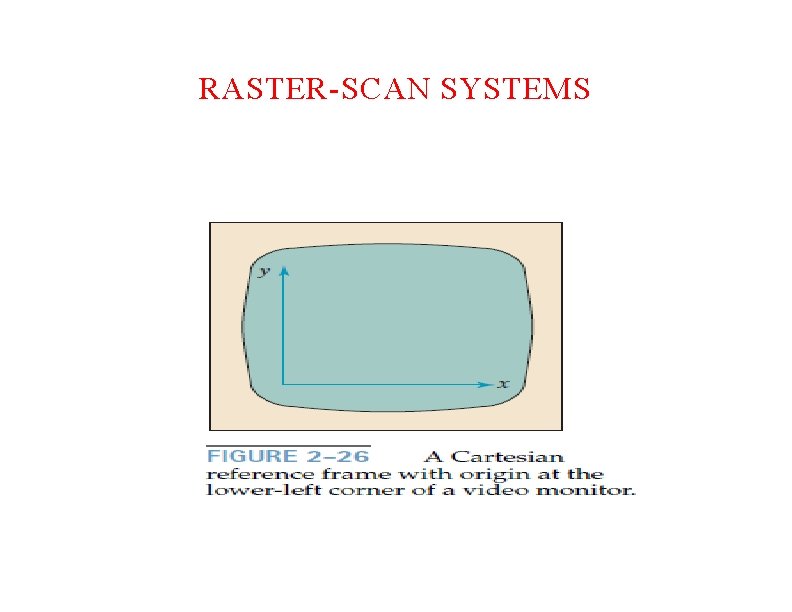
RASTER-SCAN SYSTEMS
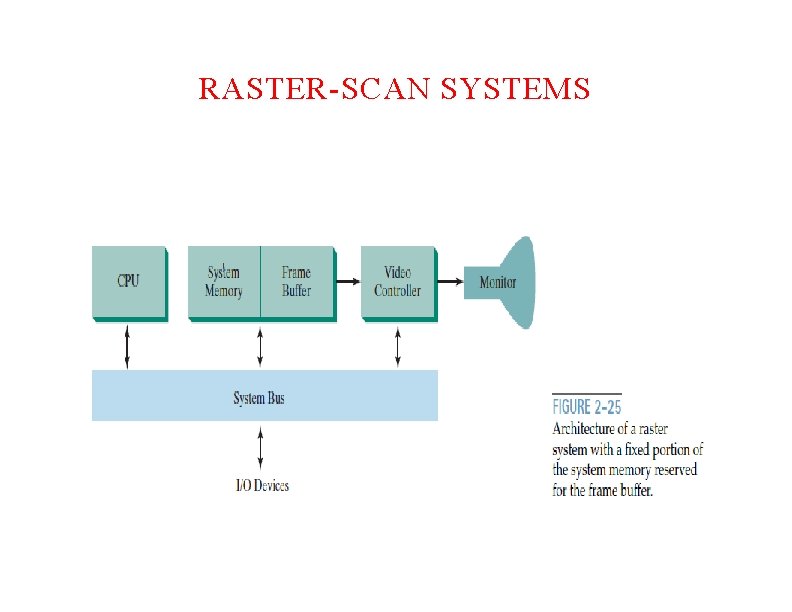
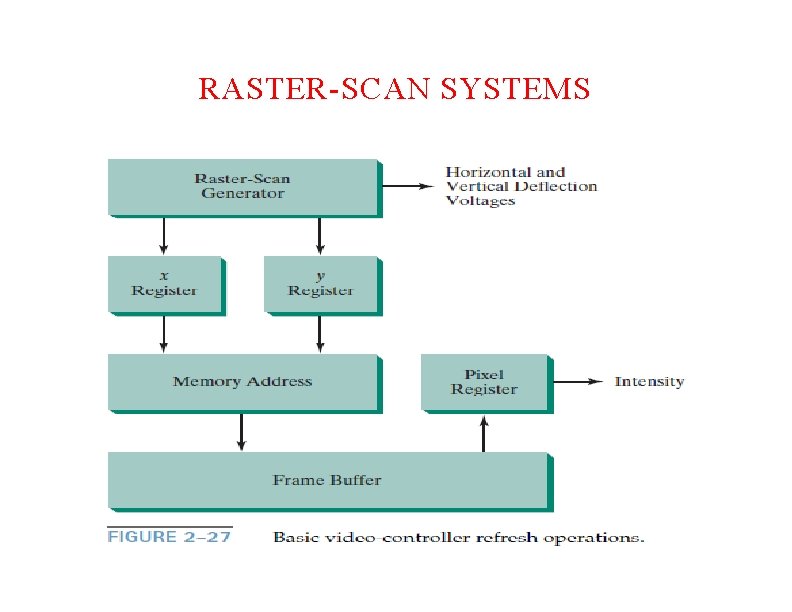
RASTER-SCAN SYSTEMS
RASTER-SCAN SYSTEMS
RASTER-SCAN SYSTEMS
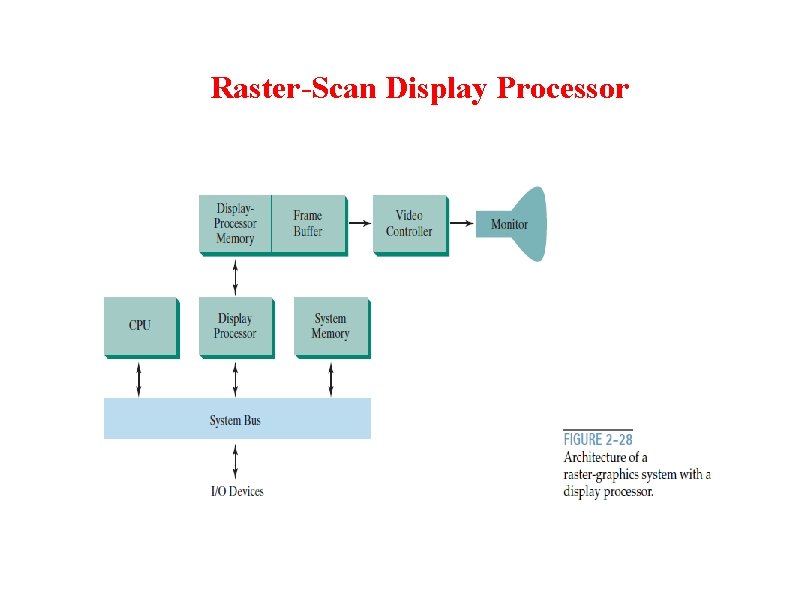
Raster-Scan Display Processor
Raster-Scan Display Processor
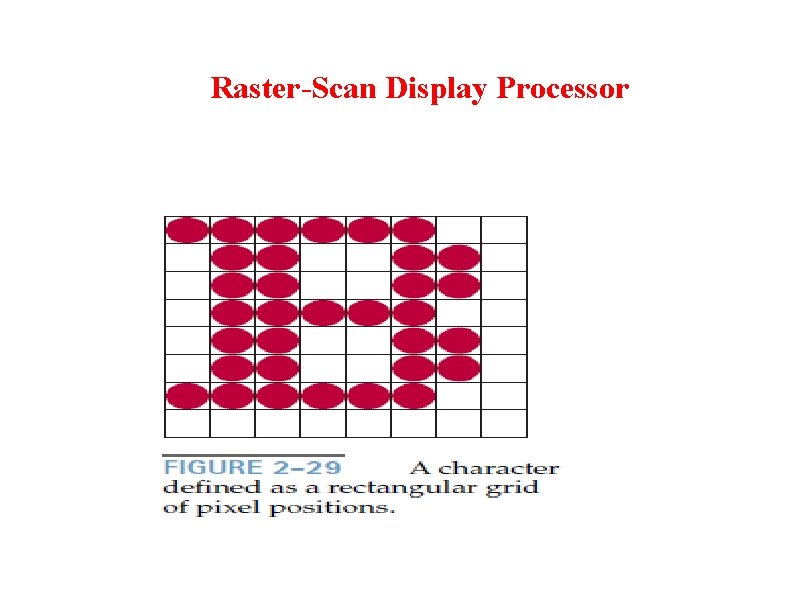
Raster-Scan Display Processor
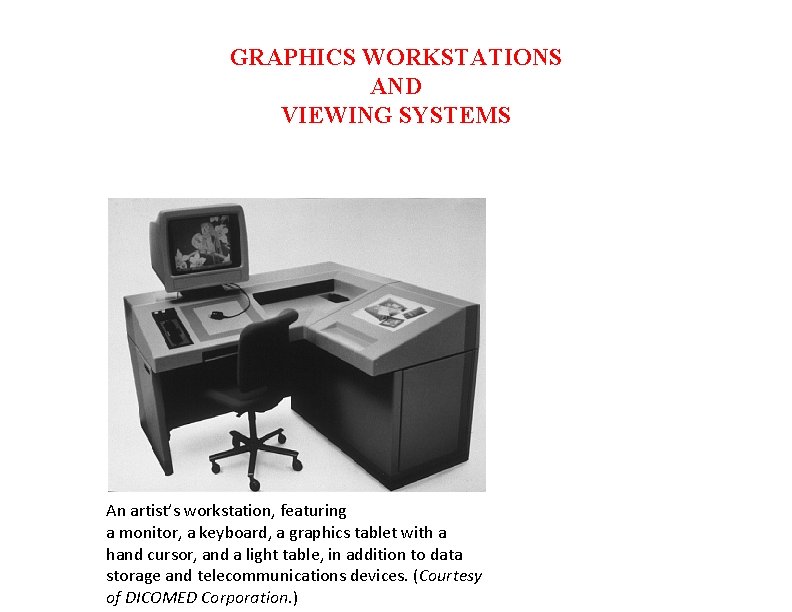
GRAPHICS WORKSTATIONS AND VIEWING SYSTEMS An artist’s workstation, featuring a monitor, a keyboard, a graphics tablet with a hand cursor, and a light table, in addition to data storage and telecommunications devices. (Courtesy of DICOMED Corporation. )
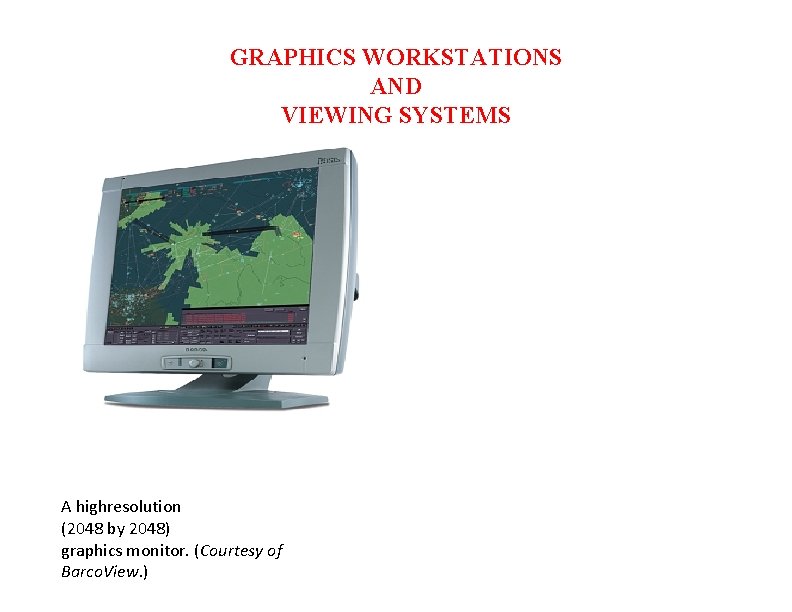
GRAPHICS WORKSTATIONS AND VIEWING SYSTEMS A highresolution (2048 by 2048) graphics monitor. (Courtesy of Barco. View. )
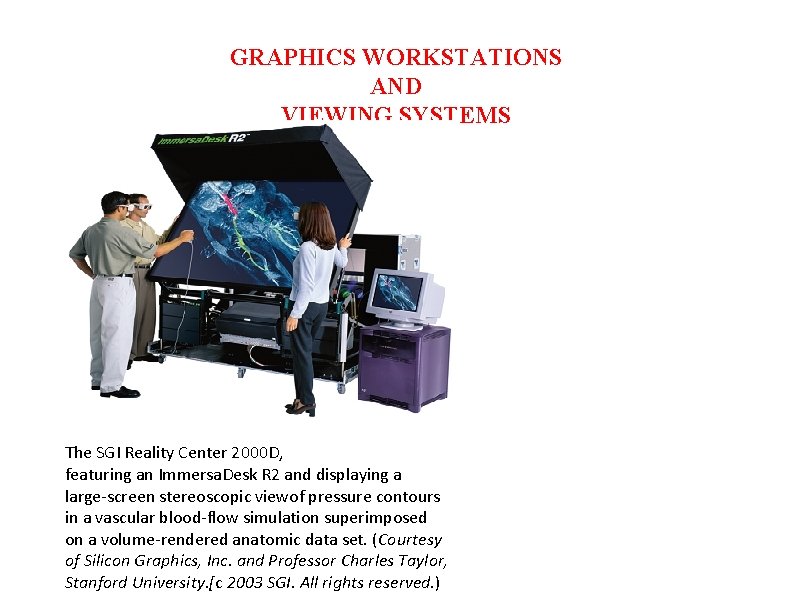
GRAPHICS WORKSTATIONS AND VIEWING SYSTEMS The SGI Reality Center 2000 D, featuring an Immersa. Desk R 2 and displaying a large-screen stereoscopic viewof pressure contours in a vascular blood-flow simulation superimposed on a volume-rendered anatomic data set. (Courtesy of Silicon Graphics, Inc. and Professor Charles Taylor, Stanford University. [c 2003 SGI. All rights reserved. )
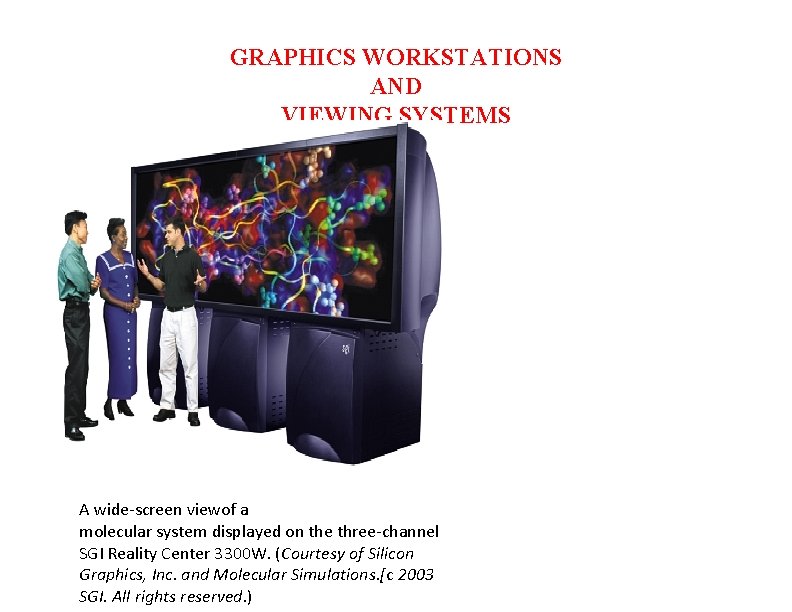
GRAPHICS WORKSTATIONS AND VIEWING SYSTEMS A wide-screen viewof a molecular system displayed on the three-channel SGI Reality Center 3300 W. (Courtesy of Silicon Graphics, Inc. and Molecular Simulations. [c 2003 SGI. All rights reserved. )
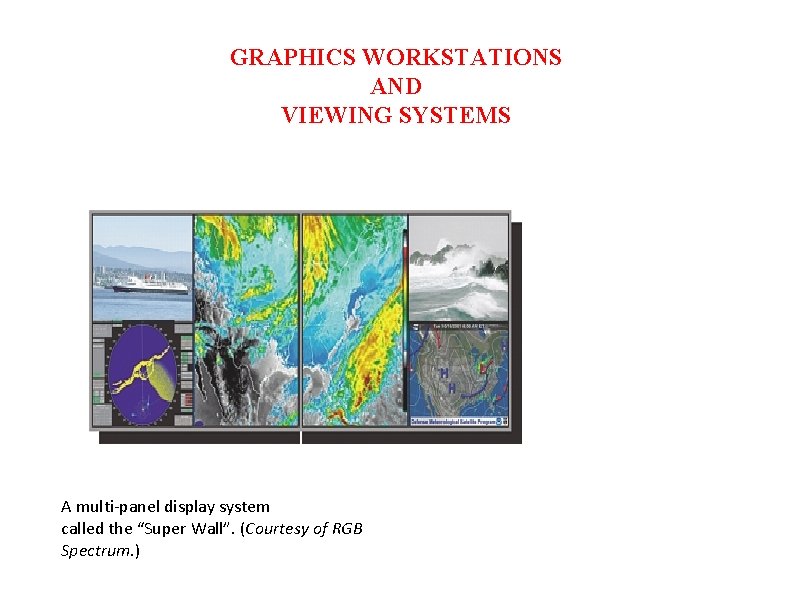
GRAPHICS WORKSTATIONS AND VIEWING SYSTEMS A multi-panel display system called the “Super Wall”. (Courtesy of RGB Spectrum. )
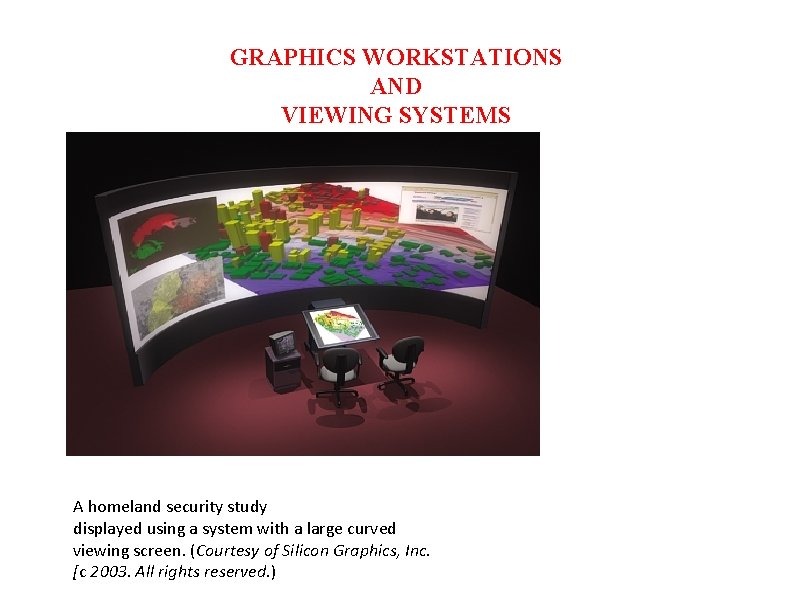
GRAPHICS WORKSTATIONS AND VIEWING SYSTEMS A homeland security study displayed using a system with a large curved viewing screen. (Courtesy of Silicon Graphics, Inc. [c 2003. All rights reserved. )
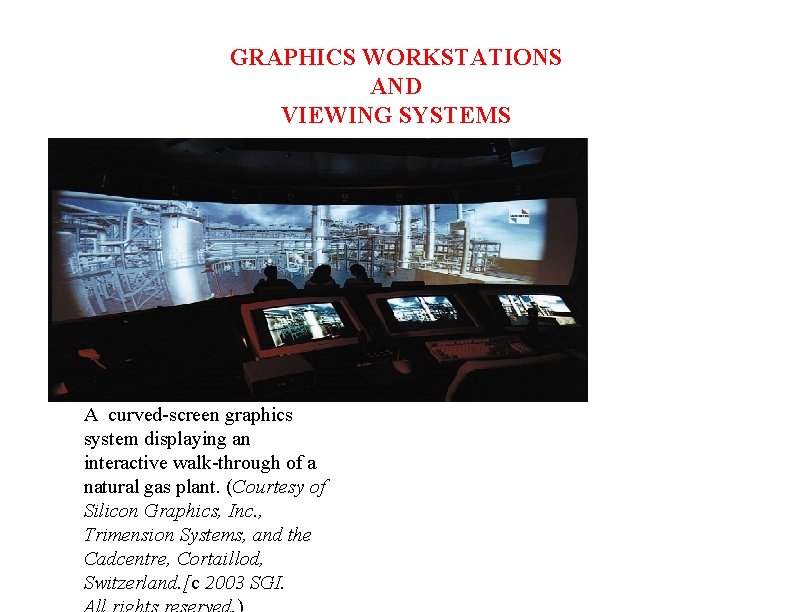
GRAPHICS WORKSTATIONS AND VIEWING SYSTEMS A curved-screen graphics system displaying an interactive walk-through of a natural gas plant. (Courtesy of Silicon Graphics, Inc. , Trimension Systems, and the Cadcentre, Cortaillod, Switzerland. [c 2003 SGI.
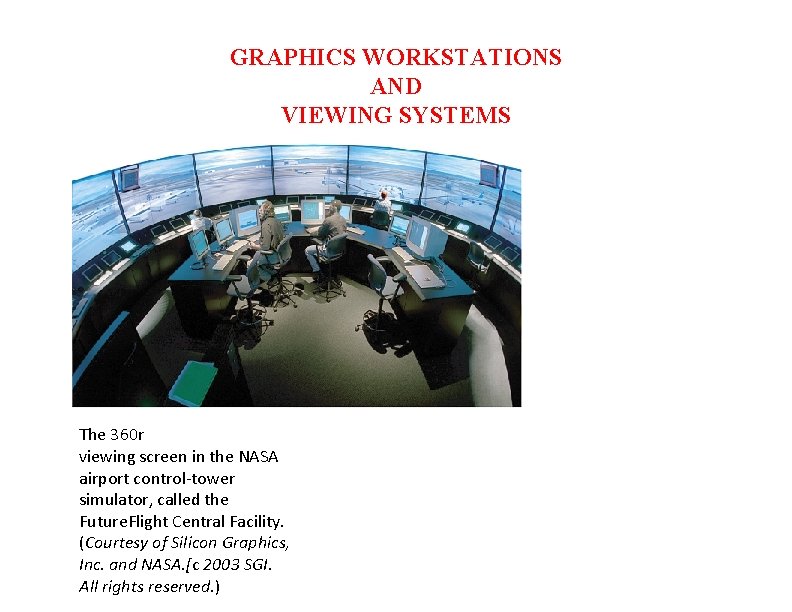
GRAPHICS WORKSTATIONS AND VIEWING SYSTEMS The 360 r viewing screen in the NASA airport control-tower simulator, called the Future. Flight Central Facility. (Courtesy of Silicon Graphics, Inc. and NASA. [c 2003 SGI. All rights reserved. )
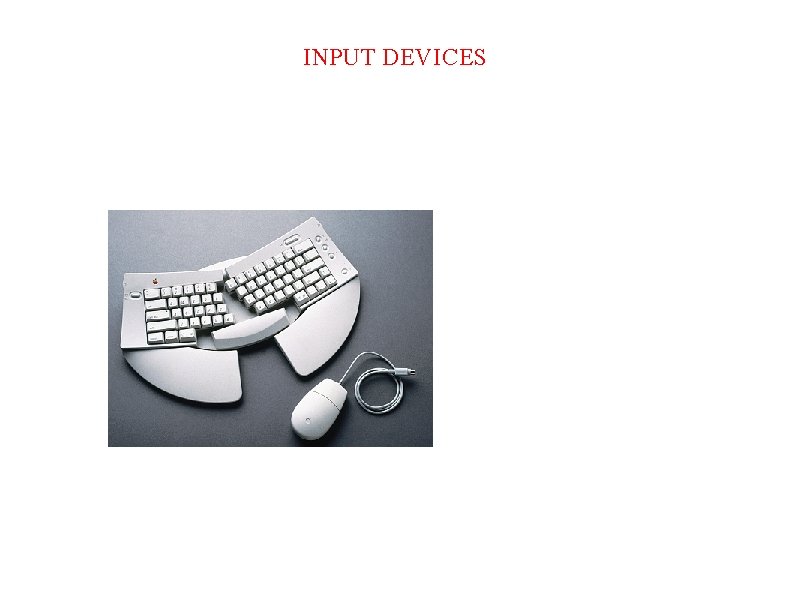
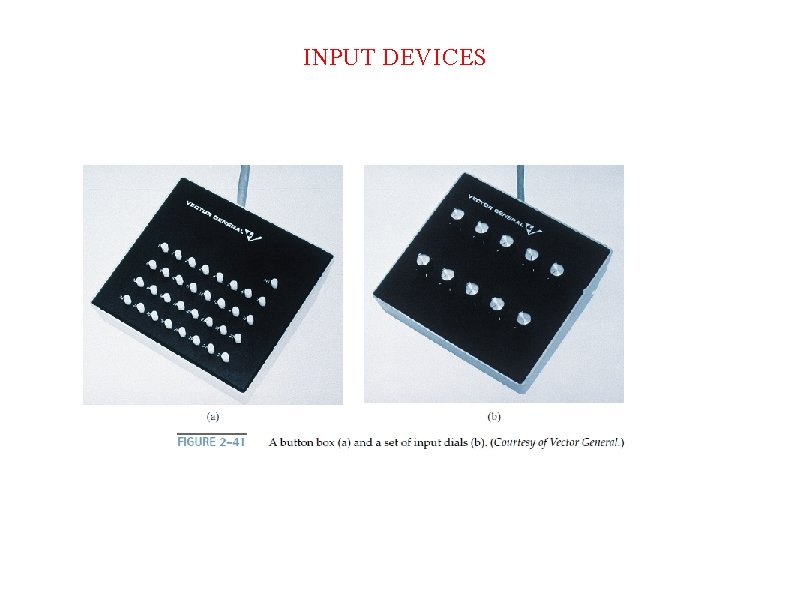
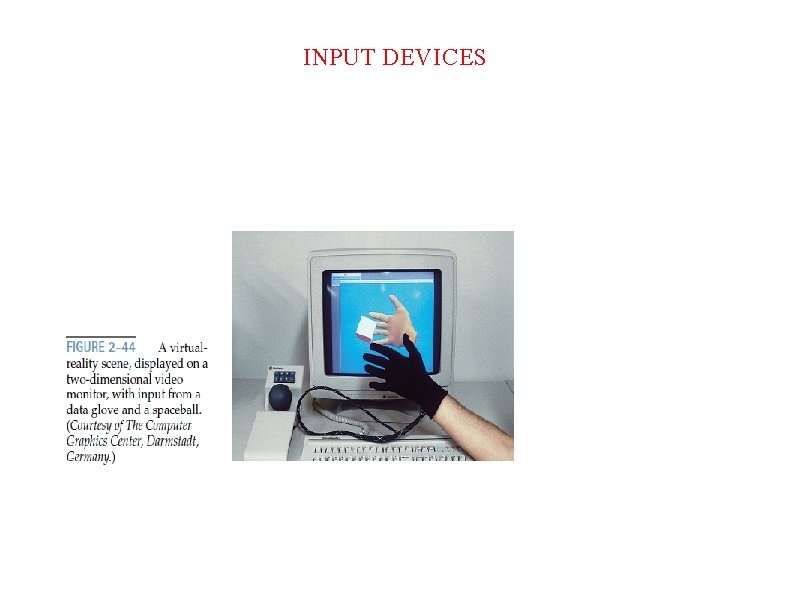
INPUT DEVICES • • • Keyboards Button boxes Dials Mouse Joysticks Trackballs and Spaceballs Data Gloves Digitizers Image scanners Touch panels Light pens Etc…
INPUT DEVICES
INPUT DEVICES
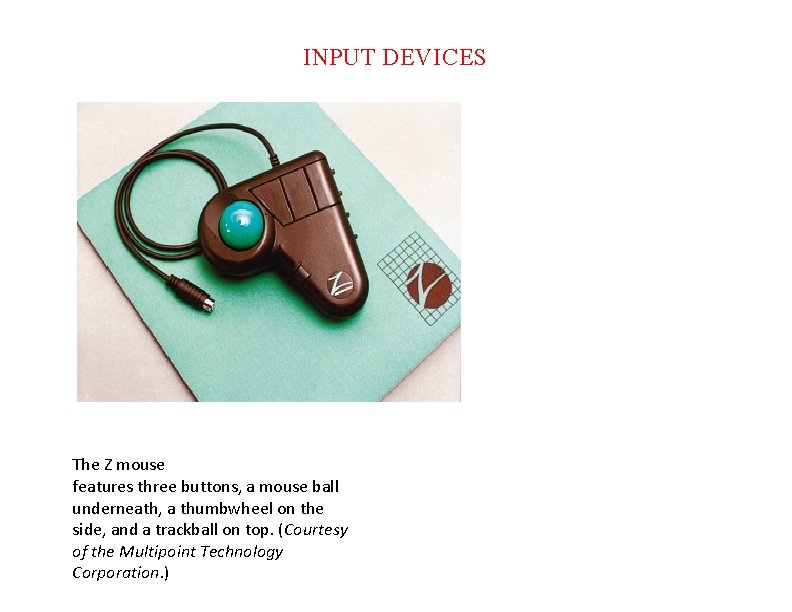
INPUT DEVICES The Z mouse features three buttons, a mouse ball underneath, a thumbwheel on the side, and a trackball on top. (Courtesy of the Multipoint Technology Corporation. )
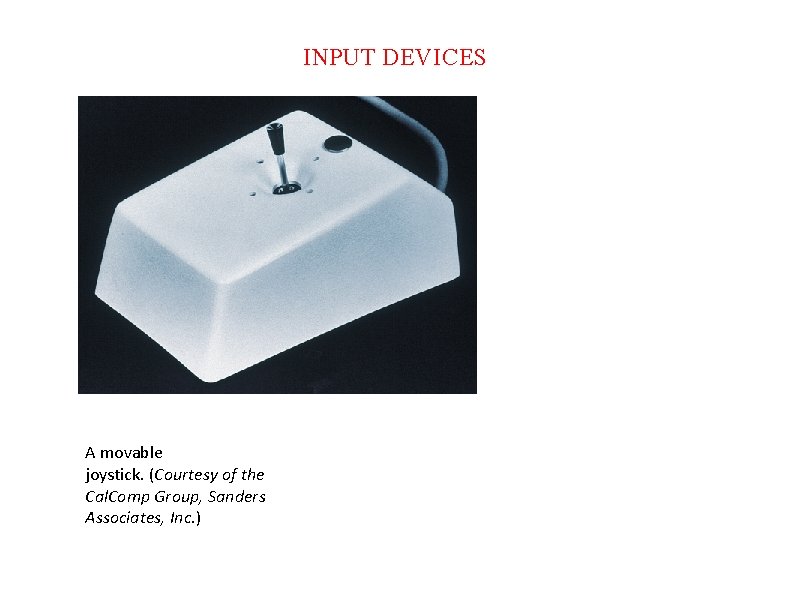
INPUT DEVICES A movable joystick. (Courtesy of the Cal. Comp Group, Sanders Associates, Inc. )
INPUT DEVICES
Basic Open. GL Syntax gl. Begin, gl. Clear, gl. Copy. Pixels, gl. Polygon. Mode
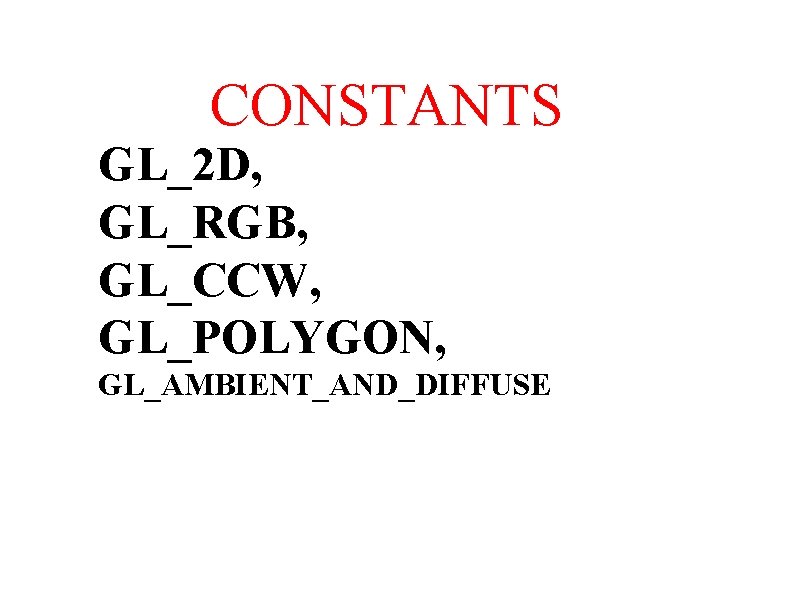
CONSTANTS GL_2 D, GL_RGB, GL_CCW, GL_POLYGON, GL_AMBIENT_AND_DIFFUSE
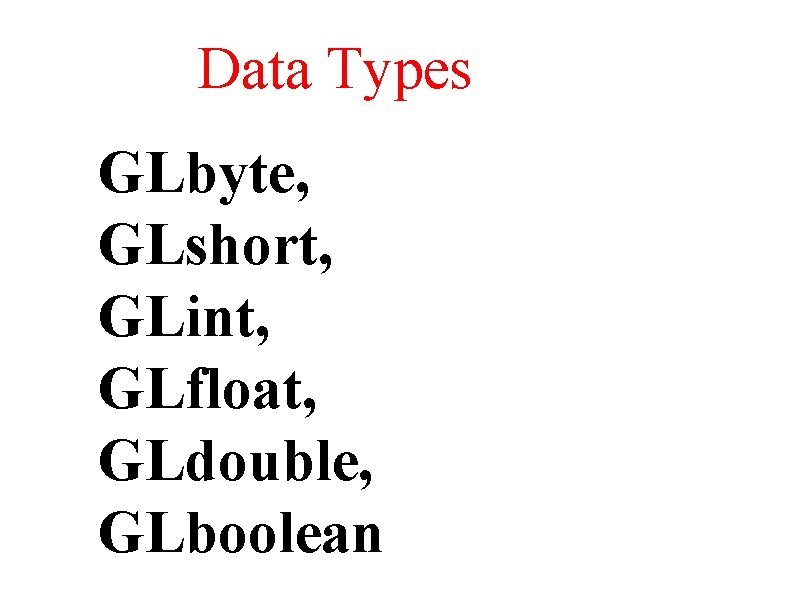
Data Types GLbyte, GLshort, GLint, GLfloat, GLdouble, GLboolean
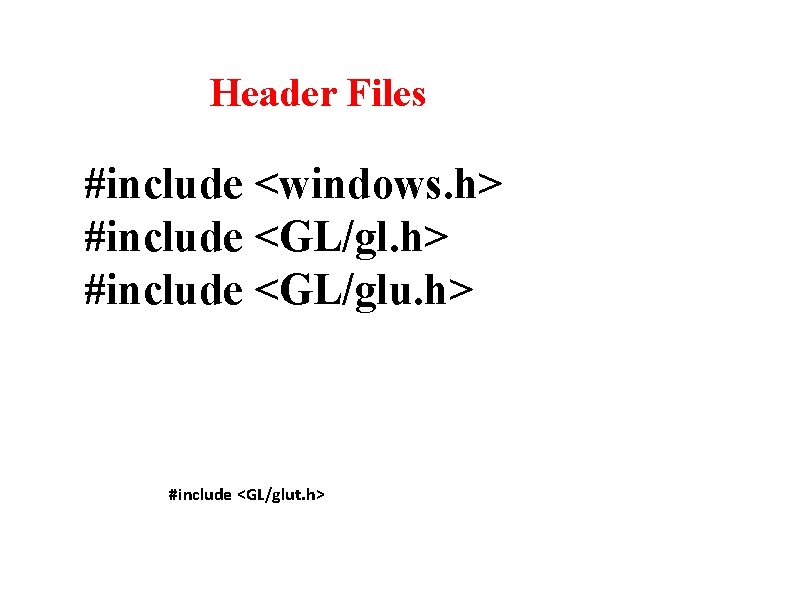
Header Files #include <windows. h> #include <GL/glut. h>
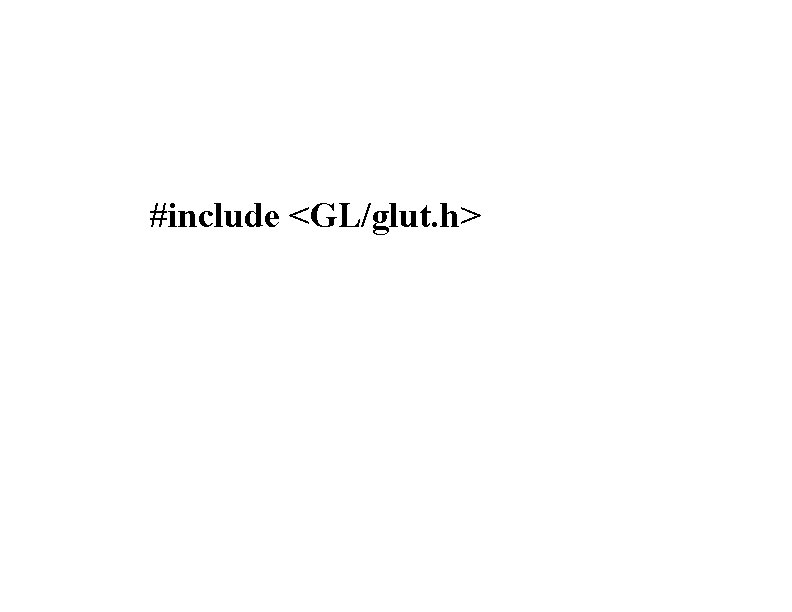
#include <GL/glut. h>
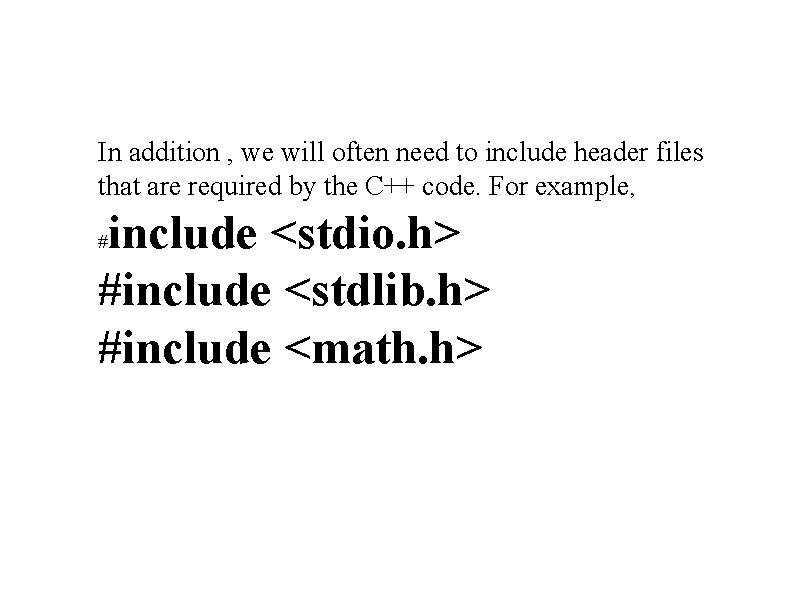
In addition , we will often need to include header files that are required by the C++ code. For example, include <stdio. h> #include <stdlib. h> #include <math. h> #
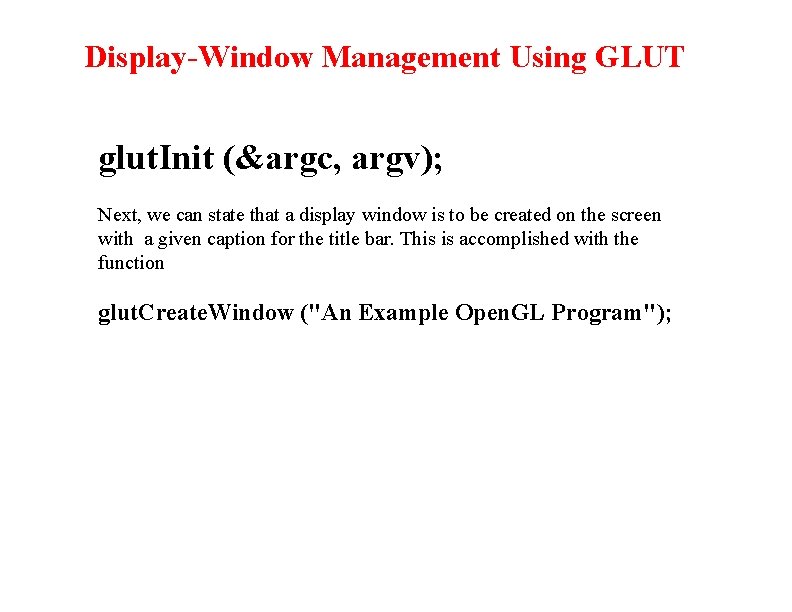
Display-Window Management Using GLUT glut. Init (&argc, argv); Next, we can state that a display window is to be created on the screen with a given caption for the title bar. This is accomplished with the function glut. Create. Window ("An Example Open. GL Program");
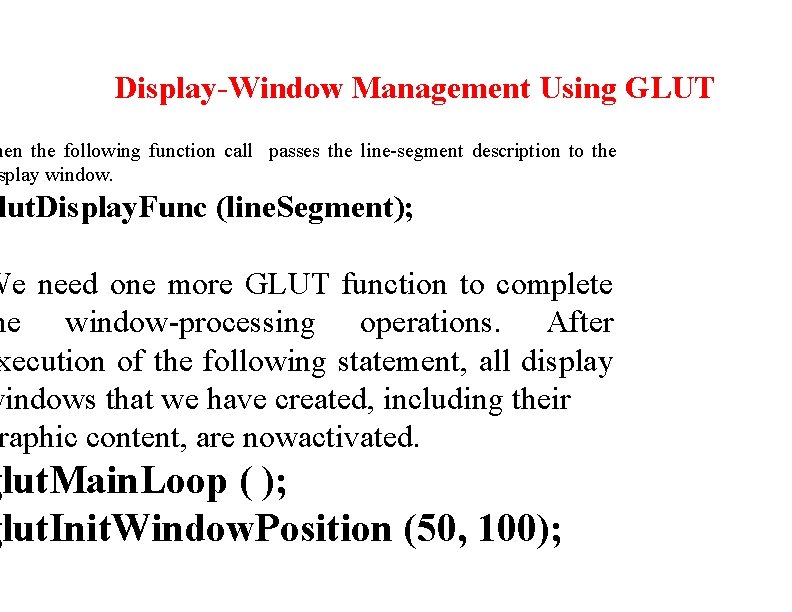
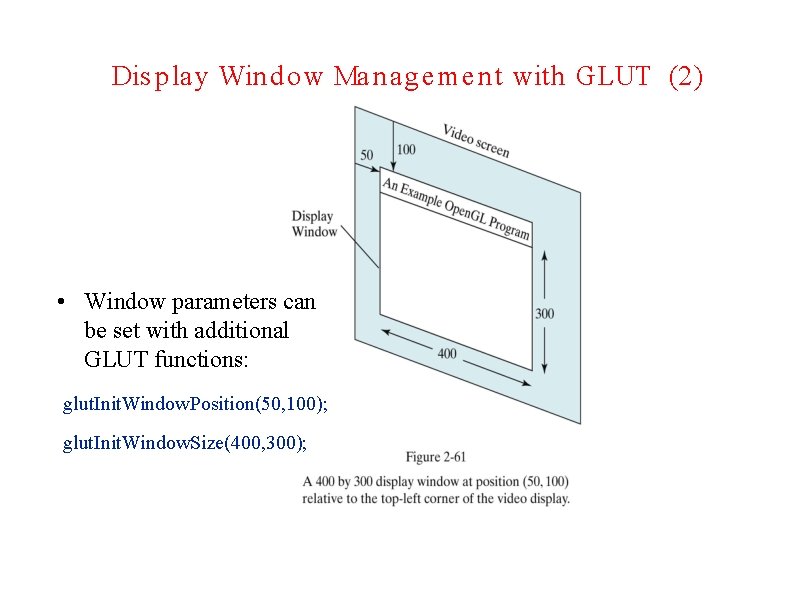
Display-Window Management Using GLUT hen the following function call passes the line-segment description to the splay window. lut. Display. Func (line. Segment); We need one more GLUT function to complete he window-processing operations. After xecution of the following statement, all display windows that we have created, including their raphic content, are nowactivated. glut. Main. Loop ( ); glut. Init. Window. Position (50, 100);
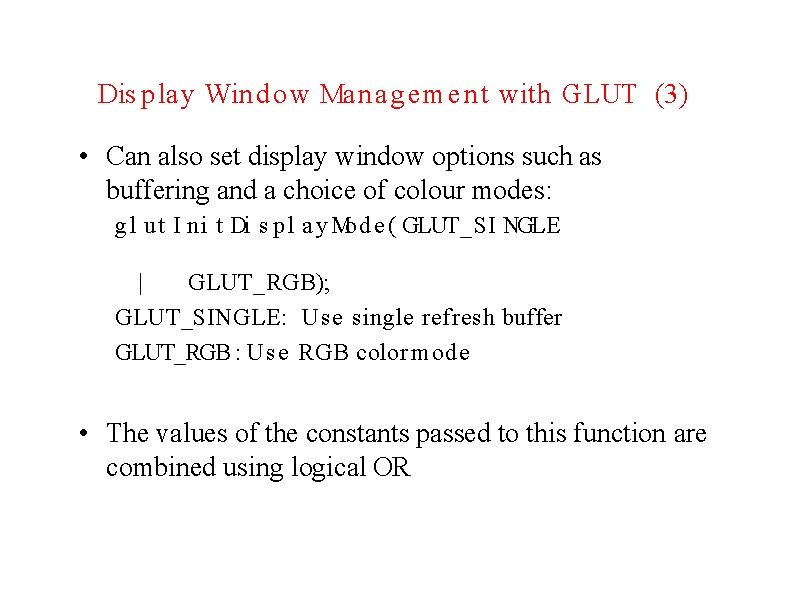
milarly, the glut. Init. Window. Size function is used to set the initial el width and height of the display window. ut. Init. Window. Size (400, 300); he following command specifies that a single fresh buffer is to be used for the display window d that the RGB (red, green, blue) color mode is be used for selecting color values. ut. Init. Display. Mode (GLUT_SINGLE | GLUT_RGB);
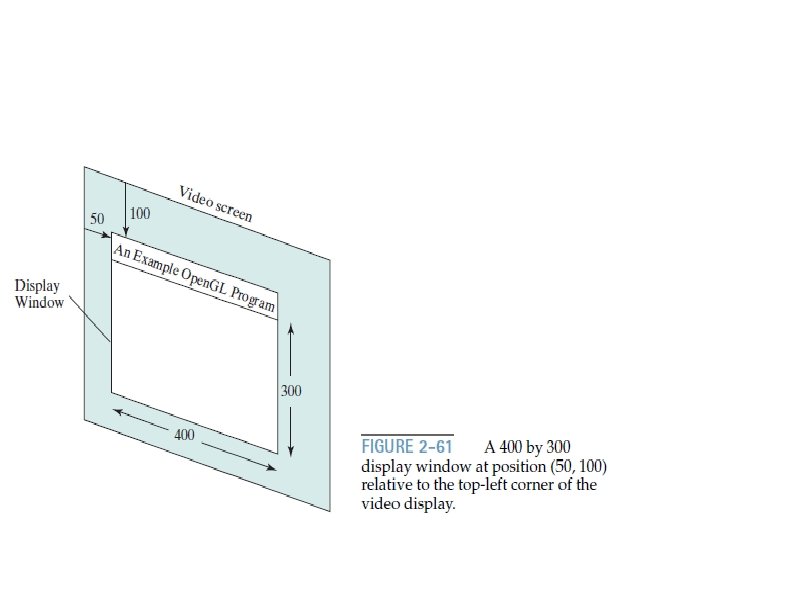
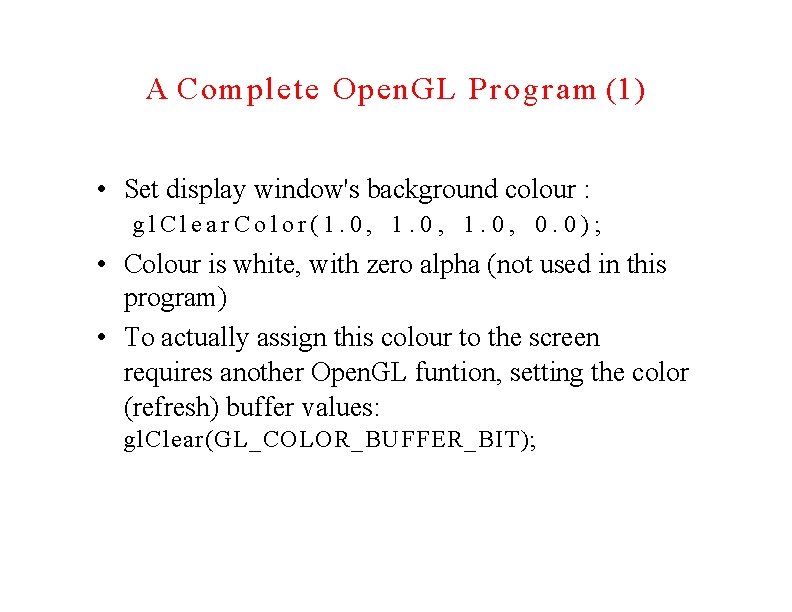
A Complete Open. GL Program Using RGB color values, we set the background color for the display window to be white, as in Fig. 2 -61, with the Open. GL function gl. Clear. Color (1. 0, 0. 0); Although the gl. Clear. Color command assigns a color to the display window, it does not put the display window on the screen. Toget the assigned window color displayed, we need to invoke the following Open. GL function. gl. Clear (GL_COLOR_BUFFER_BIT); gl. Color 3 f (1. 0, 0. 0);
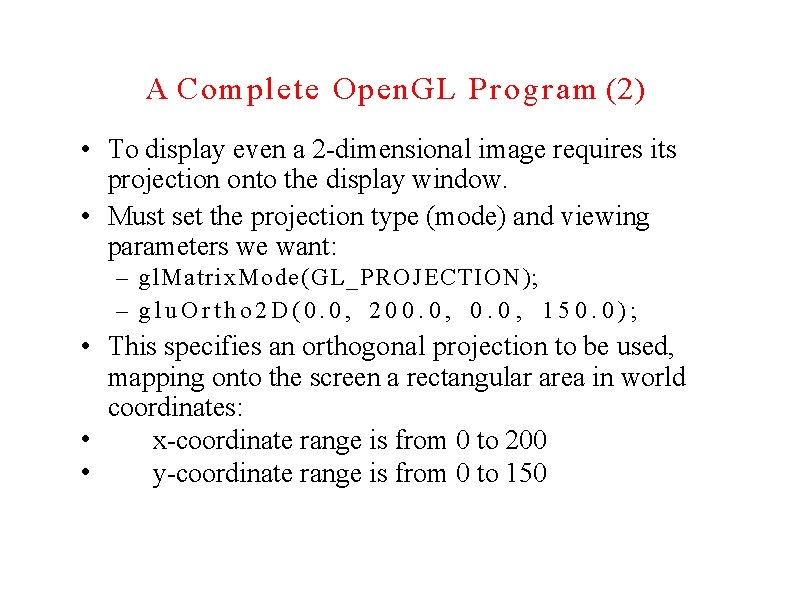
We can set theprojection type (mode) and other viewing parameters that we need with the following two functions. gl. Matrix. Mode (GL_PROJECTION); glu. Ortho 2 D (0. 0, 200. 0, 150. 0);
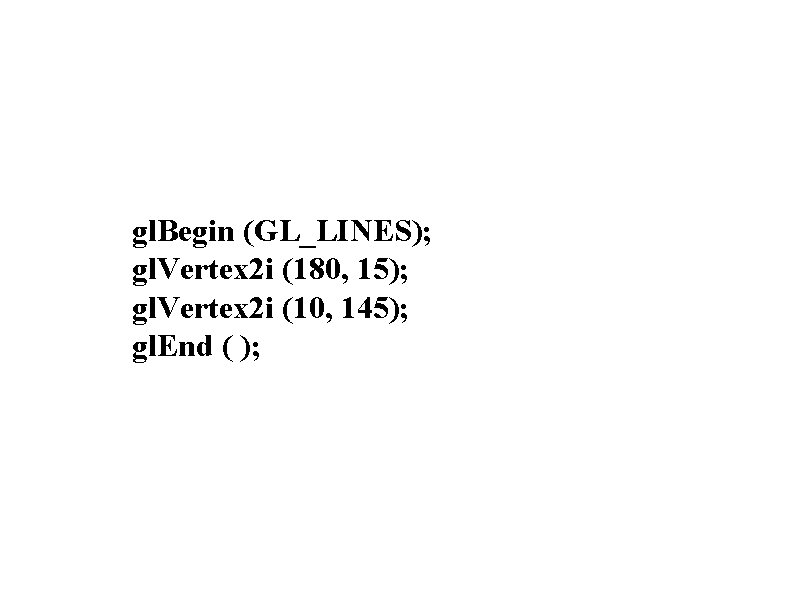
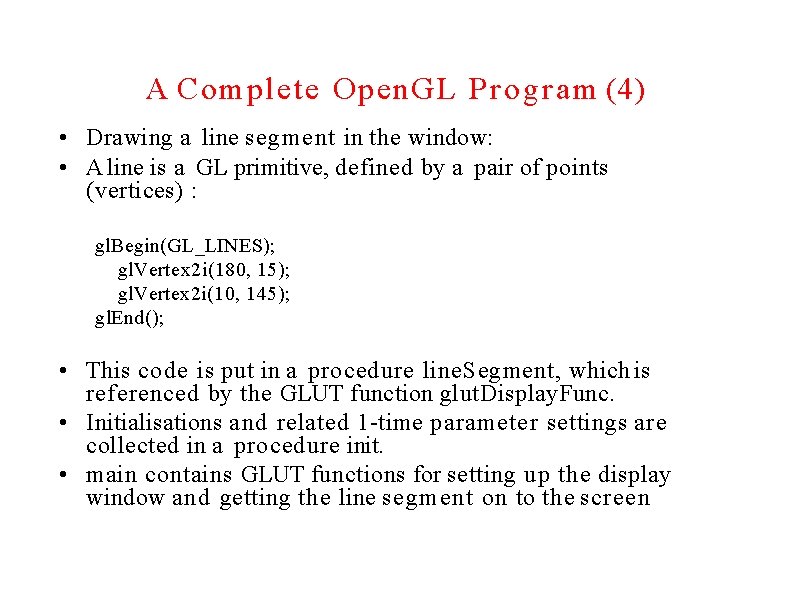
gl. Begin (GL_LINES); gl. Vertex 2 i (180, 15); gl. Vertex 2 i (10, 145); gl. End ( );
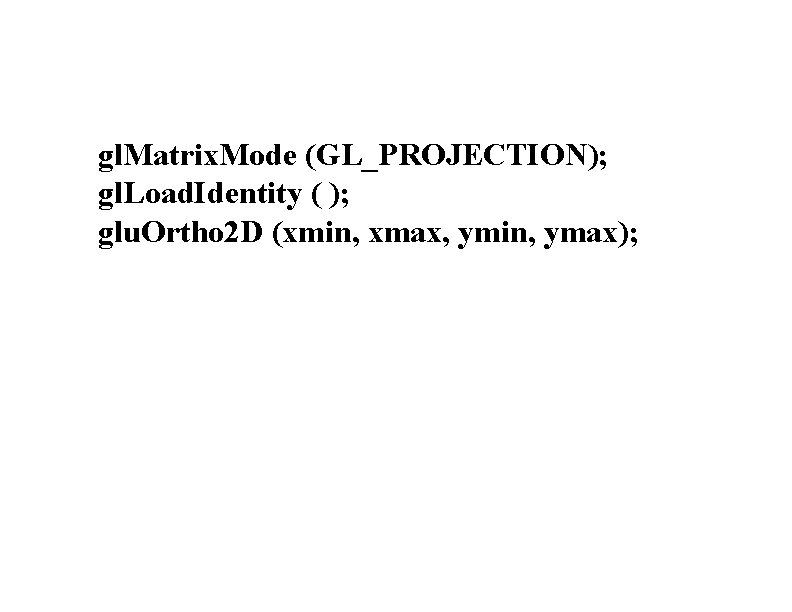
gl. Matrix. Mode (GL_PROJECTION); gl. Load. Identity ( ); glu. Ortho 2 D (xmin, xmax, ymin, ymax);
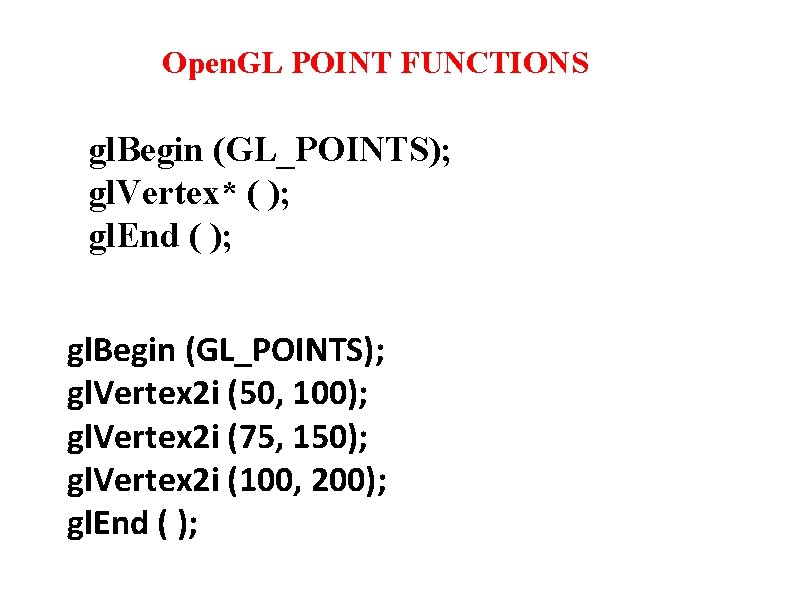
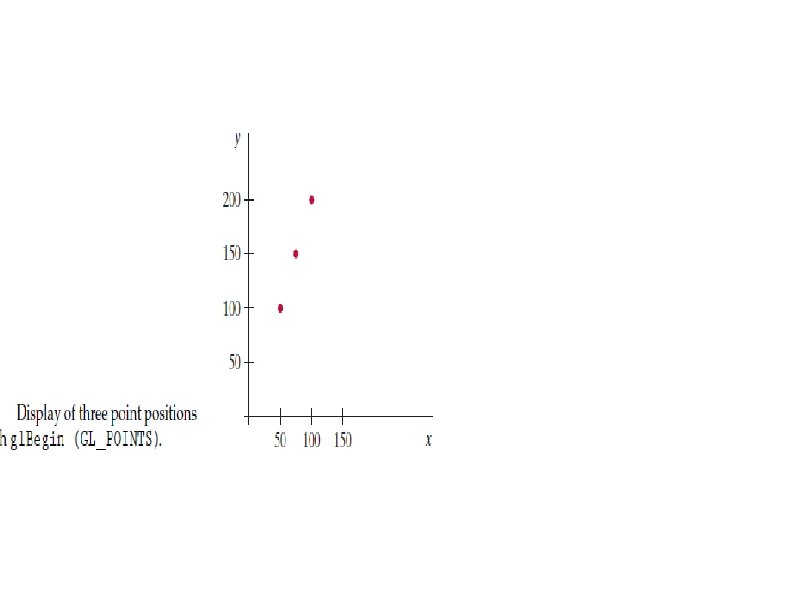
Open. GL POINT FUNCTIONS gl. Begin (GL_POINTS); gl. Vertex* ( ); gl. End ( ); gl. Begin (GL_POINTS); gl. Vertex 2 i (50, 100); gl. Vertex 2 i (75, 150); gl. Vertex 2 i (100, 200); gl. End ( );
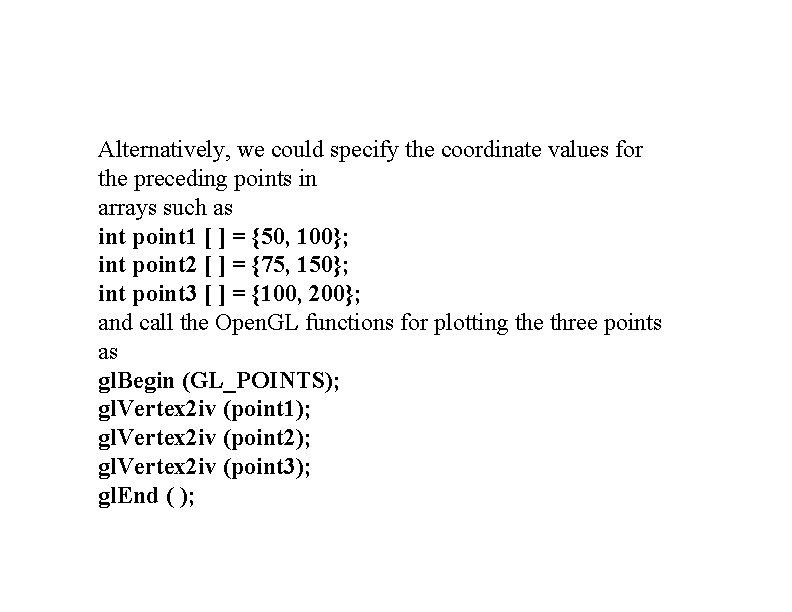
Alternatively, we could specify the coordinate values for the preceding points in arrays such as int point 1 [ ] = {50, 100}; int point 2 [ ] = {75, 150}; int point 3 [ ] = {100, 200}; and call the Open. GL functions for plotting the three points as gl. Begin (GL_POINTS); gl. Vertex 2 iv (point 1); gl. Vertex 2 iv (point 2); gl. Vertex 2 iv (point 3); gl. End ( );
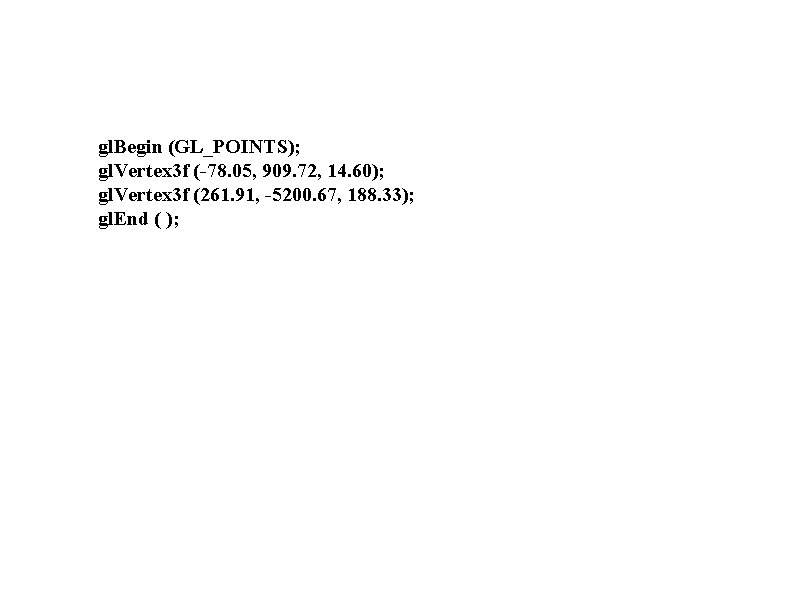
gl. Begin (GL_POINTS); gl. Vertex 3 f (-78. 05, 909. 72, 14. 60); gl. Vertex 3 f (261. 91, -5200. 67, 188. 33); gl. End ( );
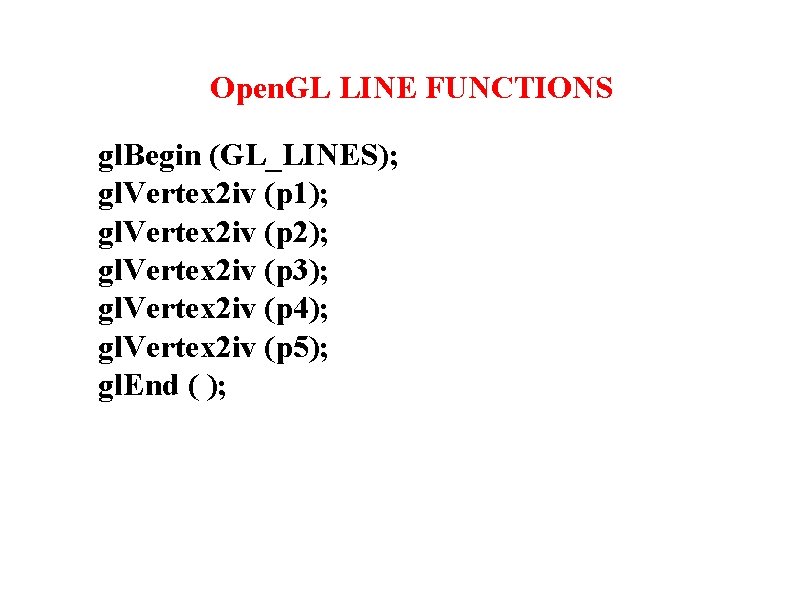
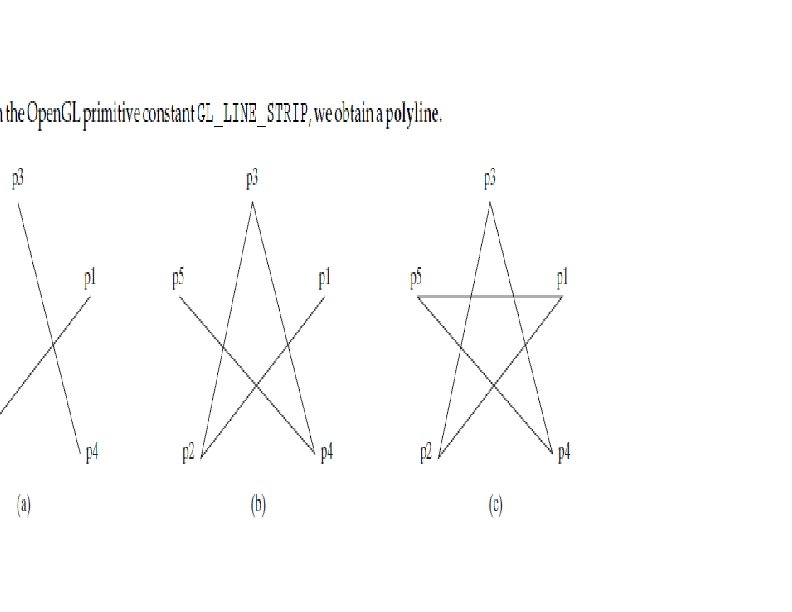
Open. GL LINE FUNCTIONS gl. Begin (GL_LINES); gl. Vertex 2 iv (p 1); gl. Vertex 2 iv (p 2); gl. Vertex 2 iv (p 3); gl. Vertex 2 iv (p 4); gl. Vertex 2 iv (p 5); gl. End ( );
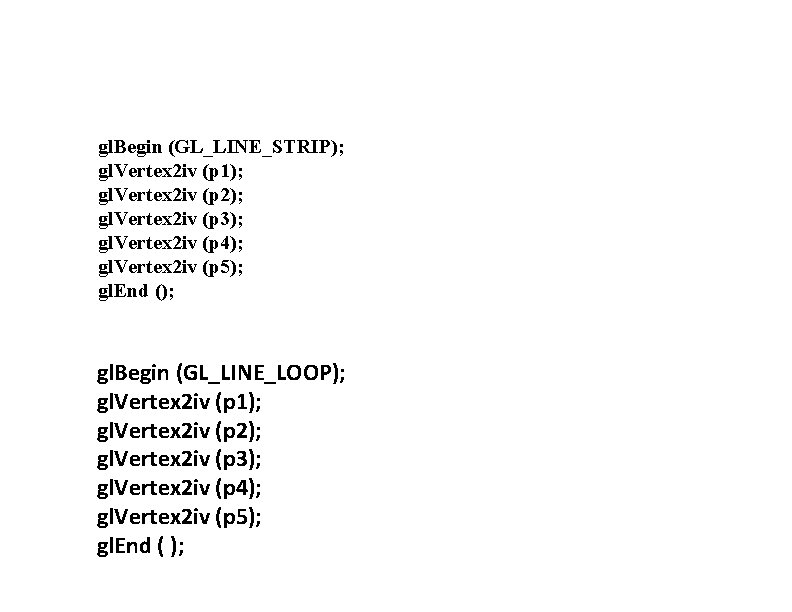
gl. Begin (GL_LINE_STRIP); gl. Vertex 2 iv (p 1); gl. Vertex 2 iv (p 2); gl. Vertex 2 iv (p 3); gl. Vertex 2 iv (p 4); gl. Vertex 2 iv (p 5); gl. End (); gl. Begin (GL_LINE_LOOP); gl. Vertex 2 iv (p 1); gl. Vertex 2 iv (p 2); gl. Vertex 2 iv (p 3); gl. Vertex 2 iv (p 4); gl. Vertex 2 iv (p 5); gl. End ( );
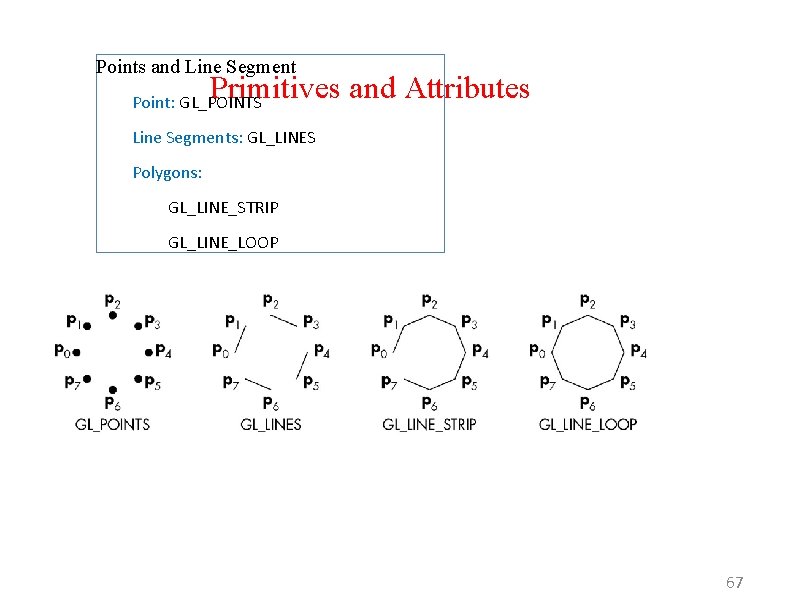
Points and Line Segment Primitives and Attributes Point: GL_POINTS Line Segments: GL_LINES Polygons: GL_LINE_STRIP GL_LINE_LOOP 67
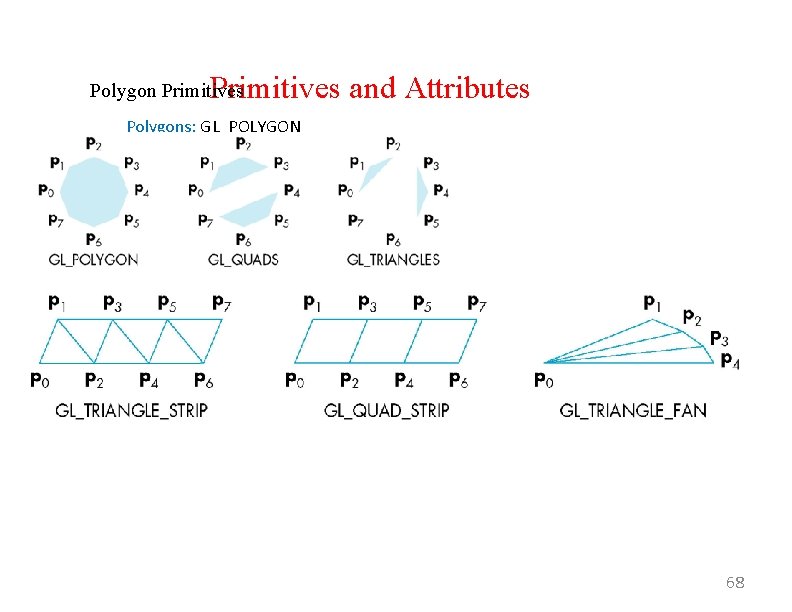
Primitives and Attributes Polygon Primitives Polygons: GL_POLYGON Triangles: GL_TRIANGLES Quadrilaterals: GL_QUADS Stripes: GL_TRIANGLE_STRIP Fans: GL_TRIANGLE_FAN 68
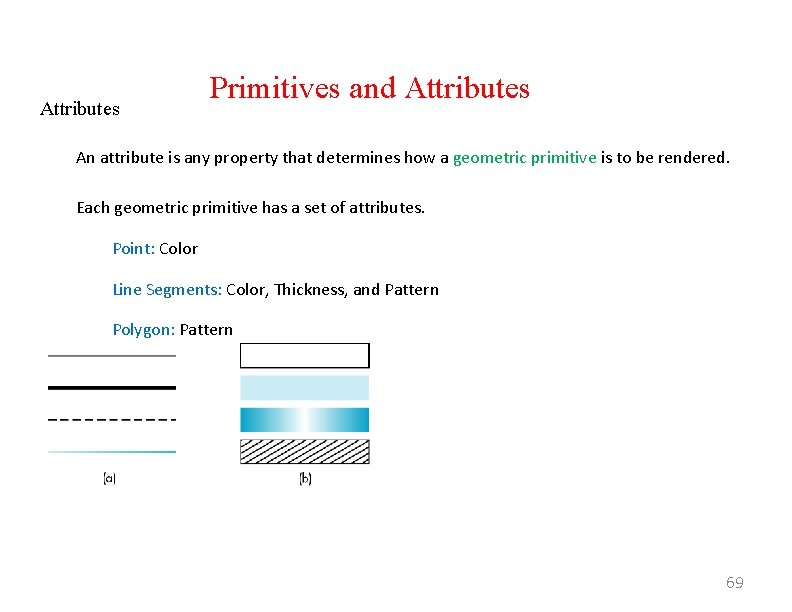
Attributes Primitives and Attributes An attribute is any property that determines how a geometric primitive is to be rendered. Each geometric primitive has a set of attributes. Point: Color Line Segments: Color, Thickness, and Pattern Polygon: Pattern 69
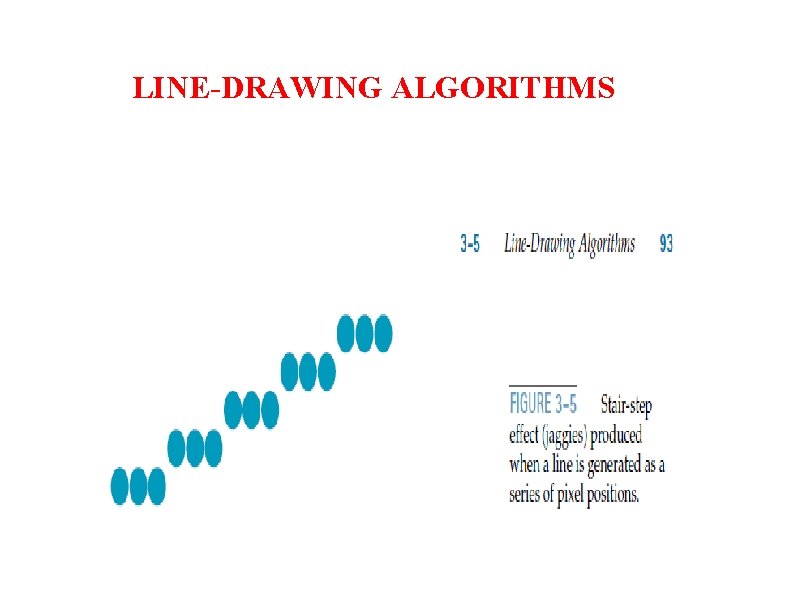
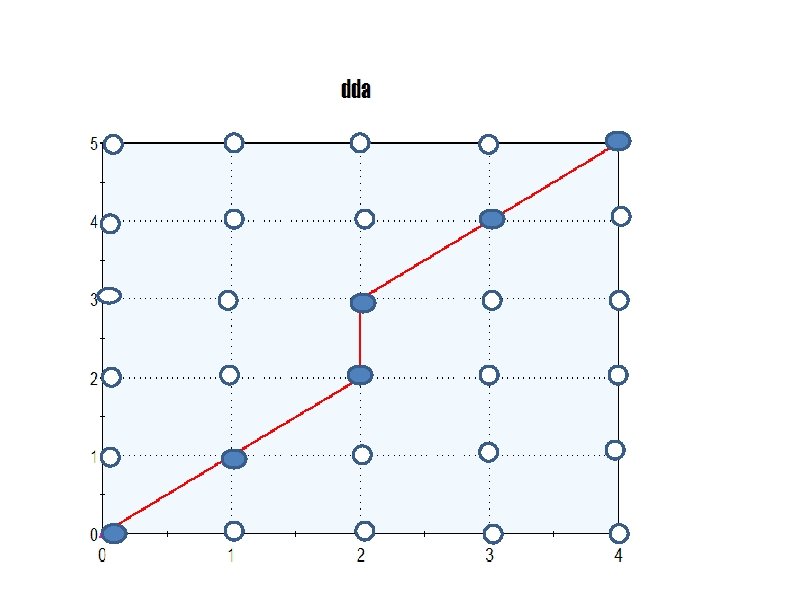
LINE-DRAWING ALGORITHMS
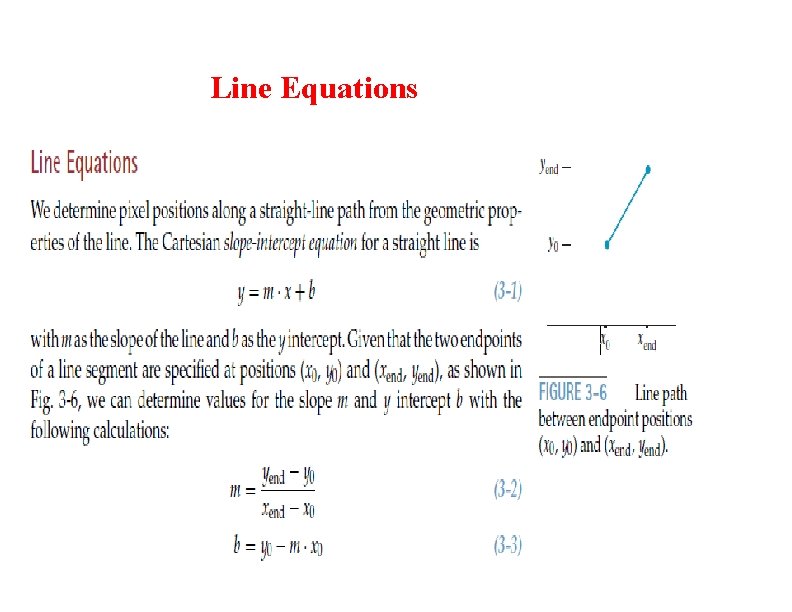
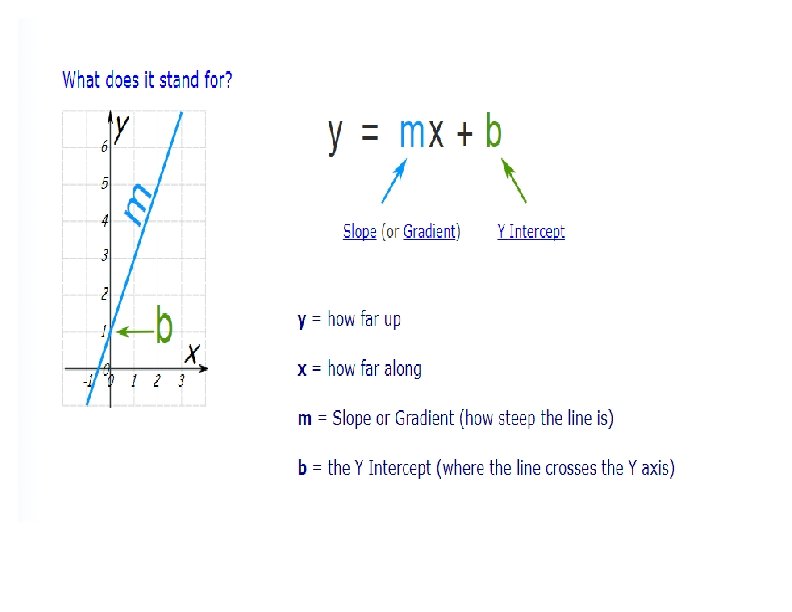
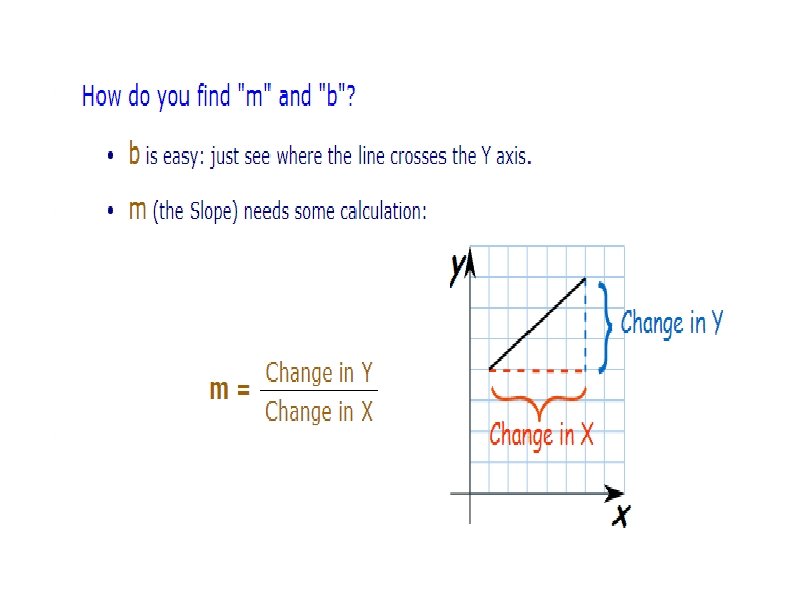
Line Equations
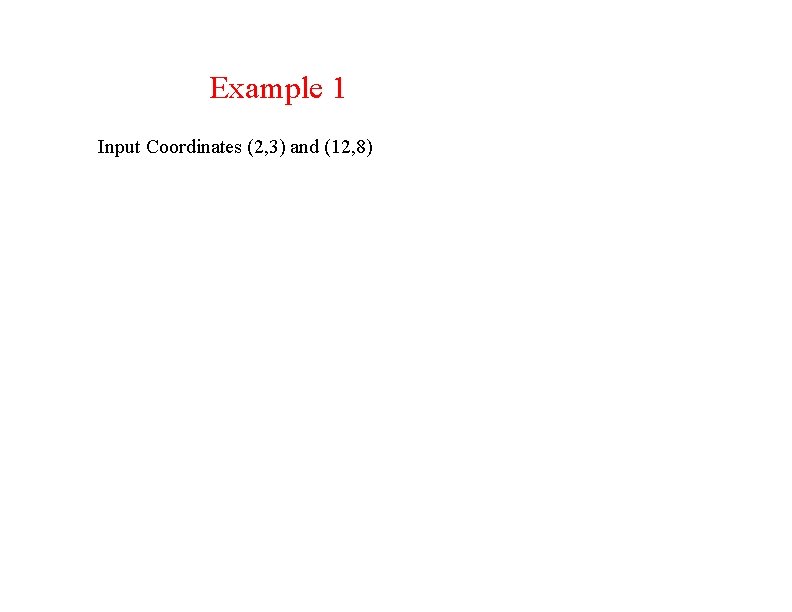
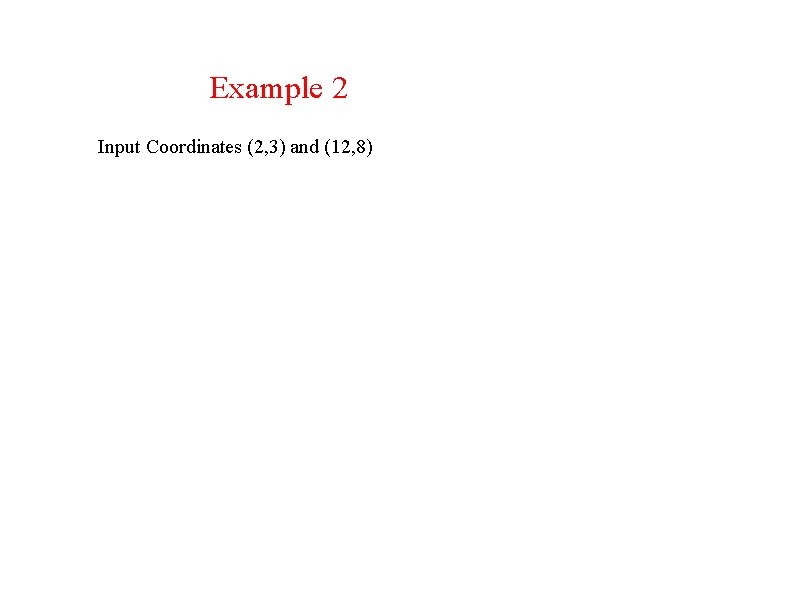
Example 1 Input Coordinates (2, 3) and (12, 8)
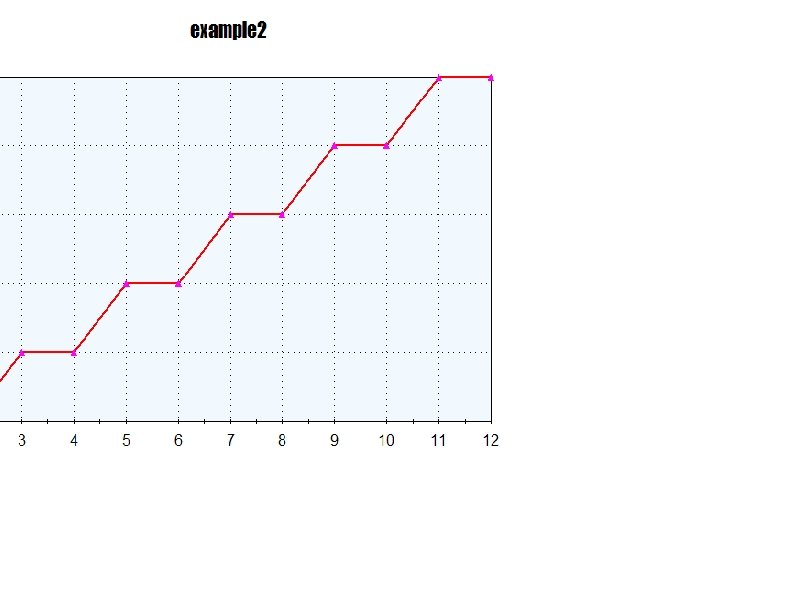
Example 2 Input Coordinates (2, 3) and (12, 8)
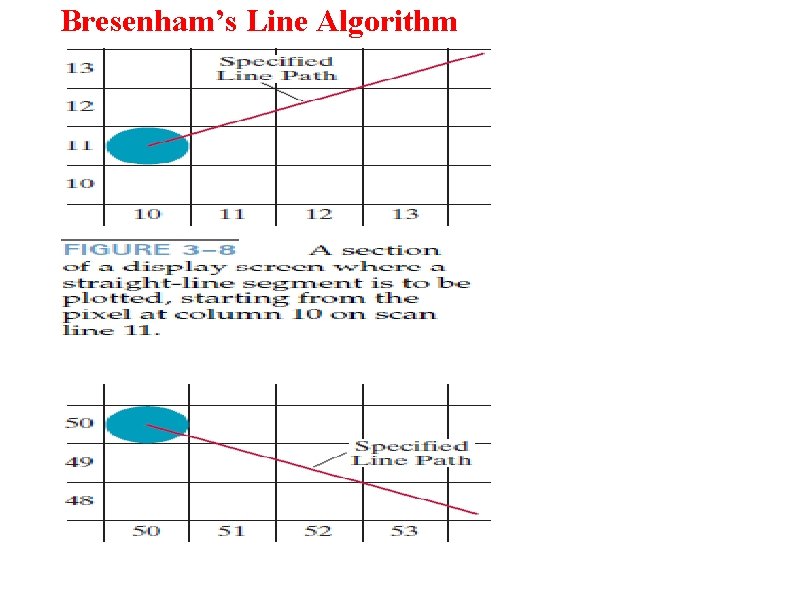
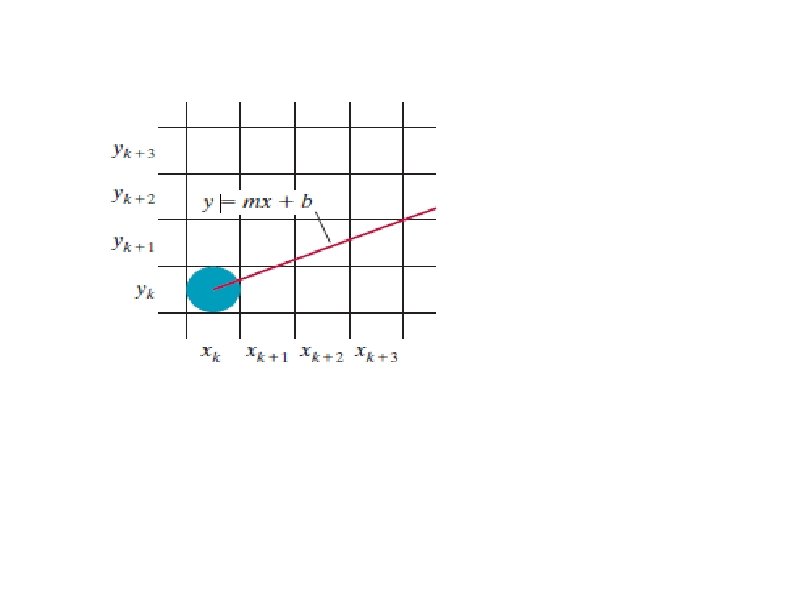
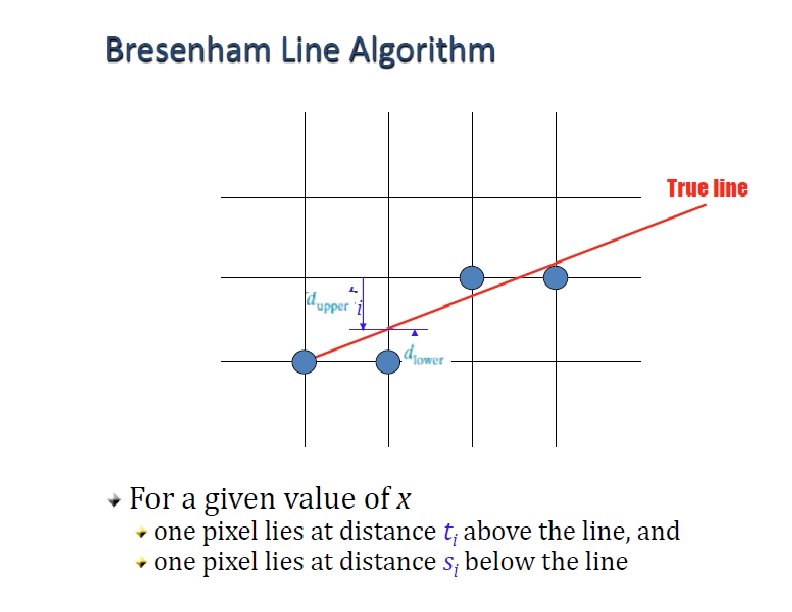
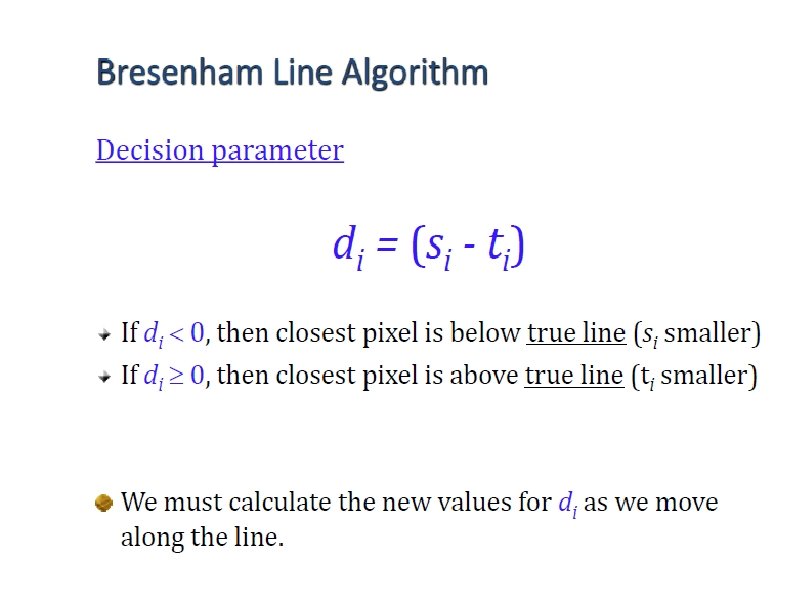
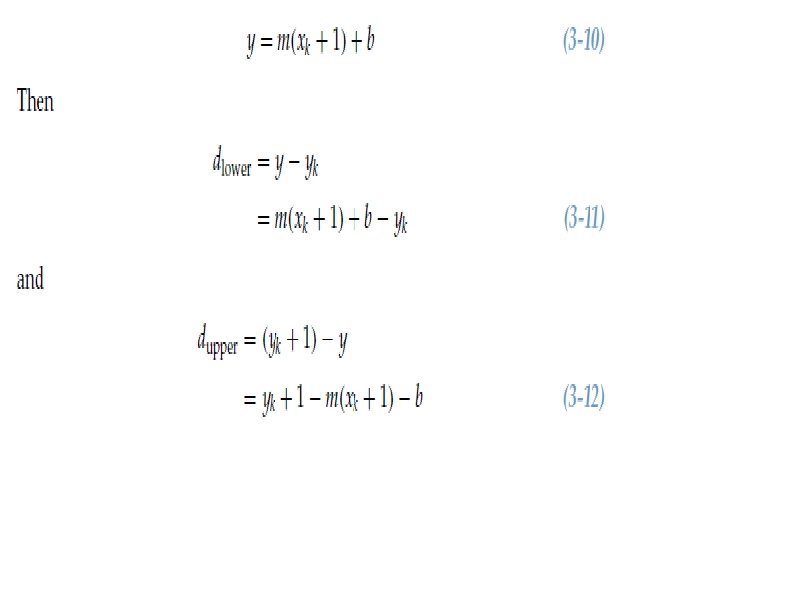
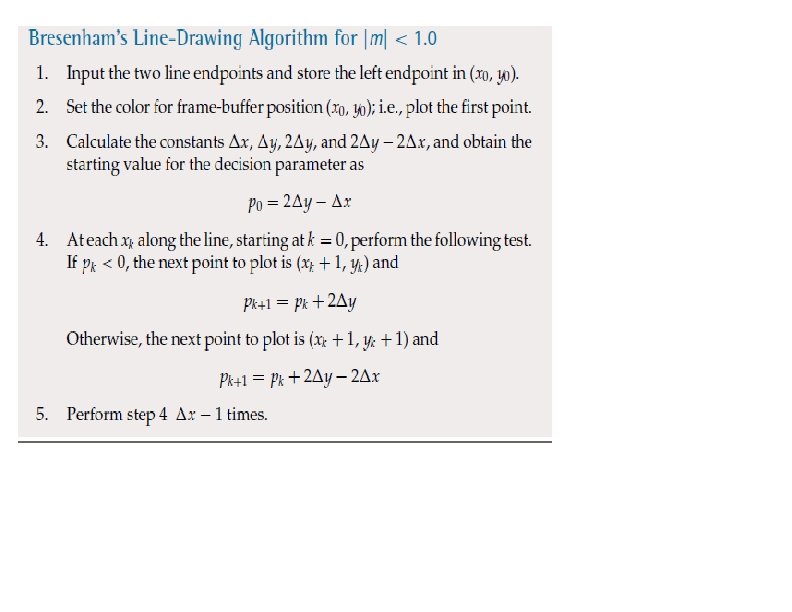
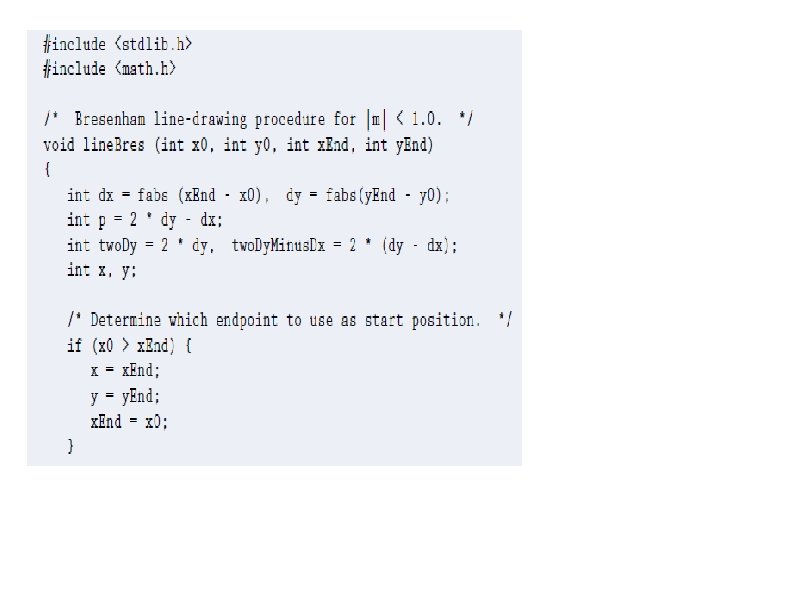
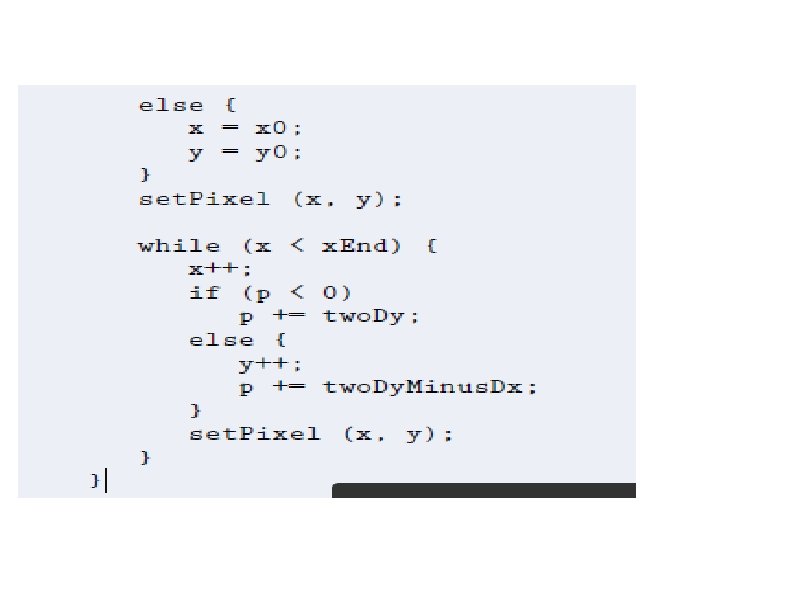
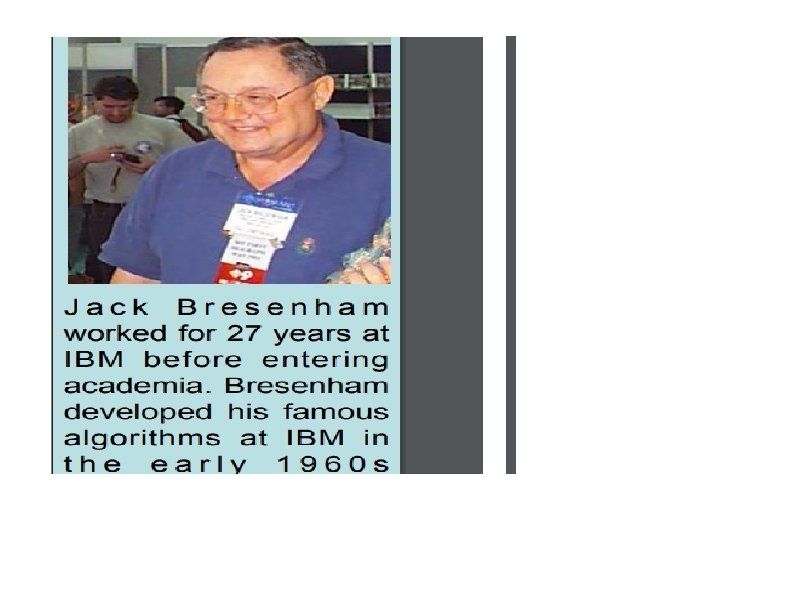
Bresenham’s Line Algorithm
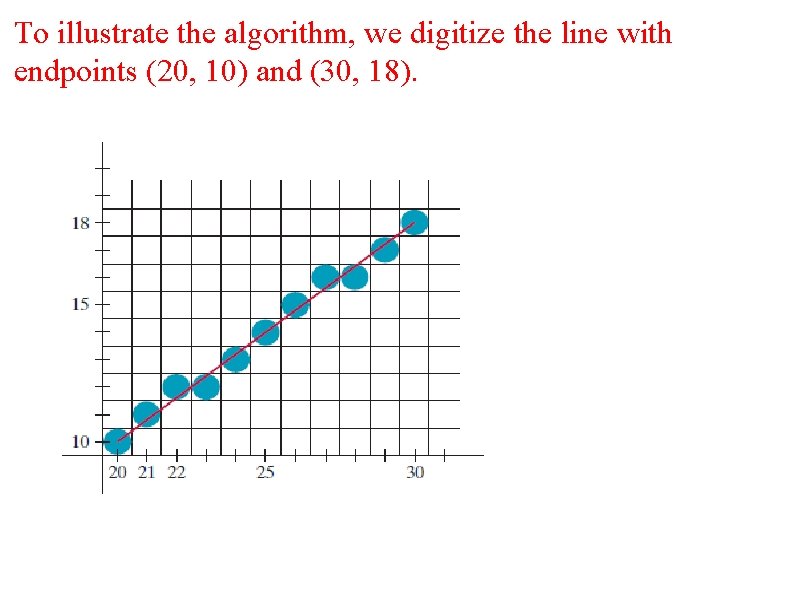
To illustrate the algorithm, we digitize the line with endpoints (20, 10) and (30, 18).
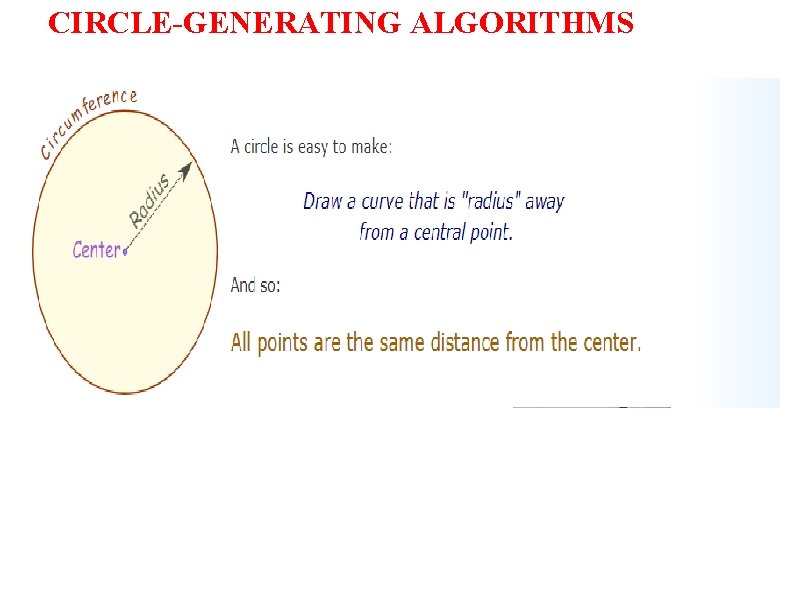
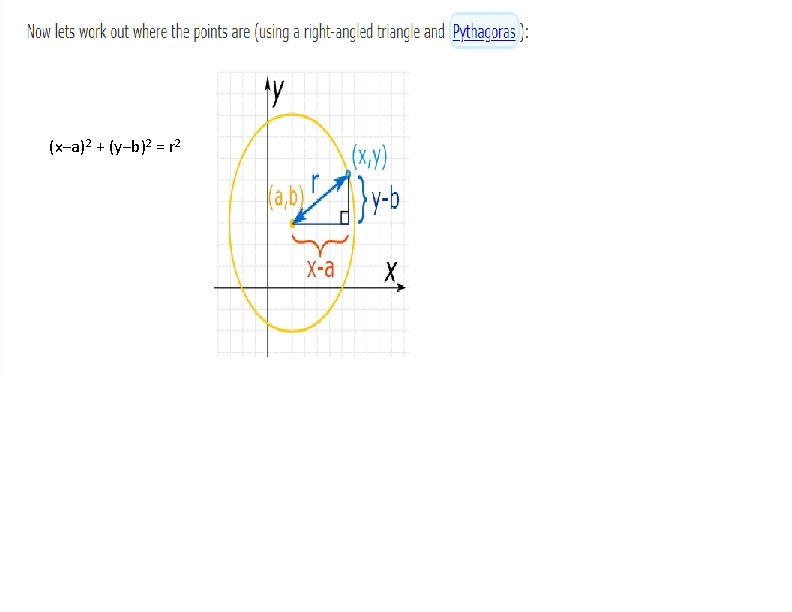
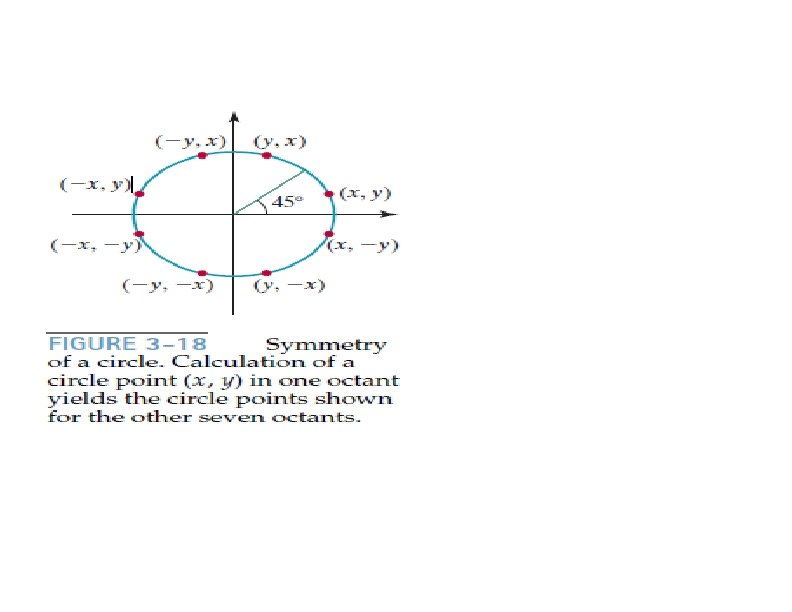
CIRCLE-GENERATING ALGORITHMS
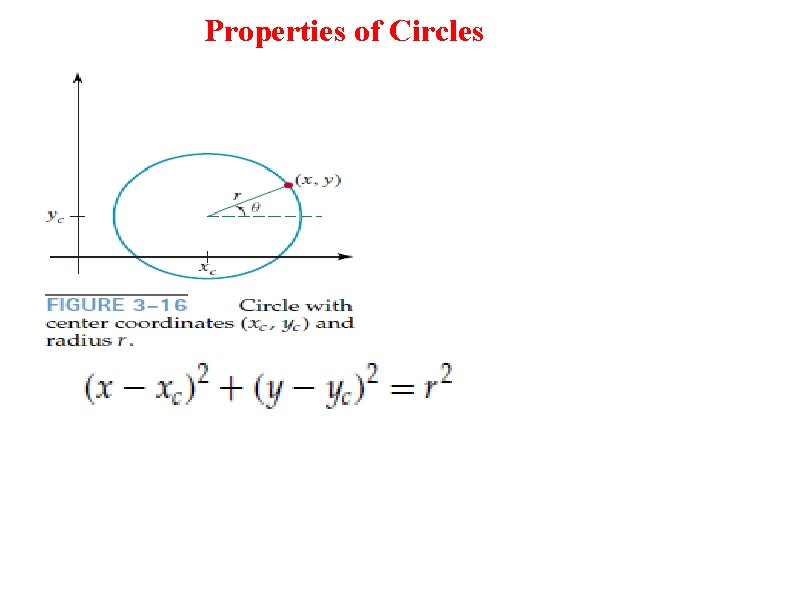
Properties of Circles
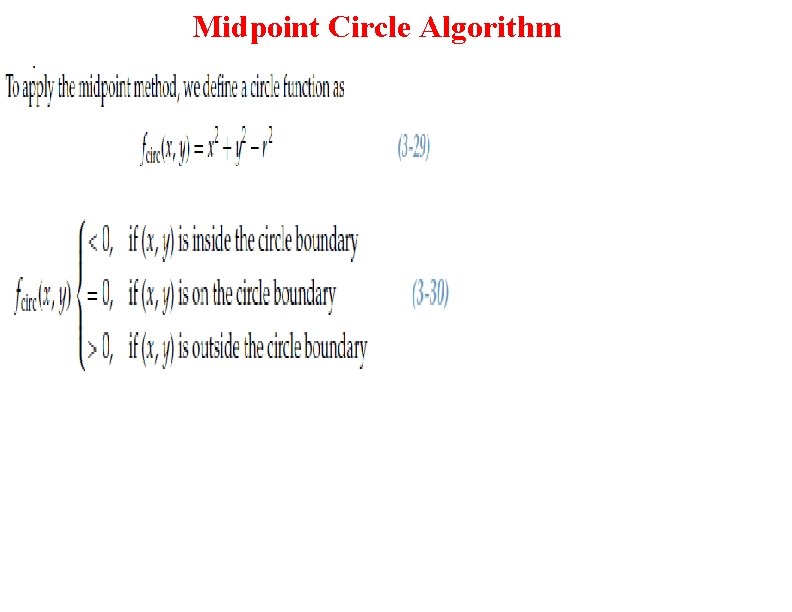
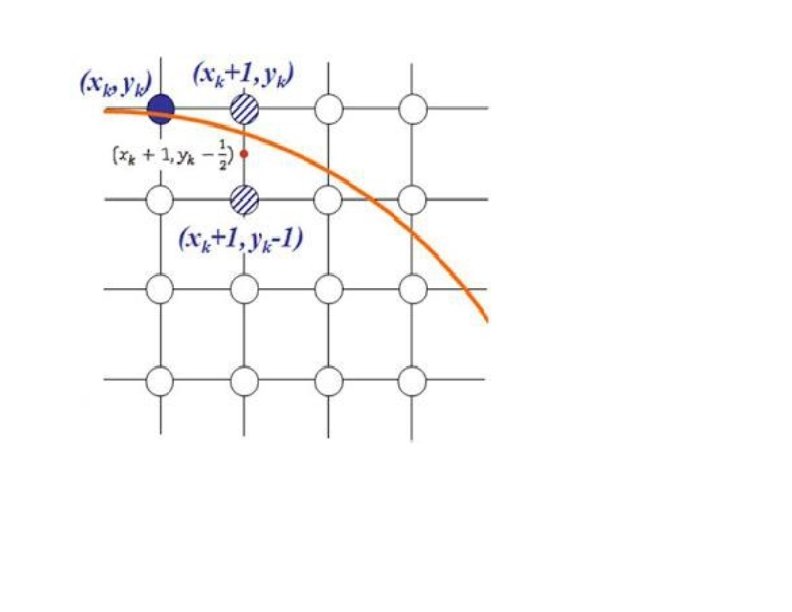
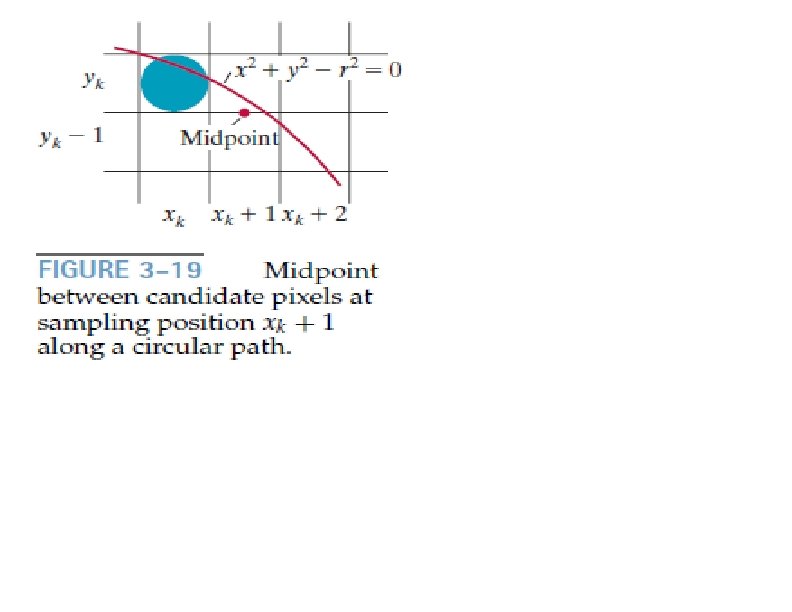
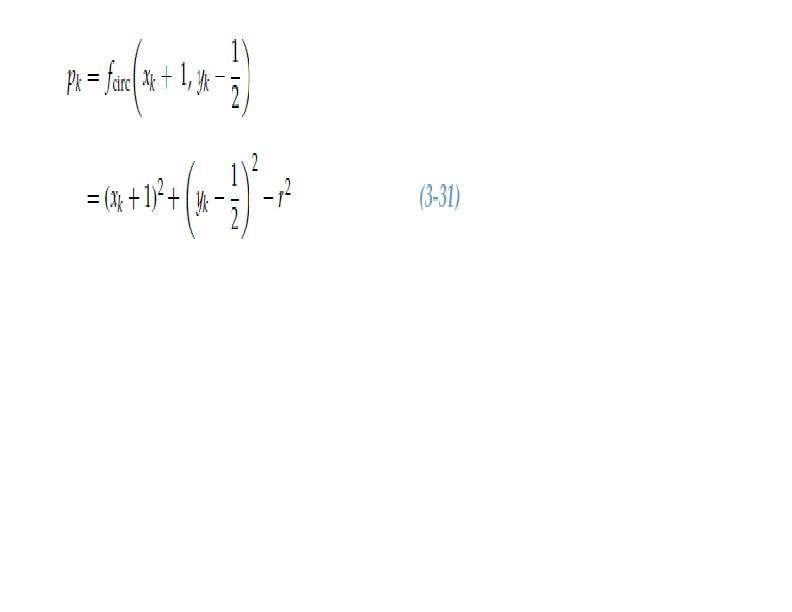
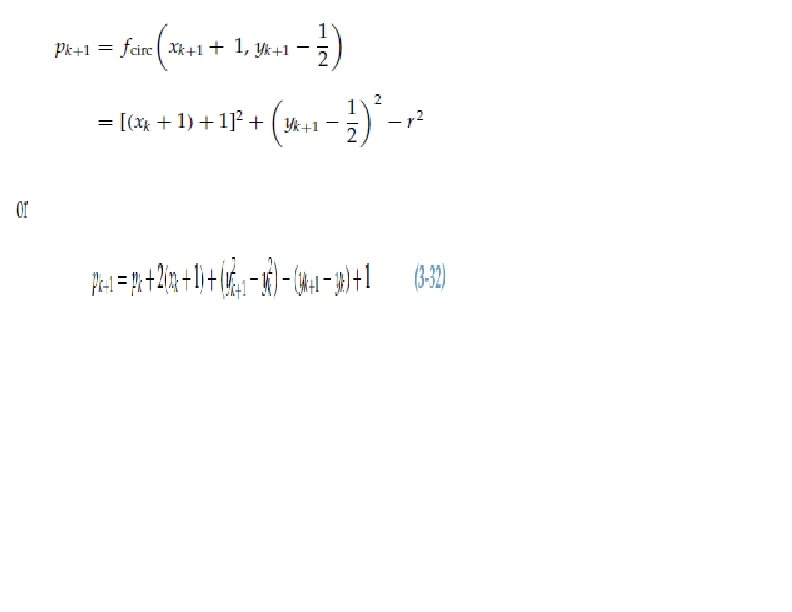
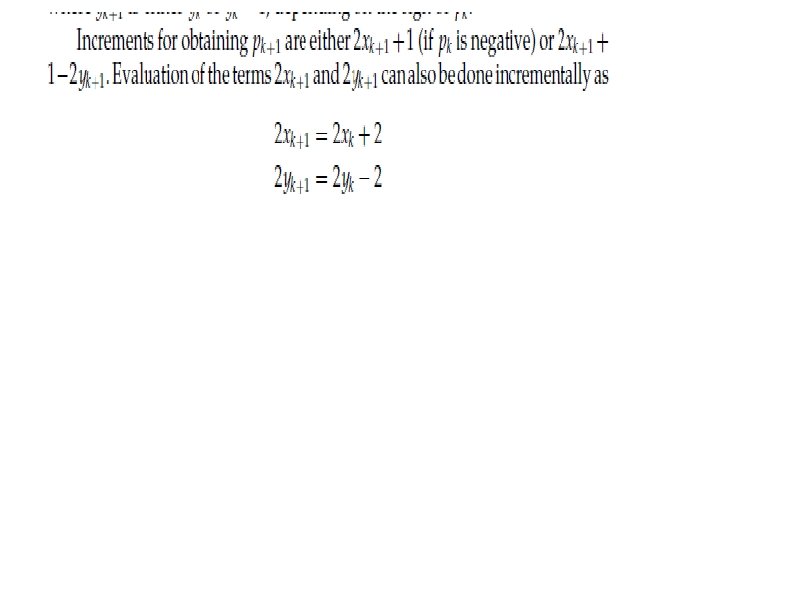
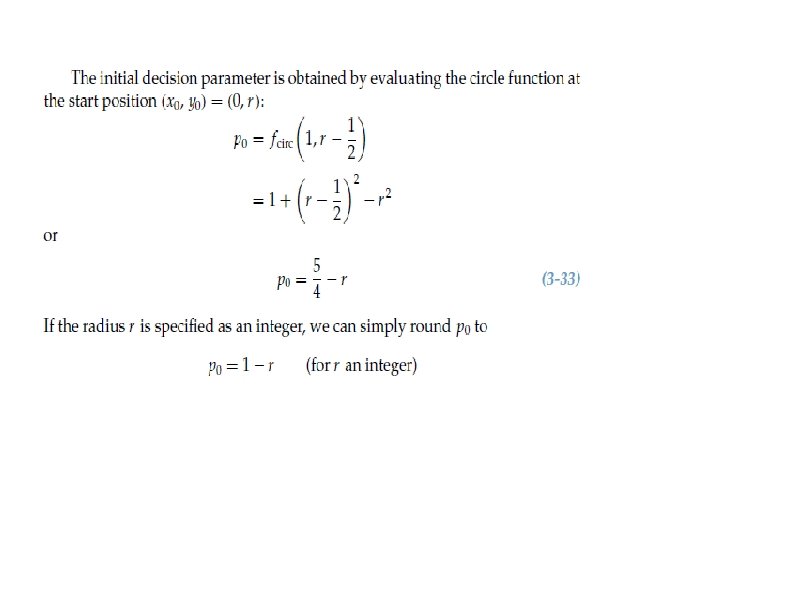
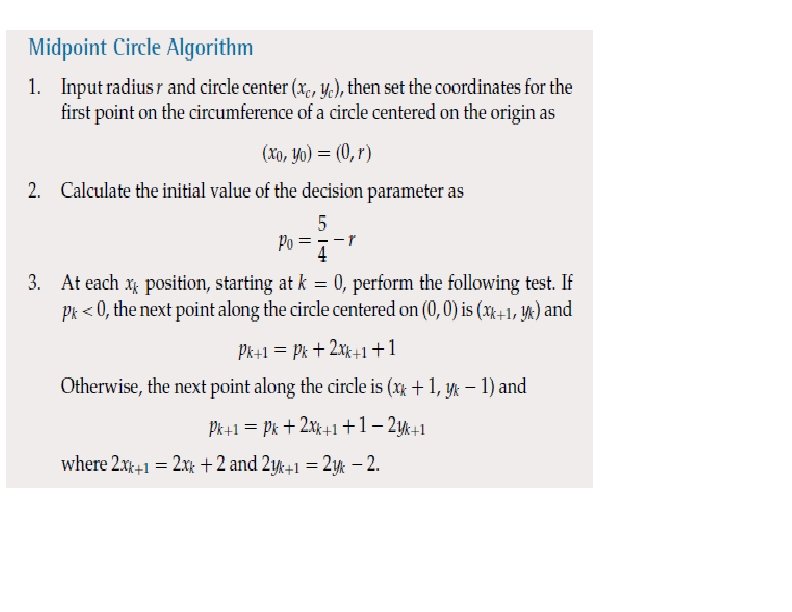
Midpoint Circle Algorithm
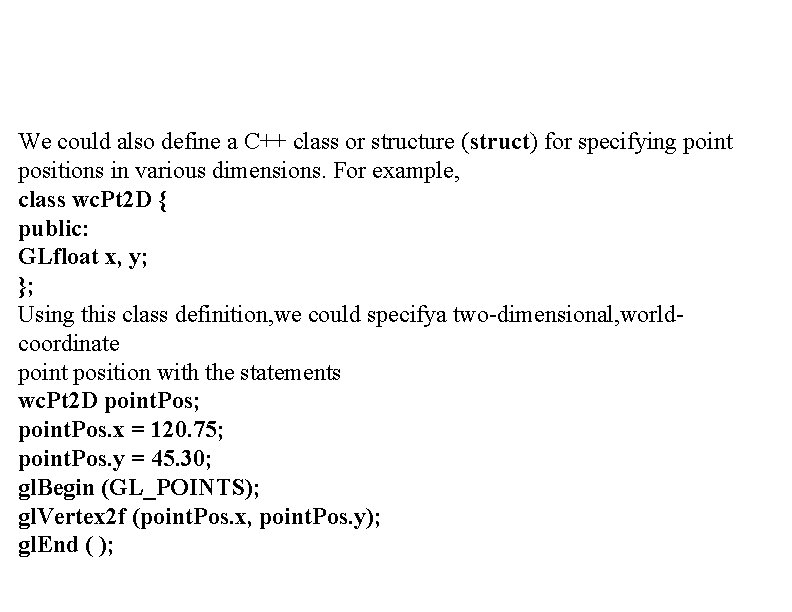
We could also define a C++ class or structure (struct) for specifying point positions in various dimensions. For example, class wc. Pt 2 D { public: GLfloat x, y; }; Using this class definition, we could specifya two-dimensional, worldcoordinate point position with the statements wc. Pt 2 D point. Pos; point. Pos. x = 120. 75; point. Pos. y = 45. 30; gl. Begin (GL_POINTS); gl. Vertex 2 f (point. Pos. x, point. Pos. y); gl. End ( );
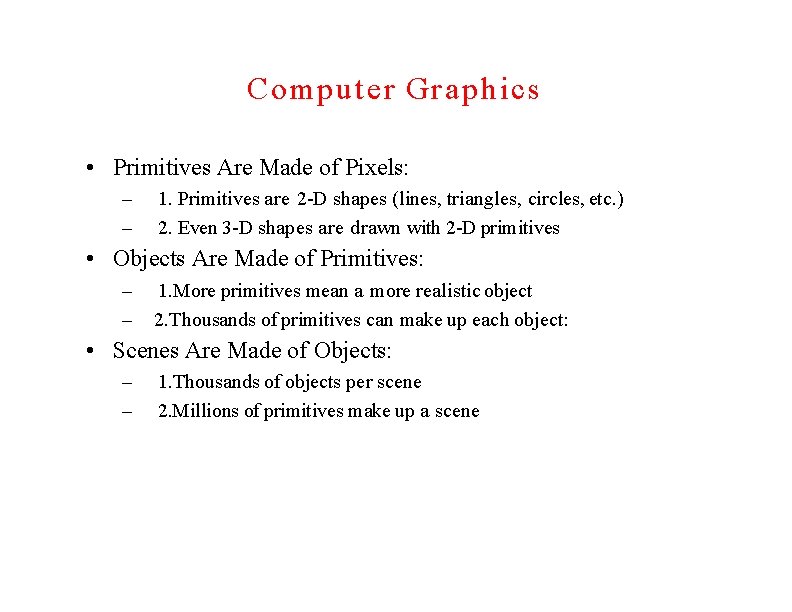
Computer Graphics • Primitives Are Made of Pixels: – – 1. Primitives are 2 -D shapes (lines, triangles, circles, etc. ) 2. Even 3 -D shapes are drawn with 2 -D primitives • Objects Are Made of Primitives: – – 1. More primitives mean a more realistic object 2. Thousands of primitives can make up each object: • Scenes Are Made of Objects: – – 1. Thousands of objects per scene 2. Millions of primitives make up a scene
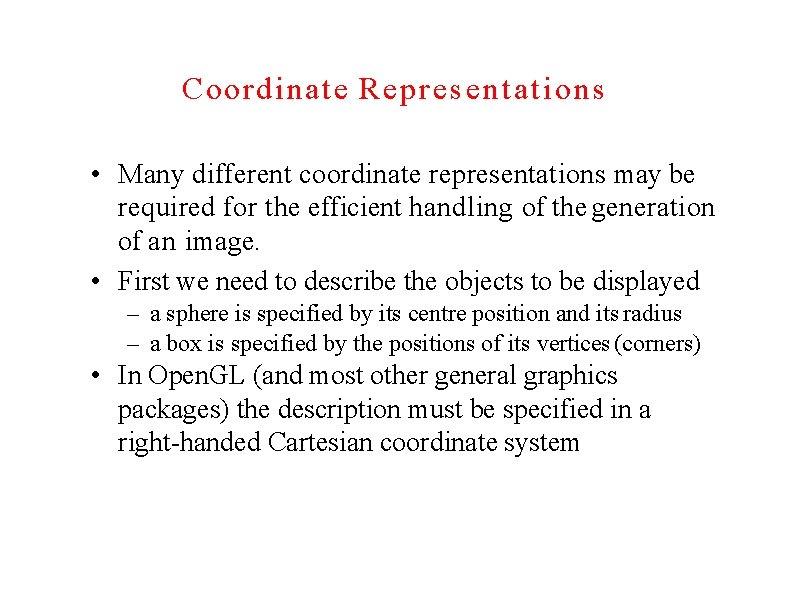
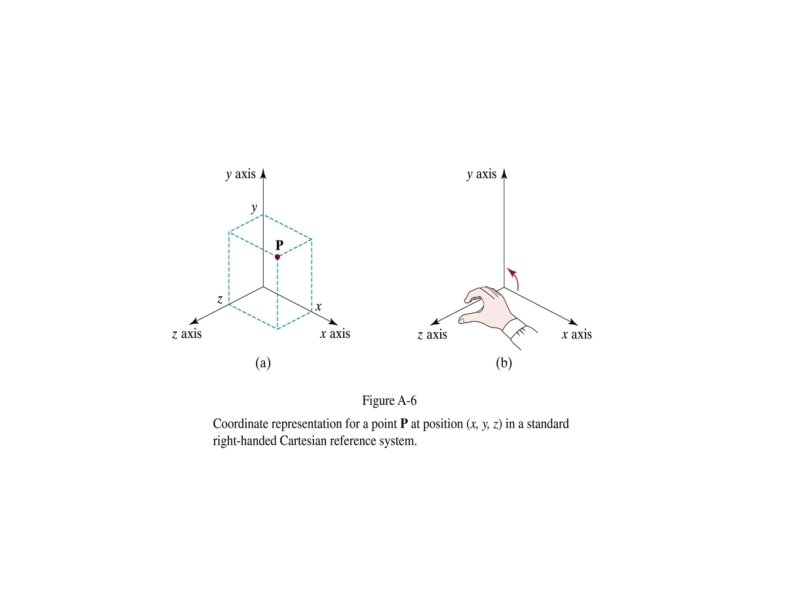
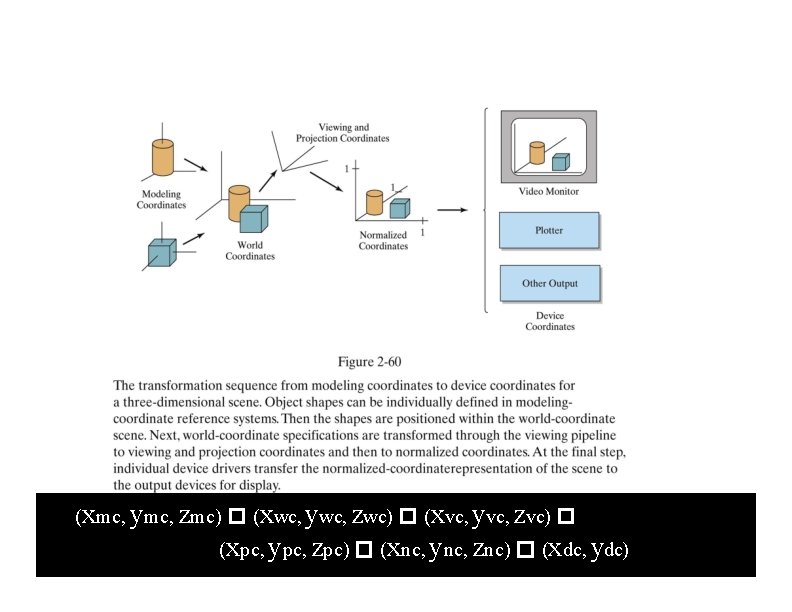
Coordinate Representations • Many different coordinate representations may be required for the efficient handling of the generation of an image. • First we need to describe the objects to be displayed – a sphere is specified by its centre position and its radius – a box is specified by the positions of its vertices (corners) • In Open. GL (and most other general graphics packages) the description must be specified in a right-handed Cartesian coordinate system
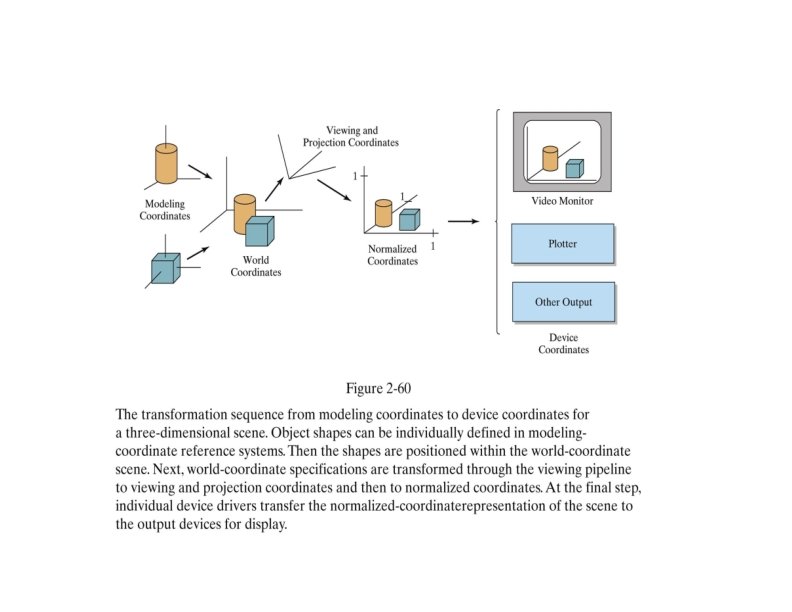
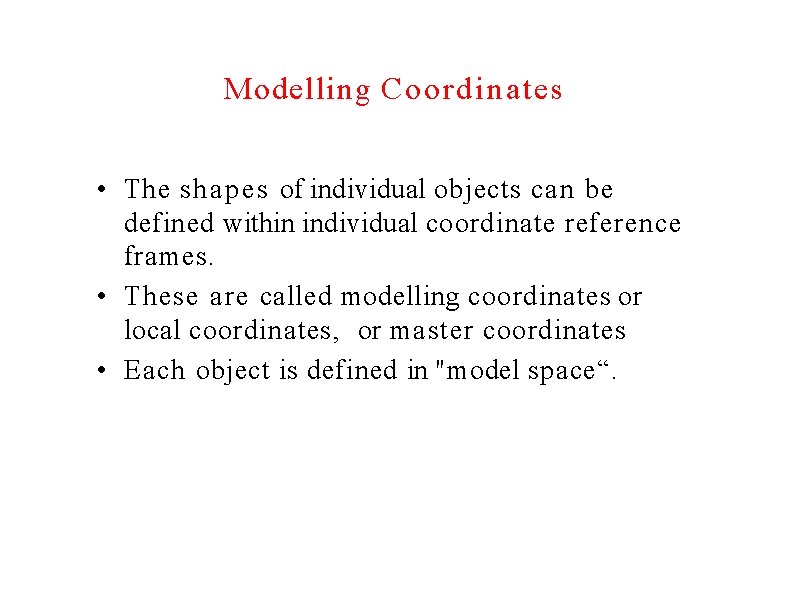
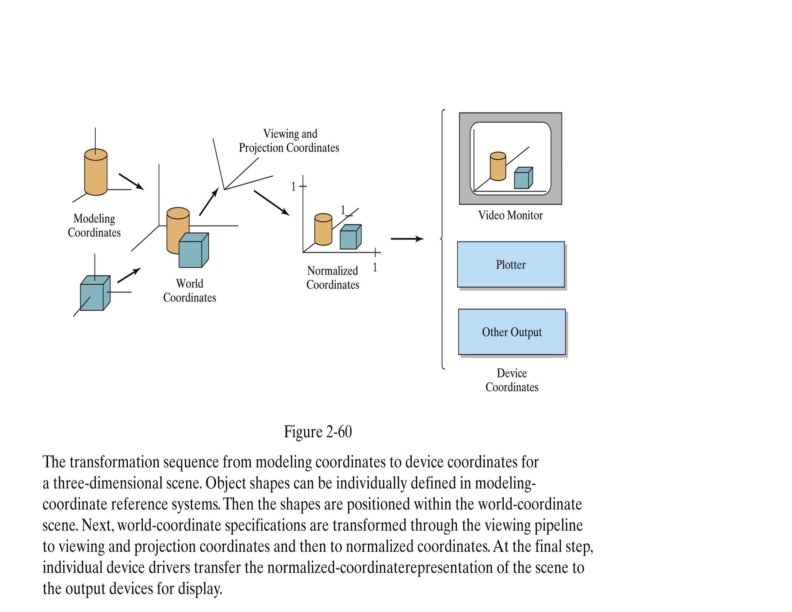
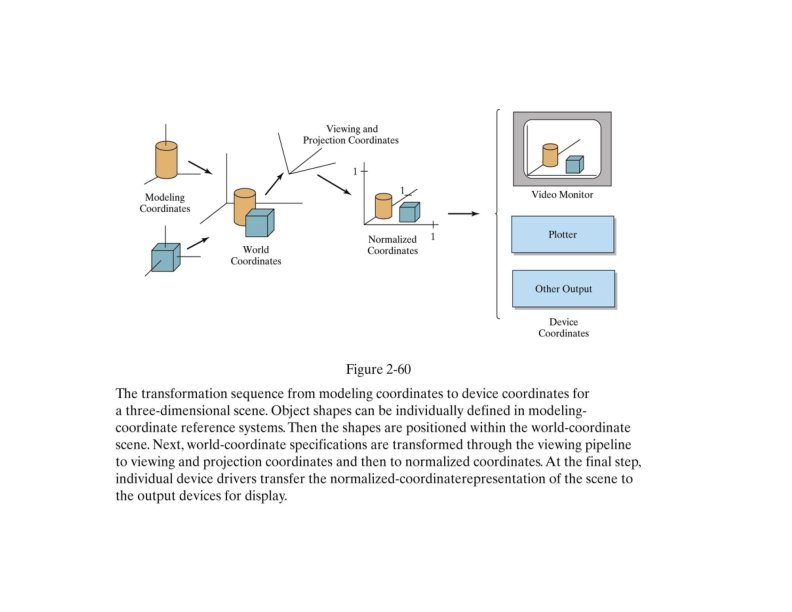
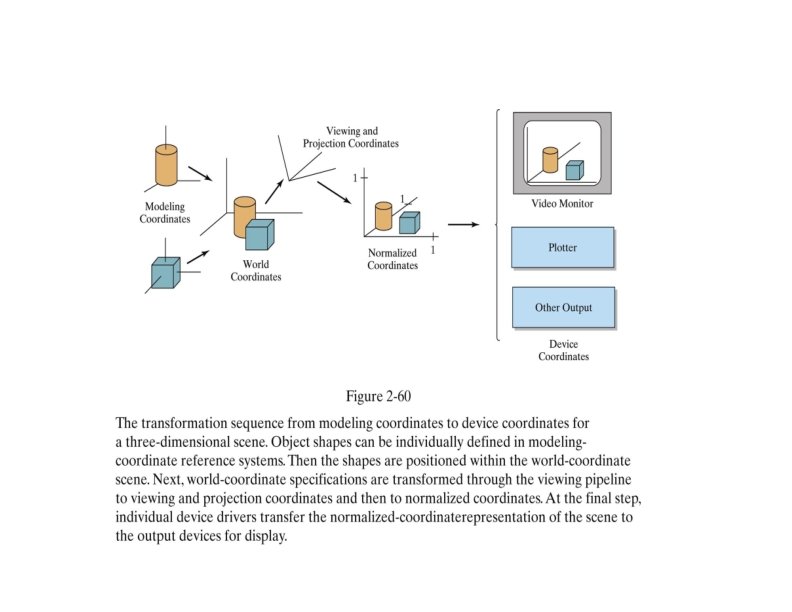
Modelling Coordinates • The shapes of individual objects can be defined within individual coordinate reference frames. • These are called modelling coordinates or local coordinates, or master coordinates • Each object is defined in "model space“.
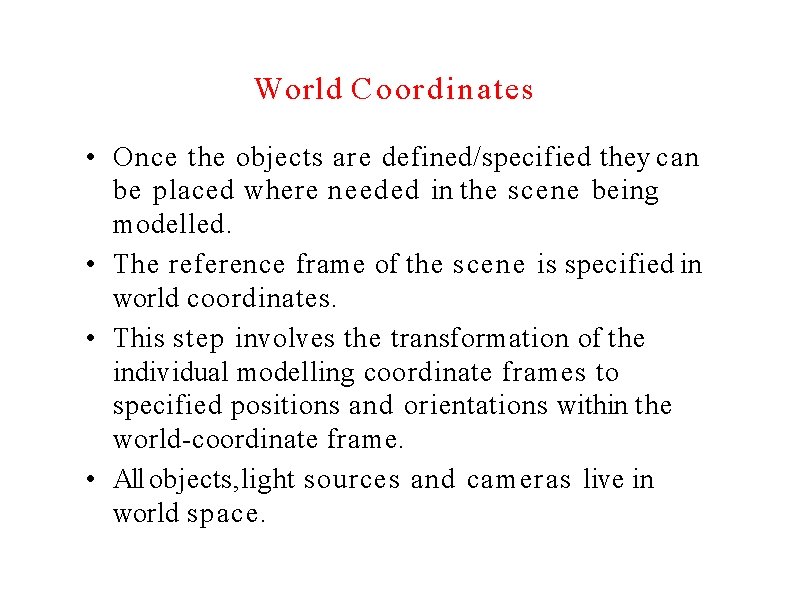
World Coordinates • Once the objects are defined/specified they can be placed where needed in the scene being modelled. • The reference frame of the scene is specified in world coordinates. • This step involves the transformation of the individual modelling coordinate frames to specified positions and orientations within the world-coordinate frame. • All objects, light sources and cameras live in world space.
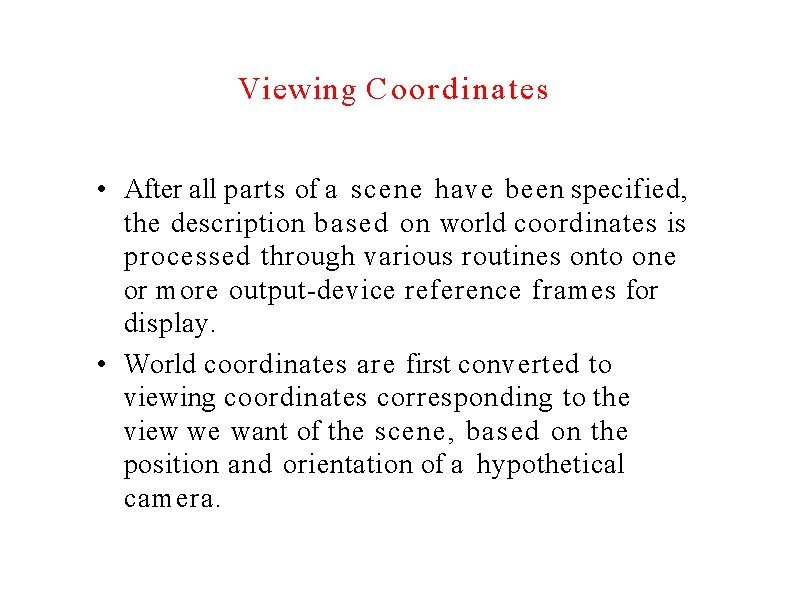
Viewing Coordinates • After all parts of a scene have been specified, the description based on world coordinates is processed through various routines onto one or more output-device reference frames for display. • World coordinates are first converted to viewing coordinates corresponding to the view we want of the scene, based on the position and orientation of a hypothetical camera.
Projection Coordinates • The object locations are then transformed from the viewing coordinates to a 2 dimensional projection of the scene (in projection coordinates) which corresponds to what we will s e e on the output device.
Normalised Coordinates • The projected scene is then stored in normalised coordinates, where each coordinate value is in the range [-1, 1] or [0, 1], depending on the system. • Normalised coordinates are also called normalised device coordinates. • Using this normalised representation makes a graphics package independent of the coordinates range for any specific output device.
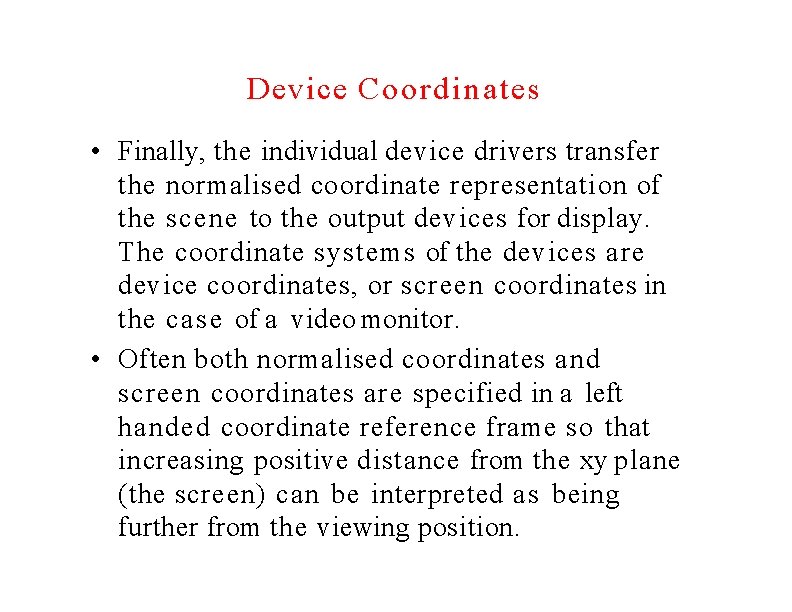
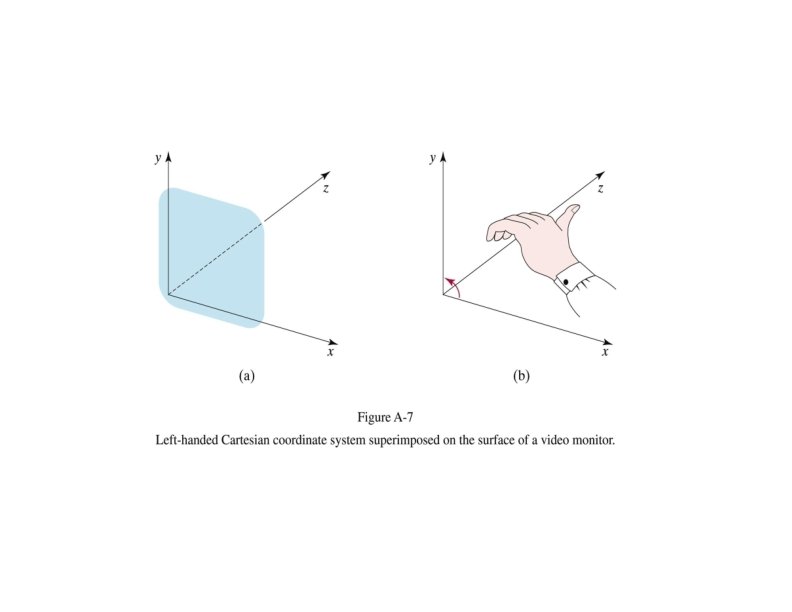
Device Coordinates • Finally, the individual device drivers transfer the normalised coordinate representation of the scene to the output devices for display. The coordinate systems of the devices are device coordinates, or screen coordinates in the case of a video monitor. • Often both normalised coordinates and screen coordinates are specified in a left handed coordinate reference frame so that increasing positive distance from the xy plane (the screen) can be interpreted a s being further from the viewing position.
The Viewing Pipeline • Processing the scene description (in world coordinates) through the series of routines into output device coordinates is called the viewing pipeline. • Note that at reaching the scene description defined in projection coordinates or normalised coordinates we also need to identify visible surfaces and eliminate picture parts outside of the bounds for the view we want on the display device.
(xmc, ymc, zmc) � (xwc, ywc, zwc) � (xvc, yvc, zvc) � (xpc, ypc, zpc) � (xnc, ync, znc) � (xdc, ydc)
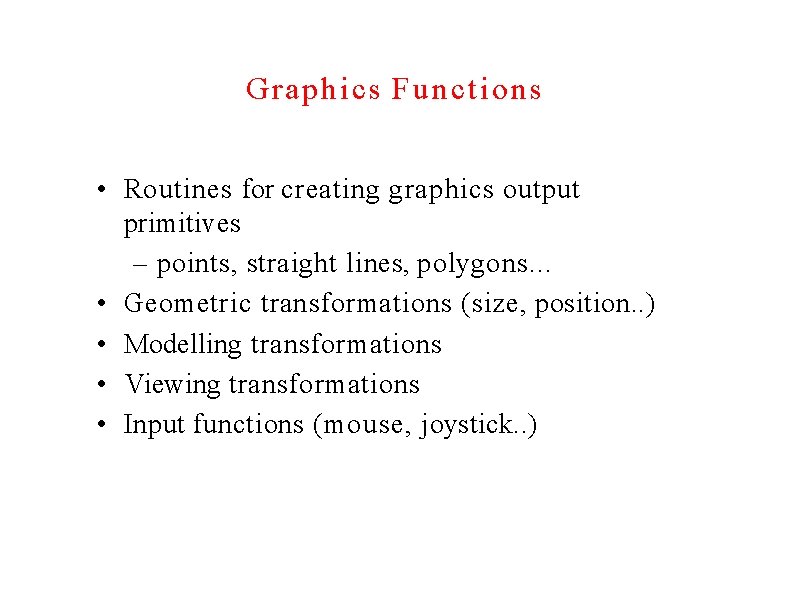
Graphics Functions • Routines for creating graphics output primitives – points, straight lines, polygons. . . • Geometric transformations (size, position. . ) • Modelling transformations • Viewing transformations • Input functions (mouse, joystick. . )
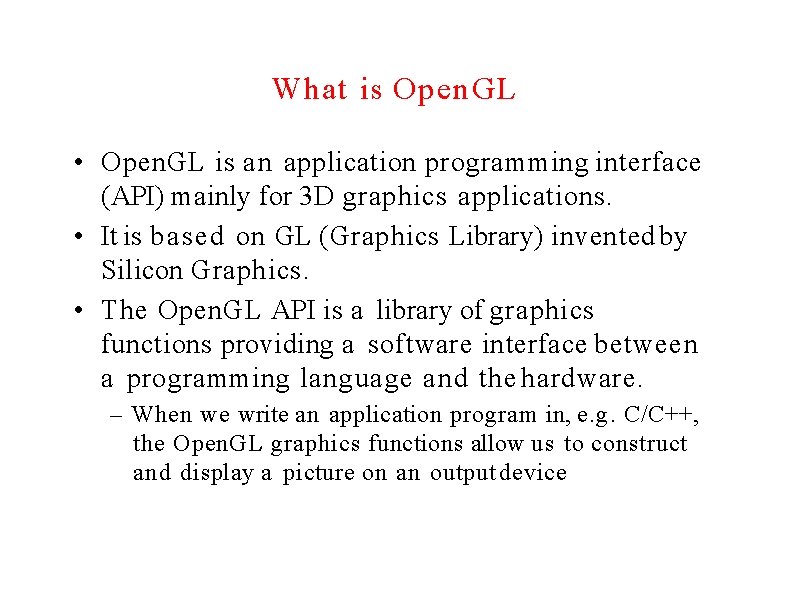
What is Open. GL • Open. GL is an application programming interface (API) mainly for 3 D graphics applications. • It is based on GL (Graphics Library) invented by Silicon Graphics. • The Open. GL API is a library of graphics functions providing a software interface between a programming language and the hardware. – When we write an application program in, e. g. C/C++, the Open. GL graphics functions allow us to construct and display a picture on an output device
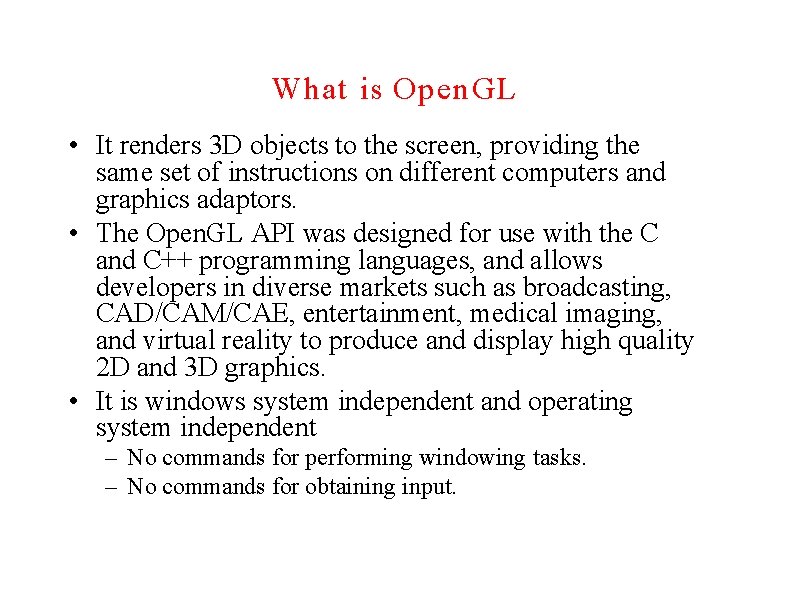
What is Open. GL • It renders 3 D objects to the screen, providing the same set of instructions on different computers and graphics adaptors. • The Open. GL API was designed for use with the C and C++ programming languages, and allows developers in diverse markets such as broadcasting, CAD/CAM/CAE, entertainment, medical imaging, and virtual reality to produce and display high quality 2 D and 3 D graphics. • It is windows system independent and operating system independent – No commands for performing windowing tasks. – No commands for obtaining input.
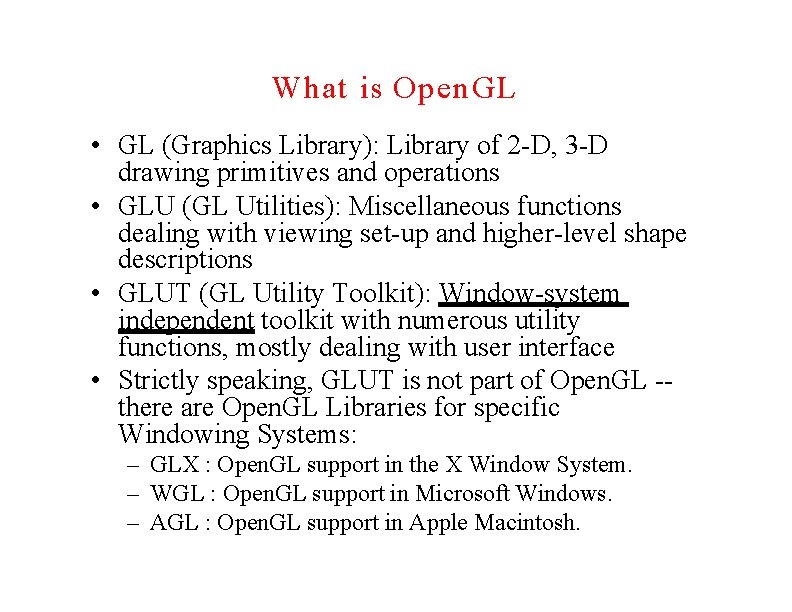
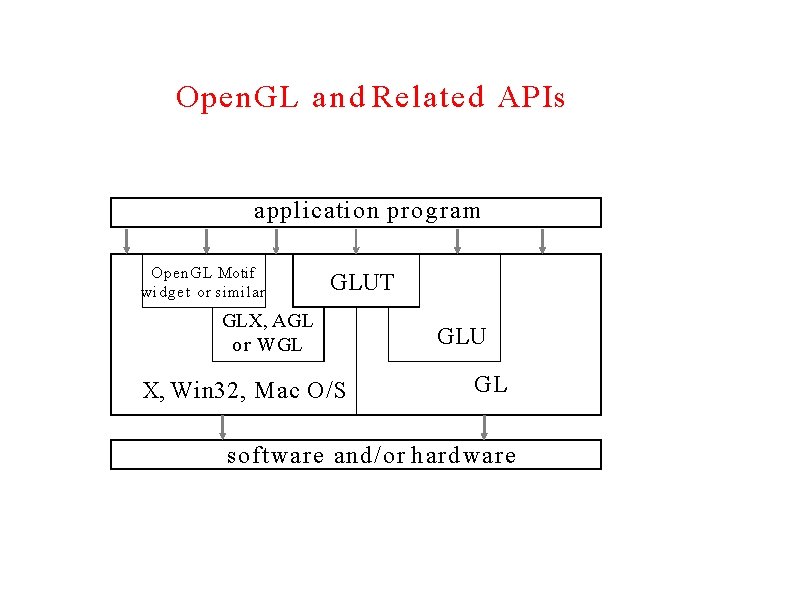
What is Open. GL • GL (Graphics Library): Library of 2 -D, 3 -D drawing primitives and operations • GLU (GL Utilities): Miscellaneous functions dealing with viewing set-up and higher-level shape descriptions • GLUT (GL Utility Toolkit): Window-system independent toolkit with numerous utility functions, mostly dealing with user interface • Strictly speaking, GLUT is not part of Open. GL -there are Open. GL Libraries for specific Windowing Systems: – GLX : Open. GL support in the X Window System. – WGL : Open. GL support in Microsoft Windows. – AGL : Open. GL support in Apple Macintosh.
Open. GL a n d Related APIs application program Open. GL Motif widget or similar GLUT GLX, AGL or WGL X, Win 32, Mac O/S GLU GL software and/or hardware
Why Use Open. GL • • • Industry standard Stable Reliable and portable Easy to use Well-documented
How Does Open. GL Work • Open. GL is a state machine. • You put Open. GL into a state (or mode) and that state remains in effect until you change it. • State is encapsulated in contexts. Each Open. GL window has its own separate state. • C programmers may think of each context as a struct with fields for each Open. GL state variable.
Open. GL is a state machine • You give it orders to set the current state of any one of its internal variables, or to query for its current status • The current state won’t change until you specify otherwise – e. g. if you set the current colour to Red, everything you draw will be painted Red until you change the colour explicitly • Each of the system’s state variables has a default value
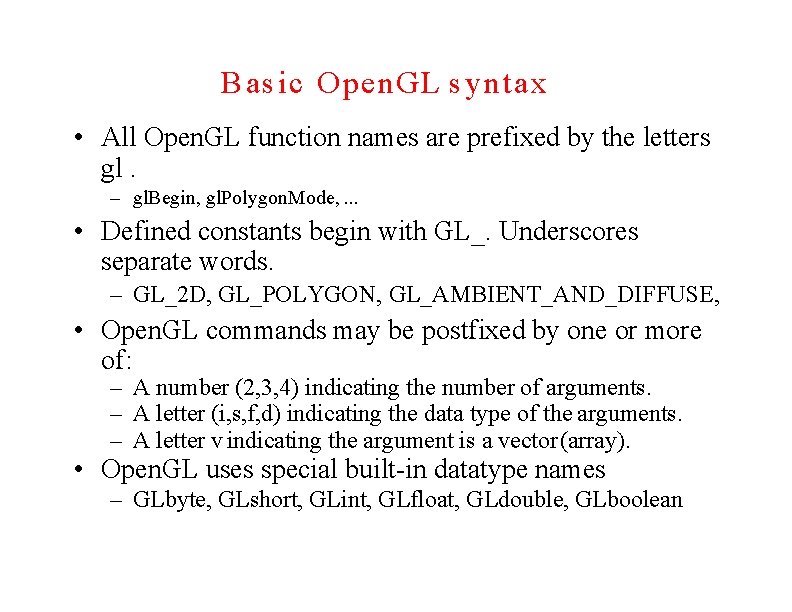
Basic Open. GL syntax • All Open. GL function names are prefixed by the letters gl. – gl. Begin, gl. Polygon. Mode, . . . • Defined constants begin with GL_. Underscores separate words. – GL_2 D, GL_POLYGON, GL_AMBIENT_AND_DIFFUSE, • Open. GL commands may be postfixed by one or more of: – A number (2, 3, 4) indicating the number of arguments. – A letter (i, s, f, d) indicating the data type of the arguments. – A letter v indicating the argument is a vector (array). • Open. GL uses special built-in datatype names – GLbyte, GLshort, GLint, GLfloat, GLdouble, GLboolean
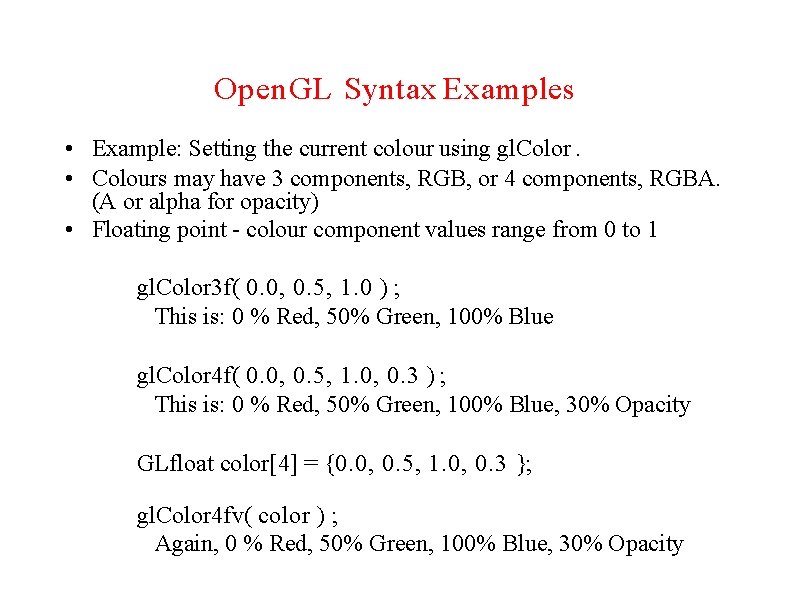
Open. GL Syntax Examples • Example: Setting the current colour using gl. Color. • Colours may have 3 components, RGB, or 4 components, RGBA. (A or alpha for opacity) • Floating point - colour component values range from 0 to 1 gl. Color 3 f( 0. 0, 0. 5, 1. 0 ) ; This is: 0 % Red, 50% Green, 100% Blue gl. Color 4 f( 0. 0, 0. 5, 1. 0, 0. 3 ) ; This is: 0 % Red, 50% Green, 100% Blue, 30% Opacity GLfloat color[4] = {0. 0, 0. 5, 1. 0, 0. 3 }; gl. Color 4 fv( color ) ; Again, 0 % Red, 50% Green, 100% Blue, 30% Opacity
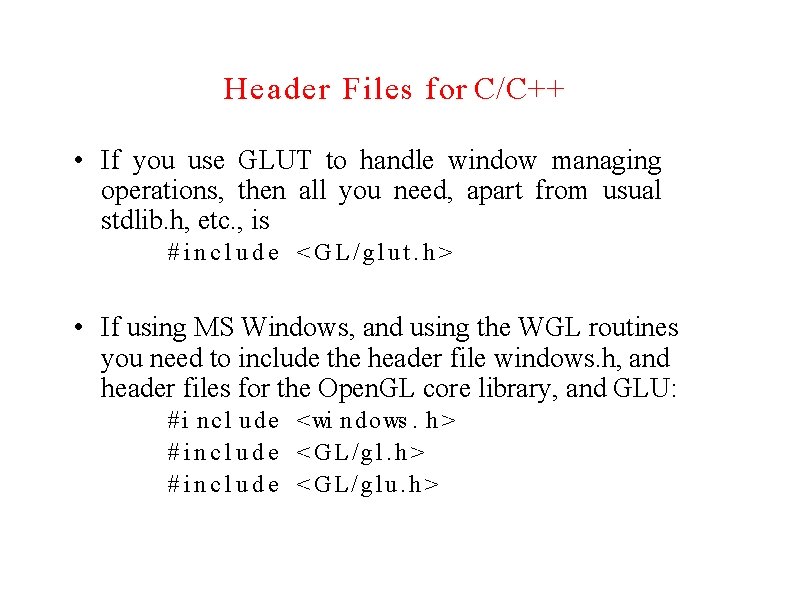
Header Files for C/C++ • If you use GLUT to handle window managing operations, then all you need, apart from usual stdlib. h, etc. , is #include <GL/glut. h> • If using MS Windows, and using the WGL routines you need to include the header file windows. h, and header files for the Open. GL core library, and GLU: # i nc l u d e <wi n d o ws. h> # i n c l u d e <GL/glu. h>
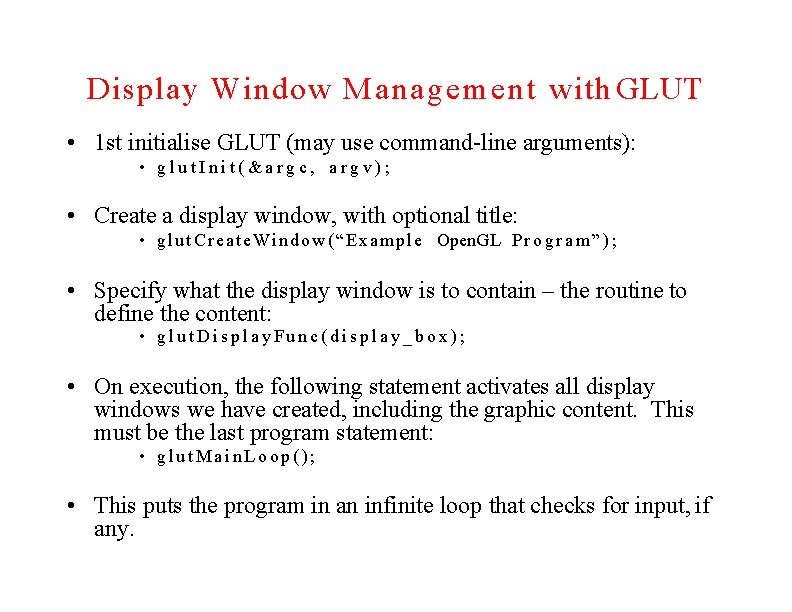
Display Window Management with GLUT • 1 st initialise GLUT (may use command-line arguments): • glut. Init(&argc, argv); • Create a display window, with optional title: • g l u t C r e a t e W i n d o w ( “ E x a m p l e Open. GL P r o g r a m ” ) ; • Specify what the display window is to contain – the routine to define the content: • glut. Display. Func(display_box); • On execution, the following statement activates all display windows we have created, including the graphic content. This must be the last program statement: • glut. Main. Loop(); • This puts the program in an infinite loop that checks for input, if any.
Dis p la y Win d o w Ma n a ge m e n t with GLUT (2) • Window parameters can be set with additional GLUT functions: glut. Init. Window. Position(50, 100); glut. Init. Window. Size(400, 300);
Dis p la y Win d o w Ma n a ge m e n t with GLUT (3) • Can also set display window options such as buffering and a choice of colour modes: g l u t I n i t Di s pl a y. Mo de ( GLUT_SI NGLE | GLUT_RGB); GLUT_SINGLE: Use single refresh buffer GLUT_RGB : Use RGB color mode • The values of the constants passed to this function are combined using logical OR
A Complete Open. GL Program (1) • Set display window's background colour : gl. Clear. Color(1. 0, 0. 0); • Colour is white, with zero alpha (not used in this program) • To actually assign this colour to the screen requires another Open. GL funtion, setting the color (refresh) buffer values: gl. Clear(GL_COLOR_BUFFER_BIT);
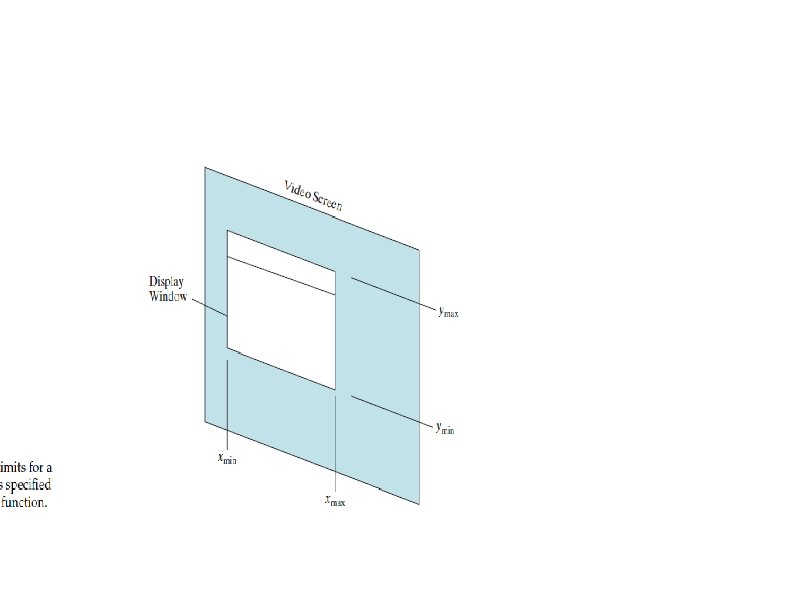
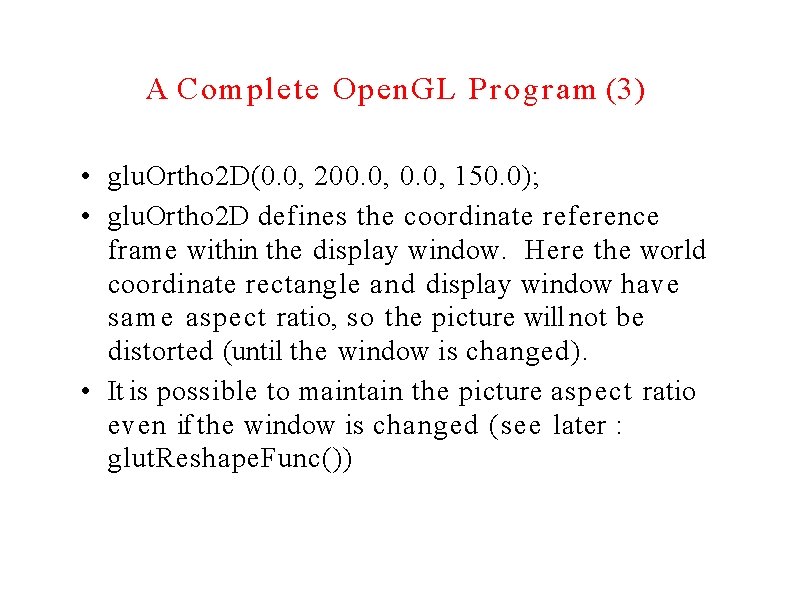
A Complete Open. GL Program (2) • To display even a 2 -dimensional image requires its projection onto the display window. • Must set the projection type (mode) and viewing parameters we want: – gl. Matrix. Mode(GL_PROJECTION); – glu. Ortho 2 D(0. 0, 200. 0, 0. 0 , 150. 0); • This specifies an orthogonal projection to be used, mapping onto the screen a rectangular area in world coordinates: • x-coordinate range is from 0 to 200 • y-coordinate range is from 0 to 150
A Complete Open. GL Program (3) • glu. Ortho 2 D(0. 0, 200. 0, 150. 0); • glu. Ortho 2 D defines the coordinate reference frame within the display window. Here the world coordinate rectangle and display window have same aspect ratio, so the picture will not be distorted (until the window is changed). • It is possible to maintain the picture aspect ratio even if the window is changed (see later : glut. Reshape. Func())
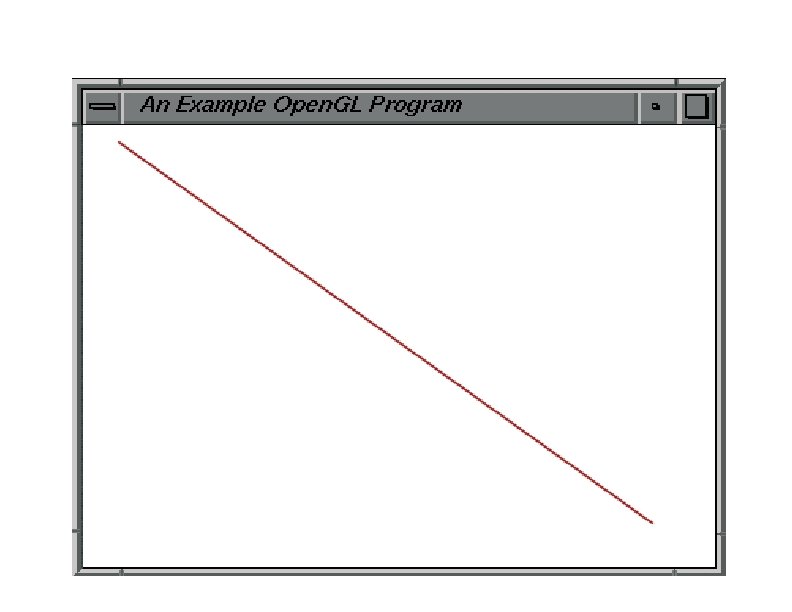
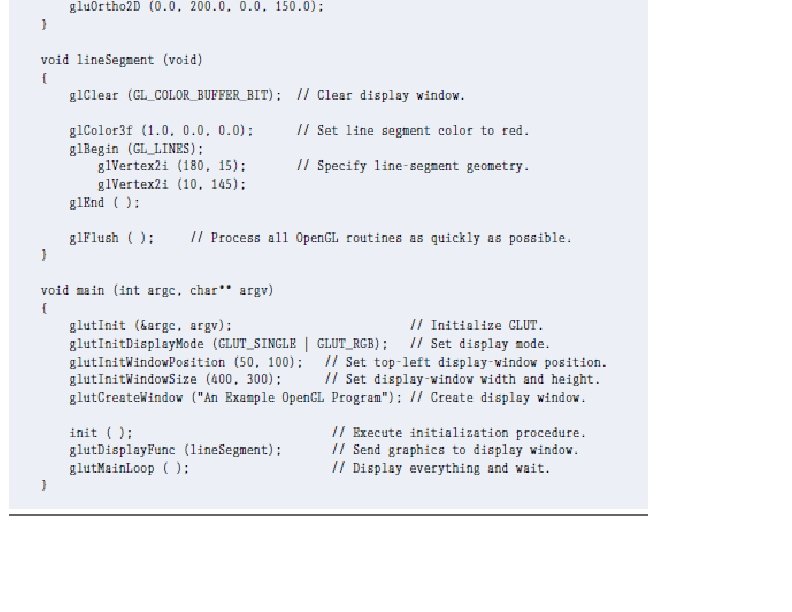
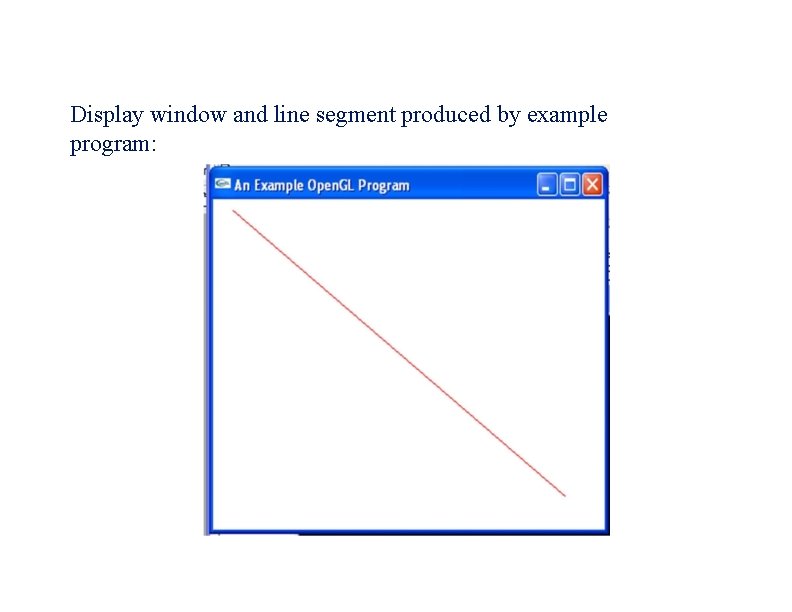
A Complete Open. GL Program (4) • Drawing a line segment in the window: • A line is a GL primitive, defined by a pair of points (vertices) : gl. Begin(GL_LINES); gl. Vertex 2 i(180, 15); gl. Vertex 2 i(10, 145); gl. End(); • This code is put in a procedure line. Segment, which is referenced by the GLUT function glut. Display. Func. • Initialisations and related 1 -time parameter settings are collected in a procedure init. • main contains GLUT functions for setting up the display window and getting the line segment on to the screen
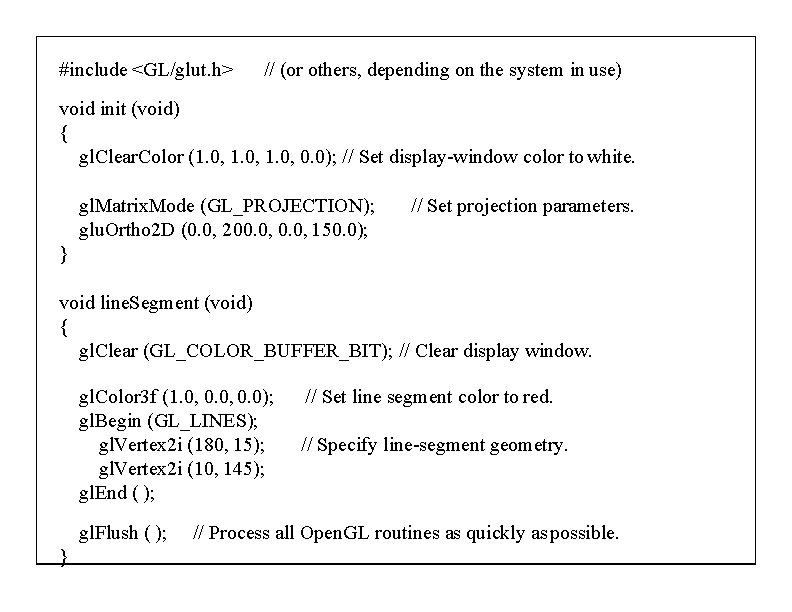
#include <GL/glut. h> // (or others, depending on the system in use) void init (void) { gl. Clear. Color (1. 0, 0. 0); // Set display-window color to white. gl. Matrix. Mode (GL_PROJECTION); glu. Ortho 2 D (0. 0, 200. 0, 150. 0); // Set projection parameters. } void line. Segment (void) { gl. Clear (GL_COLOR_BUFFER_BIT); // Clear display window. gl. Color 3 f (1. 0, 0. 0); gl. Begin (GL_LINES); gl. Vertex 2 i (180, 15); gl. Vertex 2 i (10, 145); gl. End ( ); gl. Flush ( ); } // Set line segment color to red. // Specify line-segment geometry. // Process all Open. GL routines as quickly as possible.
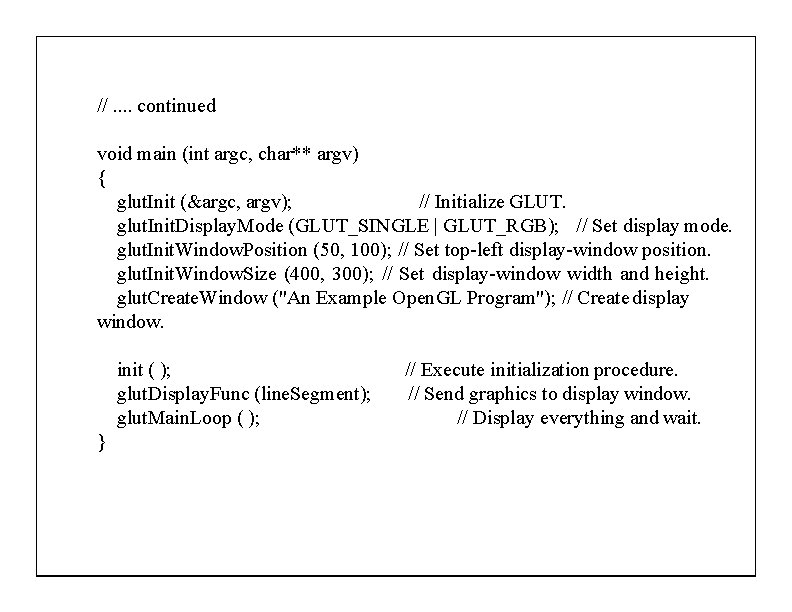
//. . continued void main (int argc, char** argv) { glut. Init (&argc, argv); // Initialize GLUT. glut. Init. Display. Mode (GLUT_SINGLE | GLUT_RGB); // Set display mode. glut. Init. Window. Position (50, 100); // Set top-left display-window position. glut. Init. Window. Size (400, 300); // Set display-window width and height. glut. Create. Window ("An Example Open. GL Program"); // Create display window. init ( ); glut. Display. Func (line. Segment); glut. Main. Loop ( ); } // Execute initialization procedure. // Send graphics to display window. // Display everything and wait.
Display window and line segment produced by example program:
Display Callback Functions • Example: the procedure l i n e S e g m e n t that describes the picture. • i ni t ( ) ; procedure. / / Execute i n i t i a l i z a t i o n • glut. Display. Func(line. Segment); g r a p h i c s t o d i s p l a y window • glut. Main. Loop ( ) ; e v e r y t h i n g and w a i t. / / Se nd / / Di s pl a y • Such functions are "registered" by glut. Display. Func a s the routine to call/invoke whenever the display window may need to be redisplayed (e. g. when uncovered, moved or resized)
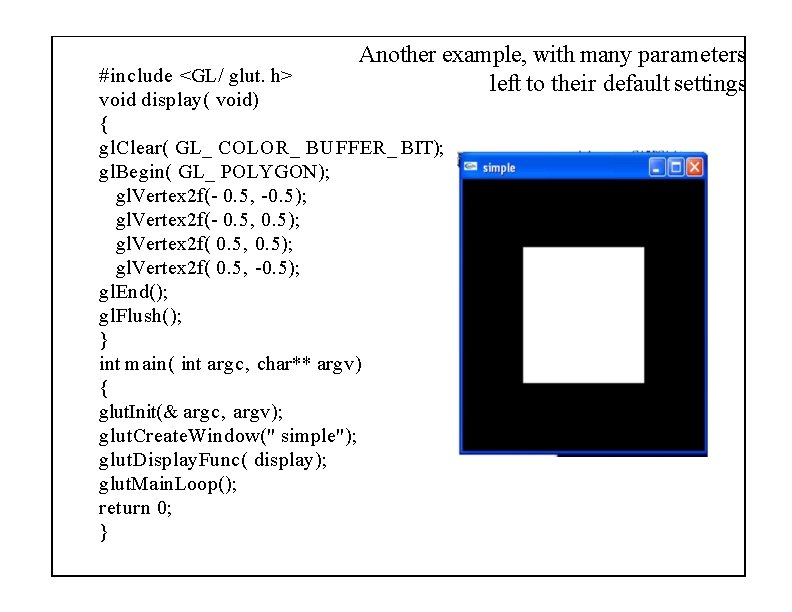
Another example, with many parameters left to their default settings #include <GL/ glut. h> void display( void) { gl. Clear( GL_ COLOR_ BUFFER_ BIT); gl. Begin( GL_ POLYGON); gl. Vertex 2 f(- 0. 5, -0. 5); gl. Vertex 2 f(- 0. 5, 0. 5); gl. Vertex 2 f( 0. 5, -0. 5); gl. End(); gl. Flush(); } int main( int argc, char** argv) { glut. Init(& argc, argv); glut. Create. Window(" simple"); glut. Display. Func( display); glut. Main. Loop(); return 0; }