
Overview of Creating and Maintaining Patron Records Patron


- Slides: 45
Overview of Creating and Maintaining Patron Records
Patron Records About These instructions should serve as a basic overview of creating and updating patron accounts. Please refer to the PINES Circulation Policies and Procedures Manual and additional supporting documentation at: http: //pines. georgialibraries. org/documentation
Patron Records Topics • • • Eligibility Responsibility Search for Existing Accounts Patron Registration Form My Account Patron Self-Registration Update Patron Record Patron Status Grouping and Ungrouping Patrons Duplicate Patron Records Lost / Stolen Cards Deceased Patrons
Patron Records Eligibility Free PINES cards are available to all Georgia residents as well as anyone who attends school, owns property, or is employed full time in Georgia residents who do not reside in a participating PINES county may register for a PINES card at whichever PINES location is most convenient to them and will have the same privileges as Georgia residents who reside in a participating county.
Patron Records Eligibility Someone who does not meet the basic PINES residency requirements but who travels through the state frequently or is in the state temporarily may purchase a PINES card: - Out of State cards are $25. 00 annually - Temp cards are $12. 50 for 6 months
Patron Records Responsibility Signing a PINES card application denotes acceptance of responsibility for all fines and fees. There is no minimum age limit for a child to have a library card, but the person (parent or guardian) who registers the child for that card accepts responsibility for all fines and fees.
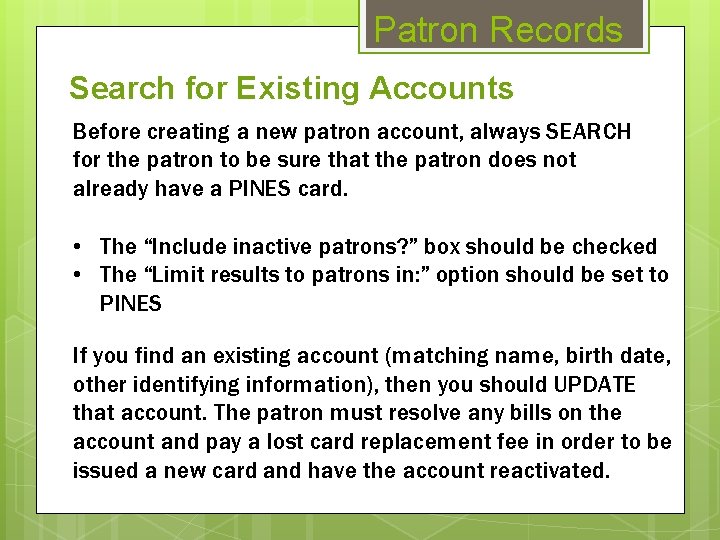
Patron Records Search for Existing Accounts Before creating a new patron account, always SEARCH for the patron to be sure that the patron does not already have a PINES card. • The “Include inactive patrons? ” box should be checked • The “Limit results to patrons in: ” option should be set to PINES If you find an existing account (matching name, birth date, other identifying information), then you should UPDATE that account. The patron must resolve any bills on the account and pay a lost card replacement fee in order to be issued a new card and have the account reactivated.
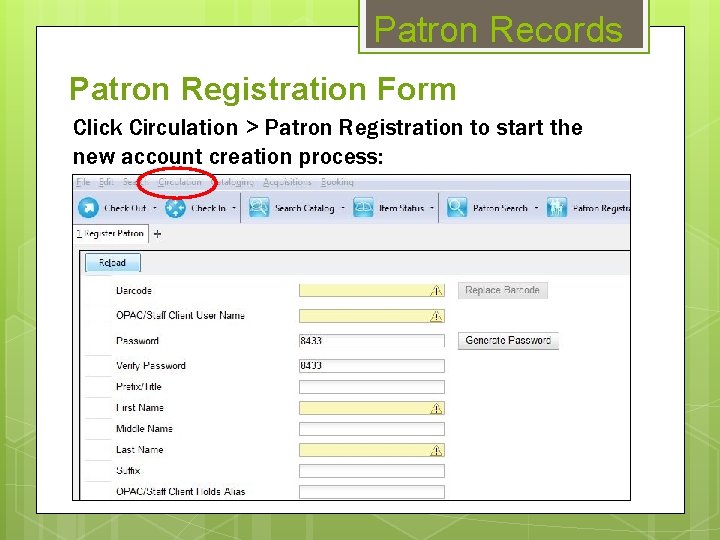
Patron Records Patron Registration Form Click Circulation > Patron Registration to start the new account creation process:
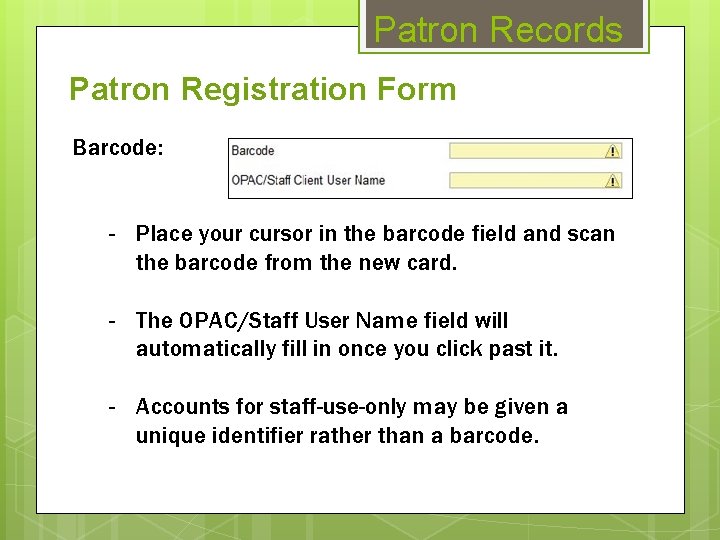
Patron Records Patron Registration Form Barcode: - Place your cursor in the barcode field and scan the barcode from the new card. - The OPAC/Staff User Name field will automatically fill in once you click past it. - Accounts for staff-use-only may be given a unique identifier rather than a barcode.
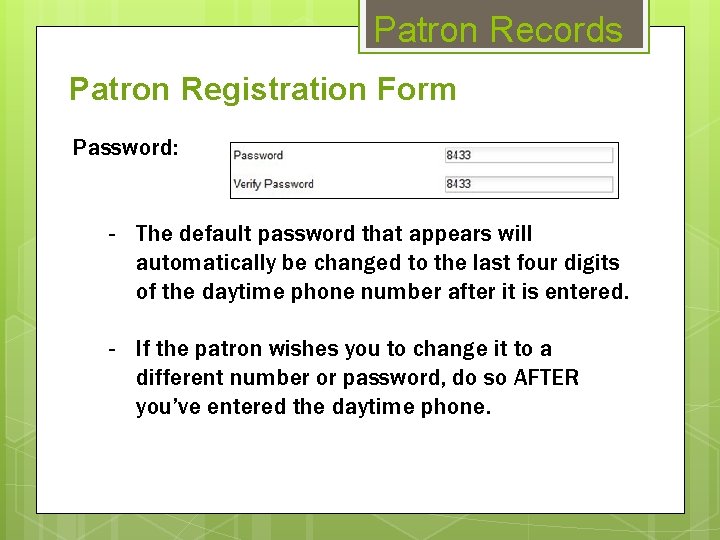
Patron Records Patron Registration Form Password: - The default password that appears will automatically be changed to the last four digits of the daytime phone number after it is entered. - If the patron wishes you to change it to a different number or password, do so AFTER you’ve entered the daytime phone.
Patron Records Patron Registration Form Name: - Prefix (Mr. ) and Suffix (Jr. ) are not required – use as needed. - First Name and Last Name are required. Middle Name is highly recommended in order to distinguish between patrons with similar names. - Enter names with an initial capital followed by lowercase letters except when appropriate (Mc. Donald and not Mcdonald).
Patron Records Patron Registration Form Name: - Do not insert spaces unless there is truly a space in the name (Mc. Donald not Mc Donald). - Do not skip apostrophes (O’Connor not Oconnor). - If patron legally has only one name, use it as first and last (Cher). This follows Georgia Department of Motor Vehicle Guidelines. In unusual cases like this, you may wish to add a note to the patron’s account to explain.
Patron Records Patron Registration Form Date of Birth: - Date must be entered in the MM/DD/YYYY format. - If the patron is under 18, the system will automatically place a checkmark in the Juvenile box. (This does not automatically uncheck once they turn 18. ) - For Juveniles, fill out the Parent/Guardian field. Include the full name of the person who signed the application form and his or her ID and/or library card number.
Patron Records Patron Registration Form Primary Identification Type: - Driver’s License: - Enter in this format: GA-XXXXX - Other: - This may be military ID, GLASS certification number, or other form of ID (explain in Alert Message field if necessary). - Social Security Number: - DO NOT USE!
Patron Records Patron Registration Form Proof of Identification: a) Photo ID (such as Driver’s License) showing current local address. b) If the photo ID does not have current local address, then show it plus a piece of mail (such as a utility bill) or document (such as rental agreement) showing name and current local address. c) If the patron does not have a photo ID, he or she may show two pieces of mail (such as utility bills) that show name and current local address. See the PINES Circulation Policies and Procedures Manual for more information.
Patron Records Patron Registration Form Email Address: - Not required, but highly recommended. - We will only use the email address for communications regarding their account (overdue notices, holds, etc. ). - The library may not use the email to send newsletters or any other messages that are not directly related to the patron’s account. (Libraries may keep a separate email newsletter list that patrons may sign up for. )
Patron Records Patron Registration Form Daytime Phone: - Enter the phone number that the patron wishes us to call for holds notifications and other contacts (even if it is not technically their ‘daytime’ phone number). - Enter in the ###-#### format. Evening Phone: - Optional, alternate number Other Phone: - Optional, alternate number
Patron Records Patron Registration Form Home Library: - The Home Library will default to your local branch. - The Default Pickup Location for holds can be set to a different branch.
Patron Records Patron Registration Form Main (Profile) Permission Group: - This will almost always be Patron. - Non. Resident should be used for patrons who live in Georgia but not within in a participating PINES county. - GLASS patrons must provide certification and the number included.
Patron Records Patron Registration Form Main (Profile) Permission Group: - Homebound status should only be granted by staff who have the Director’s permission. - Homeschool students are not granted special status and should be assigned to the Patron group. - See the PINES Circulation Policies and Procedures Manual for information regarding the use of other permission groups.
Patron Records Patron Registration Form Is Group Lead Account: - Check this option for the parent when if you are creating multiple cards for a family and plan to use the Clone option. Alert Message: - Any text you enter here will appear whenever you access the patron’s account information.
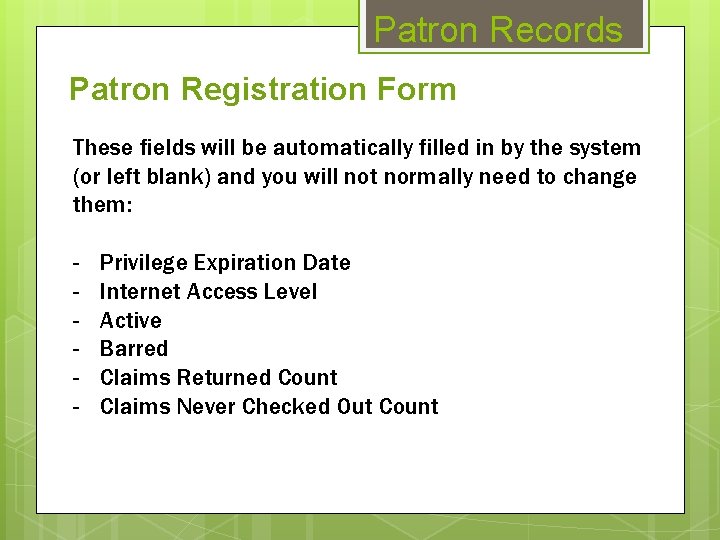
Patron Records Patron Registration Form These fields will be automatically filled in by the system (or left blank) and you will not normally need to change them: - Privilege Expiration Date Internet Access Level Active Barred Claims Returned Count Claims Never Checked Out Count
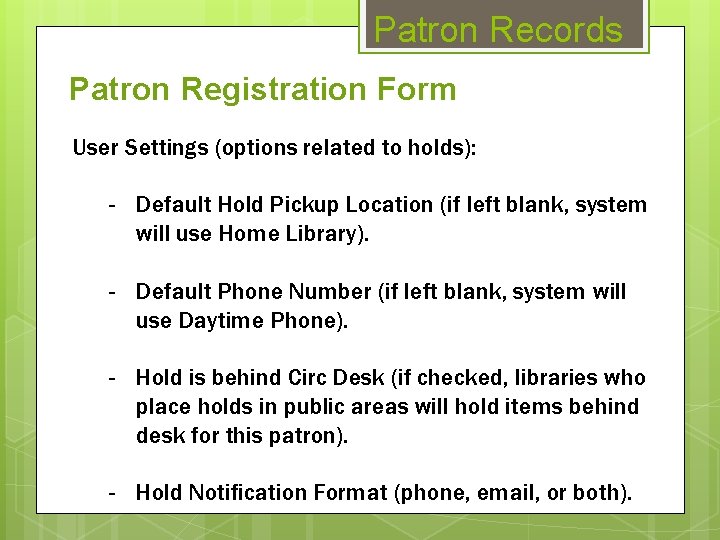
Patron Records Patron Registration Form User Settings (options related to holds): - Default Hold Pickup Location (if left blank, system will use Home Library). - Default Phone Number (if left blank, system will use Daytime Phone). - Hold is behind Circ Desk (if checked, libraries who place holds in public areas will hold items behind desk for this patron). - Hold Notification Format (phone, email, or both).
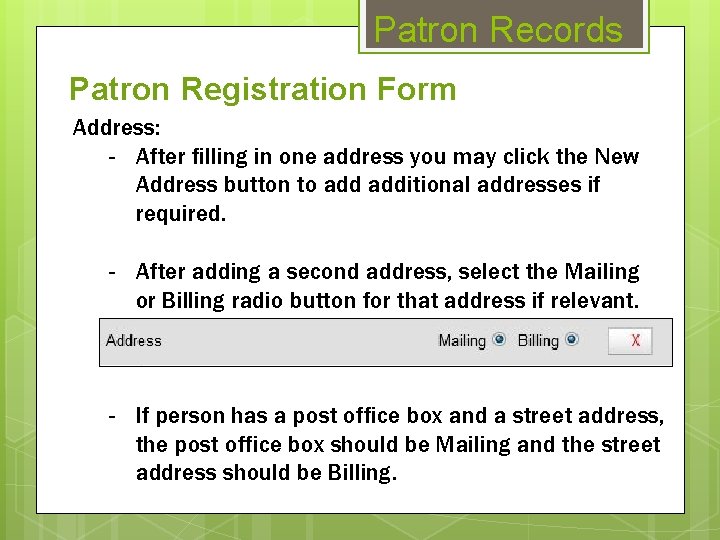
Patron Records Patron Registration Form Address: - After filling in one address you may click the New Address button to additional addresses if required. - After adding a second address, select the Mailing or Billing radio button for that address if relevant. - If person has a post office box and a street address, the post office box should be Mailing and the street address should be Billing.
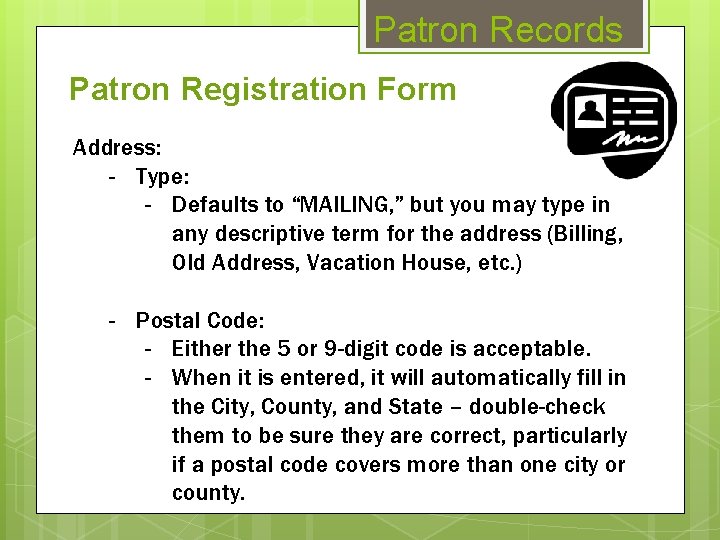
Patron Records Patron Registration Form Address: - Type: - Defaults to “MAILING, ” but you may type in any descriptive term for the address (Billing, Old Address, Vacation House, etc. ) - Postal Code: - Either the 5 or 9 -digit code is acceptable. - When it is entered, it will automatically fill in the City, County, and State – double-check them to be sure they are correct, particularly if a postal code covers more than one city or county.
Patron Records Patron Registration Form Address: - Street (1): - House number and street name. - Use standard abbreviations (St, Pl, Cir, Ave, Rd, etc. ) - Post office boxes should be entered as: PO Box ### - For assistance with formatting, go to: https: //tools. usps. com/go/Zip. Lookup. Action !input. action - Street (2): - Use for an apartment or unit number.
Patron Records Patron Registration Form Address: - Valid Address - This is checked by default. - Within City Limits? - This may be used for statistics to determine how many patrons reside within city limits or in unincorporated areas. - Each library system’s Director will determine whether the system should use this or not.
Patron Records Patron Registration Form Statistical Categories: - These can be used by library systems to track different types of patron information. If your system does not use them, leave these blank. Voter Registration: - Georgia libraries are legally required to ask all patrons if they wish to register to vote whenever a patron registers for a card, renews a card, or otherwise updates account information (particularly in case of change of address).
Patron Records Patron Registration Form Save: 1. Before clicking Save, review the form for alert messages. 2. Make a note of the password and give it to the patron. 3. Click Save & Clone: - Use this when entering multiple new cards for family members at the same address – it will duplicate the address information and automatically group the cards.
Patron Records My Account function of gapines. org allows patrons to: - Change user name. Change email address. Update password. Request password reset via email. Renew items. Place holds. Check on due dates and fines.
Patron Records Patron Self-Registration - New as of September 2014: Patrons may now fill out an online application form. - Go to Circulation > Pending Patrons to see the forms that have been submitted. - Follow normal procedures to complete the registration process. - See the staff tutorial at http: //pines. georgialibraries. org/documentation
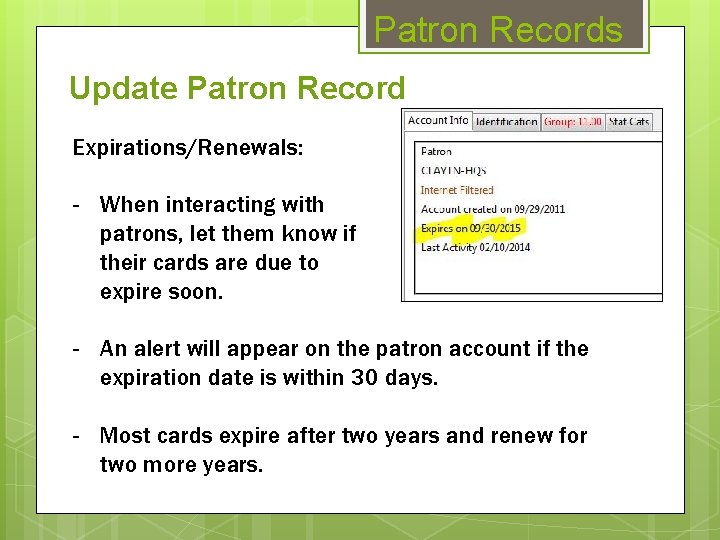
Patron Records Update Patron Record Expirations/Renewals: - When interacting with patrons, let them know if their cards are due to expire soon. - An alert will appear on the patron account if the expiration date is within 30 days. - Most cards expire after two years and renew for two more years.
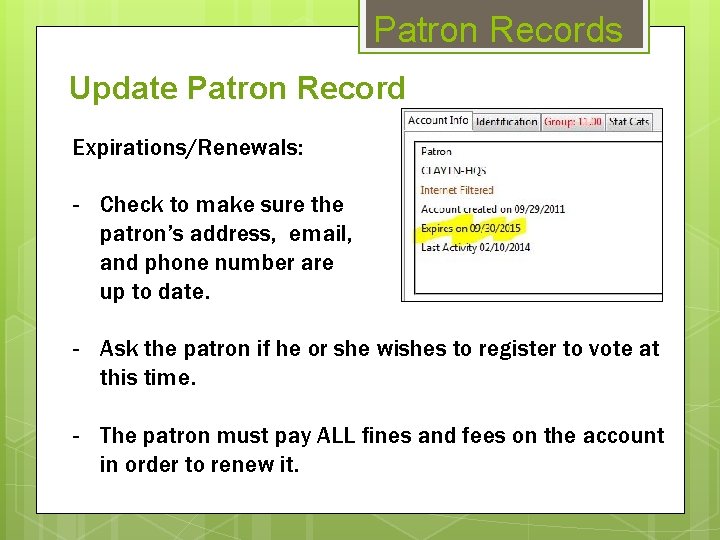
Patron Records Update Patron Record Expirations/Renewals: - Check to make sure the patron’s address, email, and phone number are up to date. - Ask the patron if he or she wishes to register to vote at this time. - The patron must pay ALL fines and fees on the account in order to renew it.
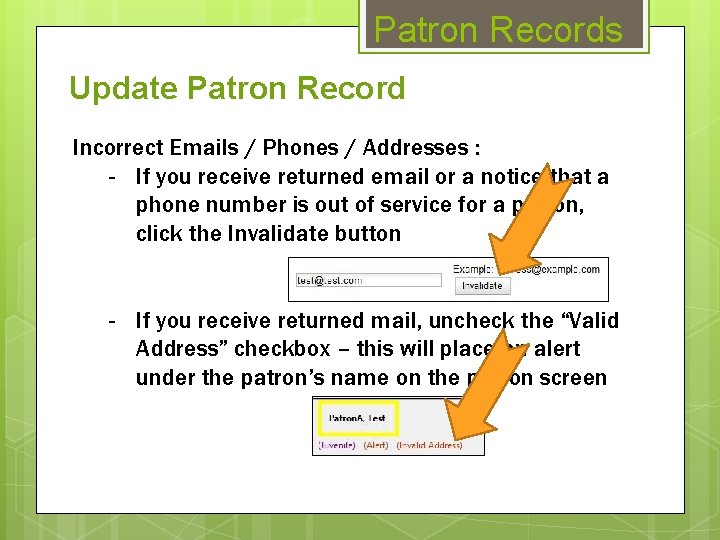
Patron Records Update Patron Record Incorrect Emails / Phones / Addresses : - If you receive returned email or a notice that a phone number is out of service for a patron, click the Invalidate button - If you receive returned mail, uncheck the “Valid Address” checkbox – this will place an alert under the patron’s name on the patron screen
Patron Records Update Patron Record - If a patron moves from another system to yours, he or she may exchange the old card for a new one with your library prefix code on it without having to pay the $2 lost card fee. Patrons are not required to exchange their cards when they move from system to system, but if they wish to use your library’s proprietary online resources, they may not be able to with their old cards. - Be sure to update all address information, the Home Library and the Voter Registration question.
Patron Records Update Patron Record Staff Cards: - Library staff members cannot update their own account information. - Each library system’s Local Admin can update staff cards. - Local Admin cards and CAT 1 cards must be updated by PINES staff.
Patron Records Patron Status Inactive: - PINES will automatically mark a patron inactive after three years if the card has not been blocked, if there are no items out, if there are no bills, and it has not been used for any type of activity (checkouts, holds, use of library computers, wi-fi authentication, Over. Drive authentication, logging in through the site, etc. )
Patron Records Patron Status Blocked: - Blocks are set in the Messages section of the patron account and may be removed from there when resolved. - When a patron is blocked, all new transactions are prevented until the block is resolved.
Patron Records Patron Status Barred: - PINES policy dictates that only the library that bars the patron can unbar the patron. - This should be reserved for serious offenses and should be done at the discretion of the Library’s Director.
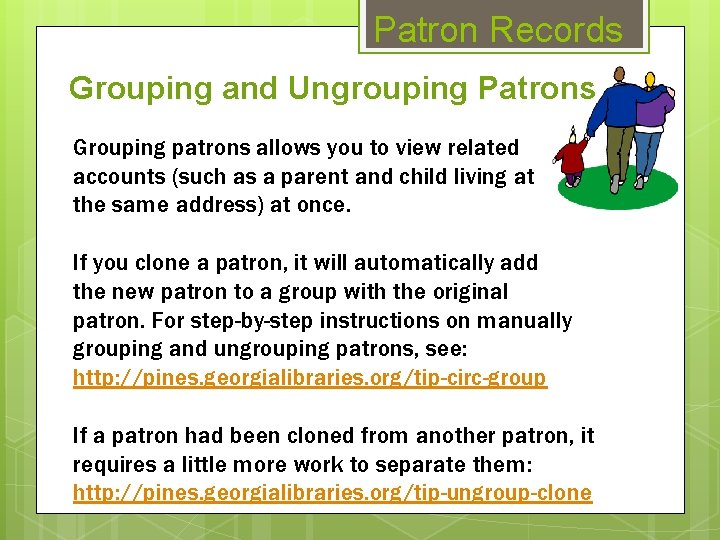
Patron Records Grouping and Ungrouping Patrons Grouping patrons allows you to view related accounts (such as a parent and child living at the same address) at once. If you clone a patron, it will automatically add the new patron to a group with the original patron. For step-by-step instructions on manually grouping and ungrouping patrons, see: http: //pines. georgialibraries. org/tip-circ-group If a patron had been cloned from another patron, it requires a little more work to separate them: http: //pines. georgialibraries. org/tip-ungroup-clone
Patron Records Duplicate Patrons If you discover that a patron has multiple accounts, submit a Help Desk ticket with the details so that the PINES staff may merge the accounts into one: http: //pines. georgialibraries. org/merge-accounts All history (fines, addresses, etc. ) will be preserved on the account. You must be positive that the accounts belong to the same person because the merge cannot be undone.
Patron Records Lost / Stolen Cards - If a patron cannot find his or her card and calls or emails the library, you may put a temporary block on the card until he or she is able to come into the library to replace it (Messages > Apply Standing Penalty button > Block option). - When the patron comes into the library, ask for proof of ID to search for and update the correct account. - There is a $2 lost card replacement fee (Bills > Bill Patron > Billing Type of “Card: Lost Fee”).
Patron Records Deceased Patrons When you are informed that a patron has passed away, it is recommended that you change the name on the patron account to first name “Deceased” and last name “Patron. ” This will effectively anonymize the account without affecting circulation or billing history.
Patron Records Help Desk If you encounter a problem with a patron account but you are unsure how to resolve it, please enter a Help Desk ticket: http: //help. georgialibraries. org
Thank You! www. gapines. org