
Overview Introduction to VBA The Visual Basic Editor
Overview • Introduction to VBA • The Visual Basic Editor (VBE) – First Program • Getting Started with VBA – Subroutines – Declaring variables – Input boxes and Message boxes – With construction 1
Introduction to the VBA • VBA, Visual Basic for Applications, is an implementation of Microsoft's Visual Basic, an event driven programming language and associated integrated development environment (IDE) which is built into most Microsoft Office applications. • However, VBA and VB are not the same. – Similar in programming elements – VBA is the language to manipulate Excel (and other applications). 2
Visual Basic Editor • Visual Basic Editor (VBE) is the Integrated Development Environment (IDE) for programming with VBA. • It can be accessed by pressing [Alt] + [F 11] • Code window • Project explorer, Properties window, (just like IDE for VB. Net) 3
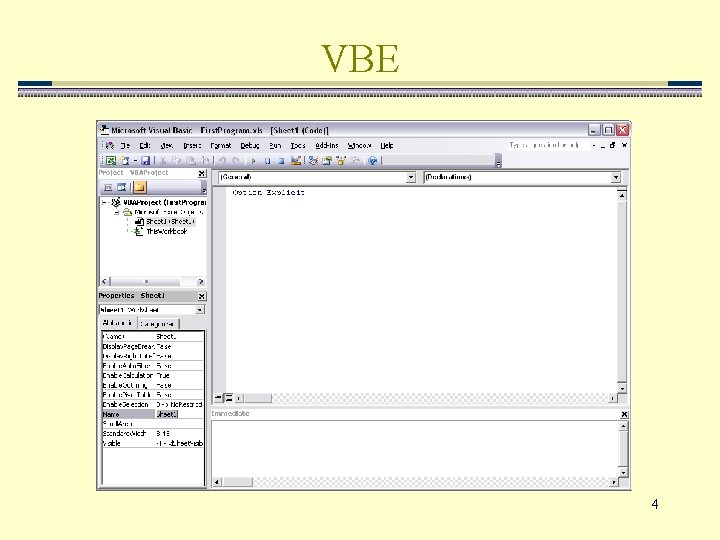
VBE 4
![First Program • Open “First. Program. xls” downloaded from Web site. • Press [Alt]](http://slidetodoc.com/presentation_image_h2/a8a27dc6f2b84034cd900e0f229f3619/image-5.jpg "First Program • Open “First. Program. xls” downloaded from Web site. • Press [Alt]")
First Program • Open “First. Program. xls” downloaded from Web site. • Press [Alt] + [F 11] 5
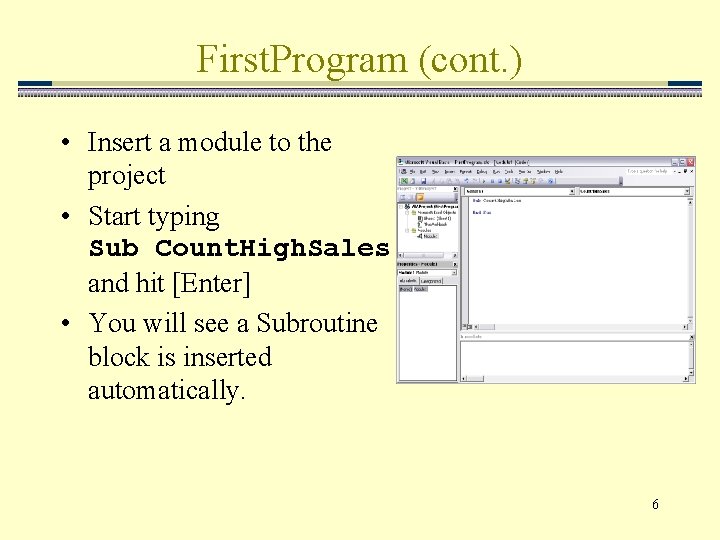
First. Program (cont. ) • Insert a module to the project • Start typing Sub Count. High. Sales and hit [Enter] • You will see a Subroutine block is inserted automatically. 6
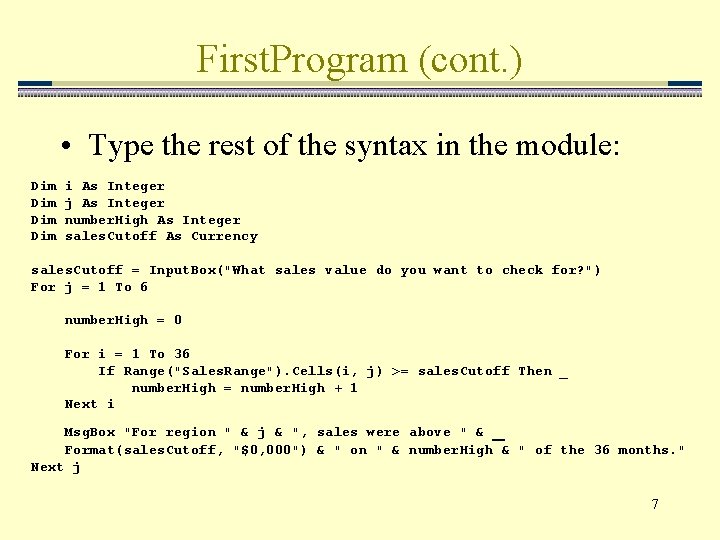
First. Program (cont. ) • Type the rest of the syntax in the module: Dim Dim i As Integer j As Integer number. High As Integer sales. Cutoff As Currency sales. Cutoff = Input. Box("What sales value do you want to check for? ") For j = 1 To 6 number. High = 0 For i = 1 To 36 If Range("Sales. Range"). Cells(i, j) >= sales. Cutoff Then _ number. High = number. High + 1 Next i _ Msg. Box "For region " & j & ", sales were above " & Format(sales. Cutoff, "$0, 000") & " on " & number. High & " of the 36 months. " Next j 7
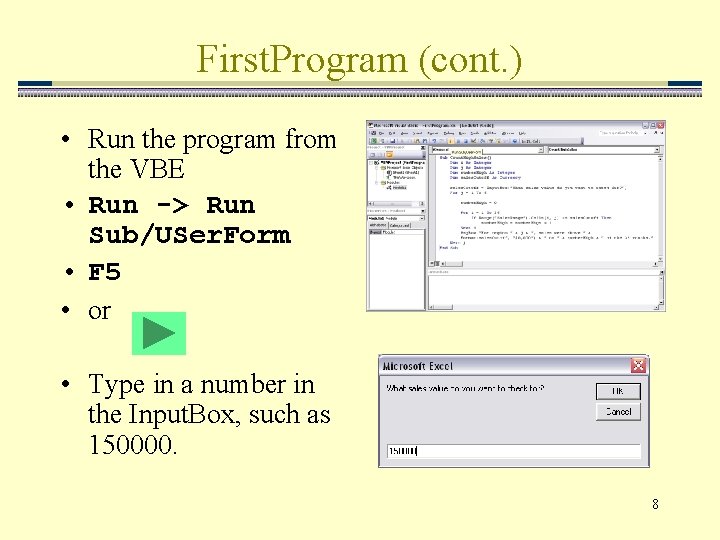
First. Program (cont. ) • Run the program from the VBE • Run -> Run Sub/USer. Form • F 5 • or • Type in a number in the Input. Box, such as 150000. 8
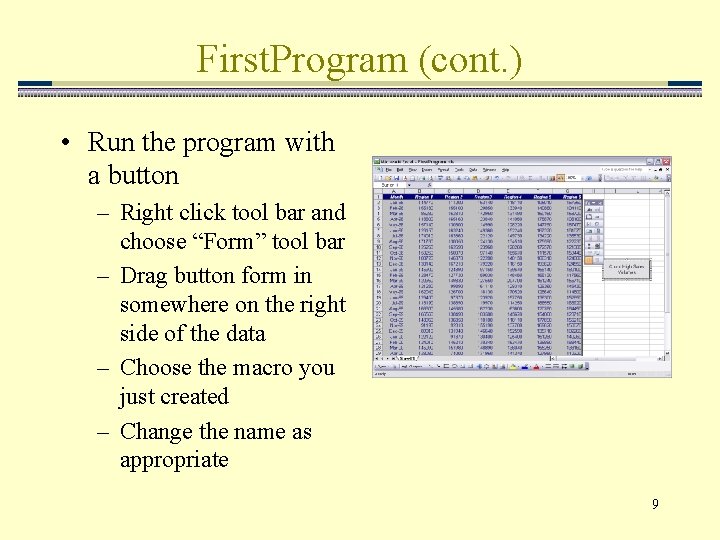
First. Program (cont. ) • Run the program with a button – Right click tool bar and choose “Form” tool bar – Drag button form in somewhere on the right side of the data – Choose the macro you just created – Change the name as appropriate 9
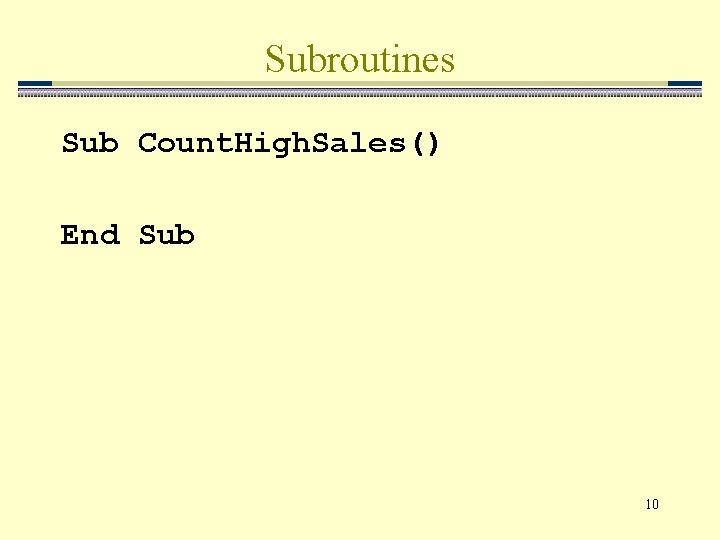
Subroutines Sub Count. High. Sales() End Sub 10
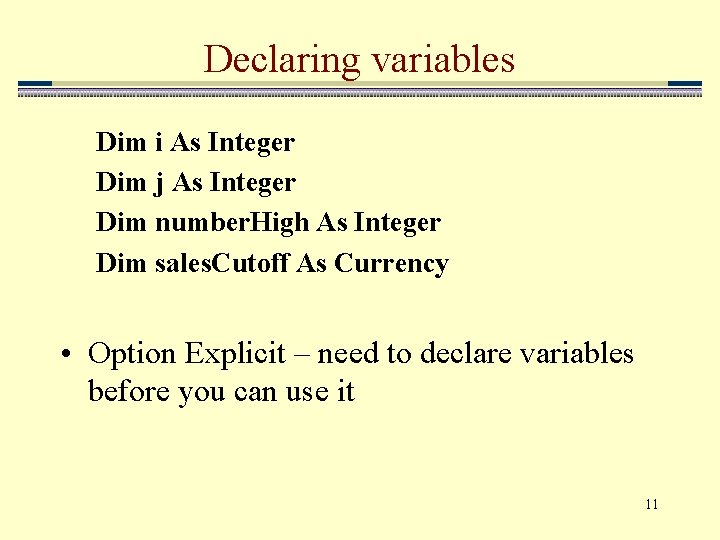
Declaring variables Dim i As Integer Dim j As Integer Dim number. High As Integer Dim sales. Cutoff As Currency • Option Explicit – need to declare variables before you can use it 11
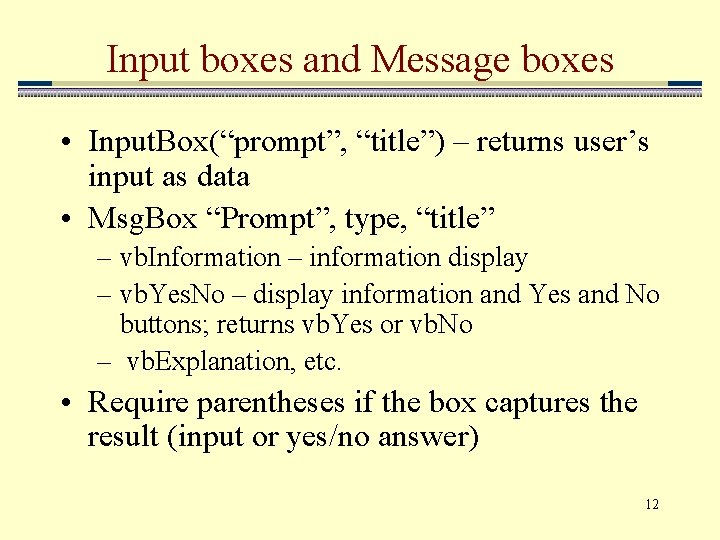
Input boxes and Message boxes • Input. Box(“prompt”, “title”) – returns user’s input as data • Msg. Box “Prompt”, type, “title” – vb. Information – information display – vb. Yes. No – display information and Yes and No buttons; returns vb. Yes or vb. No – vb. Explanation, etc. • Require parentheses if the box captures the result (input or yes/no answer) 12
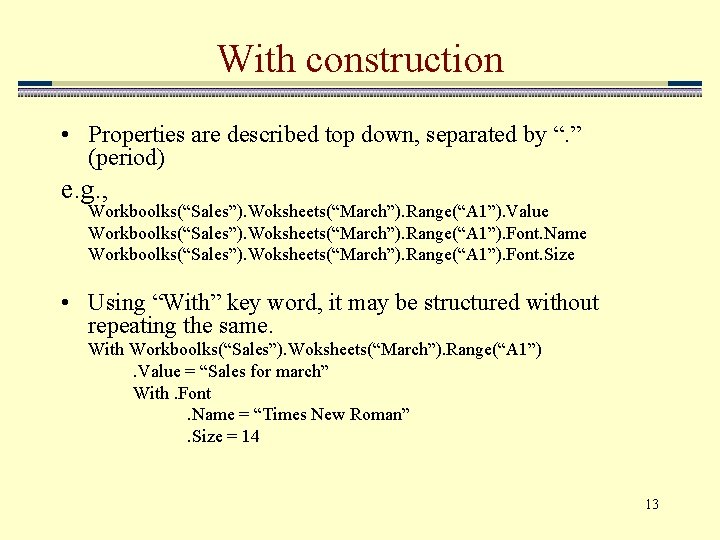
With construction • Properties are described top down, separated by “. ” (period) e. g. , Workboolks(“Sales”). Woksheets(“March”). Range(“A 1”). Value Workboolks(“Sales”). Woksheets(“March”). Range(“A 1”). Font. Name Workboolks(“Sales”). Woksheets(“March”). Range(“A 1”). Font. Size • Using “With” key word, it may be structured without repeating the same. With Workboolks(“Sales”). Woksheets(“March”). Range(“A 1”). Value = “Sales for march” With. Font. Name = “Times New Roman”. Size = 14 13
Exercise • The file Exam. Scores. xls contains scores for an exam in the range A 1: A 100. • Write a program that reports the average, standard deviation, minimum, and maximum of the scores in a message box. • Range is set in a module already. • Use Excel’s functions (with Application. Worksheet. Function. ) 14
- Slides: 14