
Outline Free 5 GC LTE 5 G Free




- Slides: 79
Outline • 實驗目的及實驗內容 • Free 5 GC 實驗環境 – LTE 架構 – 5 G 架構 – 軟硬體環境 • Free 5 GC 網路實驗平台建置 - Add Another Bridge NIC( First ) - Mongo. DB Setup - Free 5 gc Git Clone and Compile - Configing the Core Network and Adding User Information - How to Configure e. Node. B - Rebuild Project - Free 5 GC Demo - Annex A • 總結 2
Outline • 實驗目的及實驗內容 • Free 5 GC 實驗環境 – LTE 架構 – 5 G 架構 – 軟硬體環境 • Free 5 GC 網路實驗平台建置 - Add Another Bridge NIC( First ) - Mongo. DB Setup - Free 5 gc Git Clone and Compile - Configing the Core Network and Adding User Information - How to Configure e. Node. B - Rebuild Project - Free 5 GC Demo - Annex A • 總結 5
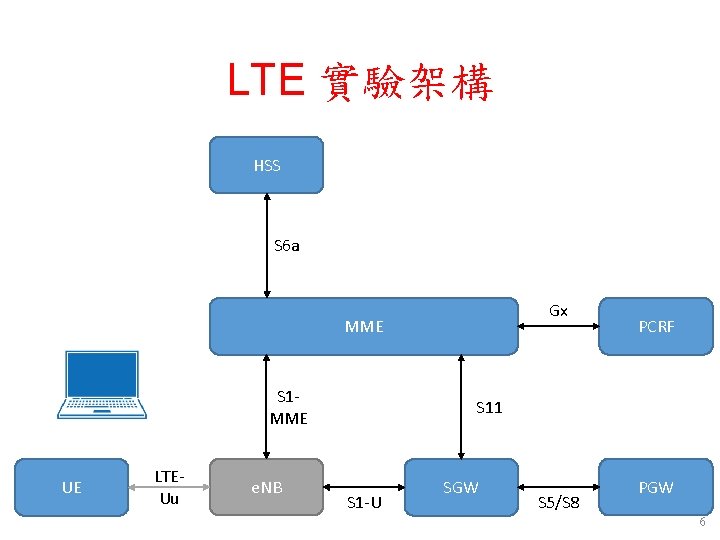
LTE 實驗架構 HSS S 6 a Gx MME S 1 MME UE LTEUu e. NB PCRF S 11 S 1 -U SGW S 5/S 8 PGW 6
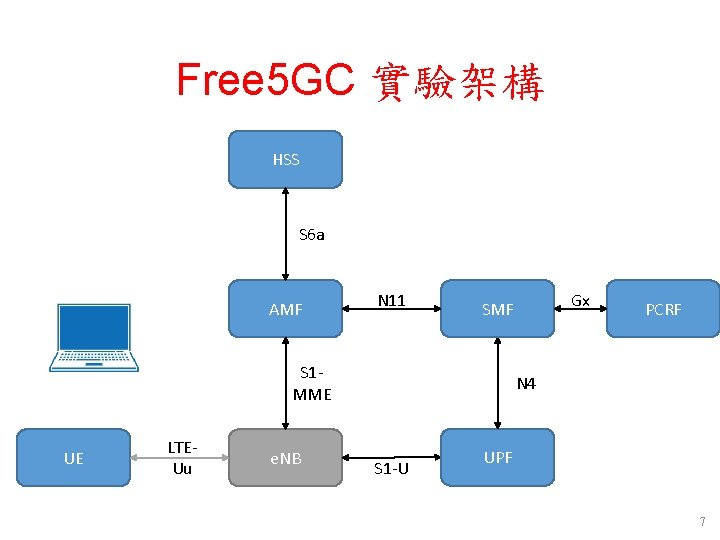
Free 5 GC 實驗架構 HSS S 6 a AMF N 11 S 1 MME UE LTEUu e. NB Gx SMF PCRF N 4 S 1 -U UPF 7
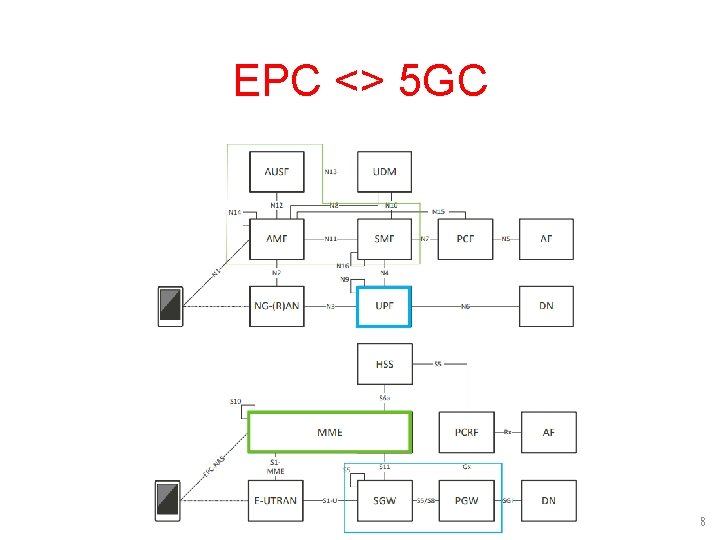
EPC <> 5 GC 8
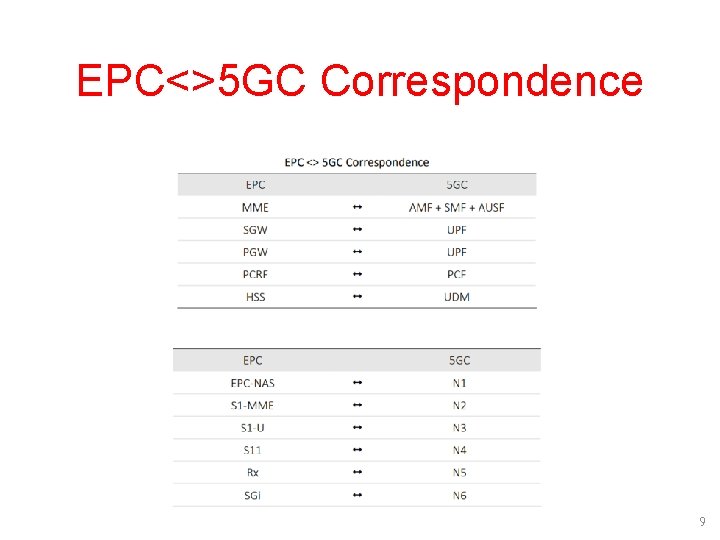
EPC<>5 GC Correspondence 9
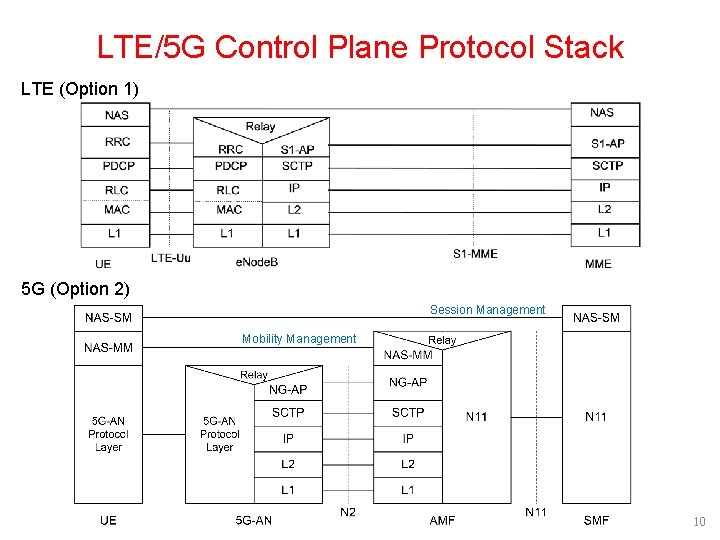
LTE/5 G Control Plane Protocol Stack LTE (Option 1) 5 G (Option 2) Session Management Mobility Management 10
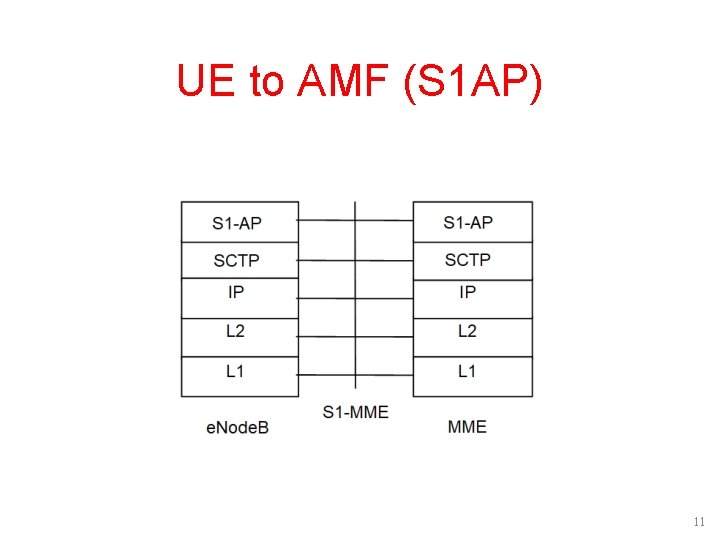
UE to AMF (S 1 AP) 11
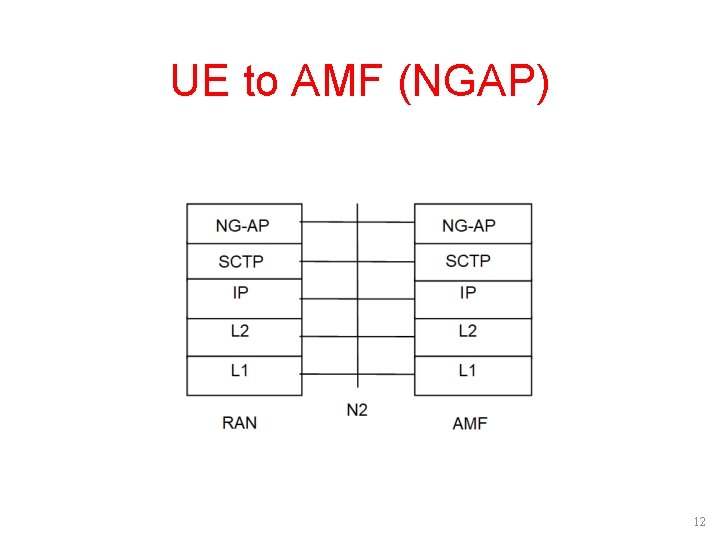
UE to AMF (NGAP) 12
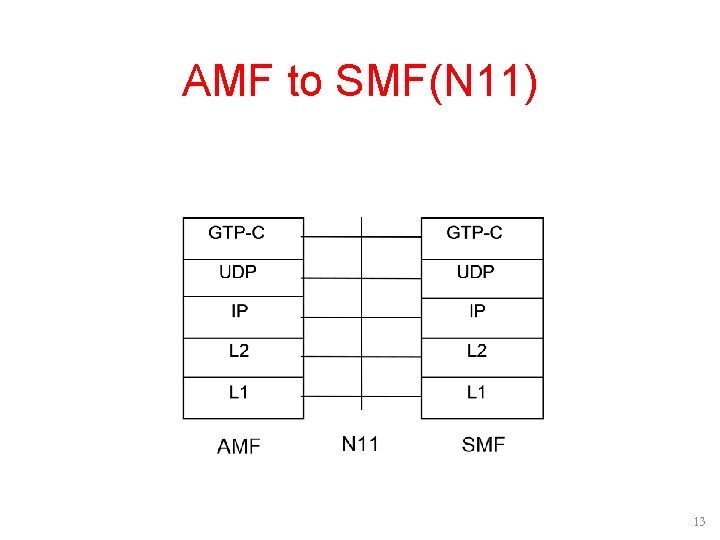
AMF to SMF(N 11) 13
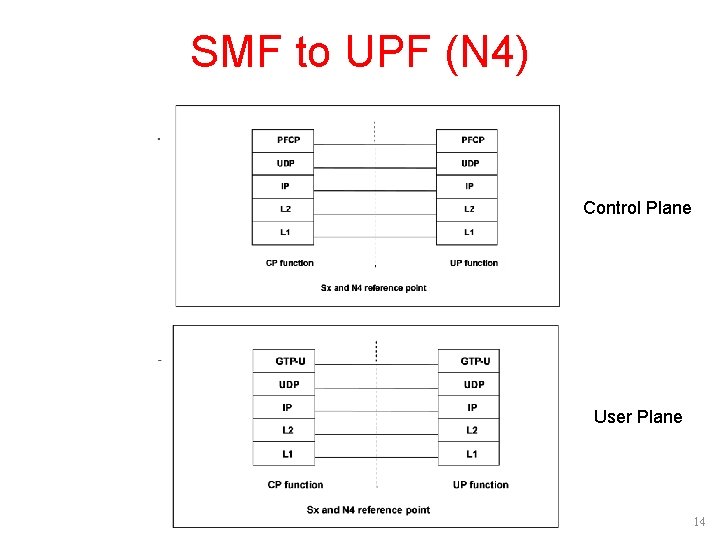
SMF to UPF (N 4) Control Plane User Plane 14
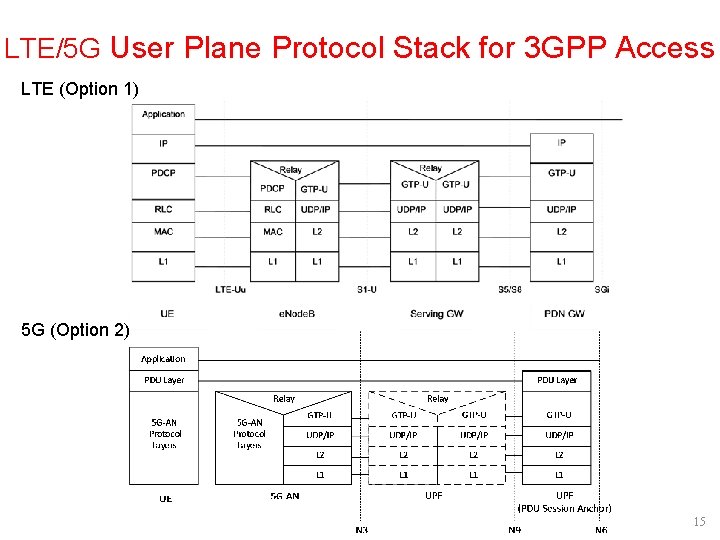
LTE/5 G User Plane Protocol Stack for 3 GPP Access LTE (Option 1) 5 G (Option 2) 15
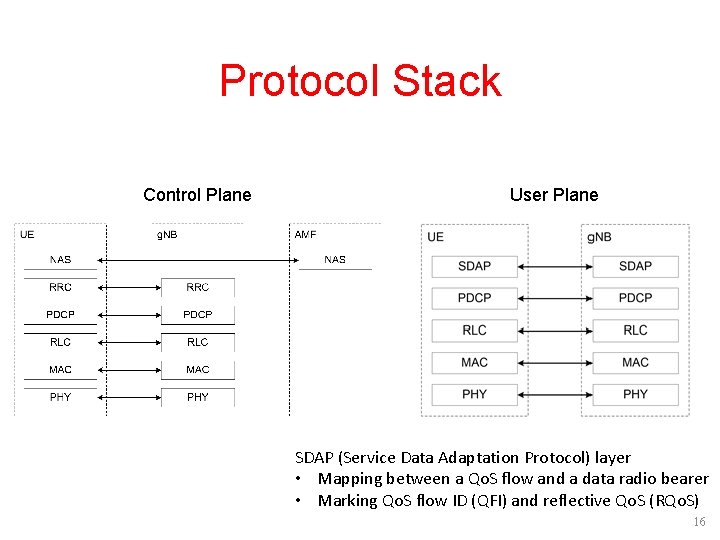
Protocol Stack Control Plane User Plane SDAP (Service Data Adaptation Protocol) layer • Mapping between a Qo. S flow and a data radio bearer • Marking Qo. S flow ID (QFI) and reflective Qo. S (RQo. S) 16
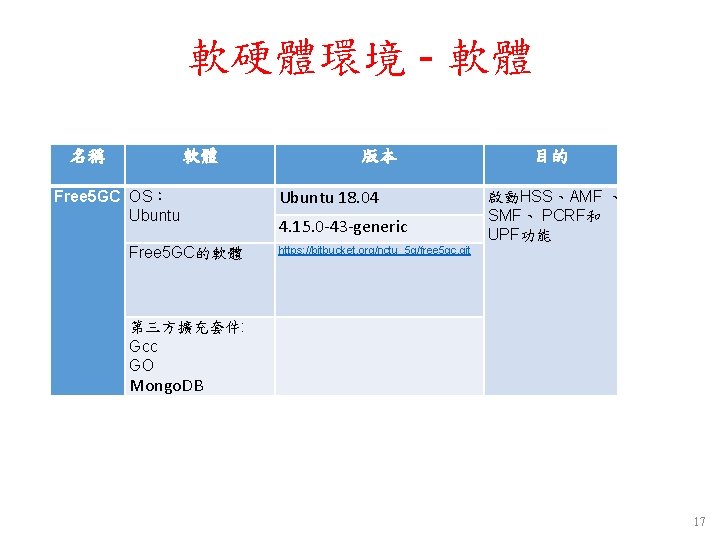
軟硬體環境 - 軟體 名稱 軟體 Free 5 GC OS: Ubuntu Free 5 GC的軟體 版本 Ubuntu 18. 04 4. 15. 0 -43 -generic 目的 啟動HSS、AMF 、 SMF、 PCRF和 UPF功能 https: //bitbucket. org/nctu_5 g/free 5 gc. git 第三方擴充套件: Gcc GO Mongo. DB 17
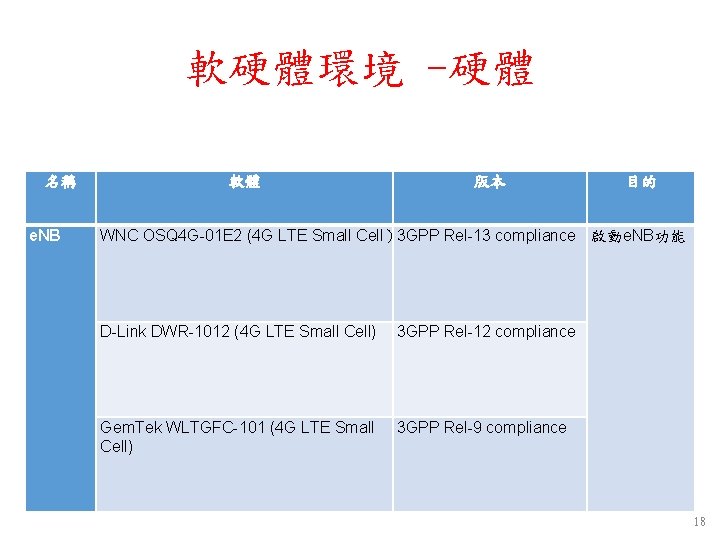
軟硬體環境 -硬體 名稱 e. NB 軟體 版本 目的 WNC OSQ 4 G-01 E 2 (4 G LTE Small Cell)3 GPP Rel-13 compliance 啟動e. NB功能 D-Link DWR-1012 (4 G LTE Small Cell) 3 GPP Rel-12 compliance Gem. Tek WLTGFC-101 (4 G LTE Small Cell) 3 GPP Rel-9 compliance 18
Outline • 實驗目的及實驗內容 • Free 5 GC 實驗環境 – LTE 架構 – 5 G 架構 – 軟硬體環境 • Free 5 GC 網路實驗平台建置 - Add Another Bridge NIC( First ) - Mongo. DB Setup - Free 5 gc Git Clone and Compile - Configing the Core Network and Adding User Information - How to Configure e. Node. B - Rebuild Project - Free 5 GC Demo - Annex A • 總結 19
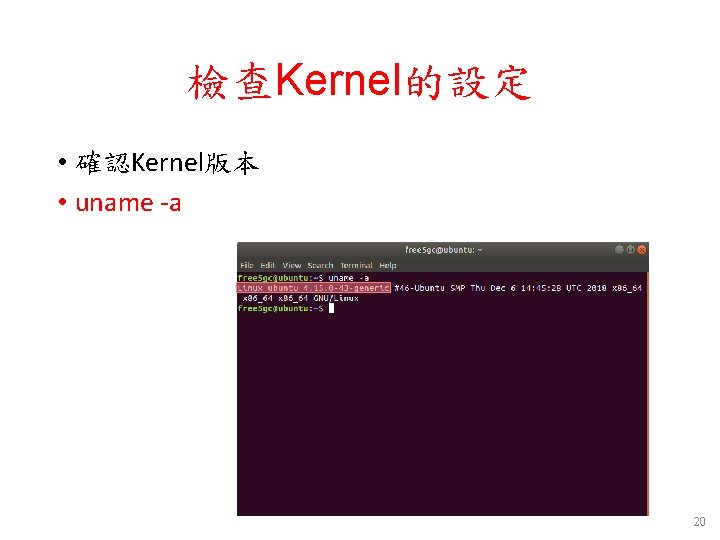
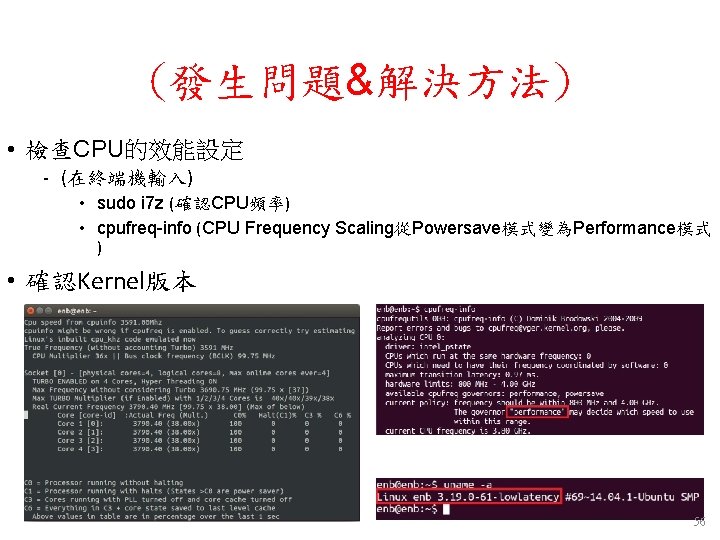
檢查Kernel的設定 • 確認Kernel版本 • uname -a 20
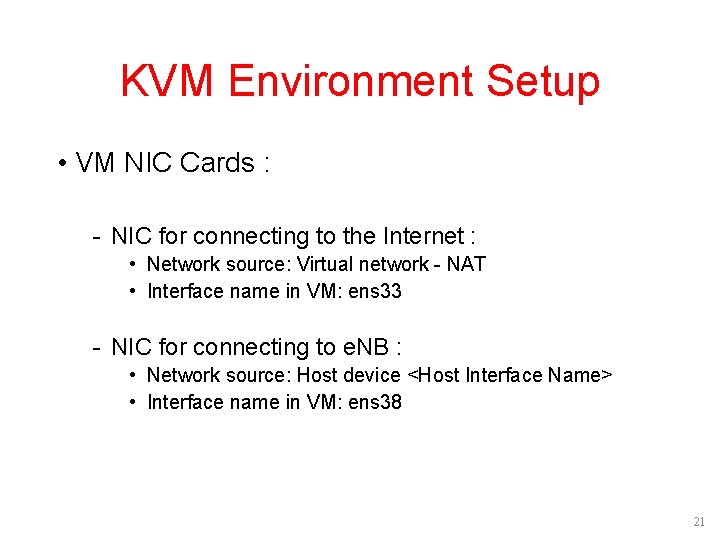
KVM Environment Setup • VM NIC Cards : - NIC for connecting to the Internet : • Network source: Virtual network - NAT • Interface name in VM: ens 33 - NIC for connecting to e. NB : • Network source: Host device <Host Interface Name> • Interface name in VM: ens 38 21
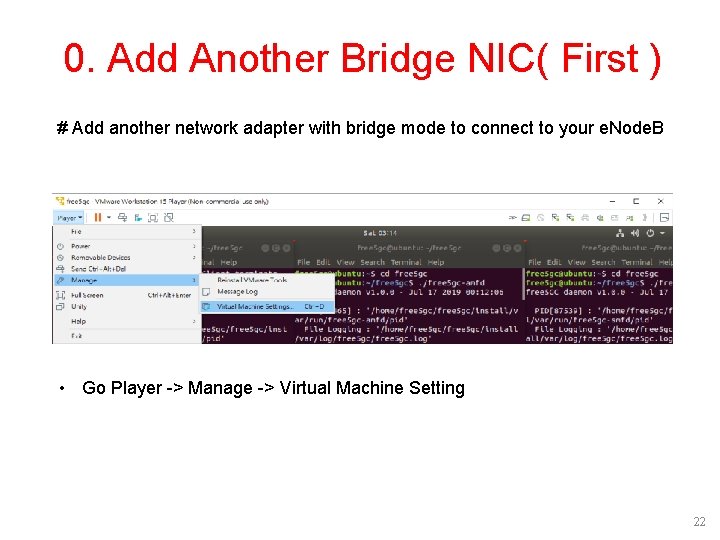
0. Add Another Bridge NIC( First ) # Add another network adapter with bridge mode to connect to your e. Node. B • Go Player -> Manage -> Virtual Machine Setting 22
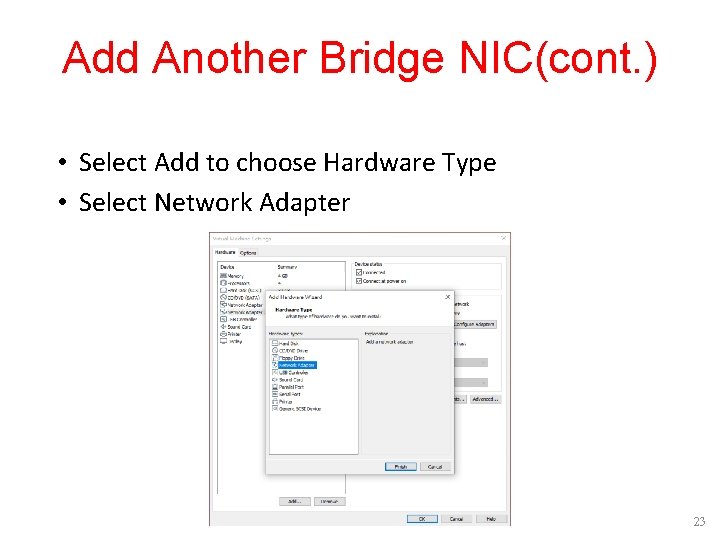
Add Another Bridge NIC(cont. ) • Select Add to choose Hardware Type • Select Network Adapter 23
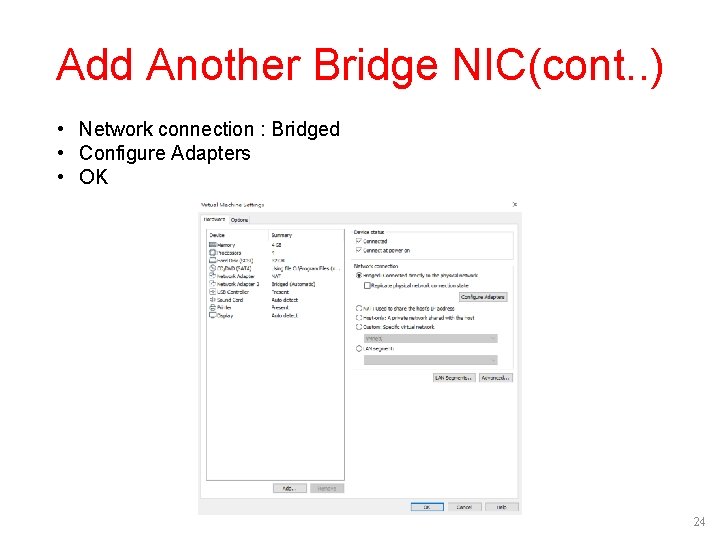
Add Another Bridge NIC(cont. . ) • Network connection : Bridged • Configure Adapters • OK 24
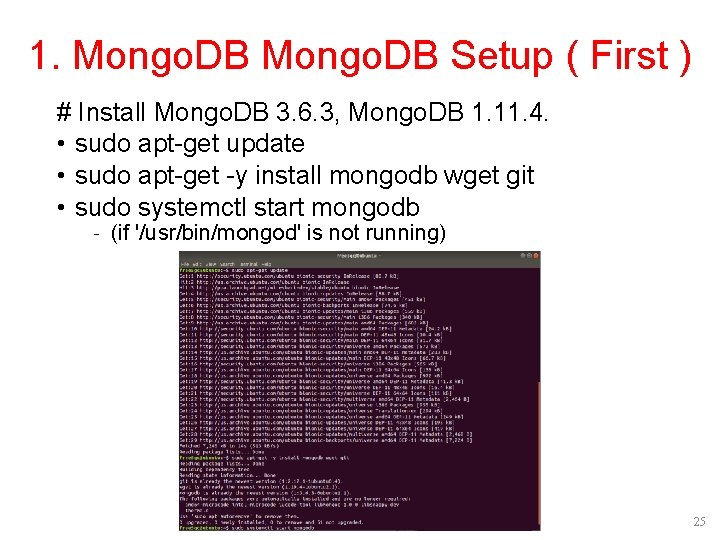
1. Mongo. DB Setup ( First ) # Install Mongo. DB 3. 6. 3, Mongo. DB 1. 11. 4. • sudo apt-get update • sudo apt-get -y install mongodb wget git • sudo systemctl start mongodb - (if '/usr/bin/mongod' is not running) 25
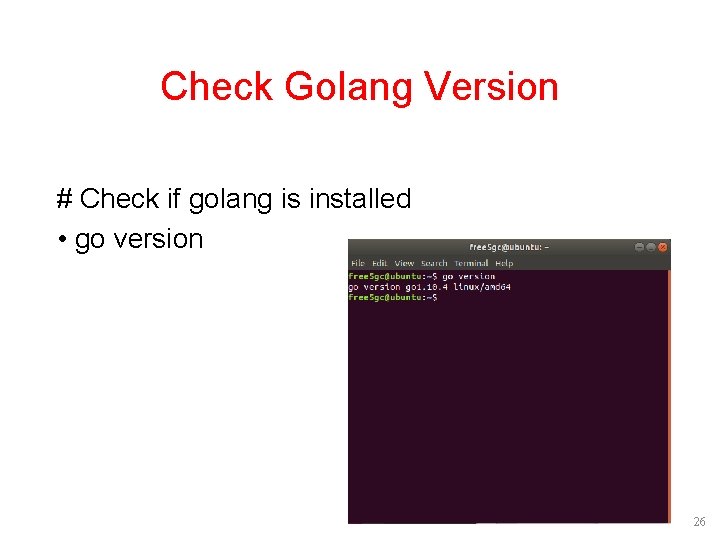
Check Golang Version # Check if golang is installed • go version 26
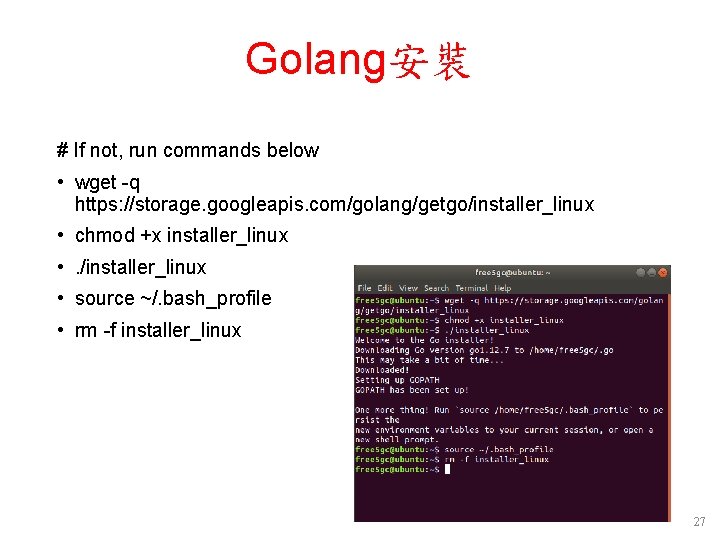
Golang安裝 # If not, run commands below • wget -q https: //storage. googleapis. com/golang/getgo/installer_linux • chmod +x installer_linux • . /installer_linux • source ~/. bash_profile • rm -f installer_linux 27
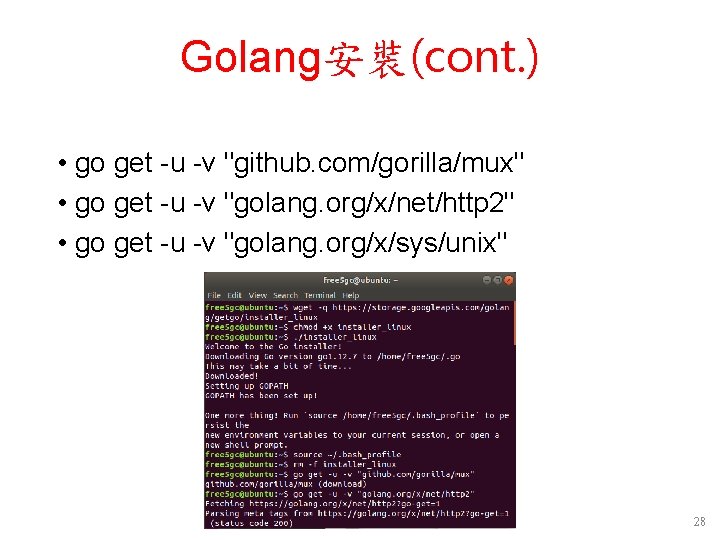
Golang安裝(cont. ) • go get -u -v "github. com/gorilla/mux" • go get -u -v "golang. org/x/net/http 2" • go get -u -v "golang. org/x/sys/unix" 28
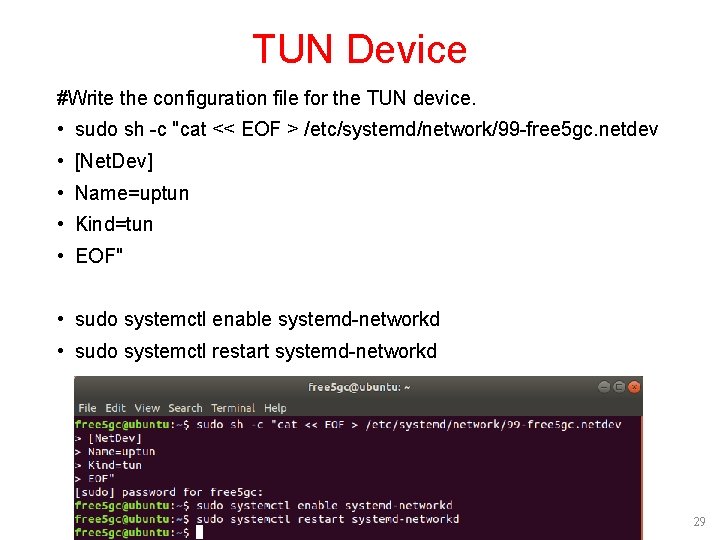
TUN Device #Write the configuration file for the TUN device. • sudo sh -c "cat << EOF > /etc/systemd/network/99 -free 5 gc. netdev • [Net. Dev] • Name=uptun • Kind=tun • EOF" • sudo systemctl enable systemd-networkd • sudo systemctl restart systemd-networkd 29
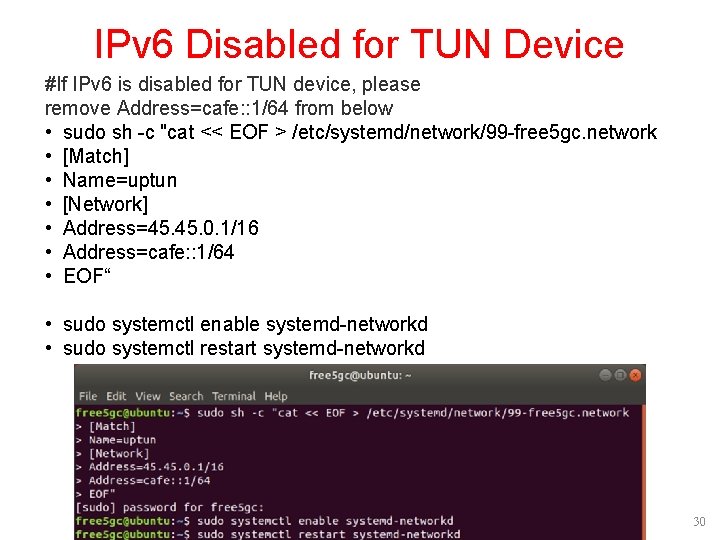
IPv 6 Disabled for TUN Device #If IPv 6 is disabled for TUN device, please remove Address=cafe: : 1/64 from below • sudo sh -c "cat << EOF > /etc/systemd/network/99 -free 5 gc. network • [Match] • Name=uptun • [Network] • Address=45. 0. 1/16 • Address=cafe: : 1/64 • EOF“ • sudo systemctl enable systemd-networkd • sudo systemctl restart systemd-networkd 30
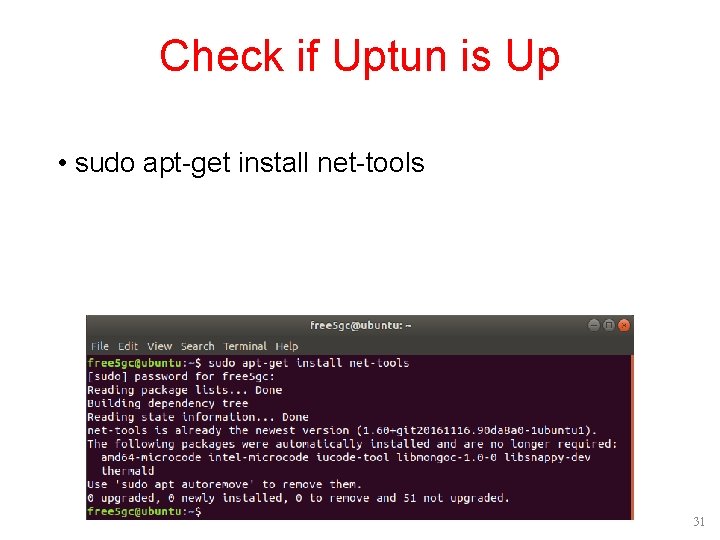
Check if Uptun is Up • sudo apt-get install net-tools 31
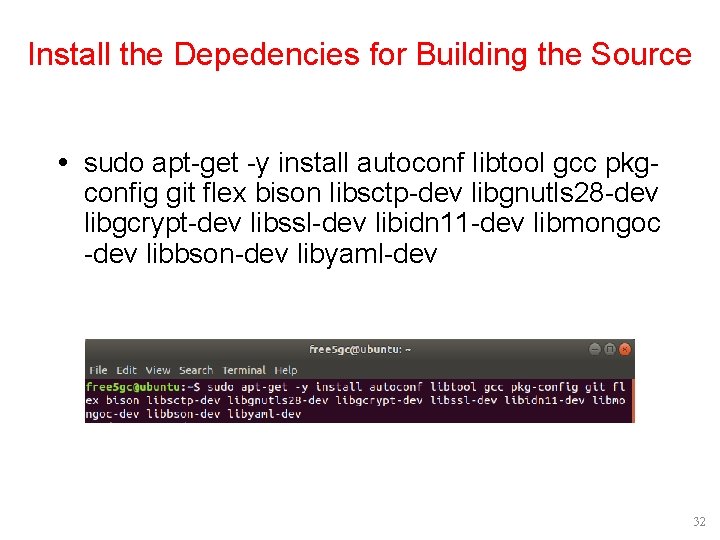
Install the Depedencies for Building the Source sudo apt-get -y install autoconf libtool gcc pkgconfig git flex bison libsctp-dev libgnutls 28 -dev libgcrypt-dev libssl-dev libidn 11 -dev libmongoc -dev libbson-dev libyaml-dev 32
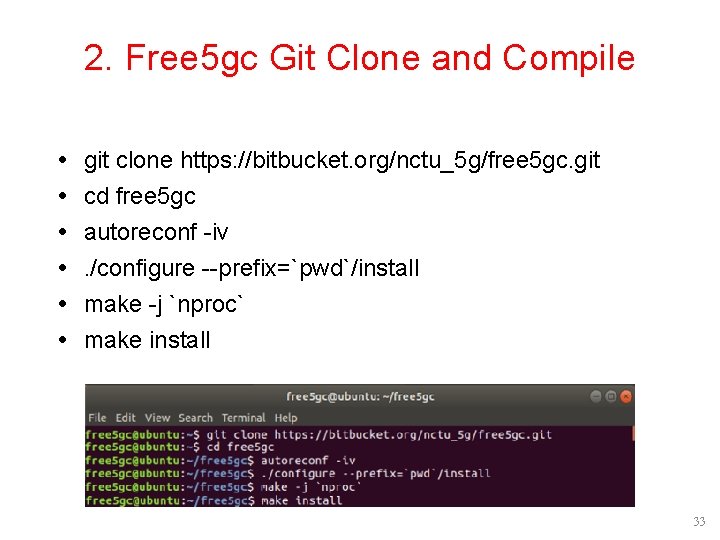
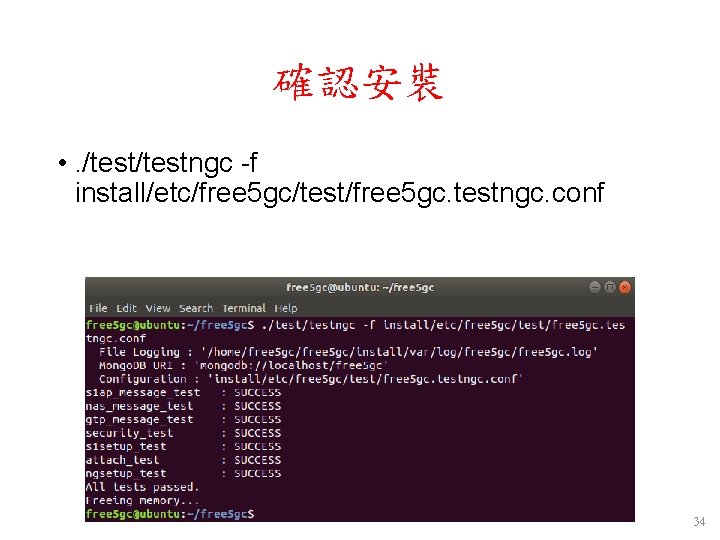
2. Free 5 gc Git Clone and Compile git clone https: //bitbucket. org/nctu_5 g/free 5 gc. git cd free 5 gc autoreconf -iv. /configure --prefix=`pwd`/install make -j `nproc` make install 33
確認安裝 • . /testngc -f install/etc/free 5 gc/test/free 5 gc. testngc. conf 34
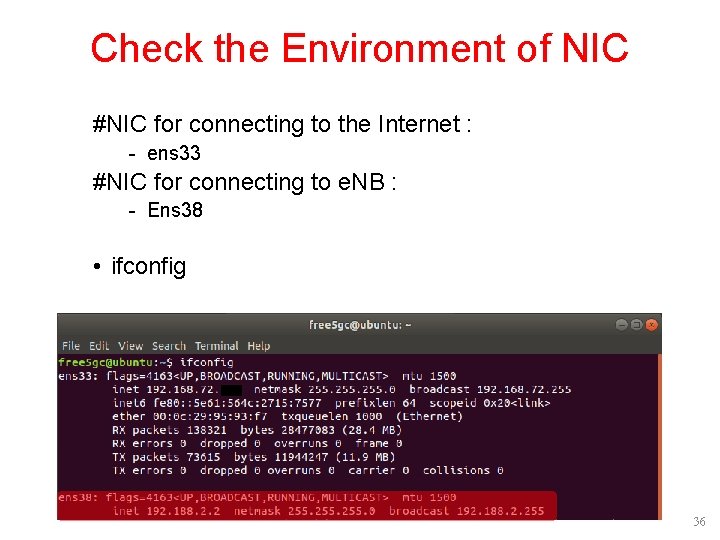
Check the Environment of NIC #NIC for connecting to the Internet : - ens 33 #NIC for connecting to e. NB : - Ens 38 • ifconfig 36
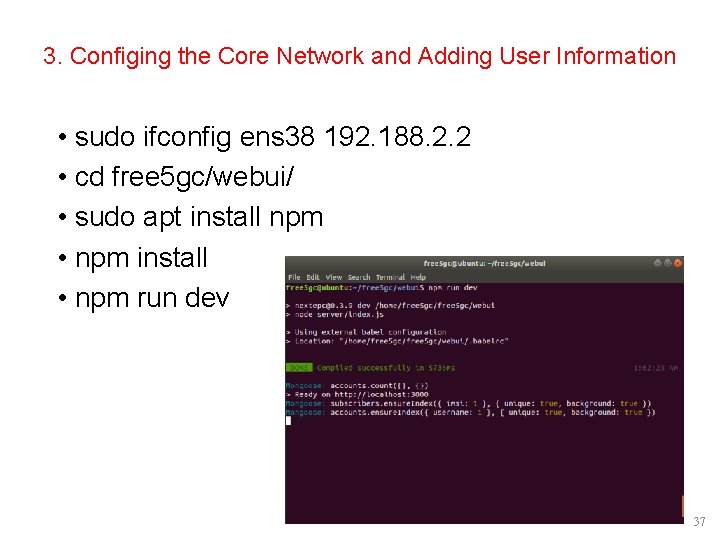
3. Configing the Core Network and Adding User Information • sudo ifconfig ens 38 192. 188. 2. 2 • cd free 5 gc/webui/ • sudo apt install npm • npm install • npm run dev 37
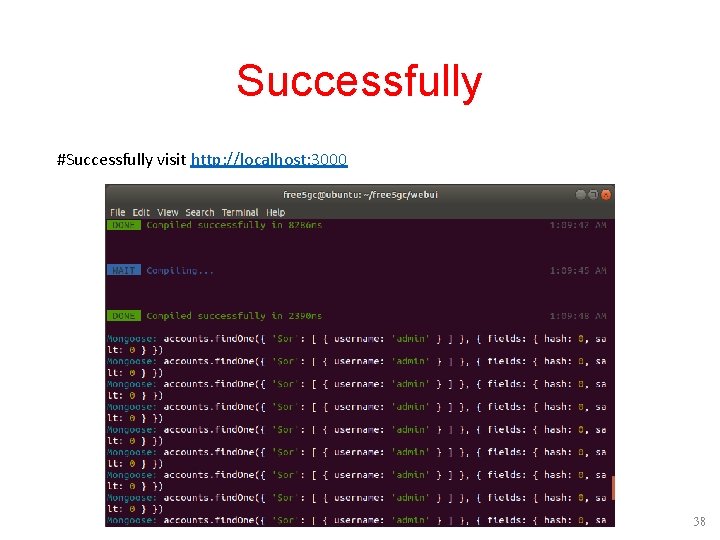
Successfully #Successfully visit http: //localhost: 3000 38
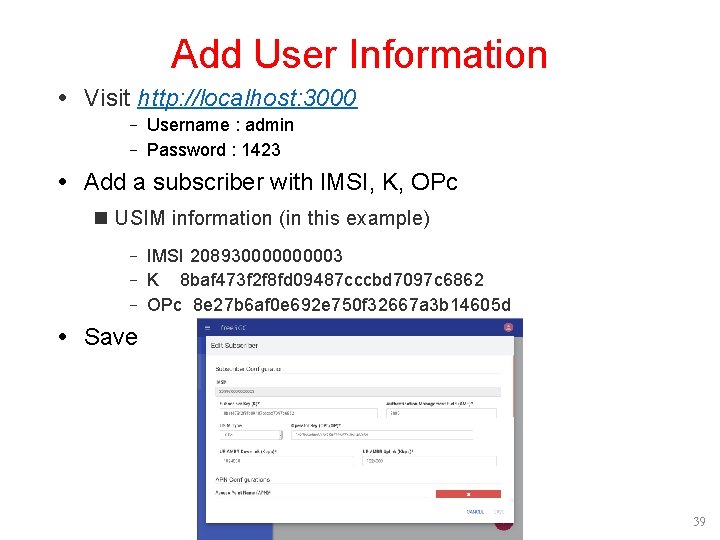
Add User Information Visit http: //localhost: 3000 - Username : admin - Password : 1423 Add a subscriber with IMSI, K, OPc USIM information (in this example) - IMSI 20893000003 - K 8 baf 473 f 2 f 8 fd 09487 cccbd 7097 c 6862 - OPc 8 e 27 b 6 af 0 e 692 e 750 f 32667 a 3 b 14605 d Save 39
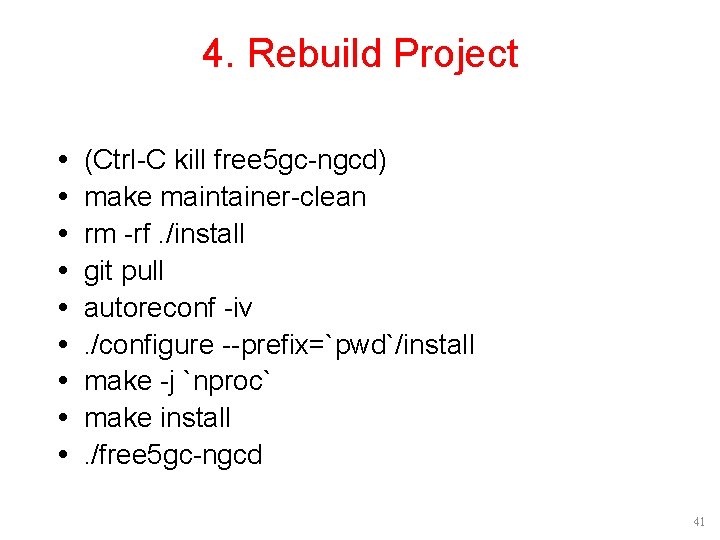
4. Rebuild Project (Ctrl-C kill free 5 gc-ngcd) make maintainer-clean rm -rf. /install git pull autoreconf -iv. /configure --prefix=`pwd`/install make -j `nproc` make install. /free 5 gc-ngcd 41
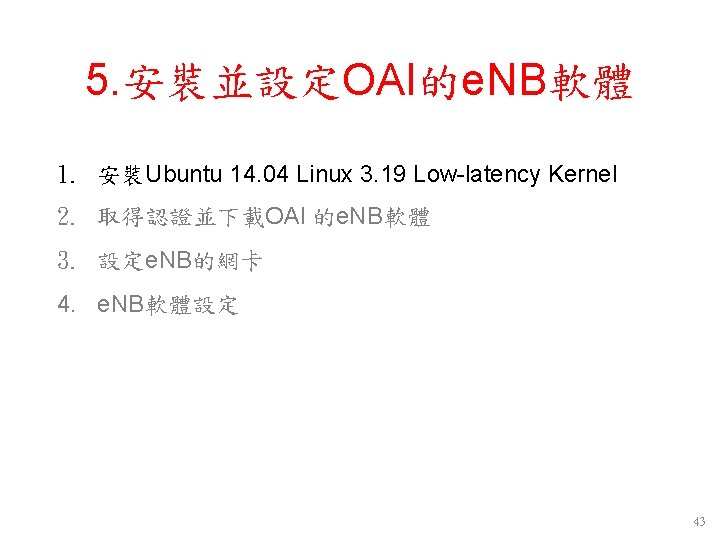
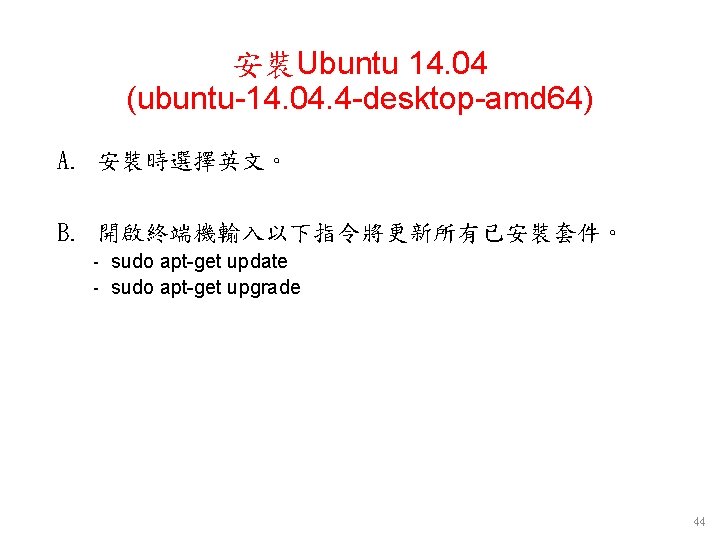
5. 安裝並設定OAI的e. NB軟體 1. 安裝Ubuntu 14. 04 Linux 3. 19 Low-latency Kernel 2. 取得認證並下載OAI 的e. NB軟體 3. 設定e. NB的網卡 4. e. NB軟體設定 43
安裝Ubuntu 14. 04 (ubuntu-14. 04. 4 -desktop-amd 64) A. 安裝時選擇英文。 B. 開啟終端機輸入以下指令將更新所有已安裝套件。 - sudo apt-get update - sudo apt-get upgrade 44
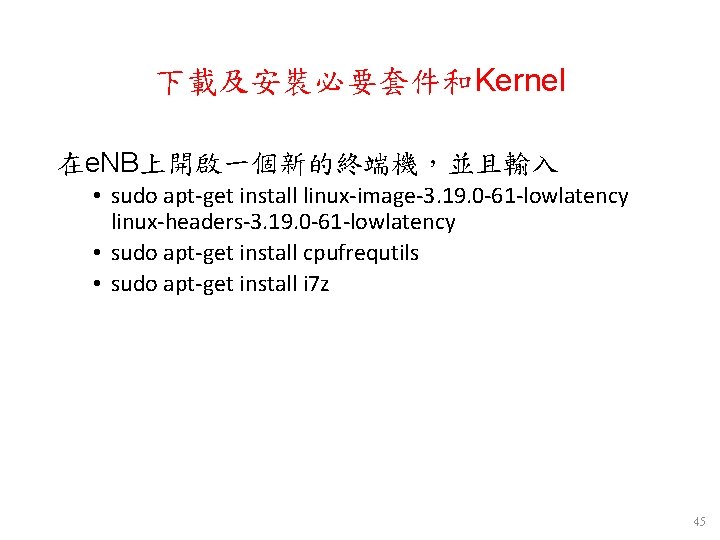
下載及安裝必要套件和Kernel 在e. NB上開啟一個新的終端機,並且輸入 • sudo apt-get install linux-image-3. 19. 0 -61 -lowlatency linux-headers-3. 19. 0 -61 -lowlatency • sudo apt-get install cpufrequtils • sudo apt-get install i 7 z 45
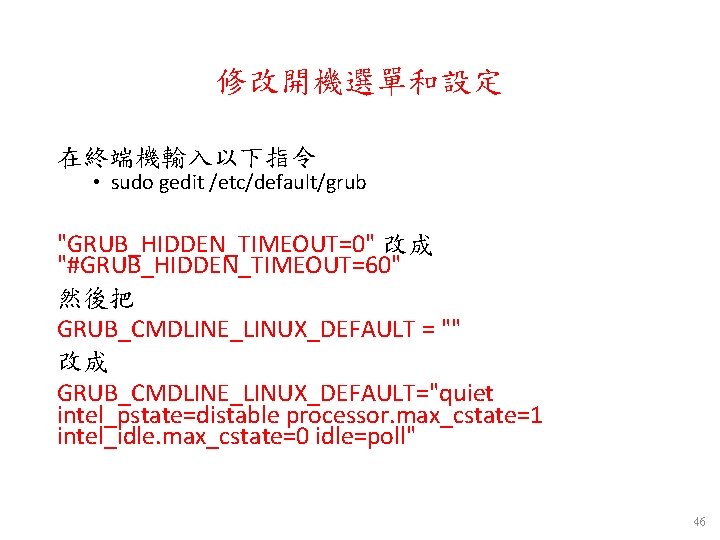
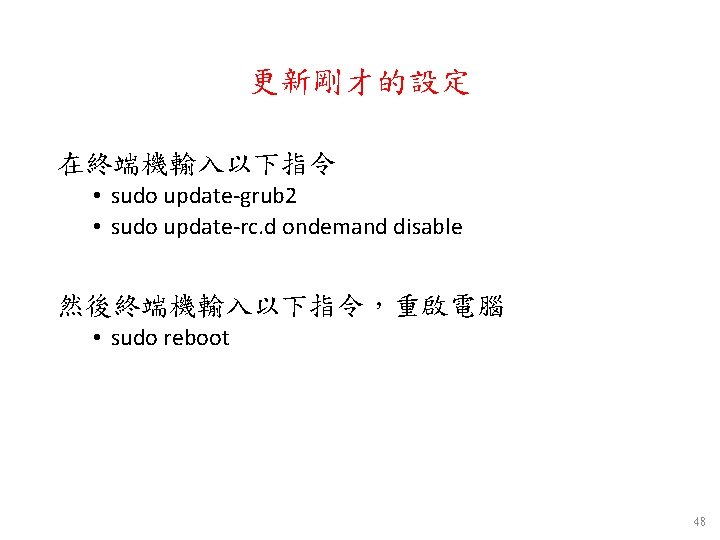
修改開機選單和設定 在終端機輸入以下指令 • sudo gedit /etc/default/grub "GRUB_HIDDEN_TIMEOUT=0" 改成 "#GRUB_HIDDEN_TIMEOUT=60" 然後把 GRUB_CMDLINE_LINUX_DEFAULT = "" 改成 GRUB_CMDLINE_LINUX_DEFAULT="quiet intel_pstate=distable processor. max_cstate=1 intel_idle. max_cstate=0 idle=poll" 46
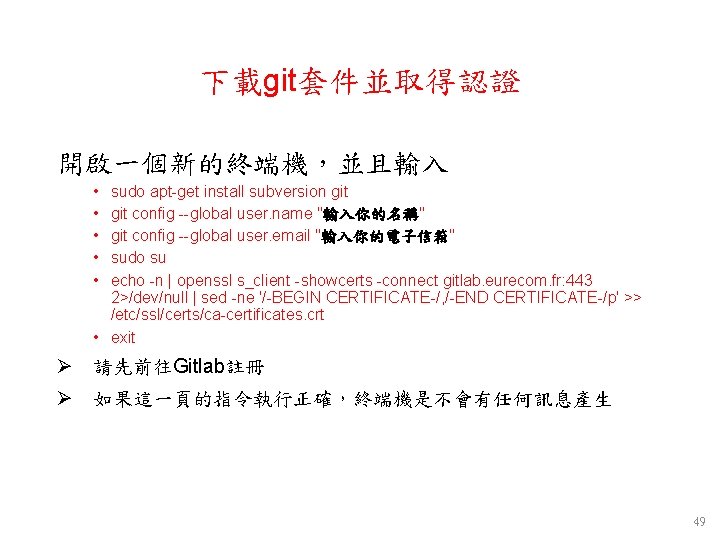
下載git套件並取得認證 開啟一個新的終端機,並且輸入 • • • sudo apt-get install subversion git config --global user. name "輸入你的名稱" git config --global user. email "輸入你的電子信箱" sudo su echo -n | openssl s_client -showcerts -connect gitlab. eurecom. fr: 443 2>/dev/null | sed -ne '/-BEGIN CERTIFICATE-/, /-END CERTIFICATE-/p' >> /etc/ssl/certs/ca-certificates. crt • exit Ø 請先前往Gitlab註冊 Ø 如果這一頁的指令執行正確,終端機是不會有任何訊息產生 49
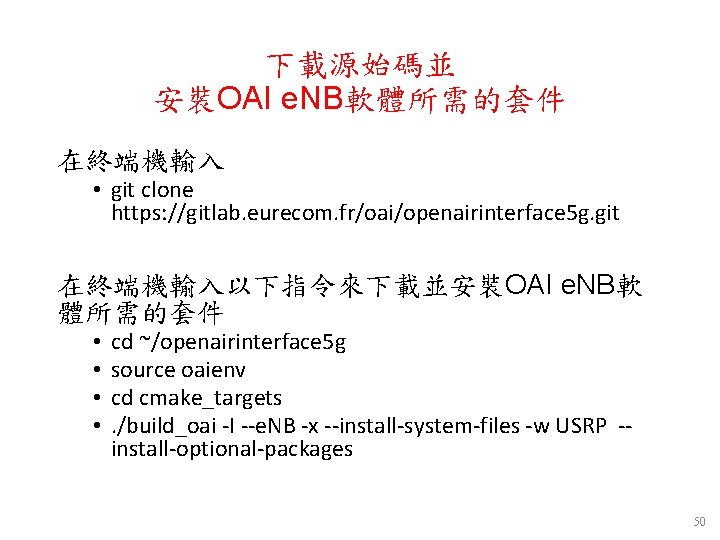
下載源始碼並 安裝OAI e. NB軟體所需的套件 在終端機輸入 • git clone https: //gitlab. eurecom. fr/oai/openairinterface 5 g. git 在終端機輸入以下指令來下載並安裝OAI e. NB軟 體所需的套件 • • cd ~/openairinterface 5 g source oaienv cd cmake_targets. /build_oai -I --e. NB -x --install-system-files -w USRP -install-optional-packages 50
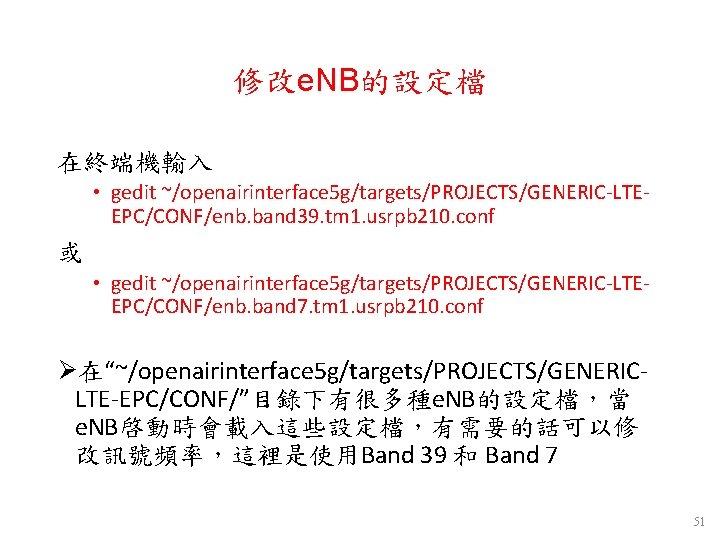
修改e. NB的設定檔 在終端機輸入 • gedit ~/openairinterface 5 g/targets/PROJECTS/GENERIC-LTEEPC/CONF/enb. band 39. tm 1. usrpb 210. conf 或 • gedit ~/openairinterface 5 g/targets/PROJECTS/GENERIC-LTEEPC/CONF/enb. band 7. tm 1. usrpb 210. conf Ø在“~/openairinterface 5 g/targets/PROJECTS/GENERICLTE-EPC/CONF/”目錄下有很多種e. NB的設定檔,當 e. NB啓動時會載入這些設定檔,有需要的話可以修 改訊號頻率,這裡是使用Band 39 和 Band 7 51
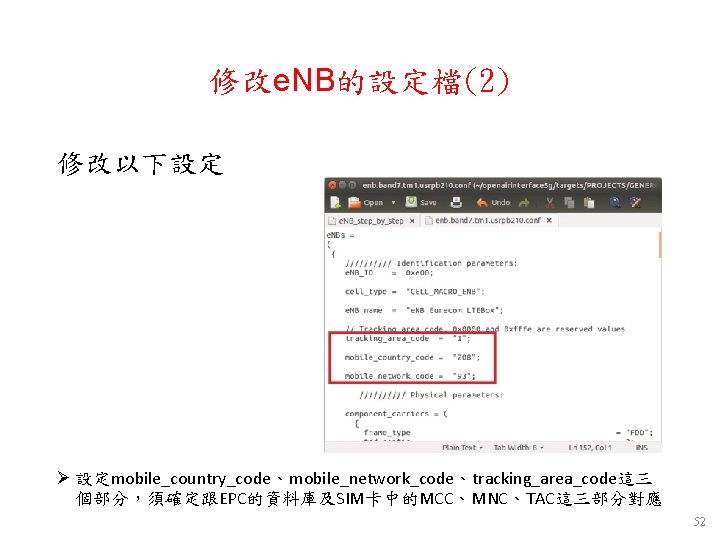
修改e. NB的設定檔(2) 修改以下設定 Ø 設定mobile_country_code、mobile_network_code、tracking_area_code這三 個部分,須確定跟EPC的資料庫及SIM卡中的MCC、MNC、TAC這三部分對應 52
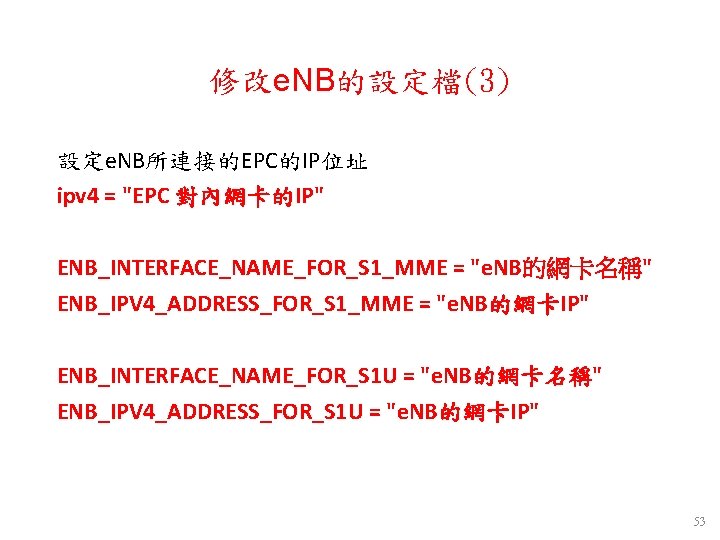
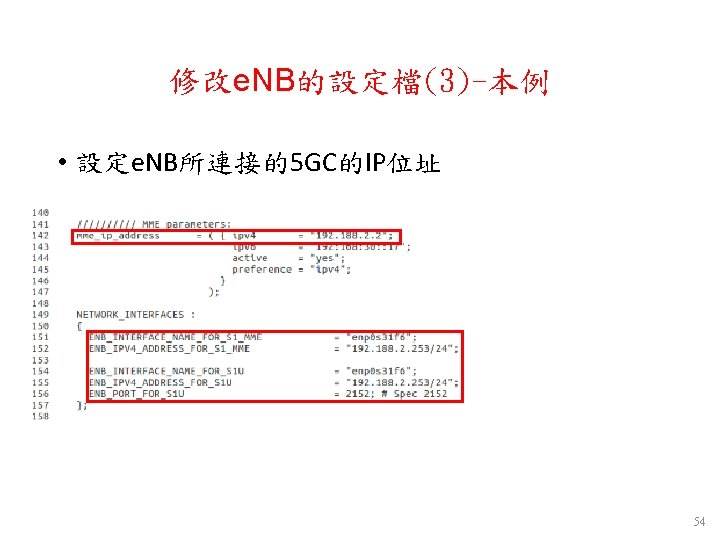
修改e. NB的設定檔(3) 設定e. NB所連接的EPC的IP位址 ipv 4 = "EPC 對內網卡的IP" ENB_INTERFACE_NAME_FOR_S 1_MME = "e. NB的網卡名稱" ENB_IPV 4_ADDRESS_FOR_S 1_MME = "e. NB的網卡IP" ENB_INTERFACE_NAME_FOR_S 1 U = "e. NB的網卡名稱" ENB_IPV 4_ADDRESS_FOR_S 1 U = "e. NB的網卡IP" 53
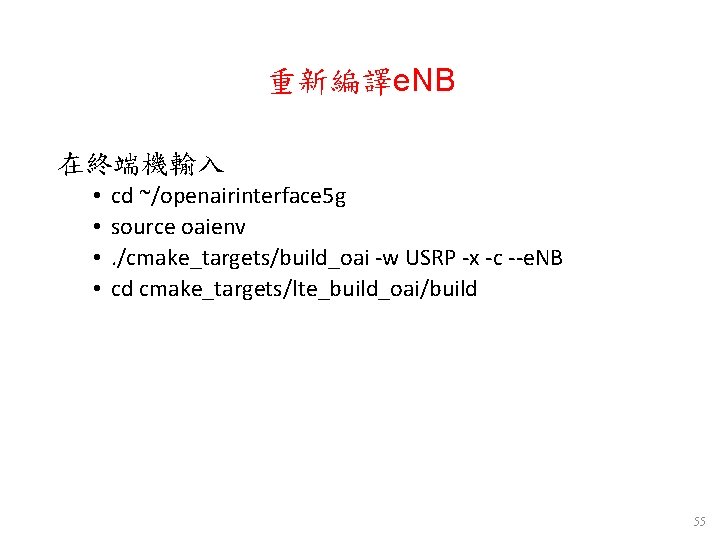
重新編譯e. NB 在終端機輸入 • • cd ~/openairinterface 5 g source oaienv. /cmake_targets/build_oai -w USRP -x -c --e. NB cd cmake_targets/lte_build_oai/build 55
(發生問題&解決方法) • 檢查CPU的效能設定 - (在終端機輸入) • sudo i 7 z (確認CPU頻率) • cpufreq-info (CPU Frequency Scaling從Powersave模式變為Performance模式 ) • 確認Kernel版本 - uname -a 56
6. Free 5 GC Demo #啟動五個Terminal分別執行 . /nextepc-hssd . /free 5 gc-amfd . /free 5 gc-smfd . /nextepc-pcrfd . /free 5 gc-upfd 57
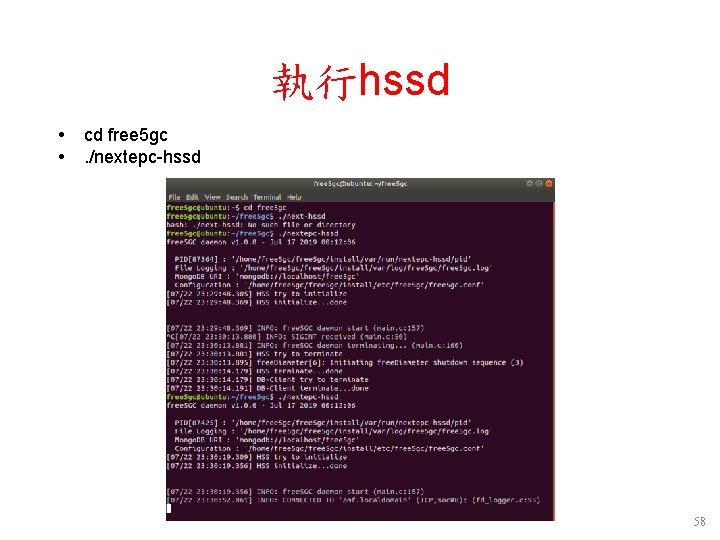
執行hssd cd free 5 gc. /nextepc-hssd 58
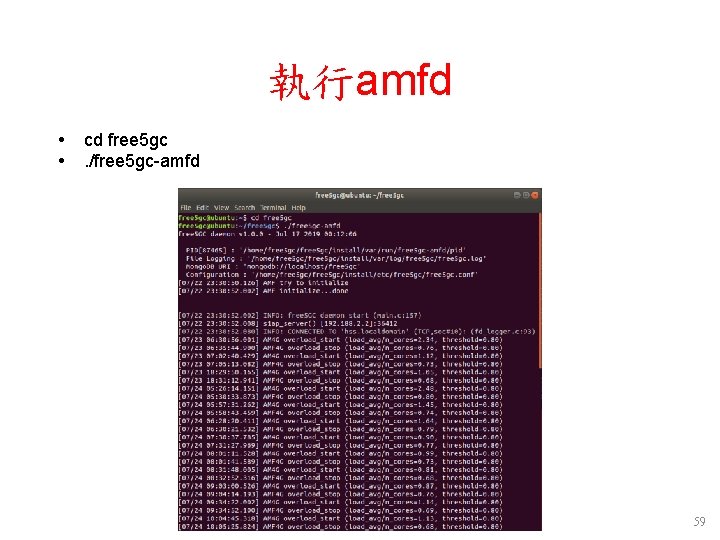
執行amfd cd free 5 gc. /free 5 gc-amfd 59
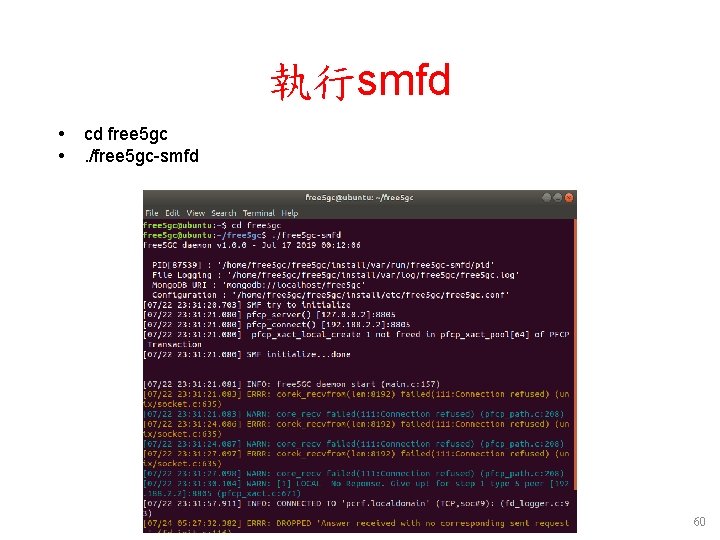
執行smfd cd free 5 gc. /free 5 gc-smfd 60
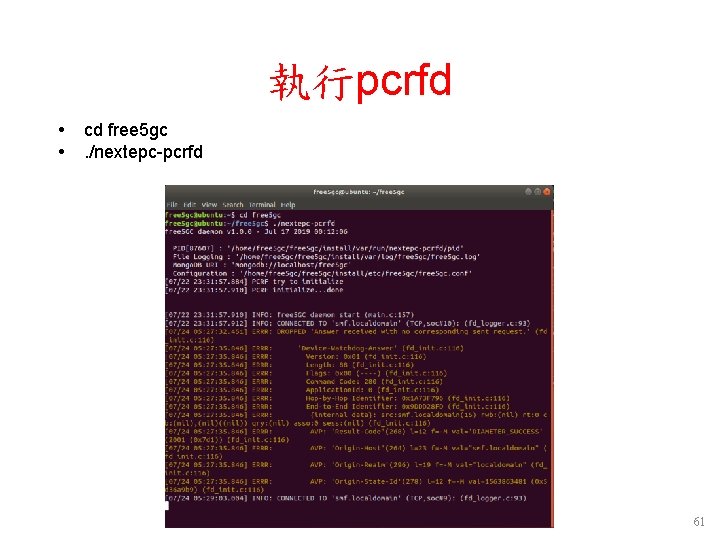
執行pcrfd cd free 5 gc. /nextepc-pcrfd 61
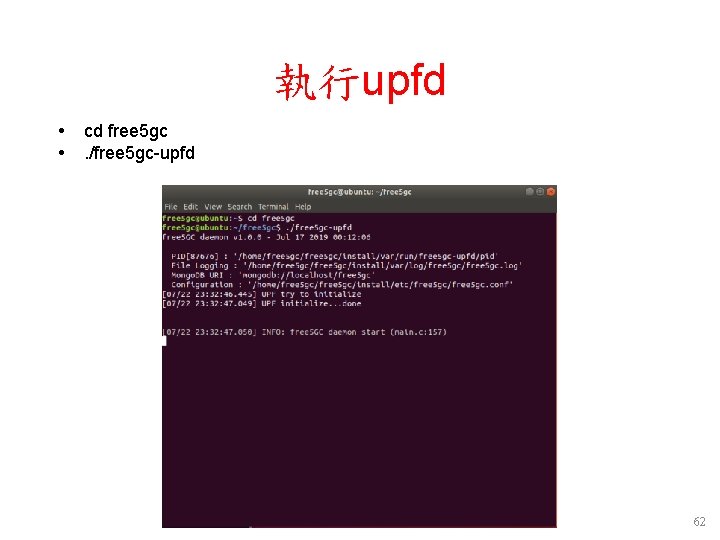
執行upfd cd free 5 gc. /free 5 gc-upfd 62
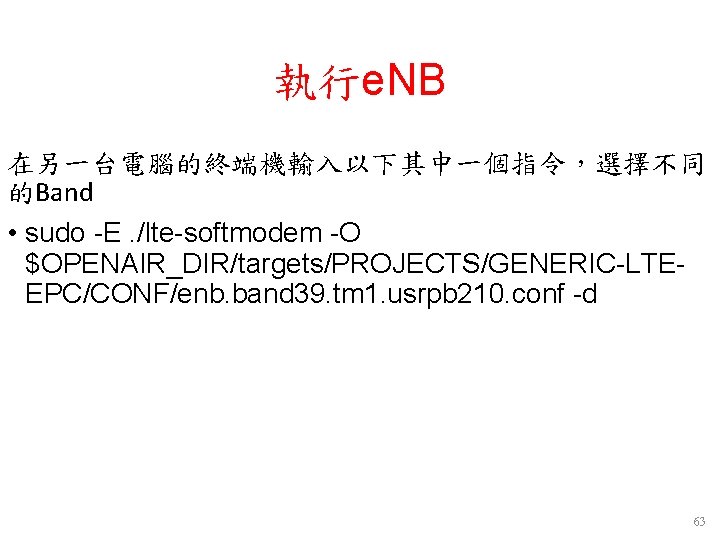
執行e. NB 在另一台電腦的終端機輸入以下其中一個指令,選擇不同 的Band • sudo -E. /lte-softmodem -O $OPENAIR_DIR/targets/PROJECTS/GENERIC-LTEEPC/CONF/enb. band 39. tm 1. usrpb 210. conf -d 63
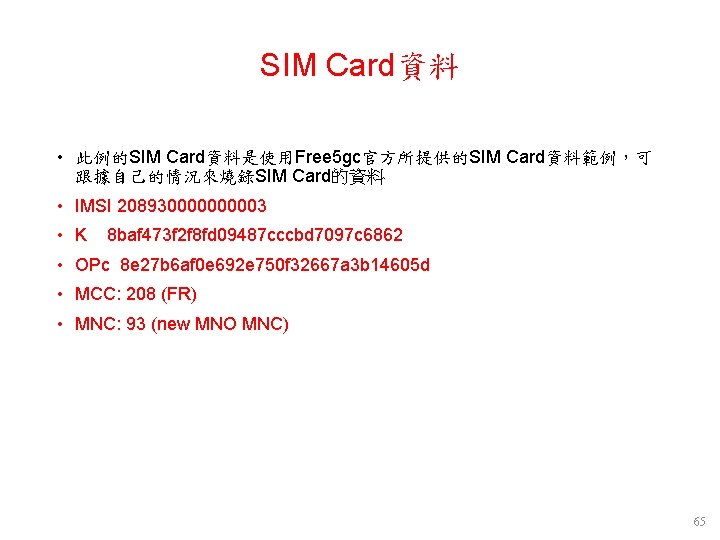
SIM Card資料 • 此例的SIM Card資料是使用Free 5 gc官方所提供的SIM Card資料範例,可 跟據自己的情況來燒錄SIM Card的資料 • IMSI 20893000003 • K 8 baf 473 f 2 f 8 fd 09487 cccbd 7097 c 6862 • OPc 8 e 27 b 6 af 0 e 692 e 750 f 32667 a 3 b 14605 d • MCC: 208 (FR) • MNC: 93 (new MNO MNC) 65
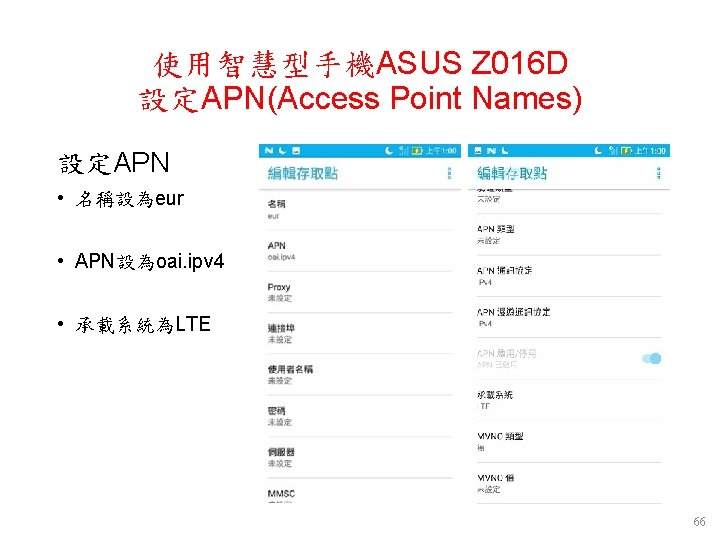
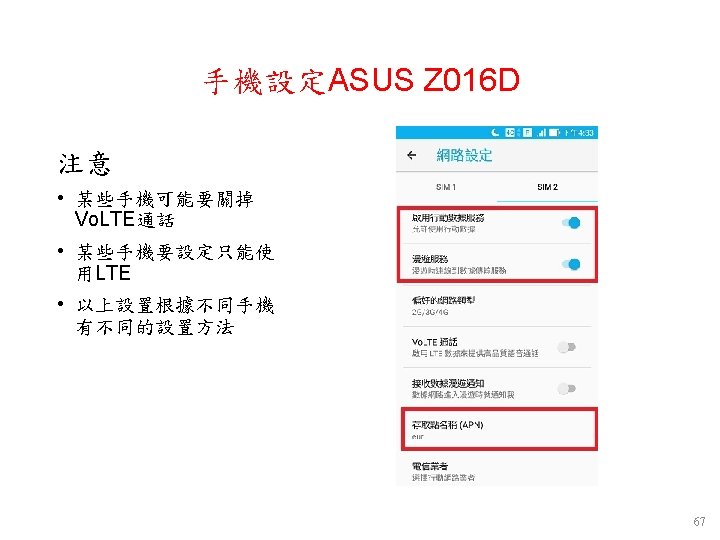
使用智慧型手機ASUS Z 016 D 設定APN(Access Point Names) 設定APN • 名稱設為eur • APN設為oai. ipv 4 • 承載系統為LTE 66
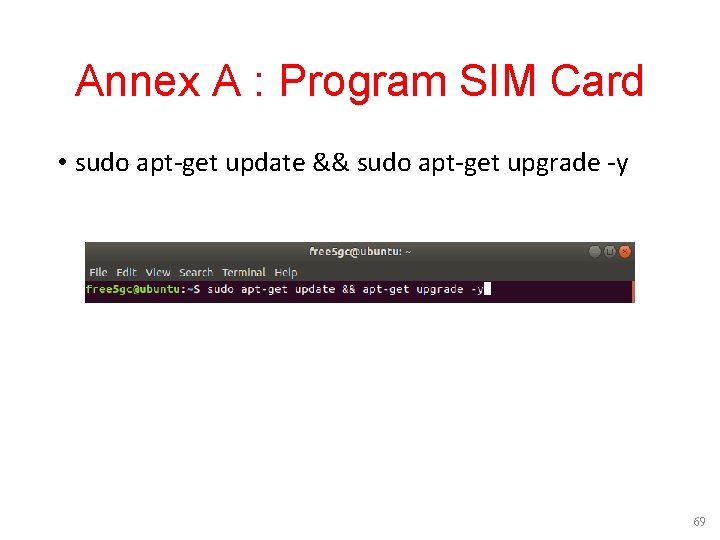
Annex A : Program SIM Card • sudo apt-get update && sudo apt-get upgrade -y 69
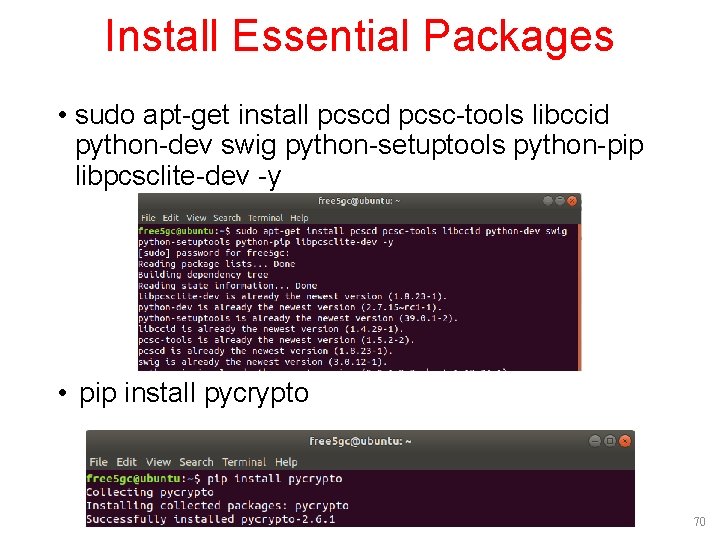
Install Essential Packages • sudo apt-get install pcscd pcsc-tools libccid python-dev swig python-setuptools python-pip libpcsclite-dev -y • pip install pycrypto 70
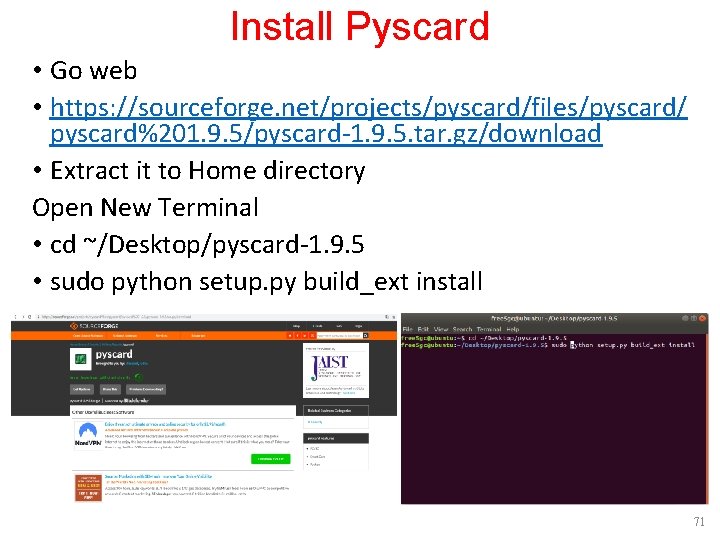
Install Pyscard • Go web • https: //sourceforge. net/projects/pyscard/files/pyscard/ pyscard%201. 9. 5/pyscard-1. 9. 5. tar. gz/download • Extract it to Home directory Open New Terminal • cd ~/Desktop/pyscard-1. 9. 5 • sudo python setup. py build_ext install 71
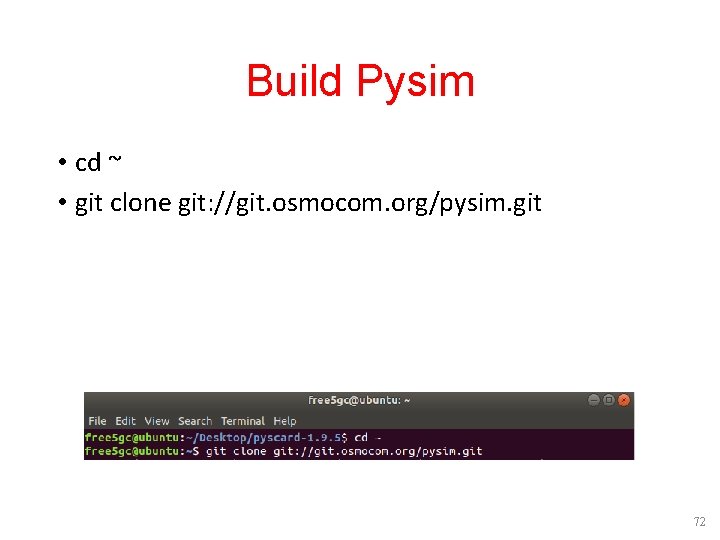
Build Pysim • cd ~ • git clone git: //git. osmocom. org/pysim. git 72
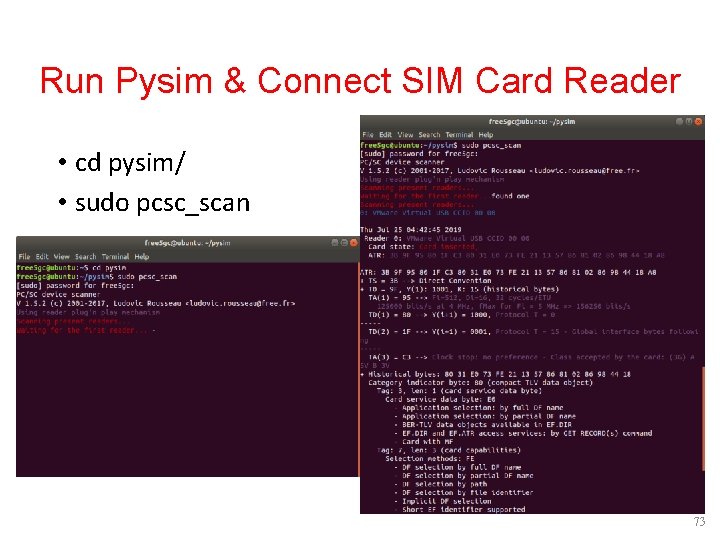
Run Pysim & Connect SIM Card Reader • cd pysim/ • sudo pcsc_scan 73
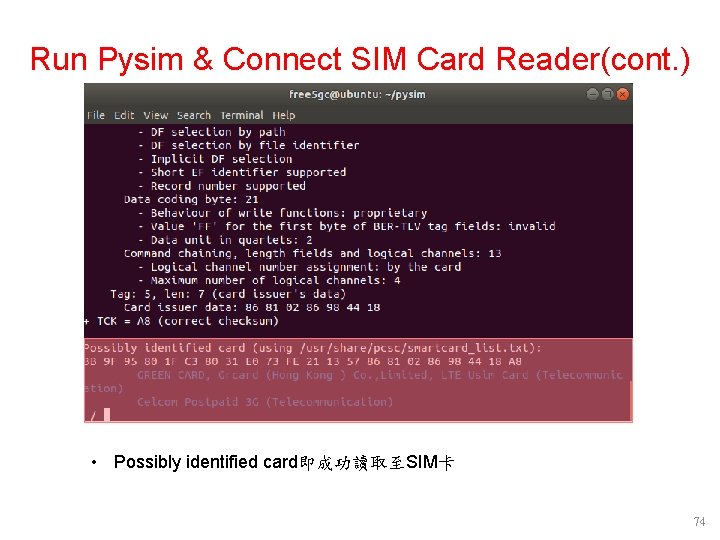
Run Pysim & Connect SIM Card Reader(cont. ) • Possibly identified card即成功讀取至SIM卡 74
Burn Information to SIM Card • Ctrl + C to exit the program • . /py. Sim-read. py –p 0 75
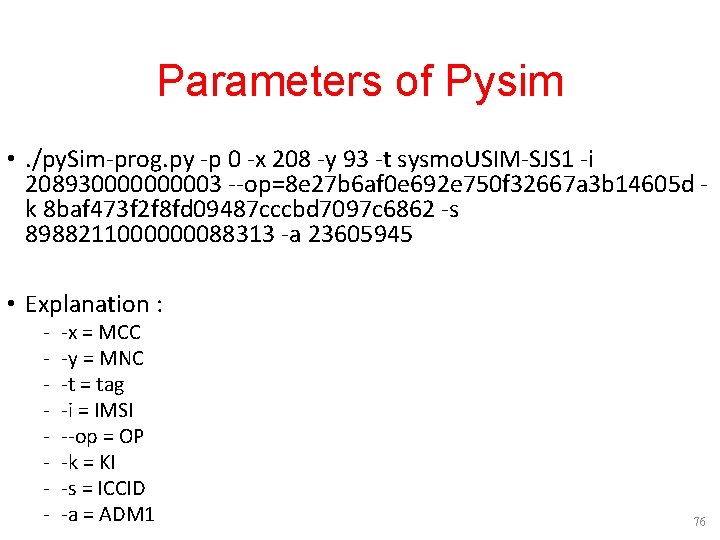
Parameters of Pysim • . /py. Sim-prog. py -p 0 -x 208 -y 93 -t sysmo. USIM-SJS 1 -i 20893000003 --op=8 e 27 b 6 af 0 e 692 e 750 f 32667 a 3 b 14605 d k 8 baf 473 f 2 f 8 fd 09487 cccbd 7097 c 6862 -s 8988211000000088313 -a 23605945 • Explanation : - -x = MCC -y = MNC -t = tag -i = IMSI --op = OP -k = KI -s = ICCID -a = ADM 1 76
Outline • 實驗目的及實驗內容 • Free 5 GC 實驗環境 – LTE 架構 – 5 G 架構 – 軟硬體環境 • Free 5 GC 網路實驗平台建置 - Add Another Bridge NIC( First ) - Mongo. DB Setup - Free 5 gc Git Clone and Compile - Configing the Core Network and Adding User Information - How to Configure e. Node. B - Rebuild Project - Free 5 GC Demo - Annex A • 總結 77