
Other Services PRODUCTS Before processing the transactions FLA
Other Services
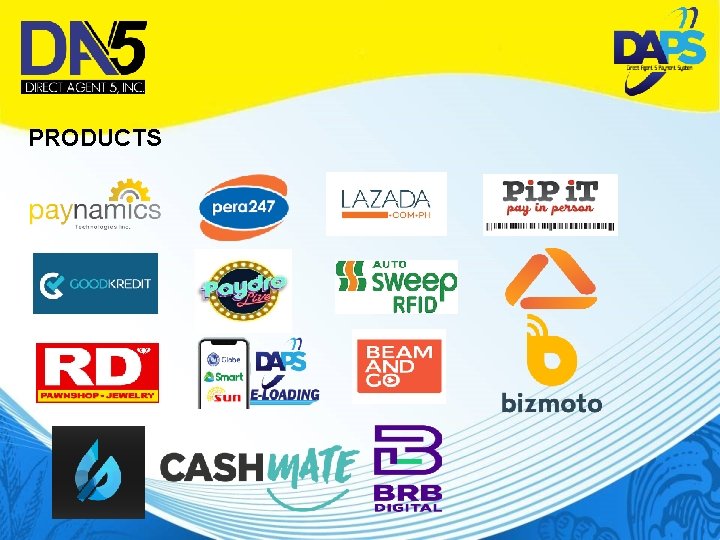
PRODUCTS
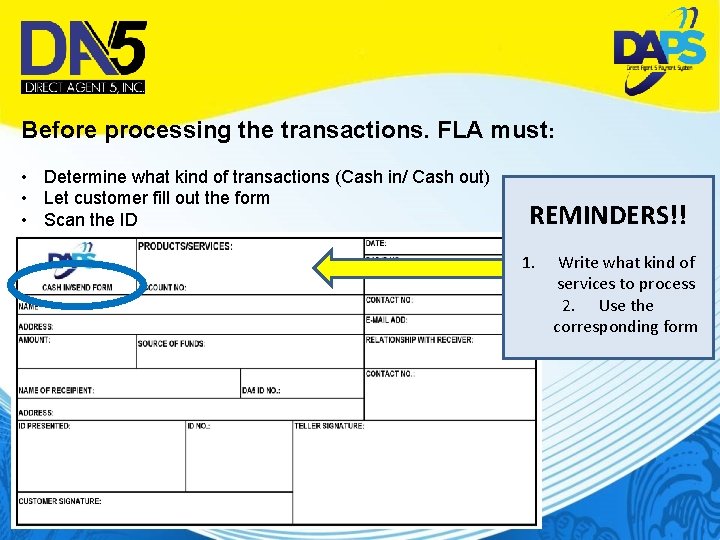
Before processing the transactions. FLA must: • • • Determine what kind of transactions (Cash in/ Cash out) Let customer fill out the form Scan the ID REMINDERS!! 1. Write what kind of services to process 2. Use the corresponding form
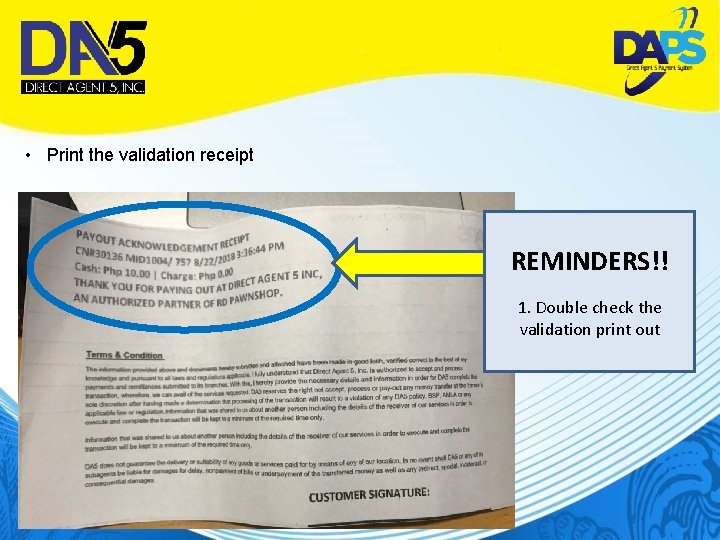
• Print the validation receipt REMINDERS!! 1. Double check the validation print out
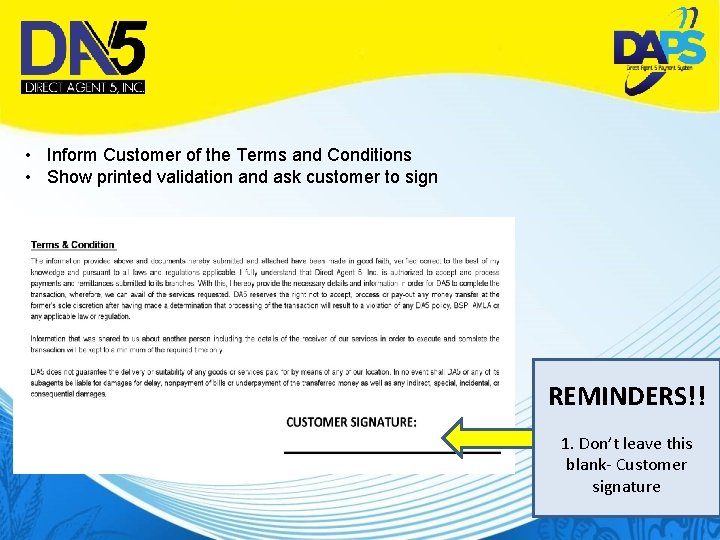
• Inform Customer of the Terms and Conditions • Show printed validation and ask customer to sign REMINDERS!! 1. Don’t leave this blank- Customer signature
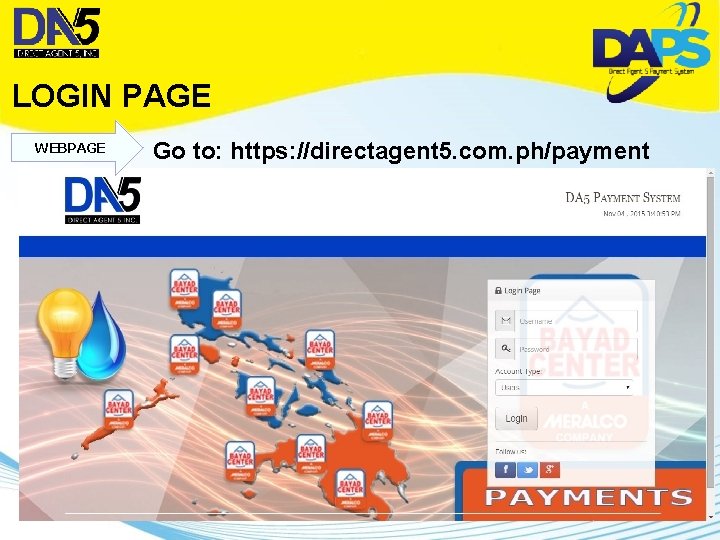
LOGIN PAGE WEBPAGE Go to: https: //directagent 5. com. ph/payment
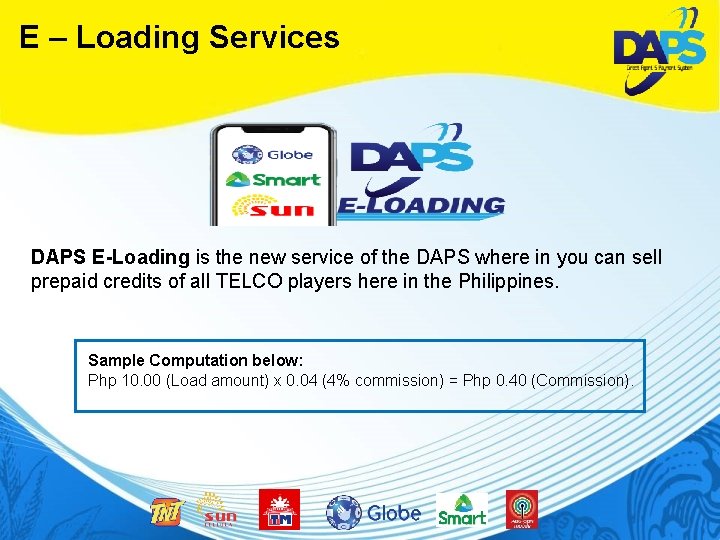
E – Loading Services DAPS E-Loading is the new service of the DAPS where in you can sell prepaid credits of all TELCO players here in the Philippines. Sample Computation below: Php 10. 00 (Load amount) x 0. 04 (4% commission) = Php 0. 40 (Commission).
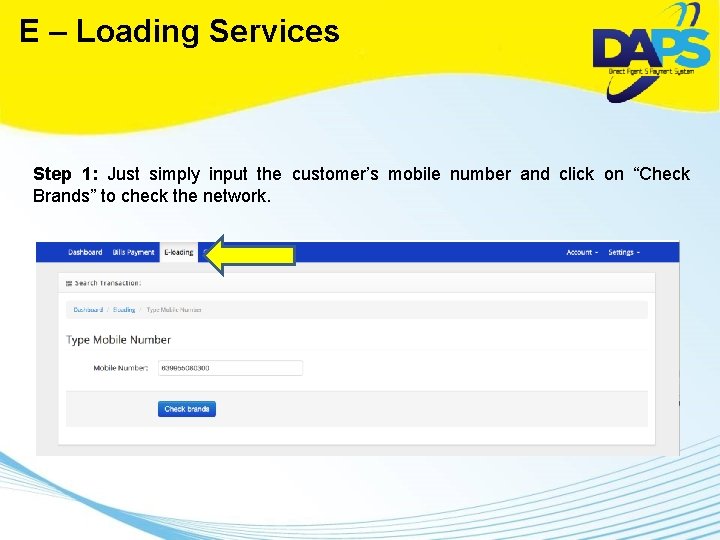
E – Loading Services Step 1: Just simply input the customer’s mobile number and click on “Check Brands” to check the network.
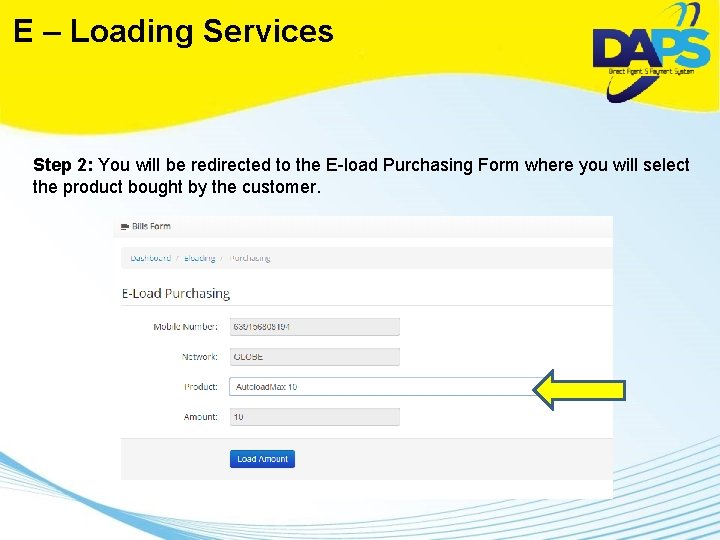
E – Loading Services Step 2: You will be redirected to the E-load Purchasing Form where you will select the product bought by the customer.
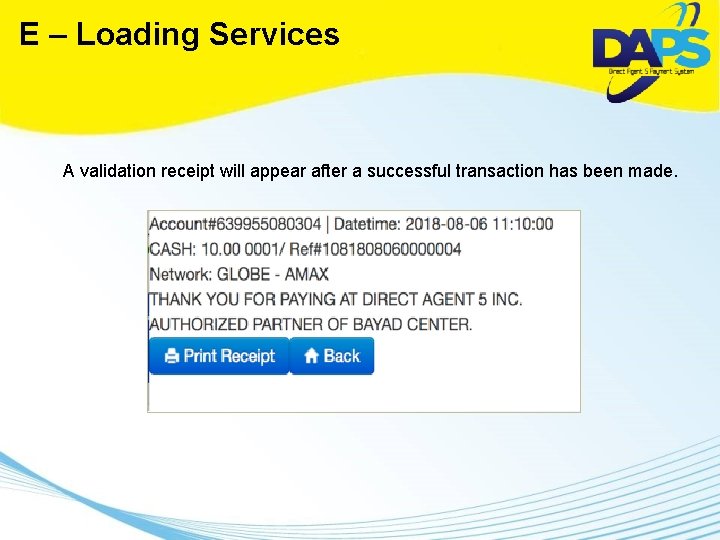
E – Loading Services A validation receipt will appear after a successful transaction has been made.

AUTOSWEEP RFID Auto. Sweep RFID is the cashless payment system that uses the DAPS Bills Payment System to reload your RFID wallet. You can now be a reloading station of RFID for the Prepaid Toll Pass of SLEX, SKYWAY, MCX & NLEX. TRANSACTION FLOW: DA 5 will automatically deduct the P 5. 00 commission with the principal amount from your account For example: You received P 510. 00 from your customer (P 500 RFID load + P 10 service fee). DA 5 will ONLY deduct P 505. 00 from your wallet. The P 5. 00 will be the cash commission of that specific transaction.
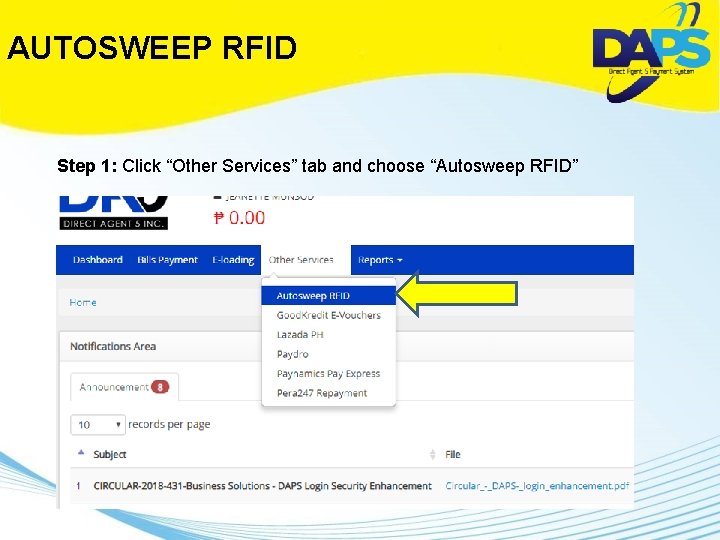
AUTOSWEEP RFID Step 1: Click “Other Services” tab and choose “Autosweep RFID”

AUTOSWEEP RFID Step 2: RFID Payment Form page will open. Input the following: A. Plate Number B. Amount of the load then click “Load RFID” button A B
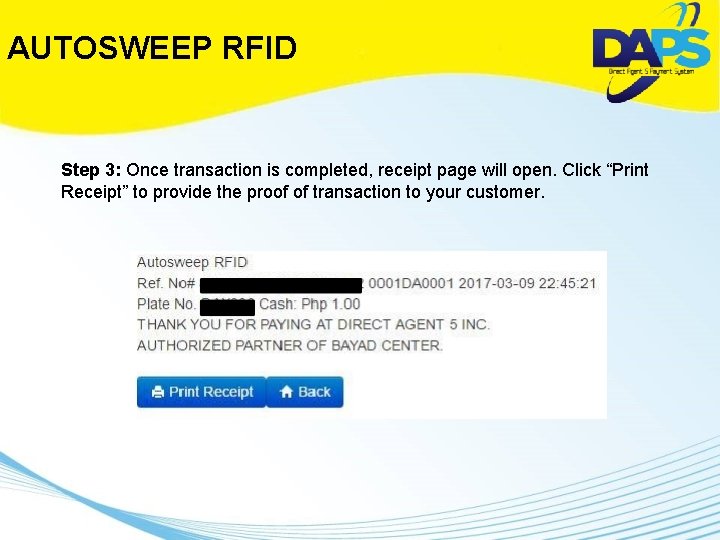
AUTOSWEEP RFID Step 3: Once transaction is completed, receipt page will open. Click “Print Receipt” to provide the proof of transaction to your customer.
GOODKREDIT Good. Kredit is an electronic gift certificate and electronic gift voucher program based on multiple repayment model. Each Good. Kredit transaction has a Php 15. 00 corresponding convenience fee where the Php 8. 00 goes to the Sub-agent as the commission fee per transaction
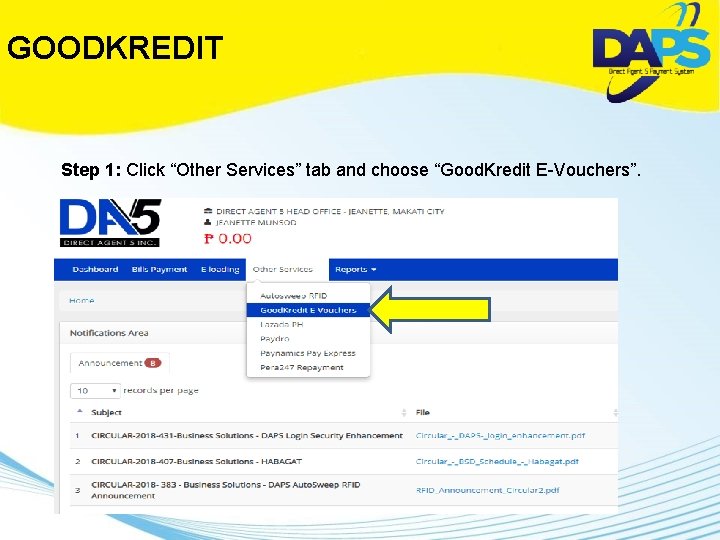
GOODKREDIT Step 1: Click “Other Services” tab and choose “Good. Kredit E-Vouchers”.
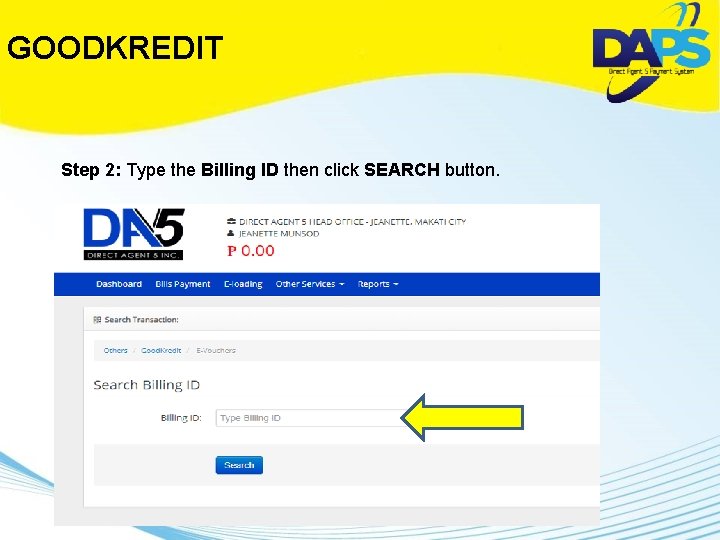
GOODKREDIT Step 2: Type the Billing ID then click SEARCH button.
PAYDRO Paydro is a live trivia game show app that can give you a chance to win REAL money by just simply answering multiple choice questions. There will be a live trivia game every Tuesday, Thursday and Saturday of every week. So please expect customers claiming their winnings in your location.
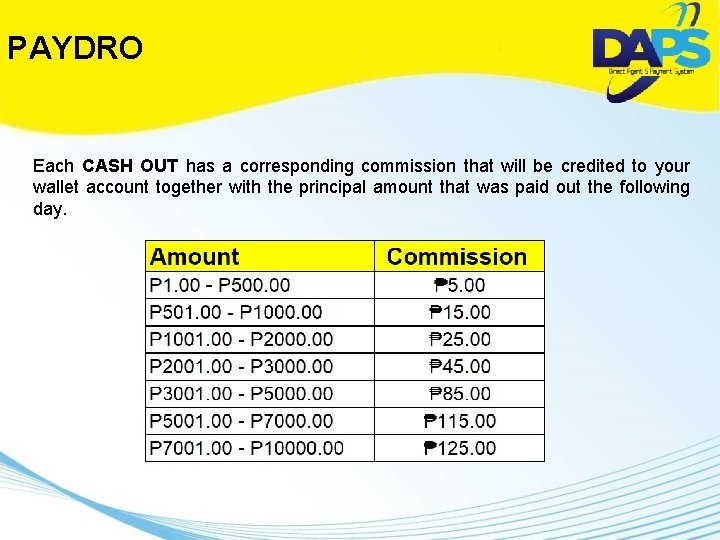
PAYDRO Each CASH OUT has a corresponding commission that will be credited to your wallet account together with the principal amount that was paid out the following day.
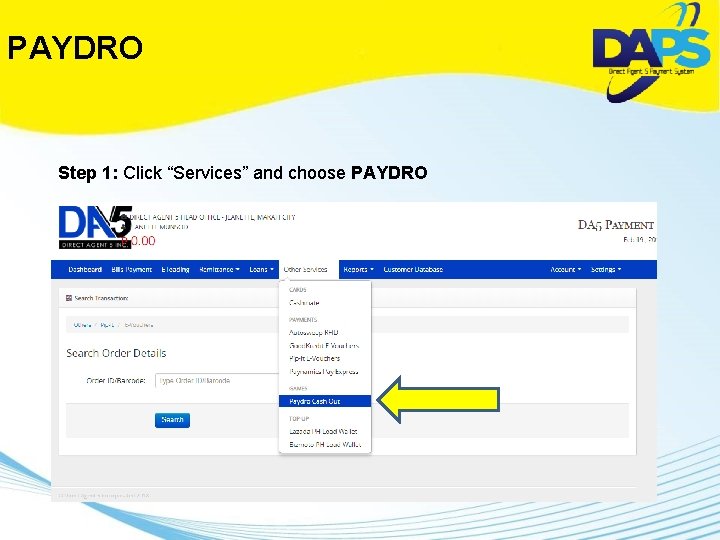
PAYDRO Step 1: Click “Services” and choose PAYDRO
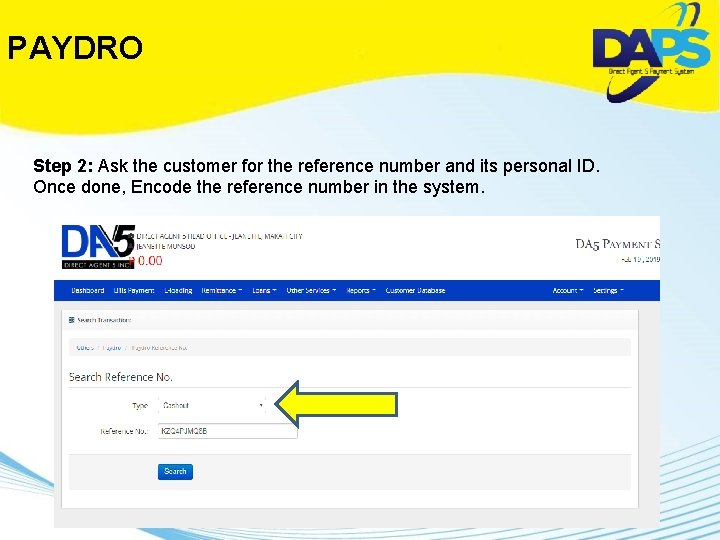
PAYDRO Step 2: Ask the customer for the reference number and its personal ID. Once done, Encode the reference number in the system.
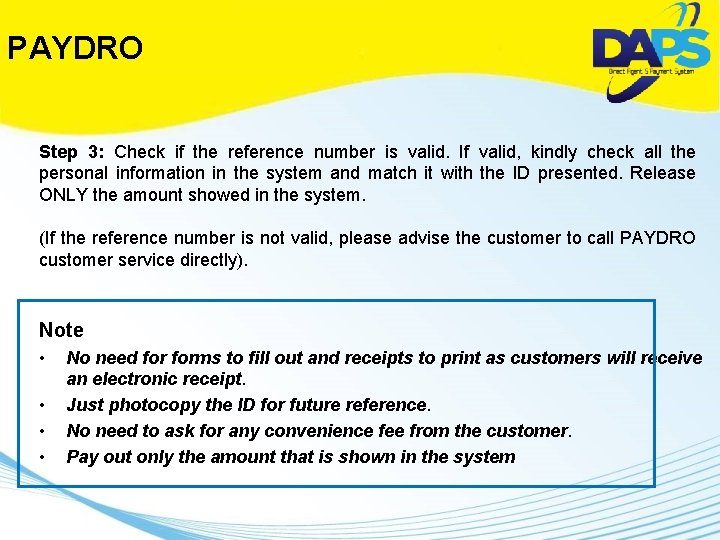
PAYDRO Step 3: Check if the reference number is valid. If valid, kindly check all the personal information in the system and match it with the ID presented. Release ONLY the amount showed in the system. (If the reference number is not valid, please advise the customer to call PAYDRO customer service directly). Note • • No need forms to fill out and receipts to print as customers will receive an electronic receipt. Just photocopy the ID for future reference. No need to ask for any convenience fee from the customer. Pay out only the amount that is shown in the system
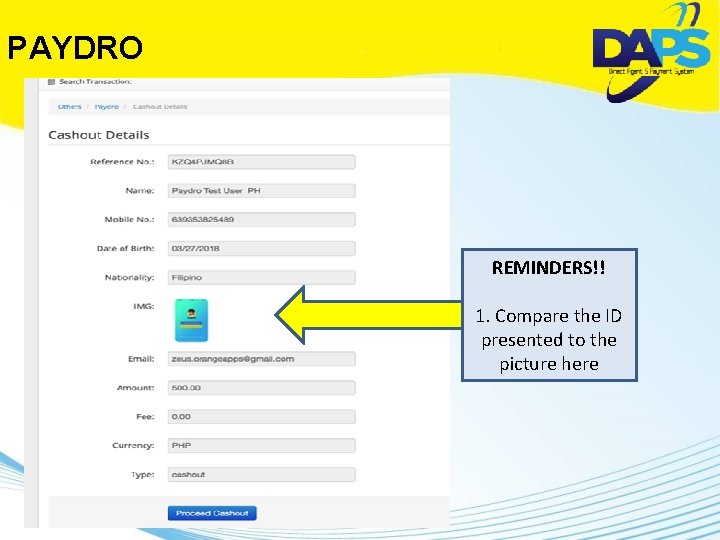
PAYDRO REMINDERS!! 1. Compare the ID presented to the picture here
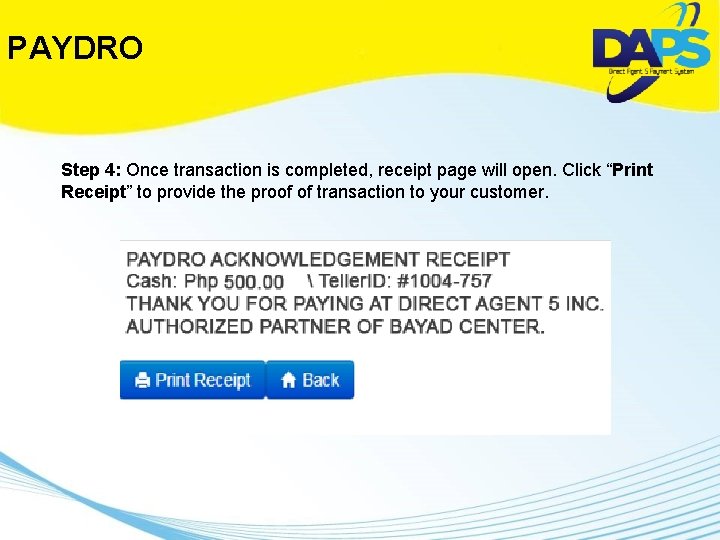
PAYDRO Step 4: Once transaction is completed, receipt page will open. Click “Print Receipt” to provide the proof of transaction to your customer.
PAYNAMICS PAY EXPRESS Pay. Express was designed for duly registered Micro, small, and medium enterprises (MSMEs) who are looking to accept payments from their customers securely and conveniently. We provide buyers a wide range of payment options such as creditcards and alternative forms of payment like Bancnet, Gcash, Cash payments via our
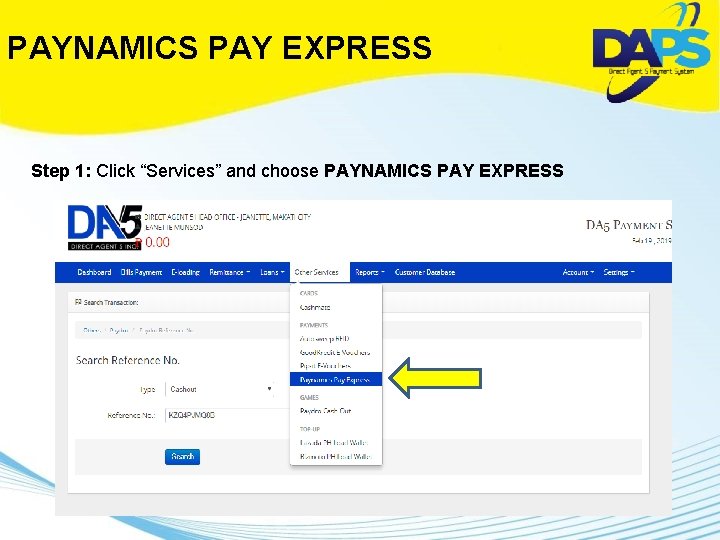
PAYNAMICS PAY EXPRESS Step 1: Click “Services” and choose PAYNAMICS PAY EXPRESS
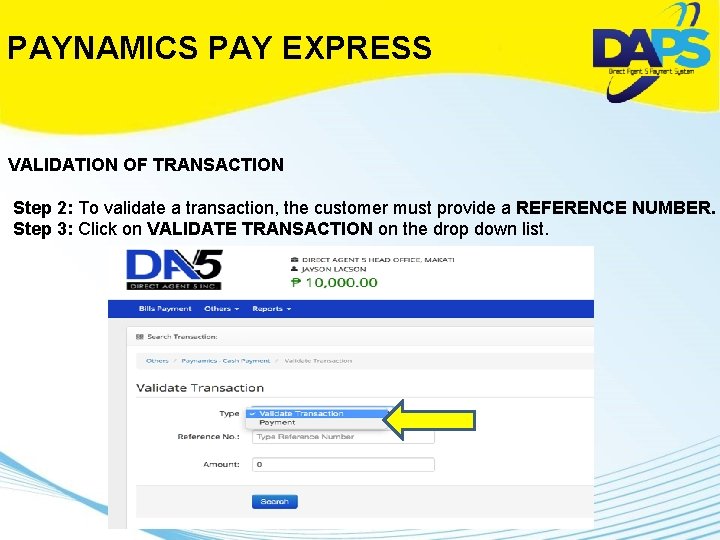
PAYNAMICS PAY EXPRESS VALIDATION OF TRANSACTION Step 2: To validate a transaction, the customer must provide a REFERENCE NUMBER. Step 3: Click on VALIDATE TRANSACTION on the drop down list.
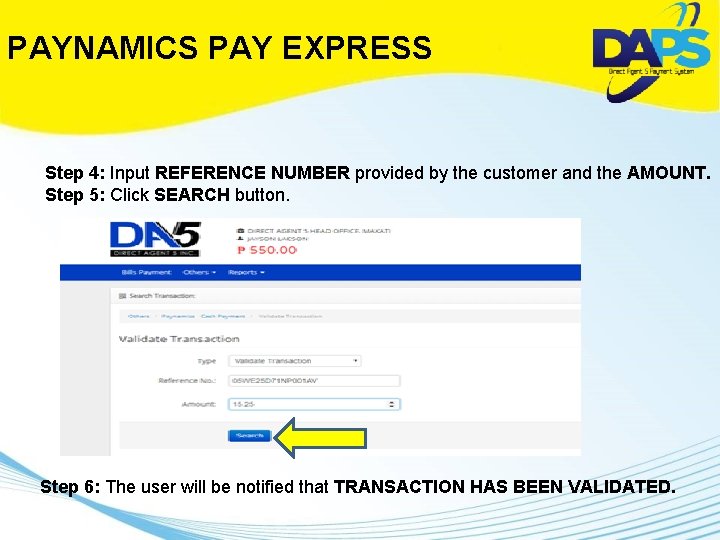
PAYNAMICS PAY EXPRESS Step 4: Input REFERENCE NUMBER provided by the customer and the AMOUNT. Step 5: Click SEARCH button. Step 6: The user will be notified that TRANSACTION HAS BEEN VALIDATED.
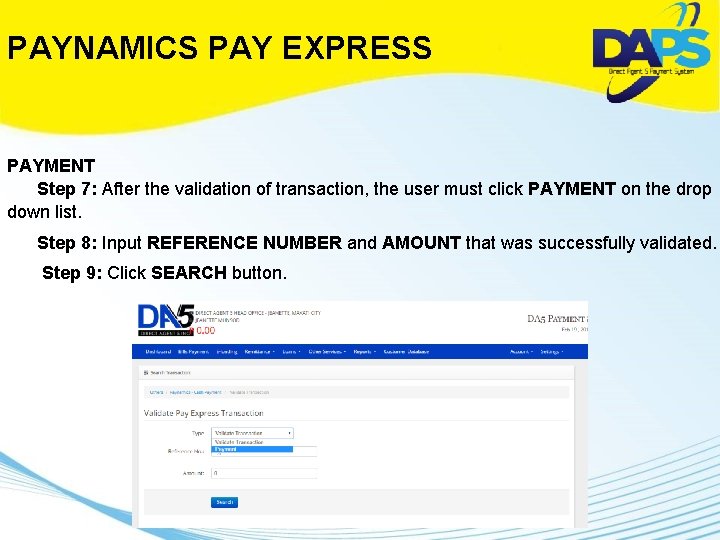
PAYNAMICS PAY EXPRESS PAYMENT Step 7: After the validation of transaction, the user must click PAYMENT on the drop down list. Step 8: Input REFERENCE NUMBER and AMOUNT that was successfully validated. Step 9: Click SEARCH button.
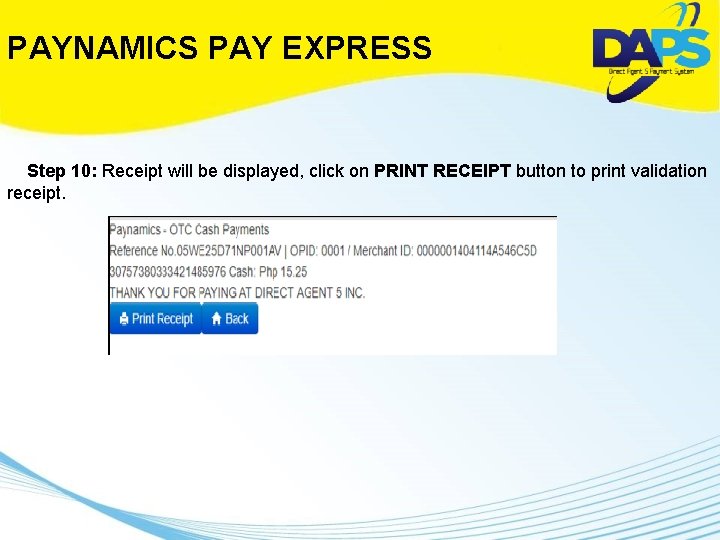
PAYNAMICS PAY EXPRESS Step 10: Receipt will be displayed, click on PRINT RECEIPT button to print validation receipt.
LAZADA PH Lazada is the number one online shopping and selling destination in Southeast Asia – present in Indonesia, Malaysia, the Philippines, Singapore, Thailand Vietnam. Lazada helps more than 100, 000 local and international sellers as well as 2, 500 brands serve the 560 million consumers in the region through its marketplace platform, supported by a wide range of tailored marketing, data, and service solutions. Lazada offers an excellent customer experience through a wide network of logistics partners and its own first- and last-mile. .
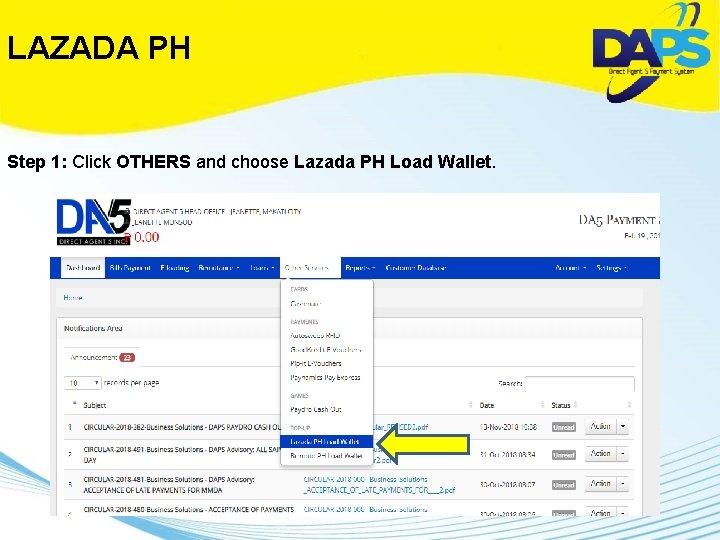
LAZADA PH Step 1: Click OTHERS and choose Lazada PH Load Wallet.
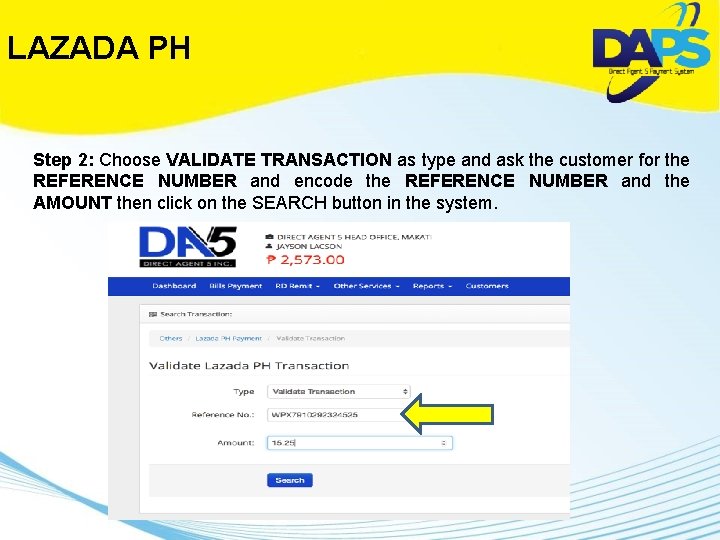
LAZADA PH Step 2: Choose VALIDATE TRANSACTION as type and ask the customer for the REFERENCE NUMBER and encode the REFERENCE NUMBER and the AMOUNT then click on the SEARCH button in the system.
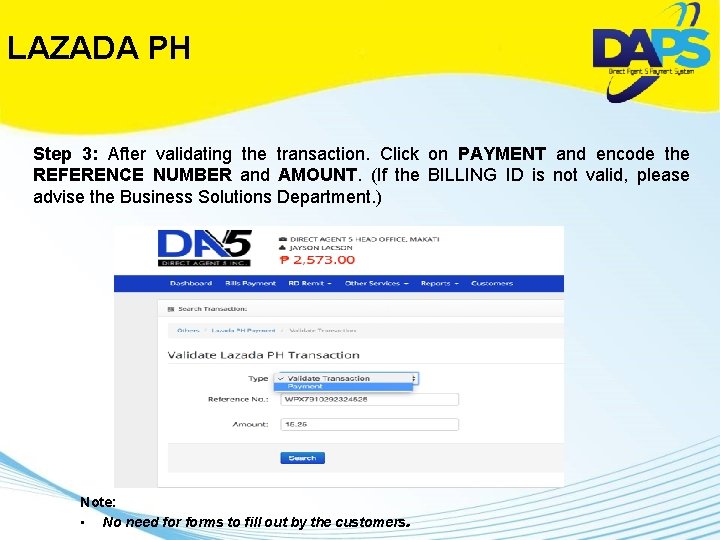
LAZADA PH Step 3: After validating the transaction. Click on PAYMENT and encode the REFERENCE NUMBER and AMOUNT. (If the BILLING ID is not valid, please advise the Business Solutions Department. ) Note: • No need forms to fill out by the customers.
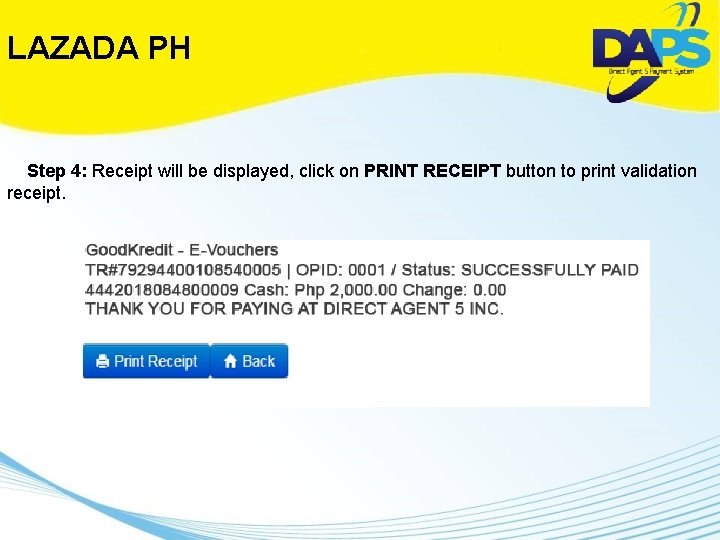
LAZADA PH Step 4: Receipt will be displayed, click on PRINT RECEIPT button to print validation receipt.
PERA 247 is a short-term digital lender in the Philippines powered by Asia. Kredit, an international tech-based financial services firm that provides fast and convenient credit solutions to millions of customers in Southeast Asia. Each PERA 247 transaction has a Php 5. 00 corresponding commission per transaction.
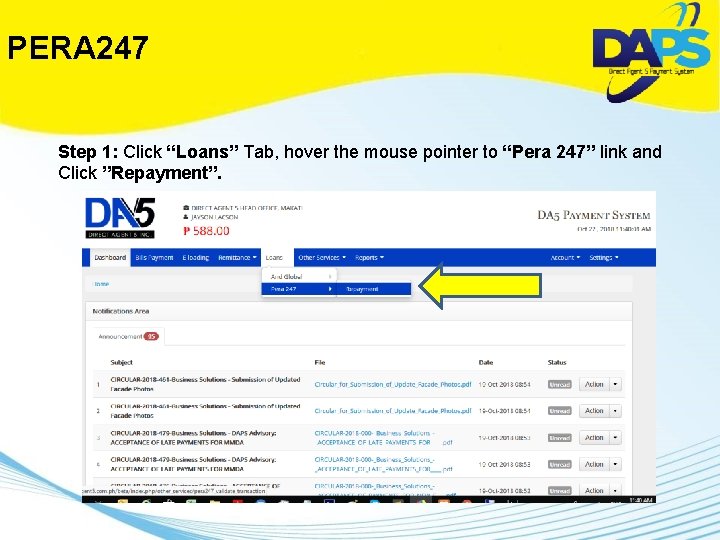
PERA 247 Step 1: Click “Loans” Tab, hover the mouse pointer to “Pera 247” link and Click ”Repayment”.
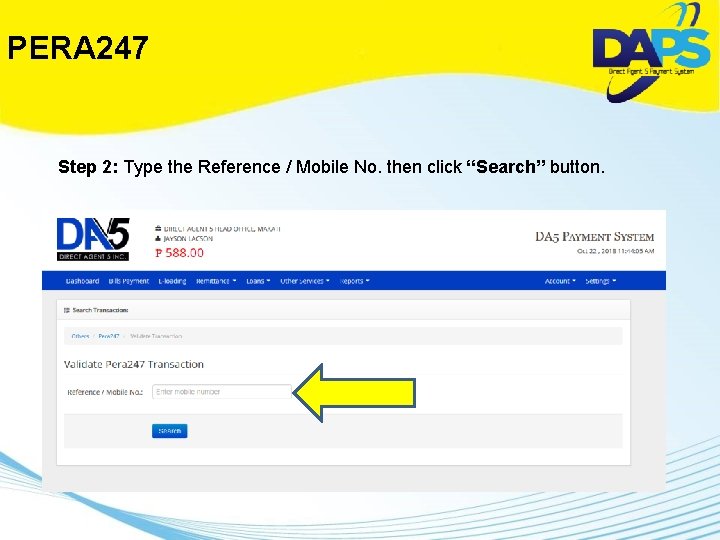
PERA 247 Step 2: Type the Reference / Mobile No. then click “Search” button.
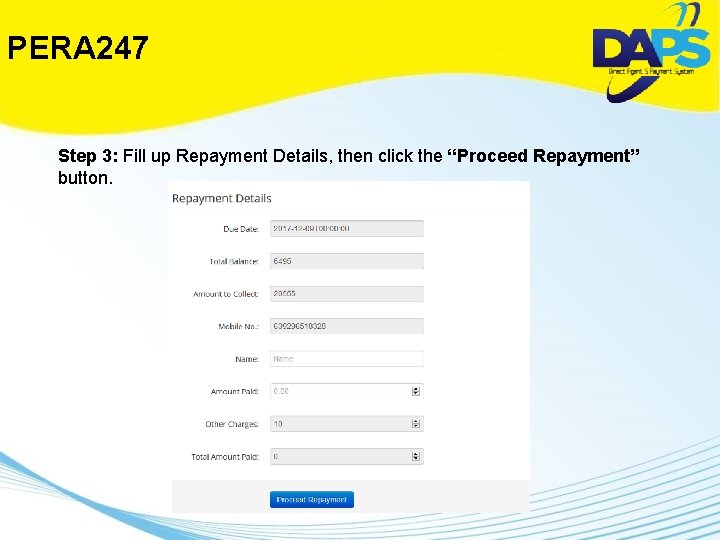
PERA 247 Step 3: Fill up Repayment Details, then click the “Proceed Repayment” button.
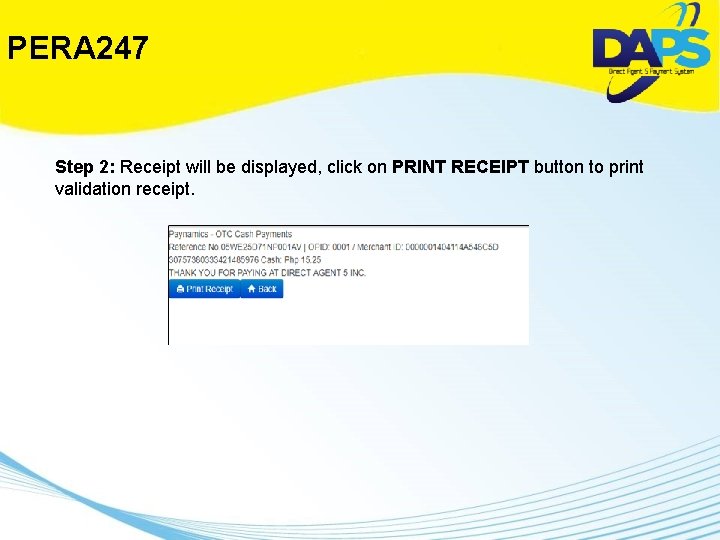
PERA 247 Step 2: Receipt will be displayed, click on PRINT RECEIPT button to print validation receipt.
Pip-It B 2 B platform powers international CASH payments so that our partners and their customers can accept cash cross-border bill payment, load cash to ewallets, accept cash for ecommerce orders, lodge cash to bank accounts across borders.
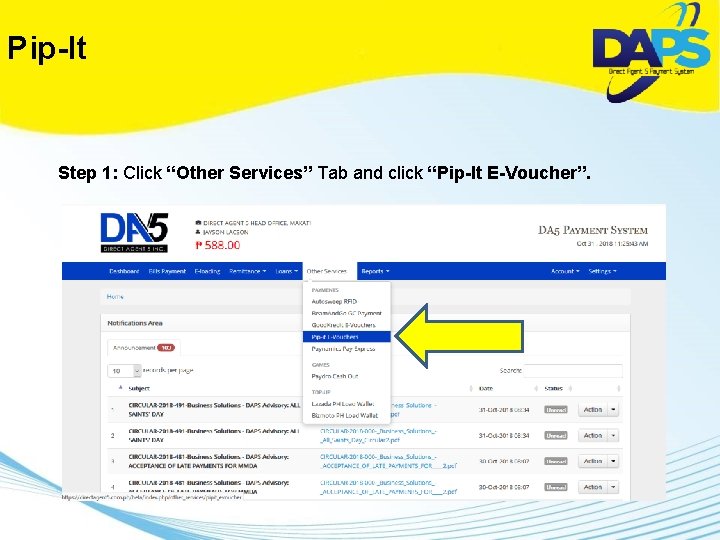
Pip-It Step 1: Click “Other Services” Tab and click “Pip-It E-Voucher”.
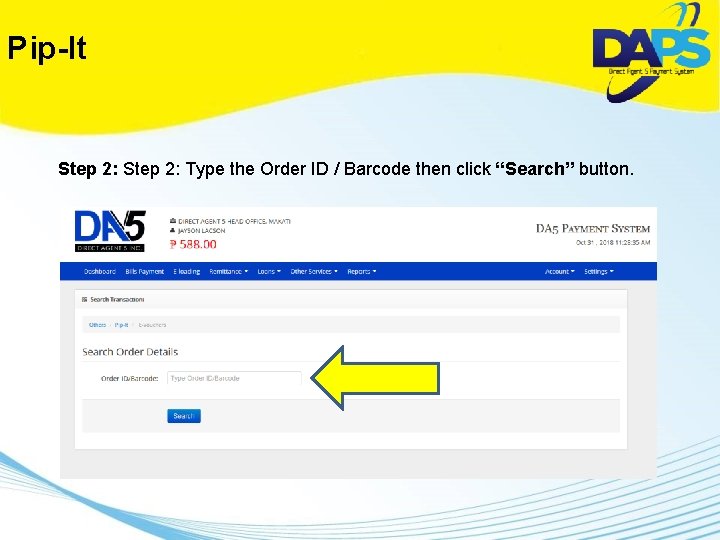
Pip-It Step 2: Type the Order ID / Barcode then click “Search” button.
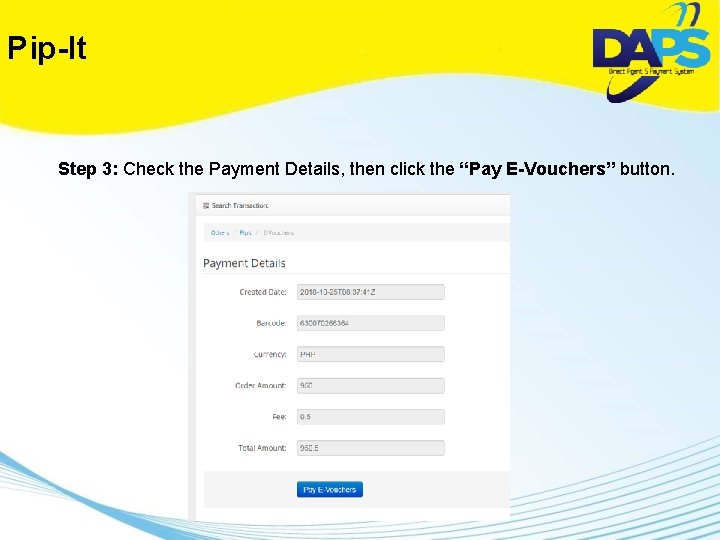
Pip-It Step 3: Check the Payment Details, then click the “Pay E-Vouchers” button.
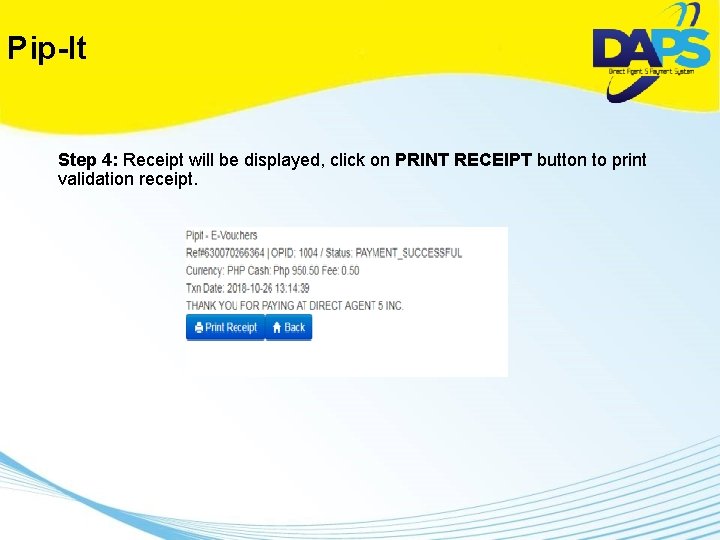
Pip-It Step 4: Receipt will be displayed, click on PRINT RECEIPT button to print validation receipt.
Beam. And. Go A remittance service that allows overseas Filipino workers to directly purchase goods and services in the form of e-voucher or gift certificates for their families back home. Each Beam. And. Go transaction has a Php 8. 00 corresponding commission per transaction.
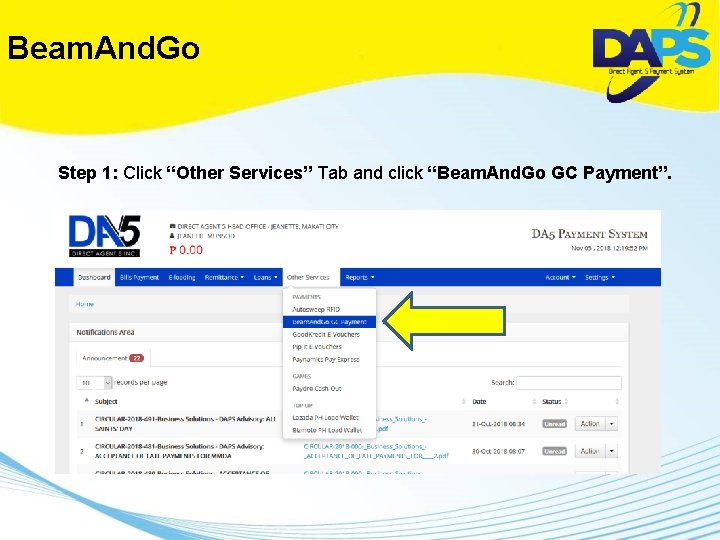
Beam. And. Go Step 1: Click “Other Services” Tab and click “Beam. And. Go GC Payment”.
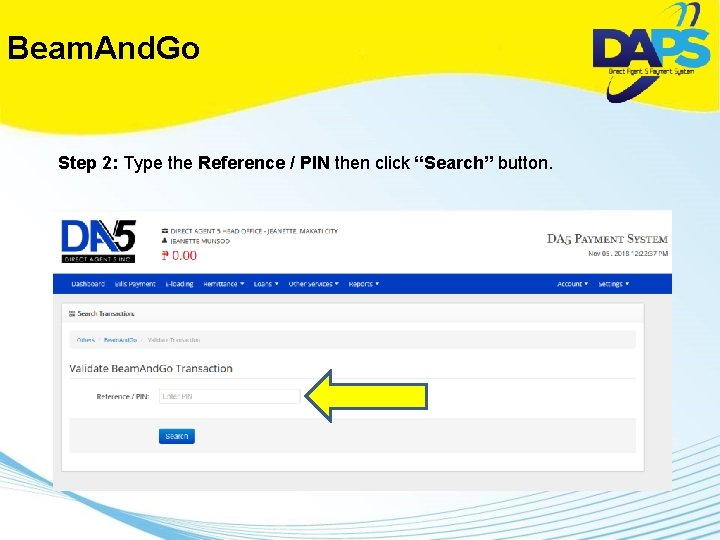
Beam. And. Go Step 2: Type the Reference / PIN then click “Search” button.
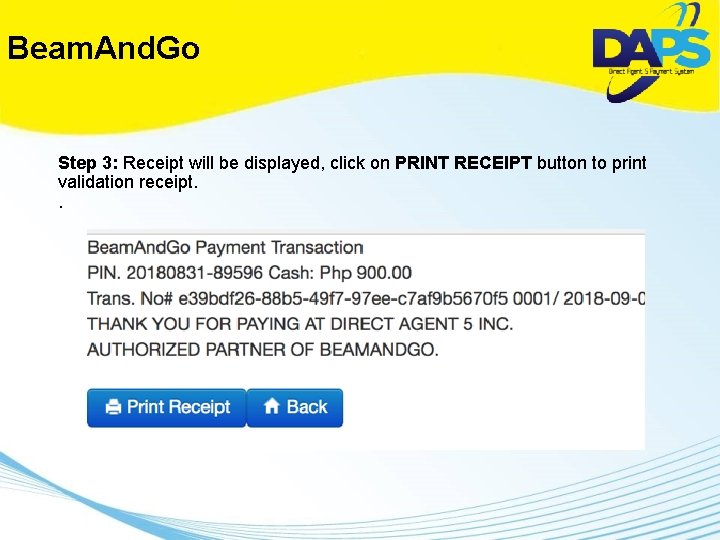
Beam. And. Go Step 3: Receipt will be displayed, click on PRINT RECEIPT button to print validation receipt. .
Lulu. Pay Lu. Lu International Exchange is a non-banking financial organization and is a leading name in financial service sector, primarily dealing in foreign exchange, global money transfer and salary and wage administration.
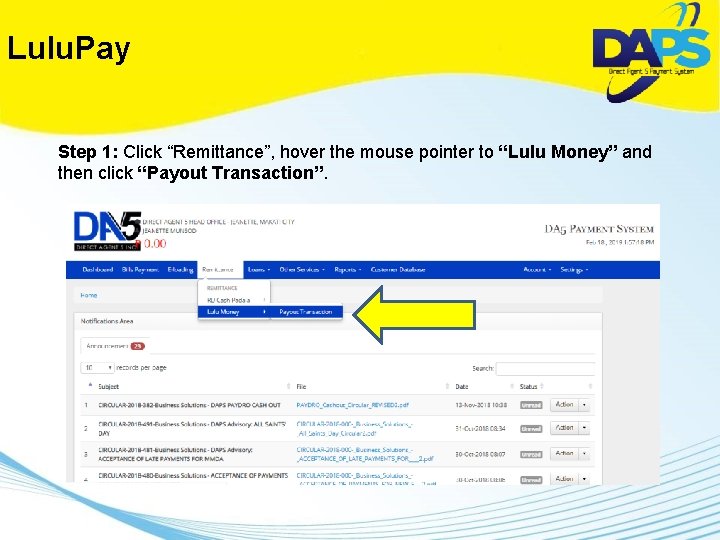
Lulu. Pay Step 1: Click “Remittance”, hover the mouse pointer to “Lulu Money” and then click “Payout Transaction”.
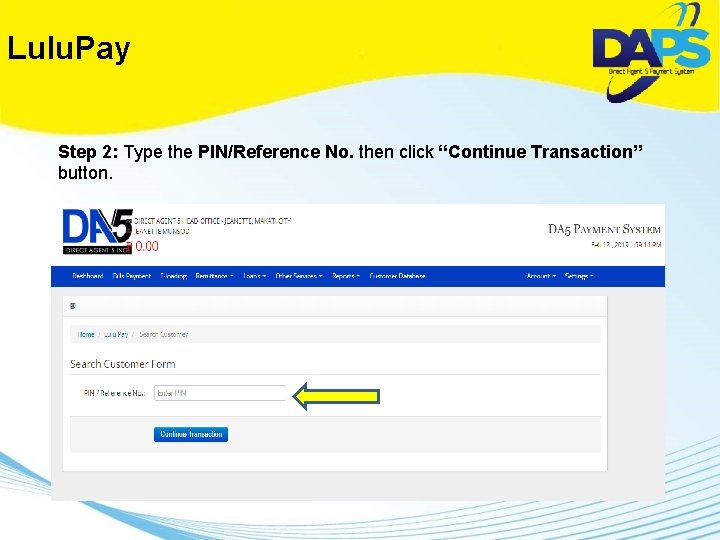
Lulu. Pay Step 2: Type the PIN/Reference No. then click “Continue Transaction” button.
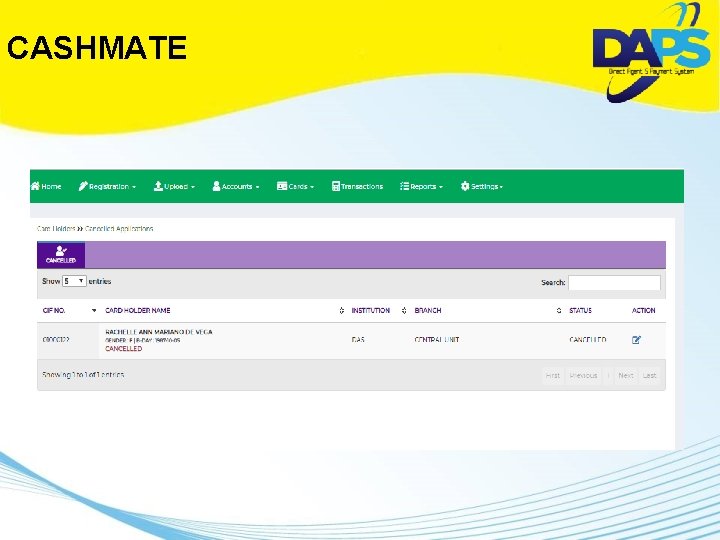
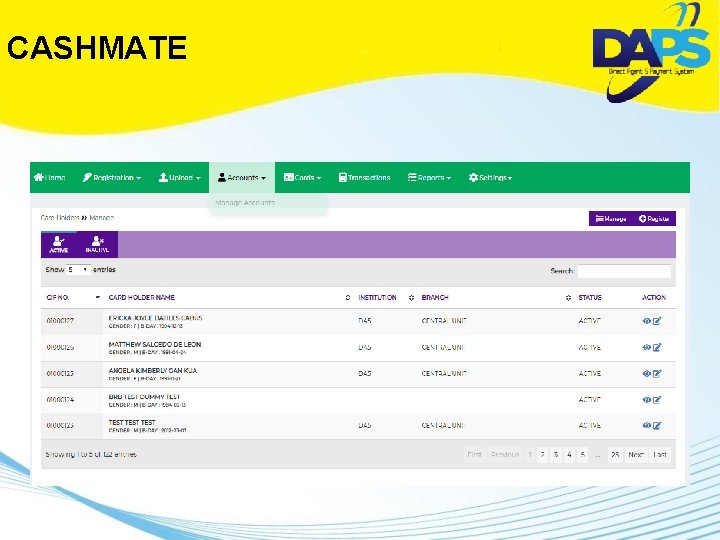
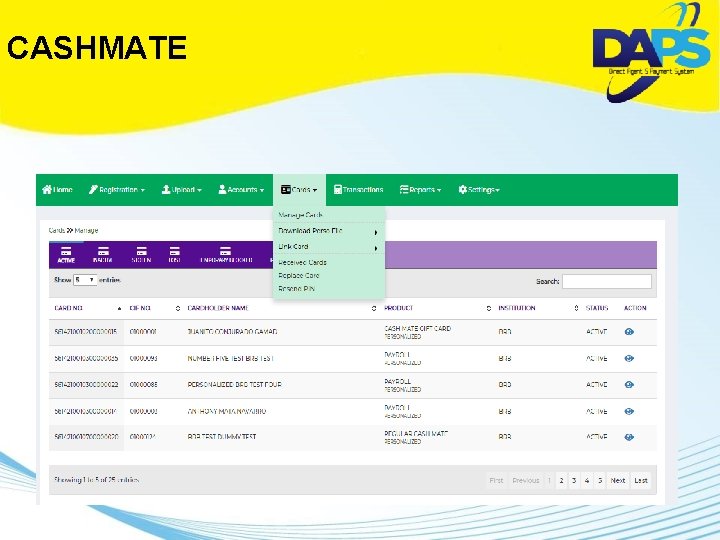
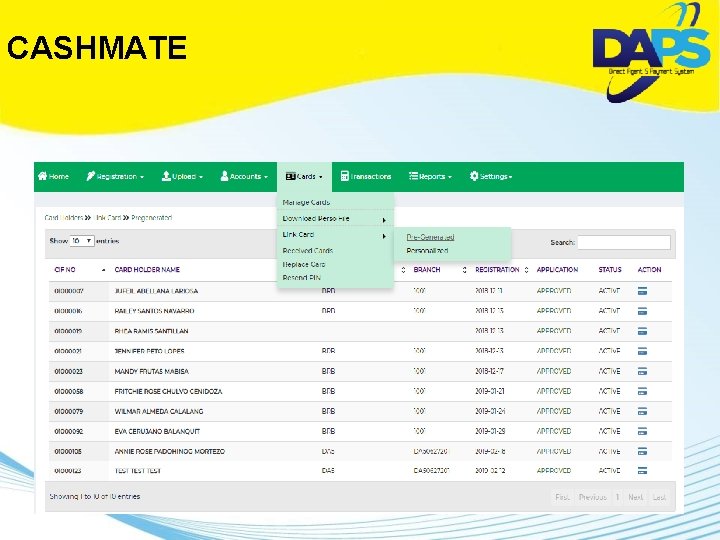
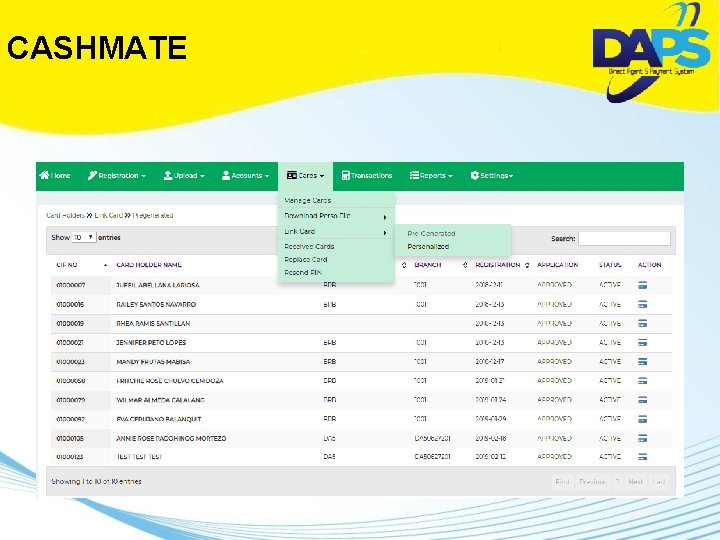
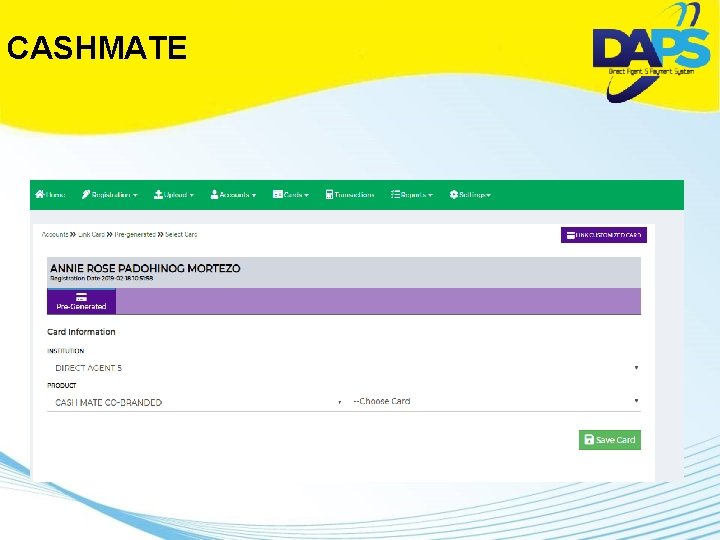
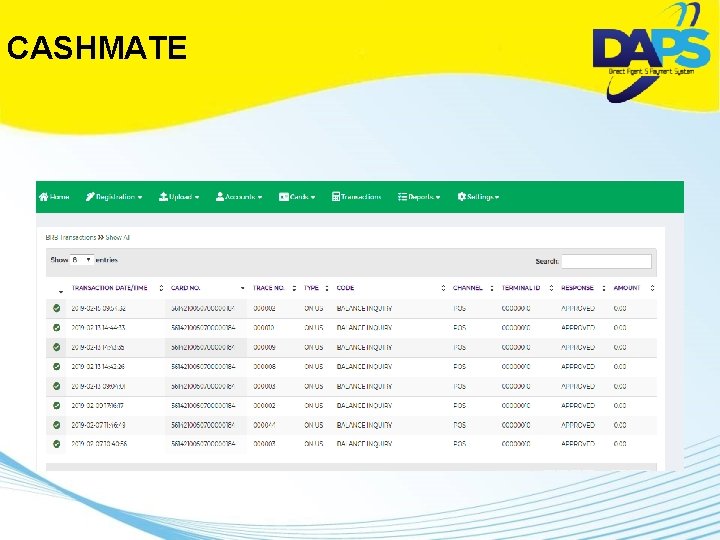
CASHMATE Cash Mate Financial can provide you the safe, quick and short-term loan you need.
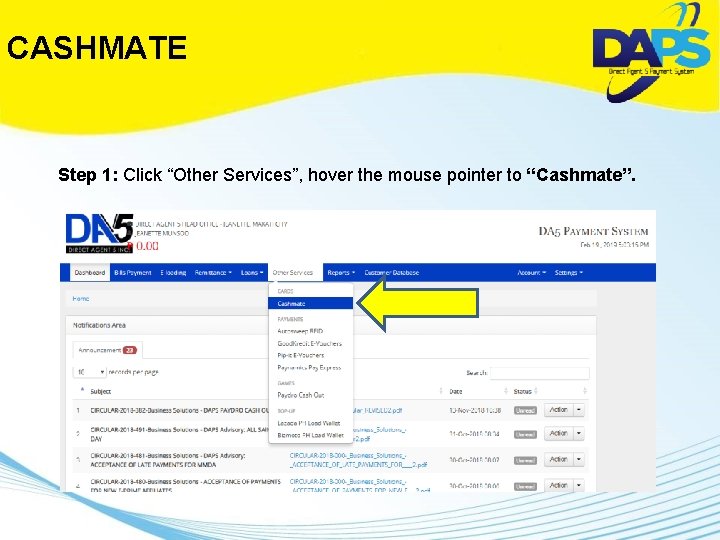
CASHMATE Step 1: Click “Other Services”, hover the mouse pointer to “Cashmate”.
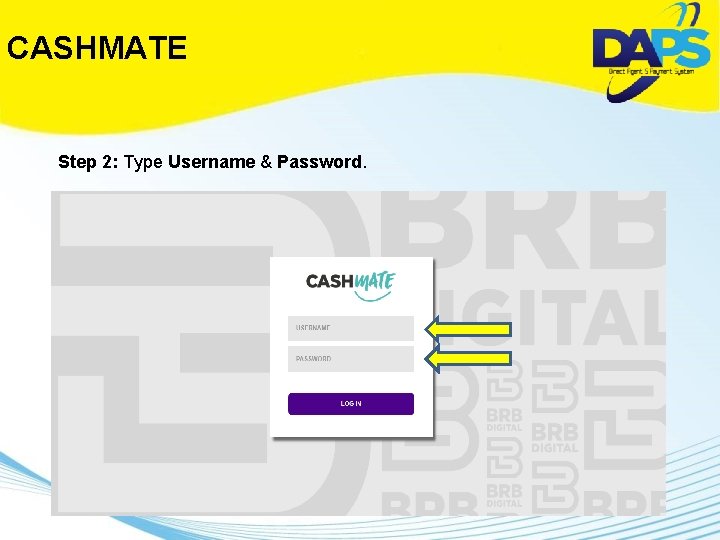
CASHMATE Step 2: Type Username & Password.
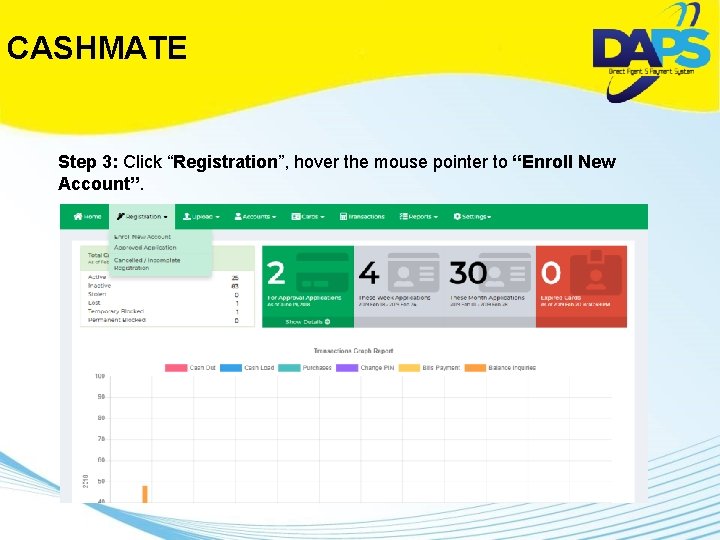
CASHMATE Step 3: Click “Registration”, hover the mouse pointer to “Enroll New Account”.
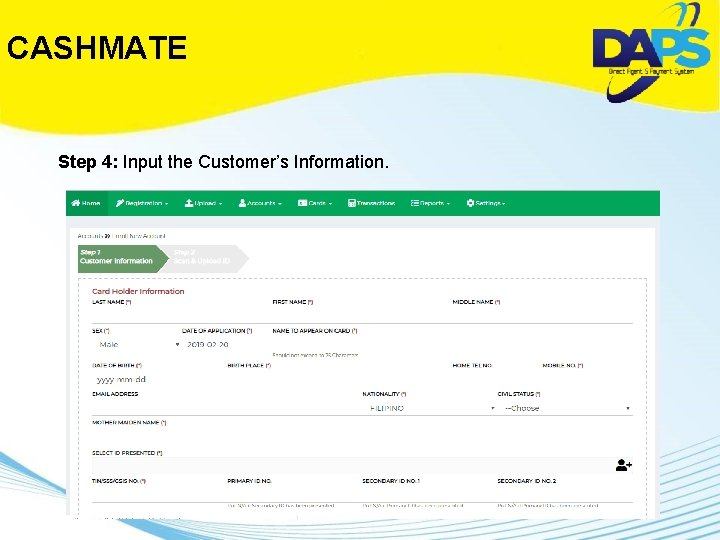
CASHMATE Step 4: Input the Customer’s Information.
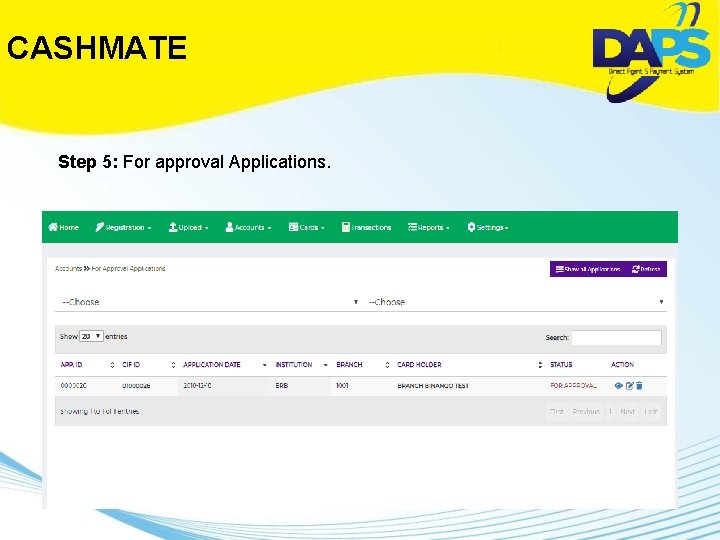
CASHMATE Step 5: For approval Applications.
CASHMATE
CASHMATE
CASHMATE
CASHMATE
CASHMATE
CASHMATE
CASHMATE
And FC-Lend Pinoy With its signature product Lend. MN, a mobile app based financial service is the most convenient way to get a personal loan, requiring no paperwork or collateral. Loan fees are lower than traditional banks and borrowers apply using their smartphones.
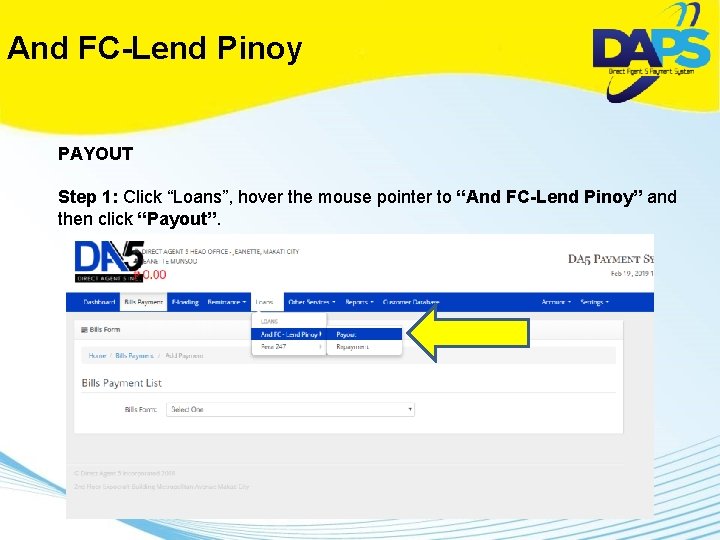
And FC-Lend Pinoy PAYOUT Step 1: Click “Loans”, hover the mouse pointer to “And FC-Lend Pinoy” and then click “Payout”.
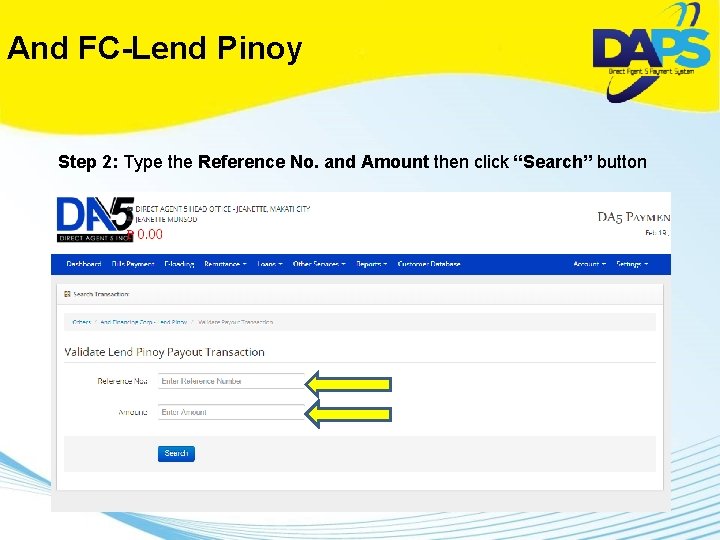
And FC-Lend Pinoy Step 2: Type the Reference No. and Amount then click “Search” button
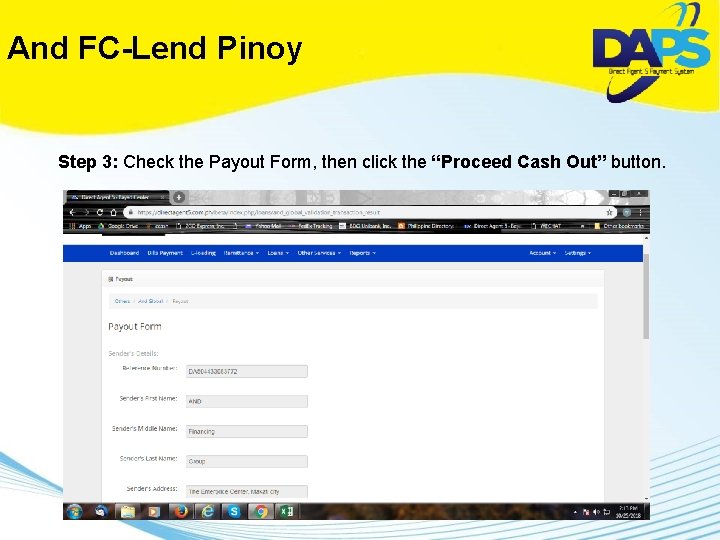
And FC-Lend Pinoy Step 3: Check the Payout Form, then click the “Proceed Cash Out” button.
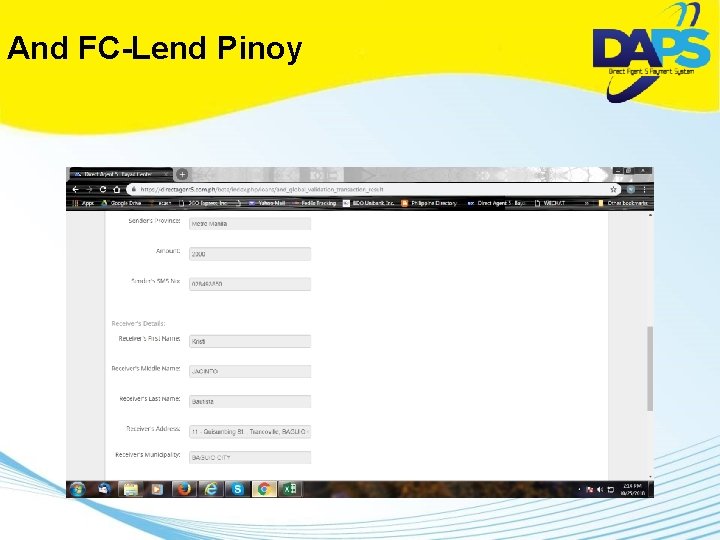
And FC-Lend Pinoy
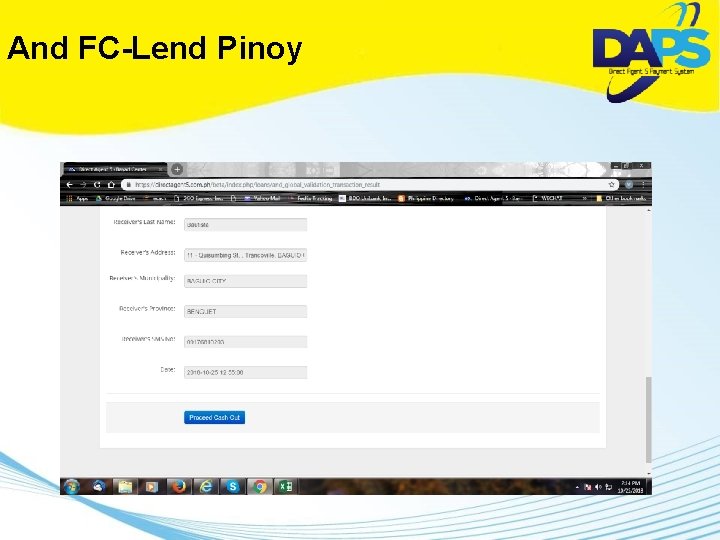
And FC-Lend Pinoy
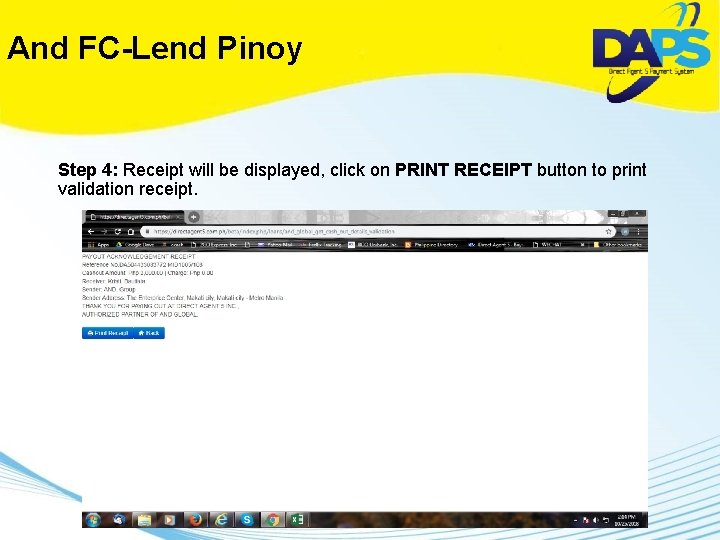
And FC-Lend Pinoy Step 4: Receipt will be displayed, click on PRINT RECEIPT button to print validation receipt.
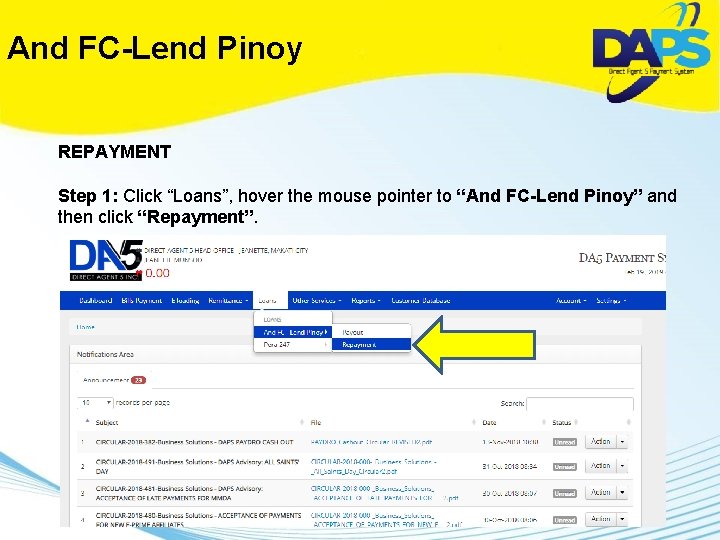
And FC-Lend Pinoy REPAYMENT Step 1: Click “Loans”, hover the mouse pointer to “And FC-Lend Pinoy” and then click “Repayment”.
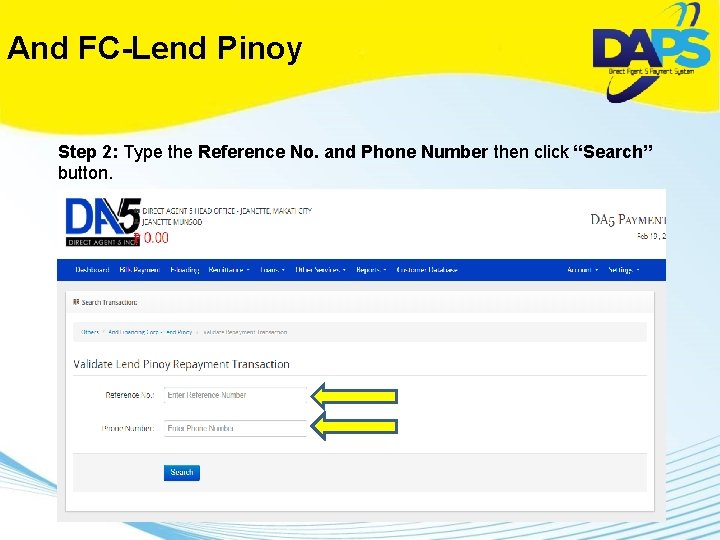
And FC-Lend Pinoy Step 2: Type the Reference No. and Phone Number then click “Search” button.
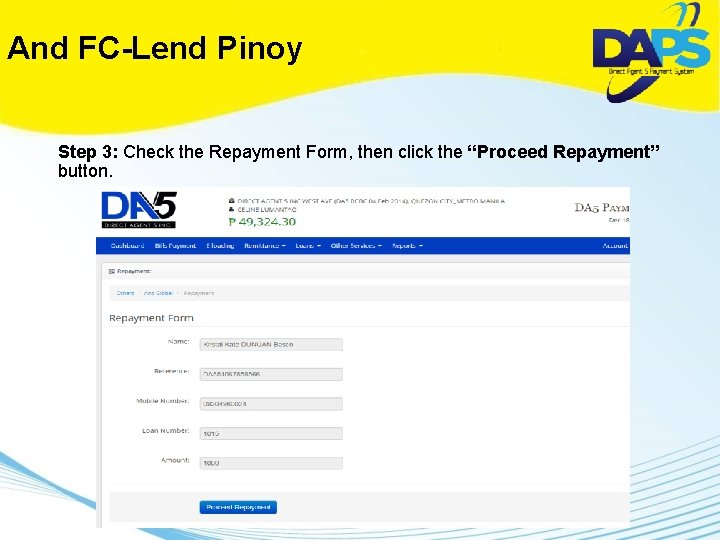
And FC-Lend Pinoy Step 3: Check the Repayment Form, then click the “Proceed Repayment” button.
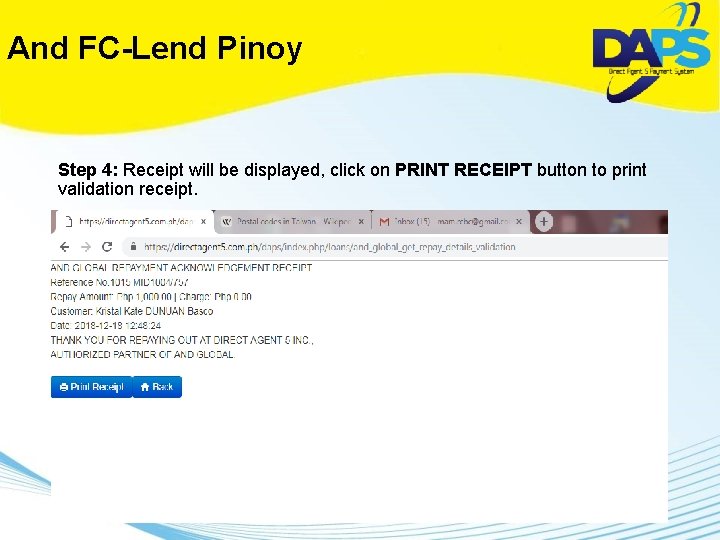
And FC-Lend Pinoy Step 4: Receipt will be displayed, click on PRINT RECEIPT button to print validation receipt.
bizmoto PH With its signature product bizmoto PH, It provides microbusiness opportunity to duly accredited Bizmoto agent to have his very own micro business providing customer bill payment, top up (Eload), and other services.
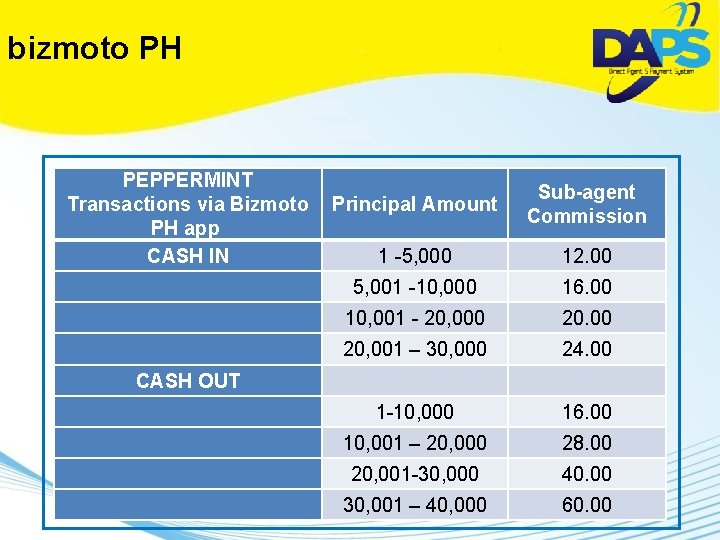
bizmoto PH PEPPERMINT Transactions via Bizmoto Principal Amount PH app CASH IN 1 -5, 000 Sub-agent Commission 12. 00 5, 001 -10, 000 16. 00 10, 001 - 20, 000 20, 001 – 30, 000 24. 00 CASH OUT 1 -10, 000 16. 00 10, 001 – 20, 000 28. 00 20, 001 -30, 000 40. 00 30, 001 – 40, 000 60. 00
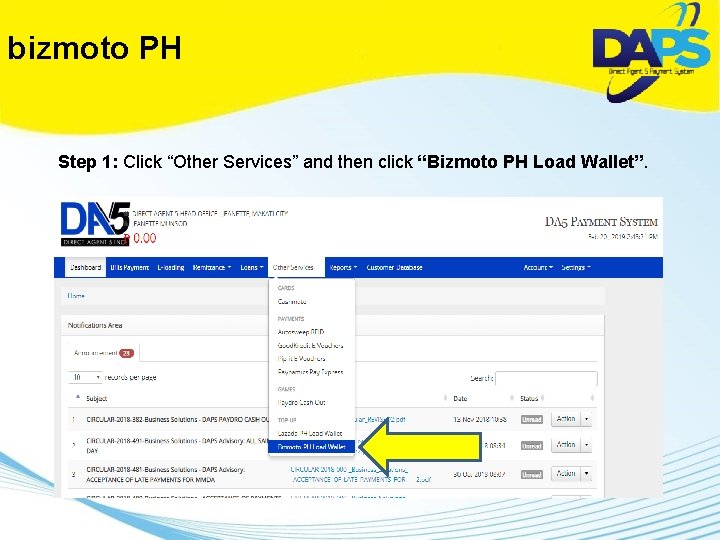
bizmoto PH Step 1: Click “Other Services” and then click “Bizmoto PH Load Wallet”.
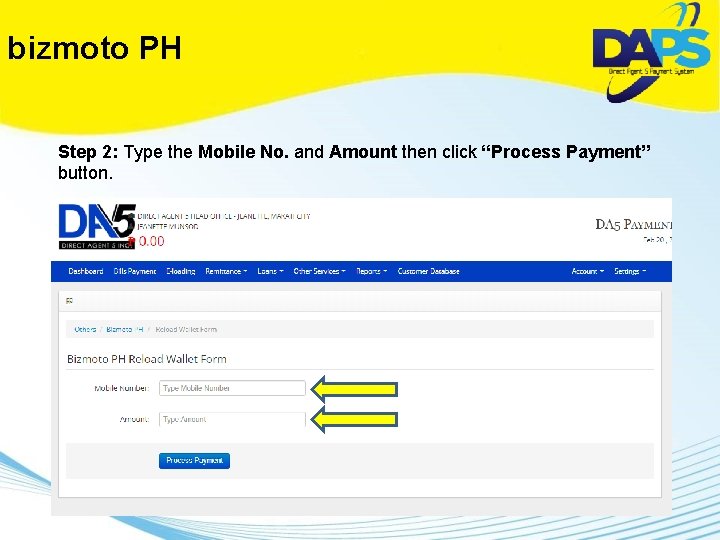
bizmoto PH Step 2: Type the Mobile No. and Amount then click “Process Payment” button.
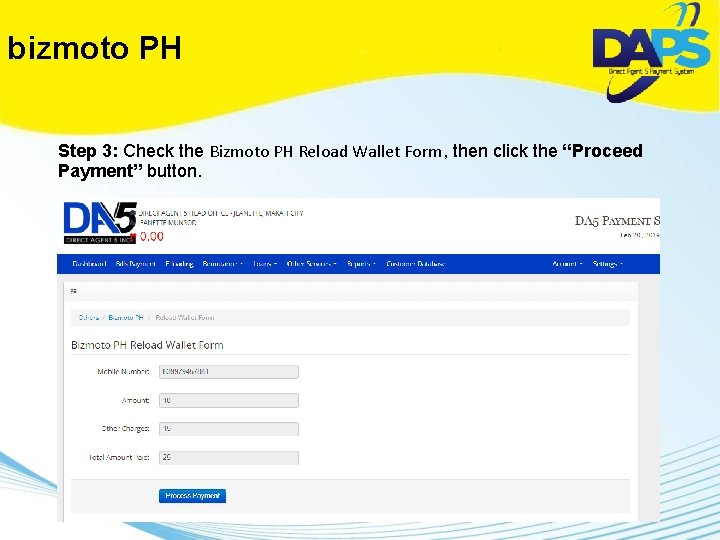
bizmoto PH Step 3: Check the Bizmoto PH Reload Wallet Form, then click the “Proceed Payment” button.
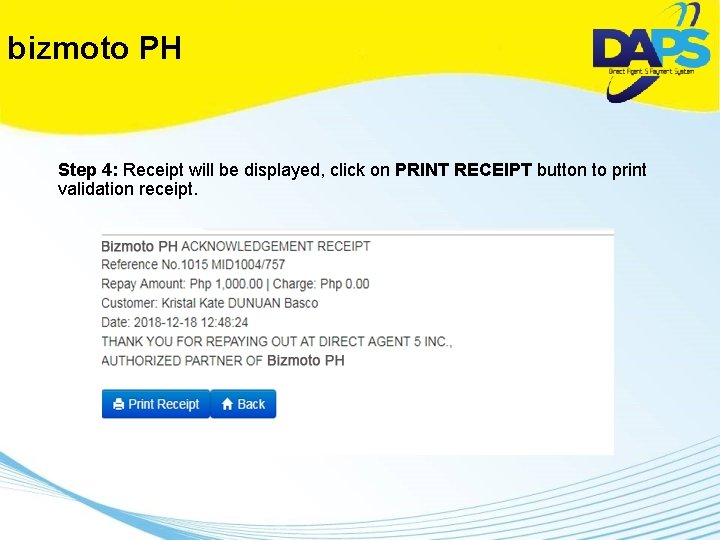
bizmoto PH Step 4: Receipt will be displayed, click on PRINT RECEIPT button to print validation receipt.
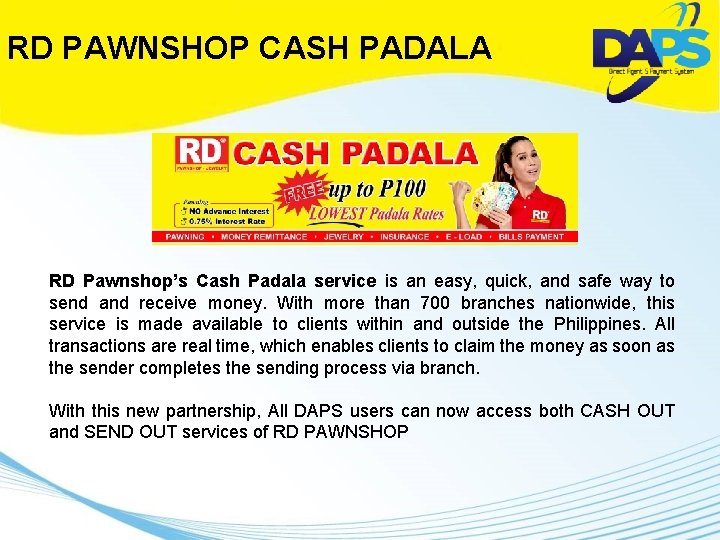
RD PAWNSHOP CASH PADALA RD Pawnshop’s Cash Padala service is an easy, quick, and safe way to send and receive money. With more than 700 branches nationwide, this service is made available to clients within and outside the Philippines. All transactions are real time, which enables clients to claim the money as soon as the sender completes the sending process via branch. With this new partnership, All DAPS users can now access both CASH OUT and SEND OUT services of RD PAWNSHOP
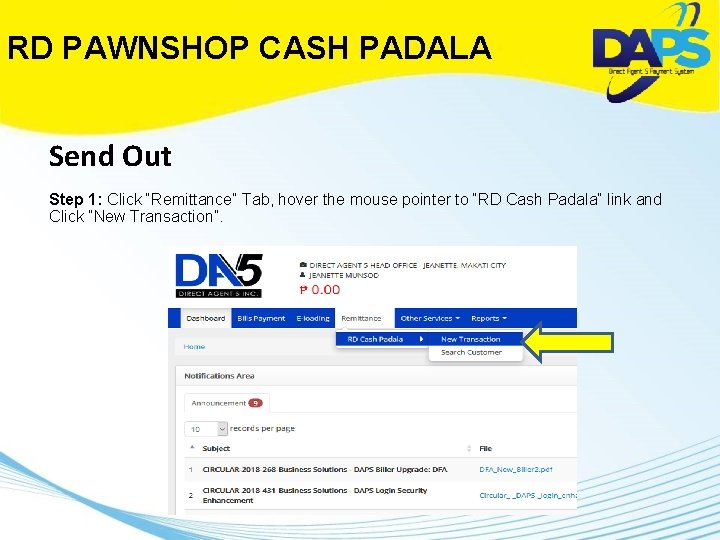
RD PAWNSHOP CASH PADALA Send Out Step 1: Click “Remittance” Tab, hover the mouse pointer to “RD Cash Padala” link and Click ”New Transaction”.
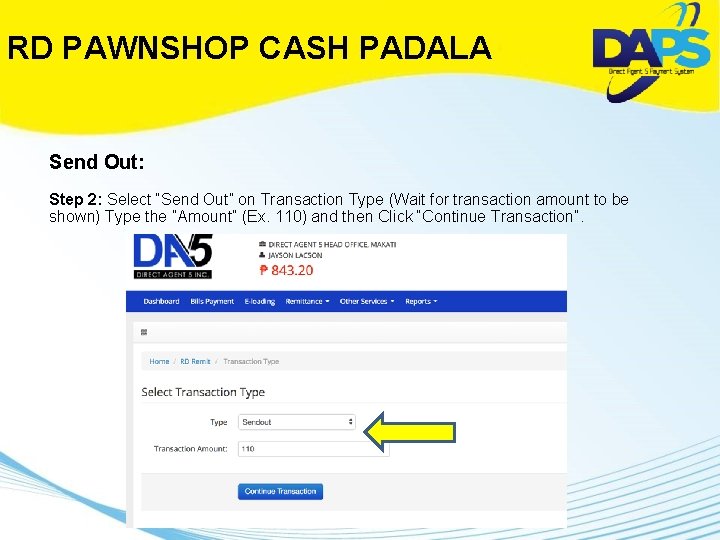
RD PAWNSHOP CASH PADALA Send Out: Step 2: Select “Send Out” on Transaction Type (Wait for transaction amount to be shown) Type the ”Amount” (Ex. 110) and then Click “Continue Transaction”.
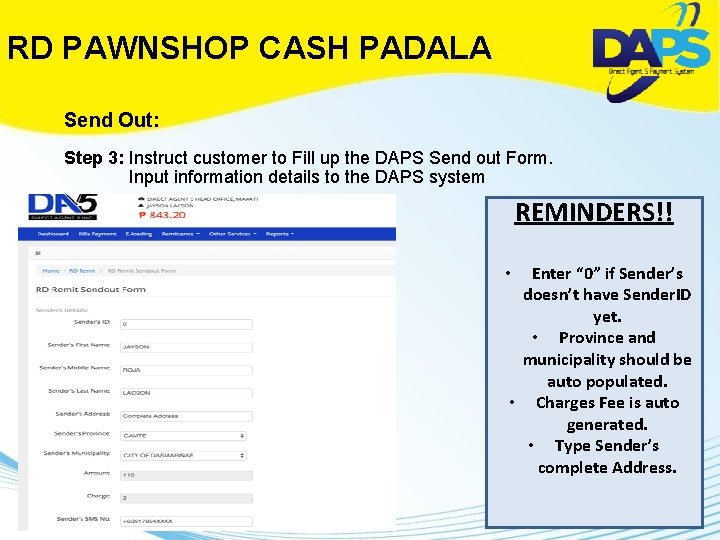
RD PAWNSHOP CASH PADALA Send Out: Step 3: Instruct customer to Fill up the DAPS Send out Form. Input information details to the DAPS system REMINDERS!! Enter “ 0” if Sender’s doesn’t have Sender. ID yet. • Province and municipality should be auto populated. • Charges Fee is auto generated. • Type Sender’s complete Address. •
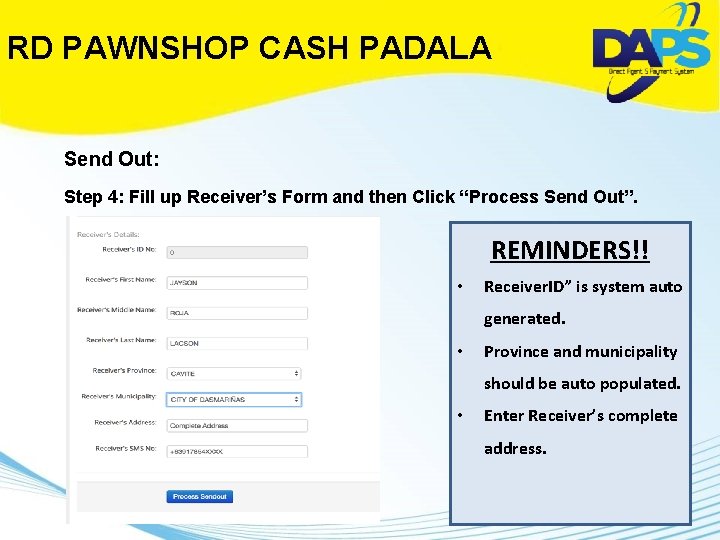
RD PAWNSHOP CASH PADALA Send Out: Step 4: Fill up Receiver’s Form and then Click “Process Send Out”. REMINDERS!! • Receiver. ID” is system auto generated. • Province and municipality should be auto populated. • Enter Receiver’s complete address.
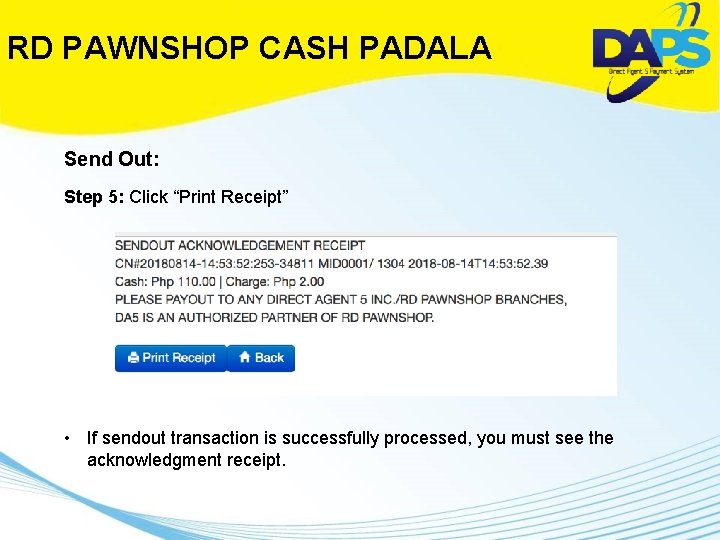
RD PAWNSHOP CASH PADALA Send Out: Step 5: Click “Print Receipt” • If sendout transaction is successfully processed, you must see the acknowledgment receipt.
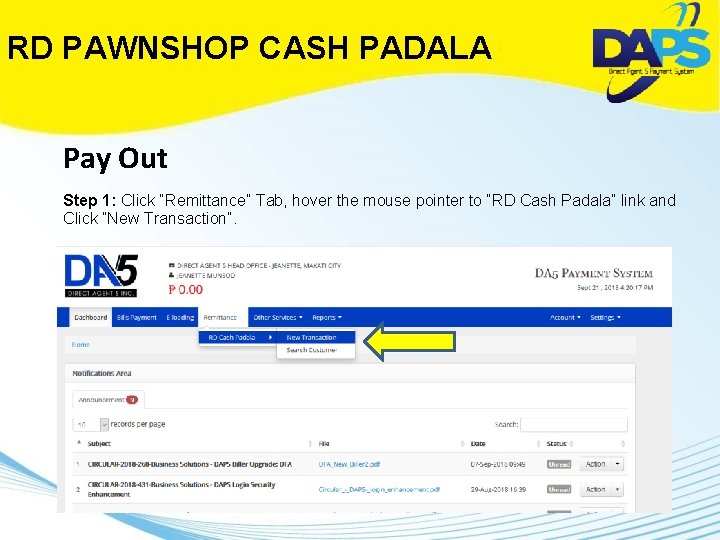
RD PAWNSHOP CASH PADALA Pay Out Step 1: Click “Remittance” Tab, hover the mouse pointer to “RD Cash Padala” link and Click ”New Transaction”.
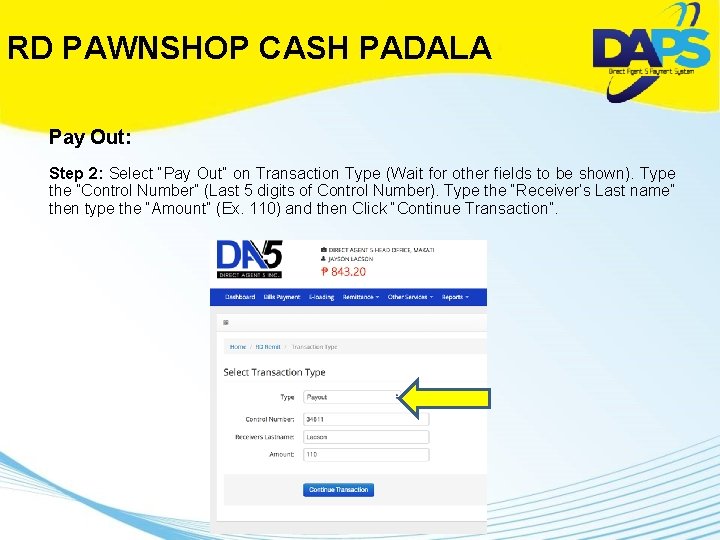
RD PAWNSHOP CASH PADALA Pay Out: Step 2: Select “Pay Out” on Transaction Type (Wait for other fields to be shown). Type the ”Control Number” (Last 5 digits of Control Number). Type the “Receiver’s Last name” then type the “Amount” (Ex. 110) and then Click “Continue Transaction”.
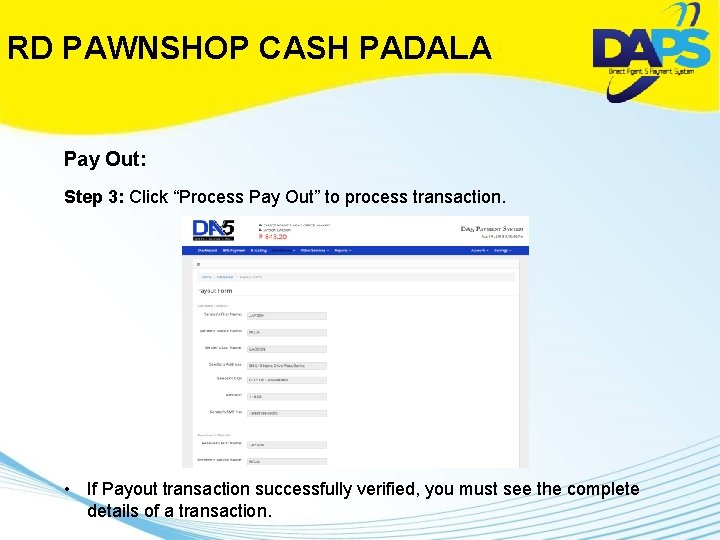
RD PAWNSHOP CASH PADALA Pay Out: Step 3: Click “Process Pay Out” to process transaction. • If Payout transaction successfully verified, you must see the complete details of a transaction.
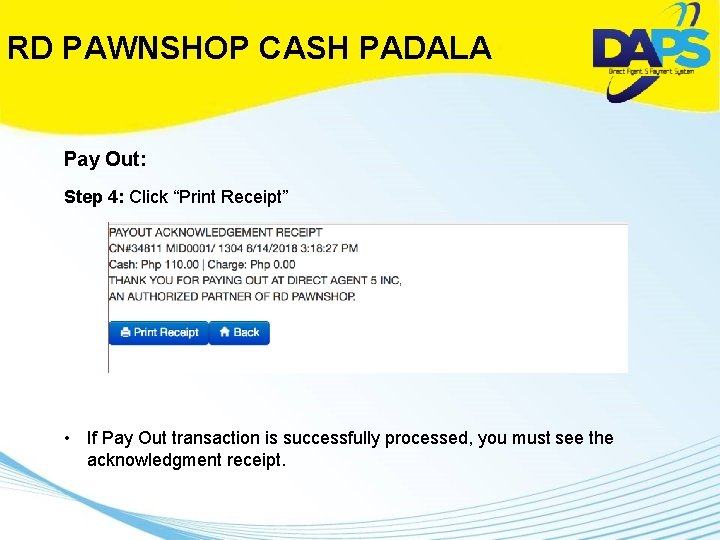
RD PAWNSHOP CASH PADALA Pay Out: Step 4: Click “Print Receipt” • If Pay Out transaction is successfully processed, you must see the acknowledgment receipt.
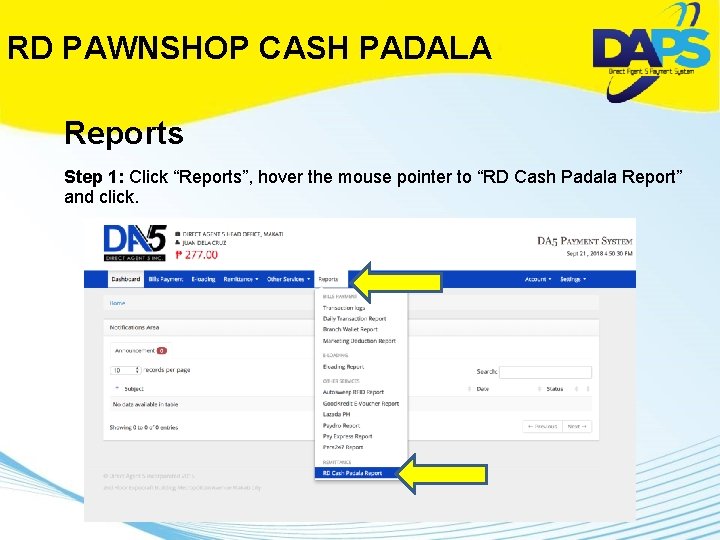
RD PAWNSHOP CASH PADALA Reports Step 1: Click “Reports”, hover the mouse pointer to “RD Cash Padala Report” and click.
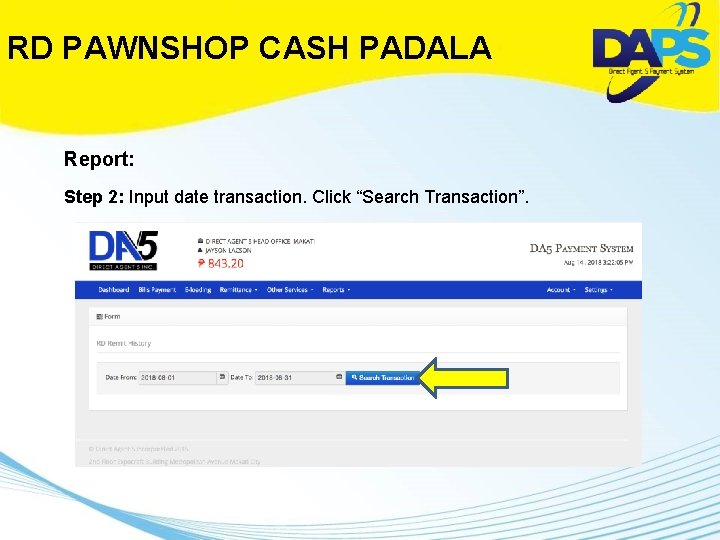
RD PAWNSHOP CASH PADALA Report: Step 2: Input date transaction. Click “Search Transaction”.
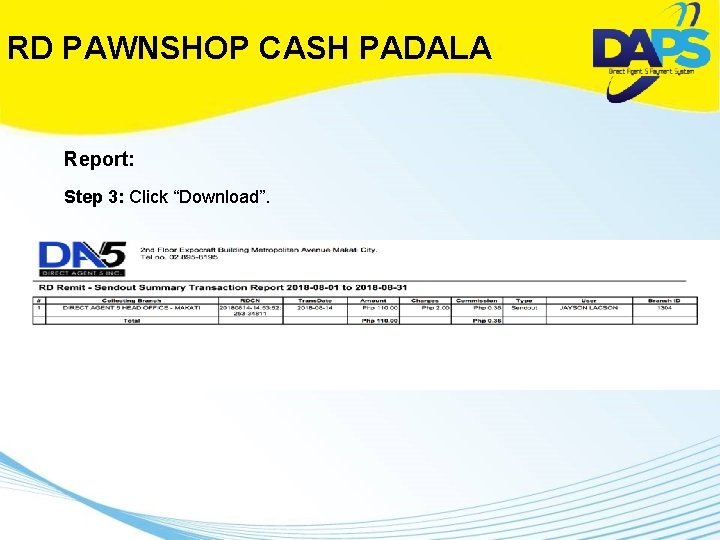
RD PAWNSHOP CASH PADALA Report: Step 3: Click “Download”.
THANK YOU!
- Slides: 96