
Organizing References By Using Mendeley Dr Burairah Hussin
Organizing References By Using Mendeley Dr. Burairah Hussin Centre for Advanced Computing Technologies (C-ACT) Fakulti Teknologi Maklumat & Komunikasi (FTMK), UTe. M 1
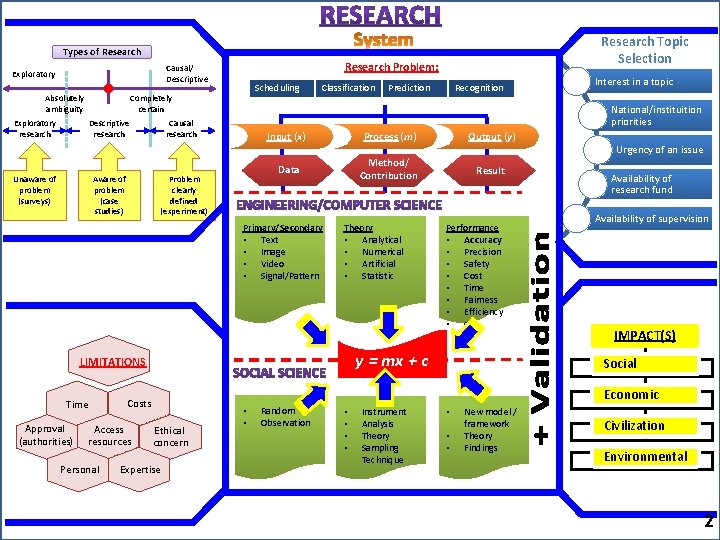
Research Topic Selection Types of Research Problem: Causal/ Descriptive Exploratory Absolutely ambiguity Scheduling Completely certain Exploratory research Descriptive research Unaware of problem (surveys) Aware of problem (case studies) Classification Problem clearly defined (experiment) Input (x) Process (m) Output (y) Data Method/ Contribution Result Theory • Analytical • Numerical • Artificial • Statistic Personal Interest in a topic Urgency of an issue Availability of research fund Availability of supervision IMPACT(S) Social Economic Costs Access resources Performance • Accuracy • Precision • Safety • Cost • Time • Fairness • Efficiency • etc y = mx + c LIMITATIONS Approval (authorities) Recognition National/instituition priorities Causal research Primary/Secondary • Text • Image • Video • Signal/Pattern Time Prediction Ethical concern Expertise • • Random Observation • • Instrument Analysis Theory Sampling Technique • • • New model / framework Theory Findings Civilization Environmental 2 2
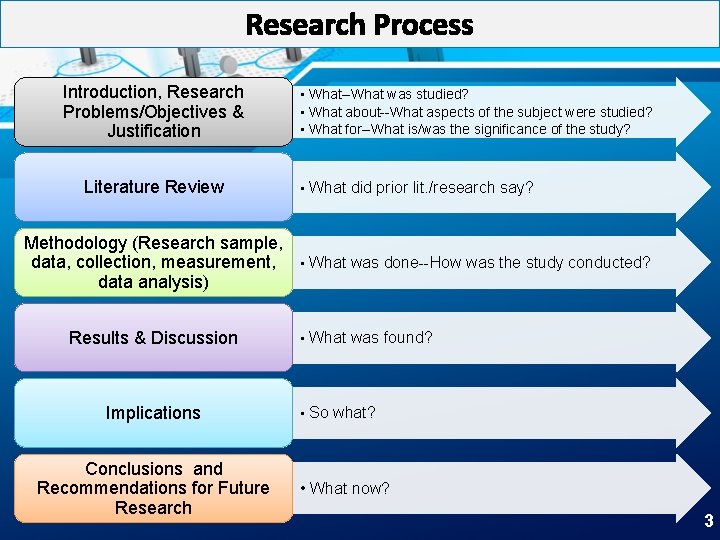
Research Process Introduction, Research Problems/Objectives & Justification Literature Review • What--What was studied? • What about--What aspects of the subject were studied? • What for--What is/was the significance of the study? • What did prior lit. /research say? Methodology (Research sample, data, collection, measurement, • What was done--How was the study conducted? data analysis) Results & Discussion Implications Conclusions and Recommendations for Future Research • What was found? • So what? • What now? 3
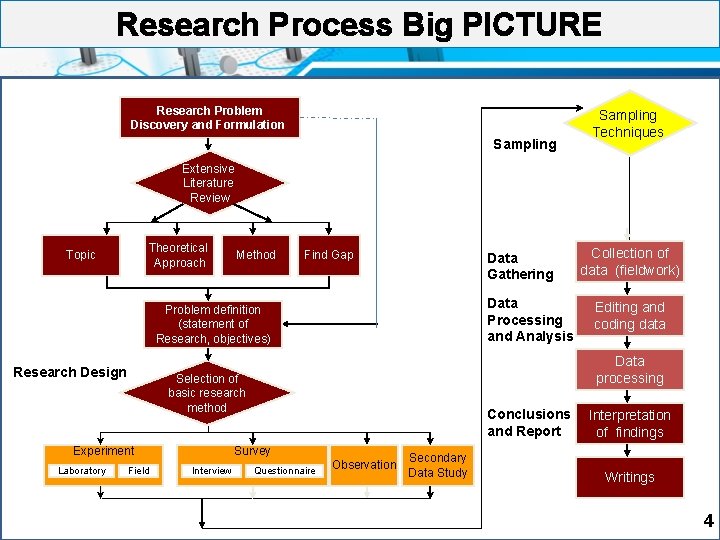
Research Process Big PICTURE Research Problem Discovery and Formulation Sampling Techniques Extensive Literature Review Theoretical Approach Topic Method Find Gap Data Gathering Data Processing and Analysis Problem definition (statement of Research, objectives) Research Design Laboratory Field Conclusions and Report Survey Interview Editing and coding data Data processing Selection of basic research method Experiment Collection of data (fieldwork) Questionnaire Observation Secondary Data Study Interpretation of findings Writings 4
Information and Communication Technology (ICT) has and will change the research process 5
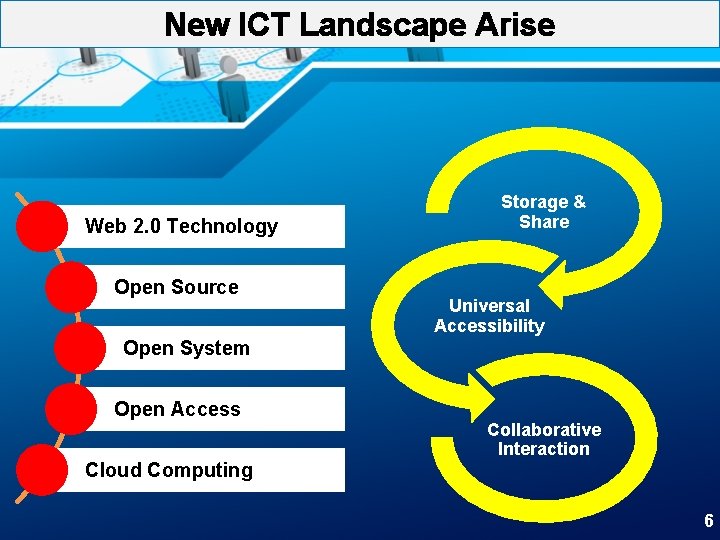
New ICT Landscape Arise Web 2. 0 Technology Open Source Storage & Share Universal Accessibility Open System Open Access Cloud Computing Collaborative Interaction 6
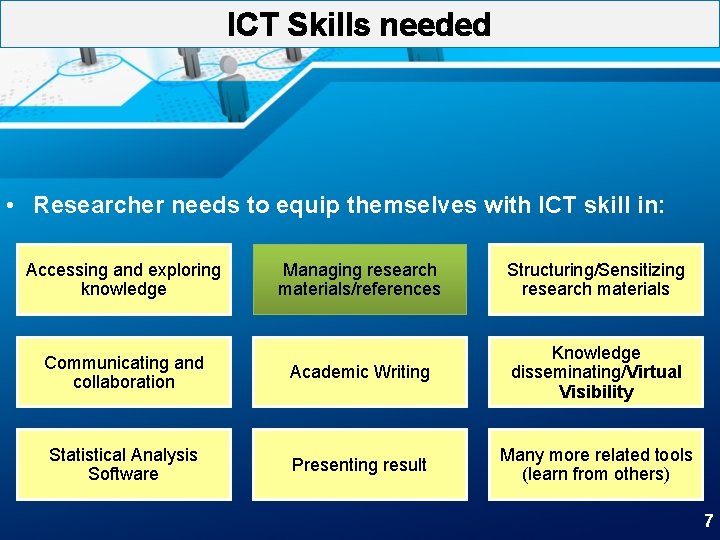
ICT Skills needed • Researcher needs to equip themselves with ICT skill in: Accessing and exploring knowledge Managing research materials/references Structuring/Sensitizing research materials Communicating and collaboration Academic Writing Knowledge disseminating/Virtual Visibility Statistical Analysis Software Presenting result Many more related tools (learn from others) 7
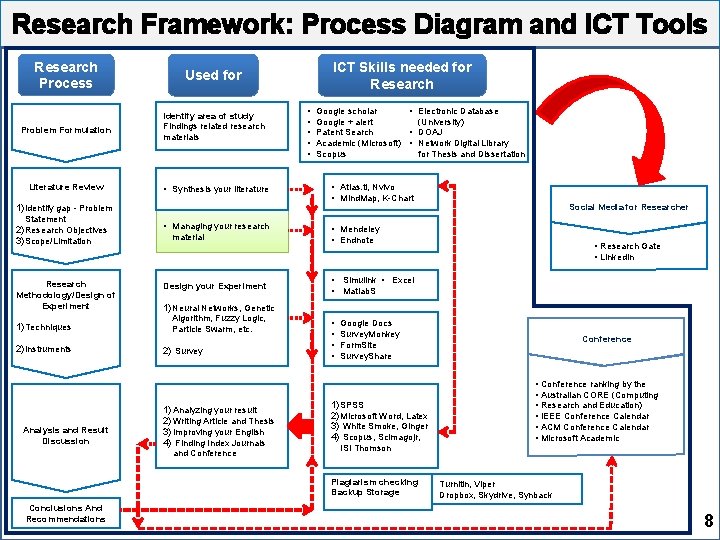
Research Framework: Process Diagram and ICT Tools Research Process Used for Problem Formulation Identify area of study Findings related research materials Literature Review • Synthesis your literature 1) Identify gap - Problem Statement 2) Research Objectives 3) Scope/Limitation Research Methodology/Design of Experiment 1) Techniques 2) Instruments Analysis and Result Discussion • Managing your research material Design your Experiment ICT Skills needed for Research • • • Google scholar • Electronic Database Google + alert (University) Patent Search • DOAJ Academic (Microsoft) • Network Digital Library Scopus for Thesis and Dissertation • Atlas. ti, Nvivo • Mind. Map, K-Chart • Mendeley • Endnote • Research Gate • Linked. In • Simulink • Excel • Matlab. S 1) Neural Networks, Genetic Algorithm, Fuzzy Logic, Particle Swarm, etc. 2) Survey 1) Analyzing your result 2) Writing Article and Thesis 3) Improving your English 4) Finding Index Journals and Conference • • Google Docs Survey. Monkey Form. Site Survey. Share 1) SPSS 2) Microsoft Word, Latex 3) White Smoke, Ginger 4) Scopus, Scimagojr, Conference • Conference ranking by the • Australian CORE (Computing • Research and Education) • IEEE Conference Calendar • ACM Conference Calendar • Microsoft Academic ISI Thomson Plagiarism checking Backup Storage Conclusions And Recommendations Social Media for Researcher Turnitin, Viper Dropbox, Skydrive, Synback 8
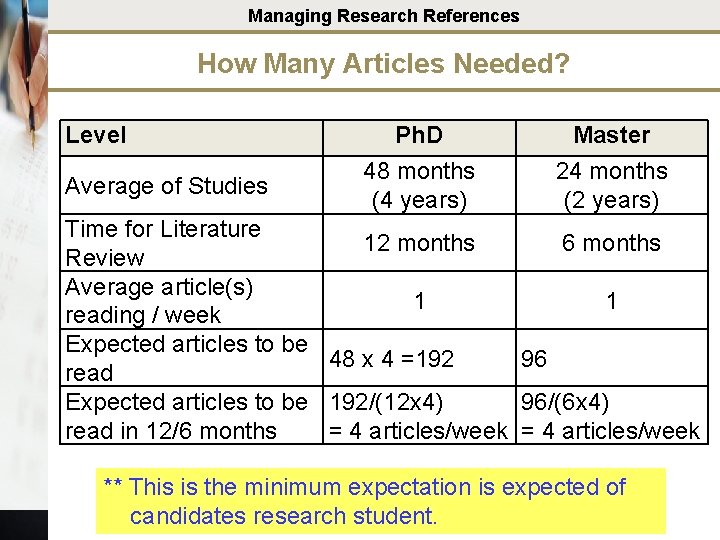
Managing Research References How Many Articles Needed? Level Average of Studies Ph. D 48 months (4 years) Master 24 months (2 years) Time for Literature 12 months 6 months Review Average article(s) 1 1 reading / week Expected articles to be 48 x 4 =192 96 read Expected articles to be 192/(12 x 4) 96/(6 x 4) read in 12/6 months = 4 articles/week ** This is the minimum expectation is expected of candidates research student.
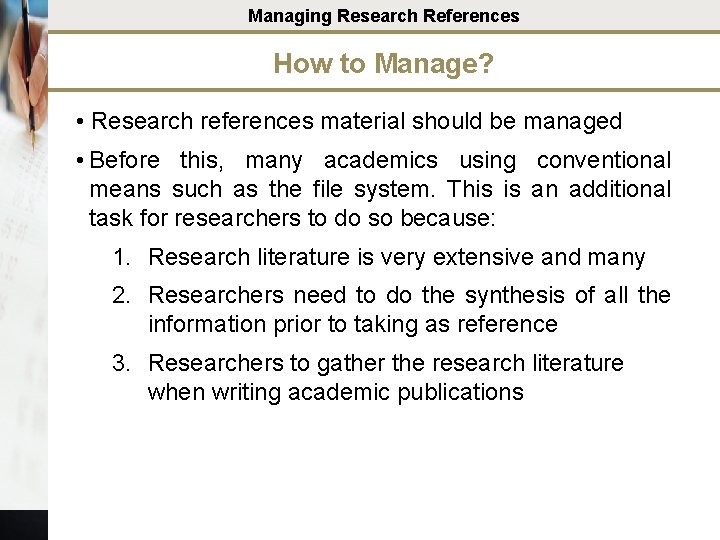
Managing Research References How to Manage? • Research references material should be managed • Before this, many academics using conventional means such as the file system. This is an additional task for researchers to do so because: 1. Research literature is very extensive and many 2. Researchers need to do the synthesis of all the information prior to taking as reference 3. Researchers to gather the research literature when writing academic publications
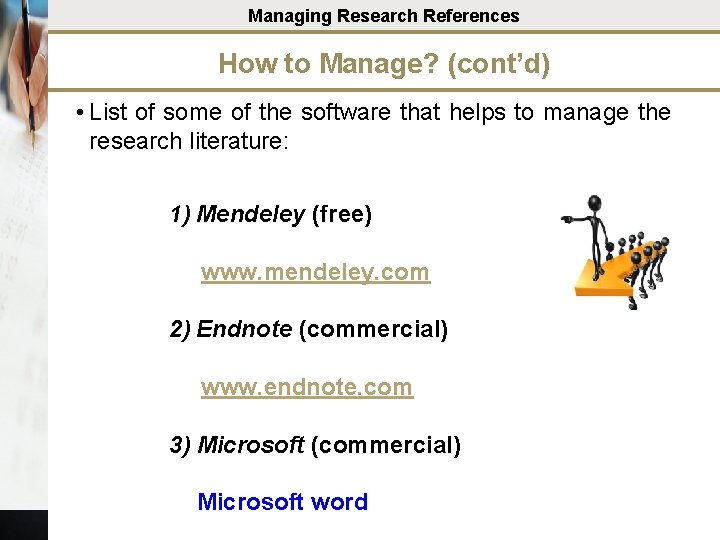
Managing Research References How to Manage? (cont’d) • List of some of the software that helps to manage the research literature: 1) Mendeley (free) www. mendeley. com 2) Endnote (commercial) www. endnote. com 3) Microsoft (commercial) Microsoft word
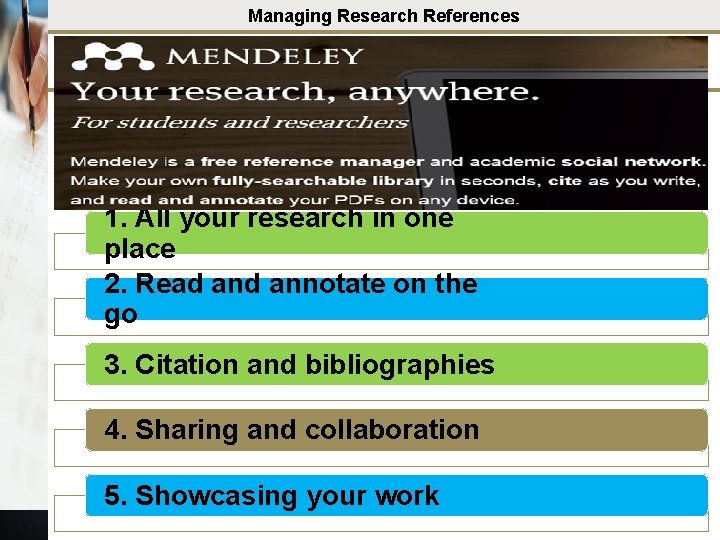
Managing Research References 1. All your research in one place 2. Read annotate on the go 3. Citation and bibliographies 4. Sharing and collaboration 5. Showcasing your work
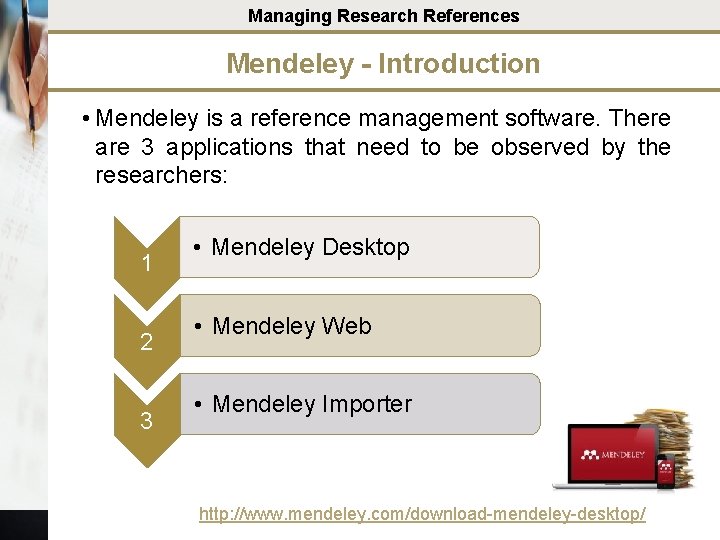
Managing Research References Mendeley - Introduction • Mendeley is a reference management software. There are 3 applications that need to be observed by the researchers: 1 2 3 • Mendeley Desktop • Mendeley Web • Mendeley Importer http: //www. mendeley. com/download-mendeley-desktop/
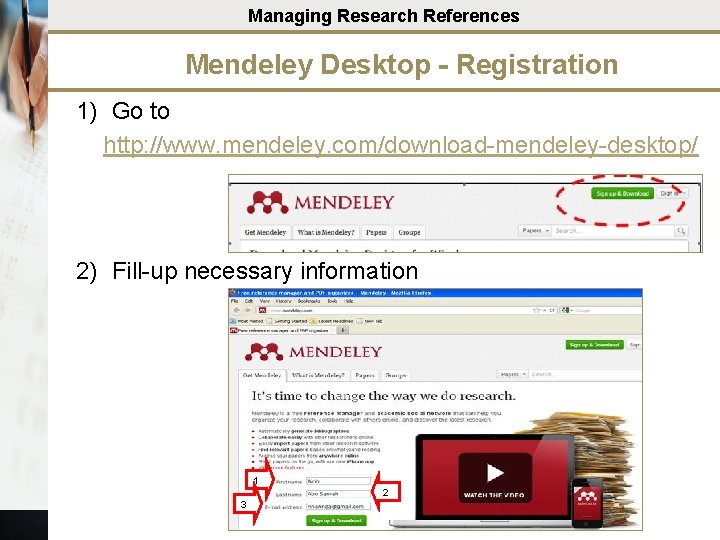
Managing Research References Mendeley Desktop - Registration 1) Go to http: //www. mendeley. com/download-mendeley-desktop/ 2) Fill-up necessary information 1 2 3
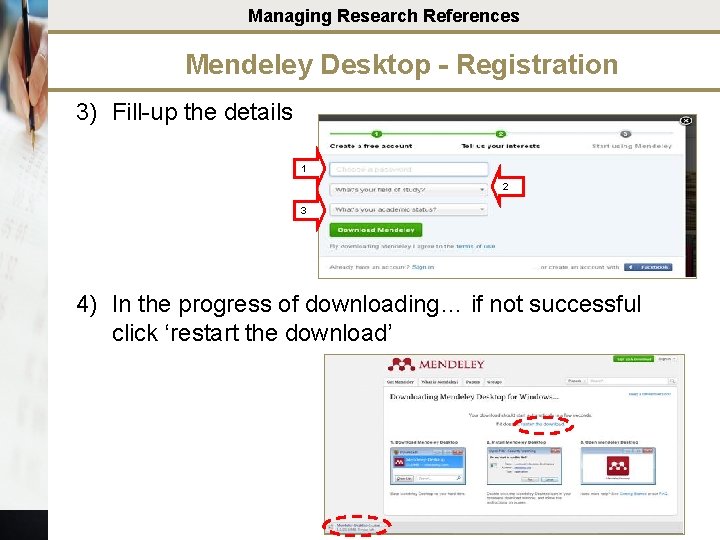
Managing Research References Mendeley Desktop - Registration 3) Fill-up the details 1 2 3 4) In the progress of downloading… if not successful click ‘restart the download’
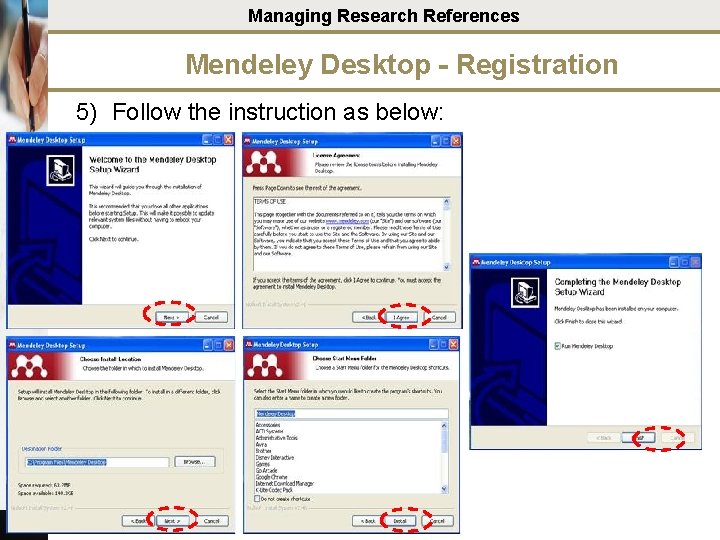
Managing Research References Mendeley Desktop - Registration 5) Follow the instruction as below:

Managing Research References Mendeley Desktop - Start to Use 1) Using the icon at Desktop – double click 2) Click and fill-up necessary information 1 1 2 2
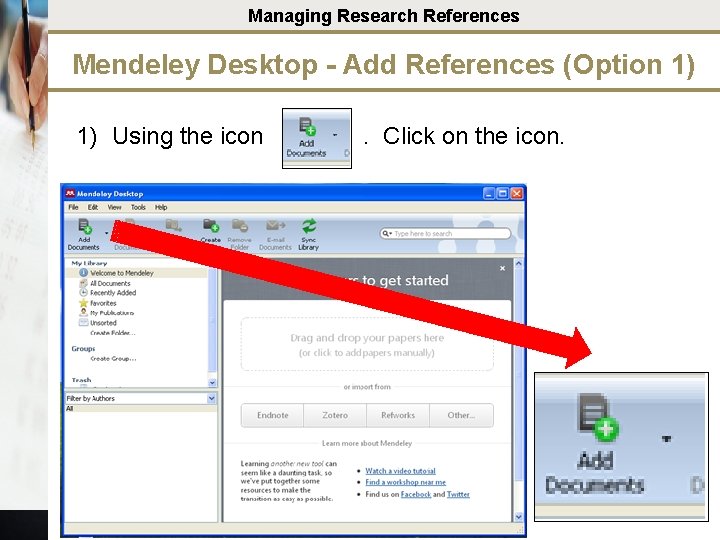
Managing Research References Mendeley Desktop - Add References (Option 1) 1) Using the icon . Click on the icon.
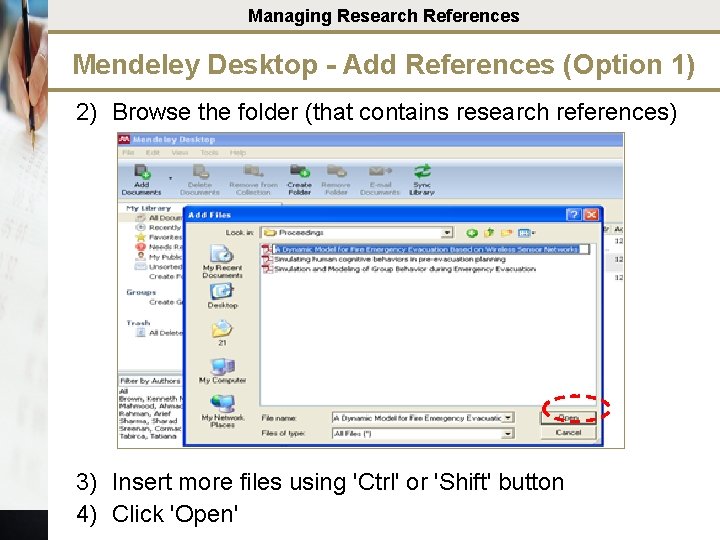
Managing Research References Mendeley Desktop - Add References (Option 1) 2) Browse the folder (that contains research references) 3) Insert more files using 'Ctrl' or 'Shift' button 4) Click 'Open'
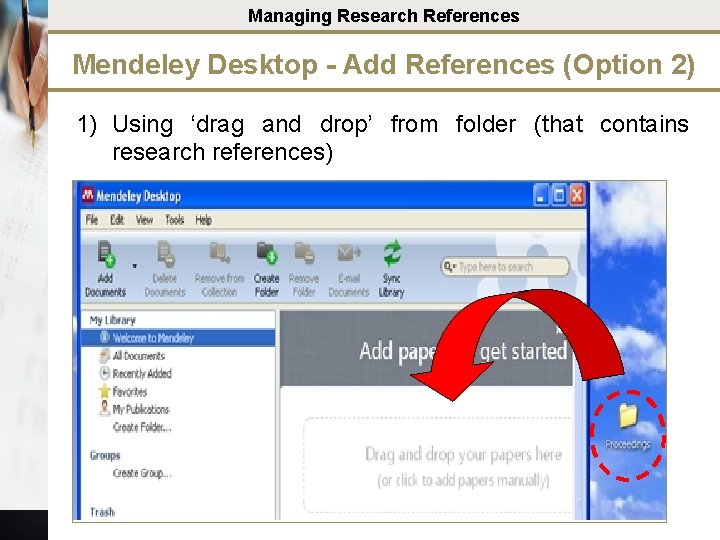
Managing Research References Mendeley Desktop - Add References (Option 2) 1) Using ‘drag and drop’ from folder (that contains research references)
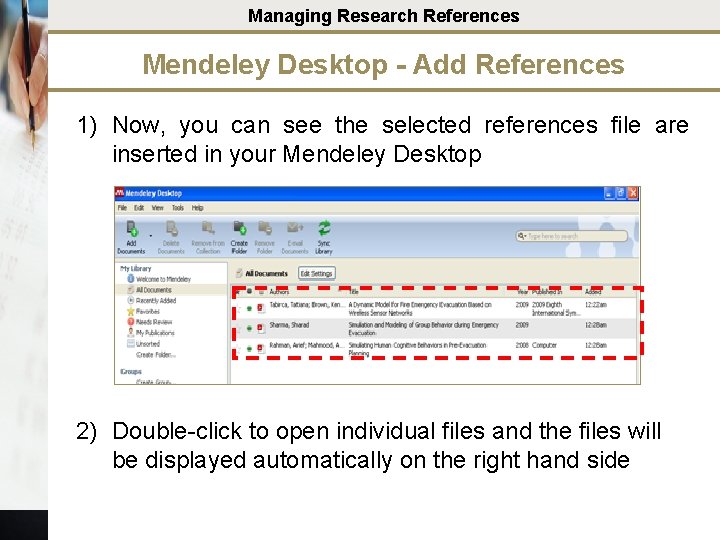
Managing Research References Mendeley Desktop - Add References 1) Now, you can see the selected references file are inserted in your Mendeley Desktop 2) Double-click to open individual files and the files will be displayed automatically on the right hand side
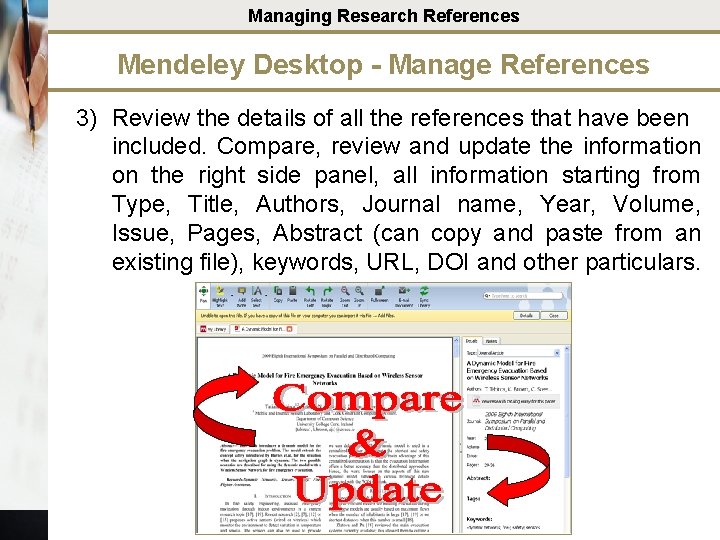
Managing Research References Mendeley Desktop - Manage References 3) Review the details of all the references that have been included. Compare, review and update the information on the right side panel, all information starting from Type, Title, Authors, Journal name, Year, Volume, Issue, Pages, Abstract (can copy and paste from an existing file), keywords, URL, DOI and other particulars.

Managing Research References Mendeley Desktop - Highlight Functions 1) Open any reference 2) Click at 3) You may highlight important information as below
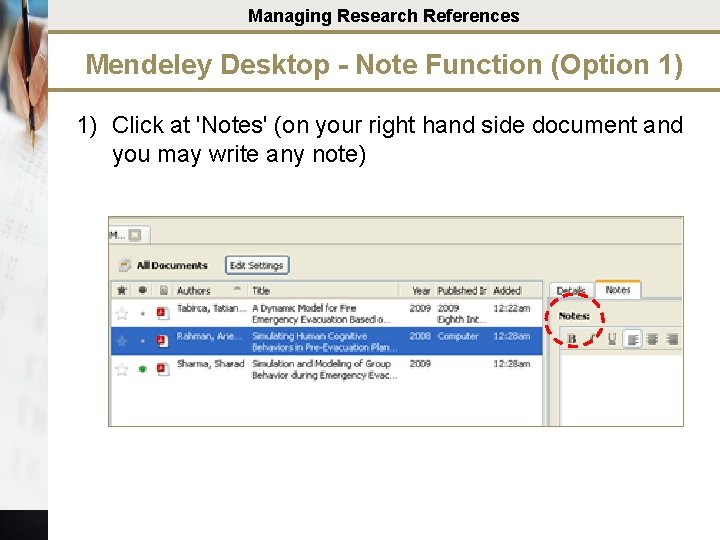
Managing Research References Mendeley Desktop - Note Function (Option 1) 1) Click at 'Notes' (on your right hand side document and you may write any note)
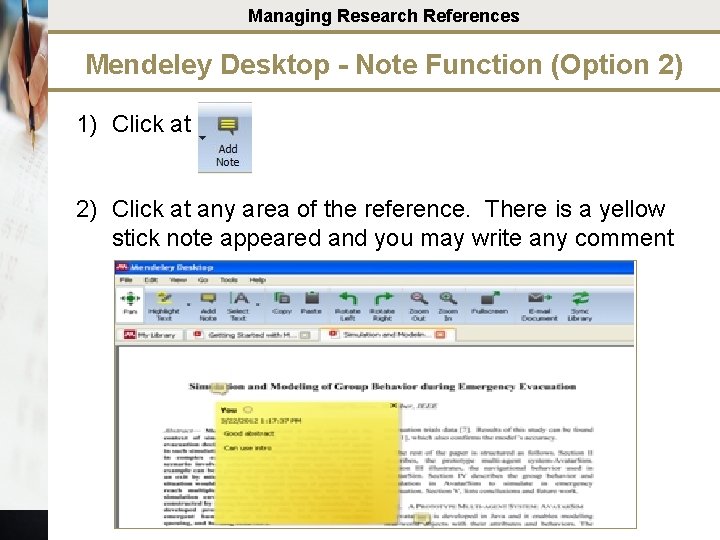
Managing Research References Mendeley Desktop - Note Function (Option 2) 1) Click at 2) Click at any area of the reference. There is a yellow stick note appeared and you may write any comment
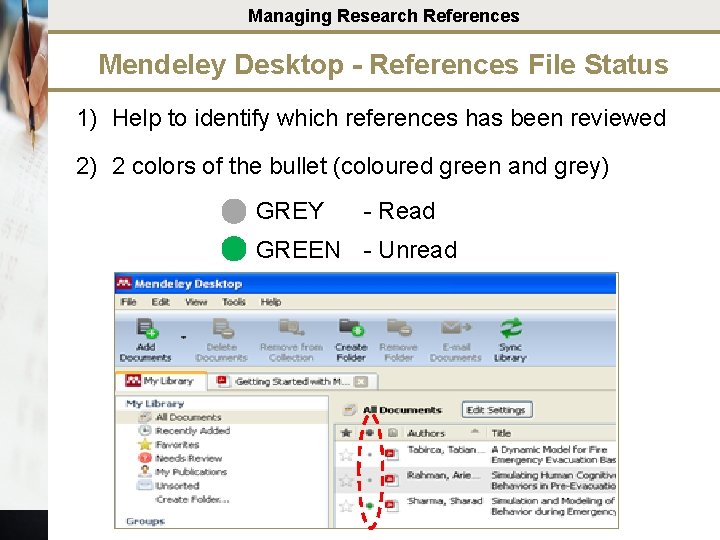
Managing Research References Mendeley Desktop - References File Status 1) Help to identify which references has been reviewed 2) 2 colors of the bullet (coloured green and grey) GREY - Read GREEN - Unread
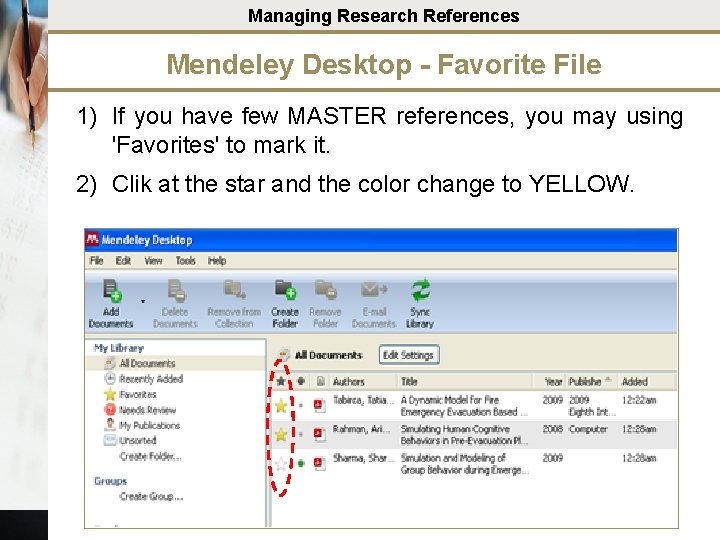
Managing Research References Mendeley Desktop - Favorite File 1) If you have few MASTER references, you may using 'Favorites' to mark it. 2) Clik at the star and the color change to YELLOW.
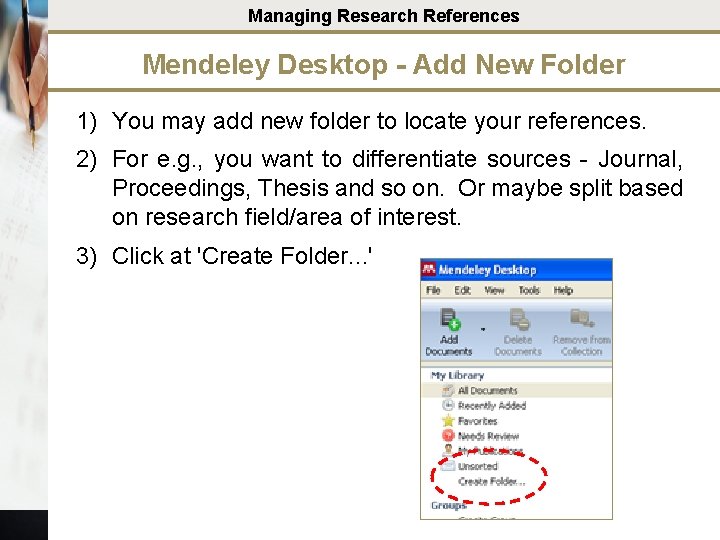
Managing Research References Mendeley Desktop - Add New Folder 1) You may add new folder to locate your references. 2) For e. g. , you want to differentiate sources - Journal, Proceedings, Thesis and so on. Or maybe split based on research field/area of interest. 3) Click at 'Create Folder. . . '
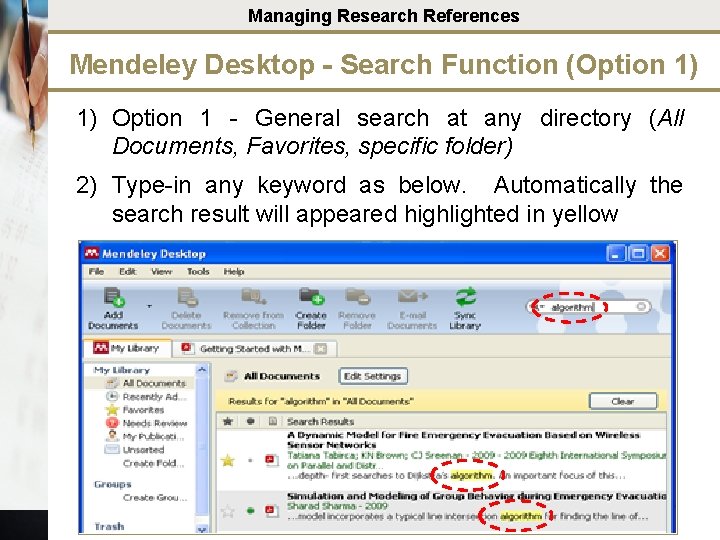
Managing Research References Mendeley Desktop - Search Function (Option 1) 1) Option 1 - General search at any directory (All Documents, Favorites, specific folder) 2) Type-in any keyword as below. Automatically the search result will appeared highlighted in yellow
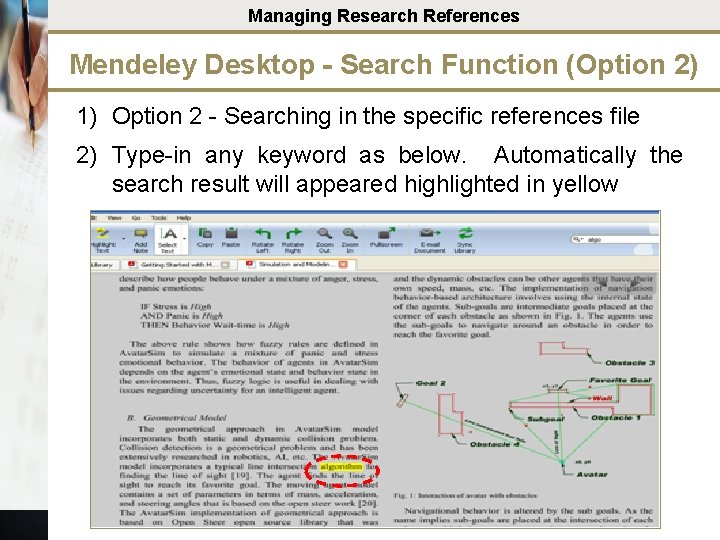
Managing Research References Mendeley Desktop - Search Function (Option 2) 1) Option 2 - Searching in the specific references file 2) Type-in any keyword as below. Automatically the search result will appeared highlighted in yellow
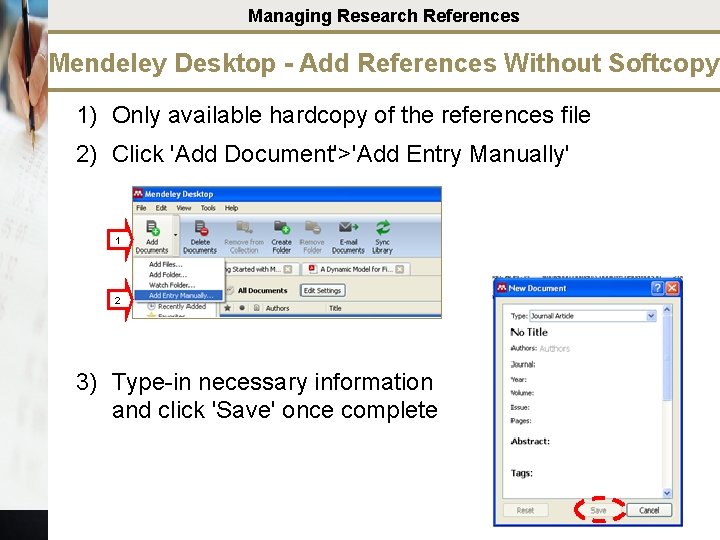
Managing Research References Mendeley Desktop - Add References Without Softcopy 1) Only available hardcopy of the references file 2) Click 'Add Document'>'Add Entry Manually' 1 2 3) Type-in necessary information and click 'Save' once complete
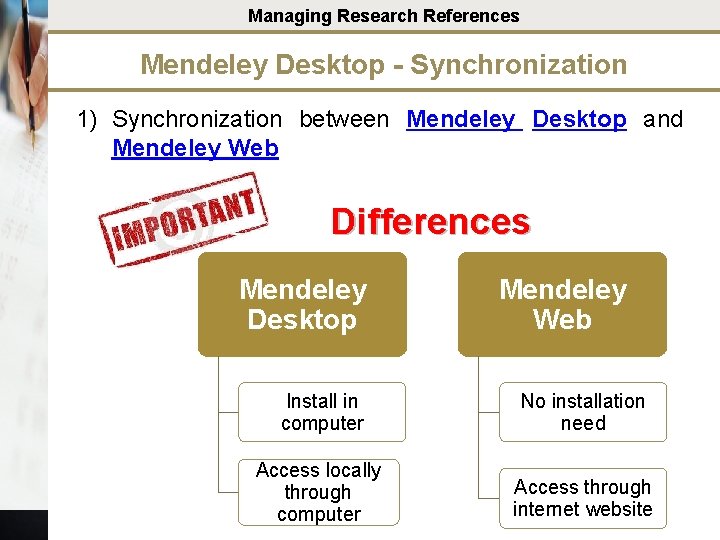
Managing Research References Mendeley Desktop - Synchronization 1) Synchronization between Mendeley Desktop and Mendeley Web Differences Mendeley Desktop Mendeley Web Install in computer No installation need Access locally through computer Access through internet website
Managing Research References Mendeley Desktop - Synchronization Important Function To sync references file update between Mendeley Desktop and Mendeley Web – ensure both location having the same updated files 1) Click 'All Document' in My Library (selection all references files) 2) Click 'Edit Settings'. 3) Tick at 'Sychronize attached files' 4) Klik icon 'Sync Library' 5) Automatic view on space used for all references file
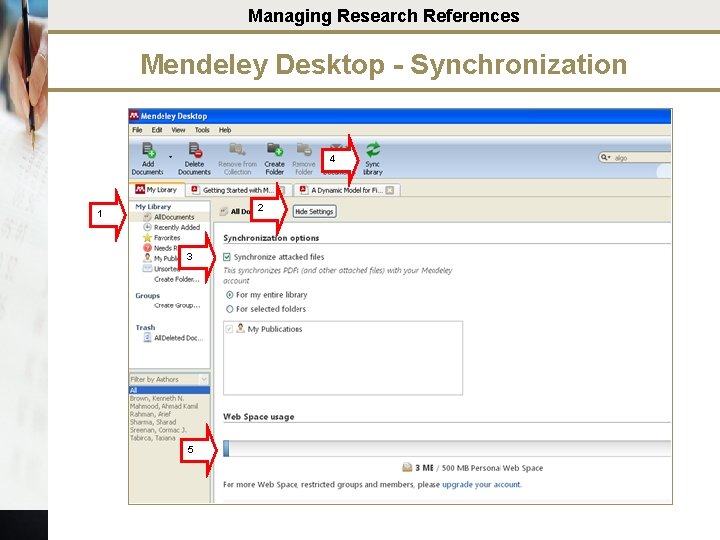
Managing Research References Mendeley Desktop - Synchronization 4 2 1 3 5
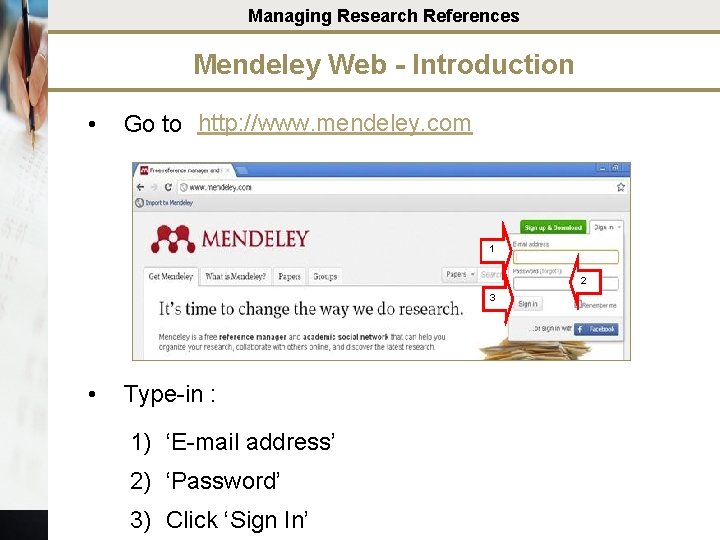
Managing Research References Mendeley Web - Introduction • Go to http: //www. mendeley. com 1 2 3 • Type-in : 1) ‘E-mail address’ 2) ‘Password’ 3) Click ‘Sign In’
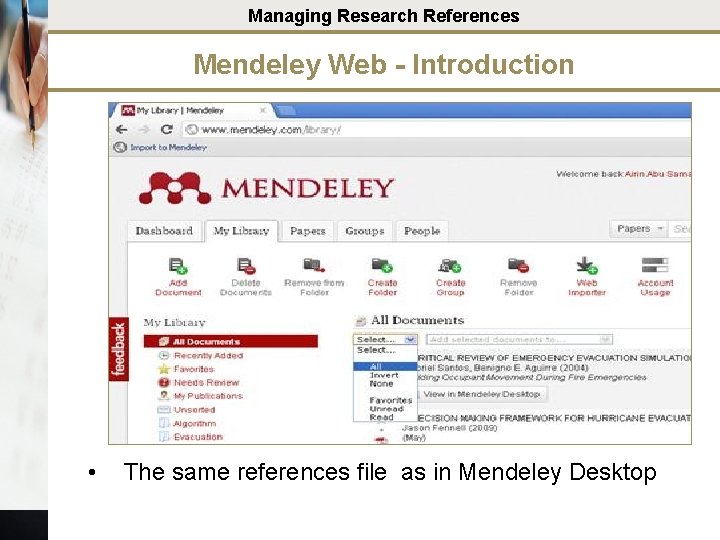
Managing Research References Mendeley Web - Introduction • The same references file as in Mendeley Desktop
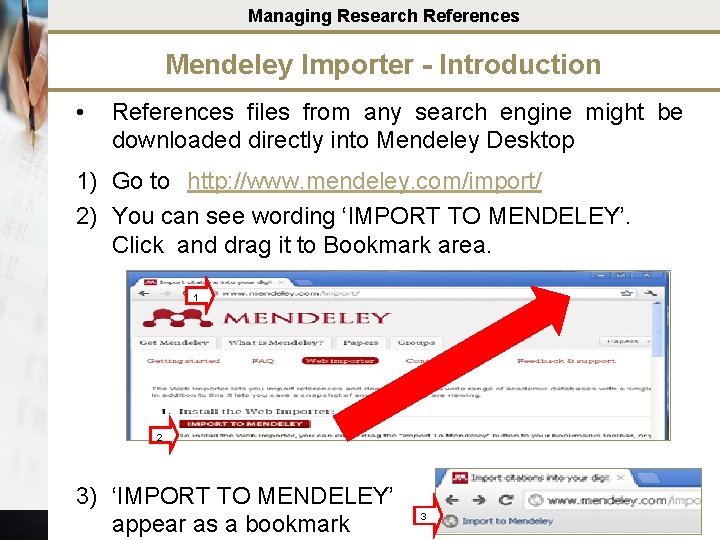
Managing Research References Mendeley Importer - Introduction • References files from any search engine might be downloaded directly into Mendeley Desktop 1) Go to http: //www. mendeley. com/import/ 2) You can see wording ‘IMPORT TO MENDELEY’. Click and drag it to Bookmark area. 1 2 3) ‘IMPORT TO MENDELEY’ appear as a bookmark 3
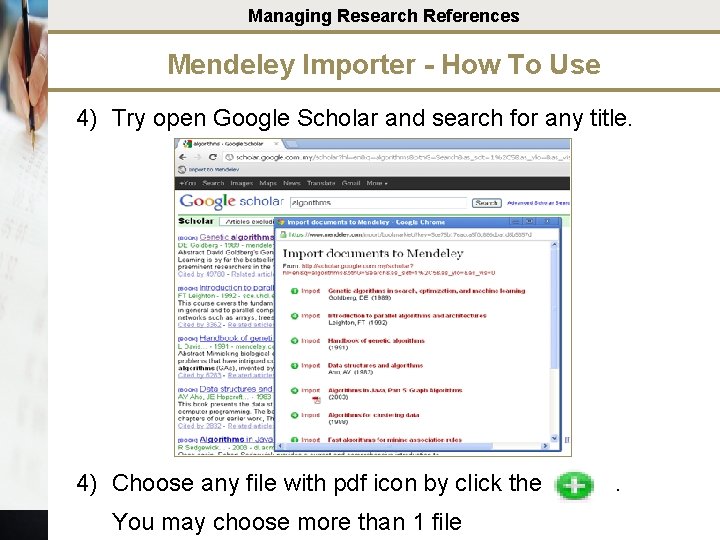
Managing Research References Mendeley Importer - How To Use 4) Try open Google Scholar and search for any title. 4) Choose any file with pdf icon by click the You may choose more than 1 file .

Managing Research References Mendeley Importer - How To Use 5) After complete the selection, click 'View in your Mendeley Library'. Automatically Mendeley Web page will be active.

Managing Research References Mendeley Importer - How To Use 6) The selection files will be appeared in 'Mendeley Library'. 7) After complete the selection, click 'View in Mendeley Desktop'
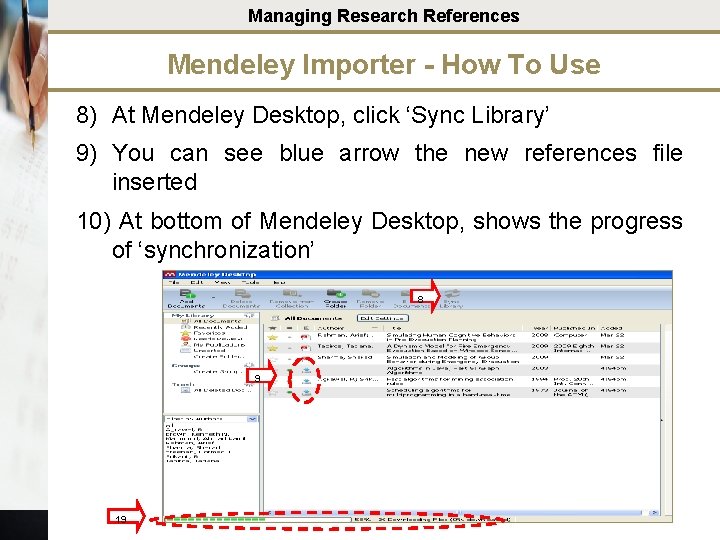
Managing Research References Mendeley Importer - How To Use 8) At Mendeley Desktop, click ‘Sync Library’ 9) You can see blue arrow the new references file inserted 10) At bottom of Mendeley Desktop, shows the progress of ‘synchronization’ 8 9 19
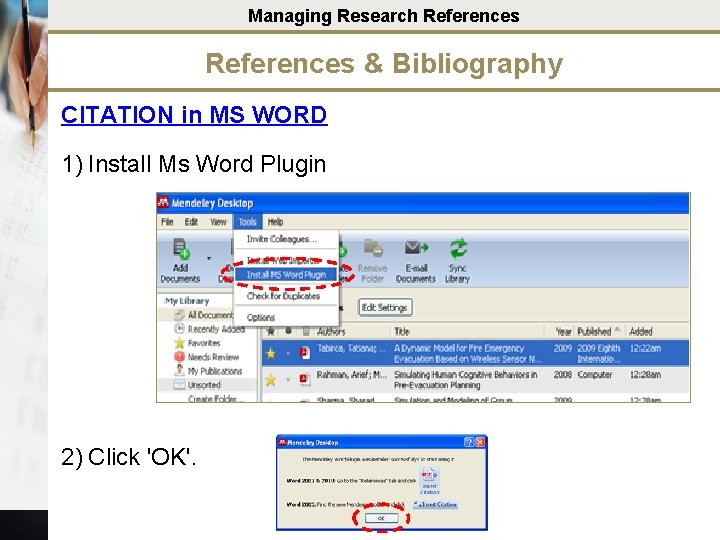
Managing Research References & Bibliography CITATION in MS WORD 1) Install Ms Word Plugin 2) Click 'OK'.
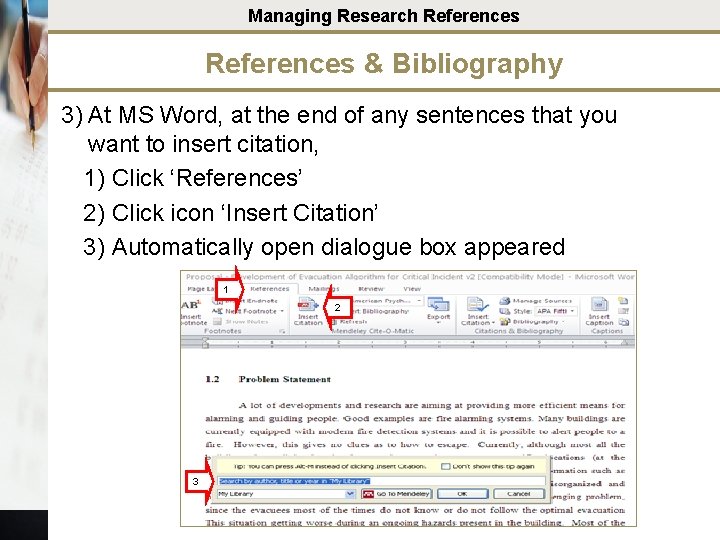
Managing Research References & Bibliography 3) At MS Word, at the end of any sentences that you want to insert citation, 1) Click ‘References’ 2) Click icon ‘Insert Citation’ 3) Automatically open dialogue box appeared 1 2 3
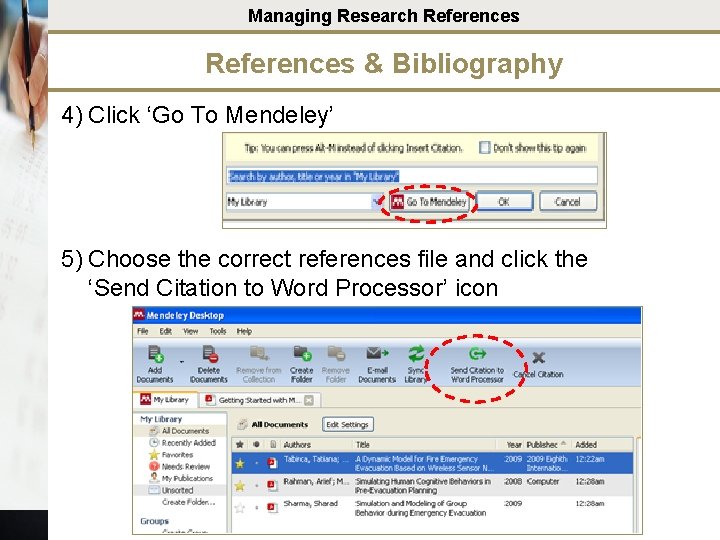
Managing Research References & Bibliography 4) Click ‘Go To Mendeley’ 5) Choose the correct references file and click the ‘Send Citation to Word Processor’ icon
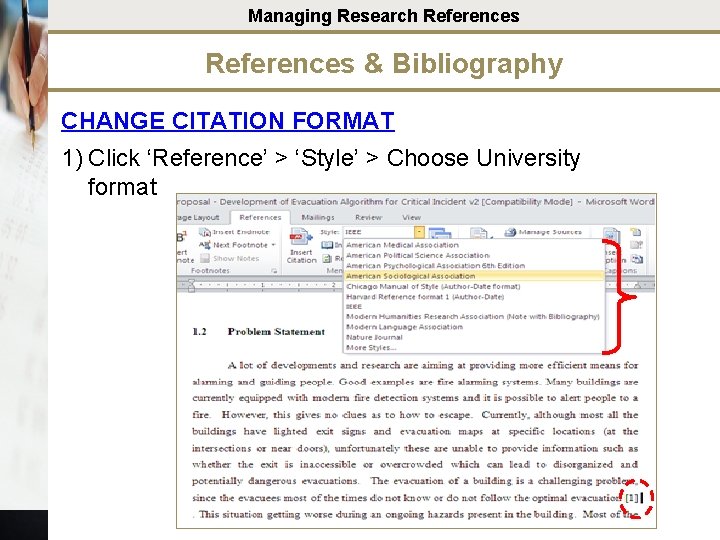
Managing Research References & Bibliography CHANGE CITATION FORMAT 1) Click ‘Reference’ > ‘Style’ > Choose University format 1
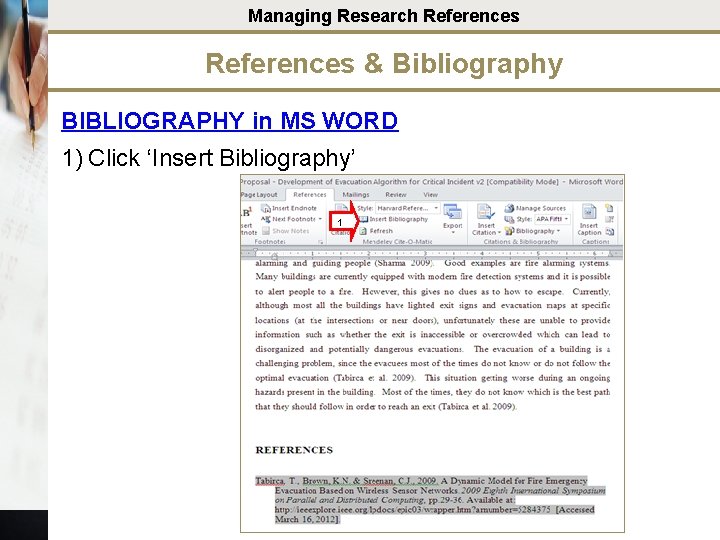
Managing Research References & Bibliography BIBLIOGRAPHY in MS WORD 1) Click ‘Insert Bibliography’ 1
THE DISCOVERER It is not the strongest of the species that survives, nor the most intelligent that survives. It is the one that is most adaptable to change
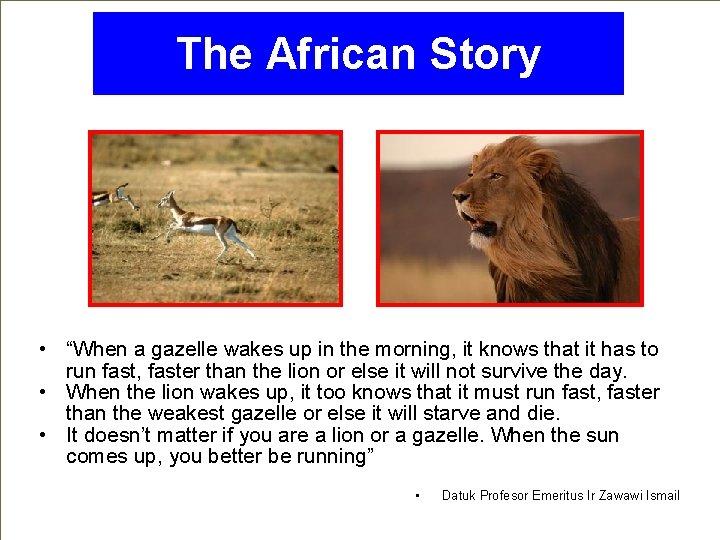
The African Story • “When a gazelle wakes up in the morning, it knows that it has to run fast, faster than the lion or else it will not survive the day. • When the lion wakes up, it too knows that it must run fast, faster than the weakest gazelle or else it will starve and die. • It doesn’t matter if you are a lion or a gazelle. When the sun comes up, you better be running” • Datuk Profesor Emeritus Ir Zawawi Ismail

THANK YOU…
- Slides: 49