
OREGON SPATIAL DATA LIBRARY METADATA UPLOAD TRAINING Marc
OREGON SPATIAL DATA LIBRARY METADATA UPLOAD TRAINING Marc Rempel
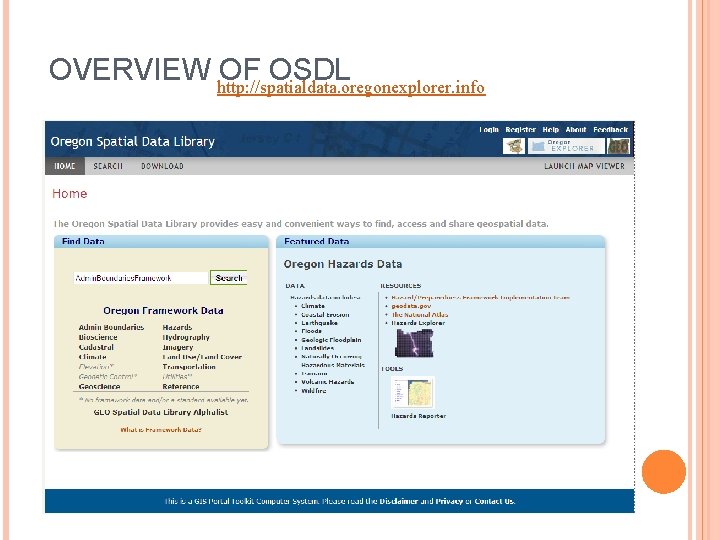
OVERVIEW http: //spatialdata. oregonexplorer. info OF OSDL
BACKGROUND Partnership/funding with State of Oregon Department of Administrative Services Geospatial Enterprise Office Purpose: to provide a front-end to the GEO A-Z list that enables searchable results, user defined downloads, distributed data extraction. scalable to add other repositories. Built on the ESRI Geo. Portal Toolkit 9. 3
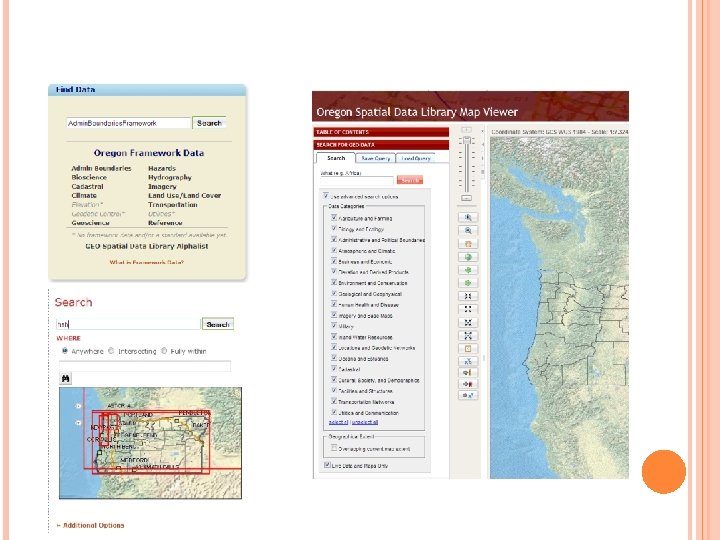
SEARCHING
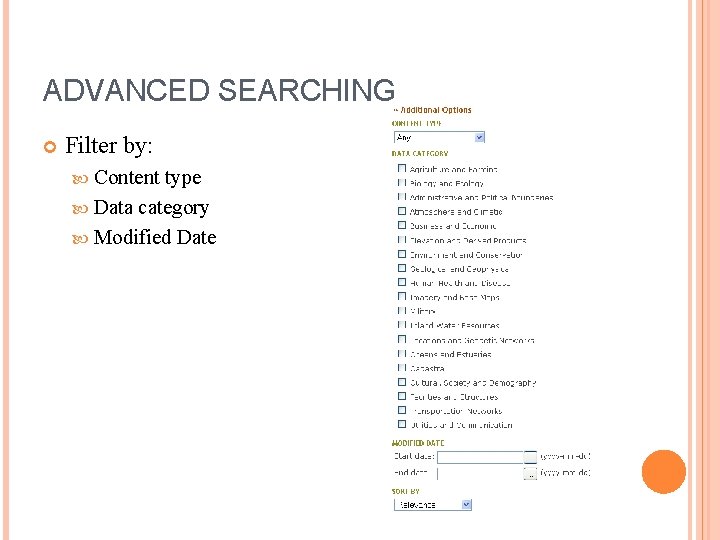
ADVANCED SEARCHING Filter by: Content type Data category Modified Date
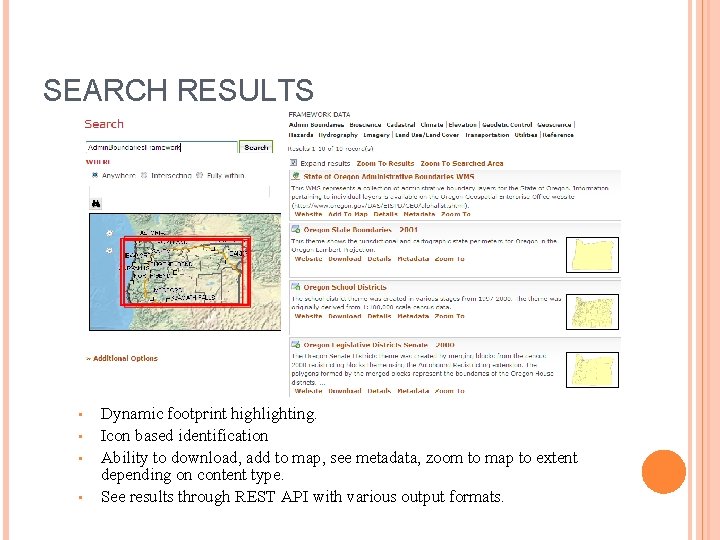
SEARCH RESULTS • • Dynamic footprint highlighting. Icon based identification Ability to download, add to map, see metadata, zoom to map to extent depending on content type. See results through REST API with various output formats.
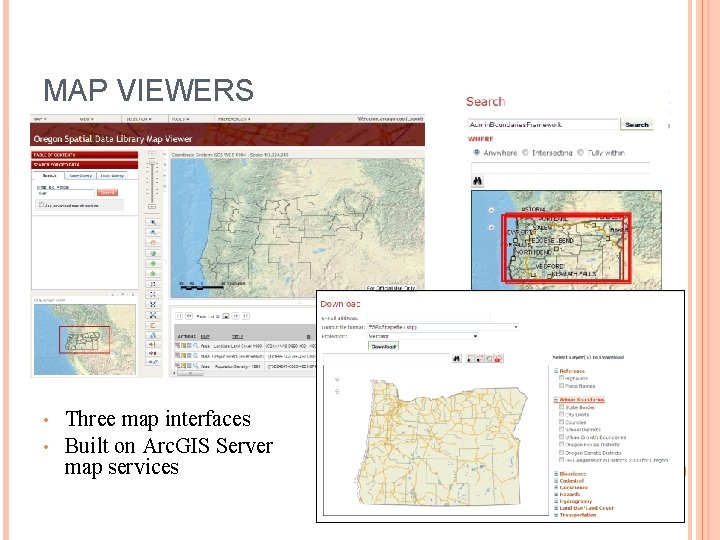
MAP VIEWERS • • Three map interfaces Built on Arc. GIS Server map services
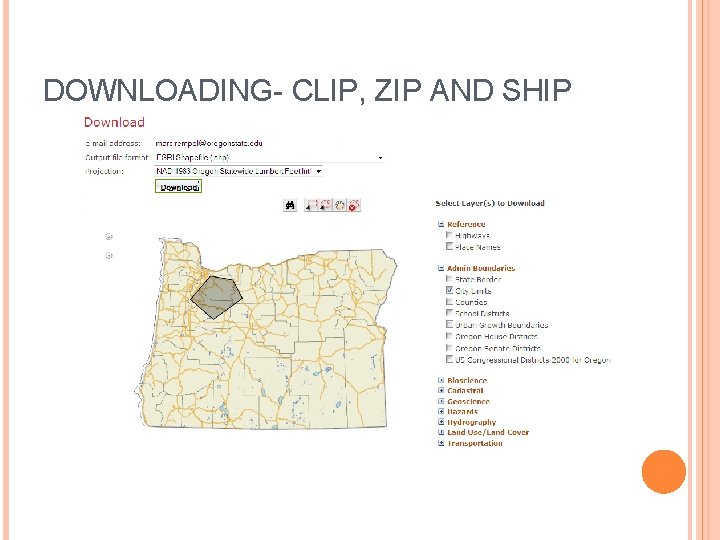
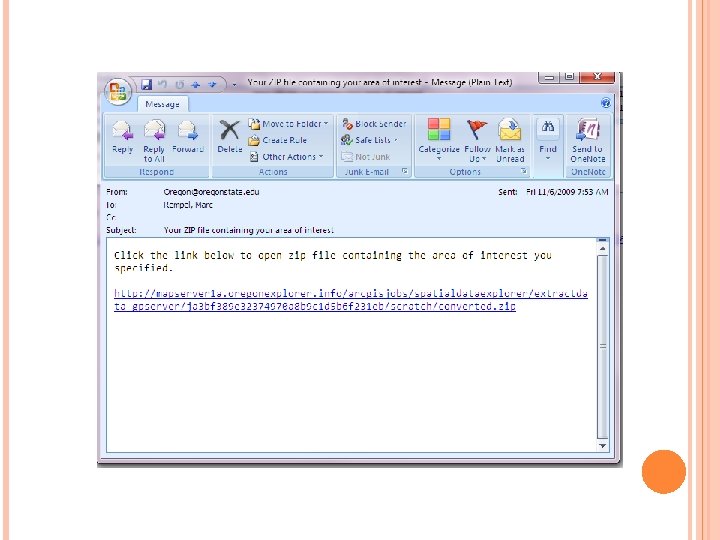
DOWNLOADING- CLIP, ZIP AND SHIP
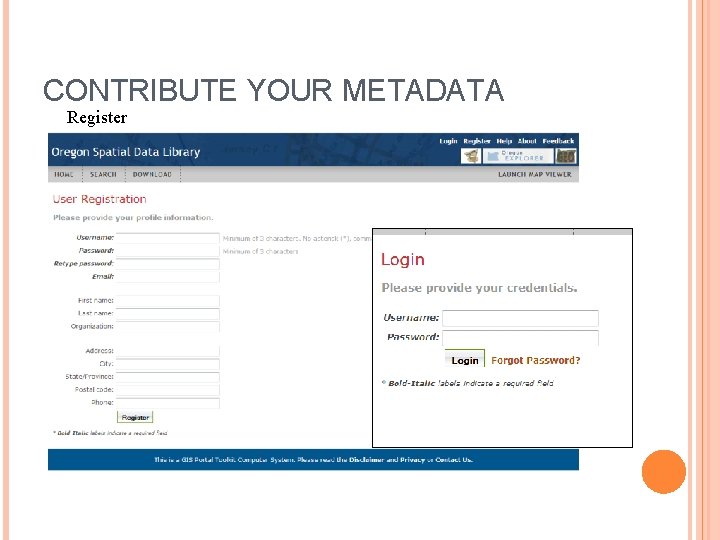
CONTRIBUTE YOUR METADATA Register
STEPS TO ADD METADATA RECORDS TO OSDL Four ways to add metadata to the OSDL 1. Manually create through admin login on Administration tab. 2. Upload individual xml metadata files through admin login on Administration tab. 3. Setup repository through Repositories tab. 4. Through Arc. Catalog Download CSW client tool and highlight desired files and run utility. or Connect to http: //spatialdata. oregonexplorer. info: 8080 as an Arc. IMS server and select the Publish_GPT_Metadata service.
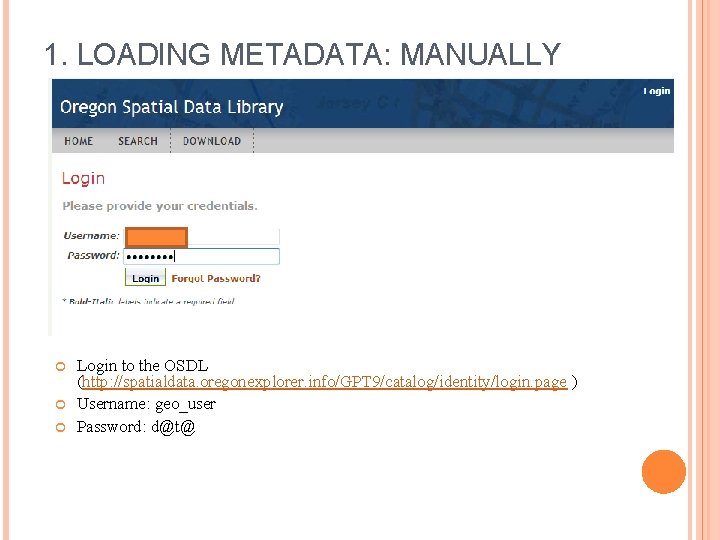
1. LOADING METADATA: MANUALLY Login to the OSDL (http: //spatialdata. oregonexplorer. info/GPT 9/catalog/identity/login. page ) Username: geo_user Password: d@t@
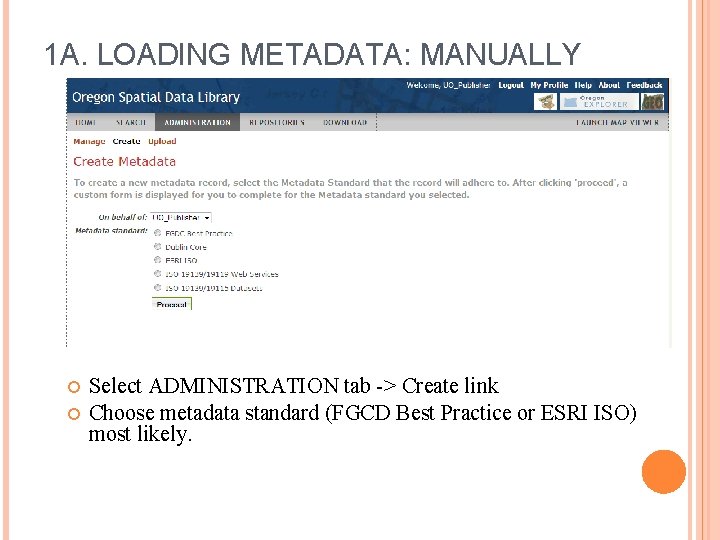
1 A. LOADING METADATA: MANUALLY Select ADMINISTRATION tab -> Create link Choose metadata standard (FGCD Best Practice or ESRI ISO) most likely.
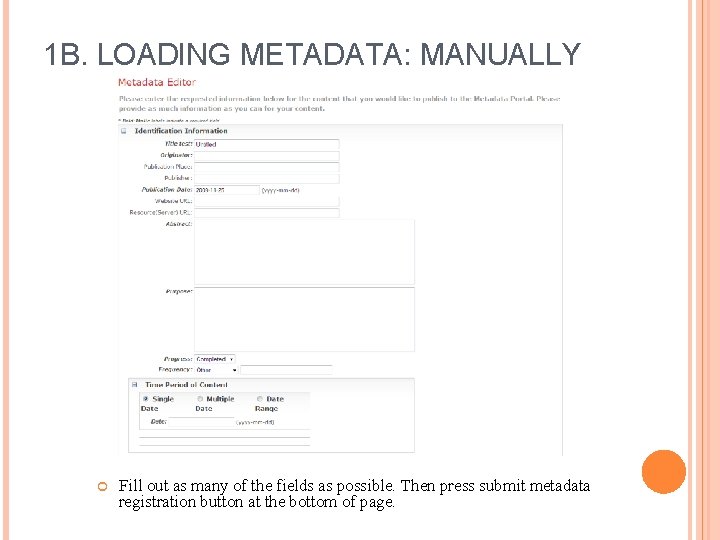
1 B. LOADING METADATA: MANUALLY Fill out as many of the fields as possible. Then press submit metadata registration button at the bottom of page.
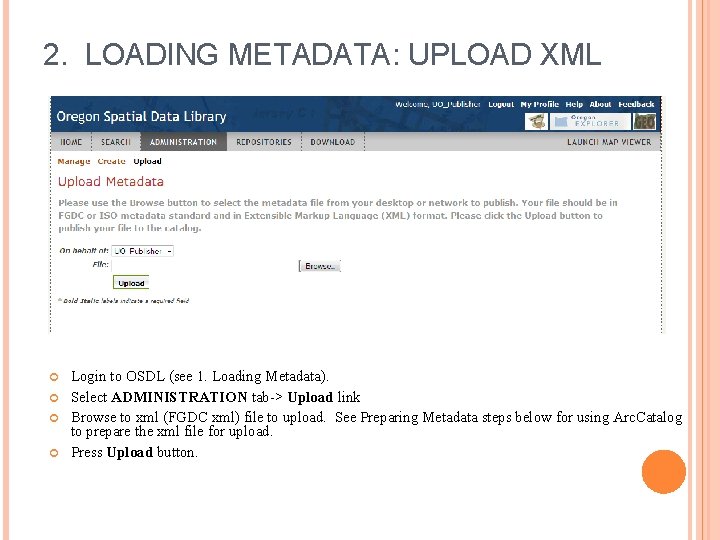
2. LOADING METADATA: UPLOAD XML Login to OSDL (see 1. Loading Metadata). Select ADMINISTRATION tab-> Upload link Browse to xml (FGDC xml) file to upload. See Preparing Metadata steps below for using Arc. Catalog to prepare the xml file for upload. Press Upload button.
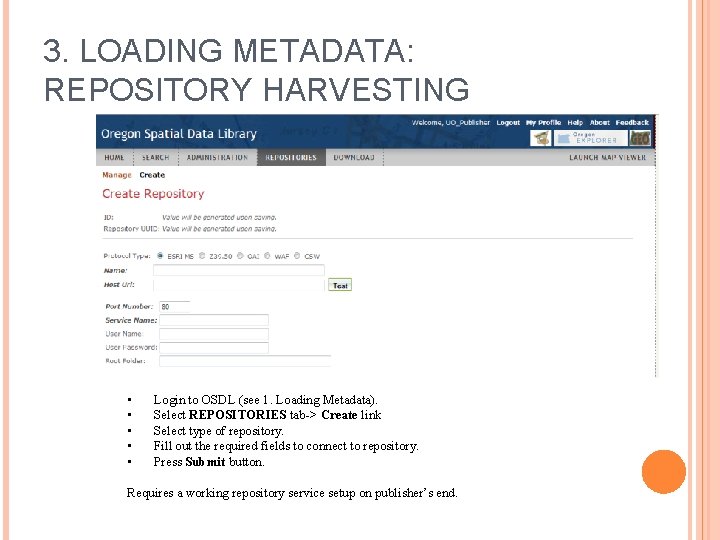
3. LOADING METADATA: REPOSITORY HARVESTING • • • Login to OSDL (see 1. Loading Metadata). Select REPOSITORIES tab-> Create link Select type of repository. Fill out the required fields to connect to repository. Press Submit button. Requires a working repository service setup on publisher’s end.
4. LOADING METADATA: ARCCATALOG Two options: 1. 2. Install the GPT Publish Client tool for Arc. Catalog. Connect to the OSDL Metadata. Server as an Arc. IMS service and drag metadata into service.
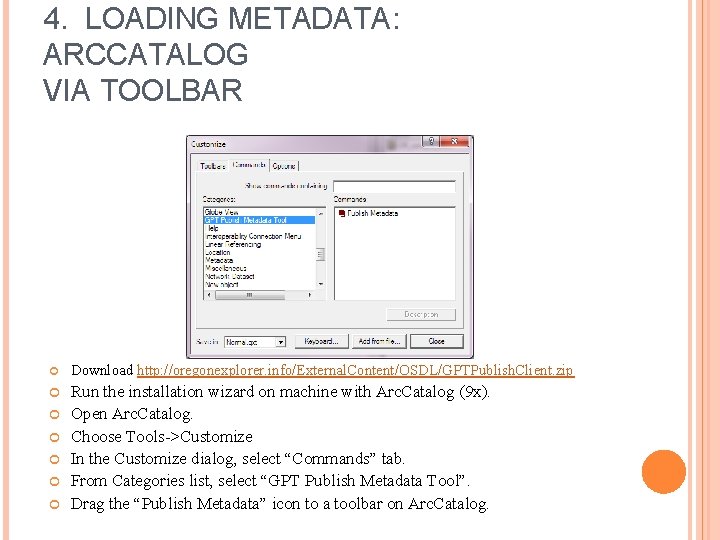
4. LOADING METADATA: ARCCATALOG VIA TOOLBAR Download http: //oregonexplorer. info/External. Content/OSDL/GPTPublish. Client. zip Run the installation wizard on machine with Arc. Catalog (9 x). Open Arc. Catalog. Choose Tools->Customize In the Customize dialog, select “Commands” tab. From Categories list, select “GPT Publish Metadata Tool”. Drag the “Publish Metadata” icon to a toolbar on Arc. Catalog.
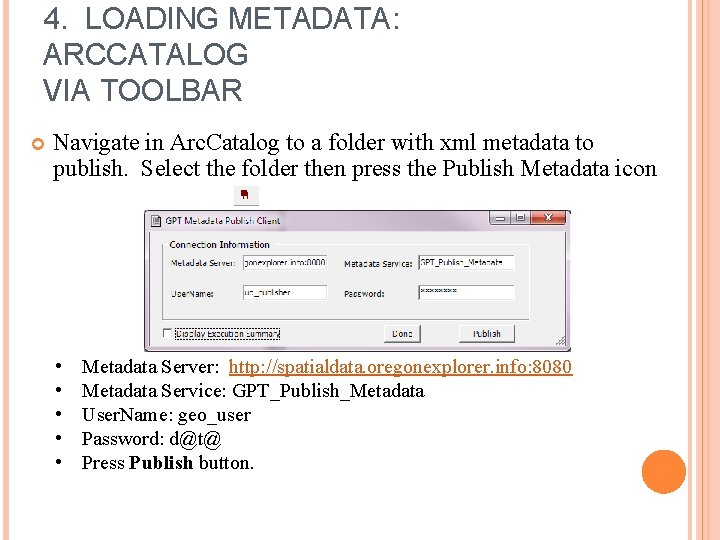
4. LOADING METADATA: ARCCATALOG VIA TOOLBAR Navigate in Arc. Catalog to a folder with xml metadata to publish. Select the folder then press the Publish Metadata icon • • • Metadata Server: http: //spatialdata. oregonexplorer. info: 8080 Metadata Service: GPT_Publish_Metadata User. Name: geo_user Password: d@t@ Press Publish button.
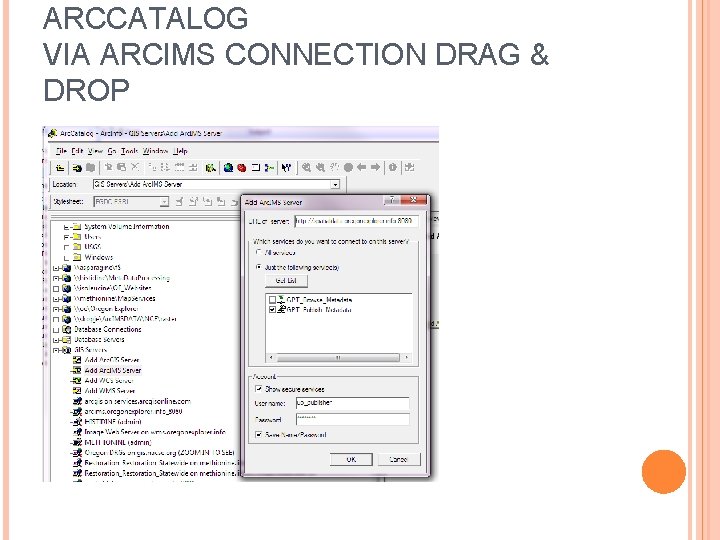
ARCCATALOG VIA ARCIMS CONNECTION DRAG & DROP
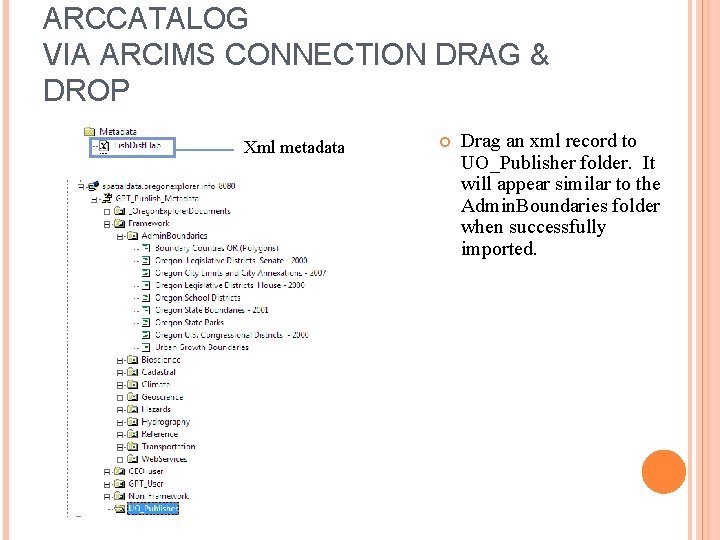
ARCCATALOG VIA ARCIMS CONNECTION DRAG & DROP Xml metadata Drag an xml record to UO_Publisher folder. It will appear similar to the Admin. Boundaries folder when successfully imported.
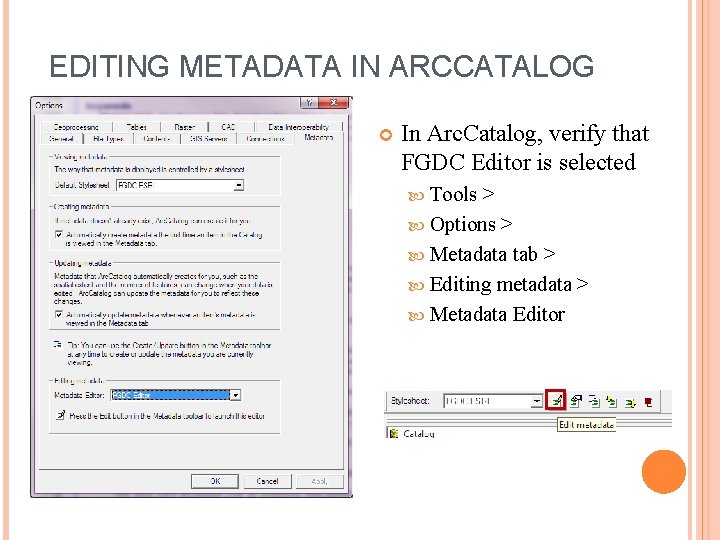
EDITING METADATA IN ARCCATALOG In Arc. Catalog, verify that FGDC Editor is selected Tools > Options > Metadata tab > Editing metadata > Metadata Editor
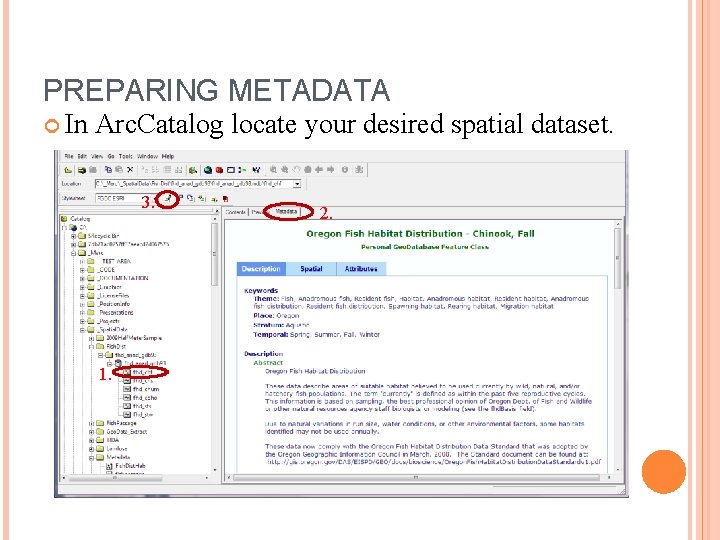
PREPARING METADATA In Arc. Catalog locate your desired spatial dataset. 3. 1. 2.
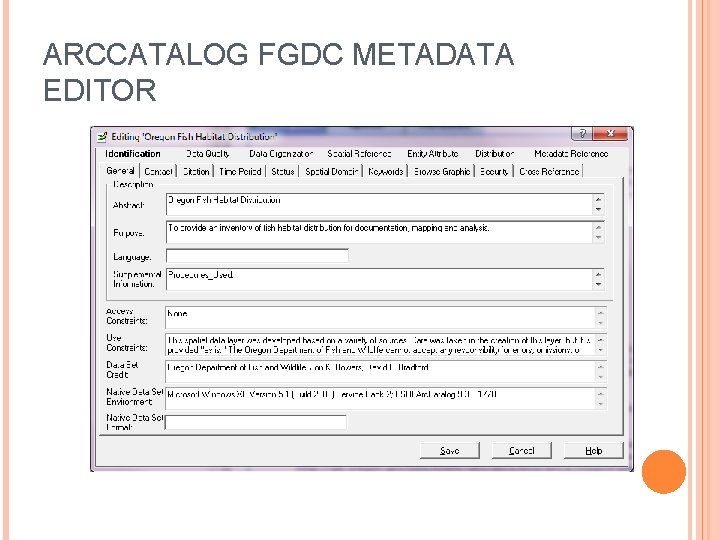
ARCCATALOG FGDC METADATA EDITOR
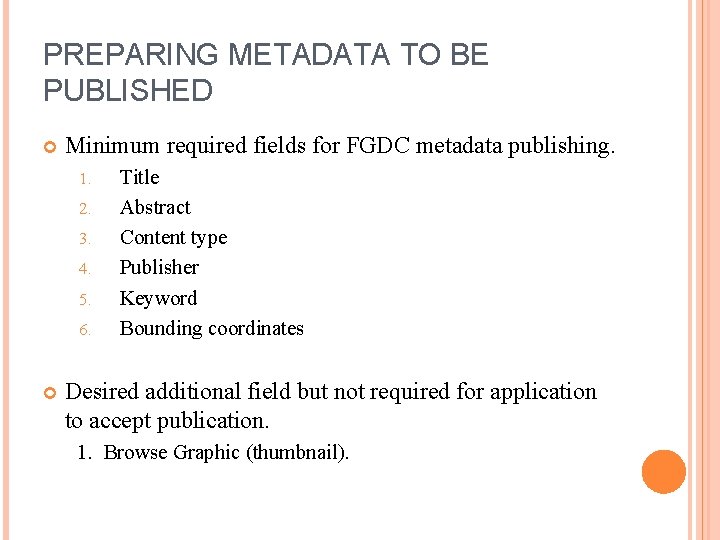
PREPARING METADATA TO BE PUBLISHED Minimum required fields for FGDC metadata publishing. 1. 2. 3. 4. 5. 6. Title Abstract Content type Publisher Keyword Bounding coordinates Desired additional field but not required for application to accept publication. 1. Browse Graphic (thumbnail).
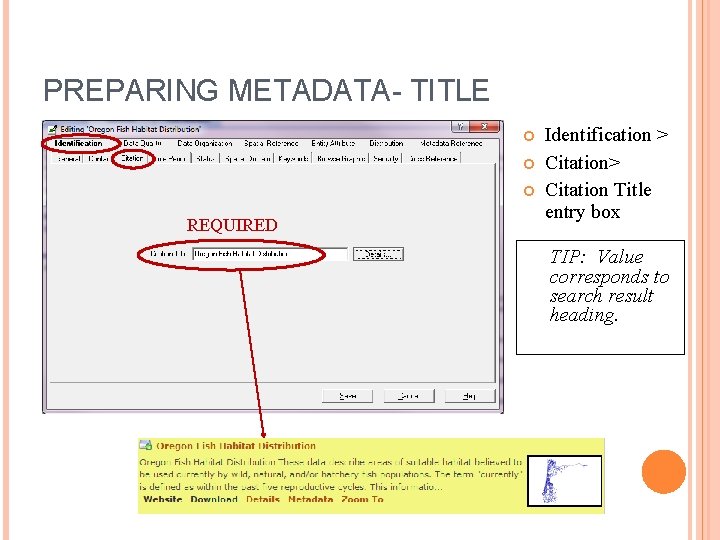
PREPARING METADATA- TITLE REQUIRED Identification > Citation Title entry box TIP: Value corresponds to search result heading.
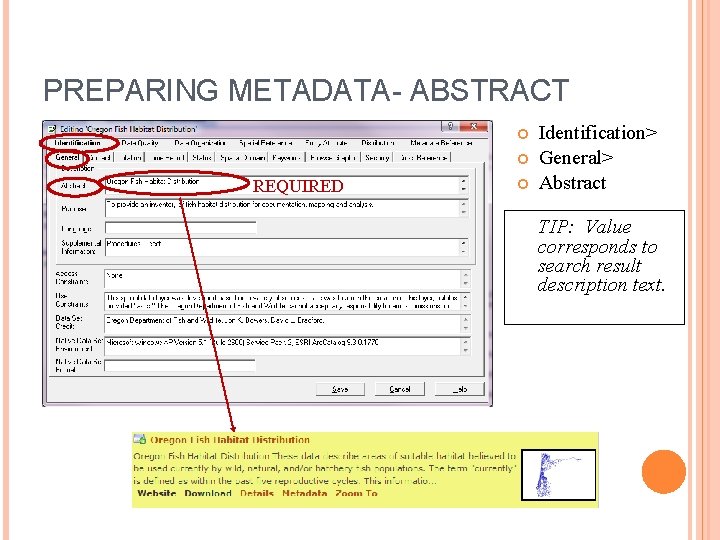
PREPARING METADATA- ABSTRACT REQUIRED Identification> General> Abstract TIP: Value corresponds to search result description text.
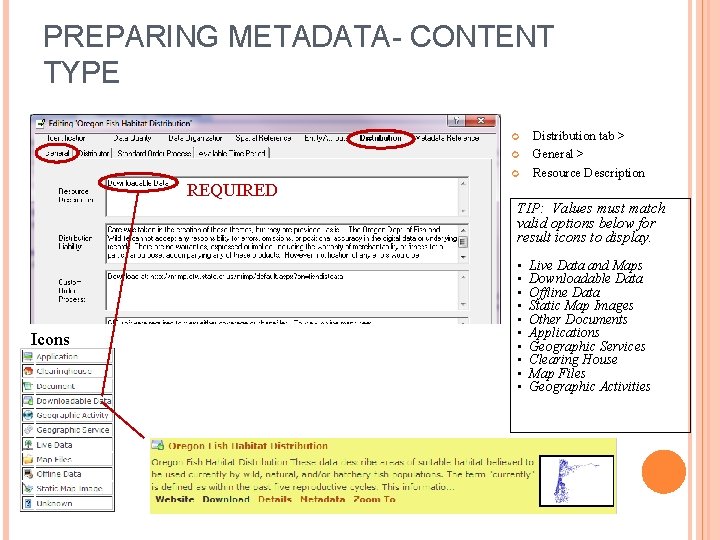
PREPARING METADATA- CONTENT TYPE Distribution tab > General > Resource Description REQUIRED TIP: Values must match valid options below for result icons to display. Icons • • • Live Data and Maps Downloadable Data Offline Data Static Map Images Other Documents Applications Geographic Services Clearing House Map Files Geographic Activities
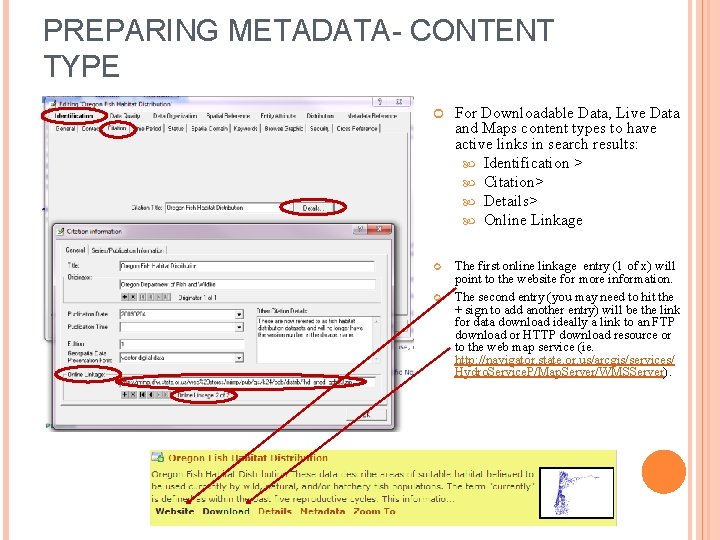
PREPARING METADATA- CONTENT TYPE For Downloadable Data, Live Data and Maps content types to have active links in search results: Identification > Citation> Details> Online Linkage The first online linkage entry (1 of x) will point to the website for more information. The second entry (you may need to hit the + sign to add another entry) will be the link for data download ideally a link to an FTP download or HTTP download resource or to the web map service (ie. http: //navigator. state. or. us/arcgis/services/ Hydro. Service. P/Map. Server/WMSServer).
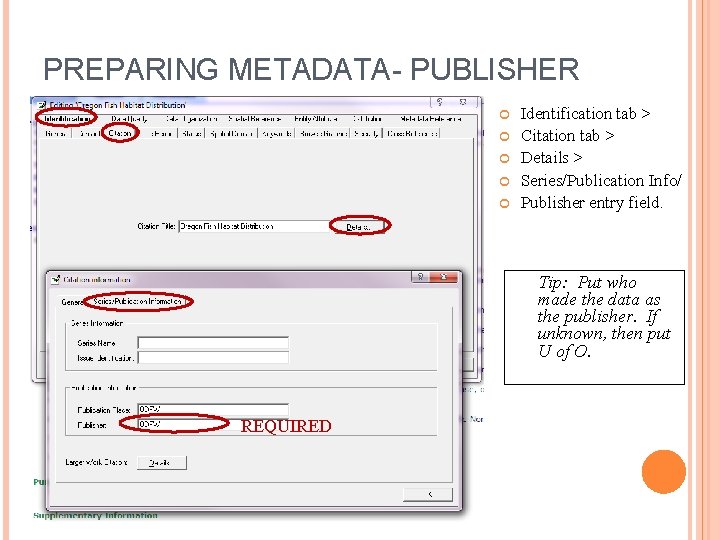
PREPARING METADATA- PUBLISHER Identification tab > Citation tab > Details > Series/Publication Info/ Publisher entry field. Tip: Put who made the data as the publisher. If unknown, then put U of O. REQUIRED
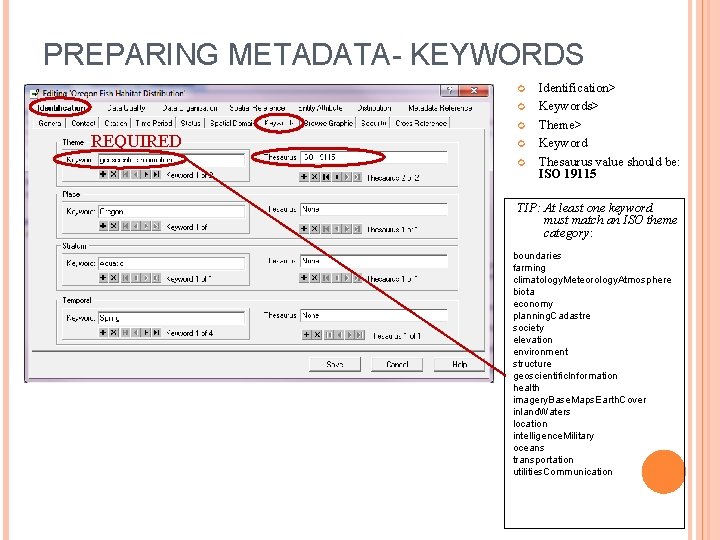
PREPARING METADATA- KEYWORDS REQUIRED Identification> Keywords> Theme> Keyword Thesaurus value should be: ISO 19115 TIP: At least one keyword must match an ISO theme category: boundaries farming climatology. Meteorology. Atmosphere biota economy planning. Cadastre society elevation environment structure geoscientific. Information health imagery. Base. Maps. Earth. Cover inland. Waters location intelligence. Military oceans transportation utilities. Communication
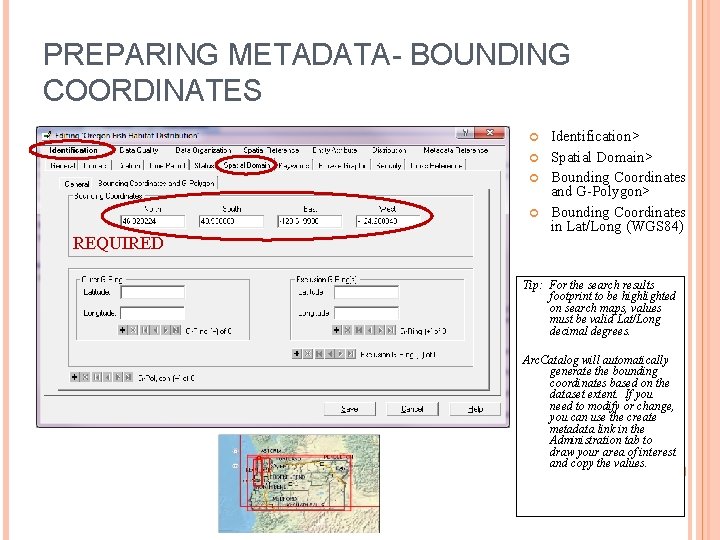
PREPARING METADATA- BOUNDING COORDINATES REQUIRED Identification> Spatial Domain> Bounding Coordinates and G-Polygon> Bounding Coordinates in Lat/Long (WGS 84) Tip: For the search results footprint to be highlighted on search maps, values must be valid Lat/Long decimal degrees. Arc. Catalog will automatically generate the bounding coordinates based on the dataset extent. If you need to modify or change, you can use the create metadata link in the Administration tab to draw your area of interest and copy the values.
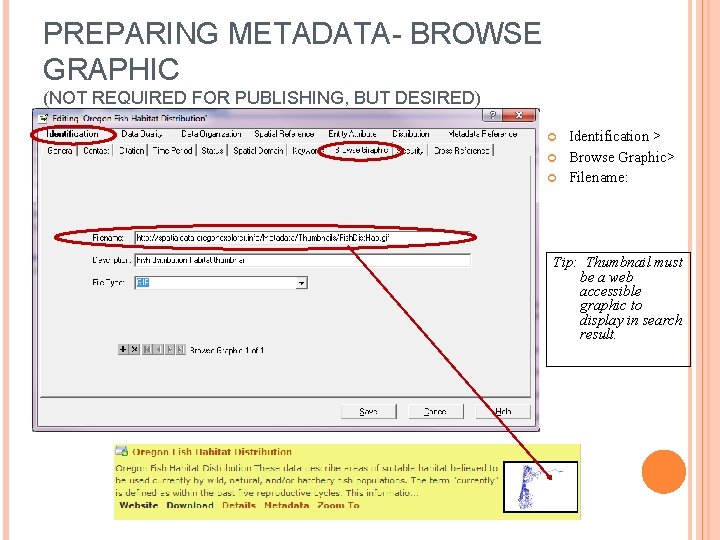
PREPARING METADATA- BROWSE GRAPHIC (NOT REQUIRED FOR PUBLISHING, BUT DESIRED) Identification > Browse Graphic> Filename: Tip: Thumbnail must be a web accessible graphic to display in search result.
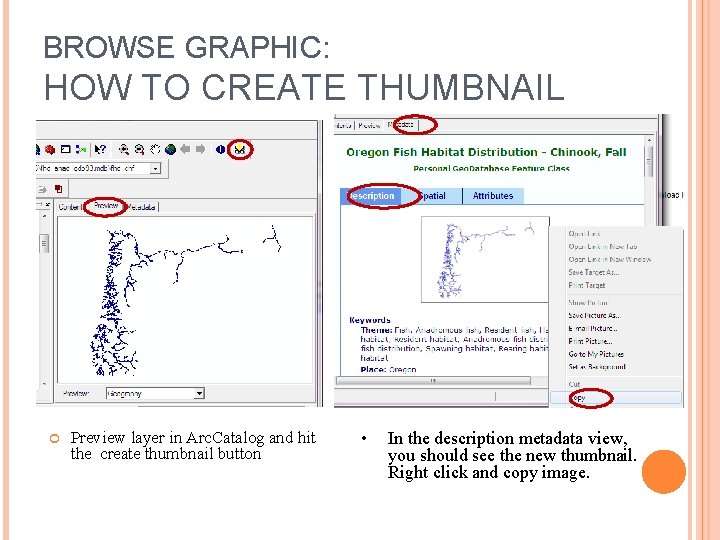
BROWSE GRAPHIC: HOW TO CREATE THUMBNAIL Preview layer in Arc. Catalog and hit the create thumbnail button • In the description metadata view, you should see the new thumbnail. Right click and copy image.
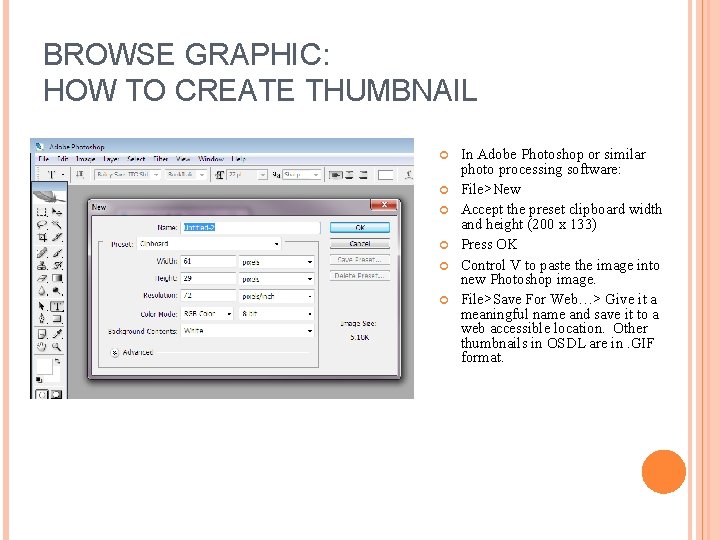
BROWSE GRAPHIC: HOW TO CREATE THUMBNAIL In Adobe Photoshop or similar photo processing software: File>New Accept the preset clipboard width and height (200 x 133) Press OK Control V to paste the image into new Photoshop image. File>Save For Web…> Give it a meaningful name and save it to a web accessible location. Other thumbnails in OSDL are in. GIF format.
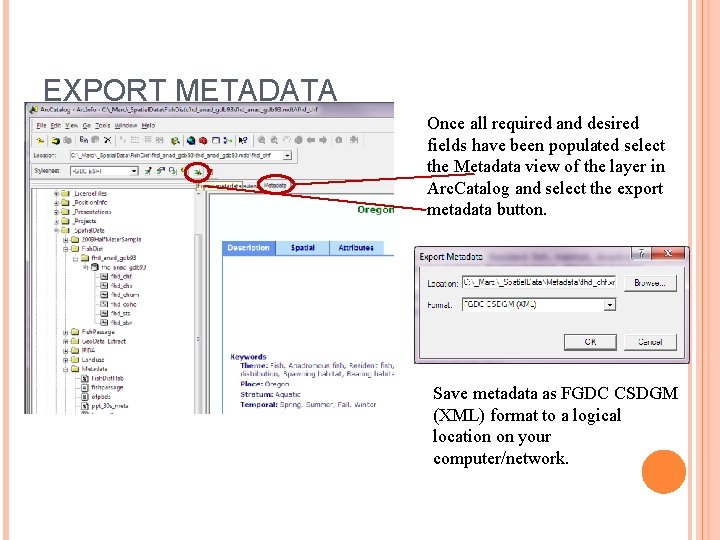
EXPORT METADATA Once all required and desired fields have been populated select the Metadata view of the layer in Arc. Catalog and select the export metadata button. Save metadata as FGDC CSDGM (XML) format to a logical location on your computer/network.
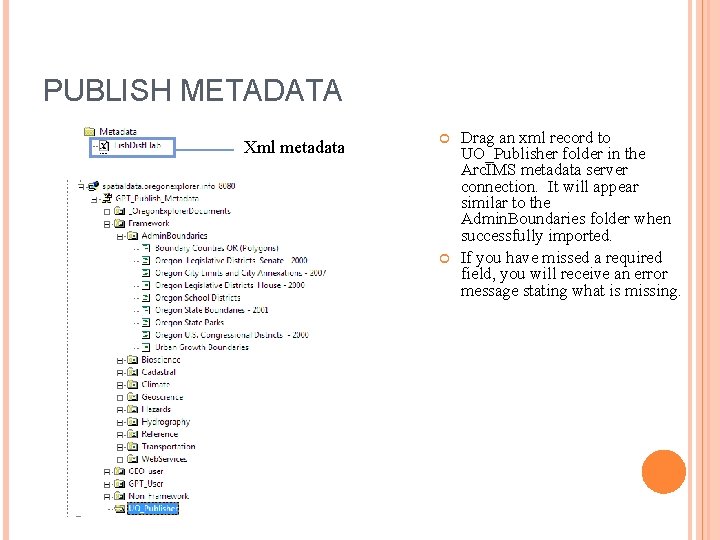
PUBLISH METADATA Xml metadata Drag an xml record to UO_Publisher folder in the Arc. IMS metadata server connection. It will appear similar to the Admin. Boundaries folder when successfully imported. If you have missed a required field, you will receive an error message stating what is missing.
FINAL STEP Once a document has been published to the metadata service, its status will be set as “Posted”. For a document to be available for searching, the status has to be “Approved” which can only be done via an Administrator account. After completion of publishing records, notify us and we can set the status to approved. marc. rempel@oregonstate. edu
ADDITIONAL RESOURCES Publishing metadata in Arc. Catalog http: //www. geographynetwork. com/publishing/publishmetadata. pdf GPT Publish Client tool for Arc. Catalog http: //oregonexplorer. info/External. Content/OSDL/GPTPublish. C lient. zip This powerpoint http: //oregonexplorer. info/External. Content/OSDL_Meta data. Loading_training_UO. ppt
- Slides: 39