
Optimizing Windows Vista Performance Lesson 10 Technology Skill
- Slides: 28
Optimizing Windows Vista Performance Lesson 10
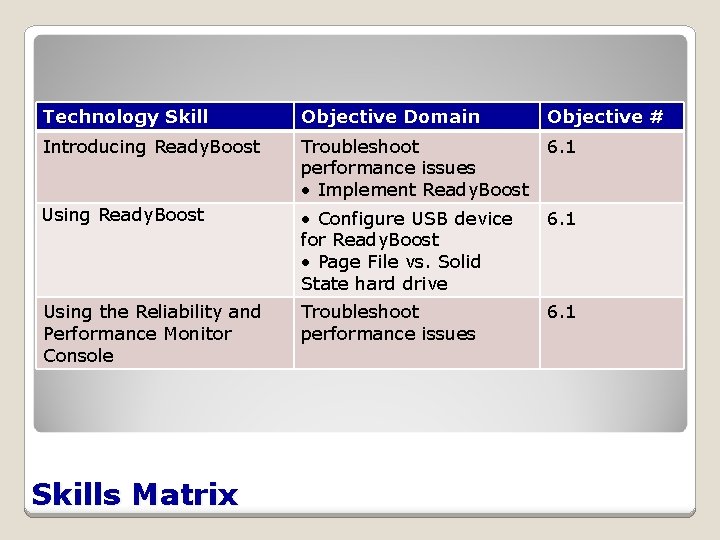
Technology Skill Objective Domain Objective # Introducing Ready. Boost Troubleshoot performance issues • Implement Ready. Boost 6. 1 Using Ready. Boost • Configure USB device for Ready. Boost • Page File vs. Solid State hard drive 6. 1 Using the Reliability and Performance Monitor Console Troubleshoot performance issues 6. 1 Skills Matrix
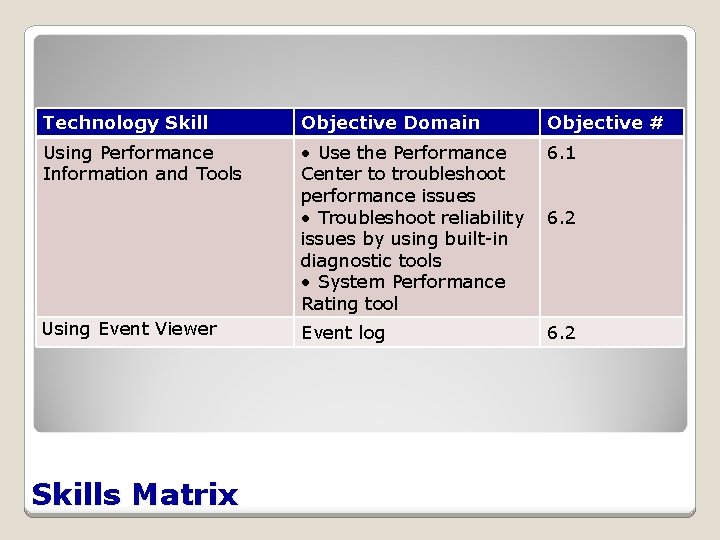
Technology Skill Objective Domain Objective # Using Performance Information and Tools • Use the Performance Center to troubleshoot performance issues • Troubleshoot reliability issues by using built-in diagnostic tools • System Performance Rating tool 6. 1 Event log 6. 2 Using Event Viewer Skills Matrix 6. 2
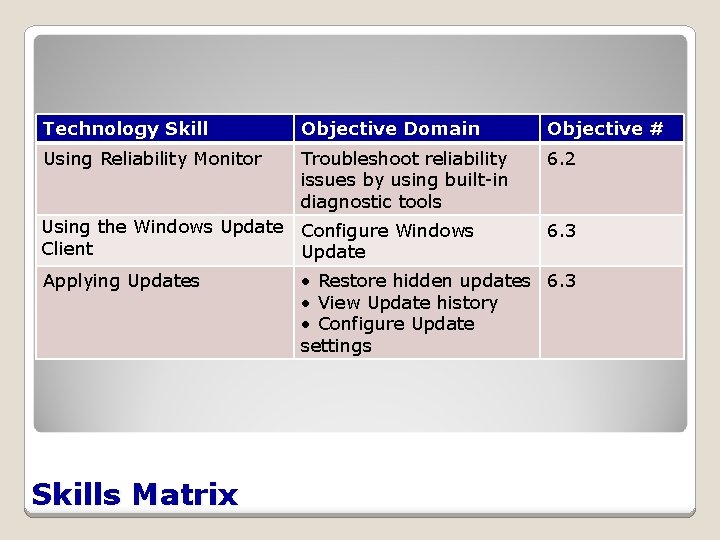
Technology Skill Objective Domain Objective # Using Reliability Monitor Troubleshoot reliability issues by using built-in diagnostic tools 6. 2 Using the Windows Update Configure Windows Client Update Applying Updates Skills Matrix 6. 3 • Restore hidden updates 6. 3 • View Update history • Configure Update settings
Updating Windows Vista Current operating systems are always a work -in-progress, constantly being updated to correct errors, enhance performance, and add features. One of the primary tasks of a desktop technician Should be familiar with: ØTypes of update releases ØMethods for deploying updates Chapter 10
Understanding Update Types Hotfixes Security Updates Cumulative Service Updates (or rollups) Packs Chapter 10
Understanding Update Types (cont. ) Critical Updates Recommended Optional Device Updates Drivers Chapter 10
Applying Updates Windows Server Update Services (WSUS) Systems Management Server (SMS) Chapter 10
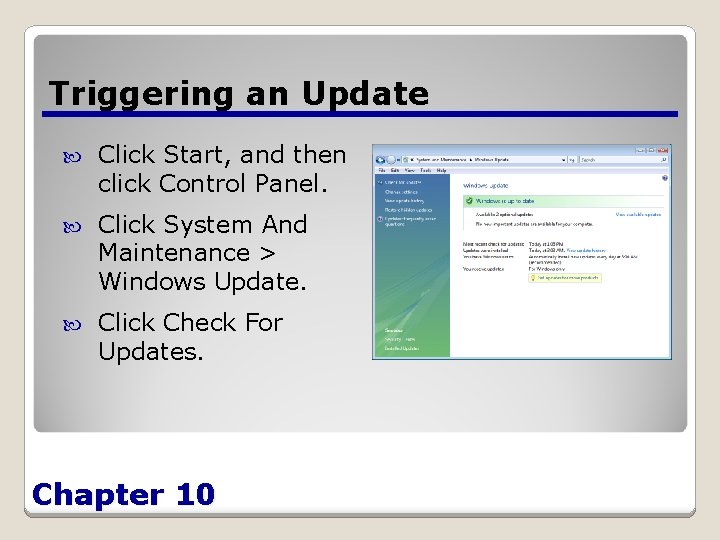
Triggering an Update Click Start, and then click Control Panel. Click System And Maintenance > Windows Update. Click Check For Updates. Chapter 10
Triggering an Update (cont. ) If the client finds and downloads any updates, click View Available Updates. Double-click each update to display information about its function and links to associated articles on the Internet. Select the checkbox for each update that you want to install and click Install. Chapter 10
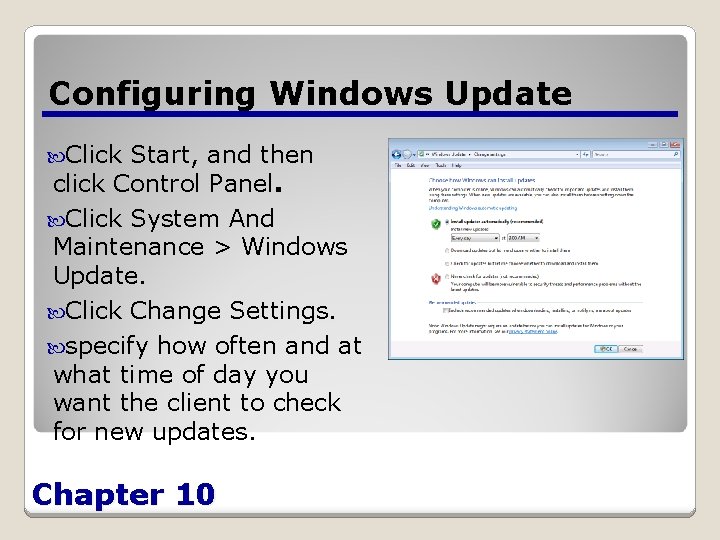
Configuring Windows Update Click Start, and then click Control Panel. Click System And Maintenance > Windows Update. Click Change Settings. specify how often and at what time of day you want the client to check for new updates. Chapter 10
Monitoring Performance For a computer to perform well, all of its components must be efficient Vista includes tools to enable you to locate poorly performing components (bottlenecks) ØEvent Viewer ØPerformance Information and Tools ØReliability and Performance Monitor Chapter 10
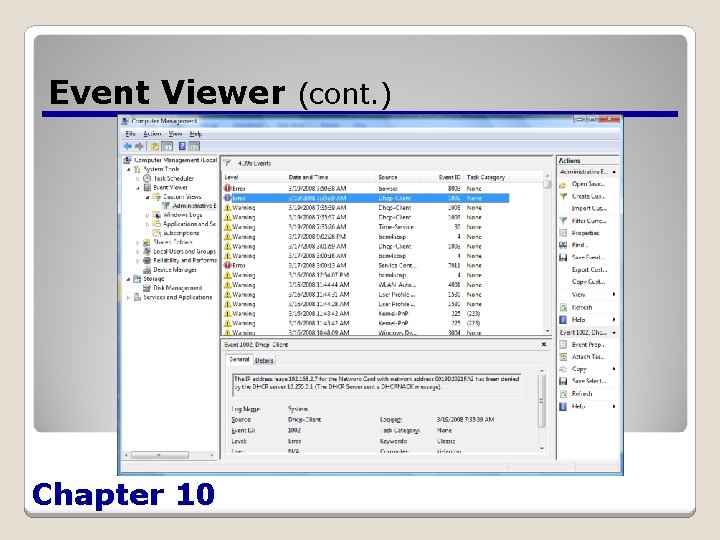
Event Viewer Primary function is to record information about system activities as they occur and package that information into individual units, called events Event Viewer is the tool you use to view these events Events are stored in log files: ØSystem Log, Security Log and Application Log ØSetup and Forwarded Events (new with Vista) Chapter 10
Event Viewer (cont. ) Chapter 10
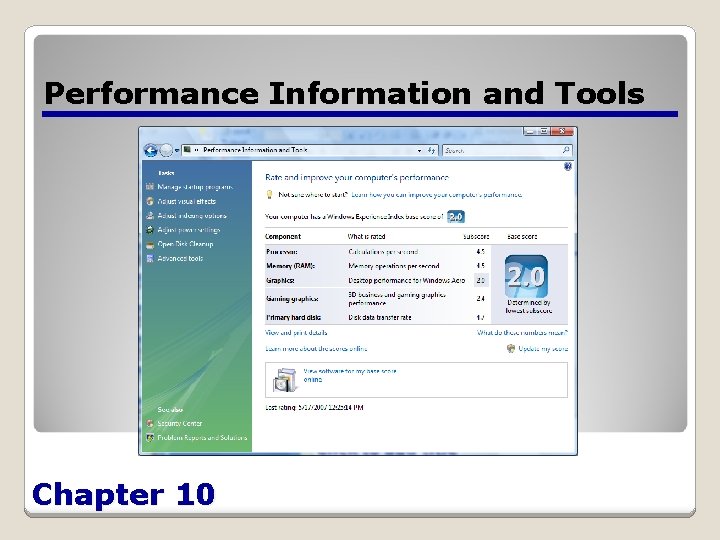
System Performance Rating Tool Rates computer’s components and assigns a base score reflecting the score of the lowest rated component on your system – the bottleneck Hardware upgrades improve performance Conserve system resources to enhance performance – Learn how you can improve your computer’s performance link Chapter 10
Performance Information and Tools Chapter 10
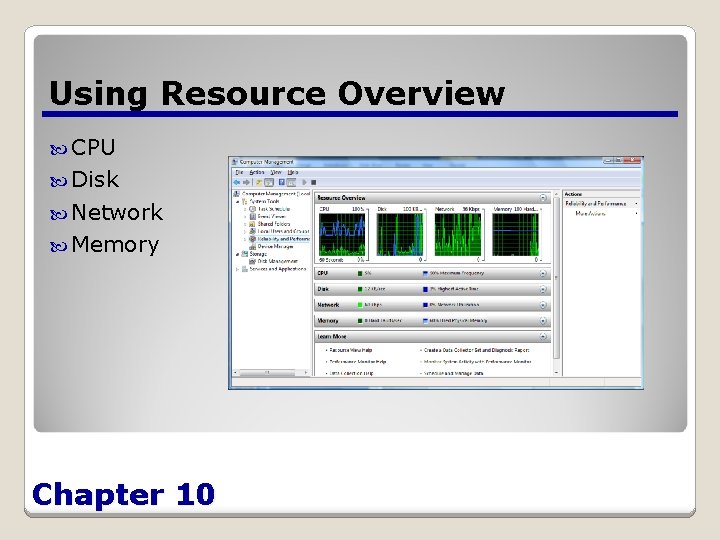
Using Resource Overview CPU Disk Network Memory Chapter 10
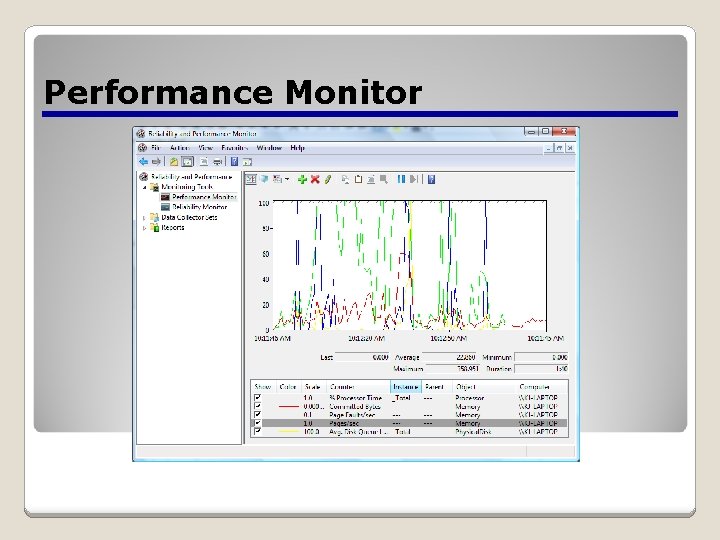
Performance Monitor
Creating an Effective Display Limit the number of counters Modify the counter display properties Choose counters with comparable values Chapter 10
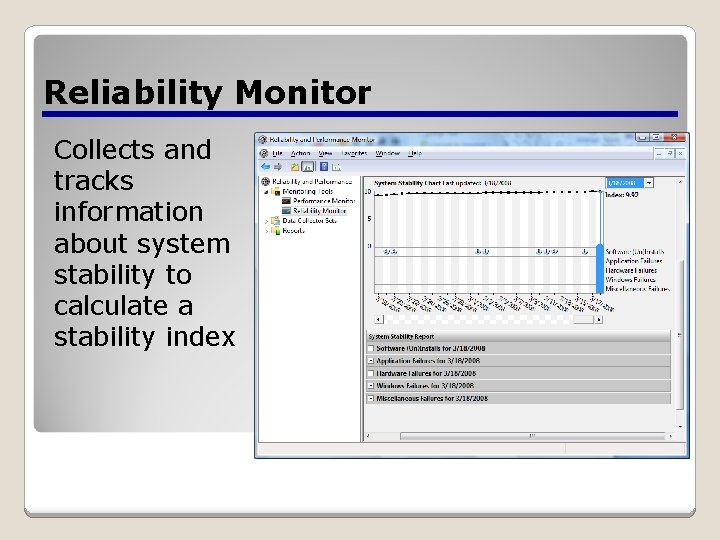
Reliability Monitor Collects and tracks information about system stability to calculate a stability index
Introducing Ready. Boost New Vista feature that enables you to use the storage space on a USB flash drive to free up system memory for other uses
You Learned Microsoft releases operating system updates on the 12 th of each month, with occasional, additional releases when an issue requires an immediate response. Microsoft classifies updates using the following categories: Critical Updates, Recommended Updates, Optional Updates, and Device Drivers. Chapter 10
You Learned (cont. ) The Windows Update client included with Vista makes it possible to configure computers to automatically download and install Windows updates as needed. In addition to the control panel interface, it is possible to configure the Windows Update client using Group Policy settings. Chapter 10
You Learned (cont. ) Windows uses a graphical application called Event Viewer to display the log information gathered by the operating system. Chapter 10
You Learned (cont. ) While the Performance Information And Tools page provides a snapshot of your computer’s performance at a single moment in time, the Reliability And Performance Monitor console enables you to view much of the same information, but on a continuous, real-time basis. Chapter 10
You Learned (cont. ) The Resource Overview screen contains four real-time line graphs that display information about four of the main system hardware components. Each component also has a separate, expandable section, displaying more detailed information in text form, such as the resources being utilized by individual applications and processes. Chapter 10
You Learned (cont. ) Performance Monitor can display hundreds of different statistics (called performance counters). You can create a customized graph containing any statistics you choose. Reliability Monitor is a new Windows Vista tool that automatically tracks events that can have a negative effect on system stability and uses them to calculate a stability index. Chapter 10
You Learned (cont. ) Ready. Boost is a new Windows Vista feature that enables you to use the storage space on a USB flash drive to free up system memory for other uses. Chapter 10