
Optimizing Language Line In Sight Video Interpreting 2018






- Slides: 21
Optimizing Language. Line In. Sight® Video Interpreting © 2018 Language. Line Solutions • Confidential and Proprietary • www. Language. Line. com 1
Agenda • • • Why language access is important Why Language. Line Solutions Managing cultural difference Identifying the preferred language How to access an interpreter Working with the interpreter © 2018 Language. Line Solutions • Confidential and Proprietary • www. Language. Line. com 2
Why Language Access Services? It’s the Right Thing to Do • Improves customer service and builds loyalty by communicating in the customer’s preferred language • Improves staff efficiency by streamlining the communication process • Mitigates risk and reduces the expense associated with a lack of effective communication © 2018 Language. Line Solutions • Confidential and Proprietary • www. Language. Line. com 3
Why Language Access Services? It’s The Law The law requires recipients of Federal funds to provide free, professional language access services to the Limited English Proficient and the Deaf and Hard-of-Hearing and provide notification that services are available. • • • Section 1557 of the Patient Protection and Affordable Care Act Executive Order 13166 of 2000 Americans with Disabilities Act of 1990 Section 504 of the Rehabilitation Act of 1973 Title VI of the Civil Rights Act of 1964 Local Language Access Mandates Compliance helps us to: – – Provide an outstanding customer experience Avoid costly fines Maximize Federal funding Avoid the cost of litigation © 2018 Language. Line Solutions • Confidential and Proprietary • www. Language. Line. com 4
Even More Regulated in Healthcare The law requires recipients of federal funds to provide free, professional language access services to the Limited English Proficient and the Deaf and Hard-of-Hearing and to provide notification that service is available. • • Executive Order 13166 of 2000 The Joint Commission Culturally and Linguistically Appropriate Services (CLAS) Standards Section 1557 of the Patient Protection and Affordable Care Act – Bans the use of low-quality VRI – Requires qualified interpreters • Benefits to patients: – Improves health outcomes – Reduces readmissions – Contributes to outstanding patient experience © 2018 Language. Line Solutions • Confidential and Proprietary • www. Language. Line. com 5
The Industry’s Most Dependable Provider THE PREMIER PARTNER Quality Linguists • • Only 1 in 11 (9%) applicants hired Ongoing training and support Quality assurance and monitoring Average annual investment in our linguists exceeds many of our competitors annual earnings Systems Safety and Security • Complete hundreds of security and business continuity client audits annually in Finance, Insurance, Healthcare, Utilities, Government sectors • True global comprehensive Insurance and Liability Policy THE TRUSTED PARTNER Experienced Clients Client Retention 28, 000 99% THE PROVEN PARTNER 13 of the top 14 Medical Facilities 18 of the top 20 Insurance Companies 8 out of the top 10 Commercial Banks 1000 s of Government Agencies Financial Stability • More than 3 x revenue of our nearest competitor* • Sustained growth with annual revenue increases Technological Innovation • Single largest technology investment in the history of the language industry to support client needs • Faster, clearer connections to interpreters • New cutting edge solutions * 2018 Common Sense Advisory © 2018 Language. Line Solutions • Confidential and Proprietary • www. Language. Line. com 6
Managing Cultural Difference Interpreters help overcome language and cultural barriers. When working with LEP persons keep in mind: • Cultural Sensitivity. An LEP’s culture, traditions and experiences may be very different from our own. Understand differences exist. Be non-judgmental. • Indirect Communication. English is a direct language. In other languages and cultures, it often takes longer to get to the point—even during emergencies. Understand this issue and be patient. • Education. LEP persons may not be familiar with practices common to us. To improve communication and reduce confusion, offer explanations when possible to bring LEP customers into the mainstream. • Simple Language. To improve understanding, use simple language and ask for clarification if needed. • Your Manner. Be respectful and speak in a neutral tone. © 2018 Language. Line Solutions • Confidential and Proprietary • www. Language. Line. com 7
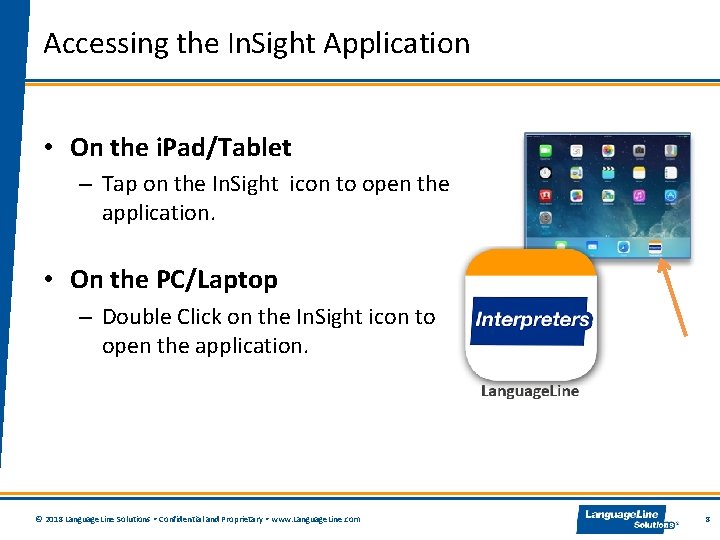
Accessing the In. Sight Application • On the i. Pad/Tablet – Tap on the In. Sight icon to open the application. • On the PC/Laptop – Double Click on the In. Sight icon to open the application. © 2018 Language. Line Solutions • Confidential and Proprietary • www. Language. Line. com 8
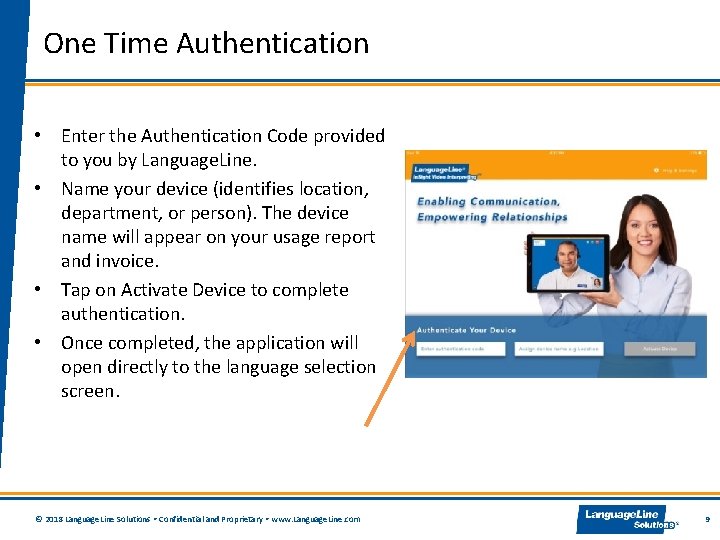
One Time Authentication • Enter the Authentication Code provided to you by Language. Line. • Name your device (identifies location, department, or person). The device name will appear on your usage report and invoice. • Tap on Activate Device to complete authentication. • Once completed, the application will open directly to the language selection screen. © 2018 Language. Line Solutions • Confidential and Proprietary • www. Language. Line. com 9
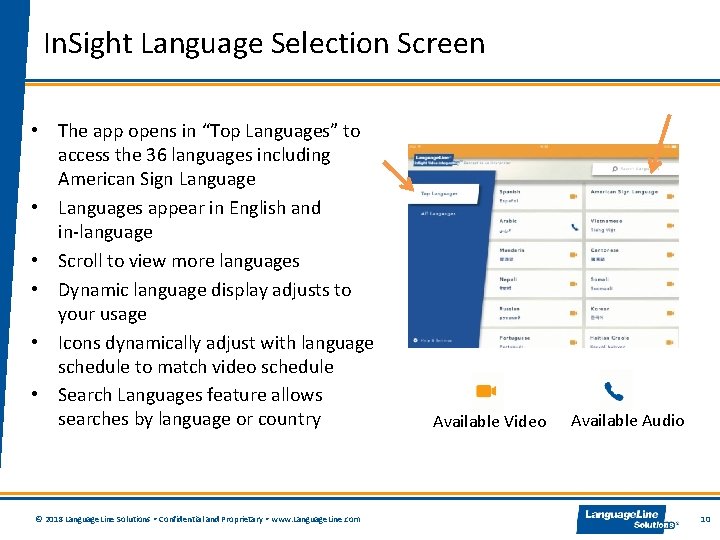
In. Sight Language Selection Screen • The app opens in “Top Languages” to access the 36 languages including American Sign Language • Languages appear in English and in-language • Scroll to view more languages • Dynamic language display adjusts to your usage • Icons dynamically adjust with language schedule to match video schedule • Search Languages feature allows searches by language or country © 2018 Language. Line Solutions • Confidential and Proprietary • www. Language. Line. com Available Video Available Audio 10
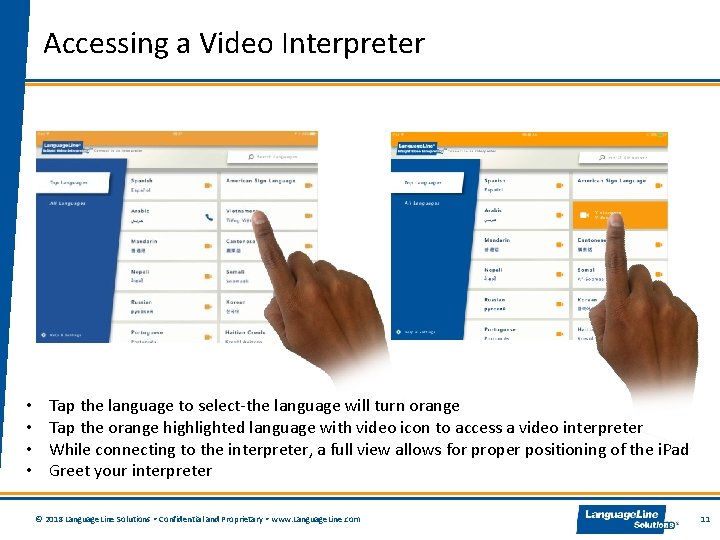
Accessing a Video Interpreter • • Tap the language to select-the language will turn orange Tap the orange highlighted language with video icon to access a video interpreter While connecting to the interpreter, a full view allows for proper positioning of the i. Pad Greet your interpreter © 2018 Language. Line Solutions • Confidential and Proprietary • www. Language. Line. com 11
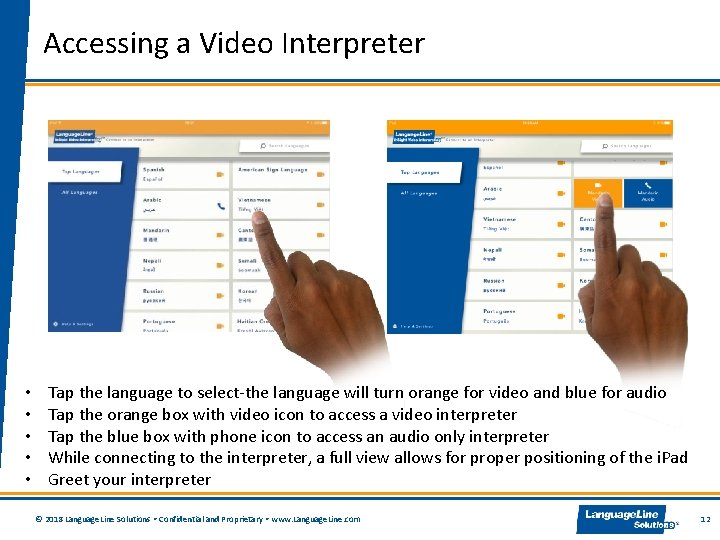
Accessing a Video Interpreter • • • Tap the language to select-the language will turn orange for video and blue for audio Tap the orange box with video icon to access a video interpreter Tap the blue box with phone icon to access an audio only interpreter While connecting to the interpreter, a full view allows for proper positioning of the i. Pad Greet your interpreter © 2018 Language. Line Solutions • Confidential and Proprietary • www. Language. Line. com 12
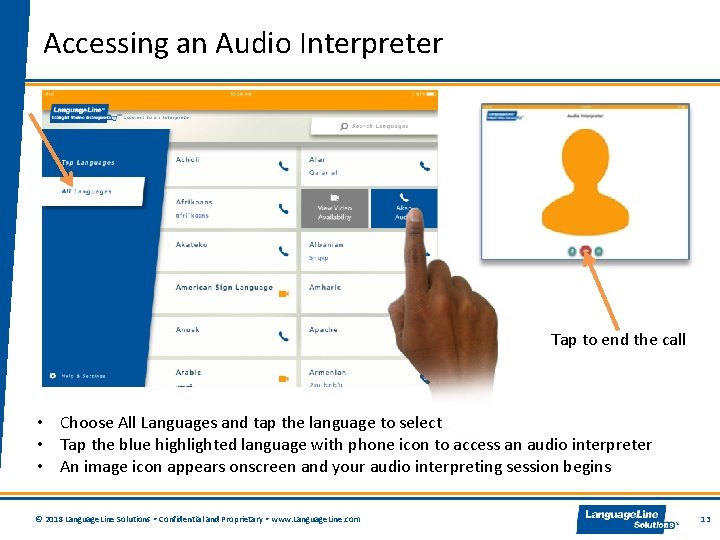
Accessing an Audio Interpreter Tap to end the call • Choose All Languages and tap the language to select • Tap the blue highlighted language with phone icon to access an audio interpreter • An image icon appears onscreen and your audio interpreting session begins © 2018 Language. Line Solutions • Confidential and Proprietary • www. Language. Line. com 13
Identifying the Language Preference Language identification tools are available to enable limited English speakers to point to their preferred language. If a language still can not be identified, call an interpreter for language identification assistance. Desktop Display Language ID Guide Language ID Poster This phrase is translated into each language for self-identification. © 2018 Language. Line Solutions • Confidential and Proprietary • www. Language. Line. com 14
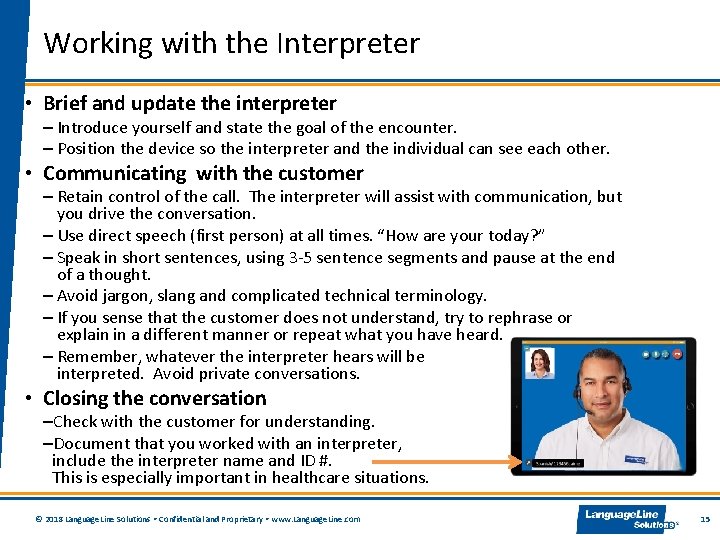
Working with the Interpreter • Brief and update the interpreter – Introduce yourself and state the goal of the encounter. – Position the device so the interpreter and the individual can see each other. • Communicating with the customer – Retain control of the call. The interpreter will assist with communication, but you drive the conversation. – Use direct speech (first person) at all times. “How are your today? ” – Speak in short sentences, using 3 -5 sentence segments and pause at the end of a thought. – Avoid jargon, slang and complicated technical terminology. – If you sense that the customer does not understand, try to rephrase or explain in a different manner or repeat what you have heard. – Remember, whatever the interpreter hears will be interpreted. Avoid private conversations. • Closing the conversation –Check with the customer for understanding. –Document that you worked with an interpreter, include the interpreter name and ID #. This is especially important in healthcare situations. © 2018 Language. Line Solutions • Confidential and Proprietary • www. Language. Line. com 15
Note. Pad Feature • Text can emphasize key information you would like the customer to understand remember. • To use the Note. Pad: • Ask the interpreter to bring up the Note. Pad • State what you want typed on the screen • Keep the information concise • The interpreter will type in the target language Note: the Note. Pad feature may not be available for all languages at all times © 2018 Language. Line Solutions • Confidential and Proprietary • www. Language. Line. com 16
Navigating the In. Sight Tap Control Buttons - Minimize or move the self-video window or drag the image to a different location Allow video privacy so the interpreter does not have video access Mute and un-mute audio End the call Access the in-app volume adjustment © 2018 Language. Line Solutions • Confidential and Proprietary • www. Language. Line. com 17
Volume Adjustment During an active In. Sight call, turn up the i. Pad volume to the highest setting using the i. Pad’s volume button. Next tap the volume icon to view the in-app Volume Adjustment Slider bar and adjust the volume to the desired setting. © 2018 Language. Line Solutions • Confidential and Proprietary • www. Language. Line. com 18
Access Help & Settings § § Tap “Technical Assistance” to review a list of the most frequently asked questions and easy to understand responses with suggested actions. Select “Interpreter Availability” to access the video interpreter schedule including the language, hours of video interpreter availability, and days of the week § Tap “Call History” for a 30 -day call history for this device including: video or audio call, date and time, language, and the duration of the session. § Tap “Network Diagnostics” to help troubleshoot connectivity issues. Tap Help & Settings © 2018 Language. Line Solutions • Confidential and Proprietary • www. Language. Line. com 19
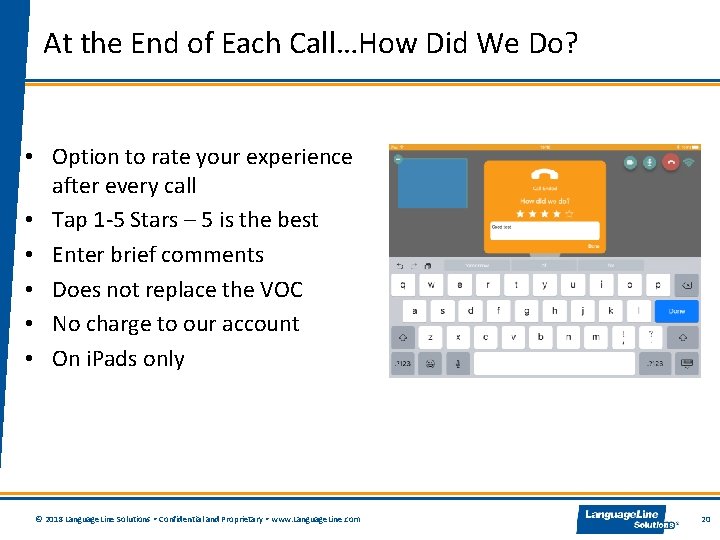
At the End of Each Call…How Did We Do? • Option to rate your experience after every call • Tap 1 -5 Stars – 5 is the best • Enter brief comments • Does not replace the VOC • No charge to our account • On i. Pads only © 2018 Language. Line Solutions • Confidential and Proprietary • www. Language. Line. com 20
Language. Line Customer Service 24/7 In. Sight Technical Service In you are having problems accessing an interpreting session contact: In. Sight Technical Support 844. 373. 1951 Voice of the Customer: If you wish to submit a comment or feedback to Language. Line, visit their website at www. languageline. com and mouse over Client Services and click on Voice of the Customer. You may submit a Voice of the Customer (VOC). They welcome your communication. © 2018 Language. Line Solutions • Confidential and Proprietary • www. Language. Line. com 21