
Optimizer Assistant Embedded Development Tools Motivation Too much
Optimizer Assistant Embedded Development Tools
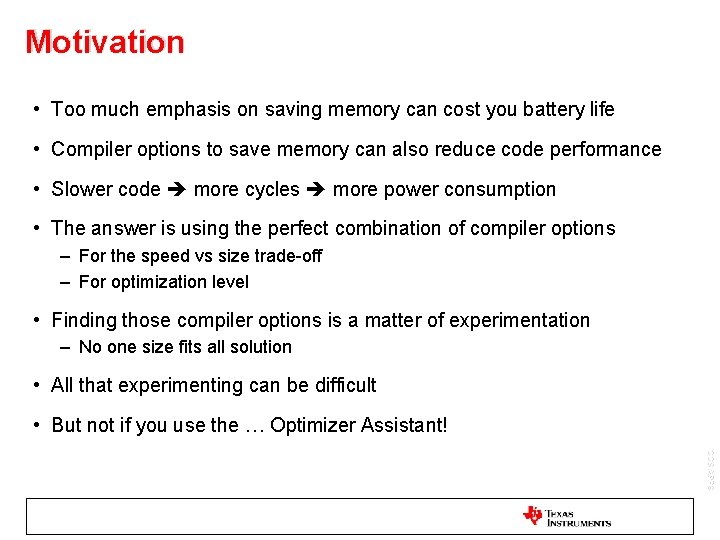
Motivation • Too much emphasis on saving memory can cost you battery life • Compiler options to save memory can also reduce code performance • Slower code more cycles more power consumption • The answer is using the perfect combination of compiler options – For the speed vs size trade-off – For optimization level • Finding those compiler options is a matter of experimentation – No one size fits all solution • All that experimenting can be difficult • But not if you use the … Optimizer Assistant! CCS APPS
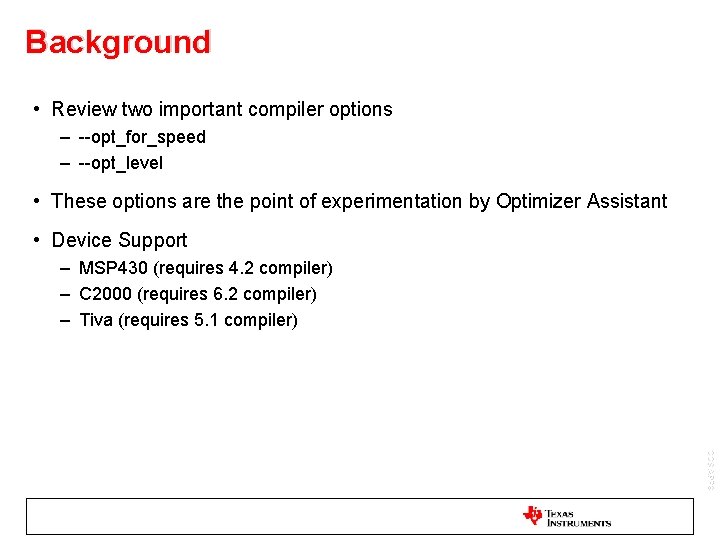
Background • Review two important compiler options – --opt_for_speed – --opt_level • These options are the point of experimentation by Optimizer Assistant • Device Support – MSP 430 (requires 4. 2 compiler) – C 2000 (requires 6. 2 compiler) – Tiva (requires 5. 1 compiler) CCS APPS
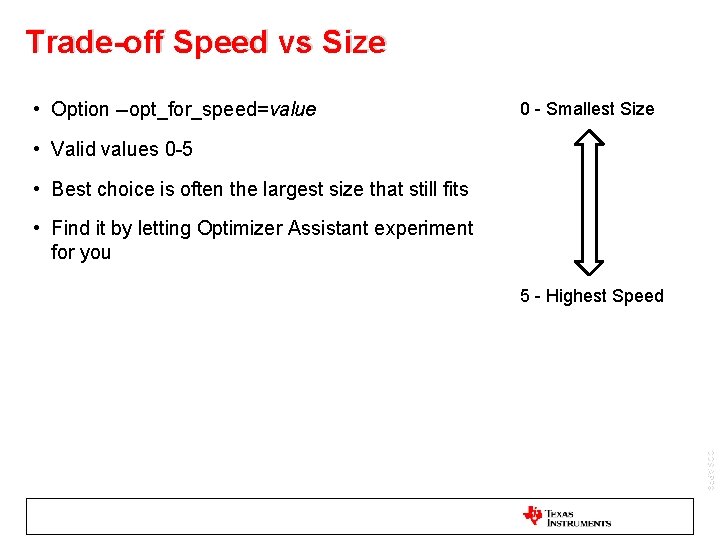
Trade-off Speed vs Size • Option --opt_for_speed=value 0 - Smallest Size • Valid values 0 -5 • Best choice is often the largest size that still fits • Find it by letting Optimizer Assistant experiment for you 5 - Highest Speed CCS APPS
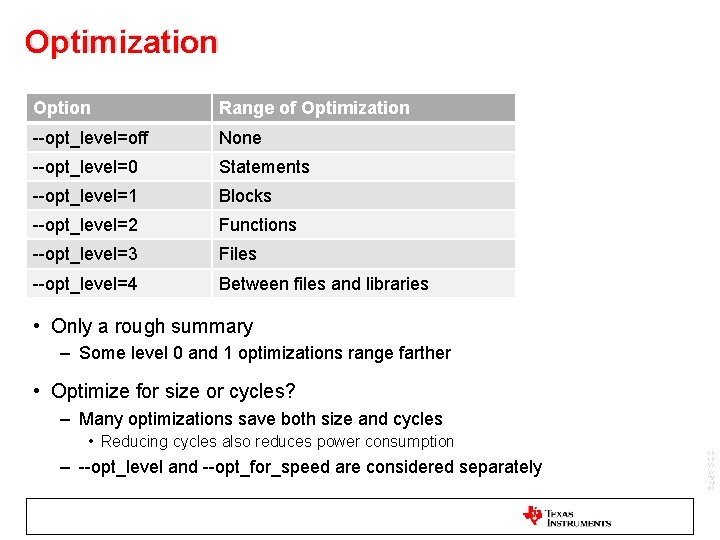
Optimization Option Range of Optimization --opt_level=off None --opt_level=0 Statements --opt_level=1 Blocks --opt_level=2 Functions --opt_level=3 Files --opt_level=4 Between files and libraries • Only a rough summary – Some level 0 and 1 optimizations range farther • Optimize for size or cycles? – Many optimizations save both size and cycles – --opt_level and --opt_for_speed are considered separately CCS APPS • Reducing cycles also reduces power consumption
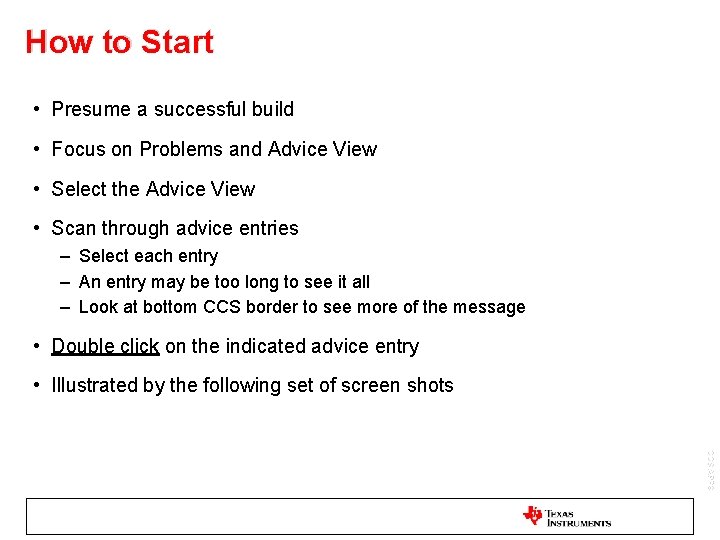
How to Start • Presume a successful build • Focus on Problems and Advice View • Select the Advice View • Scan through advice entries – Select each entry – An entry may be too long to see it all – Look at bottom CCS border to see more of the message • Double click on the indicated advice entry • Illustrated by the following set of screen shots CCS APPS
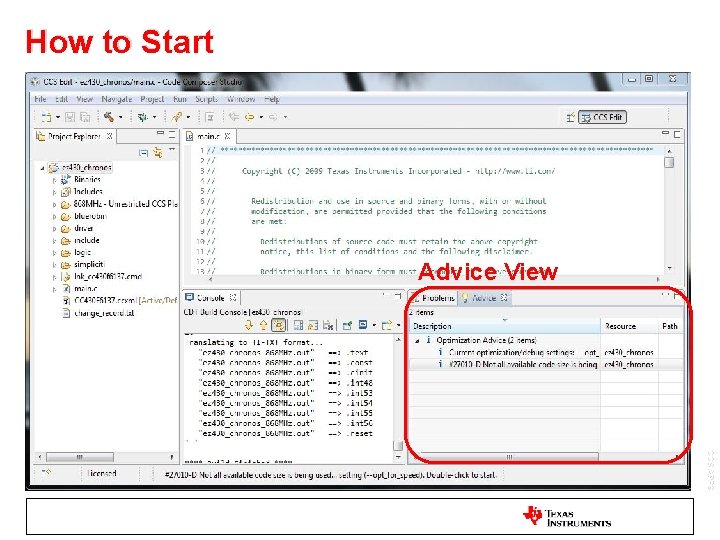
How to Start Advice View CCS APPS
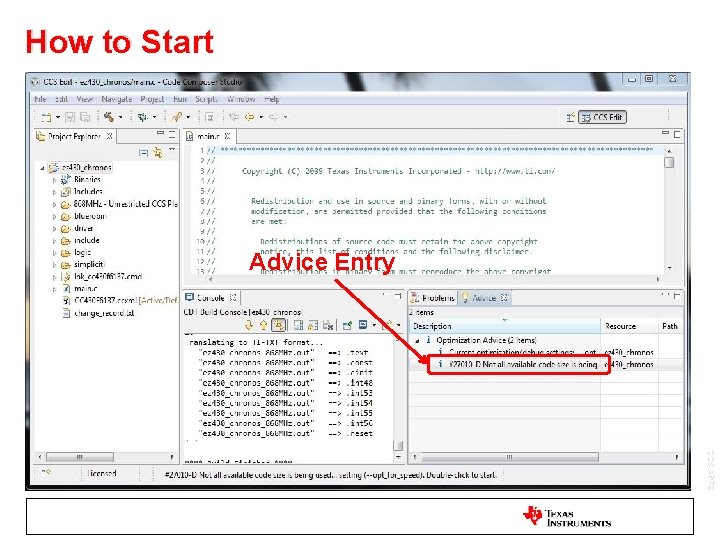
How to Start Advice Entry CCS APPS
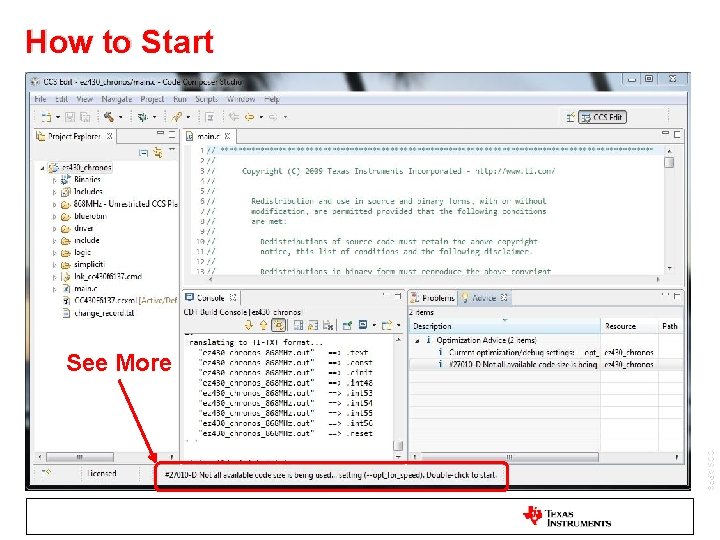
How to Start See More CCS APPS
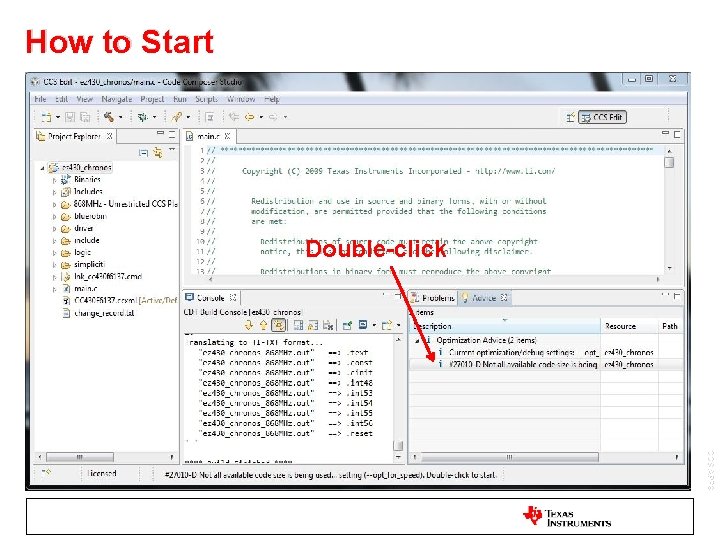
How to Start Double-click CCS APPS
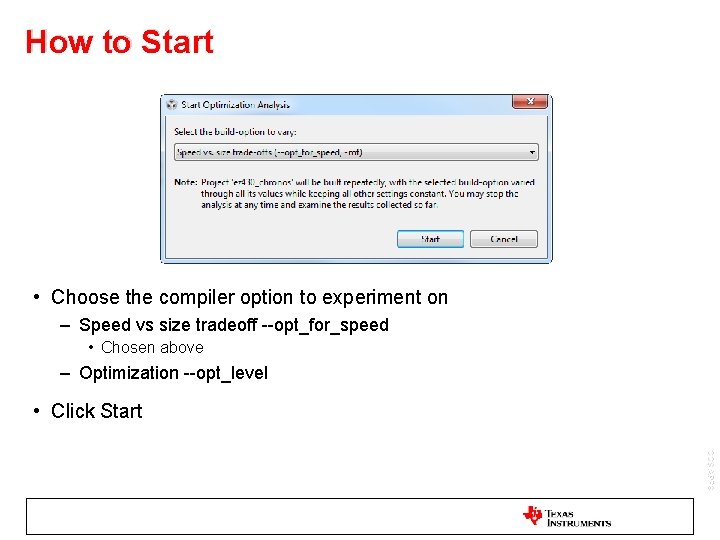
How to Start • Choose the compiler option to experiment on – Speed vs size tradeoff --opt_for_speed • Chosen above – Optimization --opt_level • Click Start CCS APPS
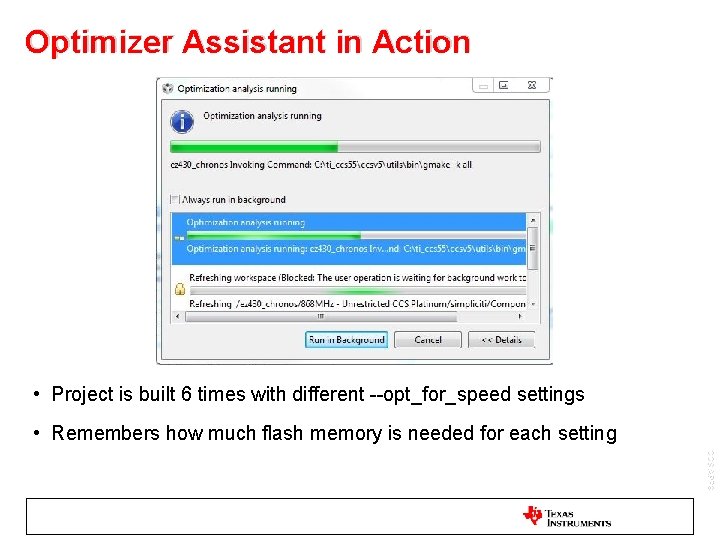
Optimizer Assistant in Action • Project is built 6 times with different --opt_for_speed settings • Remembers how much flash memory is needed for each setting CCS APPS
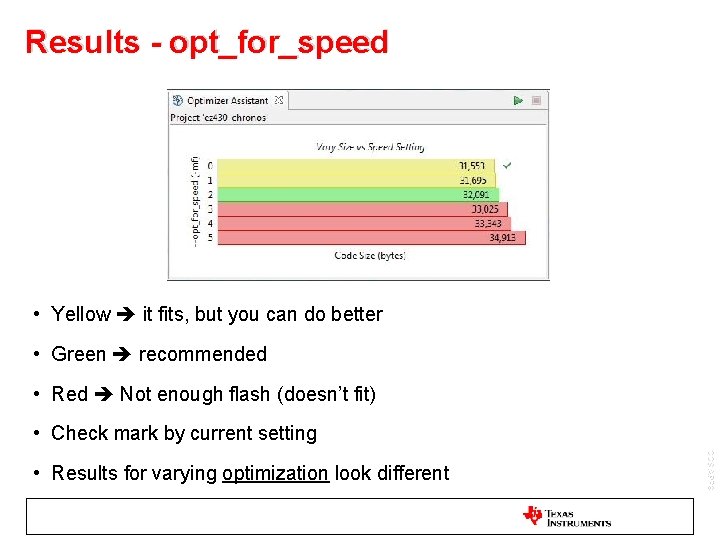
Results - opt_for_speed • Yellow it fits, but you can do better • Green recommended • Red Not enough flash (doesn’t fit) • Check mark by current setting CCS APPS • Results for varying optimization look different
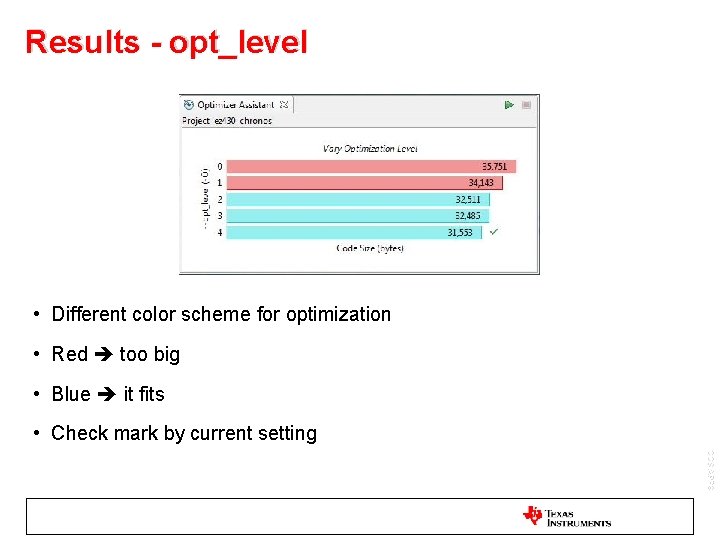
Results - opt_level • Different color scheme for optimization • Red too big • Blue it fits • Check mark by current setting CCS APPS
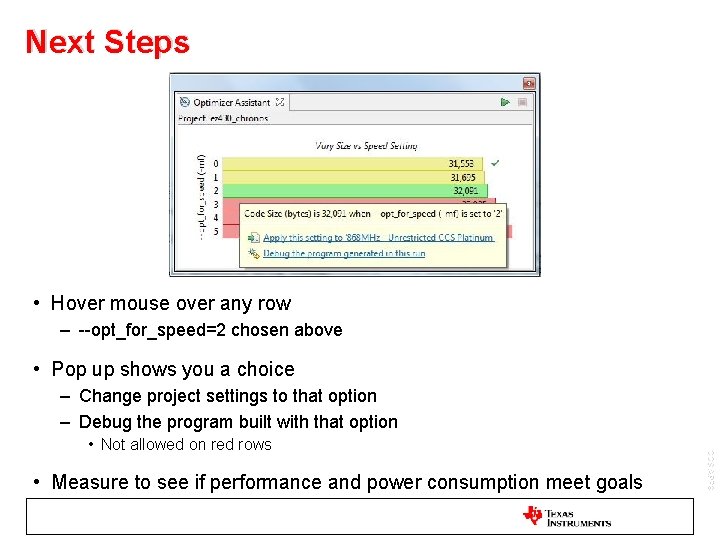
Next Steps • Hover mouse over any row – --opt_for_speed=2 chosen above • Pop up shows you a choice – Change project settings to that option – Debug the program built with that option • Measure to see if performance and power consumption meet goals CCS APPS • Not allowed on red rows
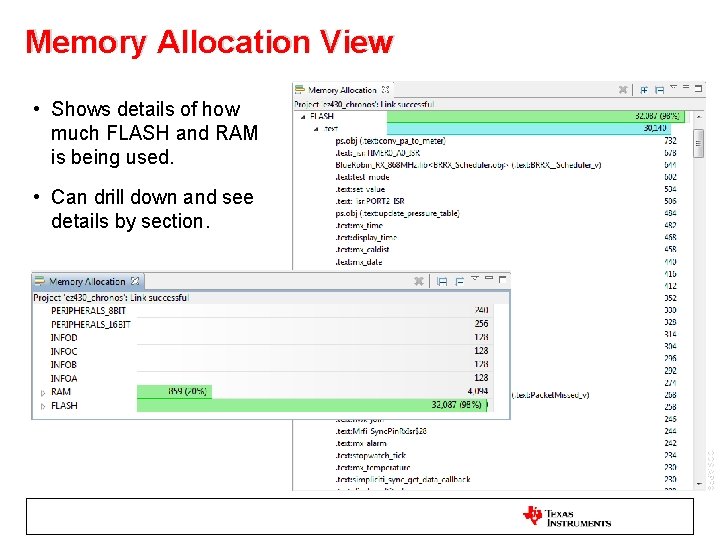
Memory Allocation View • Shows details of how much FLASH and RAM is being used. • Can drill down and see details by section. CCS APPS
LABS
LAB Requirements • Software: – Code Composer Studio v 5. 5. 0. 00077 Download from http: //processors. wiki. ti. com/index. php/Download_CCS and install to c: ti – MSP 430 Ware needs to be selected when installing CCS • Hardware – Not required unless you wish to load the program afterwards. This lab uses an e. Z 430 Chronos example CCS APPS
LAB Conventions Before starting, it is important to review some lab conventions that will ease your work… • Lab steps are in black and numbered for easier reference 1. … 2. … • Explanations, notes, warnings are written in blue – Warnings are shown with – Information is marked with – Tips and answers are marked with – Questions are marked with CCS APPS
LAB: OPTIMIZER ASSISTANT 15 MINUTES Open CCS and select a workspace (the default is fine) You can close the TI Resource Explorer View (it will not be used) CCS APPS
LAB: Optimizer Assistant • Objectives: – Learn how to use Optimizer Assistant to find the best settings for a project • Tools and Topics Covered: – Using --opt_for_speed – Applying settings to a project CCS APPS
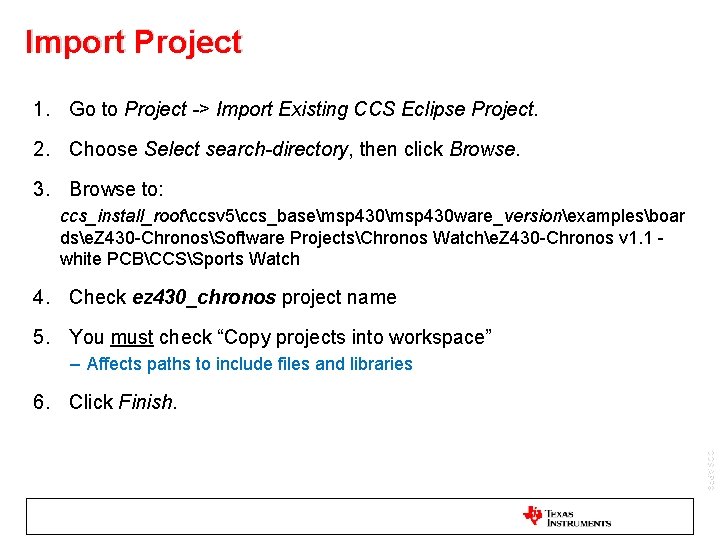
Import Project 1. Go to Project -> Import Existing CCS Eclipse Project. 2. Choose Select search-directory, then click Browse. 3. Browse to: ccs_install_rootccsv 5ccs_basemsp 430 ware_versionexamplesboar dse. Z 430 -ChronosSoftware ProjectsChronos Watche. Z 430 -Chronos v 1. 1 white PCBCCSSports Watch 4. Check ez 430_chronos project name 5. You must check “Copy projects into workspace” – Affects paths to include files and libraries 6. Click Finish. CCS APPS
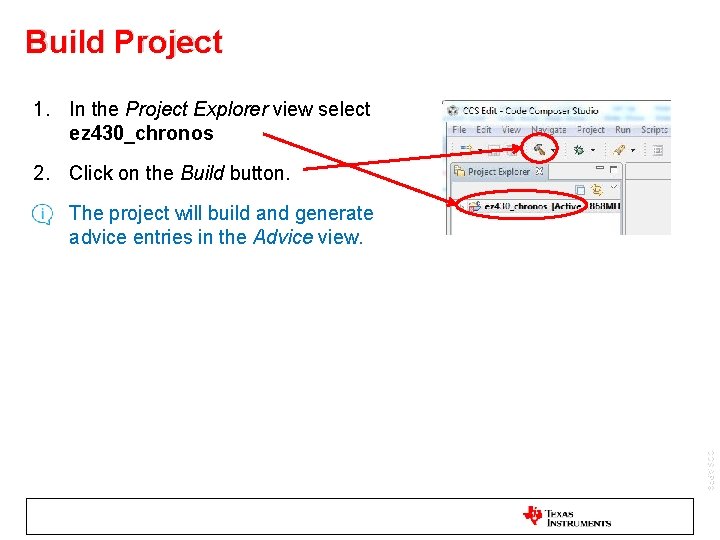
Build Project 1. In the Project Explorer view select ez 430_chronos 2. Click on the Build button. • The project will build and generate advice entries in the Advice view. CCS APPS
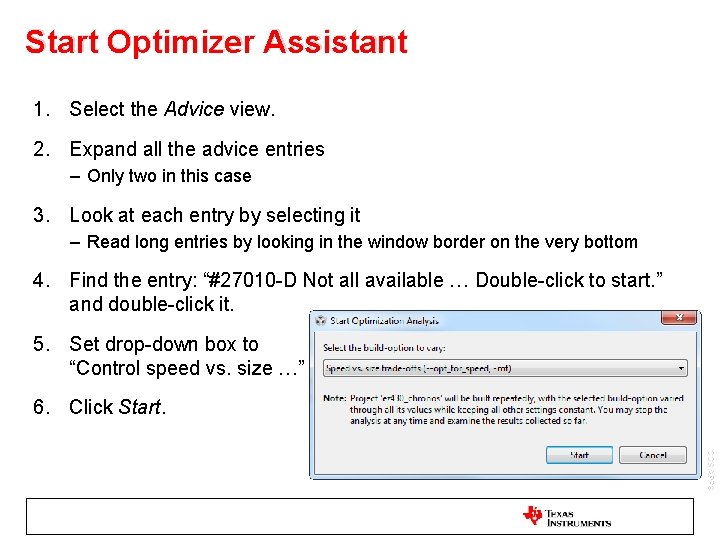
Start Optimizer Assistant 1. Select the Advice view. 2. Expand all the advice entries – Only two in this case 3. Look at each entry by selecting it – Read long entries by looking in the window border on the very bottom 4. Find the entry: “#27010 -D Not all available … Double-click to start. ” and double-click it. 5. Set drop-down box to “Control speed vs. size …” 6. Click Start. CCS APPS
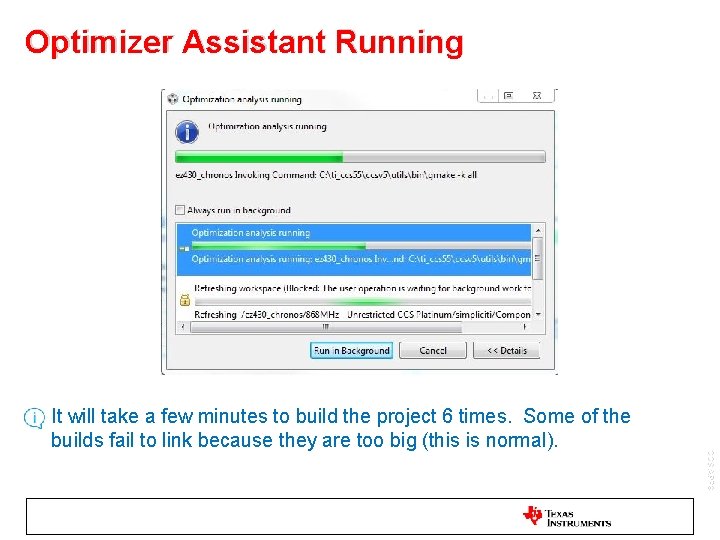
Optimizer Assistant Running CCS APPS • It will take a few minutes to build the project 6 times. Some of the builds fail to link because they are too big (this is normal).
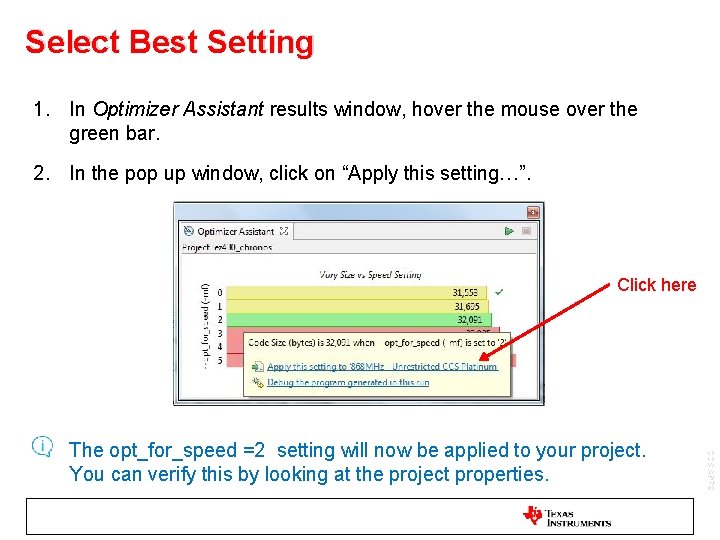
Select Best Setting 1. In Optimizer Assistant results window, hover the mouse over the green bar. 2. In the pop up window, click on “Apply this setting…”. Click here The opt_for_speed =2 setting will now be applied to your project. You can verify this by looking at the project properties. CCS APPS •
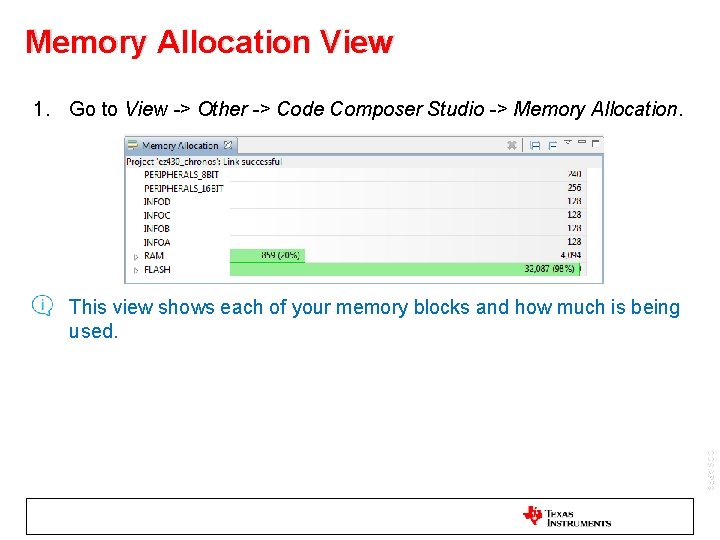
Memory Allocation View 1. Go to View -> Other -> Code Composer Studio -> Memory Allocation. • This view shows each of your memory blocks and how much is being used. CCS APPS
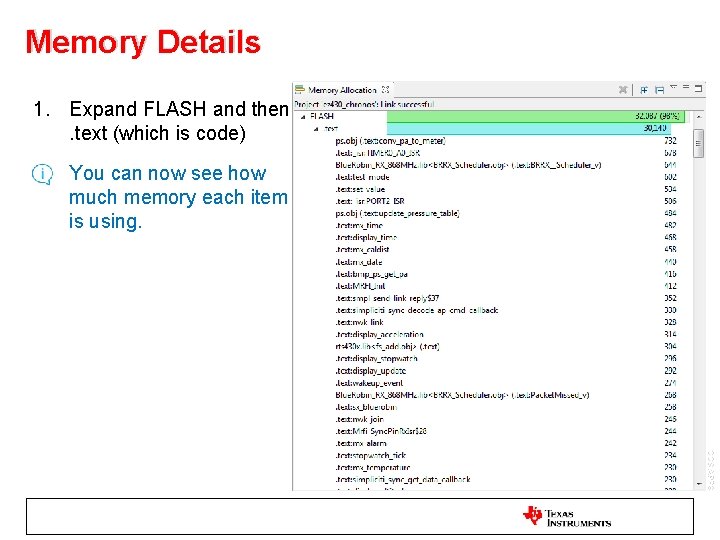
Memory Details 1. Expand FLASH and then. text (which is code) • You can now see how much memory each item is using. CCS APPS
- Slides: 28