
Operating Systems and Using Linux Topics What is

- Slides: 14
Operating Systems and Using Linux Topics • What is an Operating System? • Linux Overview • Frequently Used Linux Commands Reading None. CMSC 104, Version 9/01 1
What is an Operating System (OS)? • A computer program • Performs many operations, such as: • Allows you to communicate with the computer (tell it what to do) • Controls access (login) to the computer • Keeps track of all processes currently running • At this point, your main concern is how to communicate with the computer using the OS CMSC 104, Version 9/01 2
How Do I Communicate With the Computer Using the OS? • You communicate using the particular OS’s user interface. • Graphical User Interface (GUI) - Windows • Command-driven interface - DOS, UNIX, Linux • We will be using the Linux operating system, which is very similar to UNIX. CMSC 104, Version 9/01 3
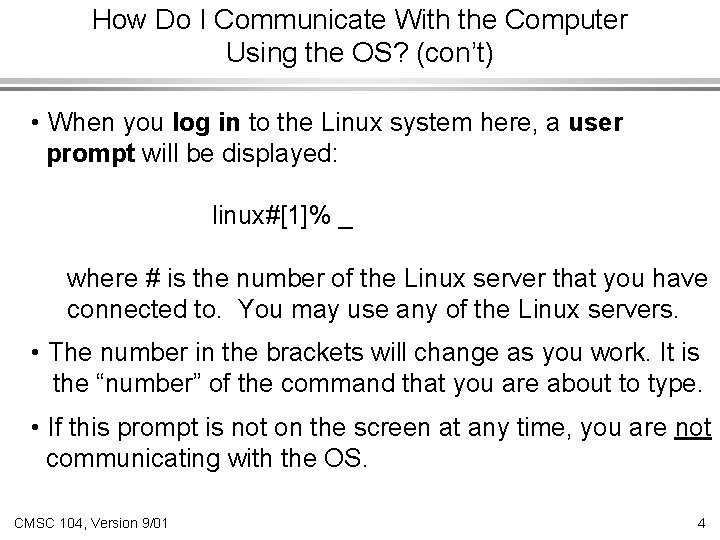
How Do I Communicate With the Computer Using the OS? (con’t) • When you log in to the Linux system here, a user prompt will be displayed: linux#[1]% _ where # is the number of the Linux server that you have connected to. You may use any of the Linux servers. • The number in the brackets will change as you work. It is the “number” of the command that you are about to type. • If this prompt is not on the screen at any time, you are not communicating with the OS. CMSC 104, Version 9/01 4
Linux Overview • Files and Filenames • Directories and Subdirectories • Frequently Used Commands CMSC 104, Version 9/01 5
Files • A file is a sequence of bytes. • It can be created by o o a text editor (xemacs or pico) a computer program (such as a C program) • It may contain a program, data, a document, or other information. • Files that contain other files are called directories (sometimes called folders). CMSC 104, Version 9/01 6
Linux Filenames • Restrictions o o o May not contain blanks or other reserved characters Have a maximum length Are case sensitive • It is best to stick with filenames that contain letters (uppercase or lowercase), numbers, and the underscore ( _ ) for now. CMSC 104, Version 9/01 7
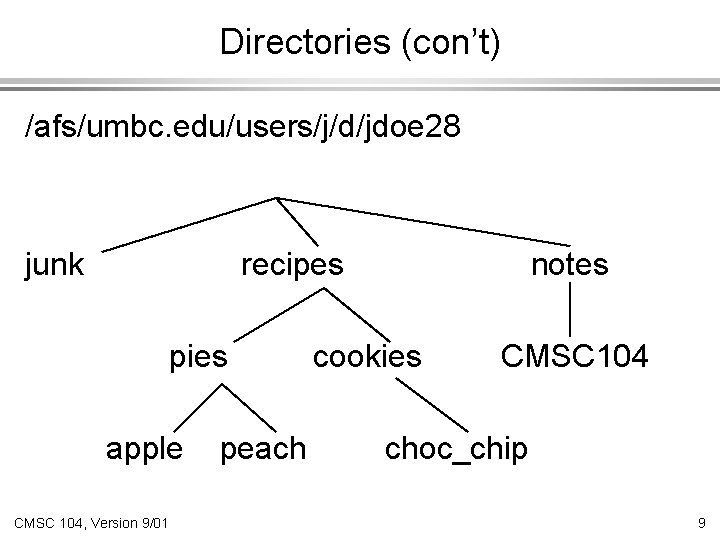
Directories • Directories contain files or other directories called subdirectories. They may also be empty. • Directories are organized in a hierarchical fashion. • They help us to keep our files organized. CMSC 104, Version 9/01 8
Directories (con’t) /afs/umbc. edu/users/j/d/jdoe 28 junk recipes pies apple CMSC 104, Version 9/01 peach notes cookies CMSC 104 choc_chip 9
Directories (con’t) • Your home directory is where you are located when you log in (e. g. , /afs/umbc. edu/users/j/d/jdoe 28). • The current directory is where you are located at any time while you are using the system. • Files within the same directory must be given unique names. • Paths allow us to give the same name to different files located in different directories. • Each running program has a current directory and all filenames are implicitly assumed to start with the name of that directory unless they begin with a slash. CMSC 104, Version 9/01 10
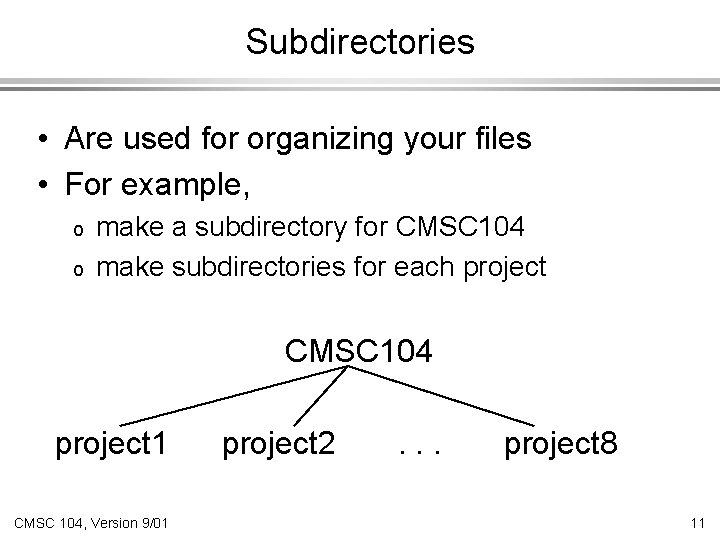
Subdirectories • Are used for organizing your files • For example, o o make a subdirectory for CMSC 104 make subdirectories for each project CMSC 104 project 1 CMSC 104, Version 9/01 project 2 . . . project 8 11
Moving in the Directory Tree • . (dot) is the current directory. • . . (dot-dot) is the parent directory. • Use the Linux command cd to change directories. • Use dot-dot to move up the tree. • Use the directory name to move down. • Use the complete directory name (path name) to move anywhere. CMSC 104, Version 9/01 12
Frequently Used Linux Commands • • passwd, man, lpr pwd, ls, cat, more, cd, cp, mv, rm mkdir, rmdir ctl-c References: • Linux man page • Links from the 104 homepage • Books and the Internet CMSC 104, Version 9/01 13
Wildcard Characters • You will find wildcard characters useful when manipulating files (e. g. , listing or moving them). • The wildcard characters are * and ? • ? is used to represent any single character. • * is used to represent 0 or more characters. CMSC 104, Version 9/01 14