
Operating Systems and Using Linux 20080908 Lecture 3

- Slides: 22
Operating Systems and Using Linux 2008/09/08: Lecture 3 CMSC 104, Section 0101 John Y. Park
Operating Systems and Using Linux Topics l What is an Operating System? l Linux Overview l Frequently Used Linux Commands 2
What is an Operating System? l A computer program that: l l Controls how the CPU, memory and I/O devices work together to execute programs Performs many operations, such as: l l Allows you to communicate with the computer (tell it what to do) Controls access (login) to the computer Keeps track of all processes currently running Often referred to as simply OS 3
What is an Operating System? l l l Provides a uniform interface for users and programs to access changing, evolving hardware (H/W) Very different H/W platforms can support a common OS (partially custom-written, of course) (standard “PC”, Sony PSP can both run Linux) One H/W platform can support multiple OSs l E. g. : Latest Macs can run Mac. OS or Windows 4
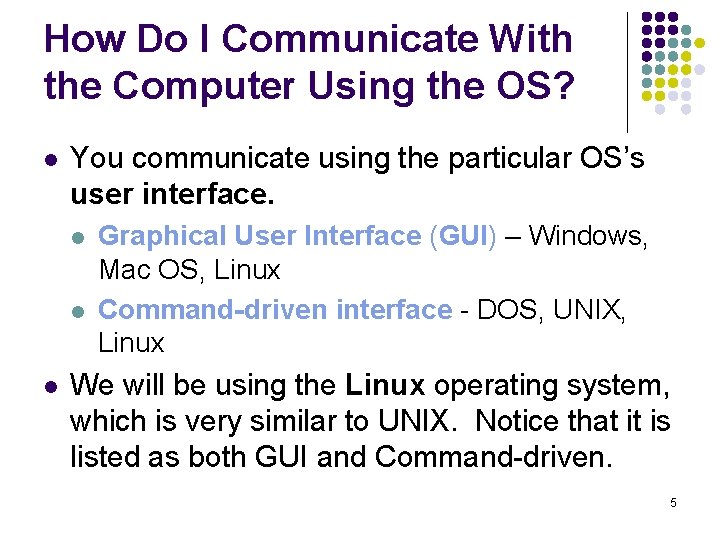
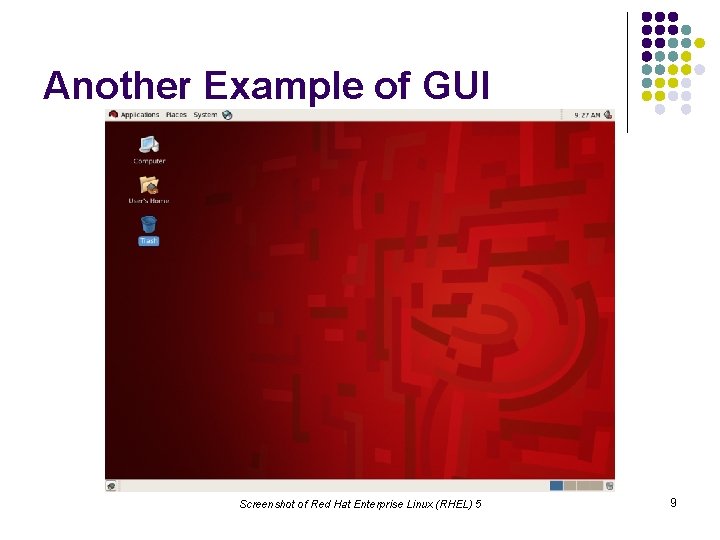
How Do I Communicate With the Computer Using the OS? l You communicate using the particular OS’s user interface. l l l Graphical User Interface (GUI) – Windows, Mac OS, Linux Command-driven interface - DOS, UNIX, Linux We will be using the Linux operating system, which is very similar to UNIX. Notice that it is listed as both GUI and Command-driven. 5
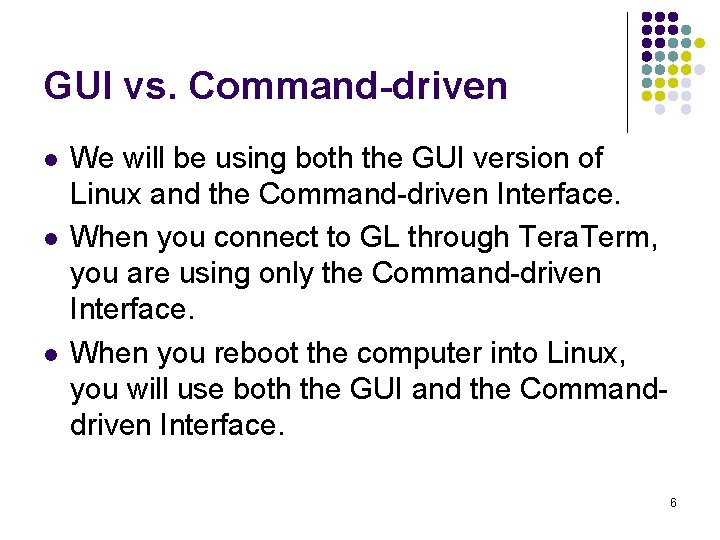
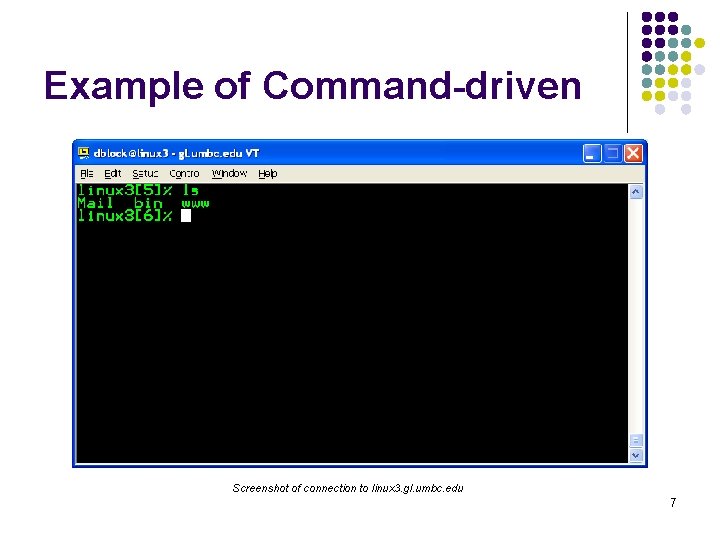
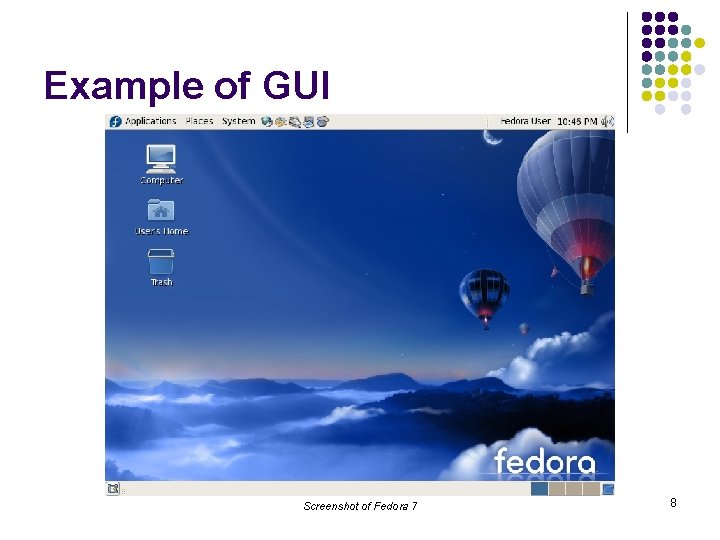
GUI vs. Command-driven l l l We will be using both the GUI version of Linux and the Command-driven Interface. When you connect to GL through Tera. Term, you are using only the Command-driven Interface. When you reboot the computer into Linux, you will use both the GUI and the Commanddriven Interface. 6
Example of Command-driven Screenshot of connection to linux 3. gl. umbc. edu 7
Example of GUI Screenshot of Fedora 7 8
Another Example of GUI Screenshot of Red Hat Enterprise Linux (RHEL) 5 9
How Do I Communicate With the Computer Using the OS? (con’t) l When you log in to the Linux system here, a user prompt will be displayed: linux#[1]% _ where # is the number of the Linux server to which you have connected. You may use any of the Linux servers: linux 1, linux 2 or linux 3. l l The number in the brackets will change as you work. It is the “number” of the command that you are about to type. If this prompt is not on the screen at any time, you are not communicating with the OS. 10
Linux Overview l l l Files and Filenames Directories and Subdirectories Frequently Used Commands 11
Files l l A file is a sequence of bytes. It can be created by l l a text editor (XEmacs or Notepad) a computer program (such as a C program) It may contain a program, data, a document, or other information. Files that contain other files are called directories (sometimes called folders). 12
Linux Filenames l Restrictions l l l Typically do not have spaces or other reserved characters Have a maximum length (typically 255 characters but who wants to type that much!) Are case sensitive For this class, you should stick with filenames that contain only letters (uppercase or lowercase), numbers, and the underscore ( _ ) or hypen (-). No spaces! Some examples: firefox. exe, things 2 do. txt, dinner_menu. pdf 13
Directories l l l Directories contain files or other directories called subdirectories. They may also be empty. Directories are organized in a hierarchical fashion. They help us to keep our files organized. 14
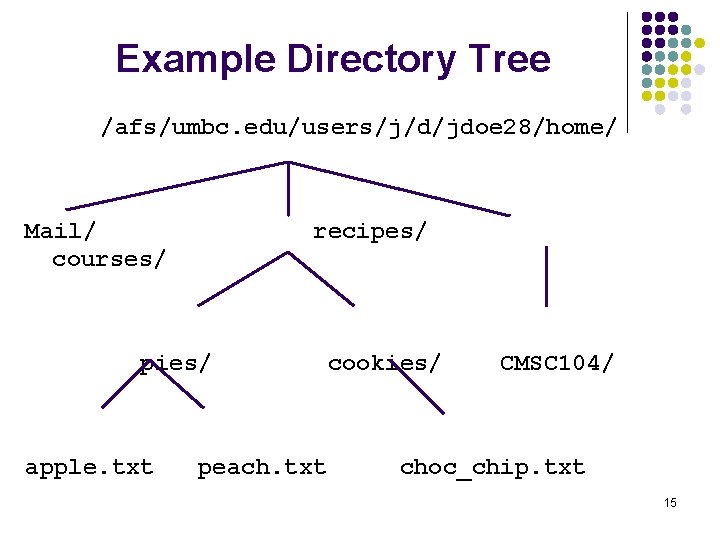
Example Directory Tree /afs/umbc. edu/users/j/d/jdoe 28/home/ Mail/ courses/ recipes/ pies/ apple. txt peach. txt cookies/ CMSC 104/ choc_chip. txt 15
More Directories l l l Your home directory is where you are located when you log in (e. g. , /afs/umbc. edu/users/j/d/jdoe 28/home/). The current directory is where you are located at any time while you are using the system. The / (pronounced “slash”) is the root directory in Linux. Files within the same directory must be given unique names. Paths allow us to give the same name to different files located in different directories. Each running program has a current directory and all filenames are implicitly assumed to start with the name of that directory unless they begin with a slash. 16
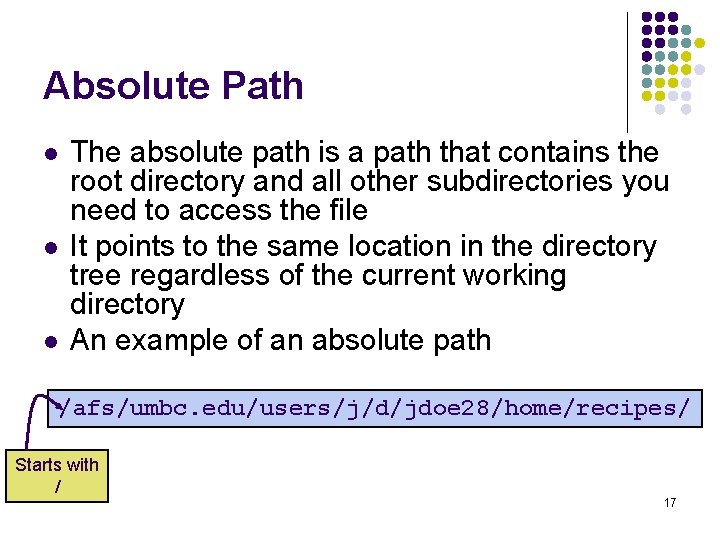
Absolute Path l l l The absolute path is a path that contains the root directory and all other subdirectories you need to access the file It points to the same location in the directory tree regardless of the current working directory An example of an absolute path /afs/umbc. edu/users/j/d/jdoe 28/home/recipes/ Starts with / 17
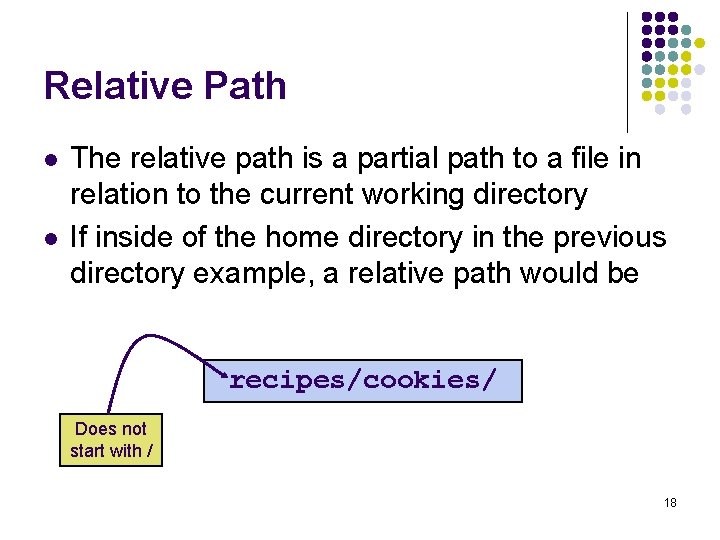
Relative Path l l The relative path is a partial path to a file in relation to the current working directory If inside of the home directory in the previous directory example, a relative path would be recipes/cookies/ Does not start with / 18
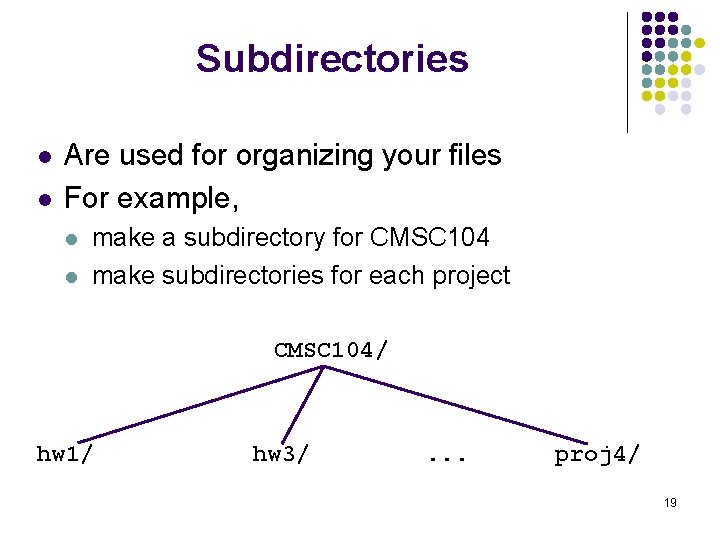
Subdirectories l l Are used for organizing your files For example, l l make a subdirectory for CMSC 104 make subdirectories for each project CMSC 104/ hw 1/ hw 3/ . . . proj 4/ 19
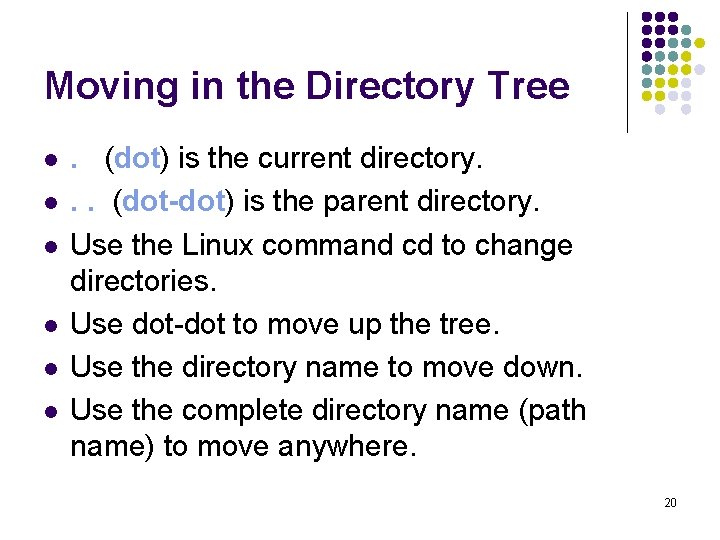
Moving in the Directory Tree l l l . (dot) is the current directory. . . (dot-dot) is the parent directory. Use the Linux command cd to change directories. Use dot-dot to move up the tree. Use the directory name to move down. Use the complete directory name (path name) to move anywhere. 20
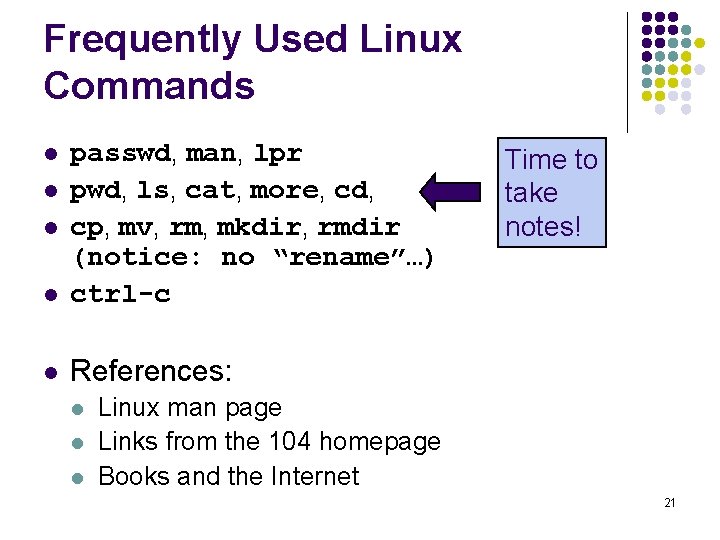
Frequently Used Linux Commands l passwd, man, lpr pwd, ls, cat, more, cd, cp, mv, rm, mkdir, rmdir (notice: no “rename”…) ctrl-c l References: l l l Time to take notes! Linux man page Links from the 104 homepage Books and the Internet 21
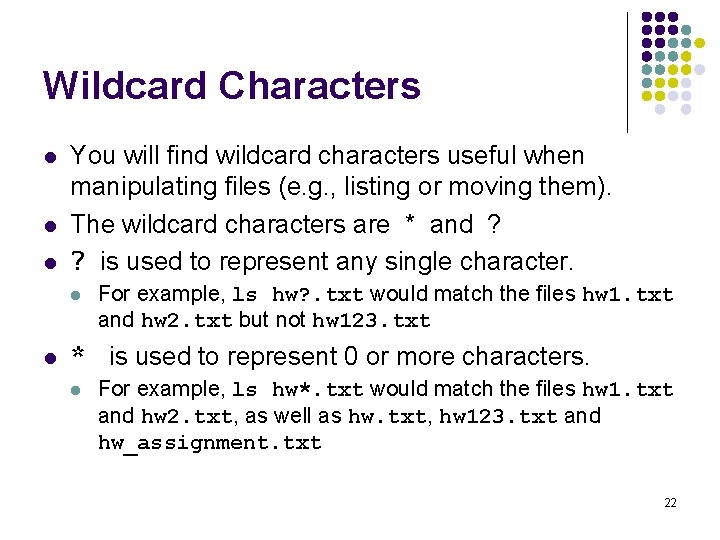
Wildcard Characters l l l You will find wildcard characters useful when manipulating files (e. g. , listing or moving them). The wildcard characters are * and ? ? is used to represent any single character. l l For example, ls hw? . txt would match the files hw 1. txt and hw 2. txt but not hw 123. txt * is used to represent 0 or more characters. l For example, ls hw*. txt would match the files hw 1. txt and hw 2. txt, as well as hw. txt, hw 123. txt and hw_assignment. txt 22