
Operating System Fundamentals Prepared By Prof Gaurav Soni
Operating System Fundamentals • Prepared By • Prof. Gaurav Soni • Dept. of CSE
Covered Topics 1. 2. 3. 4. Components of an OS Functions of an OS Types of OS Command-line tools
The Three Elements of an OS �User Interface – The part of the OS that you interface with. �Kernel – The core of the OS. Interacts with the BIOS (at one end), and the UI (at the other end). �File Management System – Organizes and manages files.
Operating System Functions �File Management �Application Management �Built-in Utility Programs �Control of Computer Hardware

Operating System Types �Multiuser – Two or more users work with the computer at the same time �Multitasking – Two or more processes running at the same time. �Multithreading – Two or more parts of the same process running at the same time.
PC Operating Systems �Microsoft Windows �Mac. Intosh OS �Linux
MS Windows Versions � Home (Non-Professional) Versions Windows 95 � Windows 98 � Windows Me � � Professional (Business) Versions Windows NT � Windows 2000 � � The Two Lines Came Together in Windows XP (2001)
Disk Operating System ( DOS ) �The first PC Operating System (1981) �Not a Multitasking OS, only one program could run at a time �A command-line interface, no GUI. �Early versions of Windows sat on top of DOS and used it to communicate with the BIOS. �Windows XP communicates directly with the BIOS, but allows commands to be entered via a command prompt.
File System �A file is a collection of bytes of information treated as a single unit. �It is given a name to make it easy to find and use later. �The file system keeps track of where a file is actually resident on a disk. �A disk (hard disk, floppy, optical disk) is subdivided into directories or folders.
File System (continued) �The top level folder on a disk is known as the root. �The root is generally subdivided into subfolders. �Any folder or subfolder can contain files and other folders. �The fully-qualified filename includes the name of the file and the path to the folder in which it resides: c: coursesTITCSEgaurav. ppt
Windows Registered File Types �A particular file extension can be registered and associated with a particular program. �. docx files are associated with MS Word �. xlsx files are associated with MS Excel �. txt files are associated with Notepad �. html files are associated with IE �This is how Windows knows what to do when you double-click a file in My Computer.
File Attributes �Each file has four attributes which can be viewed or set. �Read Only – File may be viewed, copied, executed (if appropriate), but not changed. It can be deleted. �Hidden – File will not be displayed in normal list of files. �System – File is identified to belong to system, should not be messed with. �Archive – File is (or is not) a candidate for backup.
DOS Commands �Two types – Internal and External �Internal commands are resident in the main kernel file: command. com (or cmd. exe) �External commands are separate little programs. �It's important to learn DOS commands because you can write scripts to execute a set of commands automatically.
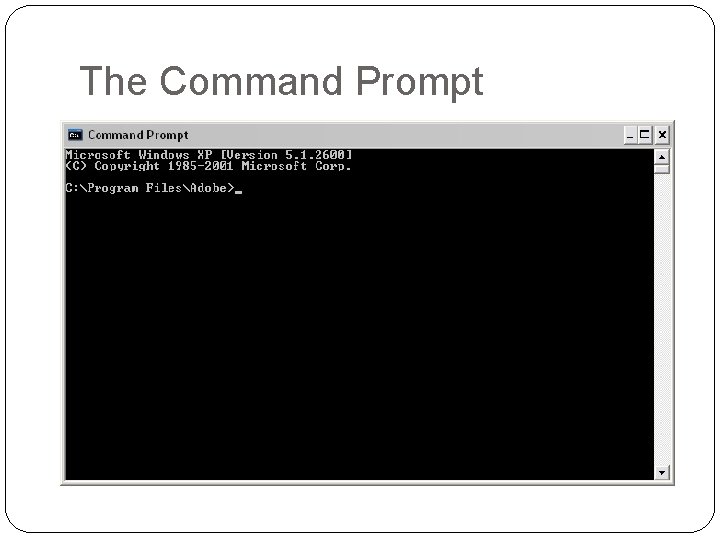
The Command Prompt By default, it reminds you of the current drive and the current directory.
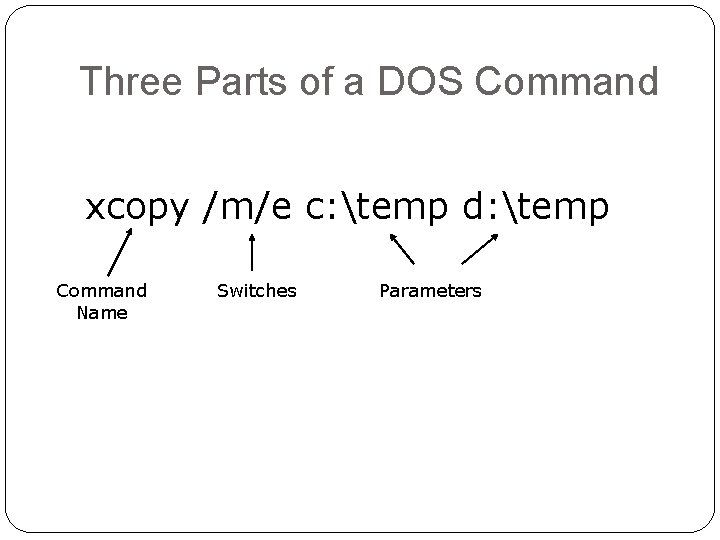
Three Parts of a DOS Command xcopy /m/e c: temp d: temp Command Name Switches Parameters
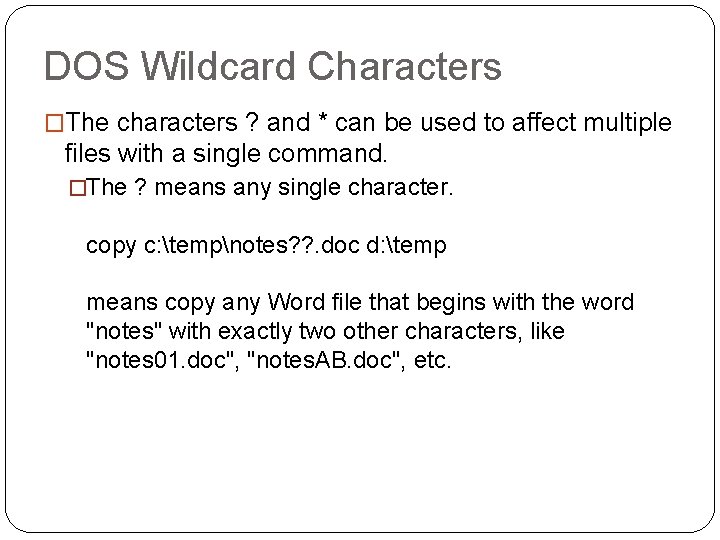
DOS Wildcard Characters �The characters ? and * can be used to affect multiple files with a single command. �The ? means any single character. copy c: tempnotes? ? . doc d: temp means copy any Word file that begins with the word "notes" with exactly two other characters, like "notes 01. doc", "notes. AB. doc", etc.
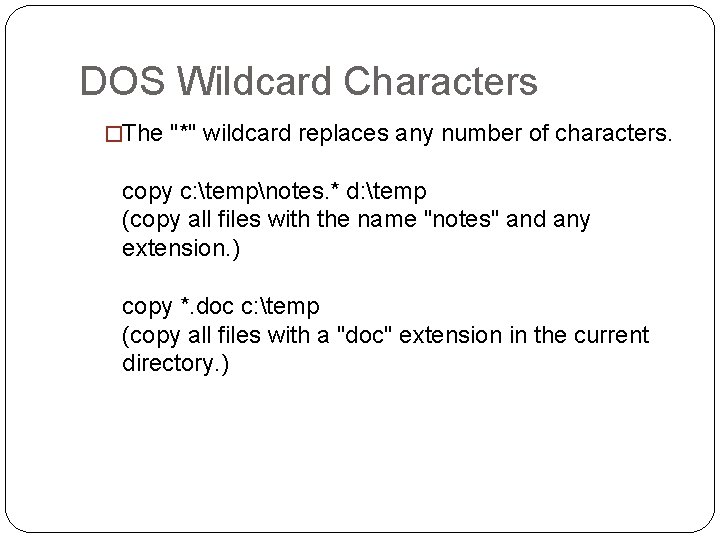
DOS Wildcard Characters �The "*" wildcard replaces any number of characters. copy c: tempnotes. * d: temp (copy all files with the name "notes" and any extension. ) copy *. doc c: temp (copy all files with a "doc" extension in the current directory. )
At the Command Prompt �A drive letter and a ": " (e. g. "f: ") makes that your current drive. �CD (Change Directory) �cd (with no parameters) reminds you what the current directory is. �cd. . moves you to the parent of the current directory (up one level). �cd moves you to the root of the current drive. �cd <some directory> makes that your current directory.
DOS Commands �MD – Make directory. �RD – Remove a directory or an entire directory tree. �DIR – Display the contents of a directory. �DEL (or ERASE) – Deletes one or more files. �COPY – Places a copy of file(s) in a different folder. �XCOPY – Flexible copy command used for copying large groups of files, commonly used for file backup.
More DOS Commands �MOVE – Moves file(s) from one folder to another. �REN(AME) – Renames file(s). �ATTRIB – Displays or sets file attributes. �FORMAT – Formats a disk. �CHKDSK – Tests the file system on a disk, and reports status.
Even More �DATE and TIME – Display & set the current date & time in the PC. �TYPE – Displays the contents of a text file.

- Slides: 22