
Open GL Basics Compared to Direct X By
Open. GL Basics Compared to Direct. X By Jin Li Jan 20 th, 2005 Introduction to Computer Graphics
Review of the major similarities and differences n n n Direct. X is more than just a graphics API, Open. GL is strictly a graphics API Both use the traditional hardware rendering pipeline, which is based on the z buffer. Both describe vertices as a set of data consisting of coordinates. Graphics primitives, are defined as an ordered set of vertices. How each API handles vertices to form primitives is different

Open. GL Cross-platform open standard, easier to understand No support for create graphic user interface, needs other supports. n Direct. X A Windows-specific proprietary standard, harder to understand, But with Managed Direct. X (Direct. X wrapped into very handy. NET classes), easier to use. Full support, a Multimedia API. n
Open. GL First, from SGI (Silicon Graphics Inc. ) Now, ARB( Architecture Review Board) New functionalities, through vendor-specific extensions. The base API changes only slowly. n Direct. X Developed by Microsoft with some other vendors New functionalities, through API changes, quite severely. n
How to Start n Windows – Since Window 98, the library has already been included. n LINUX/BSD – There are several free implementations, GLX , Mesa, Tiny. GL, Ygl
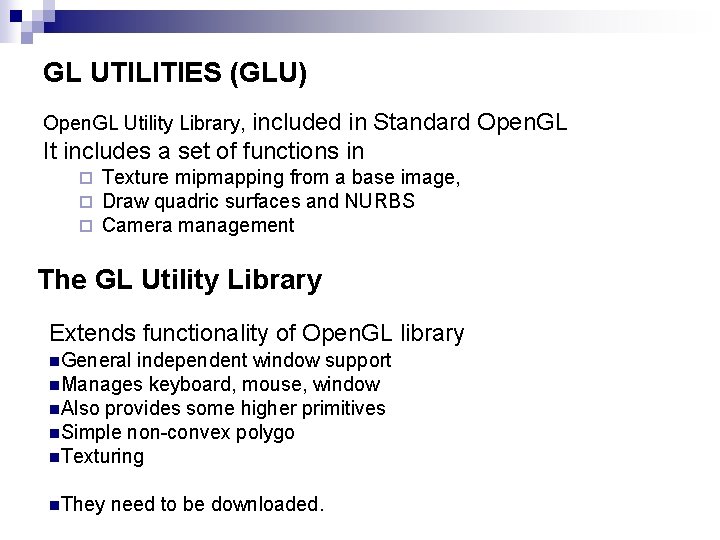
GL UTILITIES (GLU) included in Standard Open. GL It includes a set of functions in Open. GL Utility Library, ¨ ¨ ¨ Texture mipmapping from a base image, Draw quadric surfaces and NURBS Camera management The GL Utility Library Extends functionality of Open. GL library n. General independent window support n. Manages keyboard, mouse, window n. Also provides some higher primitives n. Simple non-convex polygo n. Texturing n. They need to be downloaded.
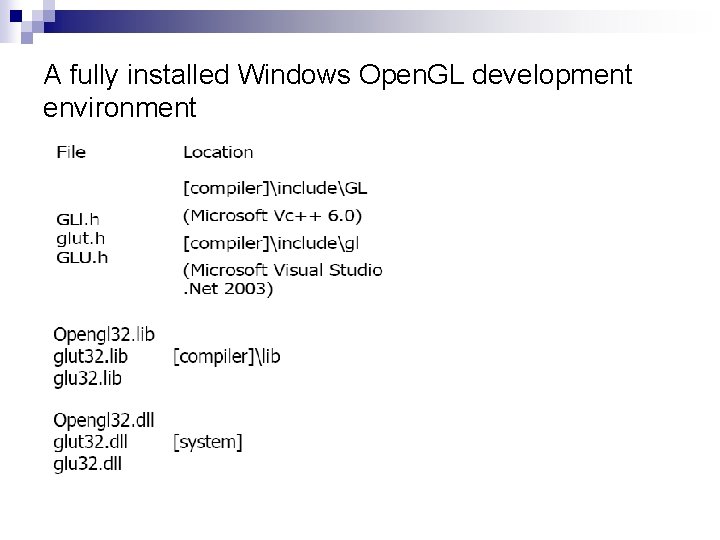
A fully installed Windows Open. GL development environment
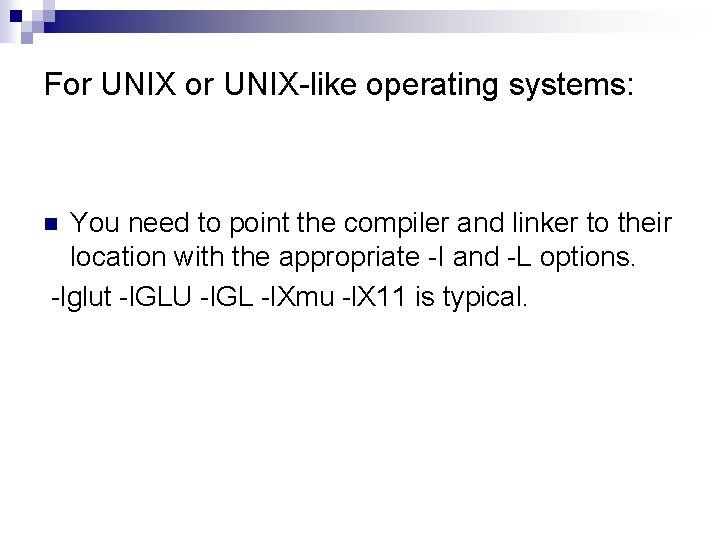
For UNIX-like operating systems: You need to point the compiler and linker to their location with the appropriate -I and -L options. -lglut -l. GLU -l. GL -l. Xmu -l. X 11 is typical. n
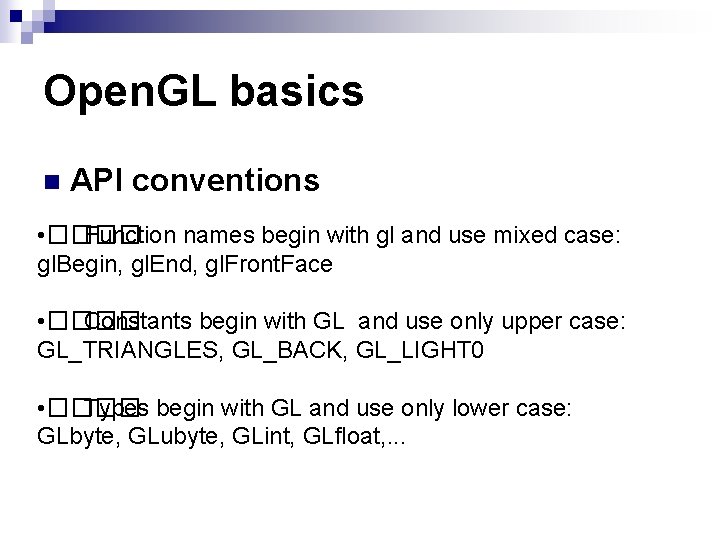
Open. GL basics n API conventions • ���� Function names begin with gl and use mixed case: gl. Begin, gl. End, gl. Front. Face • ���� Constants begin with GL and use only upper case: GL_TRIANGLES, GL_BACK, GL_LIGHT 0 • ���� Types begin with GL and use only lower case: GLbyte, GLubyte, GLint, GLfloat, . . .
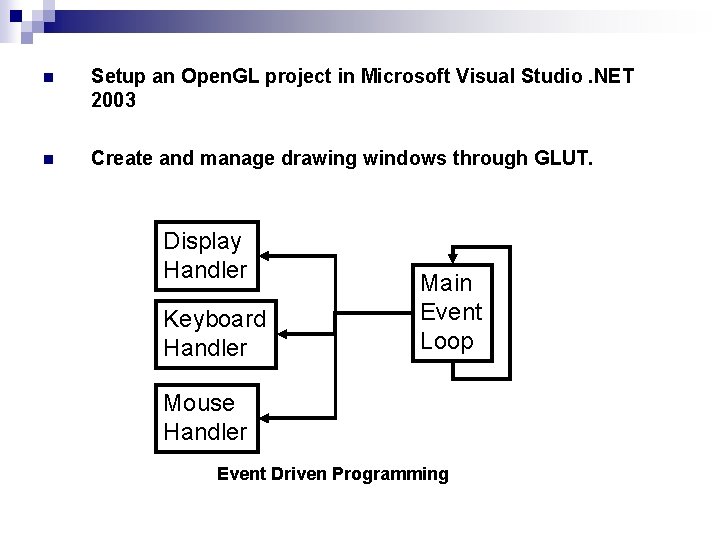
n Setup an Open. GL project in Microsoft Visual Studio. NET 2003 n Create and manage drawing windows through GLUT. Display Handler Keyboard Handler Main Event Loop Mouse Handler Event Driven Programming
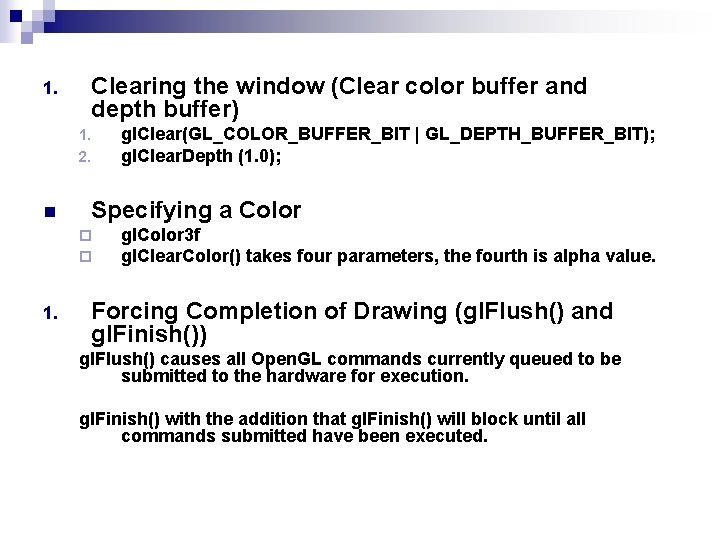
1. Clearing the window (Clear color buffer and depth buffer) 1. 2. n Specifying a Color ¨ ¨ 1. gl. Clear(GL_COLOR_BUFFER_BIT | GL_DEPTH_BUFFER_BIT); gl. Clear. Depth (1. 0); gl. Color 3 f gl. Clear. Color() takes four parameters, the fourth is alpha value. Forcing Completion of Drawing (gl. Flush() and gl. Finish()) gl. Flush() causes all Open. GL commands currently queued to be submitted to the hardware for execution. gl. Finish() with the addition that gl. Finish() will block until all commands submitted have been executed.
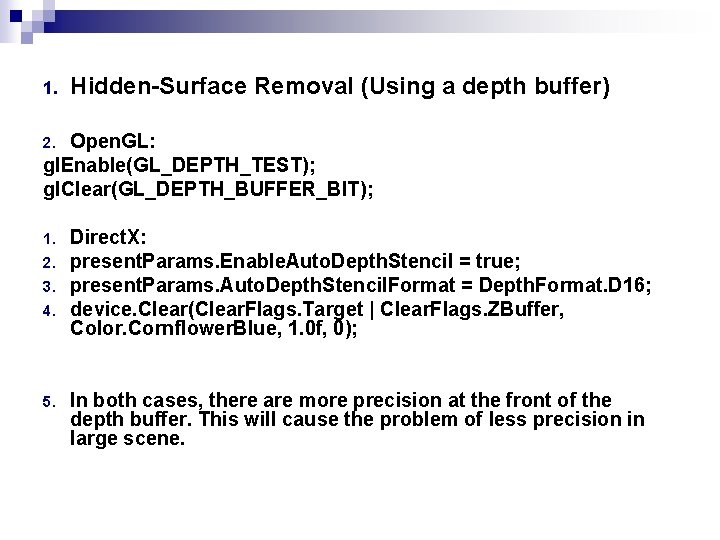
1. Hidden-Surface Removal (Using a depth buffer) Open. GL: gl. Enable(GL_DEPTH_TEST); gl. Clear(GL_DEPTH_BUFFER_BIT); 2. 1. 2. 3. 4. 5. Direct. X: present. Params. Enable. Auto. Depth. Stencil = true; present. Params. Auto. Depth. Stencil. Format = Depth. Format. D 16; device. Clear(Clear. Flags. Target | Clear. Flags. ZBuffer, Color. Cornflower. Blue, 1. 0 f, 0); In both cases, there are more precision at the front of the depth buffer. This will cause the problem of less precision in large scene.
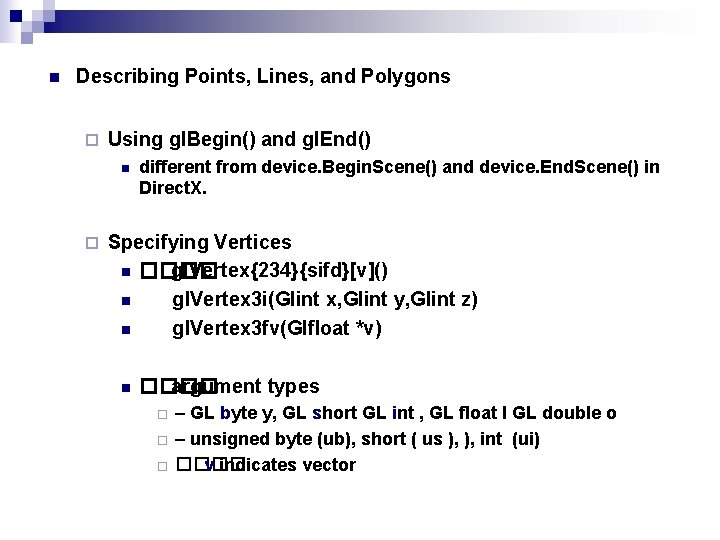
n Describing Points, Lines, and Polygons ¨ Using gl. Begin() and gl. End() n ¨ different from device. Begin. Scene() and device. End. Scene() in Direct. X. Specifying Vertices n ���� gl. Vertex{234}{sifd}[v]() n gl. Vertex 3 i(Glint x, Glint y, Glint z) n gl. Vertex 3 fv(Glfloat *v) n ���� argument types ¨ ¨ ¨ – GL byte y, GL short GL int , GL float l GL double o – unsigned byte (ub), short ( us ), ), int (ui) ���� v indicates vector
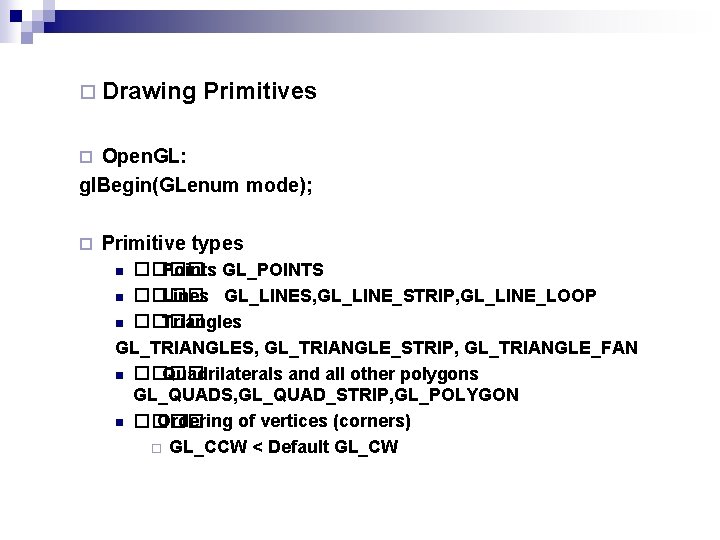
¨ Drawing Primitives Open. GL: gl. Begin(GLenum mode); ¨ ¨ Primitive types ���� Points GL_POINTS n ���� Lines GL_LINES, GL_LINE_STRIP, GL_LINE_LOOP n ���� Triangles GL_TRIANGLES, GL_TRIANGLE_STRIP, GL_TRIANGLE_FAN n ���� Quadrilaterals and all other polygons GL_QUADS, GL_QUAD_STRIP, GL_POLYGON n ���� Ordering of vertices (corners) ¨ GL_CCW < Default GL_CW n
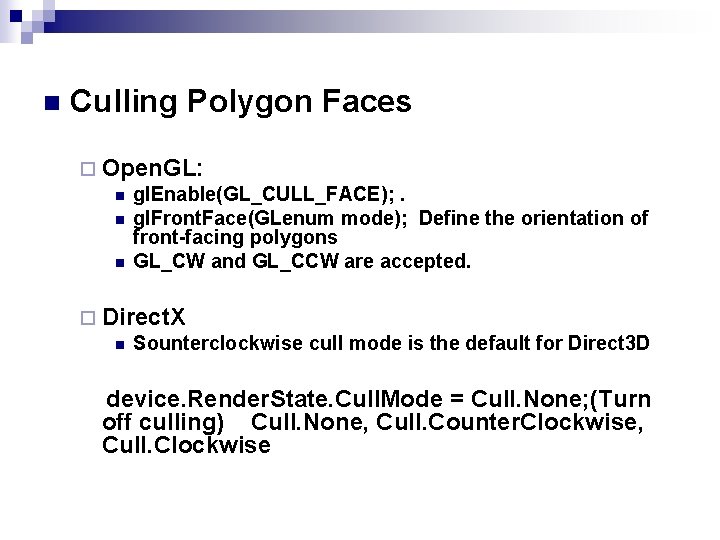
n Culling Polygon Faces ¨ Open. GL: n gl. Enable(GL_CULL_FACE); . n gl. Front. Face(GLenum mode); Define the orientation of front-facing polygons n GL_CW and GL_CCW are accepted. ¨ Direct. X n Sounterclockwise cull mode is the default for Direct 3 D device. Render. State. Cull. Mode = Cull. None; (Turn off culling) Cull. None, Cull. Counter. Clockwise, Cull. Clockwise
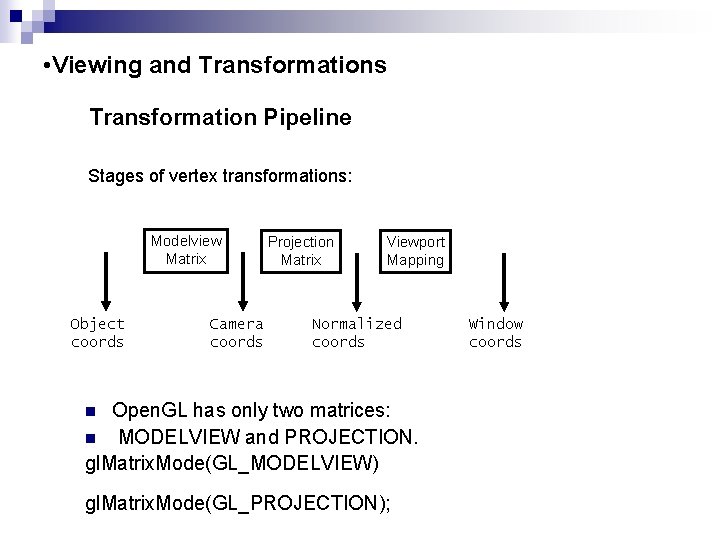
• Viewing and Transformations Transformation Pipeline Stages of vertex transformations: Modelview Matrix Object coords Camera coords Projection Matrix Viewport Mapping Normalized coords Open. GL has only two matrices: n MODELVIEW and PROJECTION. gl. Matrix. Mode(GL_MODELVIEW) n gl. Matrix. Mode(GL_PROJECTION); Window coords
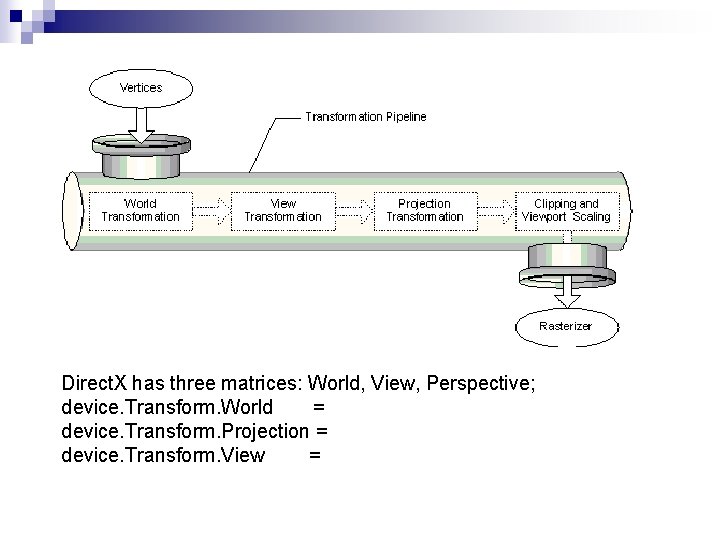
Direct. X has three matrices: World, View, Perspective; device. Transform. World = device. Transform. Projection = device. Transform. View =
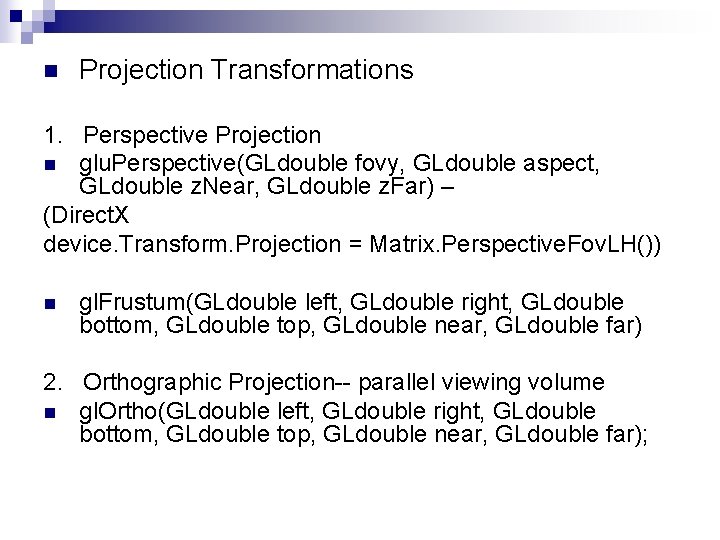
n Projection Transformations 1. Perspective Projection n glu. Perspective(GLdouble fovy, GLdouble aspect, GLdouble z. Near, GLdouble z. Far) – (Direct. X device. Transform. Projection = Matrix. Perspective. Fov. LH()) n gl. Frustum(GLdouble left, GLdouble right, GLdouble bottom, GLdouble top, GLdouble near, GLdouble far) 2. Orthographic Projection-- parallel viewing volume n gl. Ortho(GLdouble left, GLdouble right, GLdouble bottom, GLdouble top, GLdouble near, GLdouble far);
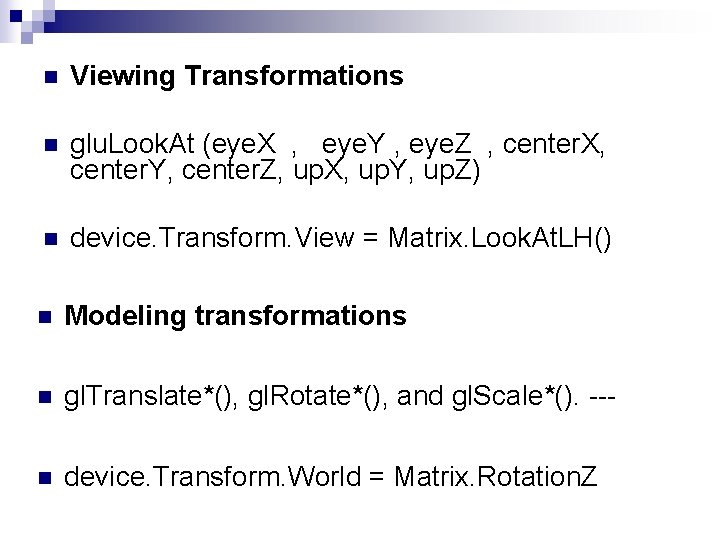
n Viewing Transformations n glu. Look. At (eye. X , eye. Y , eye. Z , center. X, center. Y, center. Z, up. X, up. Y, up. Z) n device. Transform. View = Matrix. Look. At. LH() n Modeling transformations n gl. Translate*(), gl. Rotate*(), and gl. Scale*(). --- n device. Transform. World = Matrix. Rotation. Z
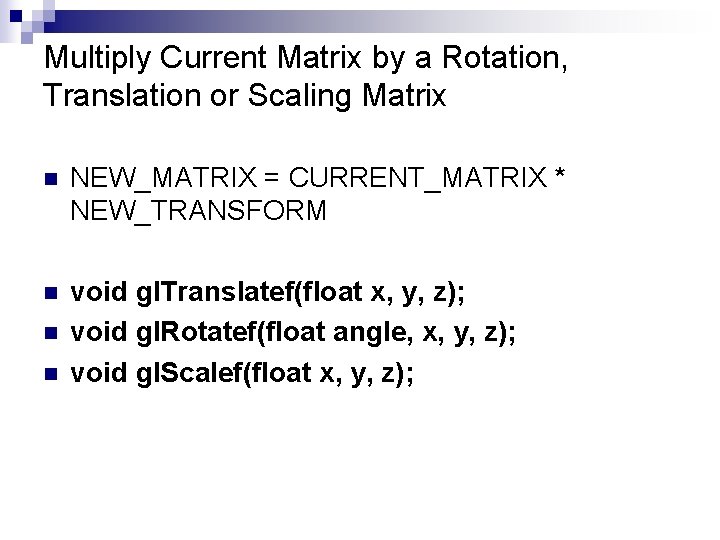
Multiply Current Matrix by a Rotation, Translation or Scaling Matrix n NEW_MATRIX = CURRENT_MATRIX * NEW_TRANSFORM n void gl. Translatef(float x, y, z); void gl. Rotatef(float angle, x, y, z); void gl. Scalef(float x, y, z); n n
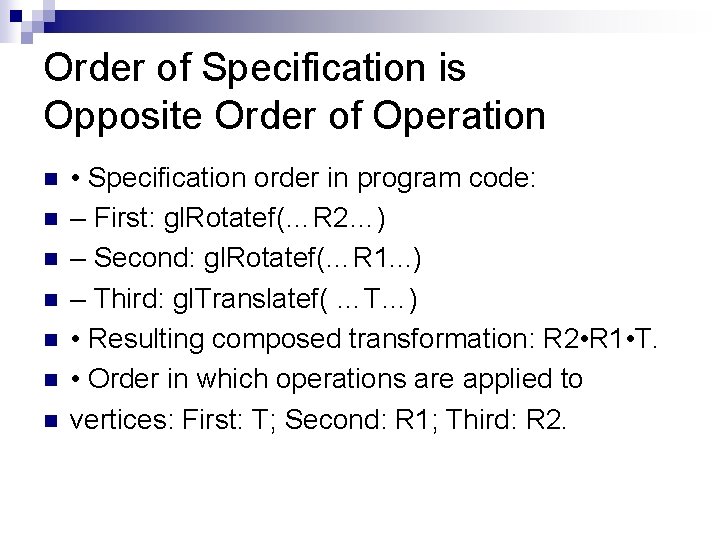
Order of Specification is Opposite Order of Operation n n n • Specification order in program code: – First: gl. Rotatef(…R 2…) – Second: gl. Rotatef(…R 1. . . ) – Third: gl. Translatef( …T…) • Resulting composed transformation: R 2 • R 1 • T. • Order in which operations are applied to vertices: First: T; Second: R 1; Third: R 2.
n n Manipulating the Matrix Stacks gl. Push. Matrix()-- It copies the current matrix and adds the copy to the top of the stack. gl. Pop. Matrix(), which discards the top matrix on the stack and uses this matrix as the current matrix. gl. Load. Identity() command to clear the currently modifiable matrix for future transformation commands. Typically, you always call this command before specifying projection or viewing transformations
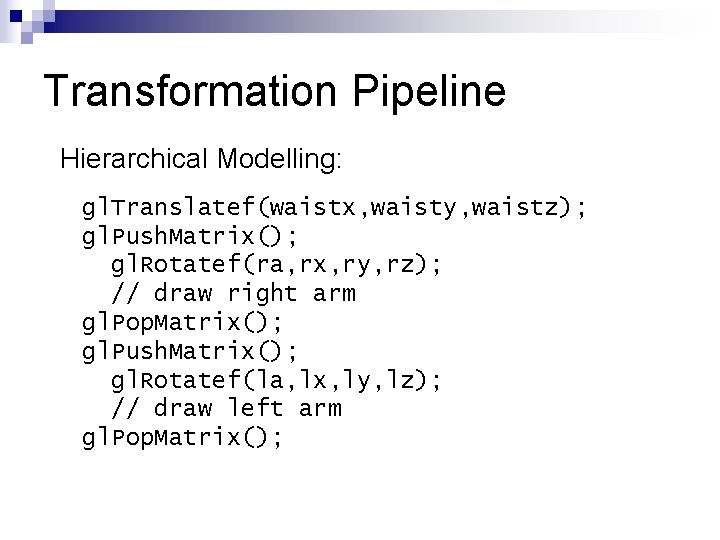
Transformation Pipeline Hierarchical Modelling: gl. Translatef(waistx, waisty, waistz); gl. Push. Matrix(); gl. Rotatef(ra, rx, ry, rz); // draw right arm gl. Pop. Matrix(); gl. Push. Matrix(); gl. Rotatef(la, lx, ly, lz); // draw left arm gl. Pop. Matrix();
Lights n Three main types of light source in Open. GL, directional, point and spot lights. n To directional lights, the 4 th value is different GLfloat light. Position[] = {0. 7 f, 0. 0 f} ; n n n To point lights, GLfloat light. Position[] = {0. 7 f, 1. 0 f} ;
Defining Lights gl. Lightfv(GLenum light, GLenum pname, GLfloat *param) gl. Enable(GL_LIGHTING) gl. Enable(GL_LIGHT 0) Parameters: GL_AMBIENT GL_DIFFUSE GL_SPECULAR GL_POSITION – RGBA ambient intensity RGBA diffuse intensity RGBA specular intensity light position
Materials Defining Material Properties gl. Materialfv(GLenum face, GLenum pname, GLfloat *param) Faces: GL_FRONT, GL_BACK, GL_FRONT_AND_BACK Parameters: GL_AMBIENT, GL_DIFFUSE, GL_SPECULAR, GL_EMISSION, GL_SHININESS
![Drawing Example Adding Lighting: float l. Pos[] = {1. 0, 1. 0}; gl. Lightfv(GL_LIGHT](http://slidetodoc.com/presentation_image_h2/e30400da868ba9e240c41d525abe2e84/image-27.jpg "Drawing Example Adding Lighting: float l. Pos[] = {1. 0, 1. 0}; gl. Lightfv(GL_LIGHT")
Drawing Example Adding Lighting: float l. Pos[] = {1. 0, 1. 0}; gl. Lightfv(GL_LIGHT 0, GL_POSITION, l. Pos); float diffuse[] = {1. 0, 0. 0, 1. 0}; gl. Materialfv(GL_FRONT, GL_DIFFUSE, diffuse); gl. Enable(GL_LIGHTING); gl. Enable(GL_LIGHT 0); gl. Shade. Model(GL_SMOOTH); // Setup camera // Draw objects
n Blending Open. GL Alpha values can be specified with gl. Color*(), the 4 th value. gl. Blend. Func(GLenum sfactor, GLenum dfactor); gl. Enable(GL_BLEND); GL_ZERO GL_ONE , GL_DST_COLOR, GL_SRC_COLOR , GL_ONE_MINUS_DST_COLOR , GL_ONE_MINUS_SRC_COLOR , GL_SRC_ALPHA………. n In Direct. X, for example device. Render. State. Alpha. Blend. Enable = true; device. Render. State. Destination. Blend = Blend. One; device. Render. State. Source. Blend = Blend. Source. Alpha; device. Render. State. Blend. Operation=Blend. Operation. Max; n
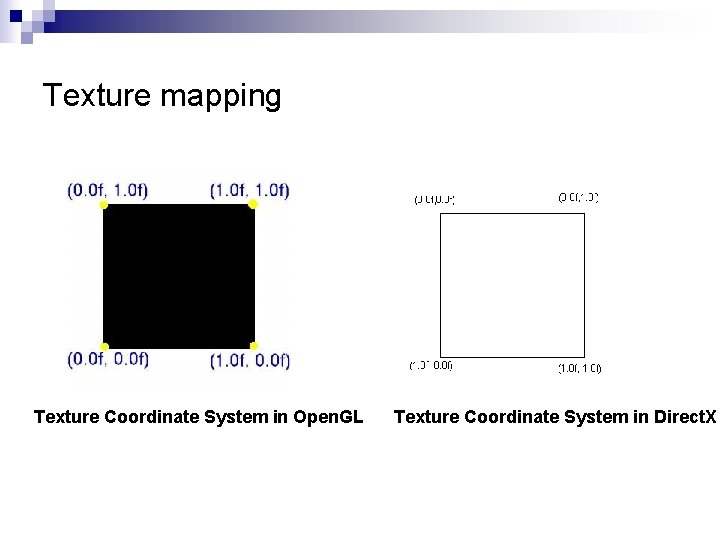
Texture mapping Texture Coordinate System in Open. GL Texture Coordinate System in Direct. X
Steps to apply a texture: n Create a texture object and specify a texture for that object (Loading a texture from file is not a built-in feature of Open. GL, glaux. lib is used here. ) ¨ Generate texture names void gl. Gen. Textures(GLsize n, GLuint *textures); ¨ Bind texture objects to texture data & parameters void gl. Bind. Texture(GLenum target, GLuint texture. Name); Indicate how the texture is to be applied to each pixel int glu. Build 2 DMipmaps(GLenum target, GLint components, GLint width, GLint height, GLenum format, GLenum type, const void *data) n Enable texture mapping gl. Enable(GL_TEXTURE_2 D) n Draw the scene, supplying both texture and geometric coordinates gl. Tex. Coord 2 f(0. 0 f, 0. 0 f); gl. Vertex 3 f(-1. 0 f, 1. 0 f); n

Thank You!
- Slides: 31