
open EAS Template A New Users Implementation Guide
- Slides: 35
open. EAS Template A New Users Implementation Guide
EAS – Extended Analytics Service • This service is designed to read data from a database, run analysis on this data, and output the results of this analysis back to the database. • The analysis done with this service will be specific to each application and will have to be coded on a per application basis. • This service can be used stand-alone where the service will process data and return it to your database or in conjunction with PQDashboard for easy access to data in the form of web tables.
Demonstration • To demonstrate the installation process for open. EAS we will be using a common theme with a fictional service that we want to create called My. Analysis. Service. • This will show you how to set the service up except for the code that you will use to analyze your data.
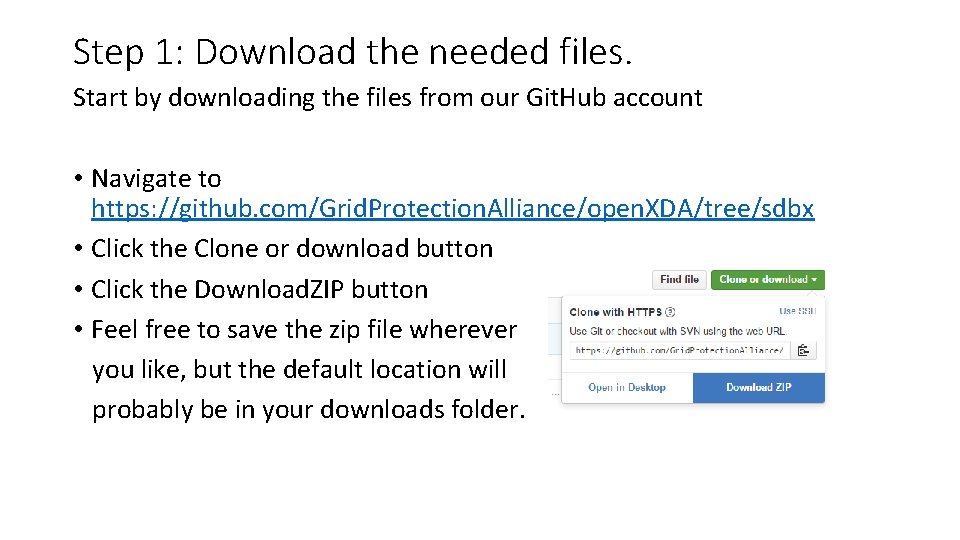
Step 1: Download the needed files. Start by downloading the files from our Git. Hub account • Navigate to https: //github. com/Grid. Protection. Alliance/open. XDA/tree/sdbx • Click the Clone or download button • Click the Download. ZIP button • Feel free to save the zip file wherever you like, but the default location will probably be in your downloads folder.
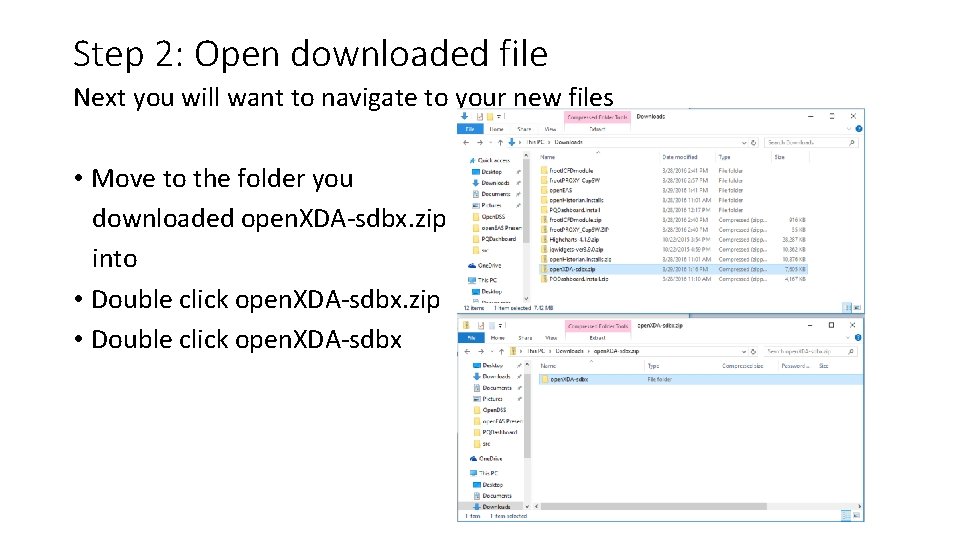
Step 2: Open downloaded file Next you will want to navigate to your new files • Move to the folder you downloaded open. XDA-sdbx. zip into • Double click open. XDA-sdbx. zip • Double click open. XDA-sdbx
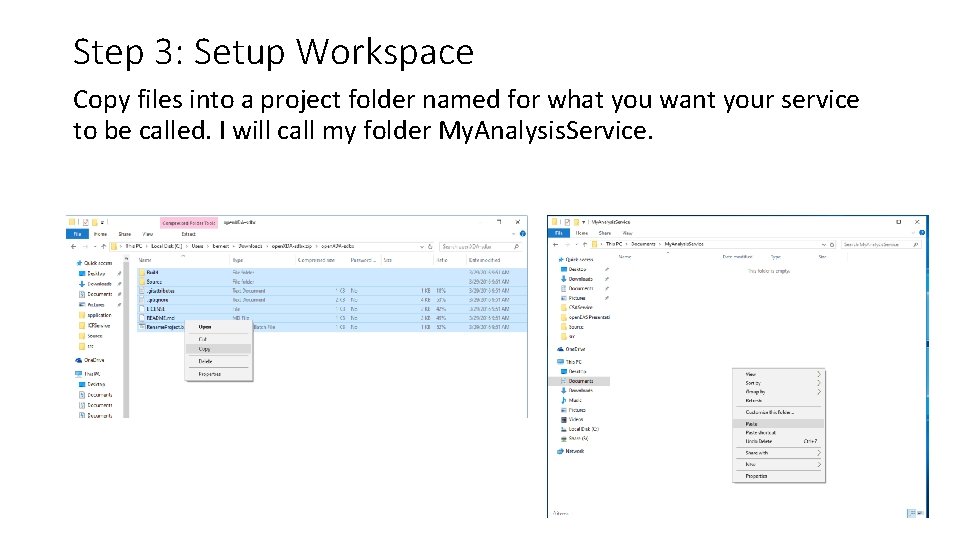
Step 3: Setup Workspace Copy files into a project folder named for what you want your service to be called. I will call my folder My. Analysis. Service.
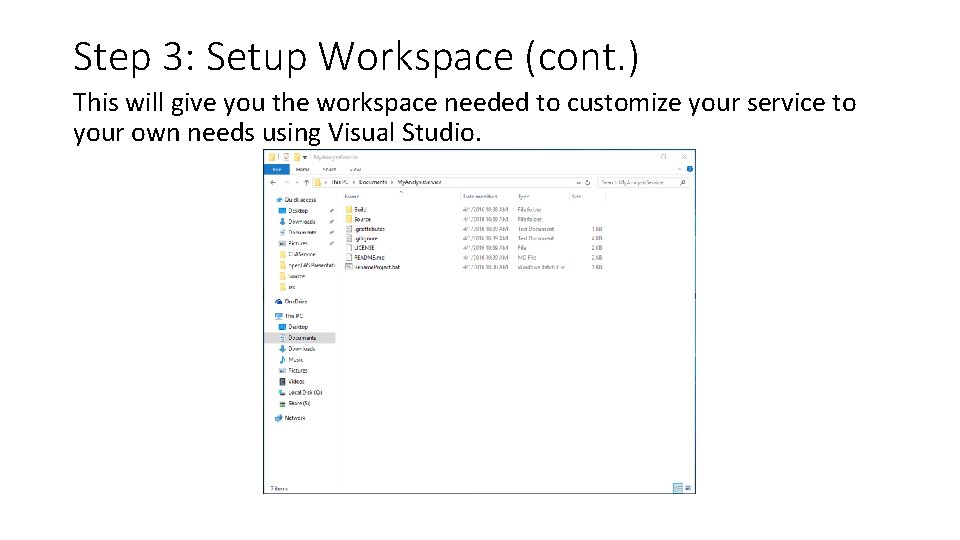
Step 3: Setup Workspace (cont. ) This will give you the workspace needed to customize your service to your own needs using Visual Studio.
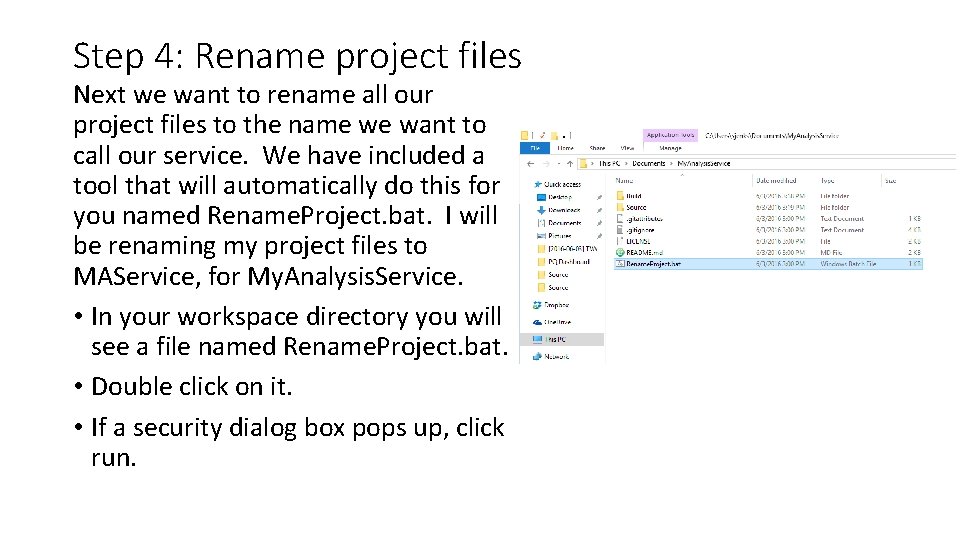
Step 4: Rename project files Next we want to rename all our project files to the name we want to call our service. We have included a tool that will automatically do this for you named Rename. Project. bat. I will be renaming my project files to MAService, for My. Analysis. Service. • In your workspace directory you will see a file named Rename. Project. bat. • Double click on it. • If a security dialog box pops up, click run.
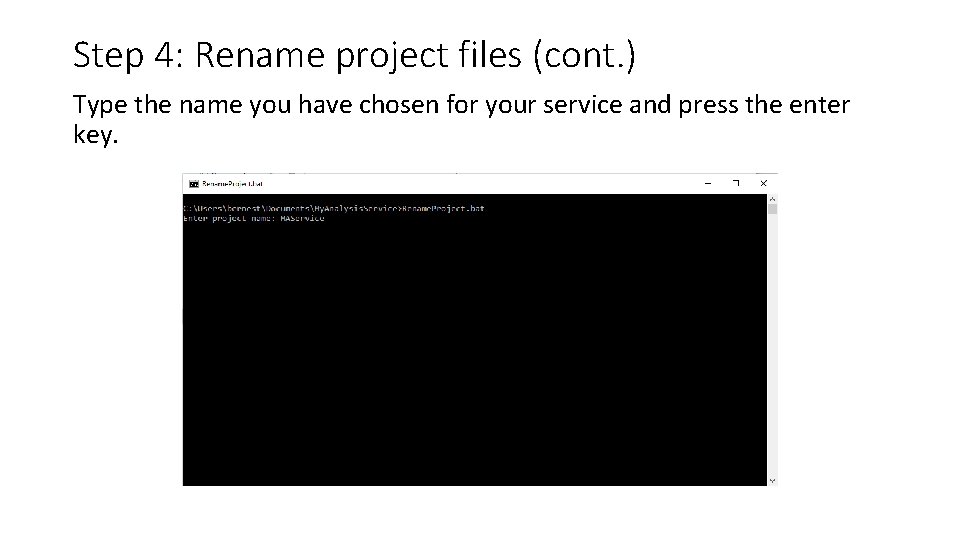
Step 4: Rename project files (cont. ) Type the name you have chosen for your service and press the enter key.
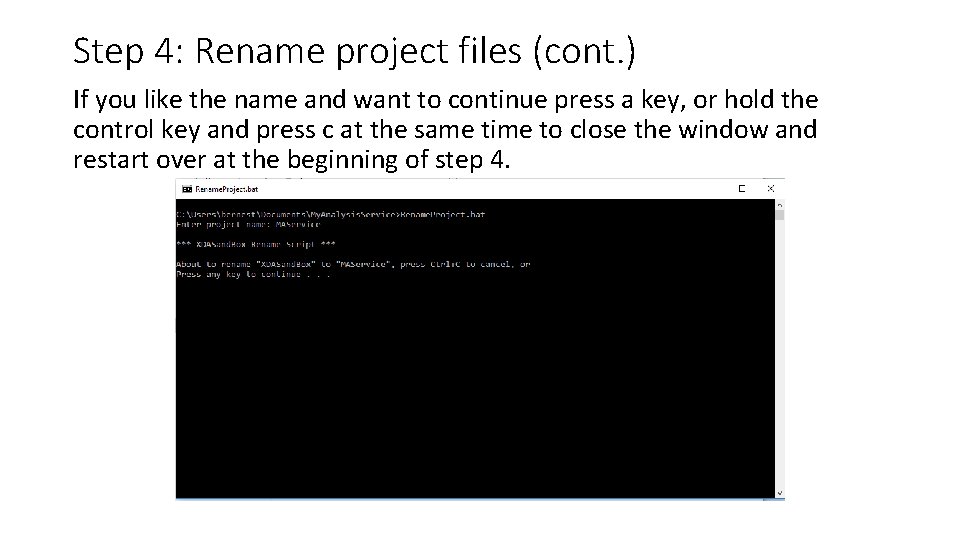
Step 4: Rename project files (cont. ) If you like the name and want to continue press a key, or hold the control key and press c at the same time to close the window and restart over at the beginning of step 4.
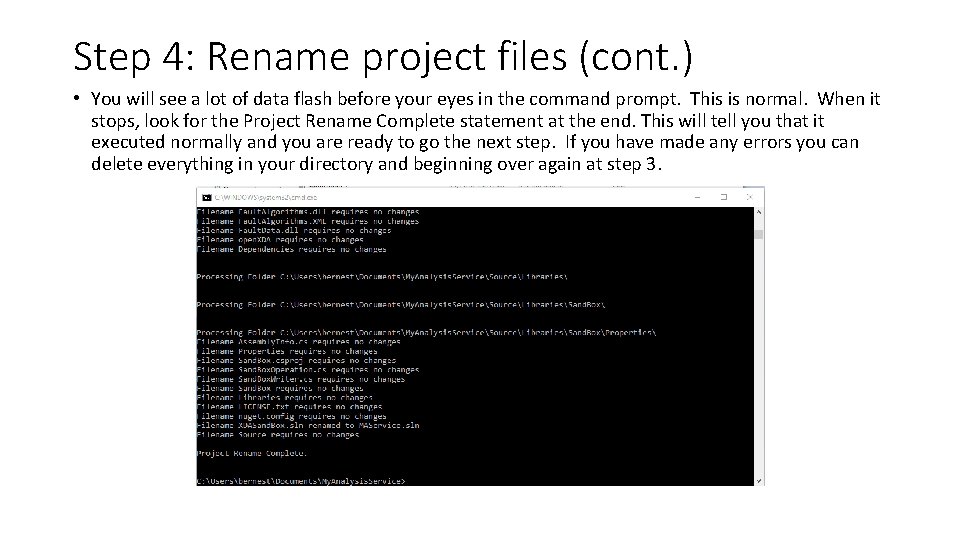
Step 4: Rename project files (cont. ) • You will see a lot of data flash before your eyes in the command prompt. This is normal. When it stops, look for the Project Rename Complete statement at the end. This will tell you that it executed normally and you are ready to go the next step. If you have made any errors you can delete everything in your directory and beginning over again at step 3.
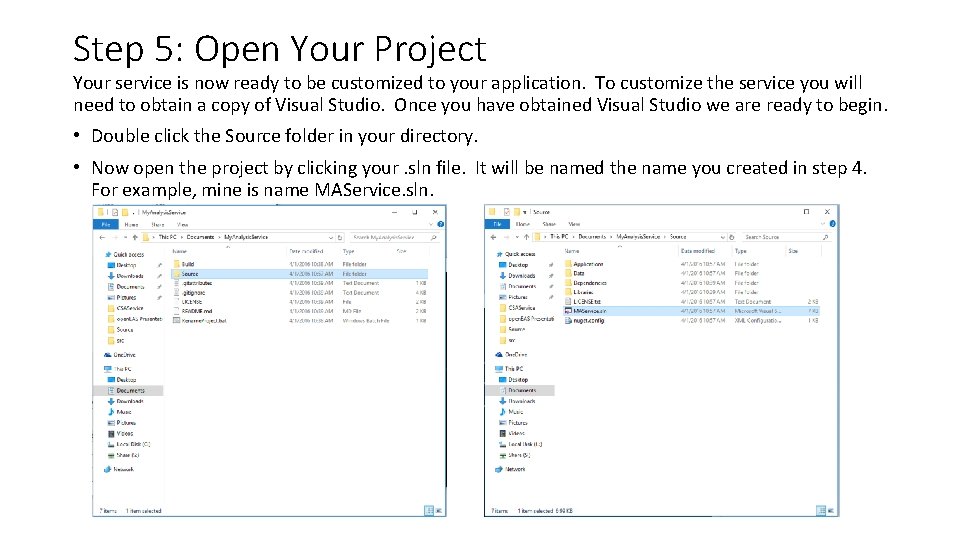
Step 5: Open Your Project Your service is now ready to be customized to your application. To customize the service you will need to obtain a copy of Visual Studio. Once you have obtained Visual Studio we are ready to begin. • Double click the Source folder in your directory. • Now open the project by clicking your. sln file. It will be named the name you created in step 4. For example, mine is name MAService. sln.
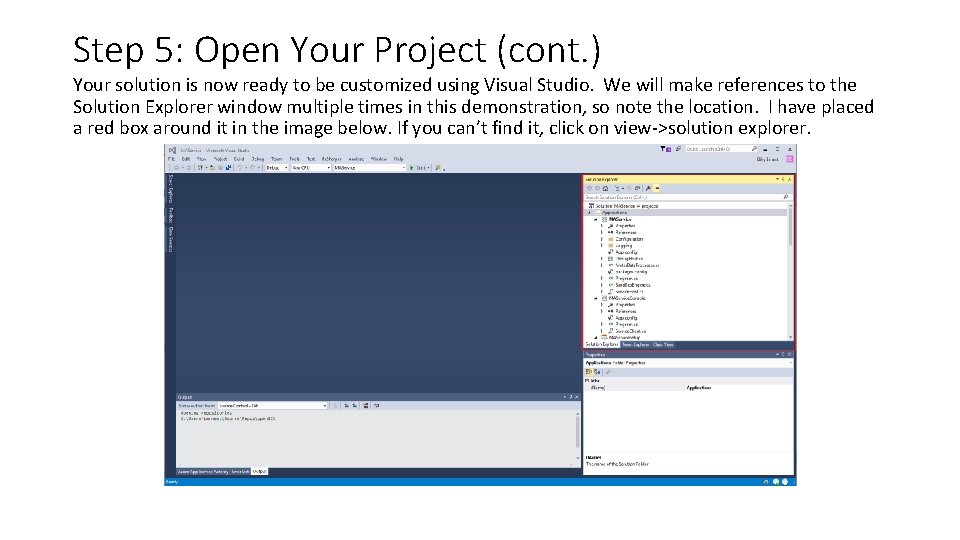
Step 5: Open Your Project (cont. ) Your solution is now ready to be customized using Visual Studio. We will make references to the Solution Explorer window multiple times in this demonstration, so note the location. I have placed a red box around it in the image below. If you can’t find it, click on view->solution explorer.
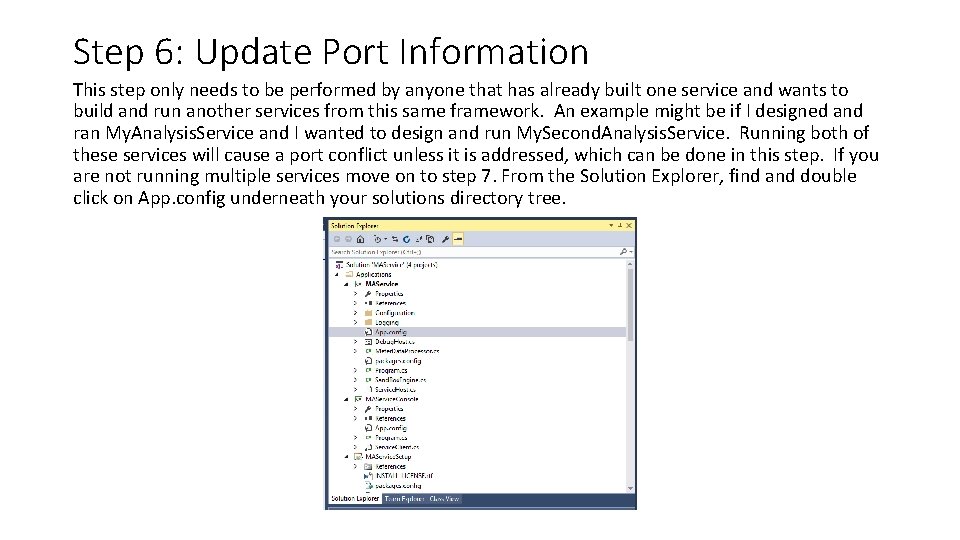
Step 6: Update Port Information This step only needs to be performed by anyone that has already built one service and wants to build and run another services from this same framework. An example might be if I designed and ran My. Analysis. Service and I wanted to design and run My. Second. Analysis. Service. Running both of these services will cause a port conflict unless it is addressed, which can be done in this step. If you are not running multiple services move on to step 7. From the Solution Explorer, find and double click on App. config underneath your solutions directory tree.
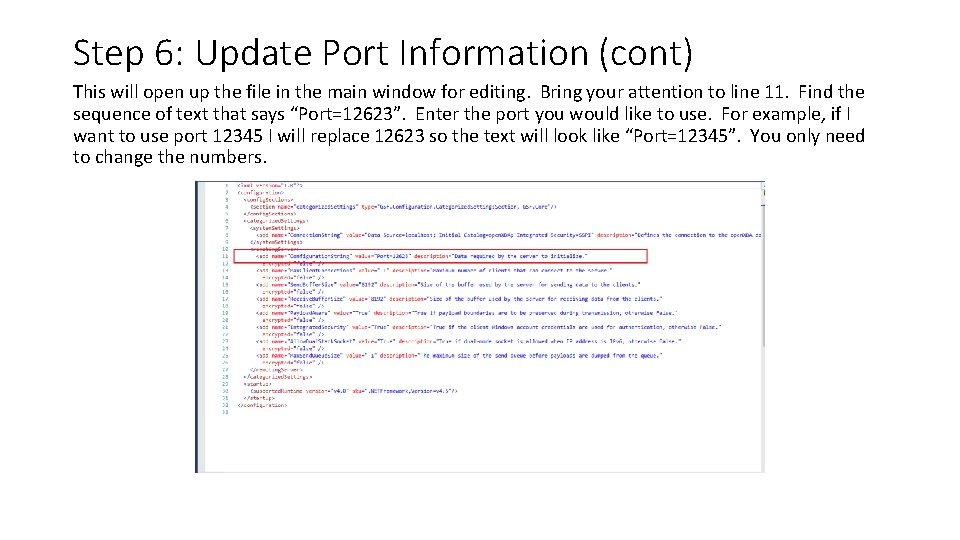
Step 6: Update Port Information (cont) This will open up the file in the main window for editing. Bring your attention to line 11. Find the sequence of text that says “Port=12623”. Enter the port you would like to use. For example, if I want to use port 12345 I will replace 12623 so the text will look like “Port=12345”. You only need to change the numbers.
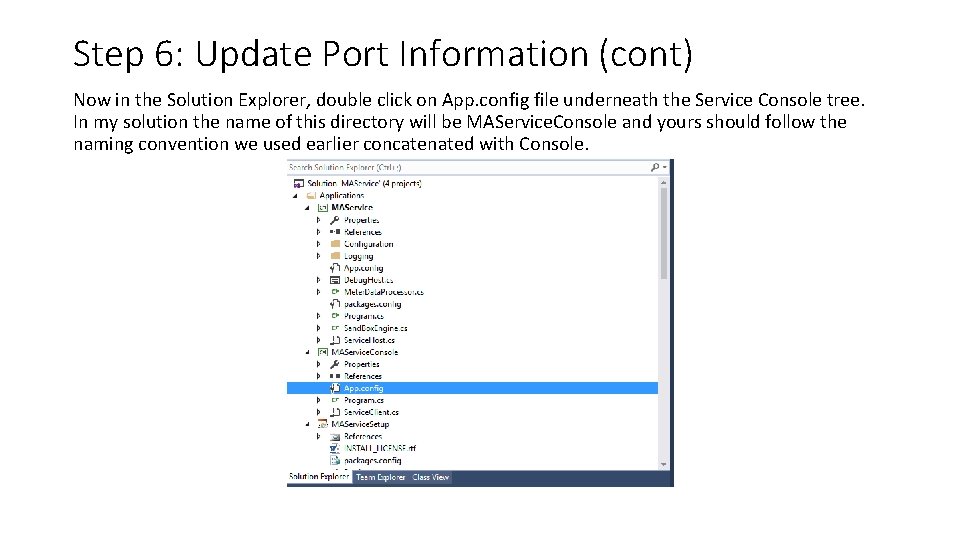
Step 6: Update Port Information (cont) Now in the Solution Explorer, double click on App. config file underneath the Service Console tree. In my solution the name of this directory will be MAService. Console and yours should follow the naming convention we used earlier concatenated with Console.
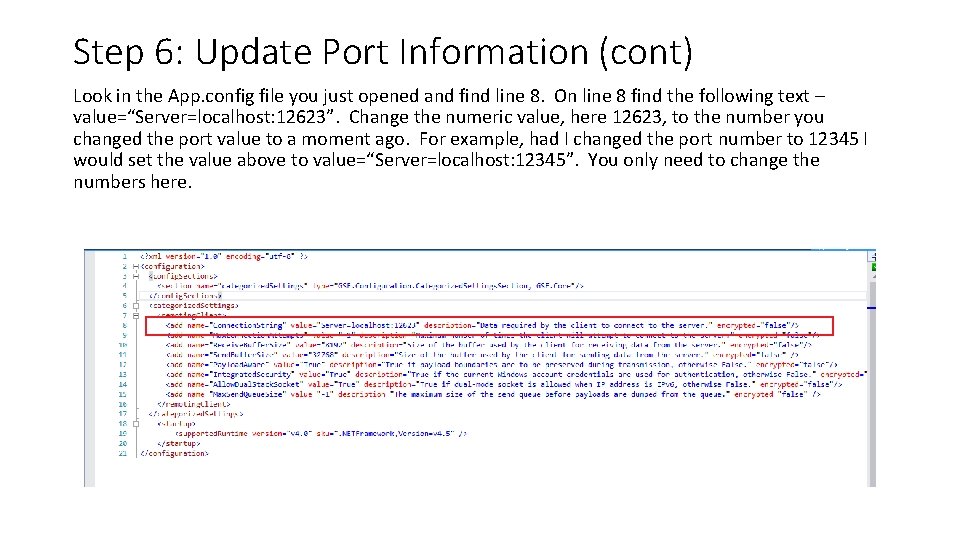
Step 6: Update Port Information (cont) Look in the App. config file you just opened and find line 8. On line 8 find the following text – value=“Server=localhost: 12623”. Change the numeric value, here 12623, to the number you changed the port value to a moment ago. For example, had I changed the port number to 12345 I would set the value above to value=“Server=localhost: 12345”. You only need to change the numbers here.
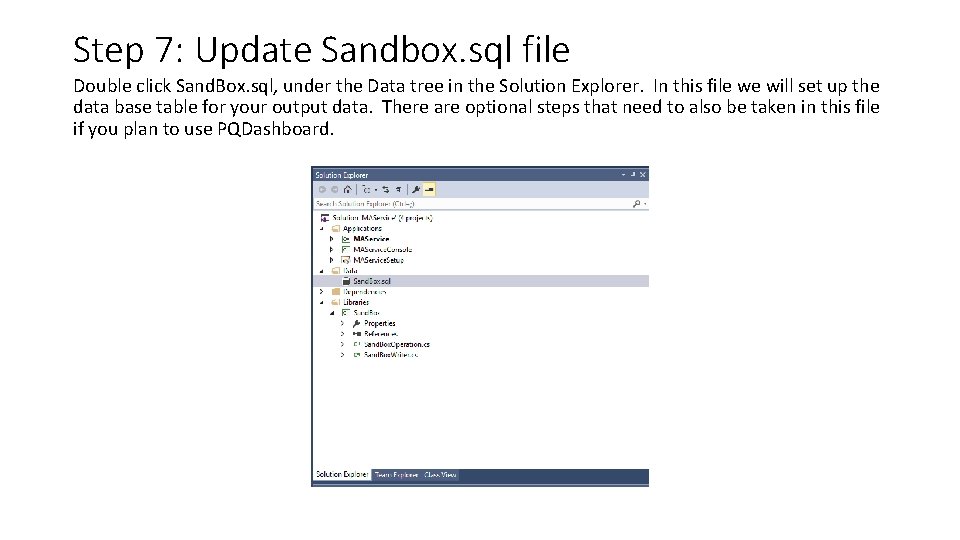
Step 7: Update Sandbox. sql file Double click Sand. Box. sql, under the Data tree in the Solution Explorer. In this file we will set up the data base table for your output data. There are optional steps that need to also be taken in this file if you plan to use PQDashboard.
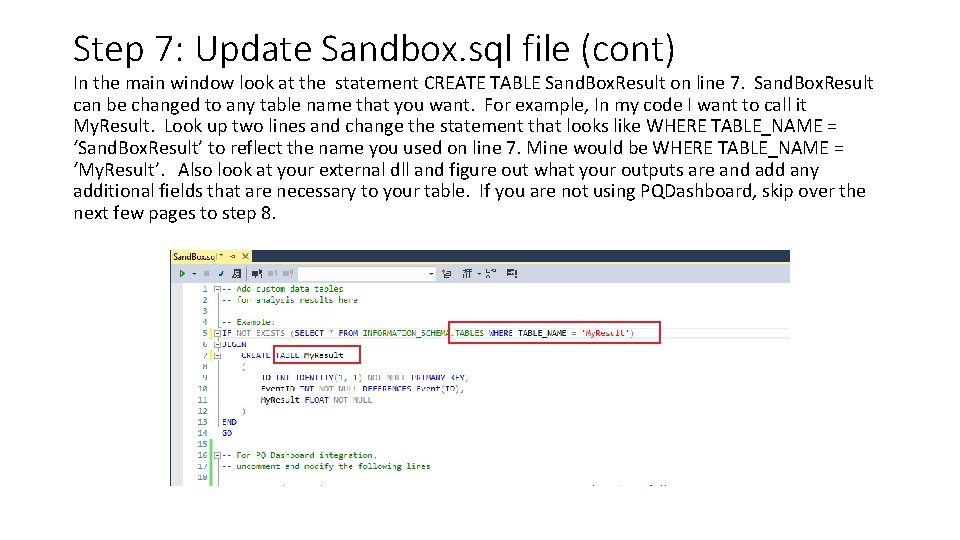
Step 7: Update Sandbox. sql file (cont) In the main window look at the statement CREATE TABLE Sand. Box. Result on line 7. Sand. Box. Result can be changed to any table name that you want. For example, In my code I want to call it My. Result. Look up two lines and change the statement that looks like WHERE TABLE_NAME = ‘Sand. Box. Result’ to reflect the name you used on line 7. Mine would be WHERE TABLE_NAME = ‘My. Result’. Also look at your external dll and figure out what your outputs are and add any additional fields that are necessary to your table. If you are not using PQDashboard, skip over the next few pages to step 8.
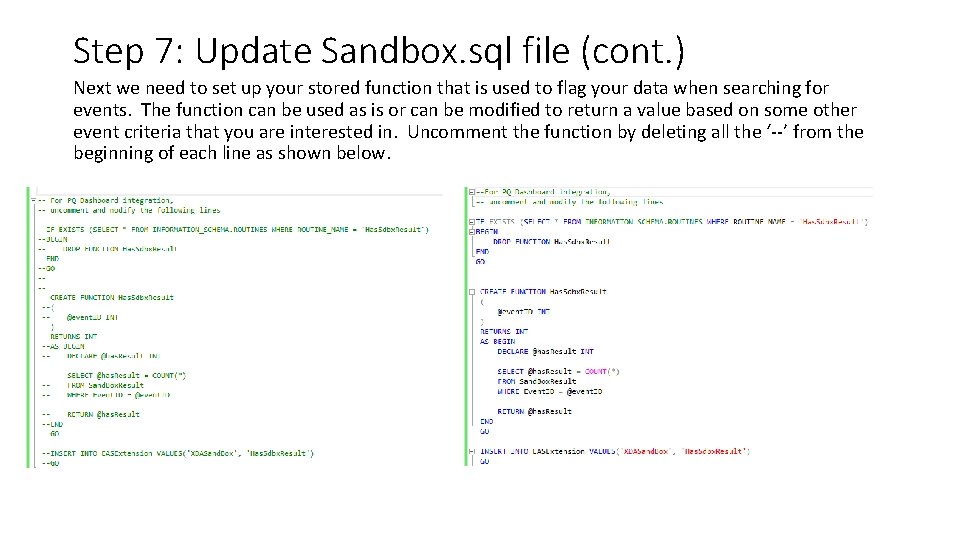
Step 7: Update Sandbox. sql file (cont. ) Next we need to set up your stored function that is used to flag your data when searching for events. The function can be used as is or can be modified to return a value based on some other event criteria that you are interested in. Uncomment the function by deleting all the ‘--’ from the beginning of each line as shown below.
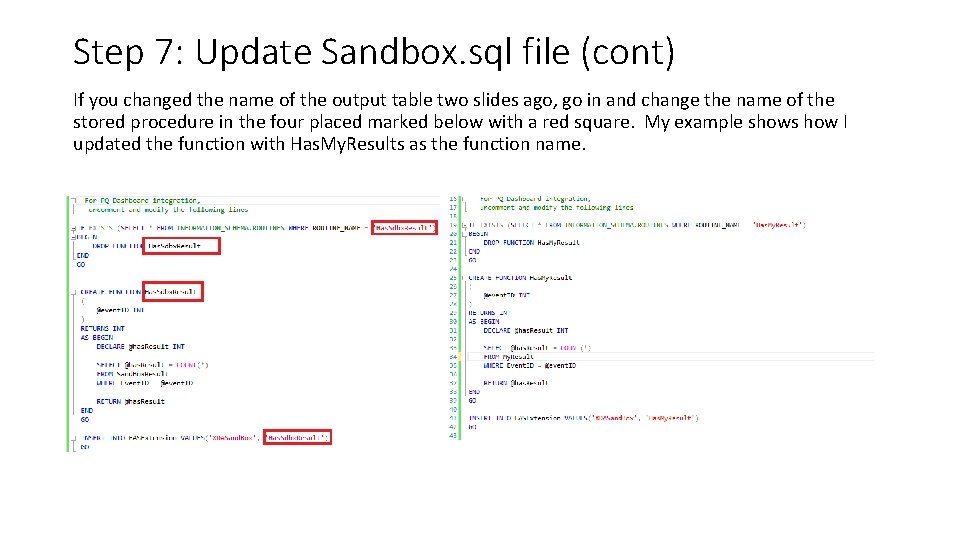
Step 7: Update Sandbox. sql file (cont) If you changed the name of the output table two slides ago, go in and change the name of the stored procedure in the four placed marked below with a red square. My example shows how I updated the function with Has. My. Results as the function name.
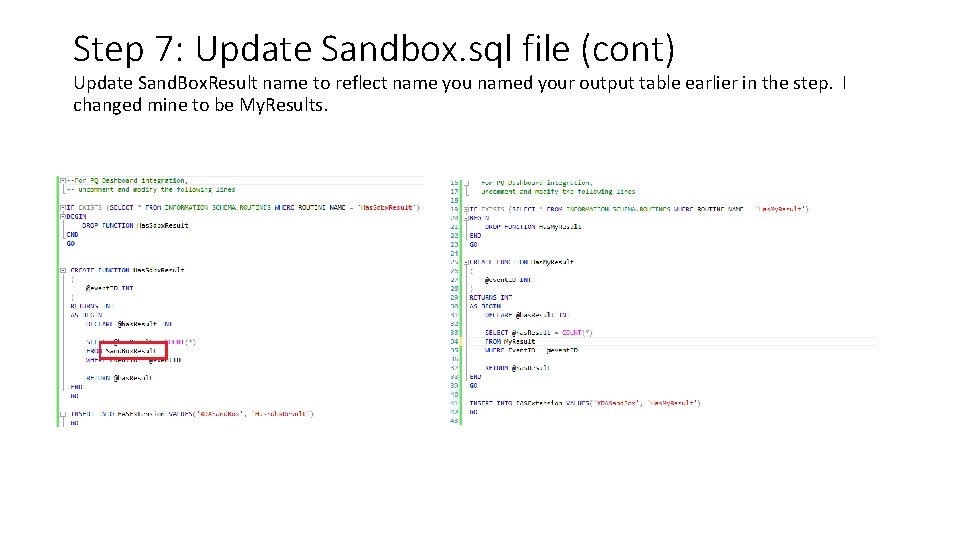
Step 7: Update Sandbox. sql file (cont) Update Sand. Box. Result name to reflect name you named your output table earlier in the step. I changed mine to be My. Results.
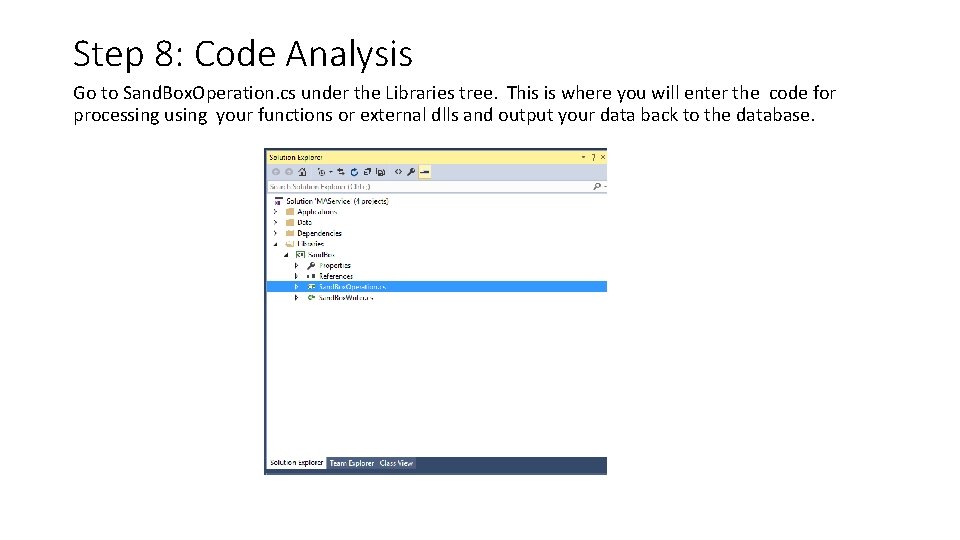
Step 8: Code Analysis Go to Sand. Box. Operation. cs under the Libraries tree. This is where you will enter the code for processing using your functions or external dlls and output your data back to the database.
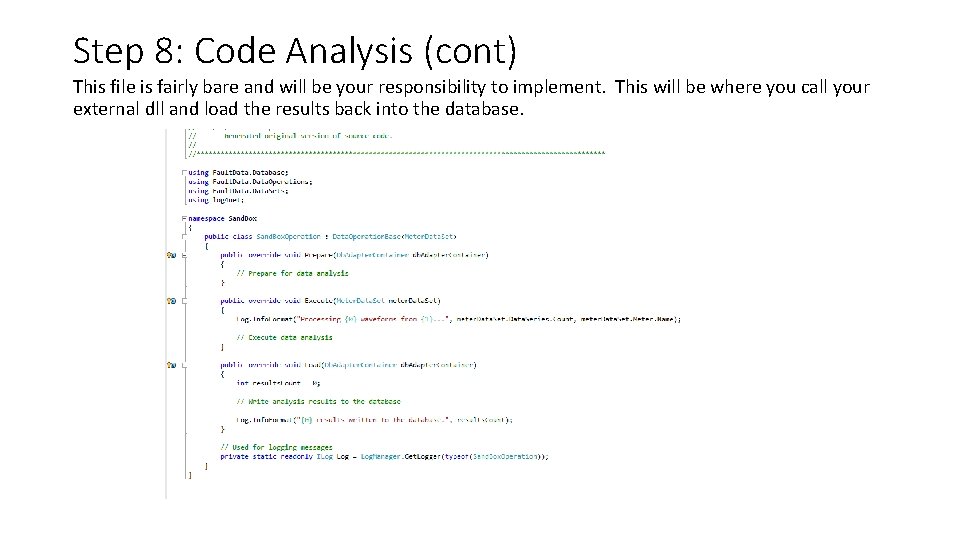
Step 8: Code Analysis (cont) This file is fairly bare and will be your responsibility to implement. This will be where you call your external dll and load the results back into the database.
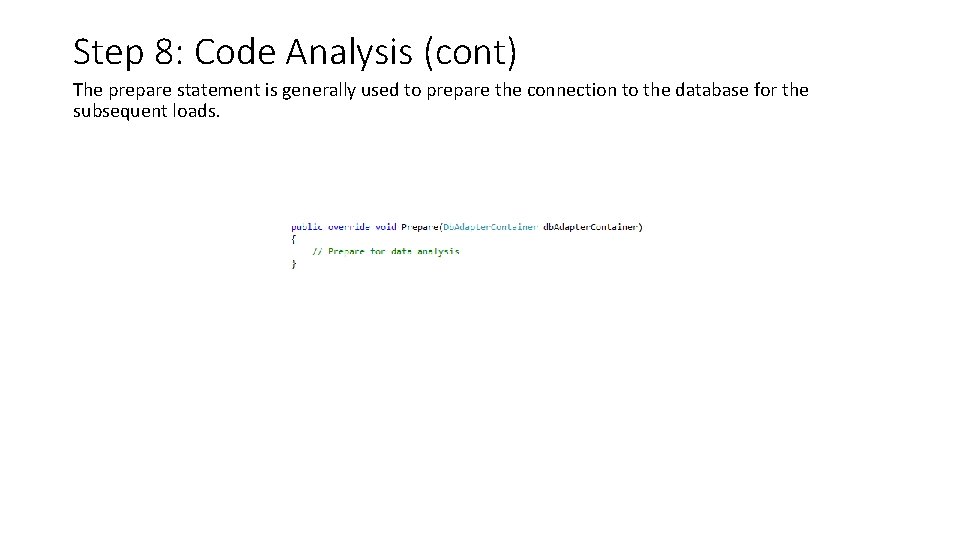
Step 8: Code Analysis (cont) The prepare statement is generally used to prepare the connection to the database for the subsequent loads.
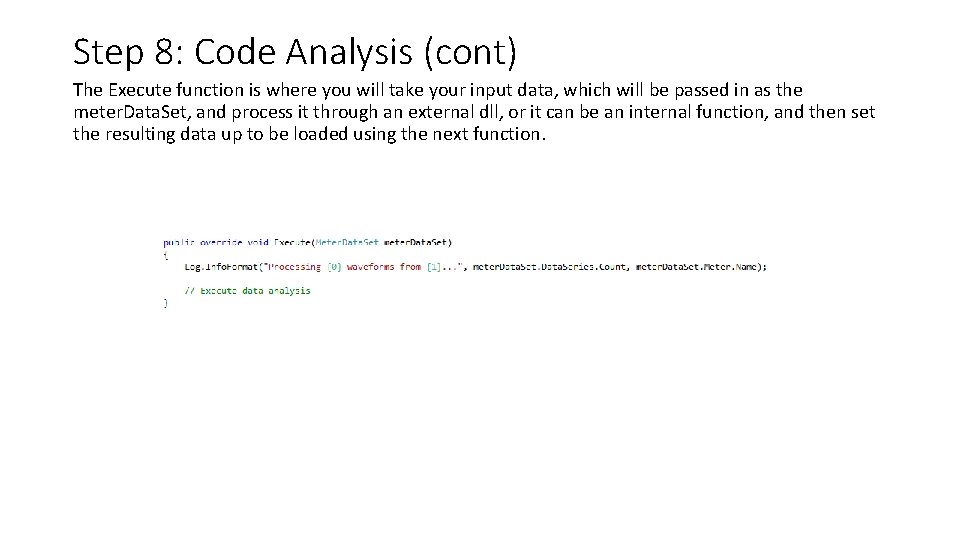
Step 8: Code Analysis (cont) The Execute function is where you will take your input data, which will be passed in as the meter. Data. Set, and process it through an external dll, or it can be an internal function, and then set the resulting data up to be loaded using the next function.
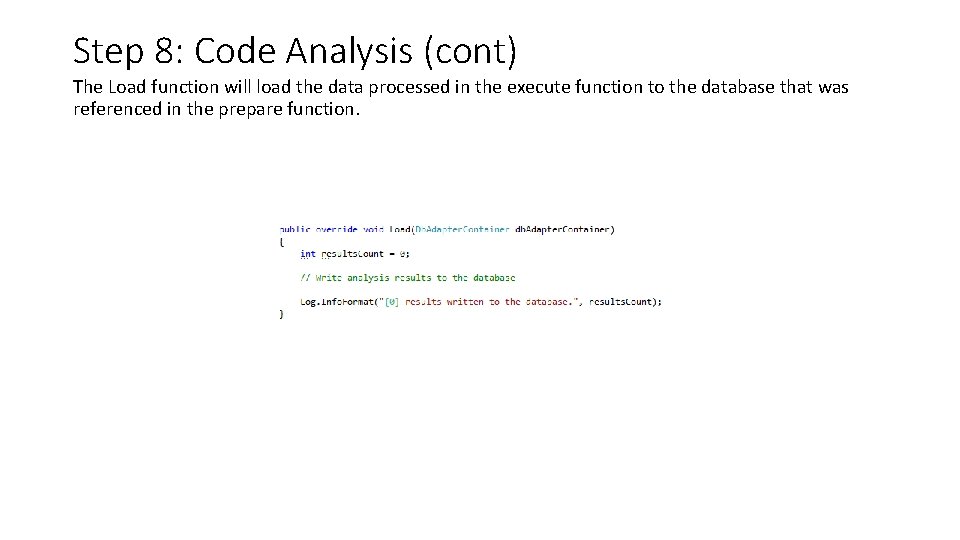
Step 8: Code Analysis (cont) The Load function will load the data processed in the execute function to the database that was referenced in the prepare function.
Finished! At this point your open. EAS service should be completely implemented and working as desired. If you would like to link your service to PQDashboard then additional steps are needed to configure your PQDashboard system and create a web table to display your data. PQDashboard Users • All additional steps only need to be performed if you are a PQDashboard user and want your data to be available for display from within PQDashboard. • If you are not a PQDashboard user, your data will be in your database and available to be used as you see fit. • No other steps are required for open. EAS to function as intended.
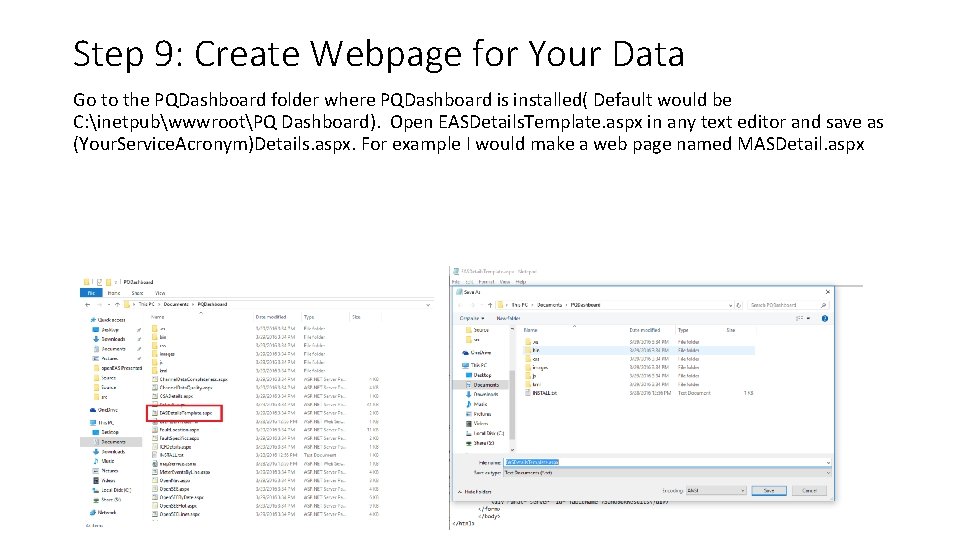
Step 9: Create Webpage for Your Data Go to the PQDashboard folder where PQDashboard is installed( Default would be C: inetpubwwwrootPQ Dashboard). Open EASDetails. Template. aspx in any text editor and save as (Your. Service. Acronym)Details. aspx. For example I would make a web page named MASDetail. aspx
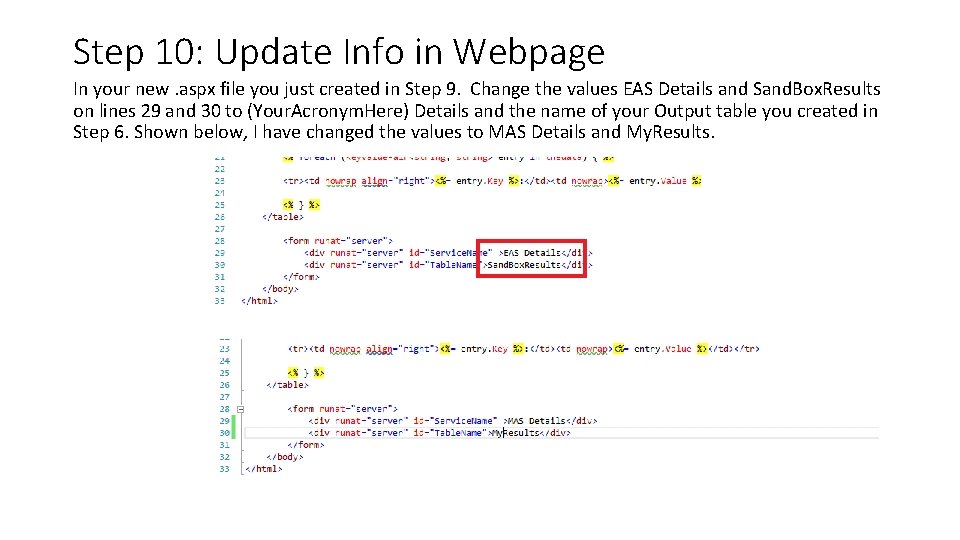
Step 10: Update Info in Webpage In your new. aspx file you just created in Step 9. Change the values EAS Details and Sand. Box. Results on lines 29 and 30 to (Your. Acronym. Here) Details and the name of your Output table you created in Step 6. Shown below, I have changed the values to MAS Details and My. Results.
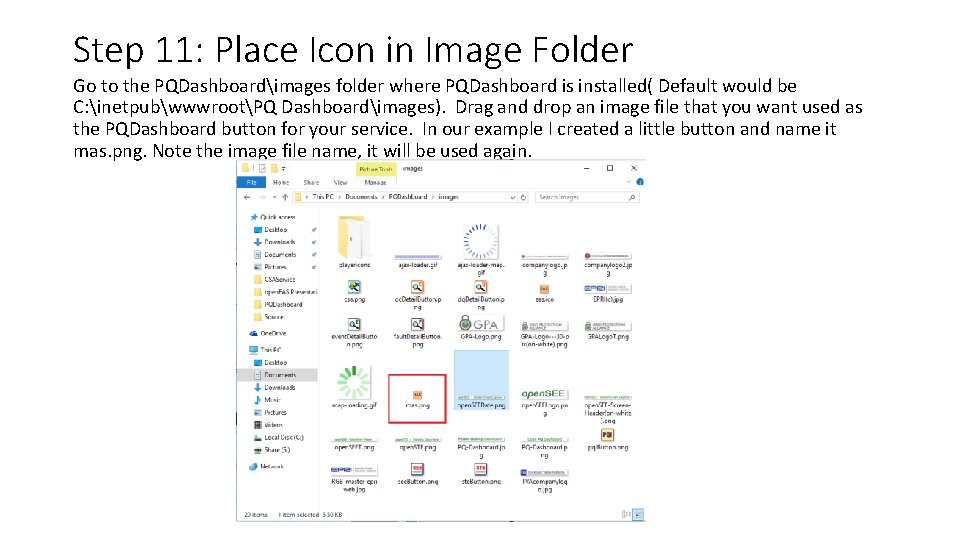
Step 11: Place Icon in Image Folder Go to the PQDashboardimages folder where PQDashboard is installed( Default would be C: inetpubwwwrootPQ Dashboardimages). Drag and drop an image file that you want used as the PQDashboard button for your service. In our example I created a little button and name it mas. png. Note the image file name, it will be used again.
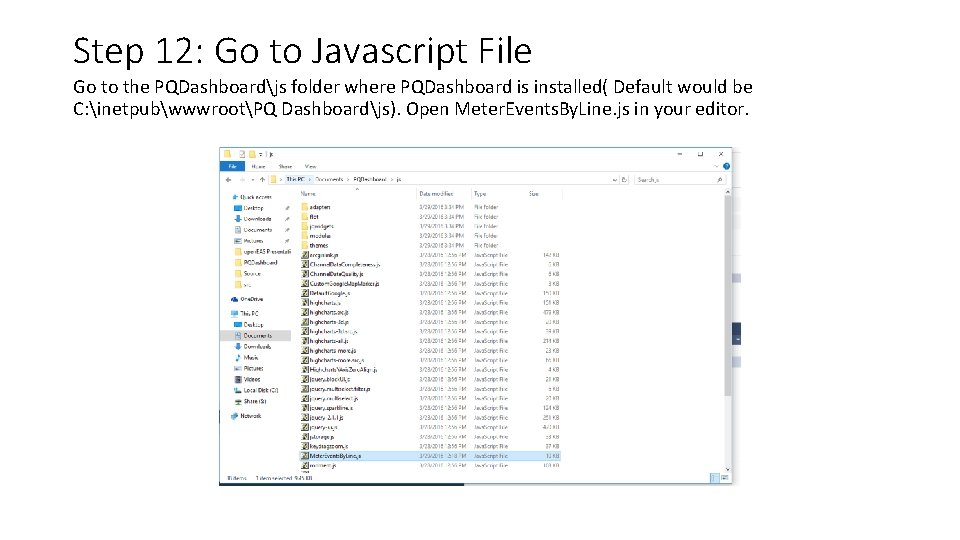
Step 12: Go to Javascript File Go to the PQDashboardjs folder where PQDashboard is installed( Default would be C: inetpubwwwrootPQ Dashboardjs). Open Meter. Events. By. Line. js in your editor.
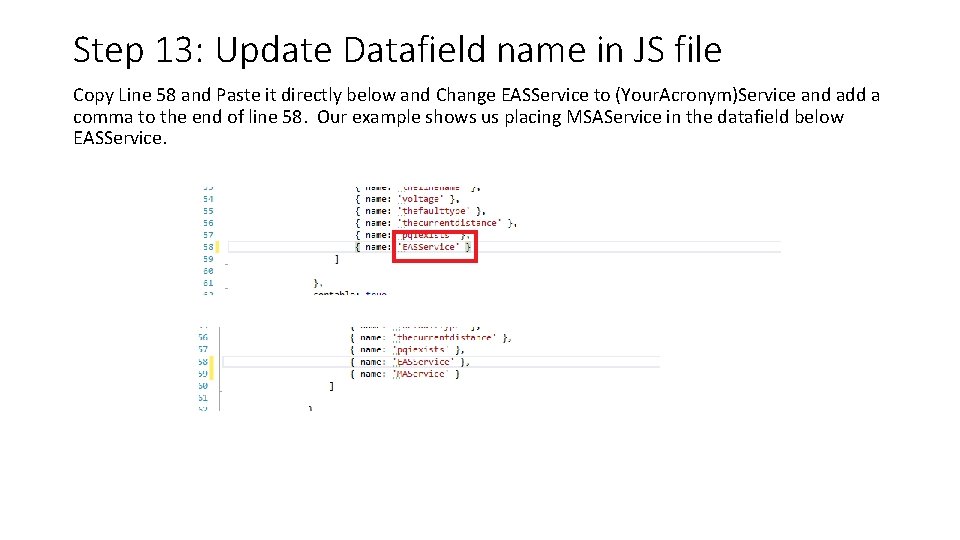
Step 13: Update Datafield name in JS file Copy Line 58 and Paste it directly below and Change EASService to (Your. Acronym)Service and add a comma to the end of line 58. Our example shows us placing MSAService in the datafield below EASService.
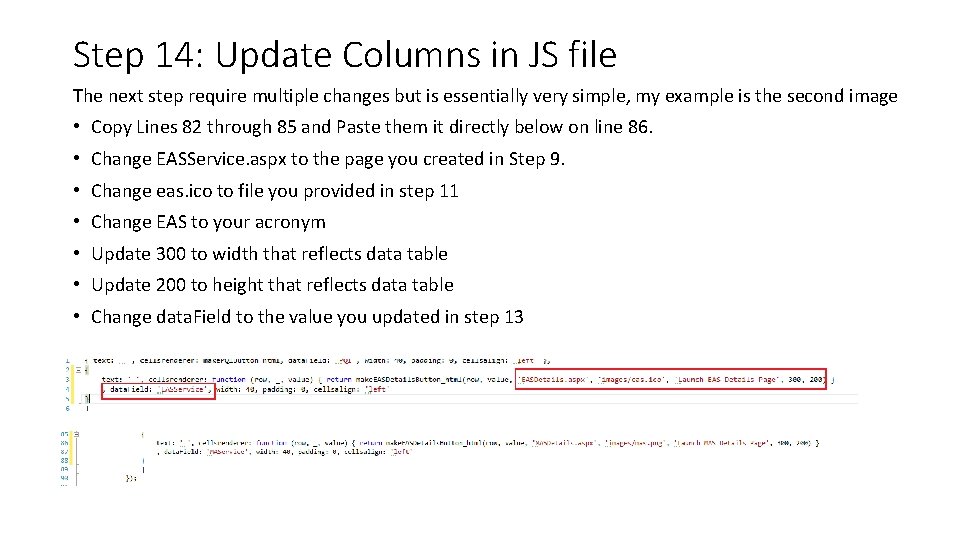
Step 14: Update Columns in JS file The next step require multiple changes but is essentially very simple, my example is the second image • Copy Lines 82 through 85 and Paste them it directly below on line 86. • Change EASService. aspx to the page you created in Step 9. • Change eas. ico to file you provided in step 11 • Change EAS to your acronym • Update 300 to width that reflects data table • Update 200 to height that reflects data table • Change data. Field to the value you updated in step 13
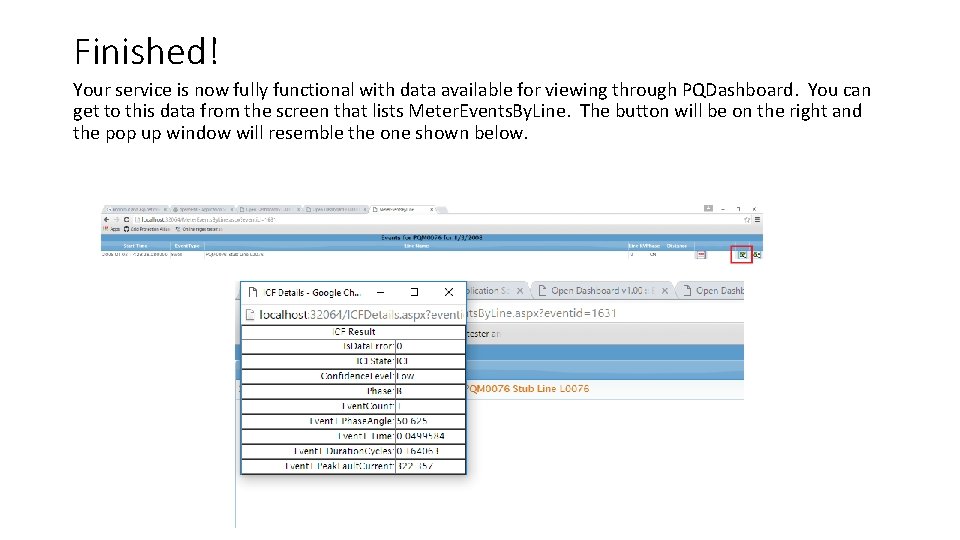
Finished! Your service is now fully functional with data available for viewing through PQDashboard. You can get to this data from the screen that lists Meter. Events. By. Line. The button will be on the right and the pop up window will resemble the one shown below.