
Open Air Project Setup Management Prepared for W





- Slides: 20
Open. Air Project Set-up & Management Prepared for W 2 O 13 September 2021 Proprietary and Confidential Property of W 2 O Group
Where do I start? W 2 O 13 September 2021 Proprietary and Confidential Property of W 2 O Group Pg. 2
Agenda • Where do I start? • Phases/Task Set-Up • Day-to-day Project Management • Open. Air Proxies W 2 O 13 September 2021 Proprietary and Confidential Property of W 2 O Group Pg. 3
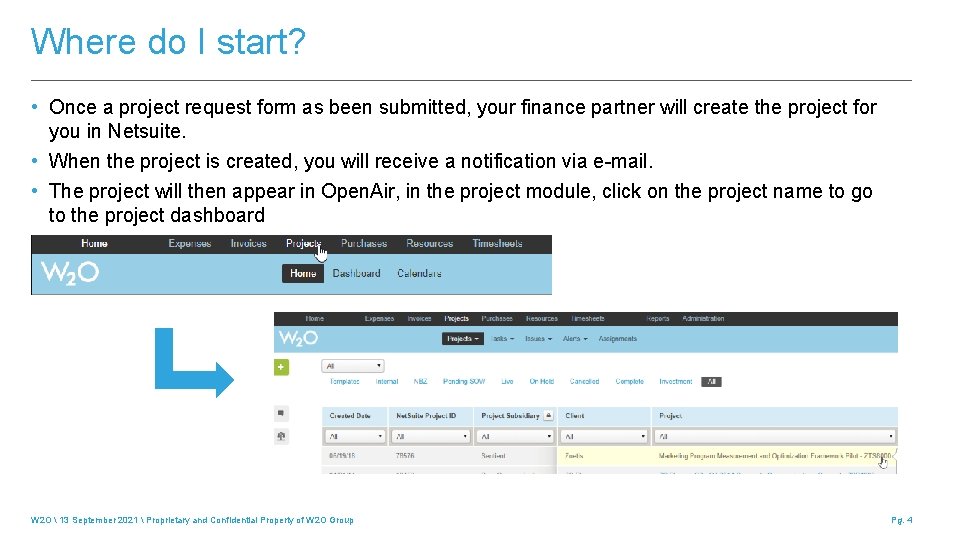
Where do I start? • Once a project request form as been submitted, your finance partner will create the project for you in Netsuite. • When the project is created, you will receive a notification via e-mail. • The project will then appear in Open. Air, in the project module, click on the project name to go to the project dashboard W 2 O 13 September 2021 Proprietary and Confidential Property of W 2 O Group Pg. 4
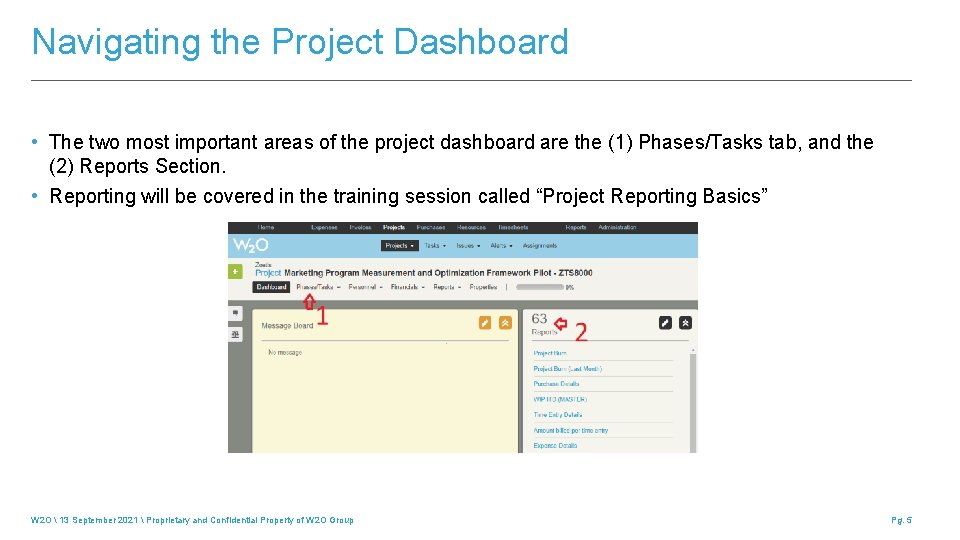
Navigating the Project Dashboard • The two most important areas of the project dashboard are the (1) Phases/Tasks tab, and the (2) Reports Section. • Reporting will be covered in the training session called “Project Reporting Basics” W 2 O 13 September 2021 Proprietary and Confidential Property of W 2 O Group Pg. 5
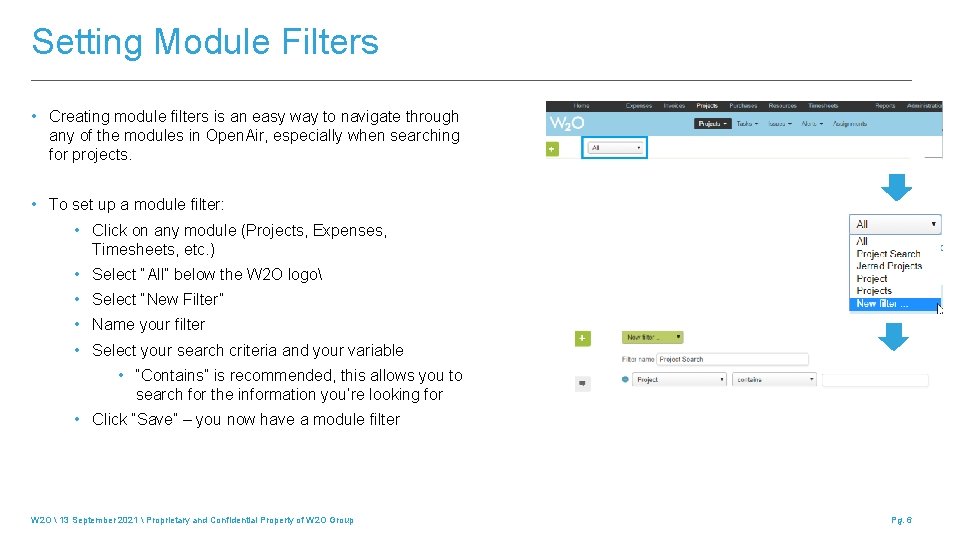
Setting Module Filters • Creating module filters is an easy way to navigate through any of the modules in Open. Air, especially when searching for projects. • To set up a module filter: • Click on any module (Projects, Expenses, Timesheets, etc. ) • Select “All” below the W 2 O logo • Select “New Filter” • Name your filter • Select your search criteria and your variable • “Contains” is recommended, this allows you to search for the information you’re looking for • Click “Save” – you now have a module filter W 2 O 13 September 2021 Proprietary and Confidential Property of W 2 O Group Pg. 6
Phases/Task Set-Up W 2 O 13 September 2021 Proprietary and Confidential Property of W 2 O Group Pg. 7
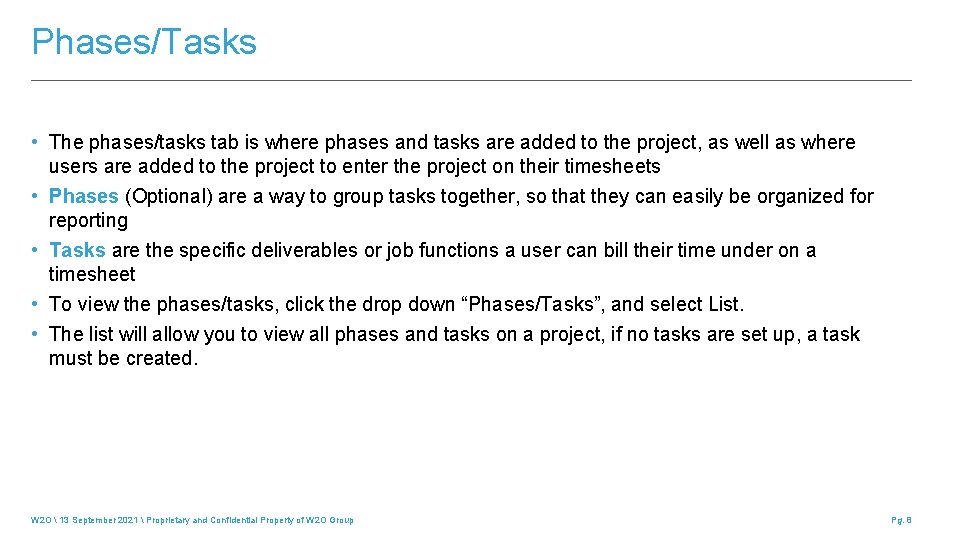
Phases/Tasks • The phases/tasks tab is where phases and tasks are added to the project, as well as where users are added to the project to enter the project on their timesheets • Phases (Optional) are a way to group tasks together, so that they can easily be organized for reporting • Tasks are the specific deliverables or job functions a user can bill their time under on a timesheet • To view the phases/tasks, click the drop down “Phases/Tasks”, and select List. • The list will allow you to view all phases and tasks on a project, if no tasks are set up, a task must be created. W 2 O 13 September 2021 Proprietary and Confidential Property of W 2 O Group Pg. 8
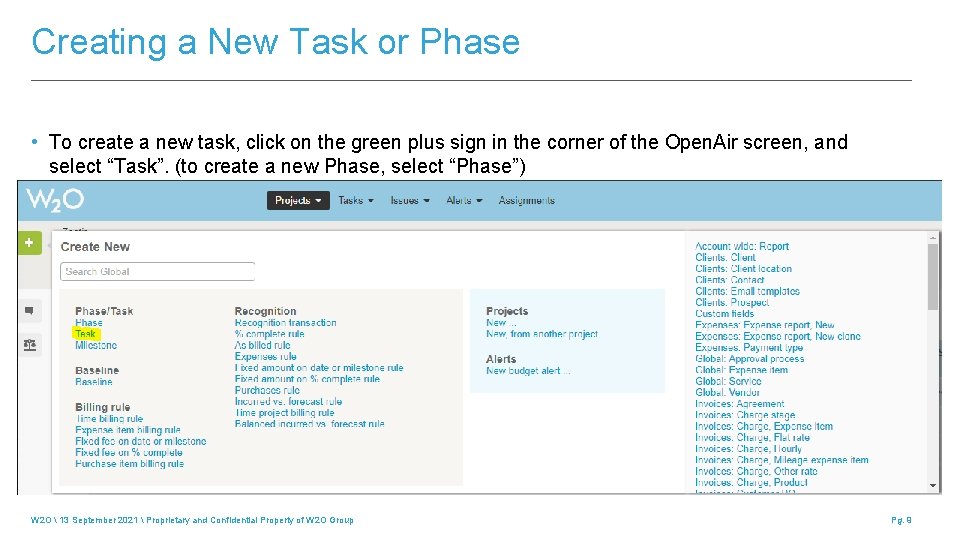
Creating a New Task or Phase • To create a new task, click on the green plus sign in the corner of the Open. Air screen, and select “Task”. (to create a new Phase, select “Phase”) W 2 O 13 September 2021 Proprietary and Confidential Property of W 2 O Group Pg. 9
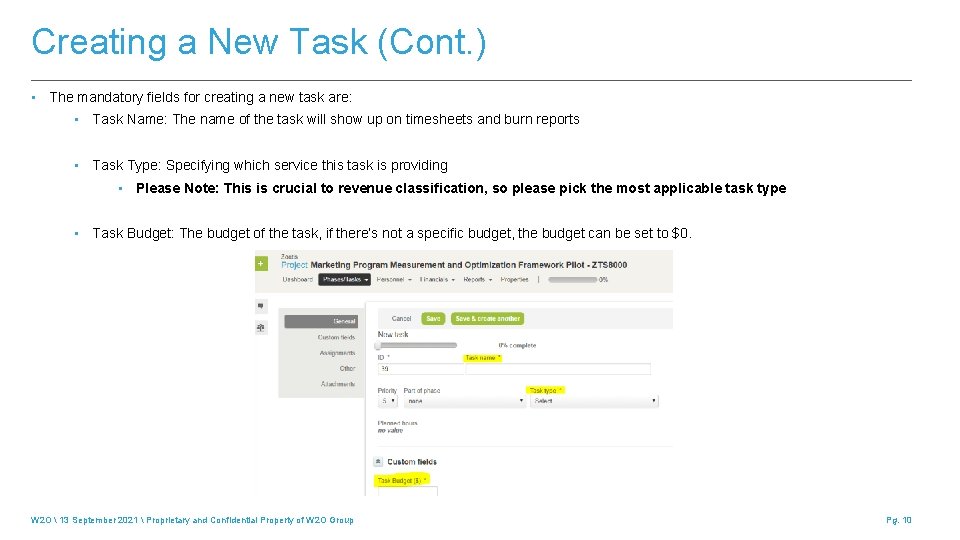
Creating a New Task (Cont. ) • The mandatory fields for creating a new task are: • Task Name: The name of the task will show up on timesheets and burn reports • Task Type: Specifying which service this task is providing • Please Note: This is crucial to revenue classification, so please pick the most applicable task type • Task Budget: The budget of the task, if there’s not a specific budget, the budget can be set to $0. W 2 O 13 September 2021 Proprietary and Confidential Property of W 2 O Group Pg. 10
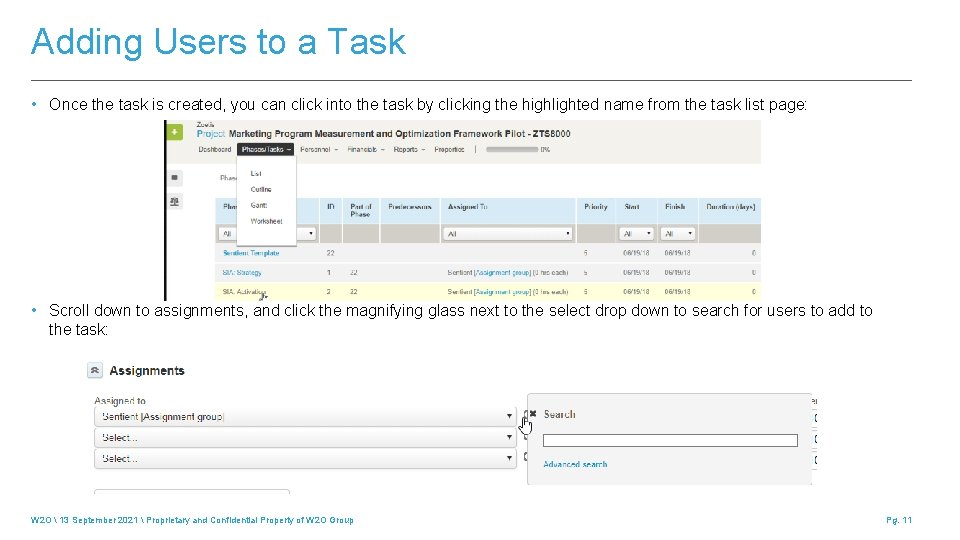
Adding Users to a Task • Once the task is created, you can click into the task by clicking the highlighted name from the task list page: • Scroll down to assignments, and click the magnifying glass next to the select drop down to search for users to add to the task: W 2 O 13 September 2021 Proprietary and Confidential Property of W 2 O Group Pg. 11
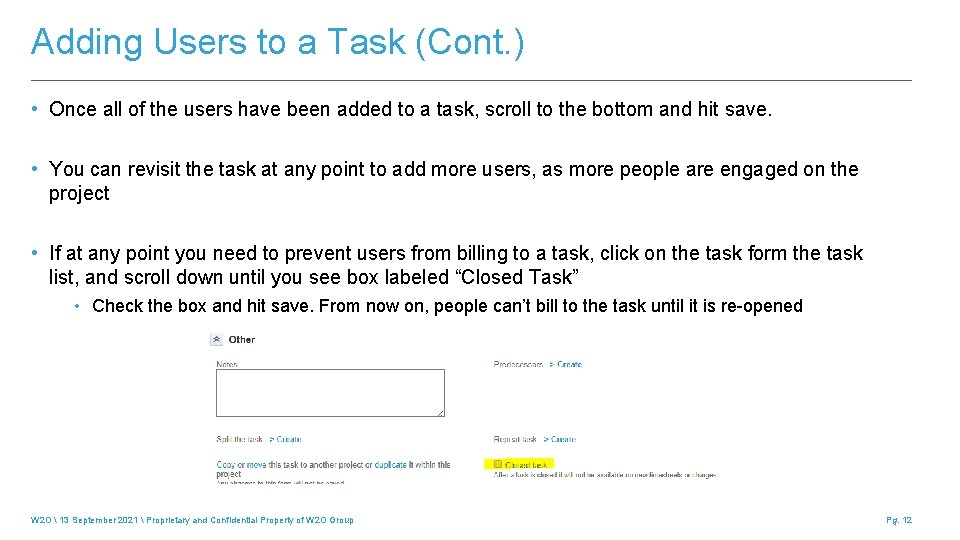
Adding Users to a Task (Cont. ) • Once all of the users have been added to a task, scroll to the bottom and hit save. • You can revisit the task at any point to add more users, as more people are engaged on the project • If at any point you need to prevent users from billing to a task, click on the task form the task list, and scroll down until you see box labeled “Closed Task” • Check the box and hit save. From now on, people can’t bill to the task until it is re-opened W 2 O 13 September 2021 Proprietary and Confidential Property of W 2 O Group Pg. 12
Video Demonstration – Setting up a new task W 2 O 13 September 2021 Proprietary and Confidential Property of W 2 O Group Pg. 13
Day-to-day Project Management W 2 O 13 September 2021 Proprietary and Confidential Property of W 2 O Group Pg. 14
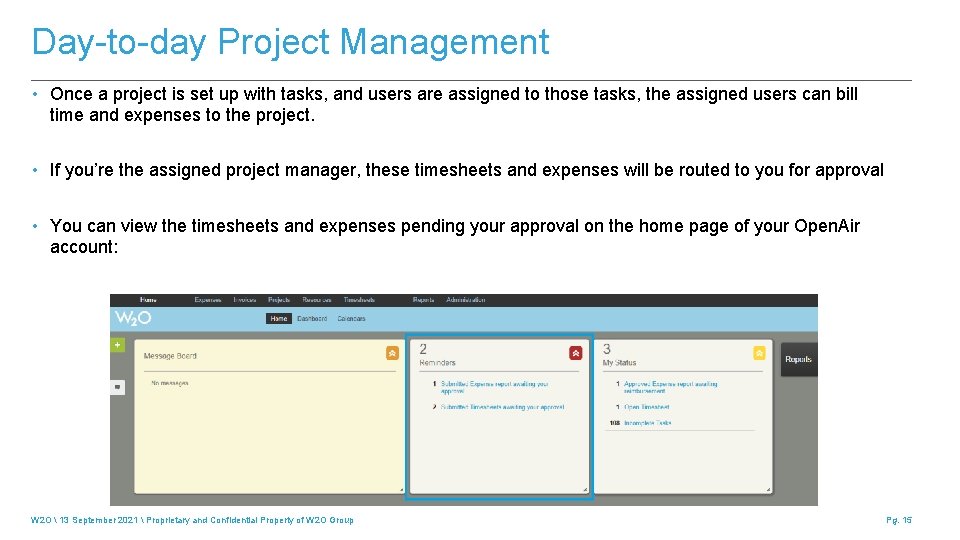
Day-to-day Project Management • Once a project is set up with tasks, and users are assigned to those tasks, the assigned users can bill time and expenses to the project. • If you’re the assigned project manager, these timesheets and expenses will be routed to you for approval • You can view the timesheets and expenses pending your approval on the home page of your Open. Air account: W 2 O 13 September 2021 Proprietary and Confidential Property of W 2 O Group Pg. 15
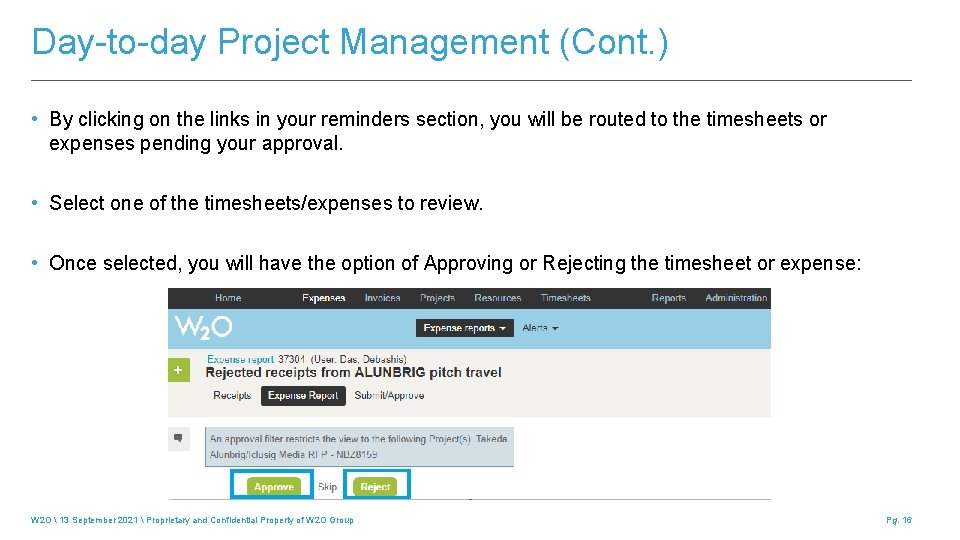
Day-to-day Project Management (Cont. ) • By clicking on the links in your reminders section, you will be routed to the timesheets or expenses pending your approval. • Select one of the timesheets/expenses to review. • Once selected, you will have the option of Approving or Rejecting the timesheet or expense: W 2 O 13 September 2021 Proprietary and Confidential Property of W 2 O Group Pg. 16
Day-to-day Project Management (Cont. ) • If the timesheet or expense needs to be rejected, please provide notes on why the item was rejected. • Once the item is rejected, the owner of the timesheet or expense will receive a notification that includes your notes for correction. • As a best practice, it’s always best to review your pending timesheet and expense approvals daily. • This ensures that the billable items can be invoiced in a timely manner. • Approving daily will also limit the amount of approvals that will be added to your queue for review. W 2 O 13 September 2021 Proprietary and Confidential Property of W 2 O Group Pg. 17
Setting Up & Logging in as a Proxy W 2 O 13 September 2021 Proprietary and Confidential Property of W 2 O Group Pg. 18
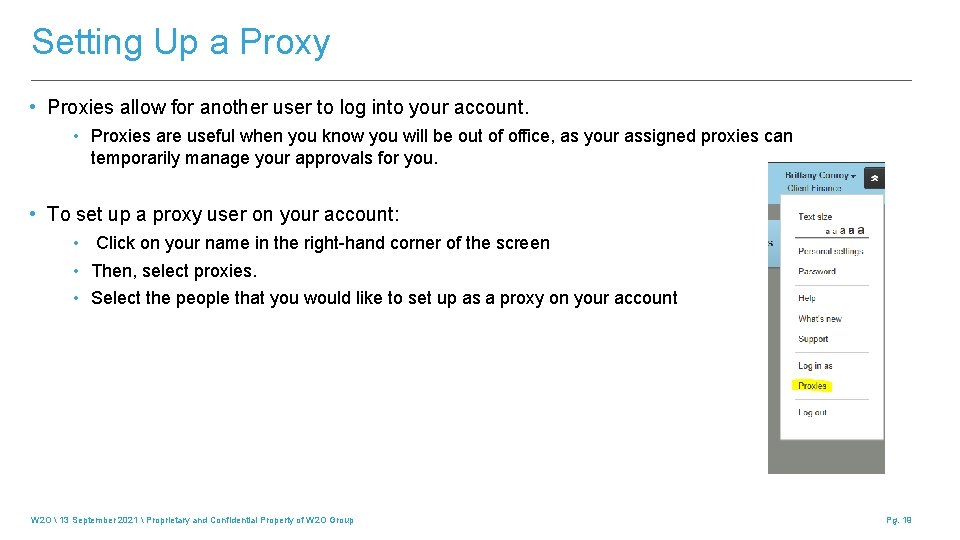
Setting Up a Proxy • Proxies allow for another user to log into your account. • Proxies are useful when you know you will be out of office, as your assigned proxies can temporarily manage your approvals for you. • To set up a proxy user on your account: • Click on your name in the right-hand corner of the screen • Then, select proxies. • Select the people that you would like to set up as a proxy on your account W 2 O 13 September 2021 Proprietary and Confidential Property of W 2 O Group Pg. 19
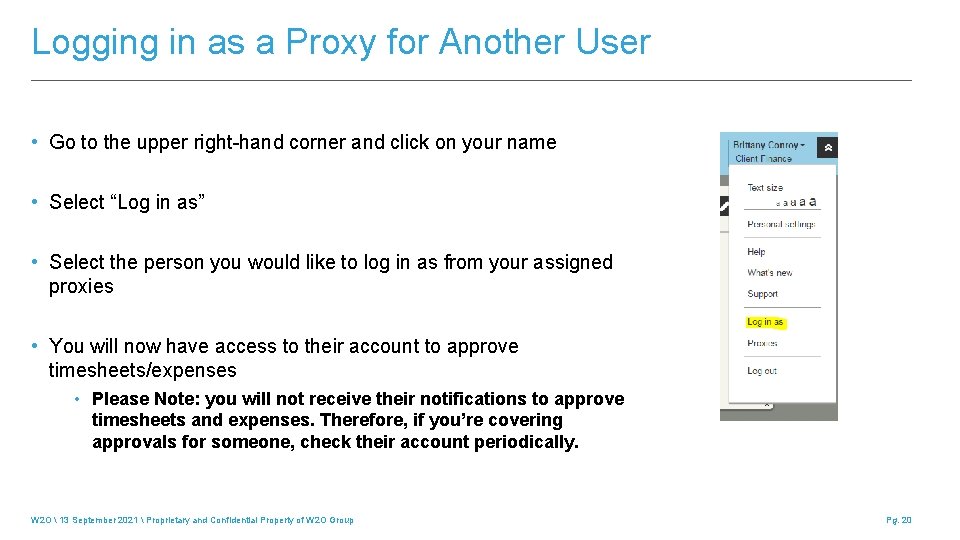
Logging in as a Proxy for Another User • Go to the upper right-hand corner and click on your name • Select “Log in as” • Select the person you would like to log in as from your assigned proxies • You will now have access to their account to approve timesheets/expenses • Please Note: you will not receive their notifications to approve timesheets and expenses. Therefore, if you’re covering approvals for someone, check their account periodically. W 2 O 13 September 2021 Proprietary and Confidential Property of W 2 O Group Pg. 20