
Online Photo Editing with Picnik Create a Street
- Slides: 9
Online Photo Editing with Picnik
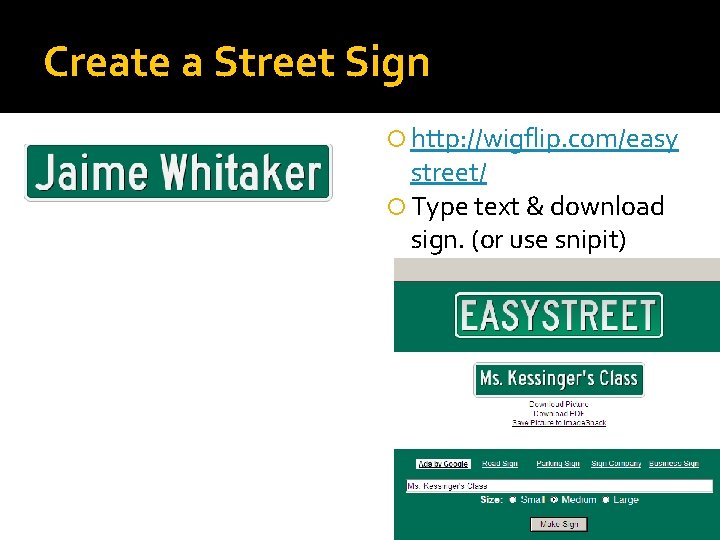
Create a Street Sign http: //wigflip. com/easy street/ Type text & download sign. (or use snipit)
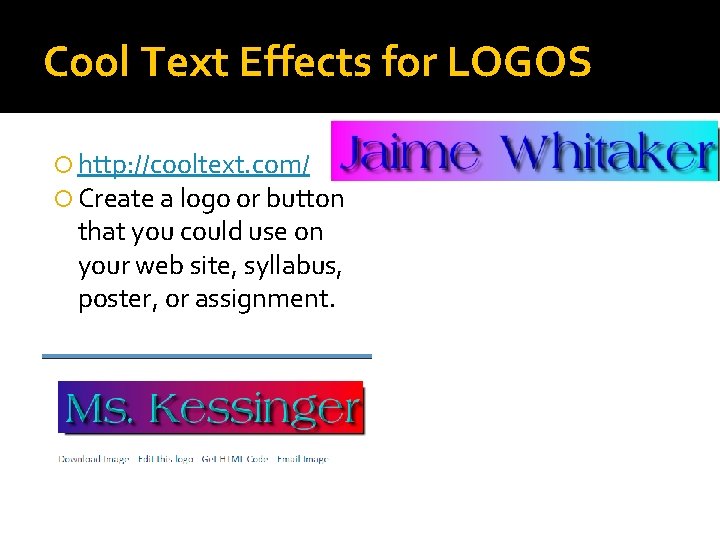
Cool Text Effects for LOGOS http: //cooltext. com/ Create a logo or button that you could use on your web site, syllabus, poster, or assignment.
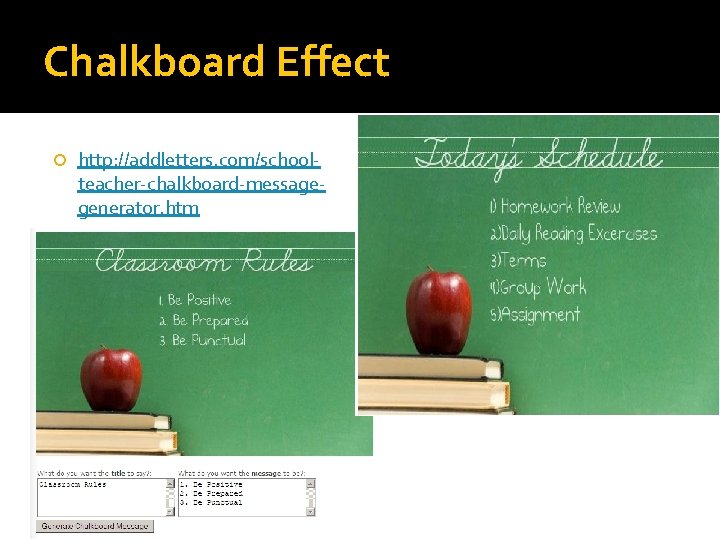
Chalkboard Effect http: //addletters. com/schoolteacher-chalkboard-messagegenerator. htm
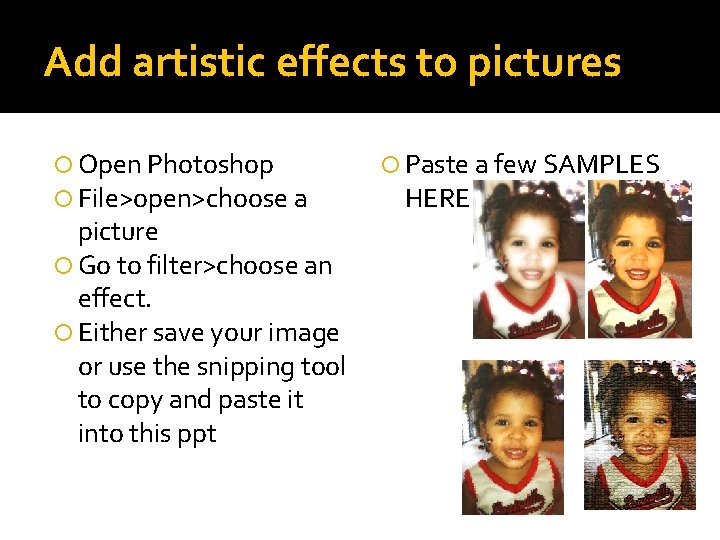
Add artistic effects to pictures Open Photoshop File>open>choose a picture Go to filter>choose an effect. Either save your image or use the snipping tool to copy and paste it into this ppt Paste a few SAMPLES HERE
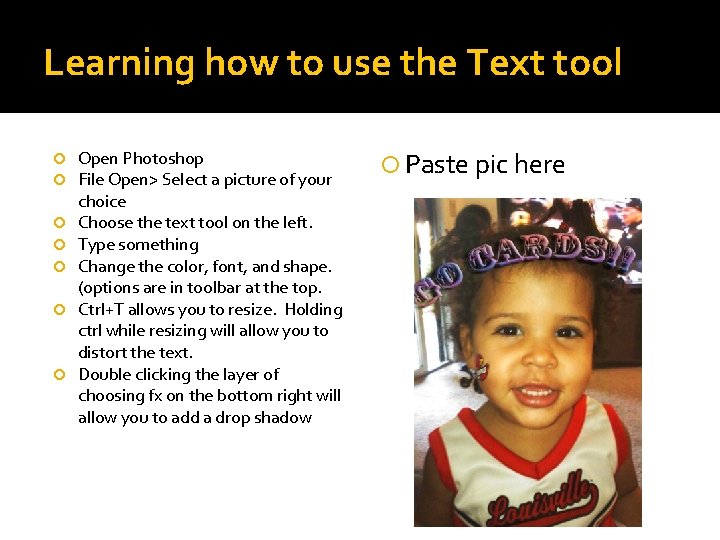
Learning how to use the Text tool Open Photoshop File Open> Select a picture of your choice Choose the text tool on the left. Type something Change the color, font, and shape. (options are in toolbar at the top. Ctrl+T allows you to resize. Holding ctrl while resizing will allow you to distort the text. Double clicking the layer of choosing fx on the bottom right will allow you to add a drop shadow Paste pic here
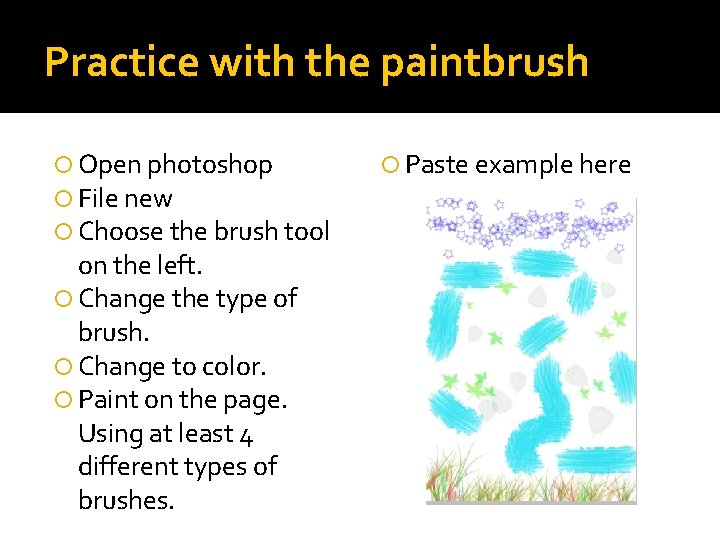
Practice with the paintbrush Open photoshop File new Choose the brush tool on the left. Change the type of brush. Change to color. Paint on the page. Using at least 4 different types of brushes. Paste example here
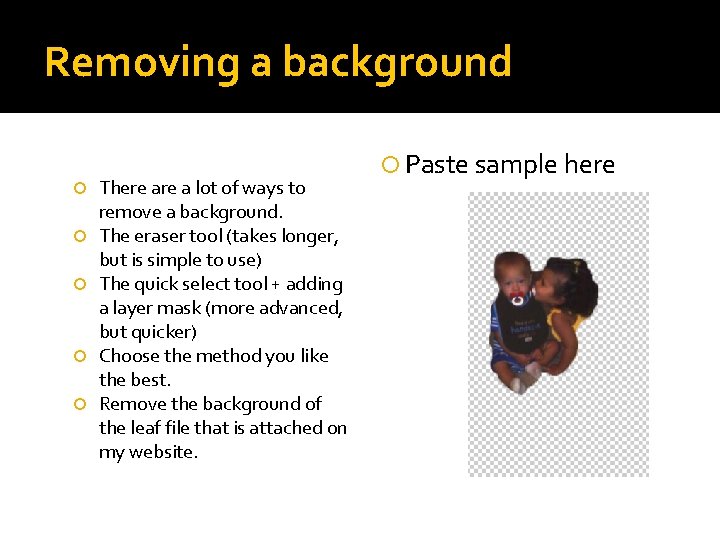
Removing a background There a lot of ways to remove a background. The eraser tool (takes longer, but is simple to use) The quick select tool + adding a layer mask (more advanced, but quicker) Choose the method you like the best. Remove the background of the leaf file that is attached on my website. Paste sample here
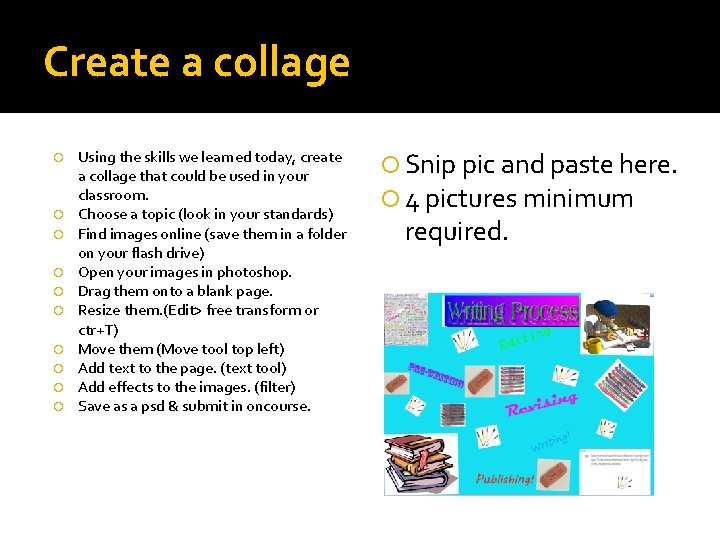
Create a collage Using the skills we learned today, create a collage that could be used in your classroom. Choose a topic (look in your standards) Find images online (save them in a folder on your flash drive) Open your images in photoshop. Drag them onto a blank page. Resize them. (Edit> free transform or ctr+T) Move them (Move tool top left) Add text to the page. (text tool) Add effects to the images. (filter) Save as a psd & submit in oncourse. Snip pic and paste here. 4 pictures minimum required.