
ONLINE ADOPTION TUTORIAL NDSU BOOKSTORE WHAT ARE MY
ONLINE ADOPTION TUTORIAL NDSU BOOKSTORE
WHAT ARE MY OPTIONS FOR SUBMITTING COURSE MATERIAL ADOPTIONS? v Online Quick Adoption Form - fill out one screen, submit, you’re done! (see slides 5 and 6) v Online Adoption System - continue through the tutorial for complete instructions on various methods within this system that best fit your course v Phone orders and adoptions noting “same as last time” will no longer be accepted 2
BEFORE YOU BEGIN No matter which method you use to submit your adoptions, please answer the following questions in the corresponding Message Box: v v v Is there any reason we should not sell used or digital (e. Book) copies of the text (i. e. tear-out worksheets, no laptops allowed in class, etc…)? Are there any specific supply items required (i. e. kits, goggles, calculators, notebooks, etc…)? If the book contains a CD, access code, etc…is it required? Will your students need a clicker (Response System from Turning Technologies) or Top Hat license for the course? If so, is it okay to list the smartphone/laptop app version as an option? If a previous course pack is used, will there be updates and when? If you are adopting a package, please provide ISBNs for each component and confirm all parts are required. 3
BEFORE YOU BEGIN For courses where several sections use the same item(s), you may submit an adoption for one of the sections or “Section” type below, if applicable, and note the corresponding section numbers in the Message Box. We can save you time and connect the sections together for you in our system upon receipt. “All” = All face-to-face and online sections of the course this semester will use the same material(s) v “All Lecture” = All face-to-face sections of the course this semester will use the same material(s) v “All Online” = All online sections of the course this semester will use the same material(s) v 4
QUICK ADOPTION FORM 1 We offer quick and easy options for submitting text requests online. Check out the Quick Adoption Form located on the Faculty Resources page: www. ndsu. edu/pubweb/bookstore/Adoption. Form/ Ø Ø Ø Please fill out completely and answer the questions, if applicable, in the Message Box Click “Submit” and you’re done! If you do not receive an email confirmation within three business days, please contact us 5
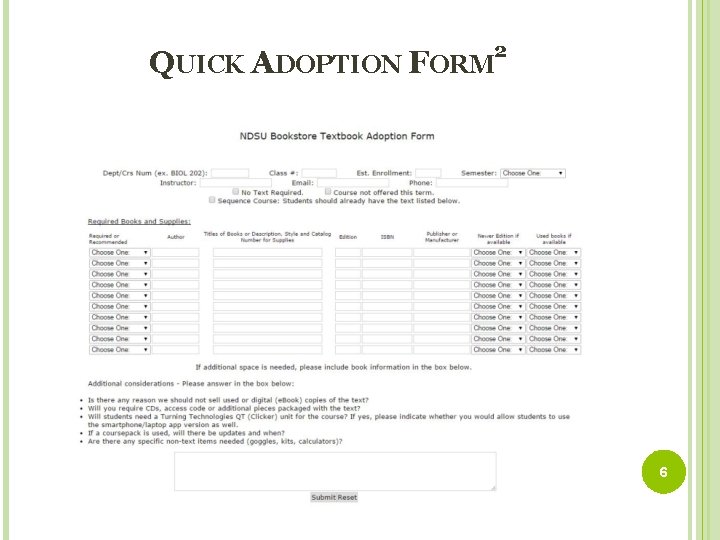
QUICK ADOPTION FORM 2 6
ONLINE ADOPTION SYSTEM (SLIDES 7 -28) Go to www. ndsubookstore. com and: Ø Roll your mouse over “Course Materials” Ø Select “Faculty Resources” from the dropdown menu Ø Select “Faculty Login for Online Course Material Adoptions” 7
LOG IN v. First-time users of the NDSU Bookstore website need to select “Register Here” and see next slide v. If you have already set up an account on ndsubookstore. com, go to slide 10 NOTE: If your profile was previously set up for “Browsing and Shopping”, please contact us and we can change your profile to allow for adoptions without having to create another account 8
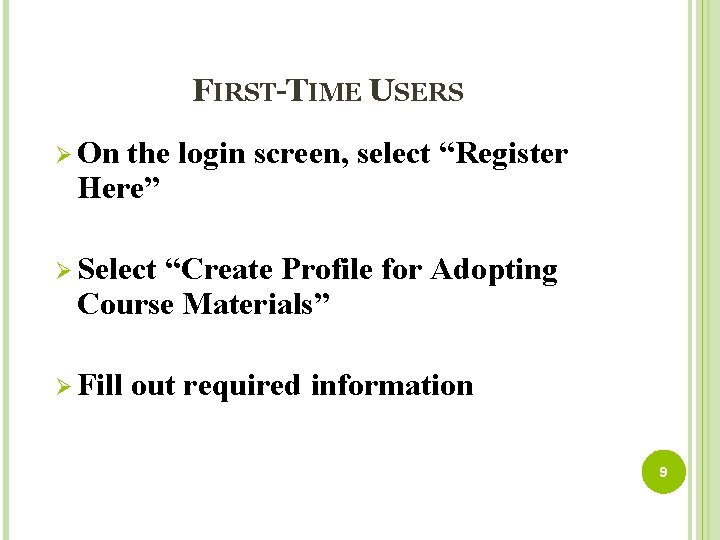
FIRST-TIME USERS Ø On the login screen, select “Register Here” Ø Select “Create Profile for Adopting Course Materials” Ø Fill out required information 9
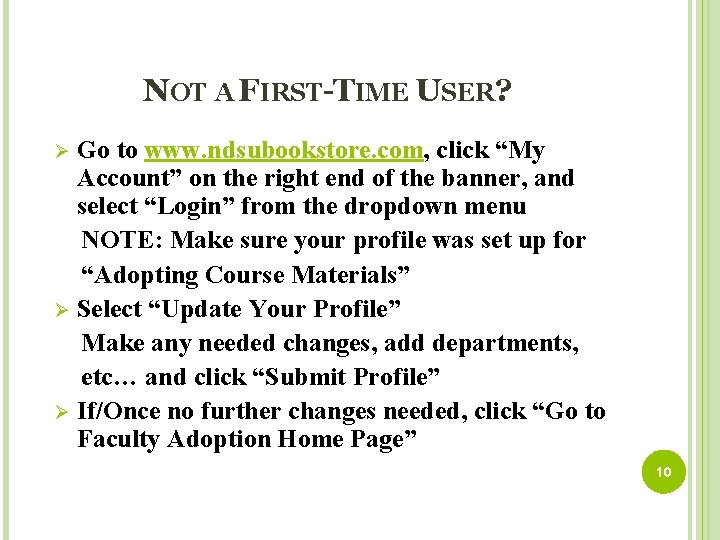
NOT A FIRST-TIME USER? Go to www. ndsubookstore. com, click “My Account” on the right end of the banner, and select “Login” from the dropdown menu NOTE: Make sure your profile was set up for “Adopting Course Materials” Ø Select “Update Your Profile” Make any needed changes, add departments, etc… and click “Submit Profile” Ø If/Once no further changes needed, click “Go to Faculty Adoption Home Page” Ø 10
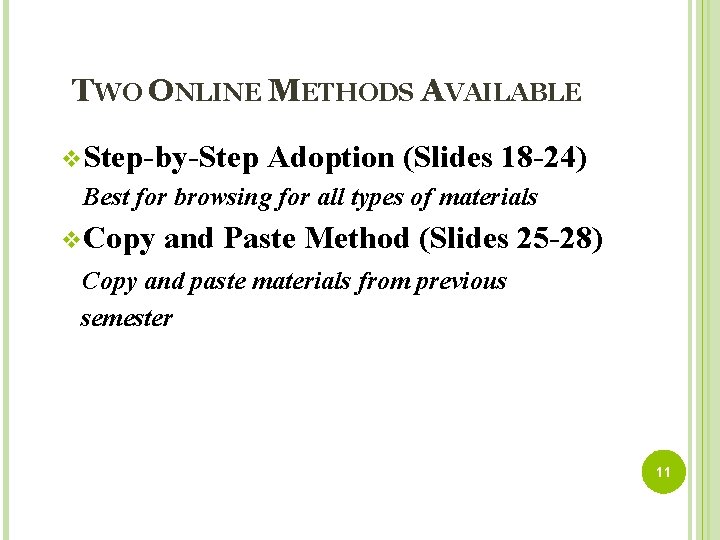
TWO ONLINE METHODS AVAILABLE v Step-by-Step Adoption (Slides 18 -24) Best for browsing for all types of materials v Copy and Paste Method (Slides 25 -28) Copy and paste materials from previous semester 11
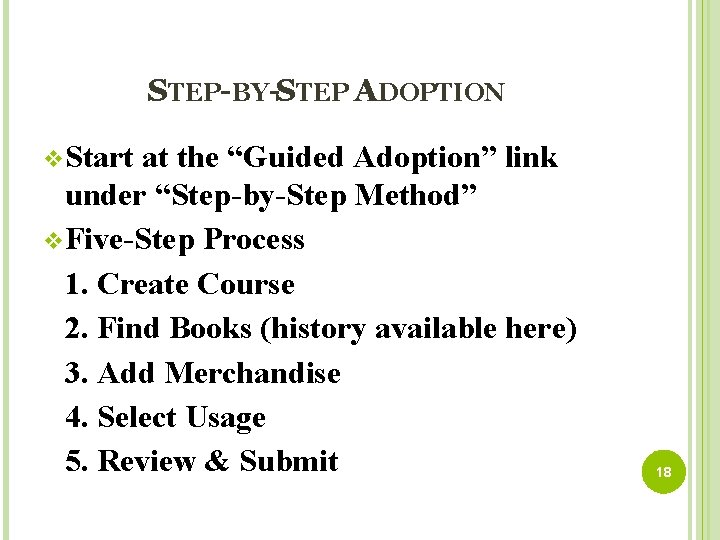
STEP-BY-STEP ADOPTION v Start at the “Guided Adoption” link under “Step-by-Step Method” v Five-Step Process 1. Create Course 2. Find Books (history available here) 3. Add Merchandise 4. Select Usage 5. Review & Submit 18
STEP-BY-STEP ADOPTION v Fill out the information in each step as you go - you can hop backward but not forward NOTE: if you see “Filter by Instructor” dropdown menu please refresh your page. This is a old web page locked in your cache. v v Please fill in your Estimated Enrollment and, as student registration progresses, alert us to major enrollment jumps or added sections Course Types - By checking “Sequence Course” you are telling us that students should already have the text from a previous course, so we will only order a few copies 19
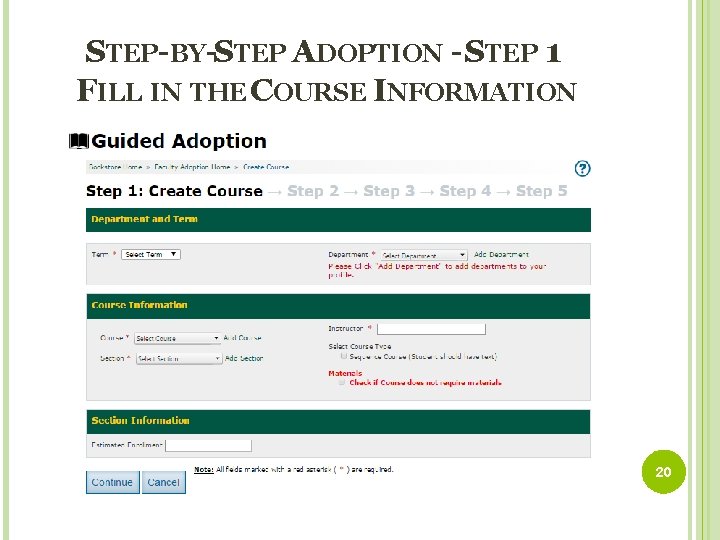
STEP-BY-STEP ADOPTION - STEP 1 FILL IN THE COURSE INFORMATION 20
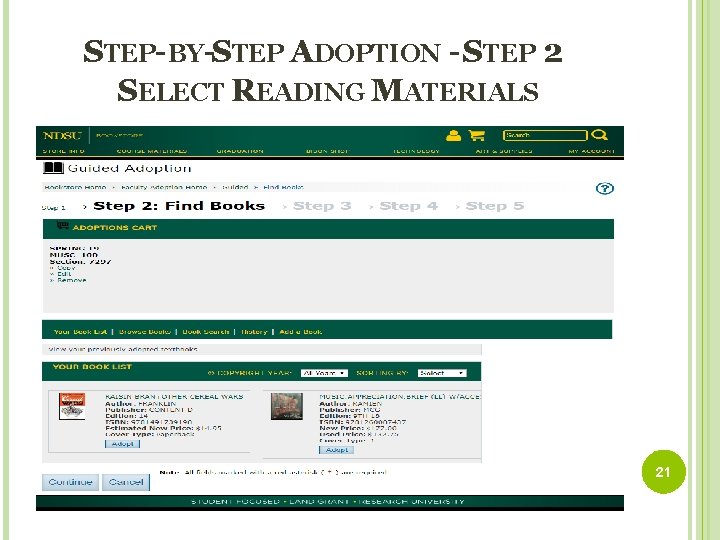
STEP-BY-STEP ADOPTION - STEP 2 SELECT READING MATERIALS 21
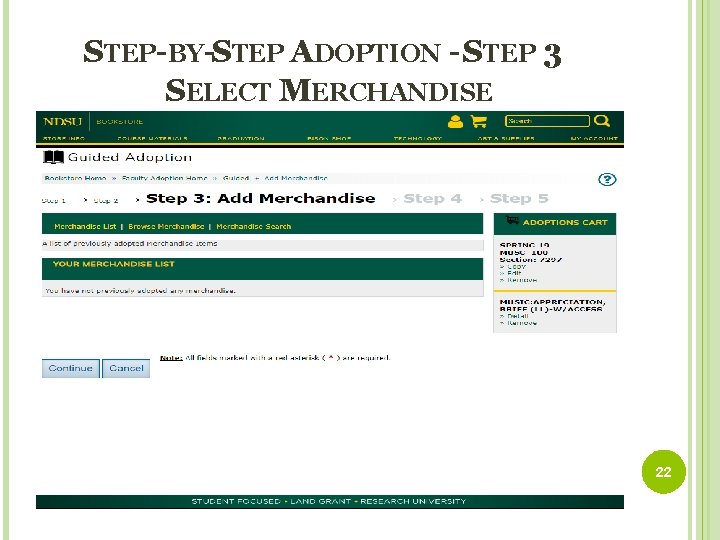
STEP-BY-STEP ADOPTION - STEP 3 SELECT MERCHANDISE 22
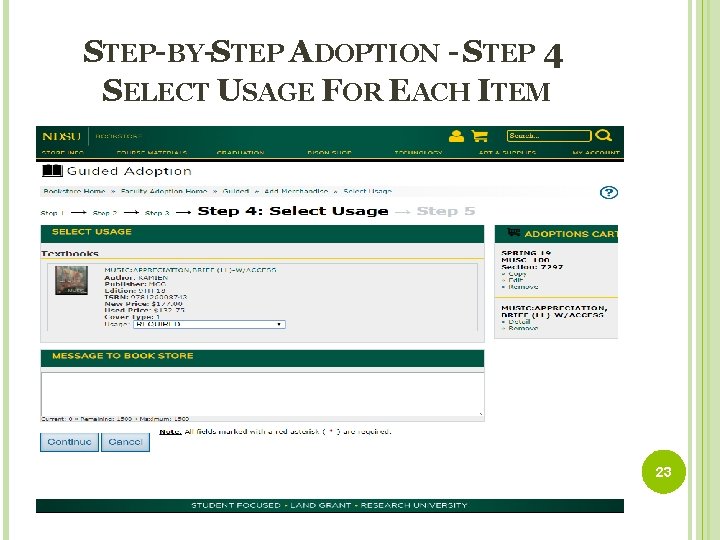
STEP-BY-STEP ADOPTION - STEP 4 SELECT USAGE FOR EACH ITEM 23
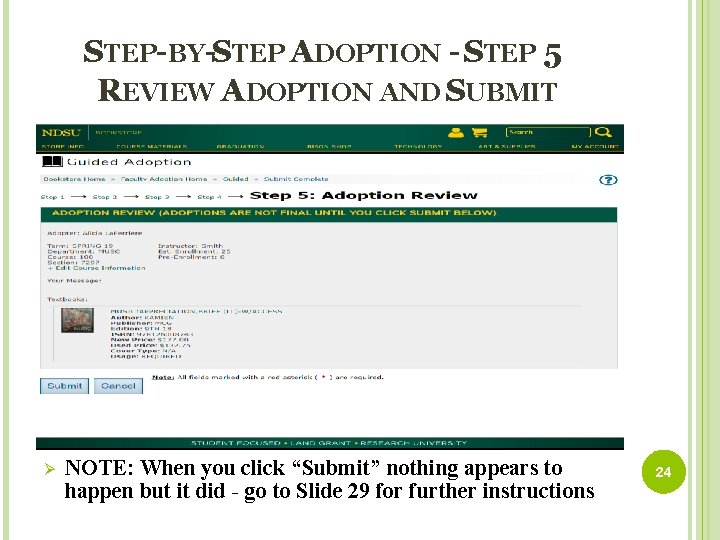
STEP-BY-STEP ADOPTION - STEP 5 REVIEW ADOPTION AND SUBMIT Ø NOTE: When you click “Submit” nothing appears to happen but it did - go to Slide 29 for further instructions 24
COPY AND PASTE METHOD 1 v Similar to Step-by-Step Method v Start at the “Copy an adoption” link under Maintenance v Select the department and term you would like to copy from, then click “Search” v Ignore the “Instructor” and “Date Range” boxes 25
COPY AND PASTE METHOD 2 To copy all books to any course in the upcoming term with any usage requirement: Ø Ø Click “Copy” next to the course from which you want to copy the books Update the term and course information NOTE: Ignore the “Filter by Instructor” dropdown menu when entering the instructor’s name on new adoptionsthat menu only applies to universities who preload the instructor’s name Fill in your Estimated Enrollment and, as student registration progresses, alert us to major enrollment jumps or added sections Course Types - By checking “Sequence Course” you are telling us that students should already have the text from a previous course, so we will only order a few copies 26
COPY AND PASTE METHOD 3 Ø Change the usage if needed and click “Add Materials” Ø Recheck course and book information and click “Submit” Ø The message “The adoption was copied successfully” should appear Ø View the status at “Faculty Adoption Home”, then “View Submitted Adoptions” 27
COPY AND PASTE METHOD 4 To copy some of the materials to any course in the upcoming term with any usage requirement: Ø Click “View” instead of “Copy” Ø Click “Adopt” under the item(s) you want to copy to add to your Book or Merchandise List Ø Go to “Faculty Adoption Home” and select the “Guided Adoption” link under Step-by-Step Method Ø Complete the adoption for the new course. The copied item(s) will show up in Step 2 or 3 depending on whether it is a book or merchandise item 28
I’M DONE! NOW 1 WHAT? Go to “Faculty Adoption Home, ” then “View Submitted Adoptions” for status updates v Shows “Submitted” until it reaches our system v Shows “Received” until we take action on it v Shows “Approved” and “Posted by Store” when those actions are taken - at this point you may no longer make changes online v Shows “Unapproved” if there is an issue - we will contact you to resolve it and you will be able to edit and resubmit 29
I’M DONE! 2 NOW WHAT? You will receive a confirmation email when we post it to our system v If additions/changes are needed, contact the Course Materials department directly as soon as possible you may still be able to edit, resubmit, and avoid charges v Department charges for freight and non-returnable items may result from changes made after submission v Log out by clicking “Faculty Adoption Home” then clicking “Log out” under your name v 30
QUESTIONS? v Alicia - Department Manager, Course Materials alicia. laferriere@ndsu. edu or 1 -9478 v Jane - Art/Supply Buyer jane. lessard@ndsu. edu or 1 -7828 v Brad - Technology Buyer brad. sonmor@ndsu. edu or 1 -8013 31
- Slides: 25