
One Drive Overview Access Working with Documents Share
- Slides: 13
One. Drive
Overview • Access • Working with Documents • Share and Collaborate
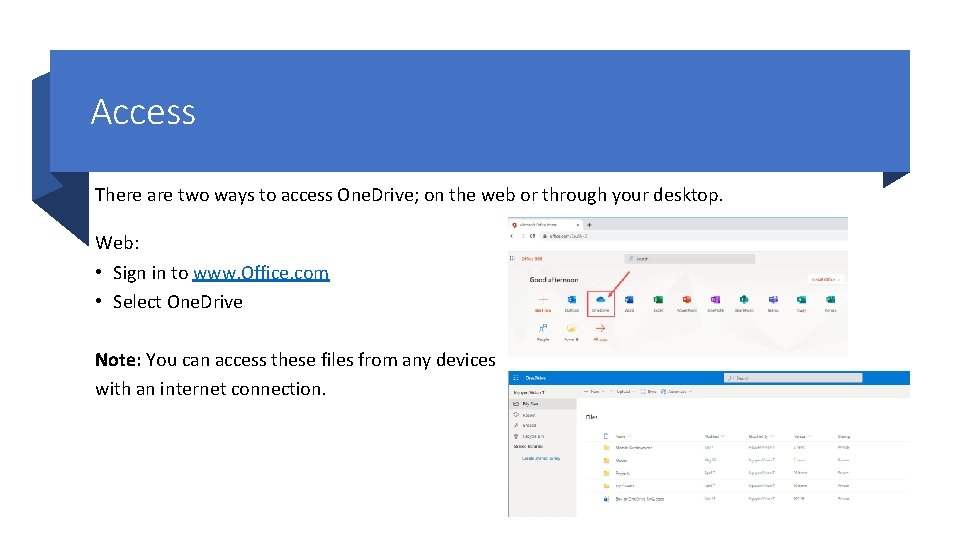
Access There are two ways to access One. Drive; on the web or through your desktop. Web: • Sign in to www. Office. com • Select One. Drive Note: You can access these files from any devices with an internet connection.
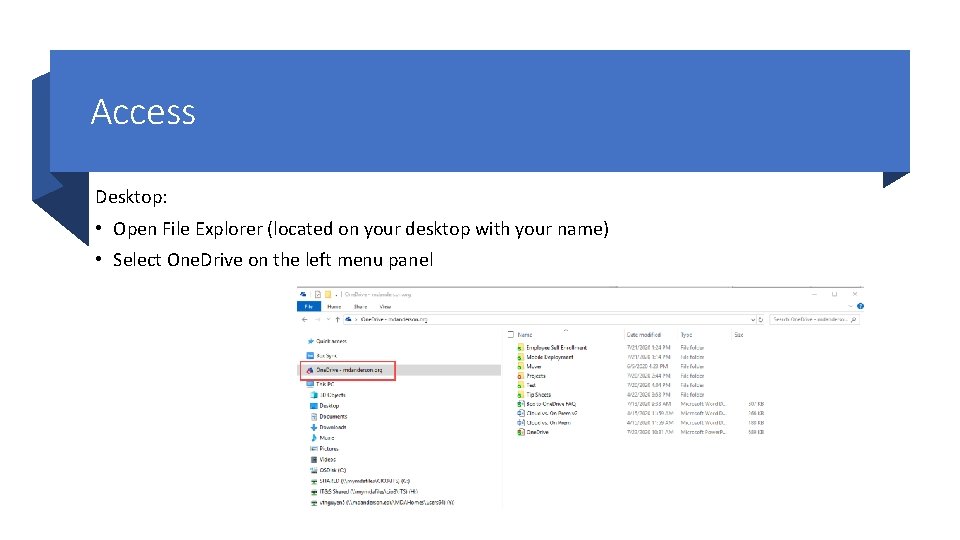
Access Desktop: • Open File Explorer (located on your desktop with your name) • Select One. Drive on the left menu panel
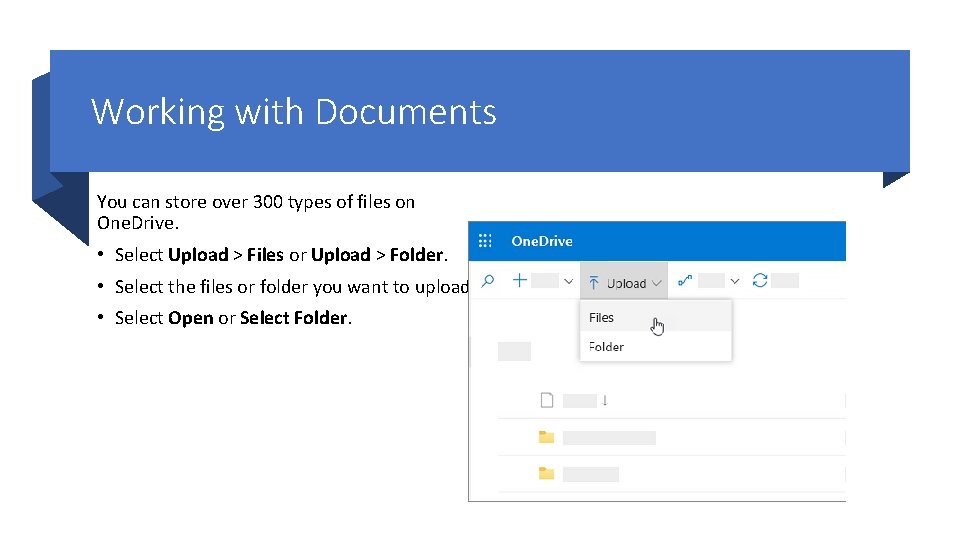
Working with Documents You can store over 300 types of files on One. Drive. • Select Upload > Files or Upload > Folder. • Select the files or folder you want to upload. • Select Open or Select Folder.
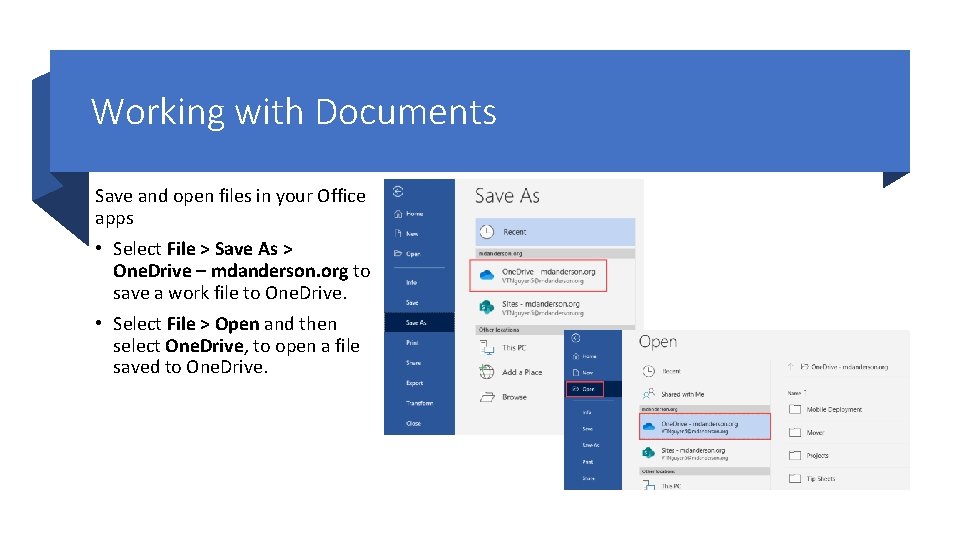
Working with Documents Save and open files in your Office apps • Select File > Save As > One. Drive – mdanderson. org to save a work file to One. Drive. • Select File > Open and then select One. Drive, to open a file saved to One. Drive.
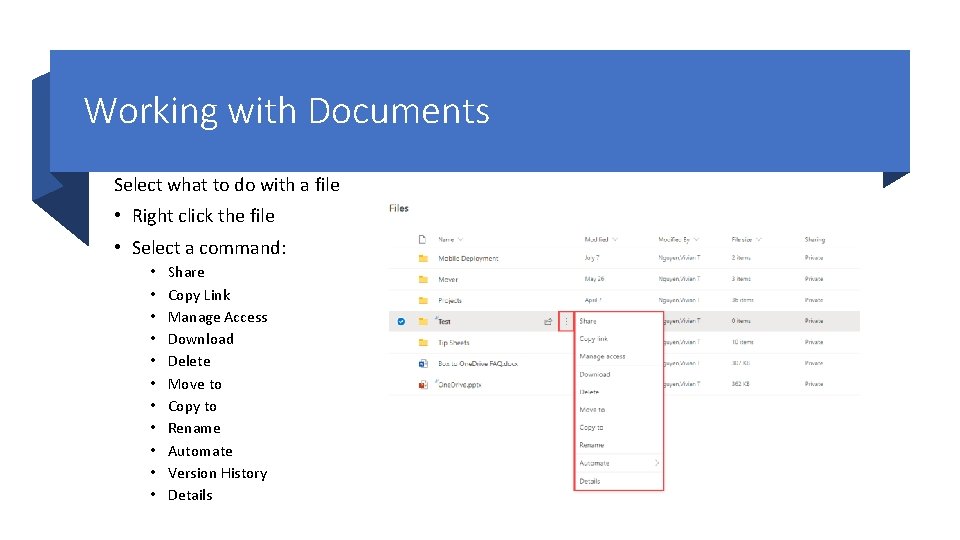
Working with Documents Select what to do with a file • Right click the file • Select a command: • • • Share Copy Link Manage Access Download Delete Move to Copy to Rename Automate Version History Details
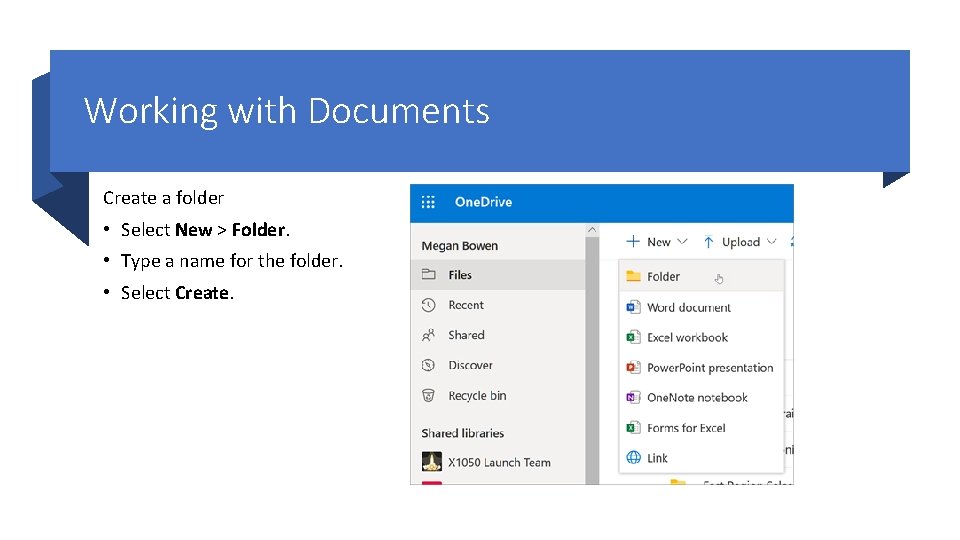
Working with Documents Create a folder • Select New > Folder. • Type a name for the folder. • Select Create.
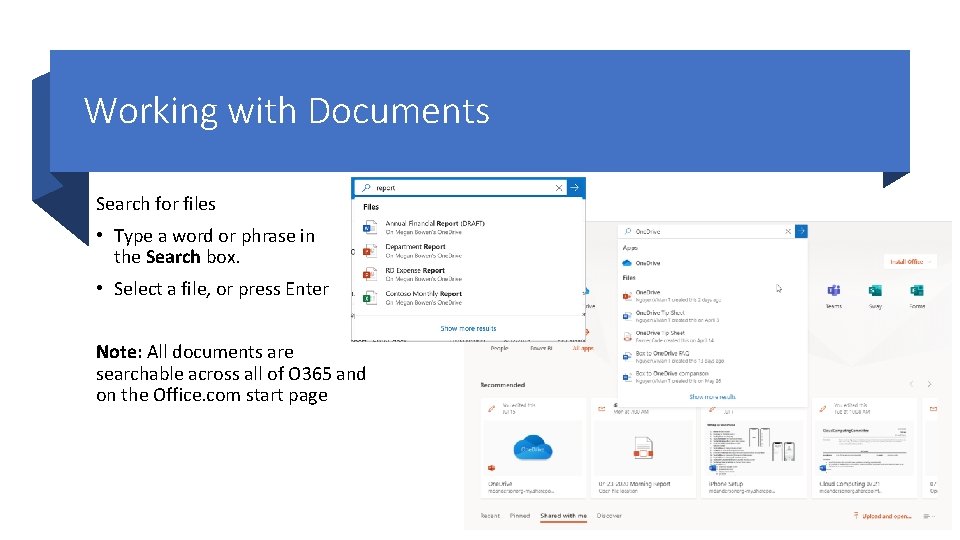
Working with Documents Search for files • Type a word or phrase in the Search box. • Select a file, or press Enter Note: All documents are searchable across all of O 365 and on the Office. com start page
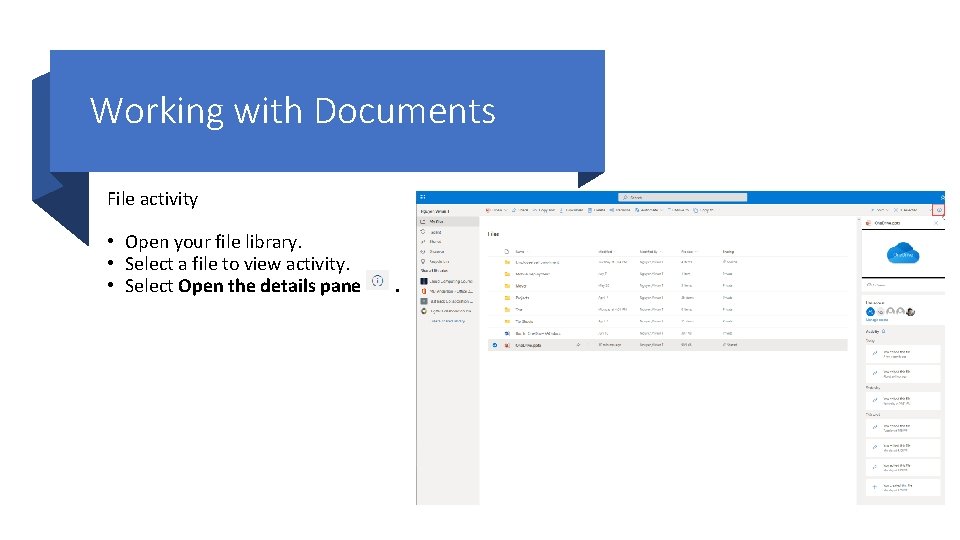
Working with Documents File activity • Open your file library. • Select a file to view activity. • Select Open the details pane .
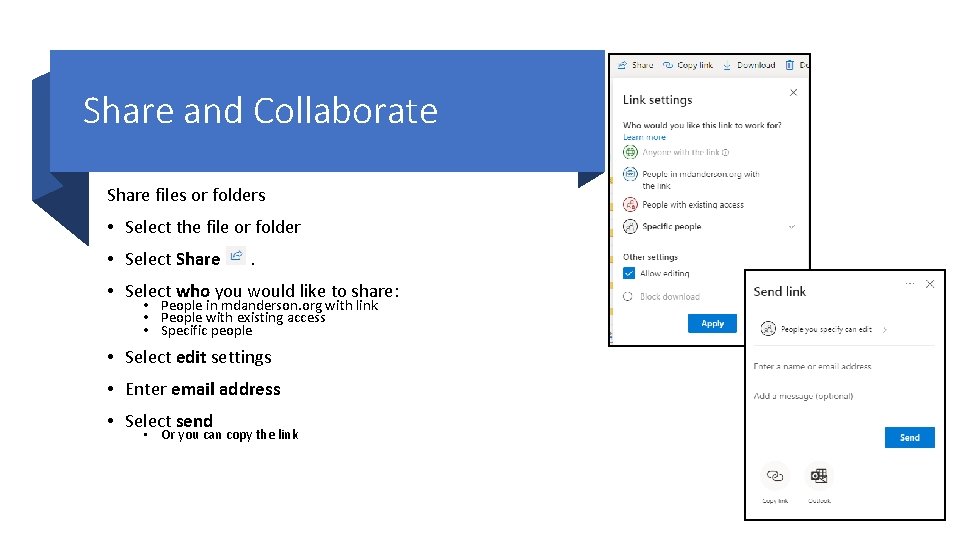
Share and Collaborate Share files or folders • Select the file or folder • Select Share . • Select who you would like to share: • People in mdanderson. org with link • People with existing access • Specific people • Select edit settings • Enter email address • Select send • Or you can copy the link
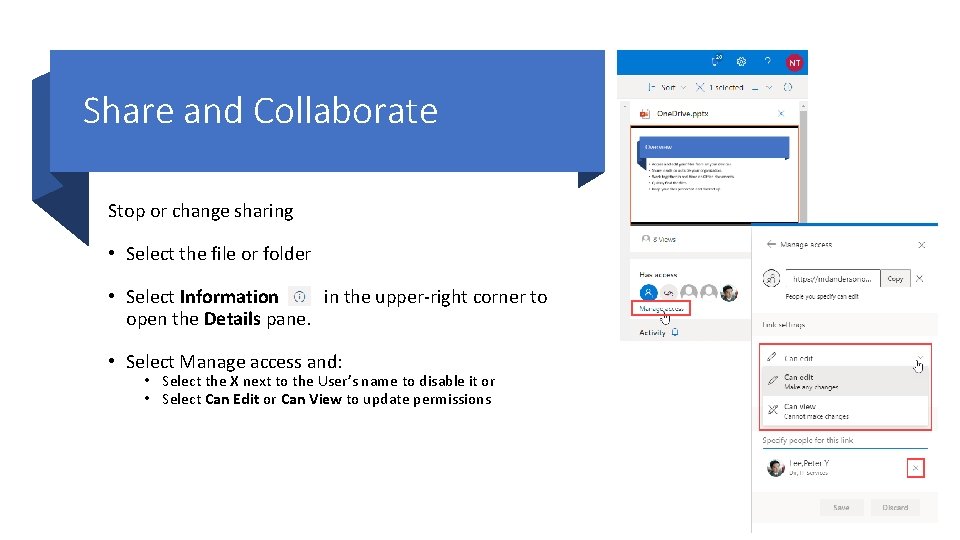
Share and Collaborate Stop or change sharing • Select the file or folder • Select Information in the upper-right corner to open the Details pane. • Select Manage access and: • Select the X next to the User’s name to disable it or • Select Can Edit or Can View to update permissions
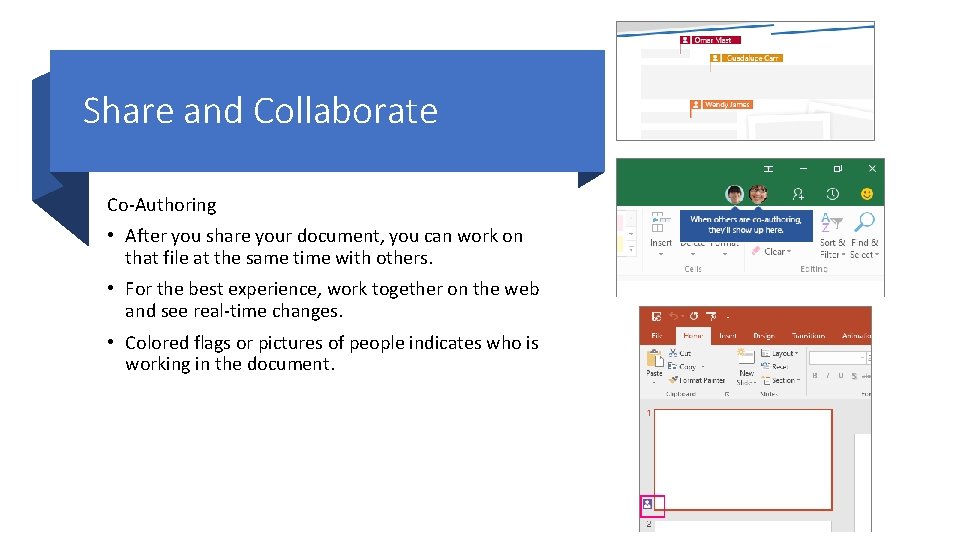
Share and Collaborate Co-Authoring • After you share your document, you can work on that file at the same time with others. • For the best experience, work together on the web and see real-time changes. • Colored flags or pictures of people indicates who is working in the document.