
ONE Collaborative Learning Using Online Tools Module One
@ @ONE Collaborative Learning Using Online Tools Module One: An Overview of Online Tools © 2000 @ONE
@ Module One Objectives • Learn about the effective use of online tools for communication and collaborative learning • Learn the differences between asynchronous and synchronous communication tools © 2000
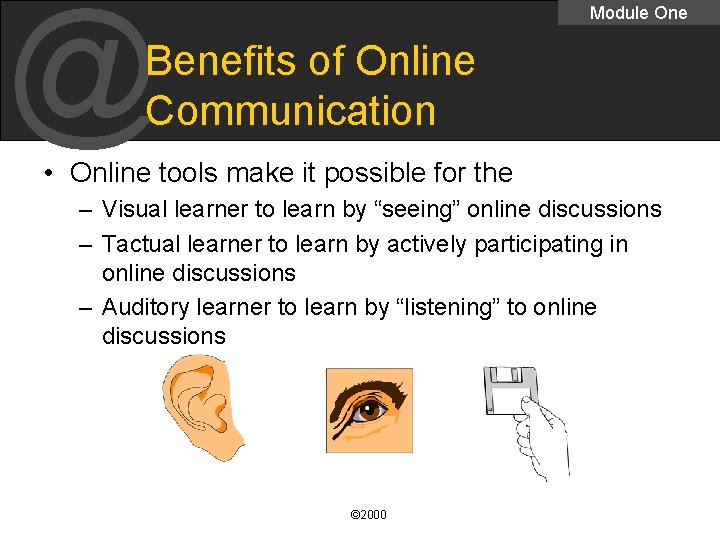
@ Module One Benefits of Online Communication • Online tools make it possible for the – Visual learner to learn by “seeing” online discussions – Tactual learner to learn by actively participating in online discussions – Auditory learner to learn by “listening” to online discussions © 2000
@ Module One Educational Objectives • What are your educational objectives/strategies for your class? • Which of these objectives can be met by using online tools? © 2000
@ Module One Possible Educational Objectives • More options for students with different learning styles • Create more meaningful interactions with students • Extend the classroom boundaries • Enable all students to participate (the shy student, the reflective thinker, the disabled student, etc). • Offer students more opportunities to use the language of your discipline What other objectives can you think of? (pp 4 & 5) © 2000
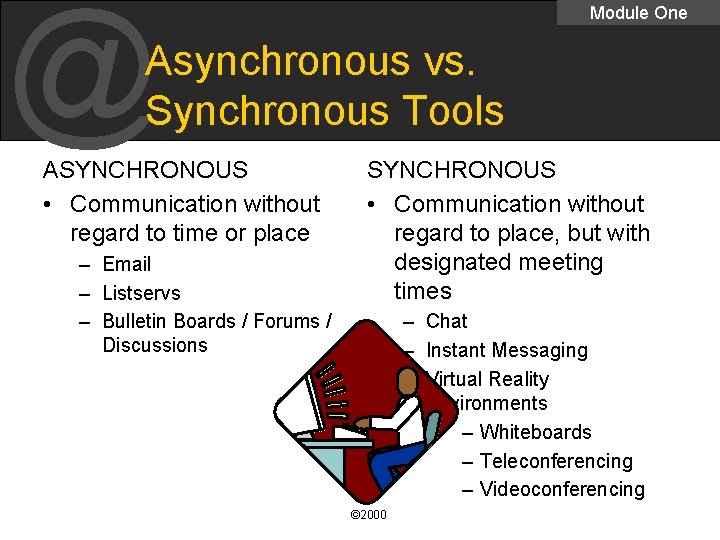
@ Module One Asynchronous vs. Synchronous Tools ASYNCHRONOUS • Communication without regard to time or place – Email – Listservs – Bulletin Boards / Forums / Discussions SYNCHRONOUS • Communication without regard to place, but with designated meeting times – Chat – Instant Messaging – Virtual Reality Environments – Whiteboards – Teleconferencing – Videoconferencing © 2000
@ Module One A closer look at asynchronous tools Email • Benefits – Opportunity to provide individual attention to students – Students can conduct group projects via email – Shy students may be more apt to participate via email • Example – Student Introductions (pp 6 & 7) • Activity – Email © 2000
@ Module One A closer look at asynchronous tools Listserv • What is a Listserv? • Benefits – Students can continue class discussions after they leave the classroom – Answer questions and post to the entire class at once • Example – Content Experts (page 8) • Activity – No Listserv for this class © 2000
@ Module One A closer look at asynchronous tools Bulletin Boards / Forums / Discussions • What is a Bulletin Board / Forum / Discussions? – Sample of a bulletin board (link to your bulletin board sample here) • Benefits – Post important information for your students (schedule changes, grading information, reading lists, etc. ) – Stimulate student discussions by posting questions, which are threaded and make following discussions easier • Example (pp 11 & 12) • Activity © 2000
@ Module One A closer look at synchronous tools Chat • What is chat? – Sample of a chat room (link to your chat room sample here) • Benefits – Introduce content experts from outside the class – Online office hours • Example – Online office hours (page 14) • Activity – Chat area © 2000
@ Module One A closer look at synchronous tools Virtual Reality Environments • What is a Virtual Reality Environment? – MOOs, MUDs, and MUVEs • Benefits – Similar to chat, with these added benefits • Ability to express non-verbal gestures (different from chat) • Users help build the virtual environment or community • Example – Classes work together across different universities (page 16) • Activity – Read MOO transcript (page 17) © 2000
@ Module One Practical Considerations • Preparing Yourself – Use your college schedule of classes, catalog, or web site to inform your students that your course will use online tools. – Make sure students have the facilities available to access the tools (campus labs, local library, home) – Use a separate email account for communication with students – Set up the bulletin board , listserv and chat room facilities you plan to use before classes begin & test everything prior to first use – (More info on page 19) © 2000
@ Module One Practical Considerations • Preparing Your Class – Privacy considerations – The class survey • Find out what your students already know about using online tools • Facility Considerations – Must make sure tools are accessible to students before requiring them to use the tools for class © 2000
@ @ONE Collaborative Learning Online Module Two: Using Asynchronous Communication Tools © 2000 @ONE
@ Module Two Objectives • Learn to enhance faculty-student communication using asynchronous tools • Learn to enhance student-student communication using asynchronous tools • Learn to manage class communication using asynchronous tools • Troubleshoot strategies and backup © 2000 plans when using asynchronous Module Two

@ Module Two Benefits of Asynchronous Learning Activities • • Participation in group projects is easier Students can participate at any time Online resources can be easily shared Learning process can continue when class is cancelled • Student may be more comfortable writing than speaking • Personalized attention can be given to students in need © 2000 26) • Any other examples? (page
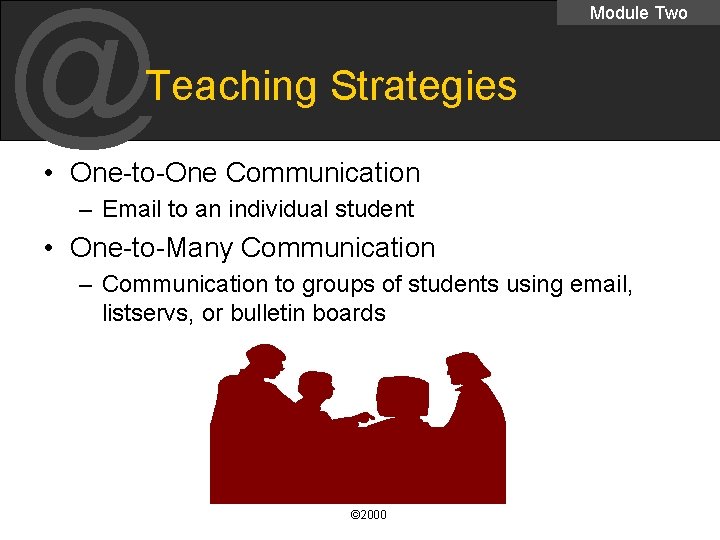
@ Module Two Teaching Strategies • One-to-One Communication – Email to an individual student • One-to-Many Communication – Communication to groups of students using email, listservs, or bulletin boards © 2000
@ Module Two Teaching Strategies • Communication Styles (page 27 & 28) – Students and faculty must be aware of different communication styles – Instructor must set the tone for email messages – Let students know at the beginning of class your policies regarding response time – Use “clues” to help convey the meaning of your messages • Clues refer to emoticons and acronyms © 2000
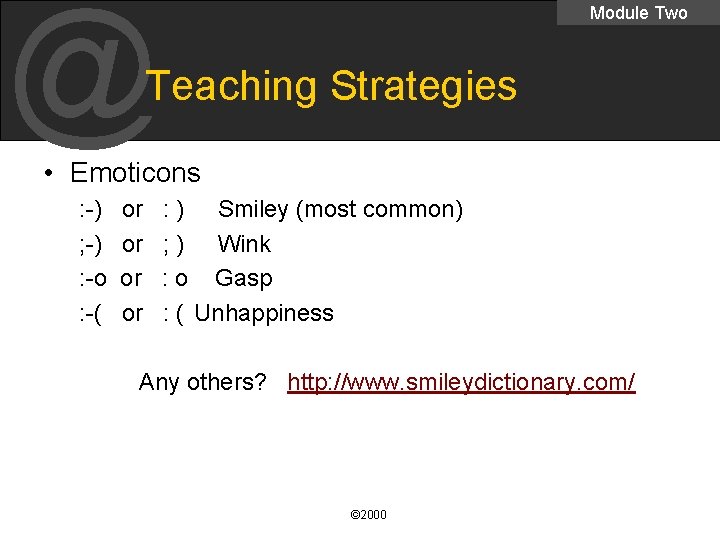
@ Module Two Teaching Strategies • Emoticons : -) ; -) : -o : -( or or : ) Smiley (most common) ; ) Wink : o Gasp : ( Unhappiness Any others? http: //www. smileydictionary. com/ © 2000
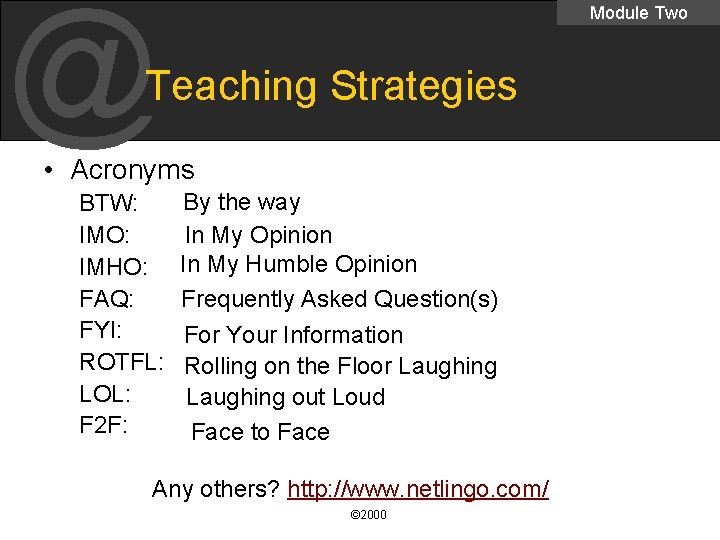
@ Module Two Teaching Strategies • Acronyms BTW: IMO: IMHO: FAQ: FYI: ROTFL: LOL: F 2 F: By the way In My Opinion In My Humble Opinion Frequently Asked Question(s) For Your Information Rolling on the Floor Laughing out Loud Face to Face Any others? http: //www. netlingo. com/ © 2000
@ Module Two Teaching Strategies • Providing Feedback – Students like the instant feedback they are able to receive when using online tools to communicate – Instructors must set up their standards for responding to email • Turn-around time • Different response time for different types of questions? • What are the standards for students? © 2000
@ Module Two Teaching Strategies • Editing Student Writing (pp 31 & 32) – Comment within the reply so the original message is set off from the regular text with >. – Comment in all CAPS – Use arrows, quotes, or brackets – Use * with detailed explanations at the bottom of the message. • Be sure to let your students know your strategy at the beginning of the class and let them know what strategy they should use. © 2000
@ Module Two Teaching Strategies • Additional Suggestions – Copy and paste from a word processor if the email program doesn’t have a spell checker – Realize material may lose formatting – Use attachments when formatting is necessary, but warn students about viruses and make sure students save their attachments in rich-text format © 2000
@ Module Two Activity One • What are some classroom activities you do? – What’s involved? • What online asynchronous technology could be used? – What would be needed? • Can you think of any more uses in your classes? © 2000
@ Module Two Practical Considerations • Setting up student email accounts: – If you’re not using a secure course management system that provides email, encourage students to use a free account so they are not giving out their personal accounts to the class – Students must have their own individual, personal account, not shared with family members or friends. Why? – Have your students send you an email as their first assignment; that way you’ll be sure to have their address © 2000 • Add addresses o your email address book
@ Module Two Email Management • Let your students know your response policy • Use folders and filters to help organize your messages • Have your students put keywords in their subject line to make filtering easier • Use signature files • Set up auto-responses to your emails so your students immediately know you received it • Offer students alternatives to email to turn in papers in case of problems © 2000
@ Module Two Bulletin Board Management • If your campus has local bulletin board software, use it – Tech support should be easier – Students may be using the system in other classes • Free web-based bulletin boards are listed in the appendix © 2000
@ @ONE Collaborative Learning Online Module Three: Using Synchronous Communication Tools © 2000 @ONE
@ Module Three Benefits of Synchronous Learning Activities • Expand the boundaries of your classroom – Schedule guest speakers, have your students participate in existing chat sessions regarding current events, join two class together for discussion periods • Schedule online office hours • In-class tutors can set up chat sessions to help students • Facilitate group work and collaborative learning © 2000
@ Module Three Teaching Strategies • Communication Styles – Require your students to be prepared with questions and comments before participating in online discussions – Provide focused tasks/assignments so students don’t get “lost” – Act as the moderator and keep students on track © 2000
@ Module Three Teaching Strategies • Providing Feedback – Reserve feedback for a more private venue • Chat rooms will often allow you to send private messages to individuals • Make sure students understand how they will be graded when participating in synchronous activities • Students should know what you expect regarding behavior • Inform students if you will be keeping a printed © 2000 log of chat and MOO sessions.
@ Module Three Teaching Strategies • Netiquette & Best Practices – – Confine remarks to one or two lines Avoid extremely personal comments Do not use all uppercase letters (this is SHOUTING) Use only common emoticons or acronyms Link to -- http: //www. albion. com/netiquette/ © 2000
@ Module Three Activity One • What are some classroom activities you do? – What’s involved? • What online synchronous technology could be used? – What would be needed? • Can you think of any more uses in your classes? © 2000
@ Module Three Practical Considerations • Chat – Make sure there is a clear objective of the chat session and keep people on track – Learn the features of the chat software you are using before introducing it to students. • Is Instant Messaging a built-in capability? Do you need it to be? • Can people easily find your chat room? – You may need to divide your class into groups before using a chat session, rather than having the entire class log in at once. © 2000
@ Module Three Practical Considerations • MOO – Make sure your are completely comfortable with MOOs before introducing them to your students. • (See story page 50) – Take small groups to MOOs for their first visit. – MOO assignments should be designed as individual or small group efforts. . – Provide a handout of the basic MOO commands that gives examples of their uses. – (More guidelines on page 51. ) © 2000
@ @ONE Collaborative Learning Online Module Four: Creating Effective Lessons Using Online Tools © 2000 @ONE
@ Module Four Objectives • Identify learning objectives for students • Select tools that will help students achieve learning objectives • Learn how to design online groups and activities • Develop a short lesson/activity to take back to the classroom © 2000
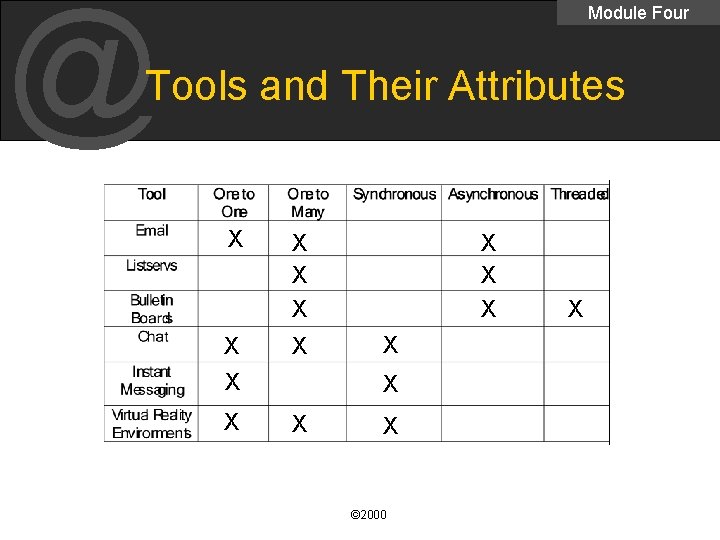
@ Module Four Tools and Their Attributes X X X X © 2000 X
@ Module Four Developing a Sense of Community • Setting the Tone – The tone you take (formal or informal) will likely be the one most students will assume – Remind students of your response-time policy – Provide guidelines for online behavior--“lurk” to make sure the guidelines are being followed © 2000
@ Module Four Developing a Sense of Community • Modeling/Coaching – “Lurk” in order to provide feedback to students who are having difficulty collaborating online. (pp 58 & 59) • Suggestion: make copying you on messages a requirement when communicating with email – If there are few interactions online; send a message to the students asking for feedback – Watch small group discussions for comments about members who are not participating © 2000

@ Module Four Developing a Sense of Community • Designing Effective Groups – Survey the class – 3 -5 students per group – Place one technologically-savvy person in each group – Decide what to do about “flakes” – Group students with similar schedules – If you don’t want to set guidelines, you could ask each group to set its own standards for participation © 2000
@ Module Four Developing a Sense of Community • Valuing Student Contributions – Quality of contribution. For example, point will be given when: • The source of the idea is clearly stated • The comment clearly communicates the topic or issue – Level of participation. For example: • Participation is required at least ___ times per week • Posts will be counted and points will be awarded for them • Points will be given if you start a relevant thread of discussion • Points will be awarded to the first person to contribute to each topic © 2000 – Discuss ideas for grading (Page 65)
@ Module Four Developing a Sense of Community • Quality of Assignments – If a documents is received and you notice lots of problems in the first paragraph, send it back – Use peer editing to refine assignments before you see them – Post successful papers from previous classes to motivate students – Post sample papers with corrections for modeling © 2000
@ Module Four Developing a Sense of Community • Managing Assignments – You don’t have to be so reactive, you needn’t read every message – As you become more comfortable with groups, read only the top-level report, not all the lower-level chat – Collect group reports instead of individual ones • Have students collaborate on assignments and only send you one message © 2000
@ Module Four Identify Learning Objectives (Why use online tools? ) • Offer a variety of options to students with different learning styles • Create more meaningful interactions with students • Extend classroom boundaries • Improve communication with your students • Offer students the opportunity to use the language of your discipline • Encourage the development and growth of the learning community © 2000
@ Module Four Activity One: Objectives • Review the objectives on (pp 70 -71) • Select objectives for your class. © 2000
@ Module Four Activity Two: Select Tools • You will be paired with a person in the class. Read the scenarios on page 71 and discuss the best tool for each scenario: – – – Email Listserv Bulletin Board Chat Instant Messaging © 2000
@ Module Four Activity Three: Lesson Plan • Use the worksheet on page 74 to design a lesson plan that incorporates the use of an online tool with your class. – Be sure to address the objectives you wrote down in activity one (page 71). © 2000
@ @ONE Evergreen Valley College 3095 Yerba Buena Road San Jose, CA 95135 http: //one. evc. edu/ Empowering faculty & staff to enhance their work © 2000 through technology
- Slides: 49