
Old Main Classroom Equipment Wall Panels Turn projector
- Slides: 8
Old Main Classroom Equipment
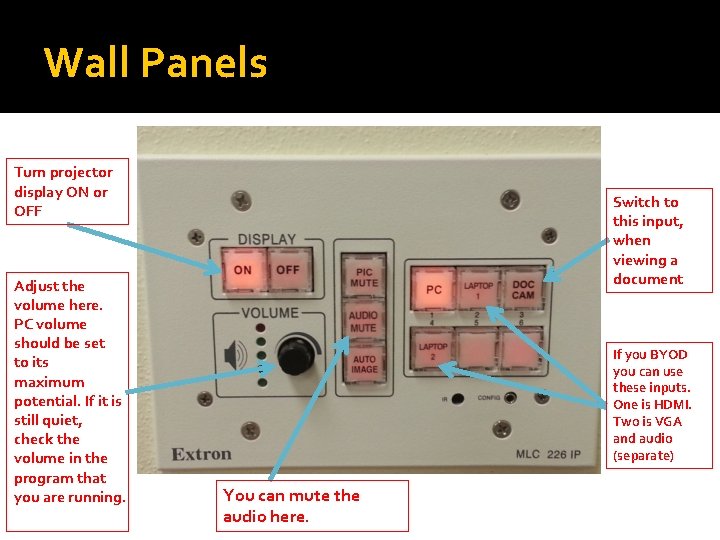
Wall Panels Turn projector display ON or OFF Adjust the volume here. PC volume should be set to its maximum potential. If it is still quiet, check the volume in the program that you are running. Switch to this input, when viewing a document If you BYOD you can use these inputs. One is HDMI. Two is VGA and audio (separate) You can mute the audio here.
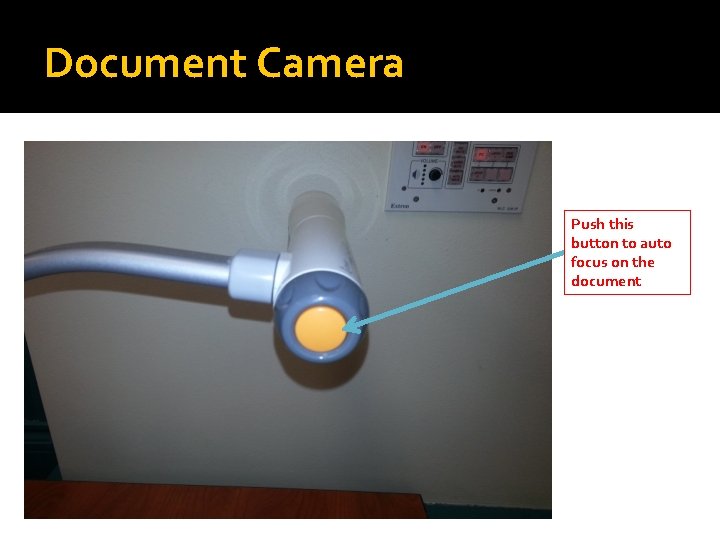
Document Camera Push this button to auto focus on the document
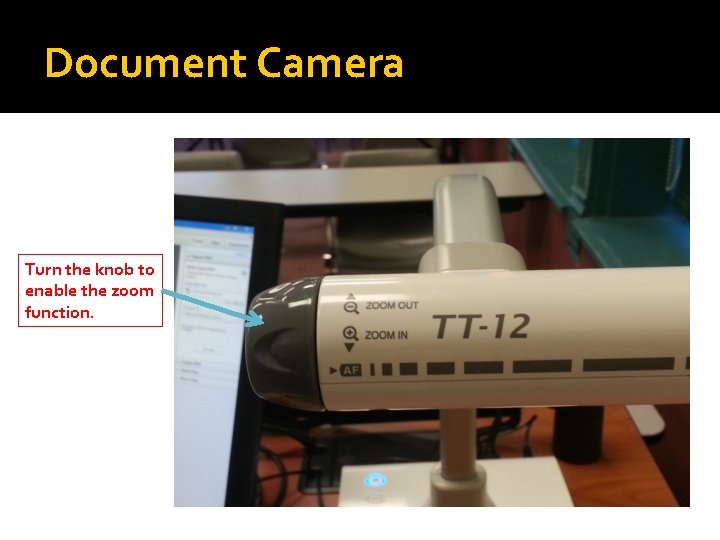
Document Camera Turn the knob to enable the zoom function.
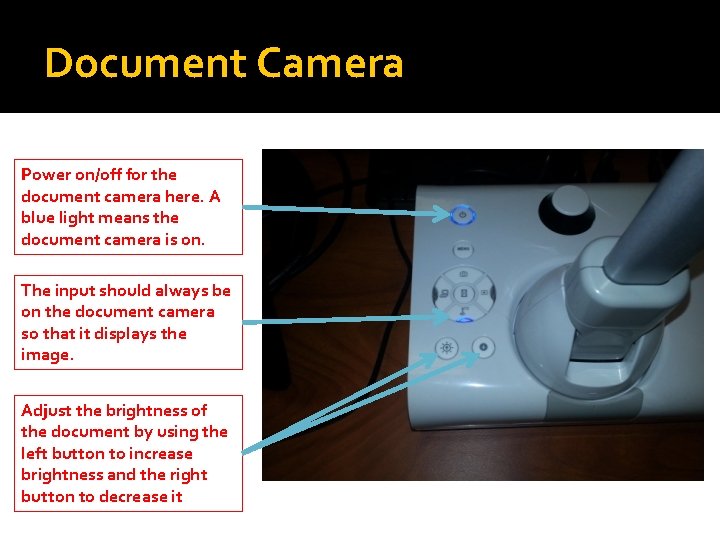
Document Camera Power on/off for the document camera here. A blue light means the document camera is on. The input should always be on the document camera so that it displays the image. Adjust the brightness of the document by using the left button to increase brightness and the right button to decrease it
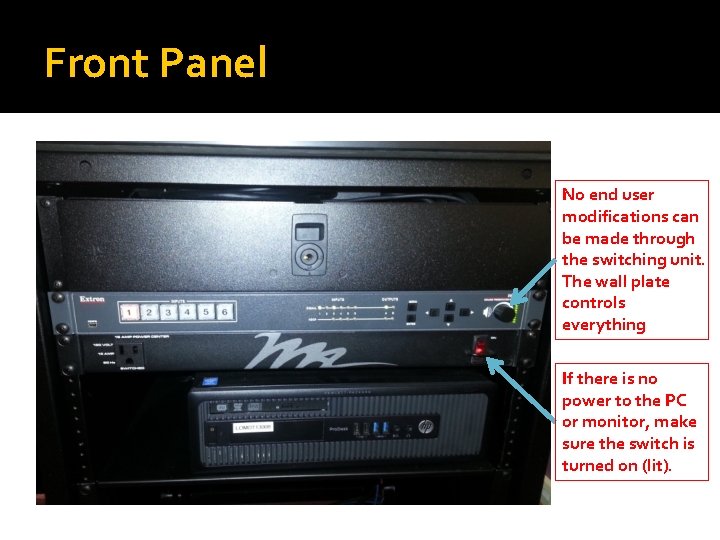
Front Panel No end user modifications can be made through the switching unit. The wall plate controls everything If there is no power to the PC or monitor, make sure the switch is turned on (lit).
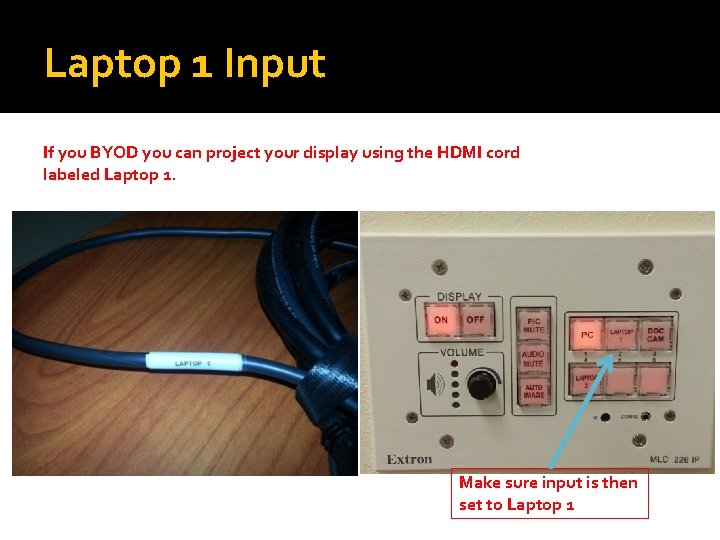
Laptop 1 Input If you BYOD you can project your display using the HDMI cord labeled Laptop 1. Make sure input is then set to Laptop 1
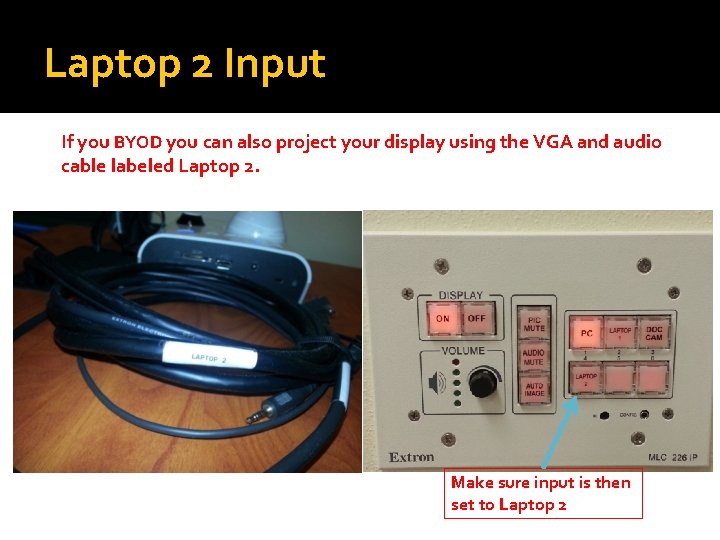
Laptop 2 Input If you BYOD you can also project your display using the VGA and audio cable labeled Laptop 2. Make sure input is then set to Laptop 2