
OL 05 Opal E 2 gates and Gate

- Slides: 61
OL 05 Opal E 2 gates and Gate Array Controller Version: 1. 9 Document Status: Final Date: 31/01/2020 1
Housekeeping Mobile Phone use Evacuation plan Facilities General Housekeeping • • • Administration Put phone on silent Refer to wall chart in classroom Location of facilities CCTV camera, filmed whilst on premises No smoking on Tf. NSW property First Aid; box locations/officers/defibrillator Drug & Alcohol Policy Injuries and Incidents – all incidents at training, please inform; – Training facilitator – Supervisor – Reporting • Tf. NSW Injury Hotline: 1800 772 779 Training Record Sheets Evaluation forms
Course outline Purpose statement • This course aims to equip participants with the required knowledge and skills to be able to effectively manage the E 2 Opal gates in an operational environment. Learning outcomes At the end of the course, participants will have learned to: • • • About the E 2 gates across the Sydney Trains suburban network and NSW Train. Link intercity network Describe structure and components of an Opal only gate • Explain how to operate a Gate Attendant Controller (GAC) to change the mode of the E 2 Opal gates Explain how to view the Gate/Array details and patron count via the GAC • Describe how to clean a GAC and Opal only gate • Explain the emergency operations of an Opal only gate.
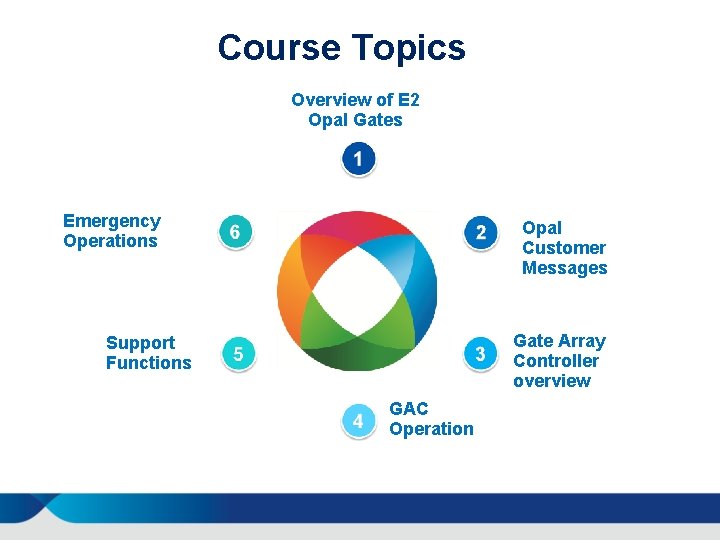
Course Topics Overview of E 2 Opal Gates Emergency Operations Opal Customer Messages Gate Array Controller overview Support Functions GAC Operation
Overview of E 2 Opal gates 5
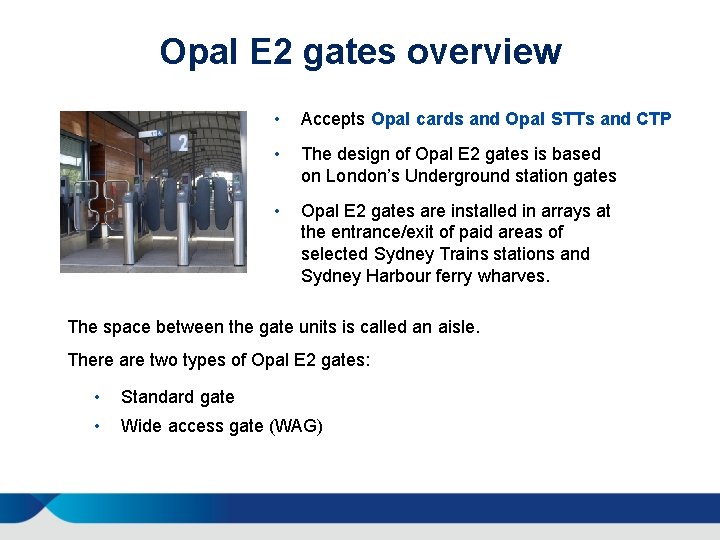
Opal E 2 gates overview • Accepts Opal cards and Opal STTs and CTP • The design of Opal E 2 gates is based on London’s Underground station gates • Opal E 2 gates are installed in arrays at the entrance/exit of paid areas of selected Sydney Trains stations and Sydney Harbour ferry wharves. The space between the gate units is called an aisle. There are two types of Opal E 2 gates: • Standard gate • Wide access gate (WAG)
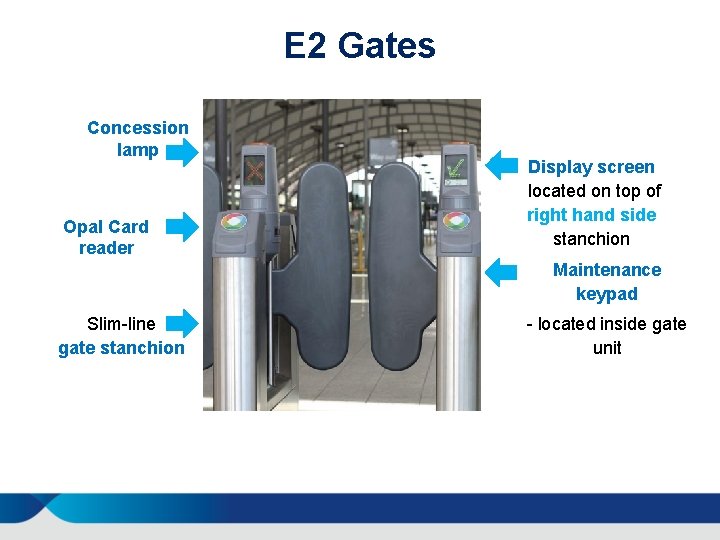
E 2 Gates Concession lamp Opal Card reader Display screen located on top of right hand side stanchion Maintenance keypad Slim-line gate stanchion - located inside gate unit
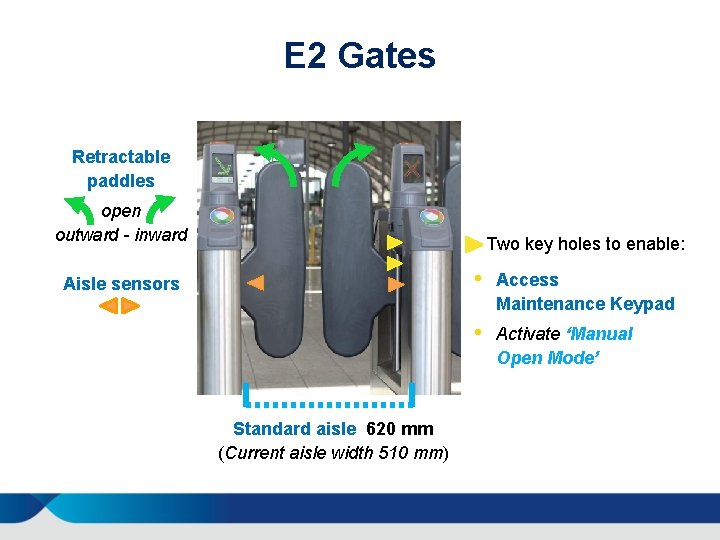
E 2 Gates Retractable paddles open outward - inward Two key holes to enable: Aisle sensors Standard aisle 620 mm (Current aisle width 510 mm) • Access Maintenance Keypad • Activate ‘Manual Open Mode’
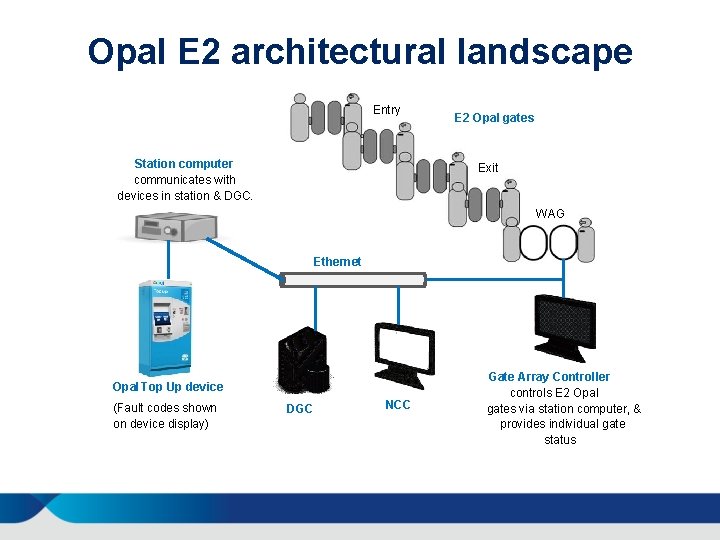
Opal E 2 architectural landscape Entry Station computer communicates with devices in station & DGC. E 2 Opal gates Exit WAG Ethernet Opal Top Up device (Fault codes shown on device display) DGC NCC Gate Array Controller controls E 2 Opal gates via station computer, & provides individual gate status
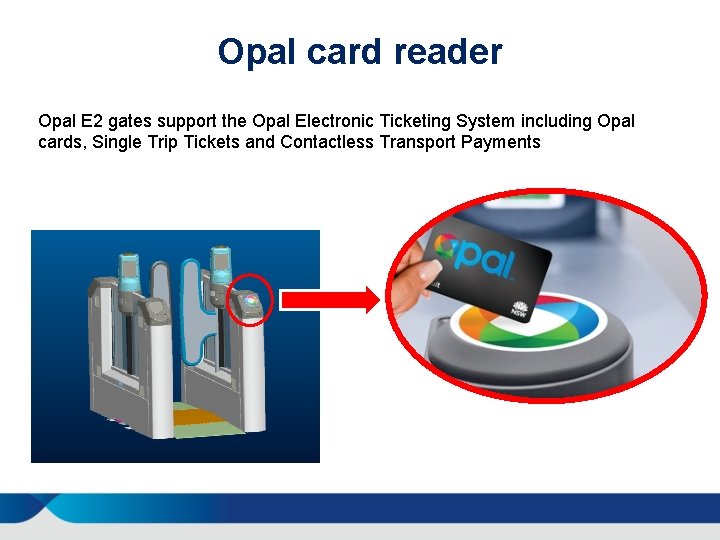
Opal card reader Opal E 2 gates support the Opal Electronic Ticketing System including Opal cards, Single Trip Tickets and Contactless Transport Payments
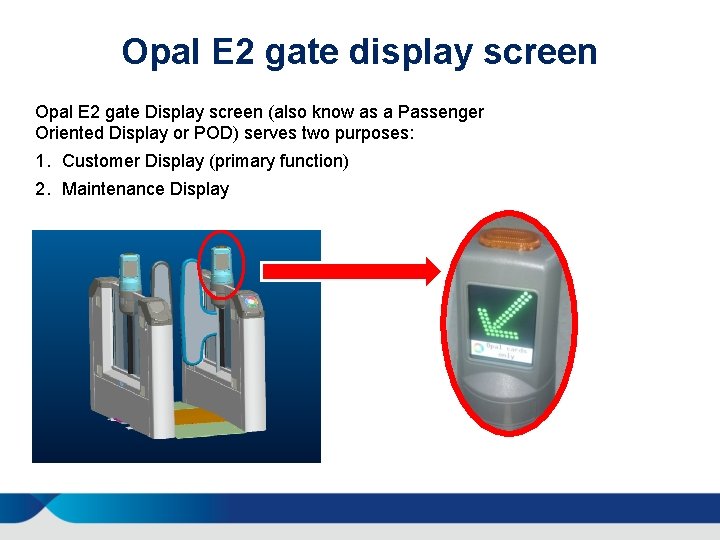
Opal E 2 gate display screen Opal E 2 gate Display screen (also know as a Passenger Oriented Display or POD) serves two purposes: 1. Customer Display (primary function) 2. Maintenance Display
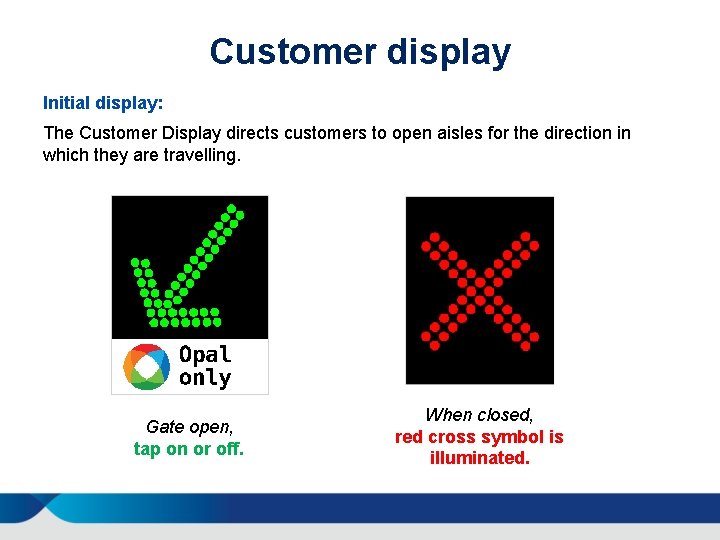
Customer display Initial display: The Customer Display directs customers to open aisles for the direction in which they are travelling. Gate open, tap on or off. When closed, red cross symbol is illuminated.
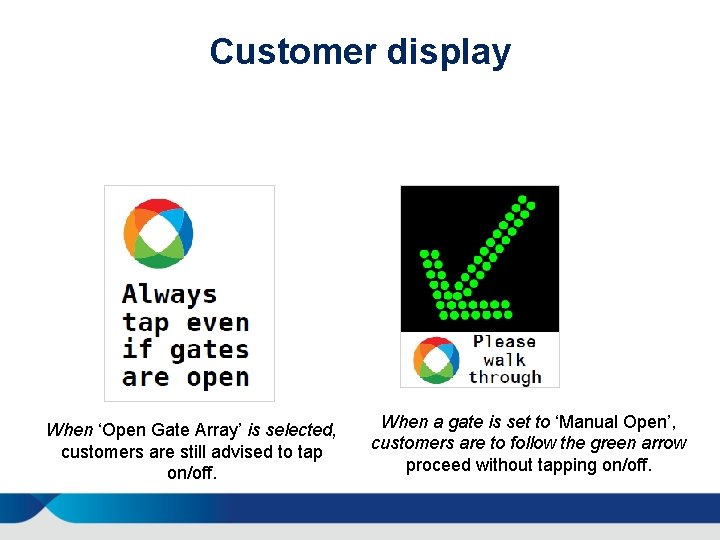
Customer display When ‘Open Gate Array’ is selected, customers are still advised to tap on/off. When a gate is set to ‘Manual Open’, customers are to follow the green arrow proceed without tapping on/off.
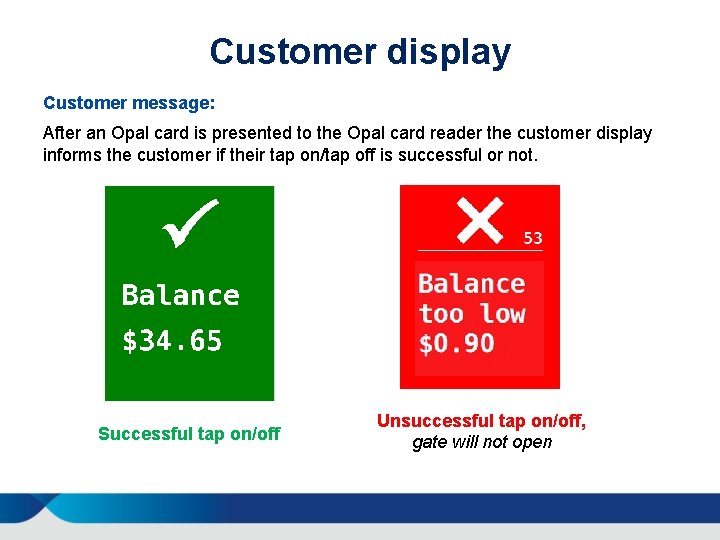
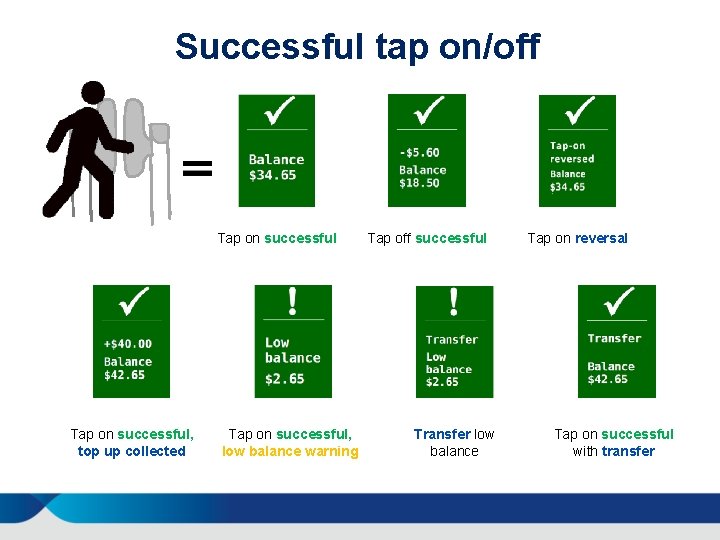
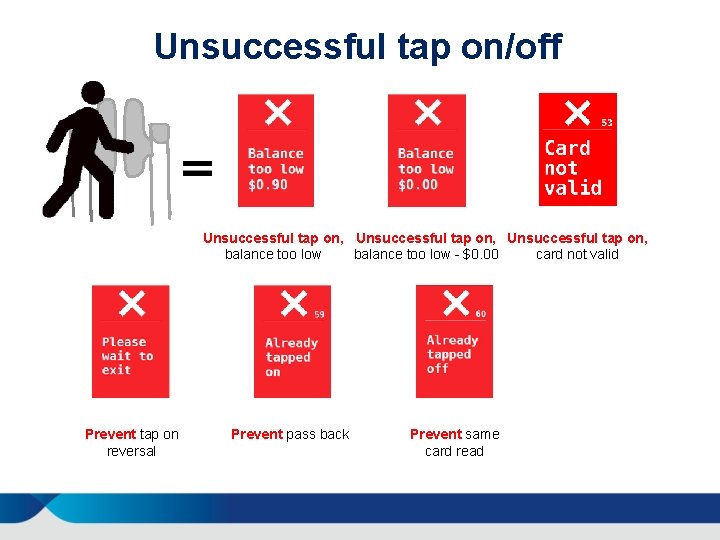
Customer display Customer message: After an Opal card is presented to the Opal card reader the customer display informs the customer if their tap on/tap off is successful or not. Successful tap on/off Unsuccessful tap on/off, gate will not open
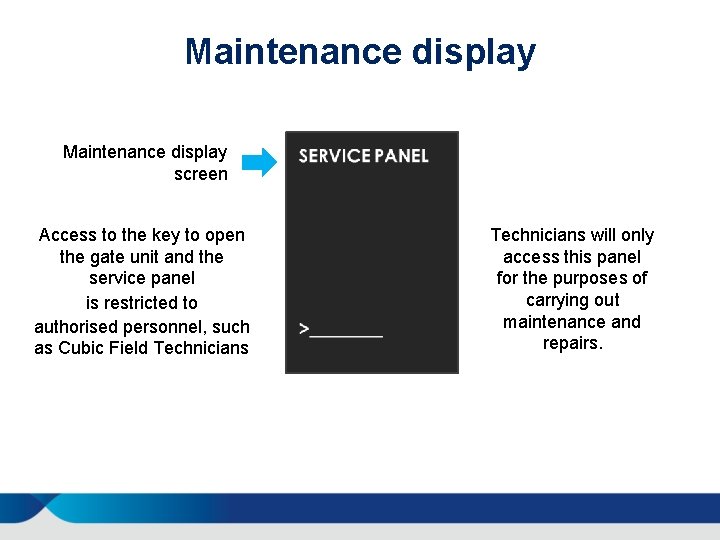
Maintenance display screen Access to the key to open the gate unit and the service panel is restricted to authorised personnel, such as Cubic Field Technicians will only access this panel for the purposes of carrying out maintenance and repairs.
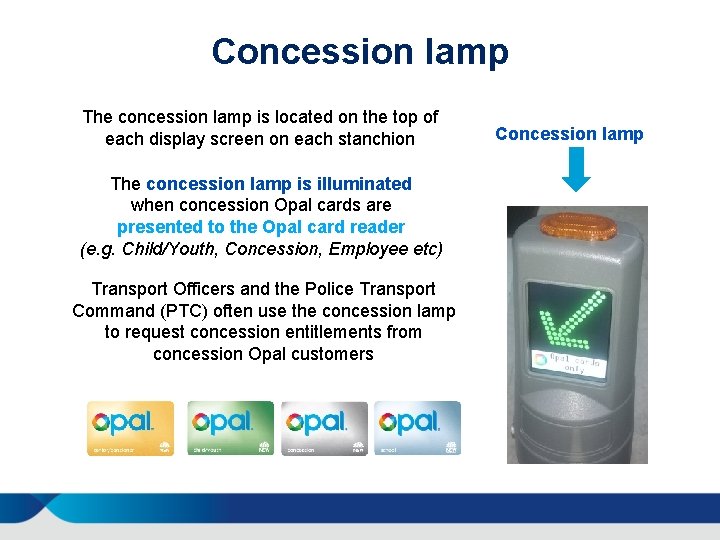
Concession lamp The concession lamp is located on the top of each display screen on each stanchion The concession lamp is illuminated when concession Opal cards are presented to the Opal card reader (e. g. Child/Youth, Concession, Employee etc) Transport Officers and the Police Transport Command (PTC) often use the concession lamp to request concession entitlements from concession Opal customers Concession lamp
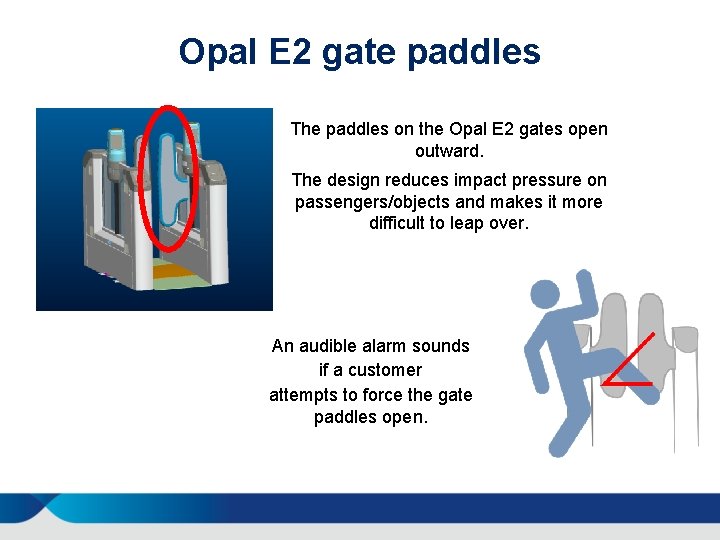
Opal E 2 gate paddles The paddles on the Opal E 2 gates open outward. The design reduces impact pressure on passengers/objects and makes it more difficult to leap over. An audible alarm sounds if a customer attempts to force the gate paddles open.
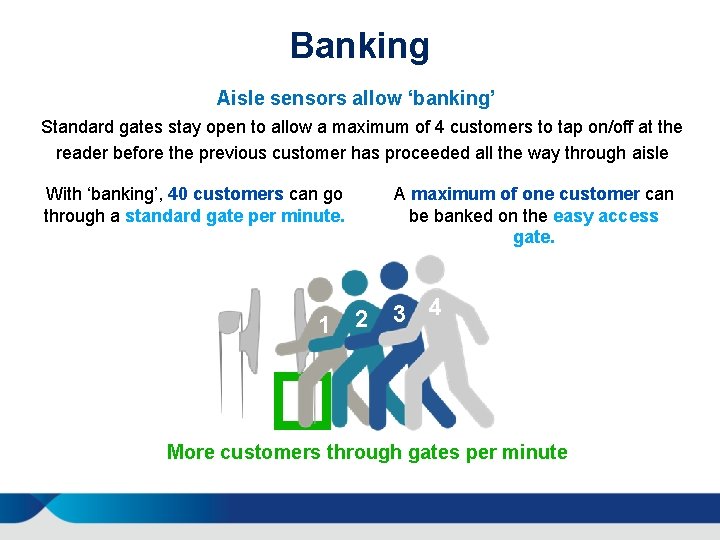
Banking Aisle sensors allow ‘banking’ Standard gates stay open to allow a maximum of 4 customers to tap on/off at the reader before the previous customer has proceeded all the way through aisle With ‘banking’, 40 customers can go through a standard gate per minute. 1 2 � A maximum of one customer can be banked on the easy access gate. 3 4 1 More customers through gates per minute
Opal customer messages 19
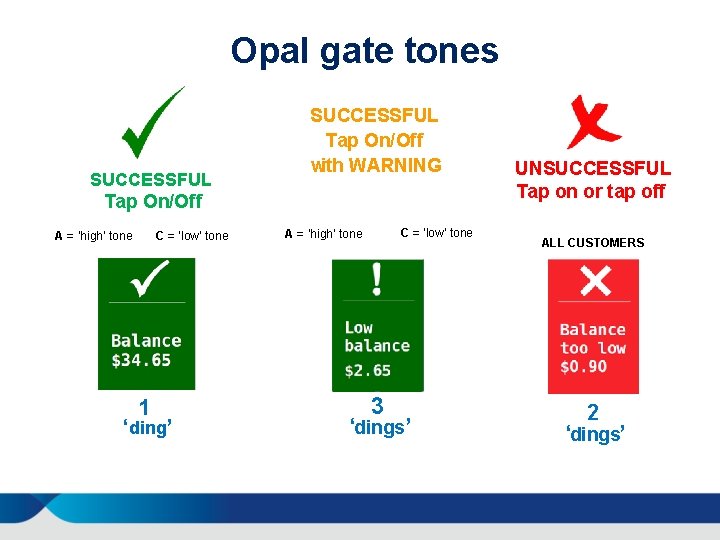
Opal gate tones SUCCESSFUL Tap On/Off with WARNING Tap On/Off A = ‘high’ tone C = ‘low’ tone 1 ‘ding’ C = ‘low’ tone A = ‘high’ tone 3 ‘dings ’ UNSUCCESSFUL Tap on or tap off ALL CUSTOMERS 2 ‘dings’
Successful tap on/off Tap on successful, top up collected Tap on successful, low balance warning Tap off successful Transfer low balance Tap on reversal Tap on successful with transfer
Unsuccessful tap on/off Unsuccessful tap on, balance too low - $0. 00 card not valid Prevent tap on reversal Prevent pass back Prevent same card read
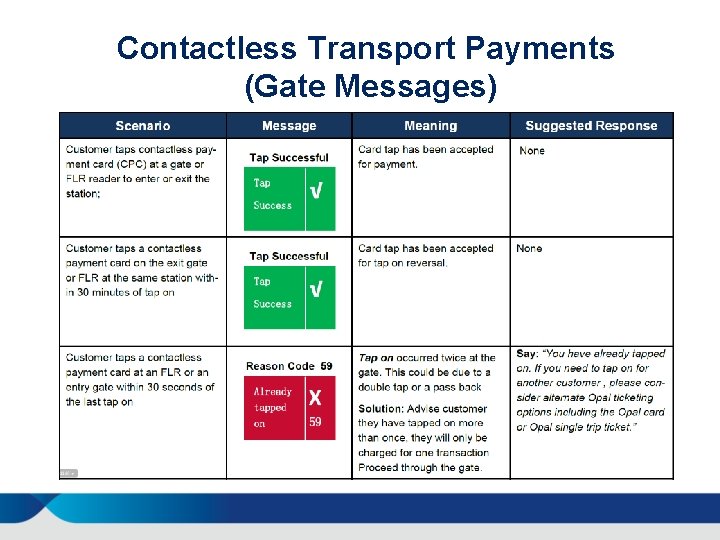
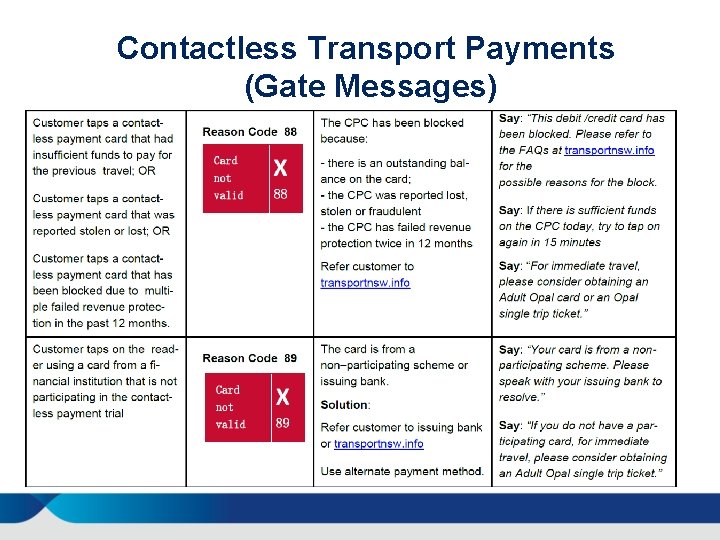
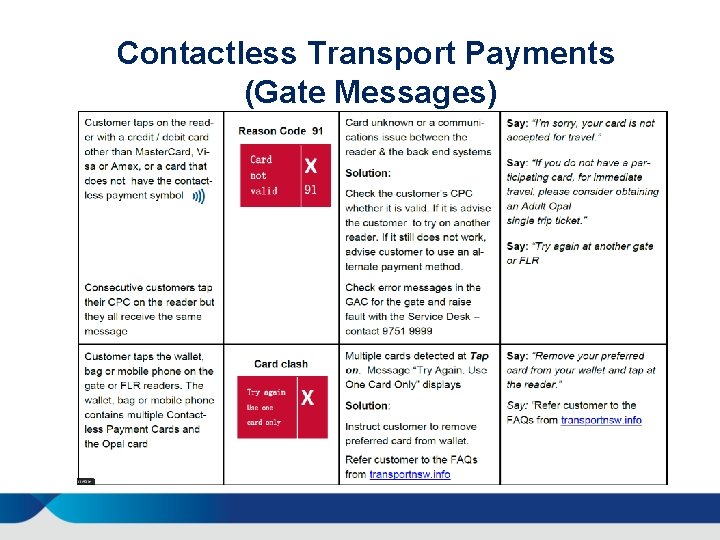
Contactless Transport Payments (Gate Messages)
Contactless Transport Payments (Gate Messages)
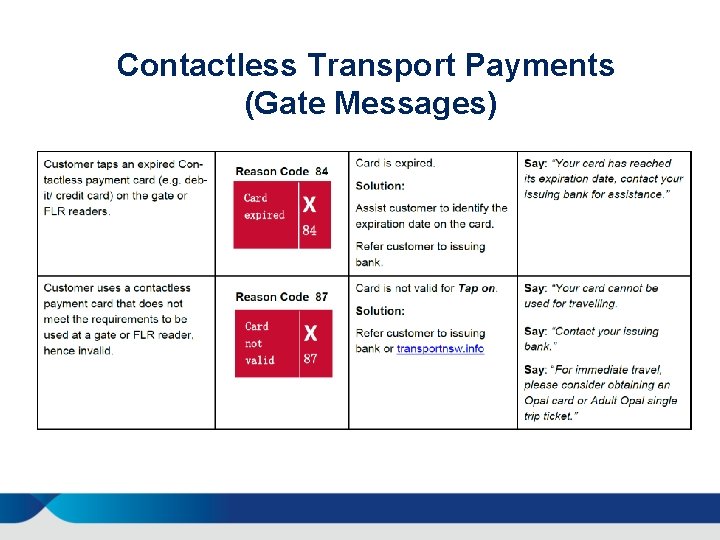
Contactless Transport Payments (Gate Messages)
Contactless Transport Payments (Gate Messages)
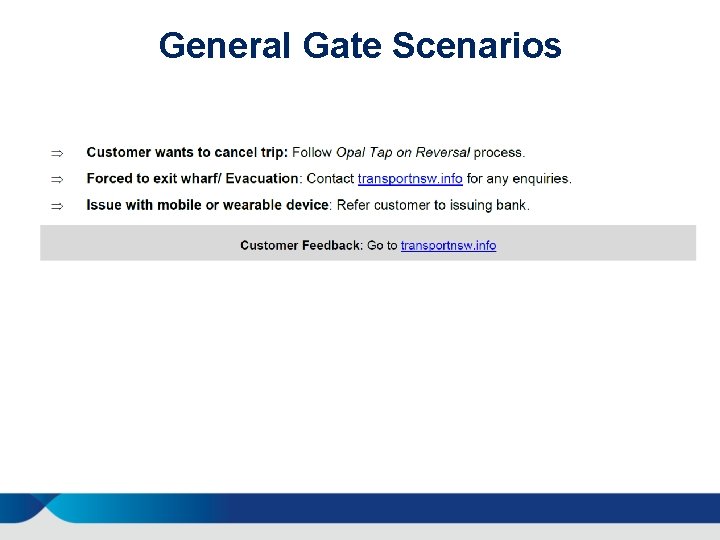
General Gate Scenarios
Gate array controller (GAC) overview 28
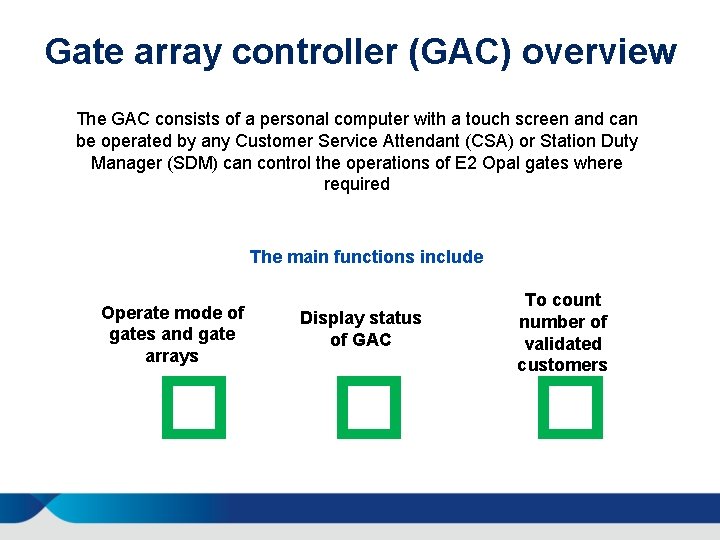
Gate array controller (GAC) overview The GAC consists of a personal computer with a touch screen and can be operated by any Customer Service Attendant (CSA) or Station Duty Manager (SDM) can control the operations of E 2 Opal gates where required The main functions include Operate mode of gates and gate arrays � Display status of GAC � To count number of validated customers �
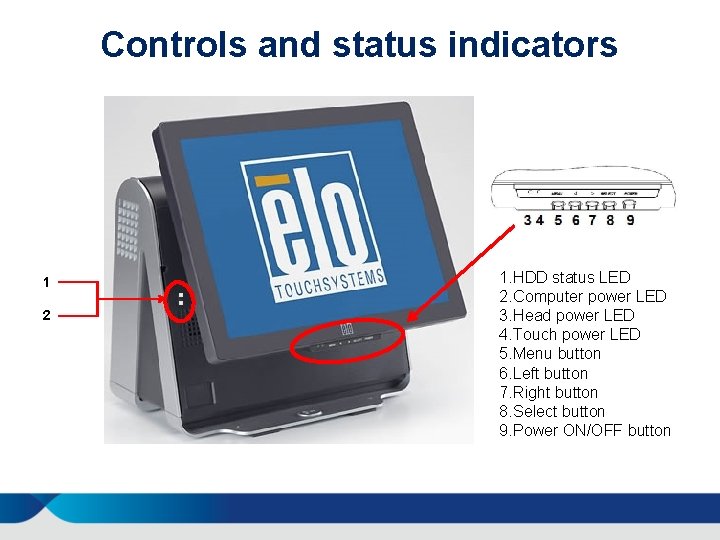
Controls and status indicators 1 2 1. HDD status LED 2. Computer power LED 3. Head power LED 4. Touch power LED 5. Menu button 6. Left button 7. Right button 8. Select button 9. Power ON/OFF button
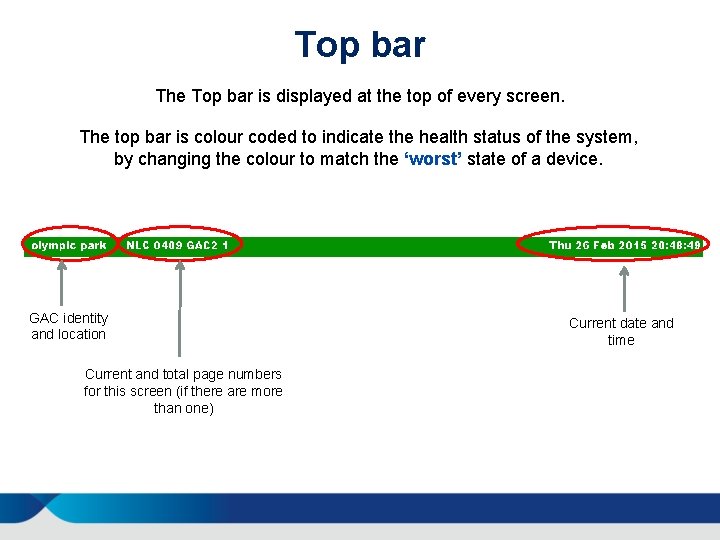
Top bar The Top bar is displayed at the top of every screen. The top bar is colour coded to indicate the health status of the system, by changing the colour to match the ‘worst’ state of a device. GAC identity and location Current and total page numbers for this screen (if there are more than one) Current date and time
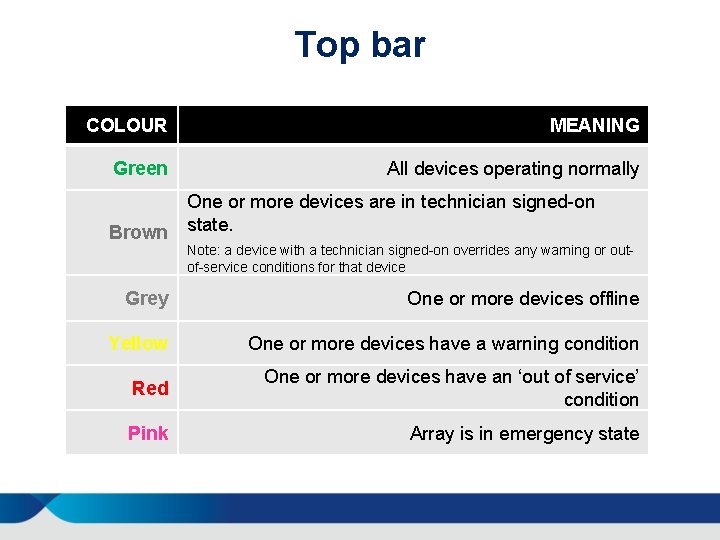
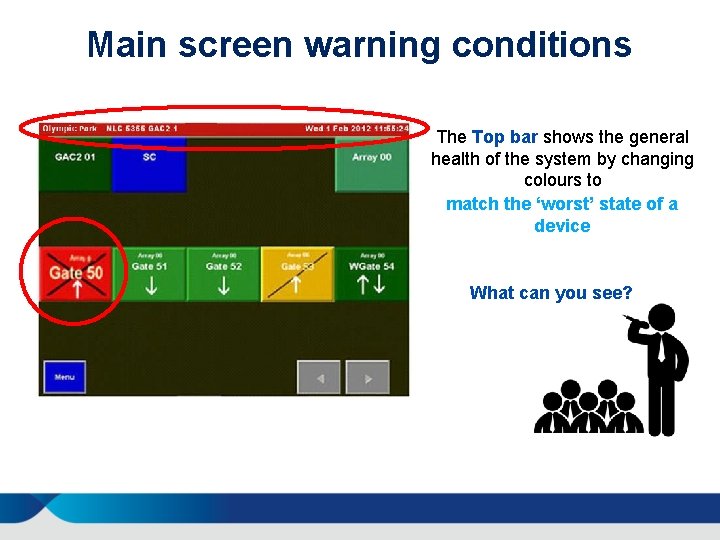
Top bar COLOUR MEANING Green All devices operating normally One or more devices are in technician signed-on Brown state. Note: a device with a technician signed-on overrides any warning or outof-service conditions for that device Grey One or more devices offline Yellow One or more devices have a warning condition Red One or more devices have an ‘out of service’ condition Pink Array is in emergency state
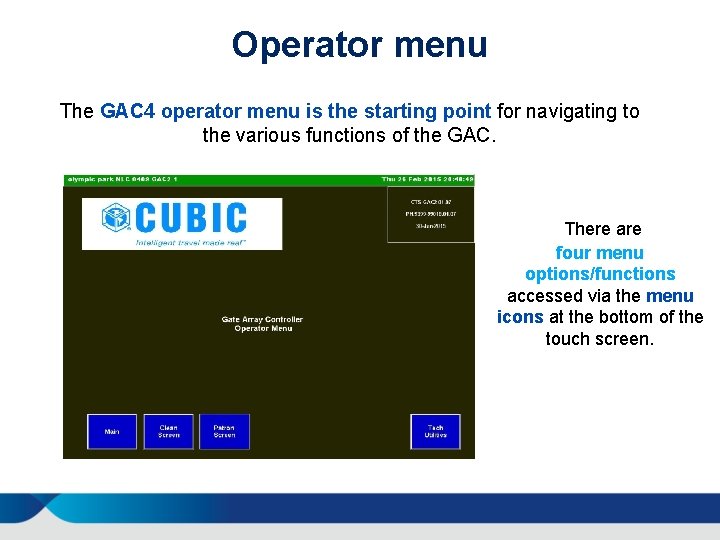
Operator menu The GAC 4 operator menu is the starting point for navigating to the various functions of the GAC. There are four menu options/functions accessed via the menu icons at the bottom of the touch screen.
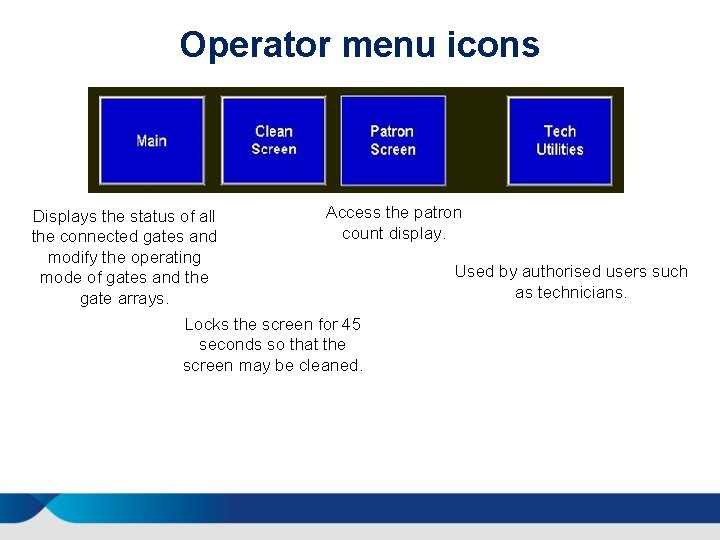
Operator menu icons Displays the status of all the connected gates and modify the operating mode of gates and the gate arrays. Access the patron count display. Locks the screen for 45 seconds so that the screen may be cleaned. Used by authorised users such as technicians.
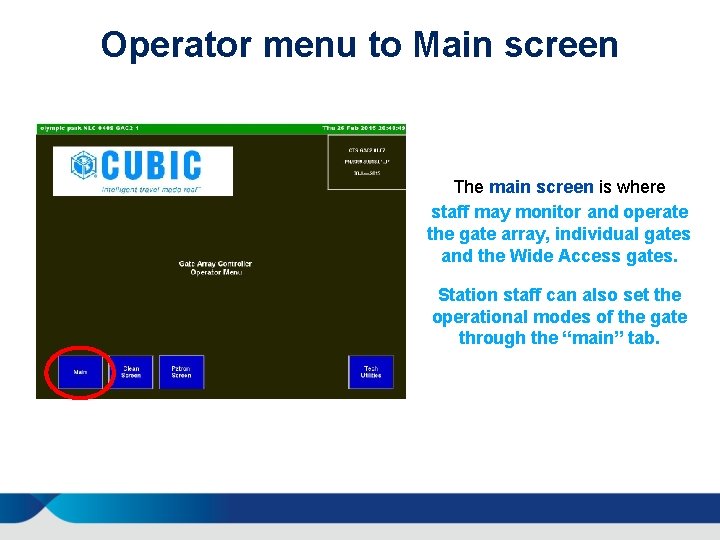
Operator menu to Main screen The main screen is where staff may monitor and operate the gate array, individual gates and the Wide Access gates. Station staff can also set the operational modes of the gate through the “main” tab.
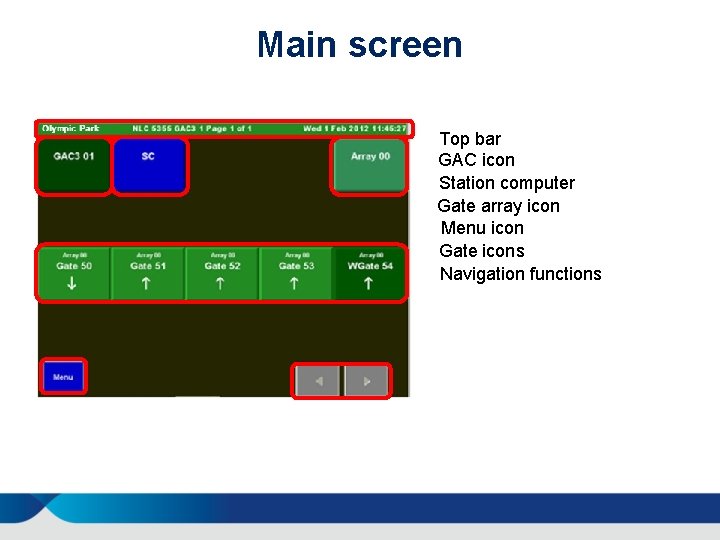
Main screen Top bar GAC icon Station computer Gate array icon Menu icon Gate icons Navigation functions
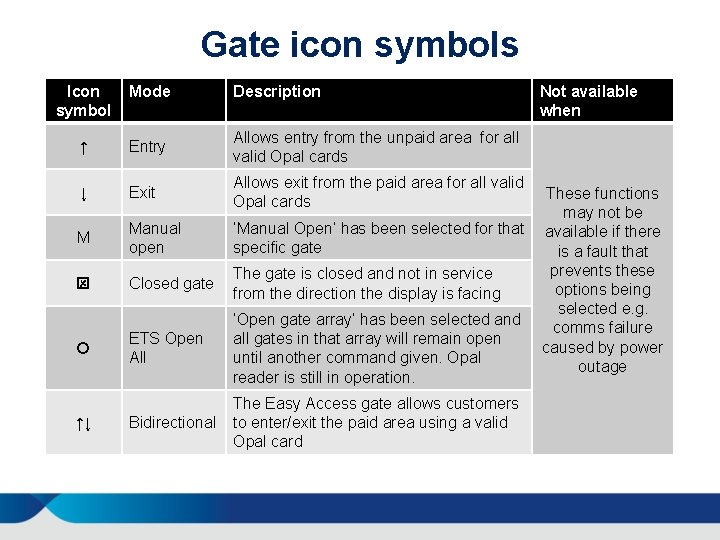
Gate icon symbols Icon symbol Mode Description ↑ Entry Allows entry from the unpaid area for all valid Opal cards ↓ Exit Allows exit from the paid area for all valid Opal cards M Manual open ‘Manual Open’ has been selected for that specific gate Closed gate The gate is closed and not in service from the direction the display is facing ETS Open All ‘Open gate array’ has been selected and all gates in that array will remain open until another command given. Opal reader is still in operation. Bidirectional The Easy Access gate allows customers to enter/exit the paid area using a valid Opal card ↑↓ Not available when These functions may not be available if there is a fault that prevents these options being selected e. g. comms failure caused by power outage
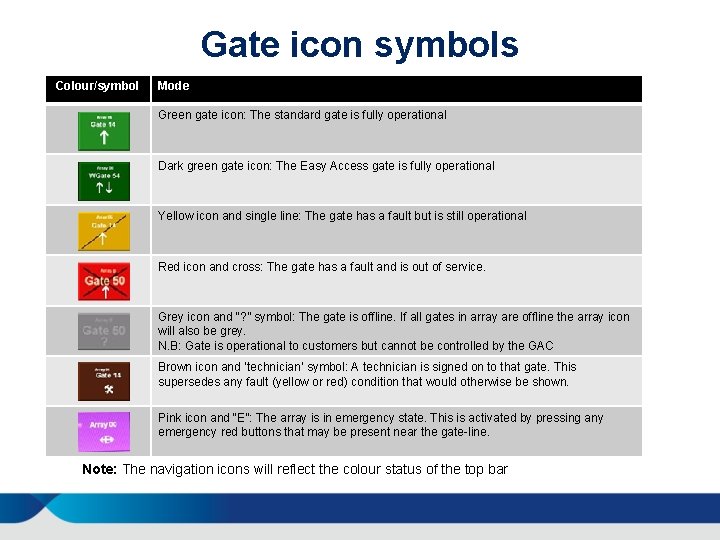
Gate icon symbols Colour/symbol Mode Green gate icon: The standard gate is fully operational Dark green gate icon: The Easy Access gate is fully operational Yellow icon and single line: The gate has a fault but is still operational Red icon and cross: The gate has a fault and is out of service. Grey icon and “? ” symbol: The gate is offline. If all gates in array are offline the array icon will also be grey. N. B: Gate is operational to customers but cannot be controlled by the GAC Brown icon and ‘technician’ symbol: A technician is signed on to that gate. This supersedes any fault (yellow or red) condition that would otherwise be shown. Pink icon and “E”: The array is in emergency state. This is activated by pressing any emergency red buttons that may be present near the gate-line. Note: The navigation icons will reflect the colour status of the top bar
Main screen warning conditions The Top bar shows the general health of the system by changing colours to match the ‘worst’ state of a device What can you see?
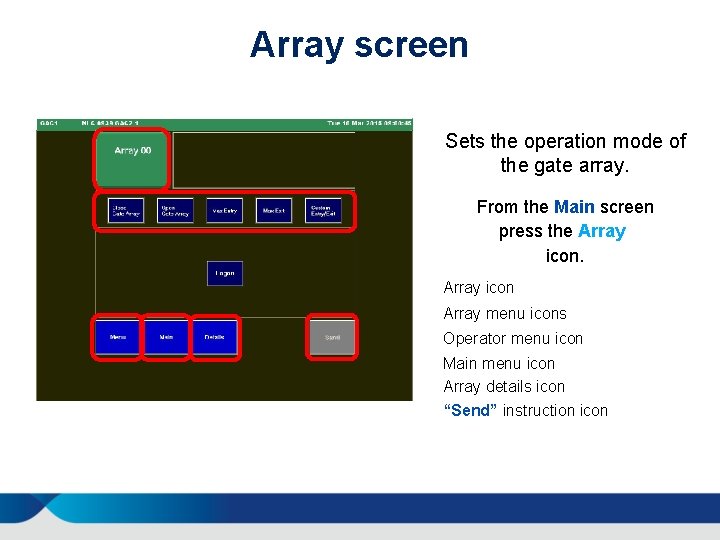
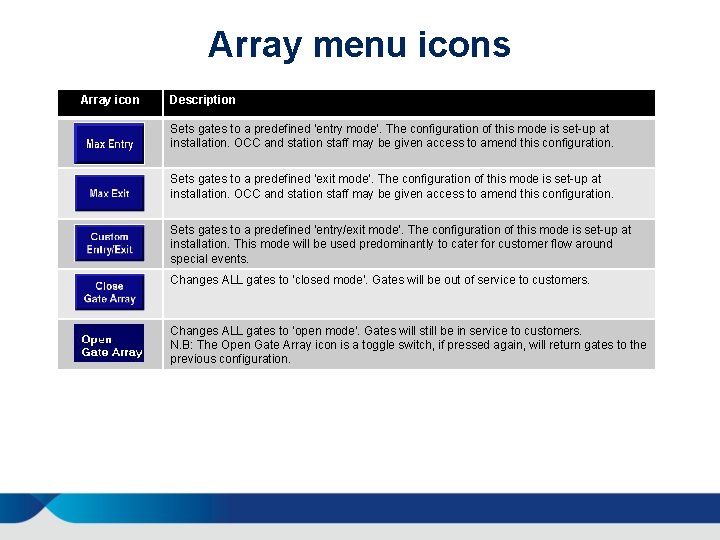
Array screen Sets the operation mode of the gate array. From the Main screen press the Array icon Array menu icons Operator menu icon Main menu icon Array details icon “Send” instruction icon
Array menu icons Array icon Description Sets gates to a predefined ‘entry mode’. The configuration of this mode is set-up at installation. OCC and station staff may be given access to amend this configuration. Sets gates to a predefined ‘exit mode’. The configuration of this mode is set-up at installation. OCC and station staff may be given access to amend this configuration. Sets gates to a predefined ‘entry/exit mode’. The configuration of this mode is set-up at installation. This mode will be used predominantly to cater for customer flow around special events. Changes ALL gates to ‘closed mode’. Gates will be out of service to customers. Changes ALL gates to ‘open mode’. Gates will still be in service to customers. N. B: The Open Gate Array icon is a toggle switch, if pressed again, will return gates to the previous configuration.
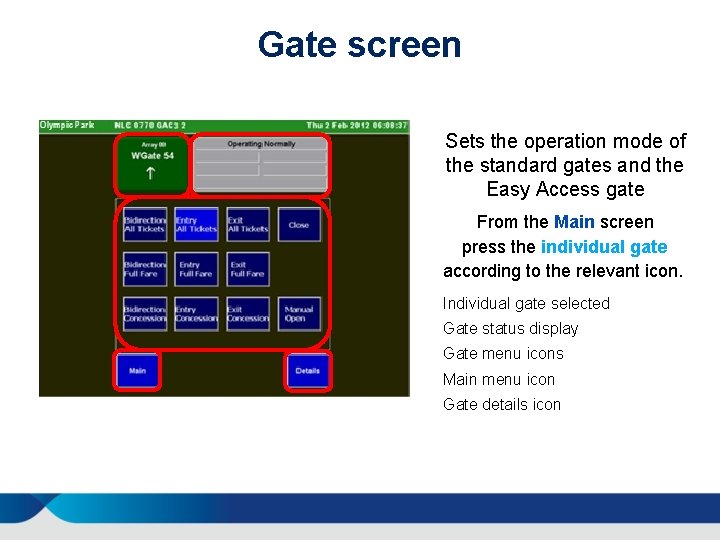
Gate screen Sets the operation mode of the standard gates and the Easy Access gate From the Main screen press the individual gate according to the relevant icon. Individual gate selected Gate status display Gate menu icons Main menu icon Gate details icon
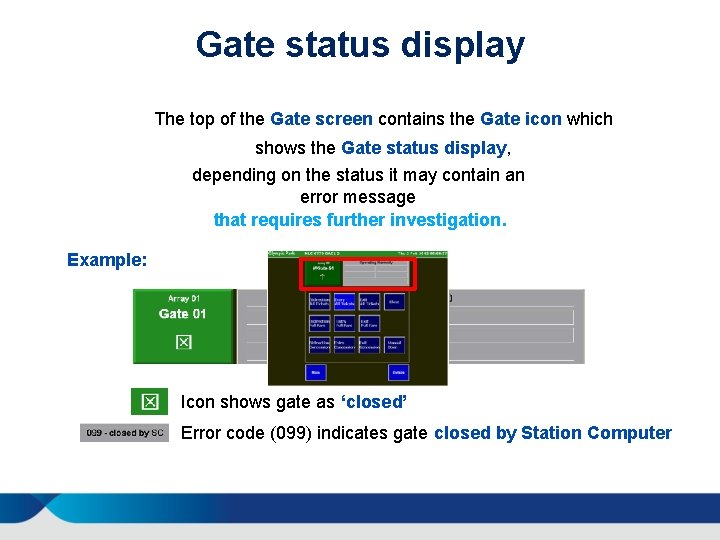
Gate status display The top of the Gate screen contains the Gate icon which shows the Gate status display, depending on the status it may contain an error message that requires further investigation. Example: Icon shows gate as ‘closed’ Error code (099) indicates gate closed by Station Computer
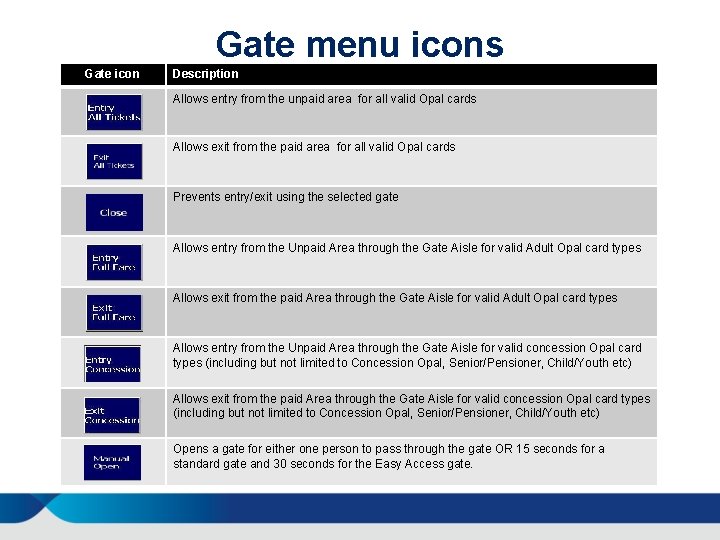
Gate menu icons Gate icon Description Allows entry from the unpaid area for all valid Opal cards Allows exit from the paid area for all valid Opal cards Prevents entry/exit using the selected gate Allows entry from the Unpaid Area through the Gate Aisle for valid Adult Opal card types Allows exit from the paid Area through the Gate Aisle for valid Adult Opal card types Allows entry from the Unpaid Area through the Gate Aisle for valid concession Opal card types (including but not limited to Concession Opal, Senior/Pensioner, Child/Youth etc) Allows exit from the paid Area through the Gate Aisle for valid concession Opal card types (including but not limited to Concession Opal, Senior/Pensioner, Child/Youth etc) Opens a gate for either one person to pass through the gate OR 15 seconds for a standard gate and 30 seconds for the Easy Access gate.
Gate array controller (GAC) operation 45
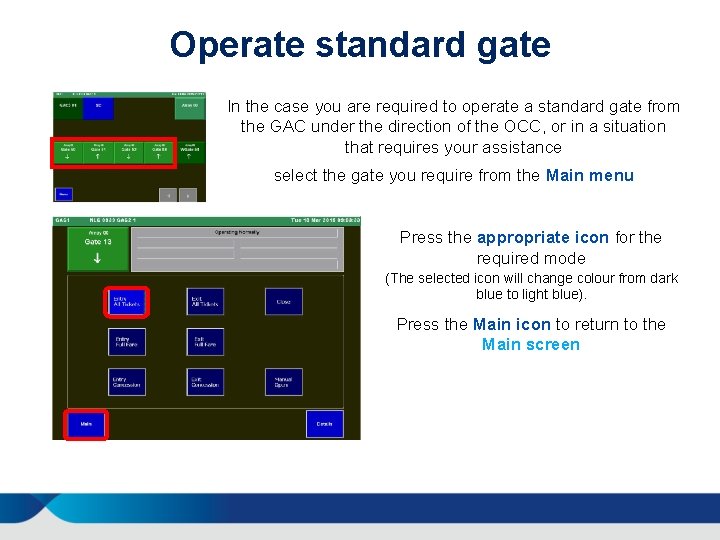
Operate standard gate In the case you are required to operate a standard gate from the GAC under the direction of the OCC, or in a situation that requires your assistance select the gate you require from the Main menu Press the appropriate icon for the required mode (The selected icon will change colour from dark blue to light blue). Press the Main icon to return to the Main screen
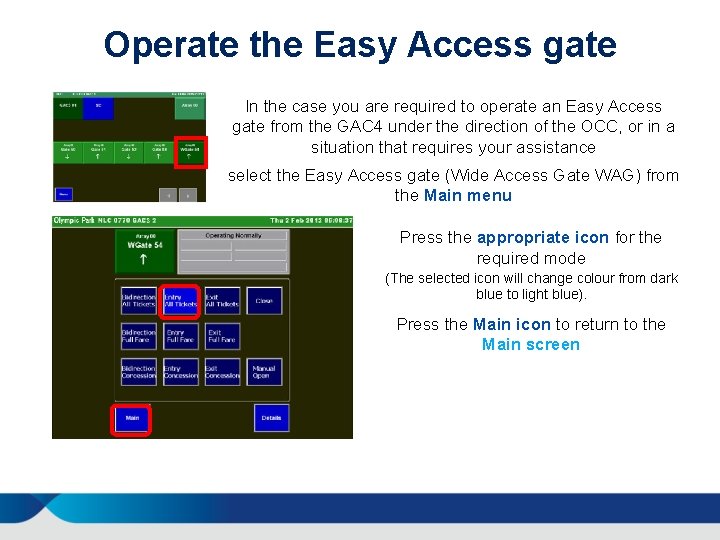
Operate the Easy Access gate In the case you are required to operate an Easy Access gate from the GAC 4 under the direction of the OCC, or in a situation that requires your assistance select the Easy Access gate (Wide Access Gate WAG) from the Main menu Press the appropriate icon for the required mode (The selected icon will change colour from dark blue to light blue). Press the Main icon to return to the Main screen
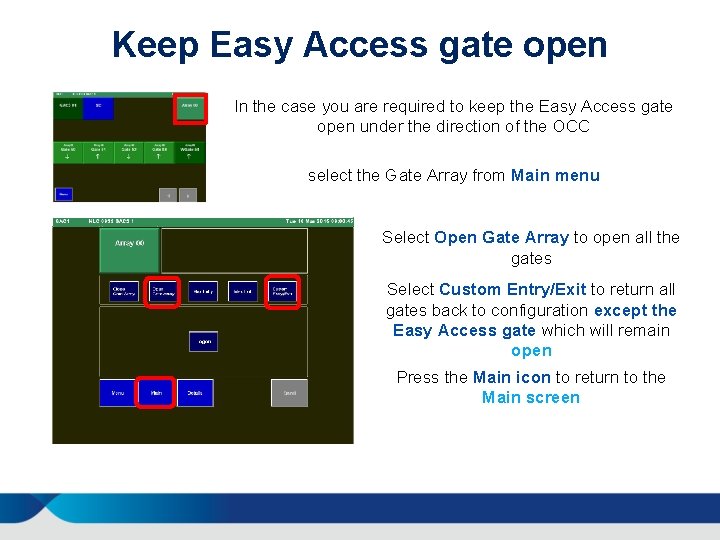
Keep Easy Access gate open In the case you are required to keep the Easy Access gate open under the direction of the OCC select the Gate Array from Main menu Select Open Gate Array to open all the gates Select Custom Entry/Exit to return all gates back to configuration except the Easy Access gate which will remain open Press the Main icon to return to the Main screen
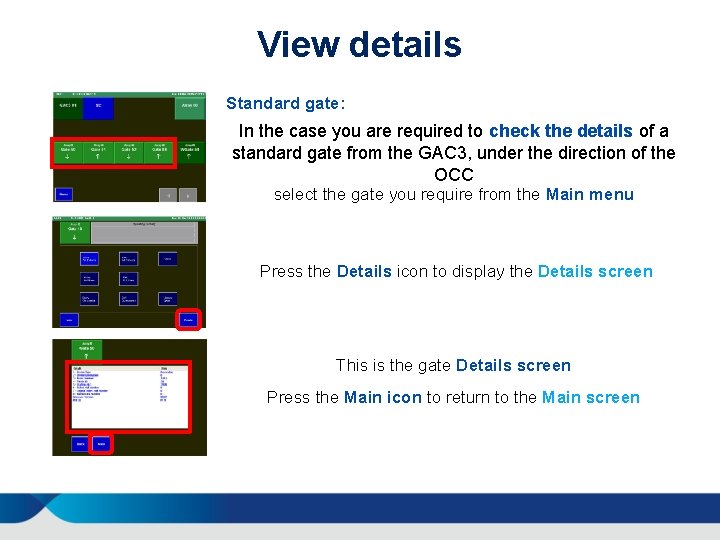
View details Standard gate: In the case you are required to check the details of a standard gate from the GAC 3, under the direction of the OCC select the gate you require from the Main menu Press the Details icon to display the Details screen This is the gate Details screen Press the Main icon to return to the Main screen
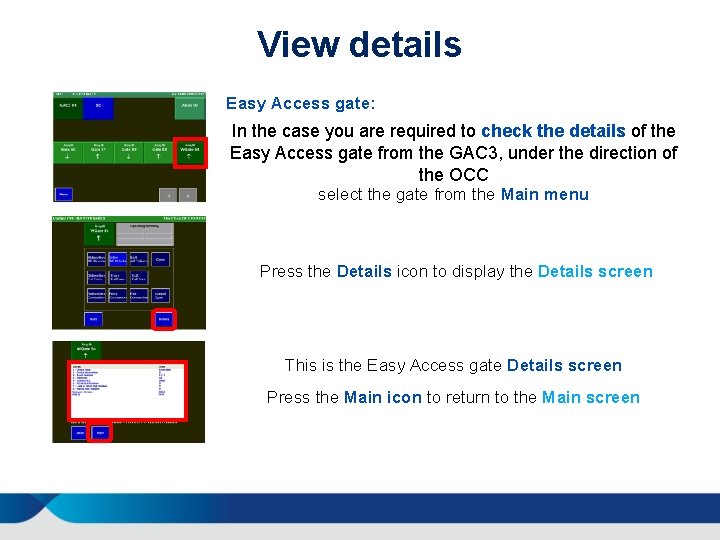
View details Easy Access gate: In the case you are required to check the details of the Easy Access gate from the GAC 3, under the direction of the OCC select the gate from the Main menu Press the Details icon to display the Details screen This is the Easy Access gate Details screen Press the Main icon to return to the Main screen
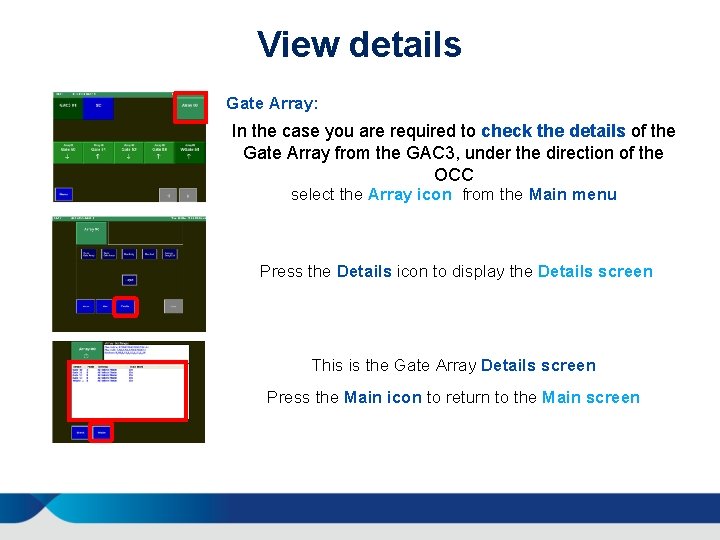
View details Gate Array: In the case you are required to check the details of the Gate Array from the GAC 3, under the direction of the OCC select the Array icon from the Main menu Press the Details icon to display the Details screen This is the Gate Array Details screen Press the Main icon to return to the Main screen
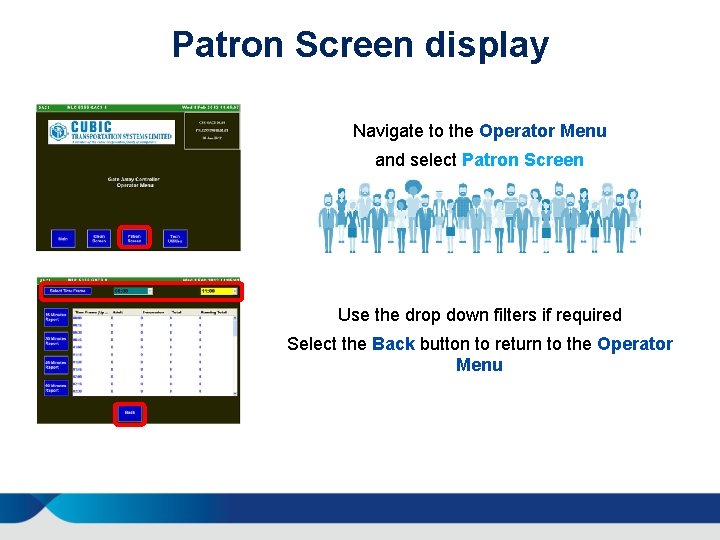
Patron Screen display Navigate to the Operator Menu and select Patron Screen Use the drop down filters if required Select the Back button to return to the Operator Menu
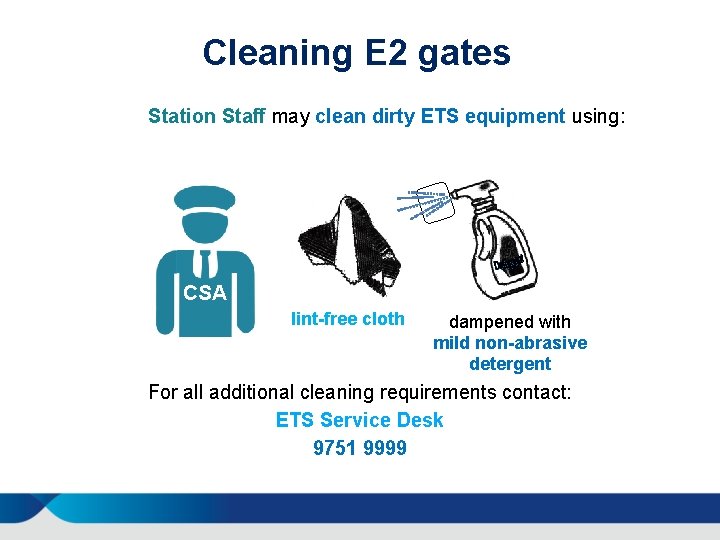
Cleaning E 2 gates Station Staff may clean dirty ETS equipment using: SS CSA lint-free cloth dampened with mild non-abrasive detergent For all additional cleaning requirements contact: ETS Service Desk 9751 9999
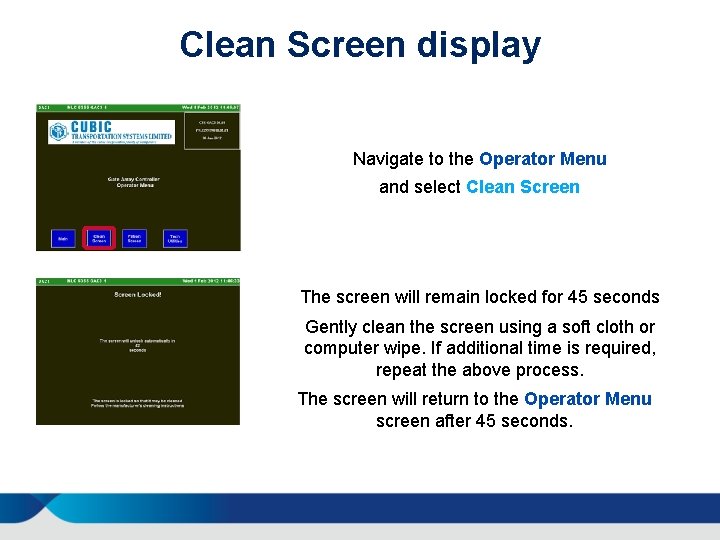
Clean Screen display Navigate to the Operator Menu and select Clean Screen The screen will remain locked for 45 seconds Gently clean the screen using a soft cloth or computer wipe. If additional time is required, repeat the above process. The screen will return to the Operator Menu screen after 45 seconds.
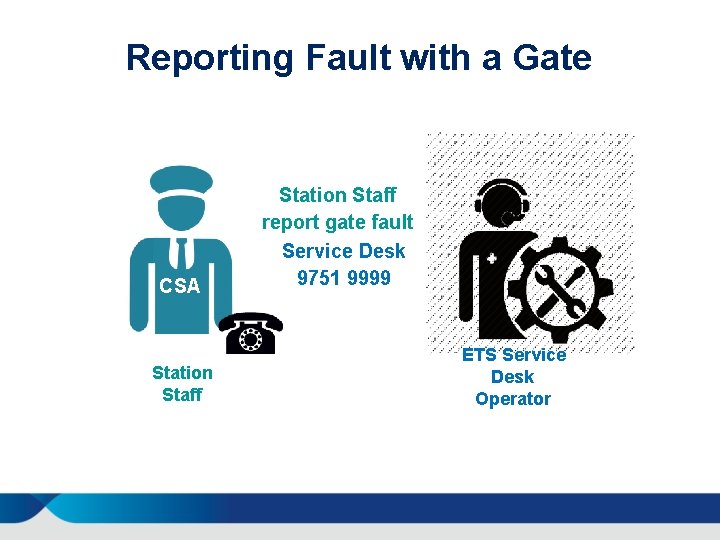
Reporting Fault with a Gate CSA Station Staff report gate fault Service Desk 9751 9999 ETS Service Desk Operator
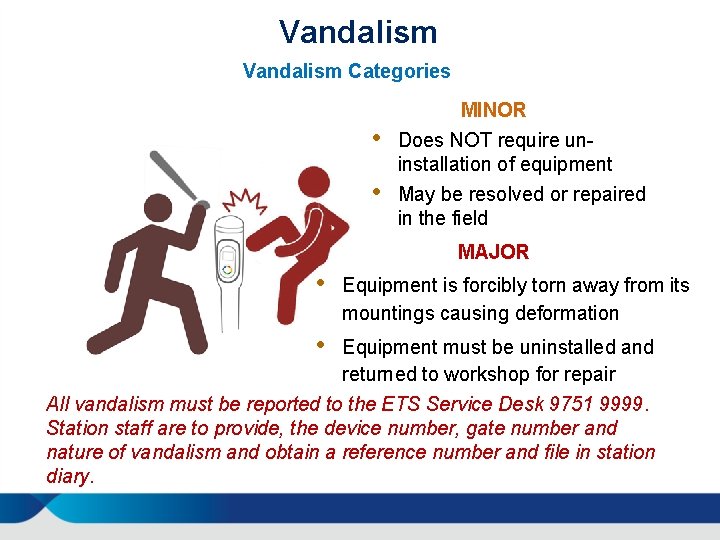
Vandalism Categories MINOR • Does NOT require uninstallation of equipment • May be resolved or repaired in the field MAJOR • Equipment is forcibly torn away from its mountings causing deformation • Equipment must be uninstalled and returned to workshop for repair All vandalism must be reported to the ETS Service Desk 9751 9999. Station staff are to provide, the device number, gate number and nature of vandalism and obtain a reference number and file in station diary.
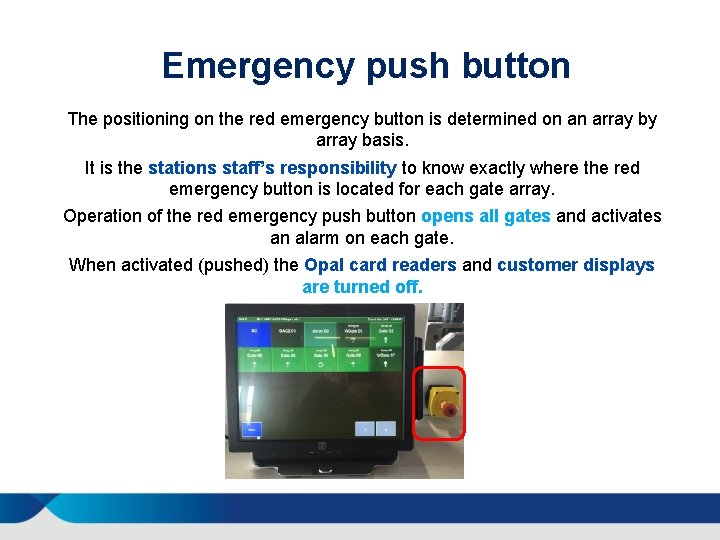
Emergency push button The positioning on the red emergency button is determined on an array by array basis. It is the stations staff’s responsibility to know exactly where the red emergency button is located for each gate array. Operation of the red emergency push button opens all gates and activates an alarm on each gate. When activated (pushed) the Opal card readers and customer displays are turned off.
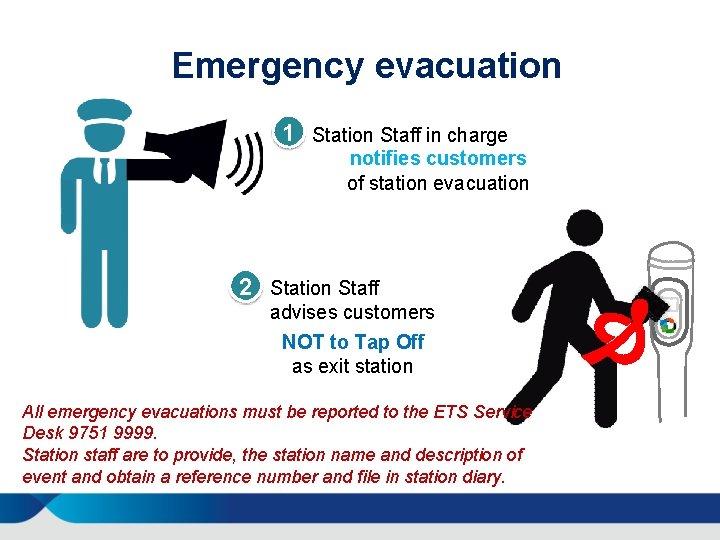
Emergency evacuation 11 22 Station Staff in charge notifies customers of station evacuation Staff advises customers NOT to Tap Off as exit station All emergency evacuations must be reported to the ETS Service Desk 9751 9999. Station staff are to provide, the station name and description of event and obtain a reference number and file in station diary. Ð
Power failure In the event of a power failure, all gates will open and remain open until the power supply is restored. The only indication of this will be the loss of station lighting etc, or emergency power coming into service. If power to the whole station is lost, then power to the Opal E 2 gates Emergency Operations (EMO) is also lost. If the Opal card readers are down customers must call Opal Customer Care on 13 67 25 (13 OPAL) for a fare adjustment. When power is restored the gate paddles will close and gates will return to normal operation. In the event that power is lost to the EMO, once restored and the Opal E 2 gates will go through a self test process before returning to normal operation.
Summary In today’s session we covered: • The background and business drivers for the installation of gates across the suburban, intercity and ferry networks and briefly explain the Opal E 2 gate roll out strategy • The structure and components of an Opal E 2 gate • The benefits of Opal E 2 gates • How to operate a gate attendant controller (GAC 3) to view and change the mode of the Opal E 2 gates • How to view the gate/array details and patron count via the GAC 3 • How to clean a GAC 3 and Opal E 2 gates • The emergency operation of an Opal E 2 gate array
Any questions?