
OGRE Programming Intermediate Tutorial Volume Selection 1 Contents


- Slides: 16
OGRE Programming Intermediate Tutorial: Volume Selection 1
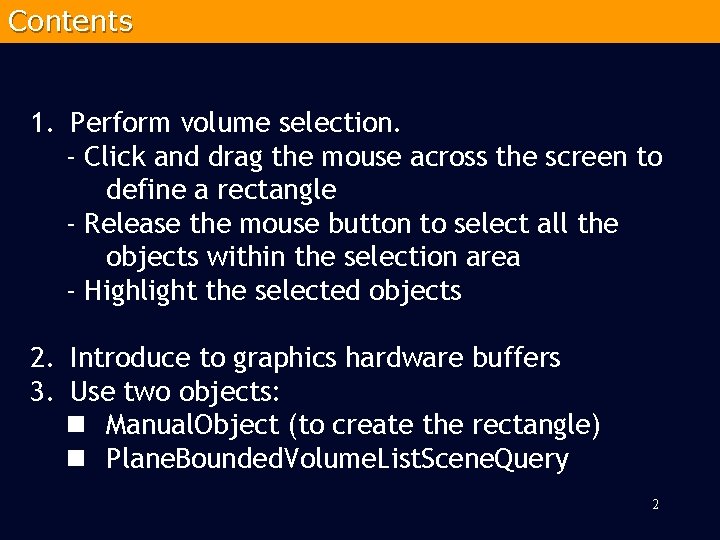
Contents 1. Perform volume selection. - Click and drag the mouse across the screen to define a rectangle - Release the mouse button to select all the objects within the selection area - Highlight the selected objects 2. Introduce to graphics hardware buffers 3. Use two objects: n Manual. Object (to create the rectangle) n Plane. Bounded. Volume. List. Scene. Query 2
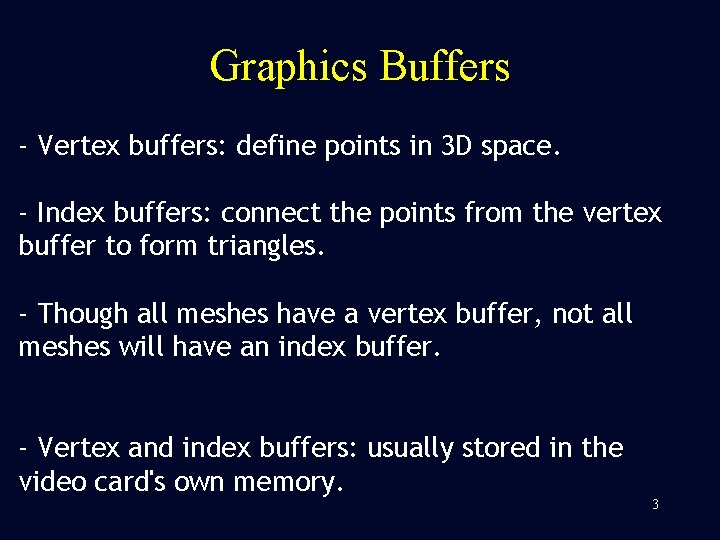
Graphics Buffers - Vertex buffers: define points in 3 D space. - Index buffers: connect the points from the vertex buffer to form triangles. - Though all meshes have a vertex buffer, not all meshes will have an index buffer. - Vertex and index buffers: usually stored in the video card's own memory. 3
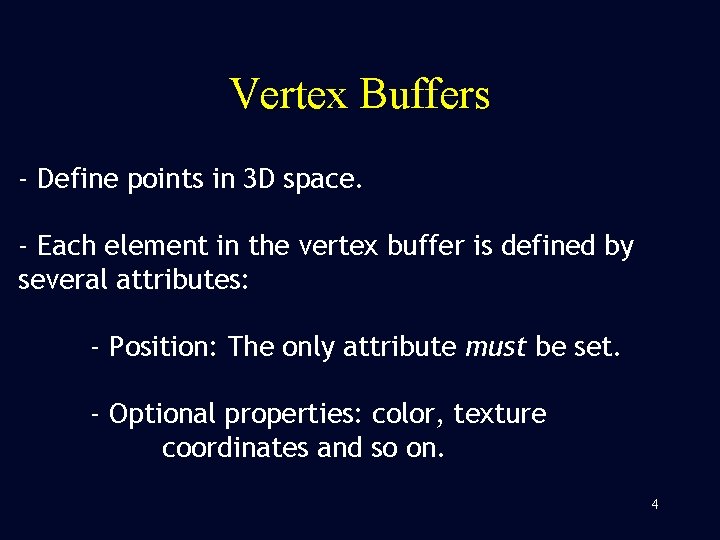
Vertex Buffers - Define points in 3 D space. - Each element in the vertex buffer is defined by several attributes: - Position: The only attribute must be set. - Optional properties: color, texture coordinates and so on. 4
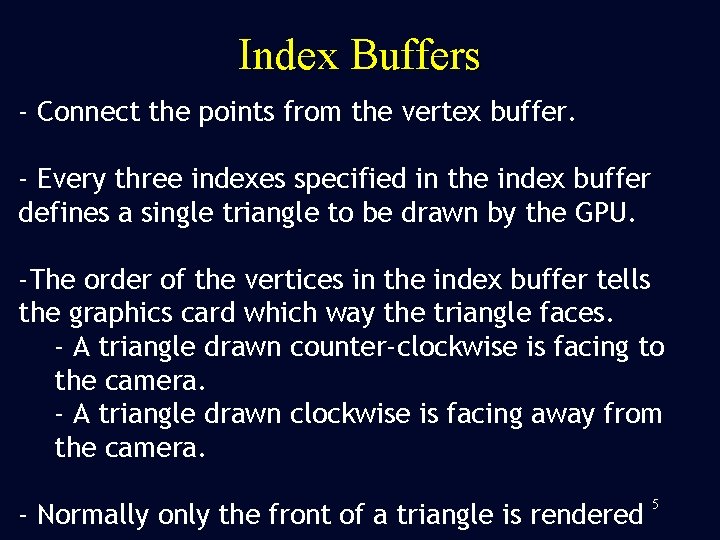
Index Buffers - Connect the points from the vertex buffer. - Every three indexes specified in the index buffer defines a single triangle to be drawn by the GPU. -The order of the vertices in the index buffer tells the graphics card which way the triangle faces. - A triangle drawn counter-clockwise is facing to the camera. - A triangle drawn clockwise is facing away from the camera. - Normally only the front of a triangle is rendered 5
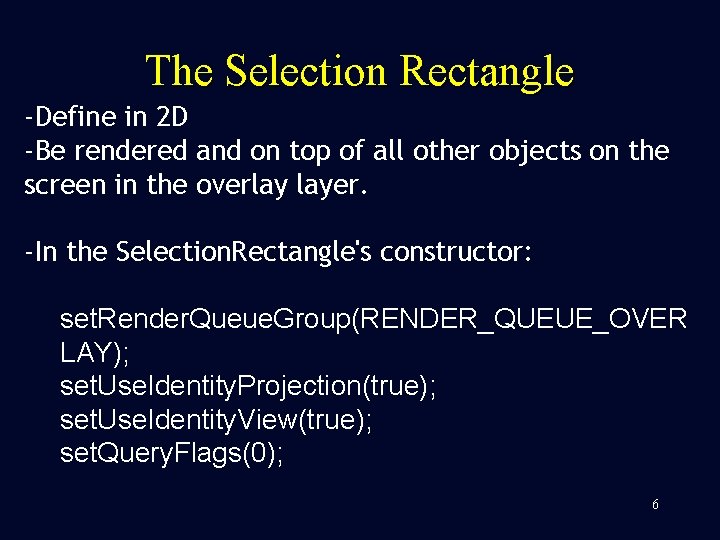
The Selection Rectangle -Define in 2 D -Be rendered and on top of all other objects on the screen in the overlay layer. -In the Selection. Rectangle's constructor: set. Render. Queue. Group(RENDER_QUEUE_OVER LAY); set. Use. Identity. Projection(true); set. Use. Identity. View(true); set. Query. Flags(0); 6
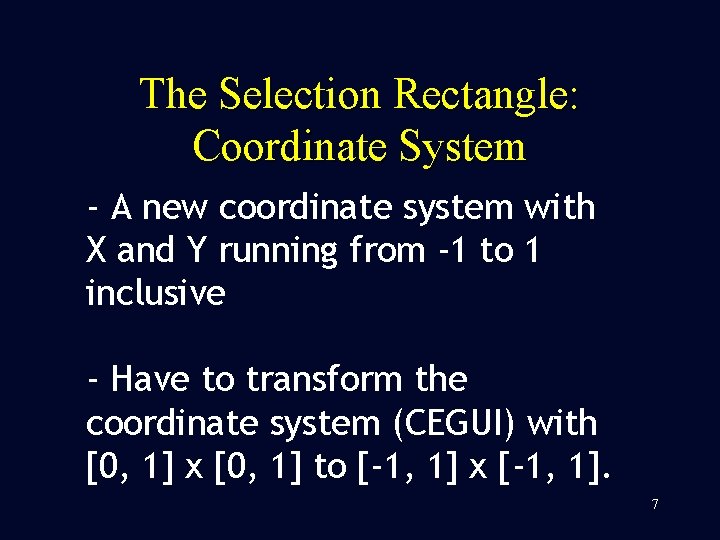
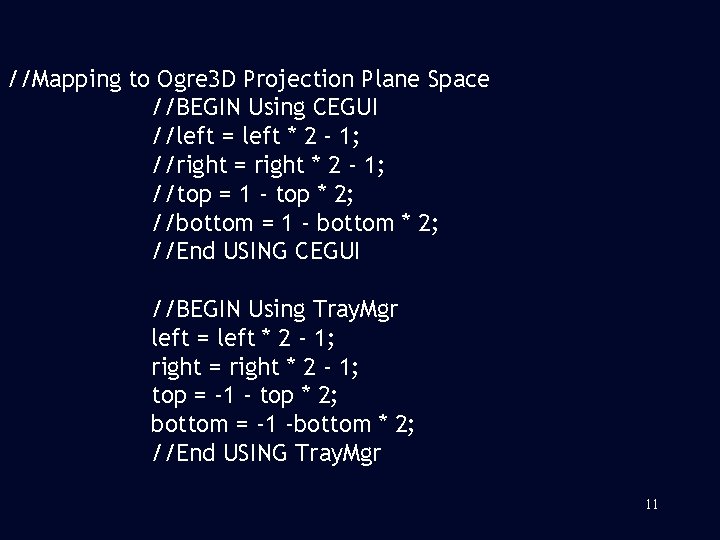
The Selection Rectangle: Coordinate System - A new coordinate system with X and Y running from -1 to 1 inclusive - Have to transform the coordinate system (CEGUI) with [0, 1] x [0, 1] to [-1, 1] x [-1, 1]. 7
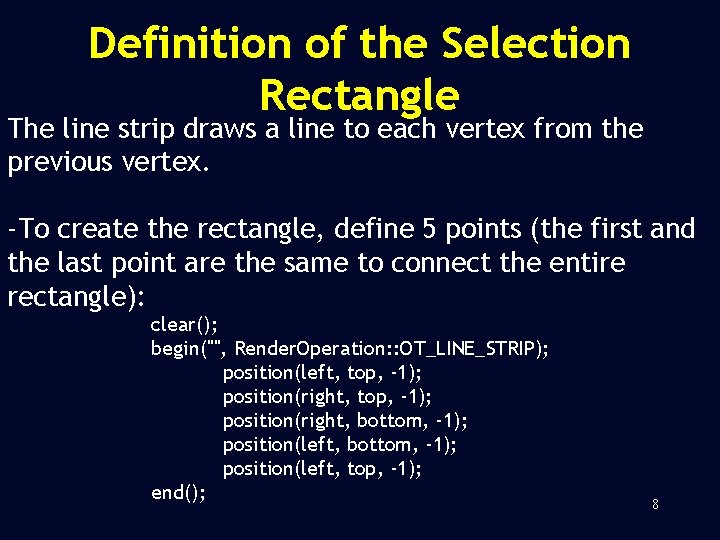
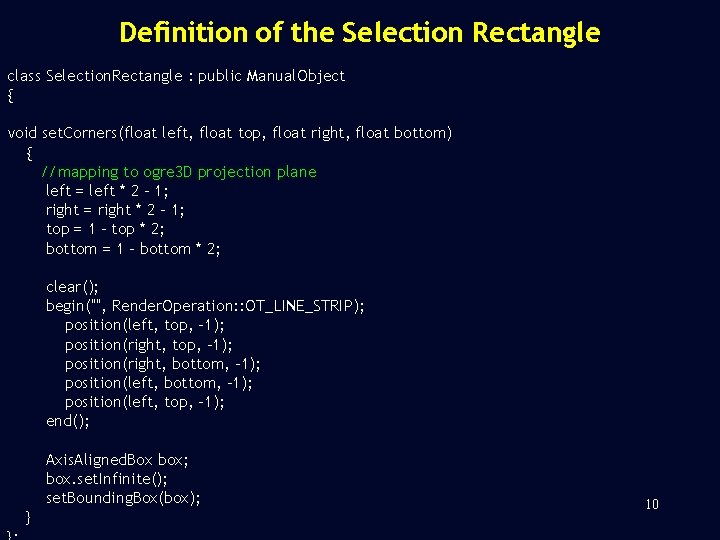
Definition of the Selection Rectangle The line strip draws a line to each vertex from the previous vertex. -To create the rectangle, define 5 points (the first and the last point are the same to connect the entire rectangle): clear(); begin("", Render. Operation: : OT_LINE_STRIP); position(left, top, -1); position(right, bottom, -1); position(left, top, -1); end(); 8
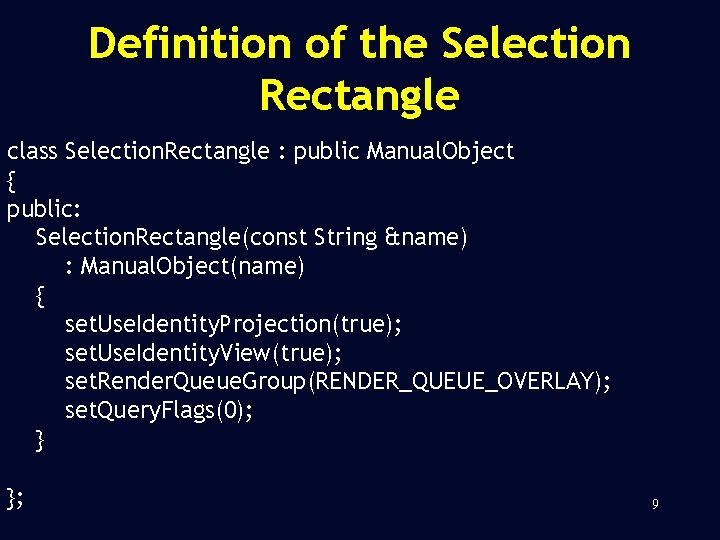
Definition of the Selection Rectangle class Selection. Rectangle : public Manual. Object { public: Selection. Rectangle(const String &name) : Manual. Object(name) { set. Use. Identity. Projection(true); set. Use. Identity. View(true); set. Render. Queue. Group(RENDER_QUEUE_OVERLAY); set. Query. Flags(0); } }; 9
Definition of the Selection Rectangle class Selection. Rectangle : public Manual. Object { void set. Corners(float left, float top, float right, float bottom) { //mapping to ogre 3 D projection plane left = left * 2 - 1; right = right * 2 - 1; top = 1 - top * 2; bottom = 1 - bottom * 2; clear(); begin("", Render. Operation: : OT_LINE_STRIP); position(left, top, -1); position(right, bottom, -1); position(left, top, -1); end(); Axis. Aligned. Box box; box. set. Infinite(); set. Bounding. Box(box); } 10
//Mapping to Ogre 3 D Projection Plane Space //BEGIN Using CEGUI //left = left * 2 - 1; //right = right * 2 - 1; //top = 1 - top * 2; //bottom = 1 - bottom * 2; //End USING CEGUI //BEGIN Using Tray. Mgr left = left * 2 - 1; right = right * 2 - 1; top = -1 - top * 2; bottom = -1 -bottom * 2; //End USING Tray. Mgr 11
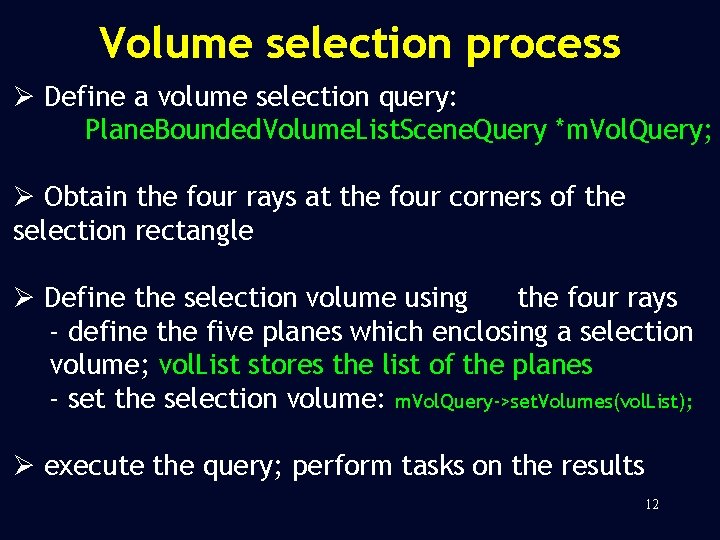
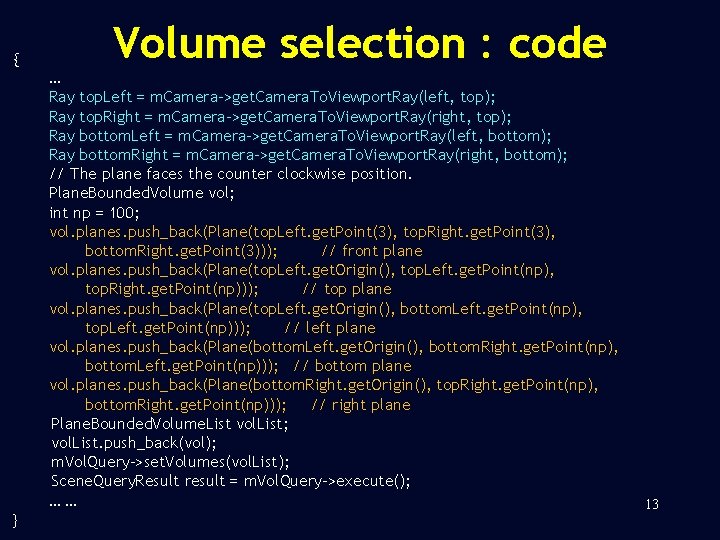
Volume selection process Ø Define a volume selection query: Plane. Bounded. Volume. List. Scene. Query *m. Vol. Query; Ø Obtain the four rays at the four corners of the selection rectangle Ø Define the selection volume using the four rays - define the five planes which enclosing a selection volume; vol. List stores the list of the planes - set the selection volume: m. Vol. Query->set. Volumes(vol. List); Ø execute the query; perform tasks on the results 12
{ Volume selection : code … Ray top. Left = m. Camera->get. Camera. To. Viewport. Ray(left, top); Ray top. Right = m. Camera->get. Camera. To. Viewport. Ray(right, top); Ray bottom. Left = m. Camera->get. Camera. To. Viewport. Ray(left, bottom); Ray bottom. Right = m. Camera->get. Camera. To. Viewport. Ray(right, bottom); // The plane faces the counter clockwise position. Plane. Bounded. Volume vol; int np = 100; vol. planes. push_back(Plane(top. Left. get. Point(3), top. Right. get. Point(3), bottom. Right. get. Point(3))); // front plane vol. planes. push_back(Plane(top. Left. get. Origin(), top. Left. get. Point(np), top. Right. get. Point(np))); // top plane vol. planes. push_back(Plane(top. Left. get. Origin(), bottom. Left. get. Point(np), top. Left. get. Point(np))); // left plane vol. planes. push_back(Plane(bottom. Left. get. Origin(), bottom. Right. get. Point(np), bottom. Left. get. Point(np))); // bottom plane vol. planes. push_back(Plane(bottom. Right. get. Origin(), top. Right. get. Point(np), bottom. Right. get. Point(np))); // right plane Plane. Bounded. Volume. List vol. List; vol. List. push_back(vol); m. Vol. Query->set. Volumes(vol. List); Scene. Query. Result result = m. Vol. Query->execute(); …… } 13
How to define m. Vol. Query ? Plane. Bounded. Volume. List vol. List; m. Vol. Query = m. Scene. Mgr ->create. Plane. Bounded. Volume. Query(vol. List); 14
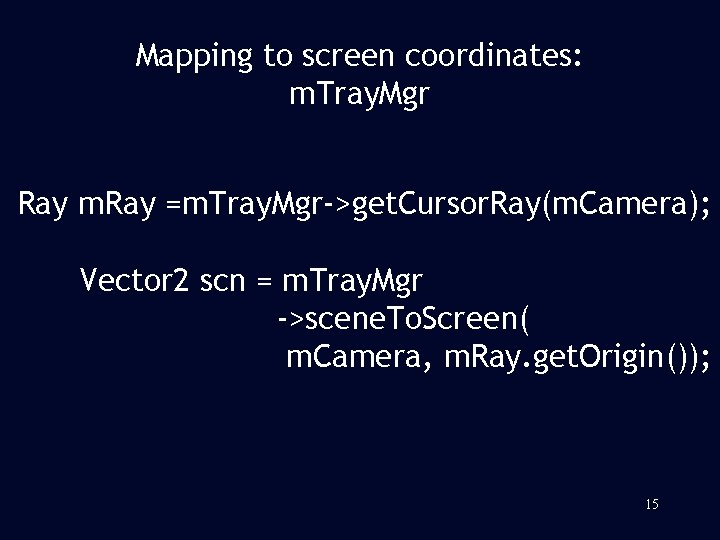
Mapping to screen coordinates: m. Tray. Mgr Ray m. Ray =m. Tray. Mgr->get. Cursor. Ray(m. Camera); Vector 2 scn = m. Tray. Mgr ->scene. To. Screen( m. Camera, m. Ray. get. Origin()); 15
References: http: //www. ogre 3 d. org/wiki/index. php/Intermediate_Tutorial_3 Note: The selection volume is not correct in the original code. Last visit 1 st April, 2008 16