
Officer Secure Area OSA Dashboard by CDR Inna
Officer Secure Area (OSA) Dashboard by CDR Inna Voinich, Pharm. D, BCPS, Pharm. PAC Readiness Subcommittee
Objectives • What is Officer Secure Area (OSA) Dashboard • How to access and navigate OSA Dashboard • Readiness related items to verify and update via Dashboard

What is OSA Dashboard? • Single platform to deal with all documents related to our officership for readiness, deployments, career, promotions, et. al • In the past: multiple applications to deal with • Now: everything Commission Corps related can be done through a single friendly and easy to operate application
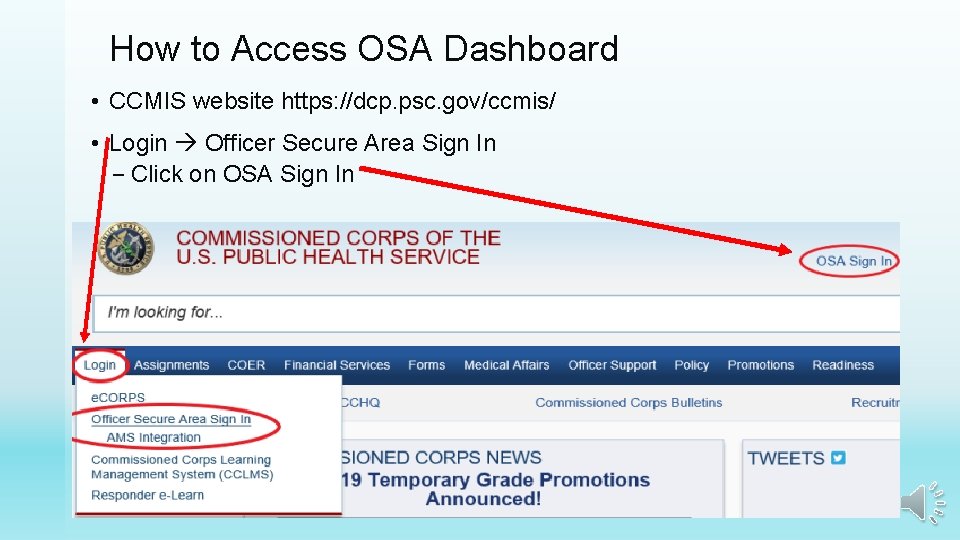
How to Access OSA Dashboard • CCMIS website https: //dcp. psc. gov/ccmis/ • Login Officer Secure Area Sign In – Click on OSA Sign In
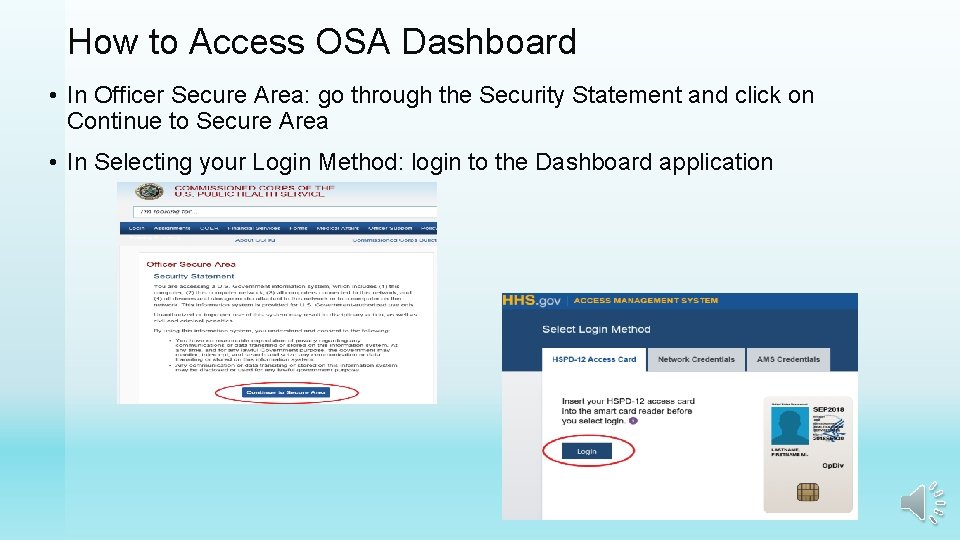
How to Access OSA Dashboard • In Officer Secure Area: go through the Security Statement and click on Continue to Secure Area • In Selecting your Login Method: login to the Dashboard application

D ashboard Menu • On the menu, click on All to expand items below – – COER e. CMCS Messaging Center Positions and Billets Red. DOG-Self. Service • Click on e. OPF to expand items below – Access your Official Personnel Folder (OPF) – e. DOC-U (Document Upload) – OPF Access granted by Officer • CC Headquarters information and Officer Resources are below

OSA Dashboard Important Items License and Certification Details New Messages and New Surveys Promotion Details with Up-to-Date Promotion Consideration Projected Readiness On Call Status for Deployments with the Last and Next On Call Dates Retirement Eligibility Dates Periodic Health Update (PHU) Details

OSA Dashboard Important Items More details of your readiness are on the lower part of the same screen
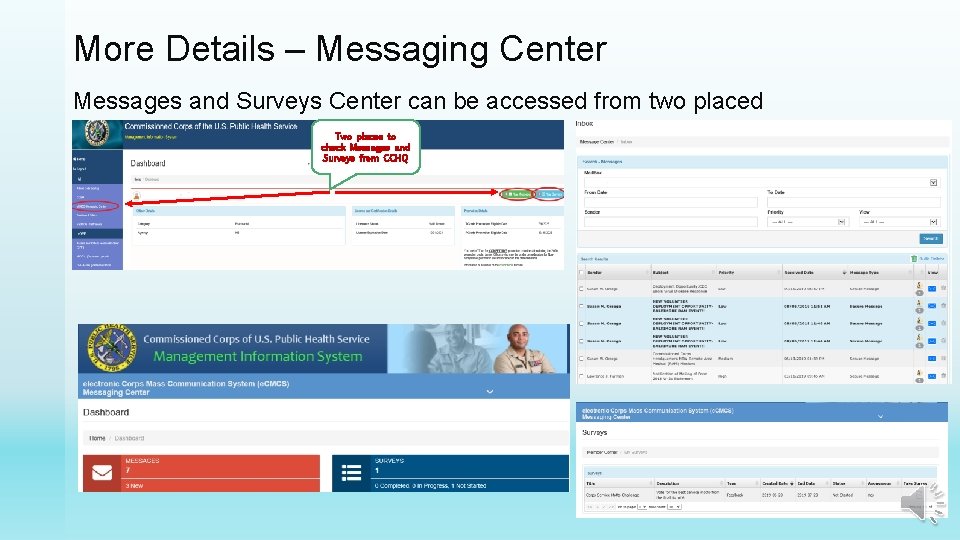
More Details – Messaging Center Messages and Surveys Center can be accessed from two placed Two places to check Messages and Surveys from CCHQ
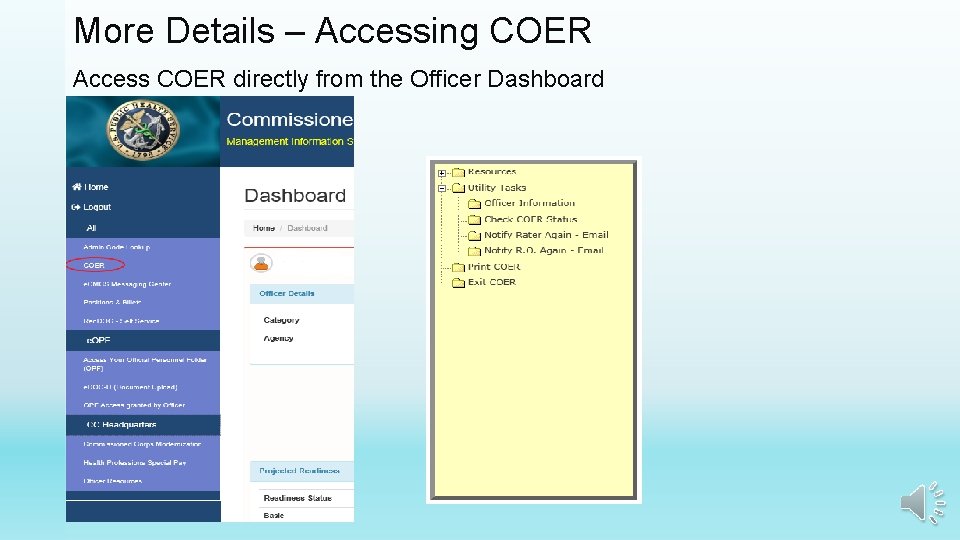
More Details – Accessing COER Access COER directly from the Officer Dashboard

More Details – Positions & Billets Access Billets and Positions directly from the Officer Dashboard
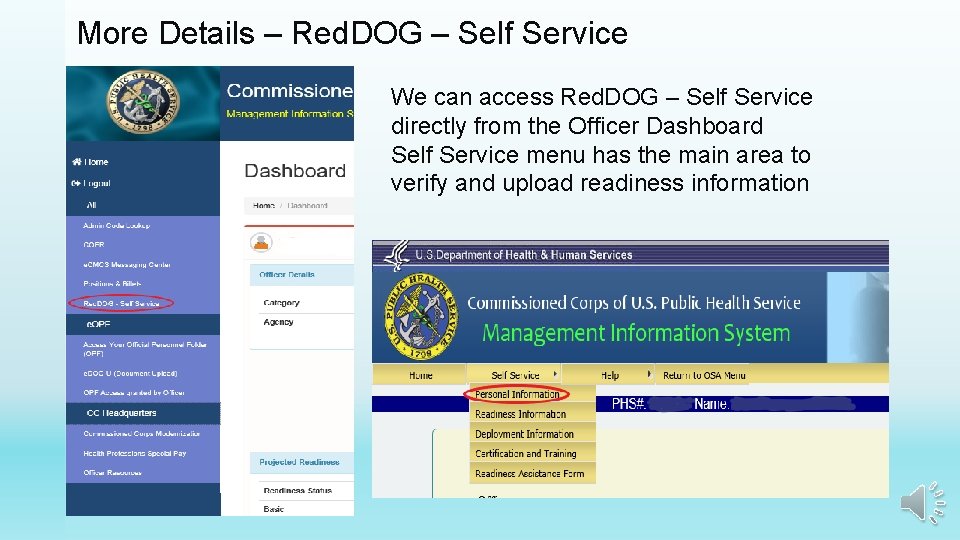
More Details – Red. DOG – Self Service We can access Red. DOG – Self Service directly from the Officer Dashboard Self Service menu has the main area to verify and upload readiness information
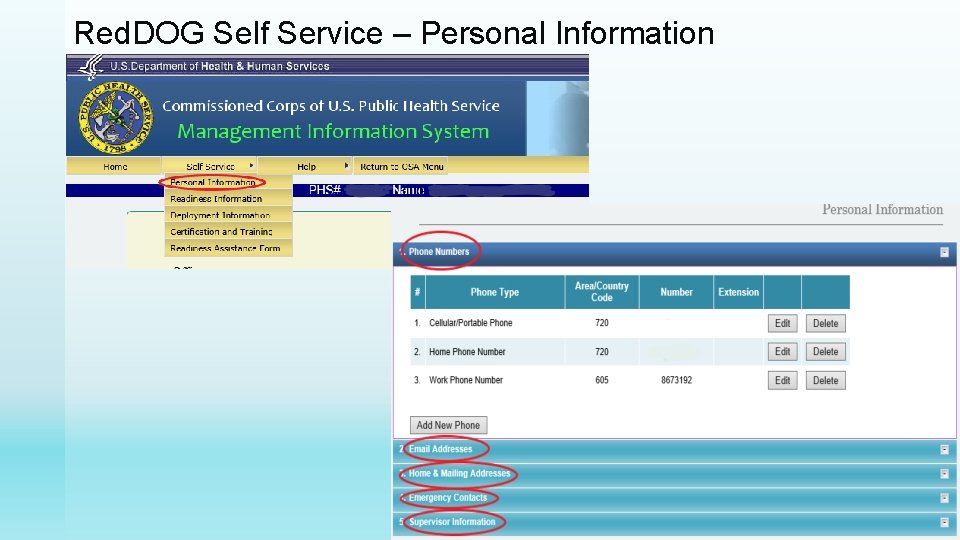
Red. DOG Self Service – Personal Information
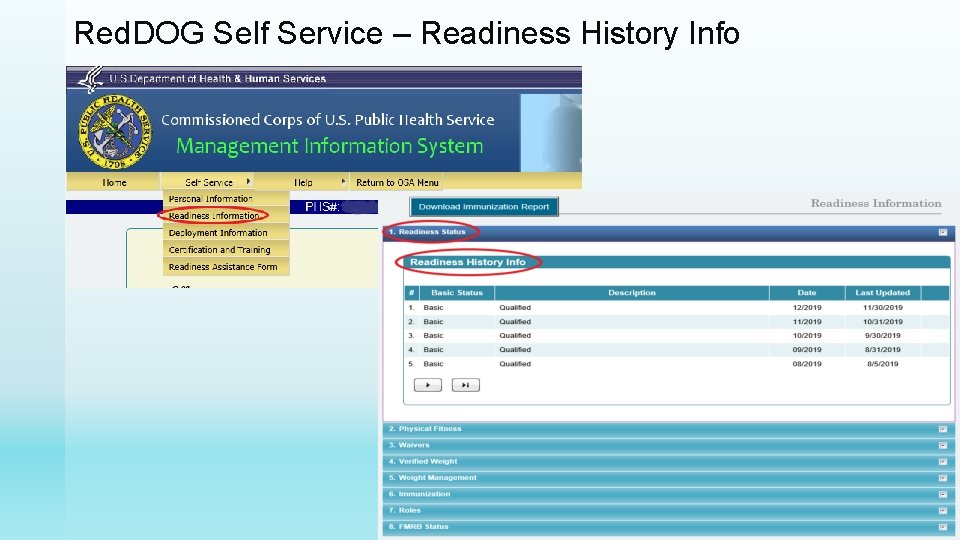
Red. DOG Self Service – Readiness History Info
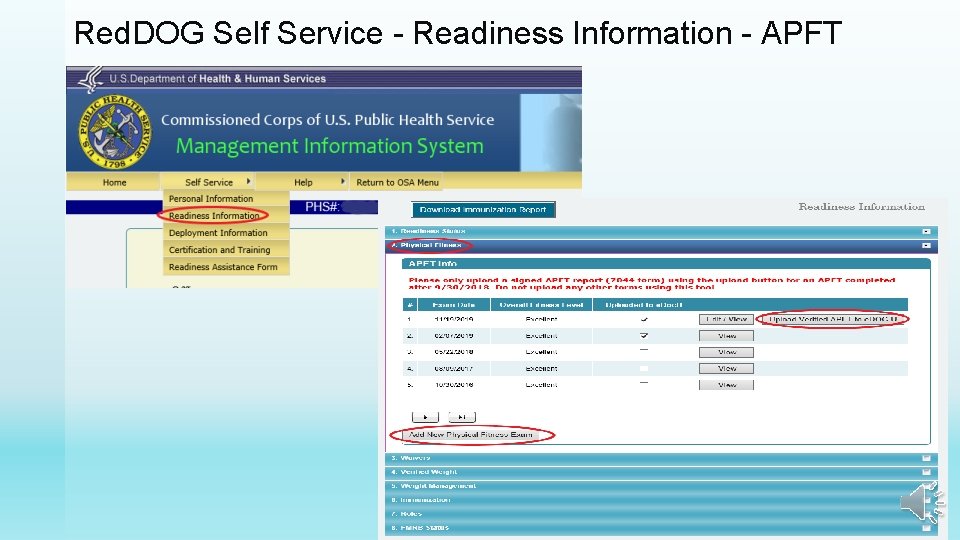
Red. DOG Self Service - Readiness Information - APFT
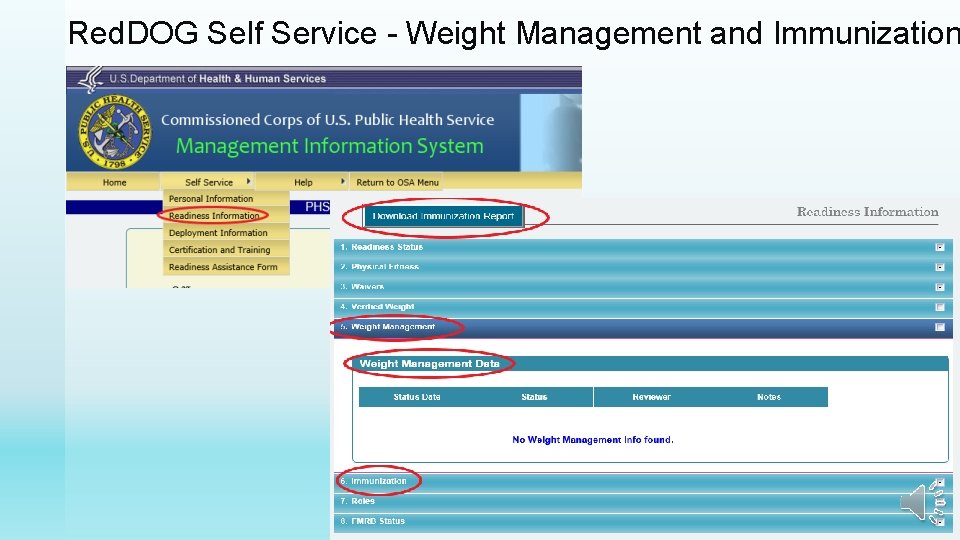
Red. DOG Self Service - Weight Management and Immunization
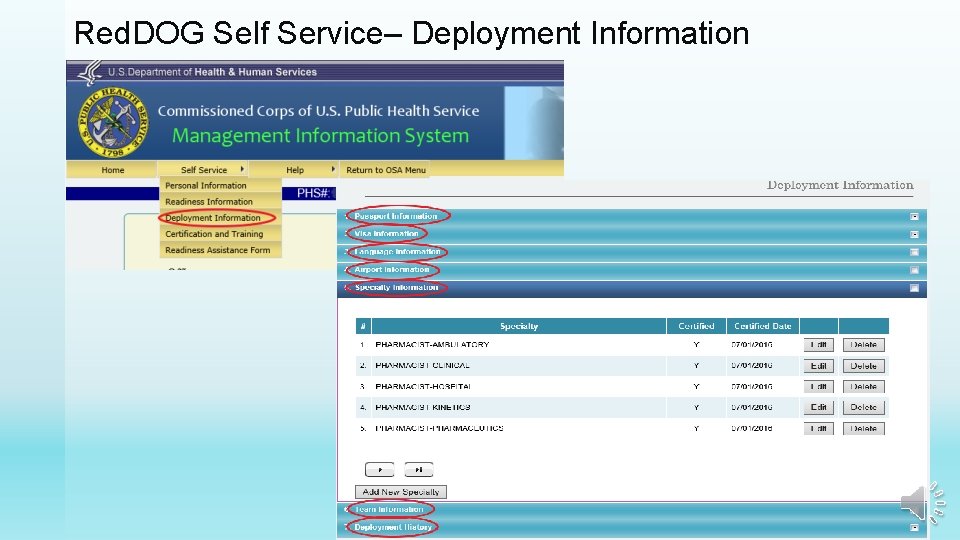
Red. DOG Self Service– Deployment Information
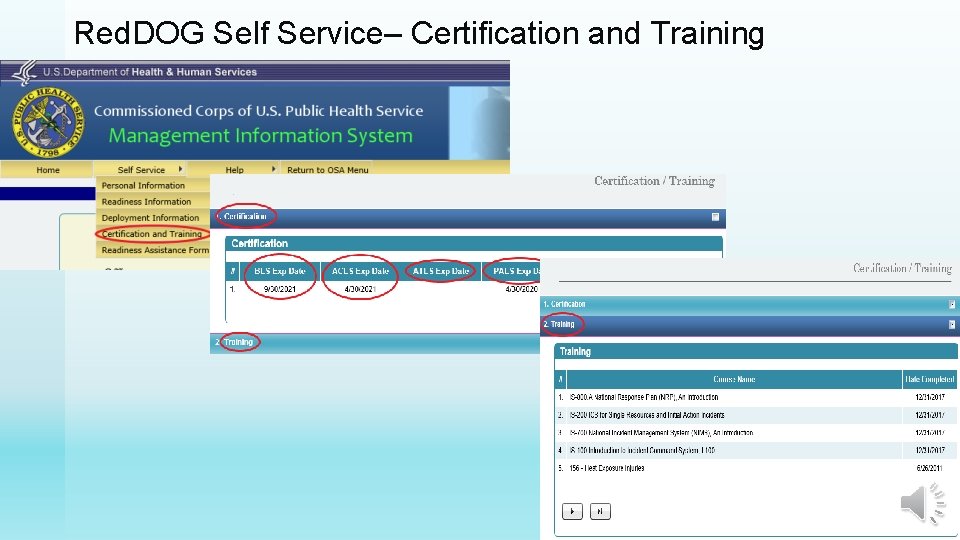
Red. DOG Self Service– Certification and Training
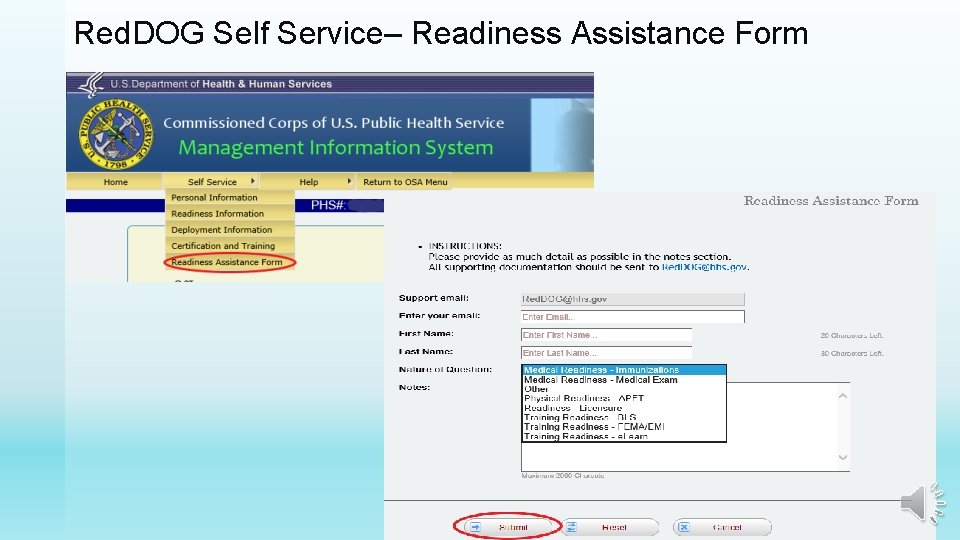
Red. DOG Self Service– Readiness Assistance Form
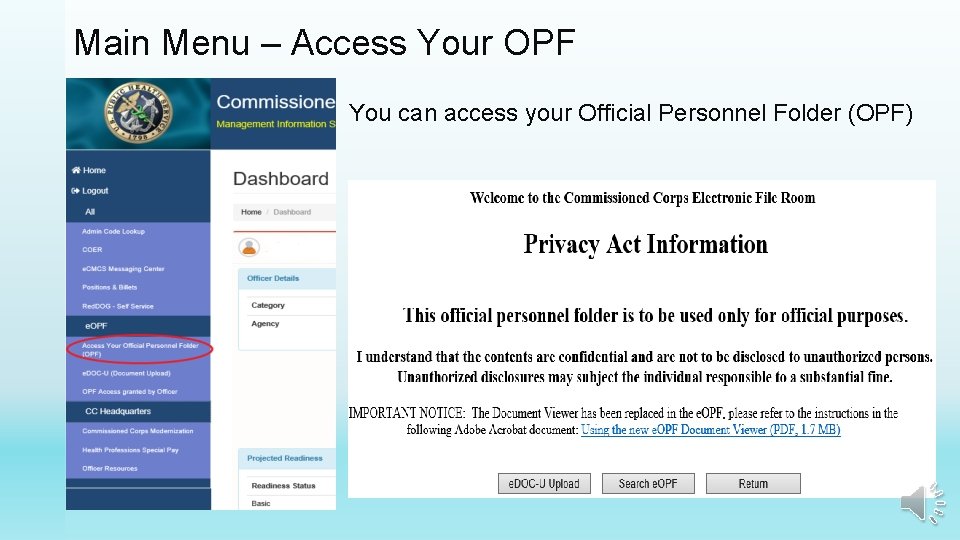
Main Menu – Access Your OPF You can access your Official Personnel Folder (OPF)
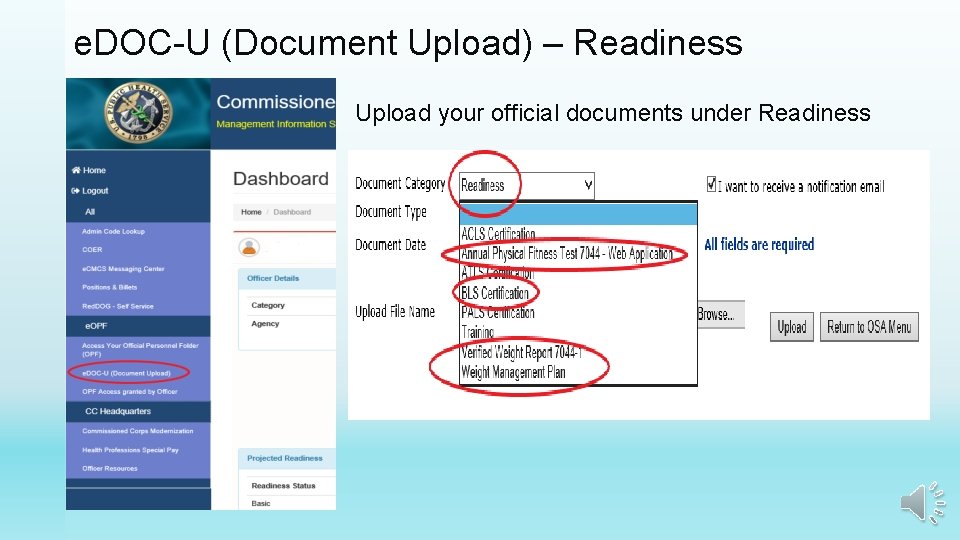
e. DOC-U (Document Upload) – Readiness Upload your official documents under Readiness
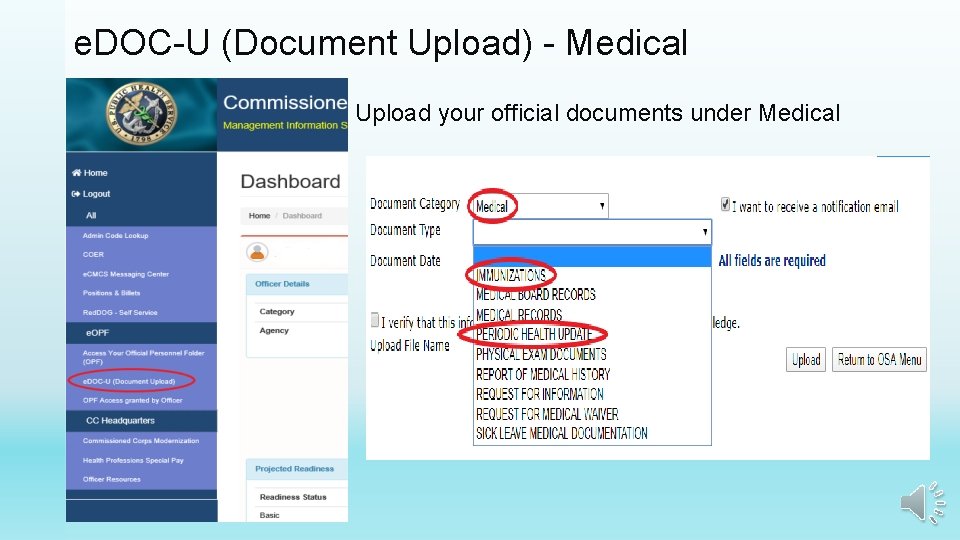
e. DOC-U (Document Upload) - Medical Upload your official documents under Medical
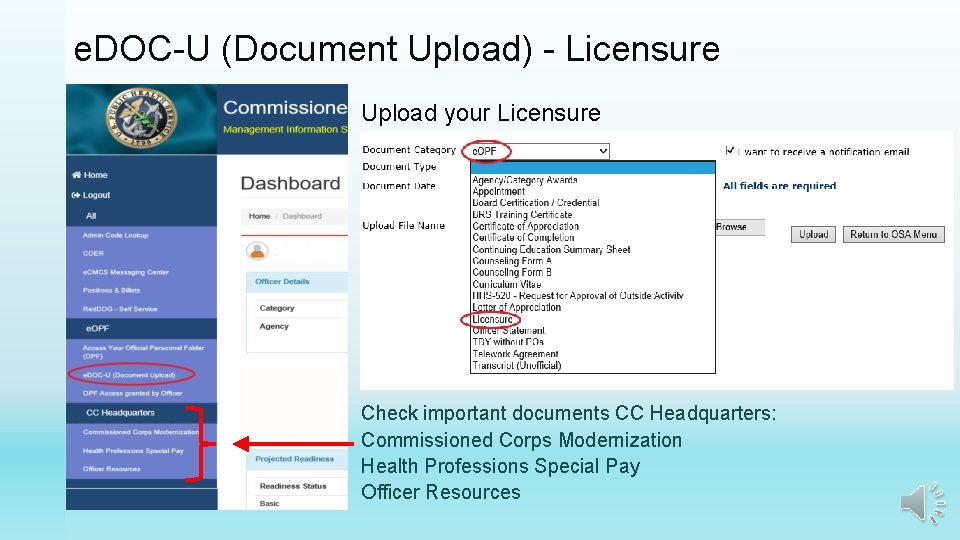
e. DOC-U (Document Upload) - Licensure Upload your Licensure Check important documents CC Headquarters: Commissioned Corps Modernization Health Professions Special Pay Officer Resources
OSA Dashboard is a single platform that will help each officer to maintain basic readiness standards as outlined in recently signed documents – – – Commissioned Corps Instruction 241. 01 “Readiness and Duty Requirements ” Commissioned Corps Instruction 241. 02 “Deployment of Corps Officers” Personnel Operations Memorandum 821. 75 “Readiness Compliance” Personnel Operations Memorandum 821. 76 “Deployment Procedures” Commissioned Corps Directive 121. 02 “Deployment and Readiness”
Contacts if Questions • CCHelp. Desk@hhs. gov – for system issues while in the OSA, email to Commissioned Corps Help Desk • Red. DOG@hhs. gov or Readiness Assistance Form on Self-Service – for non-medical data and Self-Service application issues • Weight. Standards@hhs. gov – for Weight Standards Program questions • MACCHQ@hhs. gov – for Medical information • PHSLicensure@hhs. gov – for Licensure questions • AMSHelp@hhs. gov – If issues accessing OSA
Contacts if Questions • CCHelp. Desk@hhs. gov – for system issues while in the OSA, email to Commissioned Corps Help Desk • Red. DOG@hhs. gov or Readiness Assistance Form on Self-Service – for non-medical data and Self-Service application issues • Weight. Standards@hhs. gov – for Weight Standards Program questions • MACCHQ@hhs. gov – for Medical information • PHSLicensure@hhs. gov – for Licensure questions • AMSHelp@hhs. gov – If issues accessing OSA
- Slides: 26