
Office Workstation Ergonomics Introduction How to Use this


- Slides: 29
Office Workstation Ergonomics
Introduction How to Use this Presentation This presentation contains base material for use in an instructor-led training setting. You may modify this presentation to satisfy the specific training needs of your organization. On some slides, the display text is supplemented with additional material in the slide notes. This content is licensed for modification and use in a classroom setting. You may not redistribute this material in any form. DISCLAIMER This training material presents very important, pertinent information. It should not be assumed, however, that this program satisfies every legal requirement of every state. Some states require the training be developed and delivered by an individual with specific training and experience. This training is AWARENESS LEVEL and does not authorize any person to perform work or validate their level of competency; it must be supplemented with operation and processspecific assessments and training, as well as management oversight, to assure that all training is understood and followed. Your organization must do an evaluation of all exposures and applicable codes and regulations. In addition, establish proper controls, training, and protective measures to effectively control exposures and assure compliance. This program is neither a determination that the conditions and practices of your organization are safe, nor a warranty that reliance upon this program will prevent accidents and losses or satisfy local, state, or federal regulations.
Introduction Course Overview Part 1: Your Chair Part 2: Your Keyboard and Mouse Part 3: Your Monitor Part 4: Your Environment Summary DISCLAIMER This training material presents very important, pertinent information. It should not be assumed, however, that this program satisfies every legal requirement of every state. Some states require the training be developed and delivered by an individual with specific training and experience. This training is AWARENESS LEVEL and does not authorize any person to perform work or validate their level of competency; it must be supplemented with operation and processspecific assessments and training, as well as management oversight, to assure that all training is understood and followed. Your organization must do an evaluation of all exposures and applicable codes and regulations. In addition, establish proper controls, training, and protective measures to effectively control exposures and assure compliance. This program is neither a determination that the conditions and practices of your organization are safe, nor a warranty that reliance upon this program will prevent accidents and losses or satisfy local, state, or federal regulations.
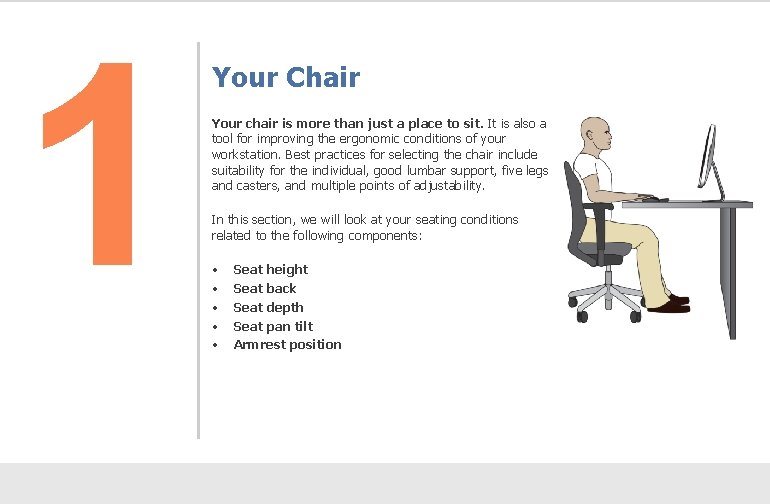
1 Your Chair Your chair is more than just a place to sit. It is also a tool for improving the ergonomic conditions of your workstation. Best practices for selecting the chair include suitability for the individual, good lumbar support, five legs and casters, and multiple points of adjustability. In this section, we will look at your seating conditions related to the following components: • • • Seat height Seat back Seat depth Seat pan tilt Armrest position
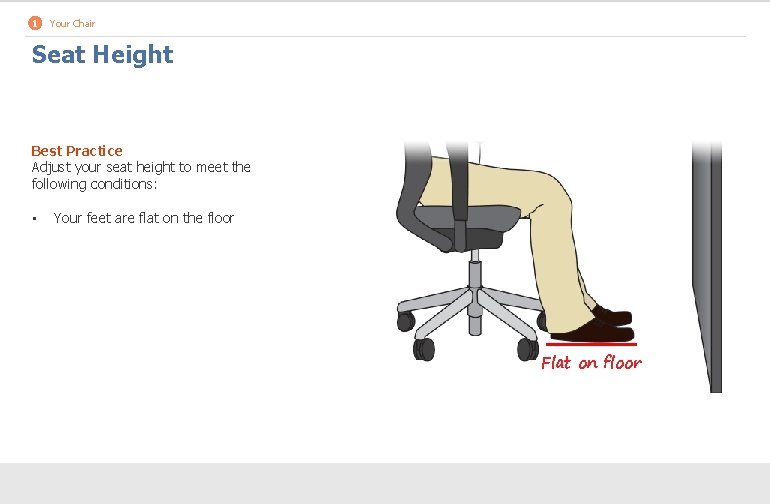
1 Your Chair Seat Height Best Practice Adjust your seat height to meet the following conditions: • Your feet are flat on the floor Flat on floor
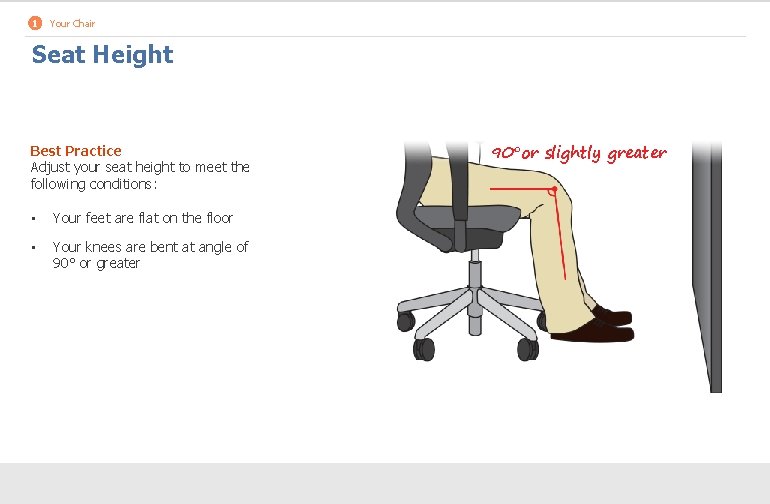
1 Your Chair Seat Height Best Practice Adjust your seat height to meet the following conditions: • Your feet are flat on the floor • Your knees are bent at angle of 90° or greater 90°or slightly greater
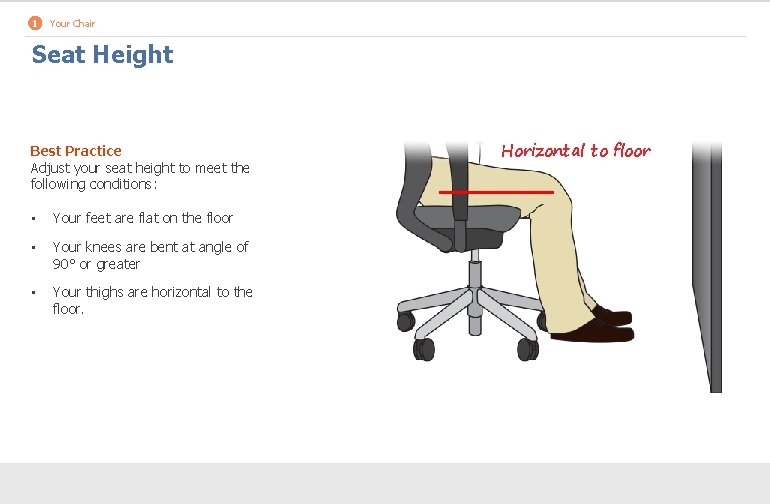
1 Your Chair Seat Height Best Practice Adjust your seat height to meet the following conditions: • Your feet are flat on the floor • Your knees are bent at angle of 90° or greater • Your thighs are horizontal to the floor. Horizontal to floor
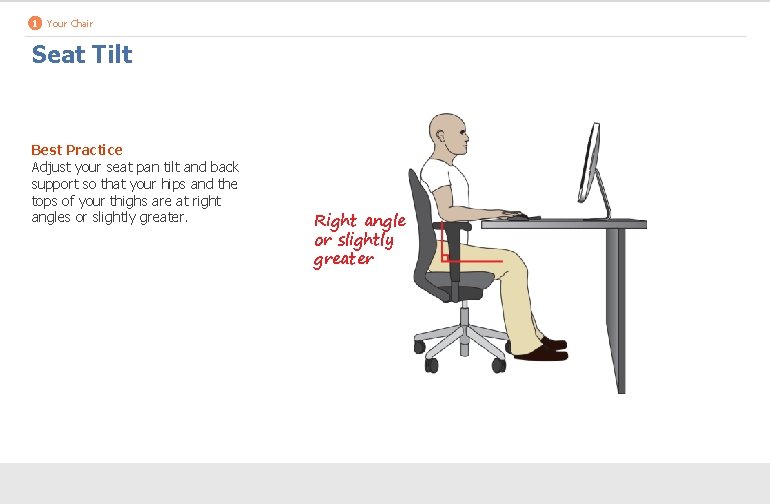
1 Your Chair Seat Tilt Best Practice Adjust your seat pan tilt and back support so that your hips and the tops of your thighs are at right angles or slightly greater. Right angle or slightly greater
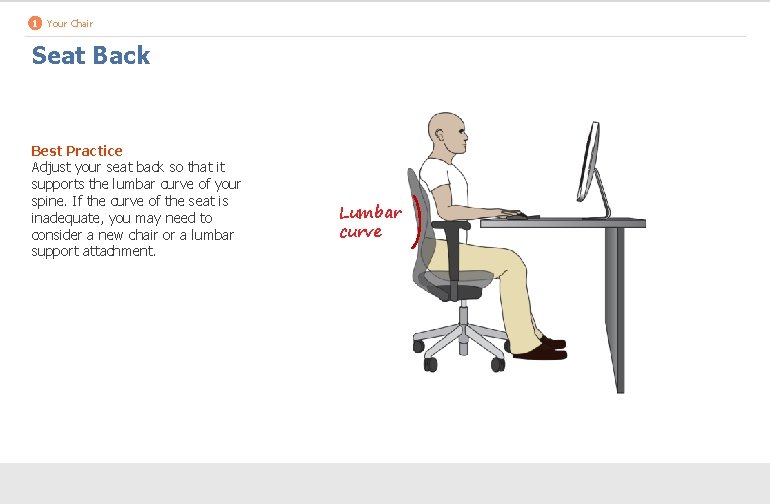
1 Your Chair Seat Back Best Practice Adjust your seat back so that it supports the lumbar curve of your spine. If the curve of the seat is inadequate, you may need to consider a new chair or a lumbar support attachment. Recommendation Lumbar curve
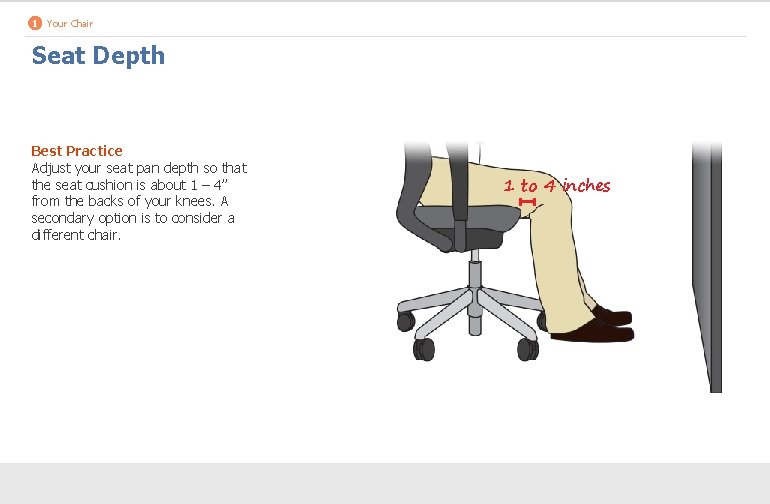
1 Your Chair Seat Depth Best Practice Adjust your seat pan depth so that the seat cushion is about 1 – 4” from the backs of your knees. A secondary option is to consider a different chair. 1 to 4 inches
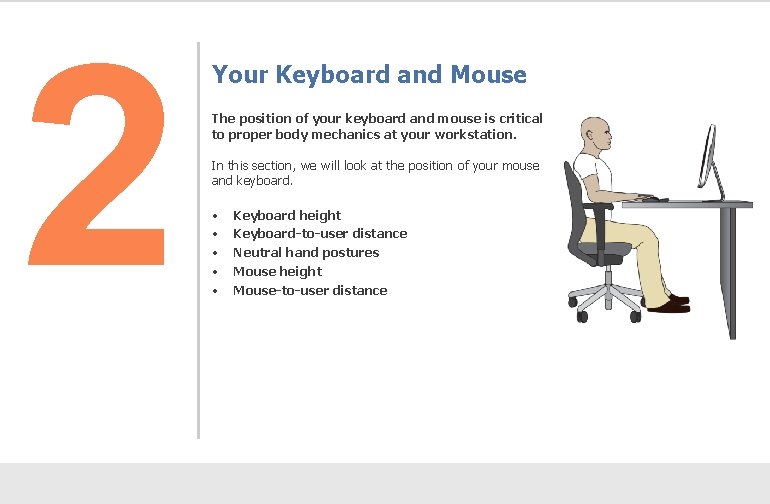
2 Your Keyboard and Mouse The position of your keyboard and mouse is critical to proper body mechanics at your workstation. In this section, we will look at the position of your mouse and keyboard. • • • Keyboard height Keyboard-to-user distance Neutral hand postures Mouse height Mouse-to-user distance
2 Your Keyboard and Mouse Height Best Practice Adjust keyboard height so that both your arms and forearms are at right angles or slightly greater (90° – 105°) and both your forearms and hands form straight lines. 90°to 105°
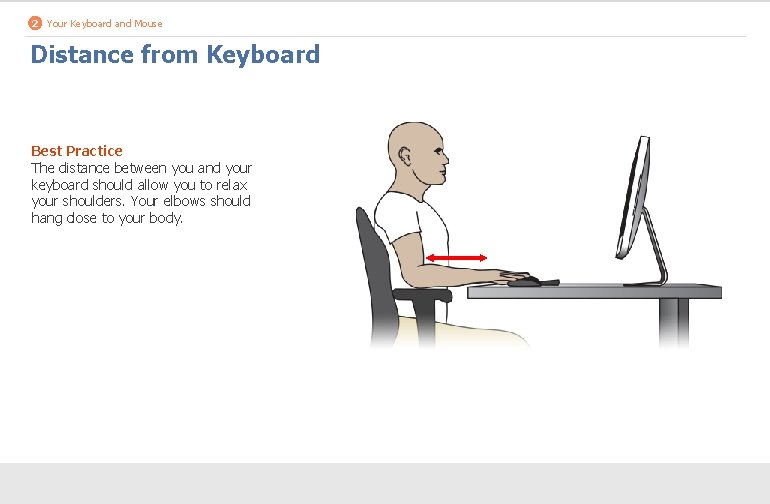
2 Your Keyboard and Mouse Distance from Keyboard Best Practice The distance between you and your keyboard should allow you to relax your shoulders. Your elbows should hang close to your body.
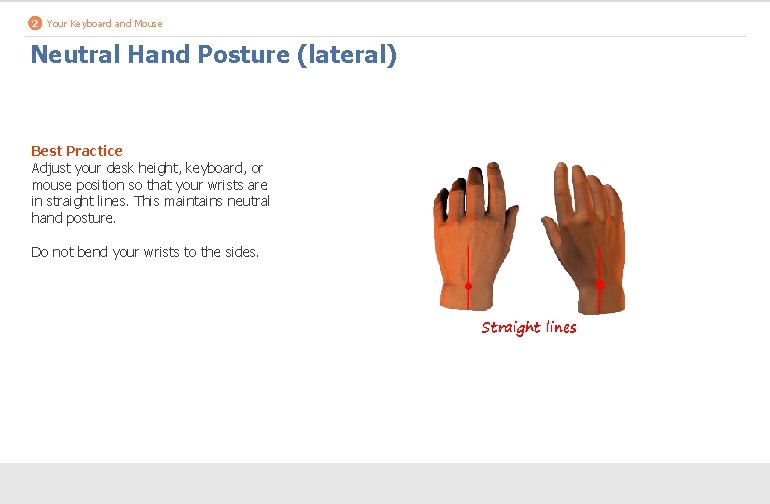
2 Your Keyboard and Mouse Neutral Hand Posture (lateral) Best Practice Adjust your desk height, keyboard, or mouse position so that your wrists are in straight lines. This maintains neutral hand posture. Do not bend your wrists to the sides. Straight lines
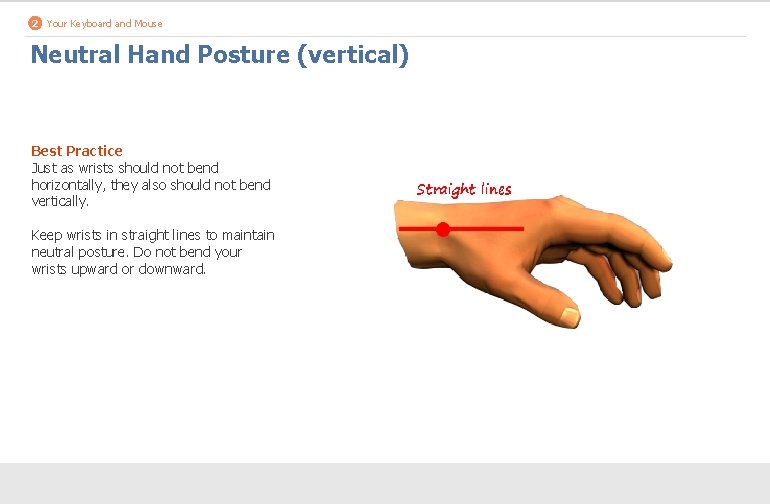
2 Your Keyboard and Mouse Neutral Hand Posture (vertical) Best Practice Just as wrists should not bend horizontally, they also should not bend vertically. Keep wrists in straight lines to maintain neutral posture. Do not bend your wrists upward or downward. Straight lines
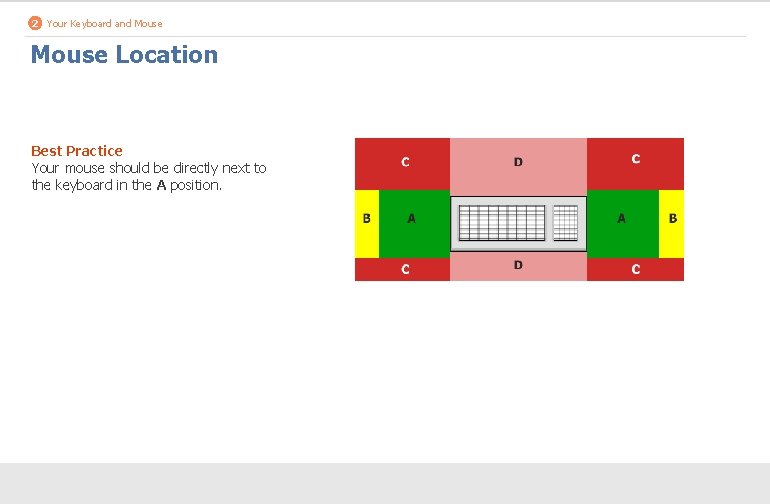
2 Your Keyboard and Mouse Location Best Practice Your mouse should be directly next to the keyboard in the A position.
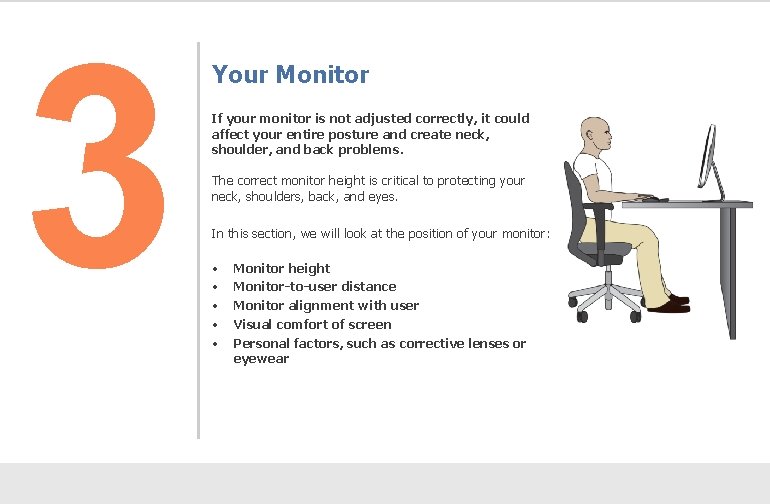
3 Your Monitor If your monitor is not adjusted correctly, it could affect your entire posture and create neck, shoulder, and back problems. The correct monitor height is critical to protecting your neck, shoulders, back, and eyes. In this section, we will look at the position of your monitor: • • • Monitor height Monitor-to-user distance Monitor alignment with user Visual comfort of screen Personal factors, such as corrective lenses or eyewear
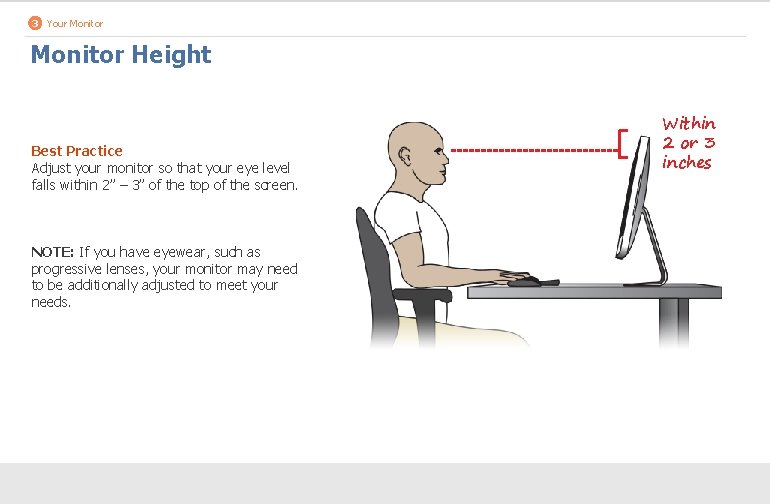
3 Your Monitor Height Best Practice Adjust your monitor so that your eye level falls within 2” – 3” of the top of the screen. NOTE: If you have eyewear, such as progressive lenses, your monitor may need to be additionally adjusted to meet your needs. Within 2 or 3 inches
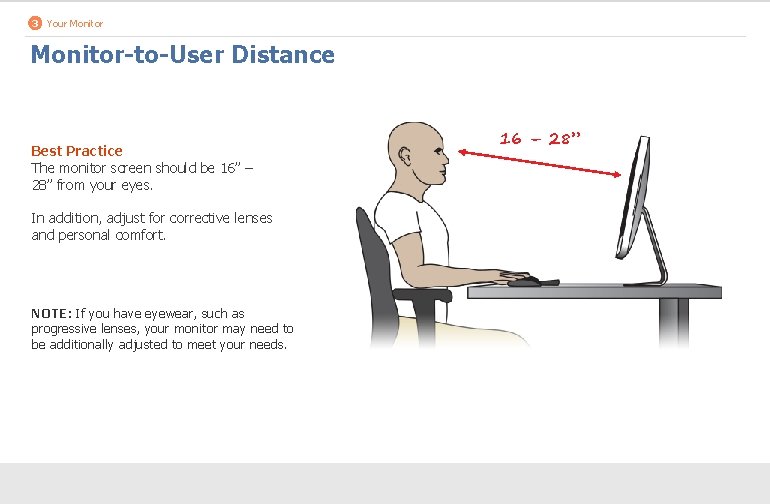
3 Your Monitor-to-User Distance Best Practice The monitor screen should be 16” – 28” from your eyes. In addition, adjust for corrective lenses and personal comfort. NOTE: If you have eyewear, such as progressive lenses, your monitor may need to be additionally adjusted to meet your needs. 16 – 28”
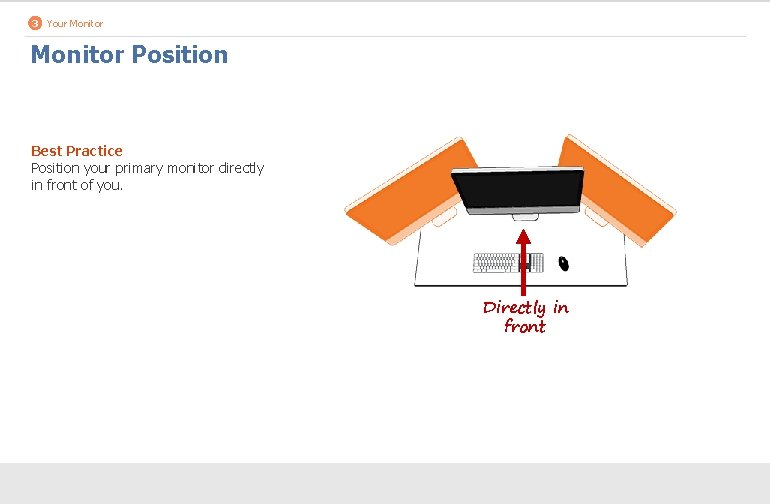
3 Your Monitor Position Best Practice Position your primary monitor directly in front of you. Directly in front
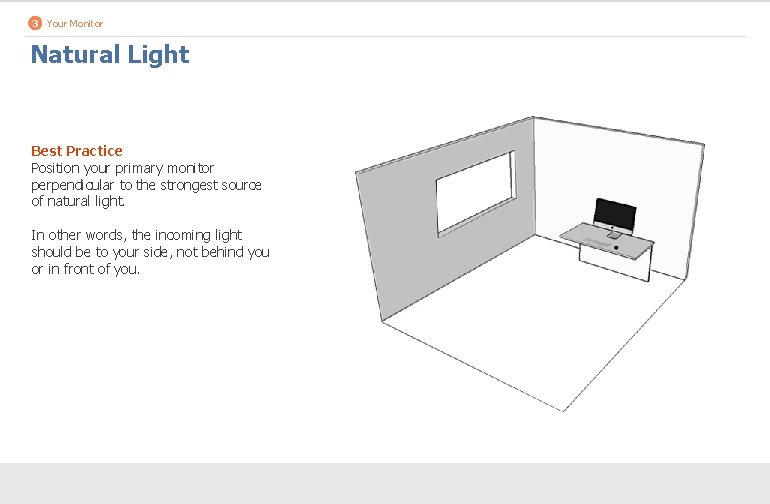
3 Your Monitor Natural Light Best Practice Position your primary monitor perpendicular to the strongest source of natural light. In other words, the incoming light should be to your side, not behind you or in front of you.
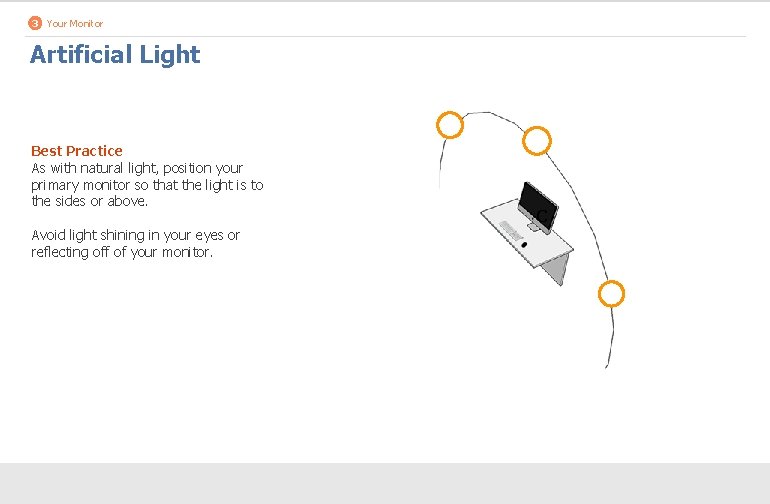
3 Your Monitor Artificial Light Best Practice As with natural light, position your primary monitor so that the light is to the sides or above. Avoid light shining in your eyes or reflecting off of your monitor. C
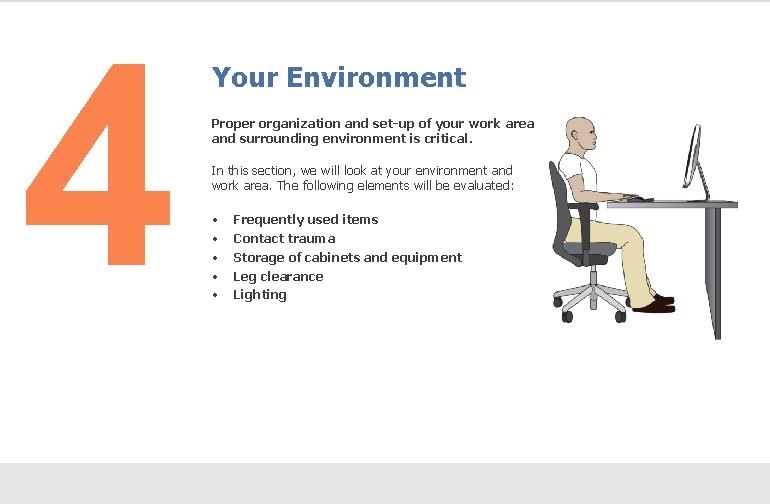
4 Your Environment Proper organization and set-up of your work area and surrounding environment is critical. In this section, we will look at your environment and work area. The following elements will be evaluated: • • • Frequently used items Contact trauma Storage of cabinets and equipment Leg clearance Lighting
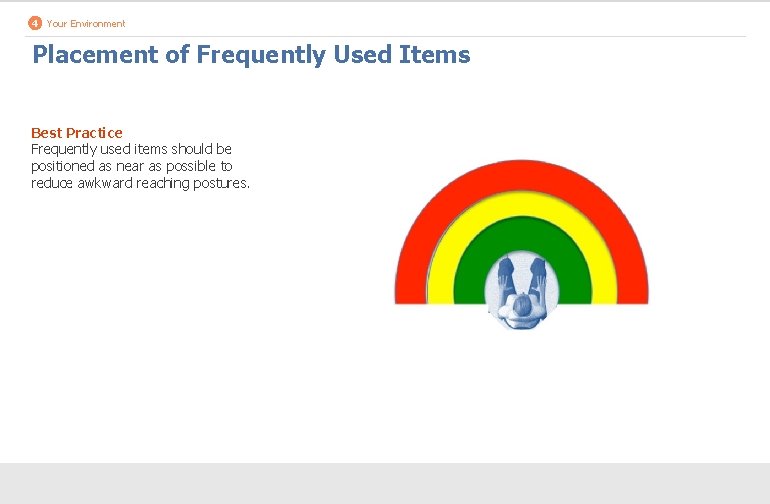
4 Your Environment Placement of Frequently Used Items Best Practice Frequently used items should be positioned as near as possible to reduce awkward reaching postures.
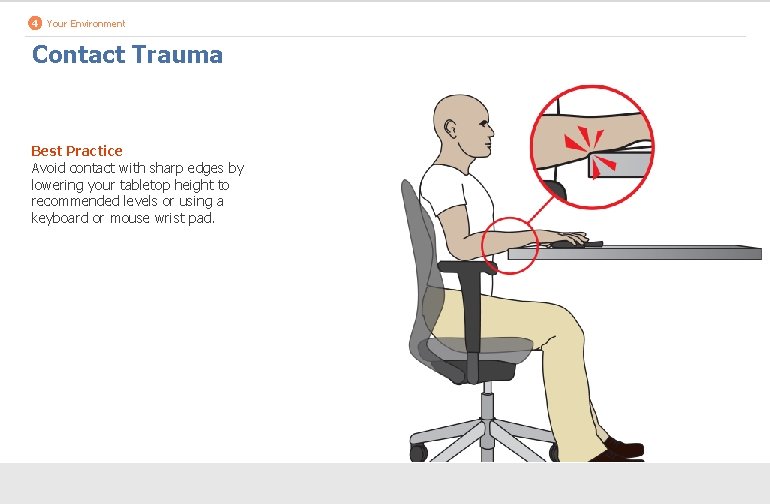
4 Your Environment Contact Trauma Best Practice Avoid contact with sharp edges by lowering your tabletop height to recommended levels or using a keyboard or mouse wrist pad.
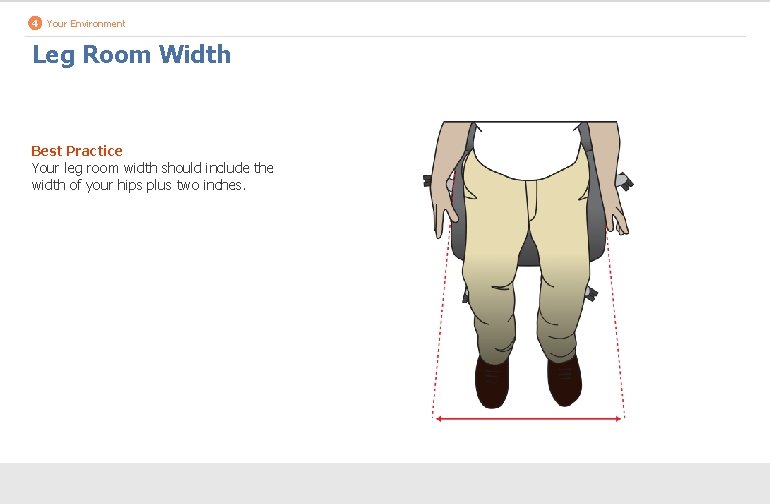
4 Your Environment Leg Room Width Best Practice Your leg room width should include the width of your hips plus two inches.
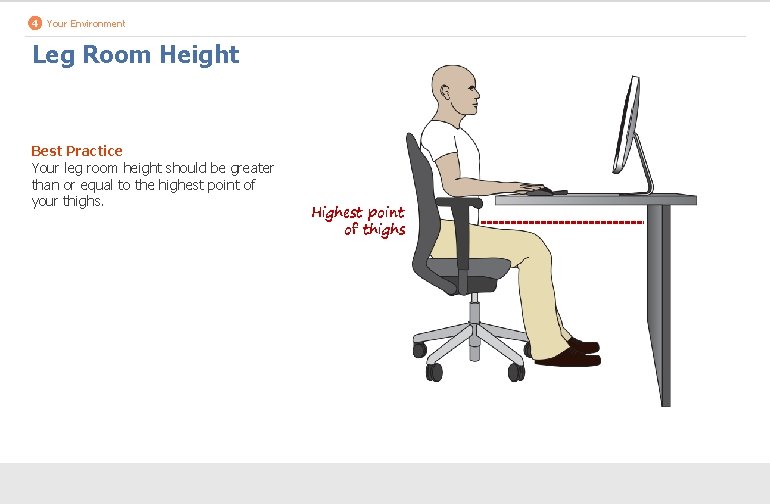
4 Your Environment Leg Room Height Best Practice Your leg room height should be greater than or equal to the highest point of your thighs. Highest point of thighs
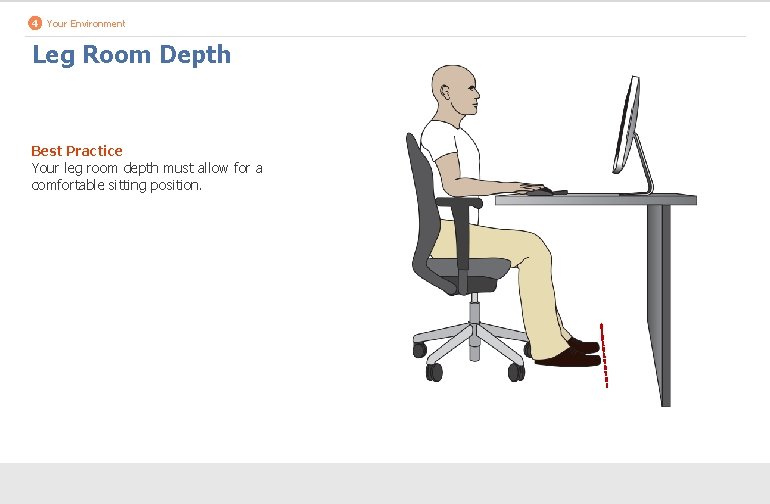
4 Your Environment Leg Room Depth Best Practice Your leg room depth must allow for a comfortable sitting position.
Summary Ergonomics impact your long-term health, and minor problems can become major over time. Your work space should be comfortable, allowing you to maintain a neutral position most of the time. Recommendations: • Talk to your supervisor about making the changes you need. • Take care of your health in general to improve your posture at work and to reduce the risk of injury. • Make sure that you are not staying in the same position for too long. Move around throughout the day.