
Office Productivity Tools 2 Laboratory Exercise 6 Adding

Office Productivity Tools 2 Laboratory Exercise # 6 Adding Multimedia and Hyperlinks Objectives: At the end of the exercise, the students are expected to be able to: v Add audio and video in a presentation. v Insert file or Internet hyperlinks. v Add Action buttons in a presentation. Materials: • 3 ½ floppy disk Note: All exercises should be saved in your data disk and must be submitted to your instructor after every laboratory session. Files to be used: • Activity 8 xxx. ppt • Get Ready. wav • Mouse. mpeg • powerpoint. jpeg • Sample. pps Basic Information: There a lot of other Power. Point features you can use in delivering your presentation. Some of which are: multimedia, hyperlinks, and action buttons. Multimedia Audio and video are multimedia you can insert in a presentation to add attraction in a presentation. Some users add audio and video because it is needed, like in a presentation wherein you are launching a new audio or say, an advertisement. Sound Files are music or sounds inserted in a slide to give a more dramatic effect in your presentation. Sample sound files, such as applause, laser sounds, drum rolling, etc. are provided by Power. Point. Other sound files can come from your computer, Internet, or from the Microsoft Clip Organizer. If there will be times that you can not add the music, you may just however, record the sound. A sound inserted in a presentation is represented by a sound icon which will confirm you that the sound was added. You can set your sound playing all throughout the slide show or simply play when clicked. It is suggested to use files of less than 5 MB so that your presentation can play smoothly. Usually, files are linked to your file rather than embedded. Movie files are movies or animations added to slides used to entertain, support, or demonstrate a topic being presented. You can set the movie to play automatically when you start your presentation or set it manually and click on it when it’s time to show the movie file. Types of video files or movies supported by Power. Point are: • • • Quicktime (OT, MOV) Quicktime VR (QTVR) MPEG (mpg, mpeg), and Video for Windows (AVI) In contrast, the types of sound or music files supported are: • Audio Interchange File Format (AIF, AIFC) • Apple Quick. Time Movie Sound (MOV, MOOV) • Apple System sound (SFIL) • Apple System Resource Sound (RSRC, rsrc) • CCITT A-Law (European Telephony) Audio Format (ALAW) Laboratory Exercise 6 – Adding Multimedia and Hyperlinks

Office Productivity Tools 2 • • CCITT U-Law (US Telephony) Audio Format (AU, SND, ULAW) Microsoft Windows Waveform (WAVE, WAV) MPEG Layer 3 Audio (MP 3) Musical Instrument Digital Interface (MIDI, MID, KAR) Hyperlinks in Power. Point can also mean literally, a hyperlink in an Internet. In this manner, you must be connected in an Internet when linking in an URL. Not only URLs are can be linked but also documents, slides, other presentation, movie, sound, etc. This can be linked and not embedded when these files are too big to insert in a presentation. Given that, the files must also in the same computer you are using. Even files in a CD can be linked from a presentation, of course, given that the CD is inserted. When you mouse over a hyperlink, you will notice that the mouse cursor becomes a hand, indicating that you can click that particular text or object. Action Buttons Action buttons also serves as a hyperlink which it links you to the identified slide or brings you to another location. These buttons can also be link to documents, slides, other presentation, movie, sound, and also even to a URL. These action buttons are mostly used when creating a presentation that looks like more of a web page but are commonly understood symbols used to move to the first slide, next, previous, or last slide. Activity #9 Adding Multimedia and Hyperlinks 1. 2. 3. 4. 5. 6. Open the file Activity 8 xxx. ppt. On your first slide, access the Insert menu > Movies and Sound > Sound from File. The Insert dialog box appears. From this dialog box, locate the Get Ready. wav file. (Ask you instructor where to locate the file. ) Select the file and click OK. Power. Point will ask you on how would you like your sound to start in the presentation, either, automatically or when clicked. Choose the second option: When clicked. The sound icon must be visible in the slide for you to click and play, so place it on the lower right corner of the slide. If you can notice, the sound icon is small. Well, this can be resized into your desired size. Simply hold and drag the handles to your desired size. There a lot of formatting you can do to the physical attributes of this icon, such as, to put a shadow, a line, fill color, etc. Simply click the icon, access the Format menu and choose Picture. Modify the line and fill color to your desired format. To apply shadow, to make it look like a button, select the icon and click the Shadow Style button from the Drawing toolbar and choose from the available shadow for the selected object. 7. Right-click the sound icon to view other available properties to modify. Object option. The Sound Options dialog box appears. Choose the Edit Sound The Option dialog box allows you to modify play and display option of the inserted sound. Moreover, this dialog box also allows you to view the complete directory where the said file is located and also the total playing time. Clicking the sound icon from the dialog box allows you to modify the volume. The loop until stopped and hide sound icon during slide show options are commonly used when choosing to play the sound automatically. Click Cancel button. Laboratory Exercise 6 – Adding Multimedia and Hyperlinks
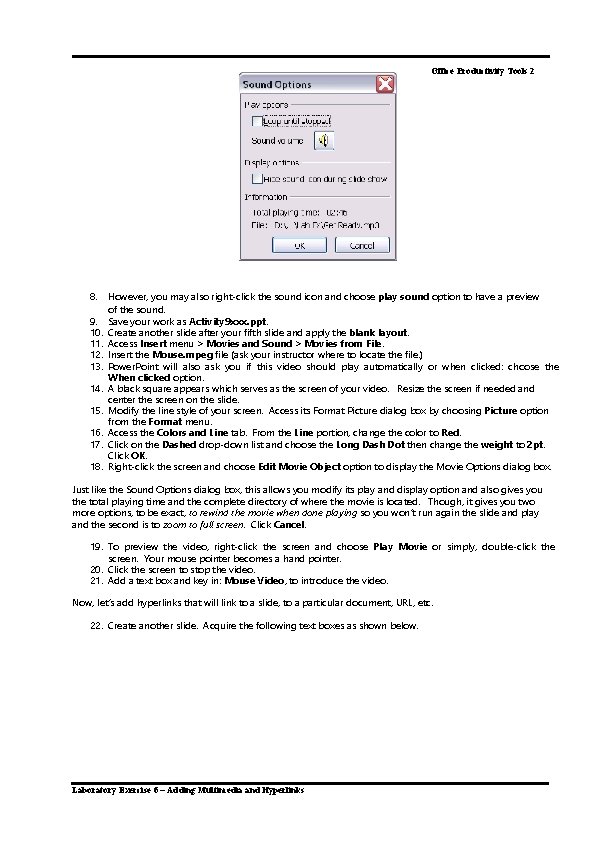
Office Productivity Tools 2 8. 9. 10. 11. 12. 13. 14. 15. 16. 17. 18. However, you may also right-click the sound icon and choose play sound option to have a preview of the sound. Save your work as Activity 9 xxx. ppt. Create another slide after your fifth slide and apply the blank layout. Access Insert menu > Movies and Sound > Movies from File. Insert the Mouse. mpeg file (ask your instructor where to locate the file. ) Power. Point will also ask you if this video should play automatically or when clicked: choose the When clicked option. A black square appears which serves as the screen of your video. Resize the screen if needed and center the screen on the slide. Modify the line style of your screen. Access its Format Picture dialog box by choosing Picture option from the Format menu. Access the Colors and Line tab. From the Line portion, change the color to Red. Click on the Dashed drop-down list and choose the Long Dash Dot then change the weight to 2 pt. Click OK. Right-click the screen and choose Edit Movie Object option to display the Movie Options dialog box. Just like the Sound Options dialog box, this allows you modify its play and display option and also gives you the total playing time and the complete directory of where the movie is located. Though, it gives you two more options, to be exact, to rewind the movie when done playing so you won’t run again the slide and play and the second is to zoom to full screen. Click Cancel. 19. To preview the video, right-click the screen and choose Play Movie or simply, double-click the screen. Your mouse pointer becomes a hand pointer. 20. Click the screen to stop the video. 21. Add a text box and key in: Mouse Video, to introduce the video. Now, let’s add hyperlinks that will link to a slide, to a particular document, URL, etc. 22. Create another slide. Acquire the following text boxes as shown below. Laboratory Exercise 6 – Adding Multimedia and Hyperlinks
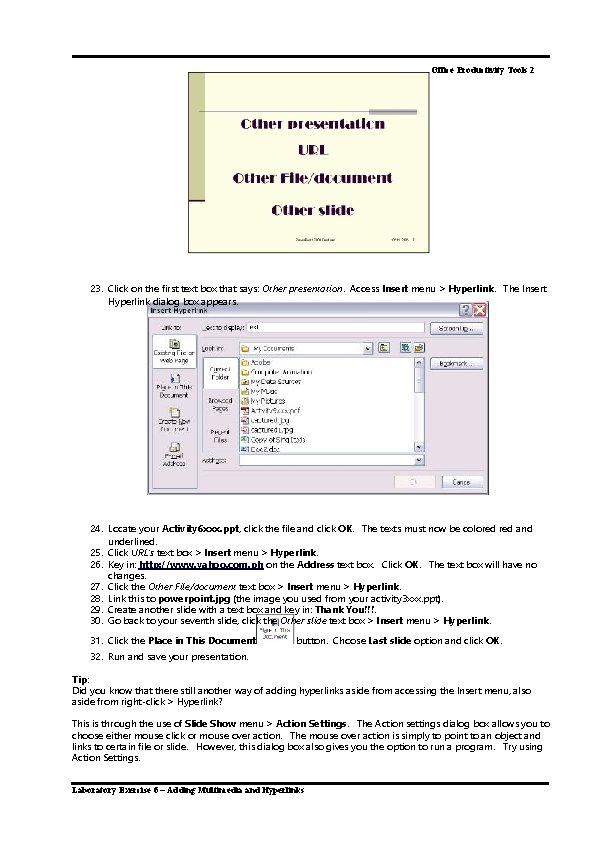
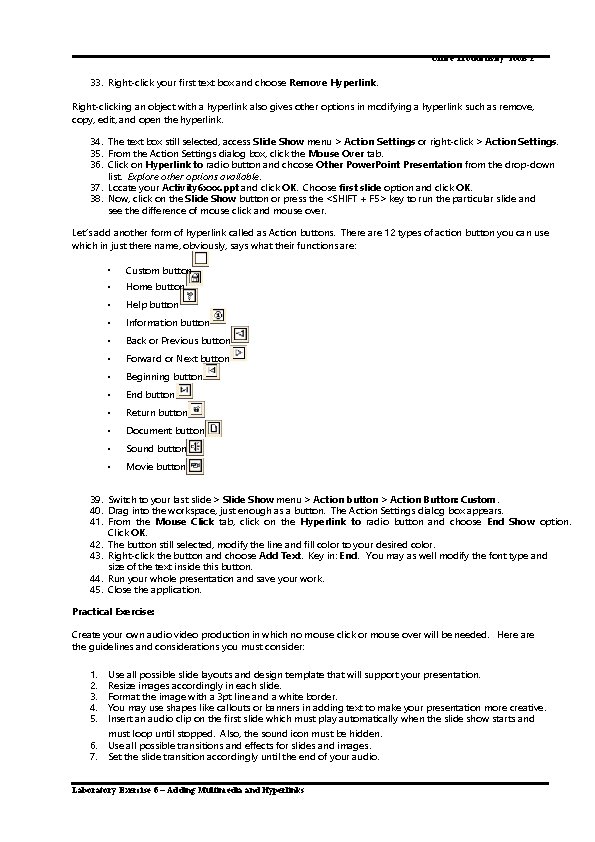
Office Productivity Tools 2 23. Click on the first text box that says: Other presentation. Access Insert menu > Hyperlink. The Insert Hyperlink dialog box appears. 24. Locate your Activity 6 xxx. ppt, click the file and click OK. The texts must now be colored and underlined. 25. Click URL’s text box > Insert menu > Hyperlink. 26. Key in: http: //www. yahoo. com. ph on the Address text box. Click OK. The text box will have no changes. 27. Click the Other File/document text box > Insert menu > Hyperlink. 28. Link this to powerpoint. jpg (the image you used from your activity 3 xxx. ppt). 29. Create another slide with a text box and key in: Thank You!!!. 30. Go back to your seventh slide, click the Other slide text box > Insert menu > Hyperlink. 31. Click the Place in This Document button. Choose Last slide option and click OK. 32. Run and save your presentation. Tip: Did you know that there still another way of adding hyperlinks aside from accessing the Insert menu, also aside from right-click > Hyperlink? This is through the use of Slide Show menu > Action Settings. The Action settings dialog box allows you to choose either mouse click or mouse over action. The mouse over action is simply to point to an object and links to certain file or slide. However, this dialog box also gives you the option to run a program. Try using Action Settings. Laboratory Exercise 6 – Adding Multimedia and Hyperlinks
Office Productivity Tools 2 33. Right-click your first text box and choose Remove Hyperlink. Right-clicking an object with a hyperlink also gives other options in modifying a hyperlink such as remove, copy, edit, and open the hyperlink. 34. The text box still selected, access Slide Show menu > Action Settings or right-click > Action Settings. 35. From the Action Settings dialog box, click the Mouse Over tab. 36. Click on Hyperlink to radio button and choose Other Power. Point Presentation from the drop-down list. Explore other options available. 37. Locate your Activity 6 xxx. ppt and click OK. Choose first slide option and click OK. 38. Now, click on the Slide Show button or press the <SHIFT + F 5> key to run the particular slide and see the difference of mouse click and mouse over. Let’s add another form of hyperlink called as Action buttons. There are 12 types of action button you can use which in just there name, obviously, says what their functions are: • Custom button • Home button • Help button • Information button • Back or Previous button • Forward or Next button • Beginning button • End button • Return button • Document button • Sound button • Movie button 39. Switch to your last slide > Slide Show menu > Action button > Action Button: Custom. 40. Drag into the workspace, just enough as a button. The Action Settings dialog box appears. 41. From the Mouse Click tab, click on the Hyperlink to radio button and choose End Show option. Click OK. 42. The button still selected, modify the line and fill color to your desired color. 43. Right-click the button and choose Add Text. Key in: End. You may as well modify the font type and size of the text inside this button. 44. Run your whole presentation and save your work. 45. Close the application. Practical Exercise: Create your own audio video production in which no mouse click or mouse over will be needed. Here are the guidelines and considerations you must consider: 1. 2. 3. 4. 5. 6. 7. Use all possible slide layouts and design template that will support your presentation. Resize images accordingly in each slide. Format the image with a 3 pt line and a white border. You may use shapes like callouts or banners in adding text to make your presentation more creative. Insert an audio clip on the first slide which must play automatically when the slide show starts and must loop until stopped. Also, the sound icon must be hidden. Use all possible transitions and effects for slides and images. Set the slide transition accordingly until the end of your audio. Laboratory Exercise 6 – Adding Multimedia and Hyperlinks
Office Productivity Tools 2 8. 9. No mouse click or mouse over will be applied. Name your presentation as Practical. XXX. ppt. See sample output for your reference. The picture/images and sound clip you will use should not have any malicious content. (Ask your instructor on where to locate the sample. pps for your reference. ) Note: For the next exercise, research about the features of Power. Point included in this presentation. Say that you will be reporting this presentation. Jot down notes or ideas that you must not forget when presenting or what you will be saying in every slides. You must bring these notes on your next laboratory. No notes or research brought on the next laboratory, will have no exercise. *Microsoft Office Power. Point 2003 Help Laboratory Exercise 6 – Adding Multimedia and Hyperlinks
- Slides: 6