
Office Productivity Tools 1 Laboratory Exercise 5 Formatting
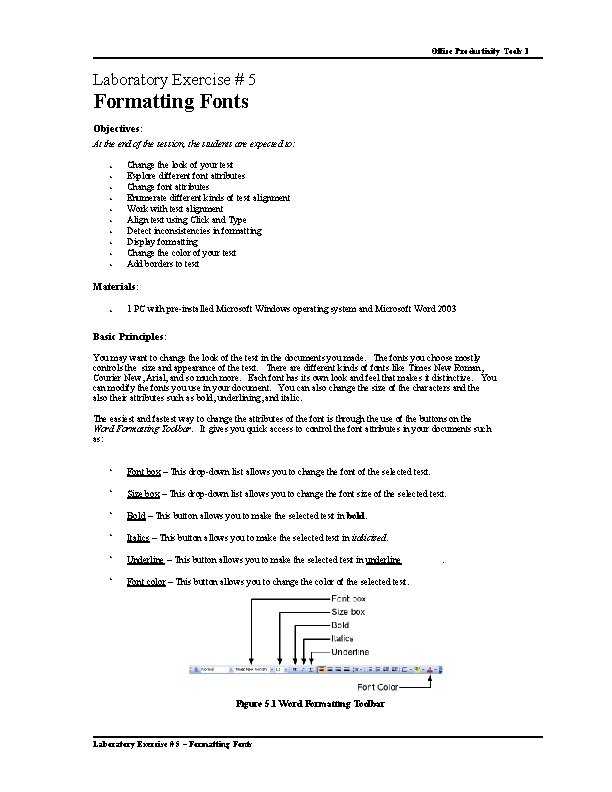
Office Productivity Tools 1 Laboratory Exercise # 5 Formatting Fonts Objectives: At the end of the session, the students are expected to: • • • Change the look of your text Explore different font attributes Change font attributes Enumerate different kinds of text alignment Work with text alignment Align text using Click and Type Detect inconsistencies in formatting Display formatting Change the color of your text Add borders to text Materials: • 1 PC with pre-installed Microsoft Windows operating system and Microsoft Word 2003 Basic Principles: You may want to change the look of the text in the documents you made. The fonts you choose mostly controls the size and appearance of the text. There are different kinds of fonts like Times New Roman, Courier New, Arial, and so much more. Each font has its own look and feel that makes it distinctive. You can modify the fonts you use in your document. You can also change the size of the characters and the also their attributes such as bold, underlining, and italic. The easiest and fastest way to change the attributes of the font is through the use of the buttons on the Word Formatting Toolbar. It gives you quick access to control the font attributes in your documents such as: • Font box – This drop-down list allows you to change the font of the selected text. • Size box – This drop-down list allows you to change the font size of the selected text. • Bold – This button allows you to make the selected text in bold. • Italics – This button allows you to make the selected text in italicized. • Underline – This button allows you to make the selected text in underline • Font color – This button allows you to change the color of the selected text. Figure 5. 1 Word Formatting Toolbar Laboratory Exercise # 5 – Formatting Fonts .

Office Productivity Tools 1 If there are buttons that are not found in the Word formatting toolbar, you can add it by clicking Toolbar Options Add or Remove Buttons Formatting. From the drop-down list displayed, select the buttons that you want to add in the Formatting toolbar. Right-click any of the toolbars and select Formatting on the menu that appears if you Formatting toolbar is not displayed. Figure 5. 2 Formatting Toolbar You might find it easier to control the font’s attributes through the use of the keyboard. Some of the keyboard shortcuts formatting font attributes are: Table 5. 1 Font Attribute Shortcut Keys Laboratory Exercise # 5 – Formatting Fonts
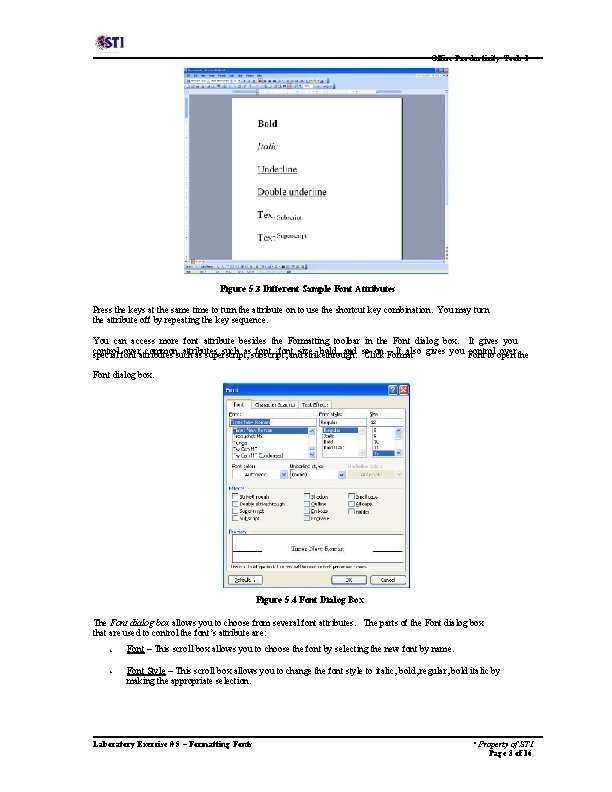
Office Productivity Tools 1 Figure 5. 3 Different Sample Font Attributes Press the keys at the same time to turn the attribute on to use the shortcut key combination. You may turn the attribute off by repeating the key sequence. You can access more font attribute besides the Formatting toolbar in the Font dialog box. It gives you control overattributes commonsuch attributes such assubscript, fontandsize, bold, and so on. Format It also gives you Font control over the special font as superscript, strikethrough. Click to open Font dialog box. Figure 5. 4 Font Dialog Box The Font dialog box allows you to choose from several font attributes. The parts of the Font dialog box that are used to control the font’s attribute are: • Font – This scroll box allows you to choose the font by selecting the new font by name. • Font Style – This scroll box allows you to change the font style to italic, bold, regular, bold italic by making the appropriate selection. Laboratory Exercise # 5 – Formatting Fonts * Property of STI Page 3 of 16
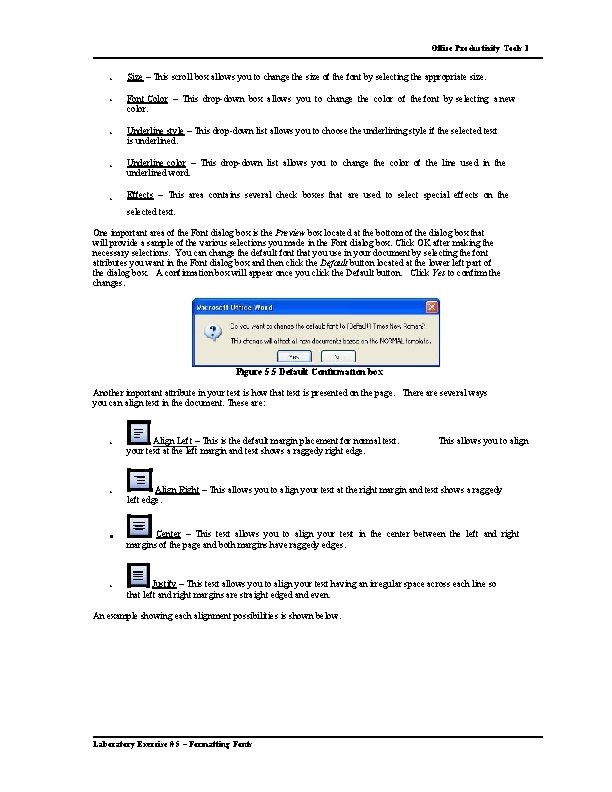
Office Productivity Tools 1 • Size – This scroll box allows you to change the size of the font by selecting the appropriate size. • Font Color – This drop-down box allows you to change the color of the font by selecting a new color. • Underline style – This drop-down list allows you to choose the underlining style if the selected text is underlined. • Underline color – This drop-down list allows you to change the color of the line used in the underlined word. • Effects – This area contains several check boxes that are used to select special effects on the selected text. One important area of the Font dialog box is the Preview box located at the bottom of the dialog box that will provide a sample of the various selections you made in the Font dialog box. Click OK after making the necessary selections. You can change the default font that you use in your document by selecting the font attributes you want in the Font dialog box and then click the Default button located at the lower left part of the dialog box. A confirmation box will appear once you click the Default button. Click Yes to confirm the changes. Figure 5. 5 Default Confirmation box Another important attribute in your text is how that text is presented on the page. There are several ways you can align text in the document. These are: • Align Left – This is the default margin placement for normal text. your text at the left margin and text shows a raggedy right edge. • Align Right – This allows you to align your text at the right margin and text shows a raggedy left edge. • Center – This text allows you to align your text in the center between the left and right margins of the page and both margins have raggedy edges. • Justify – This text allows you to align your text having an irregular space across each line so that left and right margins are straight edged and even. An example showing each alignment possibilities is shown below. Laboratory Exercise # 5 – Formatting Fonts This allows you to align
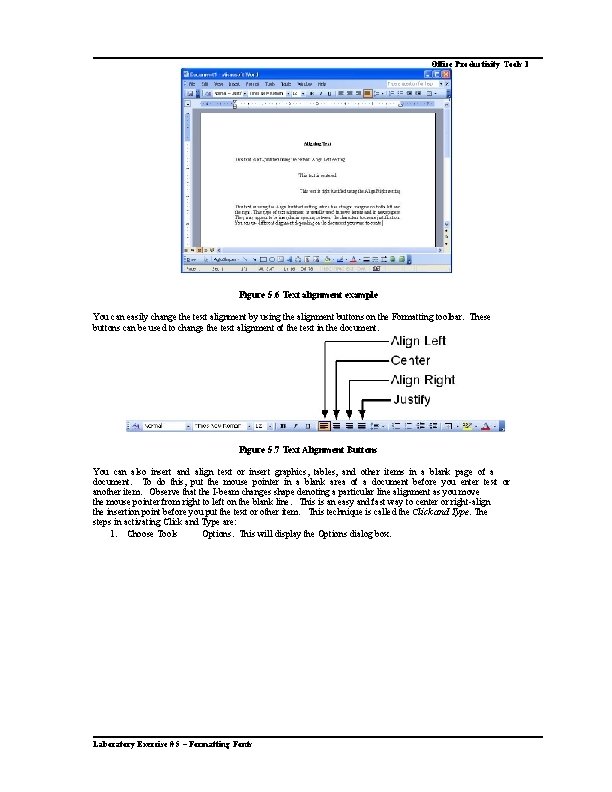
Office Productivity Tools 1 Figure 5. 6 Text alignment example You can easily change the text alignment by using the alignment buttons on the Formatting toolbar. These buttons can be used to change the text alignment of the text in the document. Figure 5. 7 Text Alignment Buttons You can also insert and align text or insert graphics, tables, and other items in a blank page of a document. To do this, put the mouse pointer in a blank area of a document before you enter text or another item. Observe that the I-beam changes shape denoting a particular line alignment as you move the mouse pointer from right to left on the blank line. This is an easy and fast way to center or right-align the insertion point before you put the text or other item. This technique is called the Click and Type. The steps in activating Click and Type are: 1. Choose Tools Options. This will display the Options dialog box. Laboratory Exercise # 5 – Formatting Fonts
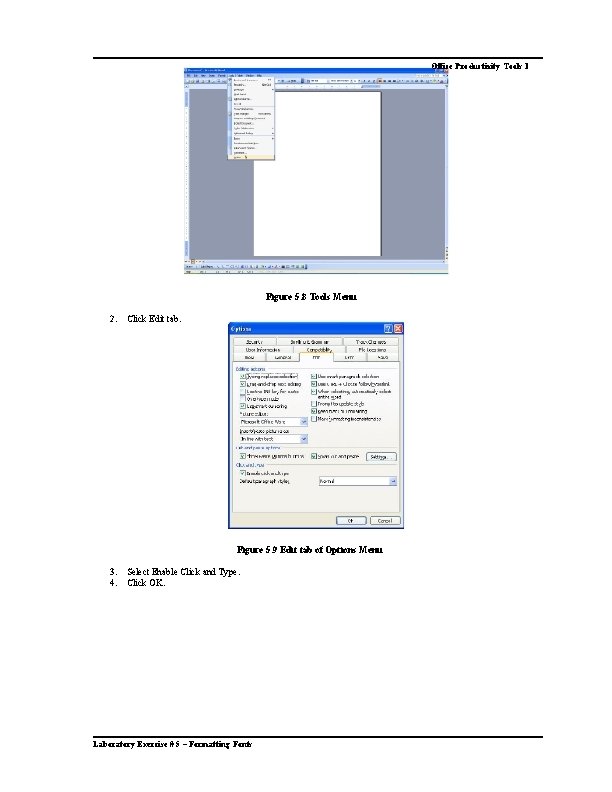
Office Productivity Tools 1 Figure 5. 8 Tools Menu 2. Click Edit tab. Figure 5. 9 Edit tab of Options Menu 3. 4. Select Enable Click and Type. Click OK. Laboratory Exercise # 5 – Formatting Fonts
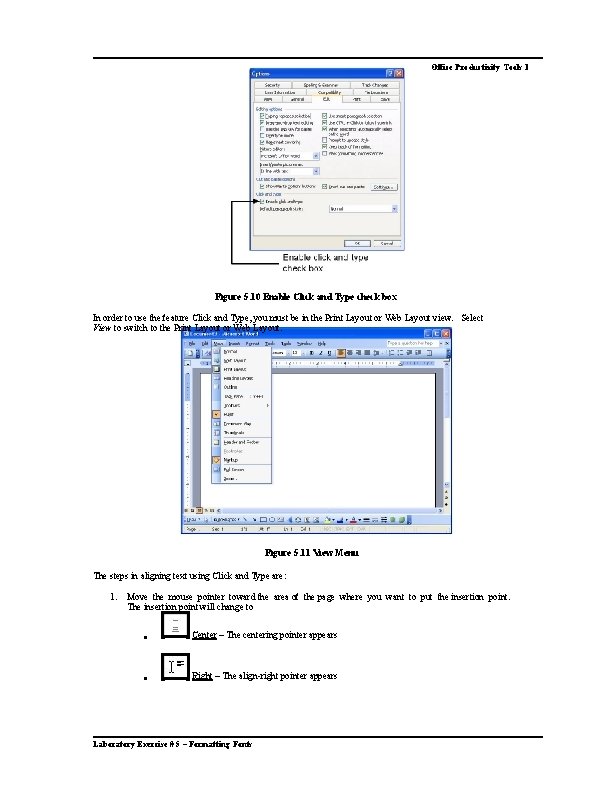
Office Productivity Tools 1 Figure 5. 10 Enable Click and Type check box In order to use the feature Click and Type, you must be in the Print Layout or Web Layout view. Select View to switch to the Print Layout or Web Layout. Figure 5. 11 View Menu The steps in aligning text using Click and Type are: 1. Move the mouse pointer toward the area of the page where you want to put the insertion point. The insertion point will change to • Center – The centering pointer appears • Right – The align-right pointer appears Laboratory Exercise # 5 – Formatting Fonts
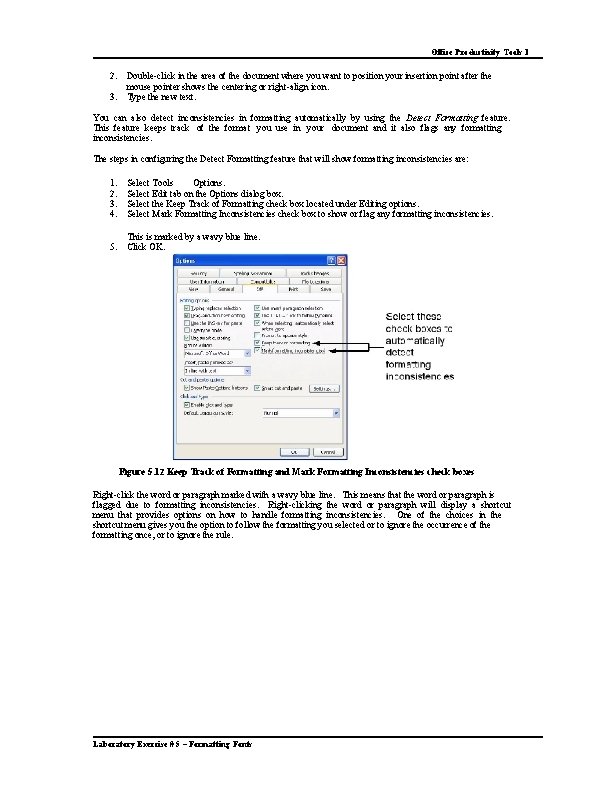
Office Productivity Tools 1 2. 3. Double-click in the area of the document where you want to position your insertion point after the mouse pointer shows the centering or right-align icon. Type the new text. You can also detect inconsistencies in formatting automatically by using the Detect Formatting feature. This feature keeps track of the format you use in your document and it also flags any formatting inconsistencies. The steps in configuring the Detect Formatting feature that will show formatting inconsistencies are: 1. 2. 3. 4. Select Tools Options. Select Edit tab on the Options dialog box. Select the Keep Track of Formatting check box located under Editing options. Select Mark Formatting Inconsistencies check box to show or flag any formatting inconsistencies. 5. This is marked by a wavy blue line. Click OK. Figure 5. 12 Keep Track of Formatting and Mark Formatting Inconsistencies check boxes Right-click the word or paragraph marked with a wavy blue line. This means that the word or paragraph is flagged due to formatting inconsistencies. Right-clicking the word or paragraph will display a shortcut menu that provides options on how to handle formatting inconsistencies. One of the choices in the shortcut menu gives you the option to follow the formatting you selected or to ignore the occurrence of the formatting once, or to ignore the rule. Laboratory Exercise # 5 – Formatting Fonts
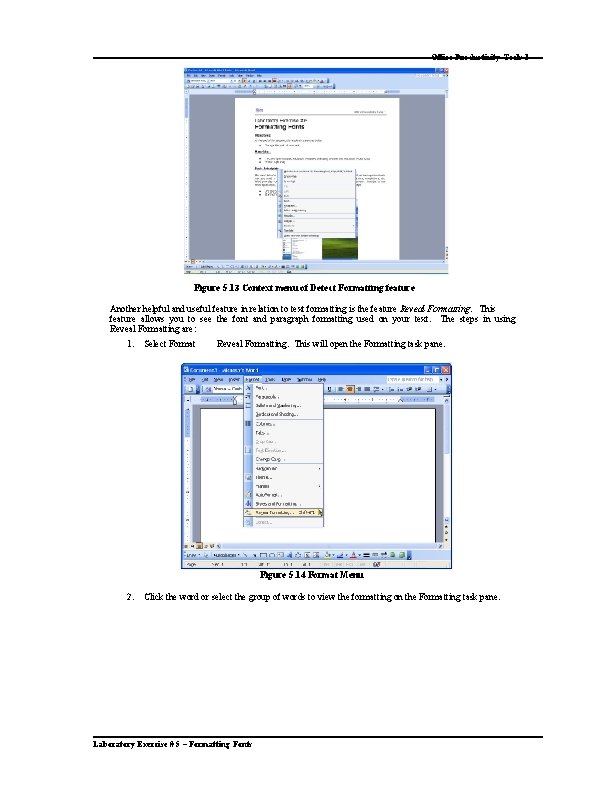
Office Productivity Tools 1 Figure 5. 13 Context menu of Detect Formatting feature Another helpful and useful feature in relation to text formatting is the feature Reveal Formatting. This feature allows you to see the font and paragraph formatting used on your text. The steps in using Reveal Formatting are: 1. Select Format Reveal Formatting. This will open the Formatting task pane. Figure 5. 14 Format Menu 2. Click the word or select the group of words to view the formatting on the Formatting task pane. Laboratory Exercise # 5 – Formatting Fonts

Office Productivity Tools 1 Figure 5. 15 Reveal Formatting Task Pane You can add border to a word or group of words to add emphasis. You can place any border around any text paragraph. This corresponds to a line of text or several lines of text. The steps in placing a border around a text paragraph are: 1. 2. Position the insertion point in the paragraph that you want to place the border around. Select the paragraphs want toand place a border around multiple paragraphs. Select Format if you Borders Shading. Figure 5. 16 Format Menu 3. 4. 5. 6. 7. Select Borders tab which provides several settings on how the border should appear around the text. Select the type of box you want to use in the Setting area of the dialog box. You can choose one of the options by clicking the appropriate setting sample. You can create your own style of border using the Custom option. Click the line style you want to use in the Style scroll box. Click the Color drop-down arrow to change the color of the various parameters for your border. Select the thickness of the line using the Width drop-down arrow. Laboratory Exercise # 5 – Formatting Fonts
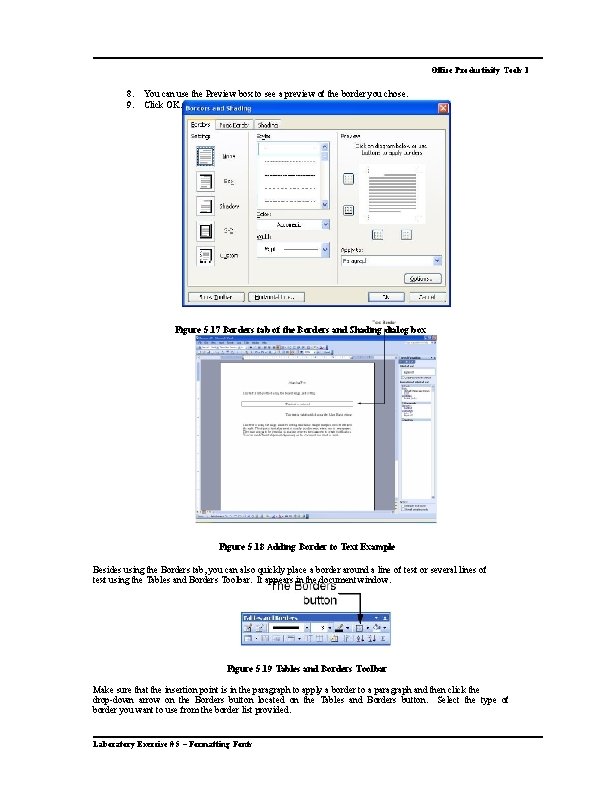
Office Productivity Tools 1 8. 9. You can use the Preview box to see a preview of the border you chose. Click OK. Figure 5. 17 Borders tab of the Borders and Shading dialog box Figure 5. 18 Adding Border to Text Example Besides using the Borders tab, you can also quickly place a border around a line of text or several lines of text using the Tables and Borders Toolbar. It appears in the document window. Figure 5. 19 Tables and Borders Toolbar Make sure that the insertion point is in the paragraph to apply a border to a paragraph and then click the drop-down arrow on the Borders button located on the Tables and Borders button. Select the type of border you want to use from the border list provided. Laboratory Exercise # 5 – Formatting Fonts
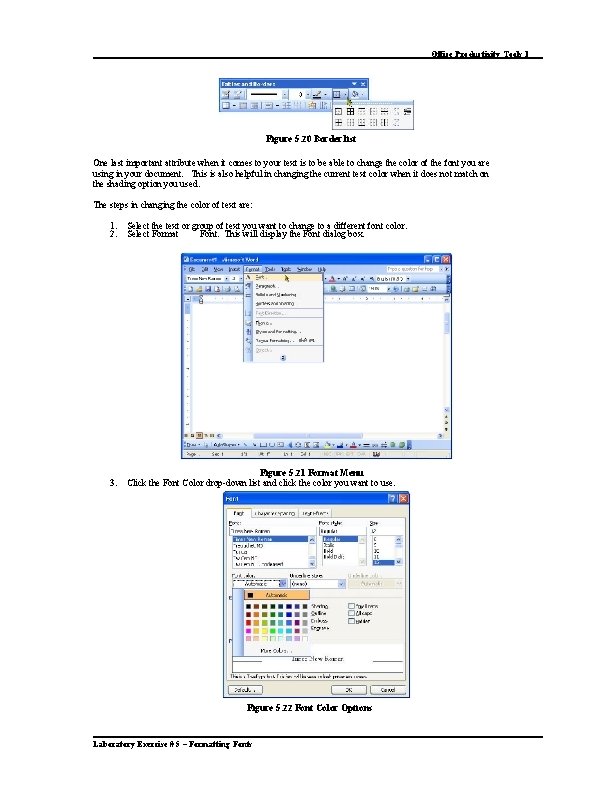
Office Productivity Tools 1 Figure 5. 20 Border list One last important attribute when it comes to your text is to be able to change the color of the font you are using in your document. This is also helpful in changing the current text color when it does not match on the shading option you used. The steps in changing the color of text are: 1. 2. Select the text or group of text you want to change to a different font color. Select Format Font. This will display the Font dialog box. 3. Figure 5. 21 Format Menu Click the Font Color drop-down list and click the color you want to use. Figure 5. 22 Font Color Options Laboratory Exercise # 5 – Formatting Fonts
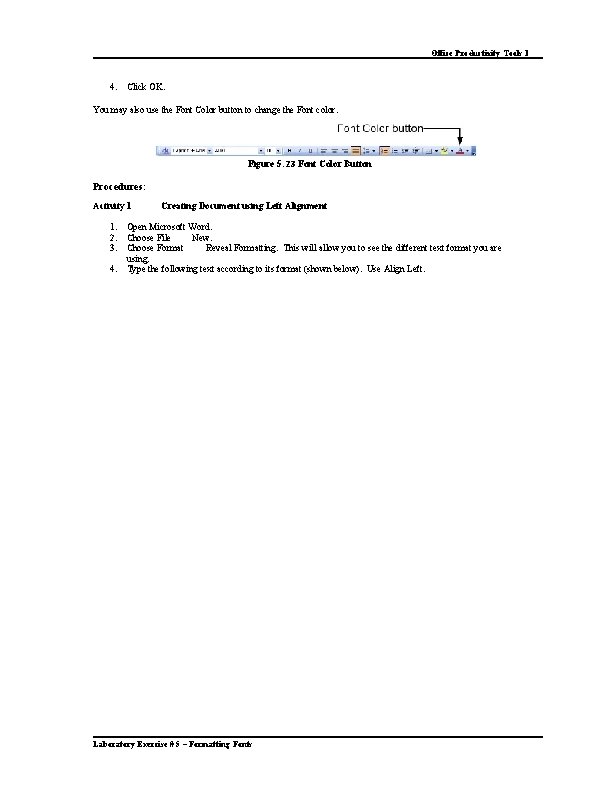
Office Productivity Tools 1 4. Click OK. You may also use the Font Color button to change the Font color. Figure 5. 23 Font Color Button Procedures: Activity 1 1. 2. 3. 4. Creating Document using Left Alignment Open Microsoft Word. Choose File New. Reveal Formatting. This will allow you to see the different text format you are Choose Format using. Type the following text according to its format (shown below). Use Align Left. Laboratory Exercise # 5 – Formatting Fonts
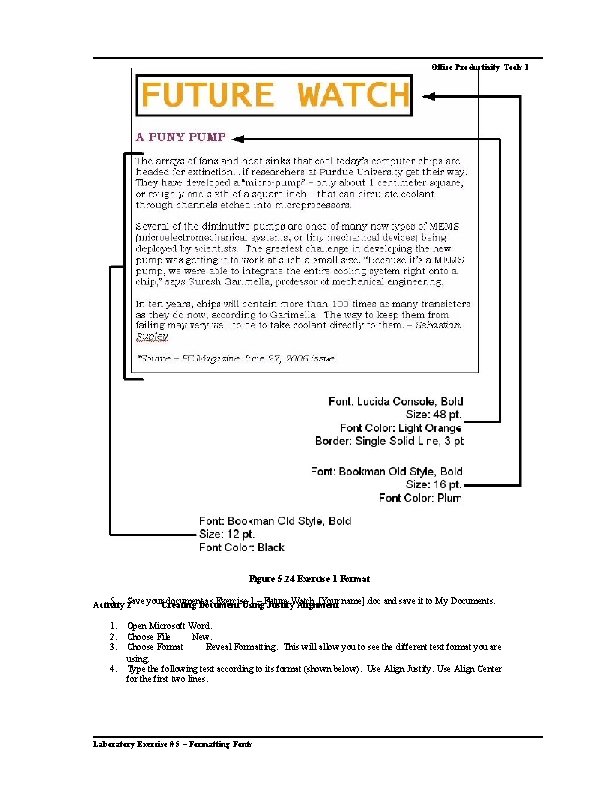
Office Productivity Tools 1 Figure 5. 24 Exercise 1 Format 5. Save your. Creating document. Document as Exercise 1 – Future [Your name]. doc and save it to My Documents. Activity 2 Using Justify. Watch Alignment 1. 2. 3. 4. Open Microsoft Word. Choose File New. Reveal Formatting. This will allow you to see the different text format you are Choose Format using. Type the following text according to its format (shown below). Use Align Justify. Use Align Center for the first two lines. Laboratory Exercise # 5 – Formatting Fonts
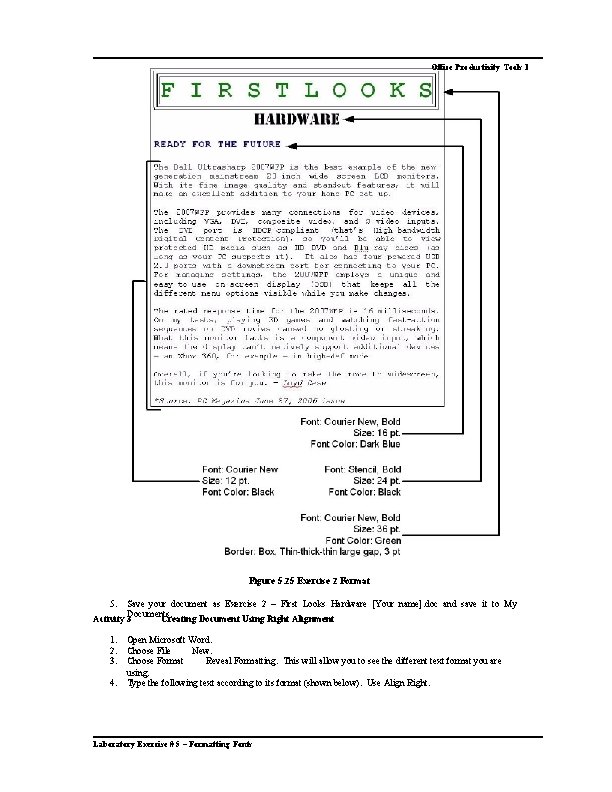
Office Productivity Tools 1 Figure 5. 25 Exercise 2 Format 5. Save your document as Exercise 2 – First Looks Hardware [Your name]. doc and save it to My Documents. Activity 3 Creating Document Using Right Alignment 1. 2. 3. 4. Open Microsoft Word. Choose File New. Reveal Formatting. This will allow you to see the different text format you are Choose Format using. Type the following text according to its format (shown below). Use Align Right. Laboratory Exercise # 5 – Formatting Fonts
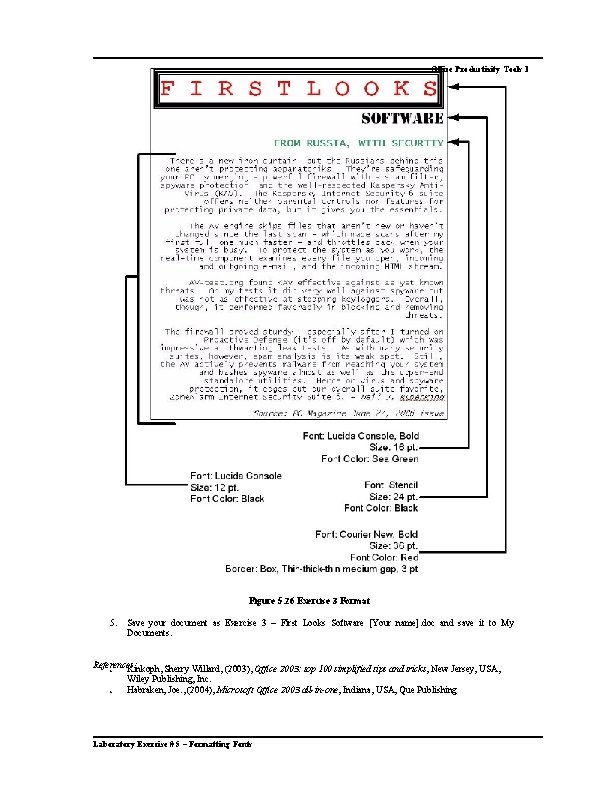
Office Productivity Tools 1 Figure 5. 26 Exercise 3 Format 5. Save your document as Exercise 3 – First Looks Software [Your name]. doc and save it to My Documents. References: • Kinkoph, Sherry Willard, (2003), Office 2003: top 100 simplified tips and tricks, New Jersey, USA, Wiley Publishing, Inc. • Habraken, Joe. , (2004), Microsoft Office 2003 all-in-one, Indiana, USA, Que Publishing Laboratory Exercise # 5 – Formatting Fonts
- Slides: 16